



and

Padlet & Linoit – interactive
online sticky boards
By Fiona Beal
1
http://goo.gl/w8Xrd4
http://padlet.com/wall/6l67al5ucq
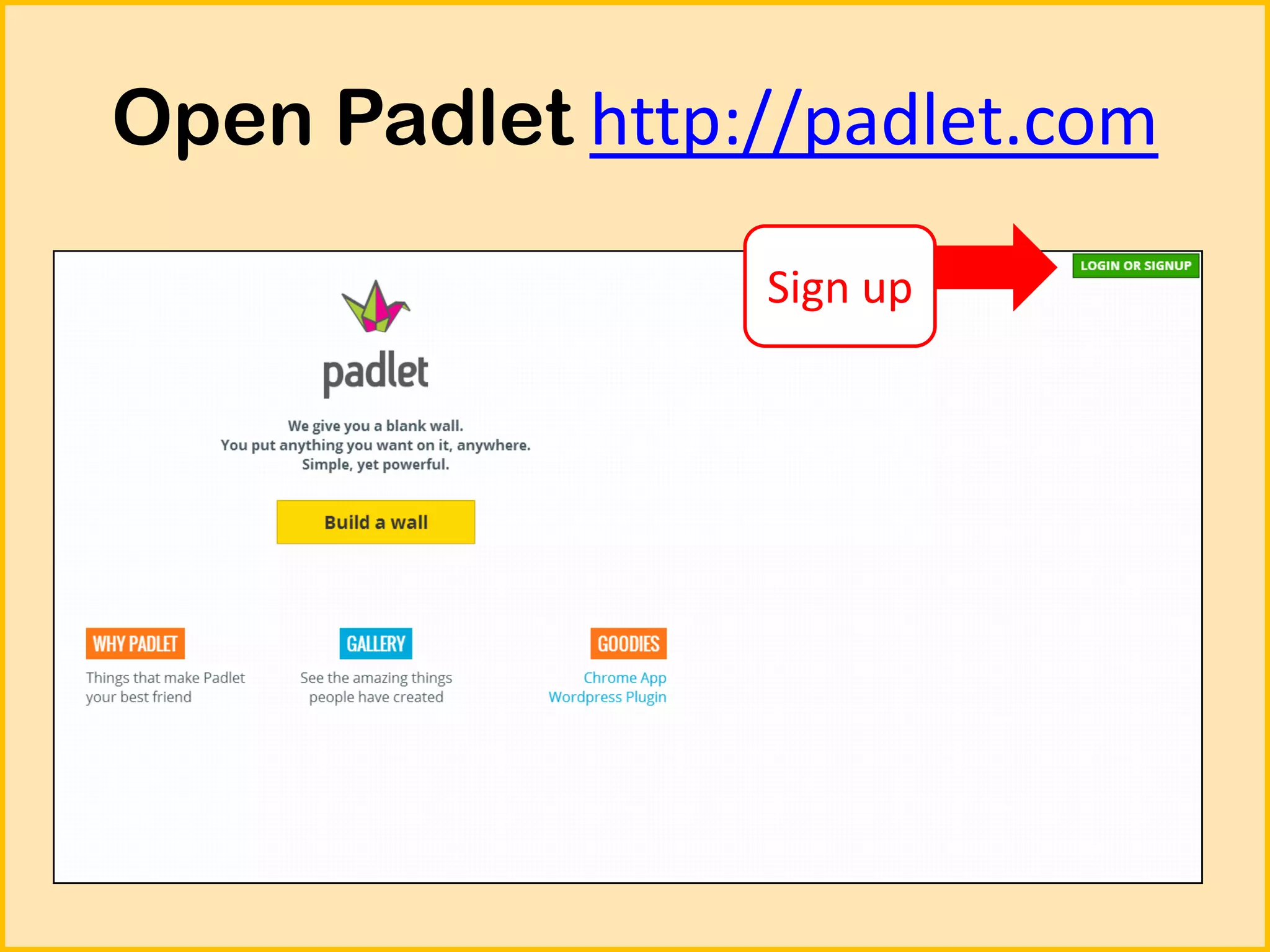
Open Padlet http://padlet.com
Sign up
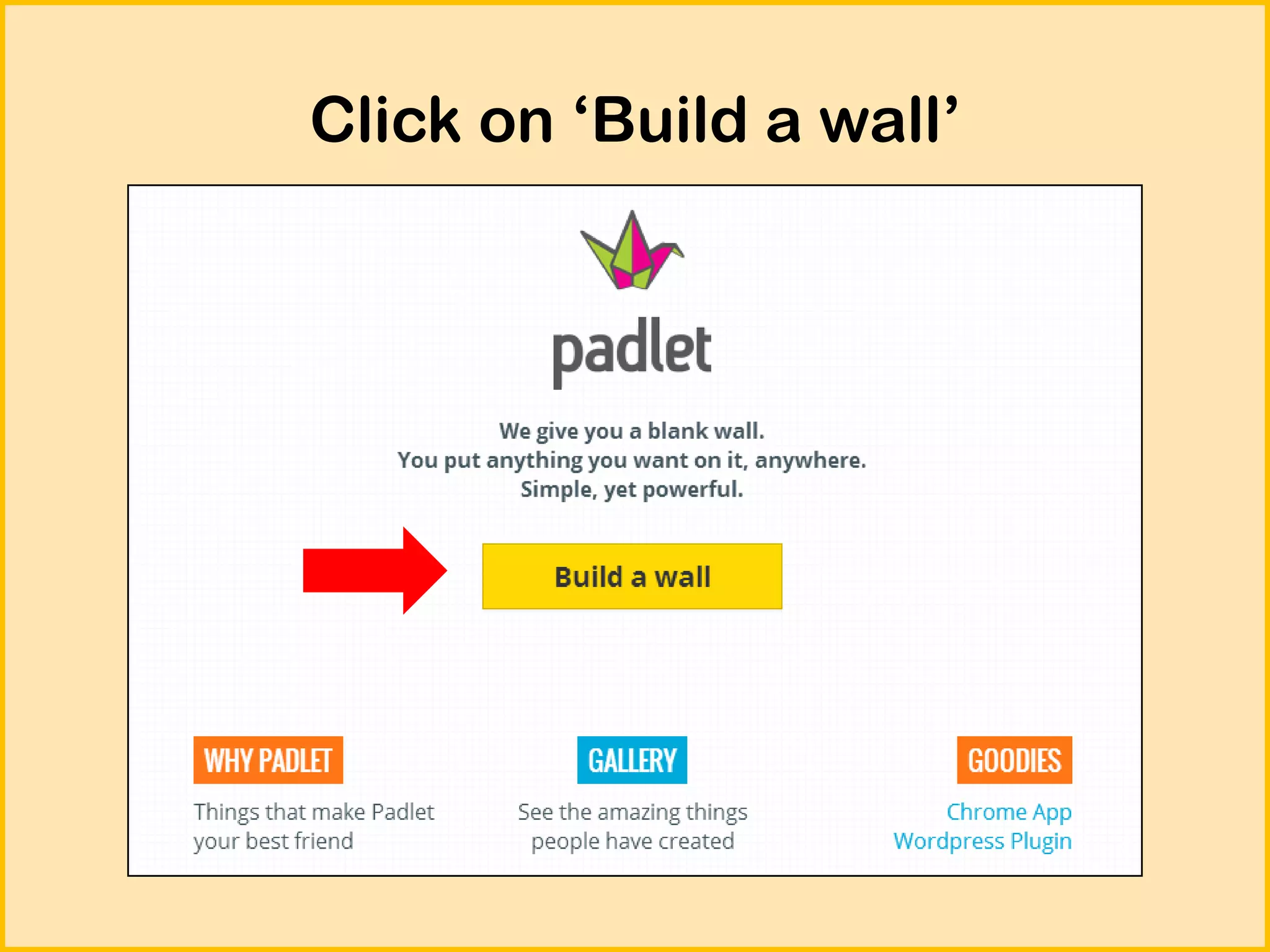
Click on ‘Build a wall’
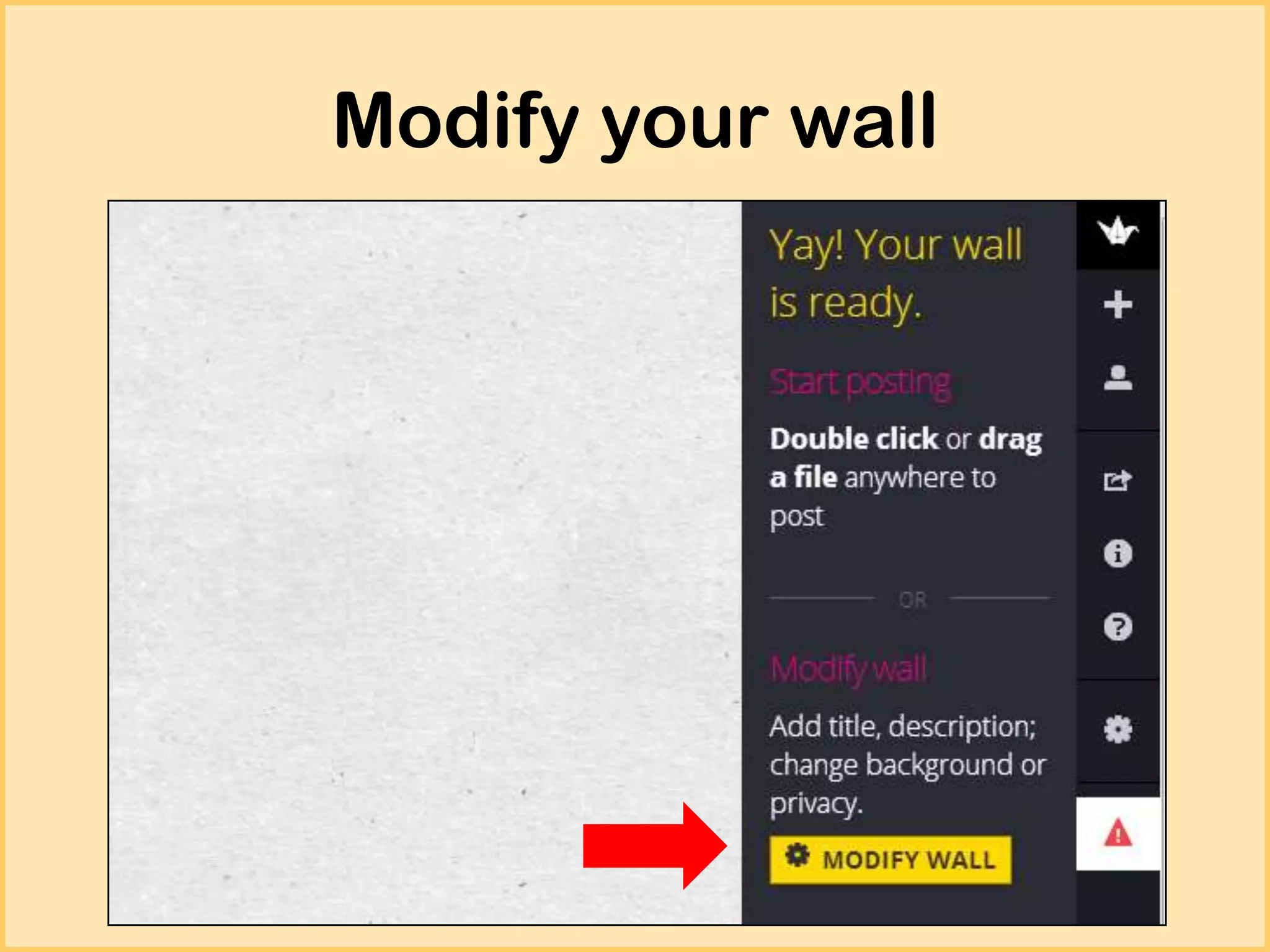
Modify your wall
Make your changes
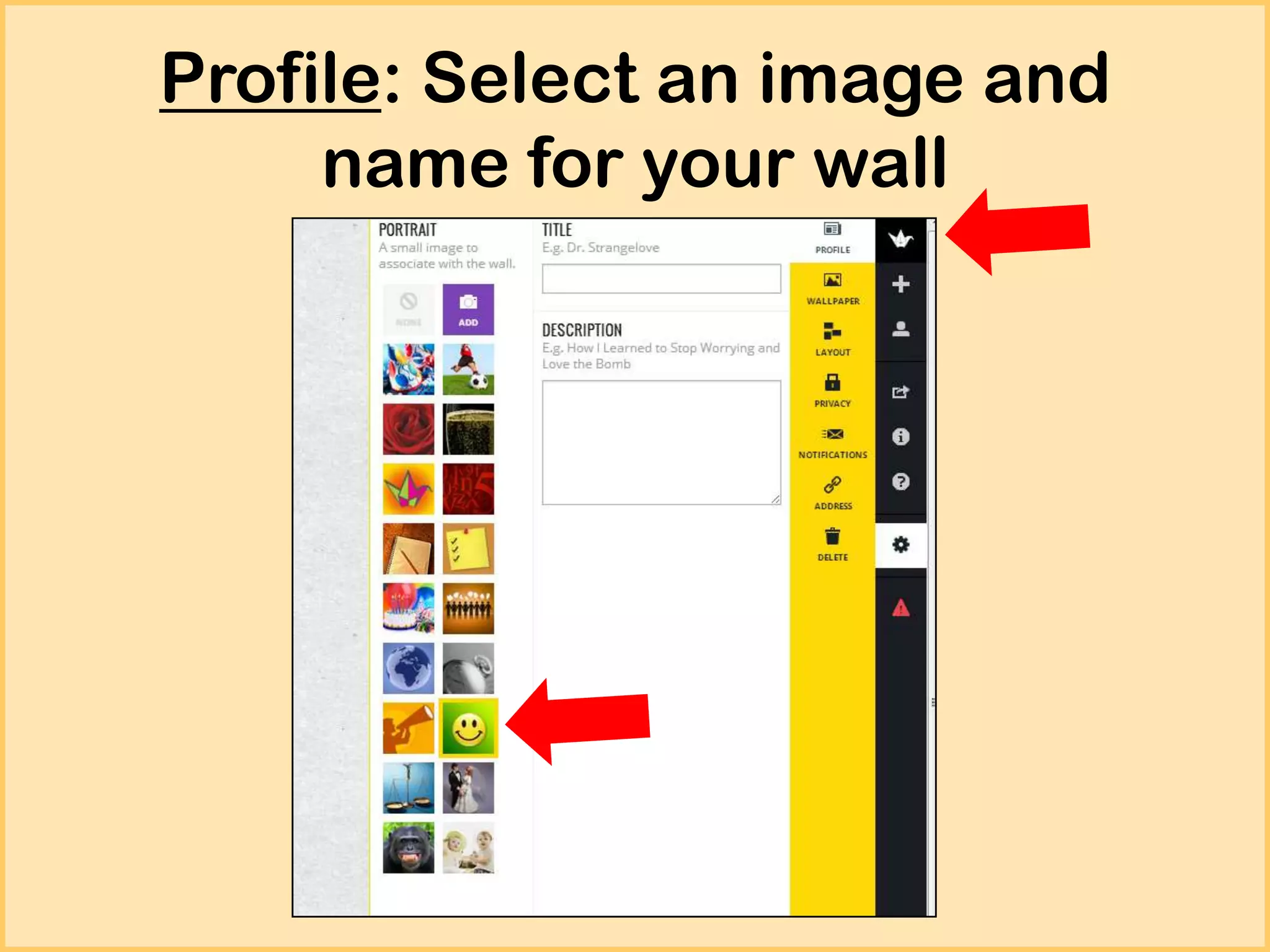
Profile: Select an image and
name for your wall
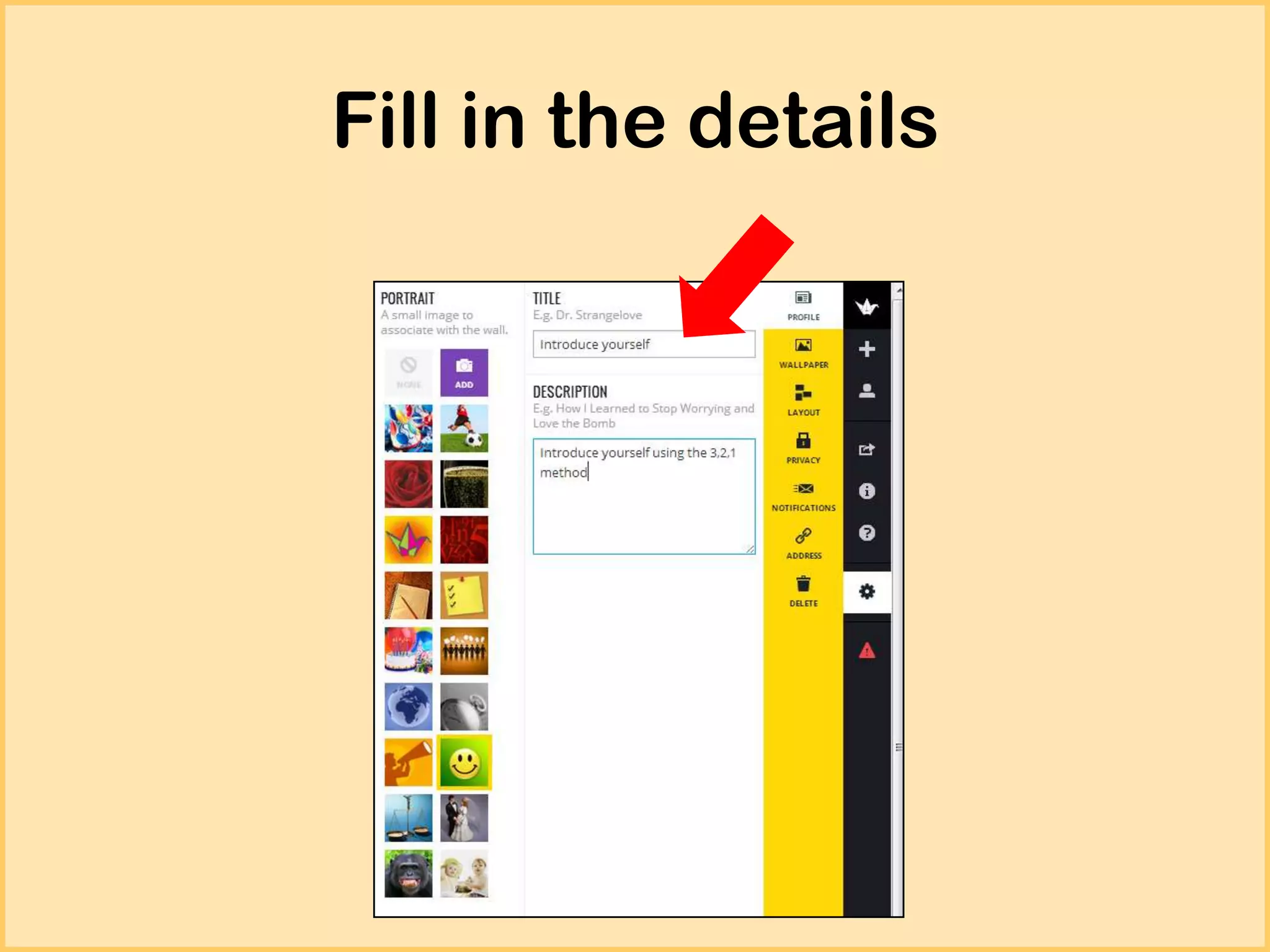
Fill in the details
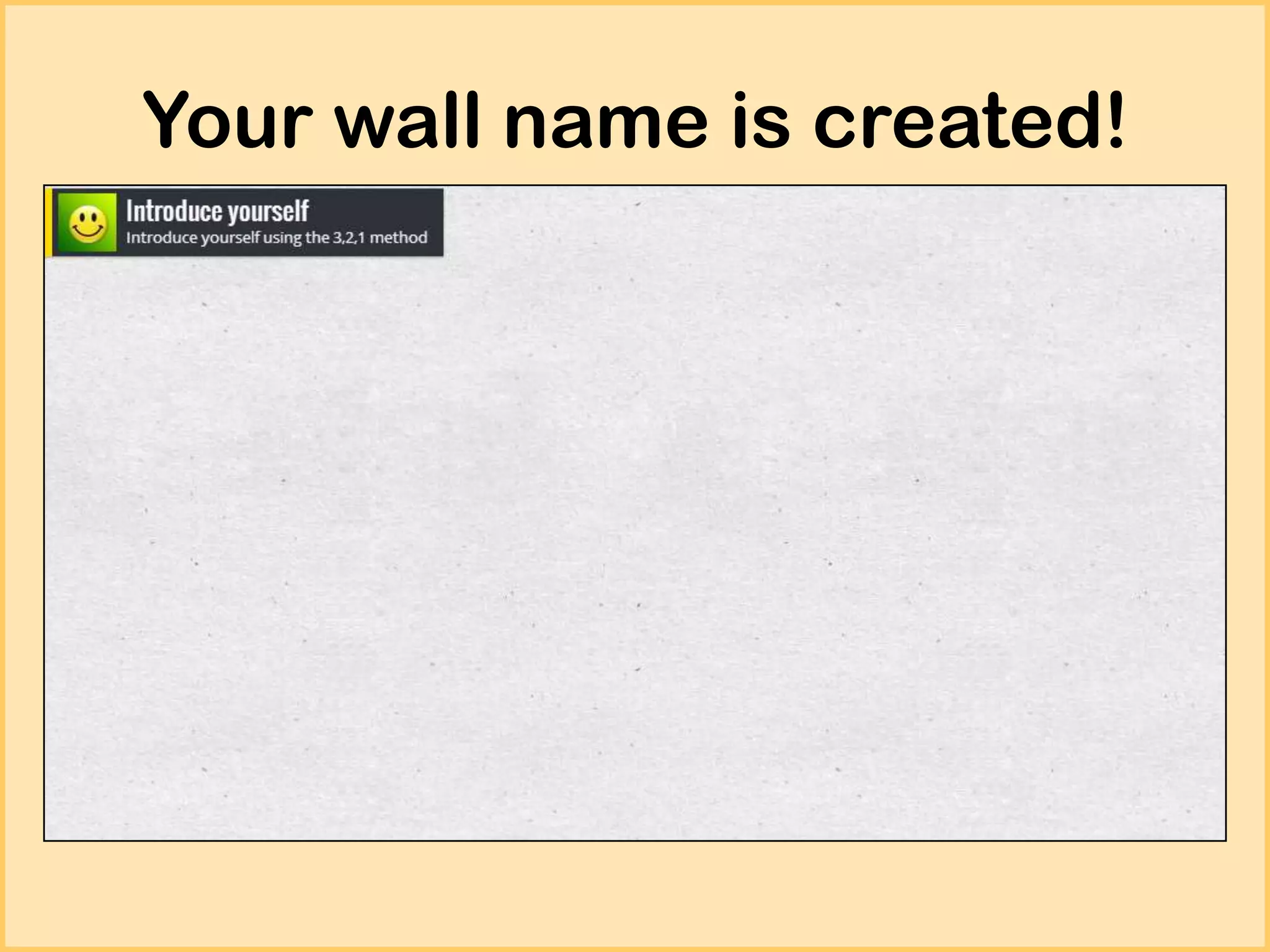
Your wall name is created!
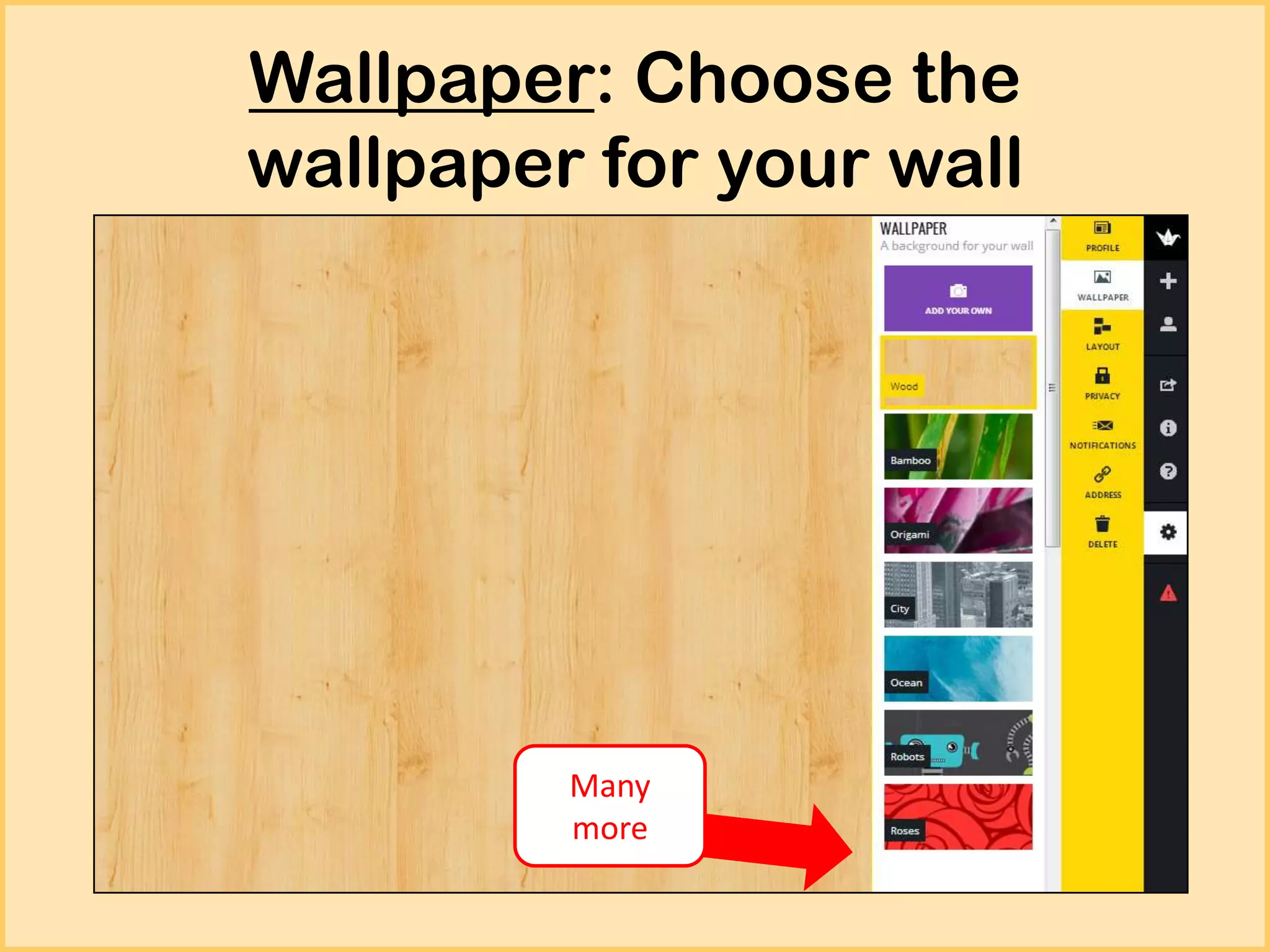
Wallpaper: Choose the
wallpaper for your wall

Many
more
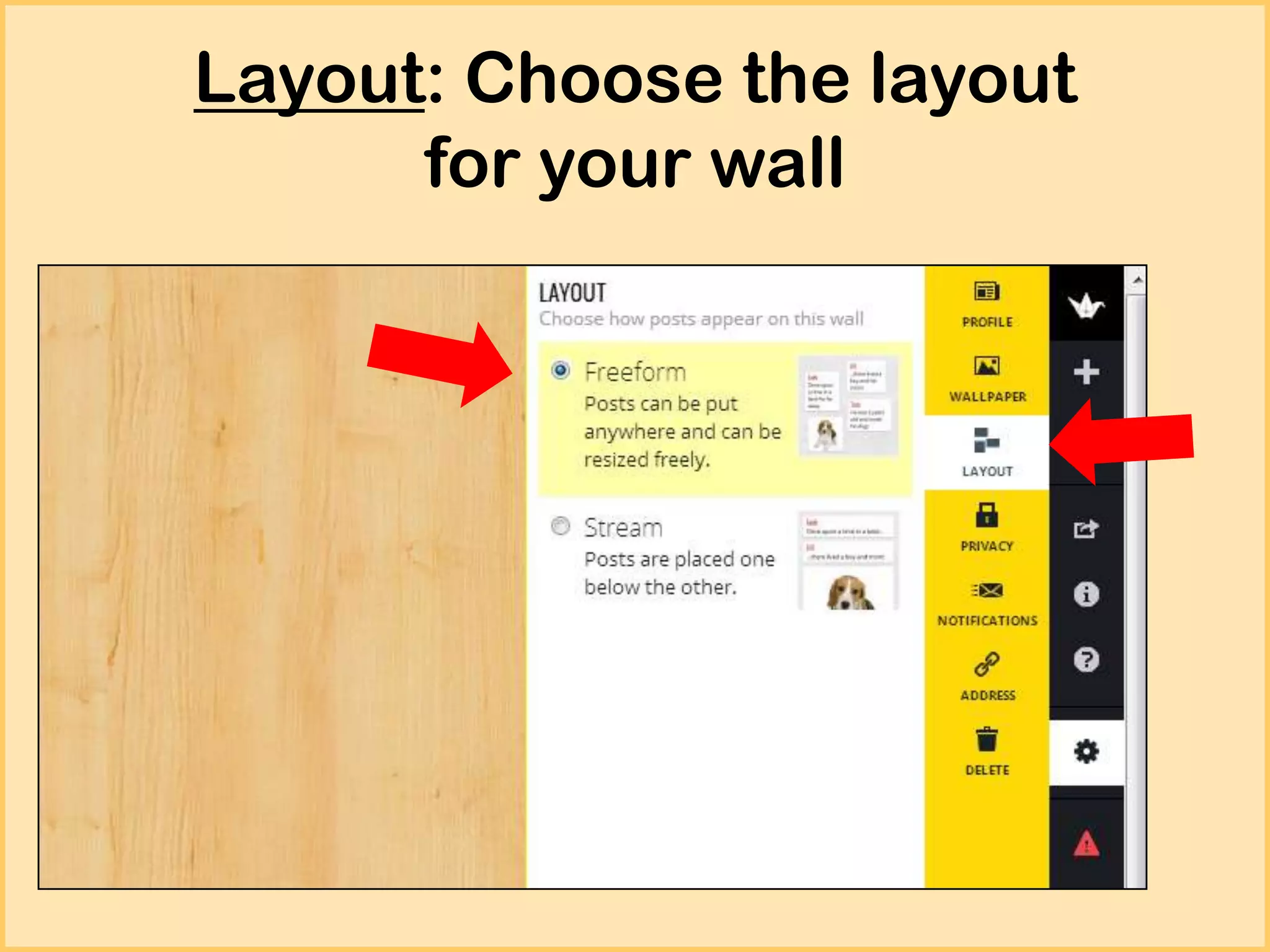
Layout: Choose the layout
for your wall
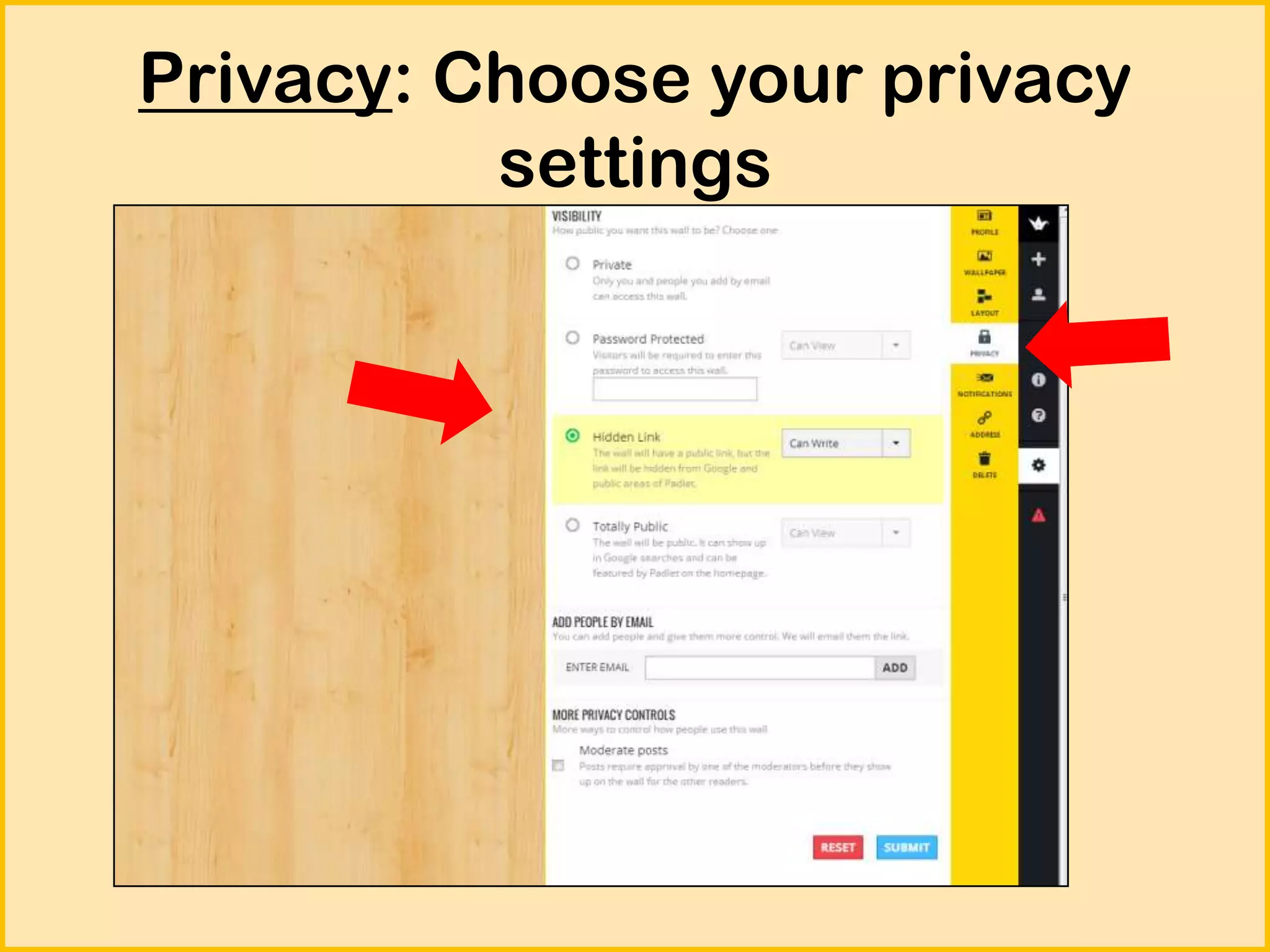
Privacy: Choose your privacy
settings
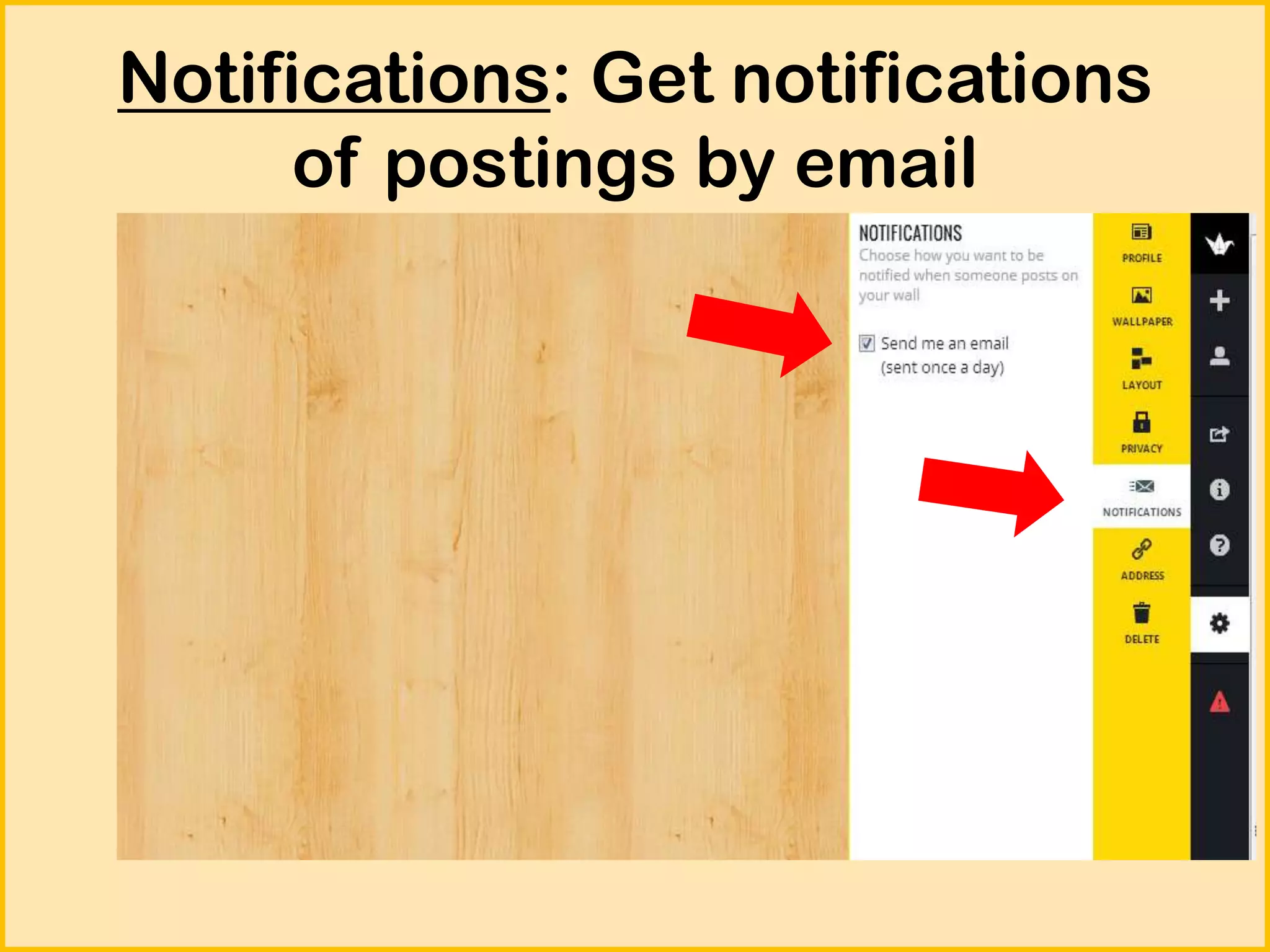
Notifications: Get notifications
of postings by email
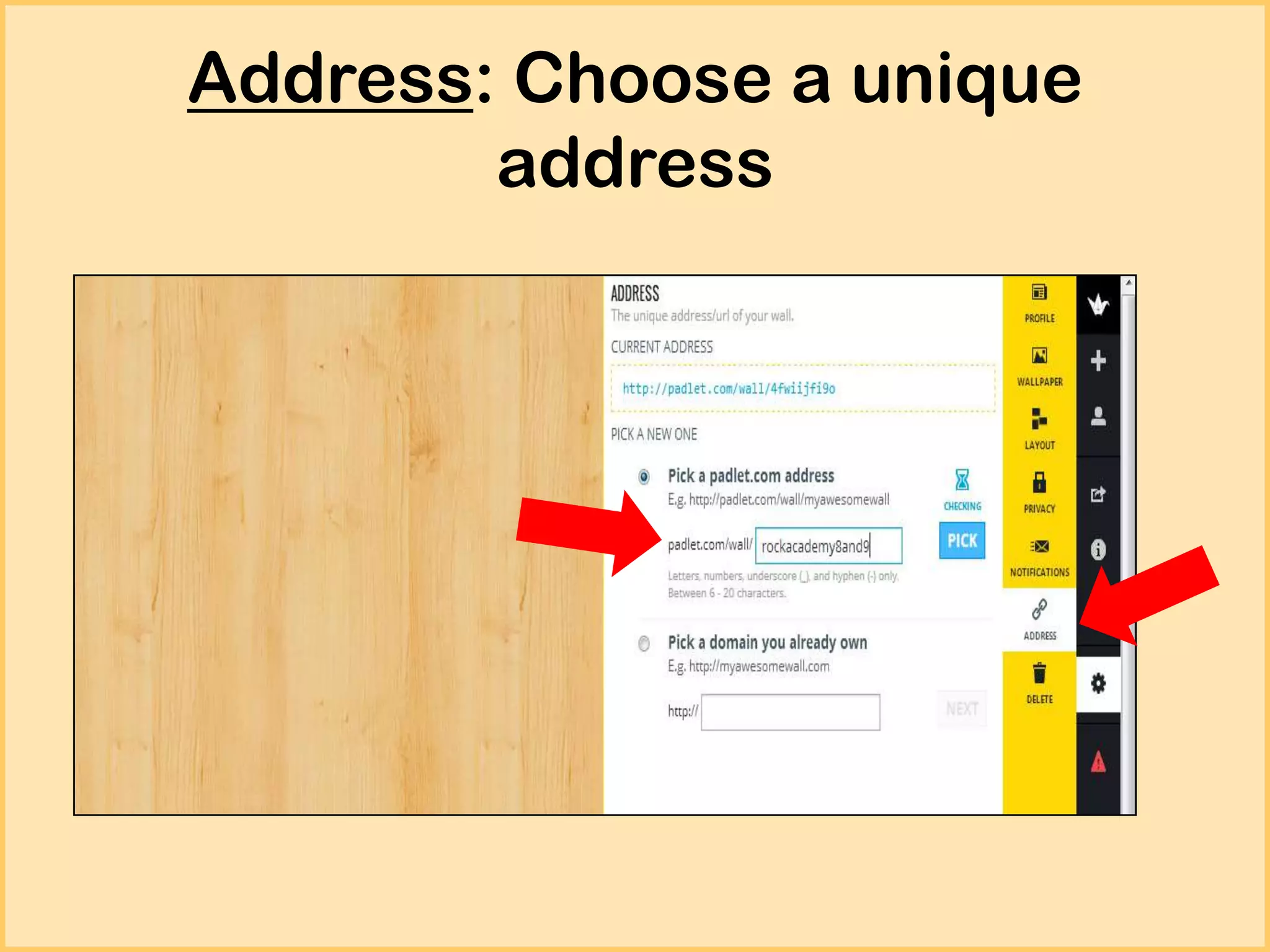
Address: Choose a unique
address
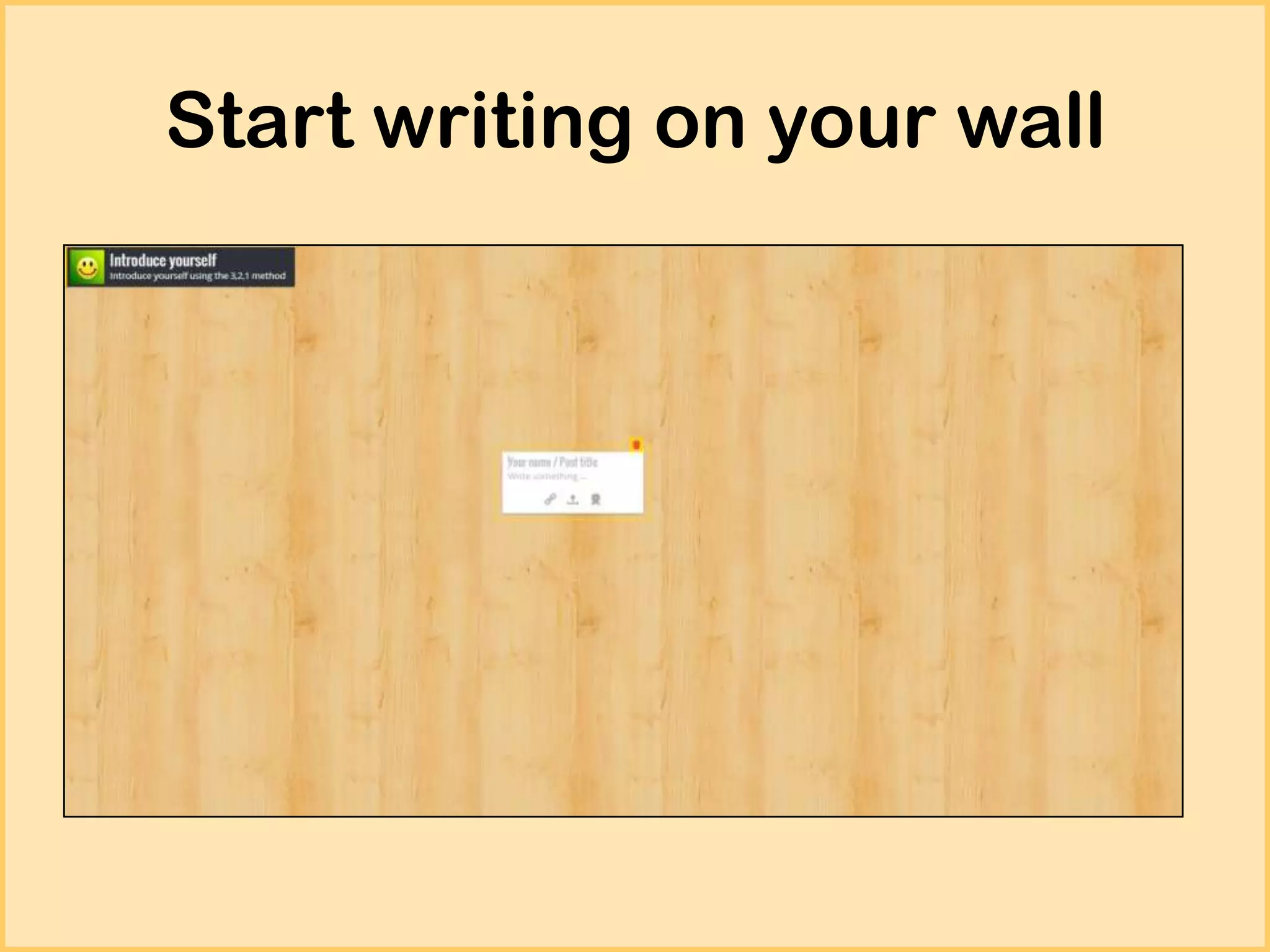
Start writing on your wall
New features
1. You can moderate all notes before making
them public
2. Padlet offers an option to download the
contents of your walls as PDFs, images, Excel, or
CSV files. Once downloaded you can print the
contents of your walls.
3. Padlet has a Chrome app too.
Classroom uses
1. Use Padlet for introductions
I recently used Padlet for students to introduce themselves and say what they
are hoping to learn. It worked really well. There are a myriad of uses for this
application.
2. Use Padlet as a KWL chart
Ask students to share anonymously what they know and what they want to
know about a topic.
3. Use Padlet for group research
Let the students add videos and notes about their research on a particular
topic.
4. Use Padlet as a showcase of your students’ work
Let your students add links to their various online creations
5. Use Padlet as a book review platform
Let students write their comments on a chapter they have read.
6. Use Padlet as a thankyou wall
Let your students thank speakers or a special teacher or anyone you choose
to and email them the link.
http://blog.padlet.com/2013/03/how-to-usepadletcom-in-classroom.html
http://goo.gl/jPUIVZ
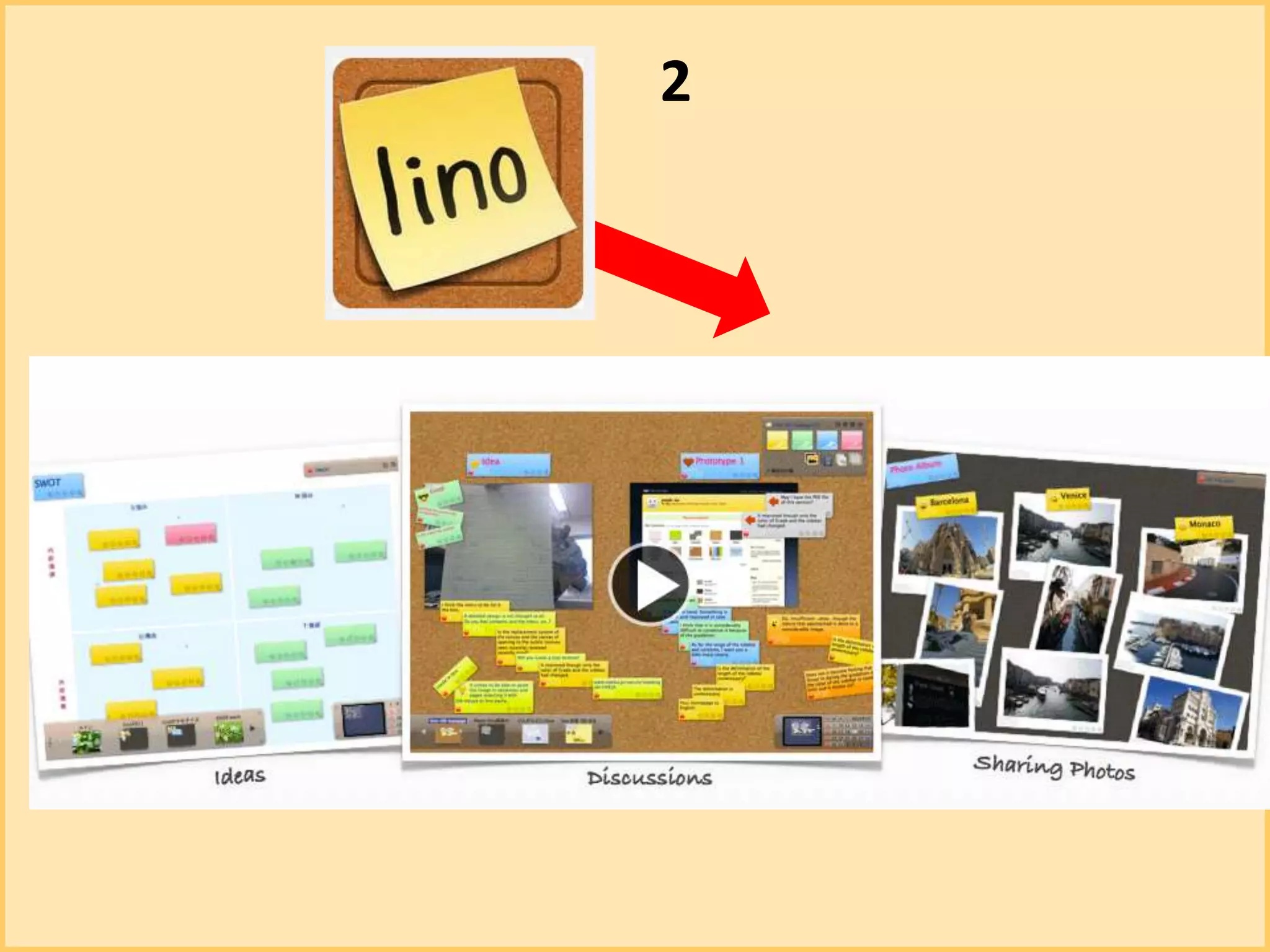
Now to Linoit
2
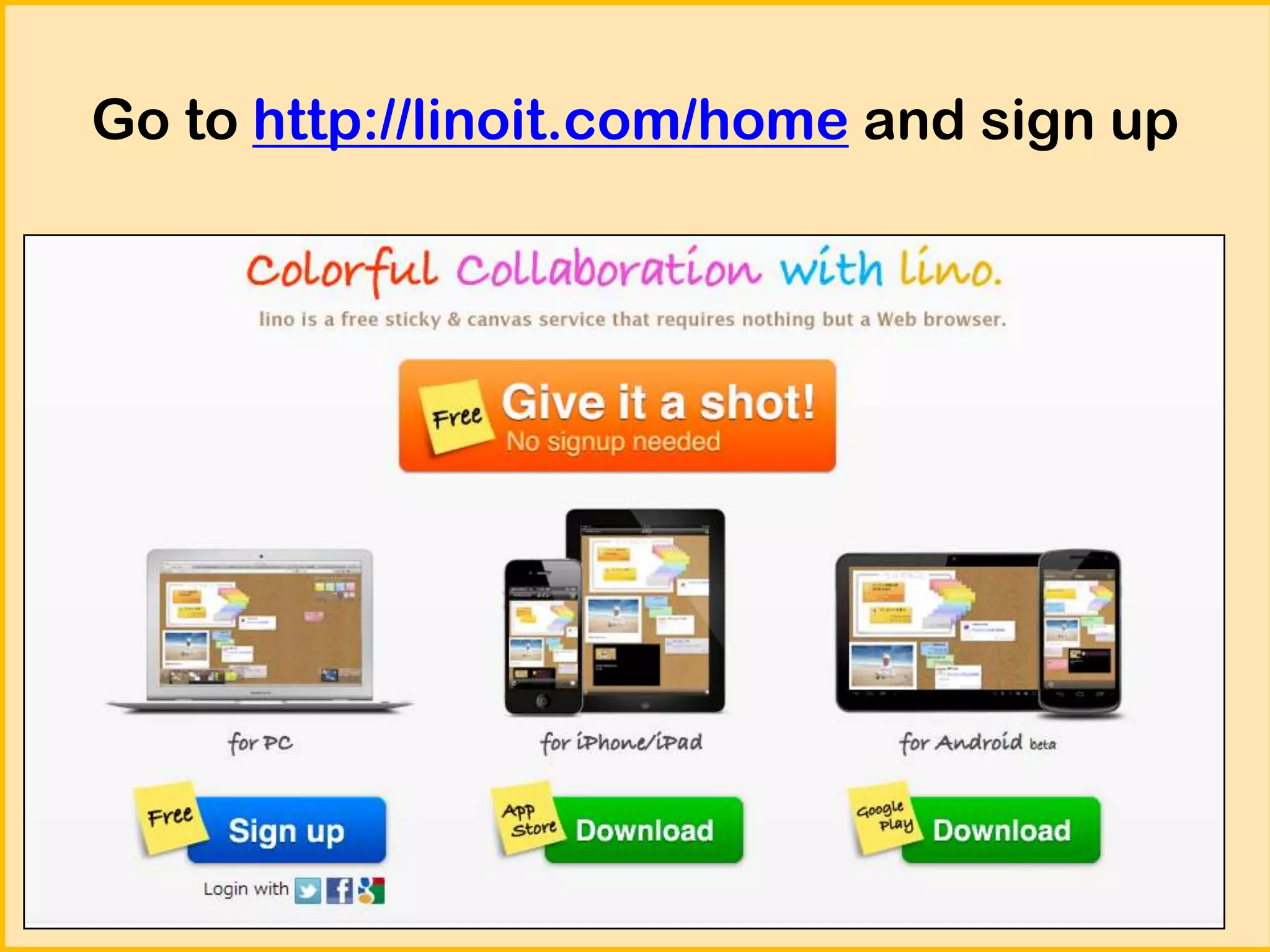
Go to http://linoit.com/home and sign up
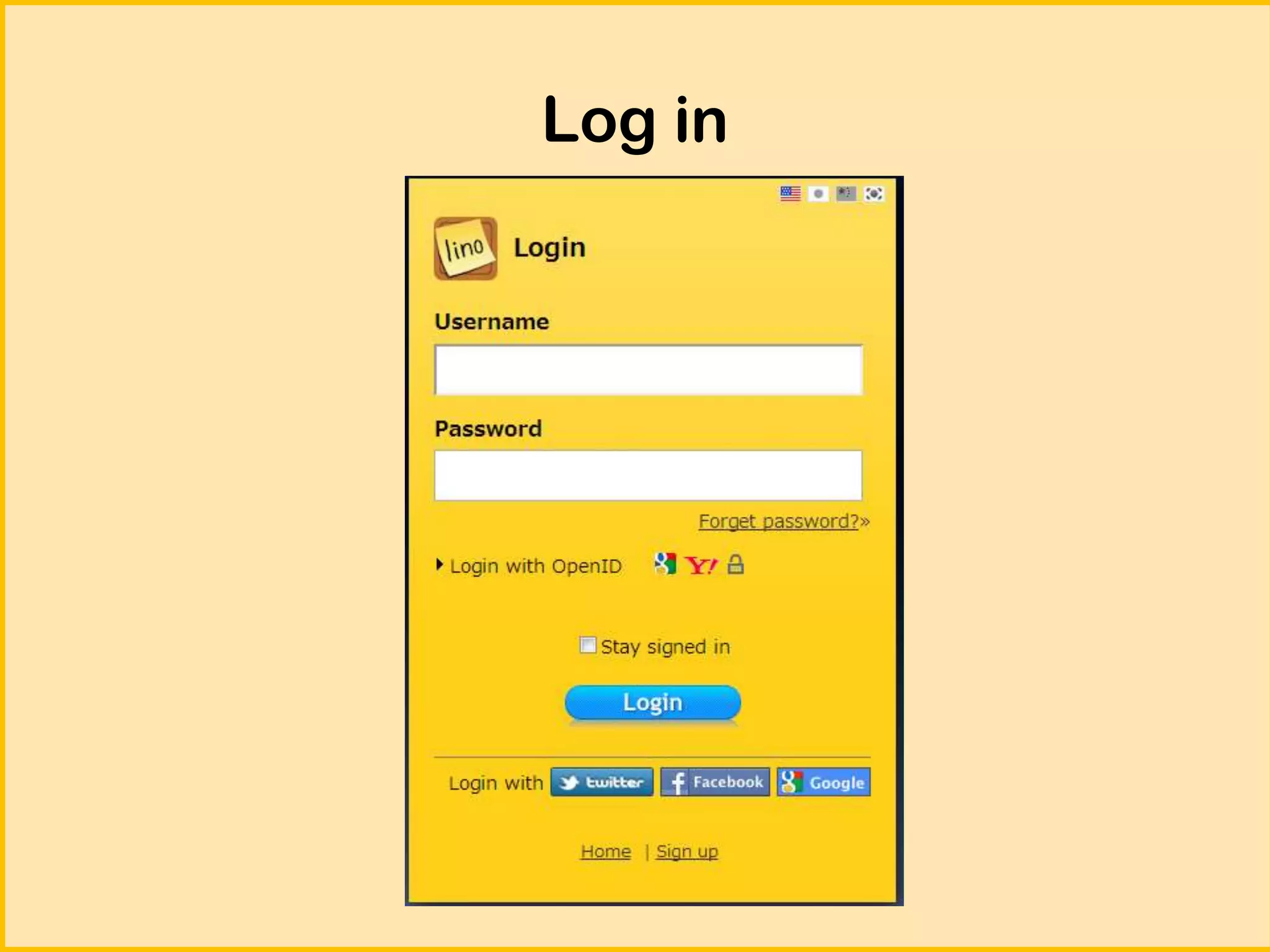
Log in
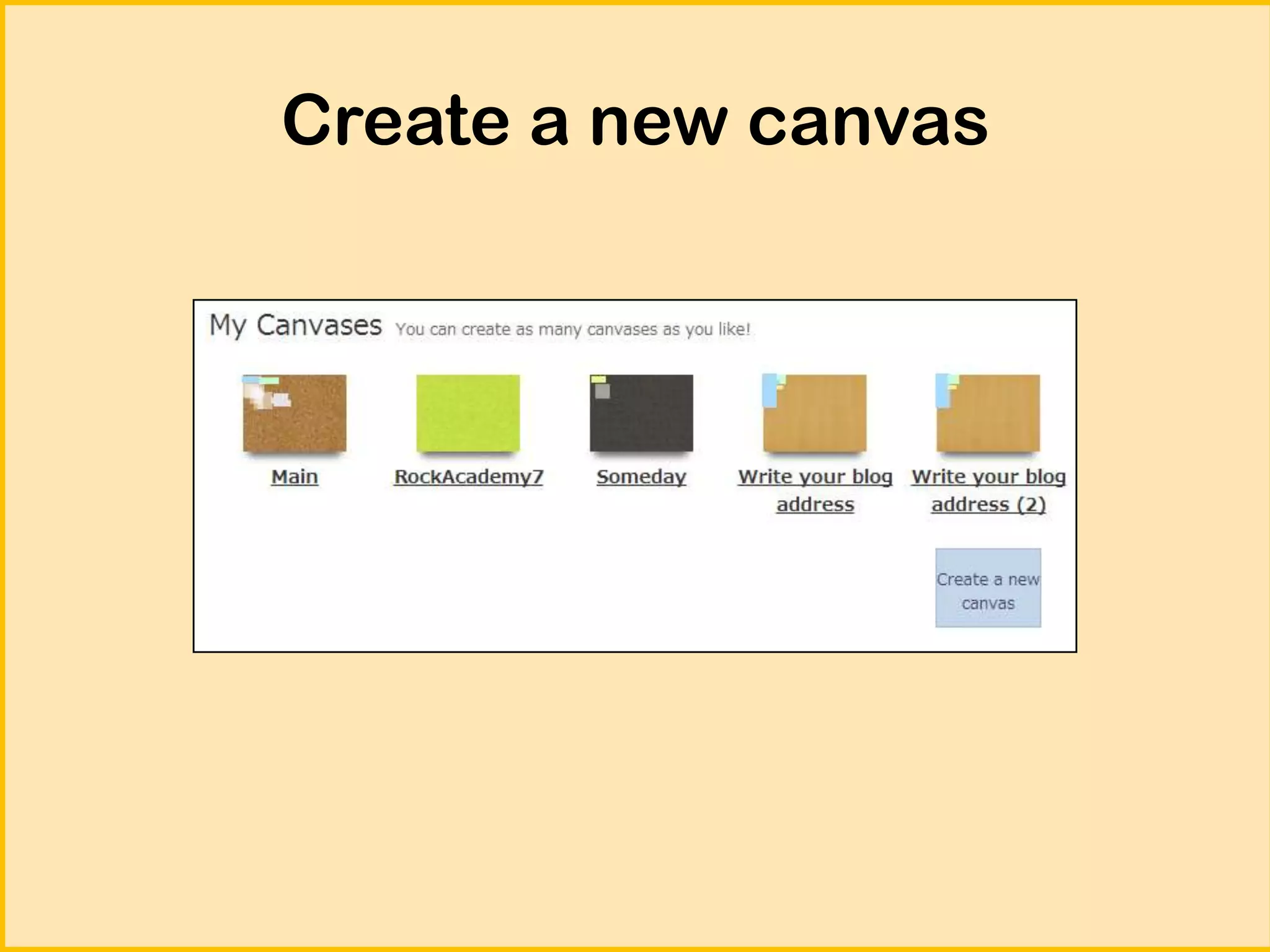
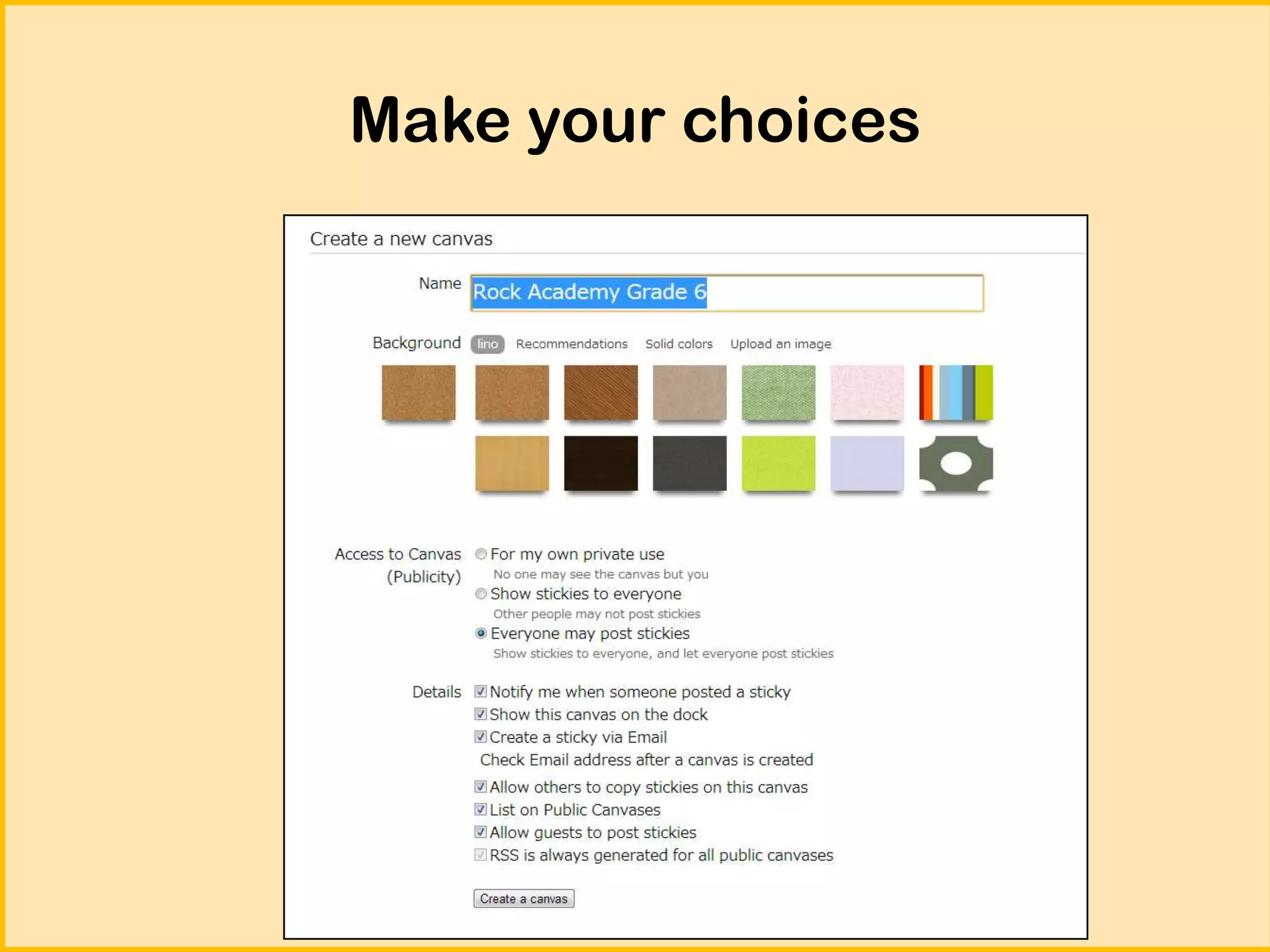
Create a new canvas
Make your choices
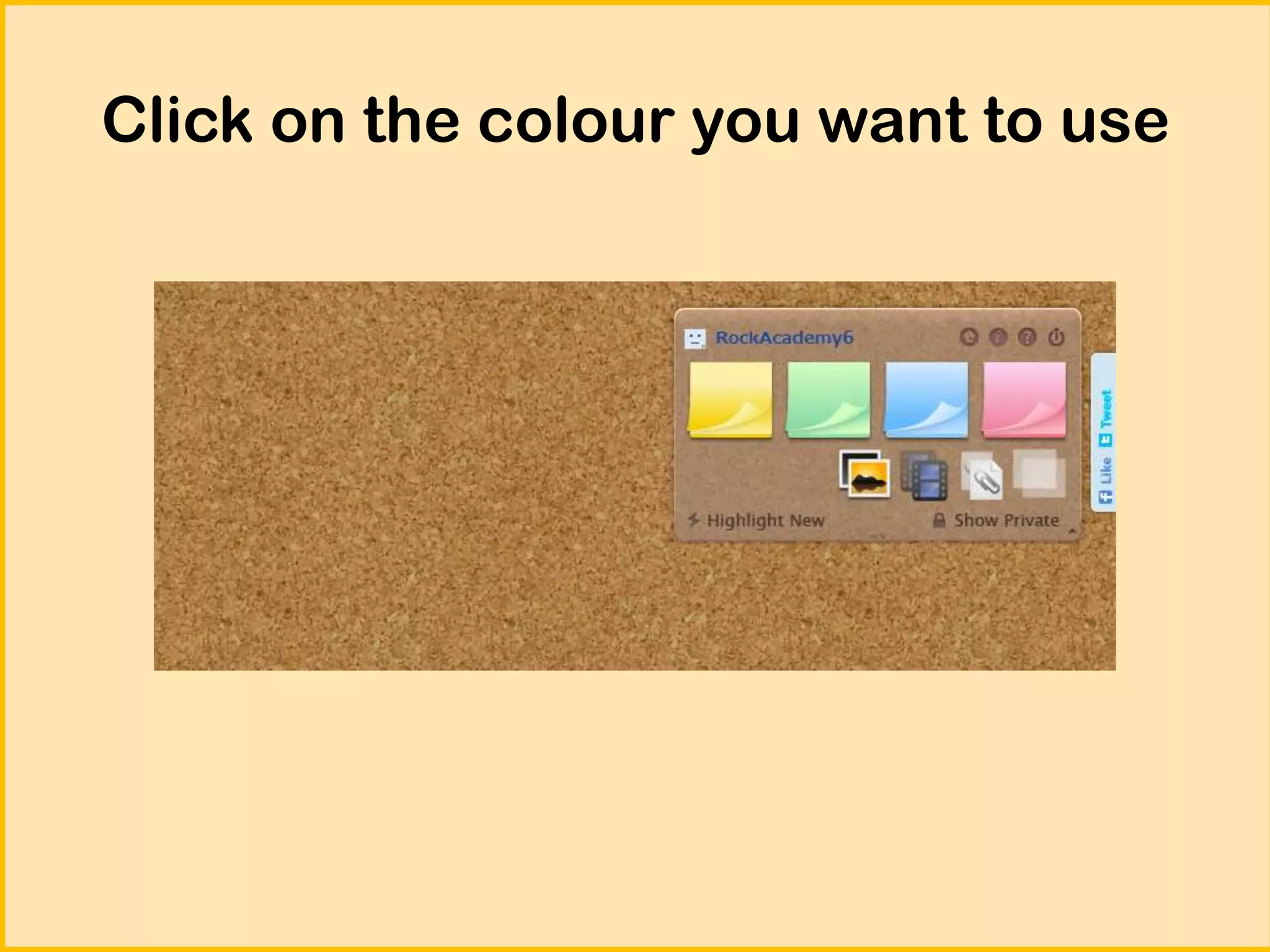
Click on the colour you want to use
Start writing on your stickie
(add your name)
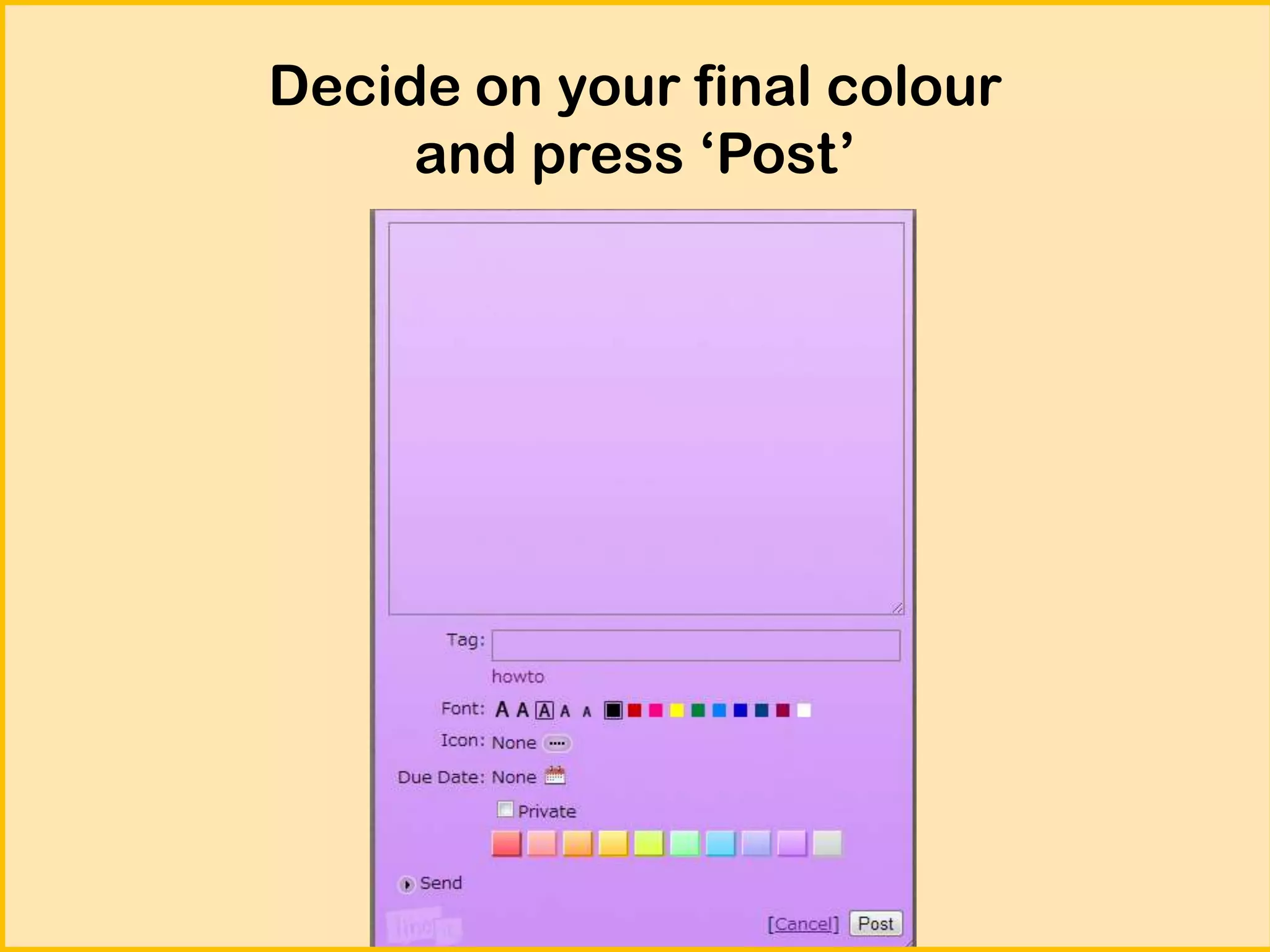
Decide on your final colour
and press ‘Post’
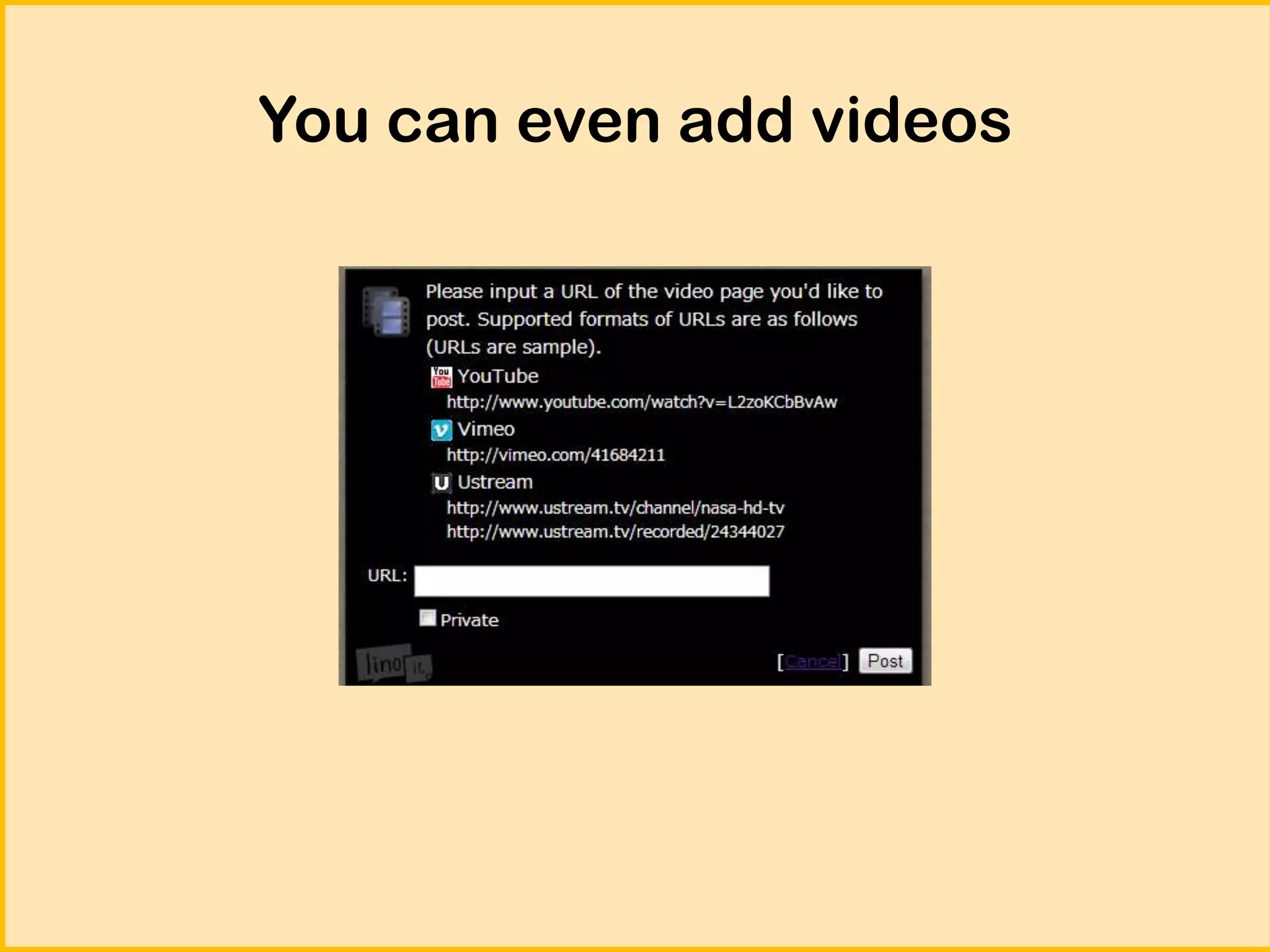
You can even add videos
Thank you!

Use Padlet and Linoit to collect student responses