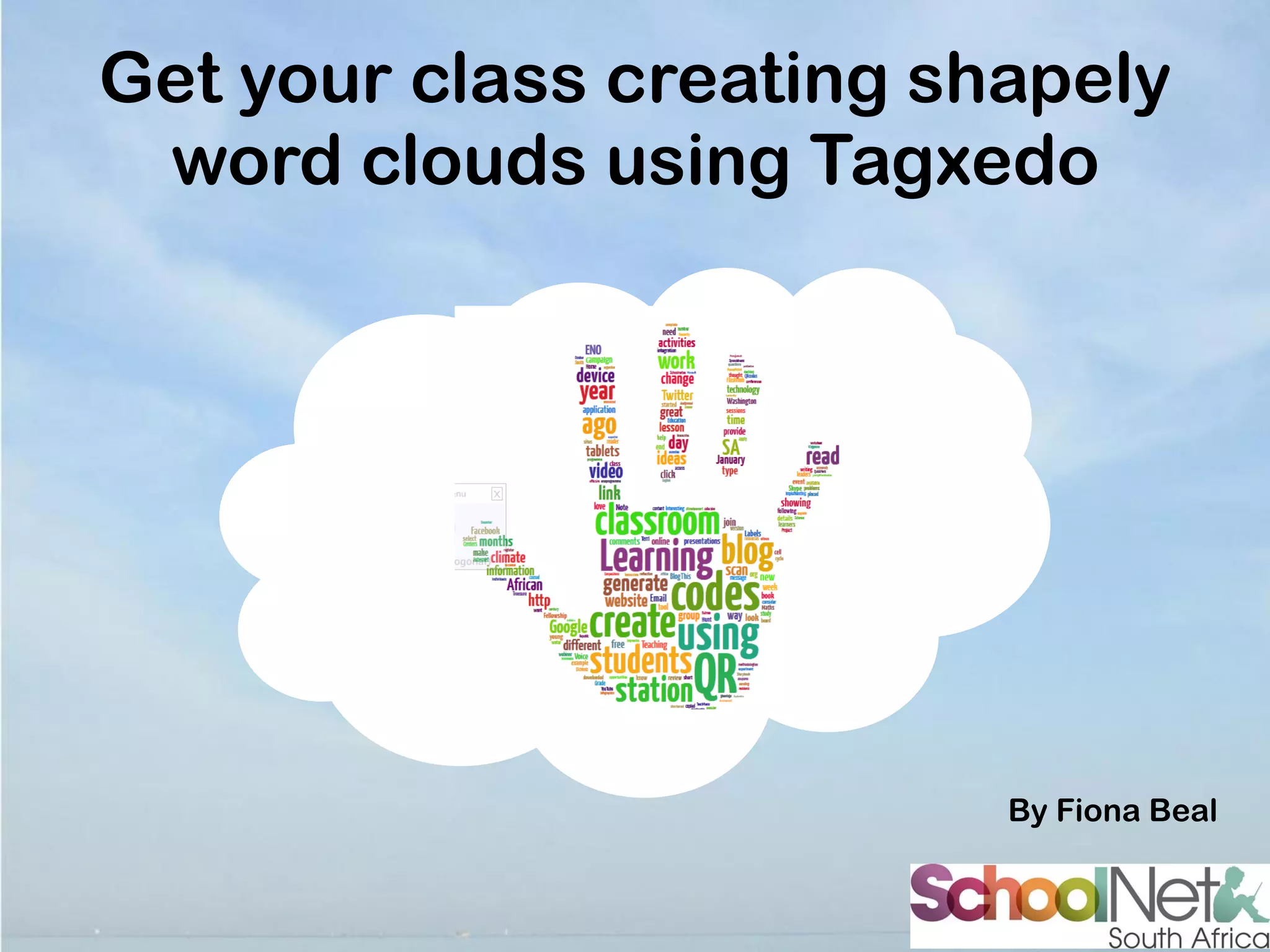
Get your class creating shapely
word clouds using Tagxedo

By Fiona Beal
What is a word cloud?
Tagxedo turns words -- famous speeches,
news articles, slogans and themes, even
your love letters -- into a visually stunning
word cloud, words individually sized
appropriately to highlight the frequencies of
occurrence within the body of text…
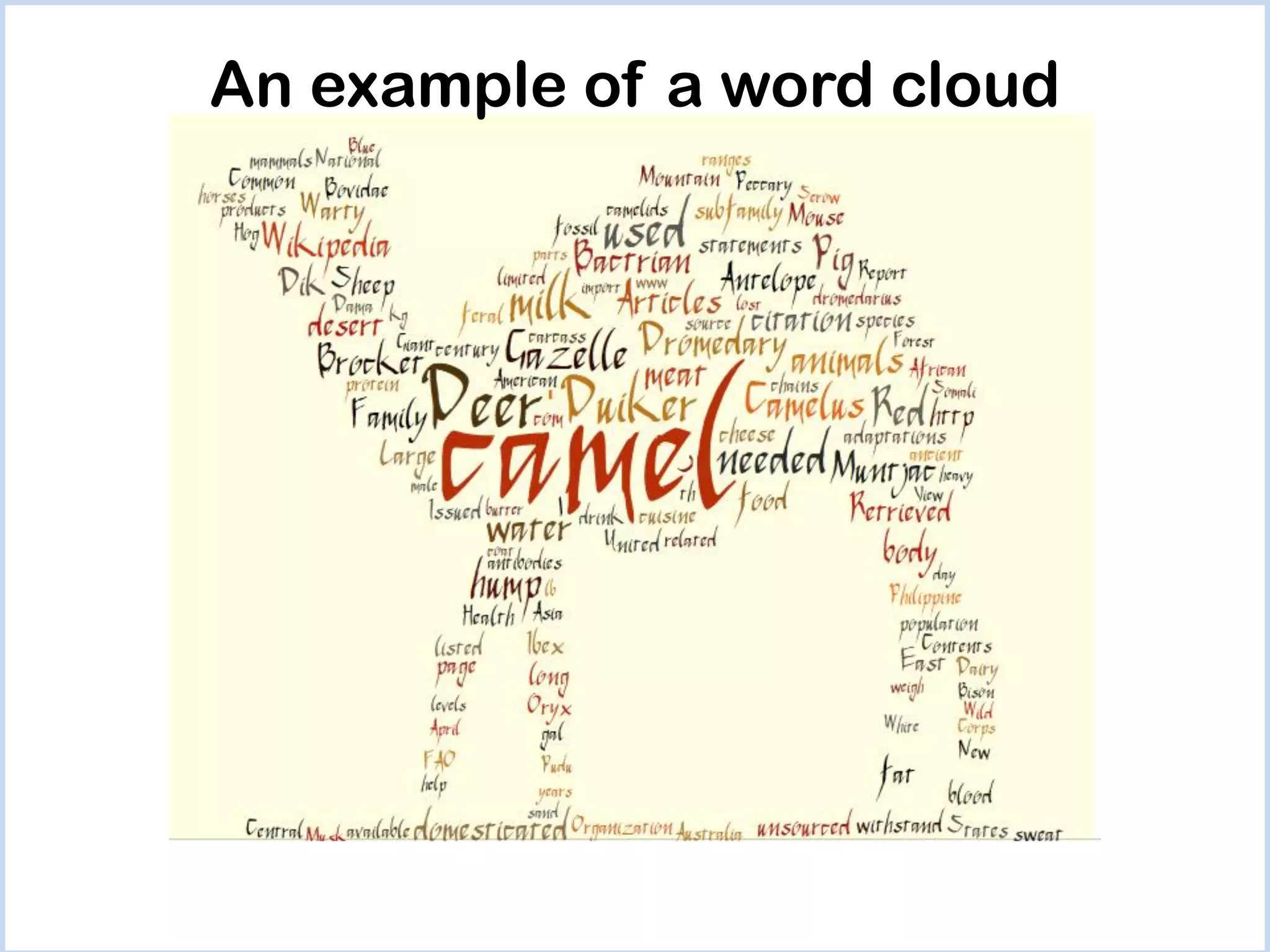
An example of a word cloud
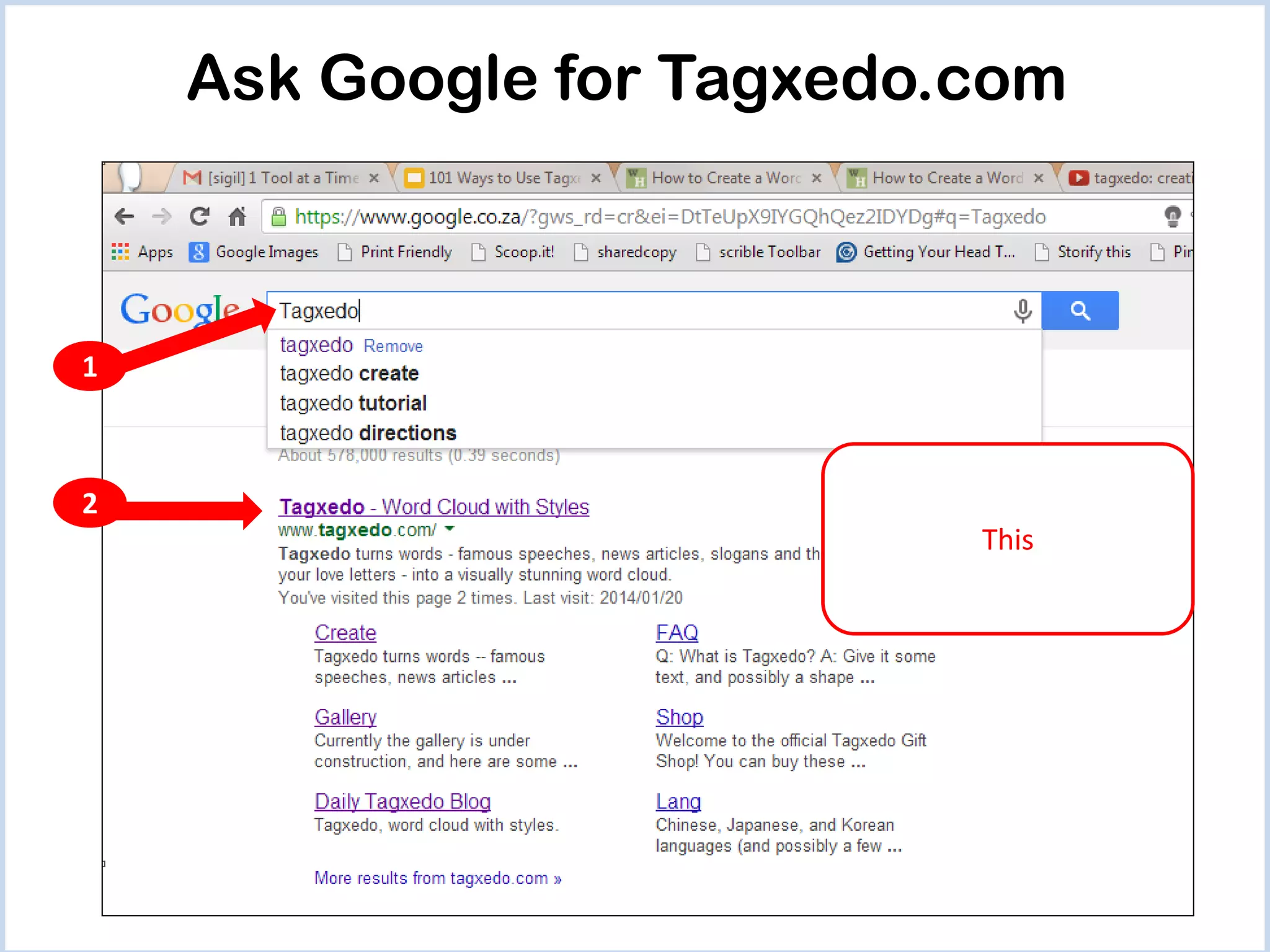
Ask Google for Tagxedo.com

1

2
This
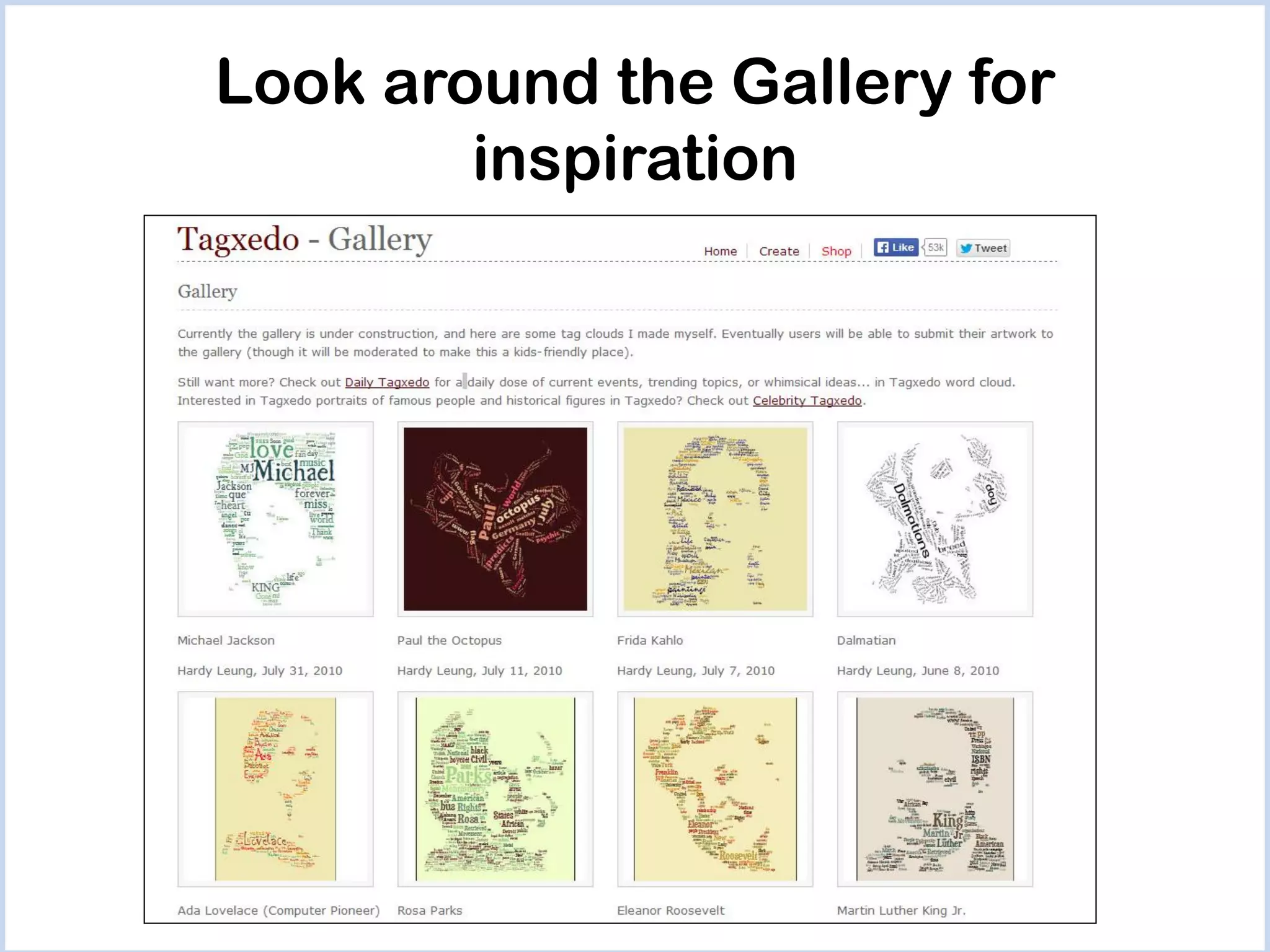
Look around the Gallery for
inspiration
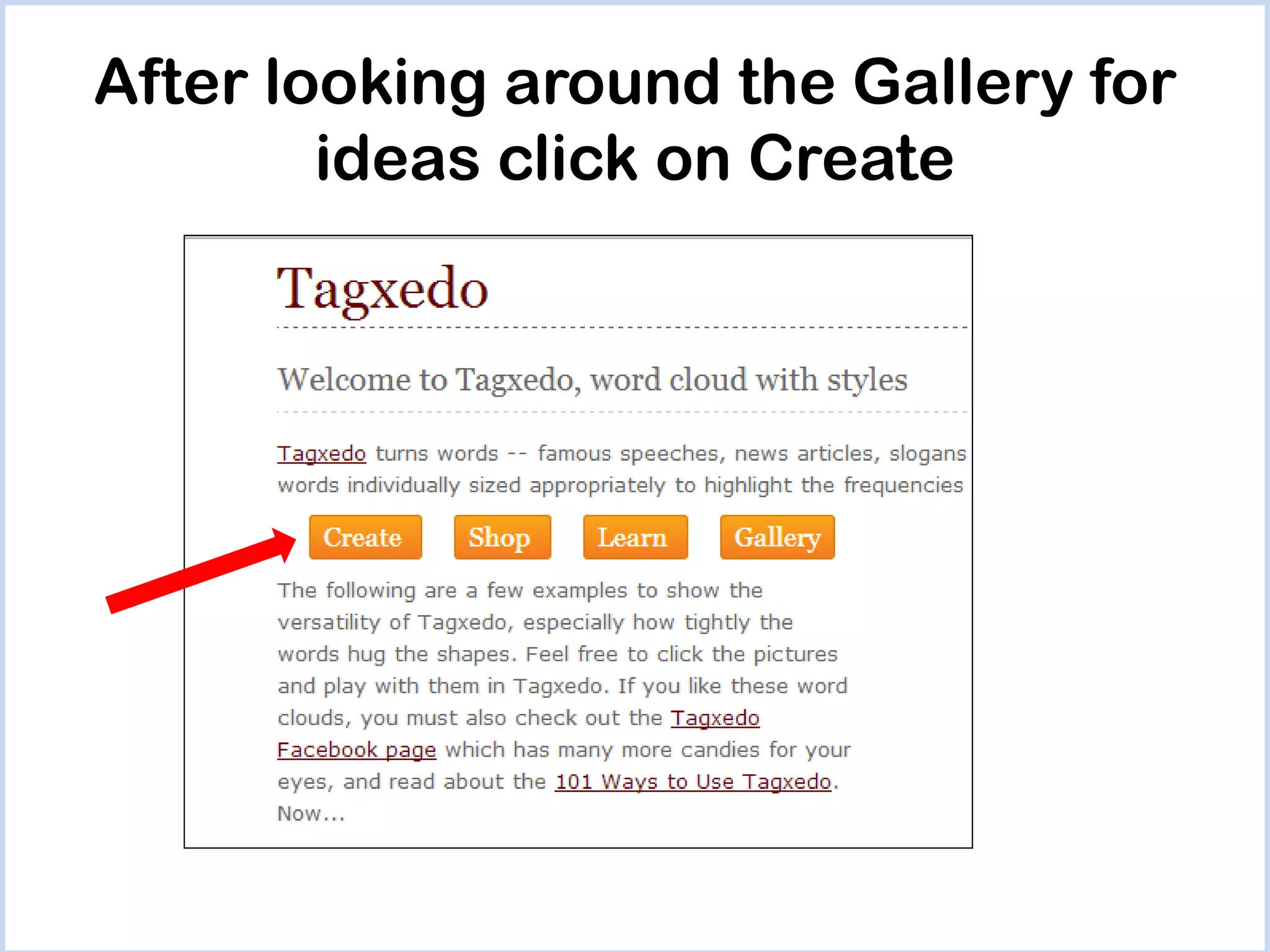
After looking around the Gallery for
ideas click on Create
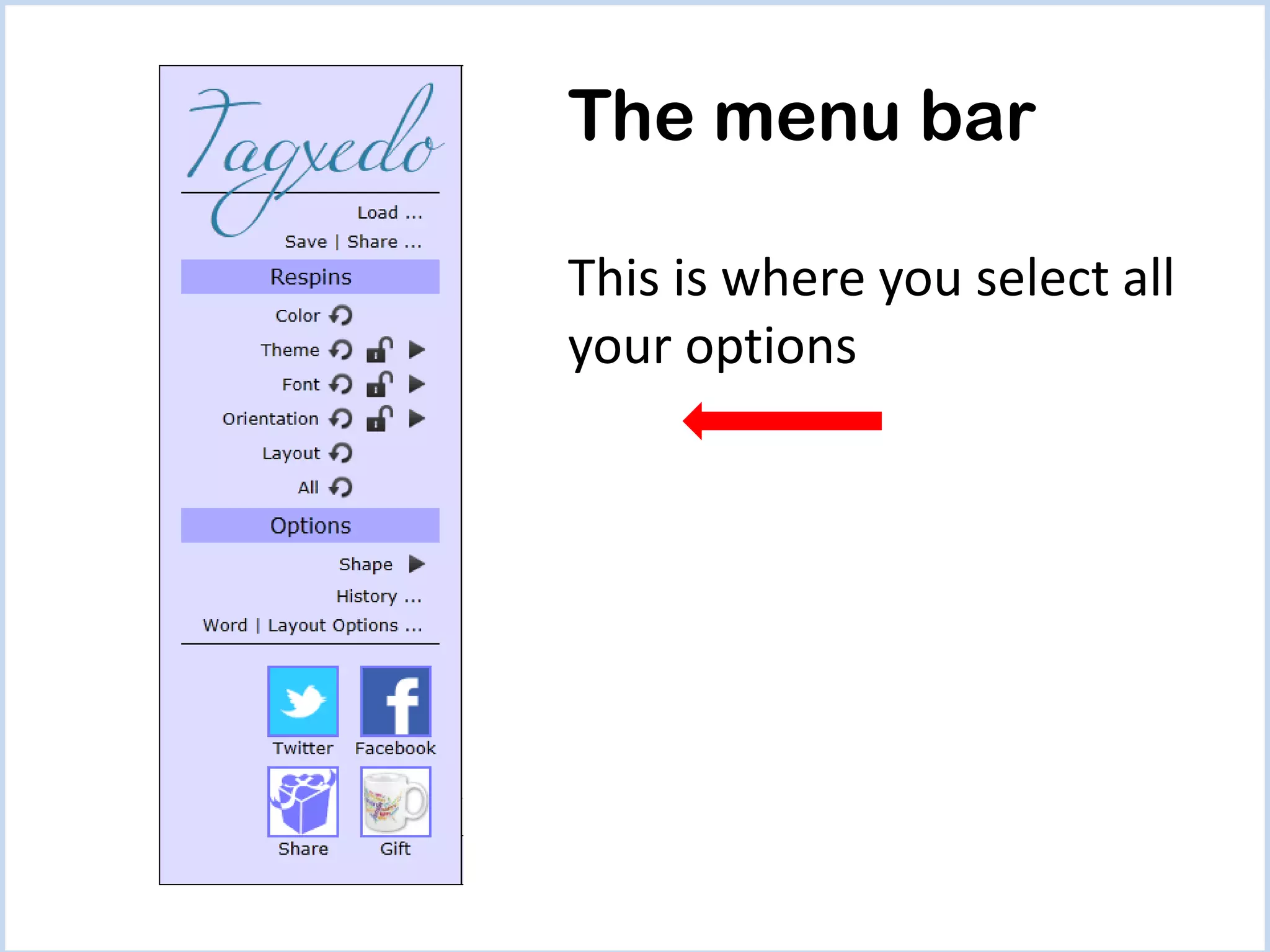
The menu bar
This is where you select all
your options
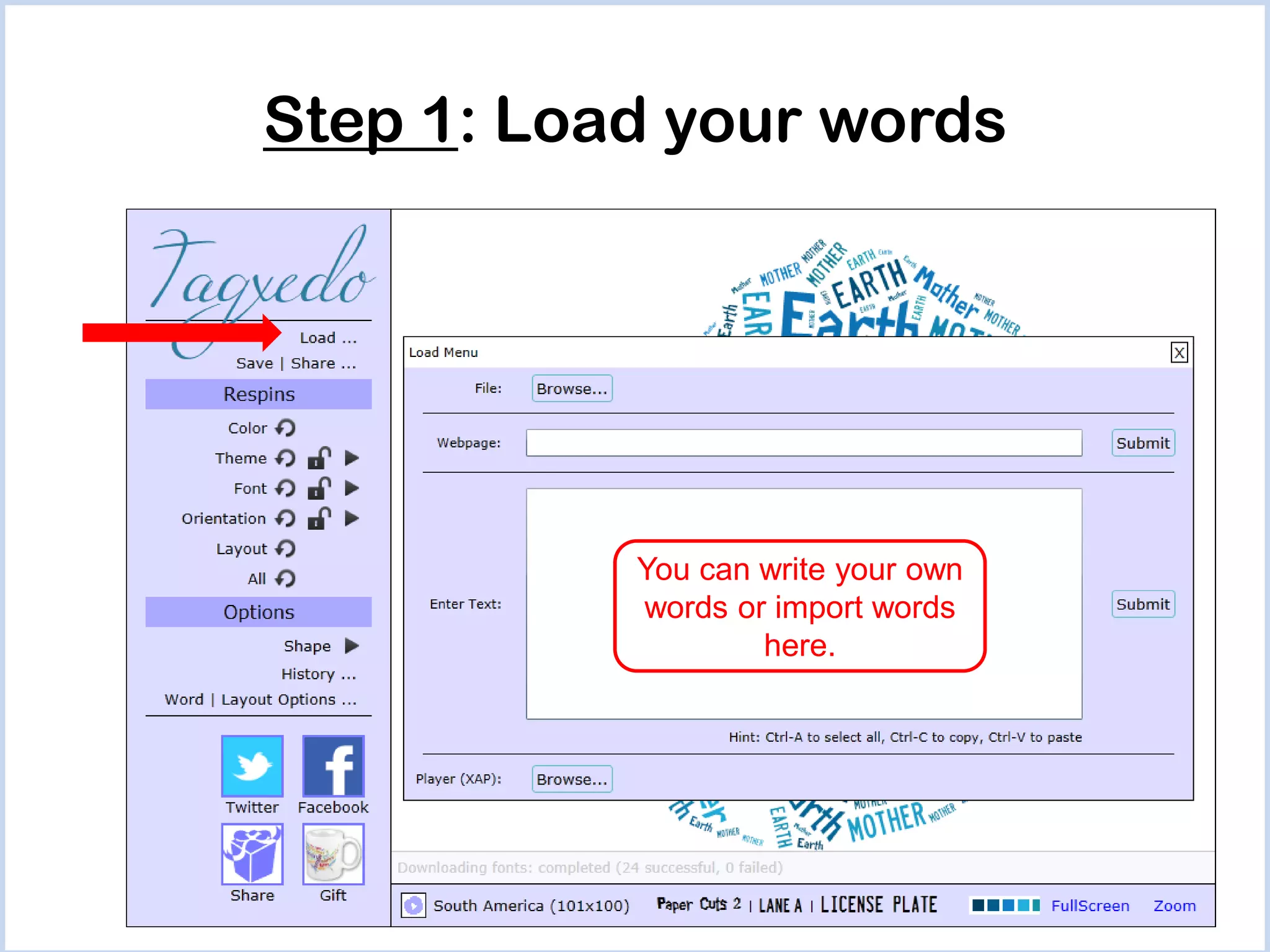
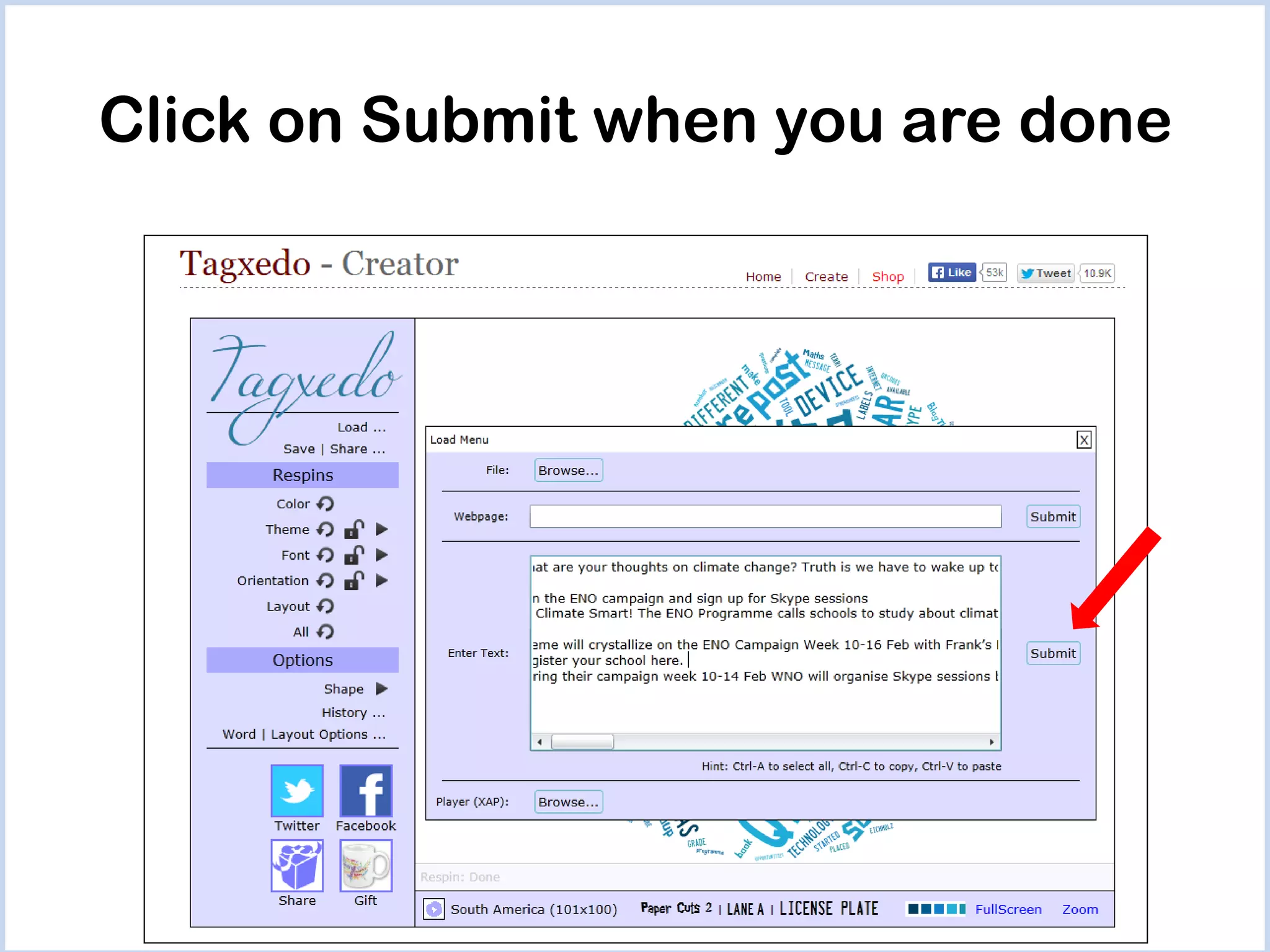
Step 1: Load your words

You can write your own
words or import words
here.
Click on Submit when you are done
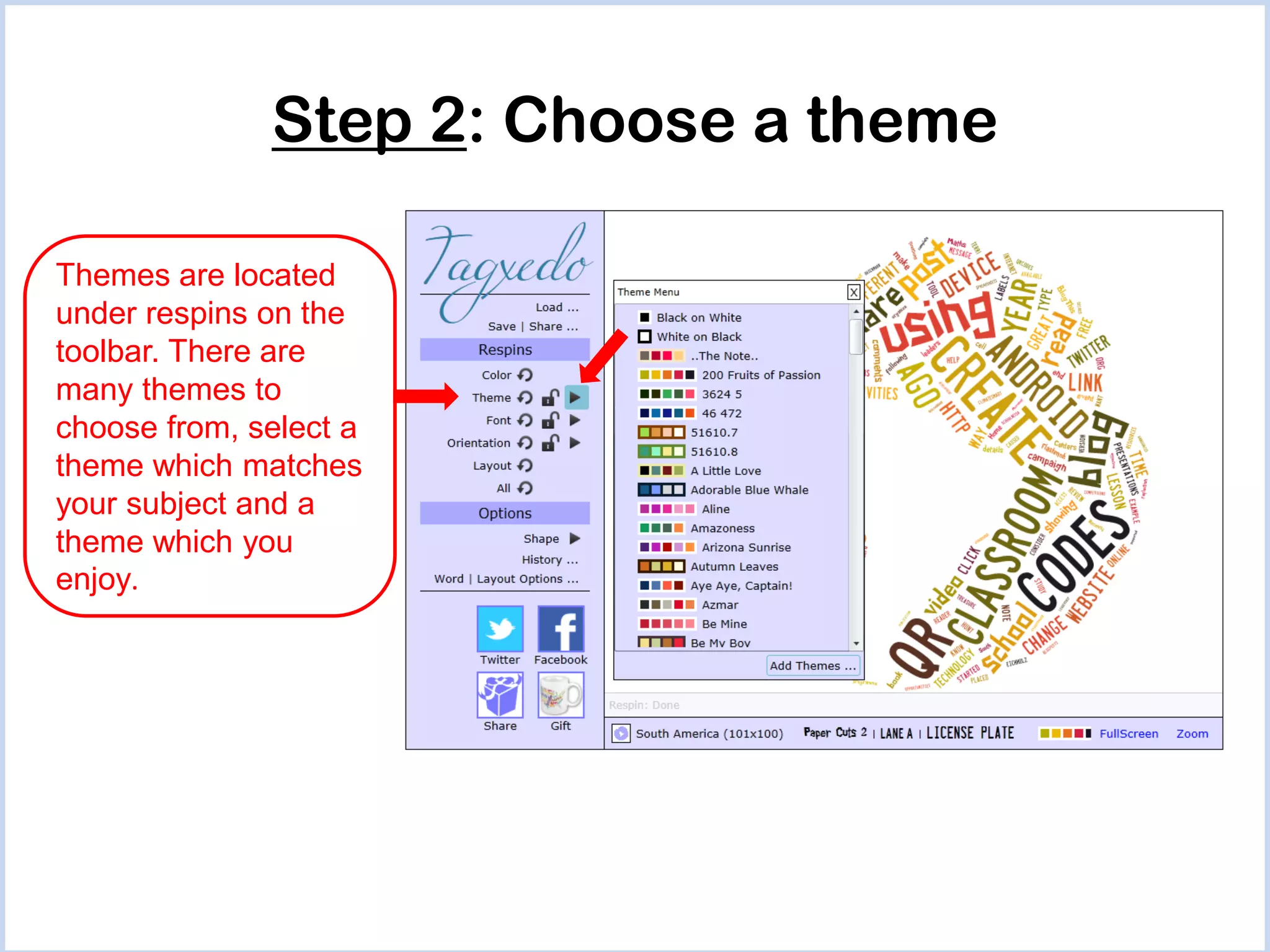
Step 2: Choose a theme
Themes are located
under respins on the
toolbar. There are
many themes to
choose from, select a
theme which matches
your subject and a
theme which you
enjoy.
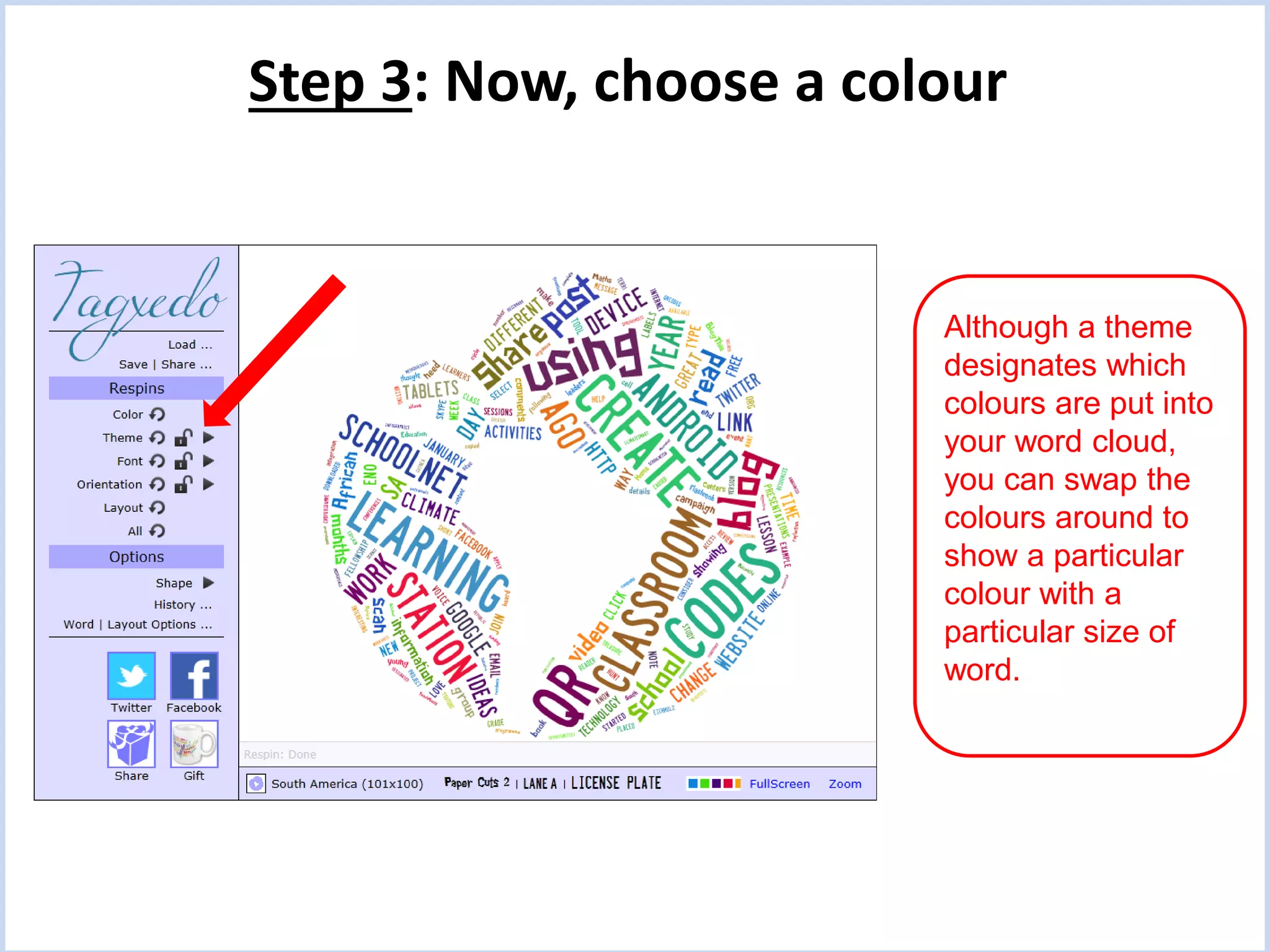
Step 3: Now, choose a colour

Although a theme
designates which
colours are put into
your word cloud,
you can swap the
colours around to
show a particular
colour with a
particular size of
word.
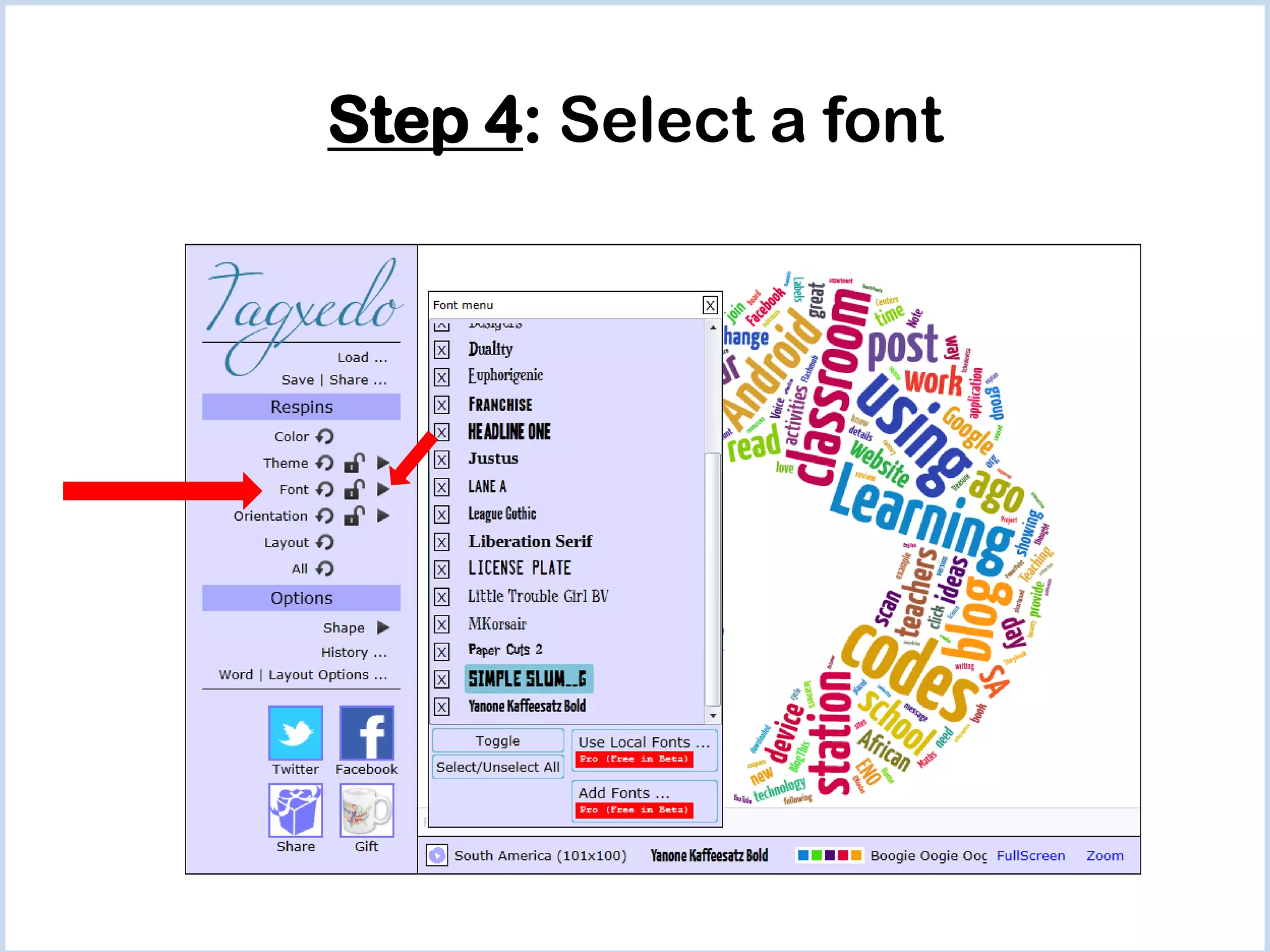
Step 4: Select a font
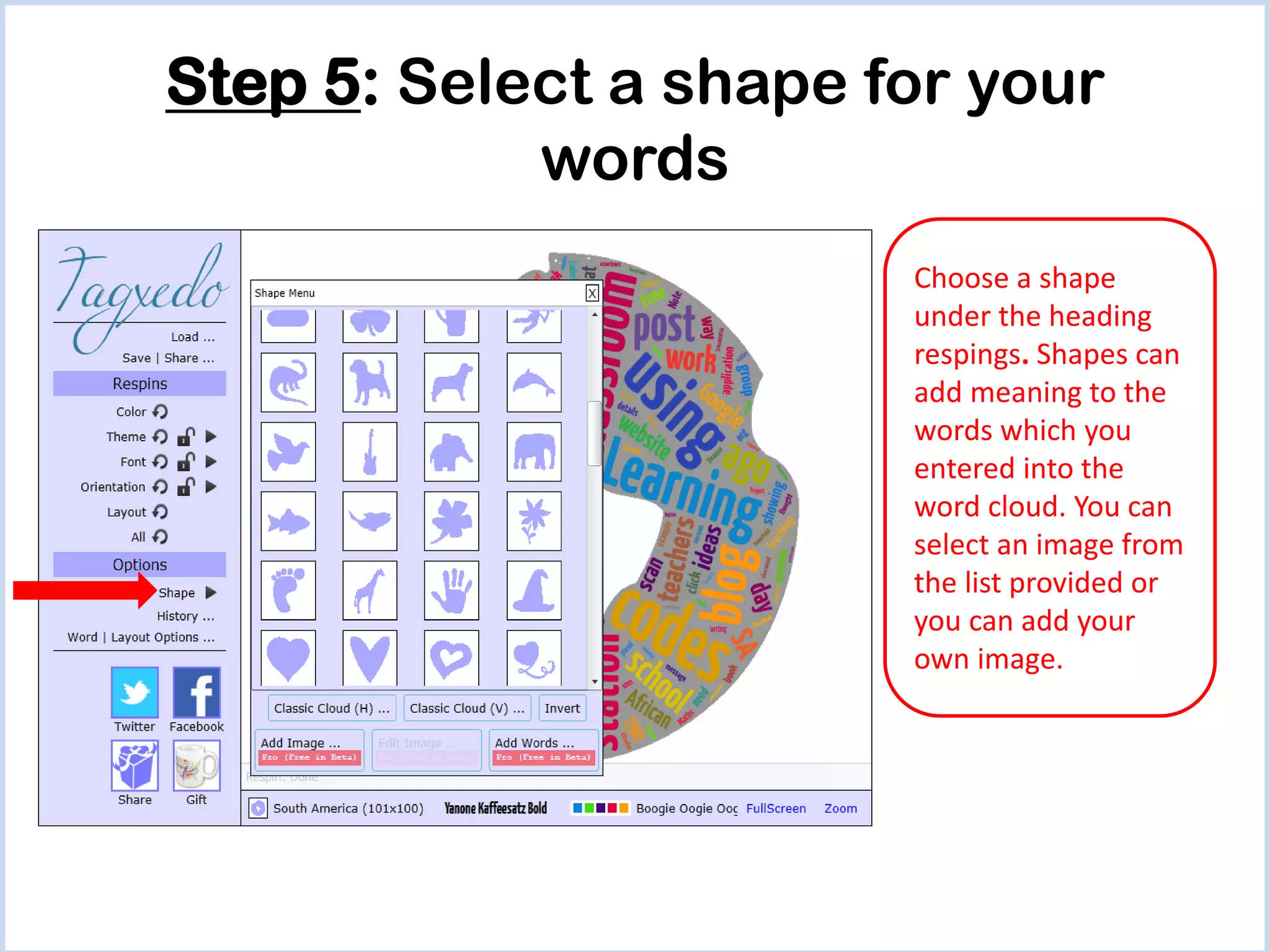
Step 5: Select a shape for your
words
Choose a shape
under the heading
respings. Shapes can
add meaning to the
words which you
entered into the
word cloud. You can
select an image from
the list provided or
you can add your
own image.
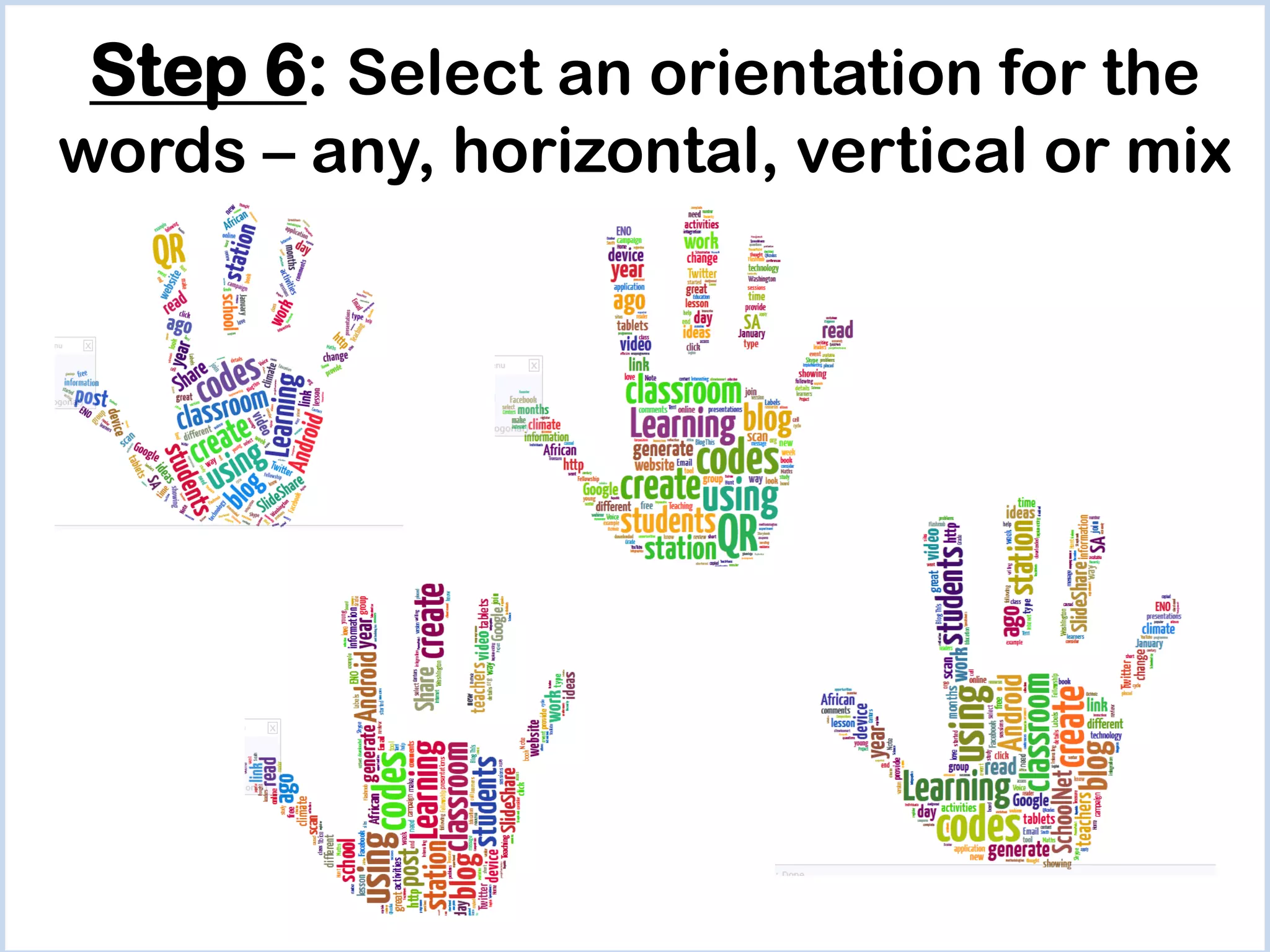
Step 6: Select an orientation for the
words – any, horizontal, vertical or mix
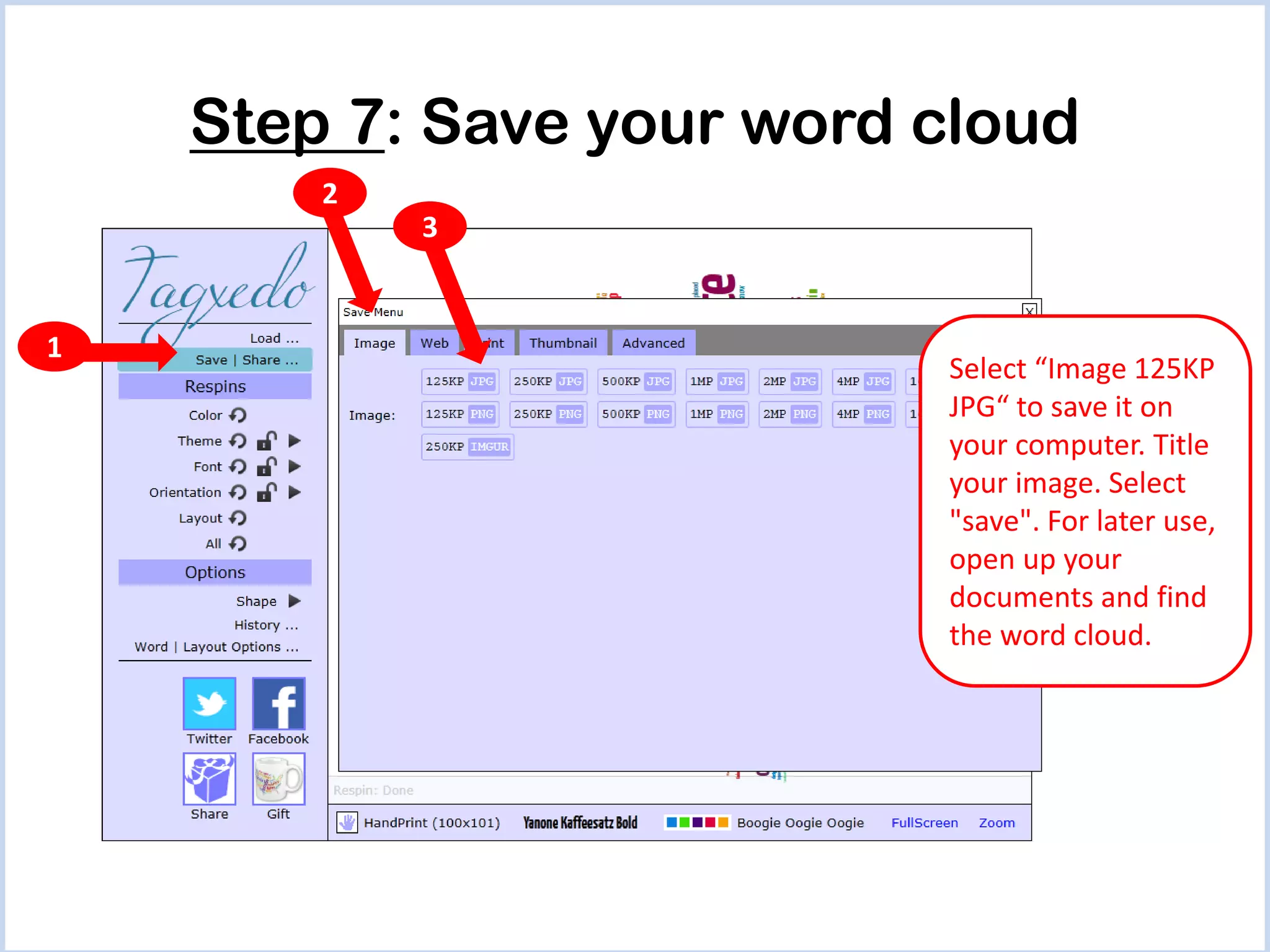
Step 7: Save your word cloud
2
3

1

Select “Image 125KP
JPG“ to save it on
your computer. Title
your image. Select
"save". For later use,
open up your
documents and find
the word cloud.
Word cloud ideas
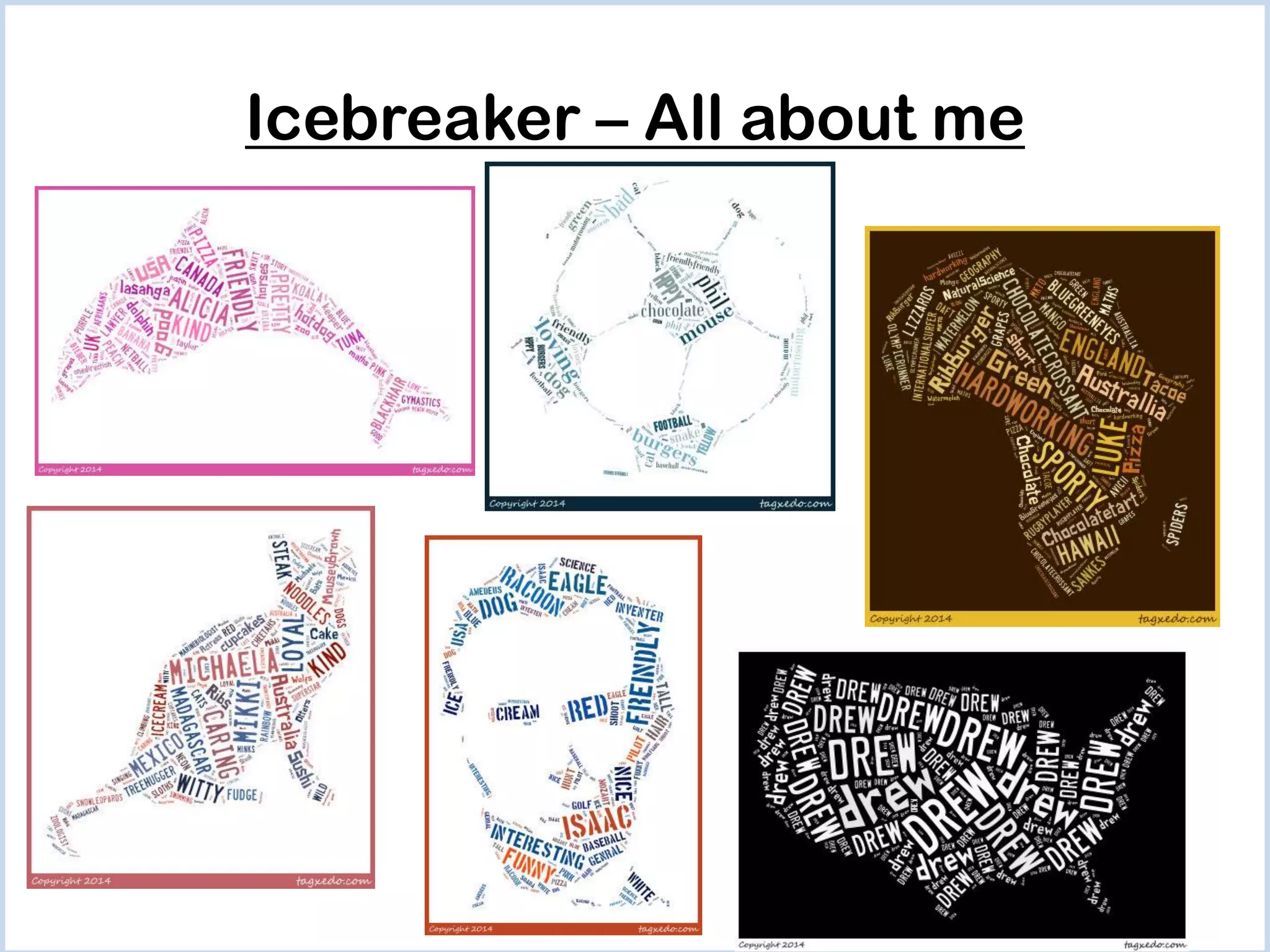
Icebreaker – All about me
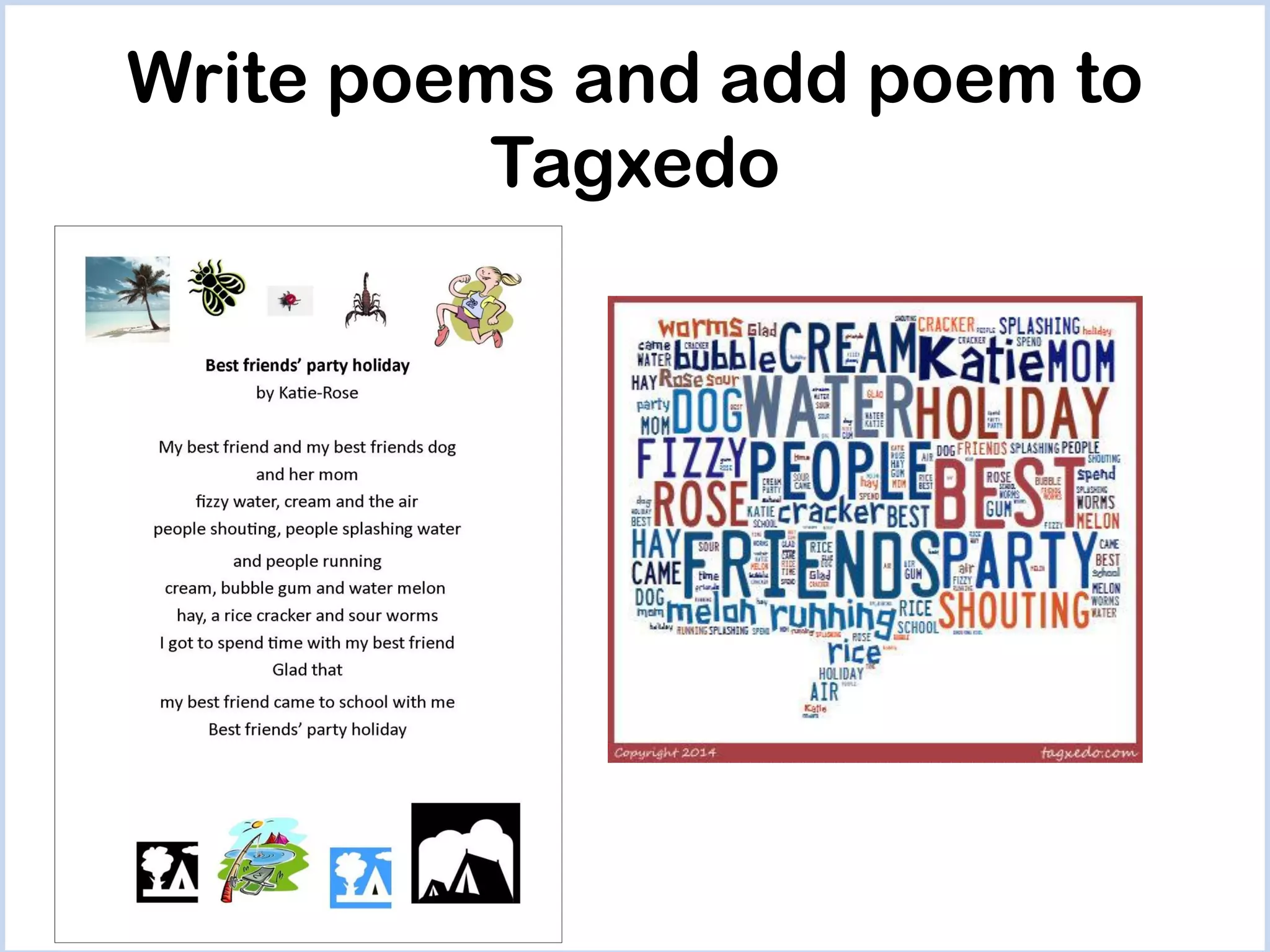
Write poems and add poem to
Tagxedo
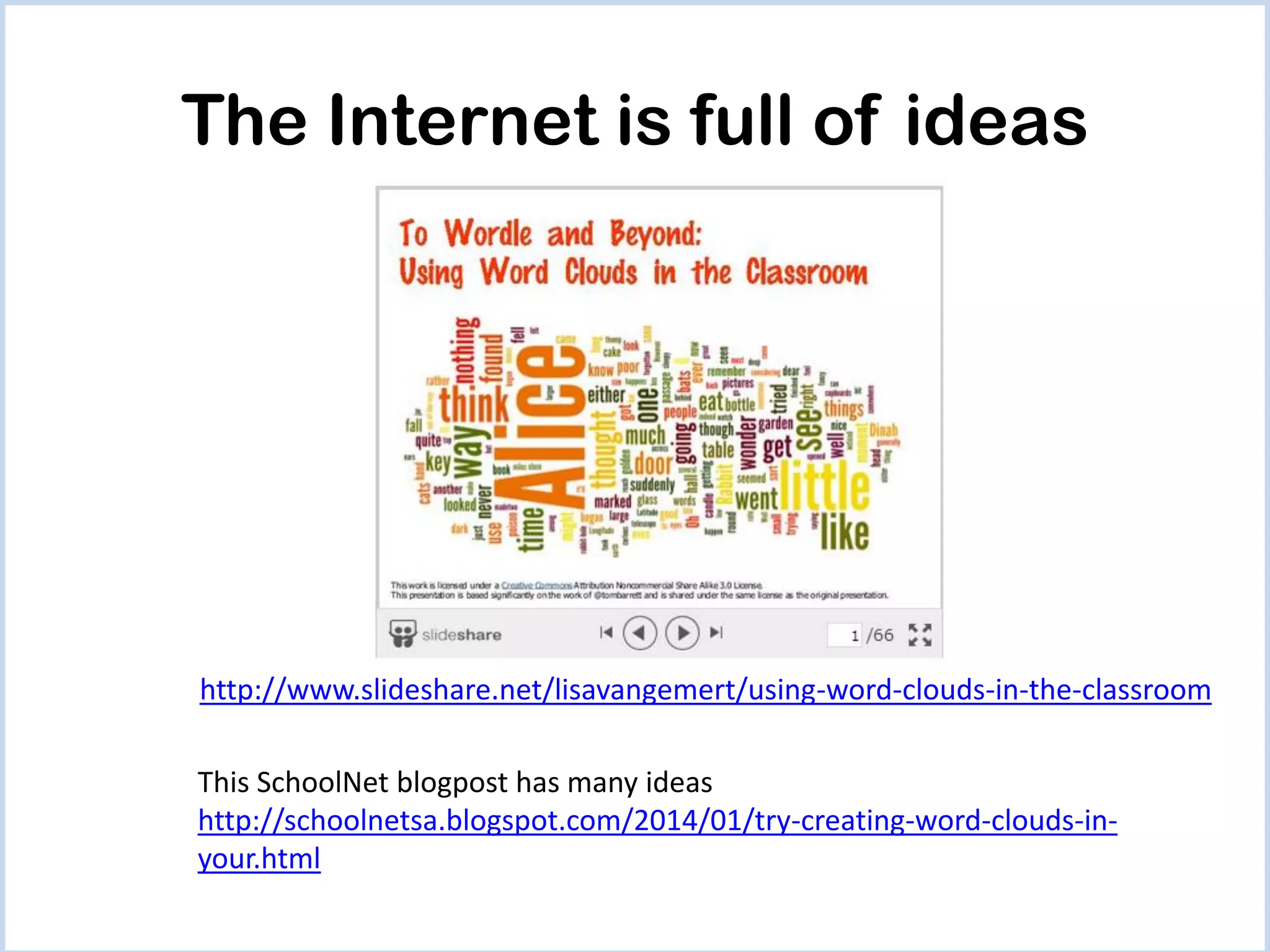
The Internet is full of ideas

http://www.slideshare.net/lisavangemert/using-word-clouds-in-the-classroom
This SchoolNet blogpost has many ideas
http://schoolnetsa.blogspot.com/2014/01/try-creating-word-clouds-inyour.html
Thank you!

Get your class creating shapely word clouds using Tagxedo

  • 1.
    Get your classcreating shapely word clouds using Tagxedo By Fiona Beal
  • 2.
    What is aword cloud? Tagxedo turns words -- famous speeches, news articles, slogans and themes, even your love letters -- into a visually stunning word cloud, words individually sized appropriately to highlight the frequencies of occurrence within the body of text…
  • 3.
    An example ofa word cloud
  • 4.
    Ask Google forTagxedo.com 1 2 This
  • 5.
    Look around theGallery for inspiration
  • 6.
    After looking aroundthe Gallery for ideas click on Create
  • 7.
    The menu bar Thisis where you select all your options
  • 8.
    Step 1: Loadyour words You can write your own words or import words here.
  • 9.
    Click on Submitwhen you are done
  • 10.
    Step 2: Choosea theme Themes are located under respins on the toolbar. There are many themes to choose from, select a theme which matches your subject and a theme which you enjoy.
  • 11.
    Step 3: Now,choose a colour Although a theme designates which colours are put into your word cloud, you can swap the colours around to show a particular colour with a particular size of word.
  • 12.
  • 13.
    Step 5: Selecta shape for your words Choose a shape under the heading respings. Shapes can add meaning to the words which you entered into the word cloud. You can select an image from the list provided or you can add your own image.
  • 14.
    Step 6: Selectan orientation for the words – any, horizontal, vertical or mix
  • 15.
    Step 7: Saveyour word cloud 2 3 1 Select “Image 125KP JPG“ to save it on your computer. Title your image. Select "save". For later use, open up your documents and find the word cloud.
  • 16.
  • 17.
  • 18.
    Write poems andadd poem to Tagxedo
  • 19.
    The Internet isfull of ideas http://www.slideshare.net/lisavangemert/using-word-clouds-in-the-classroom This SchoolNet blogpost has many ideas http://schoolnetsa.blogspot.com/2014/01/try-creating-word-clouds-inyour.html
  • 20.