Padlet for Librarians
Enhancing Our
Instructional Toolkit
Seth Allen
Online Instruction Librarian | King University | swallen@king.edu
What Is It?
Padlet is a virtual pinboard that allows users to write
text and upload links and images on a publicly
accessible board.
❏ Easy to create and share boards
❏ Allows for more collaborative work in instruction
❏ Can be adapted for online instruction
How to Get Started
❏ Go to padlet.com
❏ Create an account
❏ Be sure to indicate that you are a teacher and use
your school email
❏ Click on ‘Create Padlet’ tab in top right corner to get
started!
❏ Click on Modify Padlet in right hand panel to change
the appearance and/or privacy settings
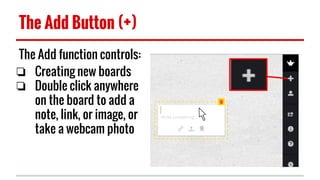
The Add Button (+)
The Add function controls:
❏ Creating new boards
❏ Double click anywhere
on the board to add a
note, link, or image, or
take a webcam photo
The Sprocket Icon
The Sprocket controls:
❏ Title
❏ Description
❏ Portrait (icon that appears on
top left hand corner)
❏ Layout
❏ Wallpaper
❏ Privacy settings
The Share/Export Icon
Share/Export controls:
❏ Sharing on social media or e-mail
❏ Export as image, Excel, or PDF
❏ HTML Embed
❏ Link/QR Code Sharing
Potential Uses for Library Instruction
❏ Group activities involving searching, organizing, or
evaluating library resources
❏ Evaluation Form for Library Instruction Sessions
❏ Quick, easy, and non-threatening assessment tool
❏ Brainstorming activities (i.e. topics, keywords)
❏ Hosting a discussion forum on research
Tips for Optimizing Padlet
❏ Change the layout to see posts in synchronous
order
❏ Change the privacy settings in ‘Modify’ to add
people by email, make the Padlet password-
protected, or make it completely public
❏ Use the Share/Export button to download
responses or embed the Padlet in a learning
management system/ web site
Potential Instruction Activities with Padlet
❏ Library Scavenger Hunt
❏ Evaluating Websites
❏ Evaluating Primary, Secondary, and Tertiary
Sources
❏ Concept Mapping
❏ Visual Literacy

Padlet for Library Instruction

  • 1.
    Padlet for Librarians EnhancingOur Instructional Toolkit Seth Allen Online Instruction Librarian | King University | swallen@king.edu
  • 2.
    What Is It? Padletis a virtual pinboard that allows users to write text and upload links and images on a publicly accessible board. ❏ Easy to create and share boards ❏ Allows for more collaborative work in instruction ❏ Can be adapted for online instruction
  • 3.
    How to GetStarted ❏ Go to padlet.com ❏ Create an account ❏ Be sure to indicate that you are a teacher and use your school email ❏ Click on ‘Create Padlet’ tab in top right corner to get started! ❏ Click on Modify Padlet in right hand panel to change the appearance and/or privacy settings
  • 4.
    The Add Button(+) The Add function controls: ❏ Creating new boards ❏ Double click anywhere on the board to add a note, link, or image, or take a webcam photo
  • 5.
    The Sprocket Icon TheSprocket controls: ❏ Title ❏ Description ❏ Portrait (icon that appears on top left hand corner) ❏ Layout ❏ Wallpaper ❏ Privacy settings
  • 6.
    The Share/Export Icon Share/Exportcontrols: ❏ Sharing on social media or e-mail ❏ Export as image, Excel, or PDF ❏ HTML Embed ❏ Link/QR Code Sharing
  • 7.
    Potential Uses forLibrary Instruction ❏ Group activities involving searching, organizing, or evaluating library resources ❏ Evaluation Form for Library Instruction Sessions ❏ Quick, easy, and non-threatening assessment tool ❏ Brainstorming activities (i.e. topics, keywords) ❏ Hosting a discussion forum on research
  • 8.
    Tips for OptimizingPadlet ❏ Change the layout to see posts in synchronous order ❏ Change the privacy settings in ‘Modify’ to add people by email, make the Padlet password- protected, or make it completely public ❏ Use the Share/Export button to download responses or embed the Padlet in a learning management system/ web site
  • 9.
    Potential Instruction Activitieswith Padlet ❏ Library Scavenger Hunt ❏ Evaluating Websites ❏ Evaluating Primary, Secondary, and Tertiary Sources ❏ Concept Mapping ❏ Visual Literacy