Tips Tricks with Version Six (Client)
Don Louser PMP, PMA Consultants LLC
Give Us Your Card

• There are more items in this presentation than we will
  have time to demonstrate

• Give us your business card and we will send you the
  entire presentation complete with notes
• Or, contact me @ dlouser@pmaconsultants.com


                                                           2
What we have for you today...
• What’s New in Client v. 6.0 (Slides 1-20)
• Use of Indicators (Slide 21)
• Global Changes – De-status the Schedule (Slides 22-26)
• Global Changes – Change WBS from Filters (Slide 27)
• Export and Importing Projects (Slides 28-39)
• Project details that are often forgotten (Slides 40-42)
• Renumbering Activities (Slides 43-45)
• Building your Schedule – Making a List (Slides 46-47)
• Building your Schedule - Linking Shortcuts (Slide 48)
• The Schedule Report (Slides 49-52)
• Lag Calendars (Slides 53-54)                            3
What we have for you today (cont.)...
• Fragnets  (Slides 55-58)
• Coding and WBS Shortcuts (Slides 59-63)
• Finding and Filtering Activities (Slides 64-65)
• Roles and Resource Loading (Slides 66)
• Schedule Crashing Basics (Slides 67-68)
• Advanced Layouts For Communication (Slides 69-71)
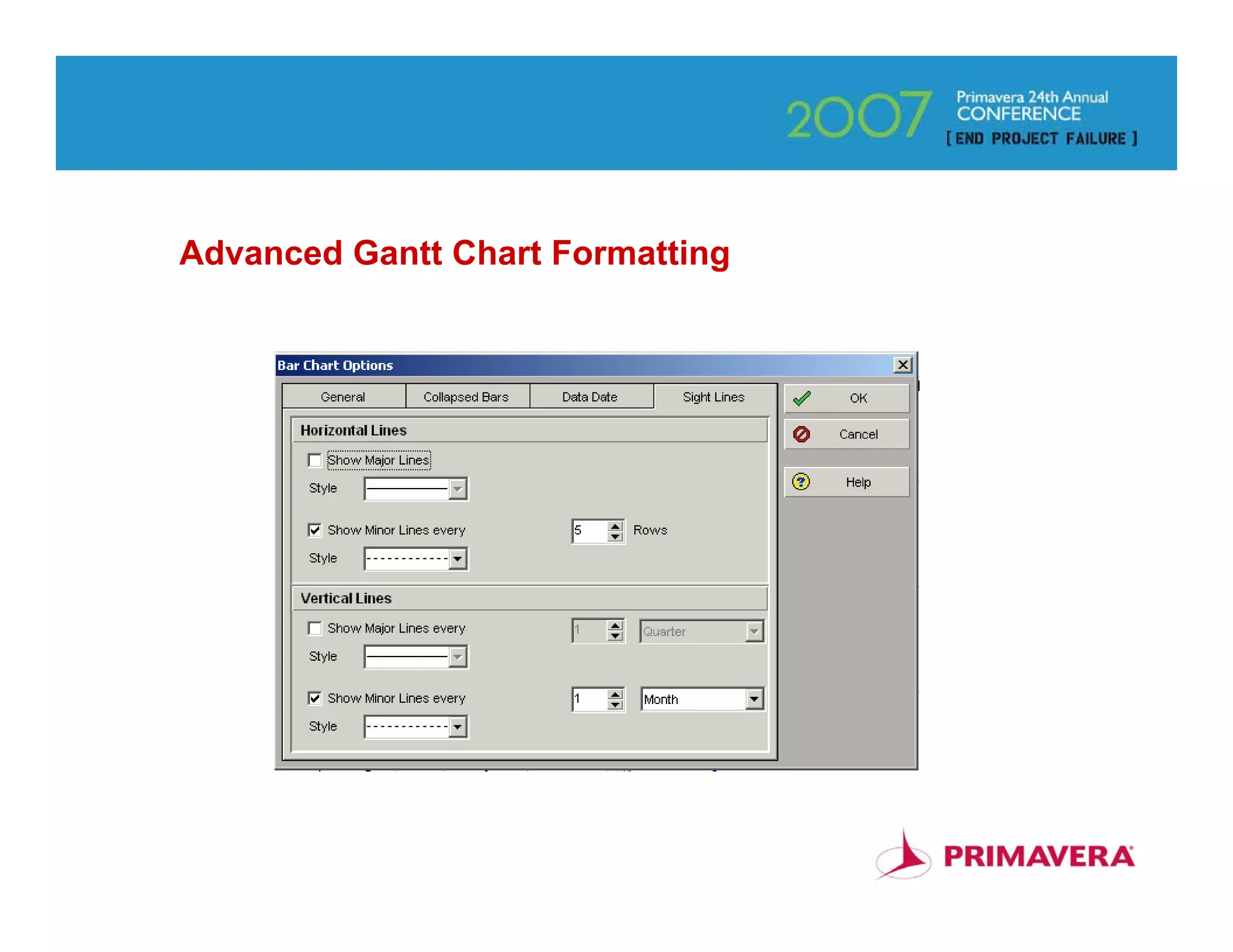
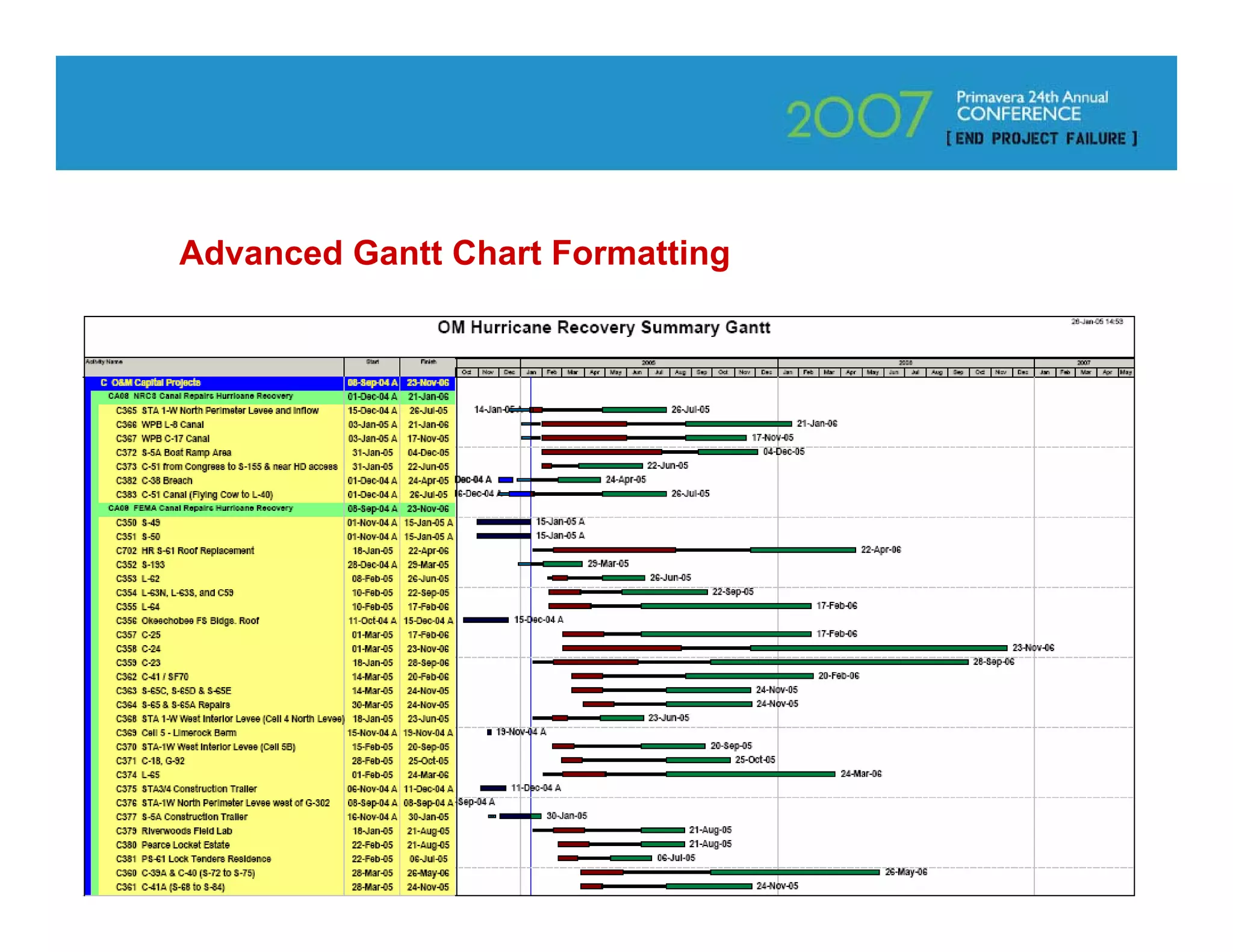
• Advanced Gantt Chart Formatting (Slides 72-76)
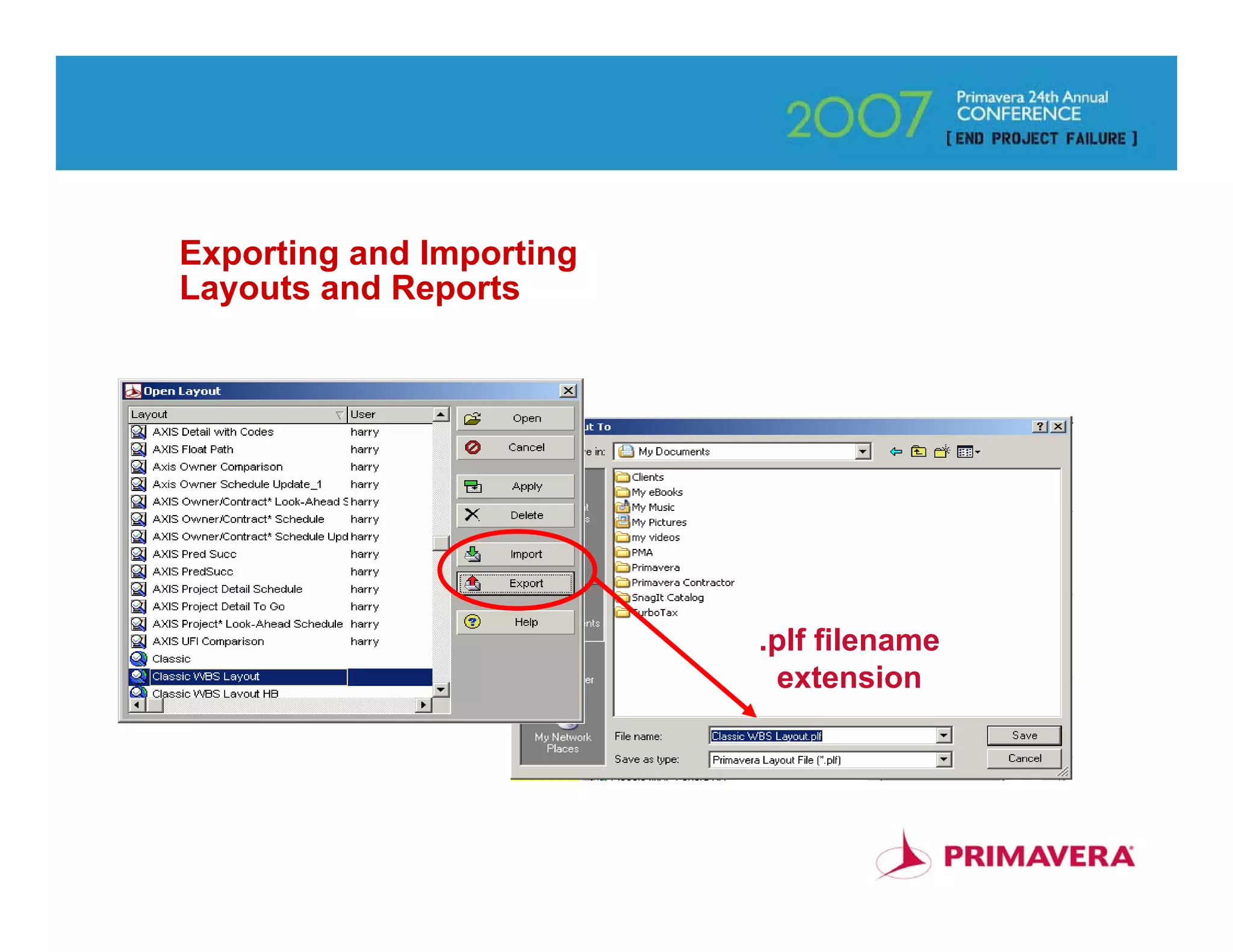
• Exporting and Importing Layouts/Reports (Slide 77)
• Add Bar-charts & Graphics to Reports (Slides 78-83)
• Working with Baselines (Slides 84-91)
                                                        4
What’s New – Reflection Projects
•   Power with Simplicity !!!
•   A Reflection is a Copy of a Project that enhances Your Ability to
    “What If” or Update Your Project
•   Same Name – What If – Internal Link to Source – Baseline –
    Timesheet Data – Activity Owner
•   “Activity Owner” make changes via .xer or Web
•   Review & Change or Merge As Is (Check Boxes)
•   Merge Will Not remove Activities, Resource Assignments, WBS
    Elements, Work Products & Docs, Expenses, Issues or Risks if
    deleted from Reflection

                                            DEMO
                                                                        5
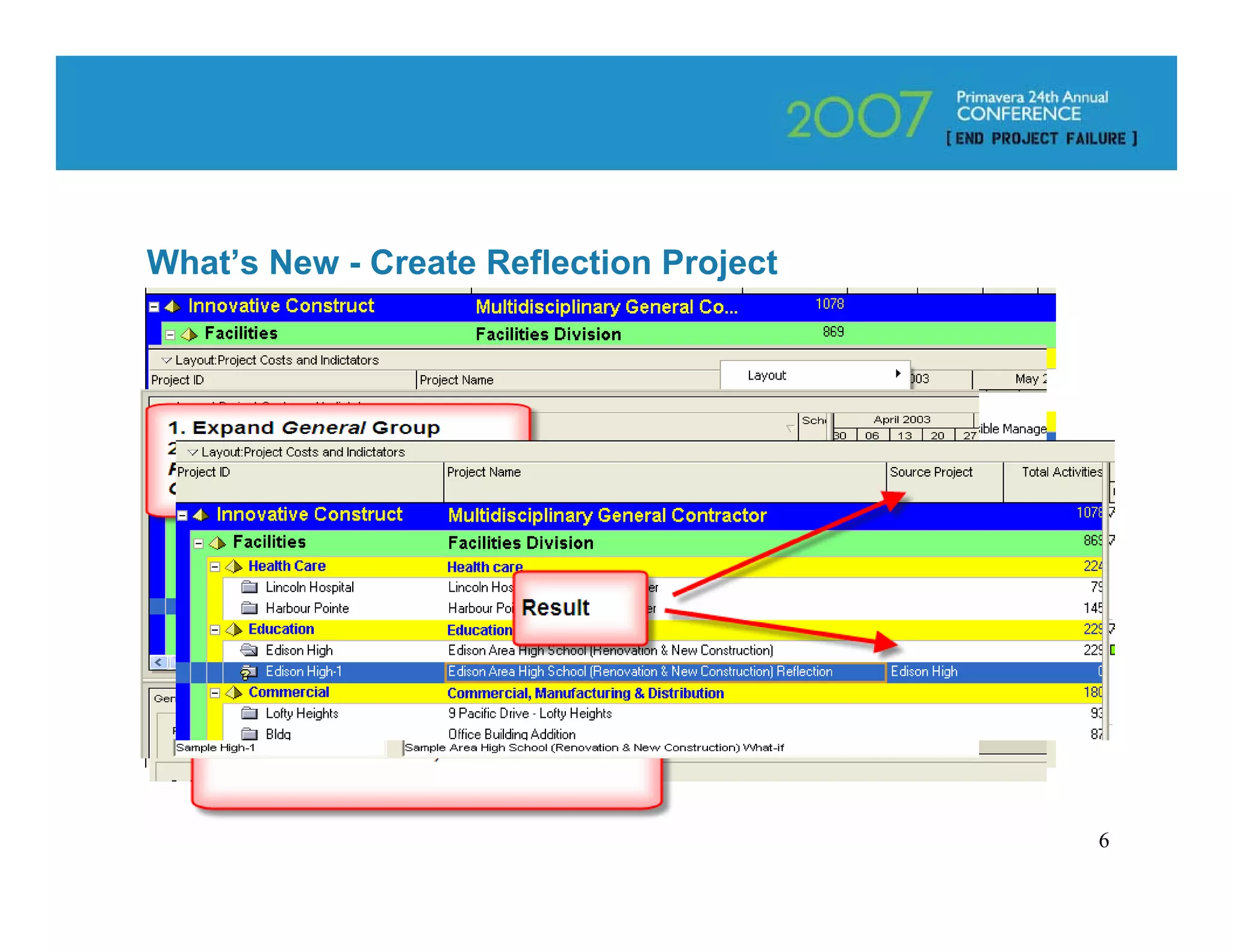
What’s New - Create Reflection Project


                                         6
Making Changes to Reflection Projects
• Use to test Scenarios or Update Project

• Send w/Project Specific Layout to Others to Update

• Import/Export just like any other Project file

• Activity Owner – designate Owner w/Required Web
  License & Privileges to Update/Change

• Admin or Project Superuser gets last shot to
  Review/Correct before merging back into Source Project
•   Merge Will Not remove Activities, Resource Assignments, WBS
    Elements, Work Products & Docs, Expenses, Issues or Risks if
    deleted from Reflection                                        7
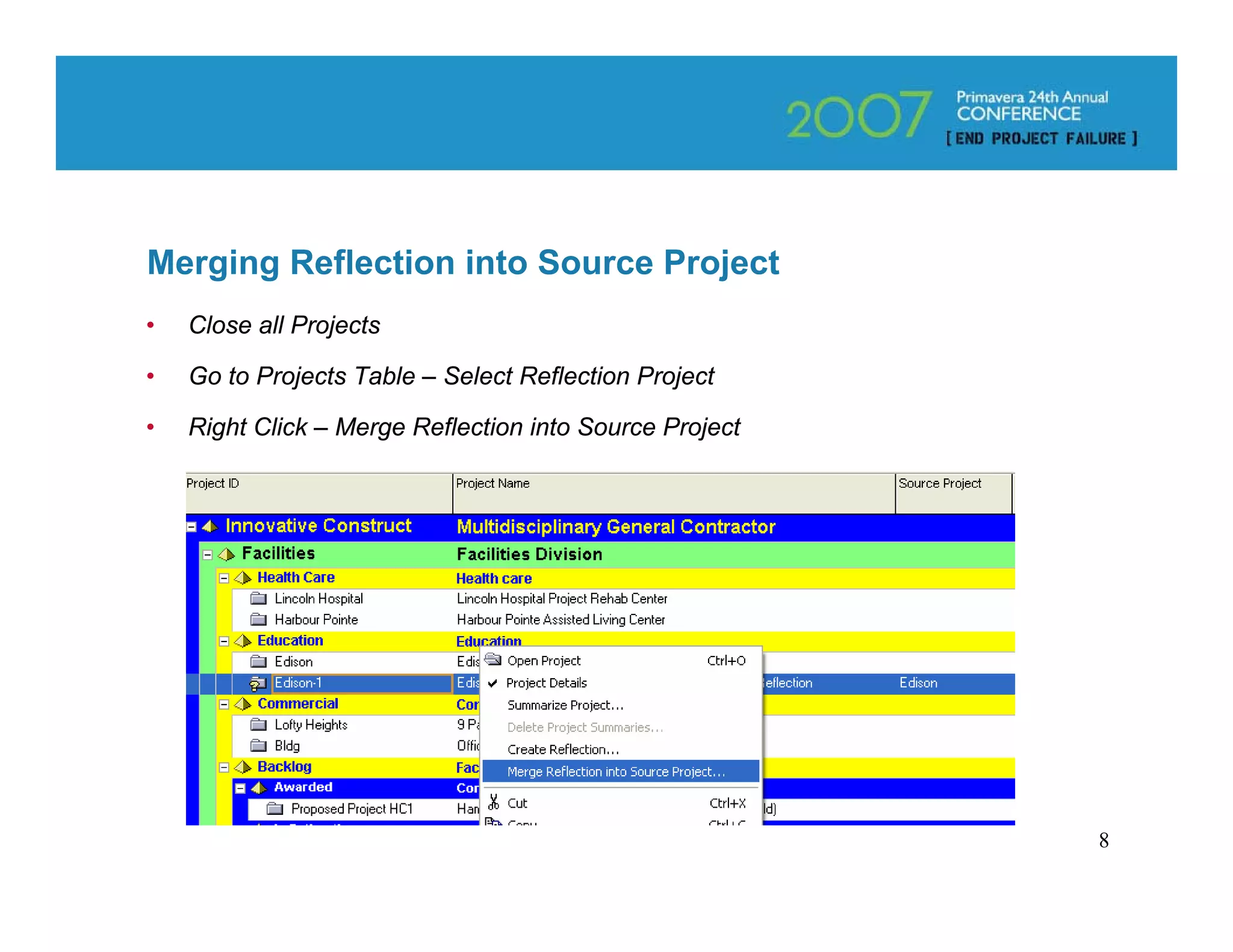
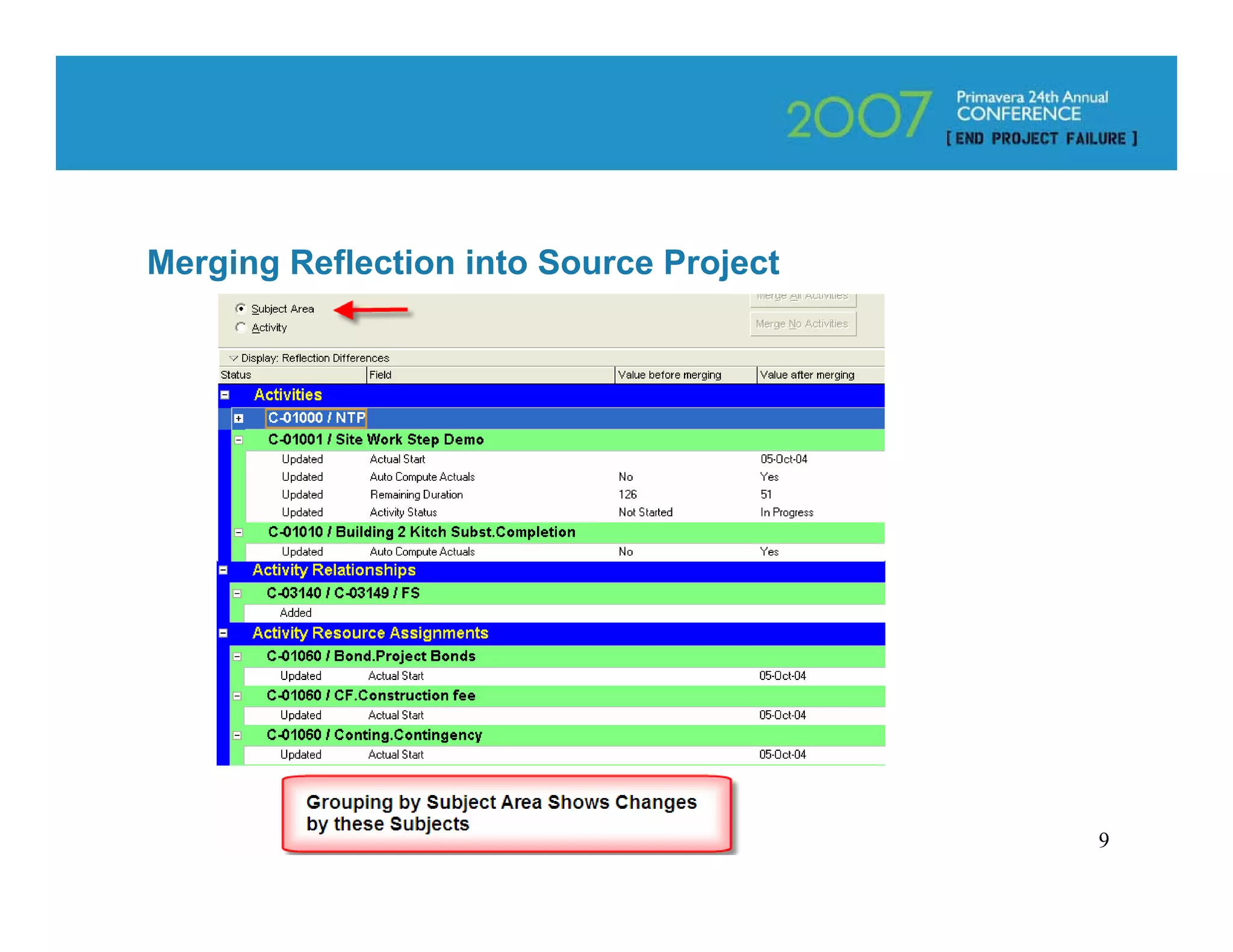
Merging Reflection into Source Project
•   Close all Projects

•   Go to Projects Table – Select Reflection Project

•   Right Click – Merge Reflection into Source Project


                                                         8
Merging Reflection into Source Project


                                         9
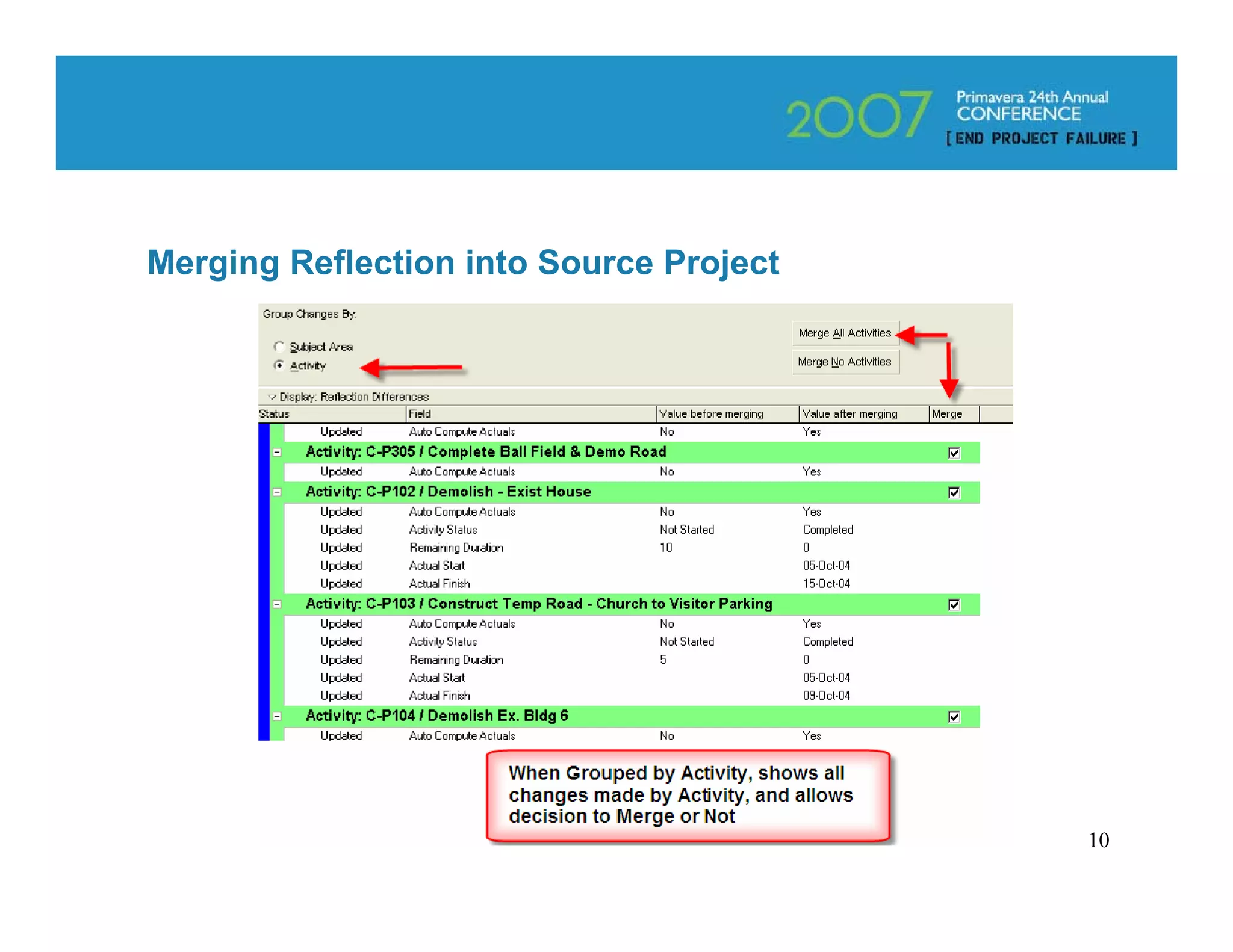
Merging Reflection into Source Project


                                         10
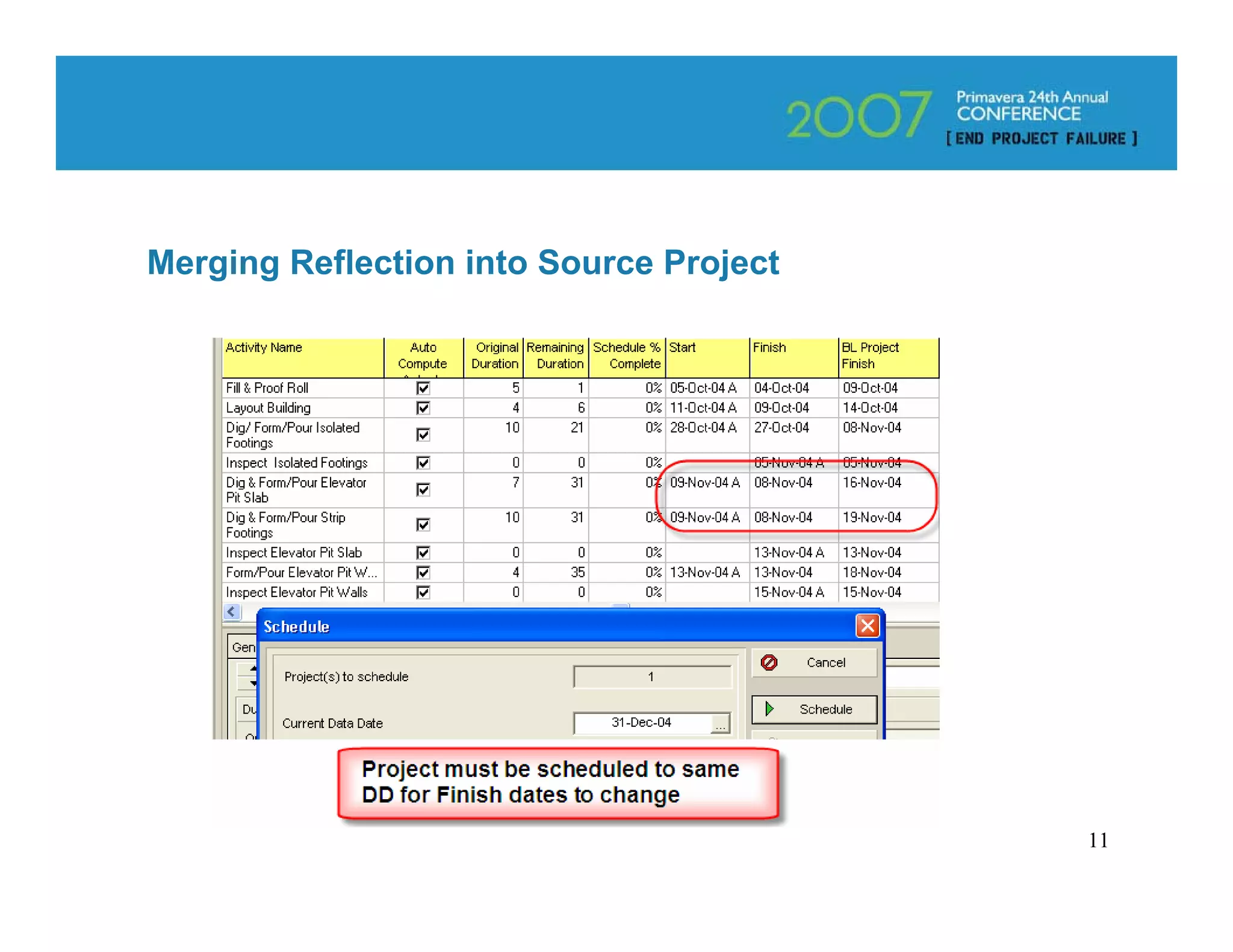
Merging Reflection into Source Project


                                         11
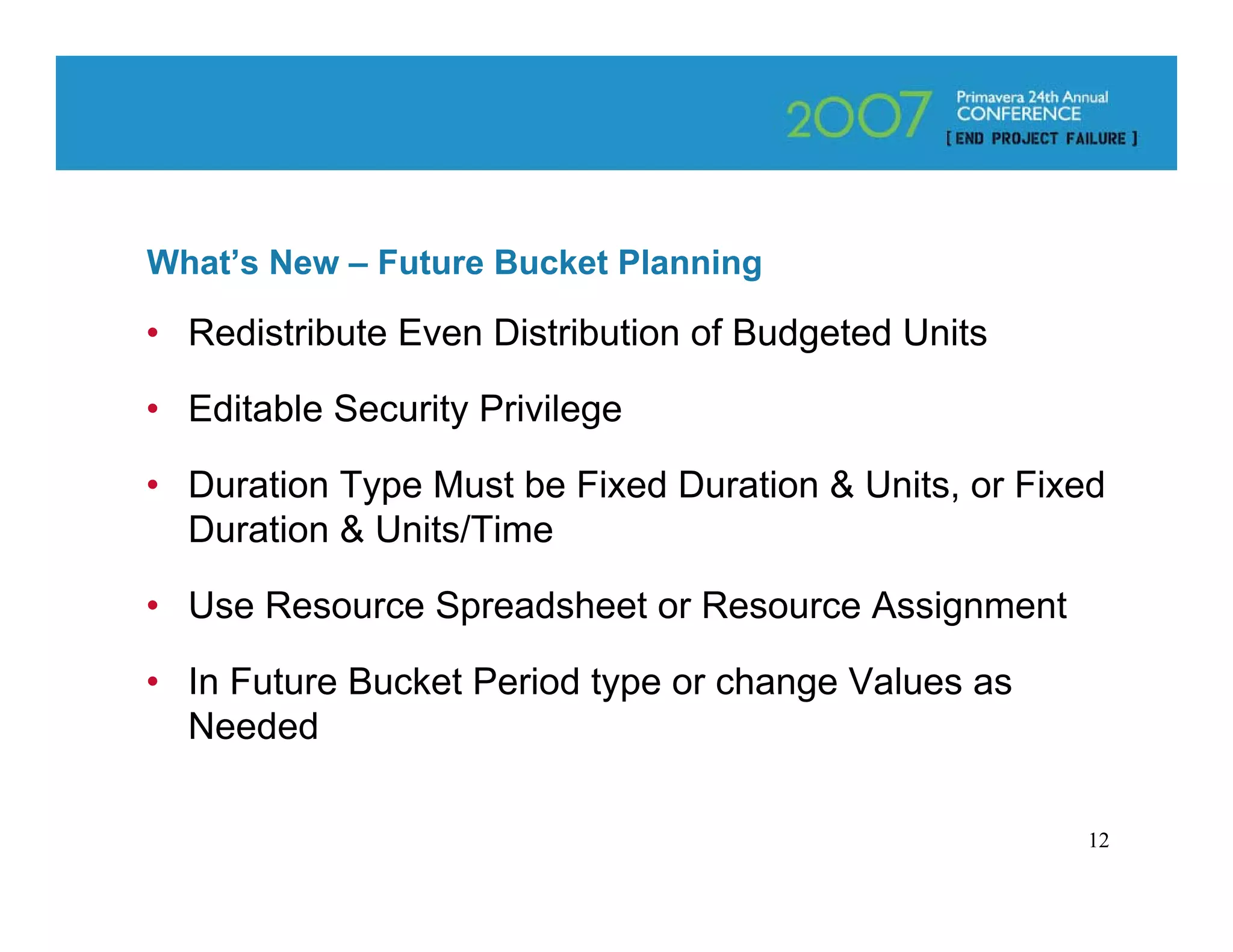
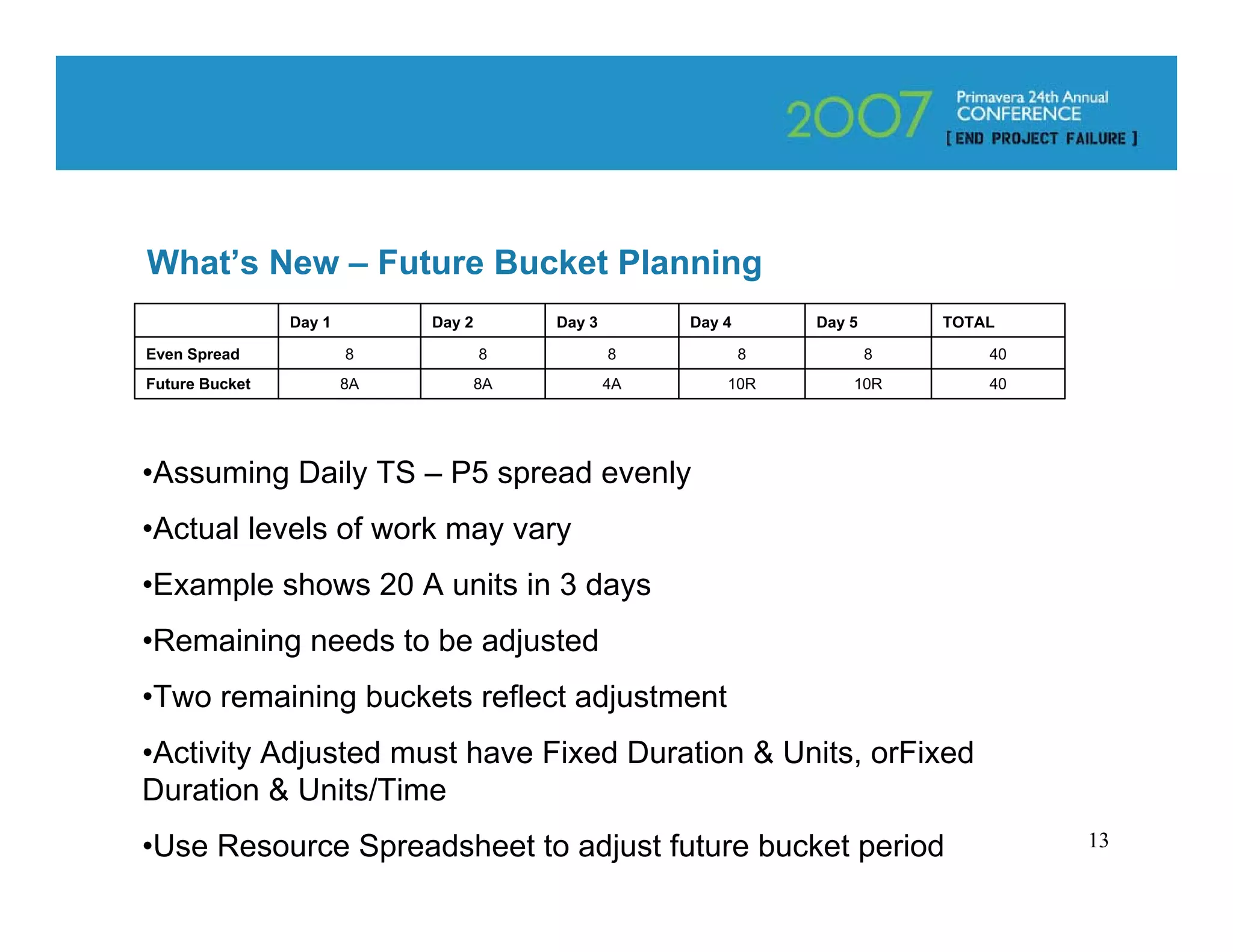
What’s New – Future Bucket Planning

• Redistribute Even Distribution of Budgeted Units

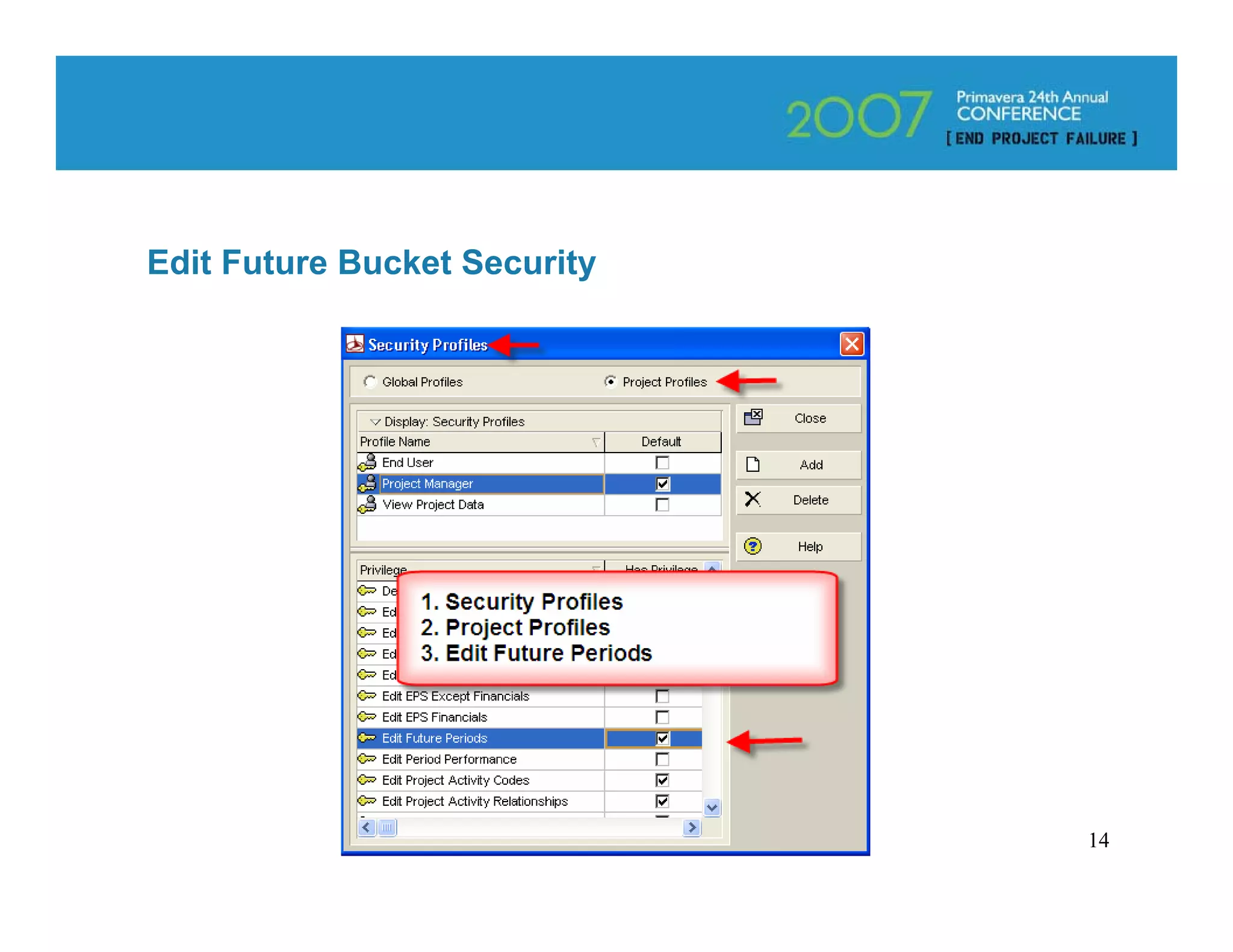
• Editable Security Privilege

• Duration Type Must be Fixed Duration & Units, or Fixed
  Duration & Units/Time

• Use Resource Spreadsheet or Resource Assignment

• In Future Bucket Period type or change Values as
  Needed

                                                      12
What’s New – Future Bucket Planning
                Day 1        Day 2        Day 3        Day 4       Day 5       TOTAL

Even Spread             8            8            8            8           8       40
Future Bucket           8A           8A           4A       10R         10R         40


•Assuming Daily TS – P5 spread evenly
•Actual levels of work may vary
•Example shows 20 A units in 3 days
•Remaining needs to be adjusted
•Two remaining buckets reflect adjustment
•Activity Adjusted must have Fixed Duration & Units, orFixed
Duration & Units/Time
•Use Resource Spreadsheet to adjust future bucket period                                13
Edit Future Bucket Security


                              14
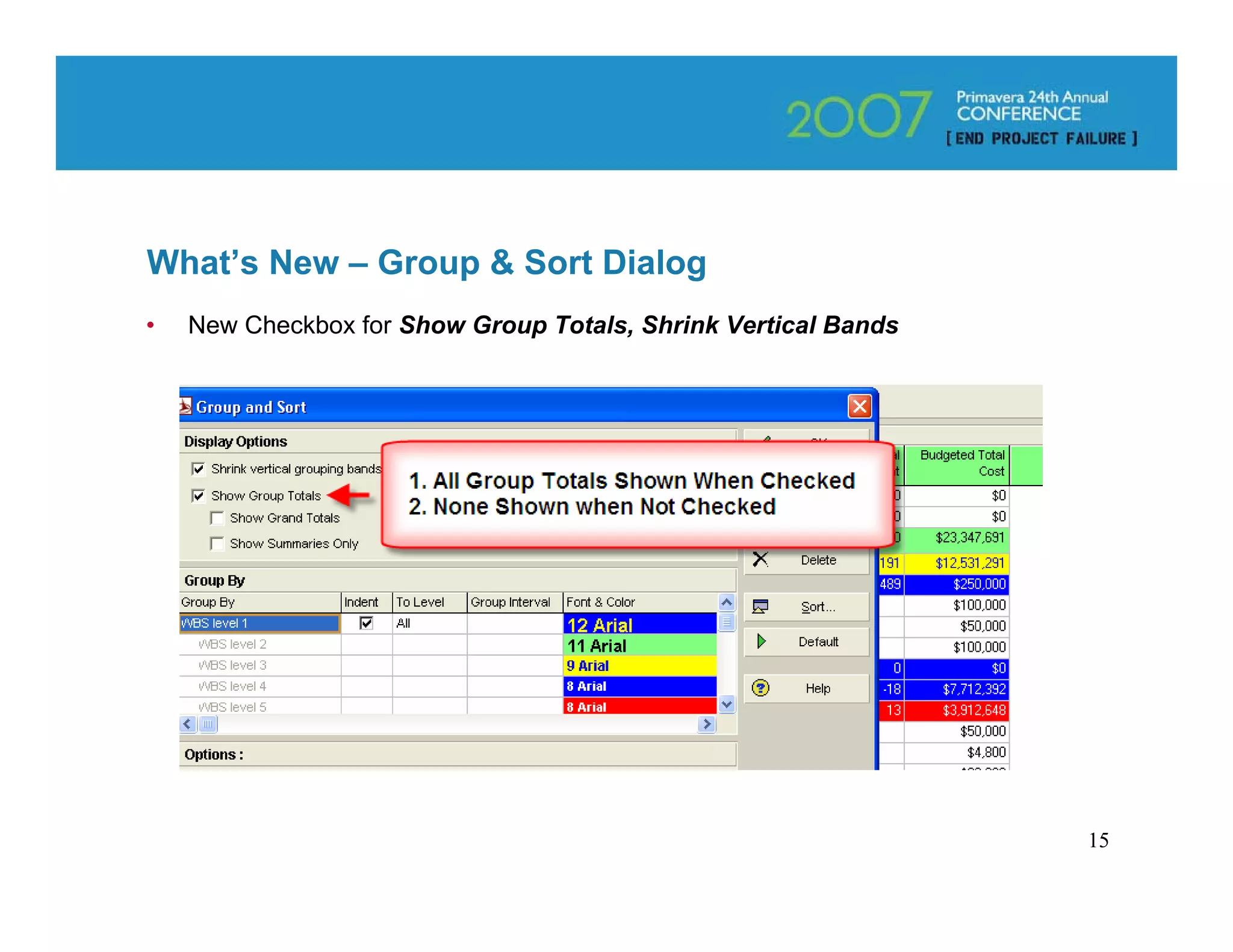
What’s New – Group & Sort Dialog
•   New Checkbox for Show Group Totals, Shrink Vertical Bands


                                      SHOW PIX & EXPLAIN


                                                                15
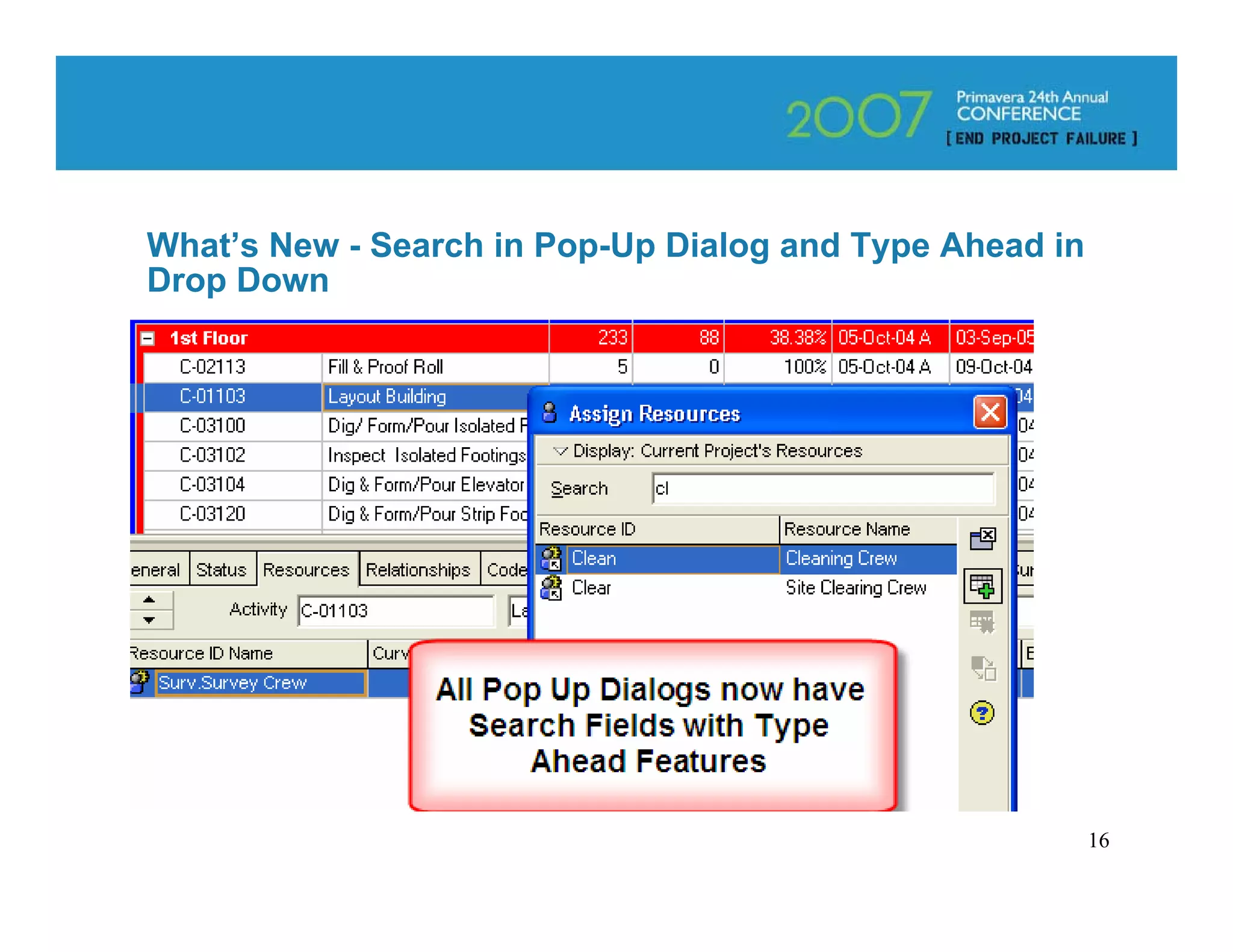
What’s New - Search in Pop-Up Dialog and Type Ahead in
Drop Down


                           SHOW PIX & EXPLAIN


                                                         16
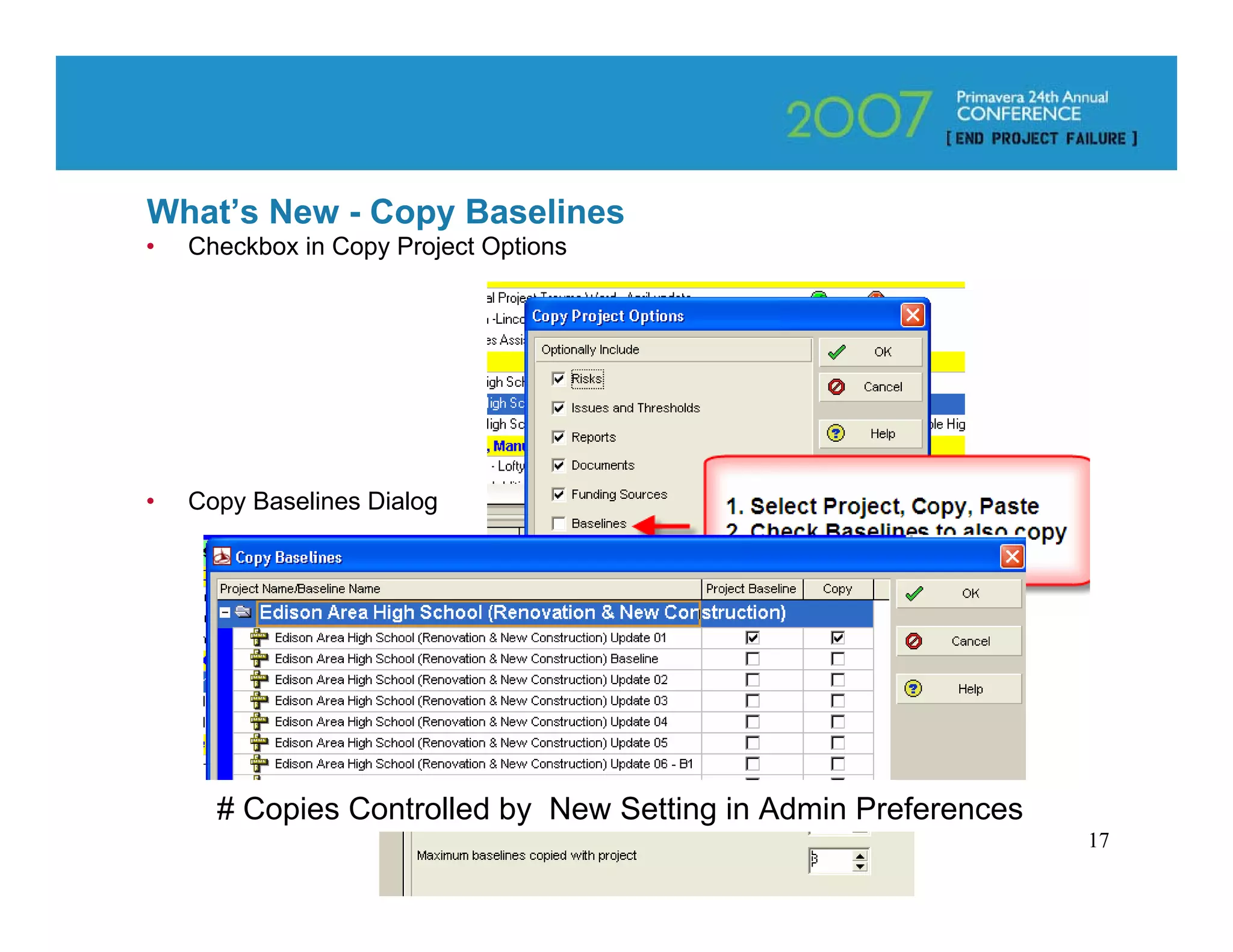
What’s New - Copy Baselines
•   Checkbox in Copy Project Options


•   Copy Baselines Dialog


      # Copies Controlled by New Setting in Admin Preferences
                                                                17
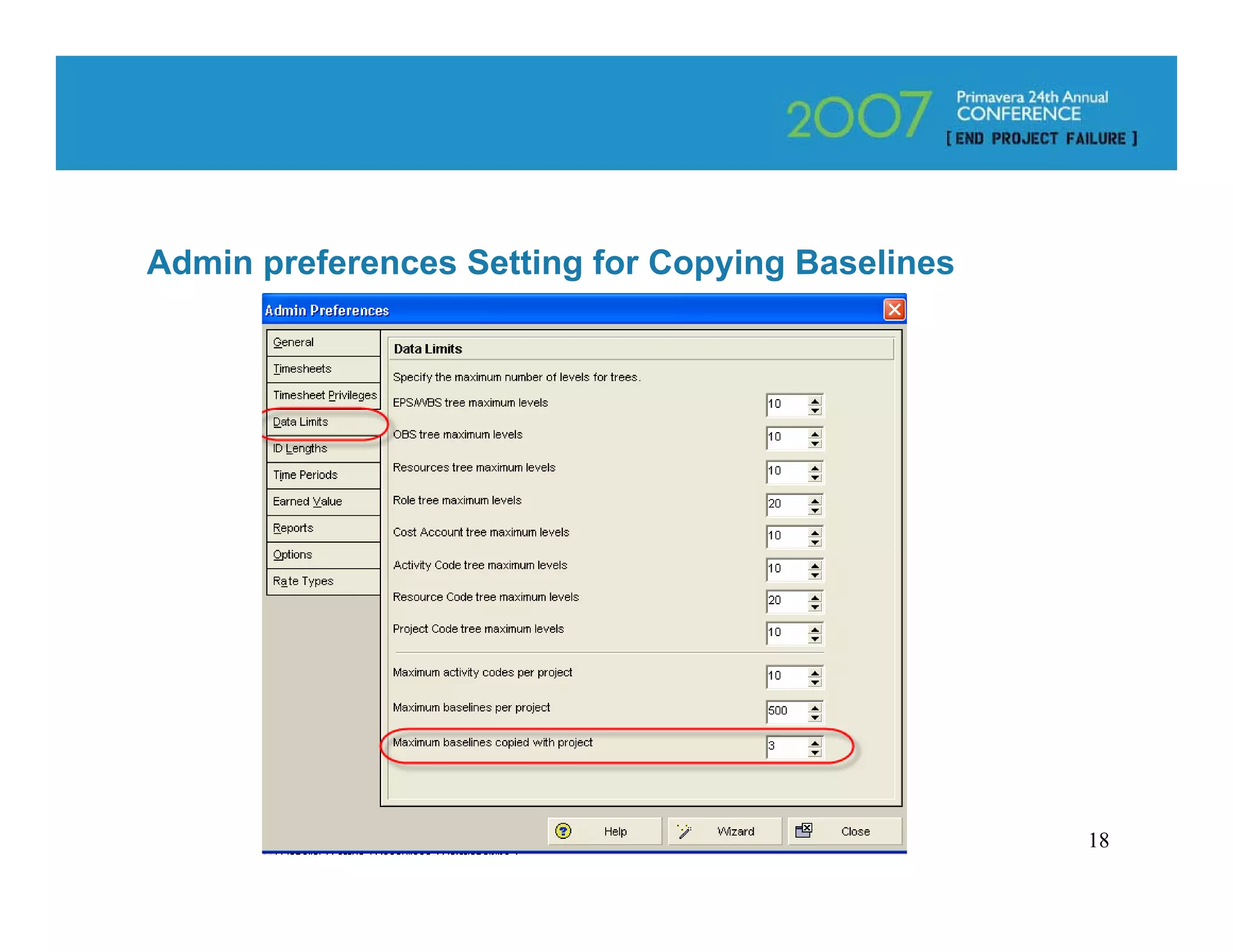
Admin preferences Setting for Copying Baselines


                                                  18
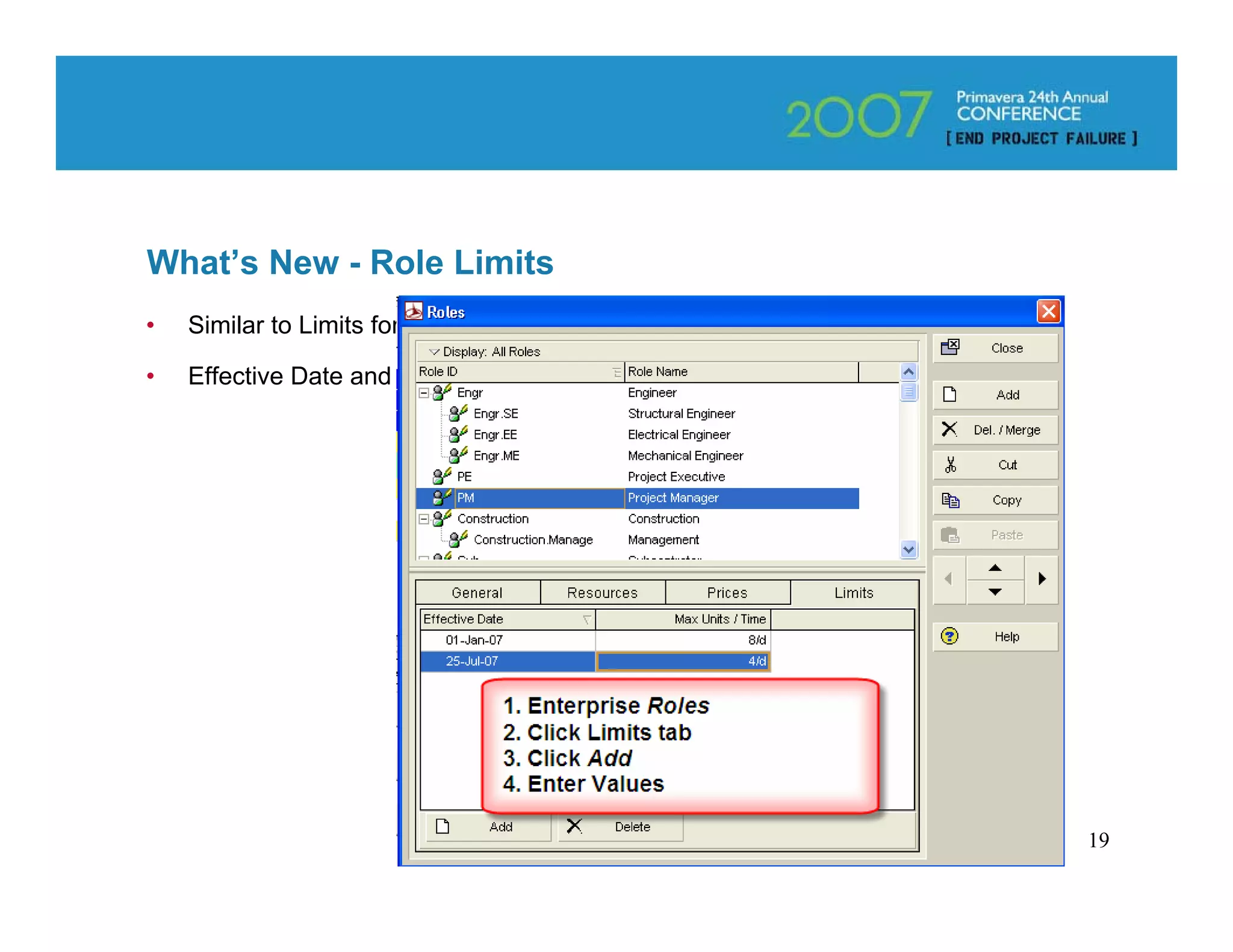
What’s New - Role Limits
•   Similar to Limits for Resources

•   Effective Date and Max Units/Time


                                        19
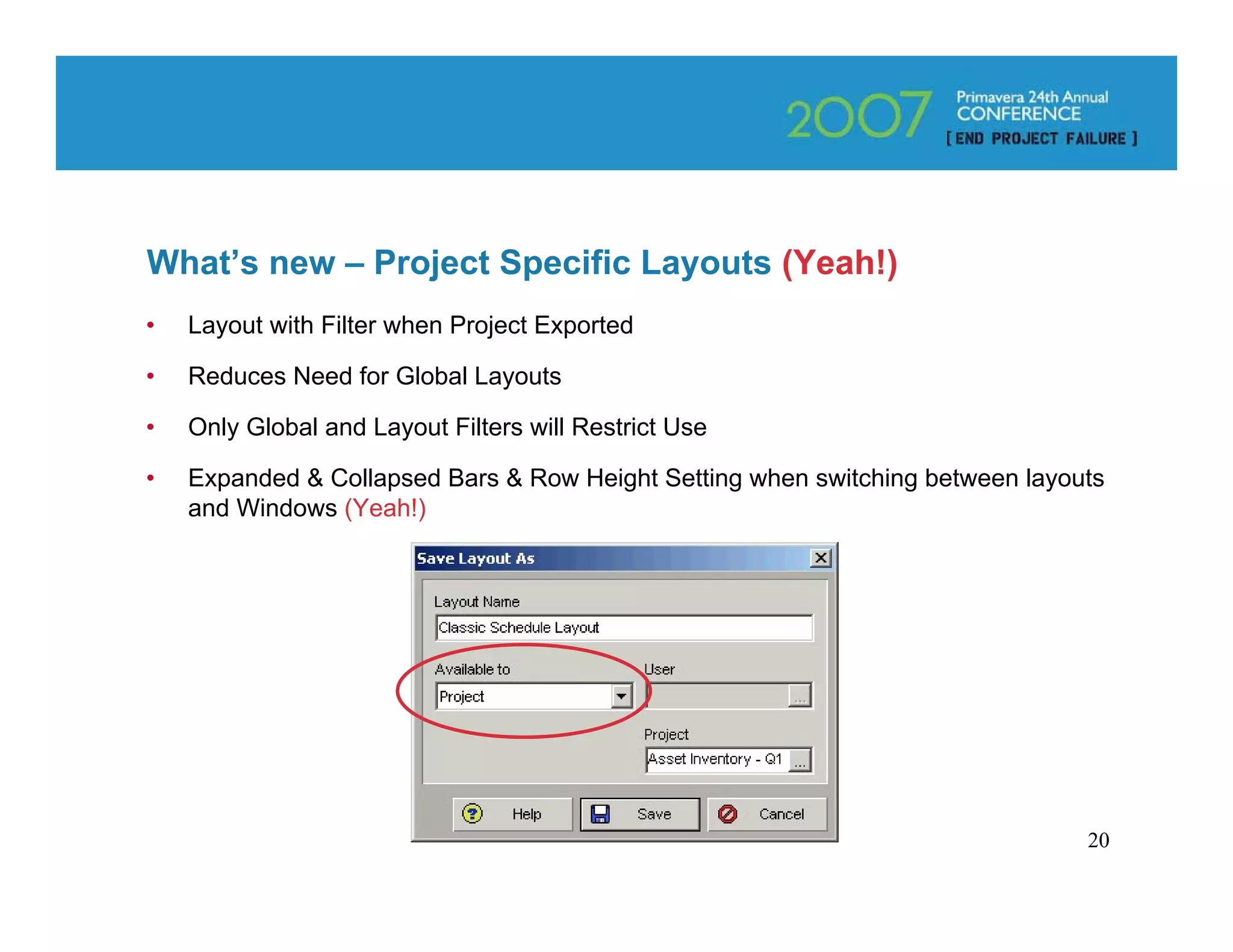
What’s new – Project Specific Layouts (Yeah!)
•   Layout with Filter when Project Exported

•   Reduces Need for Global Layouts

•   Only Global and Layout Filters will Restrict Use

•   Expanded & Collapsed Bars & Row Height Setting when switching between layouts
    and Windows (Yeah!)


                                                                               20
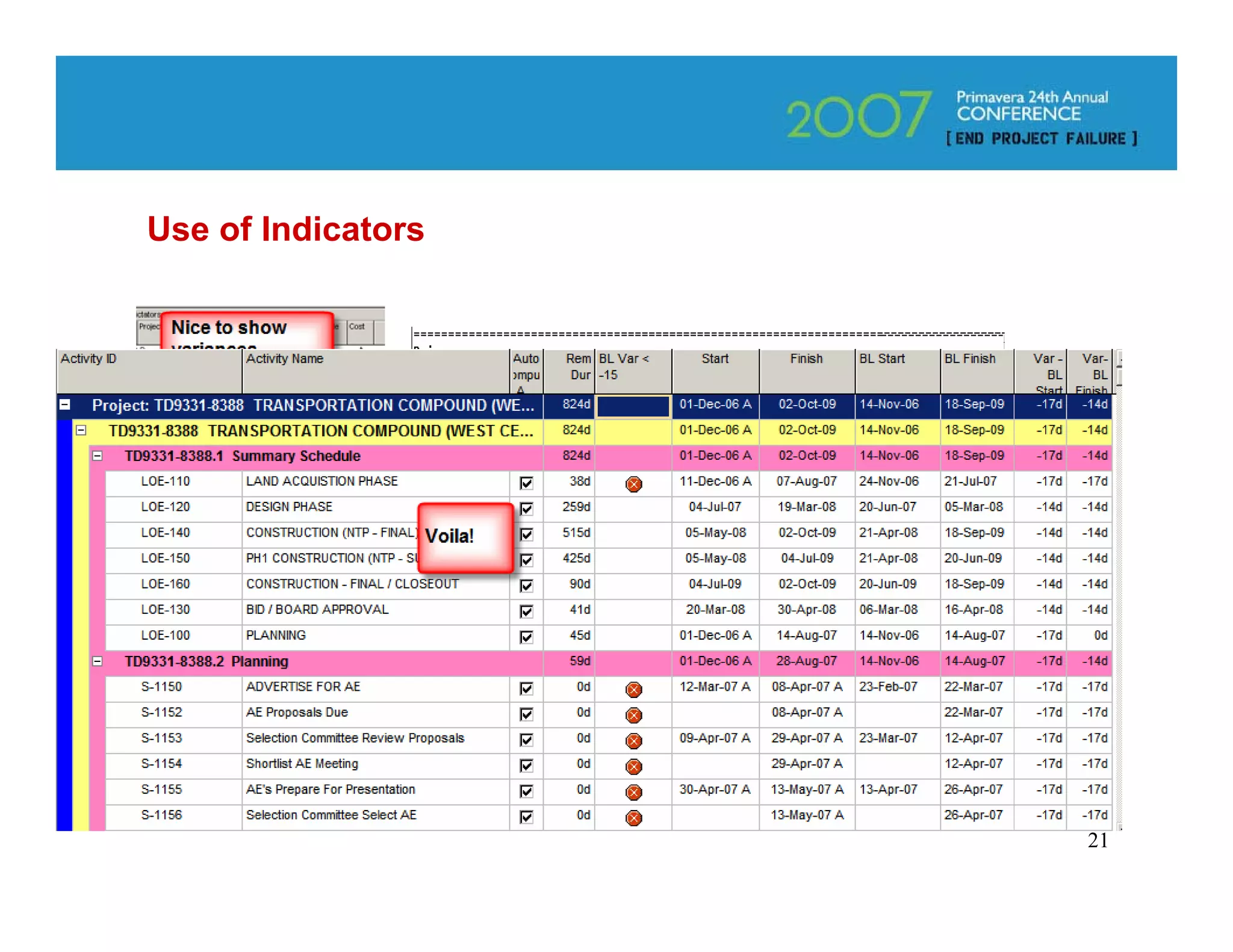
Use of Indicators


                    21
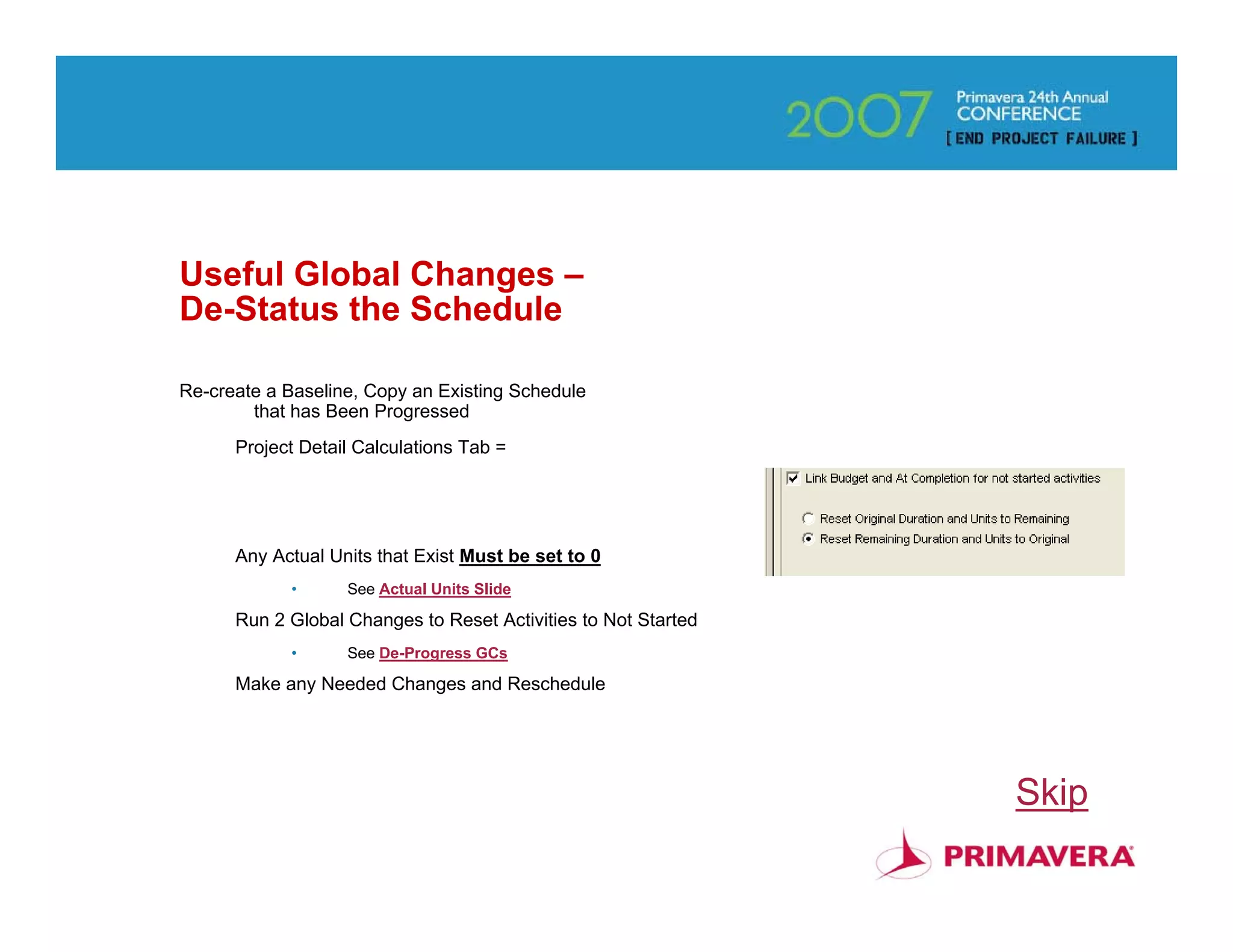
Useful Global Changes –
De-Status the Schedule

Re-create a Baseline, Copy an Existing Schedule
        that has Been Progressed
      Project Detail Calculations Tab =


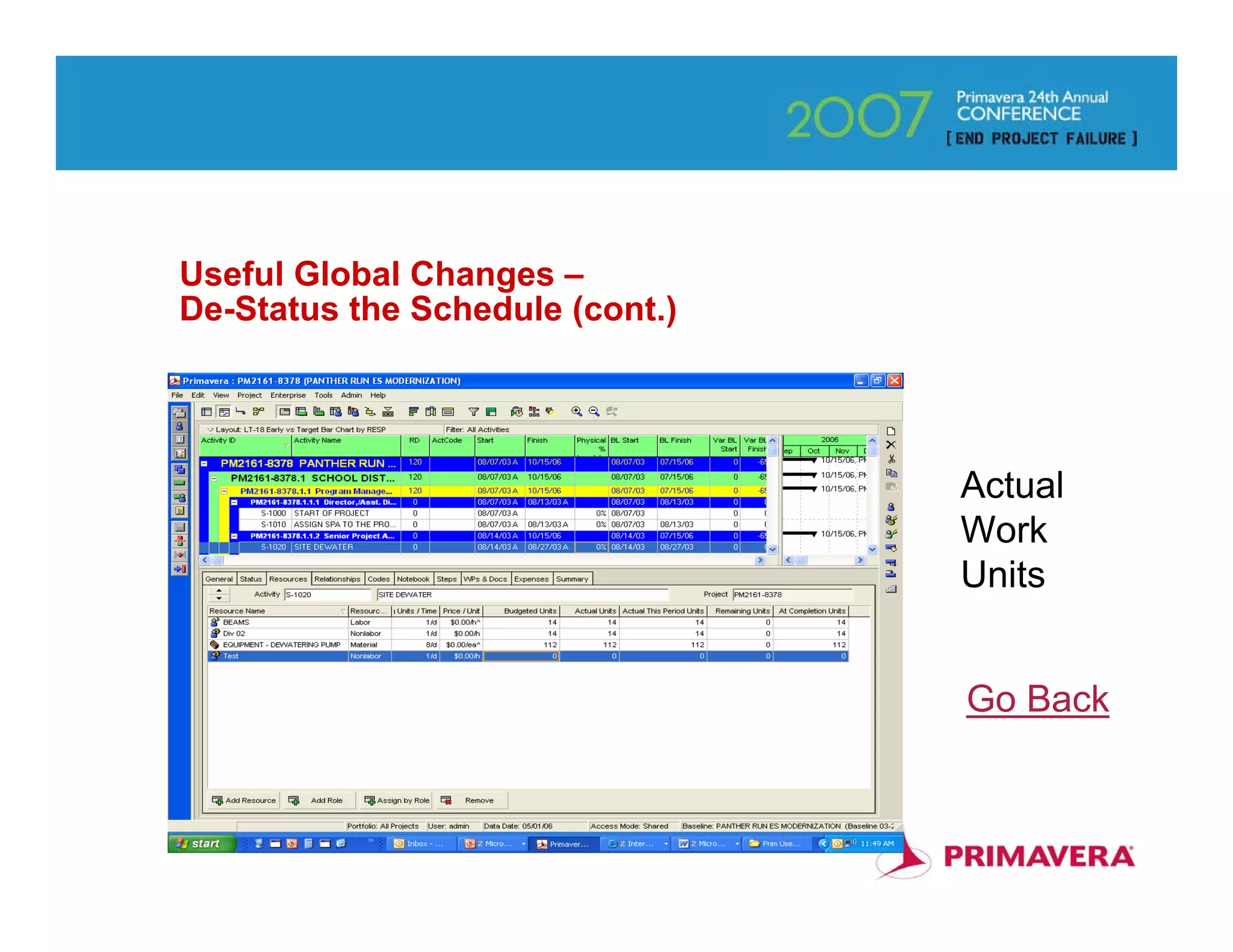
      Any Actual Units that Exist Must be set to 0
            •      See Actual Units Slide

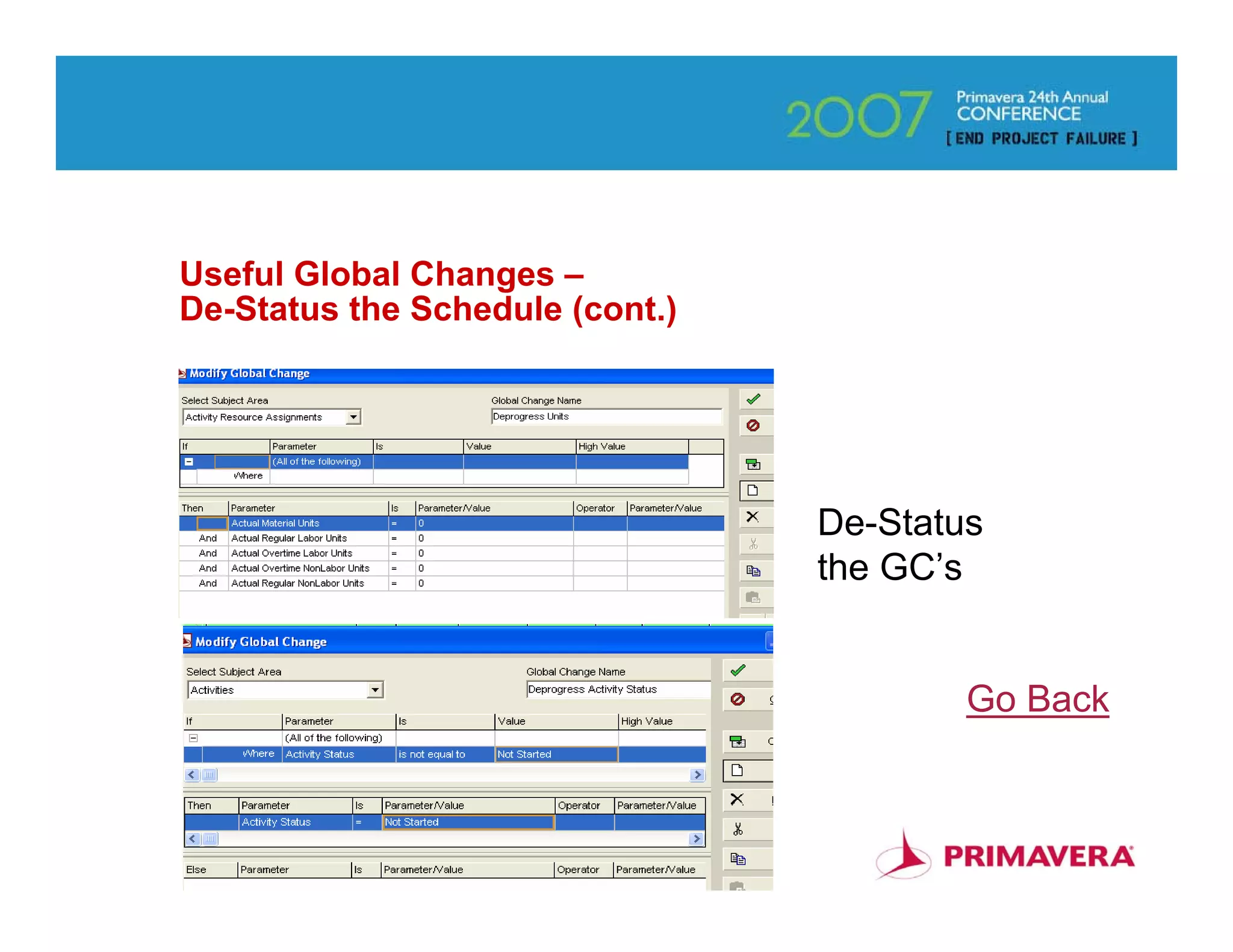
      Run 2 Global Changes to Reset Activities to Not Started
            •      See De-Progress GCs

      Make any Needed Changes and Reschedule


                                                                Skip
                                                                   22
Useful Global Changes –
De-Status the Schedule (cont.)


                                 Actual
                                 Work
                                 Units


                                 Go Back


                                          23
Useful Global Changes –
De-Status the Schedule (cont.)


                                 De-Status
                                 the GC’s


                                         Go Back


                                              24
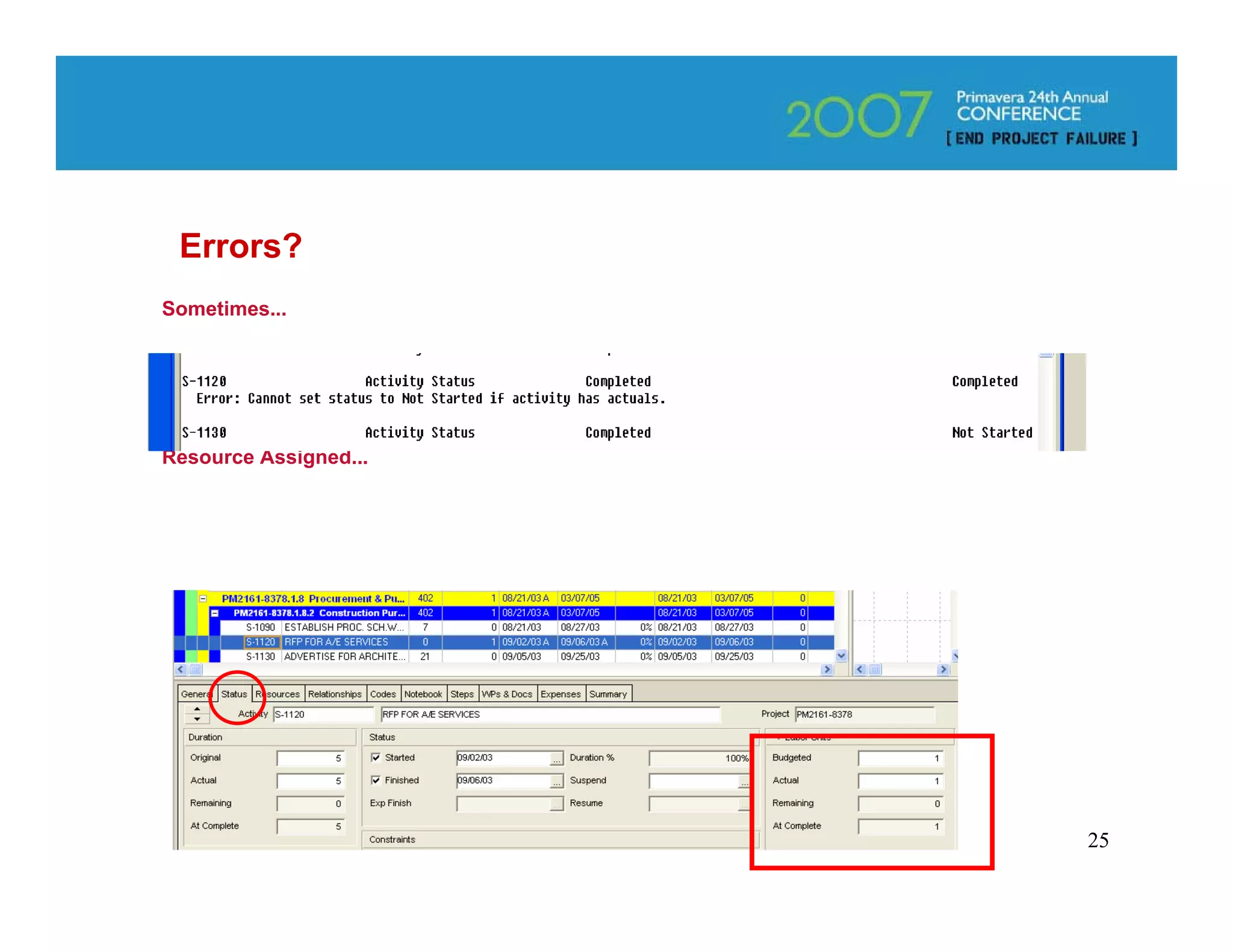
Errors?
Sometimes...


An Activity may have a Unit without a
Resource Assigned...


                                        25
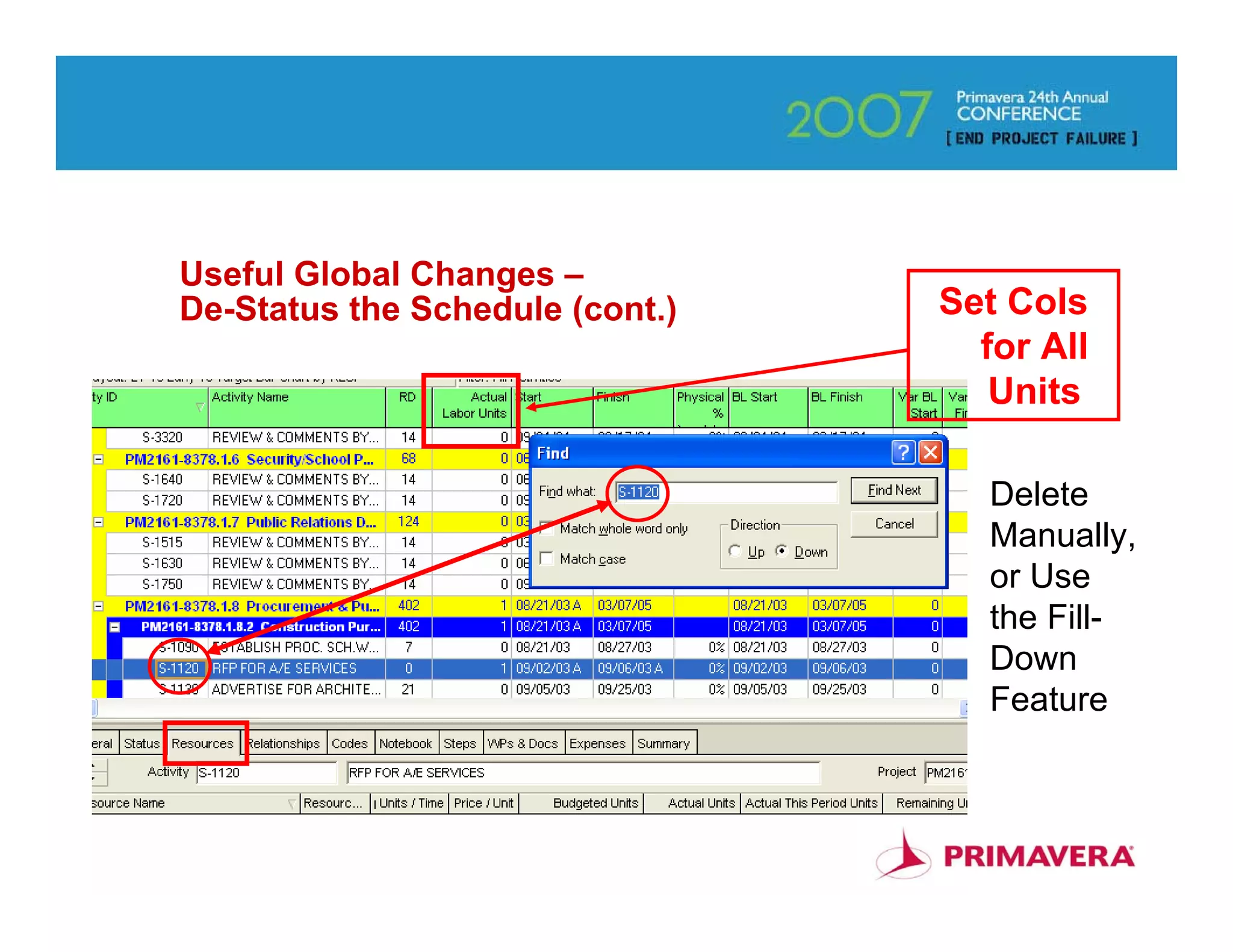
Useful Global Changes –
De-Status the Schedule (cont.)   Set Cols
                                   for All
                                    Units

                                    Delete
                                    Manually,
                                    or Use
                                    the Fill-
                                    Down
                                    Feature


                                          26
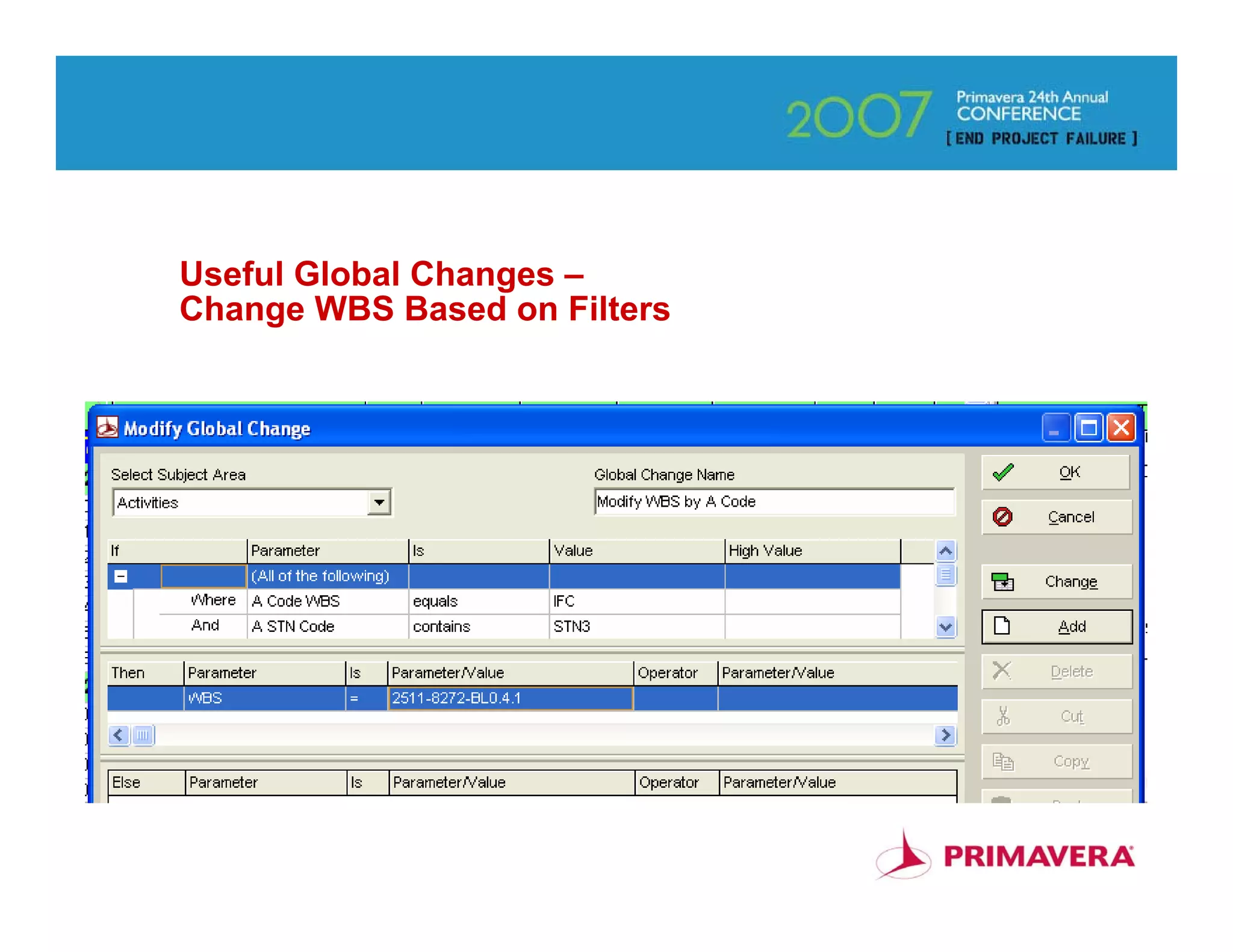
Useful Global Changes –
Change WBS Based on Filters


                              27
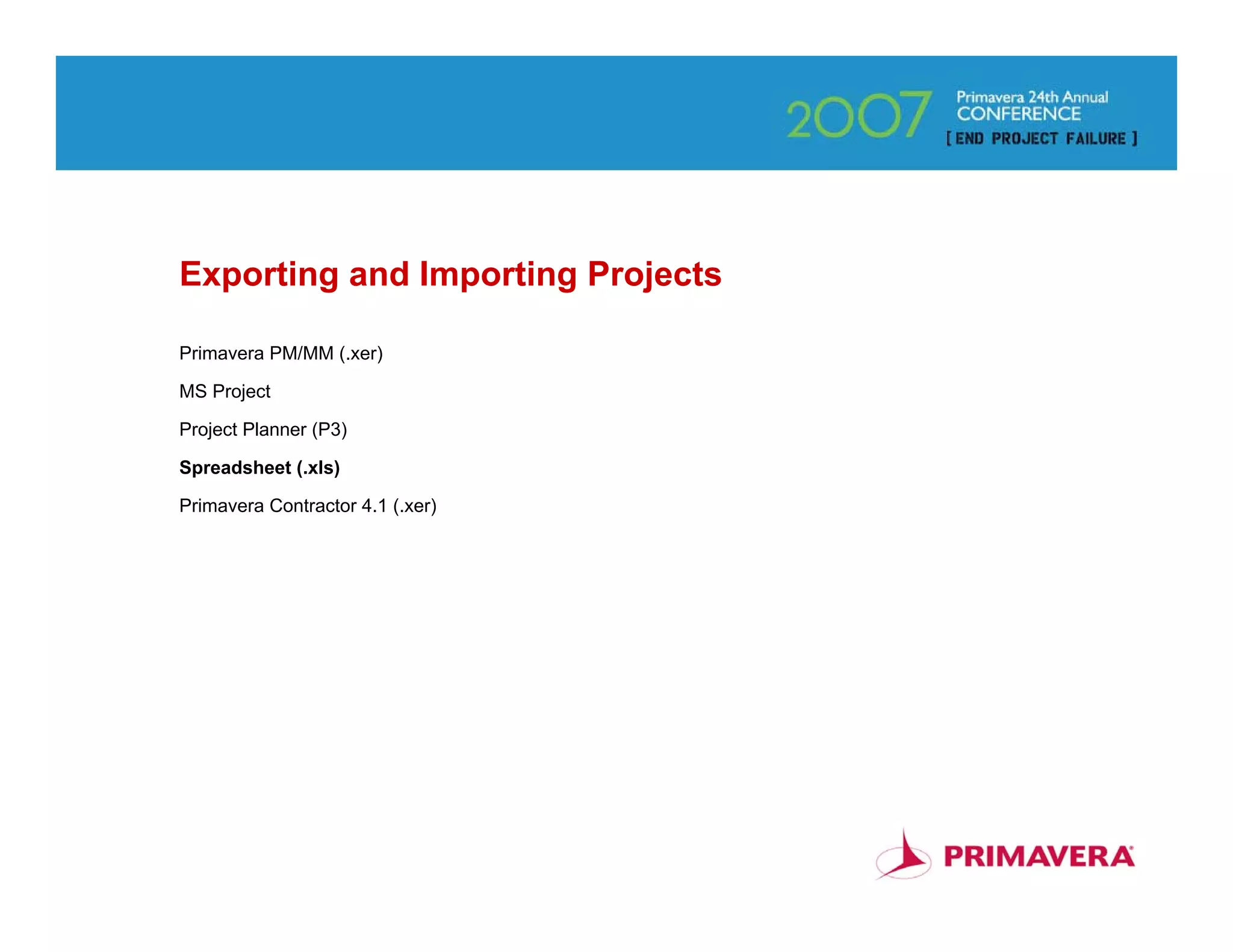
Exporting and Importing Projects

Primavera PM/MM (.xer)

MS Project

Project Planner (P3)

Spreadsheet (.xls)

Primavera Contractor 4.1 (.xer)


                                   28
Exporting and Importing Projects – Spreadsheet (.XLS)


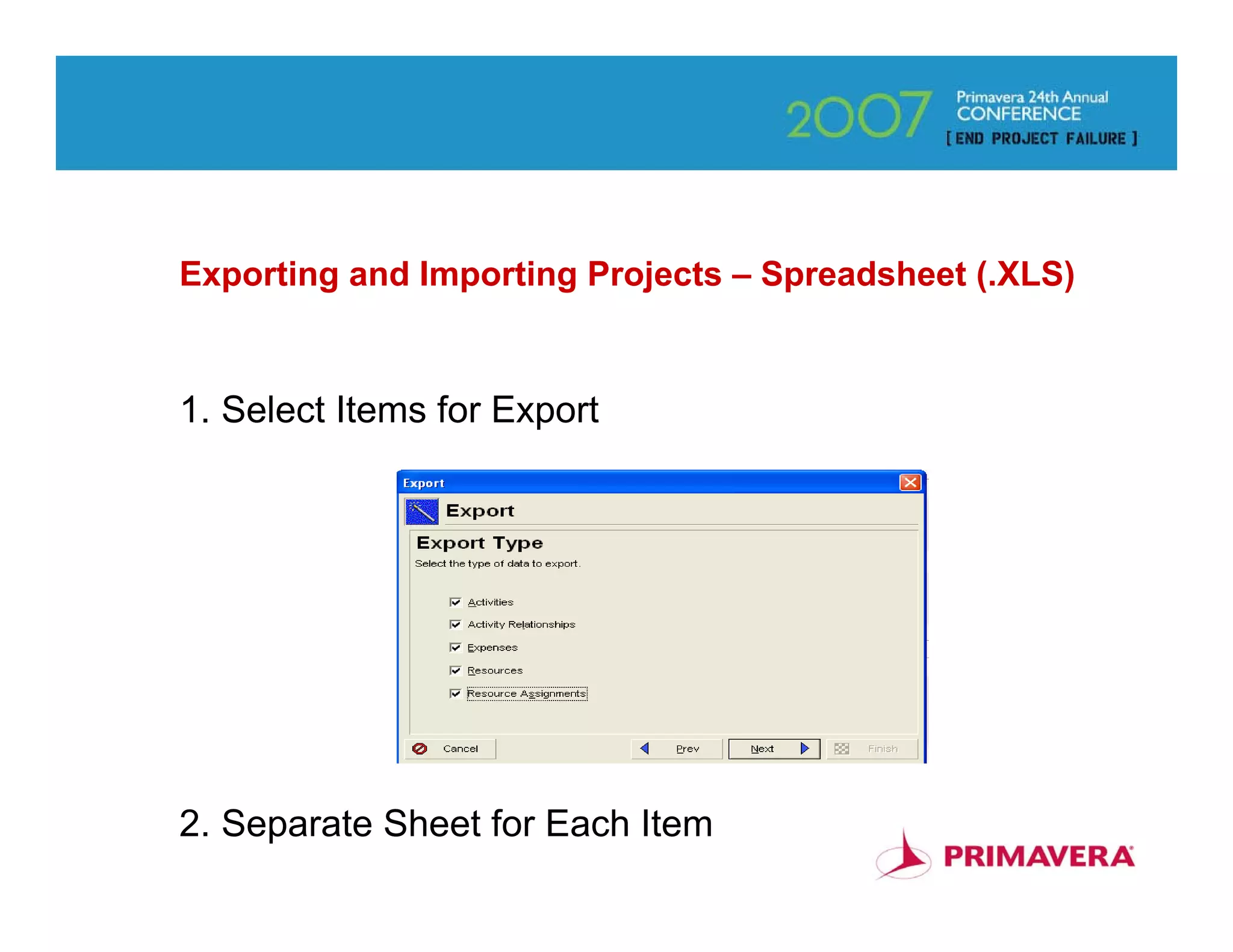
1. Select Items for Export


2. Separate Sheet for Each Item                         29
Exporting and Importing Projects – Spreadsheet (.XLS)
(cont.)

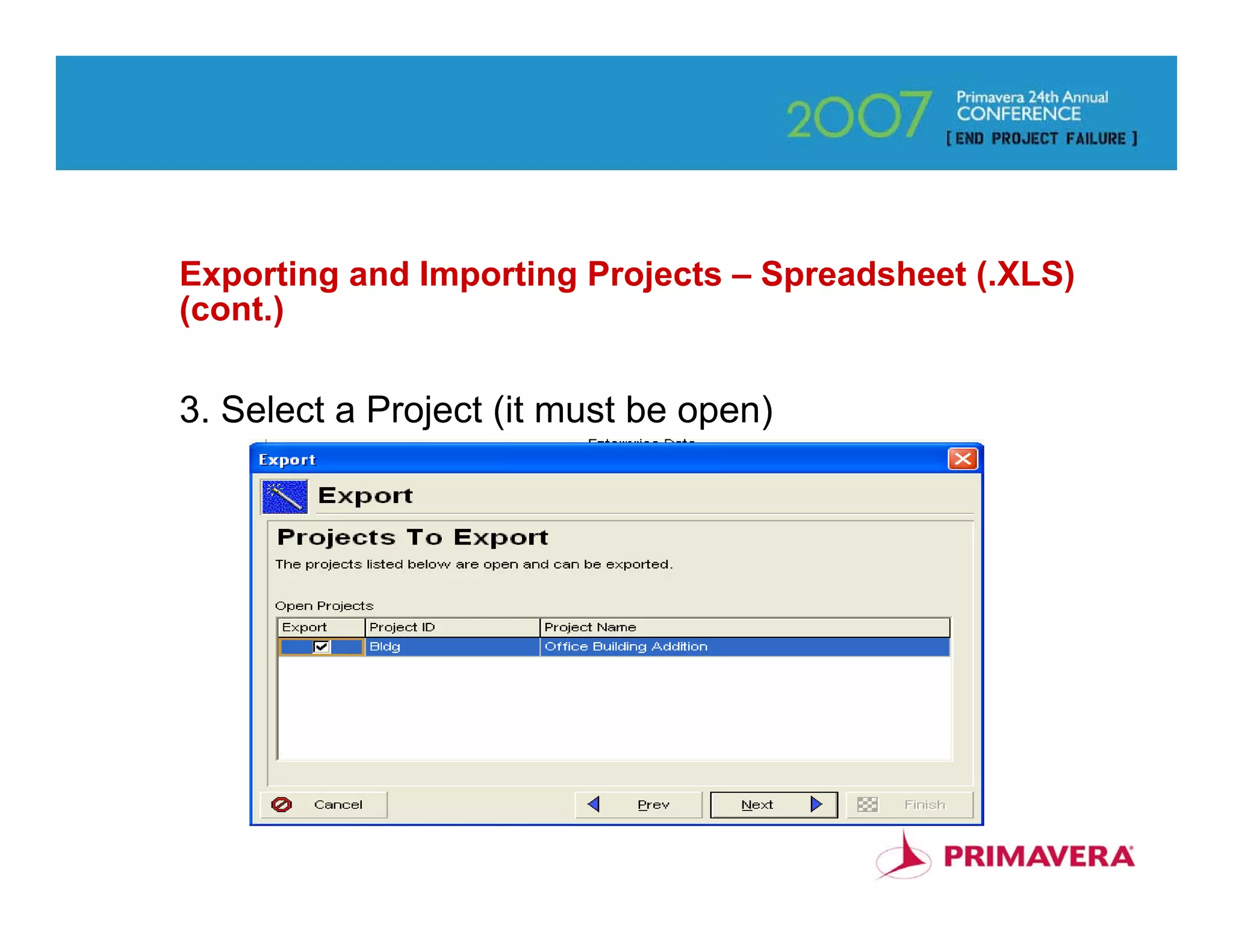
3. Select a Project (it must be open)


                                                        30
Exporting and Importing Projects – Spreadsheet (.XLS)
(cont.)

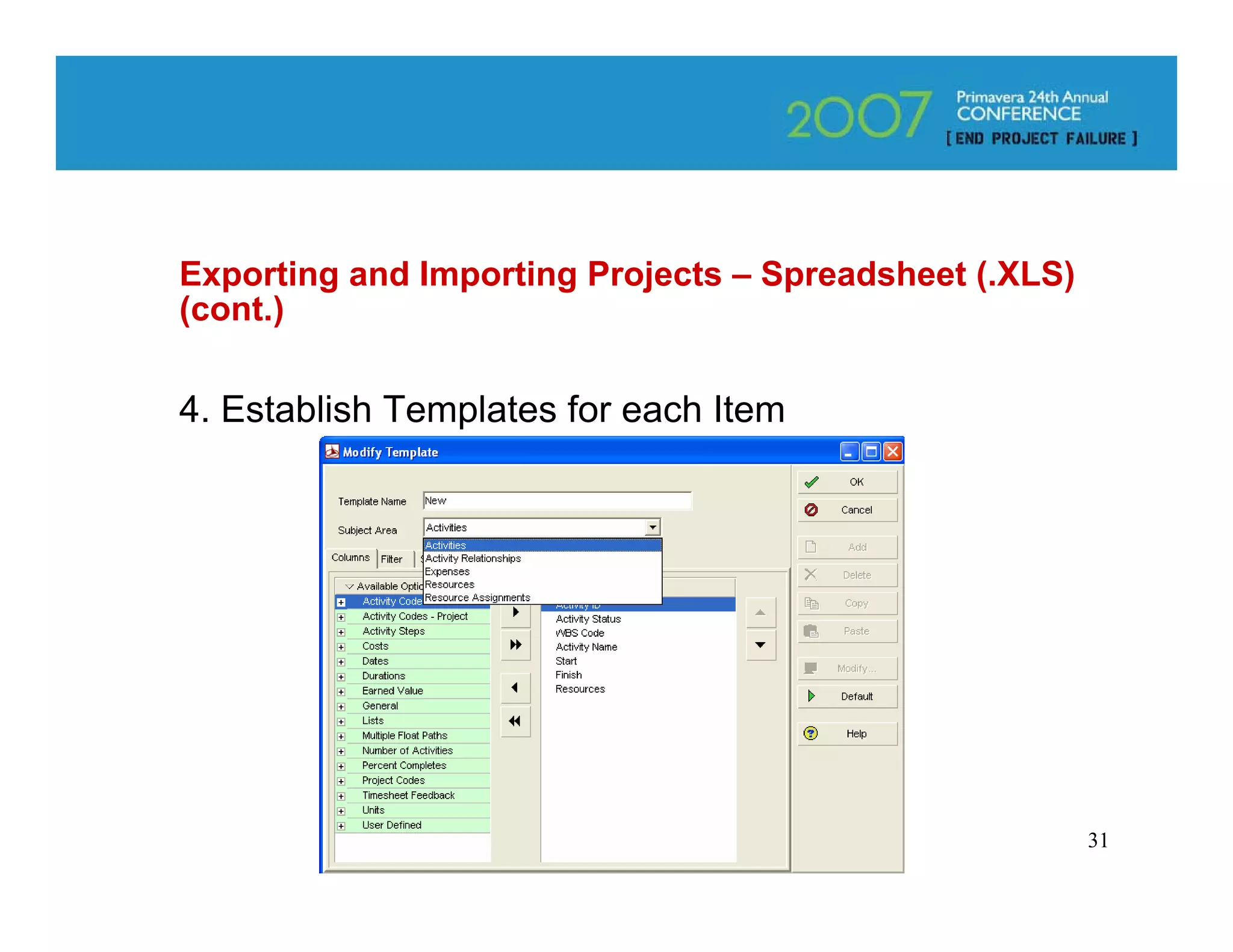
4. Establish Templates for each Item


                                                        31
Exporting and Importing Projects – Spreadsheet (.XLS)
(cont.)

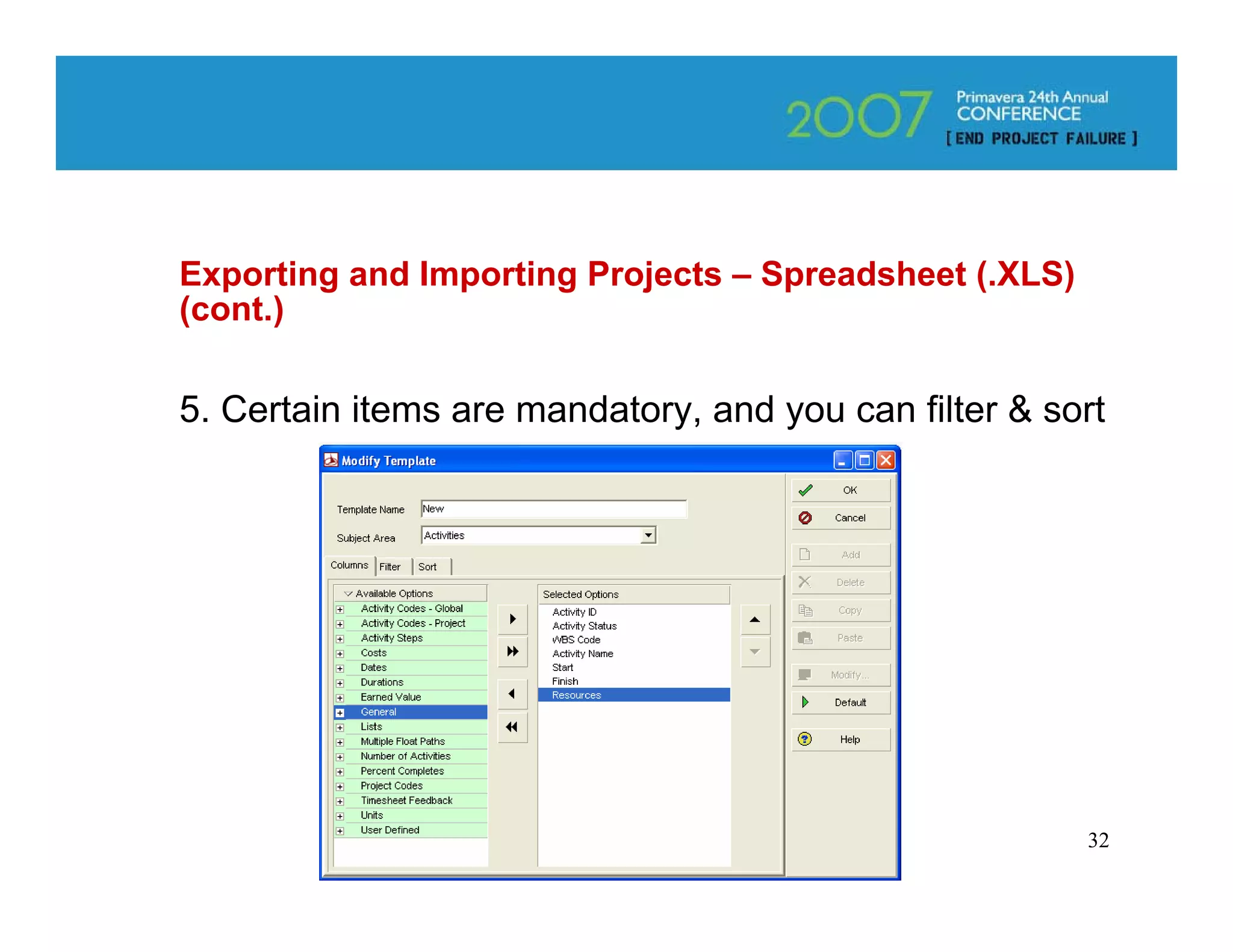
5. Certain items are mandatory, and you can filter & sort


                                                        32
Exporting and Importing Projects – Spreadsheet (.XLS)
(cont.)

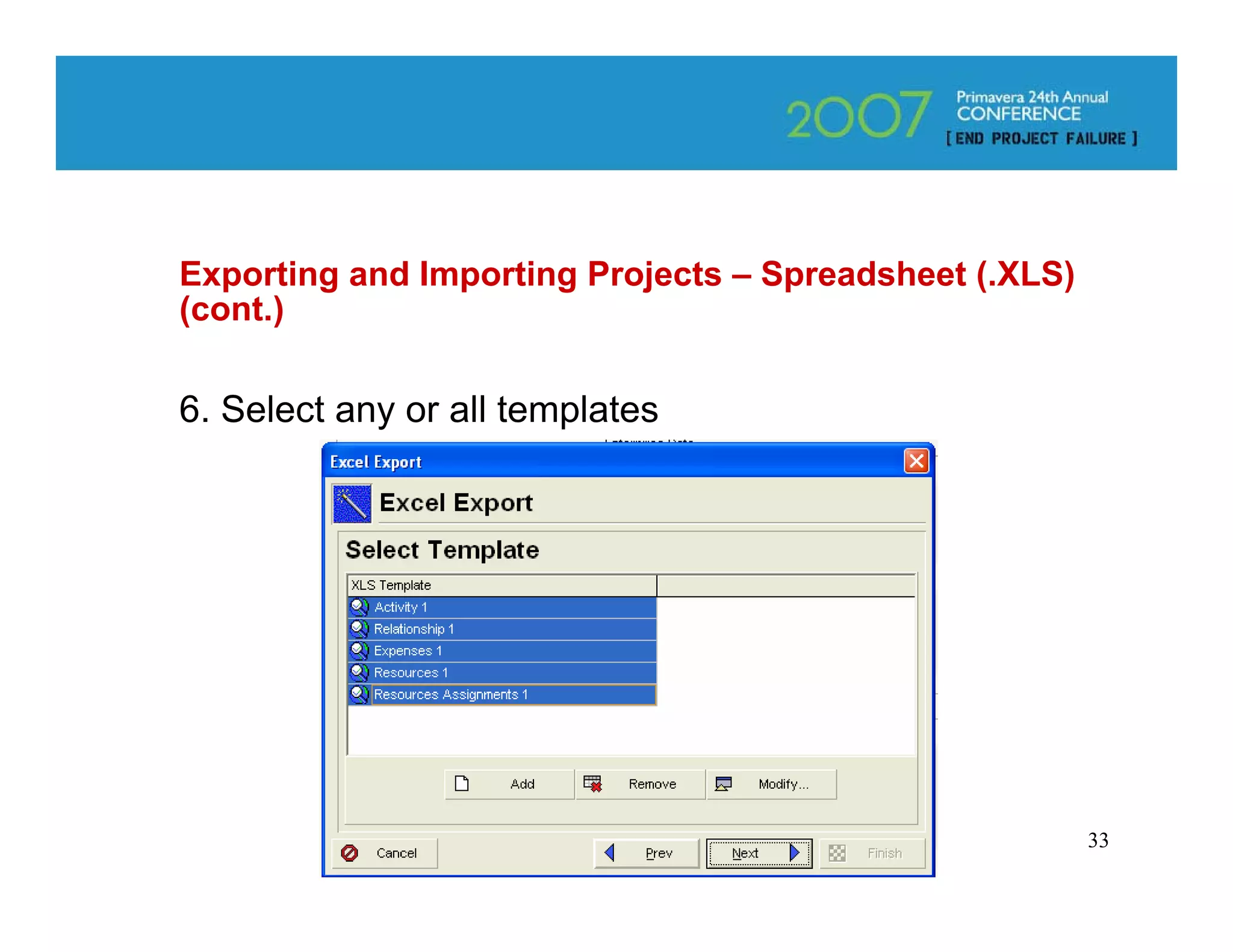
6. Select any or all templates


                                                        33
Exporting and Importing Projects – Spreadsheet (.XLS)
(cont.)

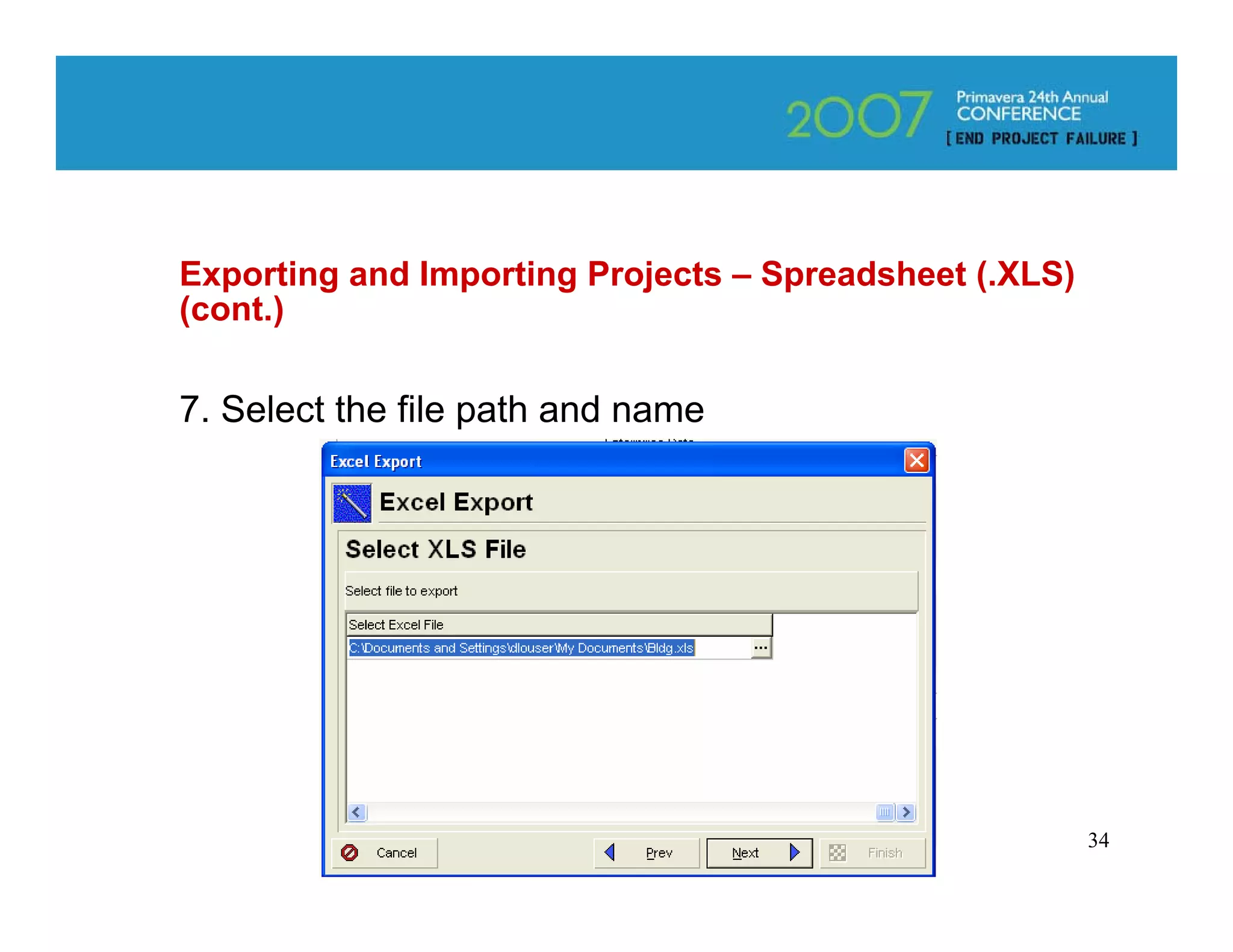
7. Select the file path and name


                                                        34
Exporting and Importing Projects – Spreadsheet (.XLS)
(cont.)

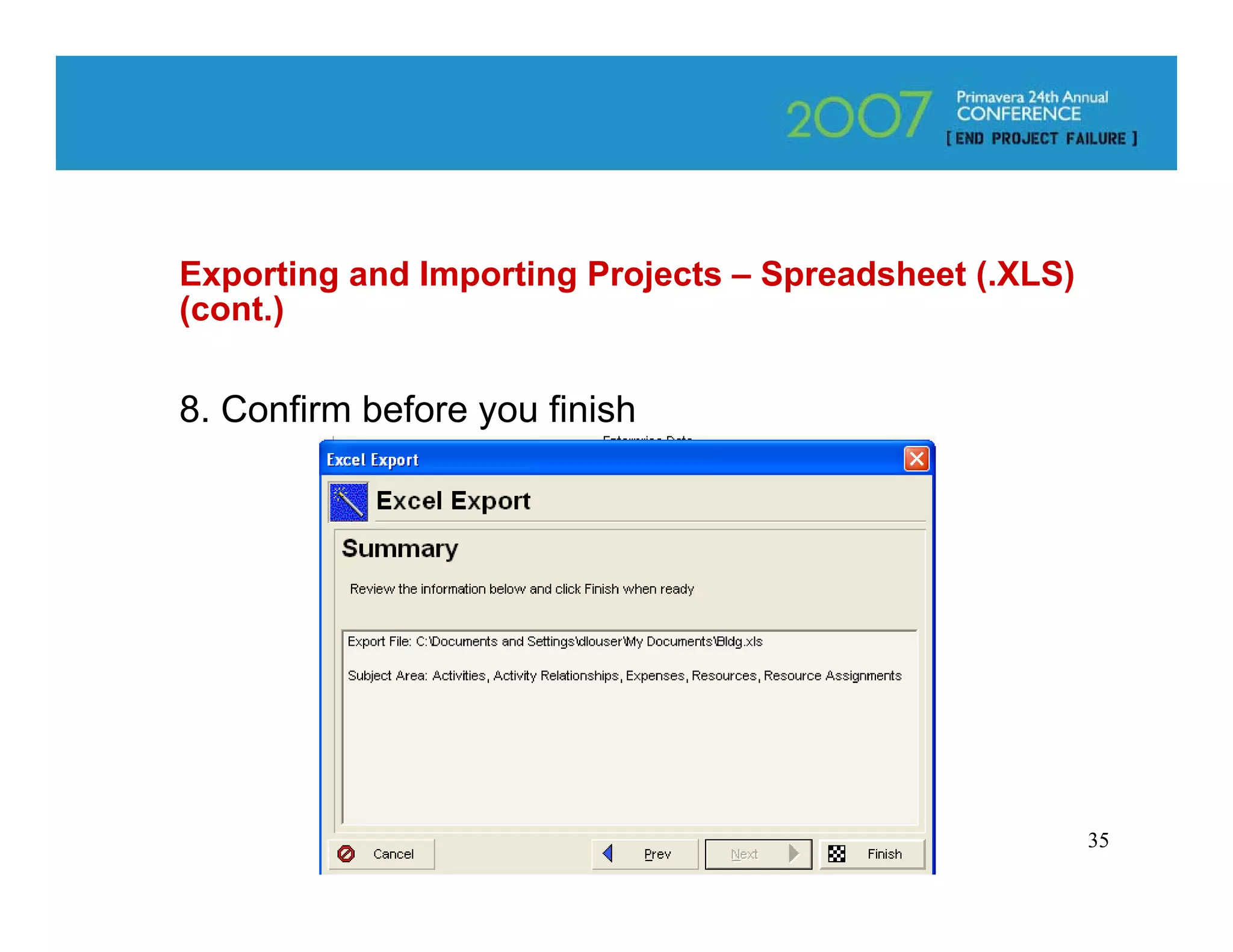
8. Confirm before you finish


                                                        35
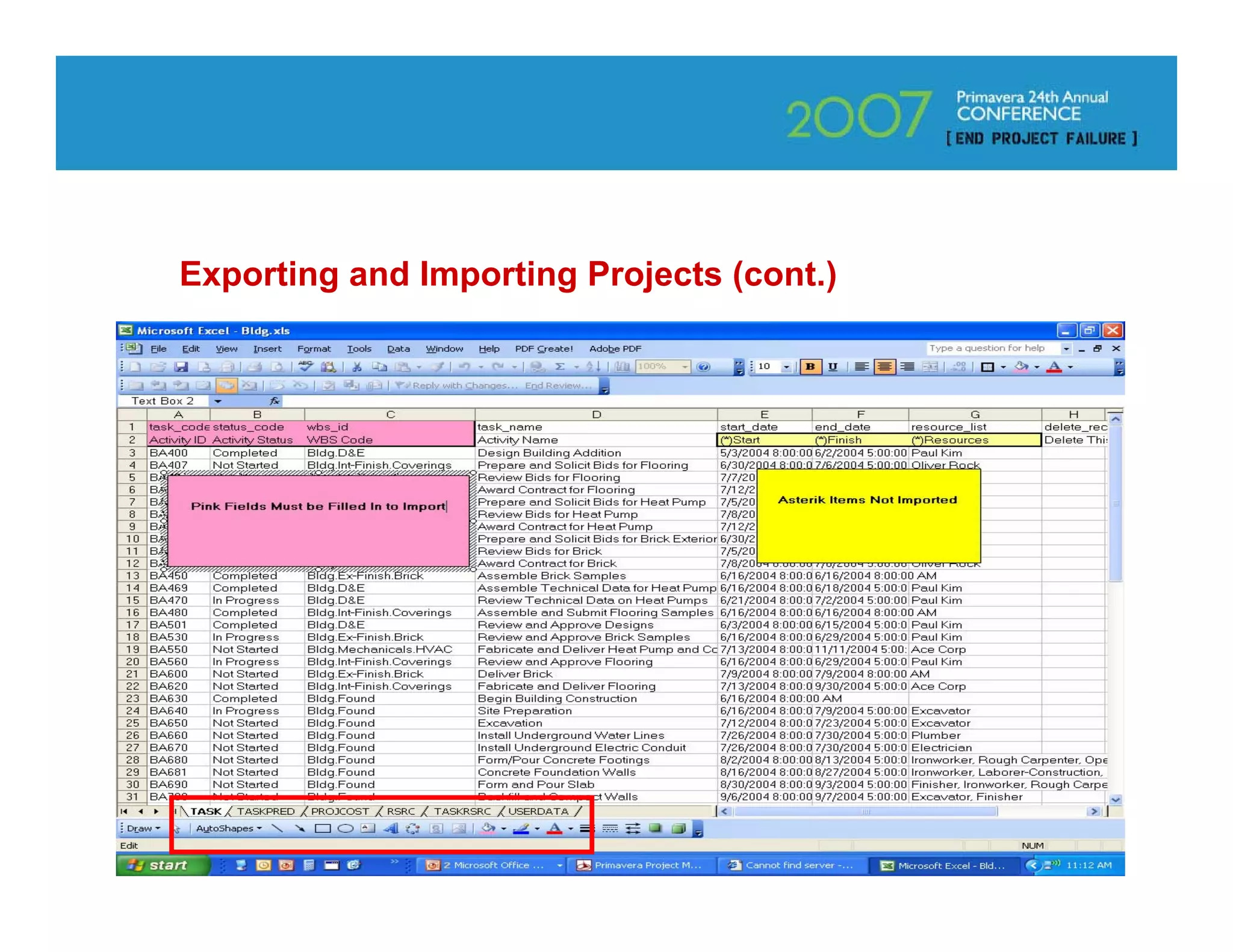
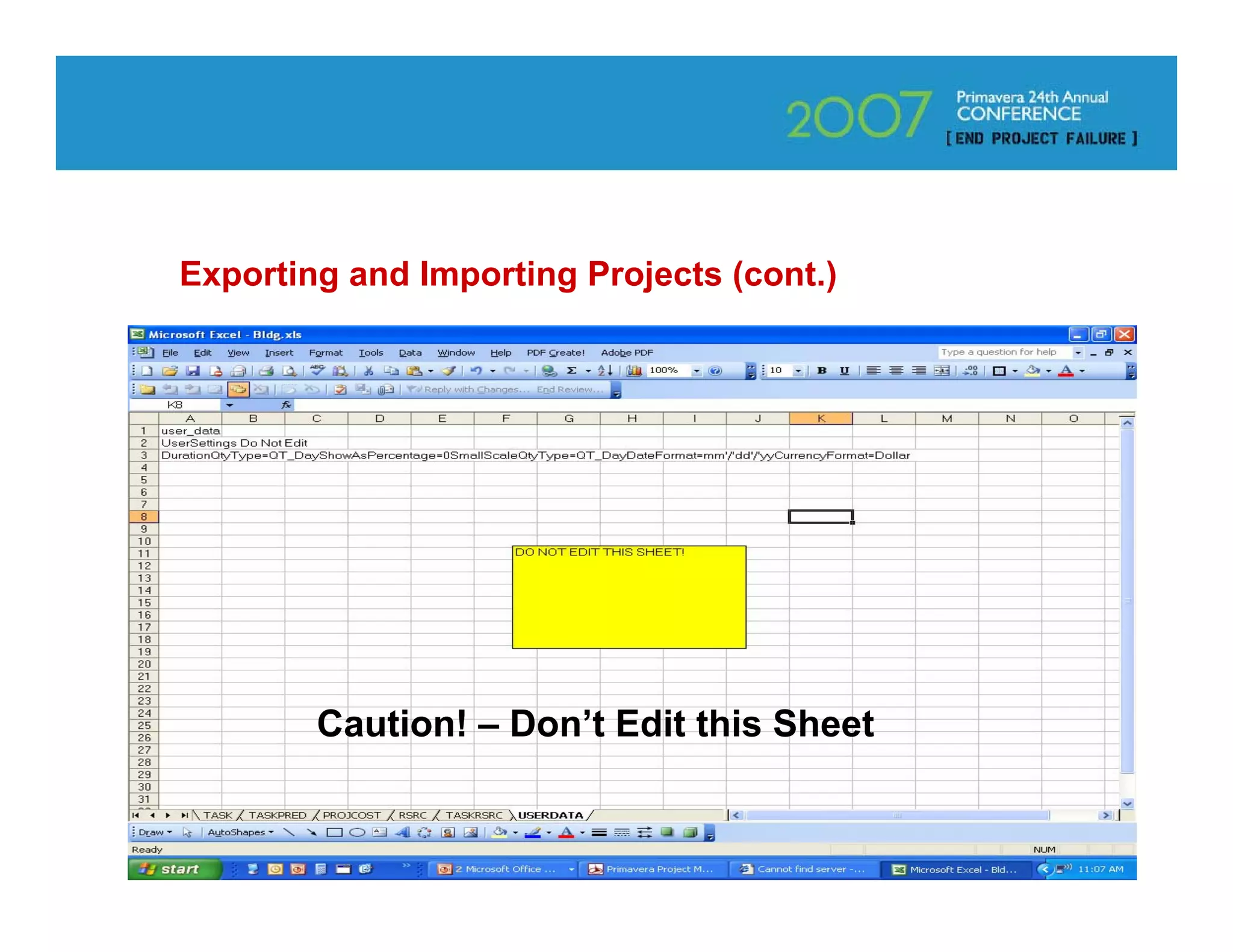
Exporting and Importing Projects (cont.)


      One Worksheet Per Subject

                                           36
Exporting and Importing Projects (cont.)


        Caution! – Don’t Edit this Sheet

                                           37
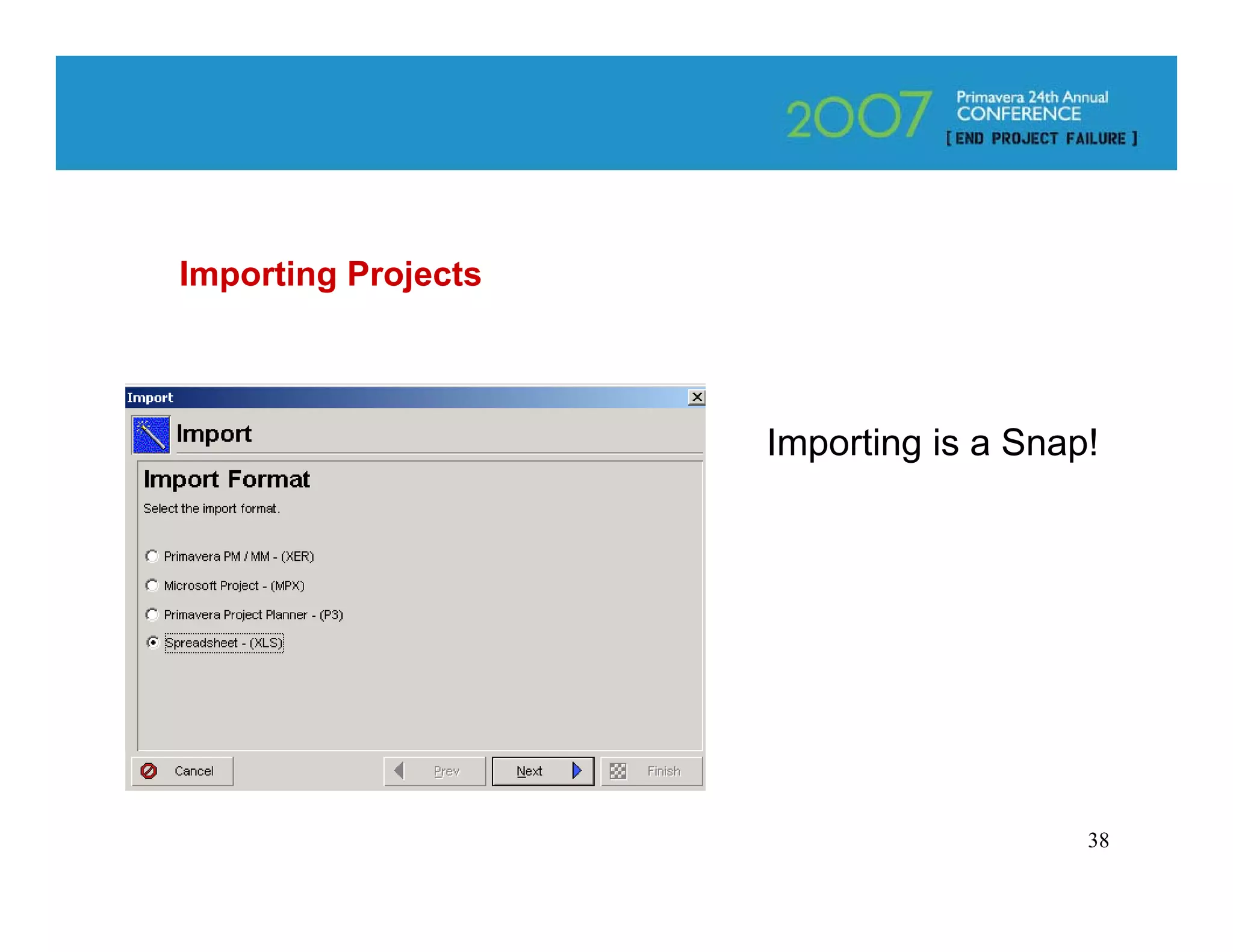
Importing Projects


                     Importing is a Snap!


                                        38
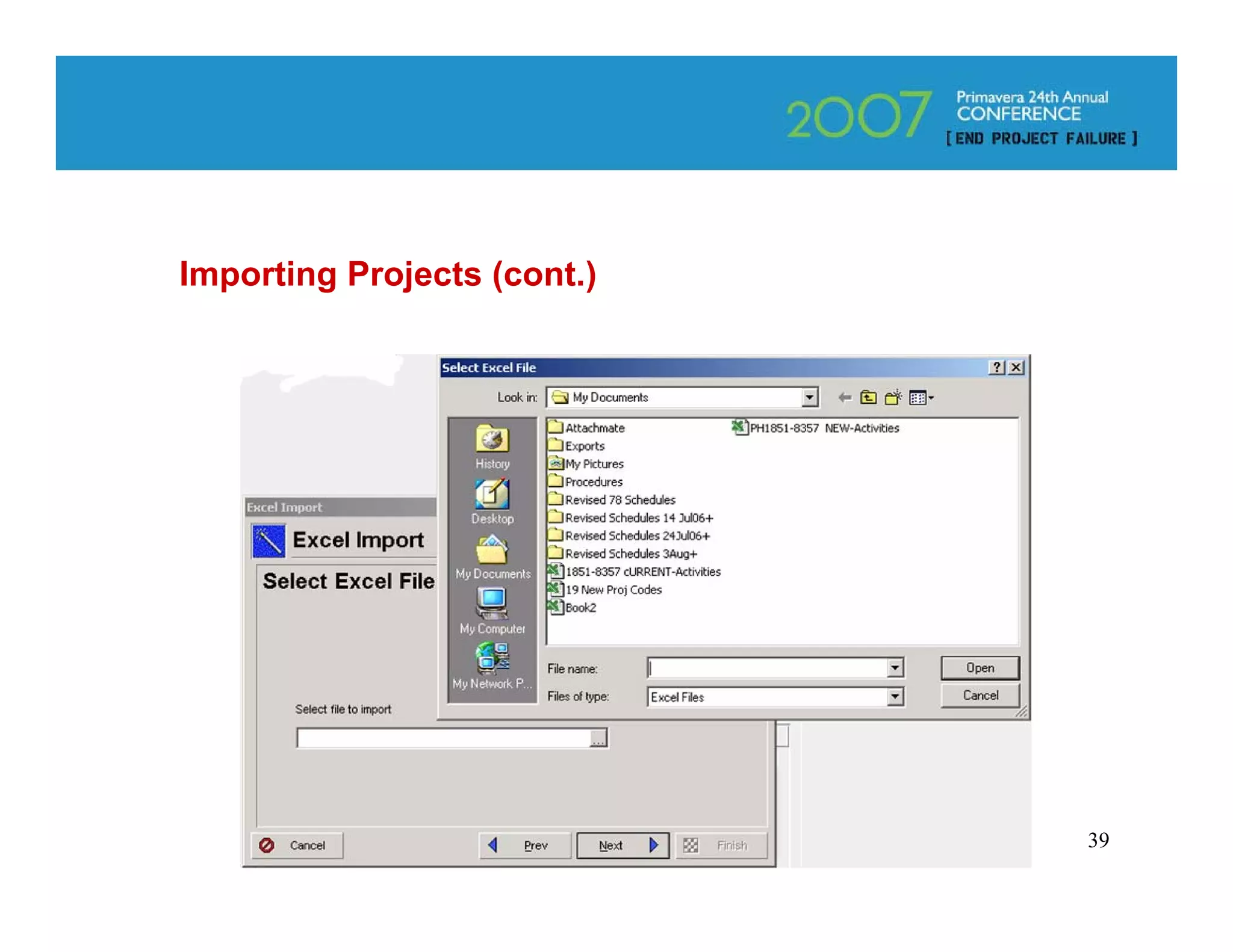
Importing Projects (cont.)


                             39
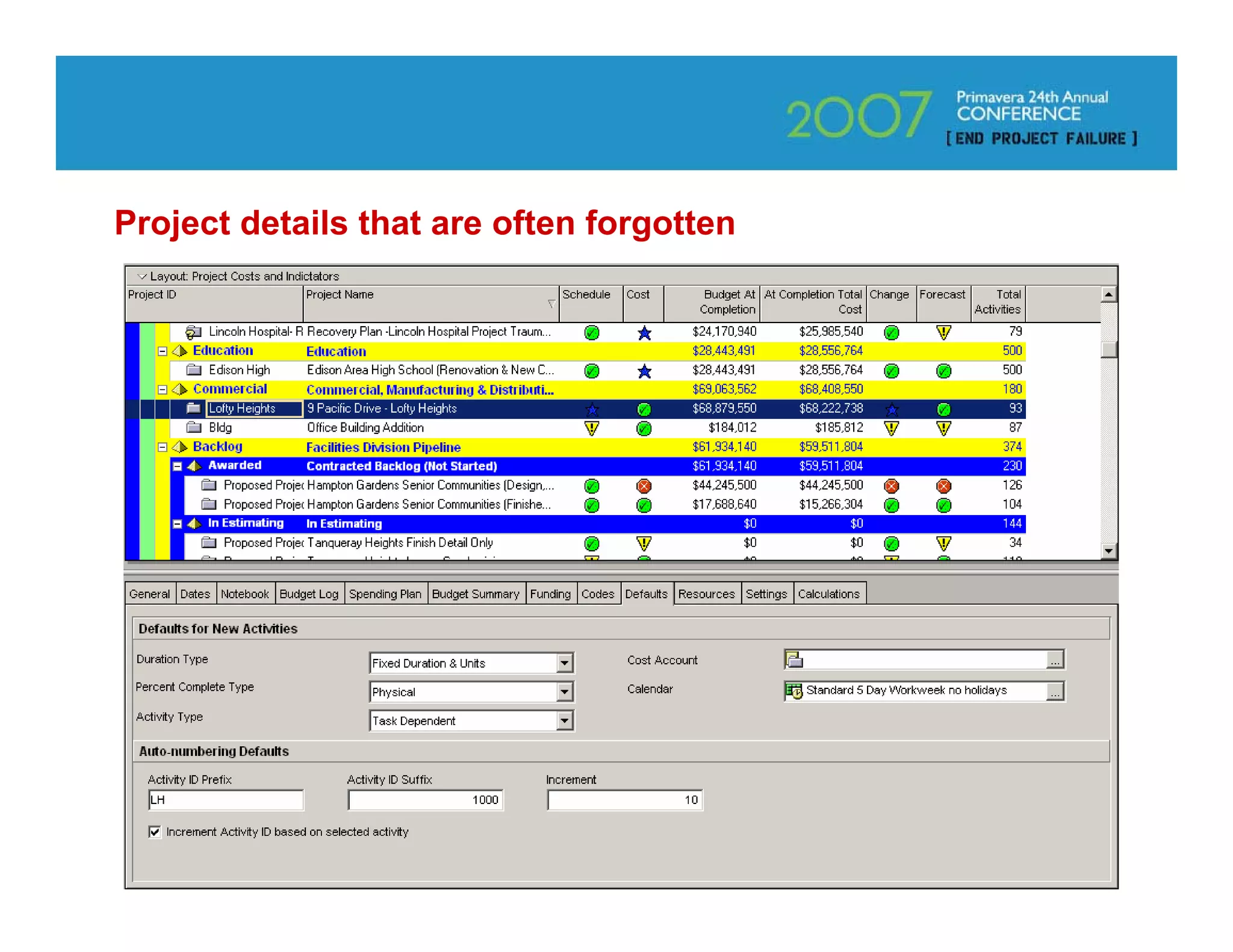
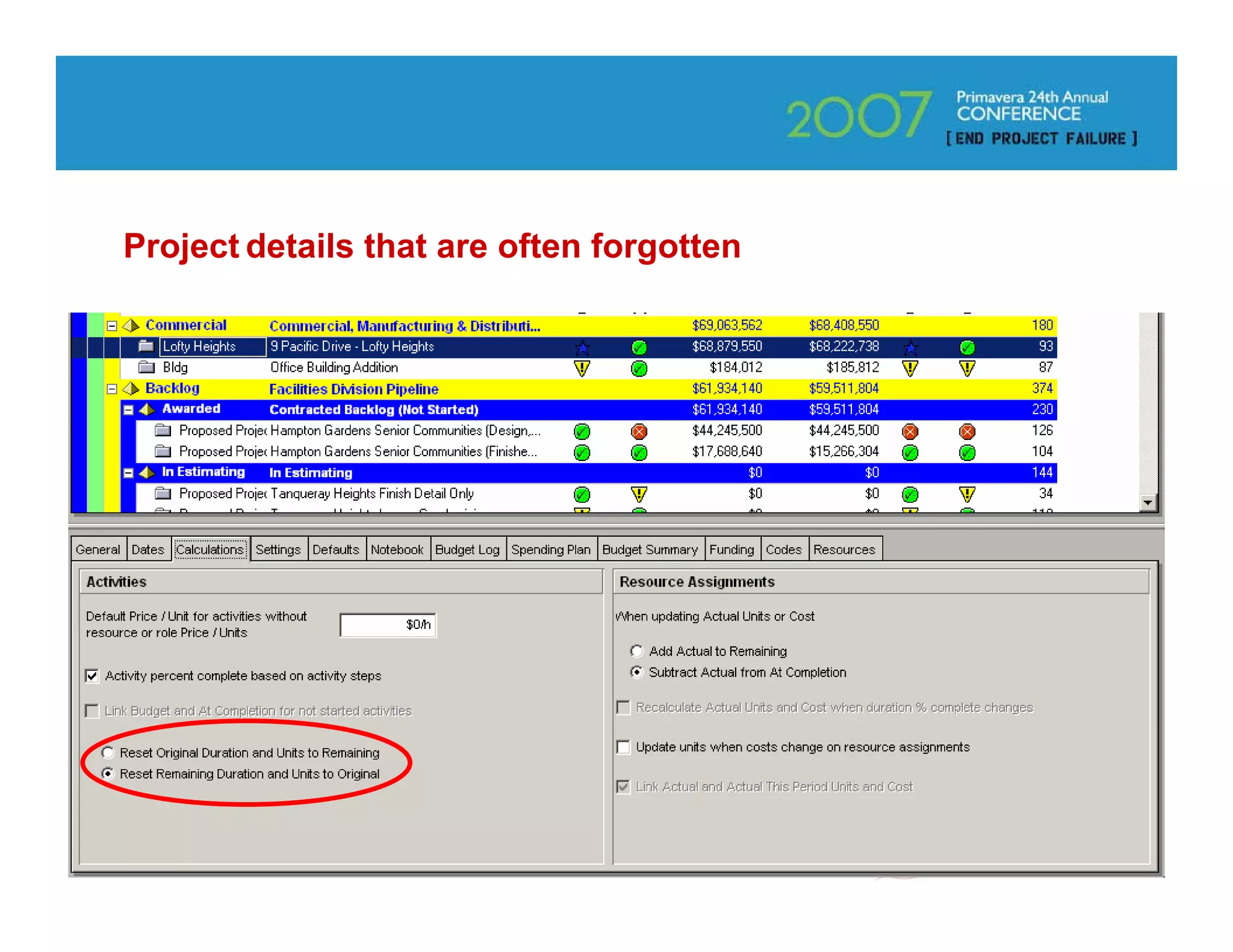
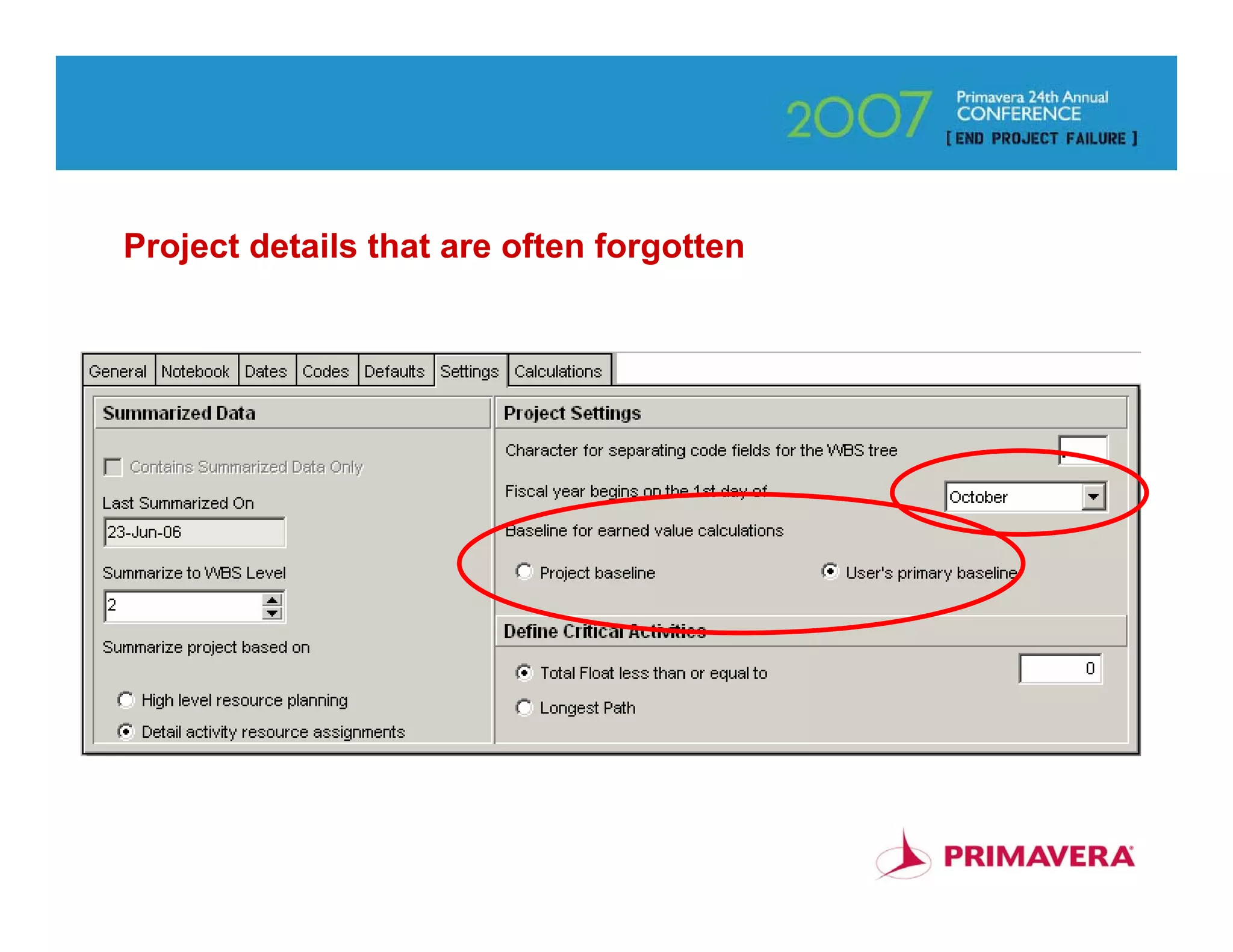
Project details that are often forgotten


                                           40
Project details that are often forgotten


                                           41
Project details that are often forgotten


                                           42
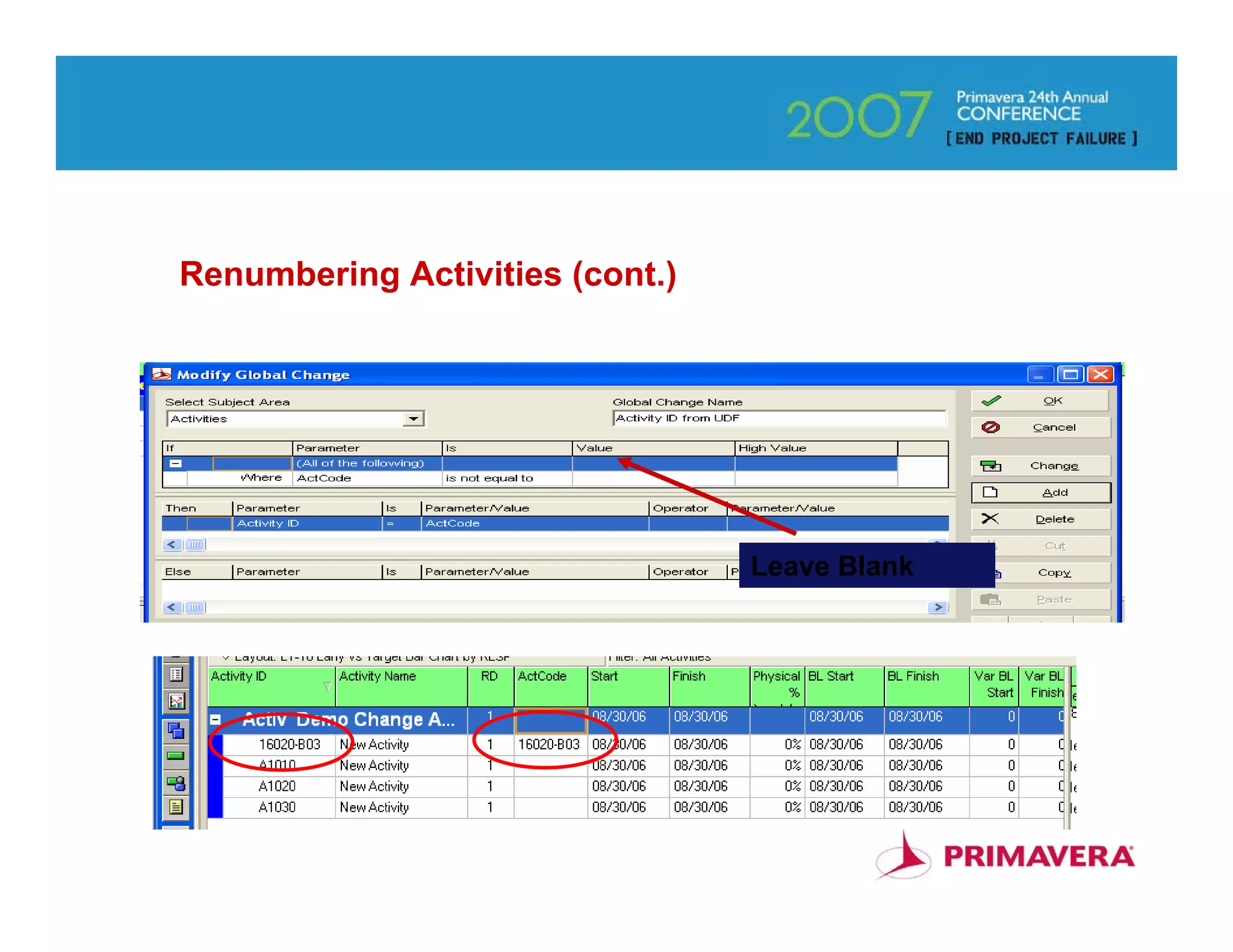
Renumbering Activities

Many GCs like Intelligent IDs

CSI Code – Bldg – Floor

Establish UDF (Activity) or Activity Code

Put in Column in Layout

Type Codes in Column

Use Global Change

Codes Become Activity IDs


                                            43
Renumbering Activities (cont.)


                                 Leave Blank


                                               44
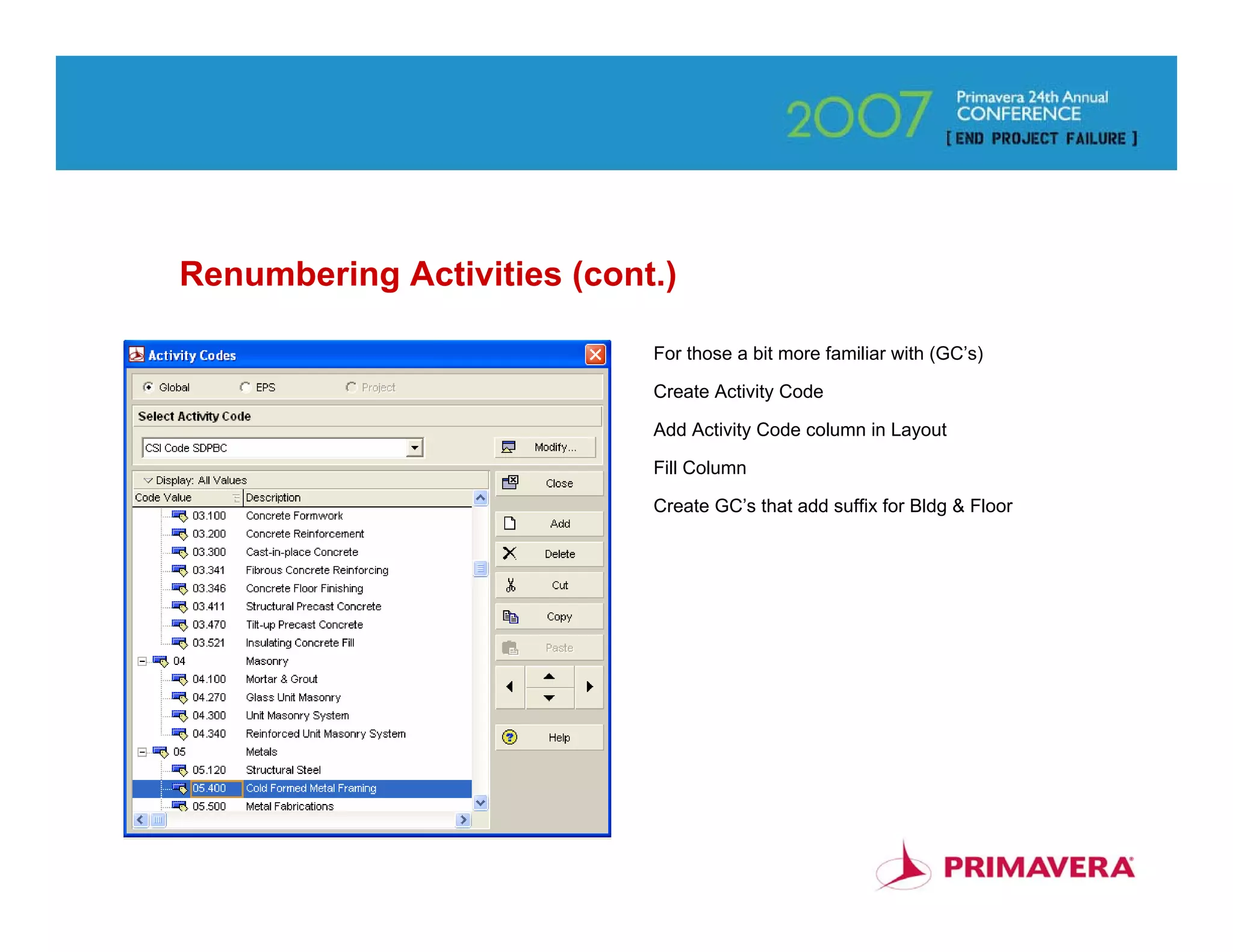
Renumbering Activities (cont.)

                            For those a bit more familiar with (GC’s)

                            Create Activity Code

                            Add Activity Code column in Layout

                            Fill Column

                            Create GC’s that add suffix for Bldg & Floor


                                                                           45
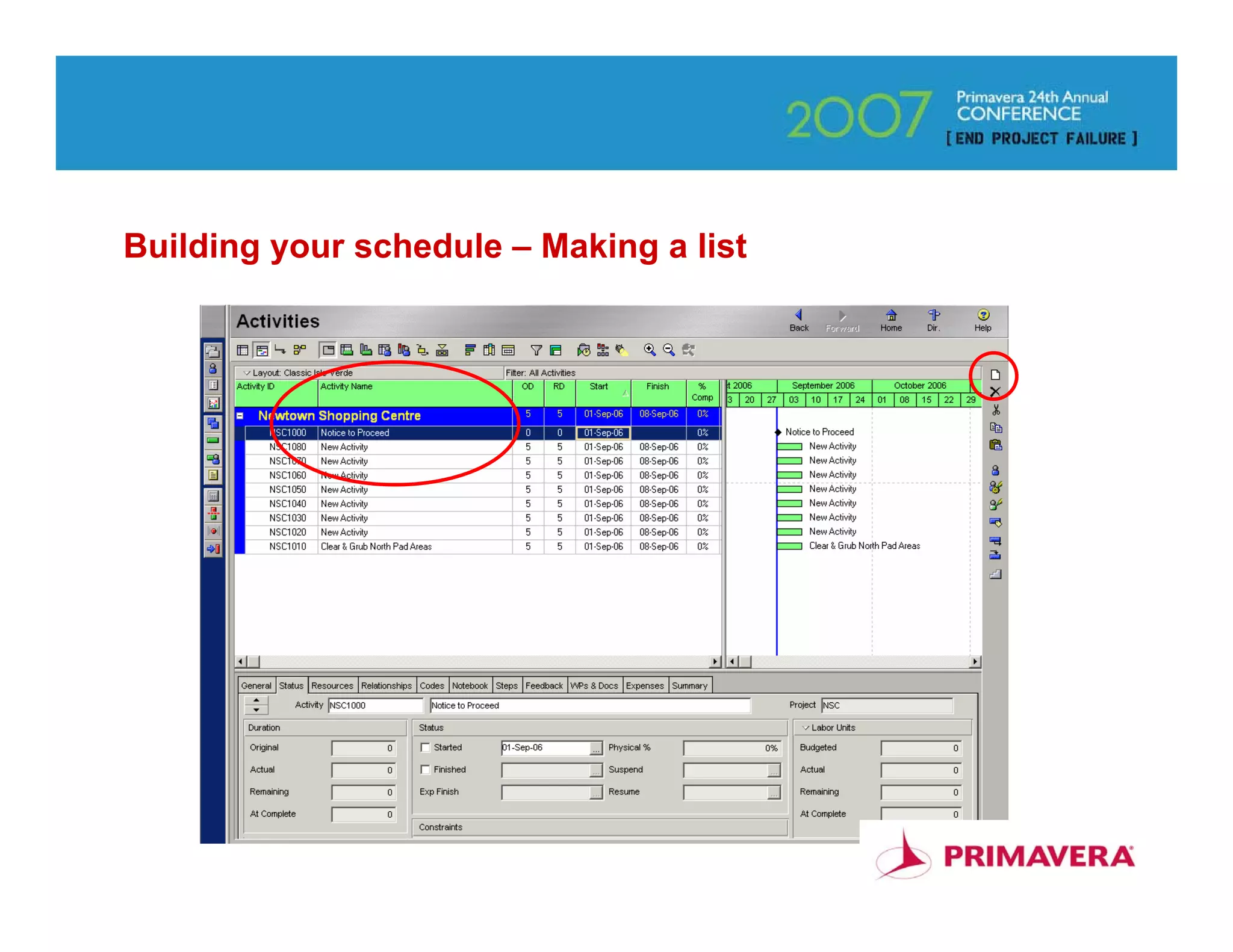
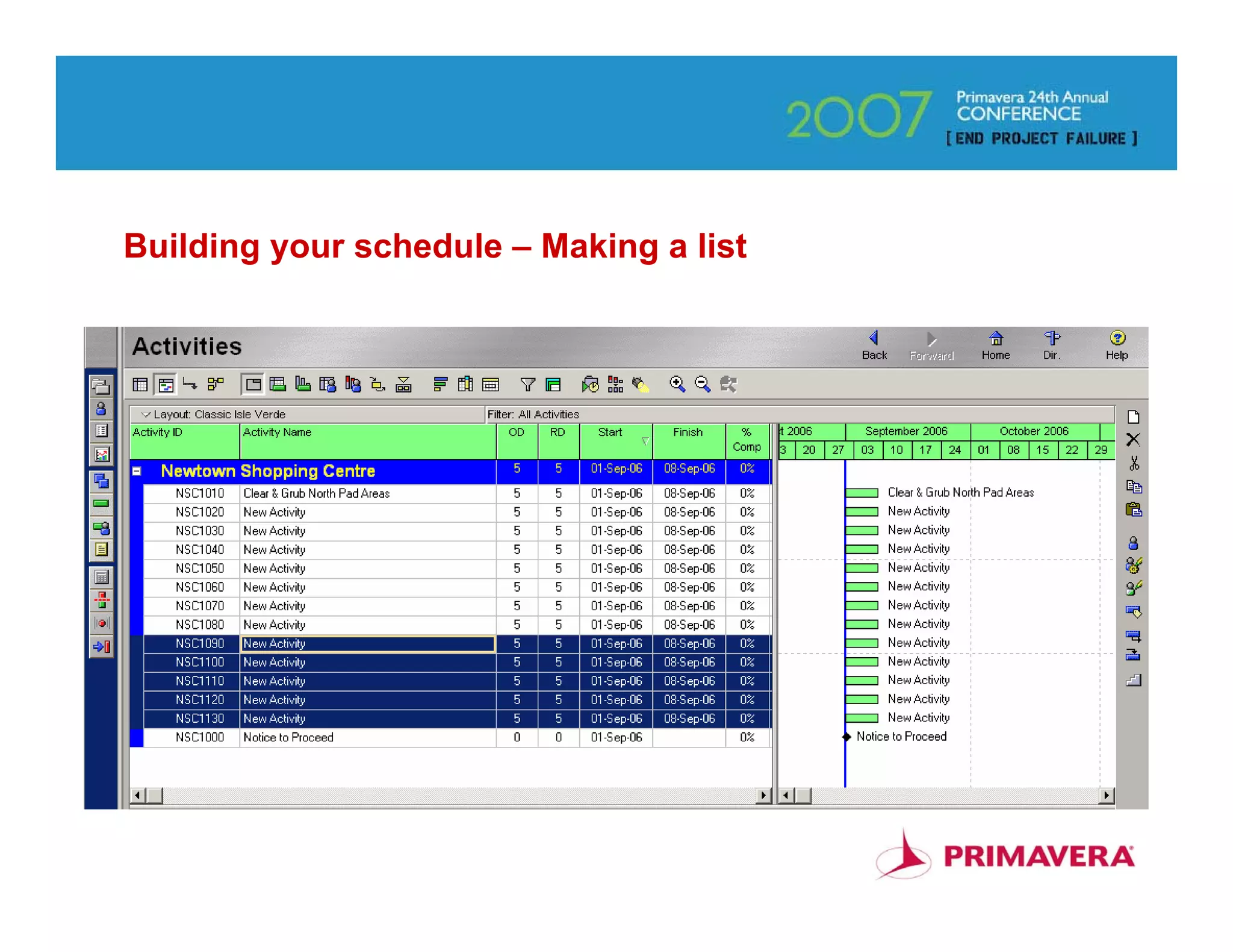
Building your schedule – Making a list


                                         46
Building your schedule – Making a list


                                         47
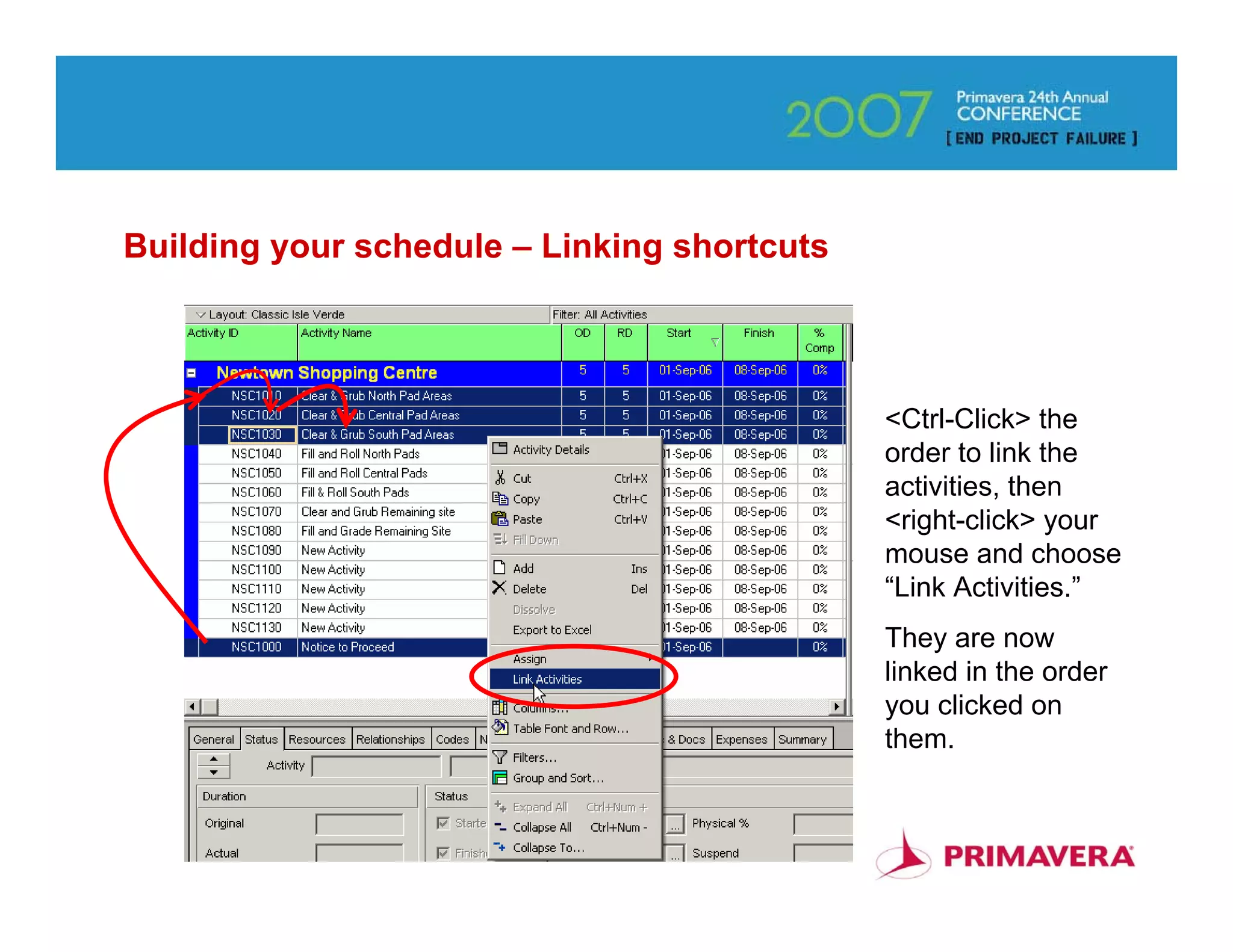
Building your schedule – Linking shortcuts


                                             <Ctrl-Click> the
                                             order to link the
                                             activities, then
                                             <right-click> your
                                             mouse and choose
                                             “Link Activities.”
                                             They are now
                                             linked in the order
                                             you clicked on
                                             them.


                                                              48
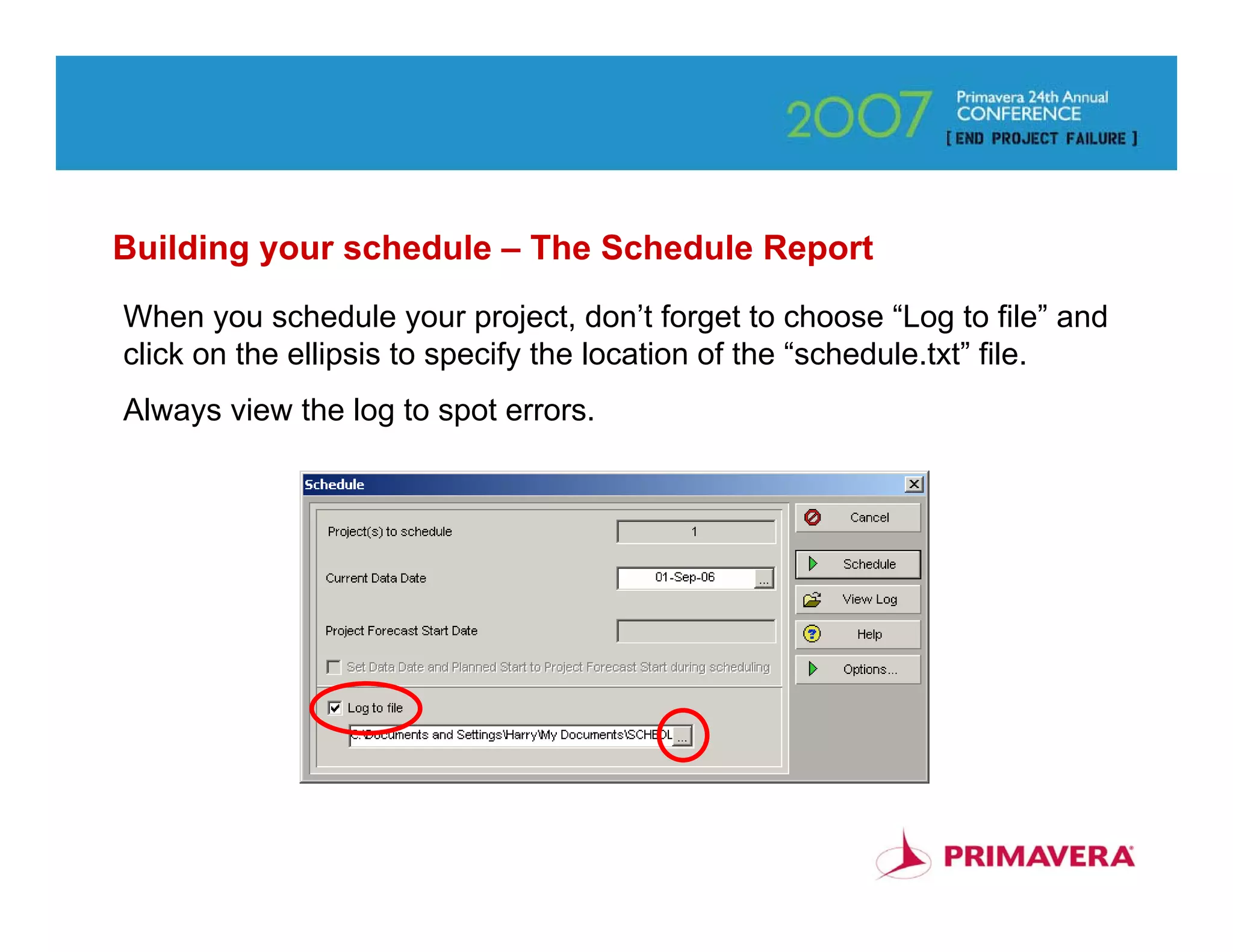
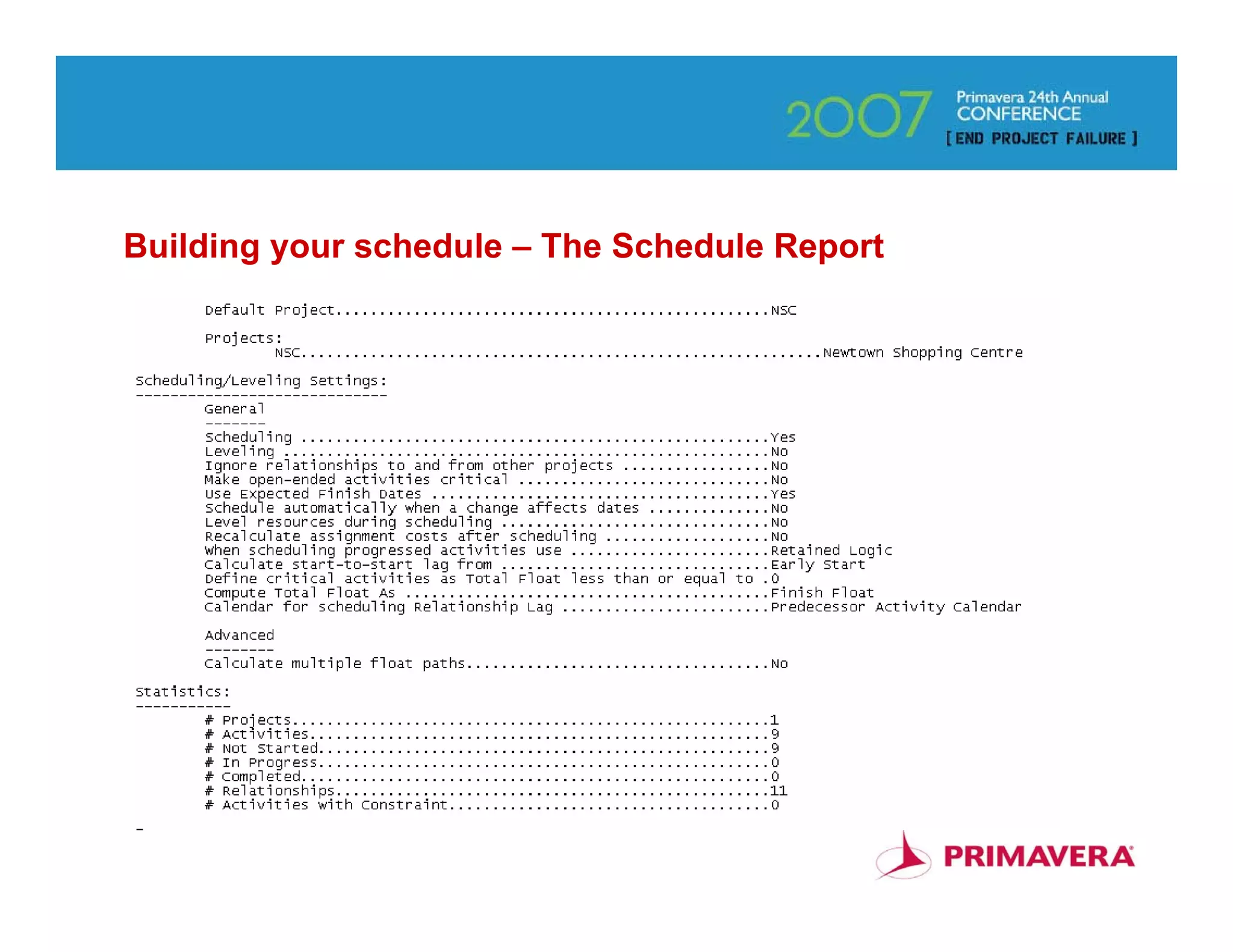
Building your schedule – The Schedule Report
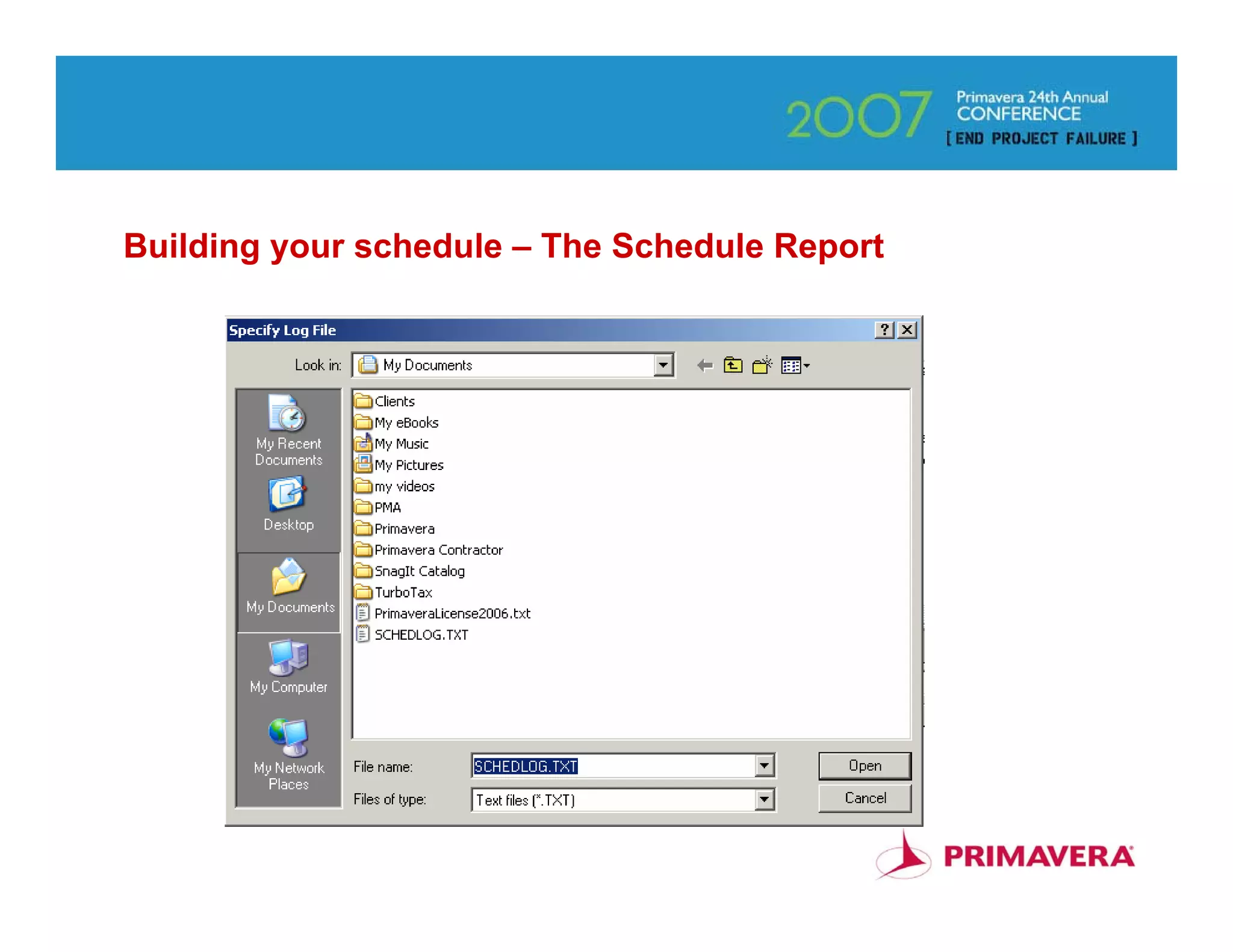
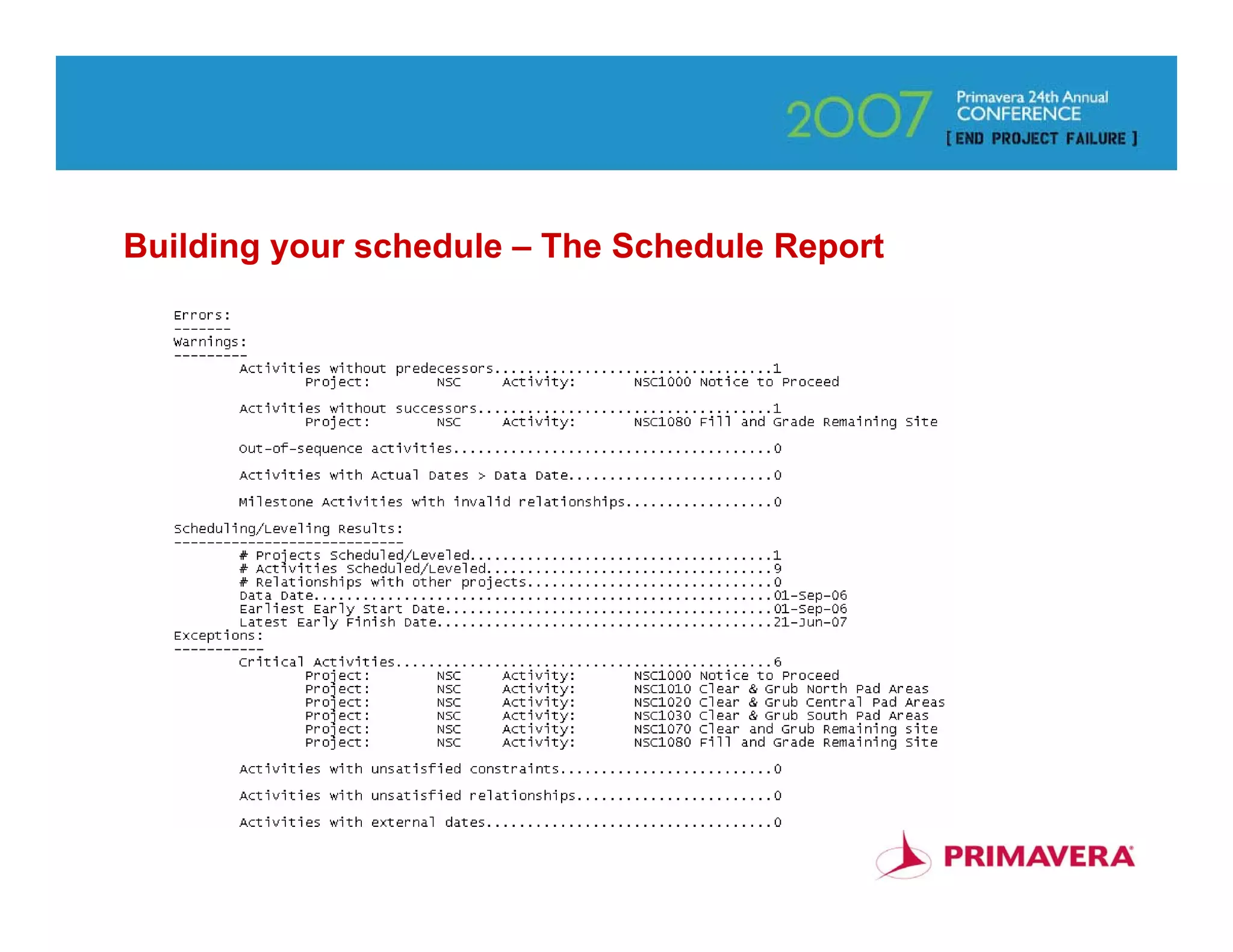
When you schedule your project, don’t forget to choose “Log to file” and
click on the ellipsis to specify the location of the “schedule.txt” file.
Always view the log to spot errors.


                                                                       49
Building your schedule – The Schedule Report


                                               50
Building your schedule – The Schedule Report


                                               51
Building your schedule – The Schedule Report


                                               52
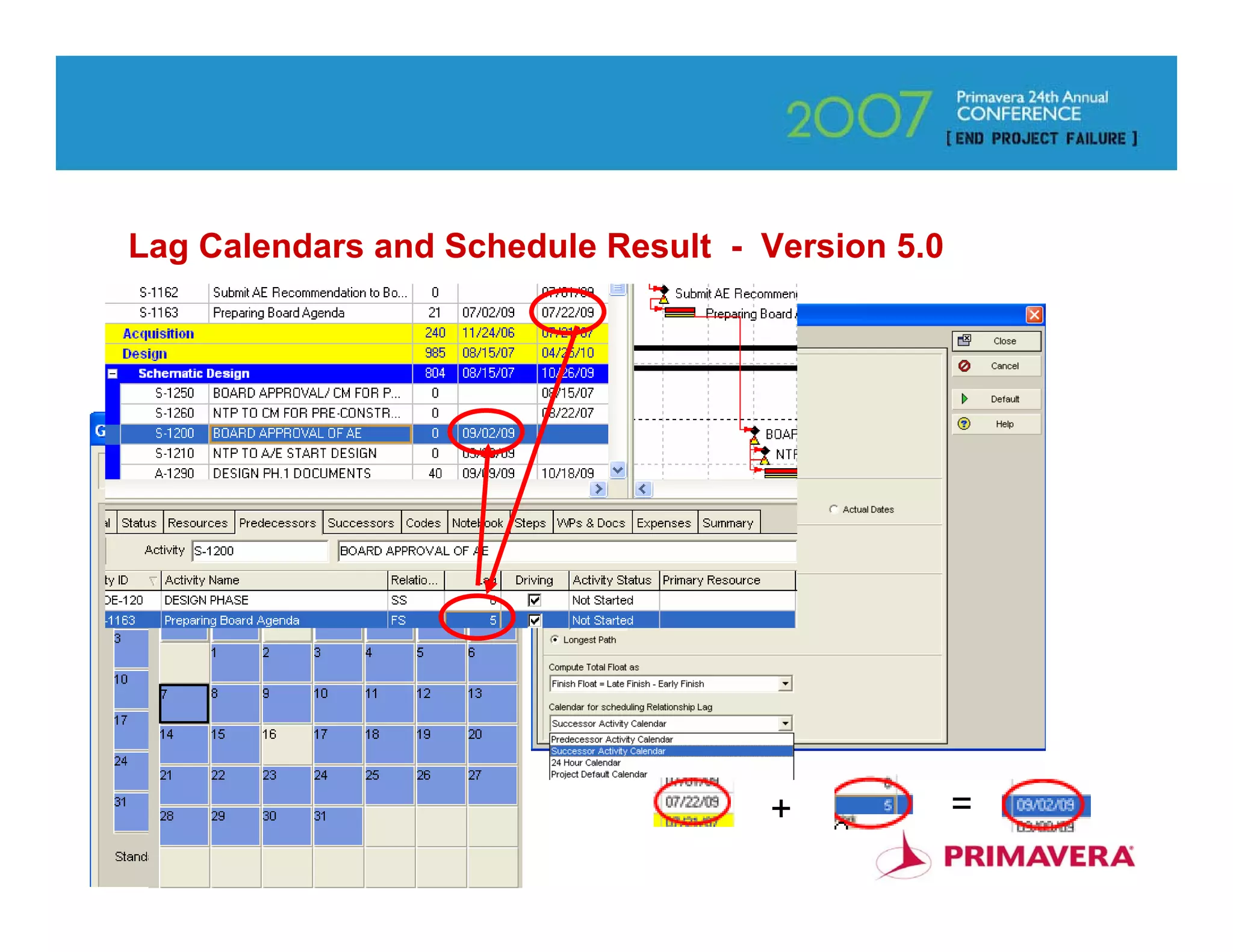
Lag Calendars and Schedule Result - Version 5.0


                                    +             =
                                                      53
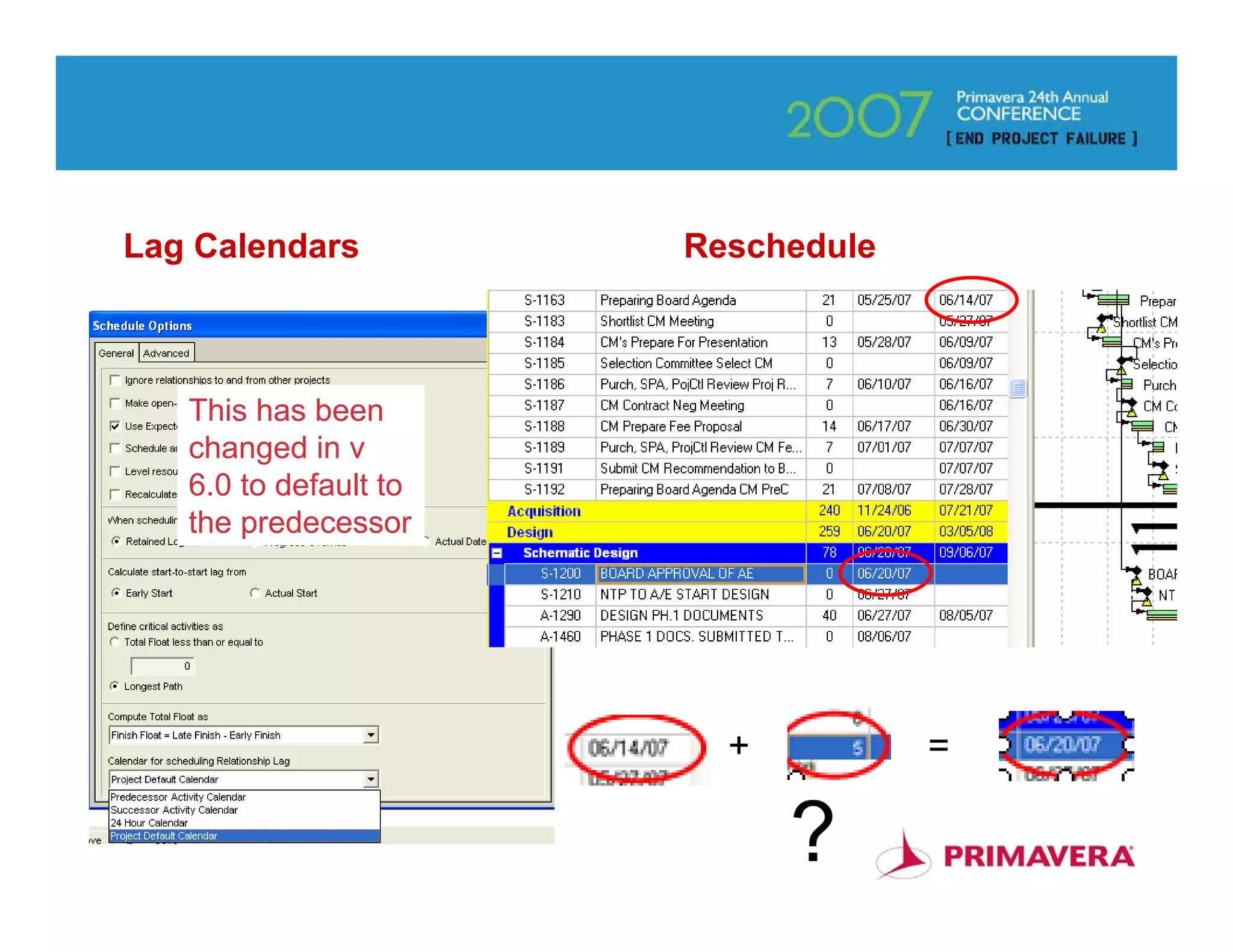
Lag Calendars          Reschedule


   This has been
   changed in v
   6.0 to default to
   the predecessor


                         +          =

                             ?          54
Fragnets

• Time Saving – why recreate the wheel?
   – Building a Single Schedule
   – Modifying Many Schedules
• Create New or Modify Existing
   – New = As You Would New Project
   – Modify = Delete from Existing
• WBS is the Key to Integration


                                          55
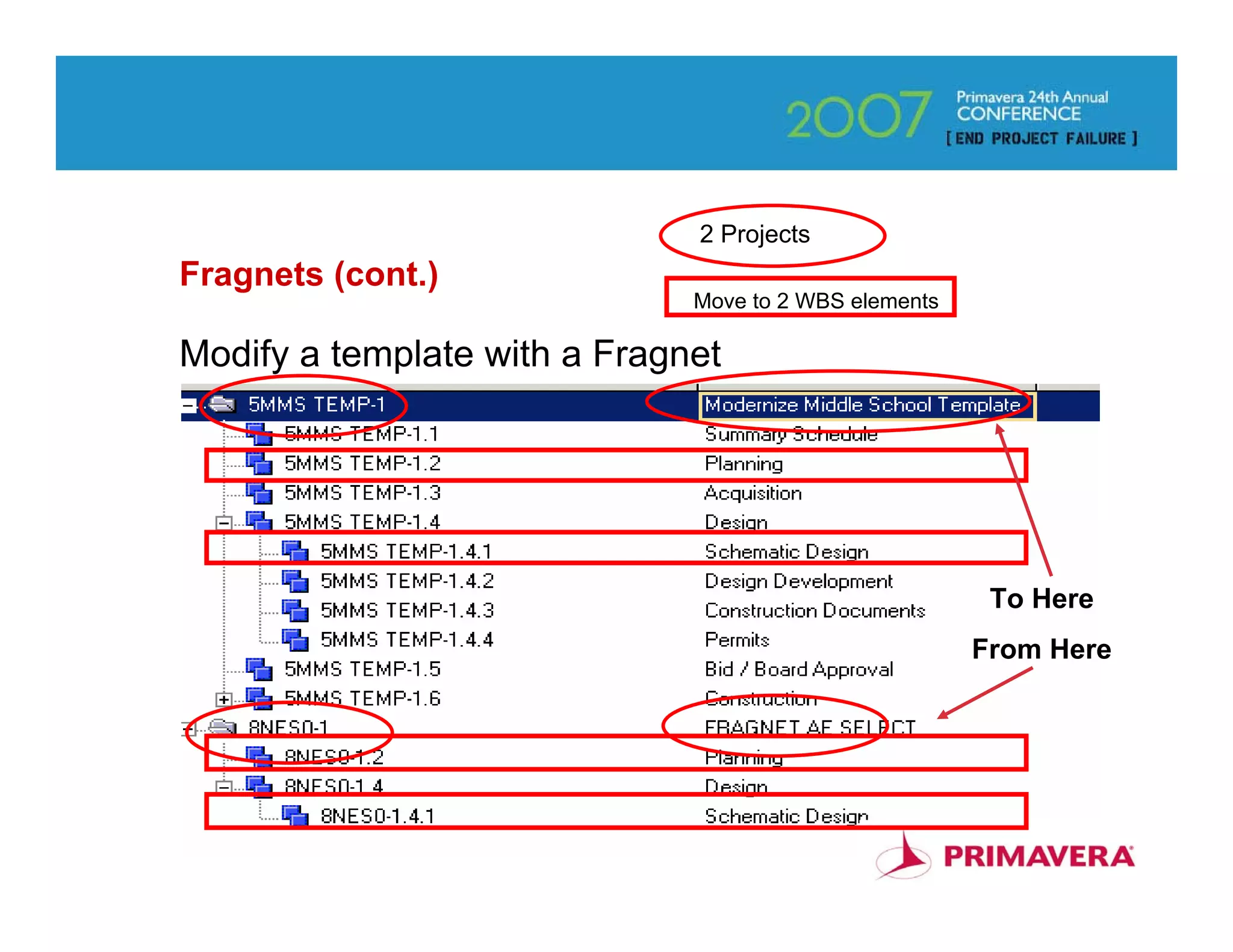
2 Projects
Fragnets (cont.)
                              Move to 2 WBS elements

Modify a template with a Fragnet


                                                        To Here
                                                       From Here


                                                              56
Fragnets (cont.)
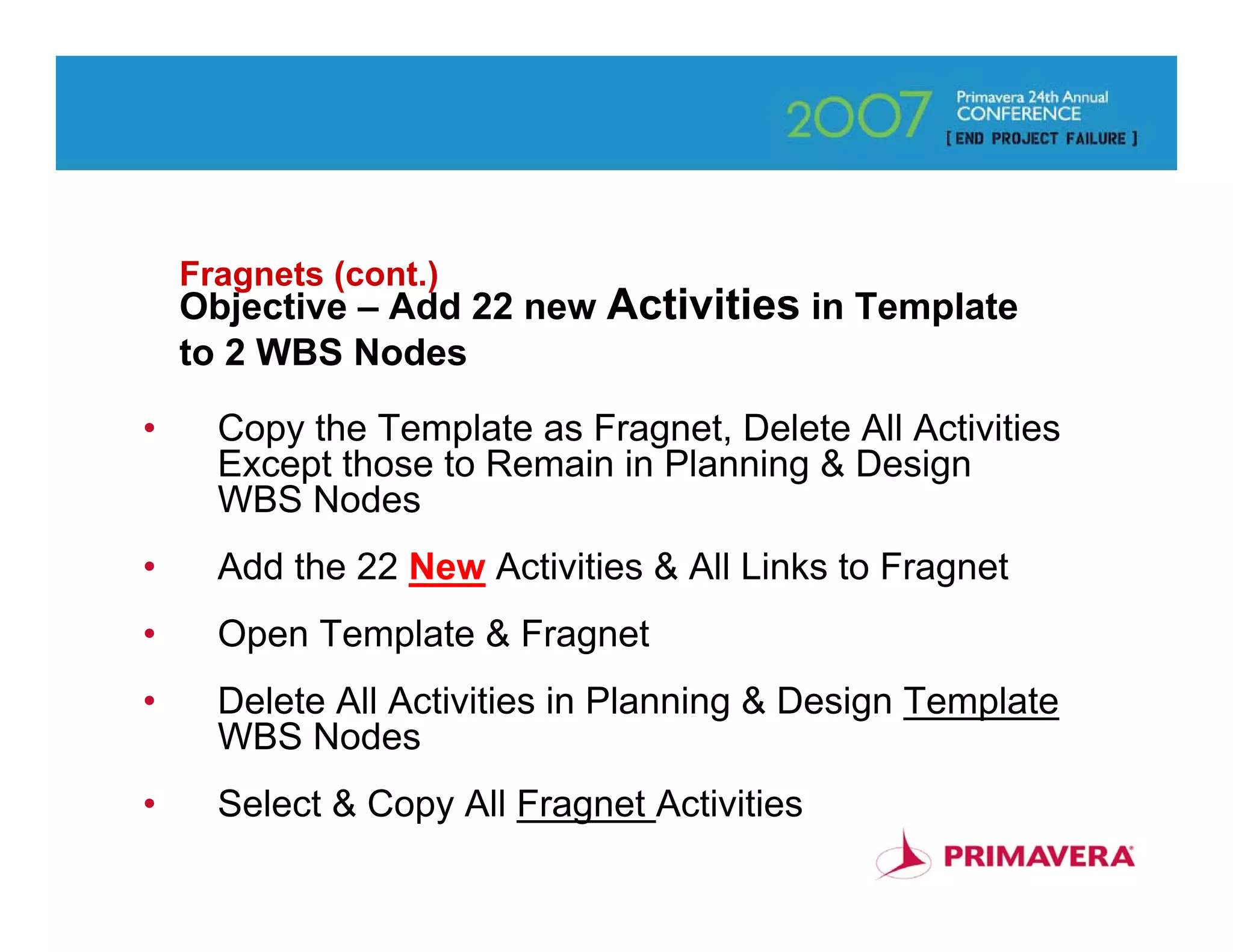
    Objective – Add 22 new Activities in Template
    to 2 WBS Nodes

•     Copy the Template as Fragnet, Delete All Activities
      Except those to Remain in Planning & Design
      WBS Nodes
•     Add the 22 New Activities & All Links to Fragnet
•     Open Template & Fragnet
•     Delete All Activities in Planning & Design Template
      WBS Nodes
•     Select & Copy All Fragnet Activities
                                                            57
Fragnets (cont.)
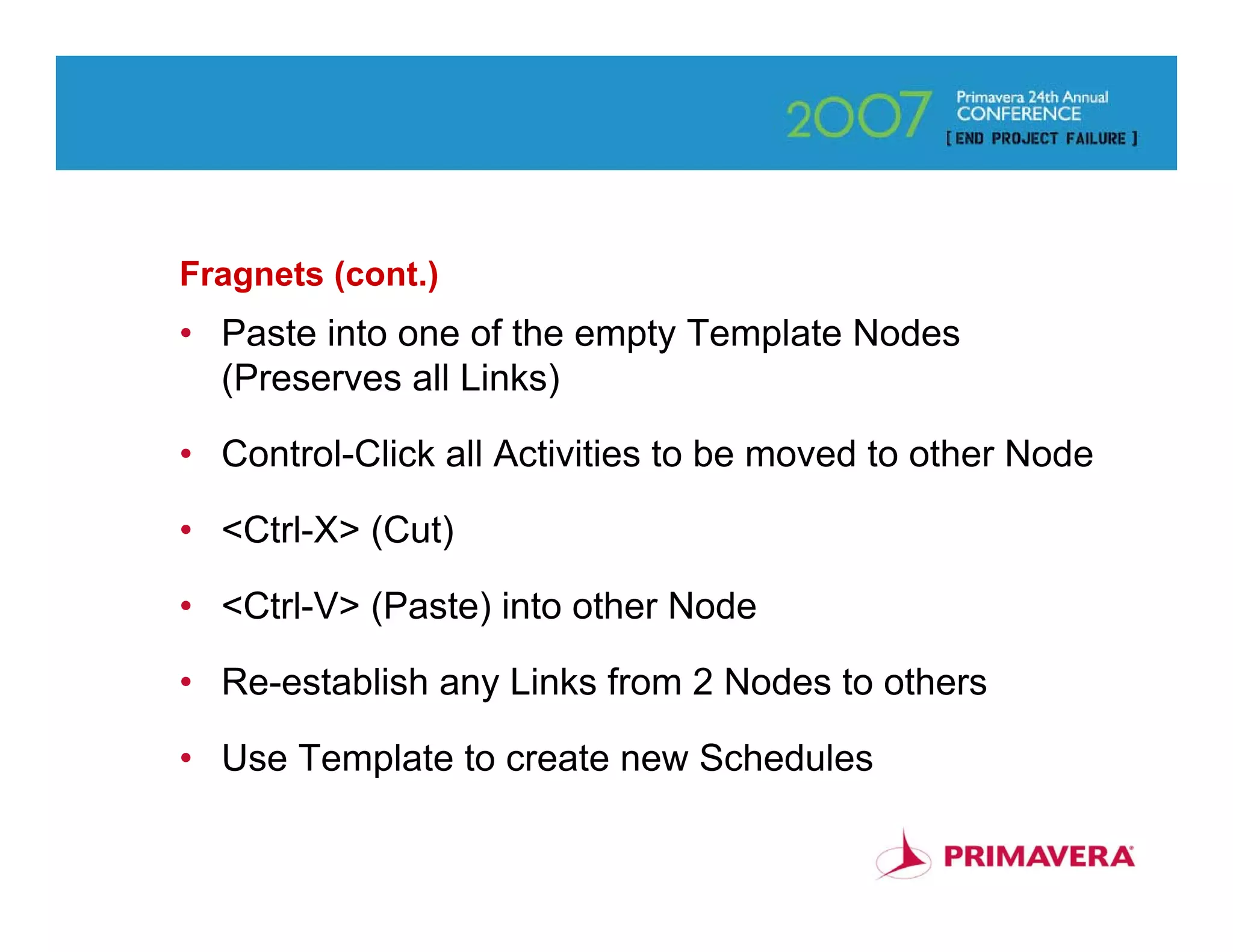
• Paste into one of the empty Template Nodes
  (Preserves all Links)

• Control-Click all Activities to be moved to other Node

• <Ctrl-X> (Cut)

• <Ctrl-V> (Paste) into other Node

• Re-establish any Links from 2 Nodes to others

• Use Template to create new Schedules

                                                       58
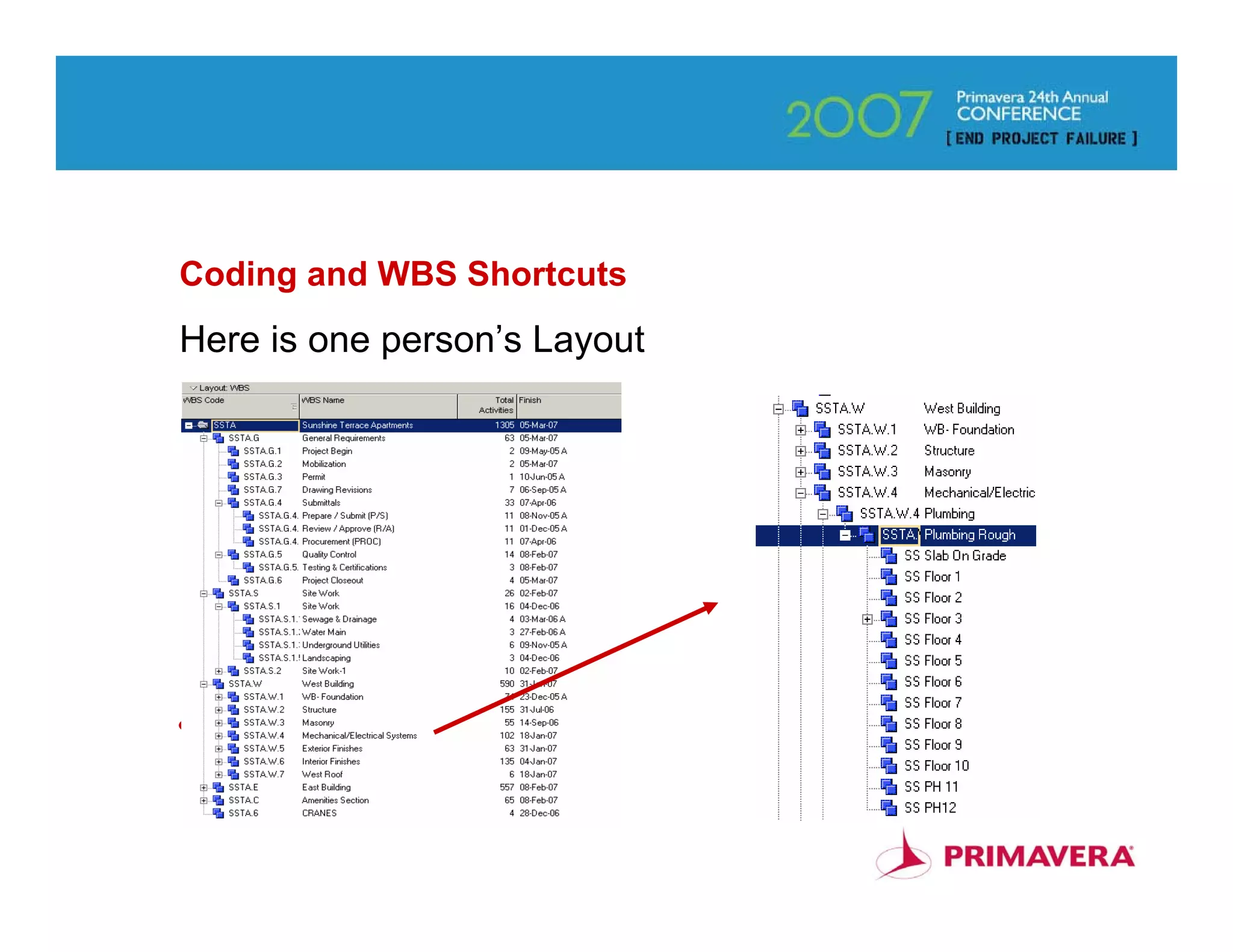
Coding and WBS Shortcuts
Here is one person’s Layout


                              59
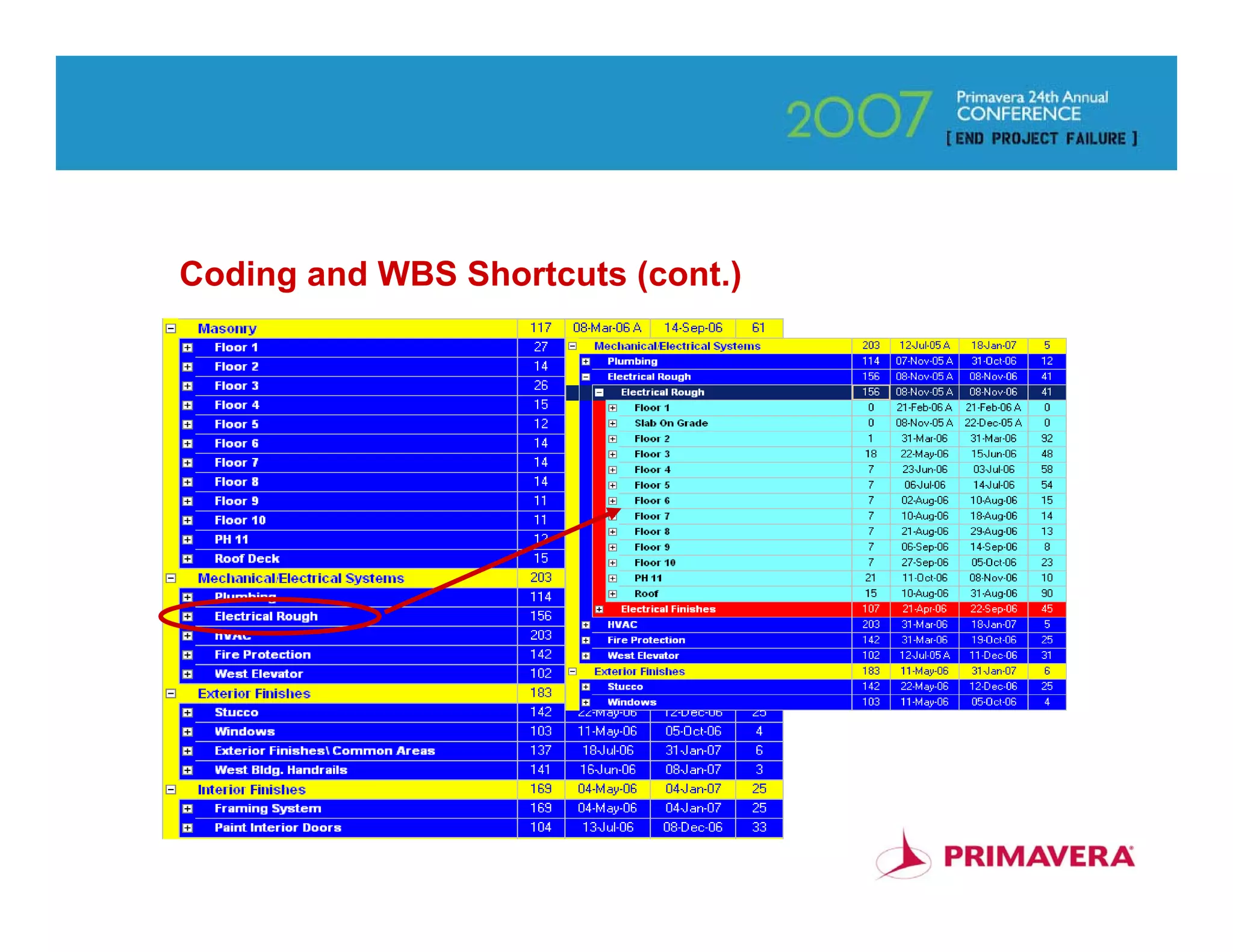
Coding and WBS Shortcuts (cont.)


                                   60
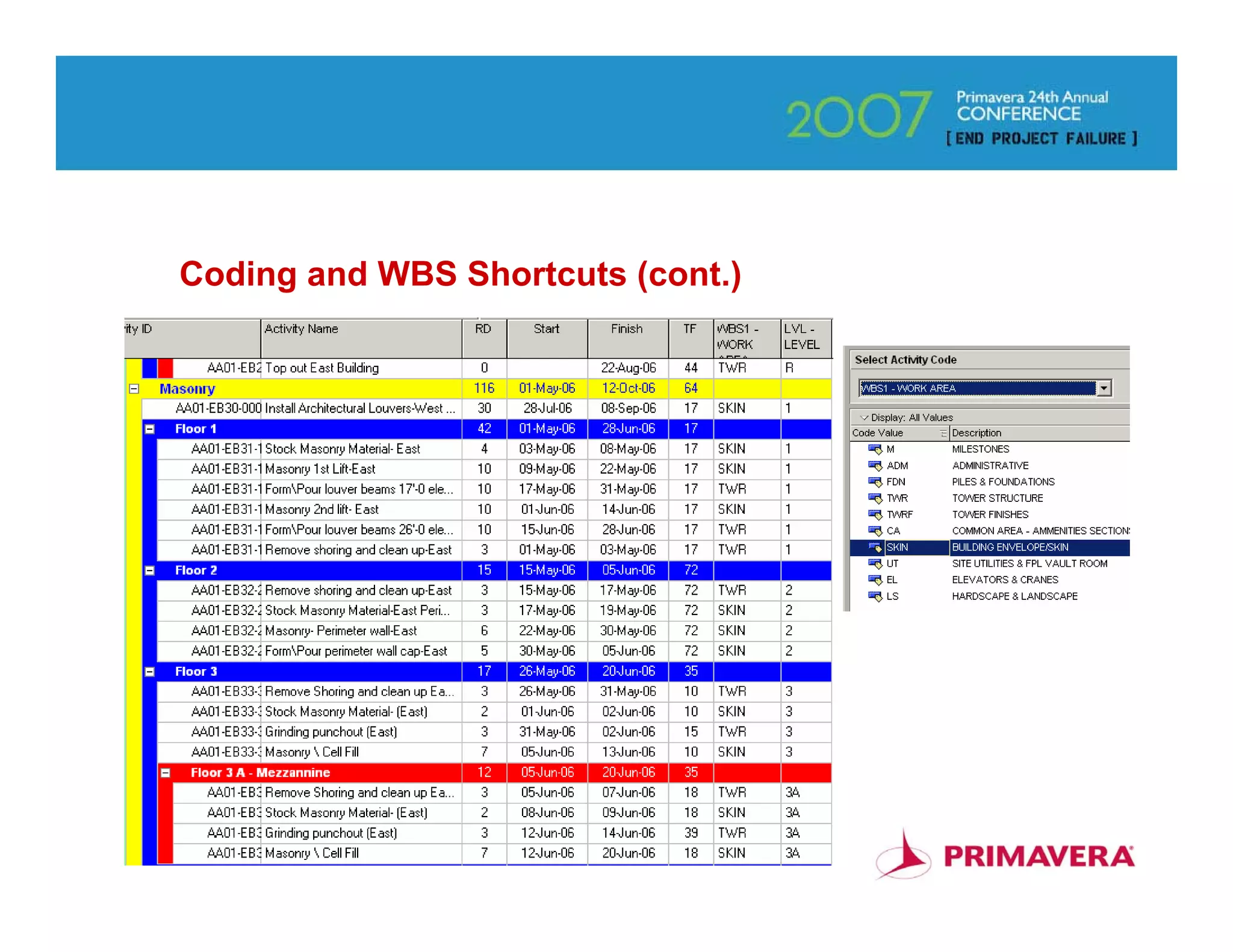
Coding and WBS Shortcuts (cont.)


                                   61
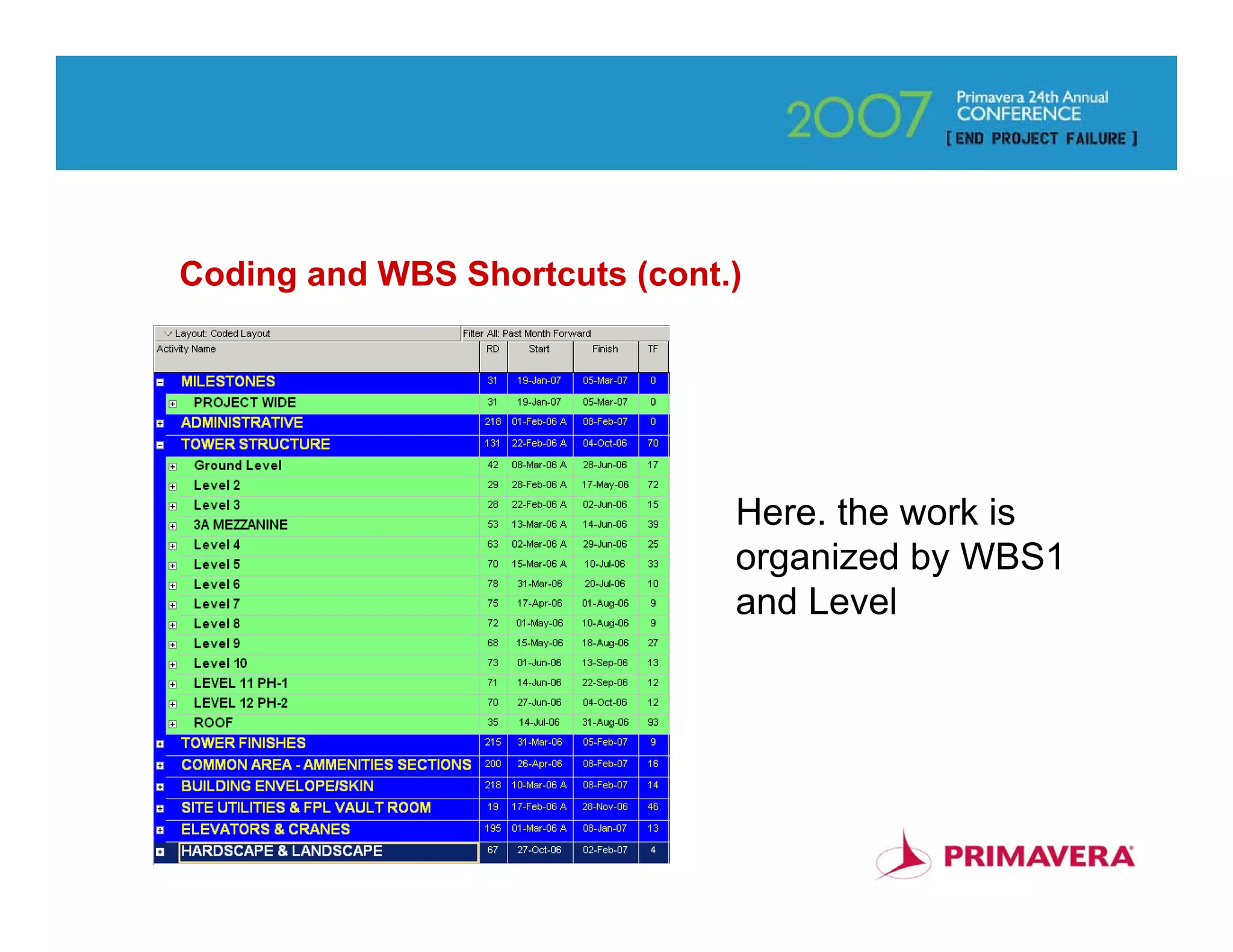
Coding and WBS Shortcuts (cont.)


                               Here. the work is
                               organized by WBS1
                               and Level


                                                   62
Coding and WBS Shortcuts (cont.)


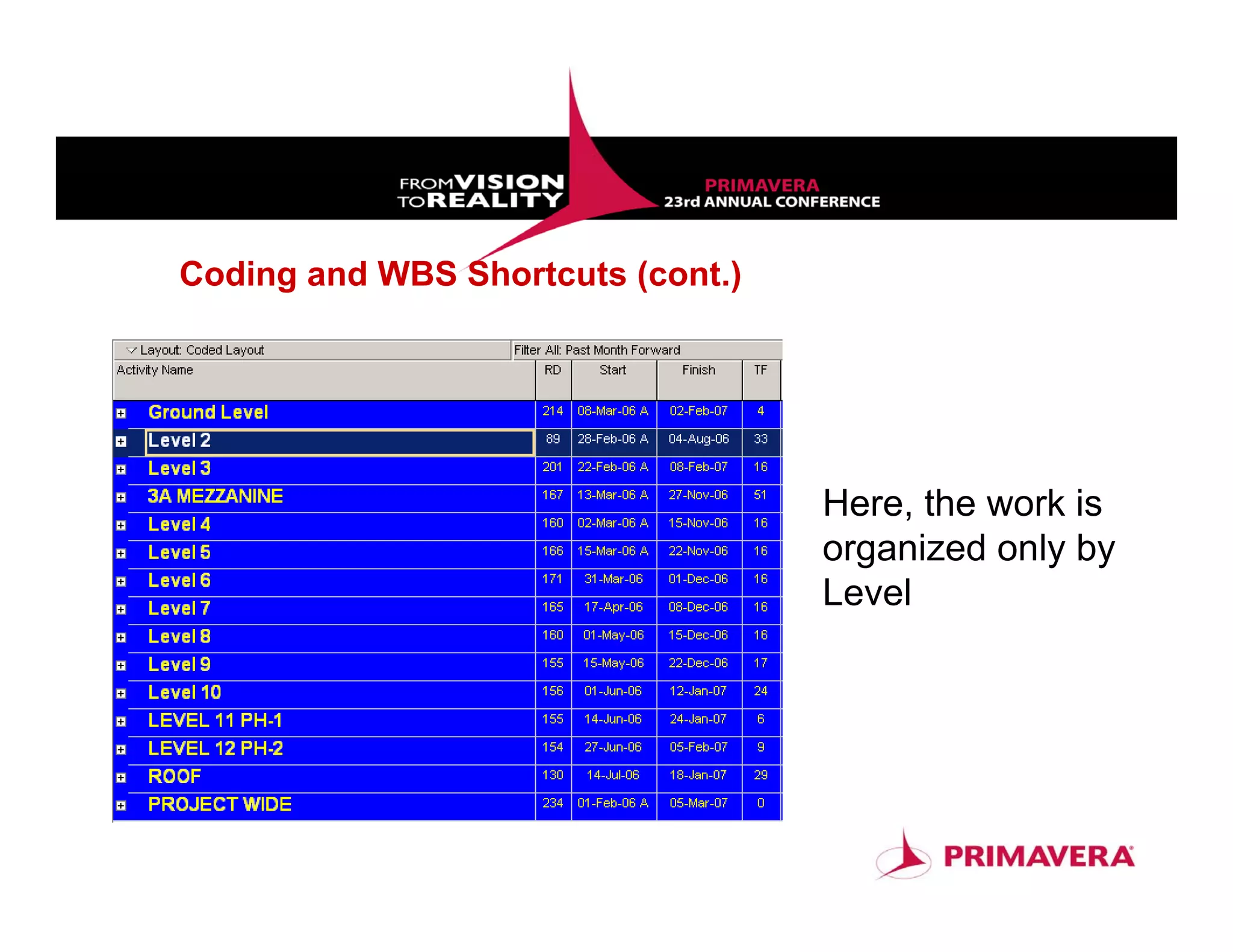
                                   Here, the work is
                                   organized only by
                                   Level


                                                  63
Finding and Filtering Activities

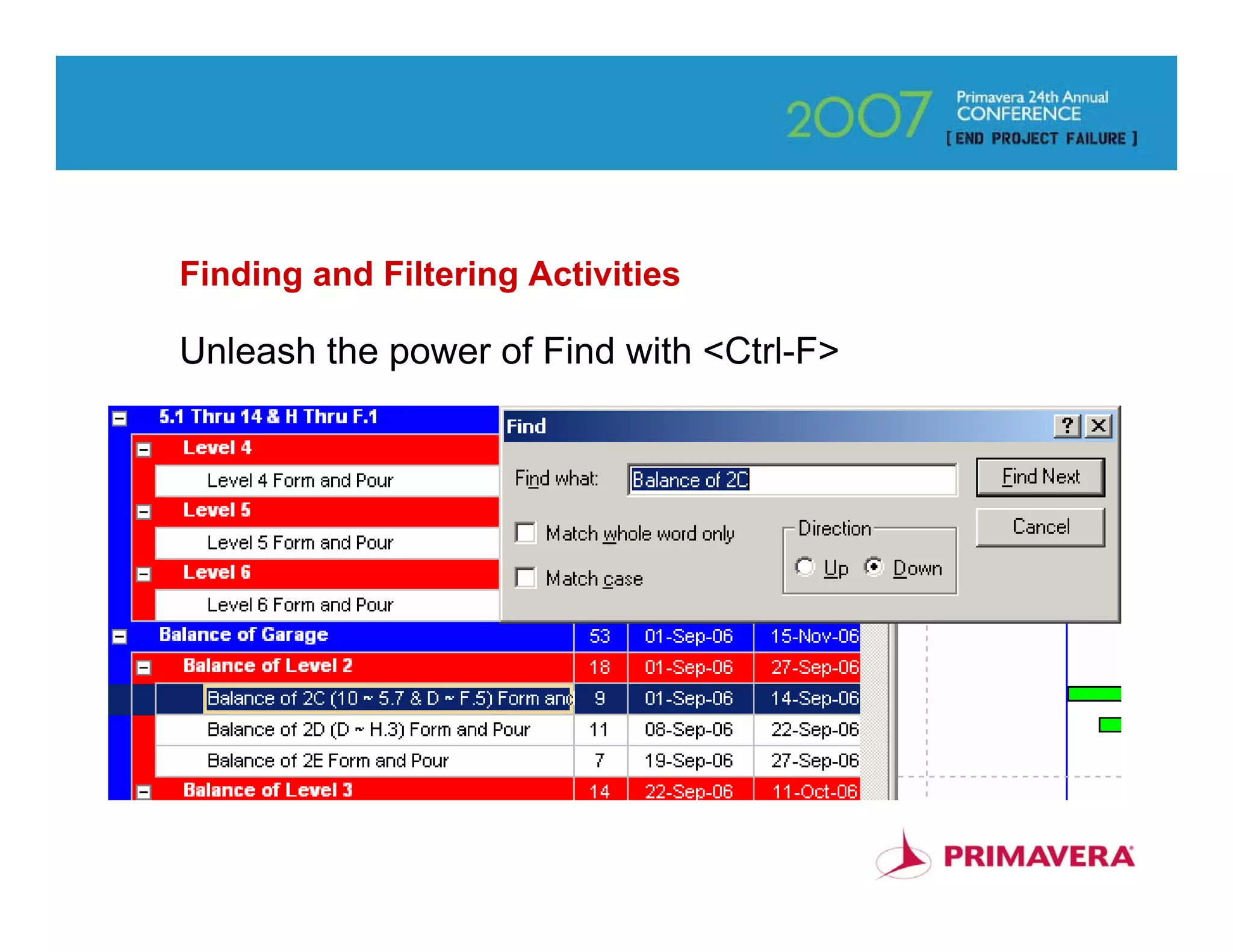
Unleash the power of Find with <Ctrl-F>


                                          64
Finding and Filtering Activities (cont.)


                                           65
Roles and Resource Loading

• Roles are placeholders for Resources that are not yet
assigned.
• Roles allow teams to be assigned quickly to project
activities, once the resource team is identified.
• Only resources for roles that are unfilled are shown in
the assign resources for roles dialogue box.
• <Shift-Click> and <Ctrl-Click> can be used to select
the activities being assigned resources by roles.
• A project team could be assigned to all of the
project’s activities at once.
                                                            66
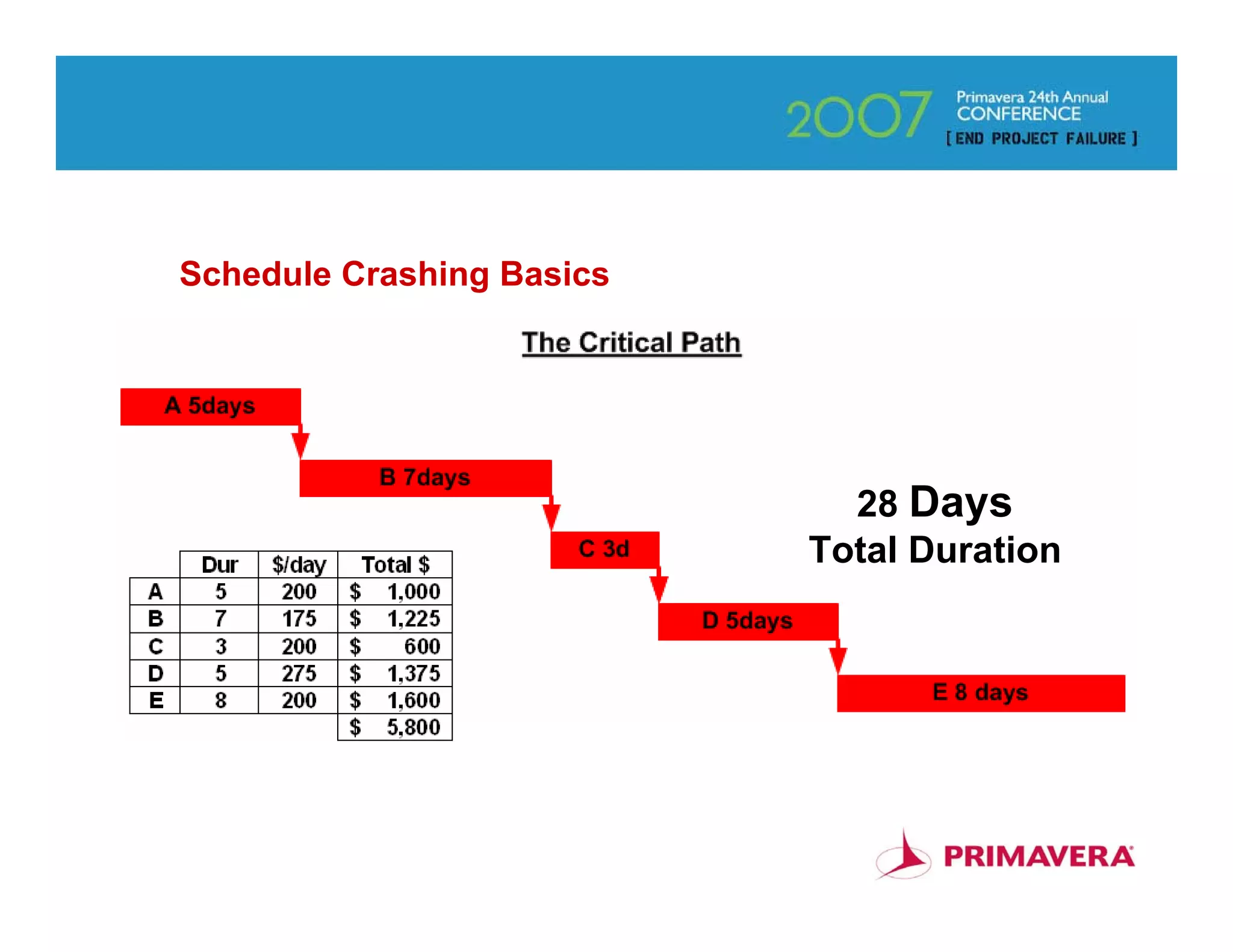
Schedule Crashing Basics


                             28 Days
                           Total Duration


                                            67
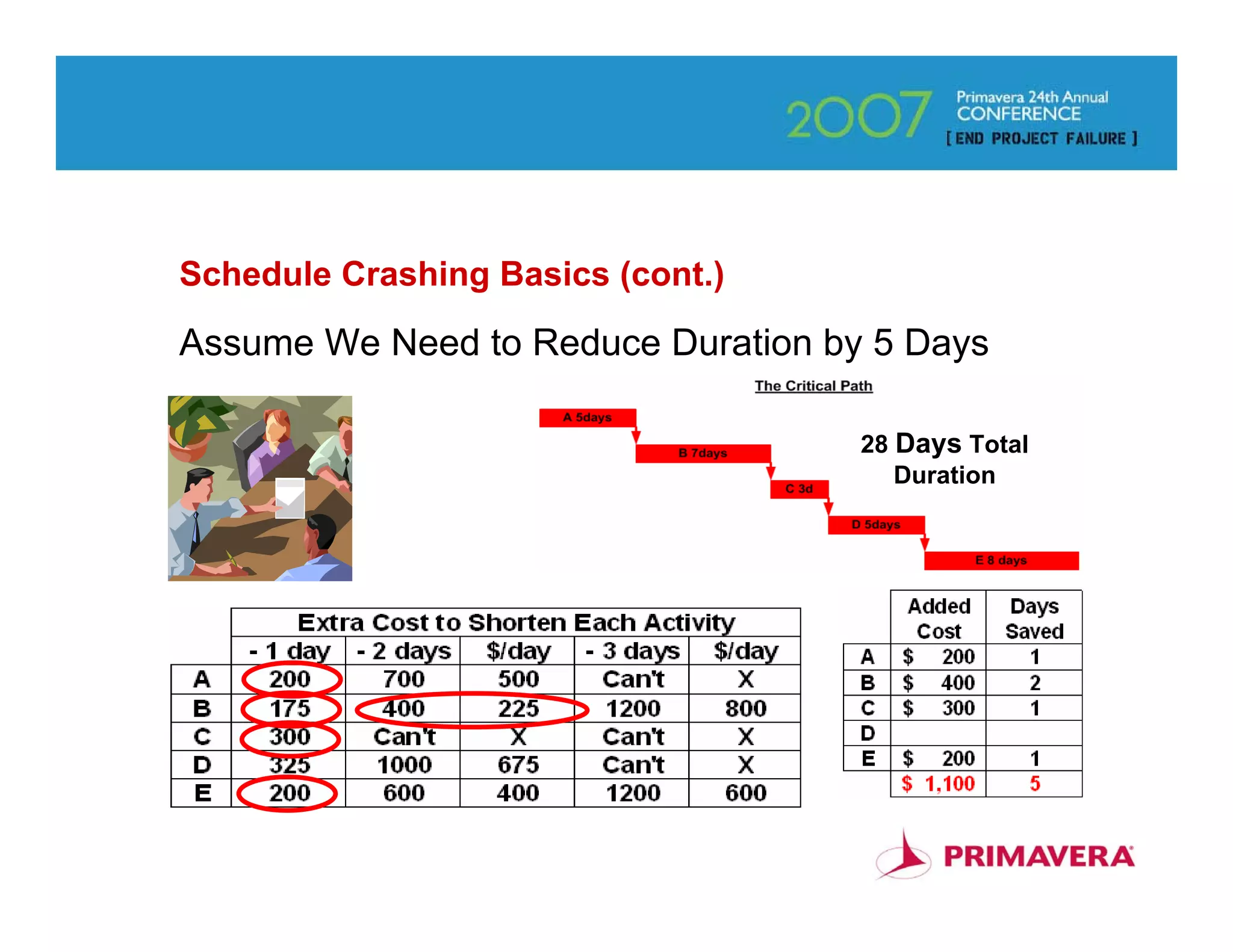
Schedule Crashing Basics (cont.)

Assume We Need to Reduce Duration by 5 Days

                                    28 Days Total
                                       Duration


                                                    68
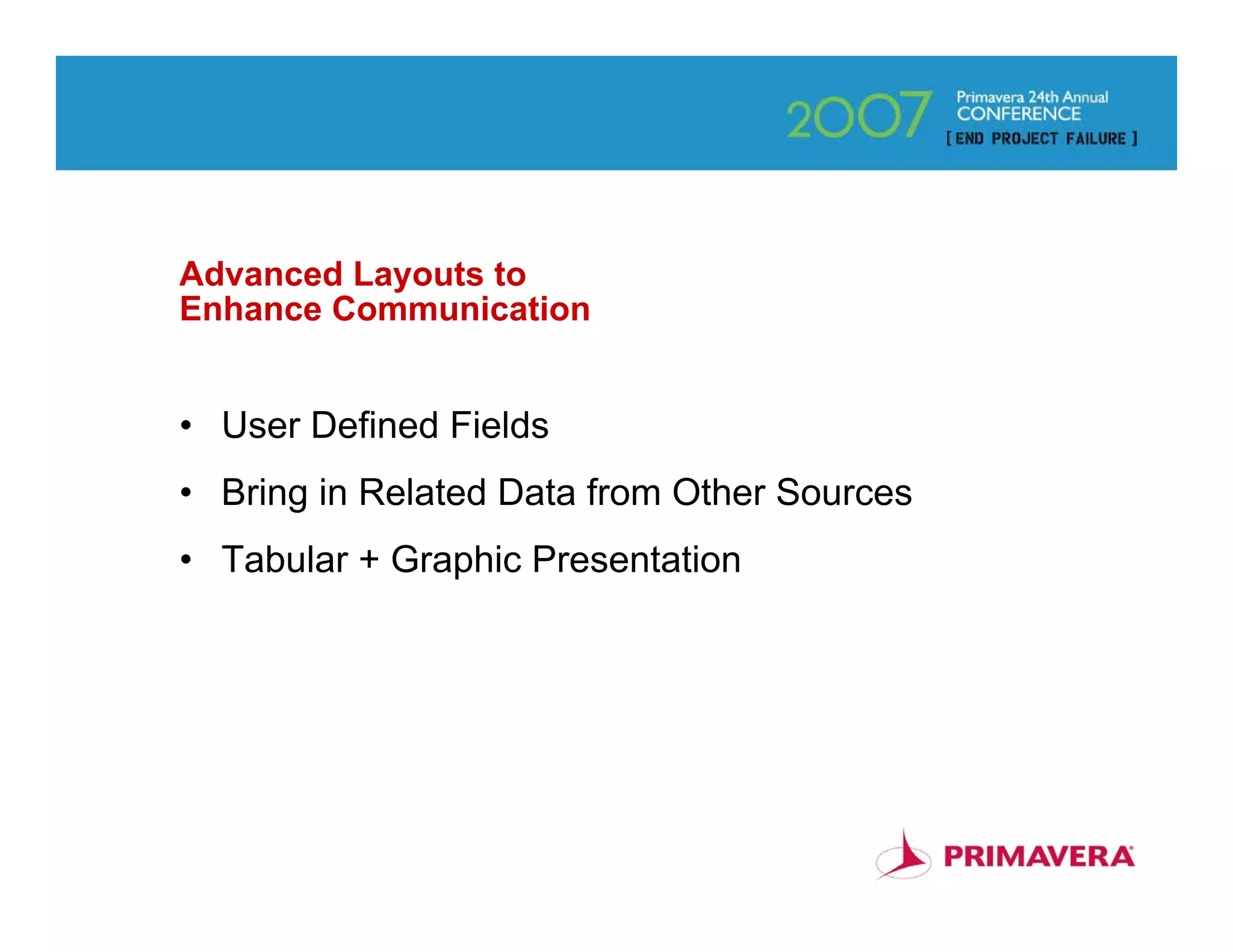
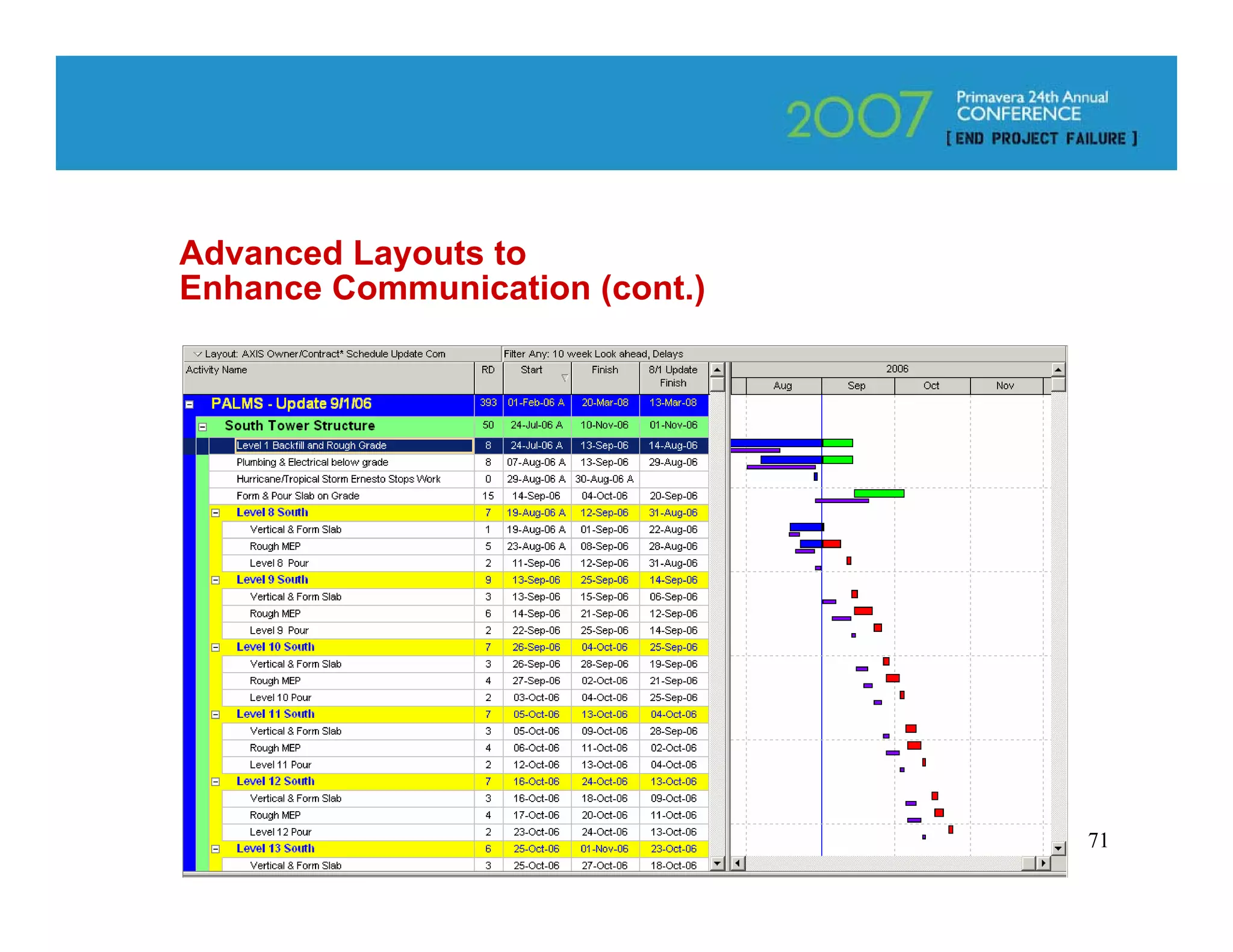
Advanced Layouts to
Enhance Communication


• User Defined Fields
• Bring in Related Data from Other Sources
• Tabular + Graphic Presentation


                                             69
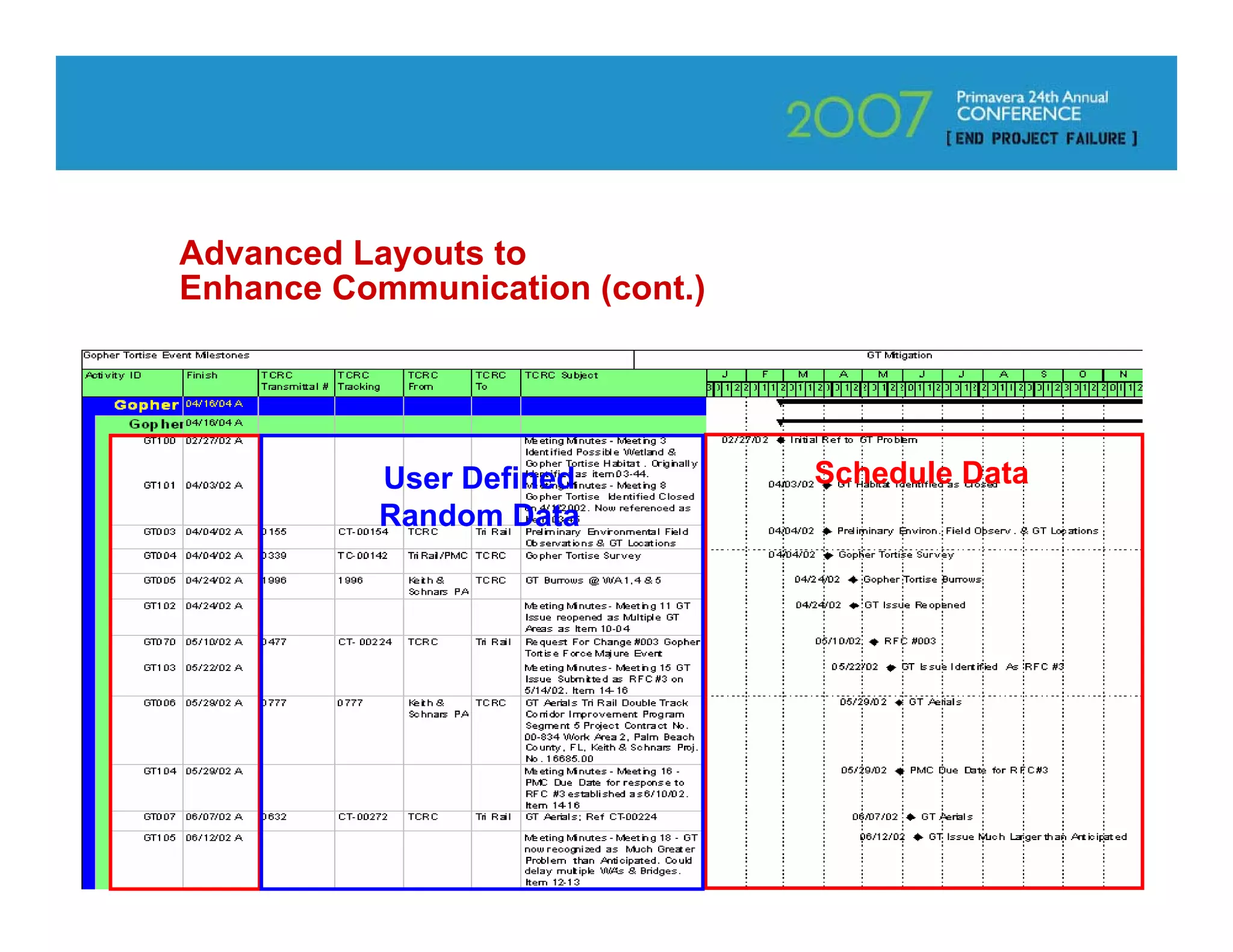
Advanced Layouts to
Enhance Communication (cont.)


           User Defined         Schedule Data
           Random Data


                                                70
Advanced Layouts to
Enhance Communication (cont.)


                                71
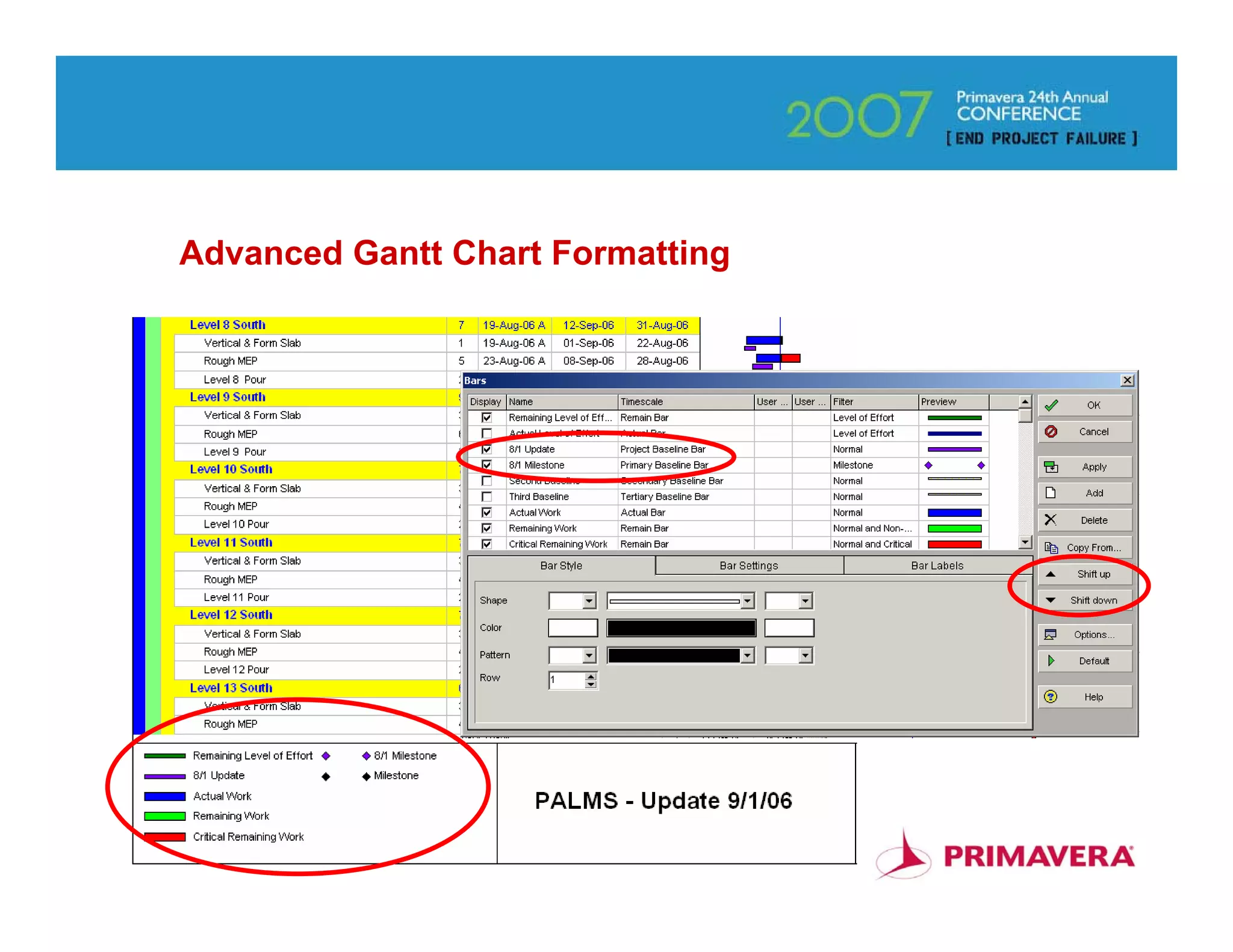
Advanced Gantt Chart Formatting


                                  72
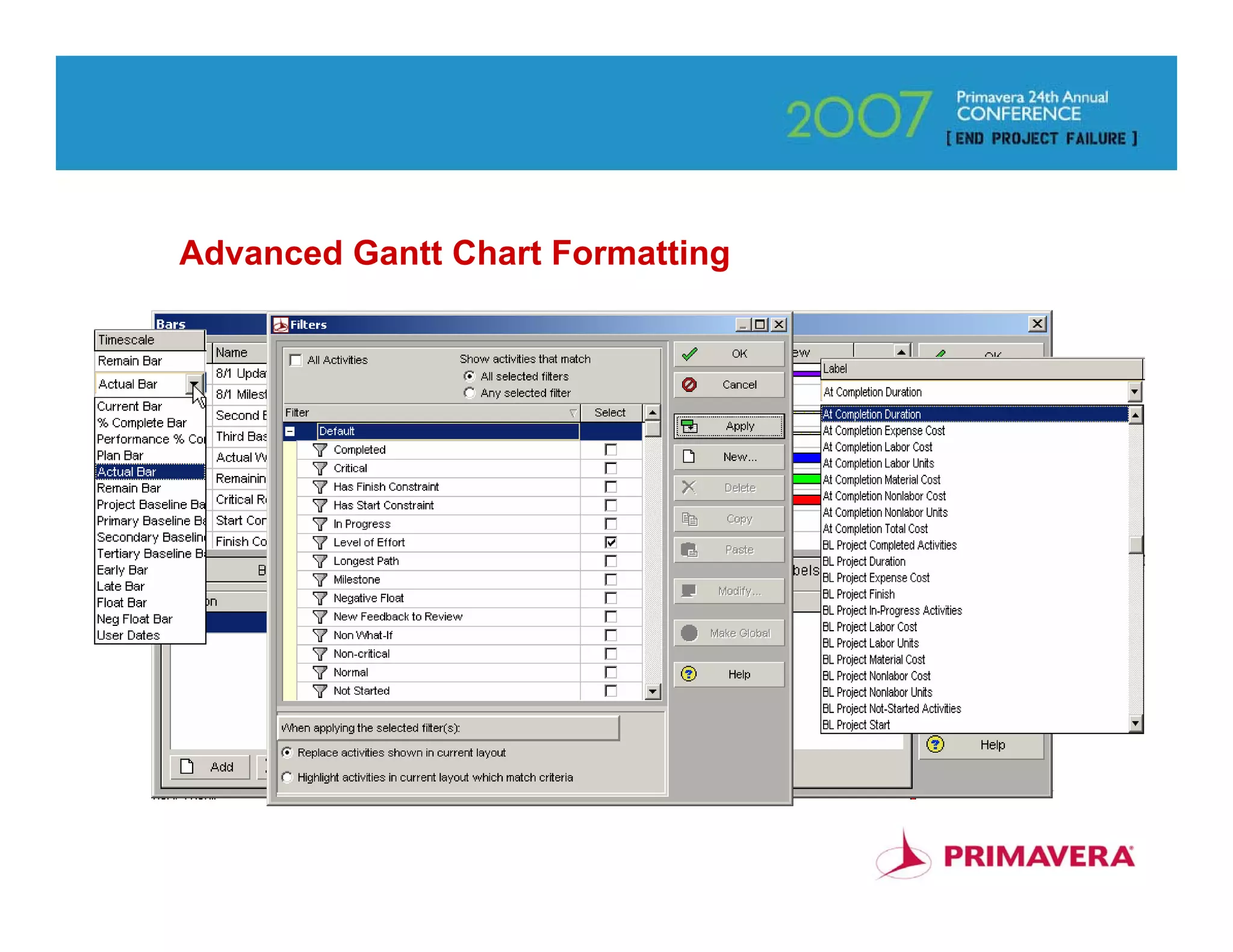
Advanced Gantt Chart Formatting


                                  73
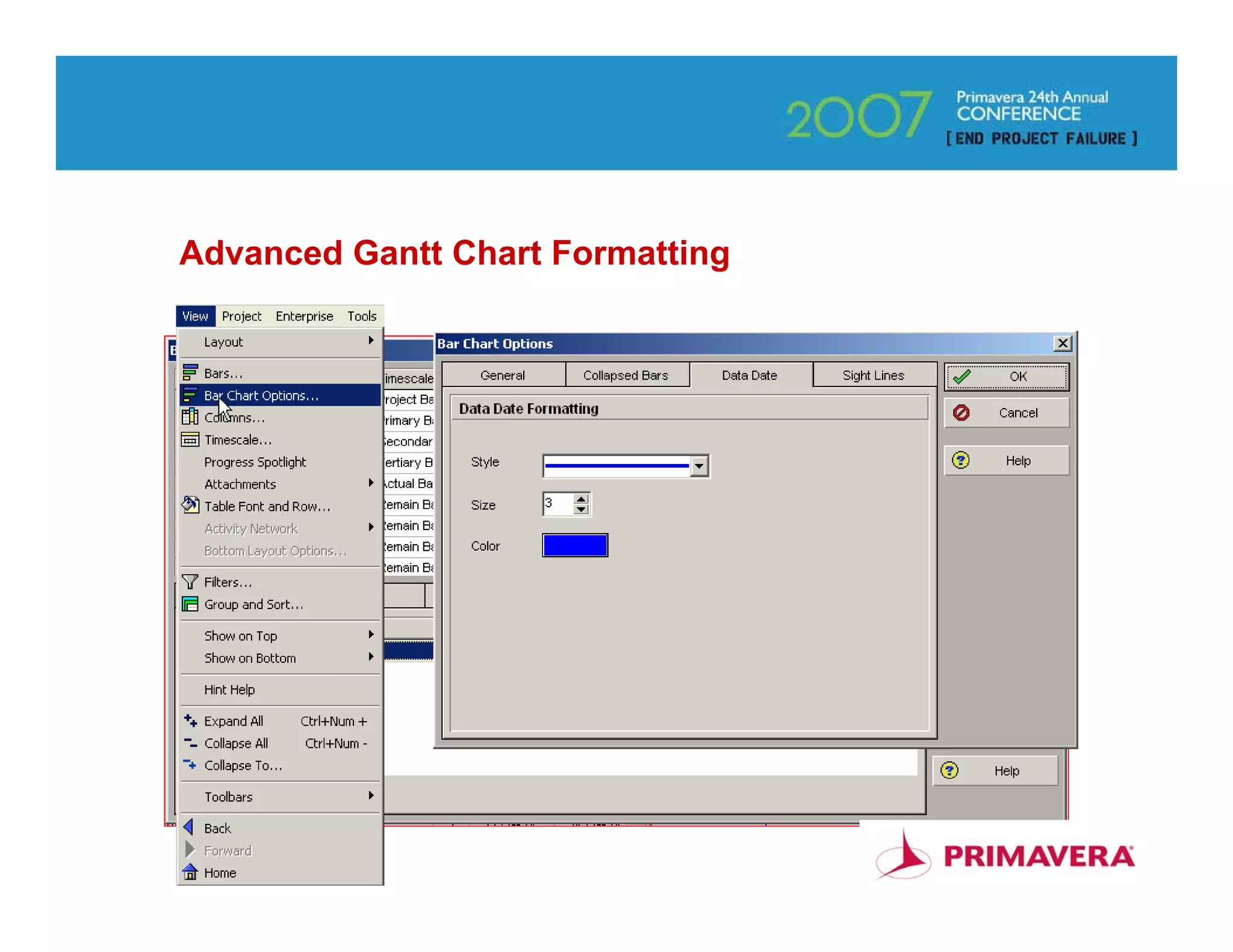
Advanced Gantt Chart Formatting


                                  74
Advanced Gantt Chart Formatting


                                  75
Advanced Gantt Chart Formatting


                                  76
Exporting and Importing
Layouts and Reports


                          .plf filename
                           extension


                                          77
BC1


      Adding Barchart Graphics to Reports

      1. Create a layout that you want to print in your report
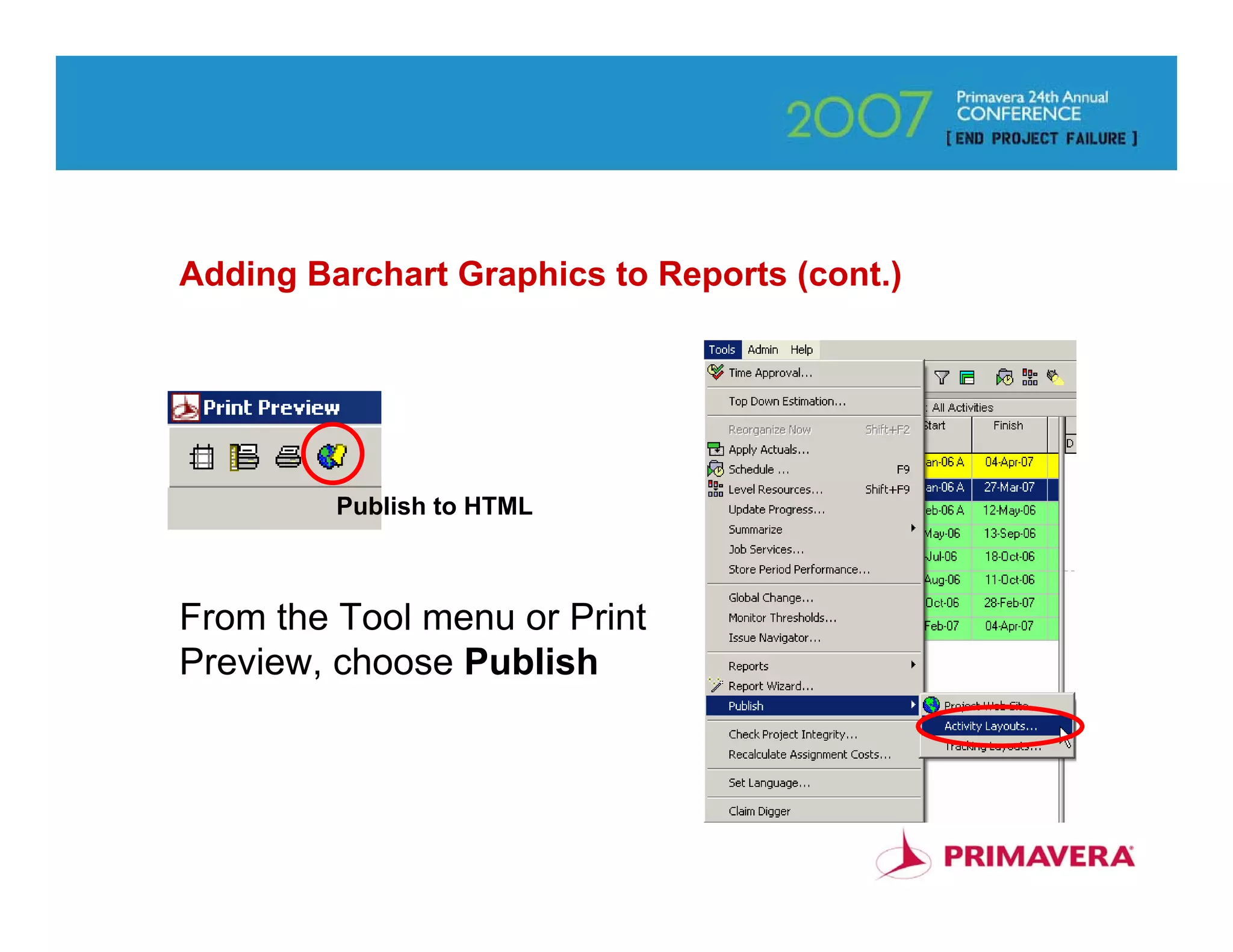
      2. From the tool menu or print preview, choose Publish
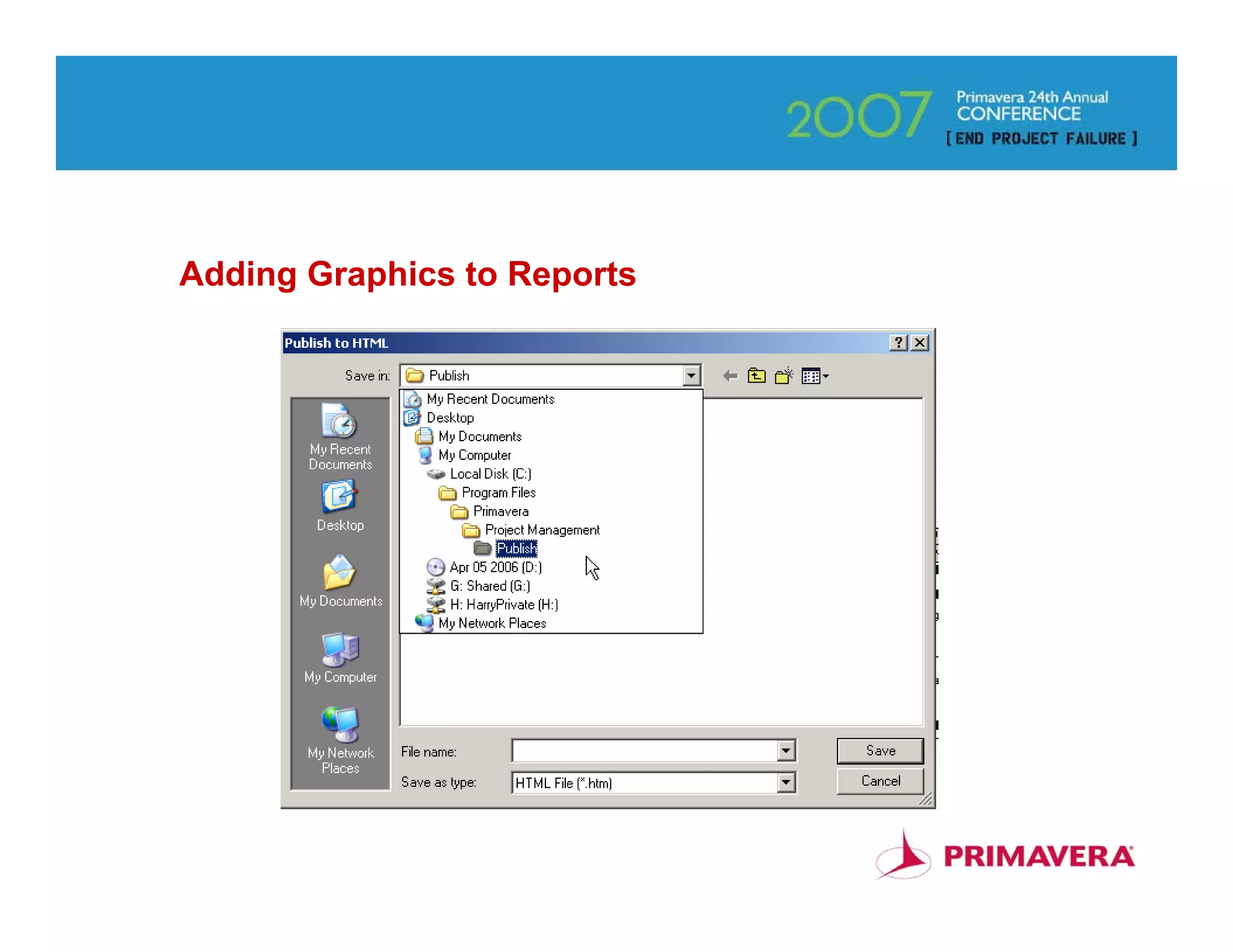
      3. Choose the directory for the report
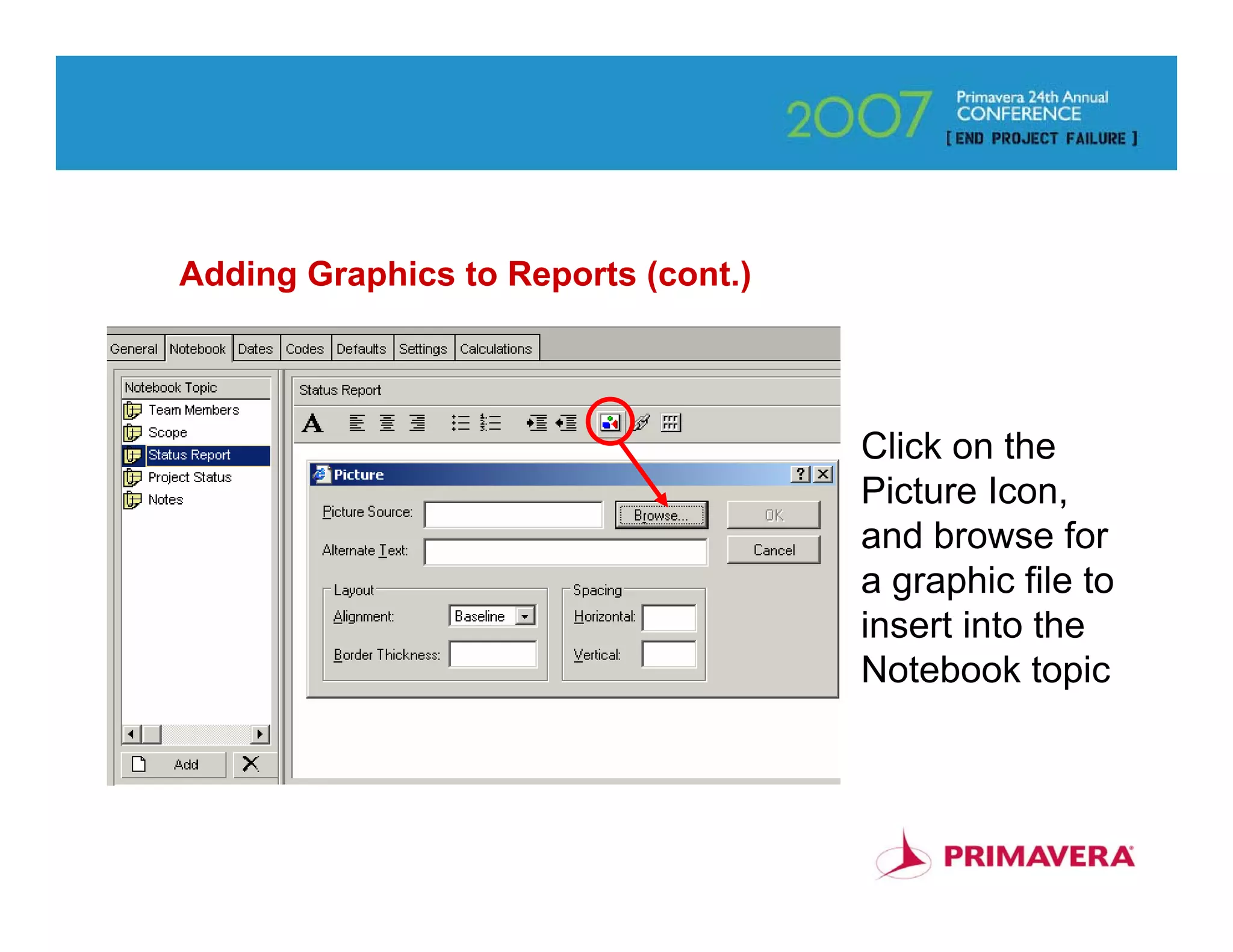
      4. Open a notebook topic and insert the graphic
      5. Include that notebook topic in your tabular report
      6. Run the report


                                                                 78
Slide 78

BC1        Please doublecheck first bullet. Thanks, BC
           Bill Camarda, 10/17/2006
Adding Barchart Graphics to Reports (cont.)


         Publish to HTML


From the Tool menu or Print
Preview, choose Publish


                                              79
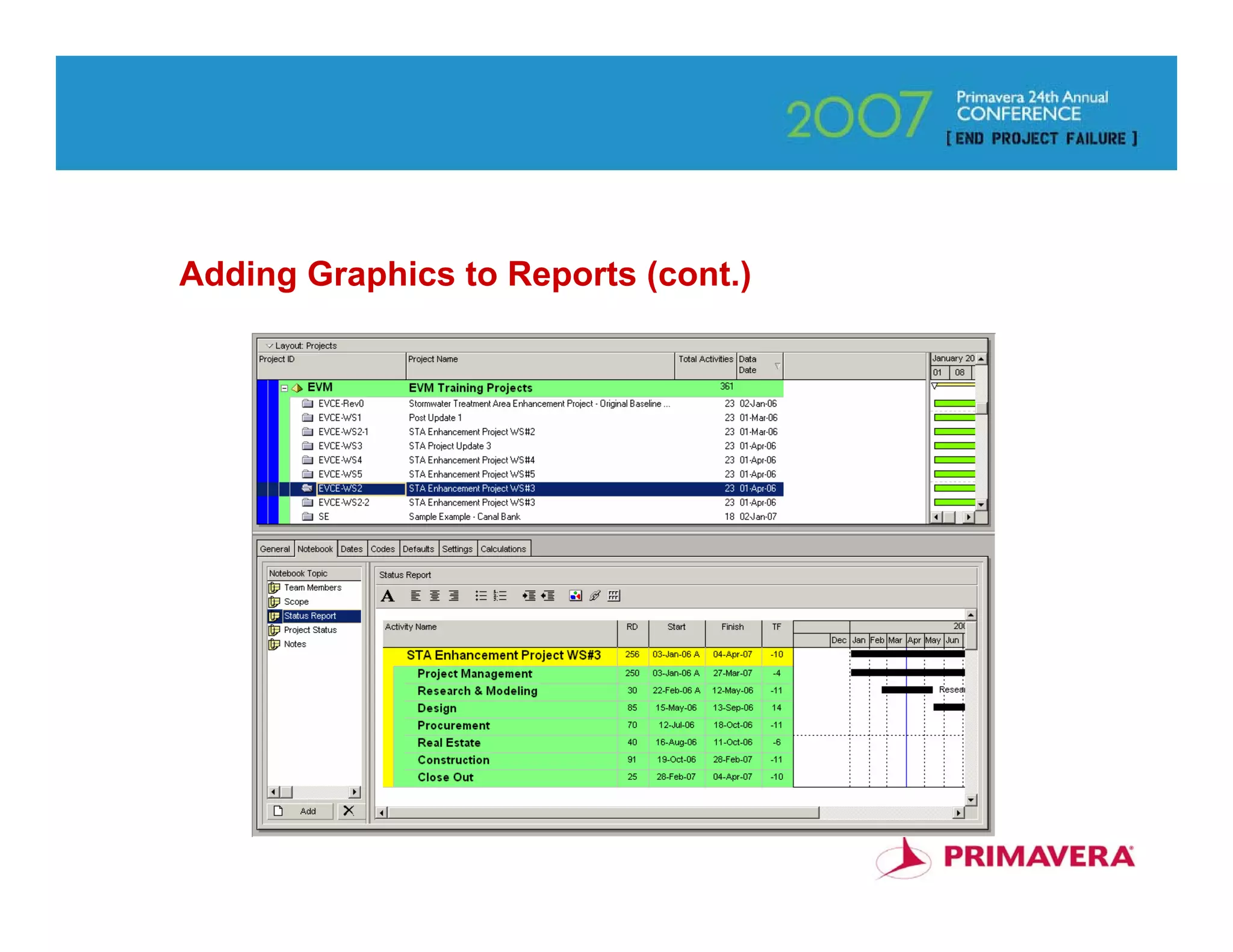
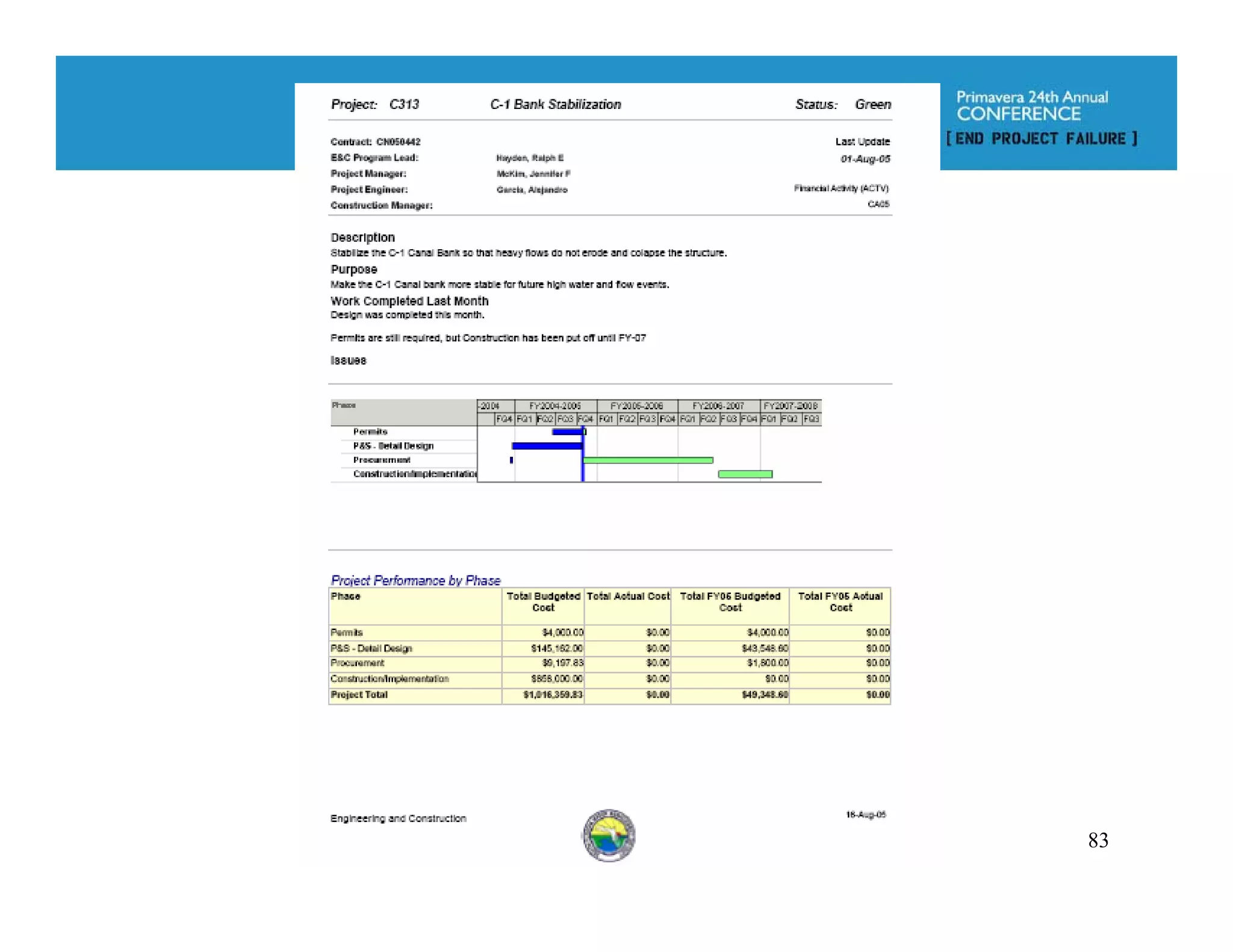
Adding Graphics to Reports


                             80
Adding Graphics to Reports (cont.)


                                     Click on the
                                     Picture Icon,
                                     and browse for
                                     a graphic file to
                                     insert into the
                                     Notebook topic


                                                    81
Adding Graphics to Reports (cont.)


                                     82
83
Working with Baselines

Baselines are an established method of tracking progress and measuring results

When you first begin using Baselines, you may see some strange results that are difficult to diagnose

Baselines can refer to either the Current Project or another Project

      How can you know which, without opening?


                                                                                                        84
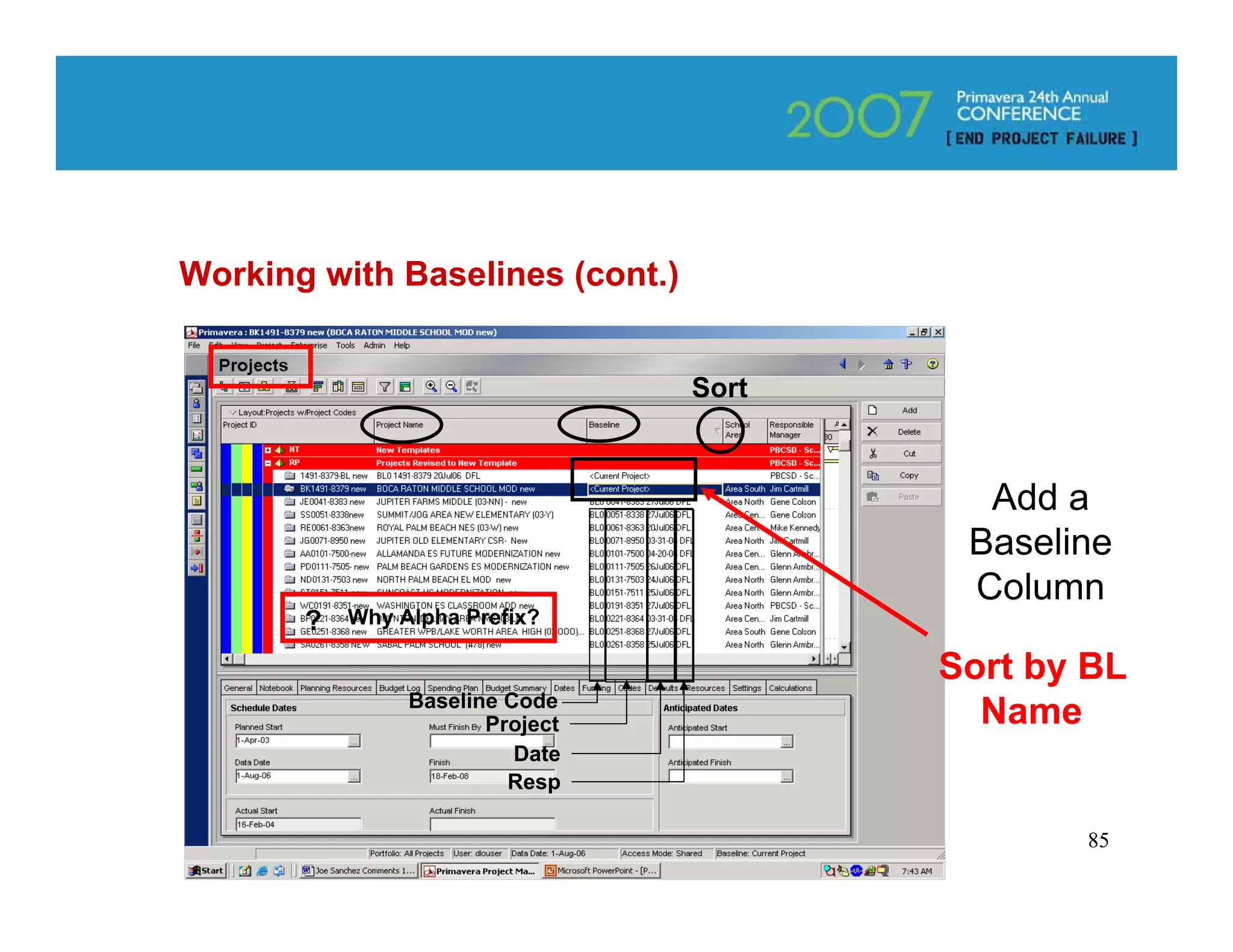
Working with Baselines (cont.)


                                 Sort


                                          Add a
                                         Baseline
                                         Column
       ?   Why Alpha Prefix?

                                        Sort by BL
                Baseline Code
                       Project            Name
                          Date
                         Resp

                                               85
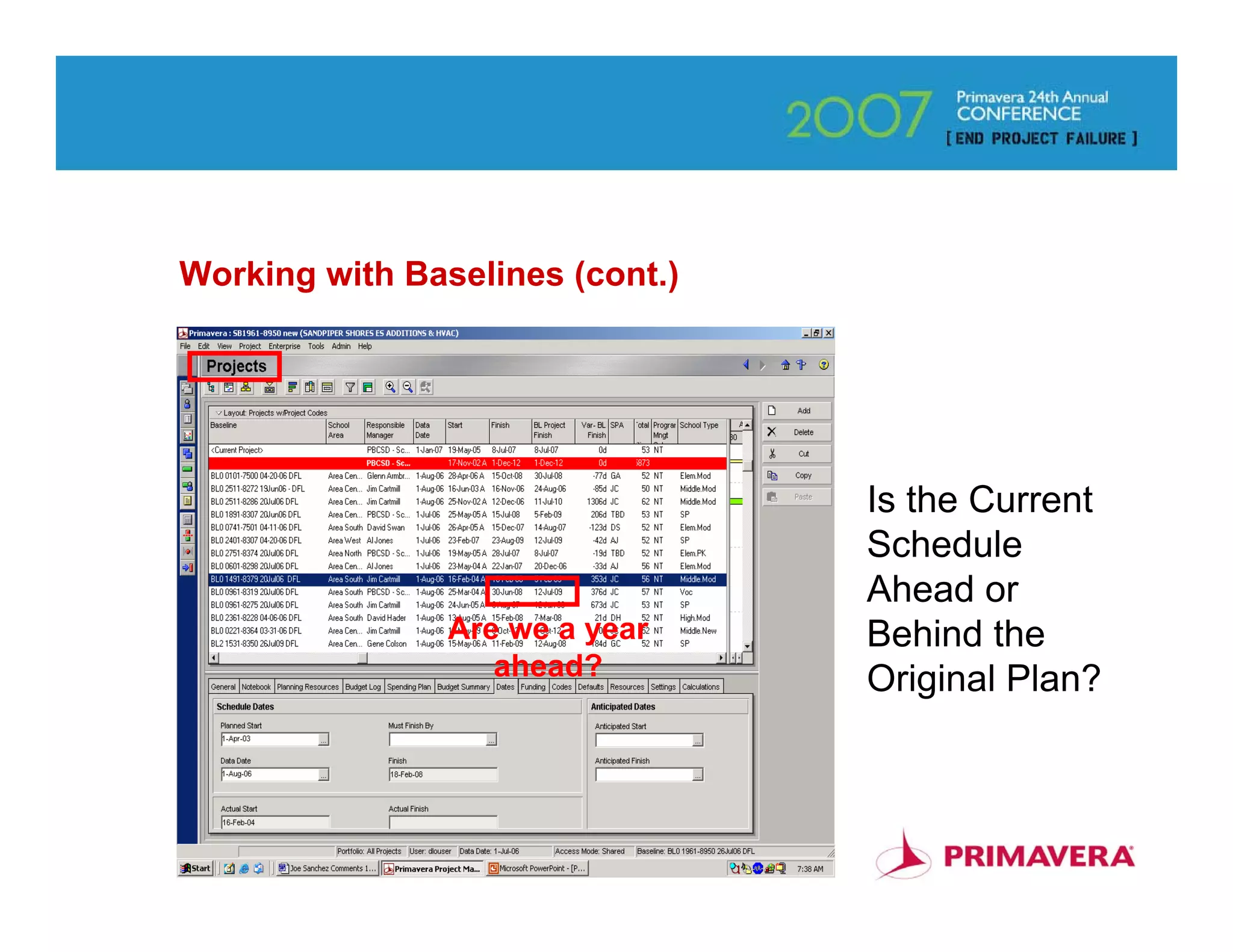
Working with Baselines (cont.)


                                 Is the Current
                                 Schedule
                                 Ahead or
                Are we a year    Behind the
                   ahead?        Original Plan?


                                              86
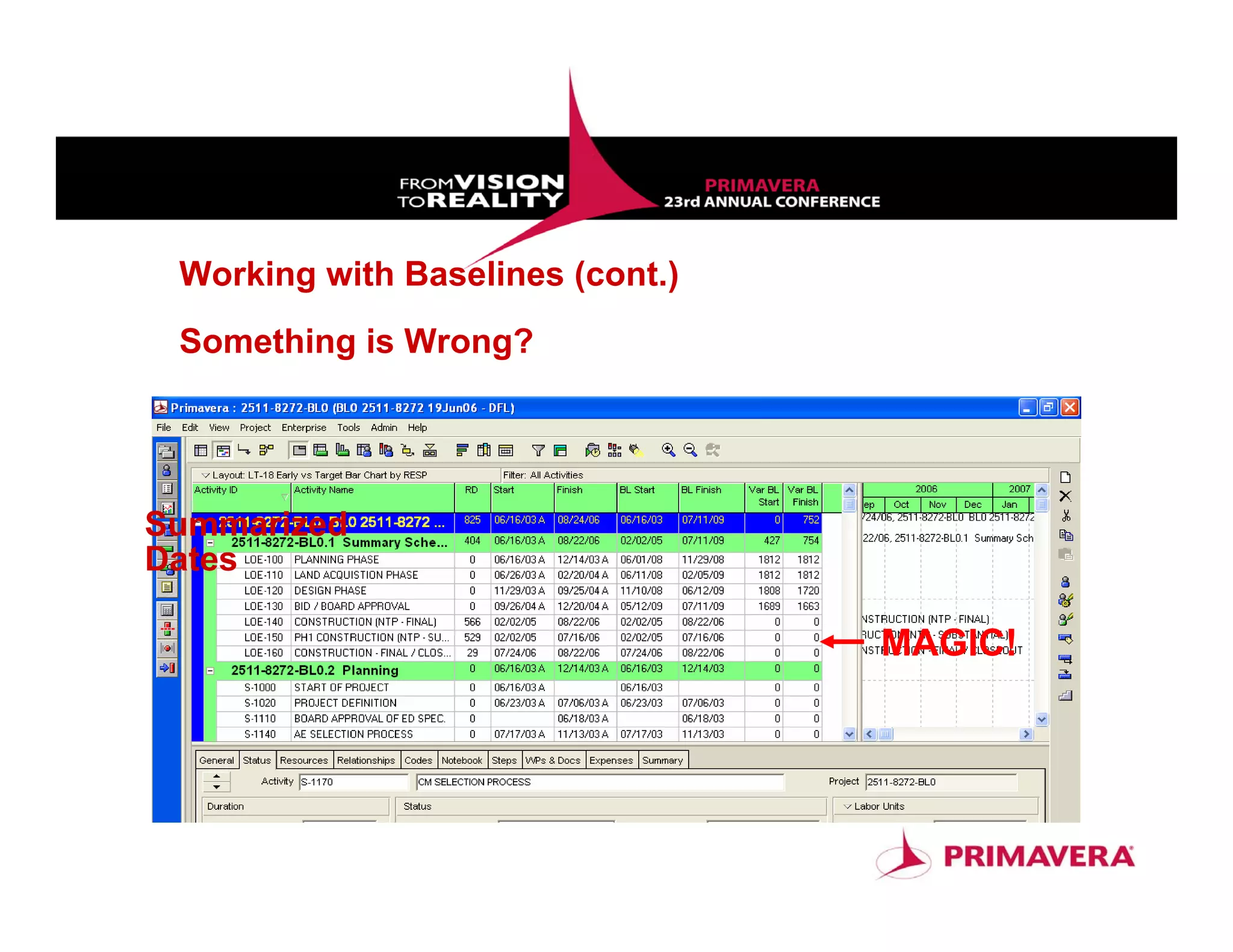
Working with Baselines (cont.)
 Something is Wrong?


Summarized
Dates

                                  MAGIC!


                                           87
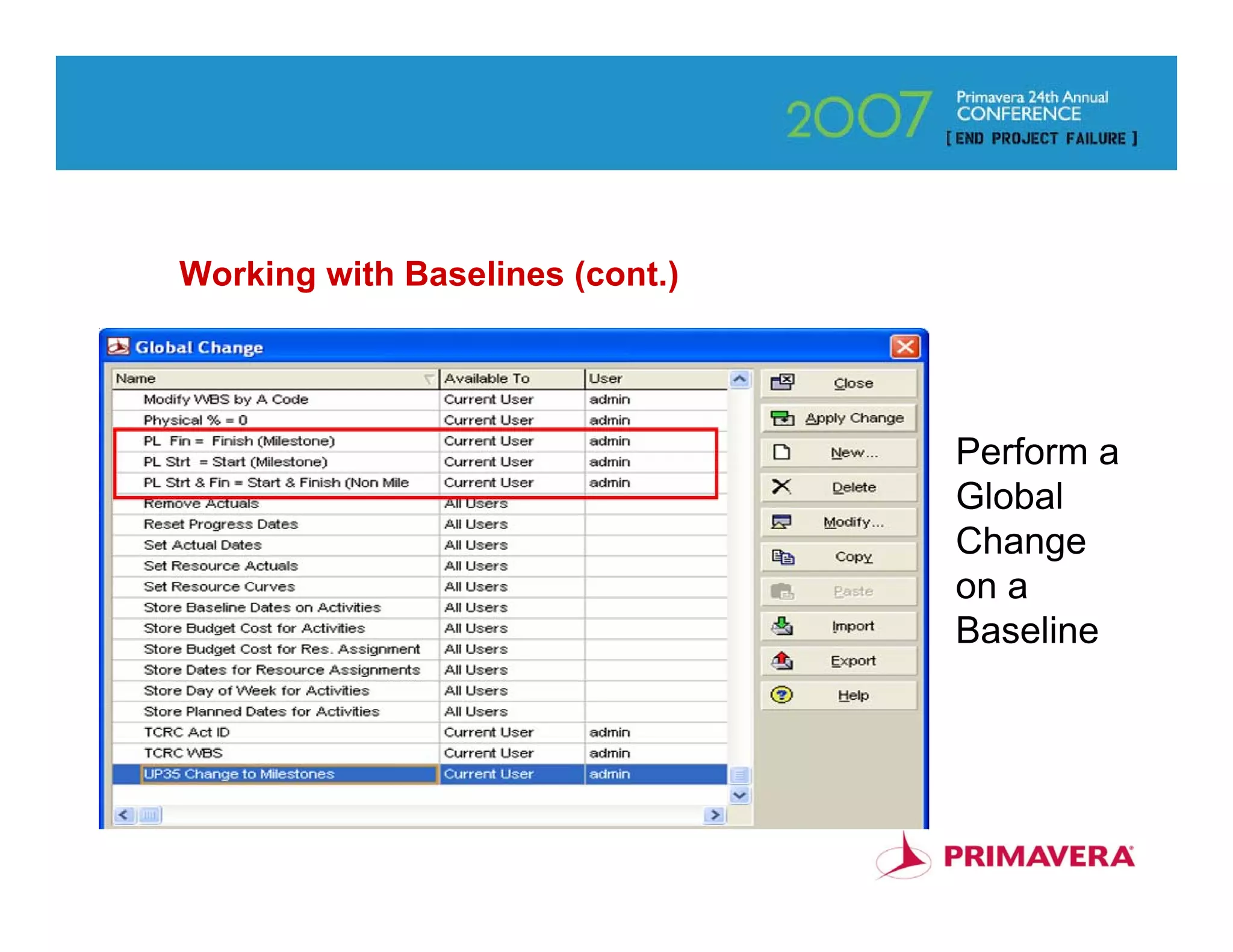
Working with Baselines (cont.)


                                 Perform a
                                 Global
                                 Change
                                 on a
                                 Baseline


                                        88
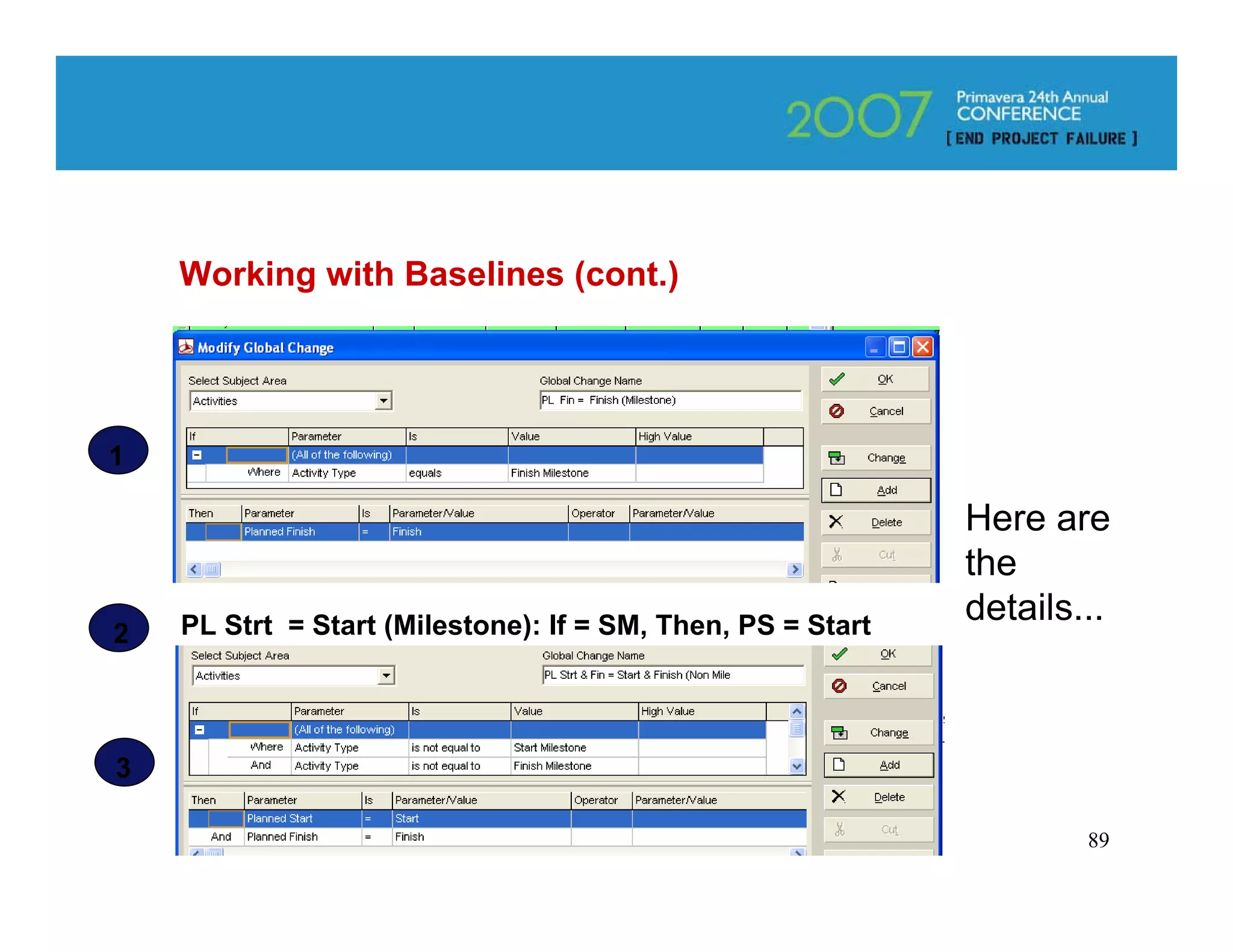
Working with Baselines (cont.)


1

                                                             Here are
                                                             the
    PL Strt = Start (Milestone): If = SM, Then, PS = Start
                                                             details...
2


3

                                                                     89
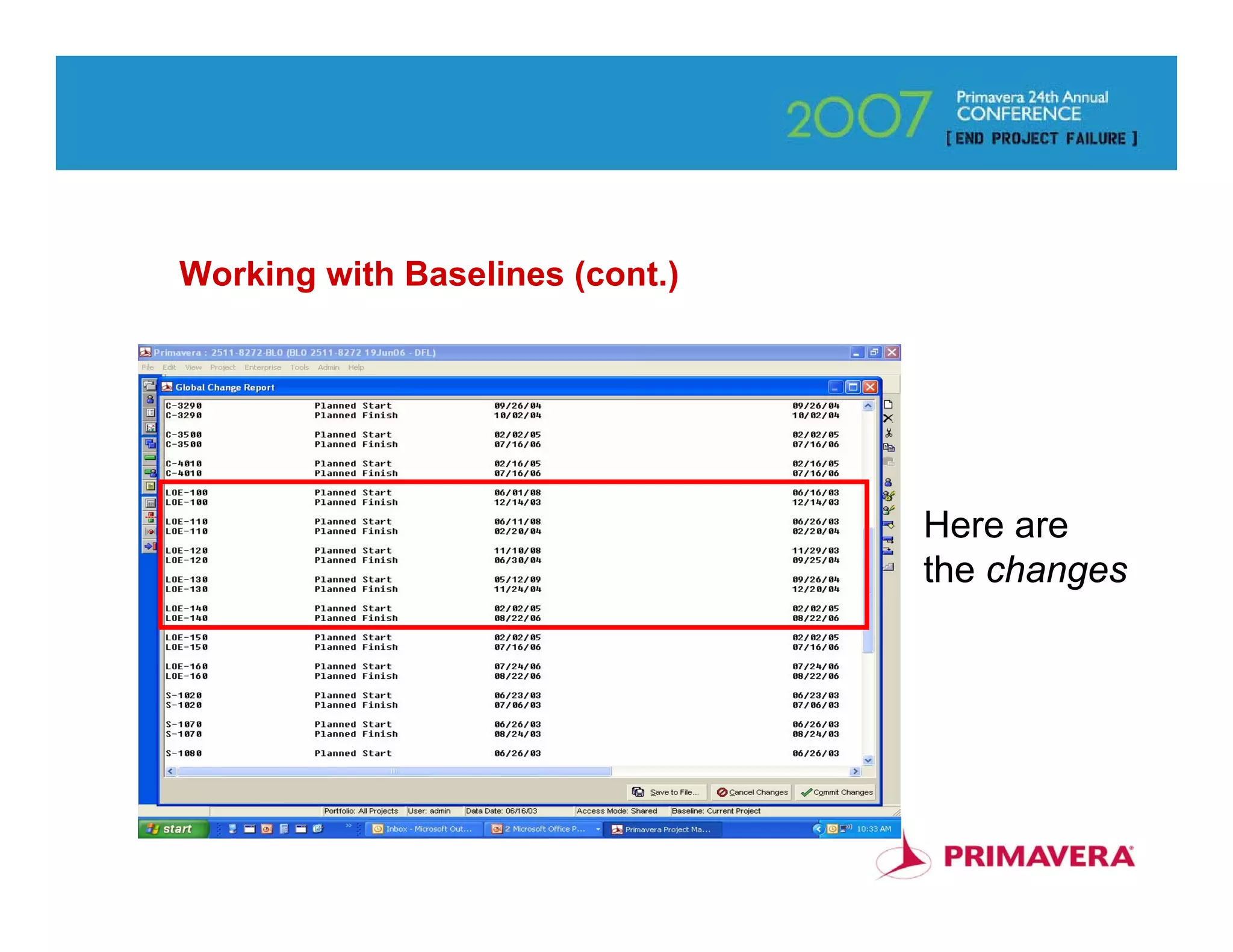
Working with Baselines (cont.)


                                 Here are
                                 the changes


                                         90
Questions?


             91

P6 tips tricks-client

  • 1.
    Tips Tricks withVersion Six (Client) Don Louser PMP, PMA Consultants LLC
  • 2.
    Give Us YourCard • There are more items in this presentation than we will have time to demonstrate • Give us your business card and we will send you the entire presentation complete with notes • Or, contact me @ dlouser@pmaconsultants.com 2
  • 3.
    What we havefor you today... • What’s New in Client v. 6.0 (Slides 1-20) • Use of Indicators (Slide 21) • Global Changes – De-status the Schedule (Slides 22-26) • Global Changes – Change WBS from Filters (Slide 27) • Export and Importing Projects (Slides 28-39) • Project details that are often forgotten (Slides 40-42) • Renumbering Activities (Slides 43-45) • Building your Schedule – Making a List (Slides 46-47) • Building your Schedule - Linking Shortcuts (Slide 48) • The Schedule Report (Slides 49-52) • Lag Calendars (Slides 53-54) 3
  • 4.
    What we havefor you today (cont.)... • Fragnets (Slides 55-58) • Coding and WBS Shortcuts (Slides 59-63) • Finding and Filtering Activities (Slides 64-65) • Roles and Resource Loading (Slides 66) • Schedule Crashing Basics (Slides 67-68) • Advanced Layouts For Communication (Slides 69-71) • Advanced Gantt Chart Formatting (Slides 72-76) • Exporting and Importing Layouts/Reports (Slide 77) • Add Bar-charts & Graphics to Reports (Slides 78-83) • Working with Baselines (Slides 84-91) 4
  • 5.
    What’s New –Reflection Projects • Power with Simplicity !!! • A Reflection is a Copy of a Project that enhances Your Ability to “What If” or Update Your Project • Same Name – What If – Internal Link to Source – Baseline – Timesheet Data – Activity Owner • “Activity Owner” make changes via .xer or Web • Review & Change or Merge As Is (Check Boxes) • Merge Will Not remove Activities, Resource Assignments, WBS Elements, Work Products & Docs, Expenses, Issues or Risks if deleted from Reflection DEMO 5
  • 6.
    What’s New -Create Reflection Project 6
  • 7.
    Making Changes toReflection Projects • Use to test Scenarios or Update Project • Send w/Project Specific Layout to Others to Update • Import/Export just like any other Project file • Activity Owner – designate Owner w/Required Web License & Privileges to Update/Change • Admin or Project Superuser gets last shot to Review/Correct before merging back into Source Project • Merge Will Not remove Activities, Resource Assignments, WBS Elements, Work Products & Docs, Expenses, Issues or Risks if deleted from Reflection 7
  • 8.
    Merging Reflection intoSource Project • Close all Projects • Go to Projects Table – Select Reflection Project • Right Click – Merge Reflection into Source Project 8
  • 9.
    Merging Reflection intoSource Project 9
  • 10.
    Merging Reflection intoSource Project 10
  • 11.
    Merging Reflection intoSource Project 11
  • 12.
    What’s New –Future Bucket Planning • Redistribute Even Distribution of Budgeted Units • Editable Security Privilege • Duration Type Must be Fixed Duration & Units, or Fixed Duration & Units/Time • Use Resource Spreadsheet or Resource Assignment • In Future Bucket Period type or change Values as Needed 12
  • 13.
    What’s New –Future Bucket Planning Day 1 Day 2 Day 3 Day 4 Day 5 TOTAL Even Spread 8 8 8 8 8 40 Future Bucket 8A 8A 4A 10R 10R 40 •Assuming Daily TS – P5 spread evenly •Actual levels of work may vary •Example shows 20 A units in 3 days •Remaining needs to be adjusted •Two remaining buckets reflect adjustment •Activity Adjusted must have Fixed Duration & Units, orFixed Duration & Units/Time •Use Resource Spreadsheet to adjust future bucket period 13
  • 14.
    Edit Future BucketSecurity 14
  • 15.
    What’s New –Group & Sort Dialog • New Checkbox for Show Group Totals, Shrink Vertical Bands SHOW PIX & EXPLAIN 15
  • 16.
    What’s New -Search in Pop-Up Dialog and Type Ahead in Drop Down SHOW PIX & EXPLAIN 16
  • 17.
    What’s New -Copy Baselines • Checkbox in Copy Project Options • Copy Baselines Dialog # Copies Controlled by New Setting in Admin Preferences 17
  • 18.
    Admin preferences Settingfor Copying Baselines 18
  • 19.
    What’s New -Role Limits • Similar to Limits for Resources • Effective Date and Max Units/Time 19
  • 20.
    What’s new –Project Specific Layouts (Yeah!) • Layout with Filter when Project Exported • Reduces Need for Global Layouts • Only Global and Layout Filters will Restrict Use • Expanded & Collapsed Bars & Row Height Setting when switching between layouts and Windows (Yeah!) 20
  • 21.
  • 22.
    Useful Global Changes– De-Status the Schedule Re-create a Baseline, Copy an Existing Schedule that has Been Progressed Project Detail Calculations Tab = Any Actual Units that Exist Must be set to 0 • See Actual Units Slide Run 2 Global Changes to Reset Activities to Not Started • See De-Progress GCs Make any Needed Changes and Reschedule Skip 22
  • 23.
    Useful Global Changes– De-Status the Schedule (cont.) Actual Work Units Go Back 23
  • 24.
    Useful Global Changes– De-Status the Schedule (cont.) De-Status the GC’s Go Back 24
  • 25.
    Errors? Sometimes... An Activity mayhave a Unit without a Resource Assigned... 25
  • 26.
    Useful Global Changes– De-Status the Schedule (cont.) Set Cols for All Units Delete Manually, or Use the Fill- Down Feature 26
  • 27.
    Useful Global Changes– Change WBS Based on Filters 27
  • 28.
    Exporting and ImportingProjects Primavera PM/MM (.xer) MS Project Project Planner (P3) Spreadsheet (.xls) Primavera Contractor 4.1 (.xer) 28
  • 29.
    Exporting and ImportingProjects – Spreadsheet (.XLS) 1. Select Items for Export 2. Separate Sheet for Each Item 29
  • 30.
    Exporting and ImportingProjects – Spreadsheet (.XLS) (cont.) 3. Select a Project (it must be open) 30
  • 31.
    Exporting and ImportingProjects – Spreadsheet (.XLS) (cont.) 4. Establish Templates for each Item 31
  • 32.
    Exporting and ImportingProjects – Spreadsheet (.XLS) (cont.) 5. Certain items are mandatory, and you can filter & sort 32
  • 33.
    Exporting and ImportingProjects – Spreadsheet (.XLS) (cont.) 6. Select any or all templates 33
  • 34.
    Exporting and ImportingProjects – Spreadsheet (.XLS) (cont.) 7. Select the file path and name 34
  • 35.
    Exporting and ImportingProjects – Spreadsheet (.XLS) (cont.) 8. Confirm before you finish 35
  • 36.
    Exporting and ImportingProjects (cont.) One Worksheet Per Subject 36
  • 37.
    Exporting and ImportingProjects (cont.) Caution! – Don’t Edit this Sheet 37
  • 38.
    Importing Projects Importing is a Snap! 38
  • 39.
  • 40.
    Project details thatare often forgotten 40
  • 41.
    Project details thatare often forgotten 41
  • 42.
    Project details thatare often forgotten 42
  • 43.
    Renumbering Activities Many GCslike Intelligent IDs CSI Code – Bldg – Floor Establish UDF (Activity) or Activity Code Put in Column in Layout Type Codes in Column Use Global Change Codes Become Activity IDs 43
  • 44.
  • 45.
    Renumbering Activities (cont.) For those a bit more familiar with (GC’s) Create Activity Code Add Activity Code column in Layout Fill Column Create GC’s that add suffix for Bldg & Floor 45
  • 46.
    Building your schedule– Making a list 46
  • 47.
    Building your schedule– Making a list 47
  • 48.
    Building your schedule– Linking shortcuts <Ctrl-Click> the order to link the activities, then <right-click> your mouse and choose “Link Activities.” They are now linked in the order you clicked on them. 48
  • 49.
    Building your schedule– The Schedule Report When you schedule your project, don’t forget to choose “Log to file” and click on the ellipsis to specify the location of the “schedule.txt” file. Always view the log to spot errors. 49
  • 50.
    Building your schedule– The Schedule Report 50
  • 51.
    Building your schedule– The Schedule Report 51
  • 52.
    Building your schedule– The Schedule Report 52
  • 53.
    Lag Calendars andSchedule Result - Version 5.0 + = 53
  • 54.
    Lag Calendars Reschedule This has been changed in v 6.0 to default to the predecessor + = ? 54
  • 55.
    Fragnets • Time Saving– why recreate the wheel? – Building a Single Schedule – Modifying Many Schedules • Create New or Modify Existing – New = As You Would New Project – Modify = Delete from Existing • WBS is the Key to Integration 55
  • 56.
    2 Projects Fragnets (cont.) Move to 2 WBS elements Modify a template with a Fragnet To Here From Here 56
  • 57.
    Fragnets (cont.) Objective – Add 22 new Activities in Template to 2 WBS Nodes • Copy the Template as Fragnet, Delete All Activities Except those to Remain in Planning & Design WBS Nodes • Add the 22 New Activities & All Links to Fragnet • Open Template & Fragnet • Delete All Activities in Planning & Design Template WBS Nodes • Select & Copy All Fragnet Activities 57
  • 58.
    Fragnets (cont.) • Pasteinto one of the empty Template Nodes (Preserves all Links) • Control-Click all Activities to be moved to other Node • <Ctrl-X> (Cut) • <Ctrl-V> (Paste) into other Node • Re-establish any Links from 2 Nodes to others • Use Template to create new Schedules 58
  • 59.
    Coding and WBSShortcuts Here is one person’s Layout 59
  • 60.
    Coding and WBSShortcuts (cont.) 60
  • 61.
    Coding and WBSShortcuts (cont.) 61
  • 62.
    Coding and WBSShortcuts (cont.) Here. the work is organized by WBS1 and Level 62
  • 63.
    Coding and WBSShortcuts (cont.) Here, the work is organized only by Level 63
  • 64.
    Finding and FilteringActivities Unleash the power of Find with <Ctrl-F> 64
  • 65.
    Finding and FilteringActivities (cont.) 65
  • 66.
    Roles and ResourceLoading • Roles are placeholders for Resources that are not yet assigned. • Roles allow teams to be assigned quickly to project activities, once the resource team is identified. • Only resources for roles that are unfilled are shown in the assign resources for roles dialogue box. • <Shift-Click> and <Ctrl-Click> can be used to select the activities being assigned resources by roles. • A project team could be assigned to all of the project’s activities at once. 66
  • 67.
    Schedule Crashing Basics 28 Days Total Duration 67
  • 68.
    Schedule Crashing Basics(cont.) Assume We Need to Reduce Duration by 5 Days 28 Days Total Duration 68
  • 69.
    Advanced Layouts to EnhanceCommunication • User Defined Fields • Bring in Related Data from Other Sources • Tabular + Graphic Presentation 69
  • 70.
    Advanced Layouts to EnhanceCommunication (cont.) User Defined Schedule Data Random Data 70
  • 71.
    Advanced Layouts to EnhanceCommunication (cont.) 71
  • 72.
    Advanced Gantt ChartFormatting 72
  • 73.
    Advanced Gantt ChartFormatting 73
  • 74.
    Advanced Gantt ChartFormatting 74
  • 75.
    Advanced Gantt ChartFormatting 75
  • 76.
    Advanced Gantt ChartFormatting 76
  • 77.
    Exporting and Importing Layoutsand Reports .plf filename extension 77
  • 78.
    BC1 Adding Barchart Graphics to Reports 1. Create a layout that you want to print in your report 2. From the tool menu or print preview, choose Publish 3. Choose the directory for the report 4. Open a notebook topic and insert the graphic 5. Include that notebook topic in your tabular report 6. Run the report 78
  • 79.
    Slide 78 BC1 Please doublecheck first bullet. Thanks, BC Bill Camarda, 10/17/2006
  • 80.
    Adding Barchart Graphicsto Reports (cont.) Publish to HTML From the Tool menu or Print Preview, choose Publish 79
  • 81.
  • 82.
    Adding Graphics toReports (cont.) Click on the Picture Icon, and browse for a graphic file to insert into the Notebook topic 81
  • 83.
    Adding Graphics toReports (cont.) 82
  • 84.
  • 85.
    Working with Baselines Baselinesare an established method of tracking progress and measuring results When you first begin using Baselines, you may see some strange results that are difficult to diagnose Baselines can refer to either the Current Project or another Project How can you know which, without opening? 84
  • 86.
    Working with Baselines(cont.) Sort Add a Baseline Column ? Why Alpha Prefix? Sort by BL Baseline Code Project Name Date Resp 85
  • 87.
    Working with Baselines(cont.) Is the Current Schedule Ahead or Are we a year Behind the ahead? Original Plan? 86
  • 88.
    Working with Baselines(cont.) Something is Wrong? Summarized Dates MAGIC! 87
  • 89.
    Working with Baselines(cont.) Perform a Global Change on a Baseline 88
  • 90.
    Working with Baselines(cont.) 1 Here are the PL Strt = Start (Milestone): If = SM, Then, PS = Start details... 2 3 89
  • 91.
    Working with Baselines(cont.) Here are the changes 90
  • 92.