PMATechnologies
A Step‐by‐step Guide
HOW TO IMPORT/EXPORT 
BETWEEN                    & 
PMATechnologies
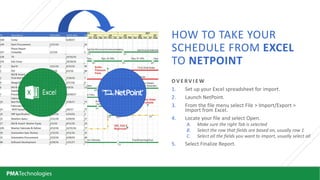
O V E R V I E W
1. Set up your Excel spreadsheet for import.
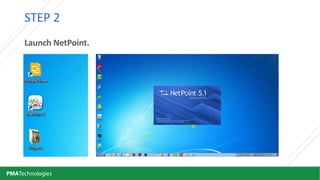
2. Launch NetPoint.
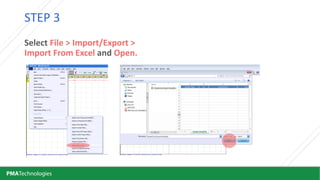
3. From the file menu select File > Import/Export > 
Import from Excel.
4. Locate your file and select Open.
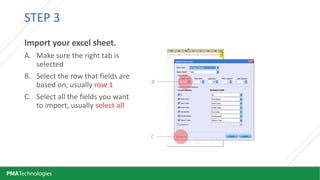
A. Make sure the right Tab is selected
B. Select the row that fields are based on, usually row 1
C. Select all the fields you want to import, usually select all
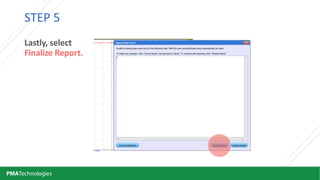
5. Select Finalize Report.
HOW TO TAKE YOUR 
SCHEDULE FROM EXCEL
TO NETPOINT
PMATechnologies
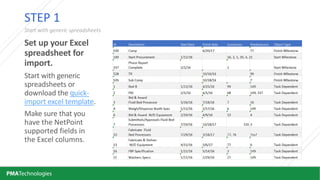
Set up your Excel 
spreadsheet for 
import.
Start with generic 
spreadsheets or 
download the quick‐
import excel template. 
Make sure that you 
have the NetPoint 
supported fields in 
the Excel columns.
Start with generic spreadsheets
STEP 1
PMATechnologies
STEP 2
Launch NetPoint.
PMATechnologies
STEP 3
Select File > Import/Export > 
Import From Excel and Open.
PMATechnologies
B
C
STEP 3
Import your excel sheet.
A. Make sure the right tab is 
selected
B. Select the row that fields are 
based on, usually row 1
C. Select all the fields you want 
to import, usually select all
PMATechnologies
STEP 5
Lastly, select 
Finalize Report.
PMATechnologies
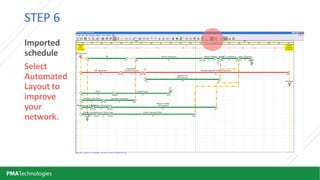
STEP 6
Imported 
schedule
Select 
Automated 
Layout to 
improve 
your 
network. 
PMATechnologies
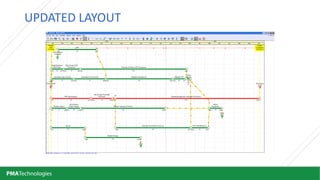
UPDATED LAYOUT
PMATechnologies
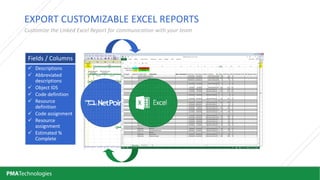
EXPORT CUSTOMIZABLE EXCEL REPORTS
Customize the Linked Excel Report for communication with your team
 Descriptions
 Abbreviated 
descriptions
 Object IDS
 Code definition
 Resource 
definition
 Code assignment
 Resource 
assignment
 Estimated % 
Complete
Fields / ColumnsFields / Columns
PMATechnologies
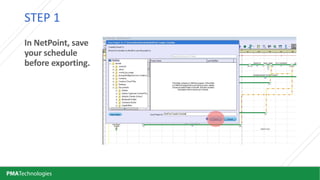
In NetPoint, save 
your schedule 
before exporting.
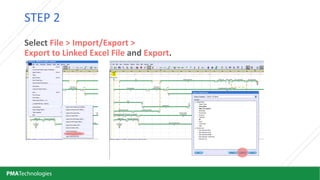
STEP 1
PMATechnologies
Select File > Import/Export > 
Export to Linked Excel File and Export.
STEP 2
PMATechnologies
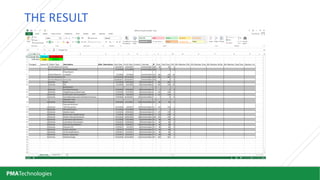
THE RESULT
PMATechnologies
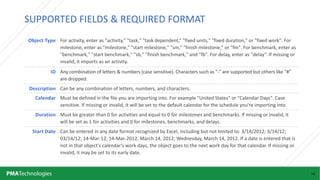
SUPPORTED FIELDS & REQUIRED FORMAT
14
Object Type For activity, enter as "activity," "task," "task dependent,“ "fixed units," "fixed duration," or "fixed work". For 
milestone, enter as "milestone," "start milestone," "sm," "finish milestone," or "fm". For benchmark, enter as 
"benchmark," "start benchmark," "sb," "finish benchmark," and "fb". For delay, enter as "delay“. If missing or 
invalid, it imports as an activity.
ID Any combination of letters & numbers (case sensitive). Characters such as "‐" are supported but others like "#" 
are dropped.
Description Can be any combination of letters, numbers, and characters.
Calendar Must be defined in the file you are importing into. For example "United States" or "Calendar Days". Case 
sensitive. If missing or invalid, it will be set to the default calendar for the schedule you're importing into.
Duration Must be greater than 0 for activities and equal to 0 for milestones and benchmarks. If missing or invalid, it 
will be set as 1 for activities and 0 for milestones, benchmarks, and delays.
Start Date Can be entered in any date format recognized by Excel, including but not limited to: 3/14/2012; 3/14/12; 
03/14/12; 14‐Mar‐12; 14‐Mar‐2012; March 14, 2012; Wednesday, March 14, 2012. If a date is entered that is 
not in that object's calendar's work days, the object goes to the next work day for that calendar. If missing or 
invalid, it may be set to its early date.
PMATechnologies
SUPPORTED FIELDS & REQUIRED FORMAT
15
Finish Date Can be entered in any date format that is recognized by Excel, including but not limited to: 3/14/2012; 3/14/12; 
03/14/12; 14‐Mar‐12; 14‐Mar‐2012; March 14, 2012; Wednesday, March 14, 2012. If a date is entered that is not in 
that object's calendar's work days, the object goes to the next work day for that calendar. If missing or invalid, it may 
be set to its early date.
Predecessor Enter as EITHER [Row #][Relationship][Lag] OR if ID's are being defined, [ID][Relationship][Lag], e.g. "12FS1" or 
"ABFS1". In either case "[Lag]" is optional, e.g. "12FS" or "ABFS". If ID's are being defined, row numbers can NOT be 
used. Possible relationships include SS, FS, FF, or SF. If the relationship or row #/ID is not recognized, the link will not 
be imported.
Successor Enter as EITHER [Row #][Relationship][Lag] OR if ID's are being defined, [ID][Relationship][Lag], e.g. "12FS1" or 
"ABFS1". In either case "[Lag]" is optional, e.g. "12FS" or "ABFS". If ID's are being defined, row numbers can NOT be 
used. Possible relationships include SS, FS, FF, or SF. If the relationship or row #/ID is not recognized, the link will not 
be imported.
Color Enter as either R,G,B (for example, 255, 50, 50) OR by name. A list of supported colors is available at 
www.rapidtables.com/web/color/RGB_Color.htm. If invalid or not recognized, it is set as the default color for that object.
Grid Number Enter the rid number for object placement at import from Excel. This can help control where object land on the 
canvas at import vs the random placement default to NetPoint.
PMATechnologies
Download a free trail of 
NetPoint; Pre‐Set Excel 
Spreadsheets, and field 
descriptions
pmatechnologies.com/excel/
Learn more about NetPoint 
and GPM Planning
http://pmatechnologies.com/
Contact us for more 
information
info@pmatechnologies.com

How to Import/Export a Schedule between NetPoint and Microsft Excel