
MC University
P03|Inventory Management Tools
MC University
Using Parts on Work Orders
Tools for Inventory Management
Agenda
MC University
Using Parts on Work Orders Defined
Estimated vs. Actual Materials
Types of Materials
Using Parts on Work Orders
MC University
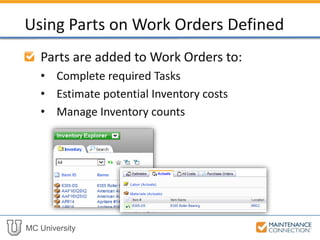
Parts are added to Work Orders to:
• Complete required Tasks
• Estimate potential Inventory costs
• Manage Inventory counts
Using Parts on Work Orders Defined
MC University
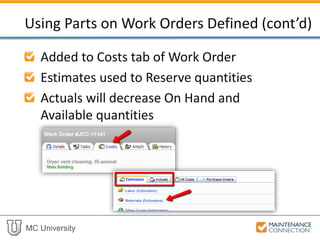
Added to Costs tab of Work Order
Estimates used to Reserve quantities
Actuals will decrease On Hand and
Available quantities
Using Parts on Work Orders Defined (cont’d)
MC University
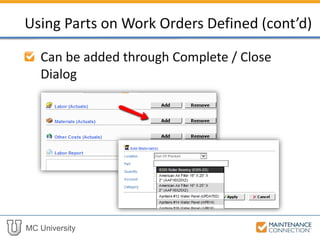
Can be added through Complete / Close
Dialog
Using Parts on Work Orders Defined (cont’d)
MC University
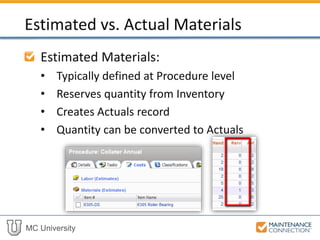
Estimated Materials:
• Typically defined at Procedure level
• Reserves quantity from Inventory
• Creates Actuals record
• Quantity can be converted to Actuals
Estimated vs. Actual Materials
MC University
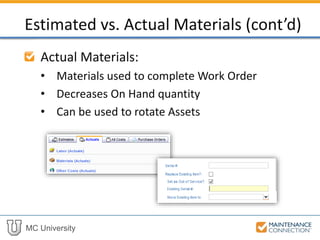
Actual Materials:
• Materials used to complete Work Order
• Decreases On Hand quantity
• Can be used to rotate Assets
Estimated vs. Actual Materials (cont’d)
MC University
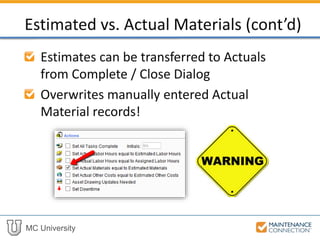
Estimates can be transferred to Actuals
from Complete / Close Dialog
Overwrites manually entered Actual
Material records!
Estimated vs. Actual Materials (cont’d)
MC University
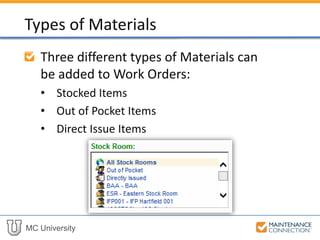
Three different types of Materials can
be added to Work Orders:
• Stocked Items
• Out of Pocket Items
• Direct Issue Items
Types of Materials
MC University
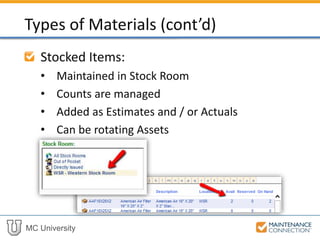
Stocked Items:
• Maintained in Stock Room
• Counts are managed
• Added as Estimates and / or Actuals
• Can be rotating Assets
Types of Materials (cont’d)
MC University
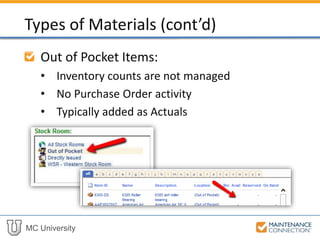
Out of Pocket Items:
• Inventory counts are not managed
• No Purchase Order activity
• Typically added as Actuals
Types of Materials (cont’d)
MC University
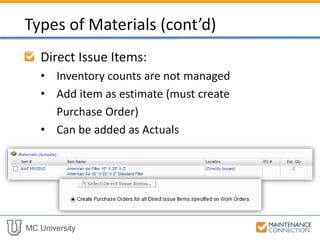
Direct Issue Items:
• Inventory counts are not managed
• Add item as estimate (must create
Purchase Order)
• Can be added as Actuals
Types of Materials (cont’d)
MC University
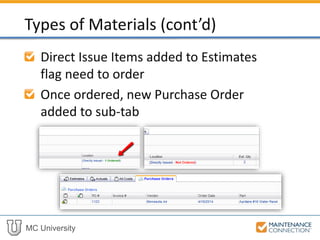
Direct Issue Items added to Estimates
flag need to order
Once ordered, new Purchase Order
added to sub-tab
Types of Materials (cont’d)
MC University
Now let’s practice creating a test Work
Order and adding a Stocked Item to the
Materials (Actuals)!
Adding Materials (Actuals): Hands-On
MC University
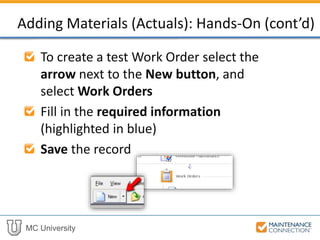
To create a test Work Order select the
arrow next to the New button, and
select Work Orders
Fill in the required information
(highlighted in blue)
Save the record
Adding Materials (Actuals): Hands-On (cont’d)
MC University
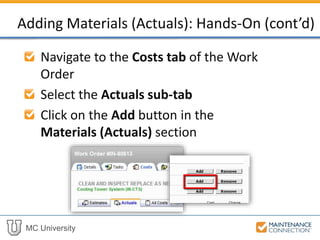
Navigate to the Costs tab of the Work
Order
Select the Actuals sub-tab
Click on the Add button in the
Materials (Actuals) section
Adding Materials (Actuals): Hands-On (cont’d)
MC University
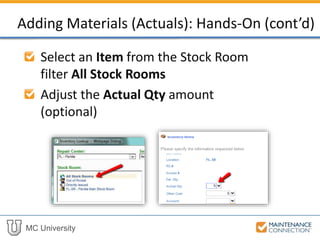
Select an Item from the Stock Room
filter All Stock Rooms
Adjust the Actual Qty amount
(optional)
Adding Materials (Actuals): Hands-On (cont’d)
MC University
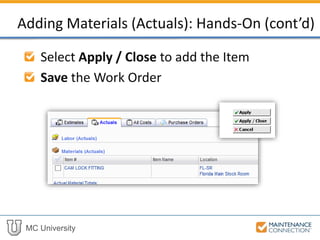
Select Apply / Close to add the Item
Save the Work Order
Adding Materials (Actuals): Hands-On (cont’d)
MC University
You have now successfully completed
creating a test Work Order and adding
Material (Actuals)!
Adding Materials (Actuals): Hands-On (cont’d)
MC University
Adjust Inventory
Count Inventory
Transfer Inventory
Transactions Tab
Tools for Inventory Management
MC University
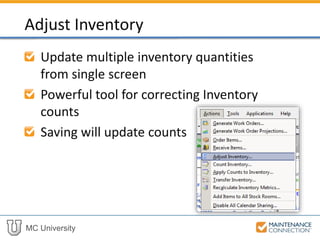
Update multiple inventory quantities
from single screen
Powerful tool for correcting Inventory
counts
Saving will update counts
Adjust Inventory
MC University
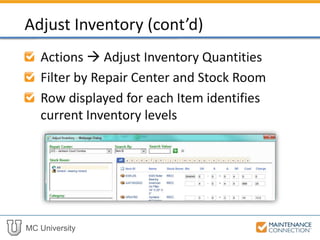
Actions  Adjust Inventory Quantities
Filter by Repair Center and Stock Room
Row displayed for each Item identifies
current Inventory levels
Adjust Inventory (cont’d)
MC University
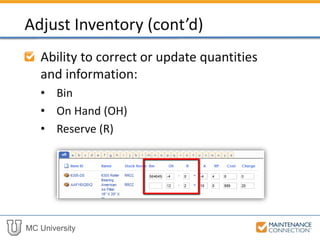
Ability to correct or update quantities
and information:
• Bin
• On Hand (OH)
• Reserve (R)
Adjust Inventory (cont’d)
MC University
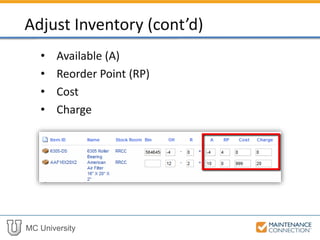
• Available (A)
• Reorder Point (RP)
• Cost
• Charge
Adjust Inventory (cont’d)
MC University
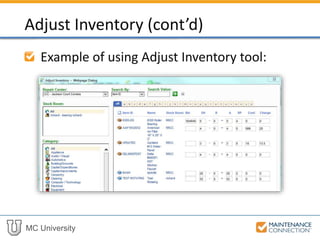
Example of using Adjust Inventory tool:
Adjust Inventory (cont’d)
MC University
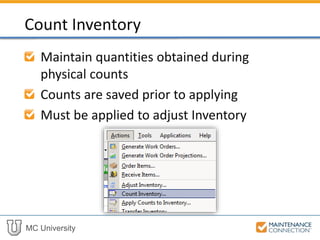
Maintain quantities obtained during
physical counts
Counts are saved prior to applying
Must be applied to adjust Inventory
Count Inventory
MC University
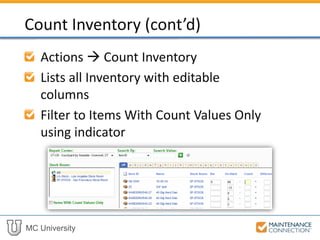
Actions  Count Inventory
Lists all Inventory with editable
columns
Filter to Items With Count Values Only
using indicator
Count Inventory (cont’d)
MC University
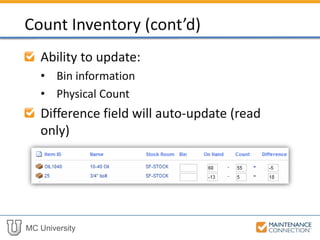
Ability to update:
• Bin information
• Physical Count
Difference field will auto-update (read
only)
Count Inventory (cont’d)
MC University
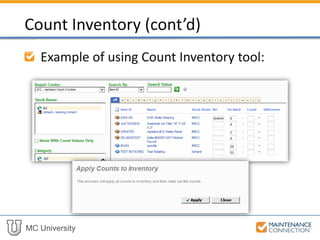
Example of using Count Inventory tool:
Count Inventory (cont’d)
MC University
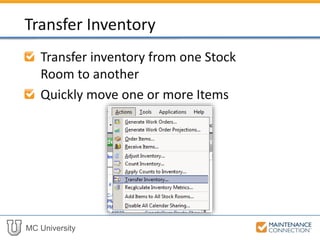
Transfer inventory from one Stock
Room to another
Quickly move one or more Items
Transfer Inventory
MC University
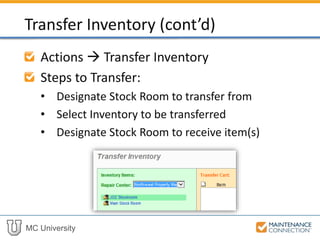
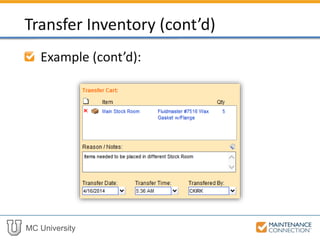
Actions  Transfer Inventory
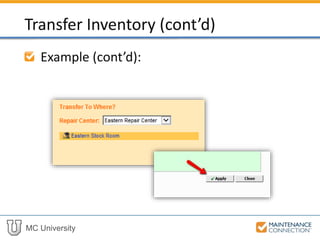
Steps to Transfer:
• Designate Stock Room to transfer from
• Select Inventory to be transferred
• Designate Stock Room to receive item(s)
Transfer Inventory (cont’d)
MC University
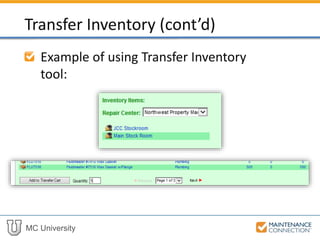
Example of using Transfer Inventory
tool:
Transfer Inventory (cont’d)
MC University
Example (cont’d):
Transfer Inventory (cont’d)
MC University
Example (cont’d):
Transfer Inventory (cont’d)
MC University
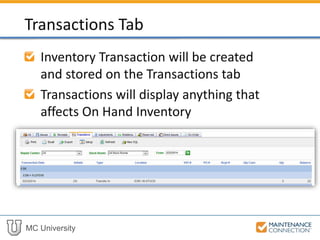
Inventory Transaction will be created
and stored on the Transactions tab
Transactions will display anything that
affects On Hand Inventory
Transactions Tab
MC University
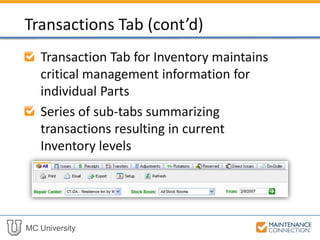
Transaction Tab for Inventory maintains
critical management information for
individual Parts
Series of sub-tabs summarizing
transactions resulting in current
Inventory levels
Transactions Tab (cont’d)
MC University
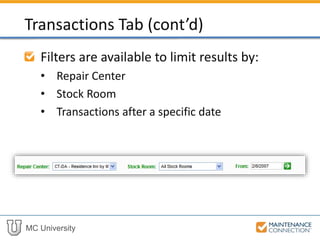
Filters are available to limit results by:
• Repair Center
• Stock Room
• Transactions after a specific date
Transactions Tab (cont’d)
MC University
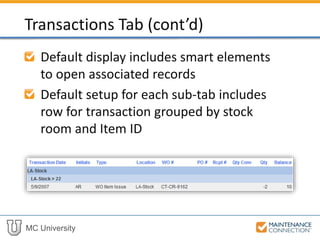
Default display includes smart elements
to open associated records
Default setup for each sub-tab includes
row for transaction grouped by stock
room and Item ID
Transactions Tab (cont’d)
MC University
Now let’s practice creating a test
Inventory Item, adjusting quantities,
and using the Transfer Inventory tool to
transfer Item to another Stock Room!
Transfer Inventory: Hands-On
MC University
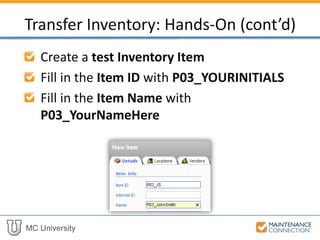
Create a test Inventory Item
Fill in the Item ID with P03_YOURINITIALS
Fill in the Item Name with
P03_YourNameHere
Transfer Inventory: Hands-On (cont’d)
MC University
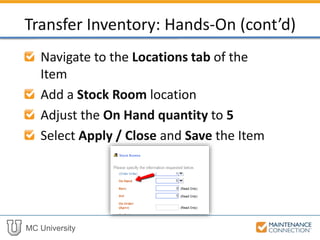
Navigate to the Locations tab of the
Item
Add a Stock Room location
Adjust the On Hand quantity to 5
Select Apply / Close and Save the Item
Transfer Inventory: Hands-On (cont’d)
MC University
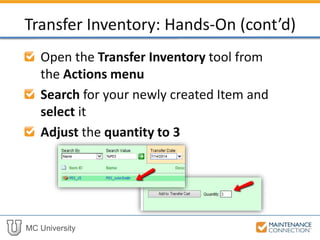
Open the Transfer Inventory tool from
the Actions menu
Search for your newly created Item and
select it
Adjust the quantity to 3
Transfer Inventory: Hands-On (cont’d)
MC University
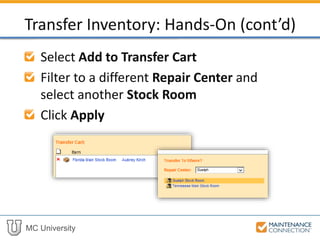
Select Add to Transfer Cart
Filter to a different Repair Center and
select another Stock Room
Click Apply
Transfer Inventory: Hands-On (cont’d)
MC University
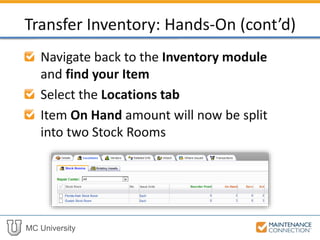
Navigate back to the Inventory module
and find your Item
Select the Locations tab
Item On Hand amount will now be split
into two Stock Rooms
Transfer Inventory: Hands-On (cont’d)
MC University
You have now successfully completed
creating a test Inventory item and
transferring Stock Room quantities
using the Transfer Inventory tool!
Transfer Inventory: Hands-On (cont’d)
Thank You for
Watching!

P03 - Inventory Management Tools (MCU)

  • 1.
  • 2.
    MC University Using Partson Work Orders Tools for Inventory Management Agenda
  • 3.
    MC University Using Partson Work Orders Defined Estimated vs. Actual Materials Types of Materials Using Parts on Work Orders
  • 4.
    MC University Parts areadded to Work Orders to: • Complete required Tasks • Estimate potential Inventory costs • Manage Inventory counts Using Parts on Work Orders Defined
  • 5.
    MC University Added toCosts tab of Work Order Estimates used to Reserve quantities Actuals will decrease On Hand and Available quantities Using Parts on Work Orders Defined (cont’d)
  • 6.
    MC University Can beadded through Complete / Close Dialog Using Parts on Work Orders Defined (cont’d)
  • 7.
    MC University Estimated Materials: •Typically defined at Procedure level • Reserves quantity from Inventory • Creates Actuals record • Quantity can be converted to Actuals Estimated vs. Actual Materials
  • 8.
    MC University Actual Materials: •Materials used to complete Work Order • Decreases On Hand quantity • Can be used to rotate Assets Estimated vs. Actual Materials (cont’d)
  • 9.
    MC University Estimates canbe transferred to Actuals from Complete / Close Dialog Overwrites manually entered Actual Material records! Estimated vs. Actual Materials (cont’d)
  • 10.
    MC University Three differenttypes of Materials can be added to Work Orders: • Stocked Items • Out of Pocket Items • Direct Issue Items Types of Materials
  • 11.
    MC University Stocked Items: •Maintained in Stock Room • Counts are managed • Added as Estimates and / or Actuals • Can be rotating Assets Types of Materials (cont’d)
  • 12.
    MC University Out ofPocket Items: • Inventory counts are not managed • No Purchase Order activity • Typically added as Actuals Types of Materials (cont’d)
  • 13.
    MC University Direct IssueItems: • Inventory counts are not managed • Add item as estimate (must create Purchase Order) • Can be added as Actuals Types of Materials (cont’d)
  • 14.
    MC University Direct IssueItems added to Estimates flag need to order Once ordered, new Purchase Order added to sub-tab Types of Materials (cont’d)
  • 15.
    MC University Now let’spractice creating a test Work Order and adding a Stocked Item to the Materials (Actuals)! Adding Materials (Actuals): Hands-On
  • 16.
    MC University To createa test Work Order select the arrow next to the New button, and select Work Orders Fill in the required information (highlighted in blue) Save the record Adding Materials (Actuals): Hands-On (cont’d)
  • 17.
    MC University Navigate tothe Costs tab of the Work Order Select the Actuals sub-tab Click on the Add button in the Materials (Actuals) section Adding Materials (Actuals): Hands-On (cont’d)
  • 18.
    MC University Select anItem from the Stock Room filter All Stock Rooms Adjust the Actual Qty amount (optional) Adding Materials (Actuals): Hands-On (cont’d)
  • 19.
    MC University Select Apply/ Close to add the Item Save the Work Order Adding Materials (Actuals): Hands-On (cont’d)
  • 20.
    MC University You havenow successfully completed creating a test Work Order and adding Material (Actuals)! Adding Materials (Actuals): Hands-On (cont’d)
  • 21.
    MC University Adjust Inventory CountInventory Transfer Inventory Transactions Tab Tools for Inventory Management
  • 22.
    MC University Update multipleinventory quantities from single screen Powerful tool for correcting Inventory counts Saving will update counts Adjust Inventory
  • 23.
    MC University Actions Adjust Inventory Quantities Filter by Repair Center and Stock Room Row displayed for each Item identifies current Inventory levels Adjust Inventory (cont’d)
  • 24.
    MC University Ability tocorrect or update quantities and information: • Bin • On Hand (OH) • Reserve (R) Adjust Inventory (cont’d)
  • 25.
    MC University • Available(A) • Reorder Point (RP) • Cost • Charge Adjust Inventory (cont’d)
  • 26.
    MC University Example ofusing Adjust Inventory tool: Adjust Inventory (cont’d)
  • 27.
    MC University Maintain quantitiesobtained during physical counts Counts are saved prior to applying Must be applied to adjust Inventory Count Inventory
  • 28.
    MC University Actions Count Inventory Lists all Inventory with editable columns Filter to Items With Count Values Only using indicator Count Inventory (cont’d)
  • 29.
    MC University Ability toupdate: • Bin information • Physical Count Difference field will auto-update (read only) Count Inventory (cont’d)
  • 30.
    MC University Example ofusing Count Inventory tool: Count Inventory (cont’d)
  • 31.
    MC University Transfer inventoryfrom one Stock Room to another Quickly move one or more Items Transfer Inventory
  • 32.
    MC University Actions Transfer Inventory Steps to Transfer: • Designate Stock Room to transfer from • Select Inventory to be transferred • Designate Stock Room to receive item(s) Transfer Inventory (cont’d)
  • 33.
    MC University Example ofusing Transfer Inventory tool: Transfer Inventory (cont’d)
  • 34.
  • 35.
  • 36.
    MC University Inventory Transactionwill be created and stored on the Transactions tab Transactions will display anything that affects On Hand Inventory Transactions Tab
  • 37.
    MC University Transaction Tabfor Inventory maintains critical management information for individual Parts Series of sub-tabs summarizing transactions resulting in current Inventory levels Transactions Tab (cont’d)
  • 38.
    MC University Filters areavailable to limit results by: • Repair Center • Stock Room • Transactions after a specific date Transactions Tab (cont’d)
  • 39.
    MC University Default displayincludes smart elements to open associated records Default setup for each sub-tab includes row for transaction grouped by stock room and Item ID Transactions Tab (cont’d)
  • 40.
    MC University Now let’spractice creating a test Inventory Item, adjusting quantities, and using the Transfer Inventory tool to transfer Item to another Stock Room! Transfer Inventory: Hands-On
  • 41.
    MC University Create atest Inventory Item Fill in the Item ID with P03_YOURINITIALS Fill in the Item Name with P03_YourNameHere Transfer Inventory: Hands-On (cont’d)
  • 42.
    MC University Navigate tothe Locations tab of the Item Add a Stock Room location Adjust the On Hand quantity to 5 Select Apply / Close and Save the Item Transfer Inventory: Hands-On (cont’d)
  • 43.
    MC University Open theTransfer Inventory tool from the Actions menu Search for your newly created Item and select it Adjust the quantity to 3 Transfer Inventory: Hands-On (cont’d)
  • 44.
    MC University Select Addto Transfer Cart Filter to a different Repair Center and select another Stock Room Click Apply Transfer Inventory: Hands-On (cont’d)
  • 45.
    MC University Navigate backto the Inventory module and find your Item Select the Locations tab Item On Hand amount will now be split into two Stock Rooms Transfer Inventory: Hands-On (cont’d)
  • 46.
    MC University You havenow successfully completed creating a test Inventory item and transferring Stock Room quantities using the Transfer Inventory tool! Transfer Inventory: Hands-On (cont’d)
  • 47.