

MC University
R10|Advanced Reporting: Report Setup and Summary Reports
MC University
Summary Reports Defined
Advanced Report Setup Options
Agenda
MC University
Summary Reports Overview
Summary Reports Defined
MC University
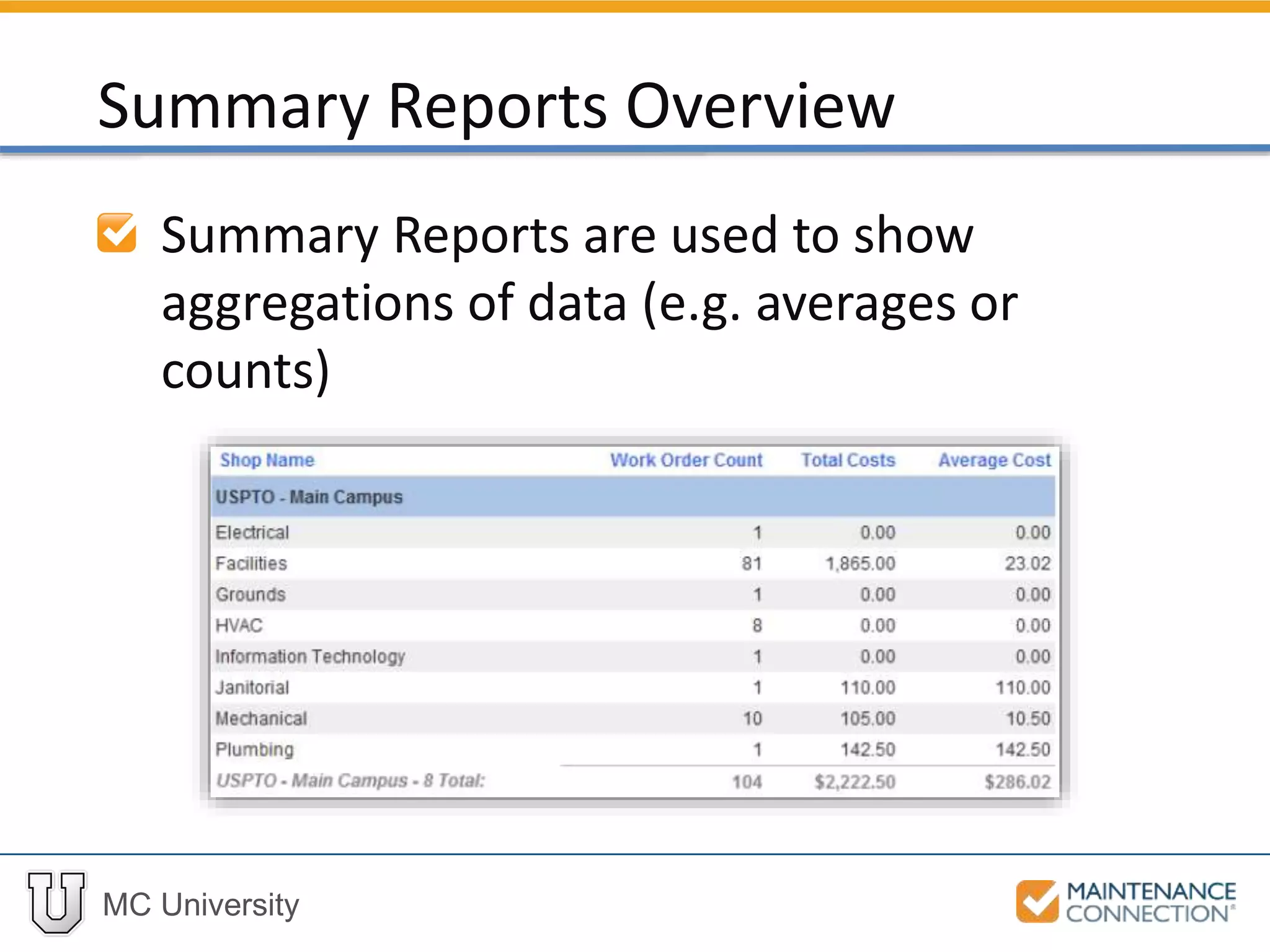
Summary Reports are used to show
aggregations of data (e.g. averages or
counts)
Summary Reports Overview
MC University
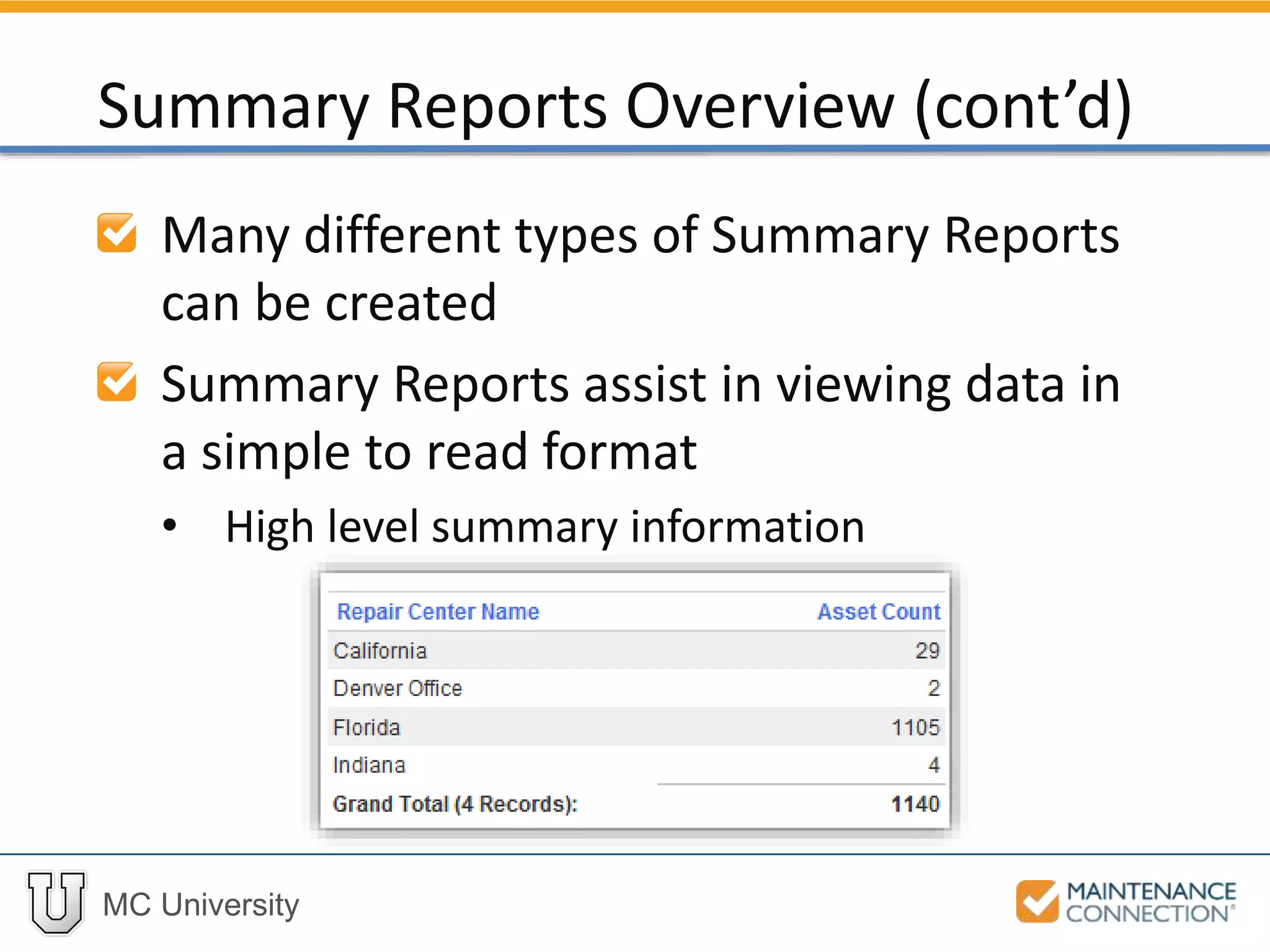
Many different types of Summary Reports
can be created
Summary Reports assist in viewing data in
a simple to read format
• High level summary information
Summary Reports Overview (cont’d)
MC University
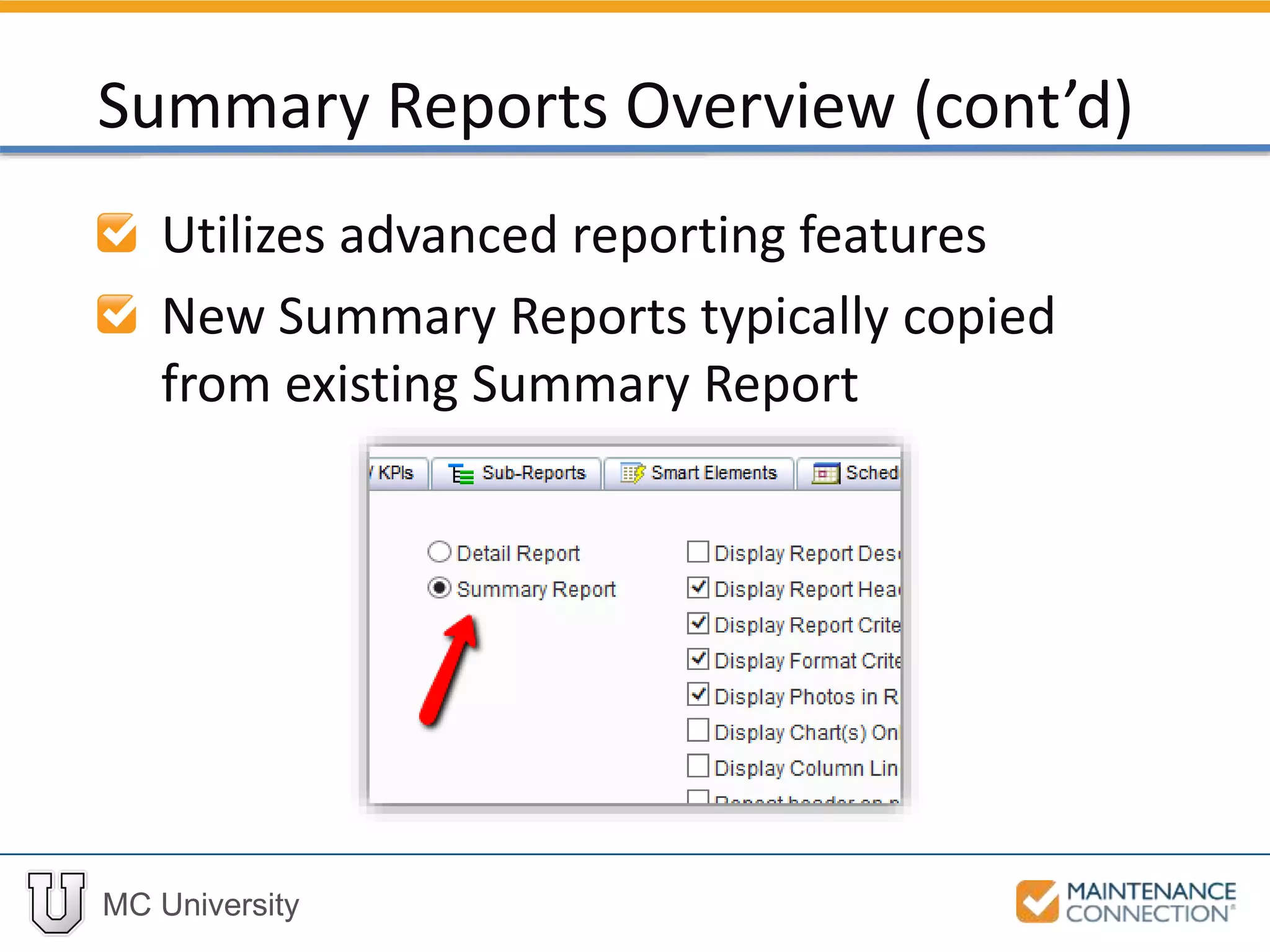
Utilizes advanced reporting features
New Summary Reports typically copied
from existing Summary Report
Summary Reports Overview (cont’d)
MC University
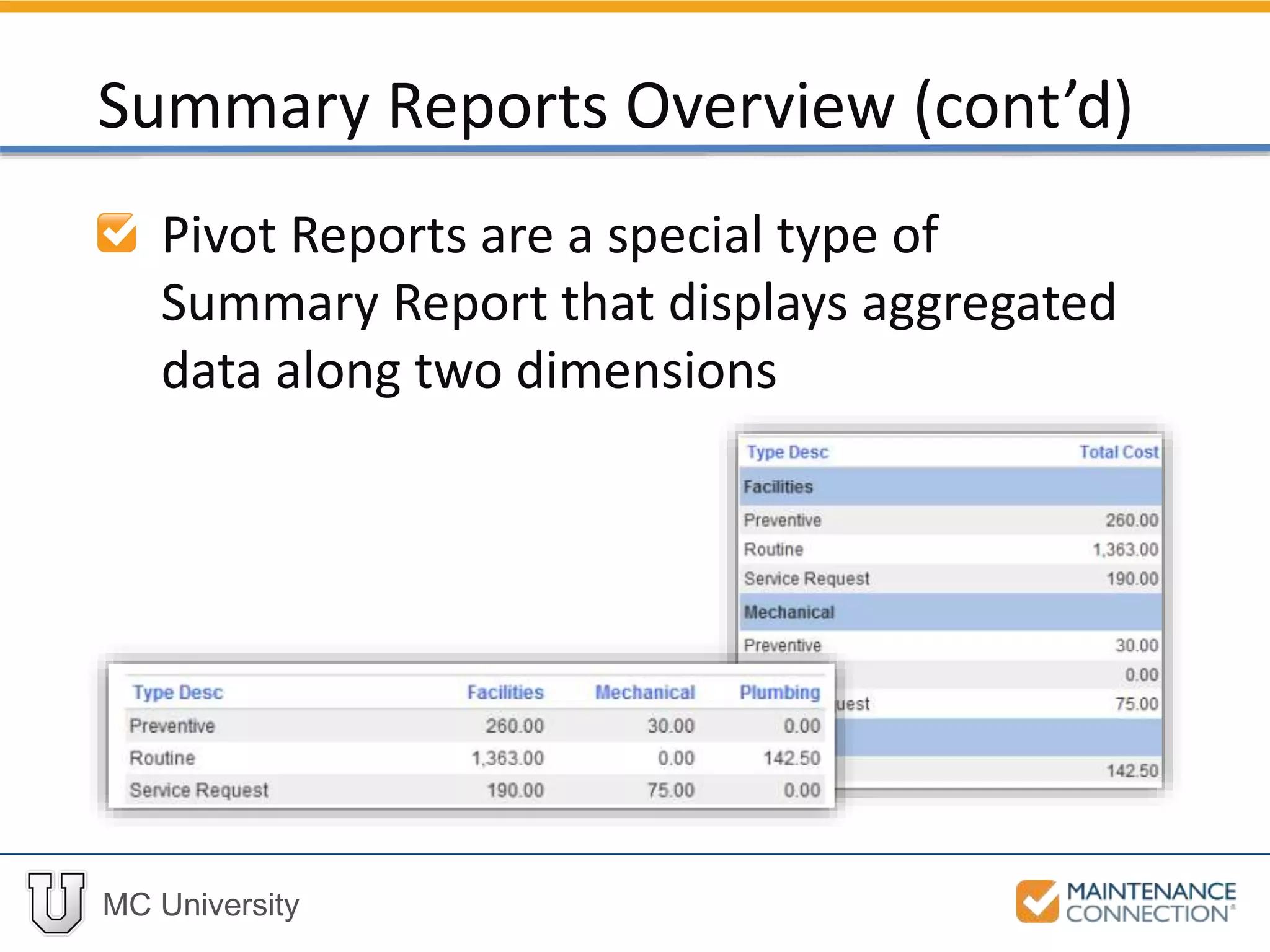
Pivot Reports are a special type of
Summary Report that displays aggregated
data along two dimensions
Summary Reports Overview (cont’d)
MC University
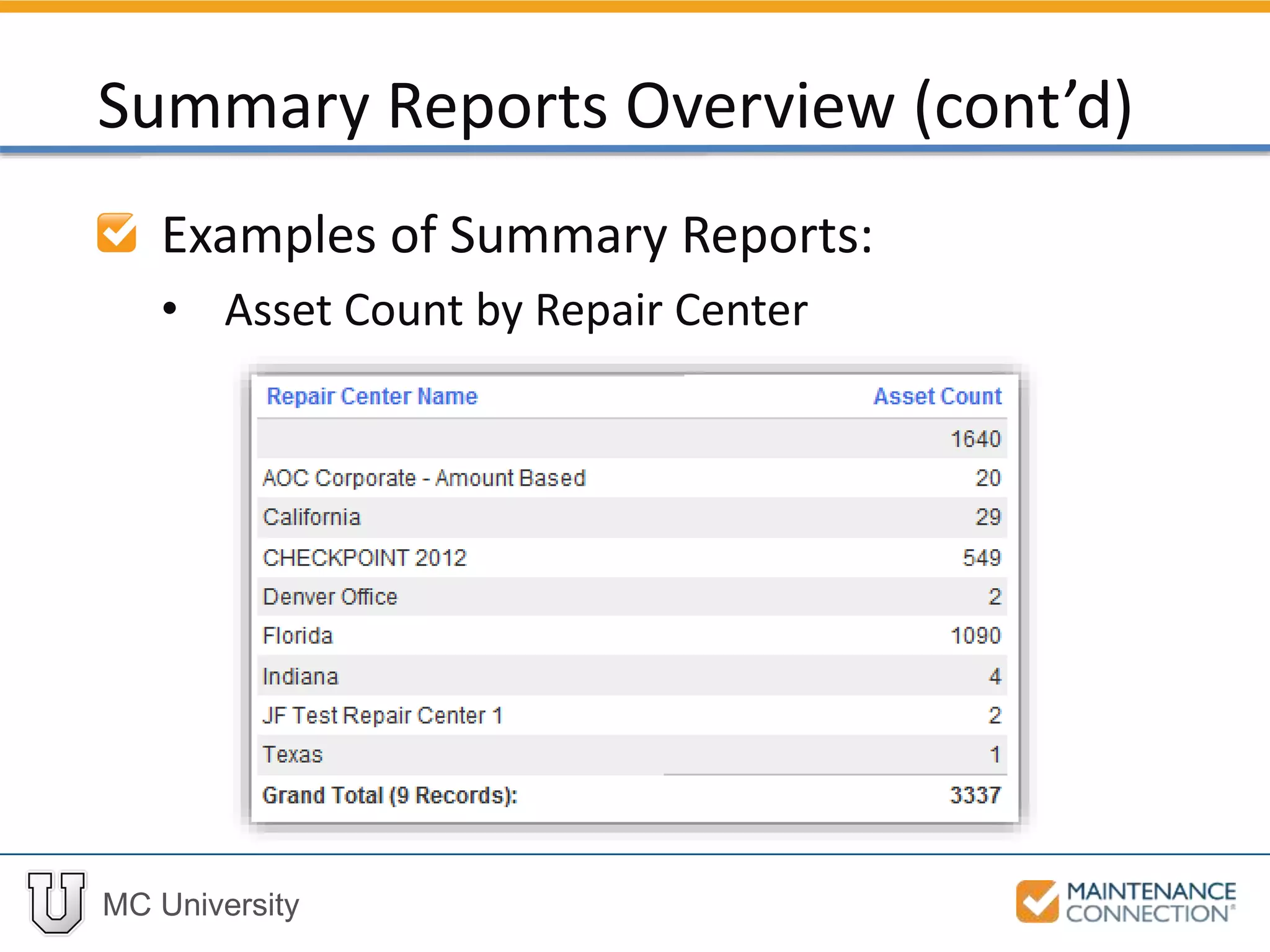
Examples of Summary Reports:
• Asset Count by Repair Center
Summary Reports Overview (cont’d)
MC University
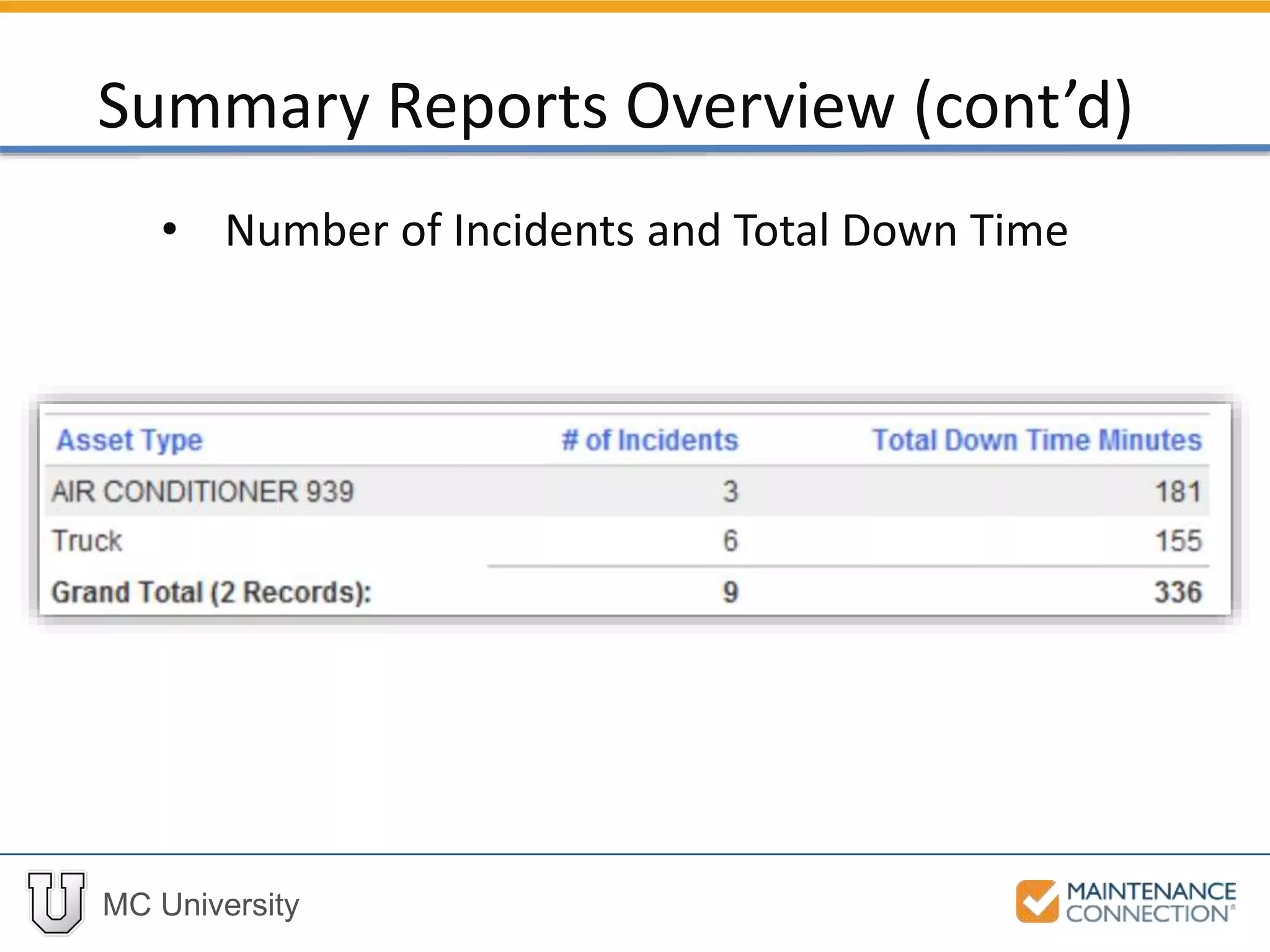
• Number of Incidents and Total Down Time
Summary Reports Overview (cont’d)
MC University
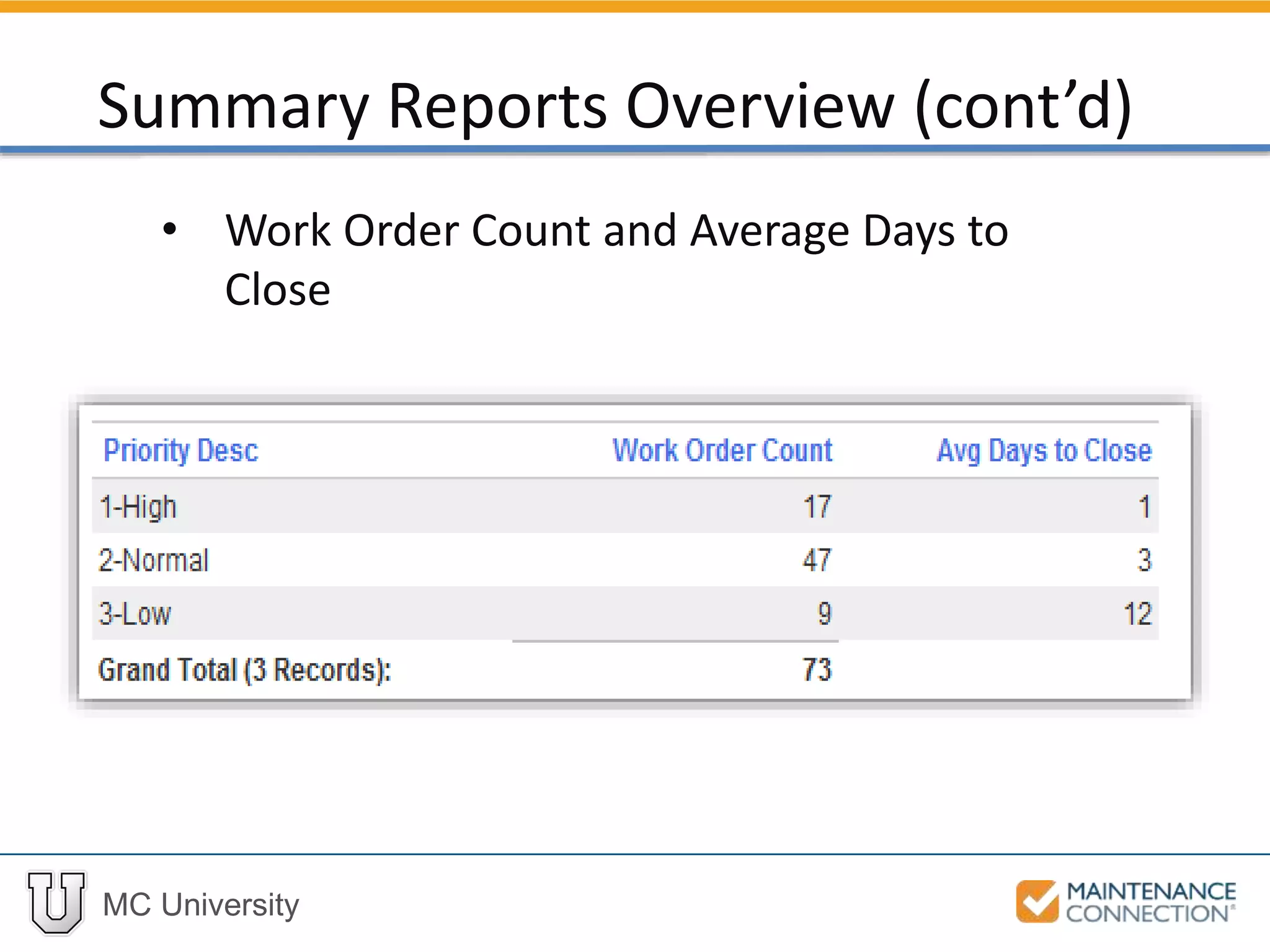
• Work Order Count and Average Days to
Close
Summary Reports Overview (cont’d)
MC University
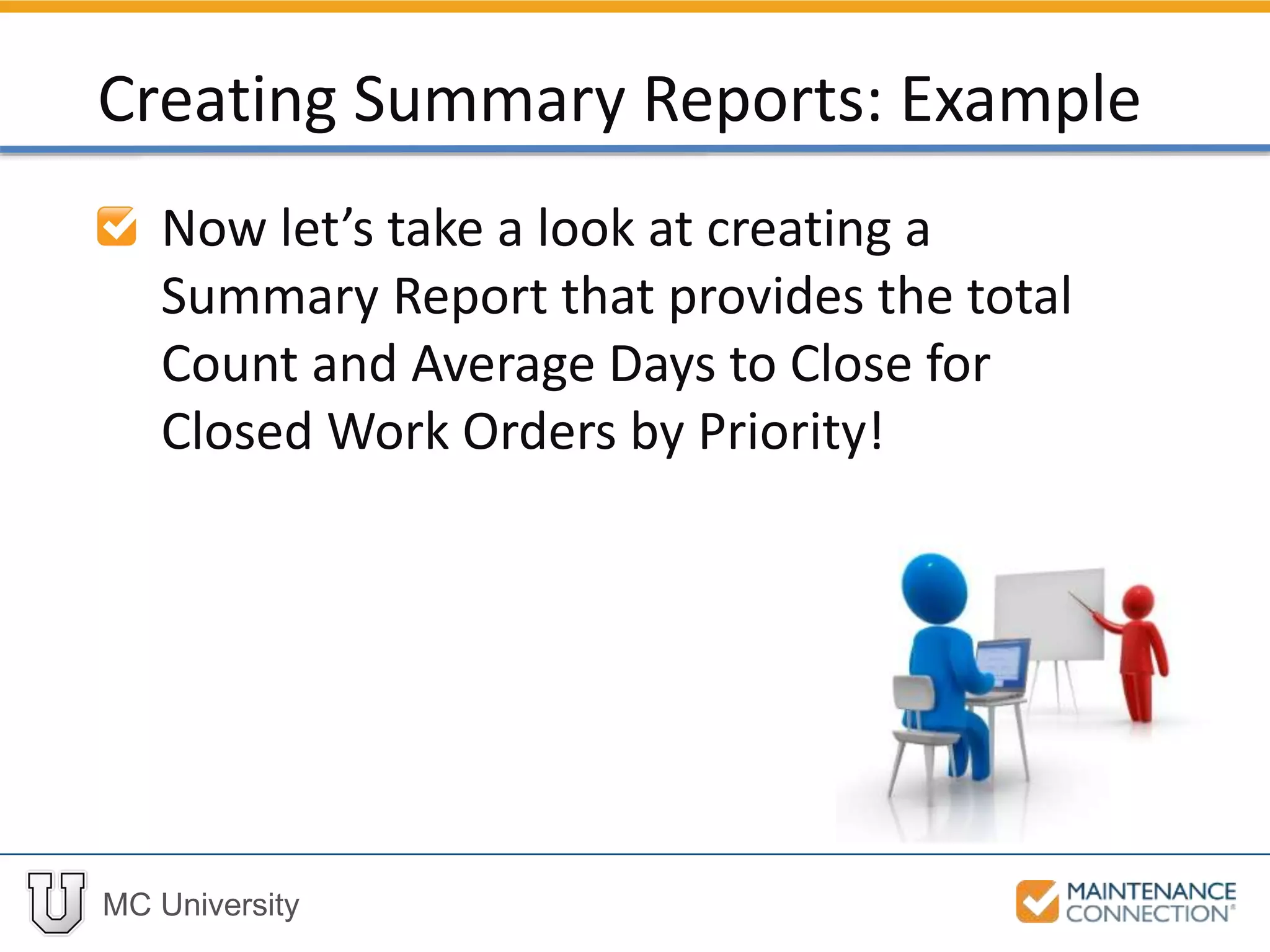
Now let’s take a look at creating a
Summary Report that provides the total
Count and Average Days to Close for
Closed Work Orders by Priority!
Creating Summary Reports: Example
MC University
Smart Edit
Custom Group Headers
Advanced Report Setup Options
MC University
Smart Actions allow users to click on
row or column for Action to occur
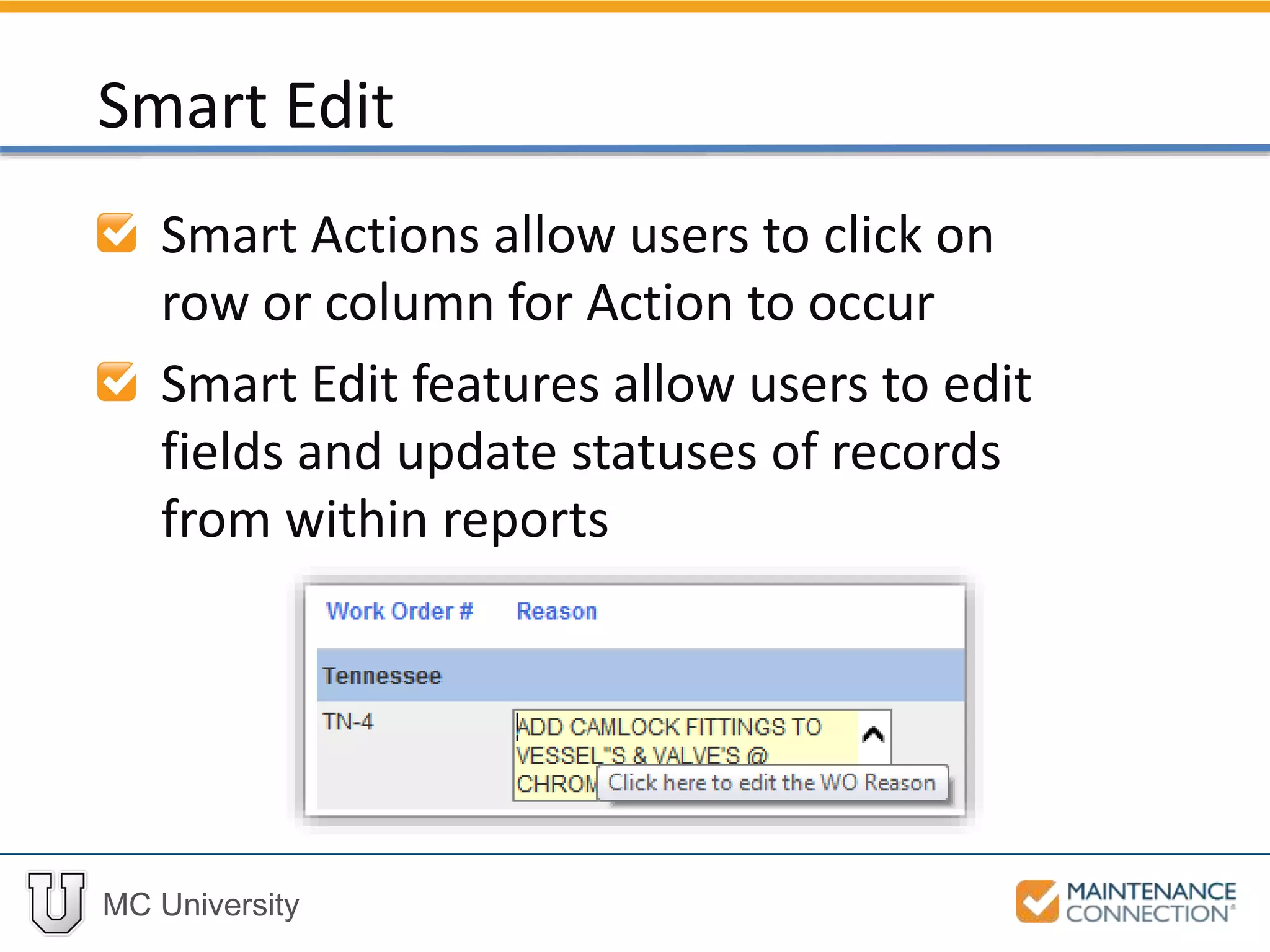
Smart Edit features allow users to edit
fields and update statuses of records
from within reports
Smart Edit
MC University
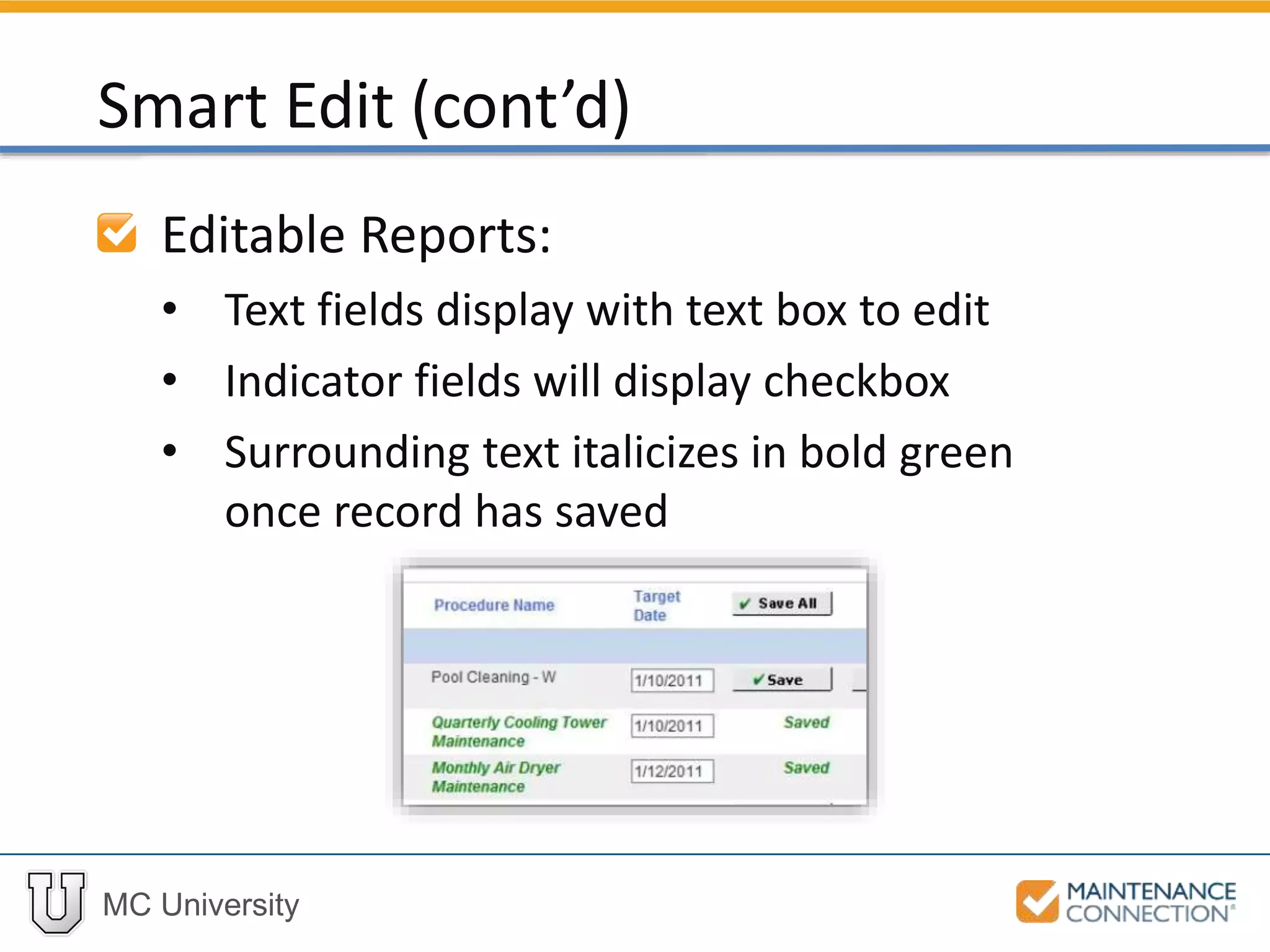
Editable Reports:
• Text fields display with text box to edit
• Indicator fields will display checkbox
• Surrounding text italicizes in bold green
once record has saved
Smart Edit (cont’d)
MC University
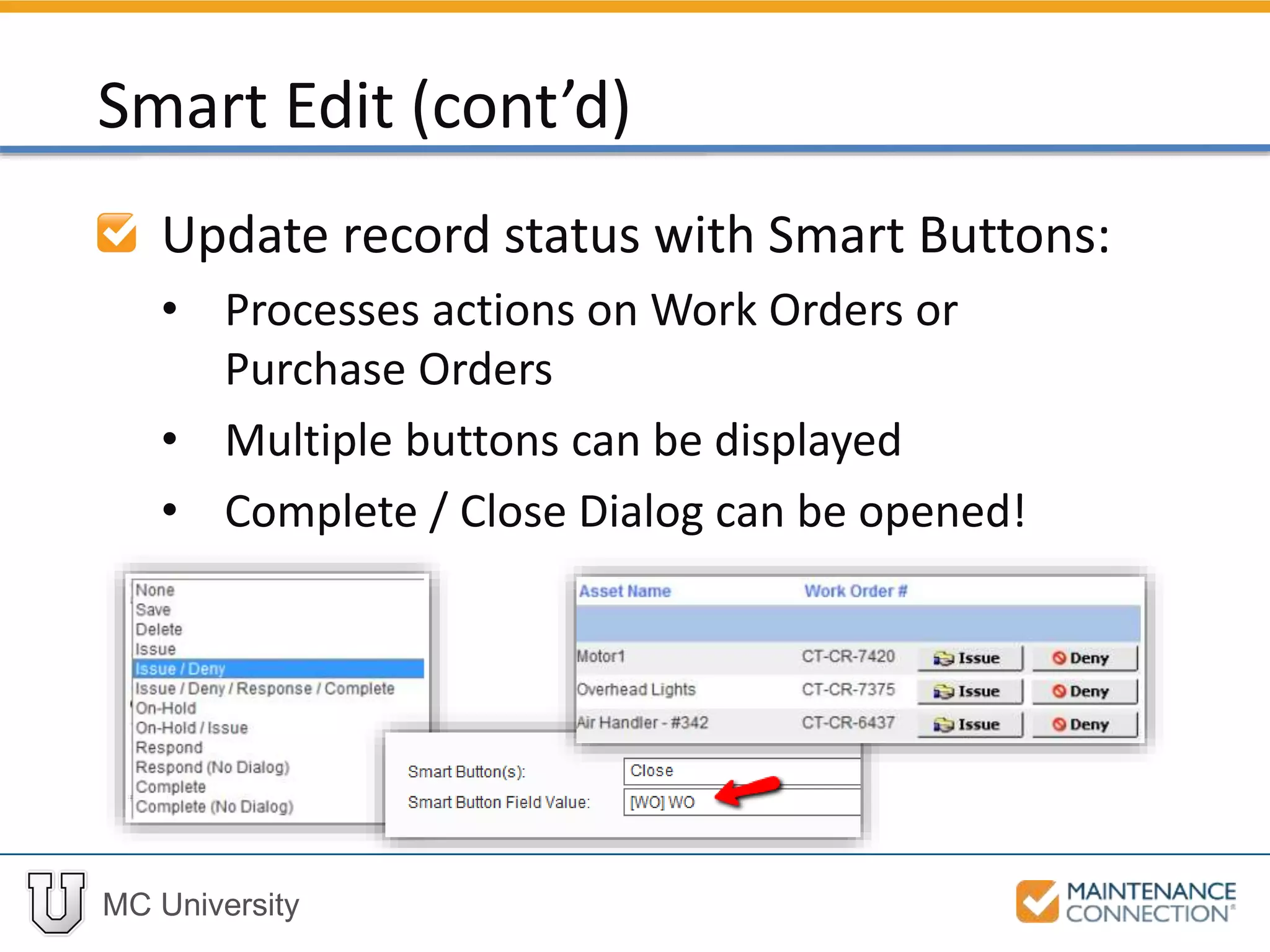
Update record status with Smart Buttons:
• Processes actions on Work Orders or
Purchase Orders
• Multiple buttons can be displayed
• Complete / Close Dialog can be opened!
Smart Edit (cont’d)
MC University
Now let’s take a look at using the Smart
Edit feature to edit Target Dates of
Work Orders!
Smart Edit: Example
MC University
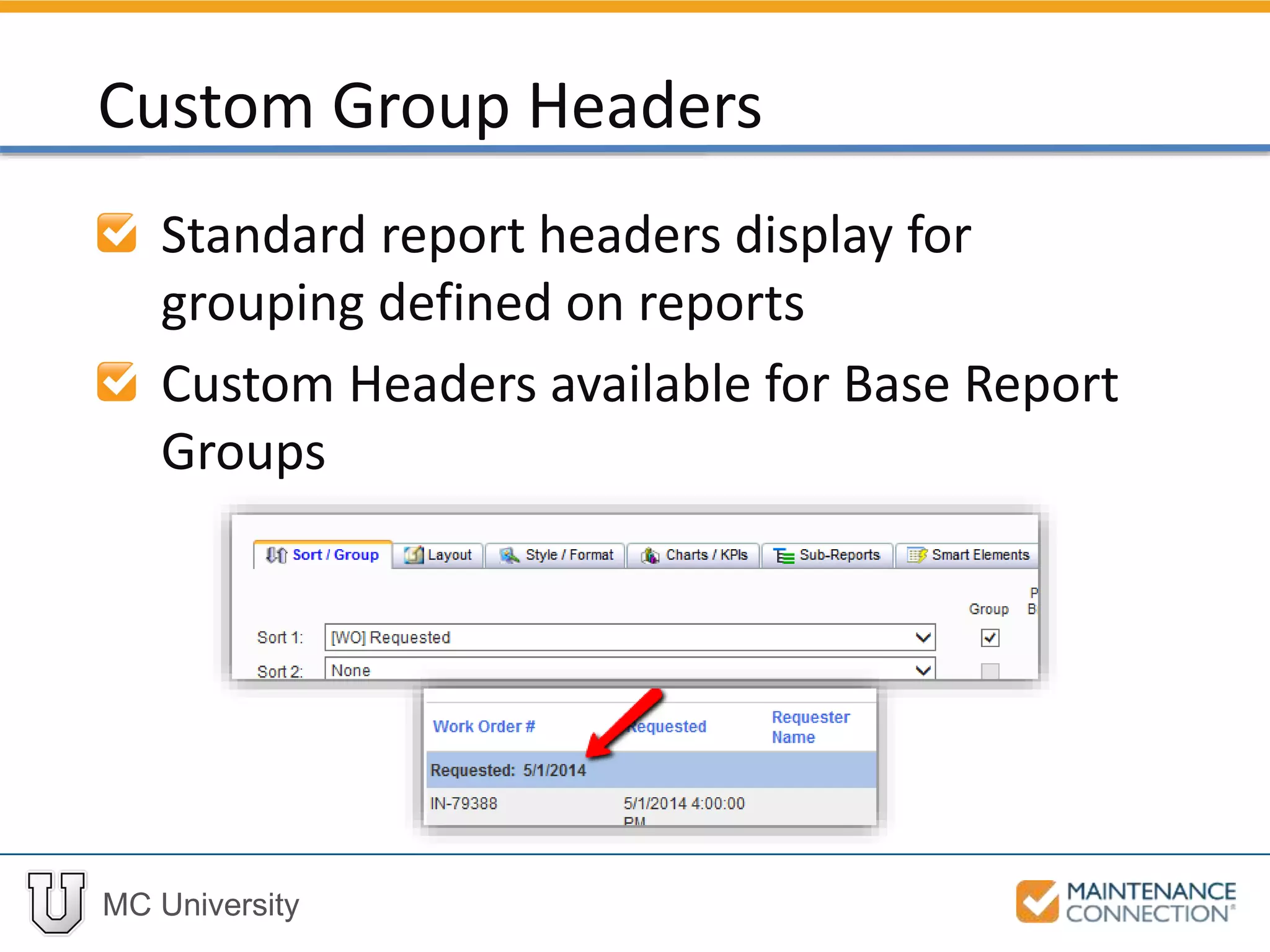
Standard report headers display for
grouping defined on reports
Custom Headers available for Base Report
Groups
Custom Group Headers
MC University
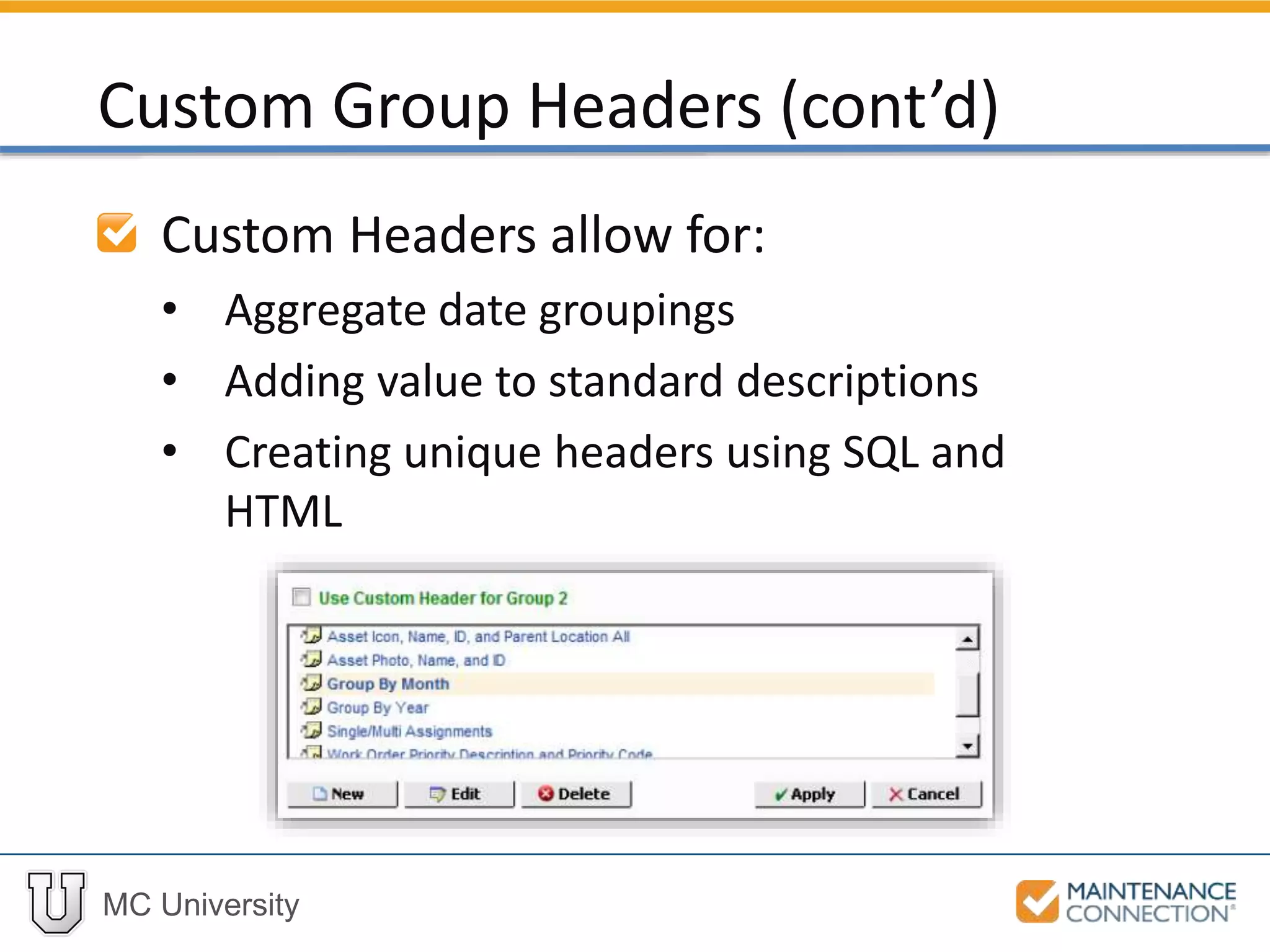
Custom Headers allow for:
• Aggregate date groupings
• Adding value to standard descriptions
• Creating unique headers using SQL and
HTML
Custom Group Headers (cont’d)
MC University
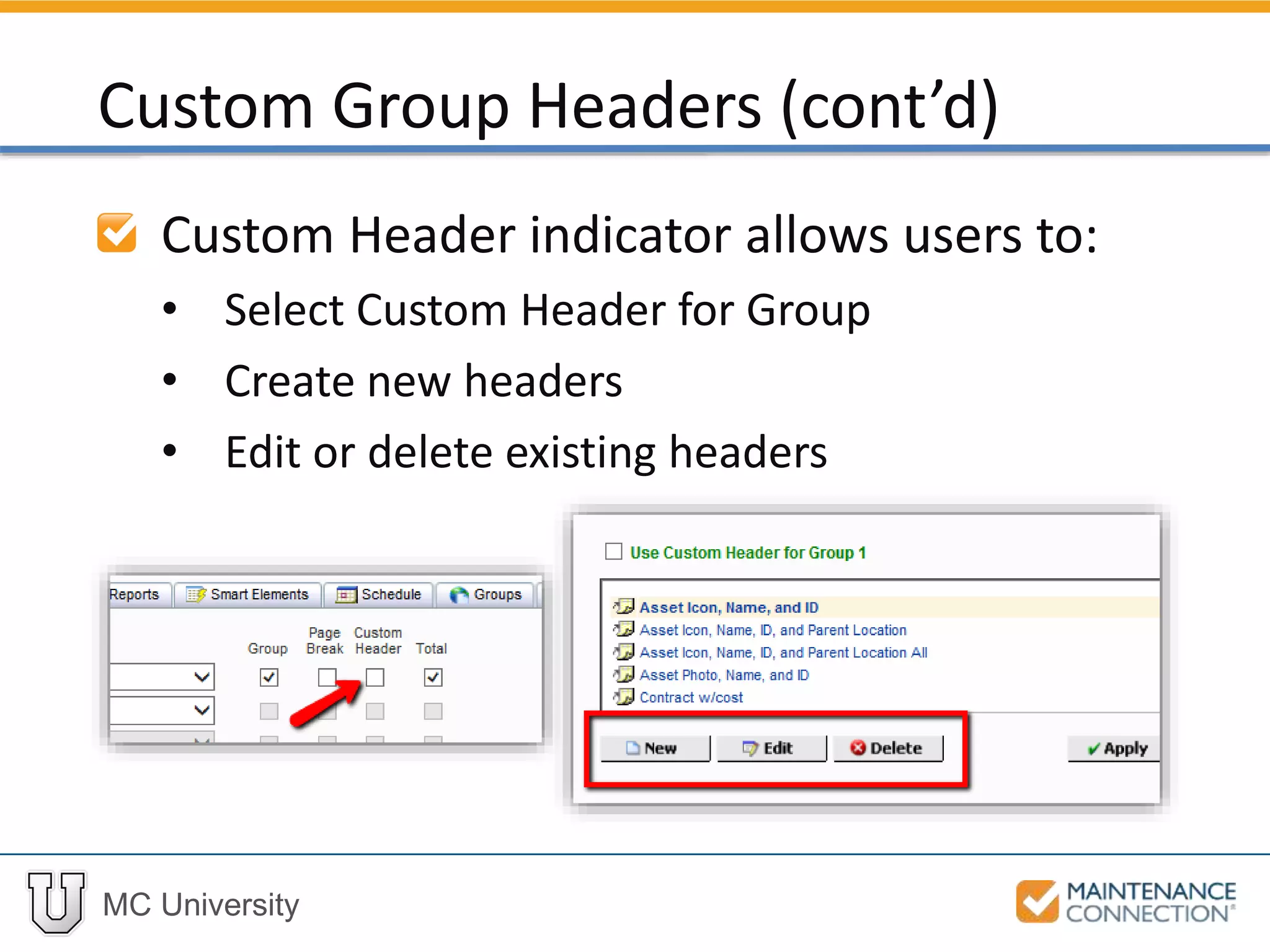
Custom Header indicator allows users to:
• Select Custom Header for Group
• Create new headers
• Edit or delete existing headers
Custom Group Headers (cont’d)
MC University
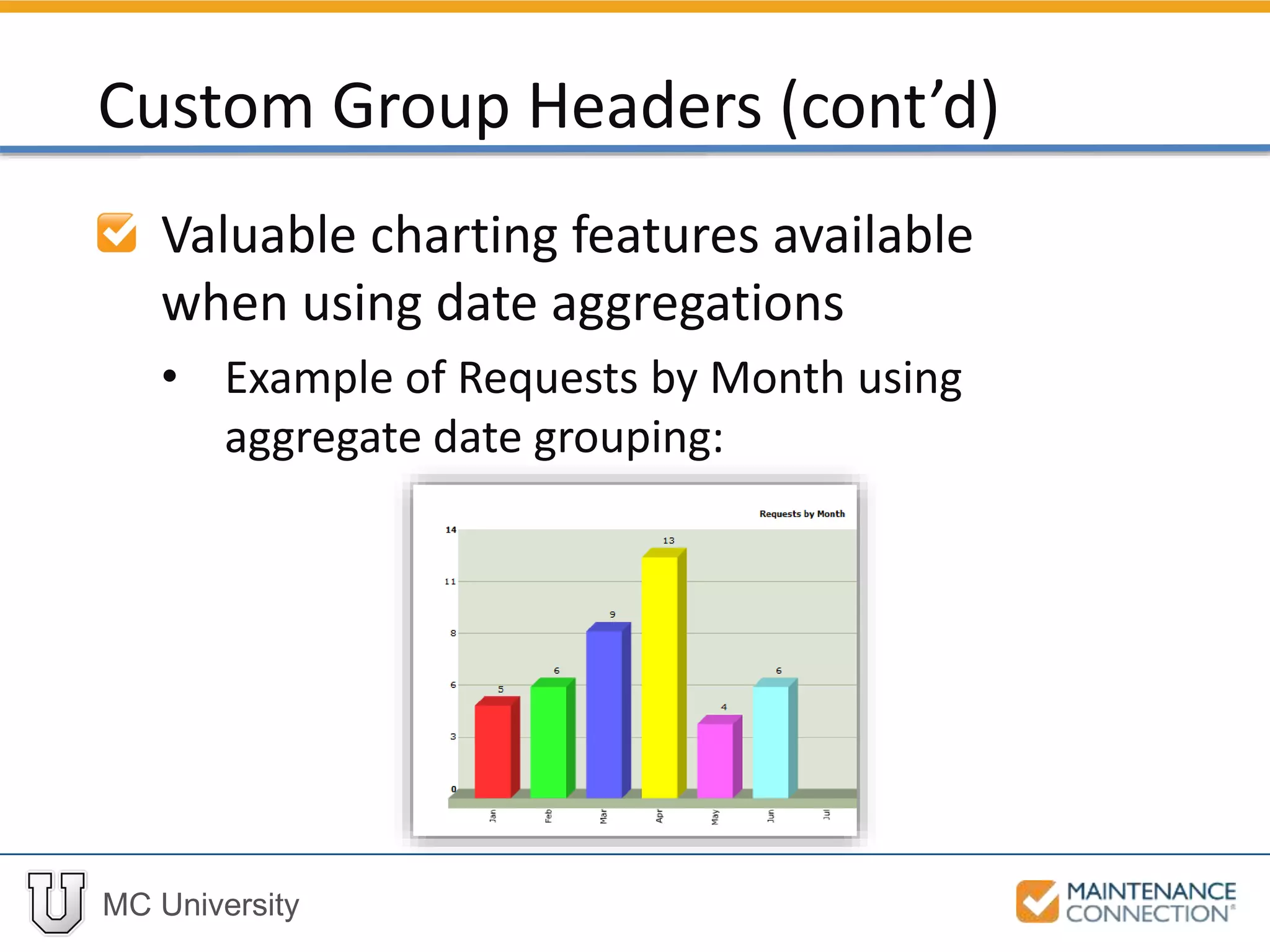
Valuable charting features available
when using date aggregations
• Example of Requests by Month using
aggregate date grouping:
Custom Group Headers (cont’d)
MC University
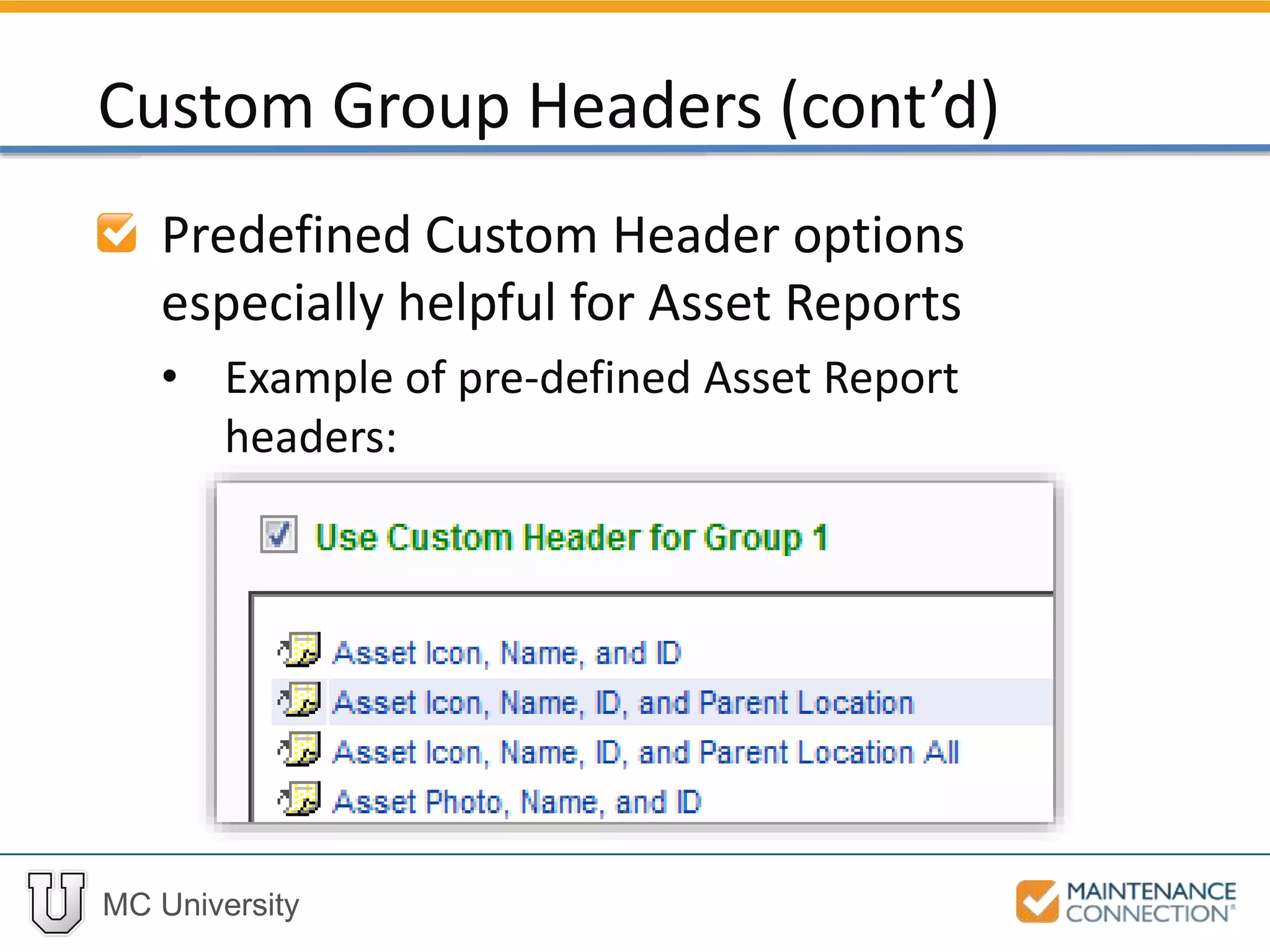
Predefined Custom Header options
especially helpful for Asset Reports
• Example of pre-defined Asset Report
headers:
Custom Group Headers (cont’d)
MC University
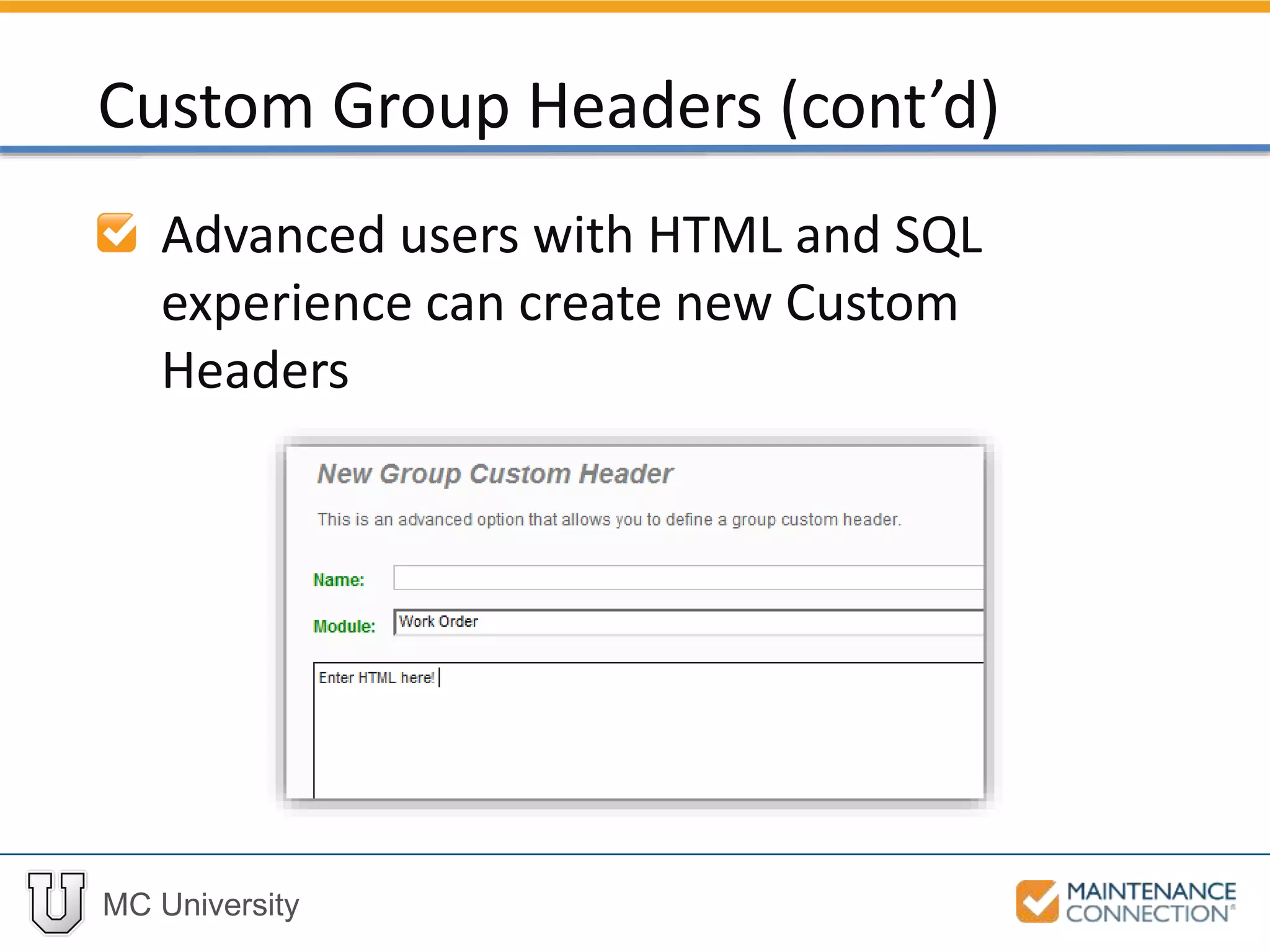
Advanced users with HTML and SQL
experience can create new Custom
Headers
Custom Group Headers (cont’d)
MC University
Now let’s take a look at using Custom
Headers on reports!
Using Custom Headers: Example
Thank You for
Watching!

R10 - Advanced Reporting: Report Setup and Summary Reports (MCU)

Editor's Notes

  • #12 Copy the Closed Work Order Count by Priority Report Apply your changes, and run your newly created Report Navigate to the Report Setup to view the defined Display fields list [WO] Priority Desc and [WO] Count should already be listed Any additional fields should be removed Add [WO] UDF Field 10 to the Display Fields List Click Edit for [WO] UDF Field 10 Enter Avg Days to Close for the Custom Field Label Select Numeric for the Field Type Enter AVG for the Aggregate Function Click the Yes control in the Custom Expression? field prompt Enter the following into the Custom Expression Box and Apply: DATEDIFF(DAY,WO.Requested,WO.Complete) To ensure proper sorting, change first sort field to [WO] Priority Desc: Remove any additional sort fields Navigate to the Layout tab and verify the Report is specified as a Summary Report Click Apply to save changes and view your results:
  • #17 Access the Reporter and copy the Open Work Order List Navigate to the Report Setup and select the Smart Elements tab Turn Smart Mode On from the Smart Settings sub-tab Select the Smart Action(s) sub-tab Set the Smart Action Type to Column (Multiple Smart Actions Per Row) Select the Smart Button(s) sub-tab Set the Smart Button(s) field to Save Select [WO] WO for the Smart Button Field Value Add the [WO] Target Date field to the Display fields on the Report Select the [WO] Target Date field from the Display fields column and click Edit Set the Smart Action control to Edit Field Click Apply for Field Edit and Report Setup windows to save changes Return to the Report Preview Target Date field will now have an editable Text Box, with a Save button displayed to save updates:
  • #24 Run your test Report and access the Report Setup  Sort / Group tab Remove all existing sort definition by selecting None for first sort Select [WO] Requested as Sort 1 field Click the Group indicator Select the Custom Header indicator to the right of the Group indicator Custom Header Dialog will display: Select the indicator to Use Custom Header for Group 1 Select Group by Month Click Apply and return to the Report Preview Report will now group records by Requested Month, with a header indicating each month: