Optimizing Your
WordPress SiteWhy speed matters, and how to get there
Stephen Bell
Steed Interactive
Stephen Bell
• Worked in web marketing at
Oklahoma Christian University
for 10 years
• Started design and web
development company with my
wife this year
steedokc.com
About Me
Why Bother
Optimizing?
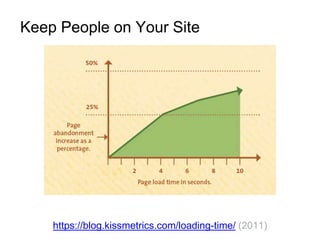
https://blog.kissmetrics.com/loading-time/ (2011)
Keep People on Your Site
https://blog.kissmetrics.com/loading-time/ (2011)
“A one-second delay in
page response can result
in a 7% reduction in
conversions."
More Interactions & Purchases
https://blog.kissmetrics.com/loading-time/ (2011)
“47% of consumers expect
a web page to load in 2
seconds or less.”
Visitor Expectations
https://moz.com/learn/seo/page-speed
“Google has indicated site speed is one of the
signals used by its algorithm to rank pages.”
Google Search Results Ranking
“A slow page speed means that search engines
can crawl fewer pages using their allocated
crawl budget.”
How Fast is My
Site?
(Aim for less than 3 seconds)
tools.pingdom.com - Select a US city under “Settings”
Note: This only shows you your site speed on a very fast connection. To test
different speeds on your own computer, learn about Chrome Developer Tools.
1. Load smaller things
2. Load fewer things
3. Load closer things
4. Cache things
(save completed pieces for later)
5. Load the important things first
6. Get a faster server
Ways of Improving Site Speed
• JPG - Photos, scanned drawings or art
• PNG - Images with solid colors, simple gradients
• SVG - Logos saved as paths instead of pixels
• GIF - Funny animated things
When in doubt, use JPG!
Load smaller things
Use the Right Image File Type
PNG
664 KB
Load smaller things
Use the Right Image File Type
JPG (80% quality)
157 KB
Don’t use PNG for photos! They take up 4X as much space!
• Get a WordPress plugin that recompresses images as
they’re uploaded (40-50% off of each image, with no
visible loss of quality)
• “Compress JPEG & PNG images” (TinyPNG)
Free for up to 500 images/month
https://wordpress.org/plugins/tiny-compress-images/
• “WP Smush”
• Free, with premium version available
https://wordpress.org/plugins/wp-smushit/
Load smaller things
Recompress Images with WP Plugins
Load smaller things
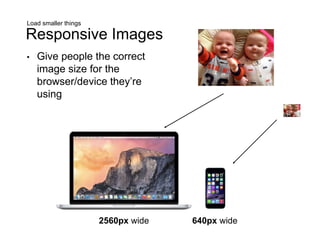
Responsive Images
2560px wide 640px wide
• Give people the correct
image size for the
browser/device they’re
using
Load smaller things
Responsive Images
<img src="image.jpg" width="800" height="600"
srcset="image-400x300.jpg 400w, image-600x450.jpg 600w, image.jpg 1000w"
sizes="(min-width:1024px) 33.3vw, (min-width:640px) 50vw, 100vw"
>
• srcset - These are the images that are
available, and their sizes.
• sizes - These are the rules that tell the
browser which image to pick.
• Code example:
Steed site (portfolio)
Load smaller things
Responsive Images
• RICG Responsive Images plugin
https://wordpress.org/plugins/ricg-responsive-images/
• “Bringing automatic default responsive images to
WordPress.”
• Automatically adds simple “srcset” and “sizes” to images in
your posts.
• Keeps images in your posts from being higher resolution
than your browser width.
• You still need to add new image thumbnail sizes to
WordPress to make sure they’re available.
• If you’re making templates yourself, plugin gives you
functions, lets you write your own “sizes” for better fitting
images.
Load smaller things
Turn on GZIP
• Similar to “zipping” a file, the server compresses text
files as they’re sent out.
• Can be turned on by editing settings files, or done
with a plugin like W3 Total Cache.
http://softstribe.com/wordpress/enable-gzip-compression-in-wordpress
Load fewer things
Minify and Combine CSS & JavaScript
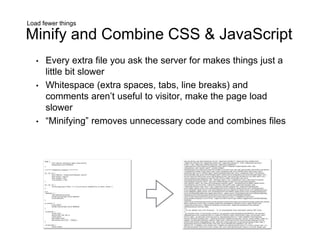
• Every extra file you ask the server for makes things just a
little bit slower
• Whitespace (extra spaces, tabs, line breaks) and
comments aren’t useful to visitor, make the page load
slower
• “Minifying” removes unnecessary code and combines files
Load fewer things
Minify and Combine CSS & JavaScript
• WordPress Plugin: “Autoptimize”
https://wordpress.org/plugins/autoptimize/
• Minifies CSS, JS and HTML
• Combines CSS files together, JS files together
• Typically, just install it, check boxes, and it works
Load fewer things
Get Rid of Things You Don’t Need
• Prioritize what you need and don’t need on your
pages
• Social sharing buttons?
• Big web fonts?
• Video embeds?
• Unnecessary tracking code?
• Complex advertising network code?
Load closer things
Content Delivery Network
• If your visitor is in a different part of the world
than your web hosting, it takes longer to get
to them.
• A Content Delivery Network (CDN) saves
your files on different computers around the
world to speed things up.
Load closer things
Content Delivery Network
• Free service that sits between your domain
name server and your hosting server
• Automatically saves all your images, static
pages to a CDN
• Bonus: A bit of extra security
Another option: JetPack plugin - Photon
https://developer.wordpress.com/docs/photon/
https://www.cloudflare.com
Cache things
Turn on Server-Side Caching
• WordPress assembles your page each time someone
visits it. It makes your page out of database
information, PHP files, and outside sources, which
takes time.
• When you “cache,” you’re pre-assembling your page
code to be handed off to your visitor
• Caching can happen on multiple levels:
• Your web host (i.e. SiteGround Super Cacher)
• As a plugin in your WordPress (i.e. W3 Total Cache)
• On another server (i.e. CloudFlare)
Cache things
Turn on Server-Side Caching
• W3 Total Cache
https://wordpress.org/plugins/w3-total-cache/
• Be sure to enable “page
cache”
Load the Important Things First
Prioritize “Above the Fold” Content
• “Lazy load” images - Stops images from
loading until you actually get to them on
the page
http://www.elegantthemes.com/blog/tips-tricks/how-to-add-lazy-loading-to-wordpress
• “Critical path” CSS - Load the CSS for the top of the
page inline first, separately from all the other CSS,
which gets loaded at the bottom
https://developers.google.com/web/fundamentals/performance/critical-rendering-path/
• Autoptimize plugin can do this, but doesn’t let you
do different CSS for each page
Get a Faster Server
Use a Reputable Host
• Sometimes your site is slow because your web host is
slow. Greedy companies try to cram too many sites,
too much traffic on their servers.
• Reputable, fast hosts that people keep telling me
about:
siteground.com
asmallorange.com
wpengine.com
Get a Faster Server
Use a Reputable Host
• A list of web site hosts, arranged by what percentage
of people say positive or negative things about them
on Twitter:
http://reviewsignal.com/webhosting/compare/
Case Study:
Splendry.com
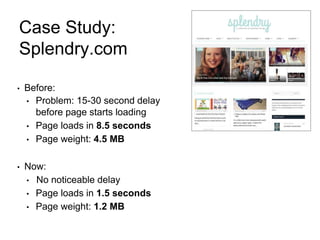
• Before:
• Problem: 15-30 second delay
before page starts loading
• Page loads in 8.5 seconds
• Page weight: 4.5 MB
• Now:
• No noticeable delay
• Page loads in 1.5 seconds
• Page weight: 1.2 MB
Case Study:
Splendry.com
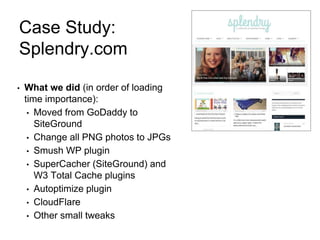
• What we did (in order of loading
time importance):
• Moved from GoDaddy to
SiteGround
• Change all PNG photos to JPGs
• Smush WP plugin
• SuperCacher (SiteGround) and
W3 Total Cache plugins
• Autoptimize plugin
• CloudFlare
• Other small tweaks
You Can’t Fix
Everything
It’s up to you which optimizations make a
significant impact, and how much time
you’re willing to spend on each site.
Quick and Easy Fixes
• Always use JPG for photos.
• Install Smush WP or “Compress JPEG & PNG
images” plugin - Let it compress your whole media
library, and each new image when uploaded.
• Install Autoptimize plugin - Turn on HTML, JS, CSS
compression. If nothing breaks, you’re good.
• Install RICG Responsive Images plugin - If nothing
breaks, you’re good.
• If you don’t already have a caching plugin, install
W3 Total Cache - If nothing breaks, you’re good.
Review
More Complicated Fixes
• Add image thumbnail sizes for Responsive Images
plugin to use.
• Write templates with custom img “sizes” attributes to
load exactly the size of responsive image you need.
• Set up a CDN - CloudFlare isn’t too hard, but requires
changing name servers, records.
• Move your site to a better web host.
Review
Learn More About Website
Optimization
Load your page in Google PageSpeed
Insights, then dig through the
recommendations
https://developers.google.com/speed/pagespeed/insights/
Load your page in YSlow
(Chrome/Firefox plugin) then dig through
the recommendations
http://yslow.org
Where to Find Me
@stephenjbell
stephen@steedokc.com
steedokc.com
Download this presentation:
http://www.steedokc.com/wordpress-optimization/

Optimizing Your WordPress Site: Why speed matters, and how to get there

  • 1.
    Optimizing Your WordPress SiteWhyspeed matters, and how to get there Stephen Bell Steed Interactive
  • 2.
    Stephen Bell • Workedin web marketing at Oklahoma Christian University for 10 years • Started design and web development company with my wife this year steedokc.com About Me
  • 3.
  • 4.
  • 5.
    https://blog.kissmetrics.com/loading-time/ (2011) “A one-seconddelay in page response can result in a 7% reduction in conversions." More Interactions & Purchases
  • 6.
    https://blog.kissmetrics.com/loading-time/ (2011) “47% ofconsumers expect a web page to load in 2 seconds or less.” Visitor Expectations
  • 7.
    https://moz.com/learn/seo/page-speed “Google has indicatedsite speed is one of the signals used by its algorithm to rank pages.” Google Search Results Ranking “A slow page speed means that search engines can crawl fewer pages using their allocated crawl budget.”
  • 8.
    How Fast isMy Site? (Aim for less than 3 seconds)
  • 9.
    tools.pingdom.com - Selecta US city under “Settings” Note: This only shows you your site speed on a very fast connection. To test different speeds on your own computer, learn about Chrome Developer Tools.
  • 10.
    1. Load smallerthings 2. Load fewer things 3. Load closer things 4. Cache things (save completed pieces for later) 5. Load the important things first 6. Get a faster server Ways of Improving Site Speed
  • 11.
    • JPG -Photos, scanned drawings or art • PNG - Images with solid colors, simple gradients • SVG - Logos saved as paths instead of pixels • GIF - Funny animated things When in doubt, use JPG! Load smaller things Use the Right Image File Type
  • 12.
    PNG 664 KB Load smallerthings Use the Right Image File Type JPG (80% quality) 157 KB Don’t use PNG for photos! They take up 4X as much space!
  • 13.
    • Get aWordPress plugin that recompresses images as they’re uploaded (40-50% off of each image, with no visible loss of quality) • “Compress JPEG & PNG images” (TinyPNG) Free for up to 500 images/month https://wordpress.org/plugins/tiny-compress-images/ • “WP Smush” • Free, with premium version available https://wordpress.org/plugins/wp-smushit/ Load smaller things Recompress Images with WP Plugins
  • 14.
    Load smaller things ResponsiveImages 2560px wide 640px wide • Give people the correct image size for the browser/device they’re using
  • 15.
    Load smaller things ResponsiveImages <img src="image.jpg" width="800" height="600" srcset="image-400x300.jpg 400w, image-600x450.jpg 600w, image.jpg 1000w" sizes="(min-width:1024px) 33.3vw, (min-width:640px) 50vw, 100vw" > • srcset - These are the images that are available, and their sizes. • sizes - These are the rules that tell the browser which image to pick. • Code example: Steed site (portfolio)
  • 16.
    Load smaller things ResponsiveImages • RICG Responsive Images plugin https://wordpress.org/plugins/ricg-responsive-images/ • “Bringing automatic default responsive images to WordPress.” • Automatically adds simple “srcset” and “sizes” to images in your posts. • Keeps images in your posts from being higher resolution than your browser width. • You still need to add new image thumbnail sizes to WordPress to make sure they’re available. • If you’re making templates yourself, plugin gives you functions, lets you write your own “sizes” for better fitting images.
  • 17.
    Load smaller things Turnon GZIP • Similar to “zipping” a file, the server compresses text files as they’re sent out. • Can be turned on by editing settings files, or done with a plugin like W3 Total Cache. http://softstribe.com/wordpress/enable-gzip-compression-in-wordpress
  • 18.
    Load fewer things Minifyand Combine CSS & JavaScript • Every extra file you ask the server for makes things just a little bit slower • Whitespace (extra spaces, tabs, line breaks) and comments aren’t useful to visitor, make the page load slower • “Minifying” removes unnecessary code and combines files
  • 19.
    Load fewer things Minifyand Combine CSS & JavaScript • WordPress Plugin: “Autoptimize” https://wordpress.org/plugins/autoptimize/ • Minifies CSS, JS and HTML • Combines CSS files together, JS files together • Typically, just install it, check boxes, and it works
  • 20.
    Load fewer things GetRid of Things You Don’t Need • Prioritize what you need and don’t need on your pages • Social sharing buttons? • Big web fonts? • Video embeds? • Unnecessary tracking code? • Complex advertising network code?
  • 21.
    Load closer things ContentDelivery Network • If your visitor is in a different part of the world than your web hosting, it takes longer to get to them. • A Content Delivery Network (CDN) saves your files on different computers around the world to speed things up.
  • 22.
    Load closer things ContentDelivery Network • Free service that sits between your domain name server and your hosting server • Automatically saves all your images, static pages to a CDN • Bonus: A bit of extra security Another option: JetPack plugin - Photon https://developer.wordpress.com/docs/photon/ https://www.cloudflare.com
  • 23.
    Cache things Turn onServer-Side Caching • WordPress assembles your page each time someone visits it. It makes your page out of database information, PHP files, and outside sources, which takes time. • When you “cache,” you’re pre-assembling your page code to be handed off to your visitor • Caching can happen on multiple levels: • Your web host (i.e. SiteGround Super Cacher) • As a plugin in your WordPress (i.e. W3 Total Cache) • On another server (i.e. CloudFlare)
  • 24.
    Cache things Turn onServer-Side Caching • W3 Total Cache https://wordpress.org/plugins/w3-total-cache/ • Be sure to enable “page cache”
  • 25.
    Load the ImportantThings First Prioritize “Above the Fold” Content • “Lazy load” images - Stops images from loading until you actually get to them on the page http://www.elegantthemes.com/blog/tips-tricks/how-to-add-lazy-loading-to-wordpress • “Critical path” CSS - Load the CSS for the top of the page inline first, separately from all the other CSS, which gets loaded at the bottom https://developers.google.com/web/fundamentals/performance/critical-rendering-path/ • Autoptimize plugin can do this, but doesn’t let you do different CSS for each page
  • 26.
    Get a FasterServer Use a Reputable Host • Sometimes your site is slow because your web host is slow. Greedy companies try to cram too many sites, too much traffic on their servers. • Reputable, fast hosts that people keep telling me about: siteground.com asmallorange.com wpengine.com
  • 27.
    Get a FasterServer Use a Reputable Host • A list of web site hosts, arranged by what percentage of people say positive or negative things about them on Twitter: http://reviewsignal.com/webhosting/compare/
  • 28.
    Case Study: Splendry.com • Before: •Problem: 15-30 second delay before page starts loading • Page loads in 8.5 seconds • Page weight: 4.5 MB • Now: • No noticeable delay • Page loads in 1.5 seconds • Page weight: 1.2 MB
  • 29.
    Case Study: Splendry.com • Whatwe did (in order of loading time importance): • Moved from GoDaddy to SiteGround • Change all PNG photos to JPGs • Smush WP plugin • SuperCacher (SiteGround) and W3 Total Cache plugins • Autoptimize plugin • CloudFlare • Other small tweaks
  • 30.
    You Can’t Fix Everything It’sup to you which optimizations make a significant impact, and how much time you’re willing to spend on each site.
  • 31.
    Quick and EasyFixes • Always use JPG for photos. • Install Smush WP or “Compress JPEG & PNG images” plugin - Let it compress your whole media library, and each new image when uploaded. • Install Autoptimize plugin - Turn on HTML, JS, CSS compression. If nothing breaks, you’re good. • Install RICG Responsive Images plugin - If nothing breaks, you’re good. • If you don’t already have a caching plugin, install W3 Total Cache - If nothing breaks, you’re good. Review
  • 32.
    More Complicated Fixes •Add image thumbnail sizes for Responsive Images plugin to use. • Write templates with custom img “sizes” attributes to load exactly the size of responsive image you need. • Set up a CDN - CloudFlare isn’t too hard, but requires changing name servers, records. • Move your site to a better web host. Review
  • 33.
    Learn More AboutWebsite Optimization Load your page in Google PageSpeed Insights, then dig through the recommendations https://developers.google.com/speed/pagespeed/insights/ Load your page in YSlow (Chrome/Firefox plugin) then dig through the recommendations http://yslow.org
  • 34.
    Where to FindMe @stephenjbell stephen@steedokc.com steedokc.com Download this presentation: http://www.steedokc.com/wordpress-optimization/

Editor's Notes

  • #16 Break this down by what each of these is doing.