CACHING 101
(and a little dose of optimization)
PRESENTED TO DETROIT METRO WORDPRESS MEETUP
BY ANDY MELICHAR
Director of Web
Development and
Agile Product Owner
for A2 Hosting
We spend a lot of time on making
WordPress better for our customers!
Ask me about Agile/Scrum!
From the Perspective of a Hosting
Company…
 A high percentage of our current and new customers are
WordPress users, and the number keeps rising
 Being on the hosting end, we can dig into common
performance issues MUCH deeper because we know our web
servers inside and out
 The very high percentage of WordPress related support
requests that we receive are performance related, so we’ve
looked at many different ways to improve performance
How many of you…
 Have attempted to optimize your WP Site?
 Have installed/configured a caching plugin?
 Know what a CDN is?
 Have added configurations to an .htaccess file
 Are running your own server (VPS/dedicated/cloud) ?
What the heck is caching, anyway?
Cache [kash]
noun
Computers. a temporary storage space or memory that allows fast
access to data: Web browser cache; CPU cache.
Several Kinds of Caching Systems
Page Cache
Asset Cache
Object Cache
Bytecode Cache
Page Cache
 Takes an entire rendered page and saves it as
a file, so it doesn’t have to get rendered again.
Asset Cache
 Stores files associated with a page, such as
images, javascript, CSS
 Typically happens on the client side, or
through use of a CDN (Content Delivery
Network)
Object Cache / Database Cache
 Stores the results of commonly-used queries
so the database doesn’t have to retrieve them
repeatedly
Bytecode Cache
 Stores the compiled code (PHP) so the the
web server doesn’t have to re-compile it at
every page load
How do I get caching on my site?
Install a Plugin!
That’s all fine and dandy, what does
that have to do with WordPress?
(AND WHY SHOULD I CARE?)
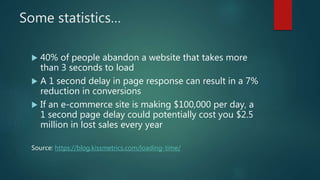
Some statistics…
 40% of people abandon a website that takes more
than 3 seconds to load
 A 1 second delay in page response can result in a 7%
reduction in conversions
 If an e-commerce site is making $100,000 per day, a
1 second page delay could potentially cost you $2.5
million in lost sales every year
Source: https://blog.kissmetrics.com/loading-time/
Bottom line…
 A poorly optimized website can cost you real $$ in
support and hosting costs
 By diving into performance and optimization, you’ll
learn more about WordPress, and more about web
systems and infrastructure
 Caching is one of the quickest, easiest ways you can
improve the performance of your WordPress site
How do you measure performance?
Performance Measurement Tools
 Gtmetrix.com – my favorite!
 Free
 Easy to use/understand
 Has a WordPress Plugin
 WebPageTest.org
 Also Free
 Lots of great detailed information
 LoadImpact.com
 Free + Paid plans
 Simulates multiple, concurrent users hitting your site
What Measurements Matter?
 Page Load Time
 Most representative of the customer experience
 Best “overall” performance metric
 Total Page Size
 Good to keep an eye on this for major problems such
as
Uncompressed images
High-resource themes/plugins
The Target: ke0ata.com
 On a VPS server with several other sites, all fairly low traffic
 Running nginx web server
 Faster than Apache
 Latest WordPress
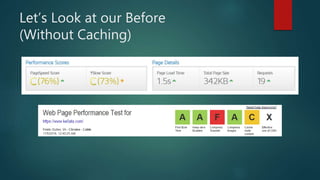
Let’s Look at our Before
(Without Caching)
First of all…
 Clean house!
Get rid of unused themes/plugins/etc.
Don’t just deactivate… DELETE
Be sure everything is up-to-date
Most recent WordPress version
Plugins are all updated to latest version
Optimizations within WordPress
 Utilize a Caching Plugin
W3 Total Cache or Fix-W3TC
Free and HIGHLY configurable
WP Rocket
Paid, but comes well-recommended
WP Super Cache
Robust and easy to use
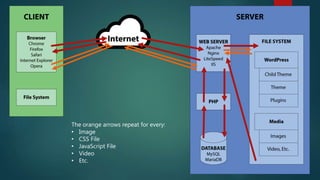
The Client/Server Process
WITHOUT Page Caching
The orange arrows repeat for every:
• Image
• CSS File
• JavaScript File
• Video
• Etc.
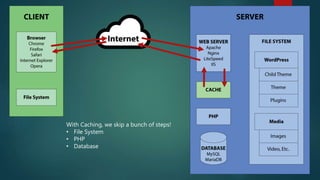
The Client/Server Process
WITH Page Caching
With Caching, we skip a bunch of steps!
• File System
• PHP
• Database
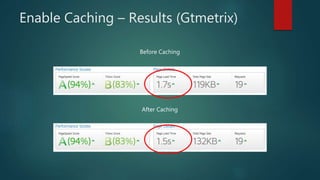
Enable Caching – Results (Gtmetrix)
Before Caching
After Caching
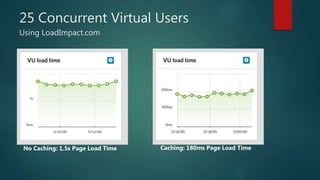
25 Concurrent Virtual Users
Using LoadImpact.com
No Caching: 1.5s Page Load Time Caching: 180ms Page Load Time
Optimizations within WordPress
 Turn on Minification
 Most caching plugins will have an option for this, but it
may not be enabled by default
 You DO have to be careful, because Minification can
break some themes/plugins, YMMV
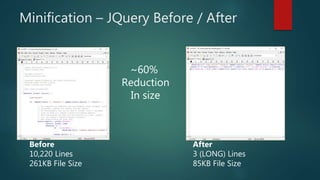
Minification – JQuery Before / After
Before
10,220 Lines
261KB File Size
After
3 (LONG) Lines
85KB File Size
~60%
Reduction
In size
Optimizations within WordPress
 Turn on GZip Compression
 Vast majority of hosts (especially shared hosts) support
GZip from the server level, it just needs to be enabled
 Easily enabled via .htaccess rules
 Most caching plugins will also have an option to
enable GZip compression
https://codex.wordpress.org/Output_Compression
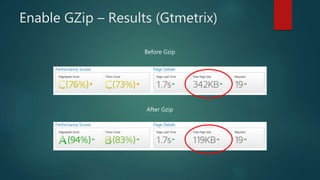
Enable GZip – Results (Gtmetrix)
Before Gzip
After Gzip
Server-Side Optimizations for
WordPress
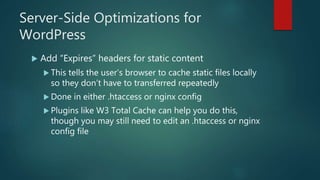
 Add “Expires” headers for static content
 This tells the user’s browser to cache static files locally
so they don’t have to transferred repeatedly
 Done in either .htaccess or nginx config
 Plugins like W3 Total Cache can help you do this,
though you may still need to edit an .htaccess or nginx
config file
Server-Side Optimizations for
WordPress
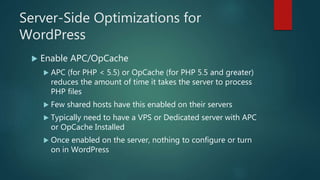
 Enable APC/OpCache
 APC (for PHP < 5.5) or OpCache (for PHP 5.5 and greater)
reduces the amount of time it takes the server to process
PHP files
 Few shared hosts have this enabled on their servers
 Typically need to have a VPS or Dedicated server with APC
or OpCache Installed
 Once enabled on the server, nothing to configure or turn
on in WordPress
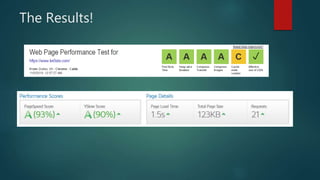
The Results!
What’s up with that ‘C’ ?
 If we wanted to further optimize, we could
bring these JS/CSS files local so they would
get Minified/GZipped
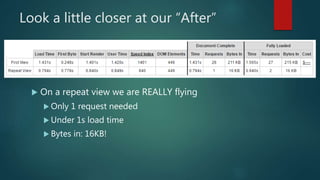
Look a little closer at our “After”
 On a repeat view we are REALLY flying
 Only 1 request needed
 Under 1s load time
 Bytes in: 16KB!
Final Thoughts
 There are LOTS of options to optimize/gain
performance
 You don’t have to do them all
 Many people in the WordPress community
know how to help you with these
configurations
 The Codex is your friend!
Questions?

Caching 101

  • 1.
    CACHING 101 (and alittle dose of optimization) PRESENTED TO DETROIT METRO WORDPRESS MEETUP BY ANDY MELICHAR
  • 2.
    Director of Web Developmentand Agile Product Owner for A2 Hosting We spend a lot of time on making WordPress better for our customers! Ask me about Agile/Scrum!
  • 3.
    From the Perspectiveof a Hosting Company…  A high percentage of our current and new customers are WordPress users, and the number keeps rising  Being on the hosting end, we can dig into common performance issues MUCH deeper because we know our web servers inside and out  The very high percentage of WordPress related support requests that we receive are performance related, so we’ve looked at many different ways to improve performance
  • 4.
    How many ofyou…  Have attempted to optimize your WP Site?  Have installed/configured a caching plugin?  Know what a CDN is?  Have added configurations to an .htaccess file  Are running your own server (VPS/dedicated/cloud) ?
  • 5.
    What the heckis caching, anyway?
  • 6.
    Cache [kash] noun Computers. atemporary storage space or memory that allows fast access to data: Web browser cache; CPU cache.
  • 7.
    Several Kinds ofCaching Systems Page Cache Asset Cache Object Cache Bytecode Cache
  • 8.
    Page Cache  Takesan entire rendered page and saves it as a file, so it doesn’t have to get rendered again.
  • 9.
    Asset Cache  Storesfiles associated with a page, such as images, javascript, CSS  Typically happens on the client side, or through use of a CDN (Content Delivery Network)
  • 10.
    Object Cache /Database Cache  Stores the results of commonly-used queries so the database doesn’t have to retrieve them repeatedly
  • 11.
    Bytecode Cache  Storesthe compiled code (PHP) so the the web server doesn’t have to re-compile it at every page load
  • 12.
    How do Iget caching on my site?
  • 13.
  • 14.
    That’s all fineand dandy, what does that have to do with WordPress? (AND WHY SHOULD I CARE?)
  • 15.
    Some statistics…  40%of people abandon a website that takes more than 3 seconds to load  A 1 second delay in page response can result in a 7% reduction in conversions  If an e-commerce site is making $100,000 per day, a 1 second page delay could potentially cost you $2.5 million in lost sales every year Source: https://blog.kissmetrics.com/loading-time/
  • 16.
    Bottom line…  Apoorly optimized website can cost you real $$ in support and hosting costs  By diving into performance and optimization, you’ll learn more about WordPress, and more about web systems and infrastructure  Caching is one of the quickest, easiest ways you can improve the performance of your WordPress site
  • 17.
    How do youmeasure performance?
  • 18.
    Performance Measurement Tools Gtmetrix.com – my favorite!  Free  Easy to use/understand  Has a WordPress Plugin  WebPageTest.org  Also Free  Lots of great detailed information  LoadImpact.com  Free + Paid plans  Simulates multiple, concurrent users hitting your site
  • 19.
    What Measurements Matter? Page Load Time  Most representative of the customer experience  Best “overall” performance metric  Total Page Size  Good to keep an eye on this for major problems such as Uncompressed images High-resource themes/plugins
  • 20.
    The Target: ke0ata.com On a VPS server with several other sites, all fairly low traffic  Running nginx web server  Faster than Apache  Latest WordPress
  • 21.
    Let’s Look atour Before (Without Caching)
  • 22.
    First of all… Clean house! Get rid of unused themes/plugins/etc. Don’t just deactivate… DELETE Be sure everything is up-to-date Most recent WordPress version Plugins are all updated to latest version
  • 23.
    Optimizations within WordPress Utilize a Caching Plugin W3 Total Cache or Fix-W3TC Free and HIGHLY configurable WP Rocket Paid, but comes well-recommended WP Super Cache Robust and easy to use
  • 24.
  • 25.
    The orange arrowsrepeat for every: • Image • CSS File • JavaScript File • Video • Etc.
  • 26.
  • 27.
    With Caching, weskip a bunch of steps! • File System • PHP • Database
  • 28.
    Enable Caching –Results (Gtmetrix) Before Caching After Caching
  • 29.
    25 Concurrent VirtualUsers Using LoadImpact.com No Caching: 1.5s Page Load Time Caching: 180ms Page Load Time
  • 30.
    Optimizations within WordPress Turn on Minification  Most caching plugins will have an option for this, but it may not be enabled by default  You DO have to be careful, because Minification can break some themes/plugins, YMMV
  • 31.
    Minification – JQueryBefore / After Before 10,220 Lines 261KB File Size After 3 (LONG) Lines 85KB File Size ~60% Reduction In size
  • 32.
    Optimizations within WordPress Turn on GZip Compression  Vast majority of hosts (especially shared hosts) support GZip from the server level, it just needs to be enabled  Easily enabled via .htaccess rules  Most caching plugins will also have an option to enable GZip compression https://codex.wordpress.org/Output_Compression
  • 33.
    Enable GZip –Results (Gtmetrix) Before Gzip After Gzip
  • 34.
    Server-Side Optimizations for WordPress Add “Expires” headers for static content  This tells the user’s browser to cache static files locally so they don’t have to transferred repeatedly  Done in either .htaccess or nginx config  Plugins like W3 Total Cache can help you do this, though you may still need to edit an .htaccess or nginx config file
  • 35.
    Server-Side Optimizations for WordPress Enable APC/OpCache  APC (for PHP < 5.5) or OpCache (for PHP 5.5 and greater) reduces the amount of time it takes the server to process PHP files  Few shared hosts have this enabled on their servers  Typically need to have a VPS or Dedicated server with APC or OpCache Installed  Once enabled on the server, nothing to configure or turn on in WordPress
  • 36.
  • 37.
    What’s up withthat ‘C’ ?
  • 38.
    What’s up withthat ‘C’ ?  If we wanted to further optimize, we could bring these JS/CSS files local so they would get Minified/GZipped
  • 39.
    Look a littlecloser at our “After”  On a repeat view we are REALLY flying  Only 1 request needed  Under 1s load time  Bytes in: 16KB!
  • 40.
    Final Thoughts  Thereare LOTS of options to optimize/gain performance  You don’t have to do them all  Many people in the WordPress community know how to help you with these configurations  The Codex is your friend!
  • 41.

Editor's Notes

  • #4 One of the nice things about working for a hosting company is that I, and my colleagues, get to know WordPress really well.
  • #18 In order to fully understand the impact of caching, we first need to understand HOW we measure performance on our website.
  • #26 (talk through each step)
  • #28 Talk through each step and explain how it is a much shorter process.
  • #29 On the GTMetrix we can see a direct result in our page load time. It’s not huge, but my website also isn’t very complex, so it’s harder for us to see enormous improvements. The other thing to remember about caching, is that when it REALLY shines, is with concurrent website traffic. Let’s take a look!
  • #30 Here’s where we really see the difference – this test was conducted with LoadImpact sending 25 users to my site over 5 minutes.
  • #32 Jquery is a fairly common javascript library used in many frameworks and themes. If you compare the the full, development-ready version of Jquery against the same version run through minification, you can see the difference in size.
  • #34 Here’s a before and after, you can see the direct results in both our PageSpeed and Yslow scores, but also the Total Page Size is reduced by about a third.
  • #40 Where we really see a benefit is in the repeat view…