Wikispaces
What does “WIKI” mean? Wiki  is a Hawaiian word for  fast. Wiki  can be expanded as “ What I Know Is”
What is Wikispaces? A webpage with an  Edit button. A website that allows you to create web pages that is always “under construction” Everyone works collaboratively to share, contribute, and edit each others products You can control who joins, edits, and sees your webpage.
Benefits of Wikispaces in your classroom….. Great motivator for students Allows for creativity and innovation An exciting and engaging way for students to learn Track students participation Promotes communication between students, teachers, and parents
Are You Ready to WIKI? Follow these easy steps to begin creating and using Wikispaces in your classroom.
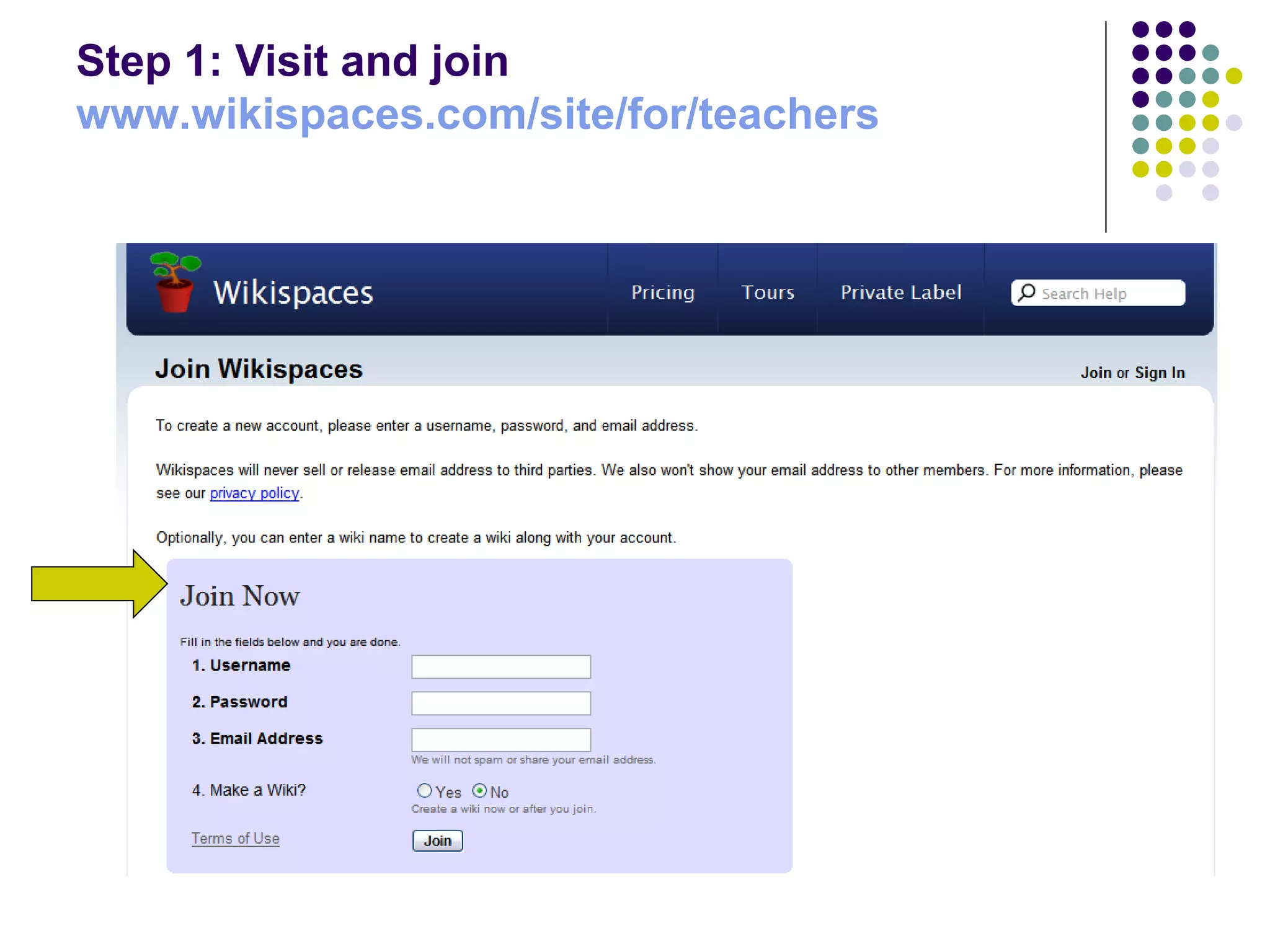
Step 1: Visit and join www.wikispaces.com /site/for/teachers
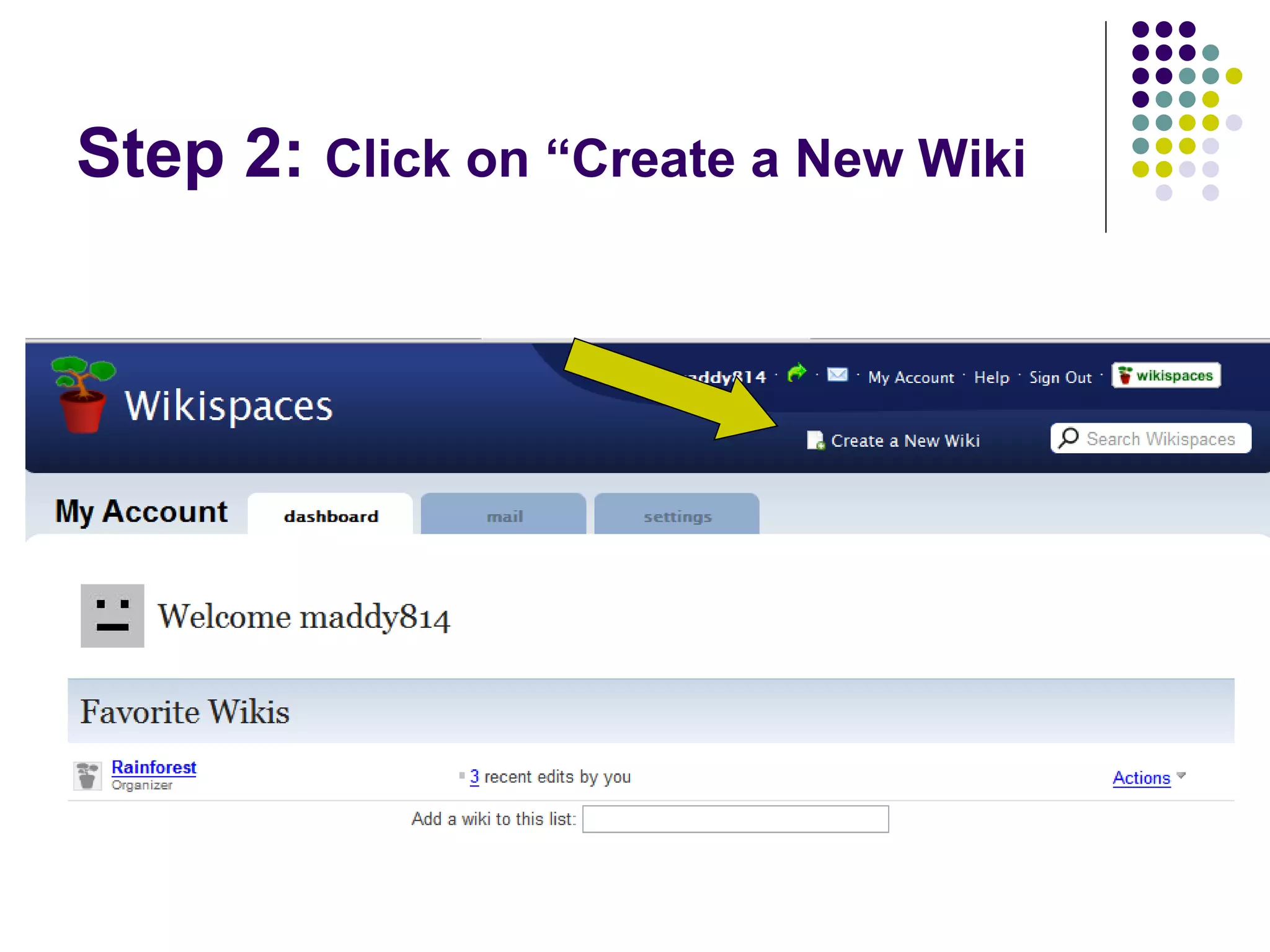
Step 2:  Click on “Create a New Wiki
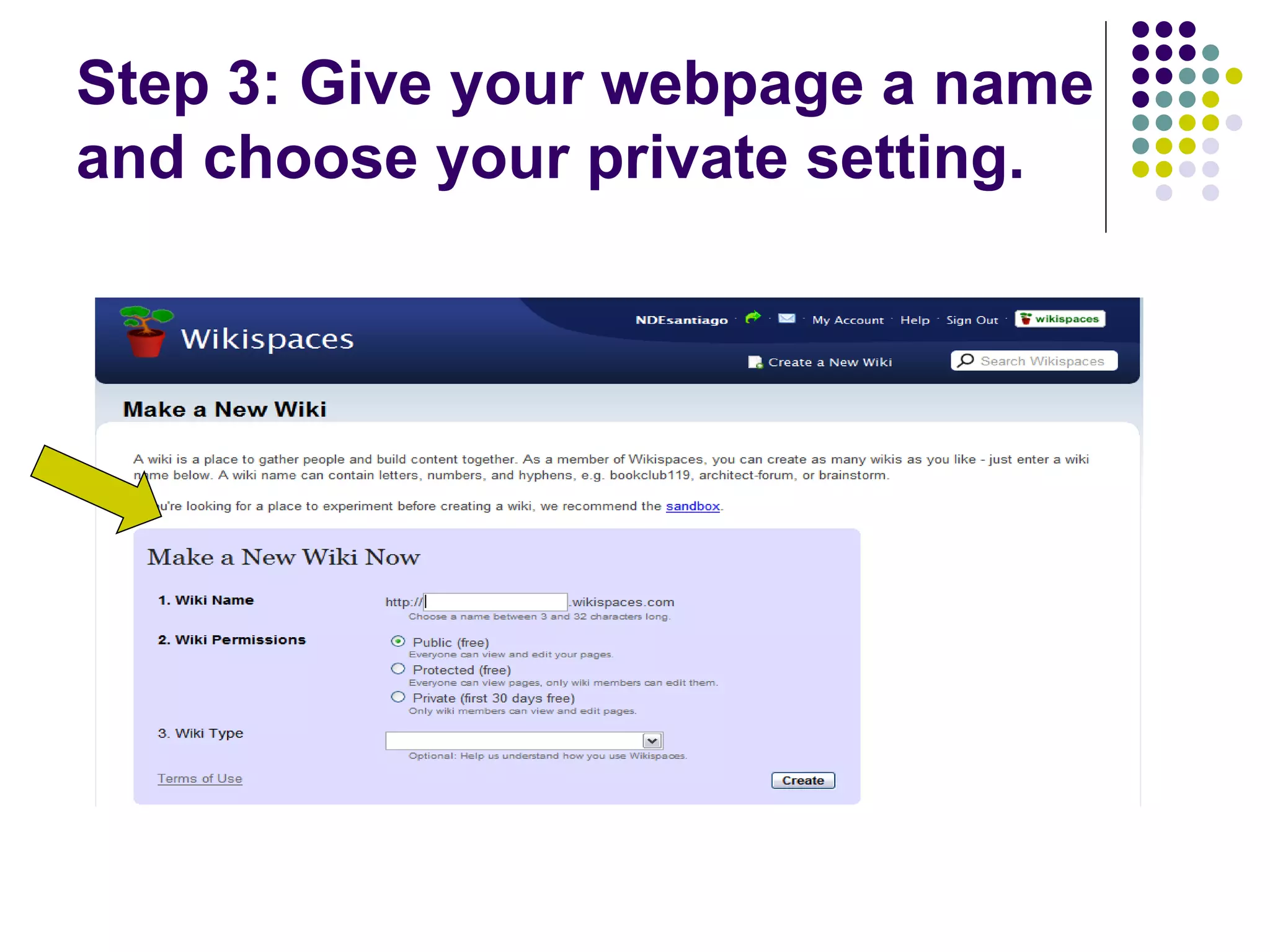
Step 3: Give your webpage a name and choose your private setting.
How to be an “Editor” Wikispaces  allows you to Add Links, Images, Videos and so much more
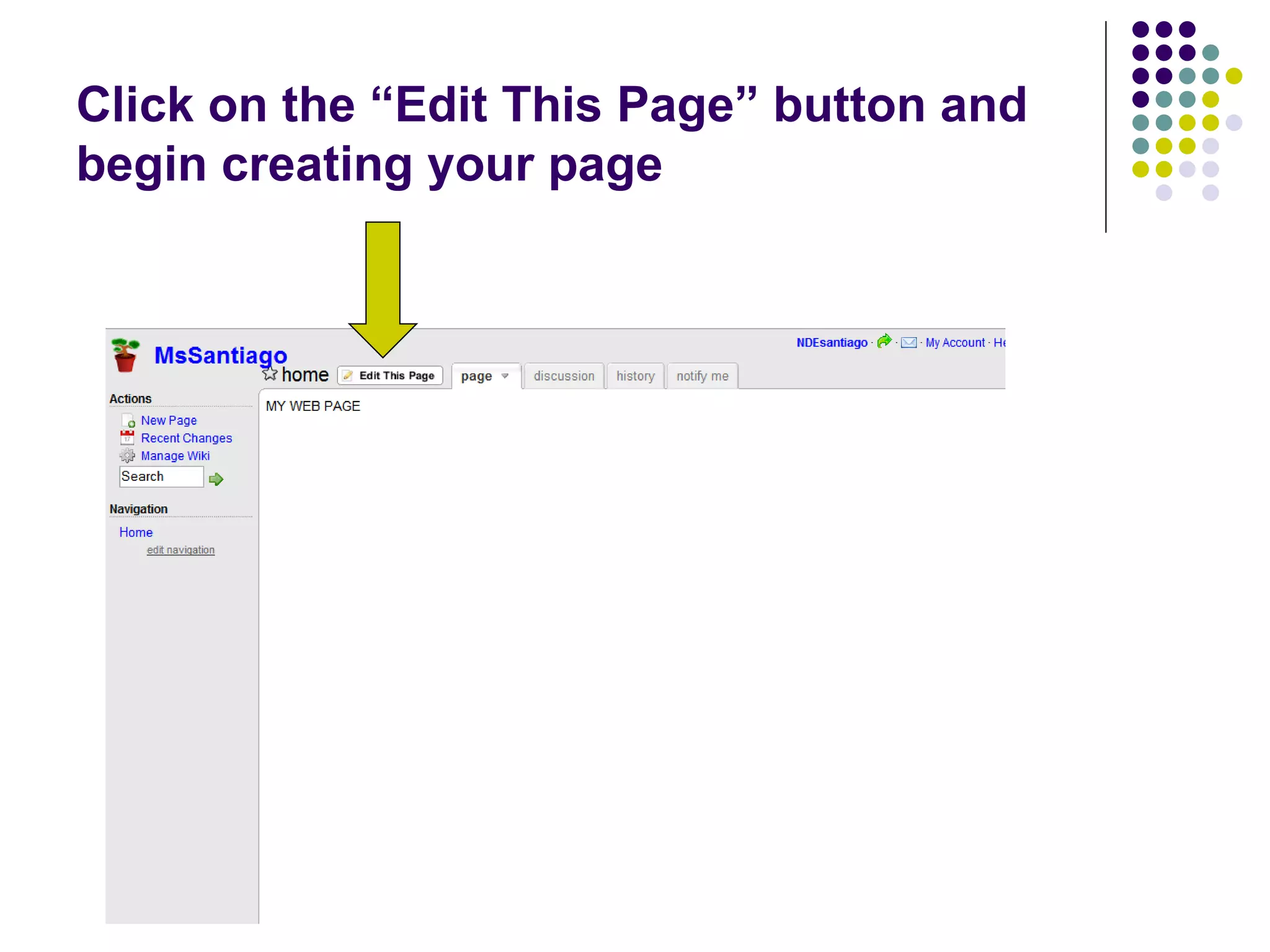
Click on the “Edit This Page” button and begin creating your page
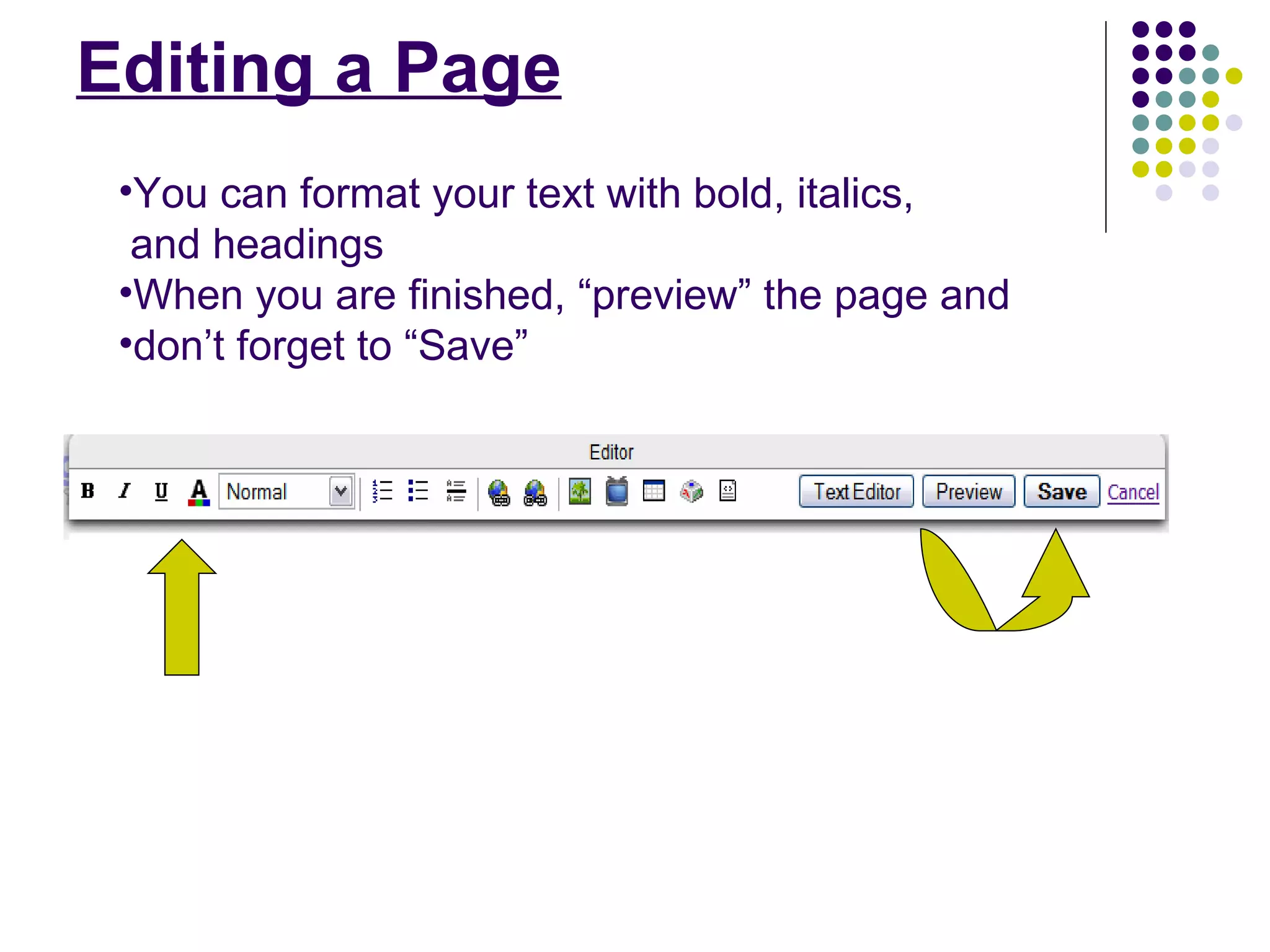
Editing a Page You can format your text with bold, italics,  and headings When you are finished, “preview” the page and  don’t forget to “Save”
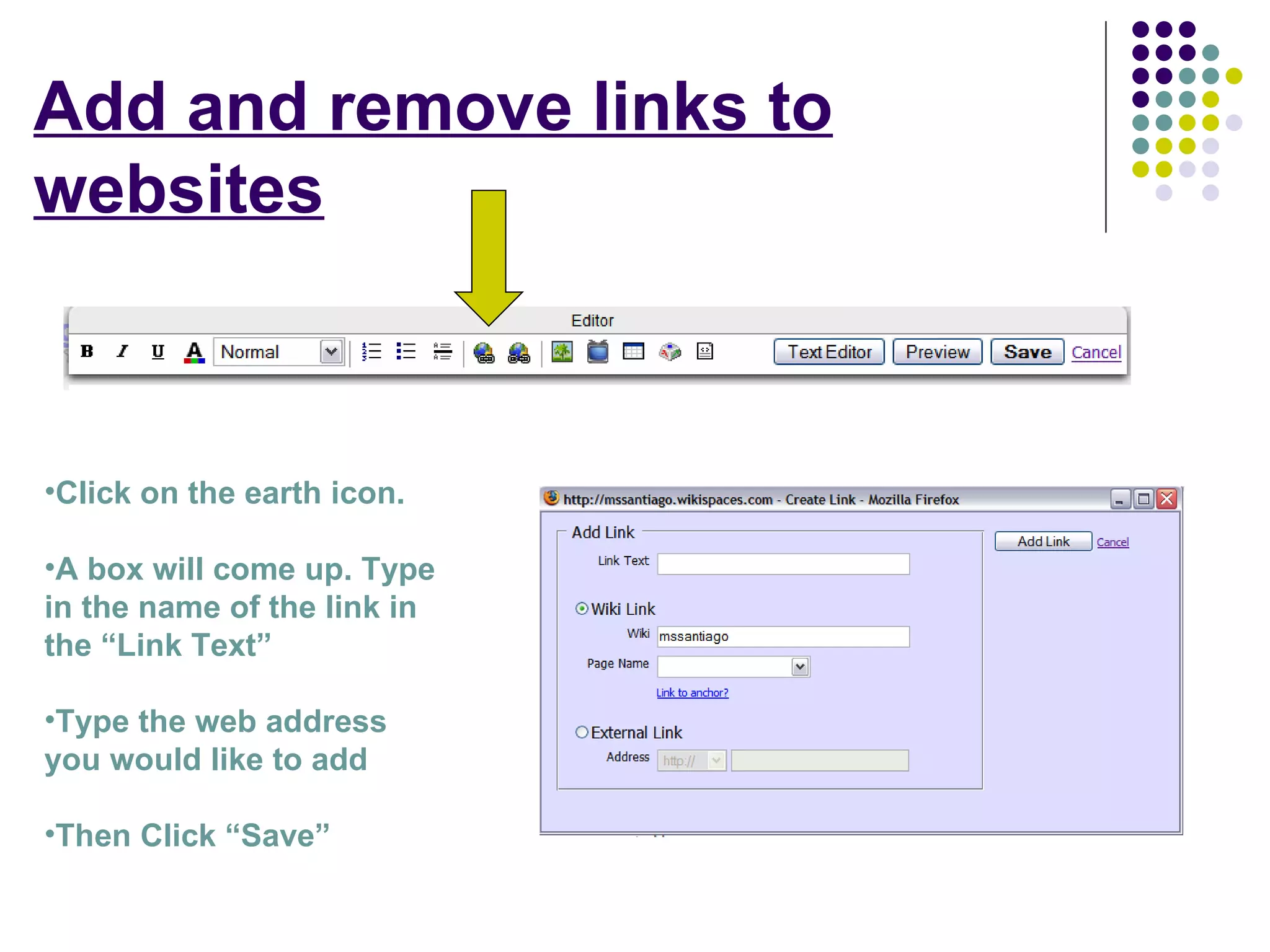
Add and remove links to websites Click on the earth icon. A box will come up. Type in the name of the link in the “Link Text” Type the web address you would like to add Then Click “Save”
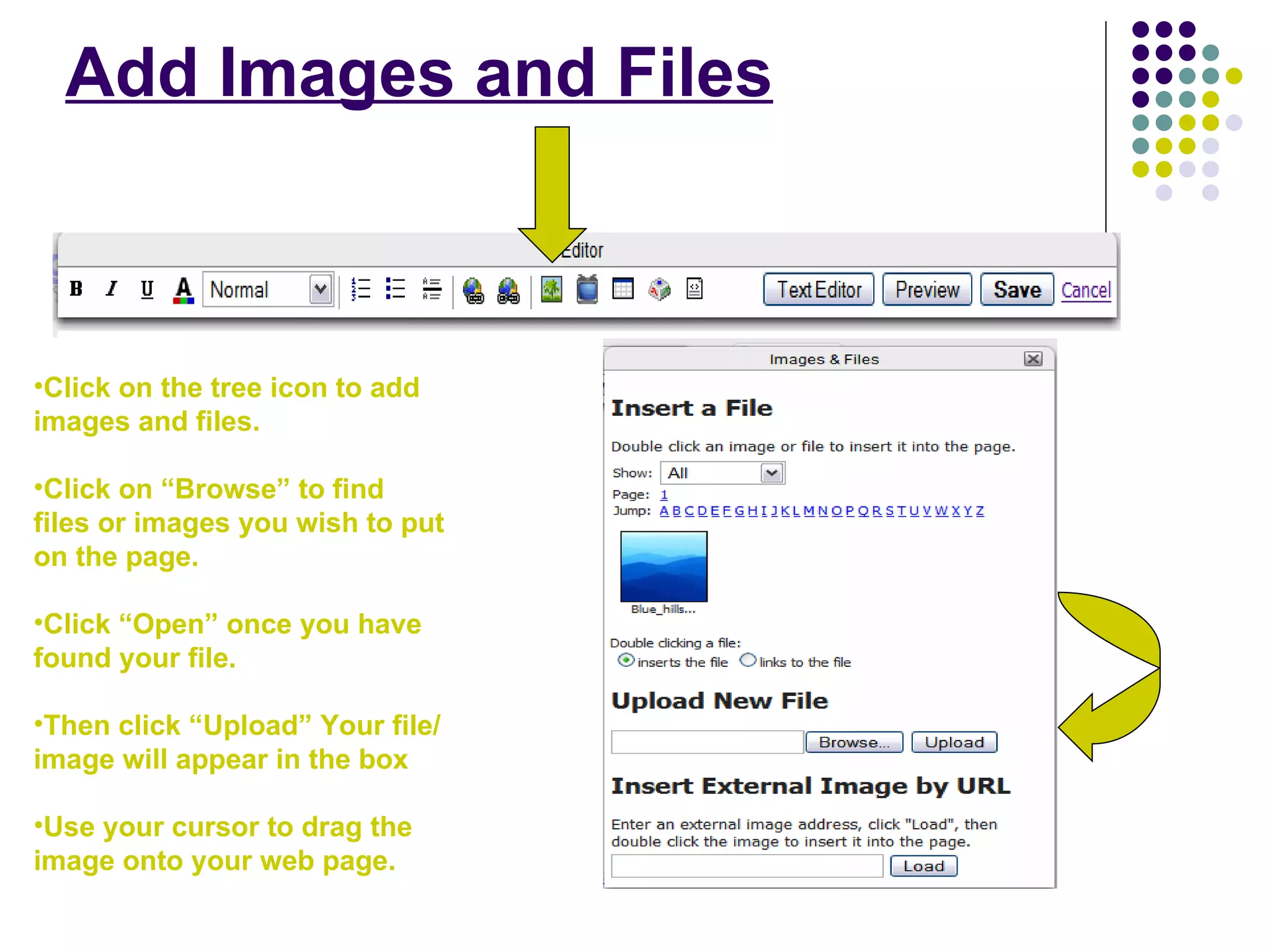
Add Images and Files Click on the tree icon to add images and files. Click on “Browse” to find files or images you wish to put on the page. Click “Open” once you have found your file. Then click “Upload” Your file/image will appear in the box Use your cursor to drag the image onto your web page.
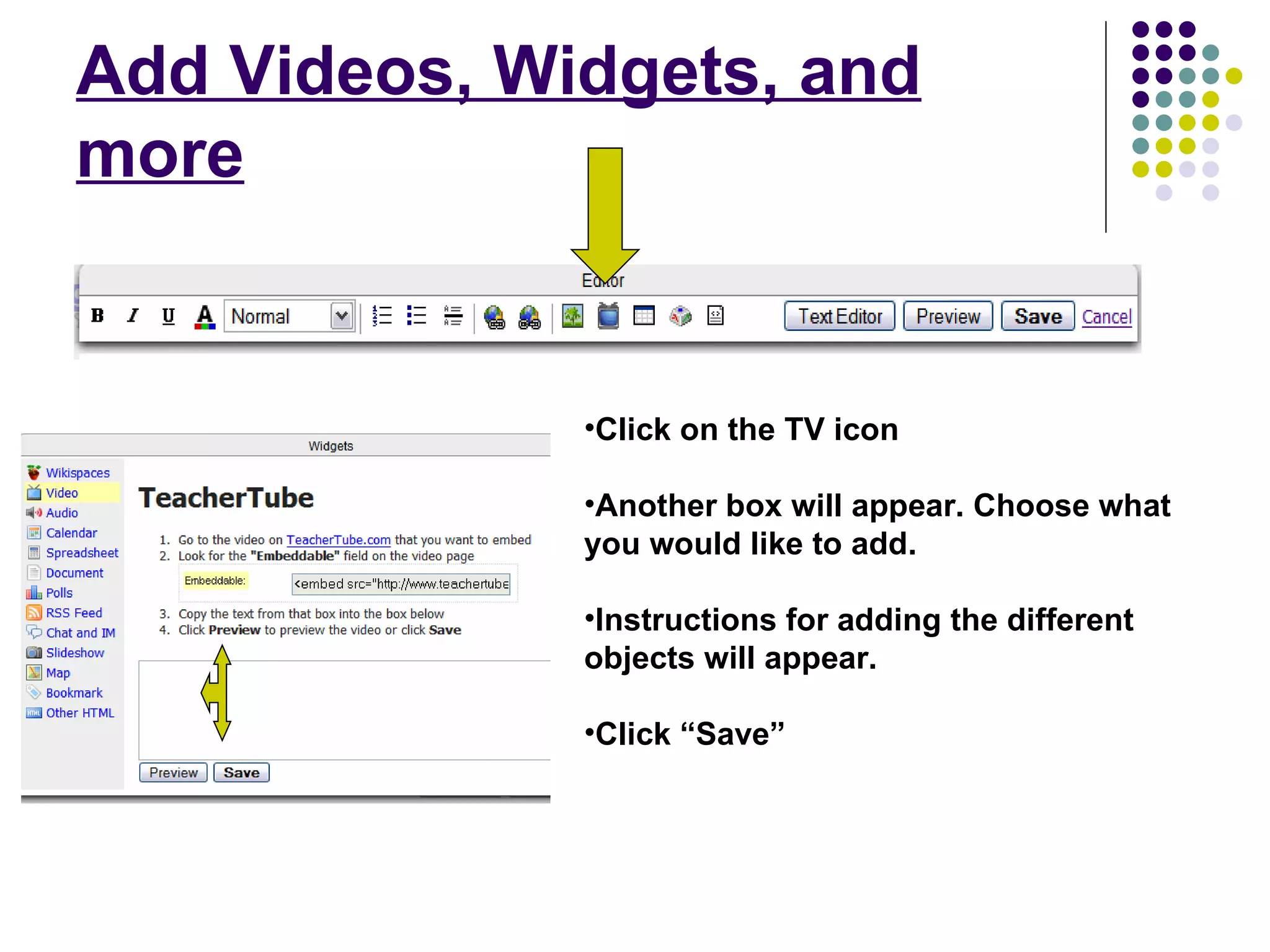
Add Videos, Widgets, and more Click on the TV icon Another box will appear. Choose what you would like to add. Instructions for adding the different objects will appear. Click “Save”
I have a Wikispace account! Now what? Ideas for Wikispaces in the classroom
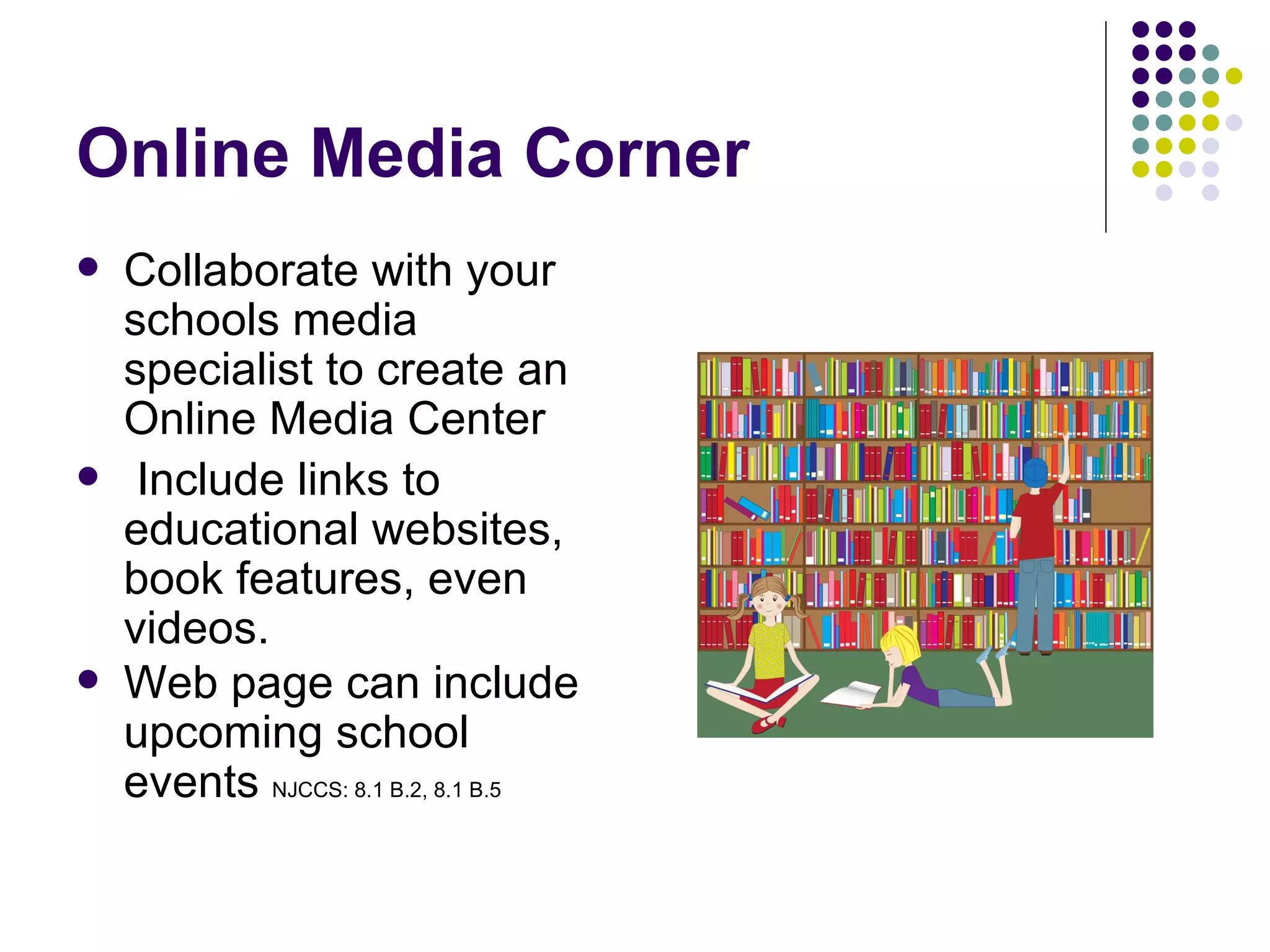
Online Media Corner Collaborate with your schools media specialist to create an Online Media Center Include links to educational websites,  book features, even videos. Web page can include upcoming school events  NJCCS: 8.1 B.2, 8.1 B.5
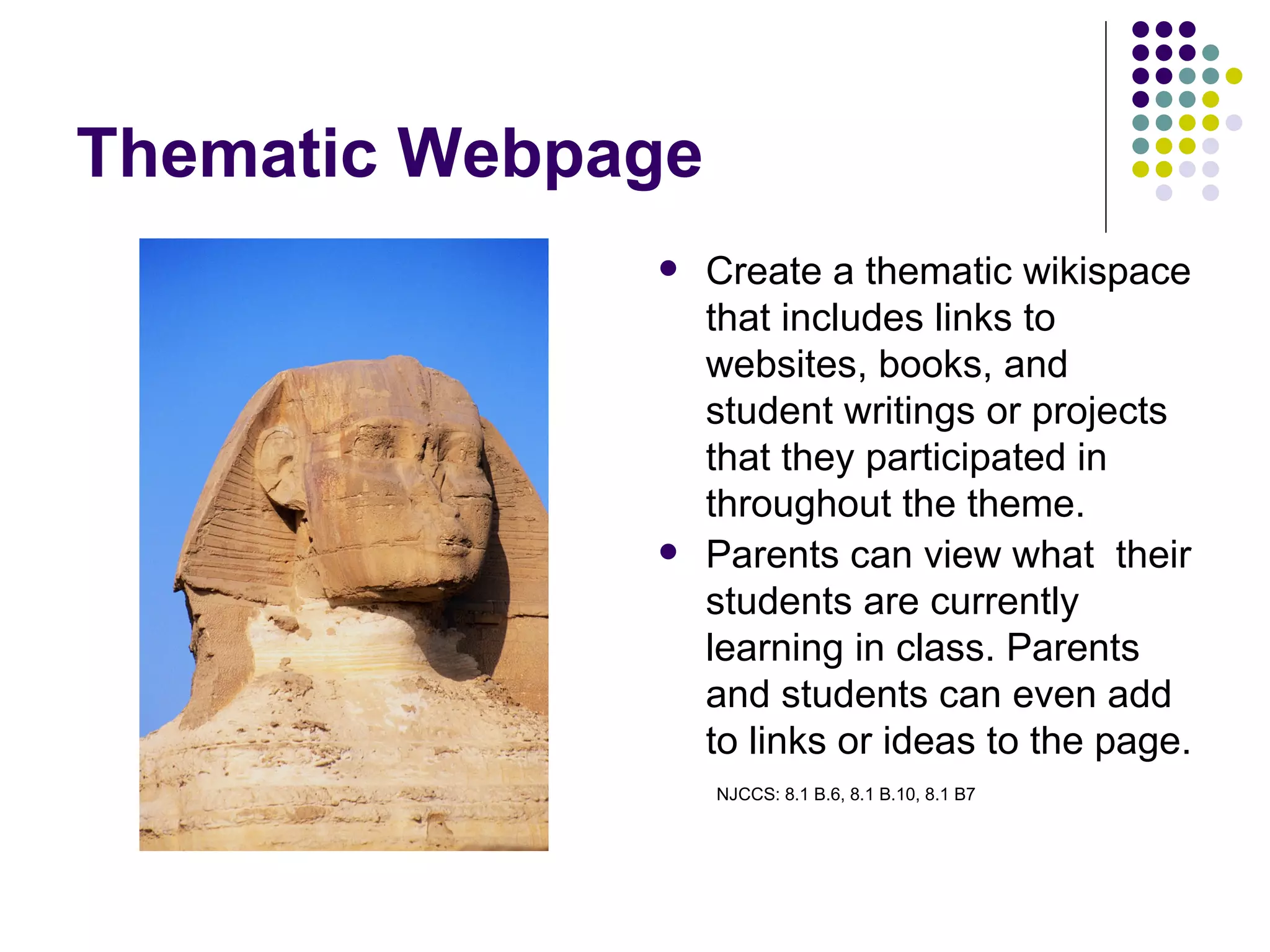
Thematic Webpage Create a thematic wikispace that includes links to websites, books, and student writings or projects that they participated in throughout the theme. Parents can view what  their students are currently learning in class. Parents and students can even add to links or ideas to the page.  NJCCS: 8.1 B.6, 8.1 B.10, 8.1 B7
Hot Spot for Teachers Create a place where teachers can stay connected to new and innovative ways to use technology in the 21 st  Century Classroom. Include professional resources, blogs, instructions for various web tools, upcoming workshops, and videos.  Teachers can share lesson plan ideas and virtual fieldtrips they use in their classrooms.
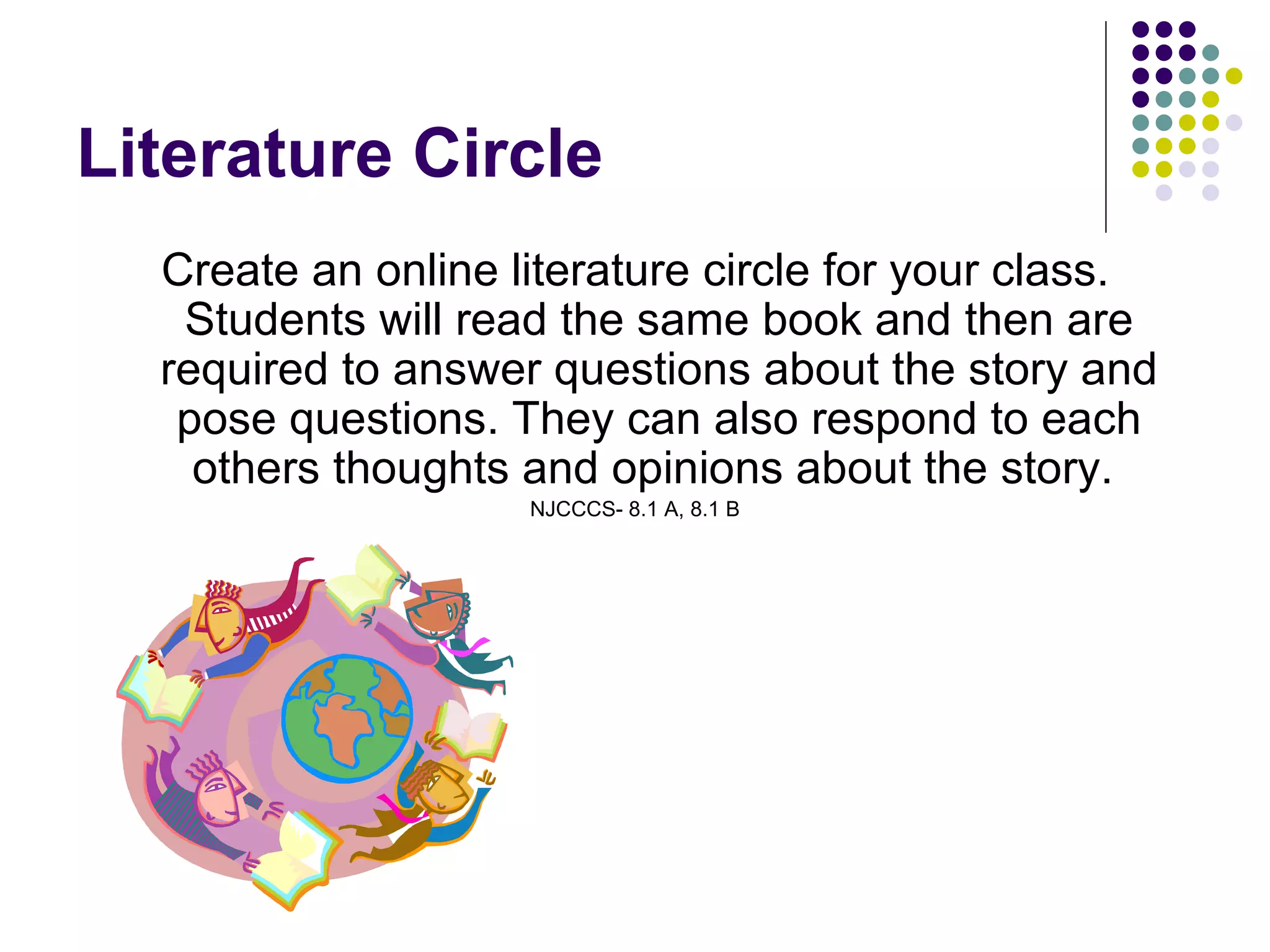
Literature Circle Create an online literature circle for your class. Students will read the same book and then are required to answer questions about the story and pose questions. They can also respond to each others thoughts and opinions about the story.  NJCCCS- 8.1 A, 8.1 B
Students Portfolio Wikispaces can be used to create an electronic portfolios where students can display and discuss their work with each other. Students can participate in peer editing and peer feedback to help them improve their writing skills.
Classroom Wikipage A class wikipage is where parents and students can access information about what is happening in the classroom.  They can access homework page, game links, informational links on topics being studied in class, and upcoming field trips or classroom events.  NJCCCS- 8.1 A.9, 8.1 B.2

Wikispaces

  • 1.
  • 2.
    What does “WIKI”mean? Wiki is a Hawaiian word for fast. Wiki can be expanded as “ What I Know Is”
  • 3.
    What is Wikispaces?A webpage with an Edit button. A website that allows you to create web pages that is always “under construction” Everyone works collaboratively to share, contribute, and edit each others products You can control who joins, edits, and sees your webpage.
  • 4.
    Benefits of Wikispacesin your classroom….. Great motivator for students Allows for creativity and innovation An exciting and engaging way for students to learn Track students participation Promotes communication between students, teachers, and parents
  • 5.
    Are You Readyto WIKI? Follow these easy steps to begin creating and using Wikispaces in your classroom.
  • 6.
    Step 1: Visitand join www.wikispaces.com /site/for/teachers
  • 7.
    Step 2: Click on “Create a New Wiki
  • 8.
    Step 3: Giveyour webpage a name and choose your private setting.
  • 9.
    How to bean “Editor” Wikispaces allows you to Add Links, Images, Videos and so much more
  • 10.
    Click on the“Edit This Page” button and begin creating your page
  • 11.
    Editing a PageYou can format your text with bold, italics, and headings When you are finished, “preview” the page and don’t forget to “Save”
  • 12.
    Add and removelinks to websites Click on the earth icon. A box will come up. Type in the name of the link in the “Link Text” Type the web address you would like to add Then Click “Save”
  • 13.
    Add Images andFiles Click on the tree icon to add images and files. Click on “Browse” to find files or images you wish to put on the page. Click “Open” once you have found your file. Then click “Upload” Your file/image will appear in the box Use your cursor to drag the image onto your web page.
  • 14.
    Add Videos, Widgets,and more Click on the TV icon Another box will appear. Choose what you would like to add. Instructions for adding the different objects will appear. Click “Save”
  • 15.
    I have aWikispace account! Now what? Ideas for Wikispaces in the classroom
  • 16.
    Online Media CornerCollaborate with your schools media specialist to create an Online Media Center Include links to educational websites, book features, even videos. Web page can include upcoming school events NJCCS: 8.1 B.2, 8.1 B.5
  • 17.
    Thematic Webpage Createa thematic wikispace that includes links to websites, books, and student writings or projects that they participated in throughout the theme. Parents can view what their students are currently learning in class. Parents and students can even add to links or ideas to the page. NJCCS: 8.1 B.6, 8.1 B.10, 8.1 B7
  • 18.
    Hot Spot forTeachers Create a place where teachers can stay connected to new and innovative ways to use technology in the 21 st Century Classroom. Include professional resources, blogs, instructions for various web tools, upcoming workshops, and videos. Teachers can share lesson plan ideas and virtual fieldtrips they use in their classrooms.
  • 19.
    Literature Circle Createan online literature circle for your class. Students will read the same book and then are required to answer questions about the story and pose questions. They can also respond to each others thoughts and opinions about the story. NJCCCS- 8.1 A, 8.1 B
  • 20.
    Students Portfolio Wikispacescan be used to create an electronic portfolios where students can display and discuss their work with each other. Students can participate in peer editing and peer feedback to help them improve their writing skills.
  • 21.
    Classroom Wikipage Aclass wikipage is where parents and students can access information about what is happening in the classroom. They can access homework page, game links, informational links on topics being studied in class, and upcoming field trips or classroom events. NJCCCS- 8.1 A.9, 8.1 B.2