

Nashville Technology GurusPresentsThe ComputerNeed-to-Knows Seminar
Nashville Technology GurusIntro and welcomeWho I am?Why are you here?
What we’ll cover today…The basics of what you need to know about computers but no one tells youShopping for and buying a computerKnowing your computerMaintaining your computerKeeping your computer secure
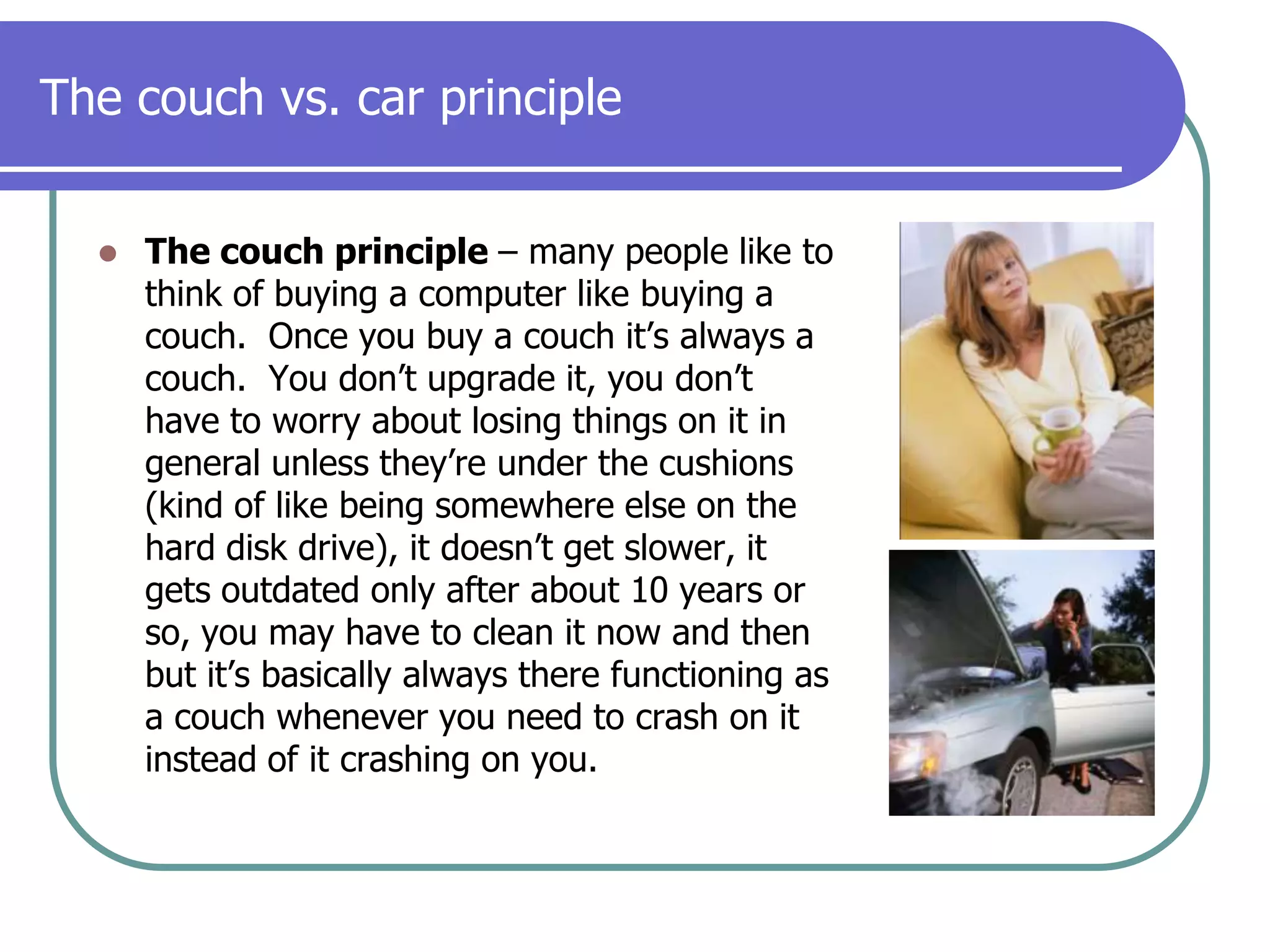
The couch vs. car principleThe couch principle – many people like to think of buying a computer like buying a couch.  Once you buy a couch it’s always a couch.  You don’t upgrade it, you don’t have to worry about losing things on it in general unless they’re under the cushions (kind of like being somewhere else on the hard disk drive), it doesn’t get slower, it gets outdated only after about 10 years or so, you may have to clean it now and then but it’s basically always there functioning as a couch whenever you need to crash on it instead of it crashing on you.
The couch vs. car principleThe computer principle– The computer is very much like having the responsibility of a car.  You have to go through the process of shopping for one, buying it with just the right options including a warranty, maintaining it, being careful with it even gentle, replacing parts eventually, and eventually deciding to keep it or replace it.  Also, backups of your files are like spare parts for your car especially when the ‘parts’ are important, hard to find, or expensive.
Buying a computerBuying and maintaining a computer is very much the same with your carShop around with very little surety of what is best for youCoupons available through email, mail, and websitesWebsites listing promotions and dealswww.slickdeals.netwww.techbargains.comHoliday bargains are worth looking for20-40% off typical with bundlesHaving a computer seller rep. will help get good deals especially for businesses
Buying a computerNo interest APR often available for 12 months or moreIn-person vs. online (CompUSA/Costco vs. Dell/HP)You may want to get a literal feel for a new computer.  Going to a retail store or outlet may better for those who are more visual in what they’re looking for.  However, be wary of refurbished models, used computers, and computers selling for cheap but without essential software or a good warranty.
Buying a computerOnline configuration and ordering is very easy now and often leads to deep discounts especially around big holidays or special promotions and also year-end models.  However, online ‘deals’ can have hidden after purchase costs like extended warranties from buying one that is too short, not getting enough memory or the right software.
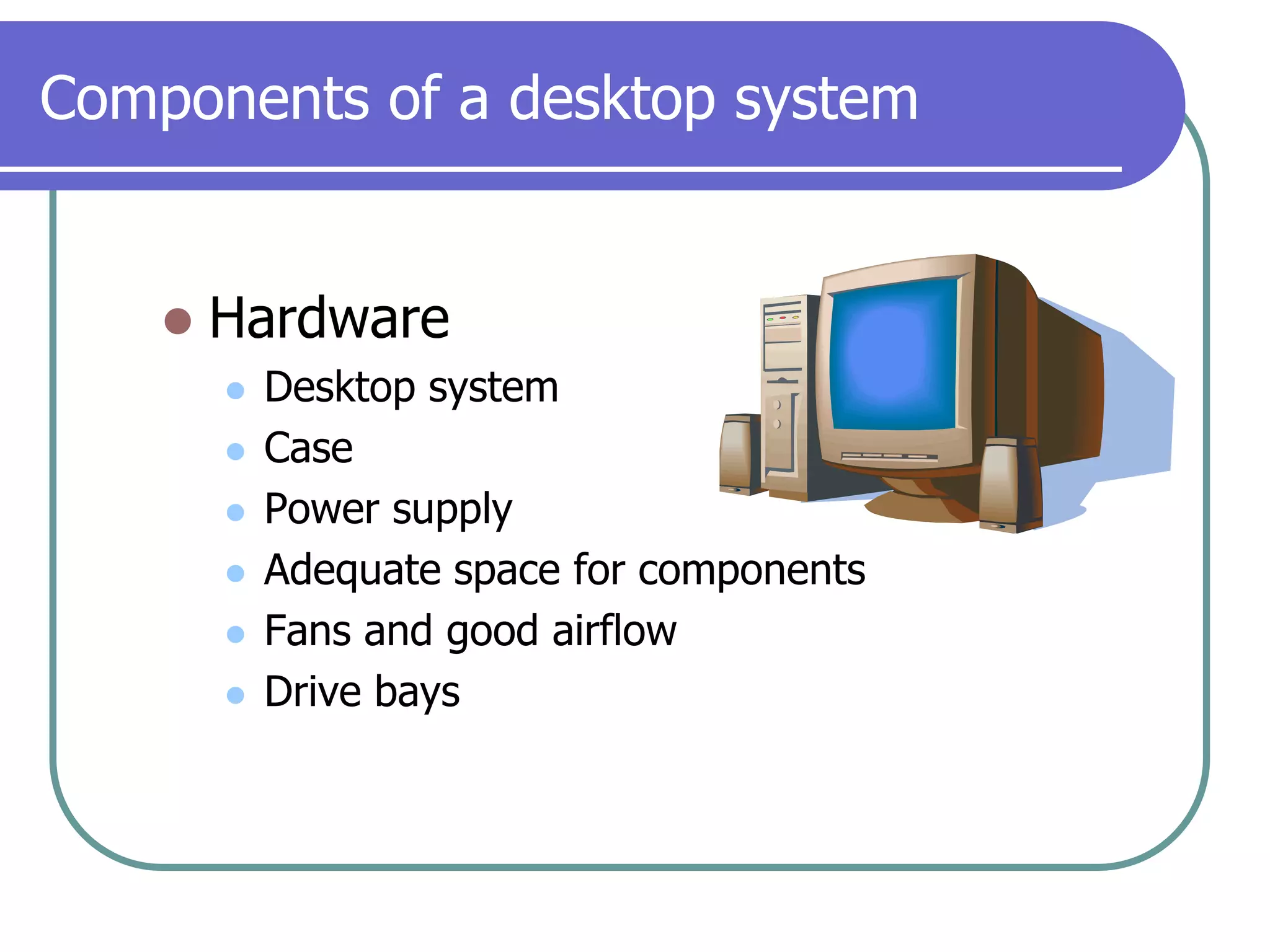
Components of a desktop systemHardwareDesktop systemCasePower supplyAdequate space for componentsFans and good airflowDrive bays
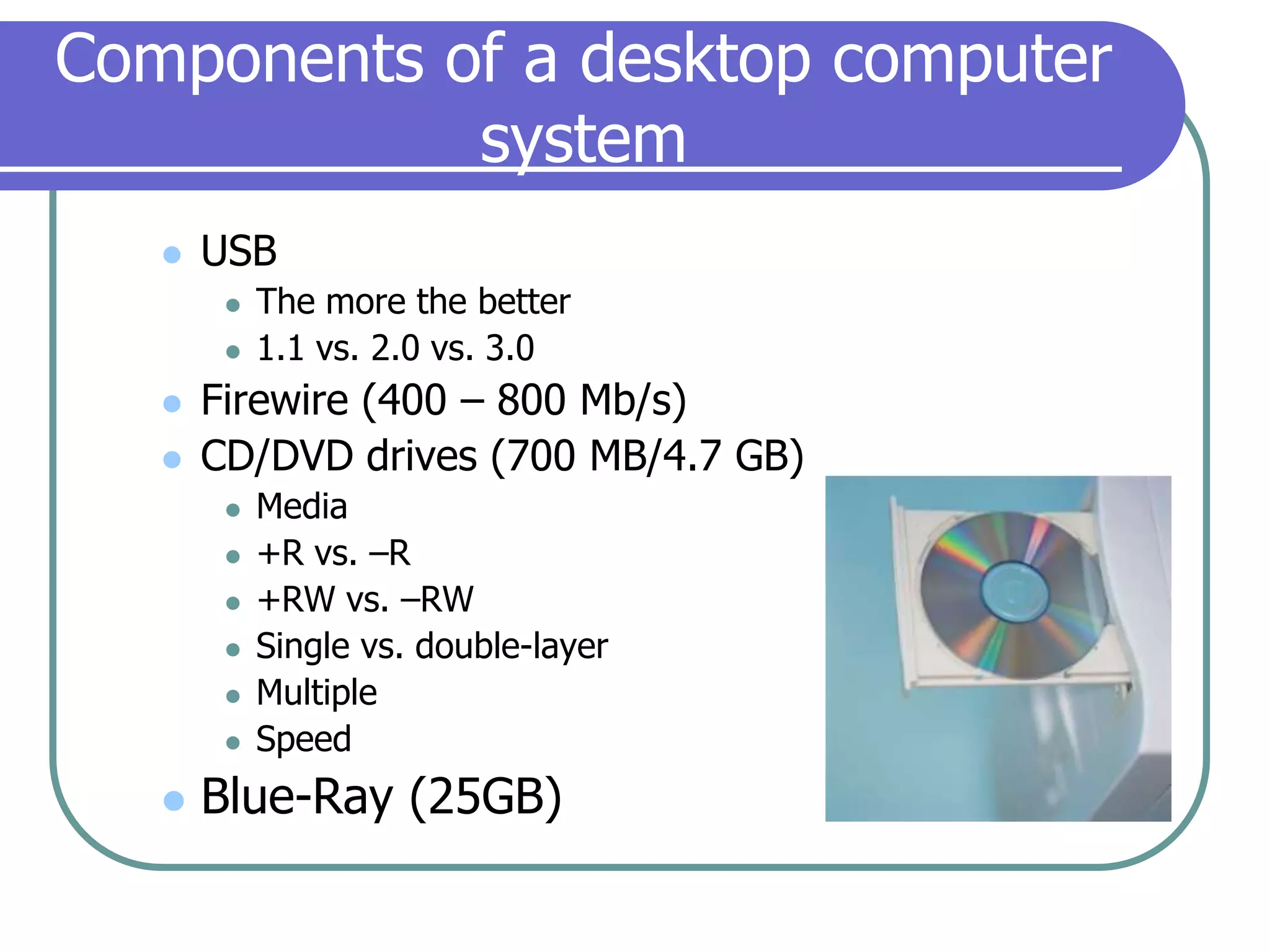
Components of a desktop computer systemUSBThe more the better1.1 vs. 2.0 vs. 3.0Firewire (400 – 800 Mb/s)CD/DVD drives (700 MB/4.7 GB)Media+R vs. –R+RW vs. –RWSingle vs. double-layerMultipleSpeedBlue-Ray (25GB)
Components of a desktop computer systemProcessorIntelAMDSpeedCache (or memory)Core Duo (2)Multiple or Quad Core
Components of a desktop computer systemMemoryCapacity (you never can have too much with any OS)Speed# of memory slots
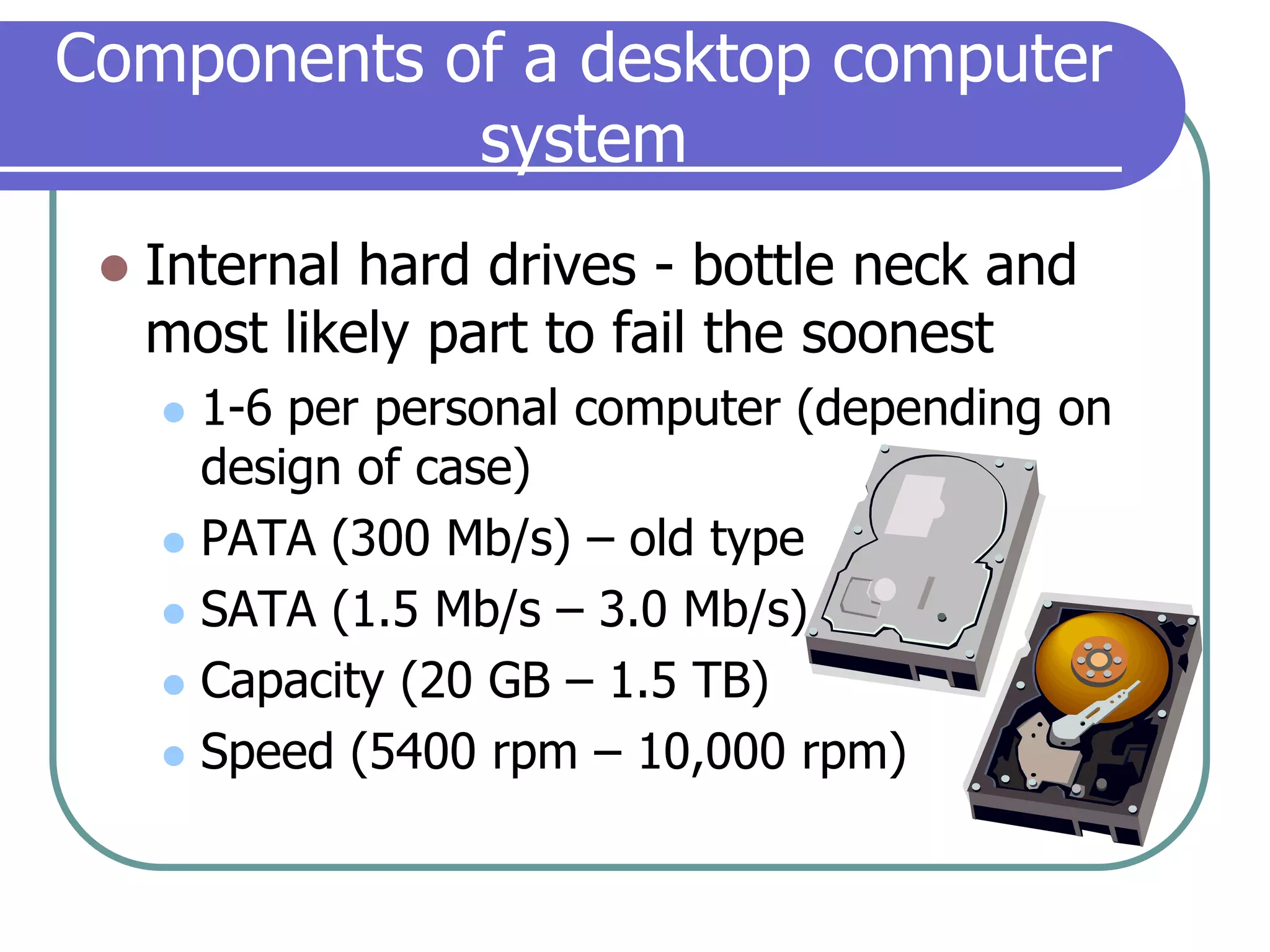
Components of a desktop computer systemInternal hard drives - bottle neck and most likely part to fail the soonest1-6 per personal computer (depending on design of case)PATA (300 Mb/s) – old typeSATA (1.5 Mb/s – 3.0 Mb/s)Capacity (20 GB – 1.5 TB)Speed (5400 rpm – 10,000 rpm)
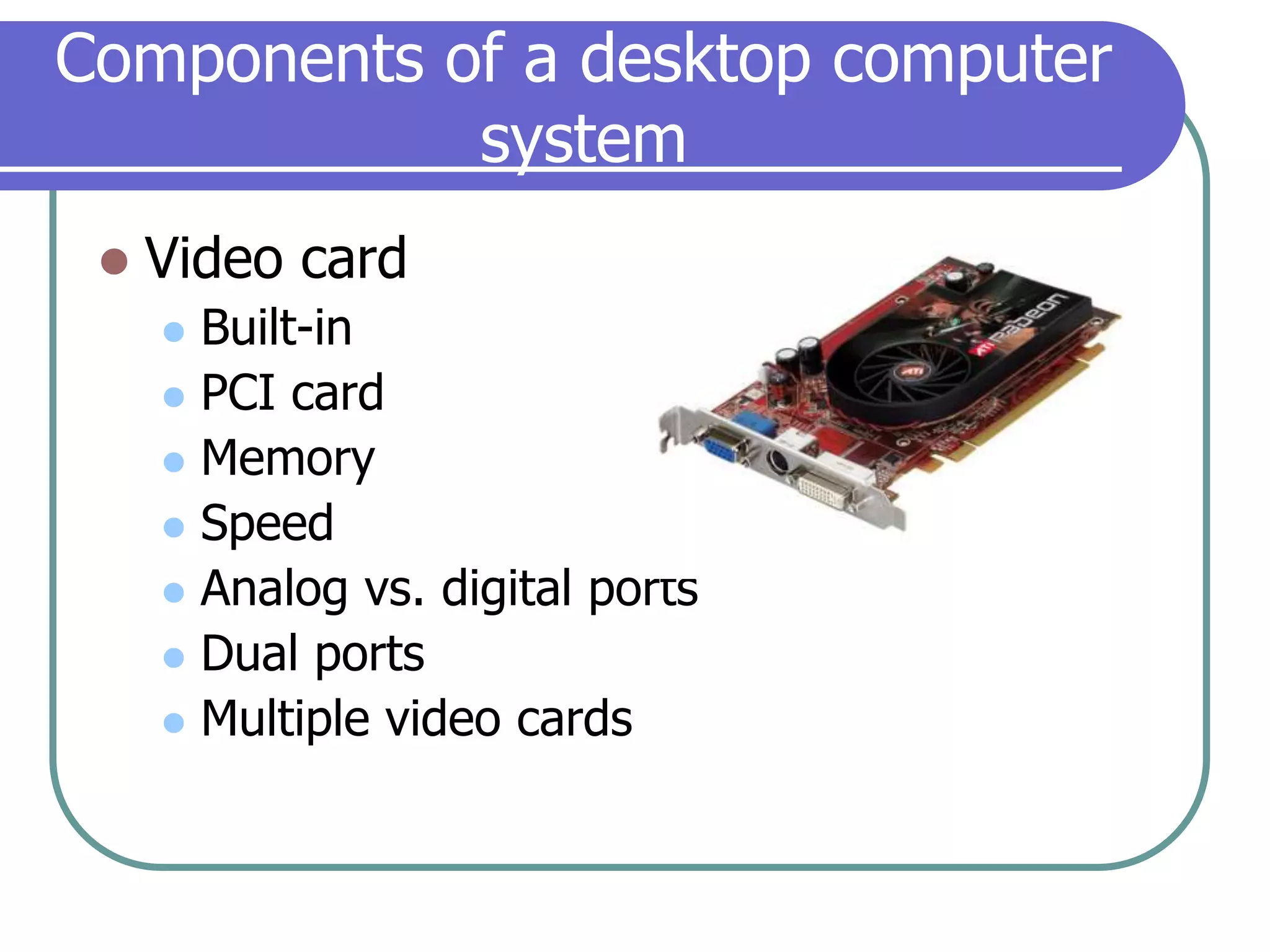
Components of a desktop computer systemVideo cardBuilt-inPCI cardMemorySpeedAnalog vs. digital portsDual portsMultiple video cards
Components of a desktop computer systemModemSpeed (28kb/s – 128kb/s)Fax featureNetwork cardBuilt-in wired (100Mb/s – 1Gb/s)Wireless PCI card or USBMonitor/displayCRTLCD flat panelPlasmaHD
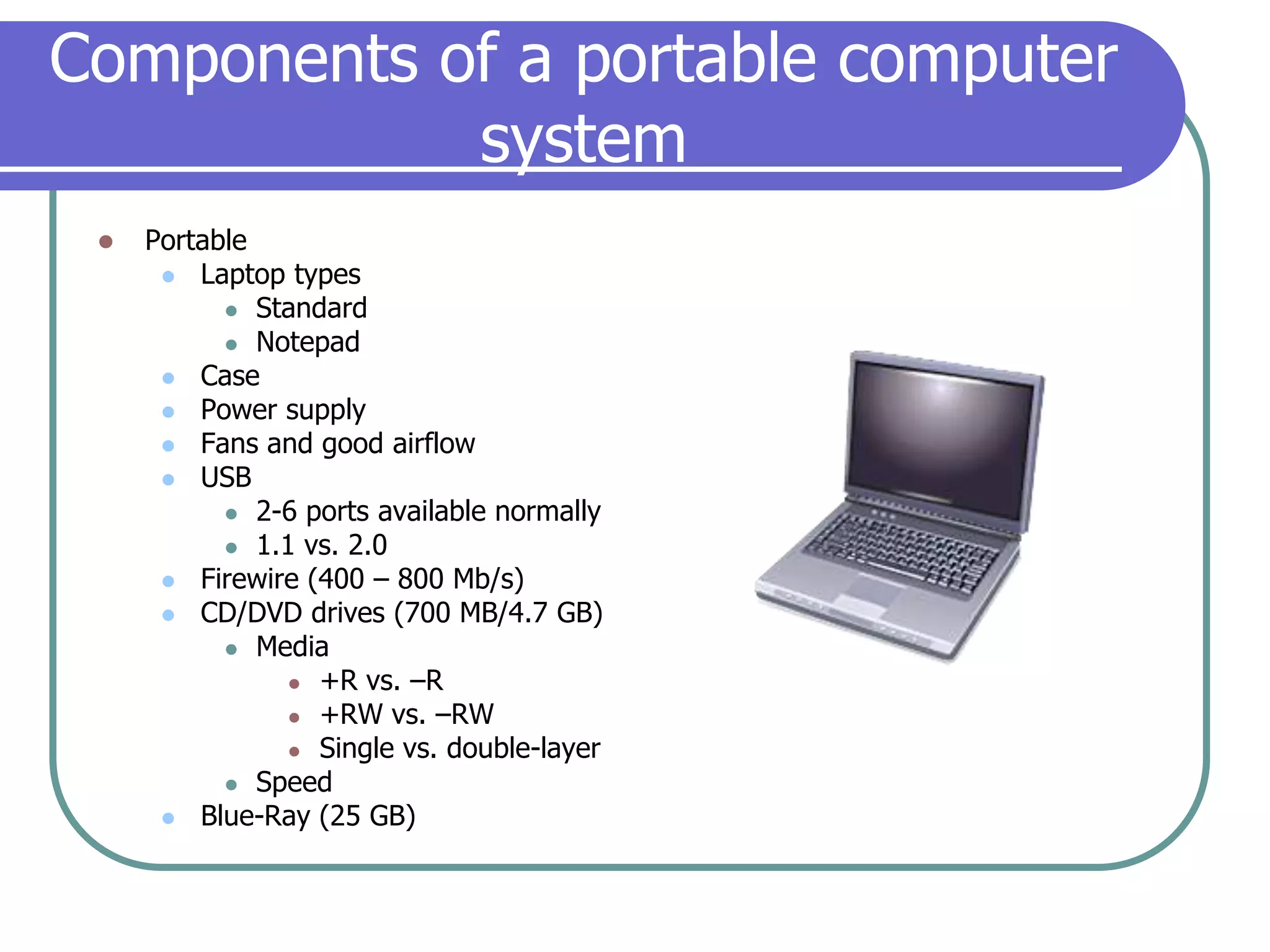
Components of a portable computer systemPortableLaptop typesStandardNotepadCasePower supplyFans and good airflowUSB2-6 ports available normally1.1 vs. 2.0Firewire (400 – 800 Mb/s)CD/DVD drives (700 MB/4.7 GB)Media+R vs. –R+RW vs. –RWSingle vs. double-layerSpeedBlue-Ray (25 GB)
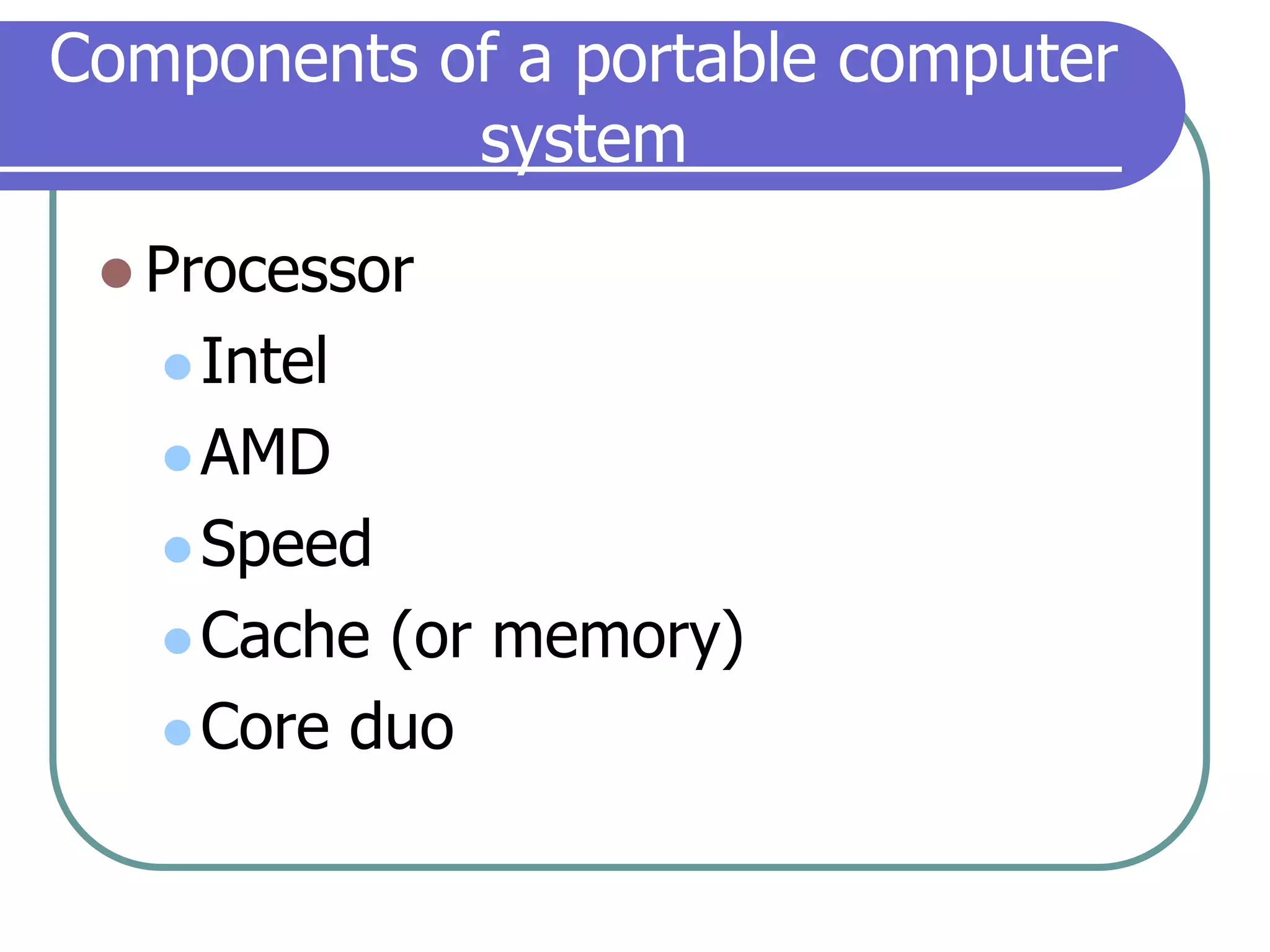
Components of a portable computer systemProcessorIntelAMDSpeedCache (or memory)Core duo
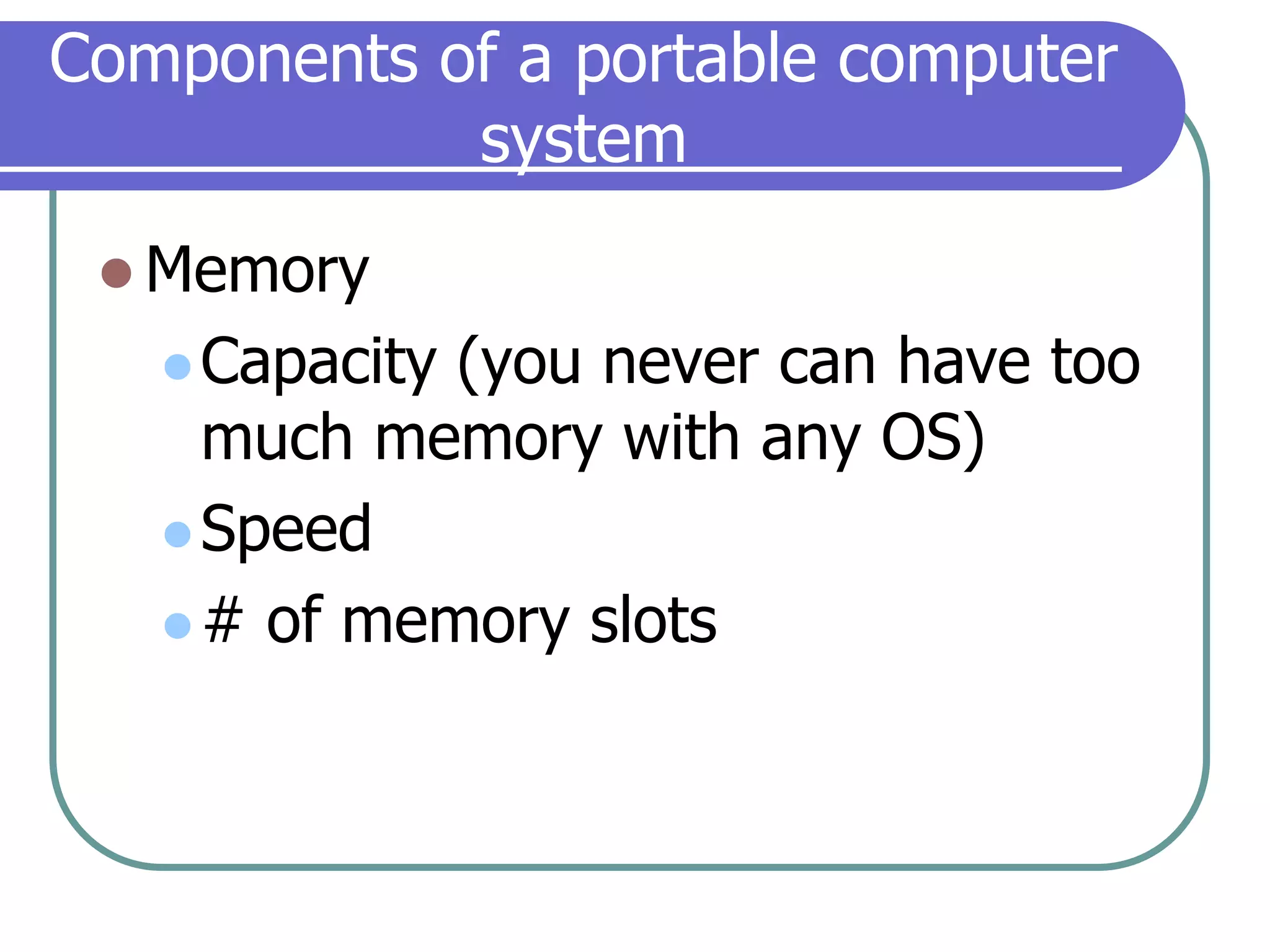
Components of a portable computer systemMemoryCapacity (you never can have too much memory with any OS)Speed# of memory slots
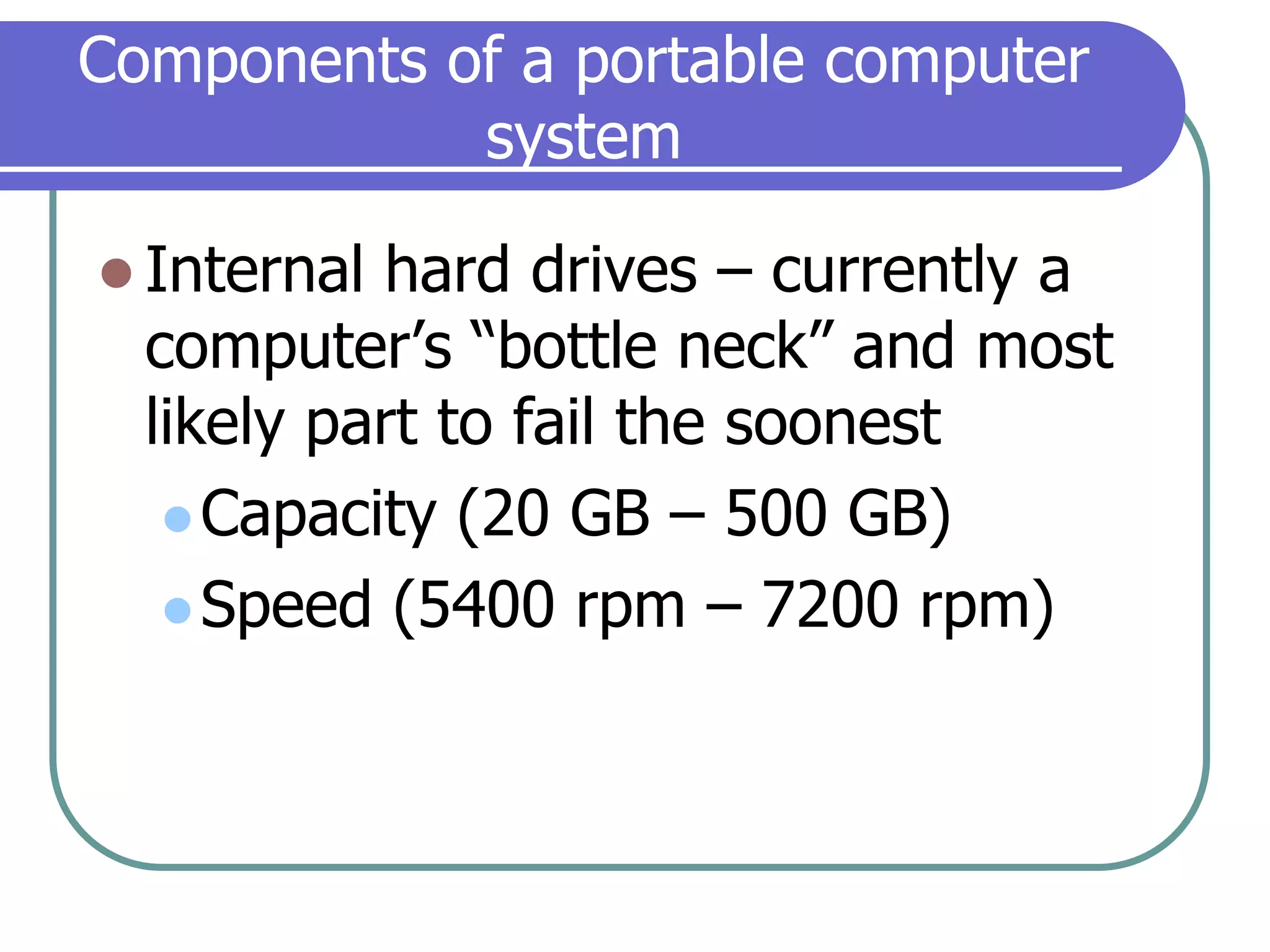
Components of a portable computer systemInternal hard drives – currently a computer’s “bottle neck” and most likely part to fail the soonestCapacity (20 GB – 500 GB)Speed (5400 rpm – 7200 rpm)
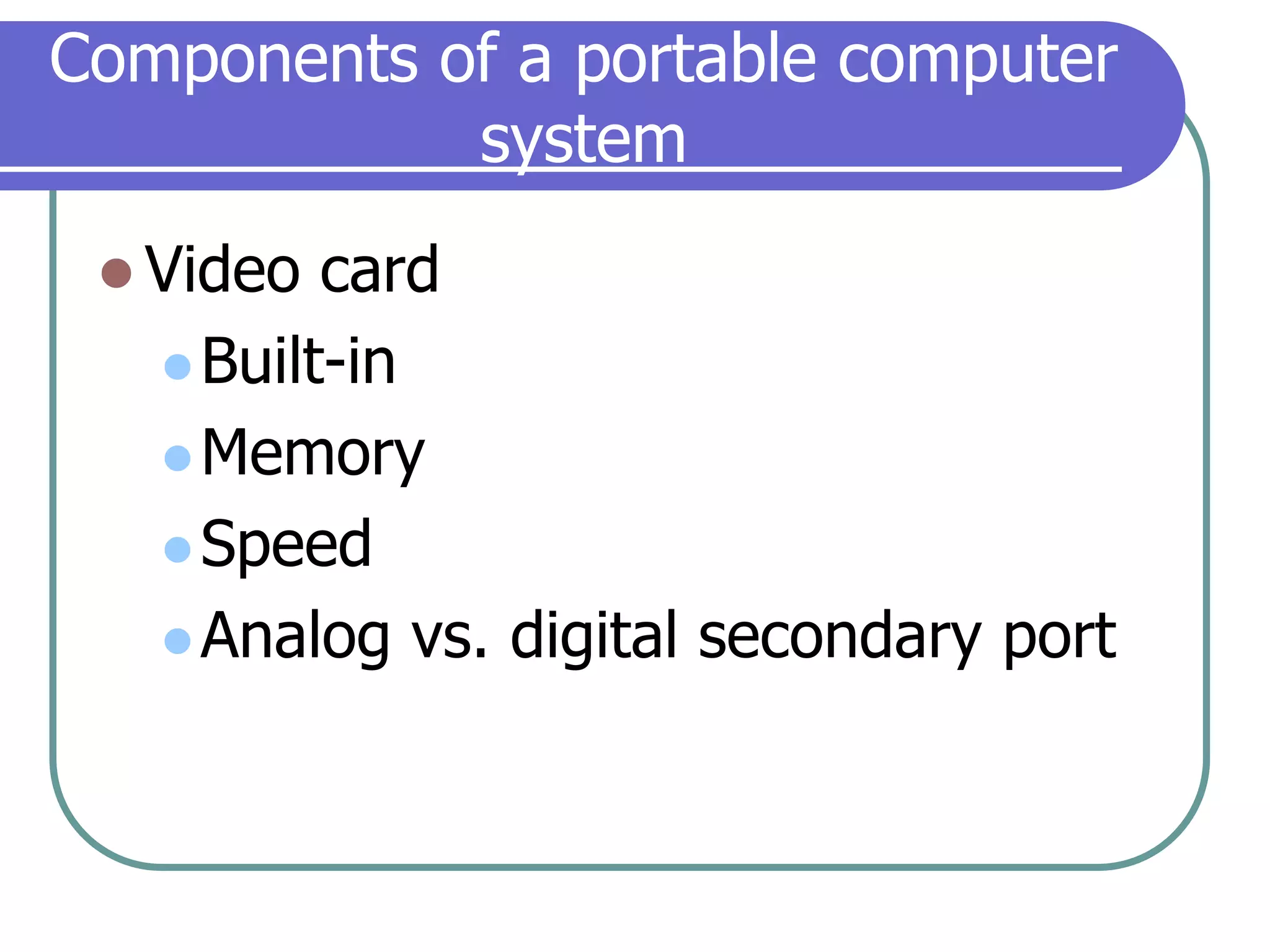
Components of a portable computer systemVideo cardBuilt-inMemorySpeedAnalog vs. digital secondary port
Components of a portable computer systemScreenResolutionBrightnessSize (12” – 17”)ModemSpeed (28 kb/s – 128 kb/s)Fax feature
Components of a portable computer systemNetwork cardBuilt-in wired (100Mb – 1Gb)WirelessB, G, A and NPC cardUSBBuilt-in
Components of a portable computer systemPC card slot vs. Express card slotComplete Care extra protection – well worth it; covers drops, spills, power surges, etc.
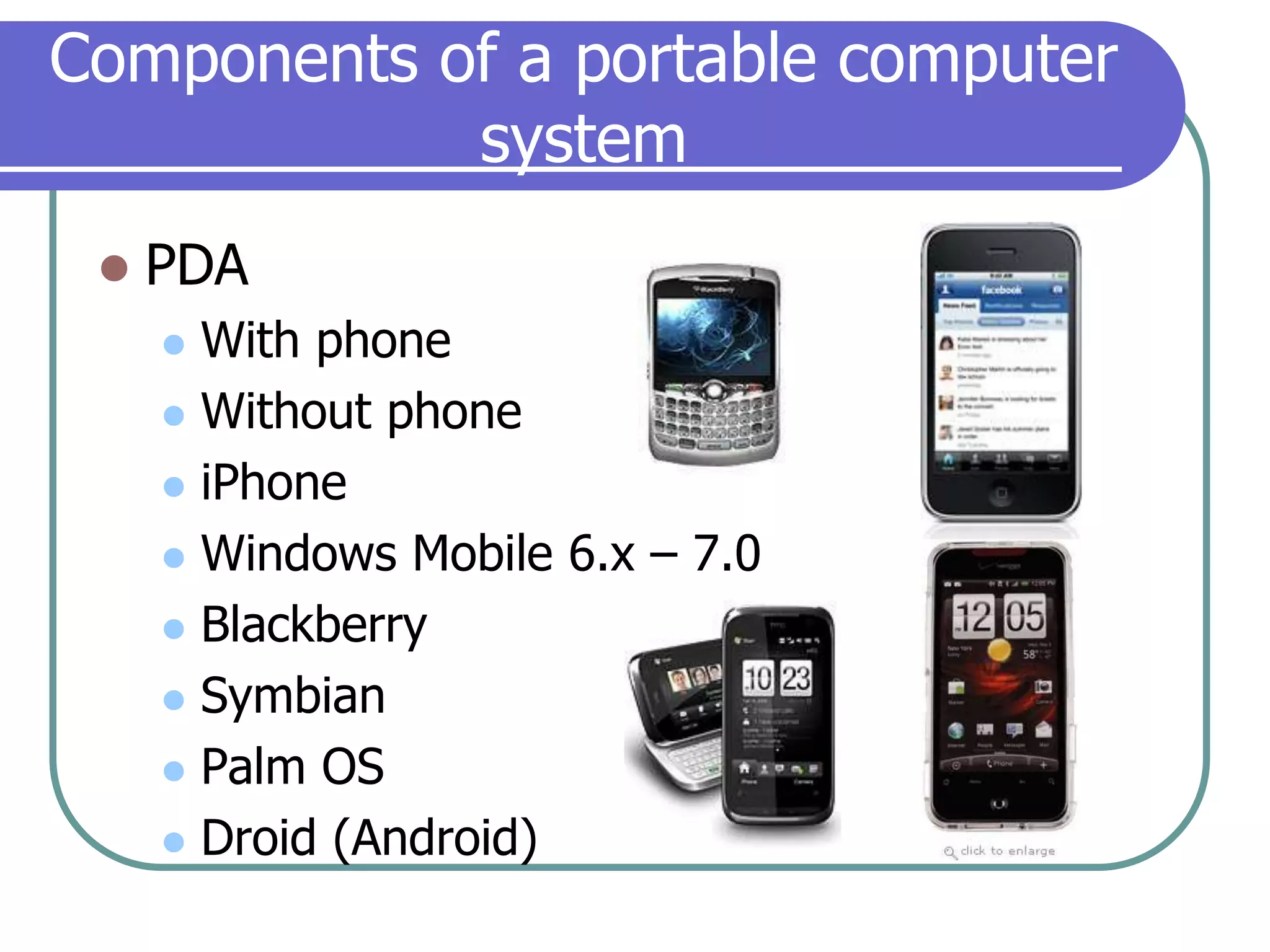
Components of a portable computer systemPDAWith phoneWithout phoneiPhoneWindows Mobile 6.x – 7.0BlackberrySymbianPalm OSDroid (Android)
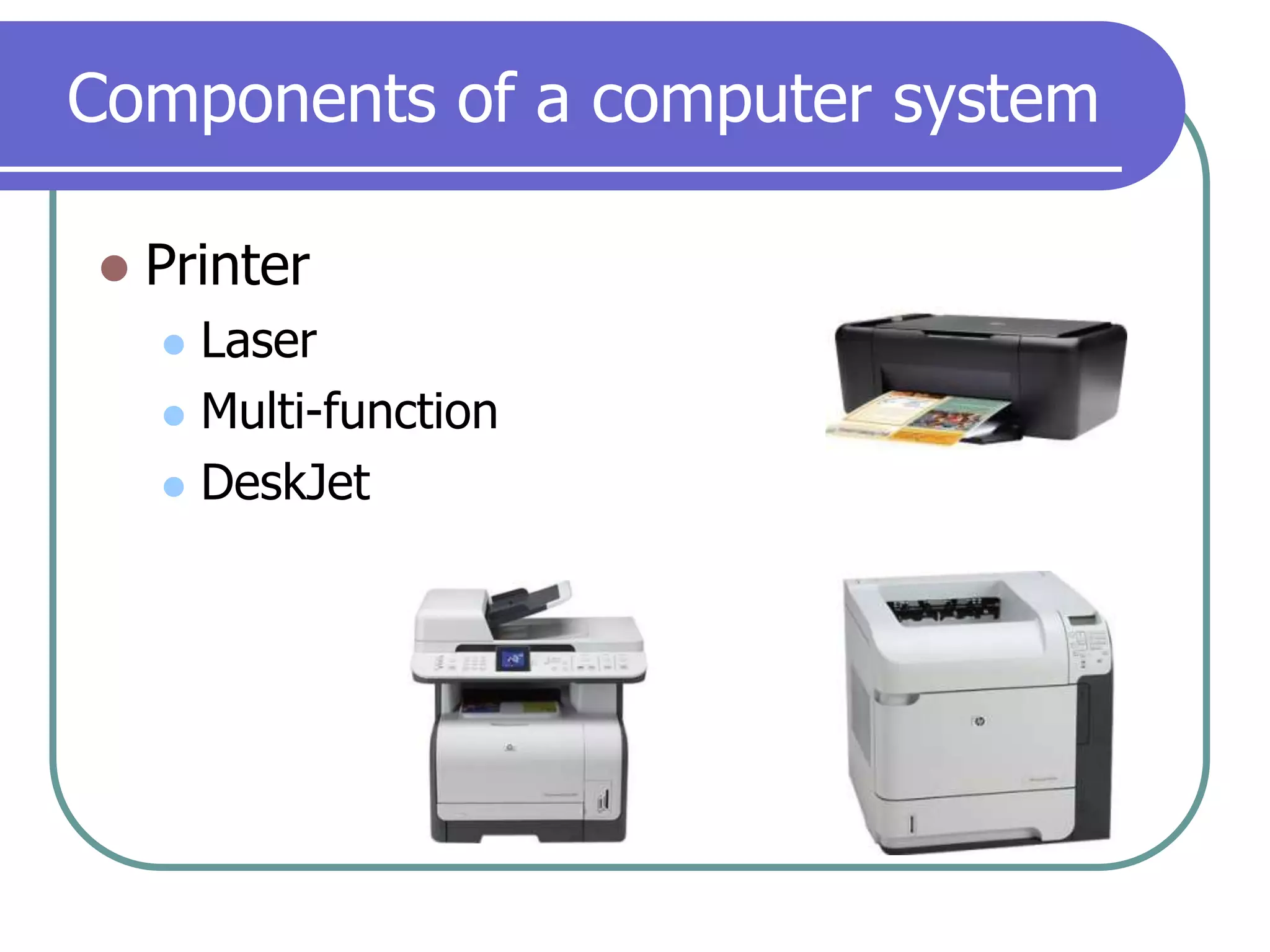
Components of a computer systemPrinterLaserMulti-functionDeskJet
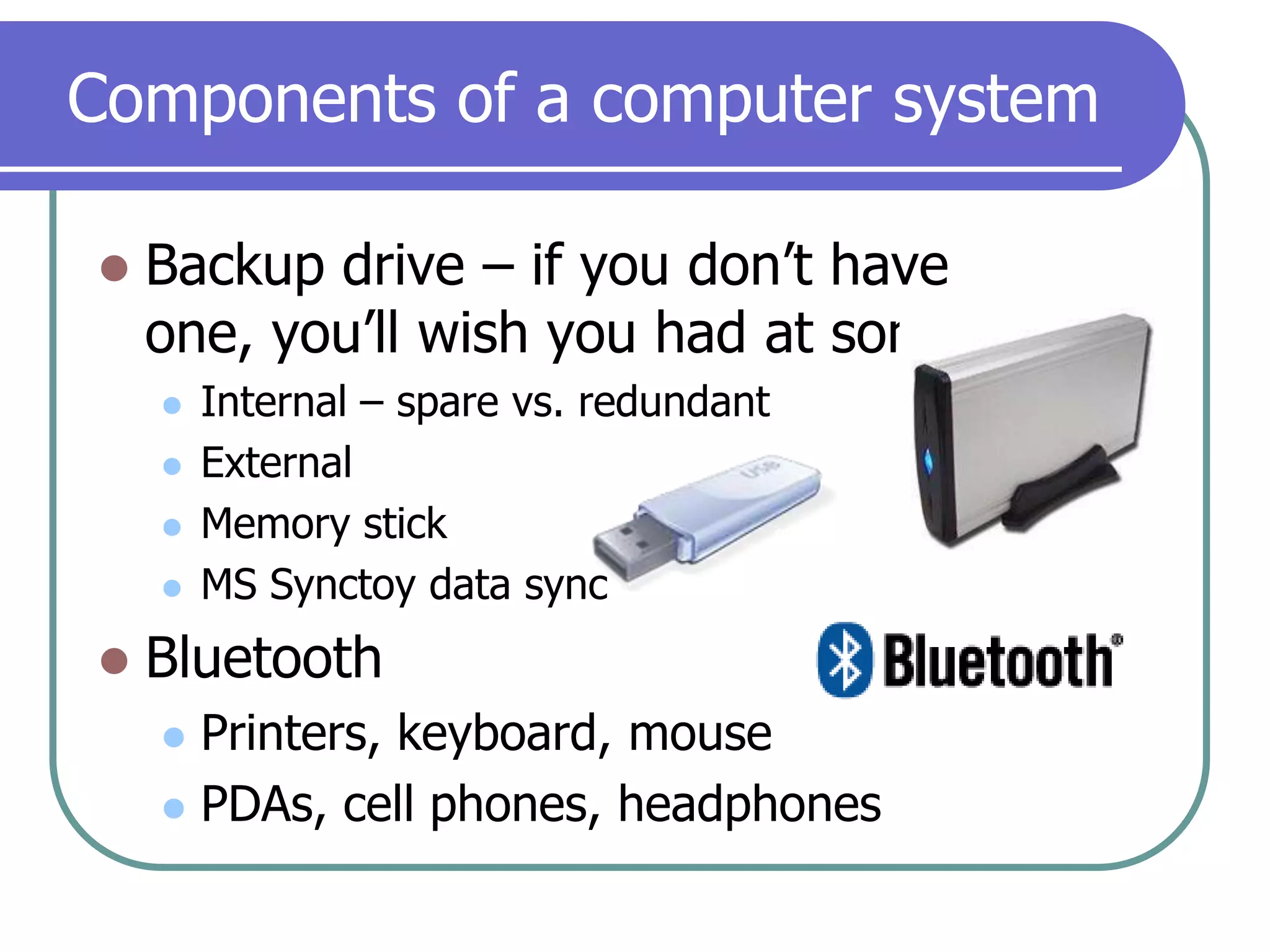
Components of a computer systemBackup drive – if you don’t have one, you’ll wish you had at some pointInternal – spare vs. redundantExternalMemory stickMS Synctoy data syncBluetooth Printers, keyboard, mousePDAs, cell phones, headphones
Components of a computer systemHardware SupportWarranty serviceLocal serviceWarranty (think of it as insurance)Length of contract (90 days – 5 years)Provider of service (Dell, IBM, HP, GE)Type (Onsite vs. take in vs. send in)Support escalation
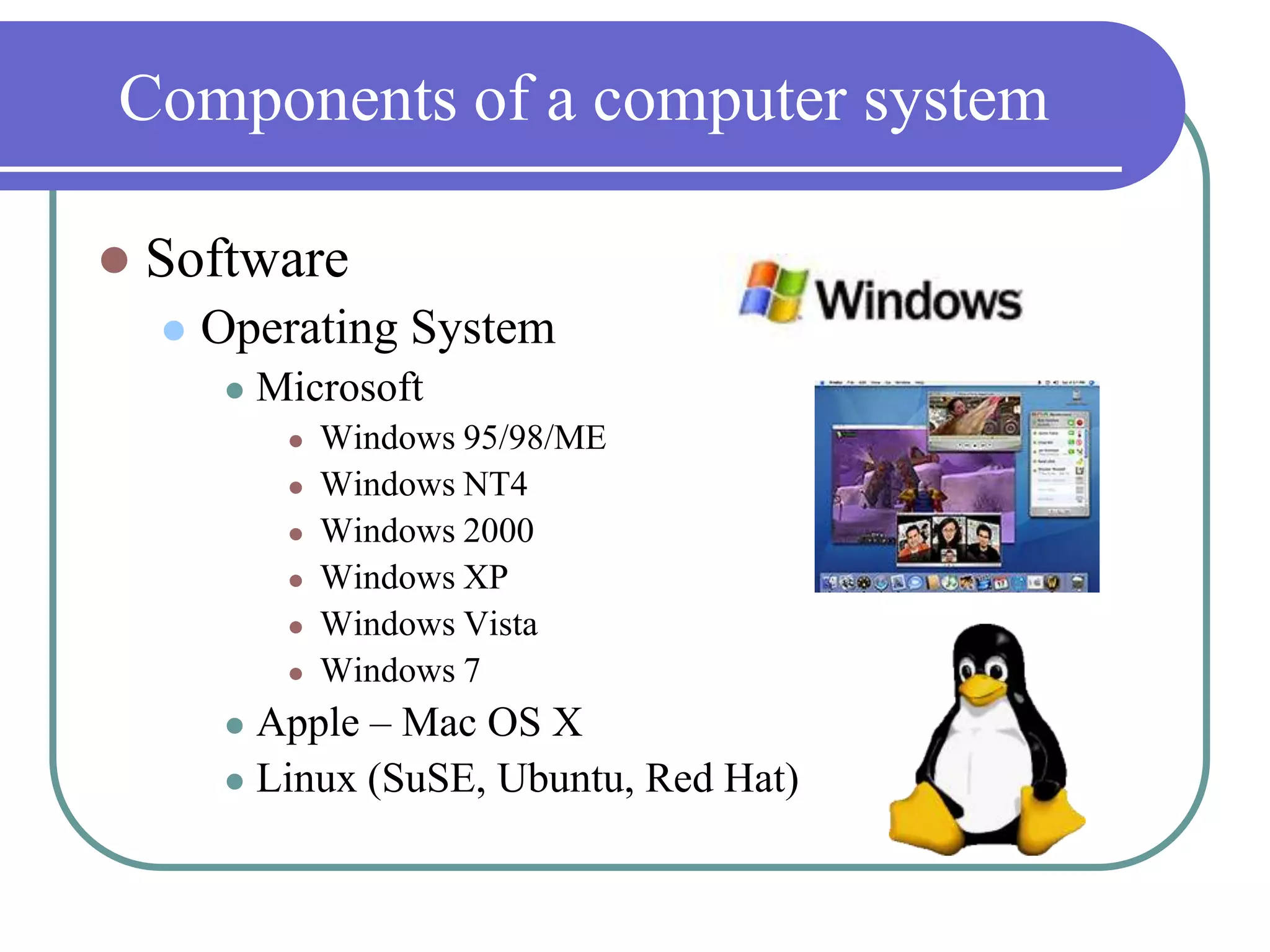
Components of a computer systemSoftwareOperating SystemMicrosoftWindows 95/98/MEWindows NT4Windows 2000Windows XPWindows VistaWindows 7Apple – Mac OS X Linux (SuSE, Ubuntu, Red Hat)
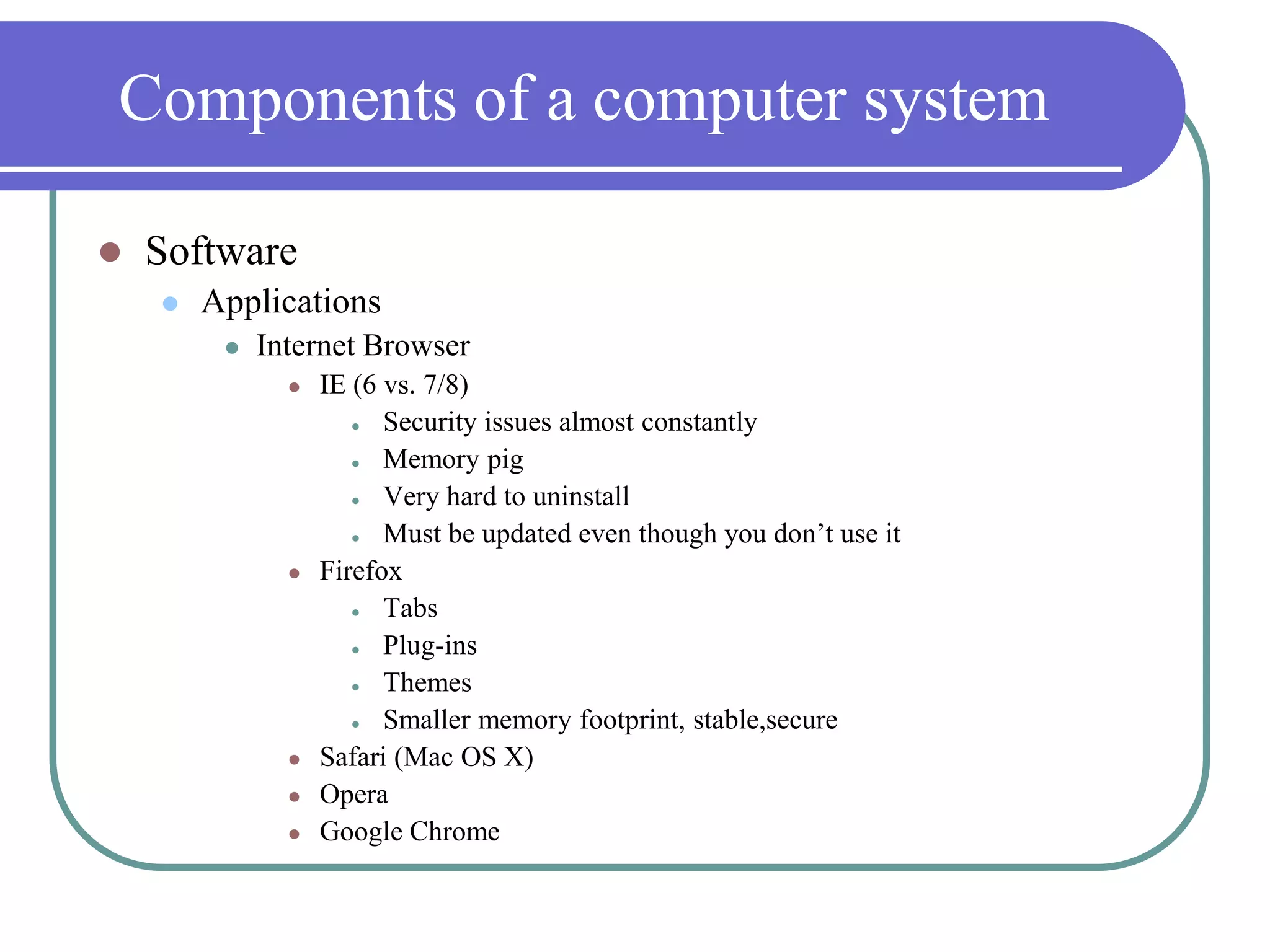
Components of a computer systemSoftwareApplicationsInternet BrowserIE (6 vs. 7/8)Security issues almost constantlyMemory pigVery hard to uninstallMust be updated even though you don’t use itFirefoxTabsPlug-insThemesSmaller memory footprint, stable,secureSafari (Mac OS X)OperaGoogle Chrome
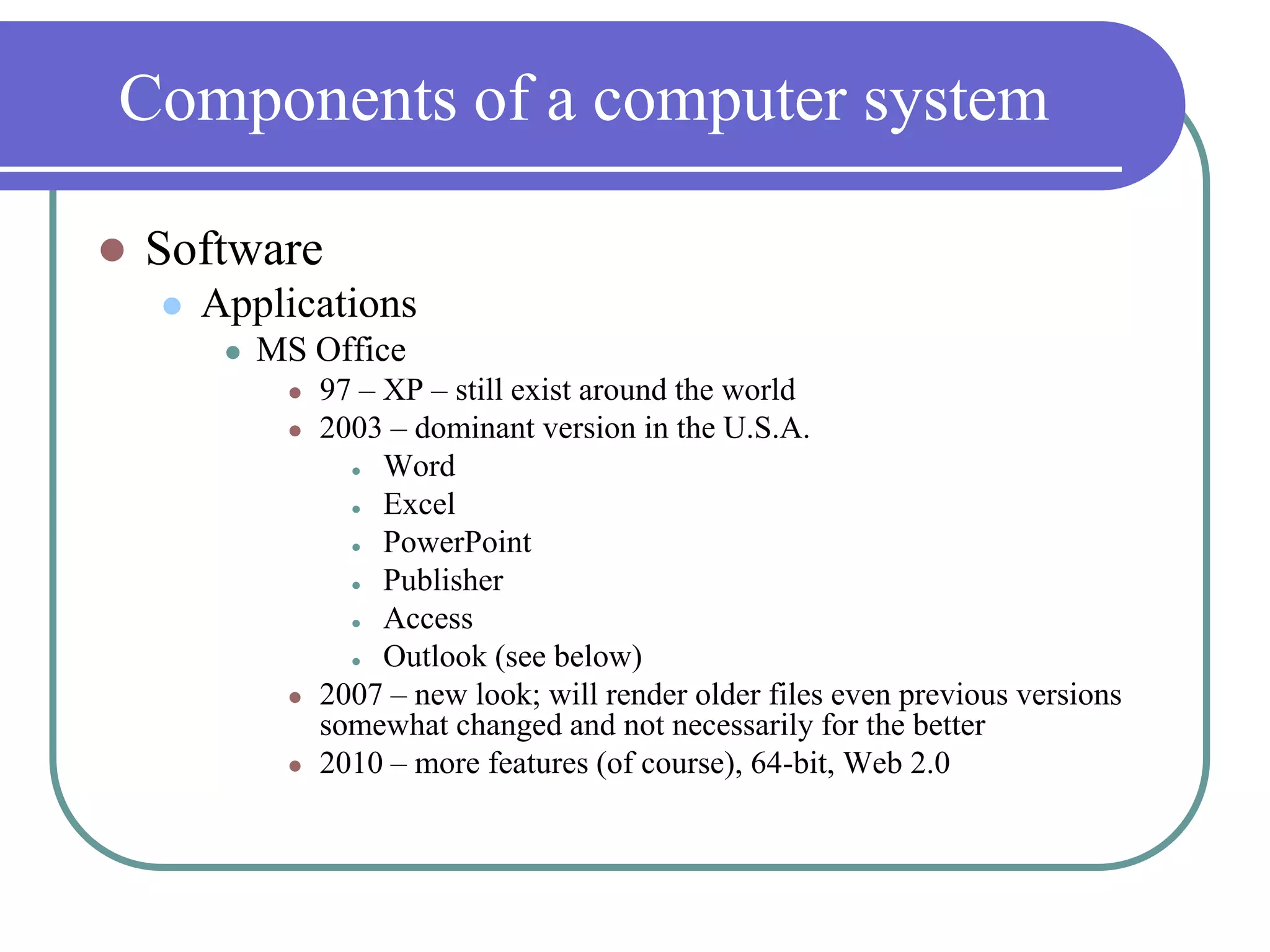
Components of a computer systemSoftwareApplicationsMS Office97 – XP – still exist around the world2003 – dominant version in the U.S.A.WordExcelPowerPointPublisherAccessOutlook (see below)2007 – new look; will render older files even previous versions somewhat changed and not necessarily for the better2010 – more features (of course), 64-bit, Web 2.0
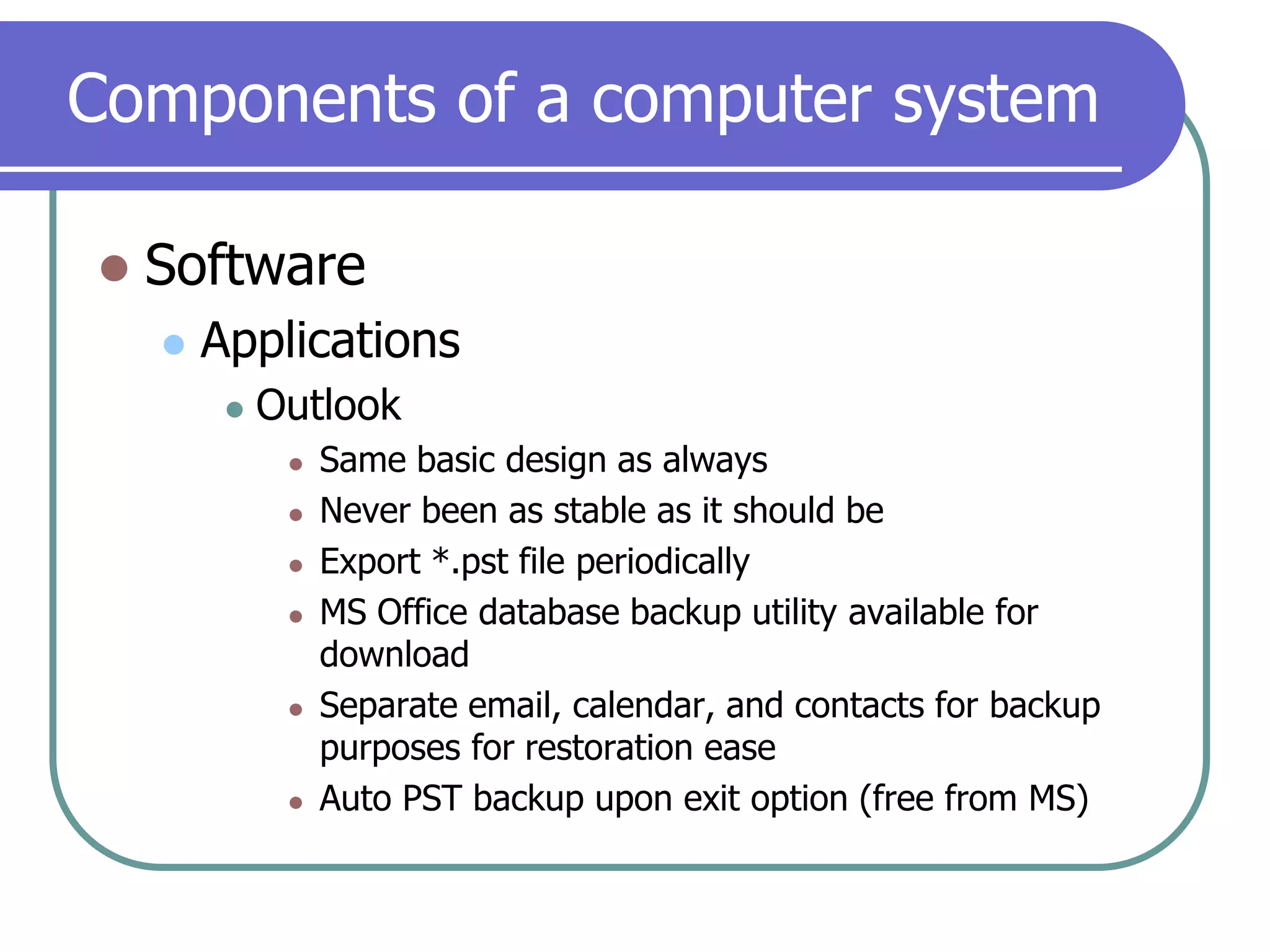
Components of a computer systemSoftwareApplicationsOutlookSame basic design as alwaysNever been as stable as it should beExport *.pst file periodicallyMS Office database backup utility available for downloadSeparate email, calendar, and contacts for backup purposes for restoration easeAuto PST backup upon exit option (free from MS)
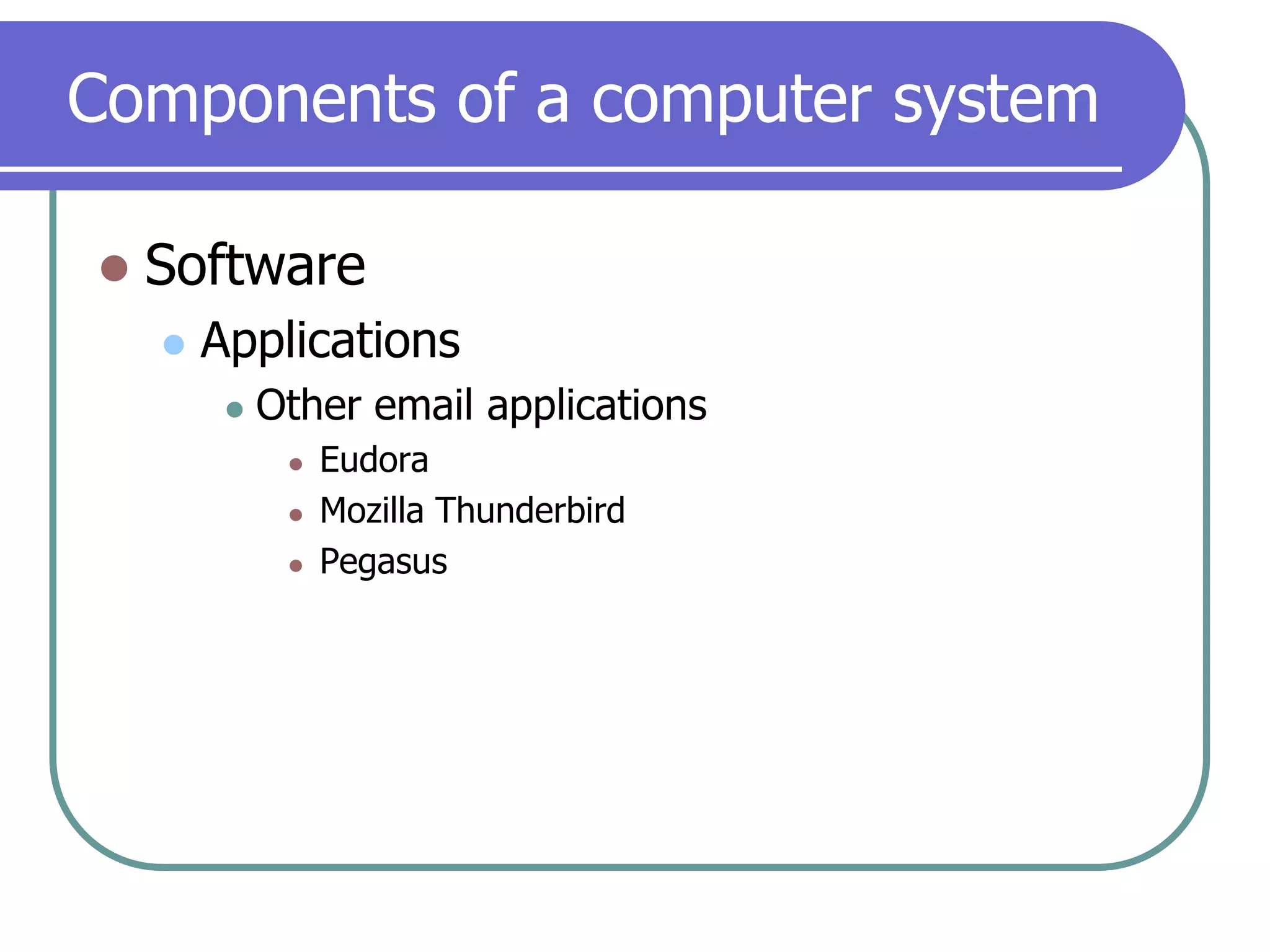
Components of a computer systemSoftwareApplicationsOther email applicationsEudoraMozilla ThunderbirdPegasus
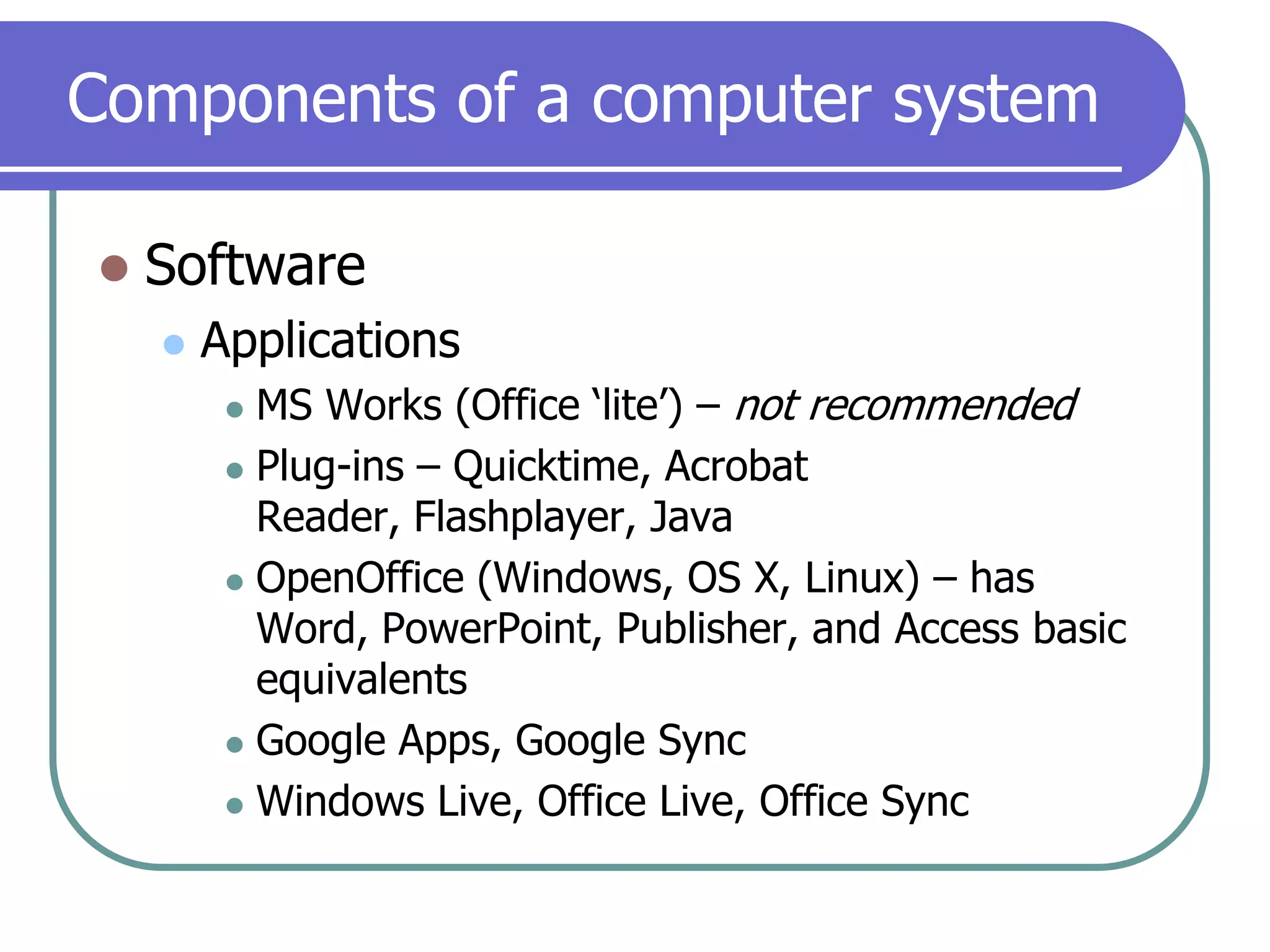
Components of a computer systemSoftwareApplicationsMS Works (Office ‘lite’) – not recommendedPlug-ins – Quicktime, Acrobat Reader, Flashplayer, JavaOpenOffice (Windows, OS X, Linux) – has Word, PowerPoint, Publisher, and Access basic equivalentsGoogle Apps, Google SyncWindows Live, Office Live, Office Sync
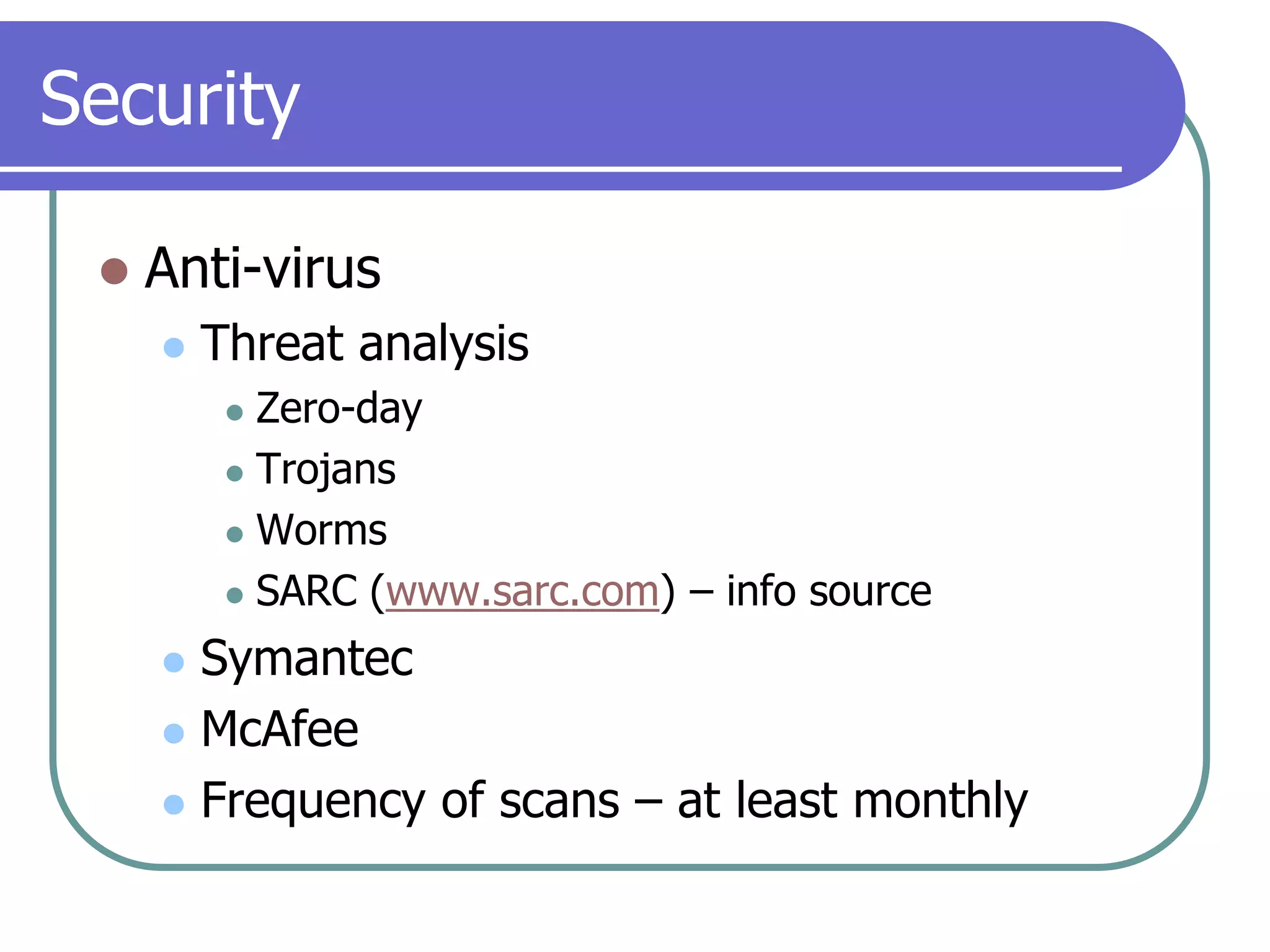
SecurityAnti-virusThreat analysisZero-dayTrojansWormsSARC (www.sarc.com) – info sourceSymantecMcAfeeFrequency of scans – at least monthly
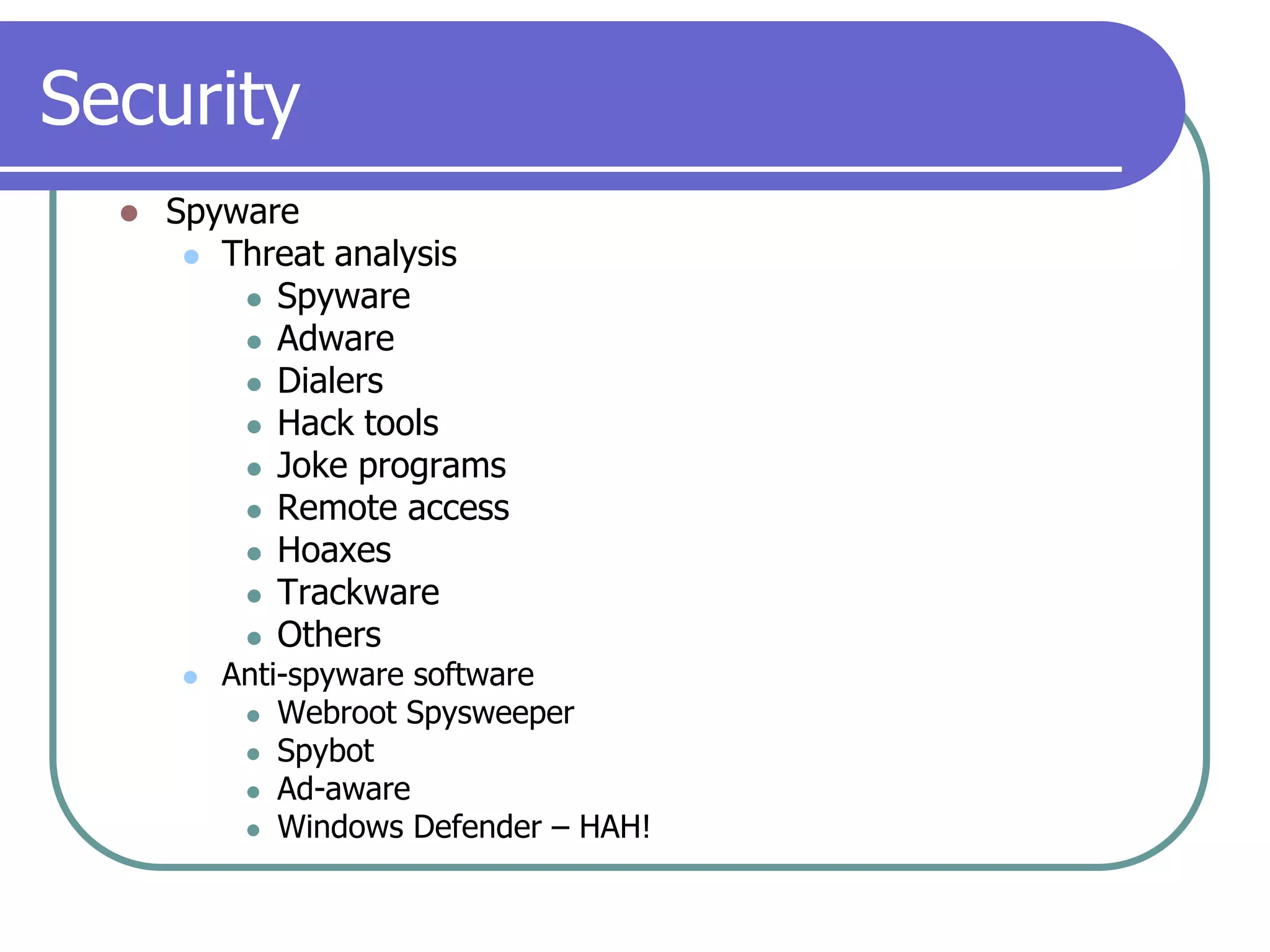
SecuritySpywareThreat analysisSpywareAdwareDialersHack toolsJoke programsRemote accessHoaxesTrackwareOthersAnti-spyware softwareWebroot SpysweeperSpybotAd-awareWindows Defender – HAH!
SecurityEmail that can steal - examplesThreat analysis (see email PDFs)Spam/Junk emailScamsBotsRoot kitsIf it’s too good to be true, it probably isAlternate web-based email address for sign-upsComplex passwords and IDsAnti-spam softwareSymantecMcAfee
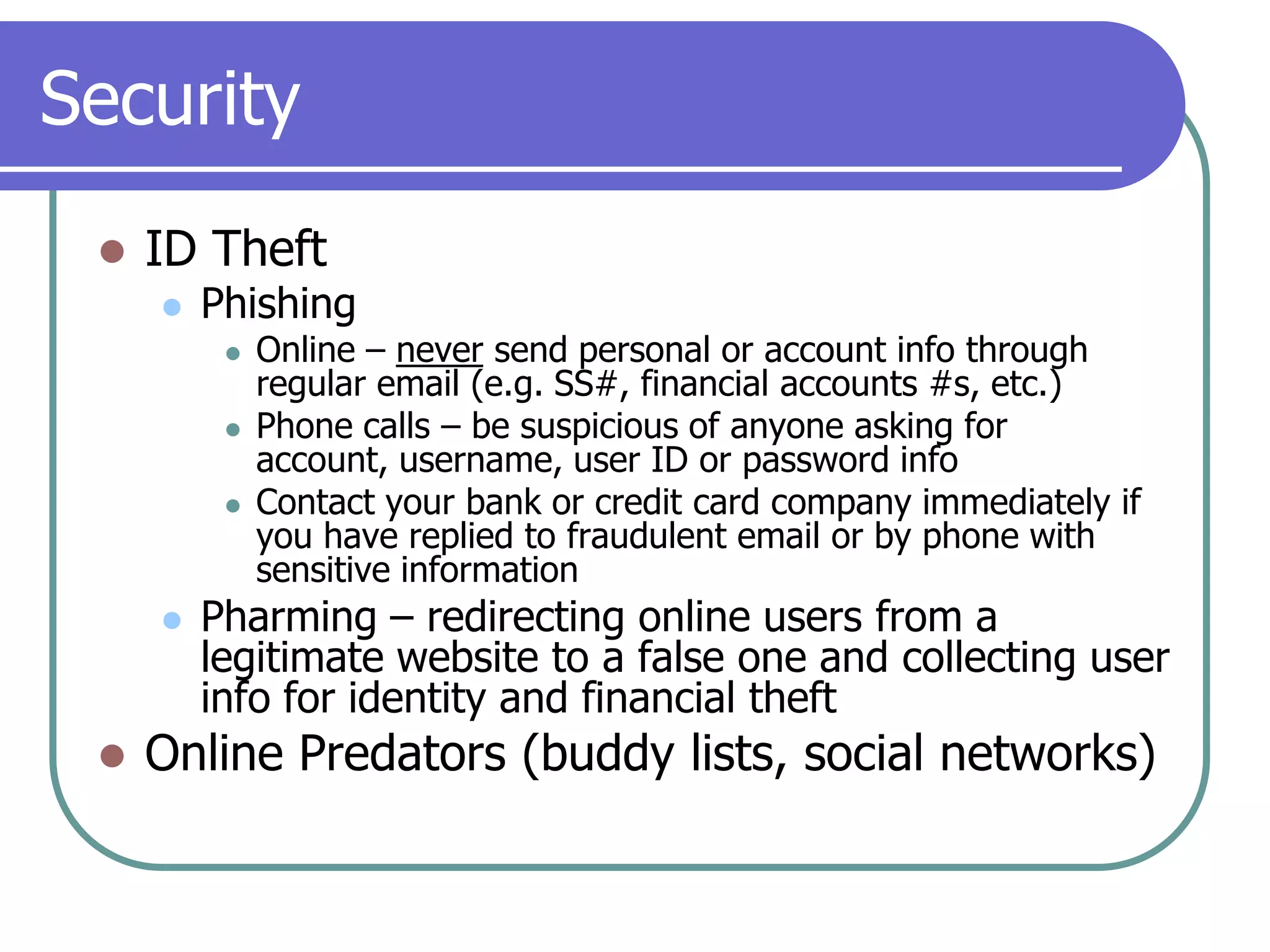
SecurityID TheftPhishingOnline – never send personal or account info through regular email (e.g. SS#, financial accounts #s, etc.)Phone calls – be suspicious of anyone asking for account, username, user ID or password infoContact your bank or credit card company immediately if you have replied to fraudulent email or by phone with sensitive informationPharming – redirecting online users from a legitimate website to a false one and collecting user info for identity and financial theftOnline Predators (buddy lists, social networks)
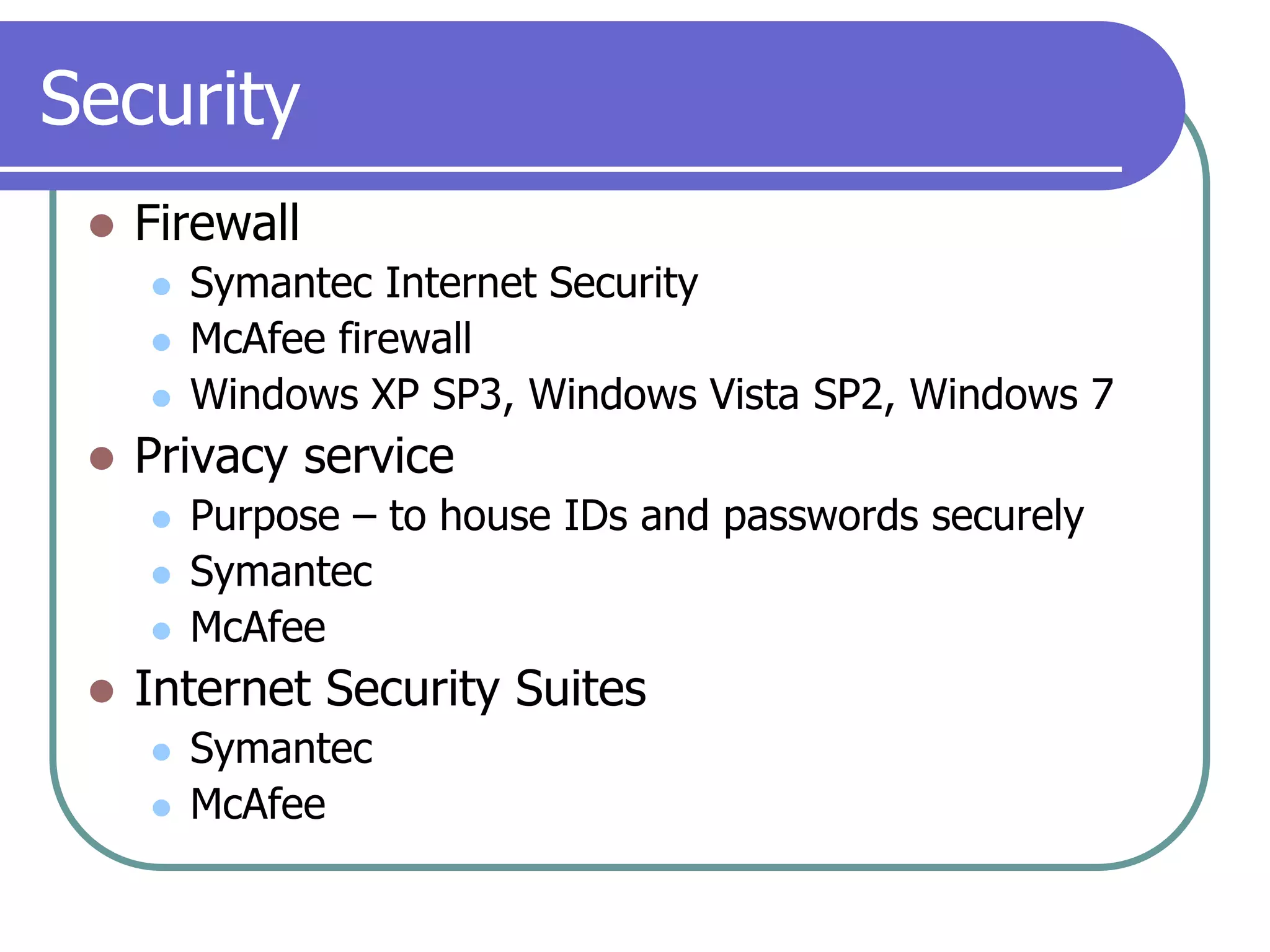
SecurityFirewallSymantec Internet SecurityMcAfee firewallWindows XP SP3, Windows Vista SP2, Windows 7Privacy servicePurpose – to house IDs and passwords securelySymantecMcAfeeInternet Security SuitesSymantecMcAfee
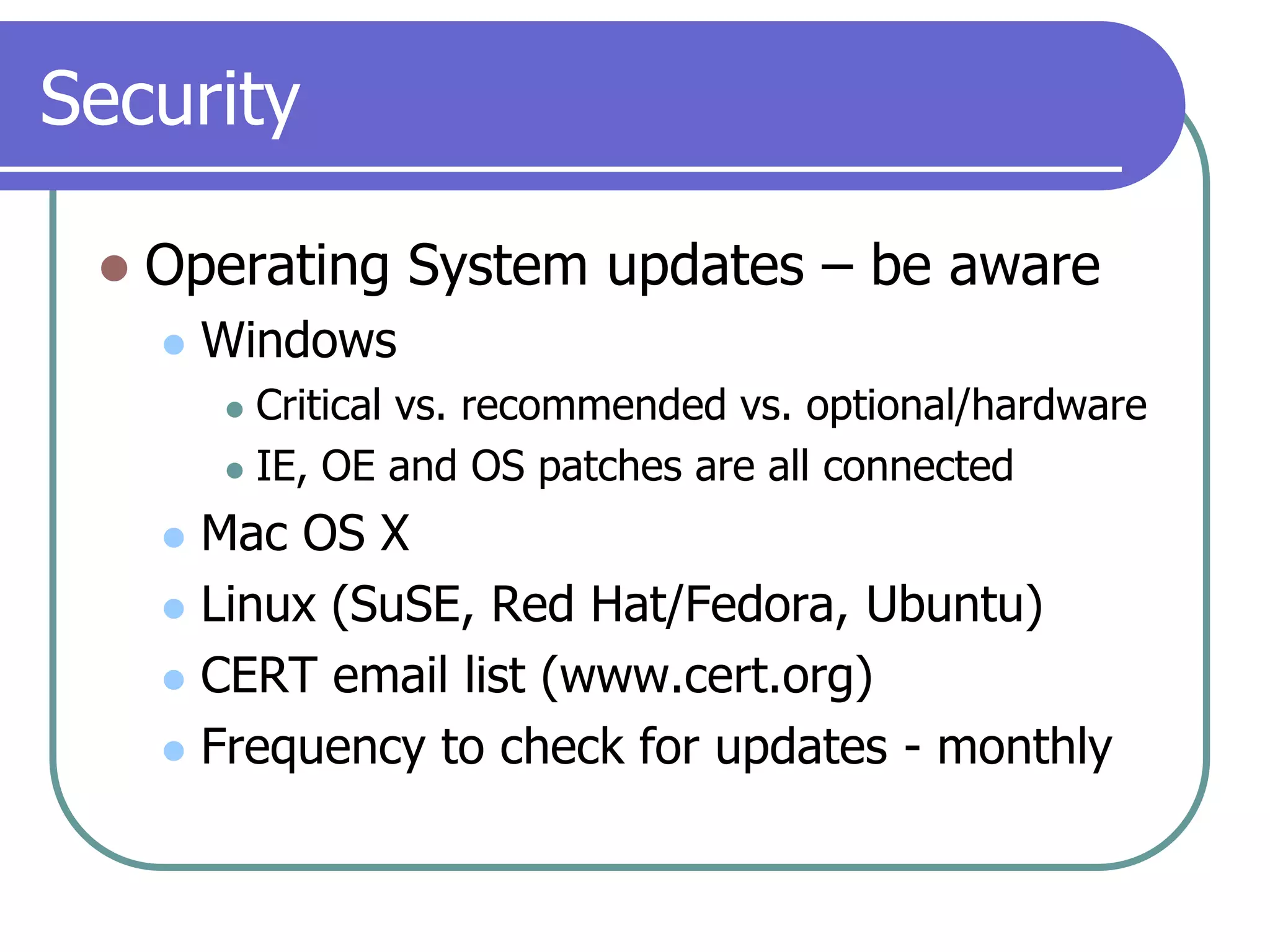
SecurityOperating System updates – be awareWindowsCritical vs. recommended vs. optional/hardwareIE, OE and OS patches are all connectedMac OS XLinux (SuSE, Red Hat/Fedora, Ubuntu)CERT email list (www.cert.org)Frequency to check for updates - monthly
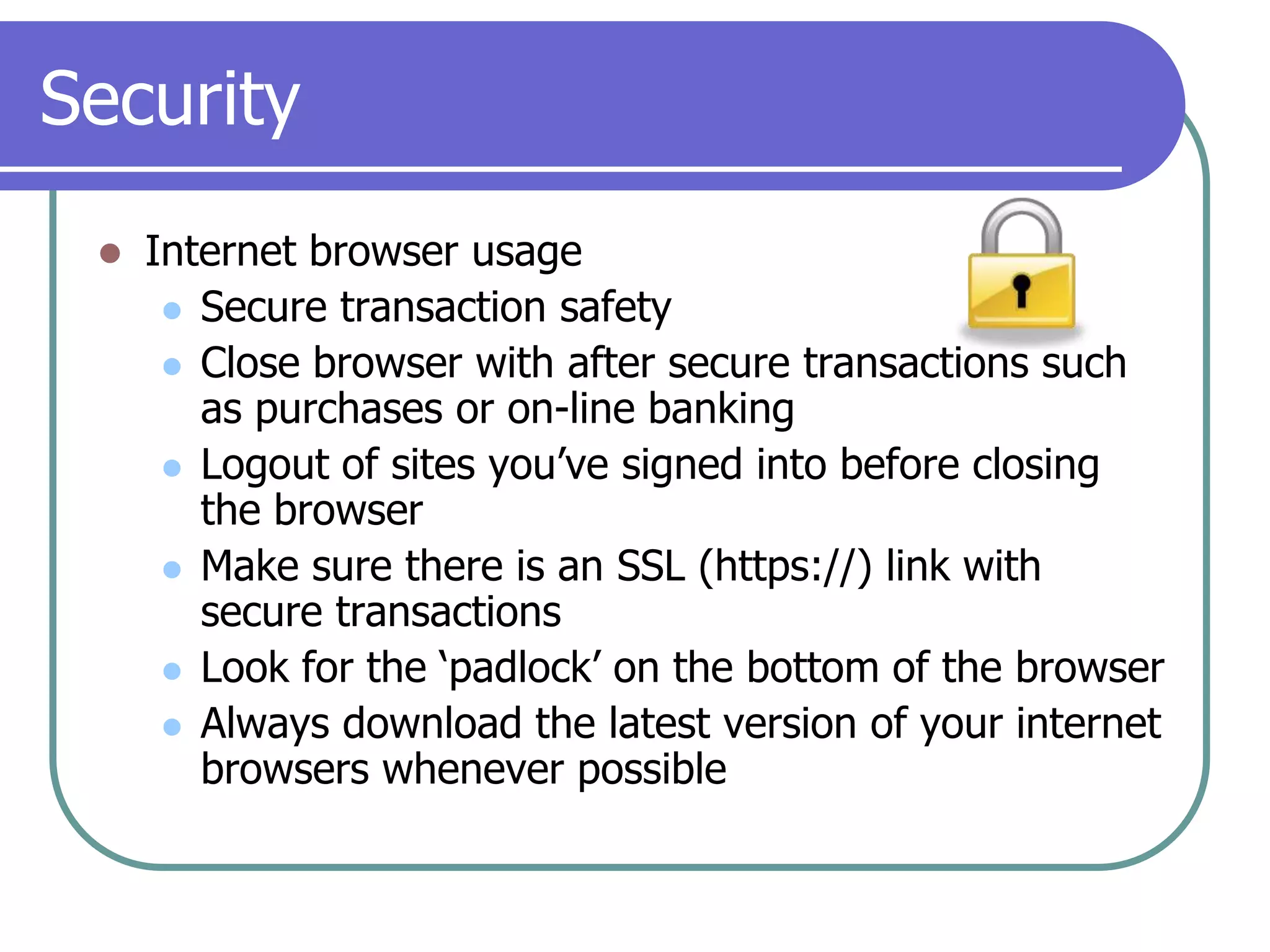
SecurityInternet browser usageSecure transaction safetyClose browser with after secure transactions such as purchases or on-line bankingLogout of sites you’ve signed into before closing the browserMake sure there is an SSL (https://) link with secure transactionsLook for the ‘padlock’ on the bottom of the browserAlways download the latest version of your internet browsers whenever possible
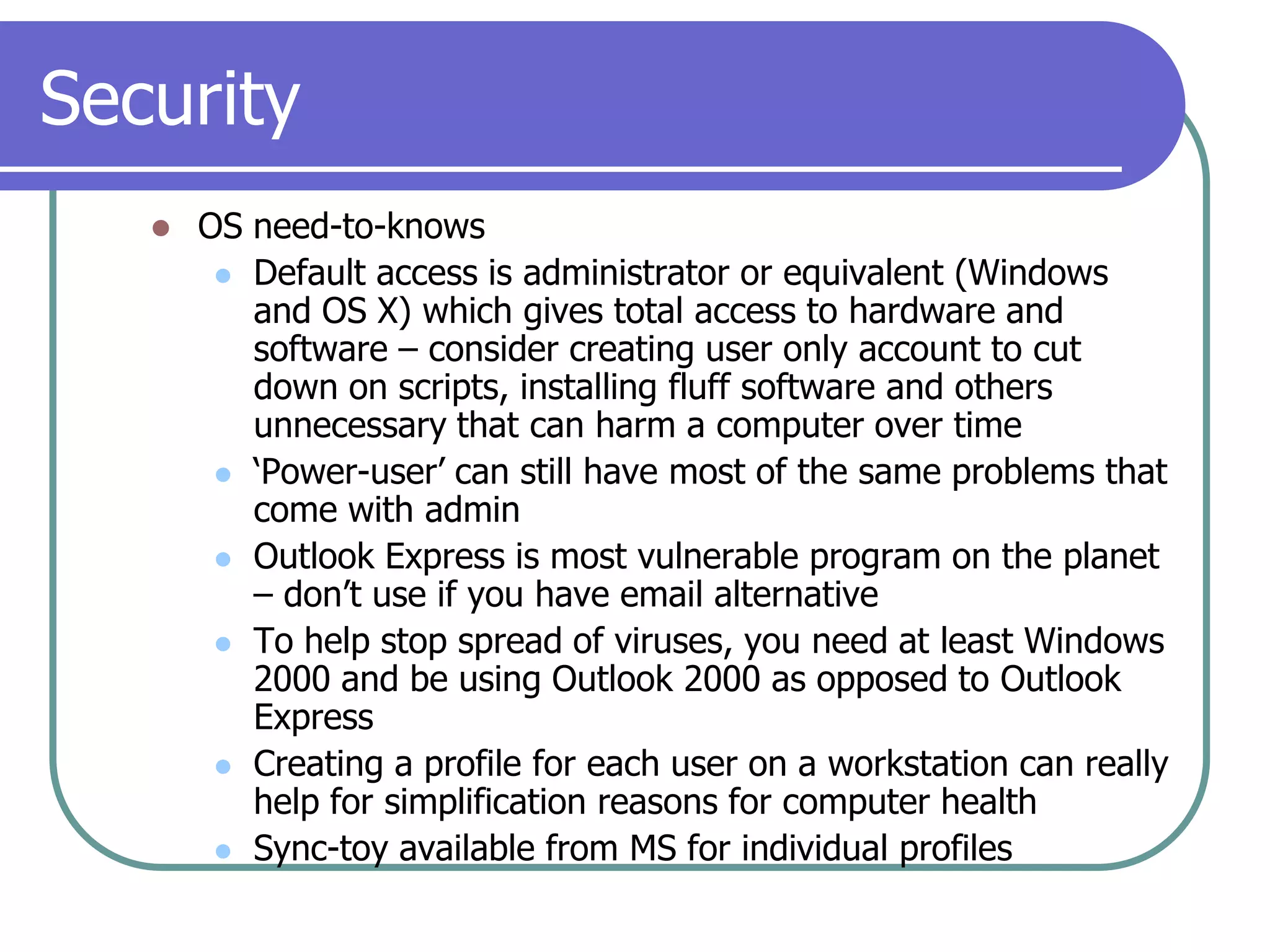
SecurityOS need-to-knowsDefault access is administrator or equivalent (Windows and OS X) which gives total access to hardware and software – consider creating user only account to cut down on scripts, installing fluff software and others unnecessary that can harm a computer over time‘Power-user’ can still have most of the same problems that come with adminOutlook Express is most vulnerable program on the planet – don’t use if you have email alternativeTo help stop spread of viruses, you need at least Windows 2000 and be using Outlook 2000 as opposed to Outlook ExpressCreating a profile for each user on a workstation can really help for simplification reasons for computer healthSync-toy available from MS for individual profiles
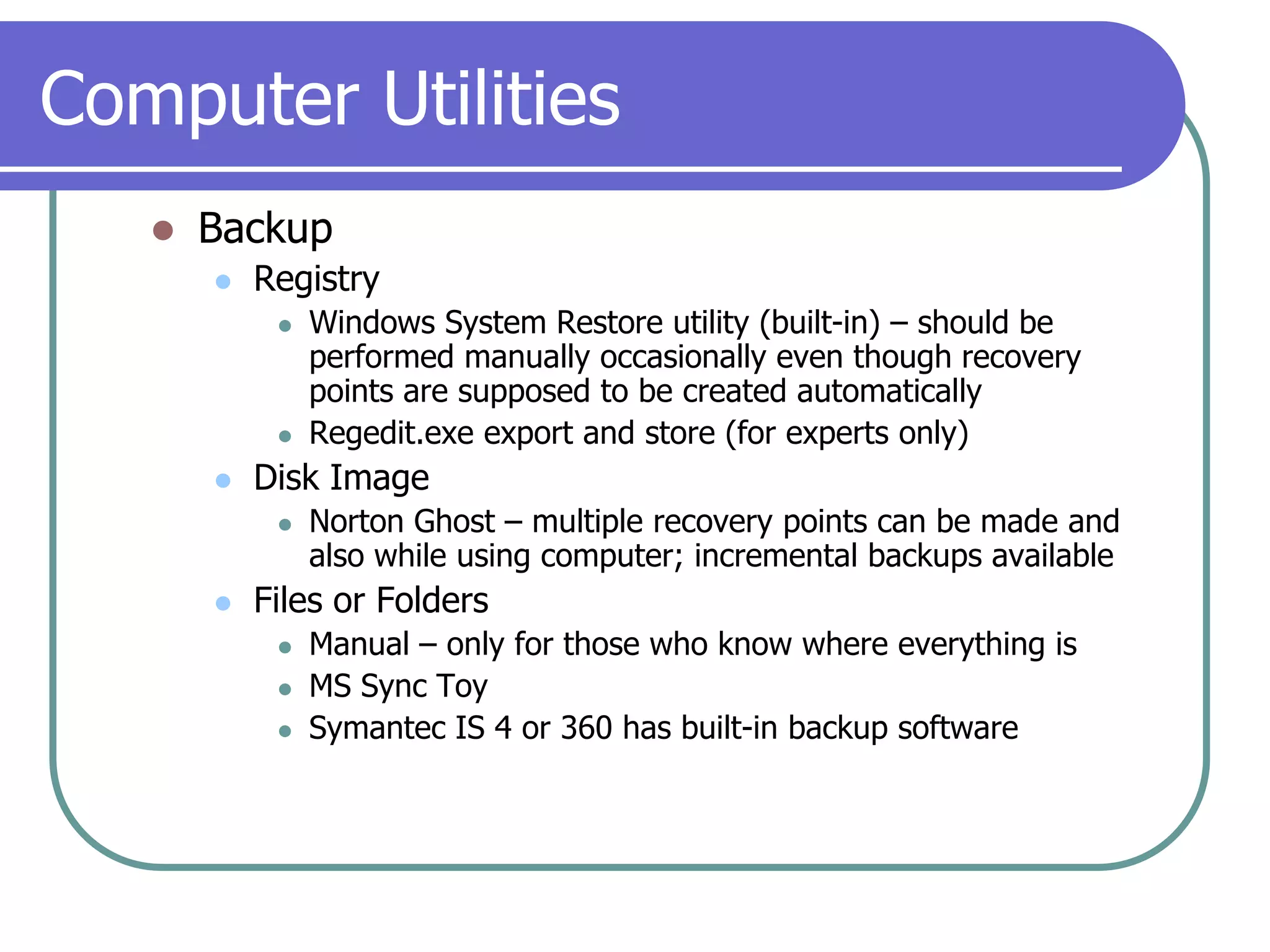
Computer UtilitiesBackupRegistryWindows System Restore utility (built-in) – should be performed manually occasionally even though recovery points are supposed to be created automaticallyRegedit.exe export and store (for experts only)Disk ImageNorton Ghost – multiple recovery points can be made and also while using computer; incremental backups availableFiles or FoldersManual – only for those who know where everything isMS Sync ToySymantec IS 4 or 360 has built-in backup software
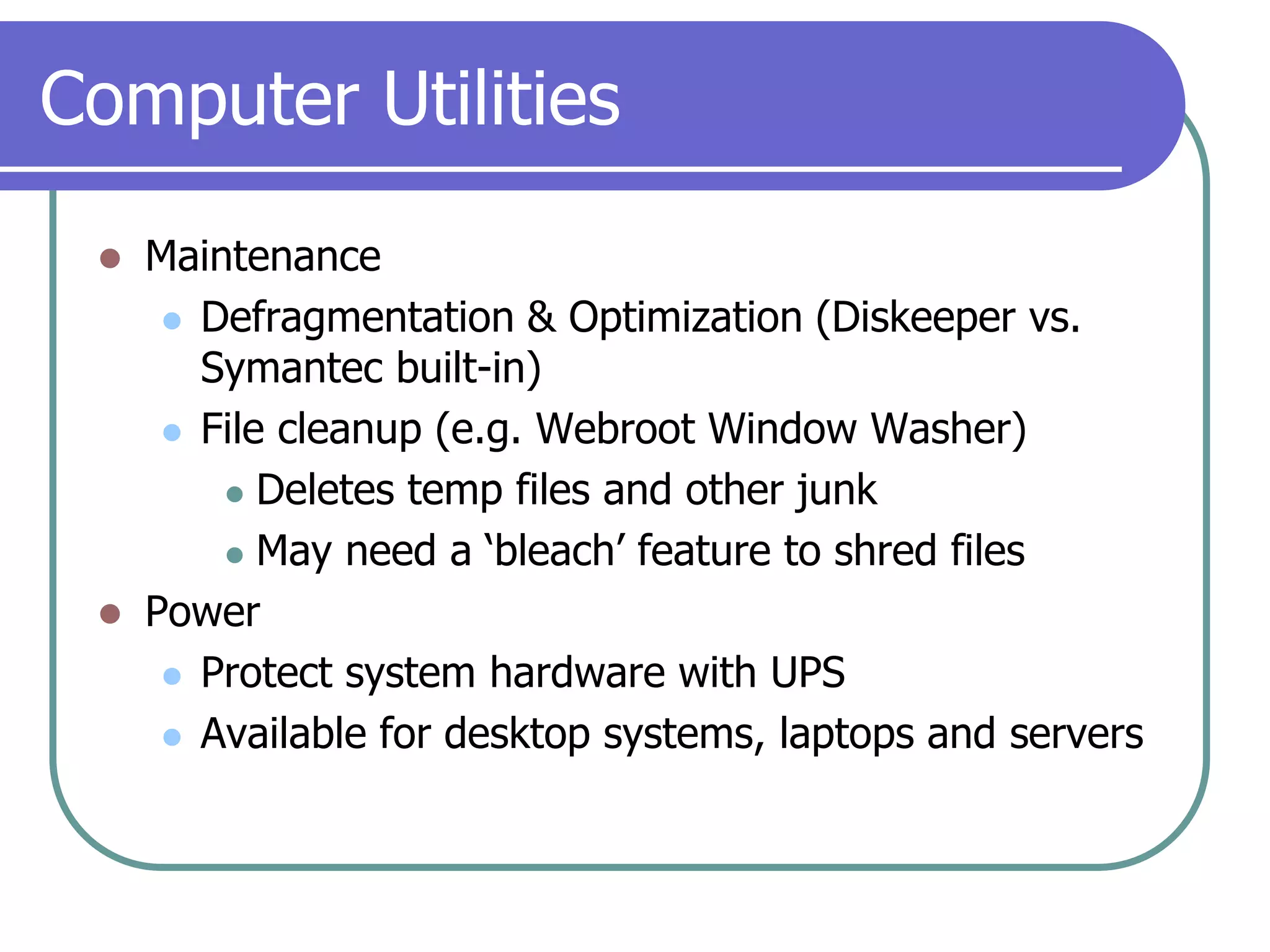
Computer UtilitiesMaintenanceDefragmentation & Optimization (Diskeeper vs. Symantec built-in)File cleanup (e.g. Webroot Window Washer)Deletes temp files and other junkMay need a ‘bleach’ feature to shred filesPowerProtect system hardware with UPSAvailable for desktop systems, laptops and servers
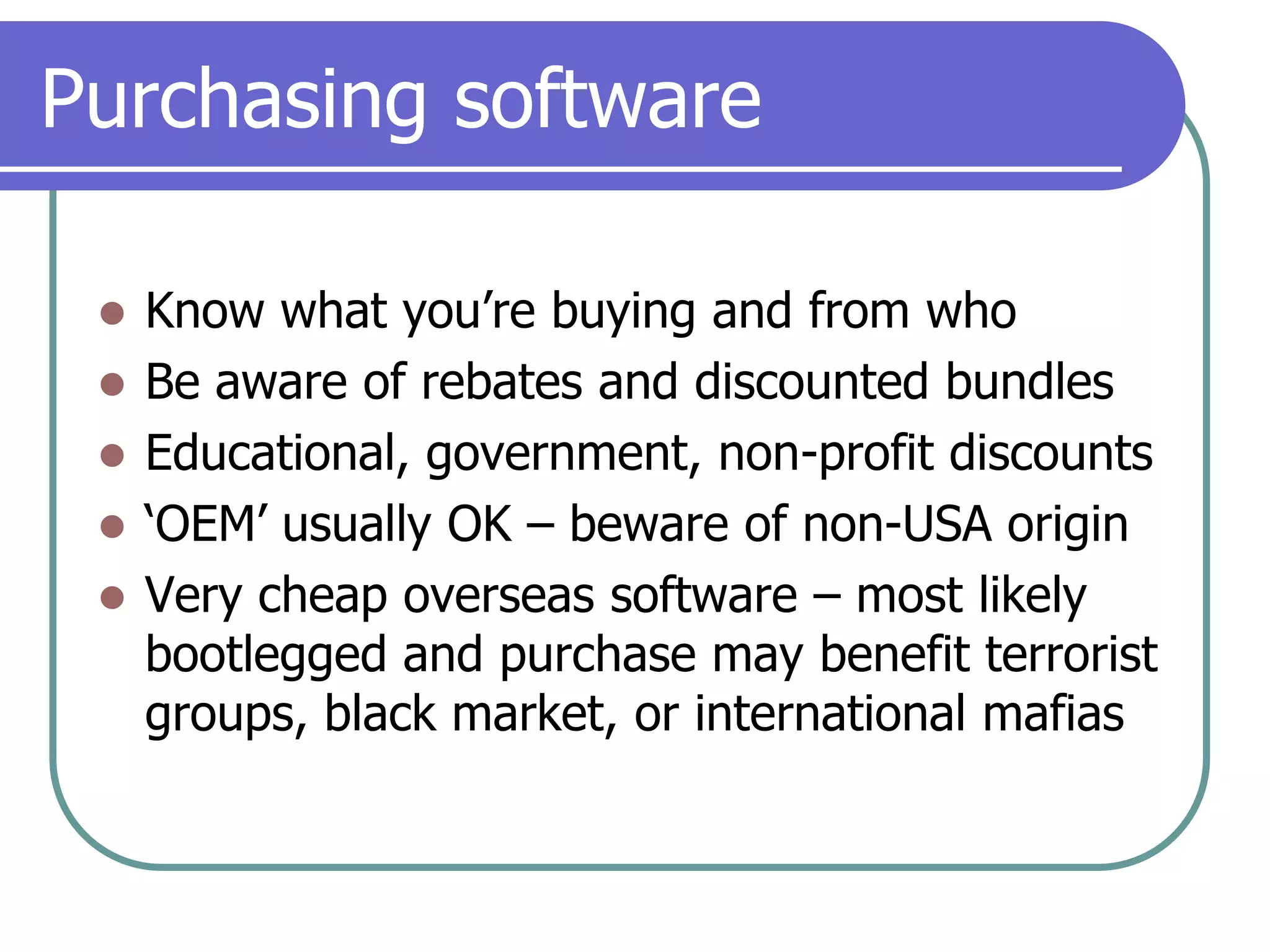
Purchasing softwareKnow what you’re buying and from whoBe aware of rebates and discounted bundlesEducational, government, non-profit discounts‘OEM’ usually OK – beware of non-USA originVery cheap overseas software – most likely bootlegged and purchase may benefit terrorist groups, black market, or international mafias
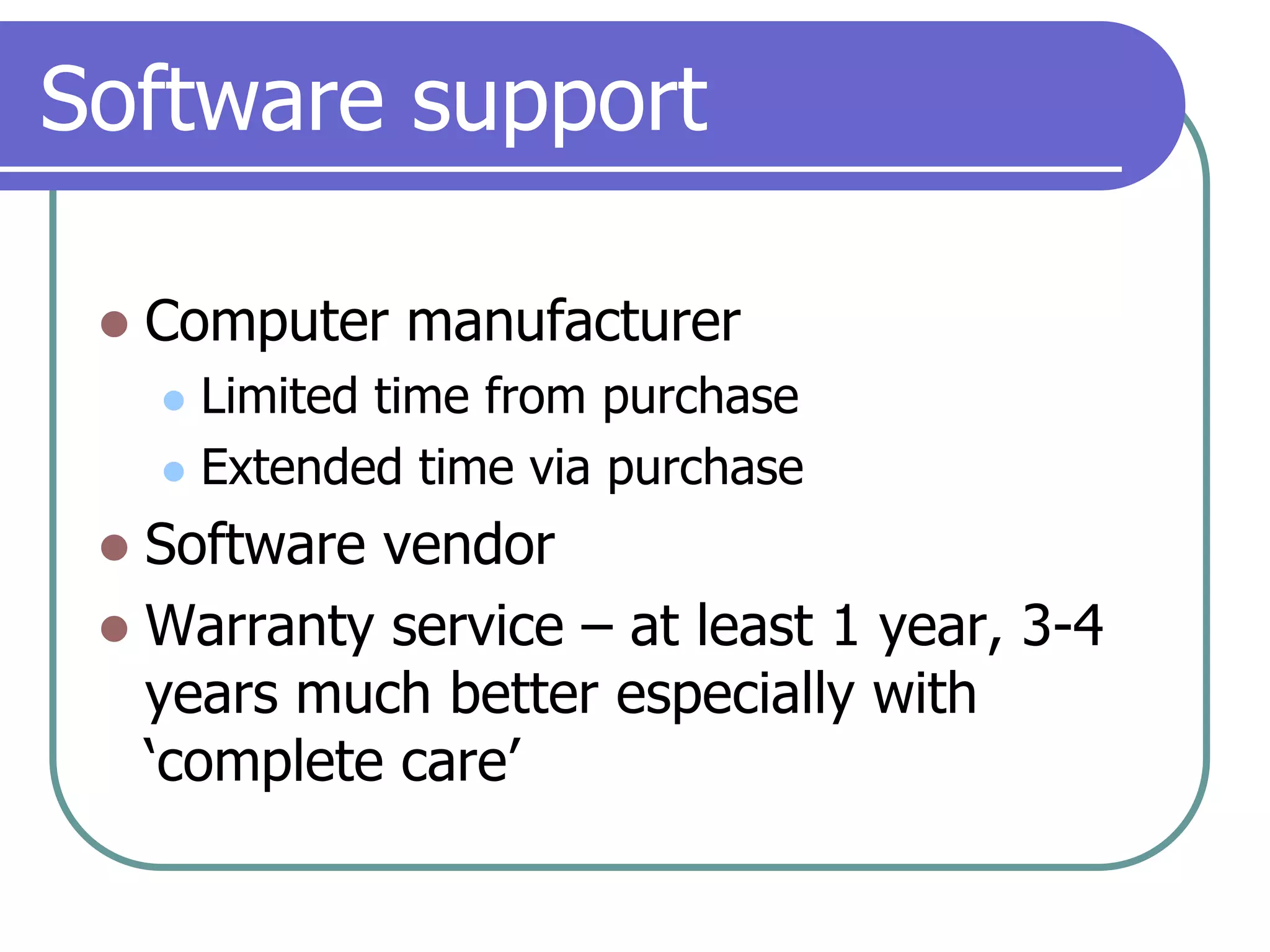
Software supportComputer manufacturerLimited time from purchaseExtended time via purchaseSoftware vendorWarranty service – at least 1 year, 3-4 years much better especially with ‘complete care’
Computer Physical MaintenanceLaptopKeyboardScreen – water & cottonDesktopScreenKeyboardMouseCaseDust problemsVacuum occasionallyAvoid leaving case on carpet for extended periodsFans – replace fans when they burn out to avoid anything overheating (power supply fans usually require replacing the whole unit)
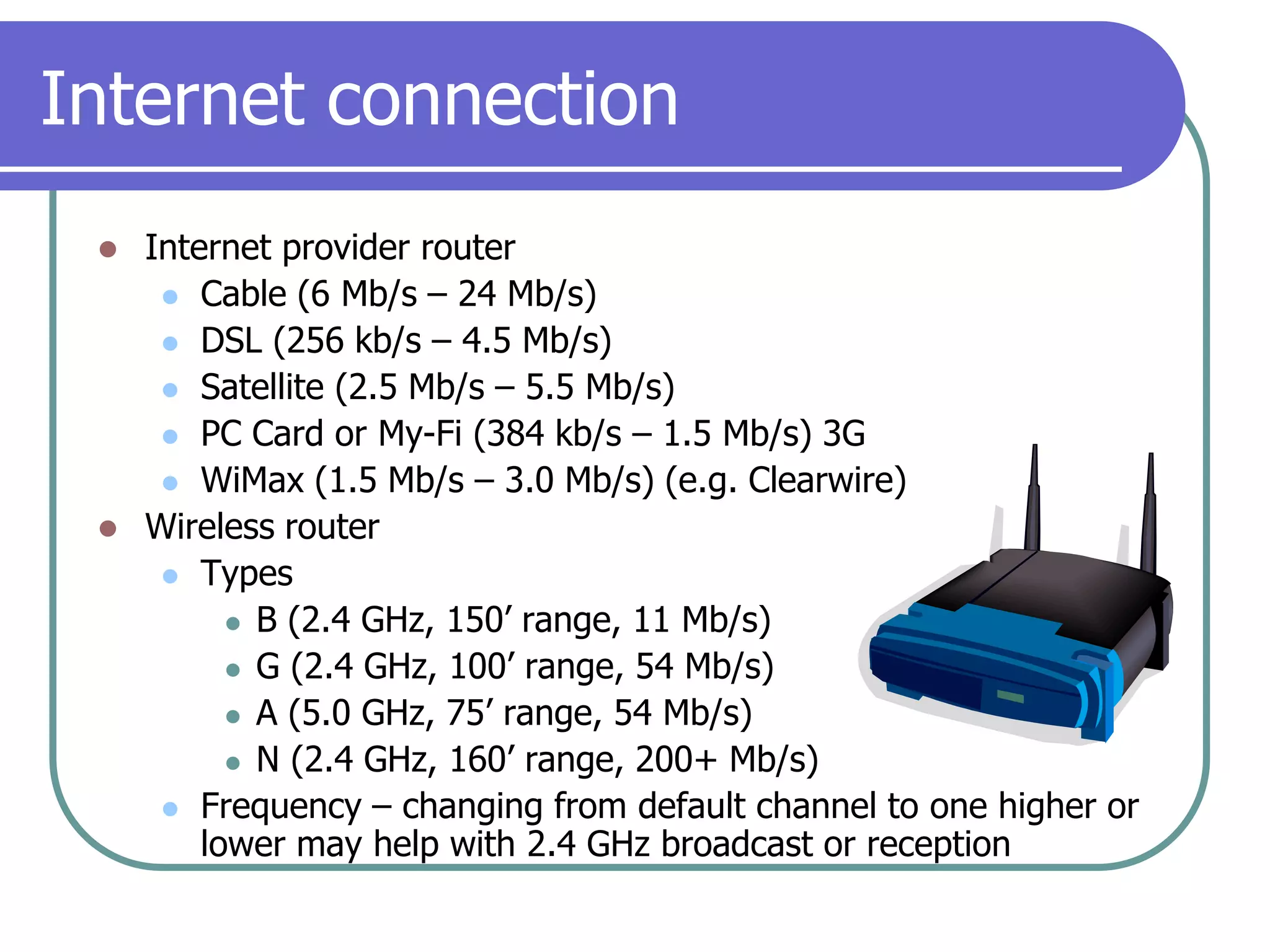
Internet connectionInternet provider routerCable (6 Mb/s – 24 Mb/s)DSL (256 kb/s – 4.5 Mb/s)Satellite (2.5 Mb/s – 5.5 Mb/s)PC Card or My-Fi (384 kb/s – 1.5 Mb/s) 3GWiMax (1.5 Mb/s – 3.0 Mb/s) (e.g. Clearwire)Wireless routerTypesB (2.4 GHz, 150’ range, 11 Mb/s)G (2.4 GHz, 100’range, 54 Mb/s)A (5.0 GHz, 75’range, 54 Mb/s)N (2.4 GHz, 160’range, 200+ Mb/s)Frequency – changing from default channel to one higher or lower may help with 2.4 GHz broadcast or reception
Basic security for wireless routersChange admin passwordRename default SSIDEnable highest encryptionWEP (or shared)WPA-PSK or WPA-PSK2 (best)Some wireless devices configuration come with a simple but secure “one button” setup with ‘key’ on bottom of routerDisable broadcast of SSIDUpdate firmware at least yearlyDon’t assume public “hot spots” are secureSave login ID and password, SSID name, and passkeyConsider MAC controlConsider disabling DHCP for small networksTurn off wireless router when you know you won’t use it for long periods such as vacation
Wireless internet etiquetteIs it illegal to use another’s wireless broadcast?‘War-driving’War-chalking – represented by )( Peer-to-peer – unless you’re sure you need it disable it
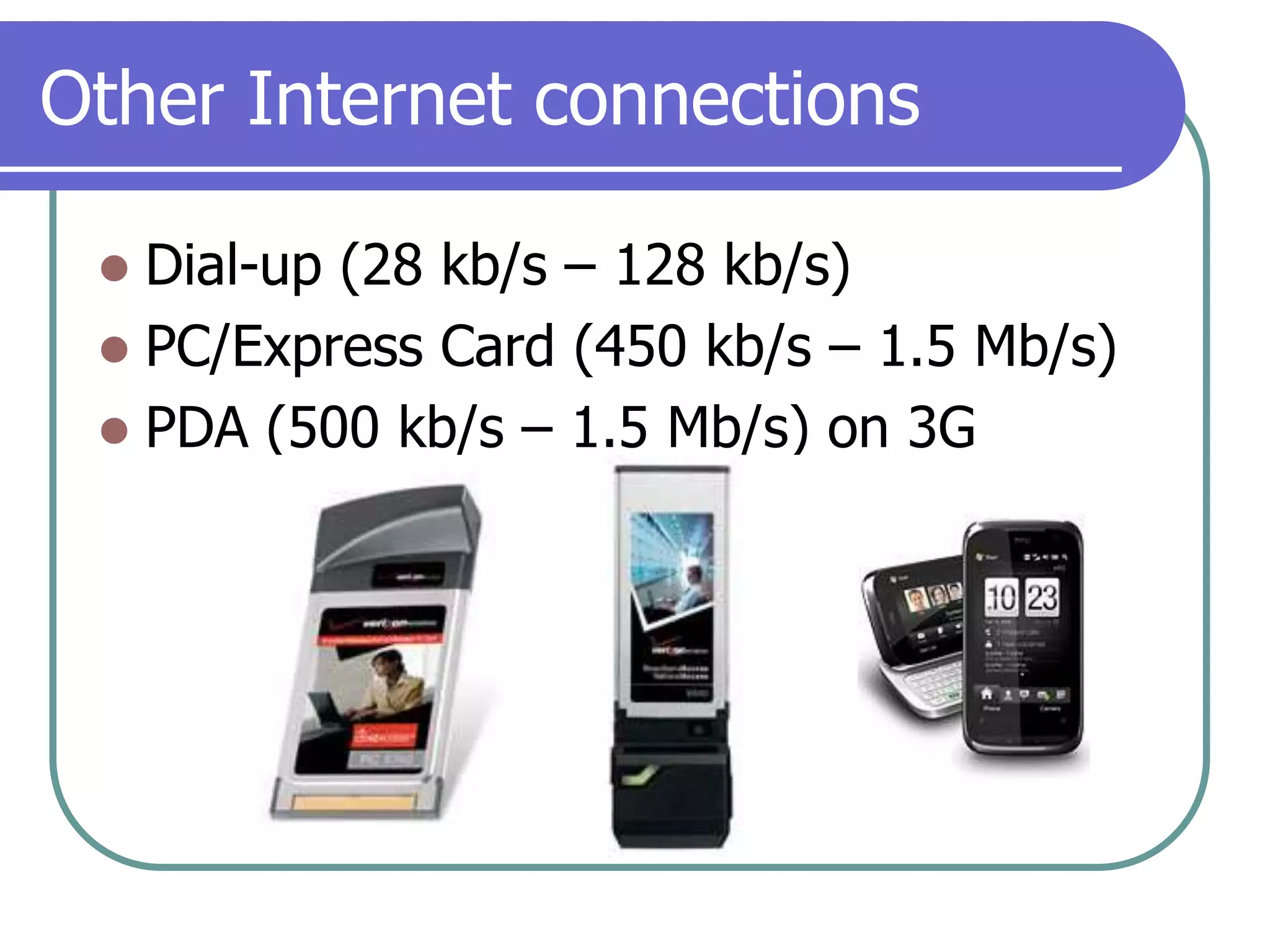
Other Internet connectionsDial-up (28 kb/s – 128 kb/s)PC/Express Card (450 kb/s – 1.5 Mb/s)PDA (500 kb/s – 1.5 Mb/s) on 3G
ClosingConsulting and support available from Nashville Technology Gurus (NTG)Phone – (615) 852-6470Email – nashtechgreen@gmail.comWebsite – www.nashtechgurus.comFuture seminarsDatesSubjectsEmail listThank-you for coming!

NTG computer basics seminar

  • 1.
    Nashville Technology GurusPresentsTheComputerNeed-to-Knows Seminar
  • 2.
    Nashville Technology GurusIntroand welcomeWho I am?Why are you here?
  • 3.
    What we’ll covertoday…The basics of what you need to know about computers but no one tells youShopping for and buying a computerKnowing your computerMaintaining your computerKeeping your computer secure
  • 4.
    The couch vs.car principleThe couch principle – many people like to think of buying a computer like buying a couch. Once you buy a couch it’s always a couch. You don’t upgrade it, you don’t have to worry about losing things on it in general unless they’re under the cushions (kind of like being somewhere else on the hard disk drive), it doesn’t get slower, it gets outdated only after about 10 years or so, you may have to clean it now and then but it’s basically always there functioning as a couch whenever you need to crash on it instead of it crashing on you.
  • 5.
    The couch vs.car principleThe computer principle– The computer is very much like having the responsibility of a car. You have to go through the process of shopping for one, buying it with just the right options including a warranty, maintaining it, being careful with it even gentle, replacing parts eventually, and eventually deciding to keep it or replace it. Also, backups of your files are like spare parts for your car especially when the ‘parts’ are important, hard to find, or expensive.
  • 6.
    Buying a computerBuyingand maintaining a computer is very much the same with your carShop around with very little surety of what is best for youCoupons available through email, mail, and websitesWebsites listing promotions and dealswww.slickdeals.netwww.techbargains.comHoliday bargains are worth looking for20-40% off typical with bundlesHaving a computer seller rep. will help get good deals especially for businesses
  • 7.
    Buying a computerNointerest APR often available for 12 months or moreIn-person vs. online (CompUSA/Costco vs. Dell/HP)You may want to get a literal feel for a new computer. Going to a retail store or outlet may better for those who are more visual in what they’re looking for. However, be wary of refurbished models, used computers, and computers selling for cheap but without essential software or a good warranty.
  • 8.
    Buying a computerOnlineconfiguration and ordering is very easy now and often leads to deep discounts especially around big holidays or special promotions and also year-end models. However, online ‘deals’ can have hidden after purchase costs like extended warranties from buying one that is too short, not getting enough memory or the right software.
  • 9.
    Components of adesktop systemHardwareDesktop systemCasePower supplyAdequate space for componentsFans and good airflowDrive bays
  • 10.
    Components of adesktop computer systemUSBThe more the better1.1 vs. 2.0 vs. 3.0Firewire (400 – 800 Mb/s)CD/DVD drives (700 MB/4.7 GB)Media+R vs. –R+RW vs. –RWSingle vs. double-layerMultipleSpeedBlue-Ray (25GB)
  • 11.
    Components of adesktop computer systemProcessorIntelAMDSpeedCache (or memory)Core Duo (2)Multiple or Quad Core
  • 12.
    Components of adesktop computer systemMemoryCapacity (you never can have too much with any OS)Speed# of memory slots
  • 13.
    Components of adesktop computer systemInternal hard drives - bottle neck and most likely part to fail the soonest1-6 per personal computer (depending on design of case)PATA (300 Mb/s) – old typeSATA (1.5 Mb/s – 3.0 Mb/s)Capacity (20 GB – 1.5 TB)Speed (5400 rpm – 10,000 rpm)
  • 14.
    Components of adesktop computer systemVideo cardBuilt-inPCI cardMemorySpeedAnalog vs. digital portsDual portsMultiple video cards
  • 15.
    Components of adesktop computer systemModemSpeed (28kb/s – 128kb/s)Fax featureNetwork cardBuilt-in wired (100Mb/s – 1Gb/s)Wireless PCI card or USBMonitor/displayCRTLCD flat panelPlasmaHD
  • 16.
    Components of aportable computer systemPortableLaptop typesStandardNotepadCasePower supplyFans and good airflowUSB2-6 ports available normally1.1 vs. 2.0Firewire (400 – 800 Mb/s)CD/DVD drives (700 MB/4.7 GB)Media+R vs. –R+RW vs. –RWSingle vs. double-layerSpeedBlue-Ray (25 GB)
  • 17.
    Components of aportable computer systemProcessorIntelAMDSpeedCache (or memory)Core duo
  • 18.
    Components of aportable computer systemMemoryCapacity (you never can have too much memory with any OS)Speed# of memory slots
  • 19.
    Components of aportable computer systemInternal hard drives – currently a computer’s “bottle neck” and most likely part to fail the soonestCapacity (20 GB – 500 GB)Speed (5400 rpm – 7200 rpm)
  • 20.
    Components of aportable computer systemVideo cardBuilt-inMemorySpeedAnalog vs. digital secondary port
  • 21.
    Components of aportable computer systemScreenResolutionBrightnessSize (12” – 17”)ModemSpeed (28 kb/s – 128 kb/s)Fax feature
  • 22.
    Components of aportable computer systemNetwork cardBuilt-in wired (100Mb – 1Gb)WirelessB, G, A and NPC cardUSBBuilt-in
  • 23.
    Components of aportable computer systemPC card slot vs. Express card slotComplete Care extra protection – well worth it; covers drops, spills, power surges, etc.
  • 24.
    Components of aportable computer systemPDAWith phoneWithout phoneiPhoneWindows Mobile 6.x – 7.0BlackberrySymbianPalm OSDroid (Android)
  • 25.
    Components of acomputer systemPrinterLaserMulti-functionDeskJet
  • 26.
    Components of acomputer systemBackup drive – if you don’t have one, you’ll wish you had at some pointInternal – spare vs. redundantExternalMemory stickMS Synctoy data syncBluetooth Printers, keyboard, mousePDAs, cell phones, headphones
  • 27.
    Components of acomputer systemHardware SupportWarranty serviceLocal serviceWarranty (think of it as insurance)Length of contract (90 days – 5 years)Provider of service (Dell, IBM, HP, GE)Type (Onsite vs. take in vs. send in)Support escalation
  • 28.
    Components of acomputer systemSoftwareOperating SystemMicrosoftWindows 95/98/MEWindows NT4Windows 2000Windows XPWindows VistaWindows 7Apple – Mac OS X Linux (SuSE, Ubuntu, Red Hat)
  • 29.
    Components of acomputer systemSoftwareApplicationsInternet BrowserIE (6 vs. 7/8)Security issues almost constantlyMemory pigVery hard to uninstallMust be updated even though you don’t use itFirefoxTabsPlug-insThemesSmaller memory footprint, stable,secureSafari (Mac OS X)OperaGoogle Chrome
  • 30.
    Components of acomputer systemSoftwareApplicationsMS Office97 – XP – still exist around the world2003 – dominant version in the U.S.A.WordExcelPowerPointPublisherAccessOutlook (see below)2007 – new look; will render older files even previous versions somewhat changed and not necessarily for the better2010 – more features (of course), 64-bit, Web 2.0
  • 31.
    Components of acomputer systemSoftwareApplicationsOutlookSame basic design as alwaysNever been as stable as it should beExport *.pst file periodicallyMS Office database backup utility available for downloadSeparate email, calendar, and contacts for backup purposes for restoration easeAuto PST backup upon exit option (free from MS)
  • 32.
    Components of acomputer systemSoftwareApplicationsOther email applicationsEudoraMozilla ThunderbirdPegasus
  • 33.
    Components of acomputer systemSoftwareApplicationsMS Works (Office ‘lite’) – not recommendedPlug-ins – Quicktime, Acrobat Reader, Flashplayer, JavaOpenOffice (Windows, OS X, Linux) – has Word, PowerPoint, Publisher, and Access basic equivalentsGoogle Apps, Google SyncWindows Live, Office Live, Office Sync
  • 34.
    SecurityAnti-virusThreat analysisZero-dayTrojansWormsSARC (www.sarc.com)– info sourceSymantecMcAfeeFrequency of scans – at least monthly
  • 35.
    SecuritySpywareThreat analysisSpywareAdwareDialersHack toolsJokeprogramsRemote accessHoaxesTrackwareOthersAnti-spyware softwareWebroot SpysweeperSpybotAd-awareWindows Defender – HAH!
  • 36.
    SecurityEmail that cansteal - examplesThreat analysis (see email PDFs)Spam/Junk emailScamsBotsRoot kitsIf it’s too good to be true, it probably isAlternate web-based email address for sign-upsComplex passwords and IDsAnti-spam softwareSymantecMcAfee
  • 37.
    SecurityID TheftPhishingOnline –never send personal or account info through regular email (e.g. SS#, financial accounts #s, etc.)Phone calls – be suspicious of anyone asking for account, username, user ID or password infoContact your bank or credit card company immediately if you have replied to fraudulent email or by phone with sensitive informationPharming – redirecting online users from a legitimate website to a false one and collecting user info for identity and financial theftOnline Predators (buddy lists, social networks)
  • 38.
    SecurityFirewallSymantec Internet SecurityMcAfeefirewallWindows XP SP3, Windows Vista SP2, Windows 7Privacy servicePurpose – to house IDs and passwords securelySymantecMcAfeeInternet Security SuitesSymantecMcAfee
  • 39.
    SecurityOperating System updates– be awareWindowsCritical vs. recommended vs. optional/hardwareIE, OE and OS patches are all connectedMac OS XLinux (SuSE, Red Hat/Fedora, Ubuntu)CERT email list (www.cert.org)Frequency to check for updates - monthly
  • 40.
    SecurityInternet browser usageSecuretransaction safetyClose browser with after secure transactions such as purchases or on-line bankingLogout of sites you’ve signed into before closing the browserMake sure there is an SSL (https://) link with secure transactionsLook for the ‘padlock’ on the bottom of the browserAlways download the latest version of your internet browsers whenever possible
  • 41.
    SecurityOS need-to-knowsDefault accessis administrator or equivalent (Windows and OS X) which gives total access to hardware and software – consider creating user only account to cut down on scripts, installing fluff software and others unnecessary that can harm a computer over time‘Power-user’ can still have most of the same problems that come with adminOutlook Express is most vulnerable program on the planet – don’t use if you have email alternativeTo help stop spread of viruses, you need at least Windows 2000 and be using Outlook 2000 as opposed to Outlook ExpressCreating a profile for each user on a workstation can really help for simplification reasons for computer healthSync-toy available from MS for individual profiles
  • 42.
    Computer UtilitiesBackupRegistryWindows SystemRestore utility (built-in) – should be performed manually occasionally even though recovery points are supposed to be created automaticallyRegedit.exe export and store (for experts only)Disk ImageNorton Ghost – multiple recovery points can be made and also while using computer; incremental backups availableFiles or FoldersManual – only for those who know where everything isMS Sync ToySymantec IS 4 or 360 has built-in backup software
  • 43.
    Computer UtilitiesMaintenanceDefragmentation &Optimization (Diskeeper vs. Symantec built-in)File cleanup (e.g. Webroot Window Washer)Deletes temp files and other junkMay need a ‘bleach’ feature to shred filesPowerProtect system hardware with UPSAvailable for desktop systems, laptops and servers
  • 44.
    Purchasing softwareKnow whatyou’re buying and from whoBe aware of rebates and discounted bundlesEducational, government, non-profit discounts‘OEM’ usually OK – beware of non-USA originVery cheap overseas software – most likely bootlegged and purchase may benefit terrorist groups, black market, or international mafias
  • 45.
    Software supportComputer manufacturerLimitedtime from purchaseExtended time via purchaseSoftware vendorWarranty service – at least 1 year, 3-4 years much better especially with ‘complete care’
  • 46.
    Computer Physical MaintenanceLaptopKeyboardScreen– water & cottonDesktopScreenKeyboardMouseCaseDust problemsVacuum occasionallyAvoid leaving case on carpet for extended periodsFans – replace fans when they burn out to avoid anything overheating (power supply fans usually require replacing the whole unit)
  • 47.
    Internet connectionInternet providerrouterCable (6 Mb/s – 24 Mb/s)DSL (256 kb/s – 4.5 Mb/s)Satellite (2.5 Mb/s – 5.5 Mb/s)PC Card or My-Fi (384 kb/s – 1.5 Mb/s) 3GWiMax (1.5 Mb/s – 3.0 Mb/s) (e.g. Clearwire)Wireless routerTypesB (2.4 GHz, 150’ range, 11 Mb/s)G (2.4 GHz, 100’range, 54 Mb/s)A (5.0 GHz, 75’range, 54 Mb/s)N (2.4 GHz, 160’range, 200+ Mb/s)Frequency – changing from default channel to one higher or lower may help with 2.4 GHz broadcast or reception
  • 48.
    Basic security forwireless routersChange admin passwordRename default SSIDEnable highest encryptionWEP (or shared)WPA-PSK or WPA-PSK2 (best)Some wireless devices configuration come with a simple but secure “one button” setup with ‘key’ on bottom of routerDisable broadcast of SSIDUpdate firmware at least yearlyDon’t assume public “hot spots” are secureSave login ID and password, SSID name, and passkeyConsider MAC controlConsider disabling DHCP for small networksTurn off wireless router when you know you won’t use it for long periods such as vacation
  • 49.
    Wireless internet etiquetteIsit illegal to use another’s wireless broadcast?‘War-driving’War-chalking – represented by )( Peer-to-peer – unless you’re sure you need it disable it
  • 50.
    Other Internet connectionsDial-up(28 kb/s – 128 kb/s)PC/Express Card (450 kb/s – 1.5 Mb/s)PDA (500 kb/s – 1.5 Mb/s) on 3G
  • 51.
    ClosingConsulting and supportavailable from Nashville Technology Gurus (NTG)Phone – (615) 852-6470Email – nashtechgreen@gmail.comWebsite – www.nashtechgurus.comFuture seminarsDatesSubjectsEmail listThank-you for coming!