BCT Section 1.3 & 1.4 Terms
                   Input & Output Devices,
                  Software & Computer Care
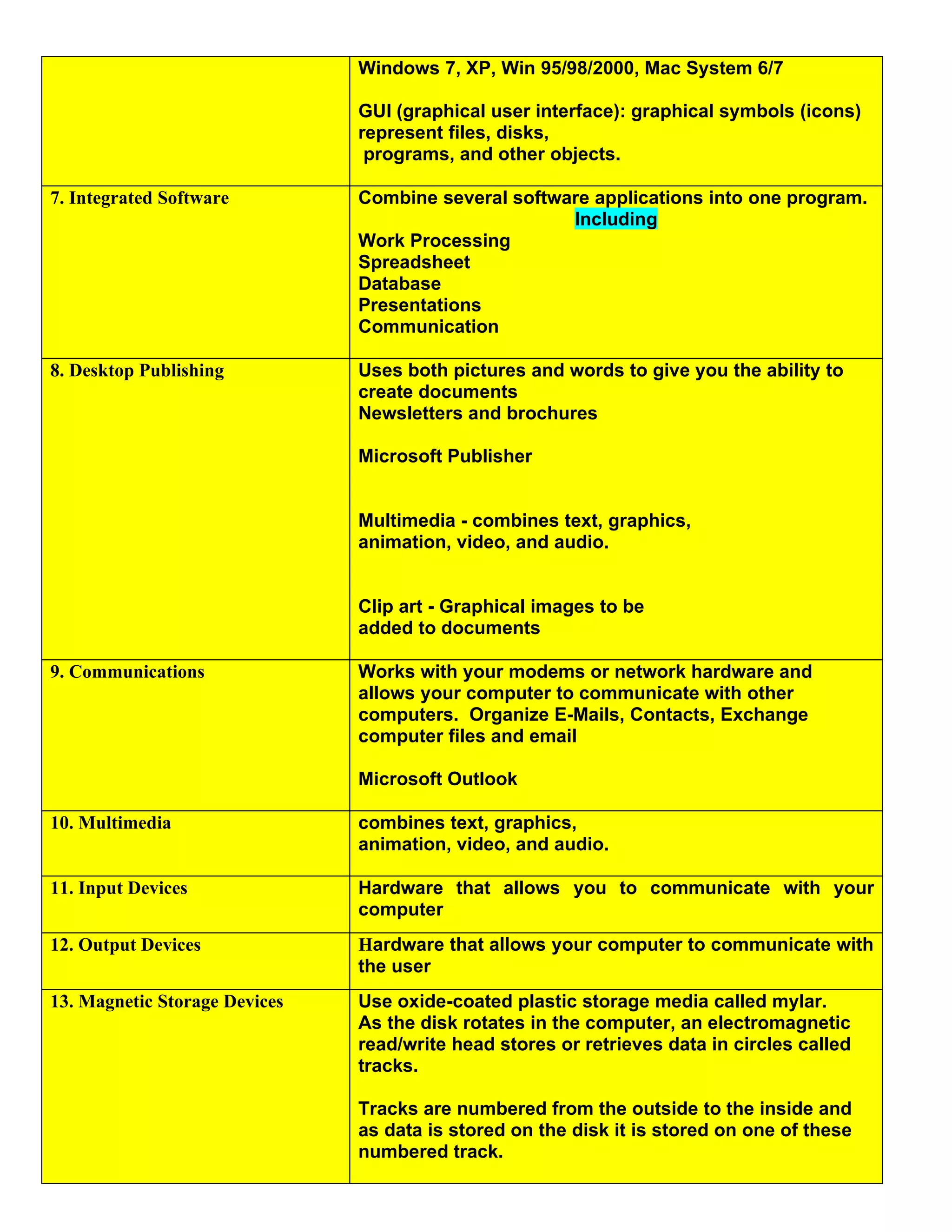
1. Word Processing         Business Applications Programs that allows you to
                           create, edit, and print text documents

                           Examples - Reports, Flyer, Memos, Research Papers,
                           Letters, Resumes

                           Microsoft Word, Word Perfect

2. Spreadsheet             Numbered Rows and Lettered Columns
                           Intersection = cell
                           Grade book, Financial Numbers, Charts, Graphs, Budget

                           Microsoft Excel, Lotus

3. Database                Business Software that lets you set up an electronic filing
                           systems. Enter text and numbers
                           Find, search, and printer info in different ways
                           Address book, Card Catalog

                           Microsoft Access
                           Examples - Payroll, Taxes, Police Records, Medical
                           Records

4. Utility                 Help you perform housekeeping chores complete
                           specialized tasks related to managing the computer’s
                           resources, file management, and so on.

                           Anti Virus Protection, Organization

5. Application Software    Programs that work with the OS software to help you use
                           your computer to do specific types of work.
                                                 Categories
                           Business
                           Communications
                           Graphics and Multimedia
                           Education and Reference
                           Entertainment and Leisure
                           Integrated Programs

6. System Software         A group of programs that coordinate & control the
                           resources and operations of a computer.
                           Enables components of the computer to communicate.

                           Operating System (OS) - provide an interface between the
                           user or application program and the computer hardware.
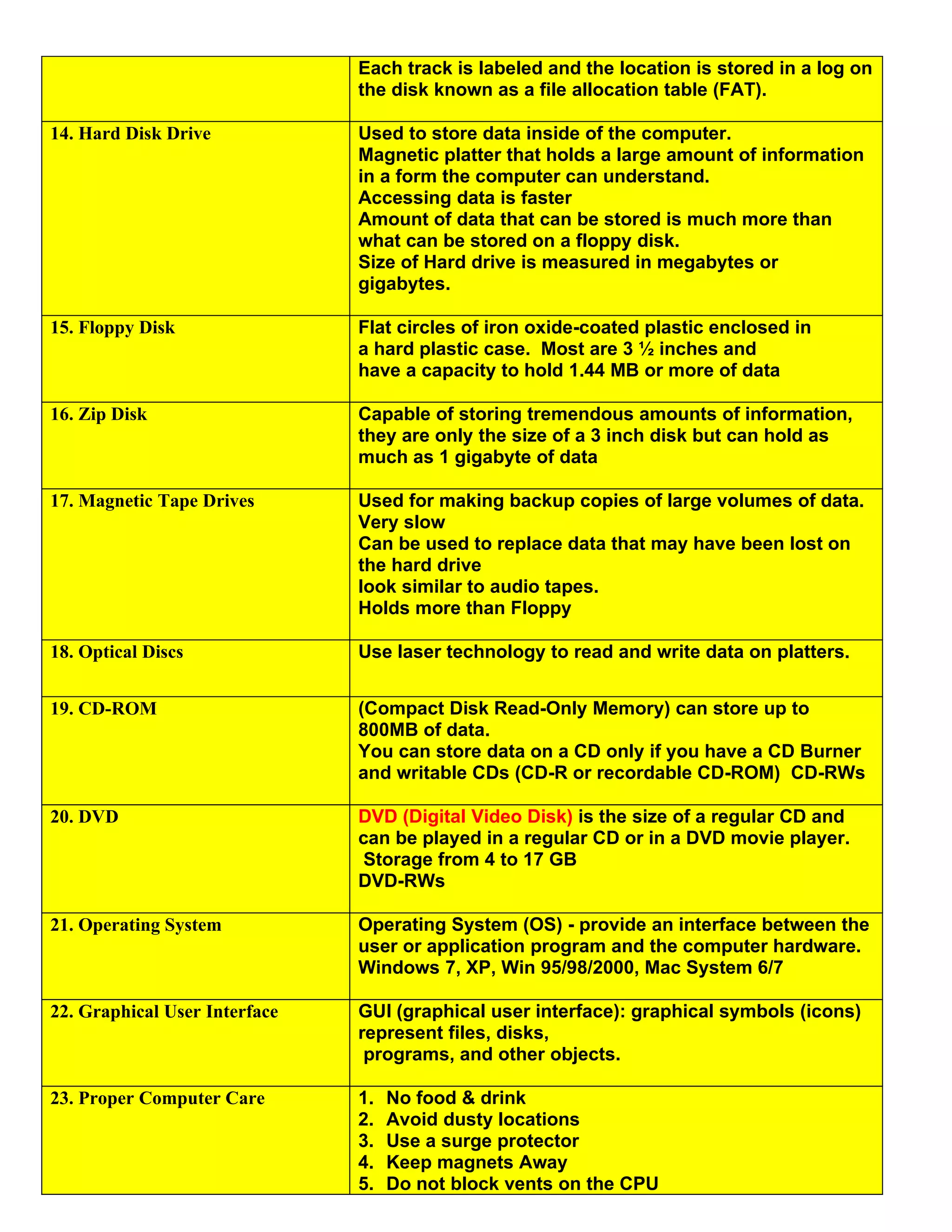
Windows 7, XP, Win 95/98/2000, Mac System 6/7

                               GUI (graphical user interface): graphical symbols (icons)
                               represent files, disks,
                                programs, and other objects.

7. Integrated Software         Combine several software applications into one program.
                                                     Including
                               Work Processing
                               Spreadsheet
                               Database
                               Presentations
                               Communication

8. Desktop Publishing          Uses both pictures and words to give you the ability to
                               create documents
                               Newsletters and brochures

                               Microsoft Publisher


                               Multimedia - combines text, graphics,
                               animation, video, and audio.


                               Clip art - Graphical images to be
                               added to documents

9. Communications              Works with your modems or network hardware and
                               allows your computer to communicate with other
                               computers. Organize E-Mails, Contacts, Exchange
                               computer files and email

                               Microsoft Outlook

10. Multimedia                 combines text, graphics,
                               animation, video, and audio.

11. Input Devices              Hardware that allows you to communicate with your
                               computer
12. Output Devices             Hardware that allows your computer to communicate with
                               the user
13. Magnetic Storage Devices   Use oxide-coated plastic storage media called mylar.
                               As the disk rotates in the computer, an electromagnetic
                               read/write head stores or retrieves data in circles called
                               tracks.

                               Tracks are numbered from the outside to the inside and
                               as data is stored on the disk it is stored on one of these
                               numbered track.
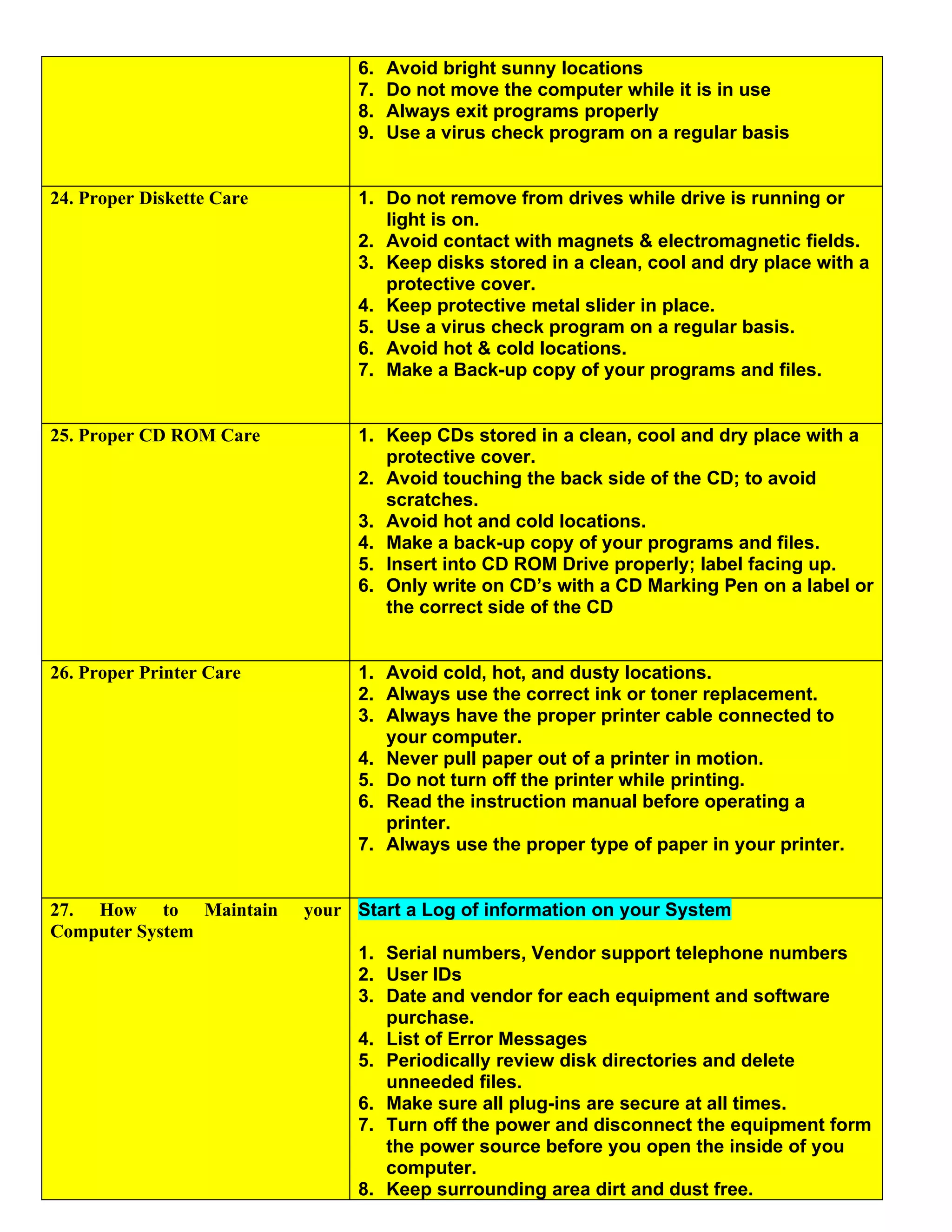
Each track is labeled and the location is stored in a log on
                               the disk known as a file allocation table (FAT).

14. Hard Disk Drive            Used to store data inside of the computer.
                               Magnetic platter that holds a large amount of information
                               in a form the computer can understand.
                               Accessing data is faster
                               Amount of data that can be stored is much more than
                               what can be stored on a floppy disk.
                               Size of Hard drive is measured in megabytes or
                               gigabytes.

15. Floppy Disk                Flat circles of iron oxide-coated plastic enclosed in
                               a hard plastic case. Most are 3 ½ inches and
                               have a capacity to hold 1.44 MB or more of data

16. Zip Disk                   Capable of storing tremendous amounts of information,
                               they are only the size of a 3 inch disk but can hold as
                               much as 1 gigabyte of data

17. Magnetic Tape Drives       Used for making backup copies of large volumes of data.
                               Very slow
                               Can be used to replace data that may have been lost on
                               the hard drive
                               look similar to audio tapes.
                               Holds more than Floppy

18. Optical Discs              Use laser technology to read and write data on platters.


19. CD-ROM                     (Compact Disk Read-Only Memory) can store up to
                               800MB of data.
                               You can store data on a CD only if you have a CD Burner
                               and writable CDs (CD-R or recordable CD-ROM) CD-RWs

20. DVD                        DVD (Digital Video Disk) is the size of a regular CD and
                               can be played in a regular CD or in a DVD movie player.
                               Storage from 4 to 17 GB
                               DVD-RWs

21. Operating System           Operating System (OS) - provide an interface between the
                               user or application program and the computer hardware.
                               Windows 7, XP, Win 95/98/2000, Mac System 6/7

22. Graphical User Interface   GUI (graphical user interface): graphical symbols (icons)
                               represent files, disks,
                                programs, and other objects.

23. Proper Computer Care       1.   No food & drink
                               2.   Avoid dusty locations
                               3.   Use a surge protector
                               4.   Keep magnets Away
                               5.   Do not block vents on the CPU
6.   Avoid bright sunny locations
                                7.   Do not move the computer while it is in use
                                8.   Always exit programs properly
                                9.   Use a virus check program on a regular basis


24. Proper Diskette Care        1. Do not remove from drives while drive is running or
                                   light is on.
                                2. Avoid contact with magnets & electromagnetic fields.
                                3. Keep disks stored in a clean, cool and dry place with a
                                   protective cover.
                                4. Keep protective metal slider in place.
                                5. Use a virus check program on a regular basis.
                                6. Avoid hot & cold locations.
                                7. Make a Back-up copy of your programs and files.


25. Proper CD ROM Care          1. Keep CDs stored in a clean, cool and dry place with a
                                   protective cover.
                                2. Avoid touching the back side of the CD; to avoid
                                   scratches.
                                3. Avoid hot and cold locations.
                                4. Make a back-up copy of your programs and files.
                                5. Insert into CD ROM Drive properly; label facing up.
                                6. Only write on CD’s with a CD Marking Pen on a label or
                                   the correct side of the CD


26. Proper Printer Care         1. Avoid cold, hot, and dusty locations.
                                2. Always use the correct ink or toner replacement.
                                3. Always have the proper printer cable connected to
                                   your computer.
                                4. Never pull paper out of a printer in motion.
                                5. Do not turn off the printer while printing.
                                6. Read the instruction manual before operating a
                                   printer.
                                7. Always use the proper type of paper in your printer.


27. How to Maintain        your Start a Log of information on your System
Computer System
                                1. Serial numbers, Vendor support telephone numbers
                                2. User IDs
                                3. Date and vendor for each equipment and software
                                   purchase.
                                4. List of Error Messages
                                5. Periodically review disk directories and delete
                                   unneeded files.
                                6. Make sure all plug-ins are secure at all times.
                                7. Turn off the power and disconnect the equipment form
                                   the power source before you open the inside of you
                                   computer.
                                8. Keep surrounding area dirt and dust free.
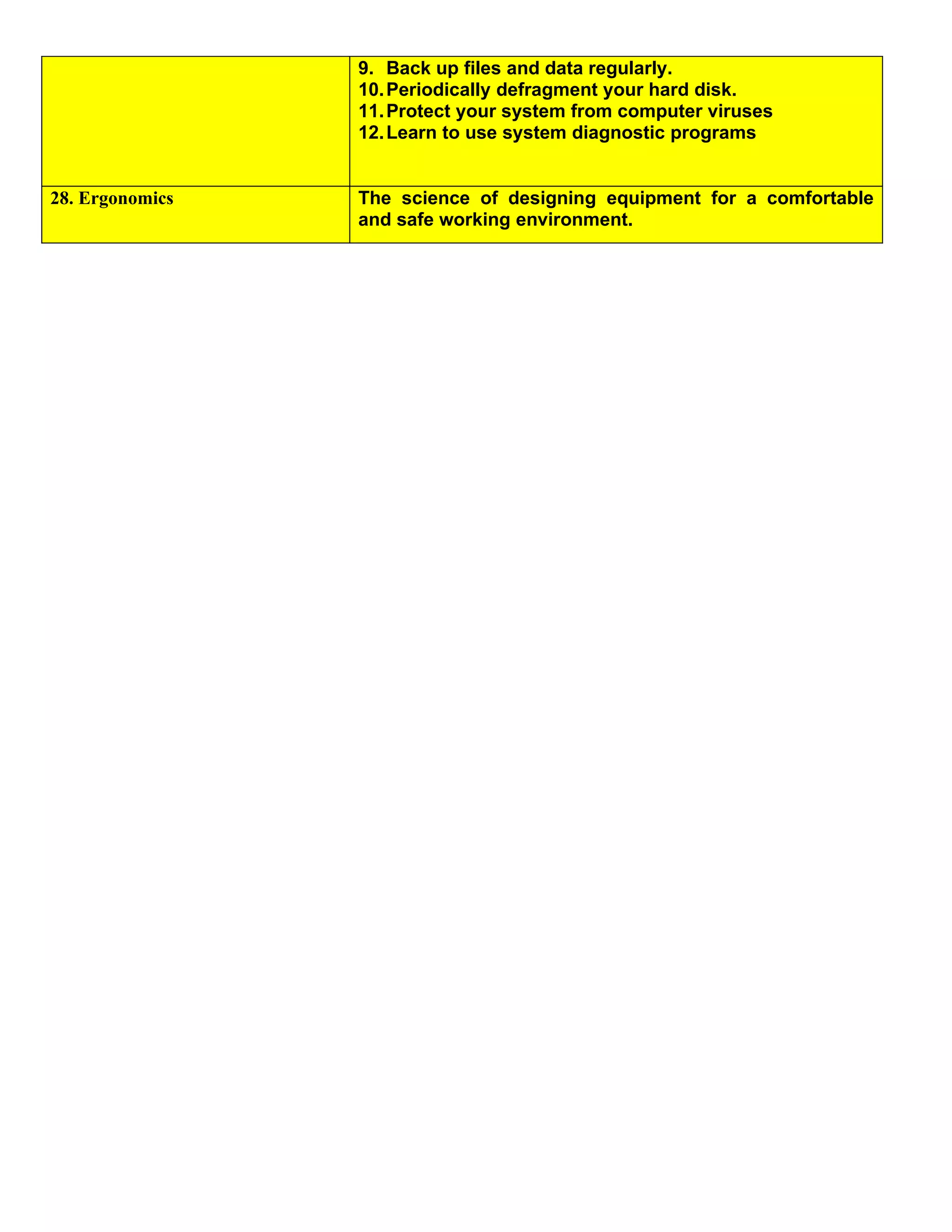
9. Back up files and data regularly.
                 10. Periodically defragment your hard disk.
                 11. Protect your system from computer viruses
                 12. Learn to use system diagnostic programs


28. Ergonomics   The science of designing equipment for a comfortable
                 and safe working environment.

Bct Terms 1 3 Finished

  • 1.
    BCT Section 1.3& 1.4 Terms Input & Output Devices, Software & Computer Care 1. Word Processing Business Applications Programs that allows you to create, edit, and print text documents Examples - Reports, Flyer, Memos, Research Papers, Letters, Resumes Microsoft Word, Word Perfect 2. Spreadsheet Numbered Rows and Lettered Columns Intersection = cell Grade book, Financial Numbers, Charts, Graphs, Budget Microsoft Excel, Lotus 3. Database Business Software that lets you set up an electronic filing systems. Enter text and numbers Find, search, and printer info in different ways Address book, Card Catalog Microsoft Access Examples - Payroll, Taxes, Police Records, Medical Records 4. Utility Help you perform housekeeping chores complete specialized tasks related to managing the computer’s resources, file management, and so on. Anti Virus Protection, Organization 5. Application Software Programs that work with the OS software to help you use your computer to do specific types of work. Categories Business Communications Graphics and Multimedia Education and Reference Entertainment and Leisure Integrated Programs 6. System Software A group of programs that coordinate & control the resources and operations of a computer. Enables components of the computer to communicate. Operating System (OS) - provide an interface between the user or application program and the computer hardware.
  • 2.
    Windows 7, XP,Win 95/98/2000, Mac System 6/7 GUI (graphical user interface): graphical symbols (icons) represent files, disks, programs, and other objects. 7. Integrated Software Combine several software applications into one program. Including Work Processing Spreadsheet Database Presentations Communication 8. Desktop Publishing Uses both pictures and words to give you the ability to create documents Newsletters and brochures Microsoft Publisher Multimedia - combines text, graphics, animation, video, and audio. Clip art - Graphical images to be added to documents 9. Communications Works with your modems or network hardware and allows your computer to communicate with other computers. Organize E-Mails, Contacts, Exchange computer files and email Microsoft Outlook 10. Multimedia combines text, graphics, animation, video, and audio. 11. Input Devices Hardware that allows you to communicate with your computer 12. Output Devices Hardware that allows your computer to communicate with the user 13. Magnetic Storage Devices Use oxide-coated plastic storage media called mylar. As the disk rotates in the computer, an electromagnetic read/write head stores or retrieves data in circles called tracks. Tracks are numbered from the outside to the inside and as data is stored on the disk it is stored on one of these numbered track.
  • 3.
    Each track islabeled and the location is stored in a log on the disk known as a file allocation table (FAT). 14. Hard Disk Drive Used to store data inside of the computer. Magnetic platter that holds a large amount of information in a form the computer can understand. Accessing data is faster Amount of data that can be stored is much more than what can be stored on a floppy disk. Size of Hard drive is measured in megabytes or gigabytes. 15. Floppy Disk Flat circles of iron oxide-coated plastic enclosed in a hard plastic case. Most are 3 ½ inches and have a capacity to hold 1.44 MB or more of data 16. Zip Disk Capable of storing tremendous amounts of information, they are only the size of a 3 inch disk but can hold as much as 1 gigabyte of data 17. Magnetic Tape Drives Used for making backup copies of large volumes of data. Very slow Can be used to replace data that may have been lost on the hard drive look similar to audio tapes. Holds more than Floppy 18. Optical Discs Use laser technology to read and write data on platters. 19. CD-ROM (Compact Disk Read-Only Memory) can store up to 800MB of data. You can store data on a CD only if you have a CD Burner and writable CDs (CD-R or recordable CD-ROM) CD-RWs 20. DVD DVD (Digital Video Disk) is the size of a regular CD and can be played in a regular CD or in a DVD movie player. Storage from 4 to 17 GB DVD-RWs 21. Operating System Operating System (OS) - provide an interface between the user or application program and the computer hardware. Windows 7, XP, Win 95/98/2000, Mac System 6/7 22. Graphical User Interface GUI (graphical user interface): graphical symbols (icons) represent files, disks, programs, and other objects. 23. Proper Computer Care 1. No food & drink 2. Avoid dusty locations 3. Use a surge protector 4. Keep magnets Away 5. Do not block vents on the CPU
  • 4.
    6. Avoid bright sunny locations 7. Do not move the computer while it is in use 8. Always exit programs properly 9. Use a virus check program on a regular basis 24. Proper Diskette Care 1. Do not remove from drives while drive is running or light is on. 2. Avoid contact with magnets & electromagnetic fields. 3. Keep disks stored in a clean, cool and dry place with a protective cover. 4. Keep protective metal slider in place. 5. Use a virus check program on a regular basis. 6. Avoid hot & cold locations. 7. Make a Back-up copy of your programs and files. 25. Proper CD ROM Care 1. Keep CDs stored in a clean, cool and dry place with a protective cover. 2. Avoid touching the back side of the CD; to avoid scratches. 3. Avoid hot and cold locations. 4. Make a back-up copy of your programs and files. 5. Insert into CD ROM Drive properly; label facing up. 6. Only write on CD’s with a CD Marking Pen on a label or the correct side of the CD 26. Proper Printer Care 1. Avoid cold, hot, and dusty locations. 2. Always use the correct ink or toner replacement. 3. Always have the proper printer cable connected to your computer. 4. Never pull paper out of a printer in motion. 5. Do not turn off the printer while printing. 6. Read the instruction manual before operating a printer. 7. Always use the proper type of paper in your printer. 27. How to Maintain your Start a Log of information on your System Computer System 1. Serial numbers, Vendor support telephone numbers 2. User IDs 3. Date and vendor for each equipment and software purchase. 4. List of Error Messages 5. Periodically review disk directories and delete unneeded files. 6. Make sure all plug-ins are secure at all times. 7. Turn off the power and disconnect the equipment form the power source before you open the inside of you computer. 8. Keep surrounding area dirt and dust free.
  • 5.
    9. Back upfiles and data regularly. 10. Periodically defragment your hard disk. 11. Protect your system from computer viruses 12. Learn to use system diagnostic programs 28. Ergonomics The science of designing equipment for a comfortable and safe working environment.