Using Nonprojected Visuals
in the Classroom
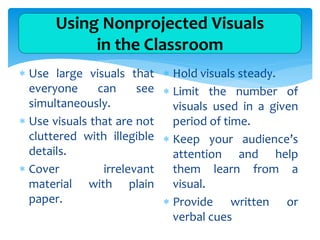
 Use large visuals that
everyone can see
simultaneously.
 Use visuals that are not
cluttered with illegible
details.
 Cover irrelevant
material with plain
paper.
 Hold visuals steady.
 Limit the number of
visuals used in a given
period of time.
 Keep your audience’s
attention and help
them learn from a
visual.
 Provide written or
verbal cues
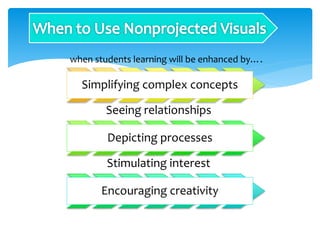
when students learning will be enhanced by….
Simplifying complex concepts
Seeing relationships
Depicting processes
Stimulating interest
Encouraging creativity
Presentation
Software
Digital Visuals
Document
Cameras
Overhead
Transparencies
Projected Visuals
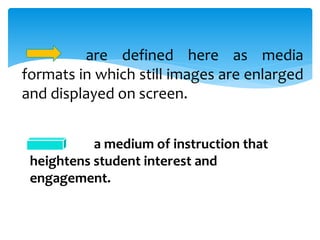
are defined here as media
formats in which still images are enlarged
and displayed on screen.
a medium of instruction that
heightens student interest and
engagement.
provides a format for displaying
computer-based visuals with a
digital projector.
most widely known presentation
software is PowerPoint.
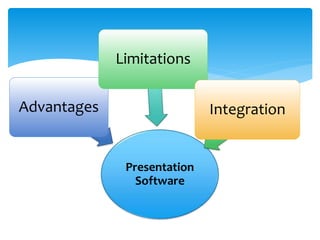
Presentation
Software
Advantages
Limitations
Integration
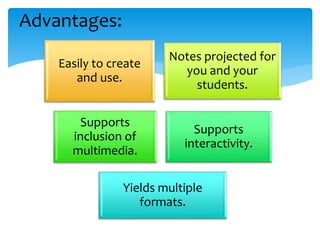
Advantages:
Easily to create
and use.
Notes projected for
you and your
students.
Supports
inclusion of
multimedia.
Supports
interactivity.
Yields multiple
formats.
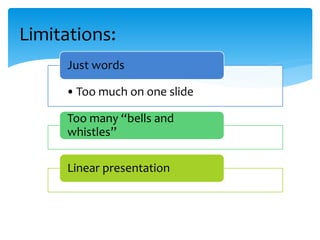
Limitations:
•Too much on one slide
Just words
Too many “bells and
whistles”
Linear presentation
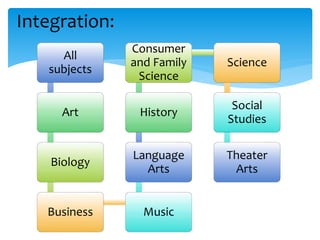
Integration:
All
subjects
Art
Biology
Business Music
Language
Arts
History
Consumer
and Family
Science
Science
Social
Studies
Theater
Arts
Thank you!!!
Use visual
variety
Rehearse
Keep it
moving
Pause for
discussion
Avoid
irrelevant
images
Test
visually

Non-projected visuals