Necto 16 Training
Visual Studio modeling (Excel files)
Objectives
By the end of this lesson you will be able to describe:
• Basic aspects of Visual Studio Modeling which can be used as a Necto data
source
Requirements
In order to create a Tabular Model you require:
• Microsoft SQL, an edition that includes Tabular Modeling
• SQL Server Data Tools in Visual Studio 2015
• Currently this can be downloaded and installed from here
https://msdn.microsoft.com/en-us/mt186501
• Install this on a client machine to create the models remotely on the SQL server.
Model Development Flow
• Create Data Sources and Load tables
• Create the connection between the Tables
• Define Measures
• Customize your Model – i.e. Hide or delete unnecessary Columns
• Deploy the Model (Use the “Publish” icon)
• Optional:
• Automate the Model (Define Partition Mechanism and Processing)
• Define Security
Creating a New Tabular Model Project
• Open SQL Server Data Tools 2015
• Open File -> New -> Project
Creating a New Tabular Model Project
• SSDT will now try to validate
your Tabular instance and set
the correct compatibility
mode, take advantage of this
and manually it is harder to
find and do.
• Once the connection is
established click ‘OK’
Create a Data Source
• To add data click or
select ‘Model -> Import
from data source…’
• Excel is a choice here and
for ease of use this is the
option chosen.
Create a Data Source (continued)
• Choose a name and
select the path of the
Excel file
• Test the connectivity and
use the first for headers if
that is the setup of the
file.
• Select the impersonation
information in the next
step.
Create a Data Source (continued)
• Select the Sheet(s) to use,
select a friendly name for
the imported table if
required.
• You can preview and or
filter if required, when
you are satisfied, click
Finish.
Create connections between the tables
• I imported 2 tables one
fact and the other a
dimensions for this
module
• In the bottom left of
this screen you can
move between tabular
and design display
types
• Drag City to City to join
them with a 1:n
relationship
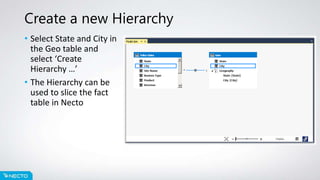
Create a new Hierarchy
• Select State and City in
the Geo table and
select ‘Create
Hierarchy …’
• The Hierarchy can be
used to slice the fact
table in Necto
Define Measures
• In Tabular display
mode, you can select a
column header and
press on the button
to create an auto sum
measure.
• The Measures appear
in the lower window
• If you want to add a
new column this is
called a calculated
column
Customize the Model
• Select the column City
and right click, then
Hide from Client Tools
• The City will not be
seen in Necto as it was
not needed because
the Geography
hierarchy can be used
Deploy Model
• Once all of your
modifications are
complete you can
Deploy the model
• Deploy with Build,
Deploy and Process
the model
• Now you can find the
model through Necto.
Thank you, any questions?

Necto 16 training 23 - visual studio modeling

  • 1.
    Necto 16 Training VisualStudio modeling (Excel files)
  • 2.
    Objectives By the endof this lesson you will be able to describe: • Basic aspects of Visual Studio Modeling which can be used as a Necto data source
  • 3.
    Requirements In order tocreate a Tabular Model you require: • Microsoft SQL, an edition that includes Tabular Modeling • SQL Server Data Tools in Visual Studio 2015 • Currently this can be downloaded and installed from here https://msdn.microsoft.com/en-us/mt186501 • Install this on a client machine to create the models remotely on the SQL server.
  • 4.
    Model Development Flow •Create Data Sources and Load tables • Create the connection between the Tables • Define Measures • Customize your Model – i.e. Hide or delete unnecessary Columns • Deploy the Model (Use the “Publish” icon) • Optional: • Automate the Model (Define Partition Mechanism and Processing) • Define Security
  • 5.
    Creating a NewTabular Model Project • Open SQL Server Data Tools 2015 • Open File -> New -> Project
  • 6.
    Creating a NewTabular Model Project • SSDT will now try to validate your Tabular instance and set the correct compatibility mode, take advantage of this and manually it is harder to find and do. • Once the connection is established click ‘OK’
  • 7.
    Create a DataSource • To add data click or select ‘Model -> Import from data source…’ • Excel is a choice here and for ease of use this is the option chosen.
  • 8.
    Create a DataSource (continued) • Choose a name and select the path of the Excel file • Test the connectivity and use the first for headers if that is the setup of the file. • Select the impersonation information in the next step.
  • 9.
    Create a DataSource (continued) • Select the Sheet(s) to use, select a friendly name for the imported table if required. • You can preview and or filter if required, when you are satisfied, click Finish.
  • 10.
    Create connections betweenthe tables • I imported 2 tables one fact and the other a dimensions for this module • In the bottom left of this screen you can move between tabular and design display types • Drag City to City to join them with a 1:n relationship
  • 11.
    Create a newHierarchy • Select State and City in the Geo table and select ‘Create Hierarchy …’ • The Hierarchy can be used to slice the fact table in Necto
  • 12.
    Define Measures • InTabular display mode, you can select a column header and press on the button to create an auto sum measure. • The Measures appear in the lower window • If you want to add a new column this is called a calculated column
  • 13.
    Customize the Model •Select the column City and right click, then Hide from Client Tools • The City will not be seen in Necto as it was not needed because the Geography hierarchy can be used
  • 14.
    Deploy Model • Onceall of your modifications are complete you can Deploy the model • Deploy with Build, Deploy and Process the model • Now you can find the model through Necto.
  • 15.
    Thank you, anyquestions?