Necto 16 Training
Novaview to Necto Migration
Objectives
• By the end of this lesson you will be able to:
• Perform full migration from NovaView to Necto:
• Automatic migration
• Manual migration
• Thumbnails generation
Agenda
•Automatic migration
•Manual migration
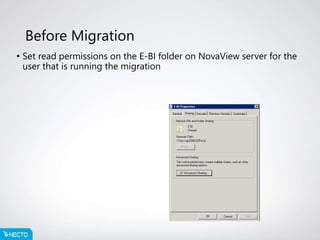
Before Migration
• Set read permissions on the E-BI folder on NovaView server for the
user that is running the migration
Using the Migration tool
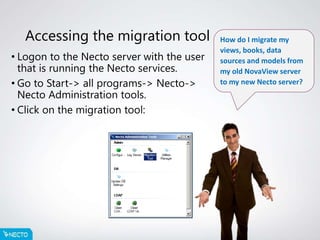
Accessing the migration tool
• Logon to the Necto server with the user
that is running the Necto services.
• Go to Start-> all programs-> Necto->
Necto Administration tools.
• Click on the migration tool:
How do I migrate my
views, books, data
sources and models from
my old NovaView server
to my new Necto server?
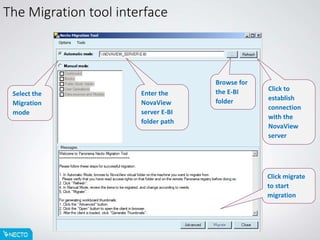
The Migration tool interface
Browse for
the E-BI
folder
Click to
establish
connection
with the
NovaView
server
Select the
Migration
mode
Enter the
NovaView
server E-BI
folder path
Click migrate
to start
migration
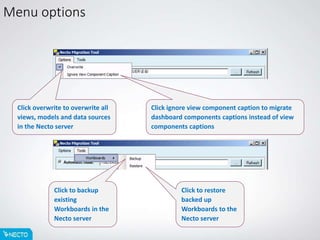
Menu options
Click overwrite to overwrite all
views, models and data sources
in the Necto server
Click to backup
existing
Workboards in the
Necto server
Click ignore view component caption to migrate
dashboard components captions instead of view
components captions
Click to restore
backed up
Workboards to the
Necto server
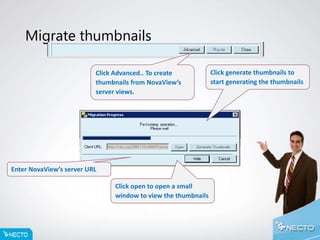
Migrate thumbnails
Click Advanced.. To create
thumbnails from NovaView’s
server views.
Enter NovaView’s server URL
Click open to open a small
window to view the thumbnails
Click generate thumbnails to
start generating the thumbnails
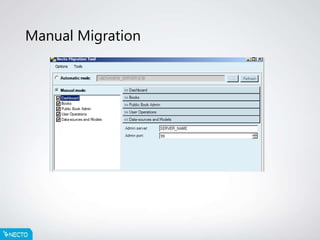
Manual Migration
Exercise 1
• Find a NovaView server to migrate views from and migrate them to
Necto
• Uncheck the overwrite option.
• Select automatic migration. Where can you see the migrated views?
• Do the same action this time with Overwrite option checked
• What did the migration overwrite the views?
Exercise 2
• Find a NovaView server to migrate views from and migrate them to
Necto.
• Select manual migration.
• Migrate only the data sources and models
• Where can you see the migrated objects?
Thank you, any
questions?

Necto 16 training 24 (archive) nova view to necto migration

  • 1.
    Necto 16 Training Novaviewto Necto Migration
  • 2.
    Objectives • By theend of this lesson you will be able to: • Perform full migration from NovaView to Necto: • Automatic migration • Manual migration • Thumbnails generation
  • 3.
  • 4.
    Before Migration • Setread permissions on the E-BI folder on NovaView server for the user that is running the migration
  • 5.
  • 6.
    Accessing the migrationtool • Logon to the Necto server with the user that is running the Necto services. • Go to Start-> all programs-> Necto-> Necto Administration tools. • Click on the migration tool: How do I migrate my views, books, data sources and models from my old NovaView server to my new Necto server?
  • 7.
    The Migration toolinterface Browse for the E-BI folder Click to establish connection with the NovaView server Select the Migration mode Enter the NovaView server E-BI folder path Click migrate to start migration
  • 8.
    Menu options Click overwriteto overwrite all views, models and data sources in the Necto server Click to backup existing Workboards in the Necto server Click ignore view component caption to migrate dashboard components captions instead of view components captions Click to restore backed up Workboards to the Necto server
  • 9.
    Migrate thumbnails Click Advanced..To create thumbnails from NovaView’s server views. Enter NovaView’s server URL Click open to open a small window to view the thumbnails Click generate thumbnails to start generating the thumbnails
  • 10.
  • 11.
    Exercise 1 • Finda NovaView server to migrate views from and migrate them to Necto • Uncheck the overwrite option. • Select automatic migration. Where can you see the migrated views? • Do the same action this time with Overwrite option checked • What did the migration overwrite the views?
  • 12.
    Exercise 2 • Finda NovaView server to migrate views from and migrate them to Necto. • Select manual migration. • Migrate only the data sources and models • Where can you see the migrated objects?
  • 13.

Editor's Notes

  • #3 The goal of this training is to provide its participants with the right knowledge and tools to perform NovaView to Necto migration. On completing this training, we expect our participants to acquire the right skills to: Use manual and automatic migration Create thumbnails
  • #5 The read permissions will allow the user that is running the migration to access all the valuable information and data in the E-BI folder.
  • #7 The migration tool is an easy-to-use application to migrate you NovaView views, books, data sources and modules to Necto.
  • #8 You can migrate everything in Automatic mode, or select to migrate only single components in manual mode. If you haven't used Dashboard, select manual mode. Otherwise, stay with Automatic, this mode will migrate everything.
  • #9 The Menu options allow you to set advanced setting prior to the migration or to backup and restore you existing Necto Workboards form the current server or any other server.
  • #10 Some environments have huge amounts of views to migrate. Here the separate thumbnails generation part comes in handy as we can start the process of thumbnails generation at night or the start of a weekend and have it finished by the start of the next workday. So while the views themselves are migrated and ready to be used in Necto. The less critical and long part of the thumbnails generation can be left in the background.
  • #11 The manual mode allows you to specify which components do you want to migrate to Necto. Uncheck the unneeded components Fill in the fields of the checked components with the right information. Click the migrate button.