Necto 16 Training
Necto SDK and JavaScript Basics
Objectives
• By the end of this lesson you will be able to:
• Show basic knowledge in JavaScript
• Debug your JavaScript using Internet Explorer
• Manipulate Necto using the Necto SDK
Agenda
• Overview
• Using JavaScript with Necto
• Flow of JavaScript and API’s in Necto
• Debugging in Necto and Internet Explorer
• Using DCOM XML’s in Necto
• Example and Exercise
Necto SDK and JavaScript
Overview
Overview JavaScript is the language of choice to make
modifications and additions to Necto
 It can be used with HTML and interact with the
Document Object Model (DOM)
 JavaScript is run on the client machine so provides
an immediate response, generally not requiring
interaction with the server.
 Necto has a full suite of API’s which can be called
and modified by JavaScript code.
Using JavaScript with Necto
JavaScript options JavaScript variables and functions are case sensitive
 Use JavaScript to:
 React to events
 <button type="button" onclick="alert('Welcome!')">Click
Me!</button>
 Write to HTML output
 document.write("<h1>This is a heading</h1>");
 Change HTML Content
 x=document.getElementById("demo") //Find the element
x.innerHTML="Hello JavaScript"; //Change the content
JavaScript: Choose the syntax for the level When you write JS code in Necto you need to
be aware of the level you are addressing in
Necto
 Application Level, HTML.
 getComponentById("NectoApplication","
pnAppl").getWbParametersValues();
 WorkBoard Level (components)
 getComponentById(“View1","pnAppl").c
allSetGridSelection(2,0,2,1,0);
Where can I use JavaScript? You can add JavaScript code to many areas of Necto
including but not limited to:
 E-BINecto.htm
 Entries are surrounded by <script language=JavaScript></script>
 In a WorkBoard JavaScript entry area
 No requirements for surrounding script setup
 In side any HTML component
 Entries are surrounded by
 <HTML><BODY><SCRIPT> … </SCRIPT></BODY></HTML>
 As a best practice for developing JavaScript we recommend
using a development tool or Notepad++
Functions in JavaScript Functions: A function contains code that will be executed by an event or
by a call to the function.
 You may call a function from anywhere within a page (or even from other
pages if the function is embedded in an external .js file).
 Example :
function onWorkboardLoadedEvent ()
{
alert (“Workboard loaded”);
}
 A good JavaScript tutorial is available at
http://www.w3schools.com/js/default.asp
Necto SDK and API
To add the functionality to Necto you need to use a
combination of the API’s and the SDK
All Necto Installations are shipped with the latest API
and SDK documentation, the URL’s for these are below:
•API =
http://<yourservername>/panorama/api/necto-api-
reference.htm
•SDK =
http://<yourservername/panorama/api/necto_SDK.h
tm
Flow of JavaScript and API’s in
Necto
API flow in Necto
 Wait for something to happen (a trigger
for an Event).
 If required get data and then identify the
specific item you need.
 Process the data
 Change data and/or output a reaction.
API’s in Necto We have multiple API’s for:
 Events such as onClickCommand()
 Calls such as callSave()
 Triggers such as onMemberChanged()
 All API’s can be found here http://support.panorama.com
search for API
 All API’s are in the format lowercase first letter for the first
word followed by uppercase thereafter i.e.
callFilterGridMembers()
Debugging in Necto and
Internet Explorer
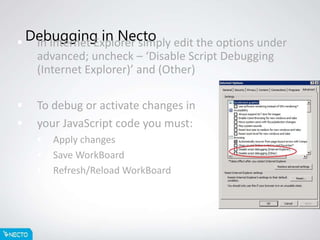
Debugging in Necto In Internet Explorer simply edit the options under
advanced; uncheck – ‘Disable Script Debugging
(Internet Explorer)’ and (Other)
 To debug or activate changes in
 your JavaScript code you must:
 Apply changes
 Save WorkBoard
 Refresh/Reload WorkBoard
Starting the debugger 1 Use the Debugger to check you are changing the
correct item to do this add ‘debugger;’ to the Java
code
 Example:
 getSomething()
 {
 debugger;
 var a = 1;
 alert(a);
 }
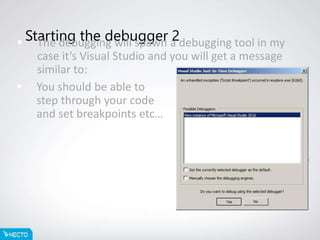
Starting the debugger 2 The debugging will spawn a debugging tool in my
case it’s Visual Studio and you will get a message
similar to:
 You should be able to
step through your code
and set breakpoints etc…
Using DCOM XML’s in Necto
Manipulating XML data in Necto Retrieve data use the XML DCOM object
 Find the correct leaf value
 Manipulate the data in the leaf
 Write back the xmlDoc.xml string
 Code Snippet to manipulate the xml data:
 function onWbParameterChanged(id, xml)
 {
 var temp = getComponentById("NectoApplication“,
“pnAppl”).getWbParametersValues();
xmlDoc=new ActiveXObject("Microsoft.XMLDOM");
xmlDoc.async=false;
xmlDoc.loadXML(temp);
x=xmlDoc.getElementsByTagName('Param');
x[0].setAttribute("Value","5");
x[0].setAttribute("Caption","5");
getComponentById("NectoApplication“,
“pnAppl”,).setWbParametersValues(xmlDoc.xml);
}
Example
Manipulating XML data in Necto Example
 To complete the examples you require:
 Contoso Cube (http://www.microsoft.com/en-
us/download/details.aspx?id=18279)
 Necto 16
 Follow these instructions :
Exercise
Adding functionality to a WorkBoard
 To complete the exercise you require:
 Contoso Cube
 Necto 16
 Follow these instructions :
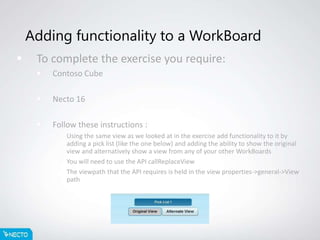
 Using the same view as we looked at in the exercise add functionality to it by
adding a pick list (like the one below) and adding the ability to show the original
view and alternatively show a view from any of your other WorkBoards
 You will need to use the API callReplaceView
 The viewpath that the API requires is held in the view properties->general->View
path
Thank you, any
questions?

Necto 16 training 20 component mode &amp; java script

  • 1.
    Necto 16 Training NectoSDK and JavaScript Basics
  • 2.
    Objectives • By theend of this lesson you will be able to: • Show basic knowledge in JavaScript • Debug your JavaScript using Internet Explorer • Manipulate Necto using the Necto SDK
  • 3.
    Agenda • Overview • UsingJavaScript with Necto • Flow of JavaScript and API’s in Necto • Debugging in Necto and Internet Explorer • Using DCOM XML’s in Necto • Example and Exercise
  • 4.
    Necto SDK andJavaScript Overview
  • 5.
    Overview JavaScript isthe language of choice to make modifications and additions to Necto  It can be used with HTML and interact with the Document Object Model (DOM)  JavaScript is run on the client machine so provides an immediate response, generally not requiring interaction with the server.  Necto has a full suite of API’s which can be called and modified by JavaScript code.
  • 6.
  • 7.
    JavaScript options JavaScriptvariables and functions are case sensitive  Use JavaScript to:  React to events  <button type="button" onclick="alert('Welcome!')">Click Me!</button>  Write to HTML output  document.write("<h1>This is a heading</h1>");  Change HTML Content  x=document.getElementById("demo") //Find the element x.innerHTML="Hello JavaScript"; //Change the content
  • 8.
    JavaScript: Choose thesyntax for the level When you write JS code in Necto you need to be aware of the level you are addressing in Necto  Application Level, HTML.  getComponentById("NectoApplication"," pnAppl").getWbParametersValues();  WorkBoard Level (components)  getComponentById(“View1","pnAppl").c allSetGridSelection(2,0,2,1,0);
  • 9.
    Where can Iuse JavaScript? You can add JavaScript code to many areas of Necto including but not limited to:  E-BINecto.htm  Entries are surrounded by <script language=JavaScript></script>  In a WorkBoard JavaScript entry area  No requirements for surrounding script setup  In side any HTML component  Entries are surrounded by  <HTML><BODY><SCRIPT> … </SCRIPT></BODY></HTML>  As a best practice for developing JavaScript we recommend using a development tool or Notepad++
  • 10.
    Functions in JavaScriptFunctions: A function contains code that will be executed by an event or by a call to the function.  You may call a function from anywhere within a page (or even from other pages if the function is embedded in an external .js file).  Example : function onWorkboardLoadedEvent () { alert (“Workboard loaded”); }  A good JavaScript tutorial is available at http://www.w3schools.com/js/default.asp
  • 11.
    Necto SDK andAPI To add the functionality to Necto you need to use a combination of the API’s and the SDK All Necto Installations are shipped with the latest API and SDK documentation, the URL’s for these are below: •API = http://<yourservername>/panorama/api/necto-api- reference.htm •SDK = http://<yourservername/panorama/api/necto_SDK.h tm
  • 12.
    Flow of JavaScriptand API’s in Necto
  • 13.
    API flow inNecto  Wait for something to happen (a trigger for an Event).  If required get data and then identify the specific item you need.  Process the data  Change data and/or output a reaction.
  • 14.
    API’s in NectoWe have multiple API’s for:  Events such as onClickCommand()  Calls such as callSave()  Triggers such as onMemberChanged()  All API’s can be found here http://support.panorama.com search for API  All API’s are in the format lowercase first letter for the first word followed by uppercase thereafter i.e. callFilterGridMembers()
  • 15.
    Debugging in Nectoand Internet Explorer
  • 16.
    Debugging in NectoIn Internet Explorer simply edit the options under advanced; uncheck – ‘Disable Script Debugging (Internet Explorer)’ and (Other)  To debug or activate changes in  your JavaScript code you must:  Apply changes  Save WorkBoard  Refresh/Reload WorkBoard
  • 17.
    Starting the debugger1 Use the Debugger to check you are changing the correct item to do this add ‘debugger;’ to the Java code  Example:  getSomething()  {  debugger;  var a = 1;  alert(a);  }
  • 18.
    Starting the debugger2 The debugging will spawn a debugging tool in my case it’s Visual Studio and you will get a message similar to:  You should be able to step through your code and set breakpoints etc…
  • 19.
  • 20.
    Manipulating XML datain Necto Retrieve data use the XML DCOM object  Find the correct leaf value  Manipulate the data in the leaf  Write back the xmlDoc.xml string  Code Snippet to manipulate the xml data:  function onWbParameterChanged(id, xml)  {  var temp = getComponentById("NectoApplication“, “pnAppl”).getWbParametersValues(); xmlDoc=new ActiveXObject("Microsoft.XMLDOM"); xmlDoc.async=false; xmlDoc.loadXML(temp); x=xmlDoc.getElementsByTagName('Param'); x[0].setAttribute("Value","5"); x[0].setAttribute("Caption","5"); getComponentById("NectoApplication“, “pnAppl”,).setWbParametersValues(xmlDoc.xml); }
  • 21.
  • 22.
    Manipulating XML datain Necto Example  To complete the examples you require:  Contoso Cube (http://www.microsoft.com/en- us/download/details.aspx?id=18279)  Necto 16  Follow these instructions :
  • 23.
  • 24.
    Adding functionality toa WorkBoard  To complete the exercise you require:  Contoso Cube  Necto 16  Follow these instructions :  Using the same view as we looked at in the exercise add functionality to it by adding a pick list (like the one below) and adding the ability to show the original view and alternatively show a view from any of your other WorkBoards  You will need to use the API callReplaceView  The viewpath that the API requires is held in the view properties->general->View path
  • 25.