Necto 16 Training
Navigation Component
Objectives
• By the end of this lesson you will be able to:
• Explain the how to use a Navigation component
• Create all types of Navigation components
• Use parameters with the navigation components
Navigation Component
Horizontal or vertical
display
Title LocationCreate or edit parameters
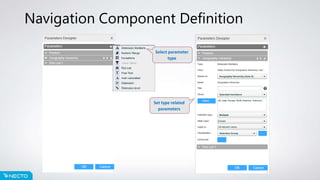
Navigation Component Definition
Set type related
parameters
Select parameter
type
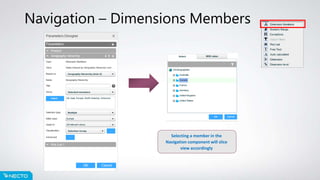
Navigation – Dimensions Members
Selecting a member in the
Navigation component will slice
view accordingly
Navigation – Dimensions Members - Continue
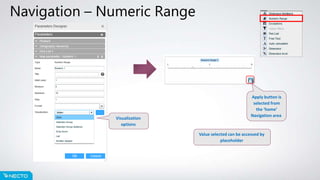
Navigation – Numeric Range
Visualization
options
Value selected can be accessed by
placeholder
Apply button is
selected from
the ‘home’
Navigation area
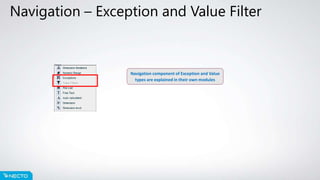
Navigation – Exception and Value Filter
Navigation component of Exception and Value
types are explained in their own modules
Navigation – Pick List
Placeholders can refer to either
name or value of selection
Navigation – Free Text
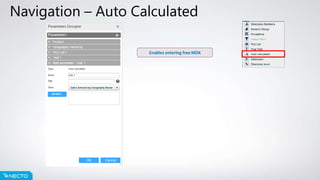
Navigation – Auto Calculated
Enables entering free MDX
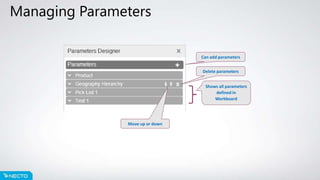
Managing Parameters
Can add parameters
Shows all parameters
defined in
Workboard
Delete parameters
Move up or down
Modifying the Component Properties
1. Select
component
2. Click to edit
properties
Inherit properties
from
workboard=‘No’
Make the changes
and click on ‘Apply’
DON’T FORGET TO SAVE YOUR
CHANGES!

Necto 16 training 9 navigation component