Necto 16 Training
Formulas and Exceptions
Objectives
By the end of this lesson you will be able to:
• Perform advanced analytics by:
 Defining formulas
 Defining exceptions
What is a Formula?
• User-defined members are created with formulas
• Formulas use Necto’s predefined formulas or MDX functions to create
members
• Members in the grid can be dragged into the formula definition
• Formulas can use dynamic parameters
Formula Location
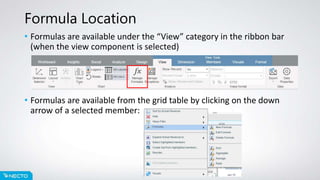
• Formulas are available under the “View” category in the ribbon bar
(when the view component is selected)
• Formulas are available from the grid table by clicking on the down
arrow of a selected member:
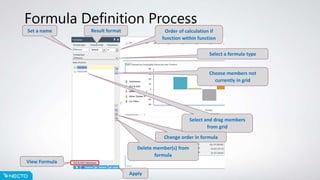
Formula Definition Process
Set a name Result format Order of calculation if
function within function
Select a formula type
Select and drag members
from grid
Change order in formula
Delete member(s) from
formula
View Formula
Apply
Choose members not
currently in grid
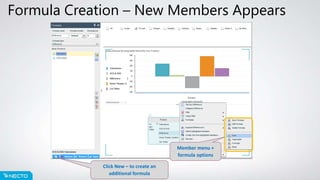
Formula Creation – New Members Appears
Click New – to create an
additional formula
Member menu +
formula options
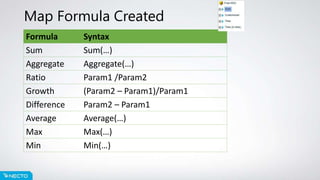
Map Formula Created
Formula Syntax
Sum Sum(…)
Aggregate Aggregate(…)
Ratio Param1 /Param2
Growth (Param2 – Param1)/Param1
Difference Param2 – Param1
Average Average(…)
Max Max(…)
Min Min(…)
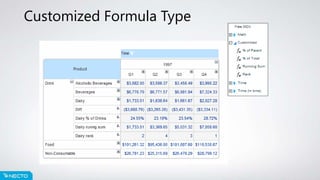
Customized Formula Type
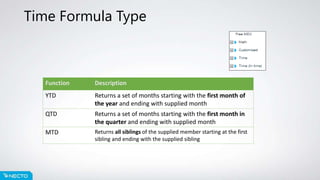
Time Formula Type
Function Description
YTD Returns a set of months starting with the first month of
the year and ending with supplied month
QTD Returns a set of months starting with the first month in
the quarter and ending with supplied month
MTD Returns all siblings of the supplied member starting at the first
sibling and ending with the supplied sibling
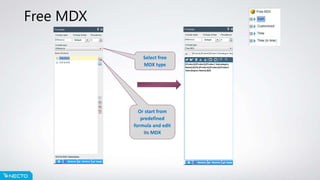
Free MDX
Select free
MDX type
Or start from
predefined
formula and edit
its MDX
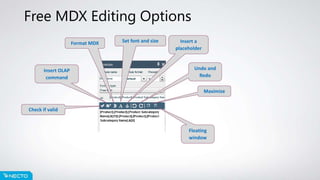
Free MDX Editing Options
Check if valid
Insert OLAP
command
Set font and sizeFormat MDX Insert a
placeholder
Floating
window
Maximize
Undo and
Redo
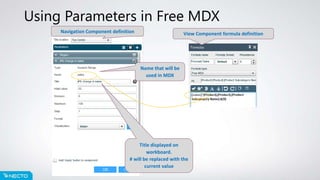
Using Parameters in Free MDX
Title displayed on
workboard.
# will be replaced with the
current value
Name that will be
used in MDX
Navigation Component definition View Component formula definition
Exceptions
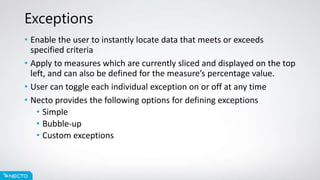
• Enable the user to instantly locate data that meets or exceeds
specified criteria
• Apply to measures which are currently sliced and displayed on the top
left, and can also be defined for the measure’s percentage value.
• User can toggle each individual exception on or off at any time
• Necto provides the following options for defining exceptions
• Simple
• Bubble-up
• Custom exceptions
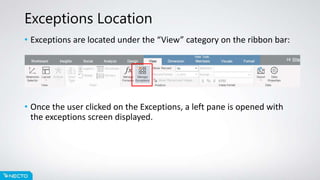
Exceptions Location
• Exceptions are located under the “View” category on the ribbon bar:
• Once the user clicked on the Exceptions, a left pane is opened with
the exceptions screen displayed.
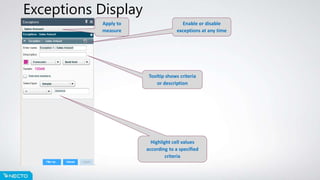
Exceptions Display
Highlight cell values
according to a specified
criteria
Apply to
measure
Enable or disable
exceptions at any time
Tooltip shows criteria
or description
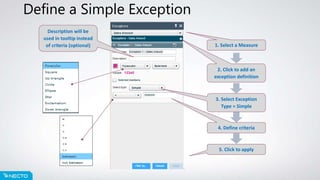
Define a Simple Exception
Description will be
used in tooltip instead
of criteria (optional)
2. Click to add an
exception definition
3. Select Exception
Type = Simple
4. Define criteria
5. Click to apply
1. Select a Measure
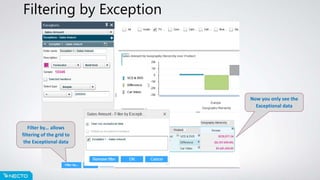
Filtering by Exception
Filter by… allows
filtering of the grid to
the Exceptional data
Now you only see the
Exceptional data
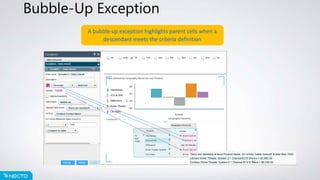
Bubble-Up Exception
A bubble-up exception highlights parent cells when a
descendant meets the criteria definition
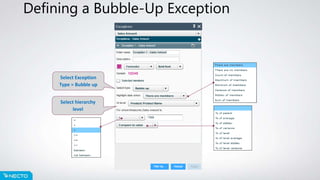
Defining a Bubble-Up Exception
Select Exception
Type = Bubble up
Select hierarchy
level
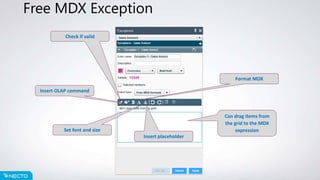
Free MDX Exception
Can drag items from
the grid to the MDX
expression
Check if valid
Insert placeholder
Set font and size
Format MDX
Insert OLAP command

Necto 16 training 15 formulas and exceptions

  • 1.
  • 2.
    Objectives By the endof this lesson you will be able to: • Perform advanced analytics by:  Defining formulas  Defining exceptions
  • 3.
    What is aFormula? • User-defined members are created with formulas • Formulas use Necto’s predefined formulas or MDX functions to create members • Members in the grid can be dragged into the formula definition • Formulas can use dynamic parameters
  • 4.
    Formula Location • Formulasare available under the “View” category in the ribbon bar (when the view component is selected) • Formulas are available from the grid table by clicking on the down arrow of a selected member:
  • 5.
    Formula Definition Process Seta name Result format Order of calculation if function within function Select a formula type Select and drag members from grid Change order in formula Delete member(s) from formula View Formula Apply Choose members not currently in grid
  • 6.
    Formula Creation –New Members Appears Click New – to create an additional formula Member menu + formula options
  • 7.
    Map Formula Created FormulaSyntax Sum Sum(…) Aggregate Aggregate(…) Ratio Param1 /Param2 Growth (Param2 – Param1)/Param1 Difference Param2 – Param1 Average Average(…) Max Max(…) Min Min(…)
  • 8.
  • 9.
    Time Formula Type FunctionDescription YTD Returns a set of months starting with the first month of the year and ending with supplied month QTD Returns a set of months starting with the first month in the quarter and ending with supplied month MTD Returns all siblings of the supplied member starting at the first sibling and ending with the supplied sibling
  • 10.
    Free MDX Select free MDXtype Or start from predefined formula and edit its MDX
  • 11.
    Free MDX EditingOptions Check if valid Insert OLAP command Set font and sizeFormat MDX Insert a placeholder Floating window Maximize Undo and Redo
  • 12.
    Using Parameters inFree MDX Title displayed on workboard. # will be replaced with the current value Name that will be used in MDX Navigation Component definition View Component formula definition
  • 13.
    Exceptions • Enable theuser to instantly locate data that meets or exceeds specified criteria • Apply to measures which are currently sliced and displayed on the top left, and can also be defined for the measure’s percentage value. • User can toggle each individual exception on or off at any time • Necto provides the following options for defining exceptions • Simple • Bubble-up • Custom exceptions
  • 14.
    Exceptions Location • Exceptionsare located under the “View” category on the ribbon bar: • Once the user clicked on the Exceptions, a left pane is opened with the exceptions screen displayed.
  • 15.
    Exceptions Display Highlight cellvalues according to a specified criteria Apply to measure Enable or disable exceptions at any time Tooltip shows criteria or description
  • 16.
    Define a SimpleException Description will be used in tooltip instead of criteria (optional) 2. Click to add an exception definition 3. Select Exception Type = Simple 4. Define criteria 5. Click to apply 1. Select a Measure
  • 17.
    Filtering by Exception Filterby… allows filtering of the grid to the Exceptional data Now you only see the Exceptional data
  • 18.
    Bubble-Up Exception A bubble-upexception highlights parent cells when a descendant meets the criteria definition
  • 19.
    Defining a Bubble-UpException Select Exception Type = Bubble up Select hierarchy level
  • 20.
    Free MDX Exception Candrag items from the grid to the MDX expression Check if valid Insert placeholder Set font and size Format MDX Insert OLAP command