Multisite:
Lessons I Learned the Hard Way
Susan Walker
susanwrotethis@gmail.com
www.linkedin.com/in/susanwrotethis
What is Multisite?
Multisite is a WordPress feature which allows users to create a
network of sites on a single WordPress installation.
Available since WordPress version 3.0, Multisite is a
continuation of WPMU or WordPress Multiuser project.
-- from wpbeginner.com
How Does it Work?
How Does it Work?
Multisite relies on two elements:
• lots of database tables
• magic dust
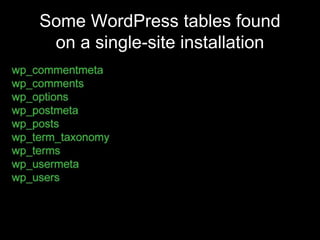
Some WordPress tables found
on a single-site installation
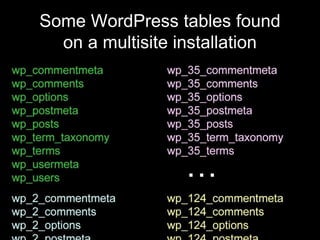
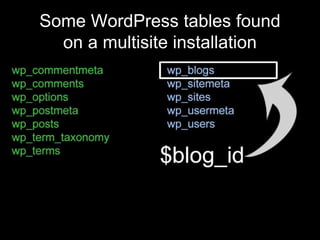
Some WordPress tables found
on a multisite installation
…
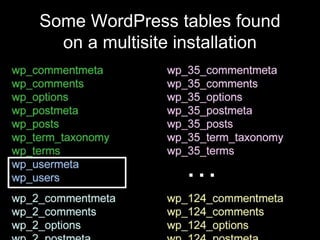
Some WordPress tables found
on a multisite installation
…
Some WordPress tables found
on a multisite installation
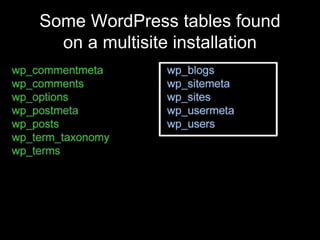
global tables
Some WordPress tables found
on a multisite installation
The Magic Dust
WordPress stores a unique ID and
path for each blog in wp_blogs. As
the multisite loads, WP uses this info
to know which tables to pull content
and settings from.
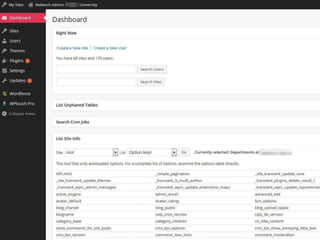
The Multisite Admin
The multisite administrator is called
the Super Admin. Instead of a site
dashboard and admin menu, there
will be a network dashboard and
admin menu.
Multisite Terminology
In multisite, an individual site is
referred to as a blog. The terms “site”
and “network” normally refer to the
whole multisite.
Multisite Terminology
Sites can run as subdomains…
• www.example.edu
• math.example.edu
• history.example.edu
• finearts.example.edu
Multisite Terminology
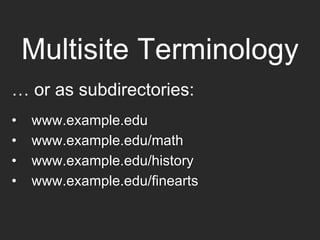
… or as subdirectories:
• www.example.edu
• www.example.edu/math
• www.example.edu/history
• www.example.edu/finearts
Who Uses Multisite?
Who Uses Multisite?
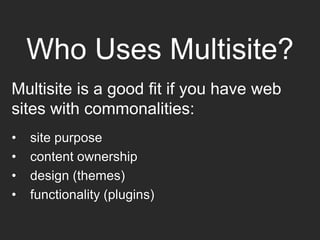
Multisite is a good fit if you have web
sites with commonalities:
• site purpose
• content ownership
• design (themes)
• functionality (plugins)
Who Uses Multisite?
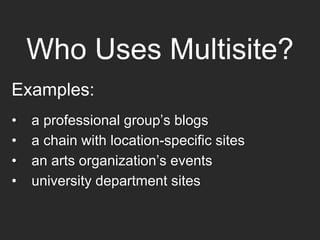
Examples:
• a professional group’s blogs
• a chain with location-specific sites
• an arts organization’s events
• university department sites
Who Uses Multisite?
It’s useful if you have a number of
related sites, especially when you
have limited resources with which to
manage them.
WARNING
Multisite documentation may be incomplete,
outdated or missing entirely. You have to learn
a lot of it by trial and error.
(Part of)
the
Missing Manual
I. Getting Started
Will you:
• have enough server resources?
• use subdomains or subdirectories?
• need wildcard SSL?
I. Getting Started
Will you:
• have enough server resources?
• use subdomains or subdirectories?
• need wildcard SSL?
I. Getting Started
Will you:
• have enough server resources?
• use subdomains or subdirectories?
• need wildcard SSL?
I. Getting Started
Will you:
• have enough server resources?
• use subdomains or subdirectories?
• need wildcard SSL?
II. Creating Sites
Remember to:
• use a site naming convention
• avoid page and site naming conflicts
II. Creating Sites
Remember to:
• use a site naming convention
• avoid page and site naming conflicts
II. Creating Sites
Remember to:
• use a site naming convention
• avoid page and site naming conflicts
II. Creating Sites
You can’t use slugs twice. That is,
www.example.edu/biology can’t be
both a page on the root site and a site
on its own.
III. Managing Plugins
You’ll need to:
• see if a plugin is multisite-friendly
• understand network activation
• avoid plugin overload
• consider activation access
III. Managing Plugins
You’ll need to:
• see if a plugin is multisite-friendly
• understand network activation
• avoid plugin overload
• consider activation access
III. Managing Plugins
Some plugins are built just for
multisite, some aren’t but work on it
fine, and others … not so much.
III. Managing Plugins
How can you tell?
• check the support forums
• ask the developer
• look in the uninstall file
Example 1 uninstall.php
Example 2 uninstall.php
III. Managing Plugins
You’ll need to:
• see if a plugin is multisite-friendly
• understand network activation
• avoid plugin overload
• consider activation access
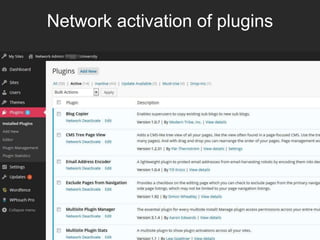
Network activation of plugins
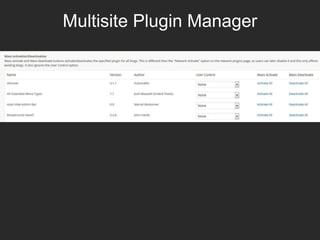
Multisite Plugin Manager
III. Managing Plugins
You’ll need to:
• see if a plugin is multisite-friendly
• understand network activation
• avoid plugin overload
• consider activation access
III. Managing Plugins
You’ll need to:
• see if a plugin is multisite-friendly
• understand network activation
• avoid plugin overload
• consider activation access
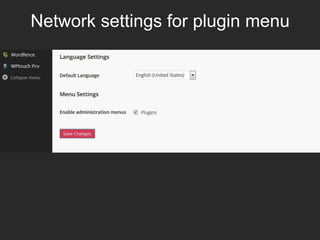
Network settings for plugin menu
IV. Modifying Themes
Never:
• modify theme code directly
• put non-theme code in functions.php
IV. Modifying Themes
Never:
• modify theme code directly
• put non-theme code in functions.php
IV. Modifying Themes
When you update a modified theme, your
code changes will be overwritten. Use a
child theme instead. Large multisites with
specific branding needs should consider
a custom theme.
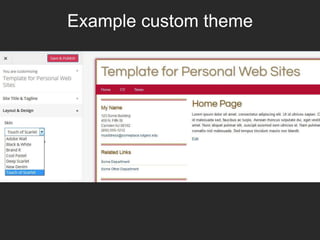
Example custom theme
IV. Modifying Themes
Never:
• modify theme code directly
• put non-theme code in functions.php
IV. Modifying Themes
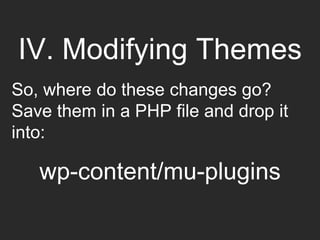
So, where do these changes go?
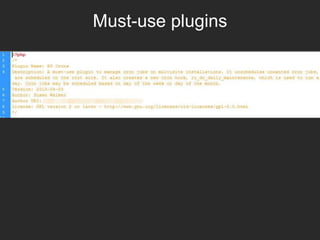
Save them in a PHP file and drop it
into:
wp-content/mu-plugins
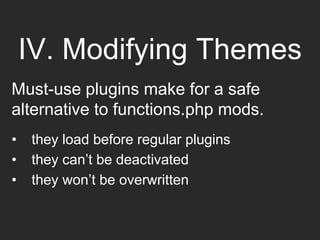
IV. Modifying Themes
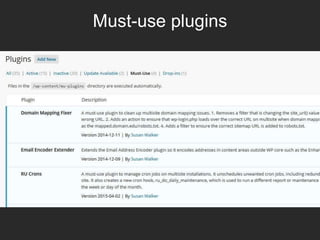
Must-use plugins make for a safe
alternative to functions.php mods.
• they load before regular plugins
• they can’t be deactivated
• they won’t be overwritten
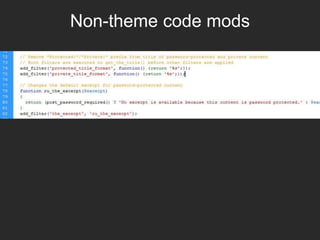
Non-theme code mods
Must-use plugins
Must-use plugins
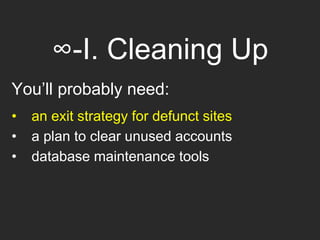
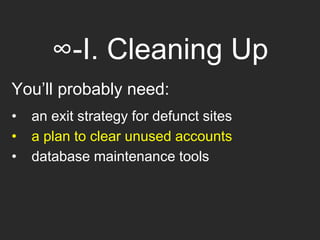
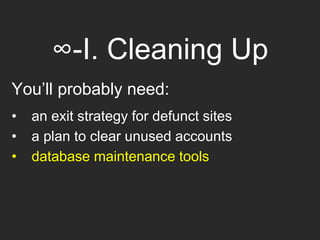
∞-I. Cleaning Up
WordPress is remarkable, but it’s not
self cleaning. Be prepared to clear up
the clutter that invariably accumulates
over time.
∞-I. Cleaning Up
You’ll probably need:
• an exit strategy for defunct sites
• a plan to clear unused accounts
• database maintenance tools
∞-I. Cleaning Up
You’ll probably need:
• an exit strategy for defunct sites
• a plan to clear unused accounts
• database maintenance tools
∞-I. Cleaning Up
You’ll probably need:
• an exit strategy for defunct sites
• a plan to clear unused accounts
• database maintenance tools
∞-I. Cleaning Up
You’ll probably need:
• an exit strategy for defunct sites
• a plan to clear unused accounts
• database maintenance tools
∞-I. Cleaning Up
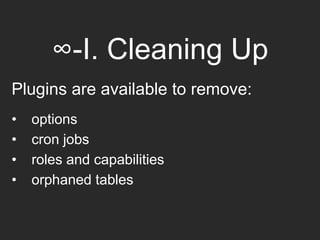
Plugins are available to remove:
• options
• cron jobs
• roles and capabilities
• orphaned tables
∞-I. Cleaning Up
Back up your database before you
start!
∞-I. Cleaning Up
And don’t forget to dump unused media
files from sites. A lot of requests for
increased storage space would be
unnecessary if people deleted their
duplicate images.
What’s
Still Missing?
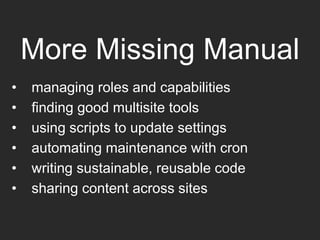
More Missing Manual
• managing roles and capabilities
• finding good multisite tools
• using scripts to update settings
• automating maintenance with cron
• writing sustainable, reusable code
• sharing content across sites
Final Word of Advice
Never test new themes, plugins or
scripts directly on production.
The one thing that’s scarier than seeing the White Screen of Death on your site …
… is seeing it on all of them.
Susan Walker
susanwrotethis@gmail.com
www.linkedin.com/in/susanwrotethis

Multisite: Lessons I Learned the Hard Way

Editor's Notes

  • #4 How multisite works may seem rather mysterious to novices.
  • #6 In a single-site installation of WordPress, there are fewer than a dozen tables, though plugins may add more. The table names are descriptive. For instance, wp_posts is where the posts may be found, and basic user information is in wp_users.
  • #7 On a multisite, each site has its own tables for posts, comments, terms and options. After the first site, often called the root site, the subsequent sites’ table names contain the ID number of the blog. So for the second site, the posts table will be wp_2_posts.
  • #8 Not all tables are duplicated. Some are shared by all sites. The wp_users table is one such global table.
  • #9 Other global tables include wp_blogs and wp_sites.
  • #10 The wp_blogs table is key to making multisite work. This is how WordPress knows which site on multisite is which.
  • #13 This is an example of what a network dashboard might look like. This particular dashboard has been customized to display information about the multisite and the sites on it.
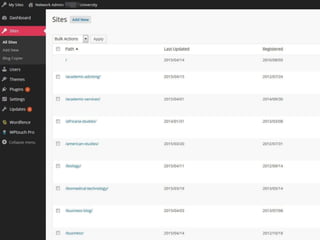
  • #14 The Super Admin can see a list of sites that have been created on multisite.
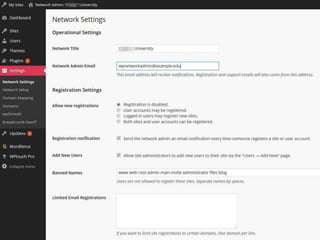
  • #15 There is a Network Settings page for settings that will be shared by all sites.
  • #16 The terminology can be confusing. During this presentation each blog will be referred to as a site while the entire installation will be called a multisite or a network.
  • #19 Multisite is not a good fit for everyone. If you have several unrelated WordPress sites, trying to consolidate them into a single multisite is not necessarily the best way to manage them.
  • #23 Be prepared to Google a lot.
  • #24 The rest of this presentation will touch on information that many Super Admins have to learn from experience.
  • #26 Remember that just because you have one WordPress installation, you still to thing of server space in terms of the number of sites. A multisite on which each site has 150 MB of upload space will run into problems if you’re using budget hosting. You’ll also want to be sure to check with your hosting service in advance about restrictions, such as plugins they don’t allow.
  • #27 You’ll be prompted to make this choice when you set up your multisite. Certain multisite experts may recommend using subdomains for reasons that have to do with better SEO performance. For institutions trying to migrate existing sites with established identities, I’ve found that subdirectories provide more flexibility. You have the option of adding domains to selected sites using a domain mapping plugin.
  • #28 If you’re using subdomains or domain mapping, expect to need a wildcard SSL certificate. A subdirectory installation without domain mapping can use a single SSL certificate.
  • #30 Once you’re set up, think about a naming convention before setting up sites. You can change the site names later, but you’ll need to fix links and images after you do. Planning ahead saves work.
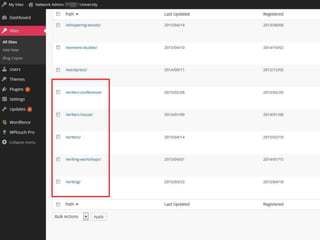
  • #31 If you think it can’t happen to you, consider this multisite where there are sites for Writer’s Conference, Writers’ House, Writers, Writing Workshops and the Writing program.
  • #32 Naming considerations for sites also apply to page names, known as slugs, on the root site.
  • #34 Selecting good plugins is an important task for multisite.
  • #35 More and better plugins are available for multisite than there were as little as two or three years ago, but you still need to check them out.
  • #38 The uninstall file can tell you a lot. In this case the plugin will uninstall its options from the root site, but it makes no provision for the other sites on a multisite. Those options will be left behind in the database.
  • #39 By comparison, this plugin gets a list of blogs and goes through each in turn to delete options from their respective tables.
  • #40 On multisite, a plugin can be network activated. This makes it active on all sites. At the same time, it doesn’t show up on the Plugins pages for individual sites and it can’t be deactivated by administrators of those sites.
  • #41 You’ll see the network activated plugins from the network admin area. There are some plugins that work well on multisite once they’re activated individually, but they don’t network activate properly.
  • #42 We use a plugin called Multisite Plugin Manager to activate these plugins across all sites at once to create the tables and other resources for each site that a network activation fails to create.
  • #43 Some Super Admins will install 100 or more plugins, but keeping the number to a minimum reduces the amount of maintenance overhead as well as the changes of a plugin conflict.
  • #44 You may not want to grant administrators of individual sites the ability to activate any plugin available. Say there are 100 sites and a particular plugin has been activated on 40 of them. Then an update comes through that forces you to make emergency settings changes to each site where the plugin is installed. If on those 40 sites only seven of them are actually using the plugin, the extra sites are hampering you from getting the job done as fast and efficiently as possible.
  • #45 The ability to enable site administrators to activate or deactivate available plugins is in the Network Settings.
  • #46 Many of the considerations for plugins apply to themes as well.
  • #47 Modifying theme codes directly is a bad habit of less experienced users. Never do it on multisite. When you modify theme code for one site on multisite, it changes it for all the sites using that theme.
  • #49 To provide users with design options without having to support six or seven custom themes, we created a single theme with skins that they can choose from the Customizer. This provides design flexibility with significantly less code to maintain.
  • #50 If you’ve ever seen a tutorial for modifying a WordPress feature by adding code to the theme’s functions.php file, don’t. If the code is to change site function rather than part of the theme, there’s a better option.
  • #53 Here’s an example of a must-use plugin many people would have put in functions.php. This one removes “Protected” and “Private” from password-protected and private post titles. It also customizes the excerpt text displayed for password-protected posts.
  • #54 The only difference between putting it in functions.php and saving it in mu-plugins is that you’ll need to add a few lines of metadata to the top of the must-use plugins file.
  • #55 The name, description and other information will appear in the network plugins information.
  • #57 If you clean up periodically, you have less mess to wade through to find and support your sites.
  • #58 We have a standard procedure that if a site has not launched a year after the space was created, we remove it from the system.
  • #59 Certain multisite experts may say to leave them in the system, but we delete users without any sites roughly every six months.
  • #60 In addition to the plugins that don’t clean up after themselves when they uninstall, there may be data left behind by plugins that have been permanently deactivated on certain sites. Settings, custom roles and capabilities and other data may be sitting in the sites’ tables.
  • #64 There are many other topics not covered by this presentation.
  • #66 We have a multisite installation that exists solely to find out all the ways I can cause things to blow up.