WordPress Multisite
WP Butler’s
Ultimate Guide To
What is Multisite?
The WordPress Codex defines Multisite as:
“A feature of WordPress 3.0 and later versions that
Allows multiple virtual sites to share a single
WordPress installation.”
Examples of Multisite
• WordPress.com hosts approximately 37 million sites
• Edublogs.org hosts 4.3 million educational sites
• Reuters has an entire network of sites that focus on its
products and sectors
• NBC uses subdomains for each TV show on their roster
• New York Times uses subdomains to keep each of its individual
blogs
Why Use Multisite?
• One install, many sites
• Single Installation
• Multiple access levels for easy management
• (network administrator and super administrator)
• Share themes and plugins
• It’s Affordable (one installation for 100s of sites)
• Streamlined updates
When NOT to Use Multisite?
• Creating a single blog
• Sites need separate hosts, databases or IPs
• Site admins need to install Plugins or Themes
• As a development environment before launch
• Don’t have access or confidence to modify files
• Hosting doesn’t provide enough resources
Two Different Ways to Use Multisite
• Using subdomains means that each site will have a url like
http://site1.yournetwork.com
If you’re planning to let people create their own site, you’ll need
to have wildcard subdomains activated for your hosting
• Using subdirectories means that each site will have a url like
http://yournetwork.com/site1
You can’t choose this option on an established site that you’re
converting to a network as it may cause clashes with urls already
created in your site.
Install Multisite on a new Installation
• Install WordPress normally
• Add one line of code to wp-config.php
define( 'WP_ALLOW_MULTISITE', true );
• Go to Tools >Network Setup - you’ll be prompted to
choose subdomains or subdirectories for your
installation
• The final step is to copy some code provided by
WordPress into your wp-config.php and .htaccess
files.
Install Multisite on existing Installation
• Follow the same steps as previously with one
exception: you won’t be given the option to
select subdomains or subdirectories. If your
site has been in existence for more than a
month, you’ll be forced to use subdomains.
Managing Your Network
Managing your network will consist of:
• Creating and managing sites
• Installing and activating themes
• Installing and activating plugins
• Updates, Users and Settings
Managing Your Network
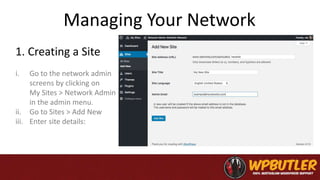
i. Go to the network admin
screens by clicking on
My Sites > Network Admin
in the admin menu.
ii. Go to Sites > Add New
iii. Enter site details:
1. Creating a Site
Managing Your Network
Only the super administrator of a network can install themes
and make them available for sites to use. You can do this in one
of two ways:
• you can allow them for individual sites, or
• you can network activate them.
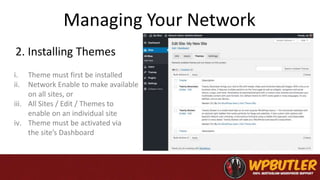
2. Installing Themes
Managing Your Network
2. Installing Themes
i. Theme must first be installed
ii. Network Enable to make available
on all sites, or
iii. All Sites / Edit / Themes to
enable on an individual site
iv. Theme must be activated via
the site’s Dashboard
Managing Your Network
Plugins also have to be installed by the network administrator, but they
work slightly differently with regard to the sites on the network. You can’t
enable a plugin for an individual site. Instead:
• you can network activate it, so it runs on every site on the network, or
• you can just install it, so that individual sites can choose to activate it.
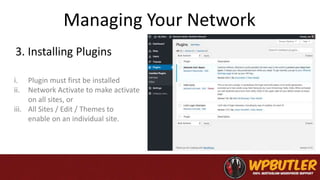
3. Installing Plugins
Managing Your Network
3. Installing Plugins
i. Plugin must first be installed
ii. Network Activate to make activate
on all sites, or
iii. All Sites / Edit / Themes to
enable on an individual site.
Managing Your Network
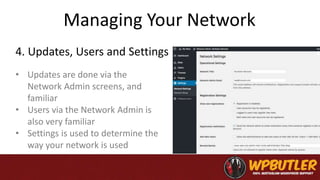
• Updates are done via the
Network Admin screens, and
familiar
• Users via the Network Admin is
also very familiar
• Settings is used to determine the
way your network is used
4. Updates, Users and Settings
Managing a Huge Network of Sites
Clearly, this cannot be done on a cheap, shared
hosting plan. As your network grows you’ll need to
make changes to the way you manage your data.
Edublogs (4+ million accounts) uses:
• 3x web-tier servers
• 2x database servers
• 1x file server
Free Multisite Plugins
• WordPress MU Domain Mapping
• User Switching
• Multisite Enhancements
• Multisite Plugin Stats
• Organizational Message Notifier
• Menus
• WP Super Cache / W3Total Cache
Premium Multisite Plugins
• GravityForms
• Domain Mapping
• Snapshot
• Pro Sites
• Support System
• Multisite Content Copier
• Global Site Search

Ultimate Guide to WordPress Multisite

  • 1.
  • 2.
    What is Multisite? TheWordPress Codex defines Multisite as: “A feature of WordPress 3.0 and later versions that Allows multiple virtual sites to share a single WordPress installation.”
  • 3.
    Examples of Multisite •WordPress.com hosts approximately 37 million sites • Edublogs.org hosts 4.3 million educational sites • Reuters has an entire network of sites that focus on its products and sectors • NBC uses subdomains for each TV show on their roster • New York Times uses subdomains to keep each of its individual blogs
  • 4.
    Why Use Multisite? •One install, many sites • Single Installation • Multiple access levels for easy management • (network administrator and super administrator) • Share themes and plugins • It’s Affordable (one installation for 100s of sites) • Streamlined updates
  • 5.
    When NOT toUse Multisite? • Creating a single blog • Sites need separate hosts, databases or IPs • Site admins need to install Plugins or Themes • As a development environment before launch • Don’t have access or confidence to modify files • Hosting doesn’t provide enough resources
  • 6.
    Two Different Waysto Use Multisite • Using subdomains means that each site will have a url like http://site1.yournetwork.com If you’re planning to let people create their own site, you’ll need to have wildcard subdomains activated for your hosting • Using subdirectories means that each site will have a url like http://yournetwork.com/site1 You can’t choose this option on an established site that you’re converting to a network as it may cause clashes with urls already created in your site.
  • 7.
    Install Multisite ona new Installation • Install WordPress normally • Add one line of code to wp-config.php define( 'WP_ALLOW_MULTISITE', true ); • Go to Tools >Network Setup - you’ll be prompted to choose subdomains or subdirectories for your installation • The final step is to copy some code provided by WordPress into your wp-config.php and .htaccess files.
  • 8.
    Install Multisite onexisting Installation • Follow the same steps as previously with one exception: you won’t be given the option to select subdomains or subdirectories. If your site has been in existence for more than a month, you’ll be forced to use subdomains.
  • 9.
    Managing Your Network Managingyour network will consist of: • Creating and managing sites • Installing and activating themes • Installing and activating plugins • Updates, Users and Settings
  • 10.
    Managing Your Network i.Go to the network admin screens by clicking on My Sites > Network Admin in the admin menu. ii. Go to Sites > Add New iii. Enter site details: 1. Creating a Site
  • 11.
    Managing Your Network Onlythe super administrator of a network can install themes and make them available for sites to use. You can do this in one of two ways: • you can allow them for individual sites, or • you can network activate them. 2. Installing Themes
  • 12.
    Managing Your Network 2.Installing Themes i. Theme must first be installed ii. Network Enable to make available on all sites, or iii. All Sites / Edit / Themes to enable on an individual site iv. Theme must be activated via the site’s Dashboard
  • 13.
    Managing Your Network Pluginsalso have to be installed by the network administrator, but they work slightly differently with regard to the sites on the network. You can’t enable a plugin for an individual site. Instead: • you can network activate it, so it runs on every site on the network, or • you can just install it, so that individual sites can choose to activate it. 3. Installing Plugins
  • 14.
    Managing Your Network 3.Installing Plugins i. Plugin must first be installed ii. Network Activate to make activate on all sites, or iii. All Sites / Edit / Themes to enable on an individual site.
  • 15.
    Managing Your Network •Updates are done via the Network Admin screens, and familiar • Users via the Network Admin is also very familiar • Settings is used to determine the way your network is used 4. Updates, Users and Settings
  • 16.
    Managing a HugeNetwork of Sites Clearly, this cannot be done on a cheap, shared hosting plan. As your network grows you’ll need to make changes to the way you manage your data. Edublogs (4+ million accounts) uses: • 3x web-tier servers • 2x database servers • 1x file server
  • 17.
    Free Multisite Plugins •WordPress MU Domain Mapping • User Switching • Multisite Enhancements • Multisite Plugin Stats • Organizational Message Notifier • Menus • WP Super Cache / W3Total Cache
  • 18.
    Premium Multisite Plugins •GravityForms • Domain Mapping • Snapshot • Pro Sites • Support System • Multisite Content Copier • Global Site Search