MS OFFICE (BASIC)
TRAINING SESSION: 21st
March 2016 ~ 25th
March 2016 (09:30am to 11:30am)
Muhammad Umer Aleem
COURSE OUTLINE
 Session#01 (21-Mar-16)  Introduction to MS Office 2013 Modules
 Session#02 (22-Mar-16)  Introduction to MS Word & Document Formatting
 Session#03 (23-Mar-16)  Introduction to MS Excel & Uses
 Session#04 (24-Mar-16)  Useful Excel Tools & Formulas
 Session#05 (25-Mar-16)  Introduction to MS Power Point
TRAINING EVALUATION
 Evaluation of the Participants will be based on:
 Attendance & Effective Participation
(20% Marking)
 Assignment#01: At the end of 2nd
session participants will be assigned a
document to be fully formatted in Word File till 4th
session.
(40% Marking)
 Assignment#02: At the end of 4th
session all participants will be given separate
formula sheet which they have to submit in Excel Sheet till 26-March-2016.
(40% Marking)
SESSION#01
INTRODUCTION TO
MS OFFICE 2013 MODULES
 Choosing the right application for the task at hand
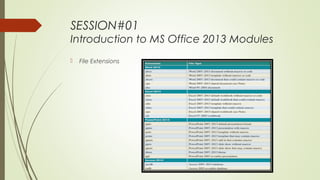
 File Extensions
SESSION#01
Introduction to MS Office 2013 Modules
 Choosing the right application for the task at hand:
 MS Access:
 Store, organize, and manage simple data or complex relational data.
 Make your data available on your company network or in a web browser by using
Access Services, a component of SharePoint.
 Create forms for data entry and reports to present your information.
 Export data to other applications, such as Excel or Word, as well as other database
formats.
SESSION#01
Introduction to MS Office 2013 Modules
 Choosing the right application for the task at hand: (Contd.)
 MS Excel:
 Calculate and analyze numeric information such as budgets, income, expenses, loans,
and scientific or statistical data.
 Organize and track information, such as inventory, work schedules, projects, invoices,
and address lists.
 Summarize numeric and other data and display results in charts and PivotTables.
 Create forms that include controls, such as check boxes, drop-down lists, and option
groups, to be filled in by other users.
SESSION#01
Introduction to MS Office 2013 Modules
 Choosing the right application for the task at hand: (Contd.)
 MS OneNote:
 Organize and keep track of your notes and other information in searchable notebooks.
 Collect information from other Office applications or Windows Internet Explorer.
 Capture your notes in text, ink, drawings, images, audio, and video.
 Insert pictures, tables, files, spreadsheets, or diagrams.
 Collaborate in real time with members of your team.
SESSION#01
Introduction to MS Office 2013 Modules
 Choosing the right application for the task at hand: (Contd.)
 MS Outlook:
 Send, receive, and store email messages and meeting requests.
 Use a calendar and tasks to keep track of your schedule and set reminders.
 Store contact information for your business connections.
 Share your Outlook information, such as your calendar, inbox, or contacts, with
members of your team.
SESSION#01
Introduction to MS Office 2013 Modules
 Choosing the right application for the task at hand: (Contd.)
 MS PowerPoint:
 Create presentations for a sales pitch, conference, meeting, class, or demonstration.
 Create photo albums to share with friends and family or for personal use.
 Add multimedia such as graphics, video, and audio along with animations.
 Present your presentation to a live audience or in an online meeting, or transform it into
a video.
SESSION#01
Introduction to MS Office 2013 Modules
 Choosing the right application for the task at hand: (Contd.)
 MS Publisher:
 Create flyers, cards, calendars, brochures, certificates, catalogs, advertisements, and
photo albums.
 Include graphics, tables, and other visual elements.
 Use built-in tools to save your publication for commercial or photo printing.
 Create personalized publications for mass mailings for print and email distribution.
SESSION#01
Introduction to MS Office 2013 Modules
 Choosing the right application for the task at hand: (Contd.)
 MS Word:
 Create general documents such as letters, memos, reports, manuals, contracts, and
proposals.
 Create documents that contain graphics, such as newsletters, cards, flyers, invitations,
and photo calendars.
 Create advanced documents, such as mass mailings that can be printed and mailed
or sent by email. Create a book or report with a table of contents, indexes, and cross
references.
 Create forms that include controls such as check boxes, drop-down lists, and date
pickers, to be filled in by other users.
 Generate other documents, such as envelopes, labels, blog posts, and webpages.
SESSION#01
Introduction to MS Office 2013 Modules
 Choosing the right application for the task at hand: (Contd.)
 MS InfoPath:
 Create structured fill-in-the-blank forms that can be connected to a data source, such
as an Access or SharePoint database.
 Store forms on your company network or in a SharePoint library, or distribute them by
email.
 Add calculations, rules, data validation, and conditional formatting.
SESSION#01
Introduction to MS Office 2013 Modules
 Choosing the right application for the task at hand: (Contd.)
 MS Lync:
 Quickly communicate with other people in your company by instant message, audio,
or video.
 View presence information, such as Available, Busy, Away, Off Work, and Do Not
Disturb for members of your team in Lync and across the applications.
 Share your desktop or an application with people both inside and outside your
company.
SESSION#01
Introduction to MS Office 2013 Modules
 File Extensions

Ms office (basic) 2016 session 01

  • 1.
    MS OFFICE (BASIC) TRAININGSESSION: 21st March 2016 ~ 25th March 2016 (09:30am to 11:30am) Muhammad Umer Aleem
  • 2.
    COURSE OUTLINE  Session#01(21-Mar-16)  Introduction to MS Office 2013 Modules  Session#02 (22-Mar-16)  Introduction to MS Word & Document Formatting  Session#03 (23-Mar-16)  Introduction to MS Excel & Uses  Session#04 (24-Mar-16)  Useful Excel Tools & Formulas  Session#05 (25-Mar-16)  Introduction to MS Power Point
  • 3.
    TRAINING EVALUATION  Evaluationof the Participants will be based on:  Attendance & Effective Participation (20% Marking)  Assignment#01: At the end of 2nd session participants will be assigned a document to be fully formatted in Word File till 4th session. (40% Marking)  Assignment#02: At the end of 4th session all participants will be given separate formula sheet which they have to submit in Excel Sheet till 26-March-2016. (40% Marking)
  • 4.
    SESSION#01 INTRODUCTION TO MS OFFICE2013 MODULES  Choosing the right application for the task at hand  File Extensions
  • 5.
    SESSION#01 Introduction to MSOffice 2013 Modules  Choosing the right application for the task at hand:  MS Access:  Store, organize, and manage simple data or complex relational data.  Make your data available on your company network or in a web browser by using Access Services, a component of SharePoint.  Create forms for data entry and reports to present your information.  Export data to other applications, such as Excel or Word, as well as other database formats.
  • 6.
    SESSION#01 Introduction to MSOffice 2013 Modules  Choosing the right application for the task at hand: (Contd.)  MS Excel:  Calculate and analyze numeric information such as budgets, income, expenses, loans, and scientific or statistical data.  Organize and track information, such as inventory, work schedules, projects, invoices, and address lists.  Summarize numeric and other data and display results in charts and PivotTables.  Create forms that include controls, such as check boxes, drop-down lists, and option groups, to be filled in by other users.
  • 7.
    SESSION#01 Introduction to MSOffice 2013 Modules  Choosing the right application for the task at hand: (Contd.)  MS OneNote:  Organize and keep track of your notes and other information in searchable notebooks.  Collect information from other Office applications or Windows Internet Explorer.  Capture your notes in text, ink, drawings, images, audio, and video.  Insert pictures, tables, files, spreadsheets, or diagrams.  Collaborate in real time with members of your team.
  • 8.
    SESSION#01 Introduction to MSOffice 2013 Modules  Choosing the right application for the task at hand: (Contd.)  MS Outlook:  Send, receive, and store email messages and meeting requests.  Use a calendar and tasks to keep track of your schedule and set reminders.  Store contact information for your business connections.  Share your Outlook information, such as your calendar, inbox, or contacts, with members of your team.
  • 9.
    SESSION#01 Introduction to MSOffice 2013 Modules  Choosing the right application for the task at hand: (Contd.)  MS PowerPoint:  Create presentations for a sales pitch, conference, meeting, class, or demonstration.  Create photo albums to share with friends and family or for personal use.  Add multimedia such as graphics, video, and audio along with animations.  Present your presentation to a live audience or in an online meeting, or transform it into a video.
  • 10.
    SESSION#01 Introduction to MSOffice 2013 Modules  Choosing the right application for the task at hand: (Contd.)  MS Publisher:  Create flyers, cards, calendars, brochures, certificates, catalogs, advertisements, and photo albums.  Include graphics, tables, and other visual elements.  Use built-in tools to save your publication for commercial or photo printing.  Create personalized publications for mass mailings for print and email distribution.
  • 11.
    SESSION#01 Introduction to MSOffice 2013 Modules  Choosing the right application for the task at hand: (Contd.)  MS Word:  Create general documents such as letters, memos, reports, manuals, contracts, and proposals.  Create documents that contain graphics, such as newsletters, cards, flyers, invitations, and photo calendars.  Create advanced documents, such as mass mailings that can be printed and mailed or sent by email. Create a book or report with a table of contents, indexes, and cross references.  Create forms that include controls such as check boxes, drop-down lists, and date pickers, to be filled in by other users.  Generate other documents, such as envelopes, labels, blog posts, and webpages.
  • 12.
    SESSION#01 Introduction to MSOffice 2013 Modules  Choosing the right application for the task at hand: (Contd.)  MS InfoPath:  Create structured fill-in-the-blank forms that can be connected to a data source, such as an Access or SharePoint database.  Store forms on your company network or in a SharePoint library, or distribute them by email.  Add calculations, rules, data validation, and conditional formatting.
  • 13.
    SESSION#01 Introduction to MSOffice 2013 Modules  Choosing the right application for the task at hand: (Contd.)  MS Lync:  Quickly communicate with other people in your company by instant message, audio, or video.  View presence information, such as Available, Busy, Away, Off Work, and Do Not Disturb for members of your team in Lync and across the applications.  Share your desktop or an application with people both inside and outside your company.
  • 14.
    SESSION#01 Introduction to MSOffice 2013 Modules  File Extensions