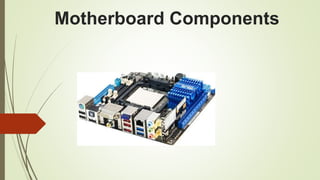
Motherboard Components
What is Motherboard
Allows all parts of your computer to receive
power and communicate with one another
Backbone of the Computer
It integrates all Hardware components into one system
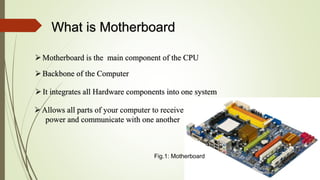
Motherboard is the main component of the CPU
Fig.1: Motherboard
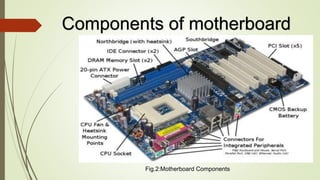
Components of motherboard
Fig.2:Motherboard Components
Processor Socket
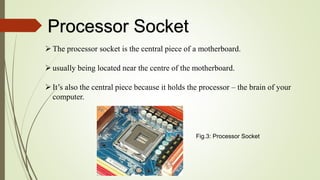
The processor socket is the central piece of a motherboard.
usually being located near the centre of the motherboard.
It’s also the central piece because it holds the processor – the brain of your
computer.
Fig.3: Processor Socket
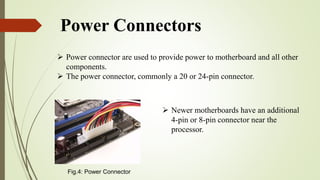
Power Connectors
 Power connector are used to provide power to motherboard and all other
components.
 The power connector, commonly a 20 or 24-pin connector.
 Newer motherboards have an additional
4-pin or 8-pin connector near the
processor.
Fig.4: Power Connector
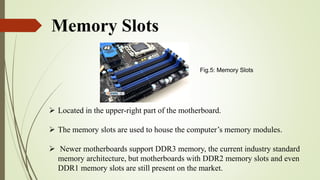
Memory Slots
 Located in the upper-right part of the motherboard.
 The memory slots are used to house the computer’s memory modules.
 Newer motherboards support DDR3 memory, the current industry standard
memory architecture, but motherboards with DDR2 memory slots and even
DDR1 memory slots are still present on the market.
Fig.5: Memory Slots
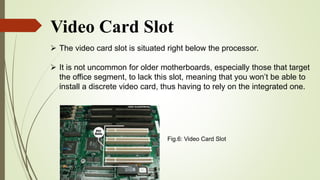
Video Card Slot
 The video card slot is situated right below the processor.
 It is not uncommon for older motherboards, especially those that target
the office segment, to lack this slot, meaning that you won’t be able to
install a discrete video card, thus having to rely on the integrated one.
Fig.6: Video Card Slot
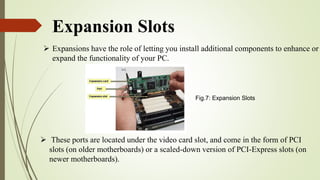
Expansion Slots
 Expansions have the role of letting you install additional components to enhance or
expand the functionality of your PC.
 These ports are located under the video card slot, and come in the form of PCI
slots (on older motherboards) or a scaled-down version of PCI-Express slots (on
newer motherboards).
Fig.7: Expansion Slots
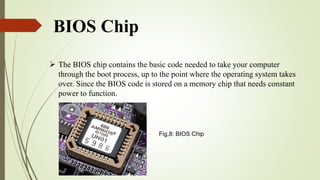
BIOS Chip
 The BIOS chip contains the basic code needed to take your computer
through the boot process, up to the point where the operating system takes
over. Since the BIOS code is stored on a memory chip that needs constant
power to function.
Fig,8: BIOS Chip
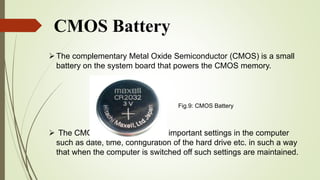
CMOS Battery
The complementary Metal Oxide Semiconductor (CMOS) is a small
battery on the system board that powers the CMOS memory.
 The CMOS memory keep very important settings in the computer
such as date, time, configuration of the hard drive etc. in such a way
that when the computer is switched off such settings are maintained.
Fig.9: CMOS Battery
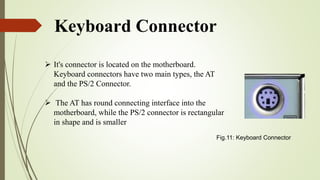
Keyboard Connector
 It's connector is located on the motherboard.
Keyboard connectors have two main types, the AT
and the PS/2 Connector.
 The AT has round connecting interface into the
motherboard, while the PS/2 connector is rectangular
in shape and is smaller
Fig.11: Keyboard Connector
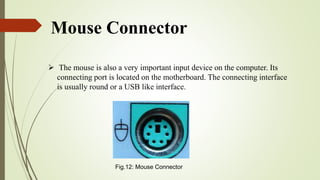
Mouse Connector
 The mouse is also a very important input device on the computer. Its
connecting port is located on the motherboard. The connecting interface
is usually round or a USB like interface.
Fig.12: Mouse Connector
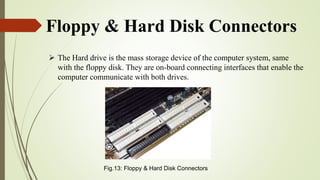
Floppy & Hard Disk Connectors
 The Hard drive is the mass storage device of the computer system, same
with the floppy disk. They are on-board connecting interfaces that enable the
computer communicate with both drives.
Fig.13: Floppy & Hard Disk Connectors
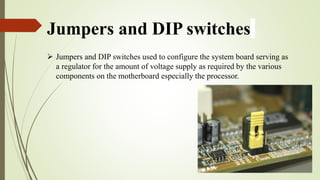
Jumpers and DIP switches
 Jumpers and DIP switches used to configure the system board serving as
a regulator for the amount of voltage supply as required by the various
components on the motherboard especially the processor.
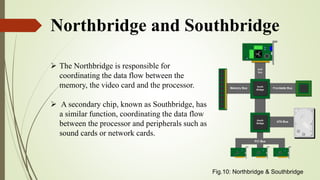
Northbridge and Southbridge
 The Northbridge is responsible for
coordinating the data flow between the
memory, the video card and the processor.
 A secondary chip, known as Southbridge, has
a similar function, coordinating the data flow
between the processor and peripherals such as
sound cards or network cards.
Fig.10: Northbridge & Southbridge
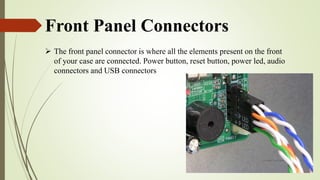
Front Panel Connectors
 The front panel connector is where all the elements present on the front
of your case are connected. Power button, reset button, power led, audio
connectors and USB connectors
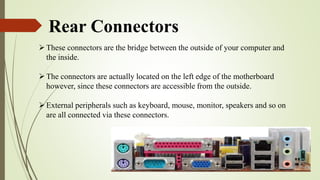
Rear Connectors
These connectors are the bridge between the outside of your computer and
the inside.
The connectors are actually located on the left edge of the motherboard
however, since these connectors are accessible from the outside.
External peripherals such as keyboard, mouse, monitor, speakers and so on
are all connected via these connectors.
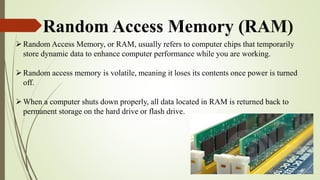
Random Access Memory (RAM)
Random Access Memory, or RAM, usually refers to computer chips that temporarily
store dynamic data to enhance computer performance while you are working.
Random access memory is volatile, meaning it loses its contents once power is turned
off.
When a computer shuts down properly, all data located in RAM is returned back to
permanent storage on the hard drive or flash drive.
THANK YOU

Motherboard components

  • 1.
  • 2.
    What is Motherboard Allowsall parts of your computer to receive power and communicate with one another Backbone of the Computer It integrates all Hardware components into one system Motherboard is the main component of the CPU Fig.1: Motherboard
  • 3.
  • 4.
    Processor Socket The processorsocket is the central piece of a motherboard. usually being located near the centre of the motherboard. It’s also the central piece because it holds the processor – the brain of your computer. Fig.3: Processor Socket
  • 5.
    Power Connectors  Powerconnector are used to provide power to motherboard and all other components.  The power connector, commonly a 20 or 24-pin connector.  Newer motherboards have an additional 4-pin or 8-pin connector near the processor. Fig.4: Power Connector
  • 6.
    Memory Slots  Locatedin the upper-right part of the motherboard.  The memory slots are used to house the computer’s memory modules.  Newer motherboards support DDR3 memory, the current industry standard memory architecture, but motherboards with DDR2 memory slots and even DDR1 memory slots are still present on the market. Fig.5: Memory Slots
  • 7.
    Video Card Slot The video card slot is situated right below the processor.  It is not uncommon for older motherboards, especially those that target the office segment, to lack this slot, meaning that you won’t be able to install a discrete video card, thus having to rely on the integrated one. Fig.6: Video Card Slot
  • 8.
    Expansion Slots  Expansionshave the role of letting you install additional components to enhance or expand the functionality of your PC.  These ports are located under the video card slot, and come in the form of PCI slots (on older motherboards) or a scaled-down version of PCI-Express slots (on newer motherboards). Fig.7: Expansion Slots
  • 9.
    BIOS Chip  TheBIOS chip contains the basic code needed to take your computer through the boot process, up to the point where the operating system takes over. Since the BIOS code is stored on a memory chip that needs constant power to function. Fig,8: BIOS Chip
  • 10.
    CMOS Battery The complementaryMetal Oxide Semiconductor (CMOS) is a small battery on the system board that powers the CMOS memory.  The CMOS memory keep very important settings in the computer such as date, time, configuration of the hard drive etc. in such a way that when the computer is switched off such settings are maintained. Fig.9: CMOS Battery
  • 11.
    Keyboard Connector  It'sconnector is located on the motherboard. Keyboard connectors have two main types, the AT and the PS/2 Connector.  The AT has round connecting interface into the motherboard, while the PS/2 connector is rectangular in shape and is smaller Fig.11: Keyboard Connector
  • 12.
    Mouse Connector  Themouse is also a very important input device on the computer. Its connecting port is located on the motherboard. The connecting interface is usually round or a USB like interface. Fig.12: Mouse Connector
  • 13.
    Floppy & HardDisk Connectors  The Hard drive is the mass storage device of the computer system, same with the floppy disk. They are on-board connecting interfaces that enable the computer communicate with both drives. Fig.13: Floppy & Hard Disk Connectors
  • 14.
    Jumpers and DIPswitches  Jumpers and DIP switches used to configure the system board serving as a regulator for the amount of voltage supply as required by the various components on the motherboard especially the processor.
  • 15.
    Northbridge and Southbridge The Northbridge is responsible for coordinating the data flow between the memory, the video card and the processor.  A secondary chip, known as Southbridge, has a similar function, coordinating the data flow between the processor and peripherals such as sound cards or network cards. Fig.10: Northbridge & Southbridge
  • 16.
    Front Panel Connectors The front panel connector is where all the elements present on the front of your case are connected. Power button, reset button, power led, audio connectors and USB connectors
  • 17.
    Rear Connectors These connectorsare the bridge between the outside of your computer and the inside. The connectors are actually located on the left edge of the motherboard however, since these connectors are accessible from the outside. External peripherals such as keyboard, mouse, monitor, speakers and so on are all connected via these connectors.
  • 18.
    Random Access Memory(RAM) Random Access Memory, or RAM, usually refers to computer chips that temporarily store dynamic data to enhance computer performance while you are working. Random access memory is volatile, meaning it loses its contents once power is turned off. When a computer shuts down properly, all data located in RAM is returned back to permanent storage on the hard drive or flash drive.
  • 19.