Microsoft Teams: governance
& adoption
Who are we and why do we care?
@LoryanStrant @MeganStrant
Solution Areas
Modern Workplace
Security Identity & Automation
• Microsoft 365
• Windows 10
• Systems
Management /
Intune
• End User Services
• Identity Manager & User
Lifecycle
• Modern Automation
Platform
• API Integration
• Azure Security Centre
• Azure Log Analytics
• Cloud Access Security
• Information Protection
• ATP / MDATP
Intelligent
Communications
• Teams / Skype
• Voice / Video
• Telephony
• Third Party
Ecosystem
“Work Better”
Migration, Governance, Voice,
and Skype
Microsoft Teams
Persistent 1:1 & Group Chat
Powerful Online Meetings
Enterprise Calling & Voice
Built-in Office 365 Apps
Supporting Workloads
Mailboxes
Personal
drives
Shared
drives
Office 365 Health
App usage is unfettered, people are using
whatever they want however they want
Legacy items and configurations from
before the time of cloud
Anyone can create an Office 365 Group –
they’ve spread like a virus
Sharing levels are set incorrectly
Auditing and usage monitoring aren’t
enabled
Security has been ignored
When a Group isn’t a Group…..
Planner “Outlook
“Team”
“Team”
“Team”
“Yammer
Connected”
Group”
X
X
X X=
=
= X
Provisioning Office 365 Groups – which method when?
Office 365
apps
Office 365
admin
PowerShell Graph API
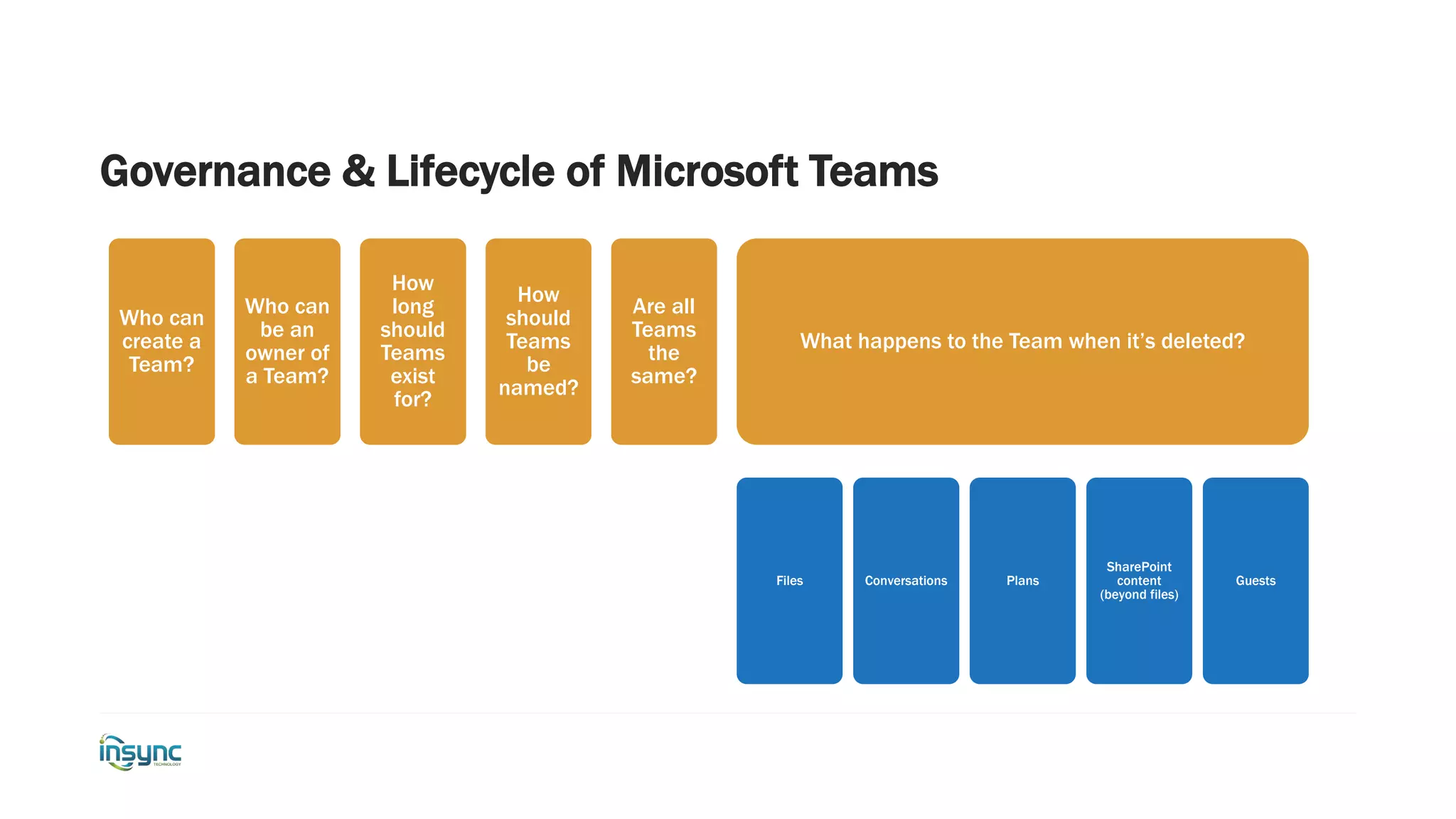
Governance & Lifecycle of Microsoft Teams
Who can
create a
Team?
Who can
be an
owner of
a Team?
How
long
should
Teams
exist
for?
How
should
Teams
be
named?
Are all
Teams
the
same?
What happens to the Team when it’s deleted?
Files Conversations Plans
SharePoint
content
(beyond files)
Guests
Case Study
Microsoft Teams Voice
PSTN dial tone
PBX
Team work
Office 365
Microsoft Teams
Direct Routing for Teams
Telco Trunk Service
Telstra Calling for
O365
Phone System
Telstra Call Plans
Microsoft Teams Devices
Case Study
Edit Master text styles
Second level
Third level
Fourth level
Fifth level
Skype for Business Online retirement
set as Teams momentum grows
• Skype for Business Online will be retired on July 31, 2021,
at which point access to the service will discontinue
• Current Skype for Business Online customers can expect
no change in the service up to its retirement date
• Though this announcement comes a full 24 months before
the retirement of Skype for Business Online, we encourage
organizations to plan and fully complete their upgrades to
Microsoft Teams today
July 31, 2021
“
”
Teams has greatly enhanced our communication
and knowledge sharing across the company. It
has definitely helped us get faster, more
organized, and execute better.
- Steven Winkler, Manager of IT Networks, CommScope
Skype to Teams upgrade modes
1
Plan your upgrade
to Teams Only
ROUTE
1
Upgrade to
Teams Only
2
+
Coexistence
“Islands” mode (side-by-side) when:
• Skype for Business Online and most on-premises
(recommended path)
• Desire to quickly move to Teams
Teams Collab or Collab+Meetings when:
• More complex organizational environment (on-premises and hybrid)
• Expect a long co-existence period
Journey from Skype for Business to Teams
For organizations already using Teams
1
Envision
teamwork for your
organization
ROUTE
2
Pilot
Teams
Deploy
Teams
Adopt
Teams
Plan your
upgrade to
Teams Only
Upgrade
to Teams
Only
2 3 4 5 6
+
Coexistence
“Islands” mode (side-by-side) when:
• Skype for Business Online and most on-
premises (recommended path)
• Desire to quickly move to Teams
Teams Collab or Collab+Meetings when:
• More complex organizational environment (on-premises and hybrid)
• Expect a long co-existence period
Journey from Skype for Business to Teams
For organizations not yet using Teams
Adoption
Planning and considerations when implementing Microsoft
Teams
Evaluating your current state
Applications
Skills
Data
Users
LMS or Teams?
Chat Files Collaboration Announcements
Courses Classes
Knowledge
Sharing
Social
Assignment
Management
Surveys and
Polls
Reports and
Analytics
LMS or Teams?
LMS
Chat
Files
Collaboration
Announcements
Courses
Classes
Knowledge
Sharing
Social
Assignment
Management
Surveys and Polls
Reports and
Analytics
Teams
Chat
Files
Collaboration
Announcements
Courses
Classes
Knowledge
Sharing
Social
Assignment
Management
Surveys and Polls
Reports and
Analytics
Preparing for your Teams Implementation
Governance
detail
User Groups Use Cases
Skills Training Communication
What is the technical
foundation
What do users need to
know
How do we intend for
them to use Teams
Governance & Adoption
Who are the users
How are they different
What are their priorities
Consider a ‘Day in the Life’ of each group
User Groups & Use Cases
What are the key skills required
Gauge complexity of new skills
Matrix of skills across user groups
Must have vs nice to have abilities
Skills
Training &
Communication
Set strong context for Teams
Share Use Cases in a consumable form
Share your ‘Day in the Life’ examples
Short snippets of training content
Clear communication in targeted formats
Making
things stick
Awareness Launch
Champions Deeper use
Ready to
Launch?
Some further
considerations
Safety of students
Reducing distractions
Sessional staff vs permanent
Possible user challenges
Activities to drive ongoing adoption
How to miss the mark with your implementation
Useful links
Sheldon College case study: https://blog.insynctechnology.com.au/governance-compliance-
and-lifecycle-clarity-issues.-how-insync-helped-sheldon-college-take-control-of-teams-
management
Devices for Microsoft Teams:
https://dmunified.com/2018/11/15/devices-for-microsoft-teams/
Microsoft Teams for Education Institutions eBook:
https://www.avepoint.com/ebook/microsoft-teams-for-education-institutions
Upgrading from Skype for Business to Microsoft Teams webinar recording:
https://www.youtube.com/watch?v=ZCFt3hhHb1Q
Governance & Compliance for Microsoft Teams in education:
https://www.youtube.com/watch?v=sdXPwxPwNfs
Loryan Strant
Got a question?
loryan.strant@insynctechnology.com.au
Megan Strant
megan.strant@insynctechnology.com.au
Microsoft Teams in Education - governance & adoption

Microsoft Teams in Education - governance & adoption

  • 1.
  • 2.
    Who are weand why do we care? @LoryanStrant @MeganStrant
  • 3.
    Solution Areas Modern Workplace SecurityIdentity & Automation • Microsoft 365 • Windows 10 • Systems Management / Intune • End User Services • Identity Manager & User Lifecycle • Modern Automation Platform • API Integration • Azure Security Centre • Azure Log Analytics • Cloud Access Security • Information Protection • ATP / MDATP Intelligent Communications • Teams / Skype • Voice / Video • Telephony • Third Party Ecosystem “Work Better”
  • 5.
  • 6.
    Microsoft Teams Persistent 1:1& Group Chat Powerful Online Meetings Enterprise Calling & Voice Built-in Office 365 Apps
  • 7.
  • 8.
    Office 365 Health Appusage is unfettered, people are using whatever they want however they want Legacy items and configurations from before the time of cloud Anyone can create an Office 365 Group – they’ve spread like a virus Sharing levels are set incorrectly Auditing and usage monitoring aren’t enabled Security has been ignored
  • 9.
    When a Groupisn’t a Group….. Planner “Outlook “Team” “Team” “Team” “Yammer Connected” Group” X X X X= = = X
  • 10.
    Provisioning Office 365Groups – which method when? Office 365 apps Office 365 admin PowerShell Graph API
  • 11.
    Governance & Lifecycleof Microsoft Teams Who can create a Team? Who can be an owner of a Team? How long should Teams exist for? How should Teams be named? Are all Teams the same? What happens to the Team when it’s deleted? Files Conversations Plans SharePoint content (beyond files) Guests
  • 12.
  • 13.
    Microsoft Teams Voice PSTNdial tone PBX Team work Office 365 Microsoft Teams Direct Routing for Teams Telco Trunk Service Telstra Calling for O365 Phone System Telstra Call Plans
  • 14.
  • 15.
  • 16.
    Edit Master textstyles Second level Third level Fourth level Fifth level Skype for Business Online retirement set as Teams momentum grows • Skype for Business Online will be retired on July 31, 2021, at which point access to the service will discontinue • Current Skype for Business Online customers can expect no change in the service up to its retirement date • Though this announcement comes a full 24 months before the retirement of Skype for Business Online, we encourage organizations to plan and fully complete their upgrades to Microsoft Teams today July 31, 2021 “ ” Teams has greatly enhanced our communication and knowledge sharing across the company. It has definitely helped us get faster, more organized, and execute better. - Steven Winkler, Manager of IT Networks, CommScope
  • 17.
    Skype to Teamsupgrade modes
  • 18.
    1 Plan your upgrade toTeams Only ROUTE 1 Upgrade to Teams Only 2 + Coexistence “Islands” mode (side-by-side) when: • Skype for Business Online and most on-premises (recommended path) • Desire to quickly move to Teams Teams Collab or Collab+Meetings when: • More complex organizational environment (on-premises and hybrid) • Expect a long co-existence period Journey from Skype for Business to Teams For organizations already using Teams
  • 19.
    1 Envision teamwork for your organization ROUTE 2 Pilot Teams Deploy Teams Adopt Teams Planyour upgrade to Teams Only Upgrade to Teams Only 2 3 4 5 6 + Coexistence “Islands” mode (side-by-side) when: • Skype for Business Online and most on- premises (recommended path) • Desire to quickly move to Teams Teams Collab or Collab+Meetings when: • More complex organizational environment (on-premises and hybrid) • Expect a long co-existence period Journey from Skype for Business to Teams For organizations not yet using Teams
  • 20.
    Adoption Planning and considerationswhen implementing Microsoft Teams
  • 21.
    Evaluating your currentstate Applications Skills Data Users
  • 22.
    LMS or Teams? ChatFiles Collaboration Announcements Courses Classes Knowledge Sharing Social Assignment Management Surveys and Polls Reports and Analytics
  • 23.
    LMS or Teams? LMS Chat Files Collaboration Announcements Courses Classes Knowledge Sharing Social Assignment Management Surveysand Polls Reports and Analytics Teams Chat Files Collaboration Announcements Courses Classes Knowledge Sharing Social Assignment Management Surveys and Polls Reports and Analytics
  • 24.
    Preparing for yourTeams Implementation Governance detail User Groups Use Cases Skills Training Communication
  • 25.
    What is thetechnical foundation What do users need to know How do we intend for them to use Teams Governance & Adoption
  • 26.
    Who are theusers How are they different What are their priorities Consider a ‘Day in the Life’ of each group User Groups & Use Cases
  • 27.
    What are thekey skills required Gauge complexity of new skills Matrix of skills across user groups Must have vs nice to have abilities Skills
  • 28.
    Training & Communication Set strongcontext for Teams Share Use Cases in a consumable form Share your ‘Day in the Life’ examples Short snippets of training content Clear communication in targeted formats
  • 29.
  • 30.
    Ready to Launch? Some further considerations Safetyof students Reducing distractions Sessional staff vs permanent Possible user challenges Activities to drive ongoing adoption
  • 31.
    How to missthe mark with your implementation
  • 32.
    Useful links Sheldon Collegecase study: https://blog.insynctechnology.com.au/governance-compliance- and-lifecycle-clarity-issues.-how-insync-helped-sheldon-college-take-control-of-teams- management Devices for Microsoft Teams: https://dmunified.com/2018/11/15/devices-for-microsoft-teams/ Microsoft Teams for Education Institutions eBook: https://www.avepoint.com/ebook/microsoft-teams-for-education-institutions Upgrading from Skype for Business to Microsoft Teams webinar recording: https://www.youtube.com/watch?v=ZCFt3hhHb1Q Governance & Compliance for Microsoft Teams in education: https://www.youtube.com/watch?v=sdXPwxPwNfs
  • 33.
    Loryan Strant Got aquestion? loryan.strant@insynctechnology.com.au Megan Strant megan.strant@insynctechnology.com.au

Editor's Notes

  • #7 [This is an animated slide. Please show it in presentation mode] [MAIN POINT TO LAND] Teams is a chat-based workspace that brings together chat, meetings, calling, and Office 365, all-in-one. And it’s built on the trust of Microsoft security & compliance that’s crucial for today’s businesses.  Microsoft Teams delivers on four core promises to create a digital workspace for high performing teams. [COMMUNICATE] First, Microsoft Teams solves for the communication needs of a diverse workforce. Since preview, Microsoft Teams has evolved to a complete meetings and calling solution, incl. chat, voice and video, as we have completed our roadmap for bringing Skype for Business Online features and functionality into Teams. You can use Teams for informal 1:1 or group chats – directly on your phone if you’re on the go. Or you can have an open conversation in a channel. This enables people to share information in a transparent way to accelerate decision making. And it's super easy to move from a chat into a face to face meeting, helping you to bridge geographical barriers.   [COLLABORATE] When it comes to collaboration, the deep Office integration enables today’s multigenerational workforce to use the Office apps they are familiar with and love - Word, Excel, PowerPoint, OneNote, SharePoint, Planner, even Power BI - right within the context of Teams. You can avoid email attachments and having to search for the latest version of a document. Teams brings all the Office 365 services together – so that you can easily share and co-author files.   [CUSTOMIZE] Many of you use other services than Office 365 as well which results in you having to jump between and spend time in disparate experiences. We built Teams to be the hub for all the services and tools your teams use on a day to day basis. So, you can customize Teams with tabs, connector and bots to include the apps and services you need - <mention relevant 3rd party apps like GitHub and Trello>. We have also created an extensible platform, to enable building apps and to integrate with business processes. And for Firstline workers, Teams provides an additional set of capabilities including schedule management.    [WORK WITH CONFIDENCE] Microsoft Teams comes with the enterprise grade security, compliance and manageability that you expect from Office 365 which customers tell us is a huge value add for them.
  • #13 20 MIN MARK Brisbane-based K-12 Microsoft Identity Manager Relatively new to O365 Wanted to use Teams as the default communications tool Used LMS for everything else Solution: Insync designed a governance framework and lifecycle design Implemented O365 Groups / MS Teams provisioning engine with MIM Automated for classes on a yearly level Manual Teams creation for everything else
  • #15 14
  • #16 Sydney K-12 Cisco CallManager Solution: Direct Routing
  • #19 If your organization is already using Teams alongside Skype for Business, whether in Islands Mode, Skype for Business with Teams collaboration, or Skype for Business with Teams collaboration and meetings, you’re close to making the upgrade to a Teams Only, single-client experience. Coexistence is the presence of both Skype for Business and Teams in the Journey from Skype for Business to Teams. Supported coexistence configurations for Skype for Business and Teams Skype for Business or Teams Only Skype for Business and Teams – Islands Combination (but no overlap) of functions across both Customer deployments can involve multiple modes at different times
  • #20 URL on modes: https://docs.microsoft.com/en-us/microsoftteams/migration-interop-guidance-for-teams-with-skype If you’re still planning your organization’s journey from Skype for Business to Teams, we’re here to help take the guesswork out of your upgrade journey. We’ve employed a proven success framework for driving change, incorporating guidance, tips, and resources throughout. Coexistence is the presence of both Skype for Business and Teams in the Journey from Skype for Business to Teams. Supported coexistence configurations for Skype for Business and Teams Skype for Business or Teams Only Skype for Business and Teams – Islands Combination (but no overlap) of functions across both Customer deployments can involve multiple modes at different times
  • #22 Your brain will be focused on the technical foundation. The governance. Think through how do they currently work or use technology. What are their needs – applications, how to communicate, to review learning material create (collaborate), to broadcast, to teach What do people use, what have they learnt – focus then on Office 365. Consider metrics.
  • #23 A key decision(s) to make are across your platforms or apps. There are a number of ways the tasks or work within your environment can be completed with technology, but what applications should you utilise? What are the user cases, technology available and reasons for one platform vs the other.
  • #24 The reality is that your LMS and Teams have major crossover. Think through what functions or activity to drive into Teams and why. Examples Chat – simple communication, 1:1 or groups Collaboration – creating learning material, OneNote, assignments, business operational roles Announcements – broadcasting to all teachers Surveys – Microsoft Forms
  • #27 Faculty staff Business Operations Teachers – varying types (PE, music, maths etc) Students External - Volunteers? Parents?
  • #28 What will the groups find challenging? Some will pick up fast, some slow, how will you cater to this?