OneNote
OneNote isa digital note-taking app that provides a single place for
keeping all of your notes, research, plans, and information — everything
you need to remember and manage in your life at home, at work, or at
school. In OneNote, notebooks never run out of paper.
4.
Start your veryown digital notebook
Take command over your next project, trip, or class. OneNote notebooks
are designed to make organization optional but easy. Every notebook is
automatically organized into sections which contain pages — letting you
decide visually how you want to arrange your notes. Keep one section for
your song writing, another one for recipes, or start jotting down plans for
your next vacation or the new school year. Freely move things around
whenever and however you want. Whatever you care about, OneNote
makes it easy to keep tabs on everything in your life.
5.
Type anywhere, captureanything
Experience true freedom in taking notes. In OneNote, every page is an
infinite canvas. Just click and type anywhere you want. Notes are in
containers that are easy to move around where you want them, letting you
organize your thoughts. Tables are as easy to create as hitting the Tab key
while you type. Insert pictures, attach files, or capture the sound of your
own voice. And when you’re researching or writing a paper or a project
plan, OneNote can help you outline, annotate, and share your ideas in any
way you want.
6.
Tag notes, makelists, recall everything
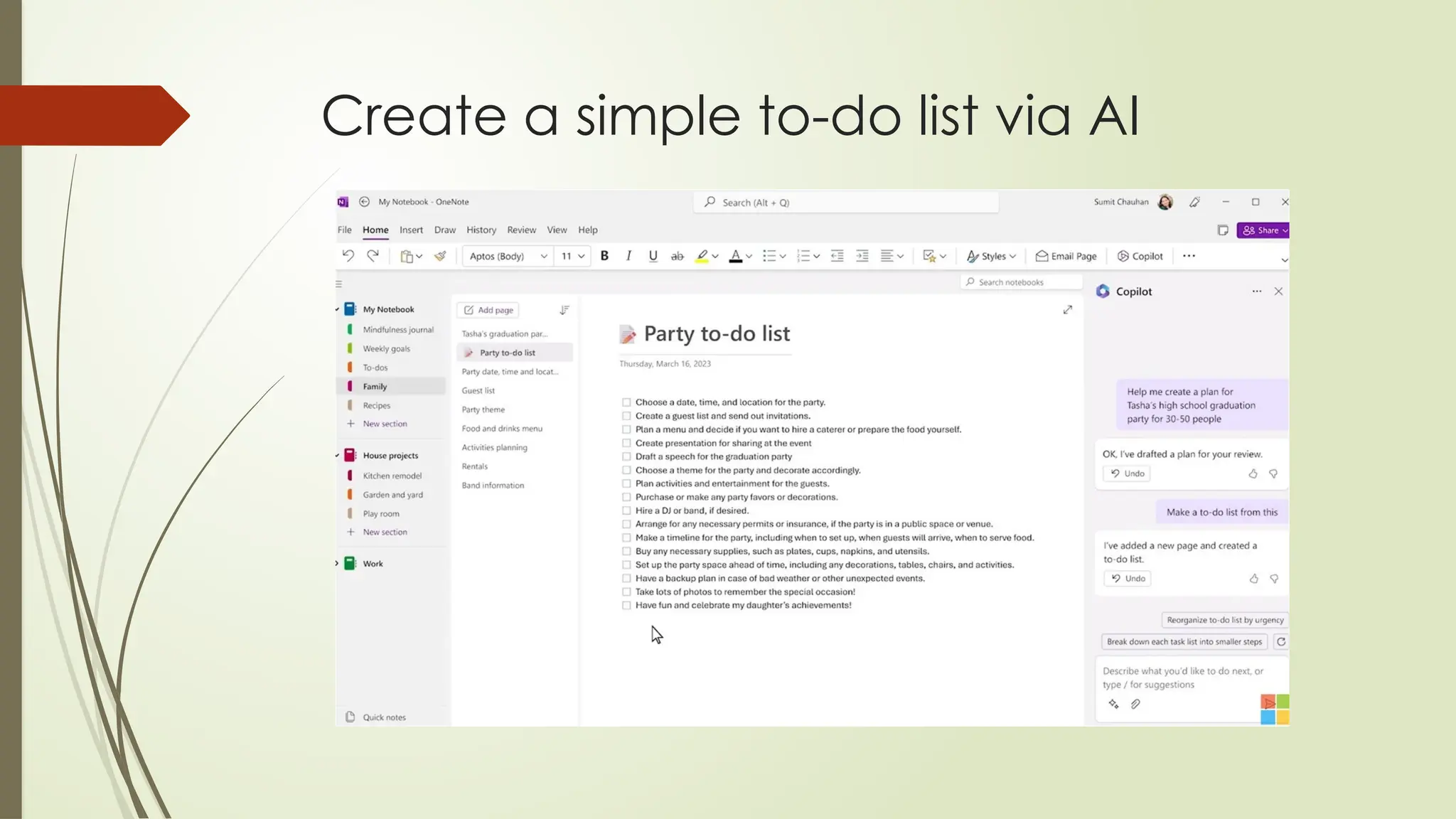
OneNote can do things your old paper notebooks can only dream about.
Use tags to categorize and prioritize notes that need to stand out. Whether
you’re making a simple checklist or planning a large-scale event like a
wedding, you can easily mark what’s important, call out what’s still in
question, and assign action items for yourself and others. Add To-Do tags to
your lists with a simple click, so you can check off and track your progress,
even when you switch between your devices on the go. And forget about
flipping through pages trying to find something — OneNote puts all of your
information at your fingertips with a quick search, no matter where you
might have jotted it down.
7.
Think, plan, andshare together with
others
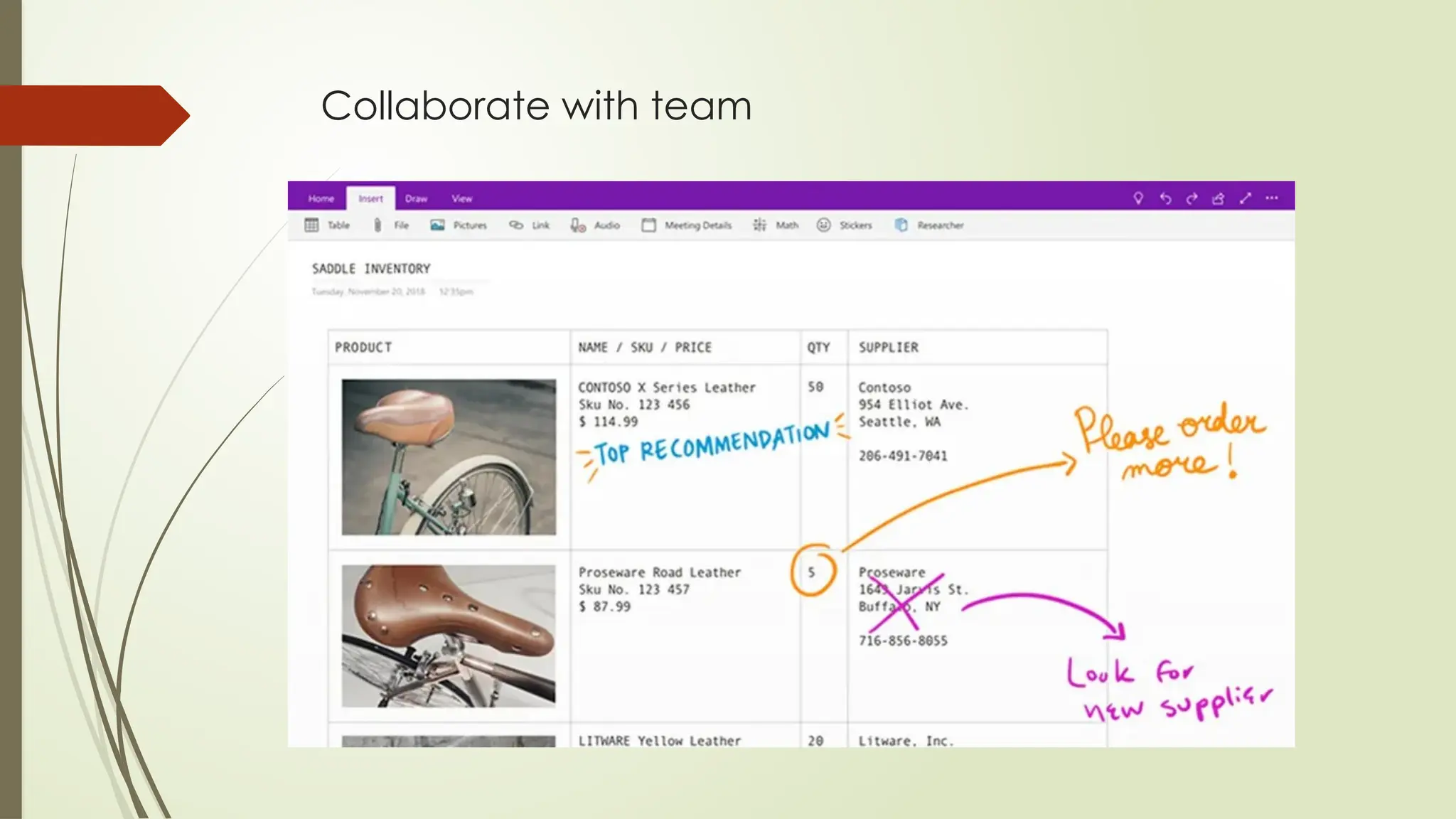
Use OneNote just for yourself, or invite friends, family, co-workers, or
classmates to collaborate with you in a shared notebook. Together, you
can keep track of teamwork, homework, home projects, or family events
and vacation memories. Everyone you invite can add their own text,
pictures, files, and anything else in a notebook you’ve shared, no matter
where in the world they are. Best of all, there’s no messing around with files
and folders — OneNote makes everything work with the click of a button.
8.
Take OneNote withyou
Always stay connected to your notebooks everywhere you go — on just
about any computer, phone, or mobile device. Use OneNote on your Mac
or PC to do research at home, check your grocery list at the store in
OneNote on your phone, or keep a travel journal in OneNote on your tablet
while you go sightseeing. Even if you’re stranded somewhere, any standard
Web browser will get you access to your notebooks in no time. Visit
www.onenote.com to download OneNote for all of your preferred devices.
9.
Key features
Noteorganization across sections, pages, and notebooks
Multiple media to accompany text in notes (e.g., audio, video files)
Various types of tags to organize different notes (e.g., important, to-dos)
Collaboration where everyone can contribute at the same time
Sketch and draw thoughts (using stylus or finger)
Web clipper to quickly capture any webpage to OneNote
How to createnotebook
Start with a single notebook. You can create additional notebooks for different
subjects or projects whenever you want.
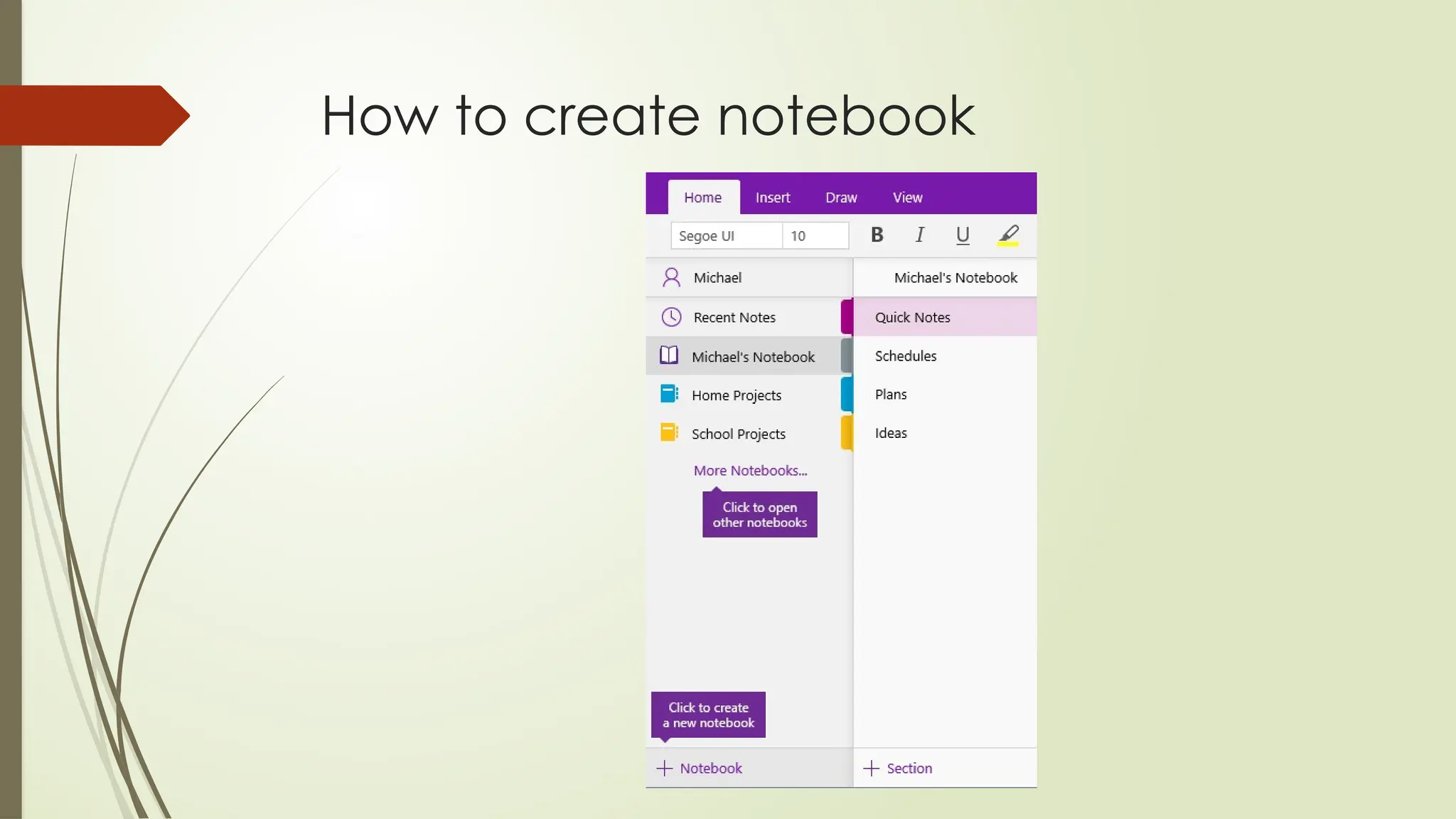
Open OneNote for Windows 10.
Click the Show Notebooks button .
At the bottom of the list that opens, click the + Notebook button.
Type a name for the notebook in the Notebook Name box.
Click Create Notebook.
Open a notebook
Click the Show Notebooks button .
In the list that opens, click More Notebooks.
In the More Notebooks window, select any
notebook in the list, and then click Open
Notebook.
Don’t see the notebook you’re looking for?
Click Add Account and then sign in with the
account where your notebooks are stored.
17.
Switch between opennotebooks
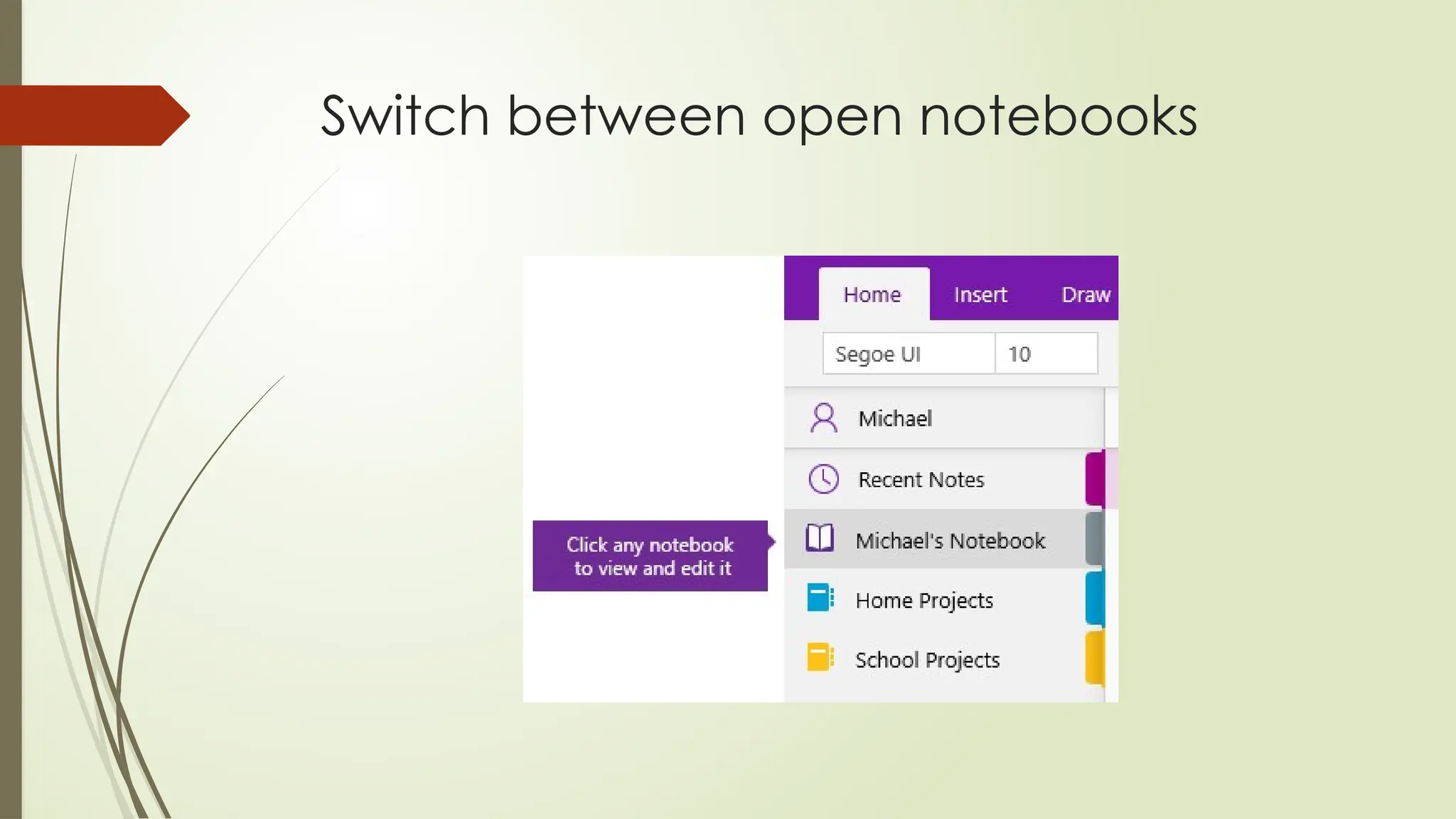
OneNote lets you keep several notebooks open at once and it’s easy to
switch between them.
Click the Show Notebooks button .
In the list of open notebooks, click the notebook you want to work in.
To return to the previous notebook (or any other notebook that you’ve
opened before), repeat the preceding steps.










![[DSC Europe 25] Uros Pesic - The Reality of AI in Marketing.pdf](https://cdn.slidesharecdn.com/ss_thumbnails/rtkodnmtycovsllvzsyn-9-251215095918-b0c6bfe3-thumbnail.jpg?width=640&height=640&fit=bounds)


![[DSC Europe 25] Miodrag Pesovic & Vladislav Radonjic - Federated Data Archite...](https://cdn.slidesharecdn.com/ss_thumbnails/gsbe3y5it5uhndi4e08e-1-251212103249-f1008e0c-thumbnail.jpg?width=640&height=640&fit=bounds)

![[DSC Europe 25] Marko Krstic - Understanding the AI Threat Landscape - Risks,...](https://cdn.slidesharecdn.com/ss_thumbnails/tiyim1ins5jvbrvzpzla-2-251209104645-c69d3553-thumbnail.jpg?width=640&height=640&fit=bounds)
![[DSC Europe 25] Katherine Forrest - AI NOW: Understanding the Velocity of Cha...](https://cdn.slidesharecdn.com/ss_thumbnails/wvvbruqfrci0sfq9xwgb-4-251212104007-e5ad1987-thumbnail.jpg?width=640&height=640&fit=bounds)
![[DSC Europe 25] Dusan Nesic - Securing Tomorrow’s Infrastructure: Why Cyber-P...](https://cdn.slidesharecdn.com/ss_thumbnails/qikbszfftyowjm2q6duw-1-251211083848-8f2ead6b-thumbnail.jpg?width=640&height=640&fit=bounds)


![[DSC Europe 25] Bassam Maharmeh - Artificial Intelligence: Opportunities and ...](https://cdn.slidesharecdn.com/ss_thumbnails/thhfmr2fqpawzj7hsjpg-5-251211083048-2c23204f-thumbnail.jpg?width=640&height=640&fit=bounds)
![[DSC Europe 25] Ivan Peric - Intelligence Swarm Logic and Techno-Functional M...](https://cdn.slidesharecdn.com/ss_thumbnails/7my7c97fsduiccadgavw-2-251212103249-5a03f7c6-thumbnail.jpg?width=640&height=640&fit=bounds)

![[DSC Europe 25] Kaja Kandare - LLM as a judge.pptx](https://cdn.slidesharecdn.com/ss_thumbnails/arxyccaxsdsd1ba99wjw-7-251212104007-2b4e3f64-thumbnail.jpg?width=640&height=640&fit=bounds)
