Maya to Unity3D
Welcome! This section is on the Maya to Unity3D pipeline Goals: Outline the critical steps involved Optimize and leverage art for the metaverse and beyond! Provide community and support
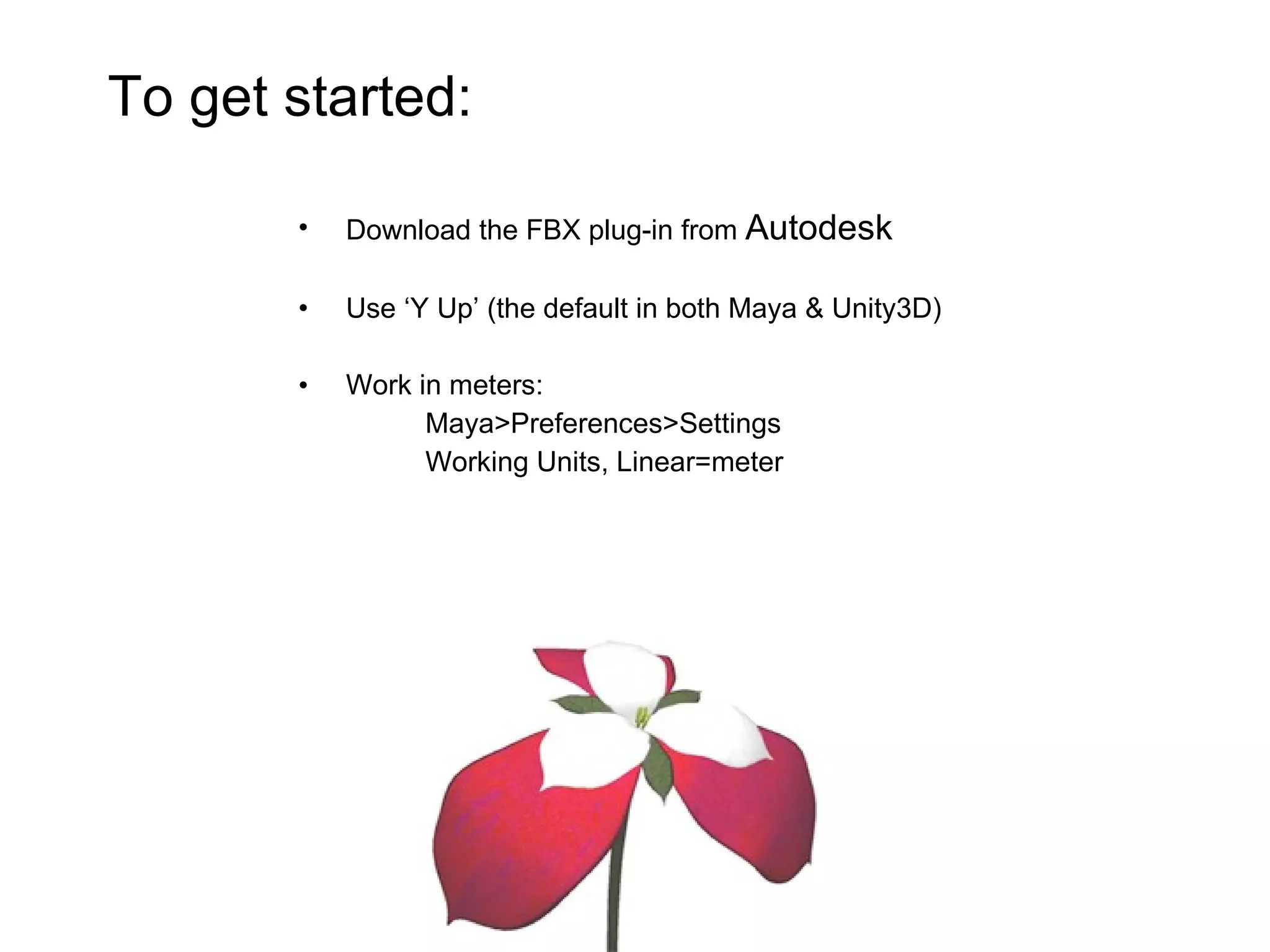
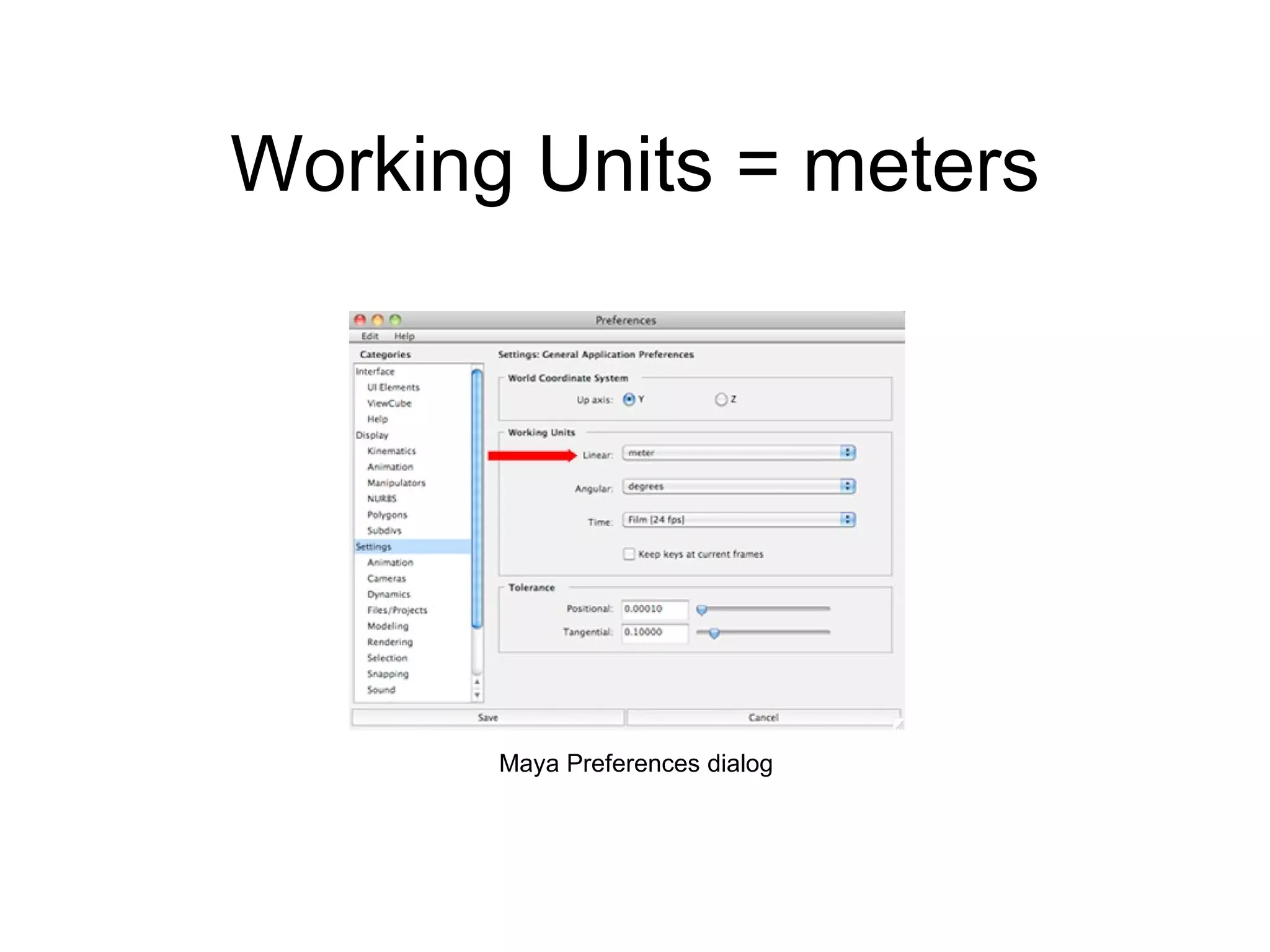
Download the FBX plug-in from  Autodesk Use ‘Y Up’ (the default in both Maya & Unity3D) Work in meters: Maya>Preferences>Settings Working Units, Linear=meter To get started:
Working Units = meters Maya Preferences dialog
Test the Pipeline Early Here is a handy tip to ensure scale is right, from the start: Create a simple 1 x 1 x 1 cube in Maya Export the cube and bring into Unity3D You should have a 1 x 1 x 1 cube in Unity Add a Human Proxy Create a simple cube in Maya to represent a human form This is useful for making furniture, rooms and other content the right scale A simple 1.8 meter cube is roughly equivalent to 6 feet
Modeling Use polygons Convert existing NURBS to polygons To create smooth surfaces, use NURBS and convert to polygons Modify > Convert > NURBS to Polygons
Materials and Lights Add textures and materials as usual UV map objects Create UVs > Automatic Mapping Render with mentalRay Limit UV sets to 2 Lighting / Shading > Batch Bake (Options Box)
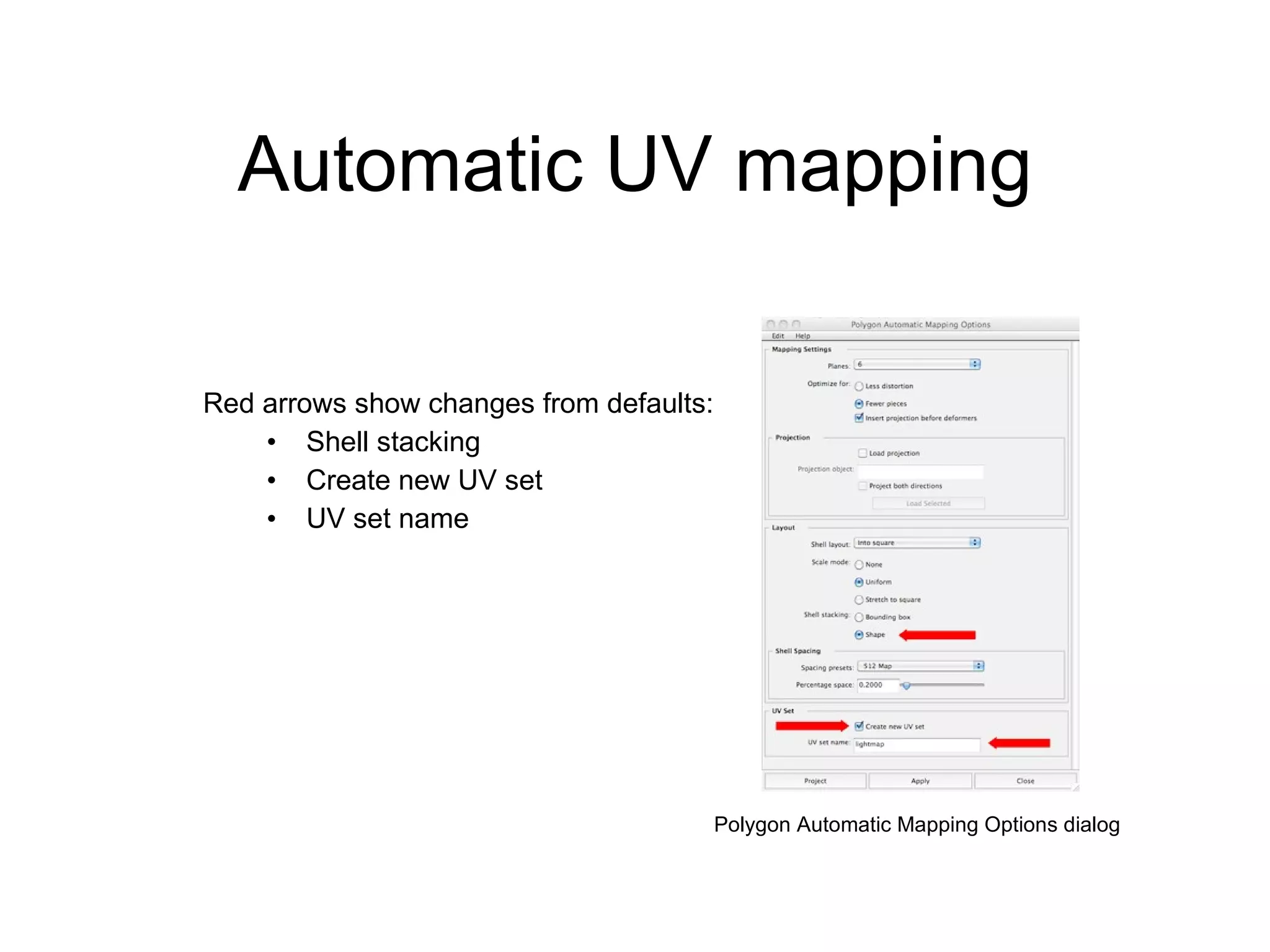
Automatic UV mapping Red arrows show changes from defaults: Shell stacking Create new UV set UV set name Polygon Automatic Mapping Options dialog
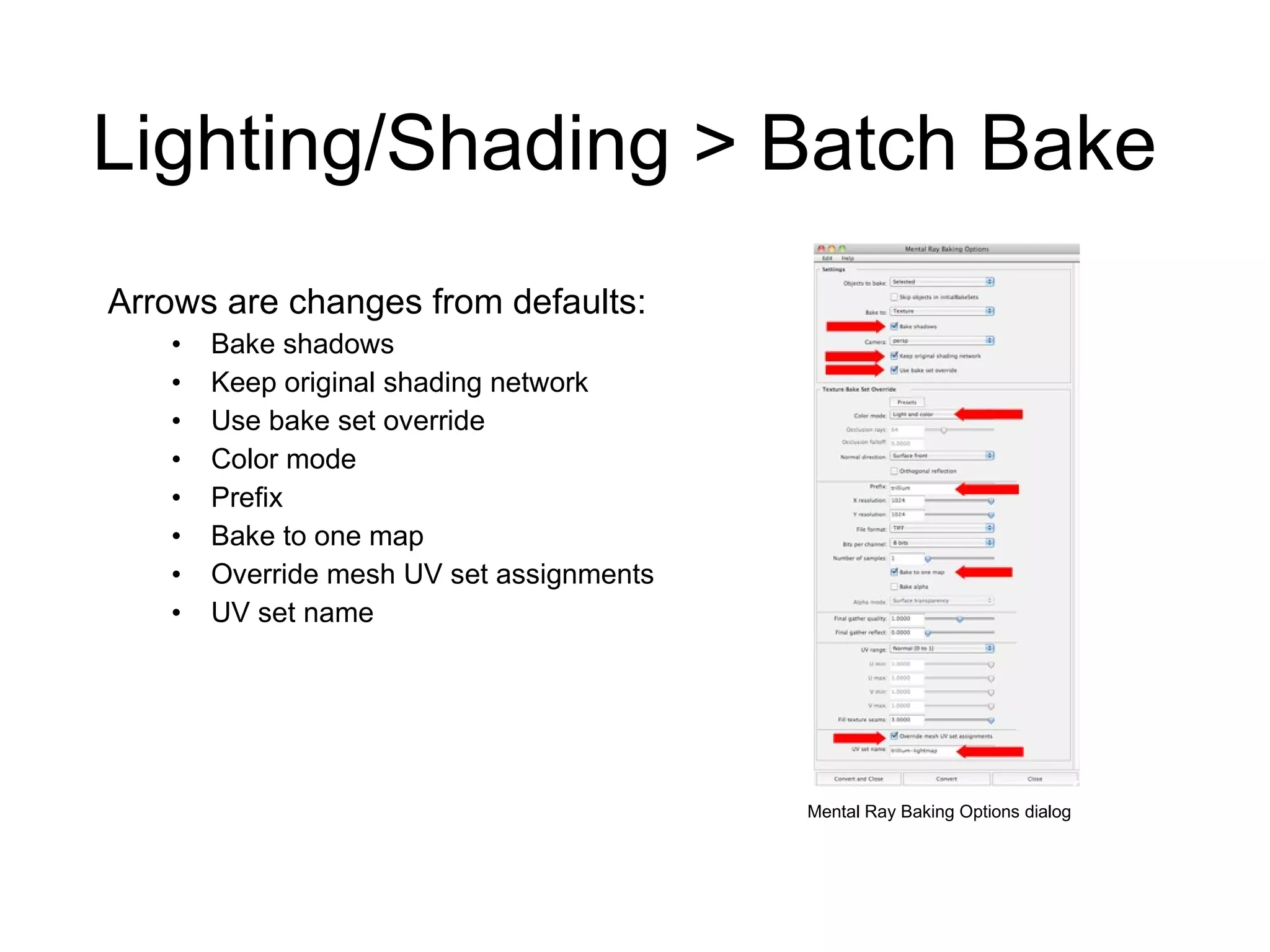
Lighting/Shading > Batch Bake Arrows are changes from defaults: Bake shadows Keep original shading network Use bake set override Color mode Prefix Bake to one map Override mesh UV set assignments UV set name Mental Ray Baking Options dialog
Cleanup and Prepare for Export These are generally considered “best practices”: Save (prior to deleting history, etc.) Modify > Center Pivot Mesh > Combine (polygon menu set) Modify > Freeze Transformations Modify > Reset Transformations Edit > Delete All by Type > History File > Optimize Scene Size Use meaningful names for materials and geometry
Export Export using FBX, .ma, or .mb If Unity3D is installed on a different machine, export .fbx If Unity3D is installed on a machine with Maya, use .fbx, .ma, or .mb Unity3D automatically triangulates geometry  (so no need to have the exporter do it too)
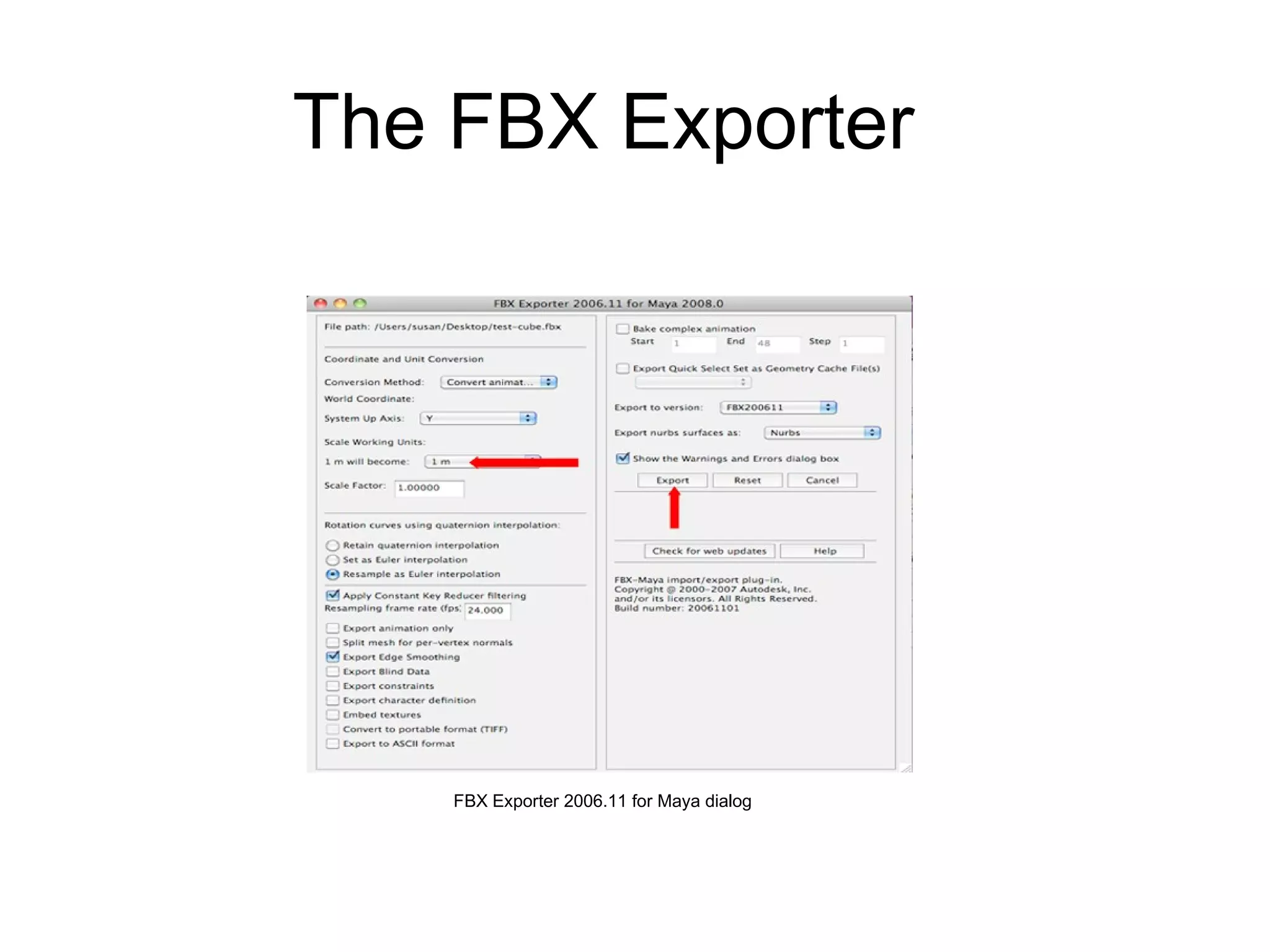
The FBX Exporter FBX Exporter 2006.11 for Maya dialog
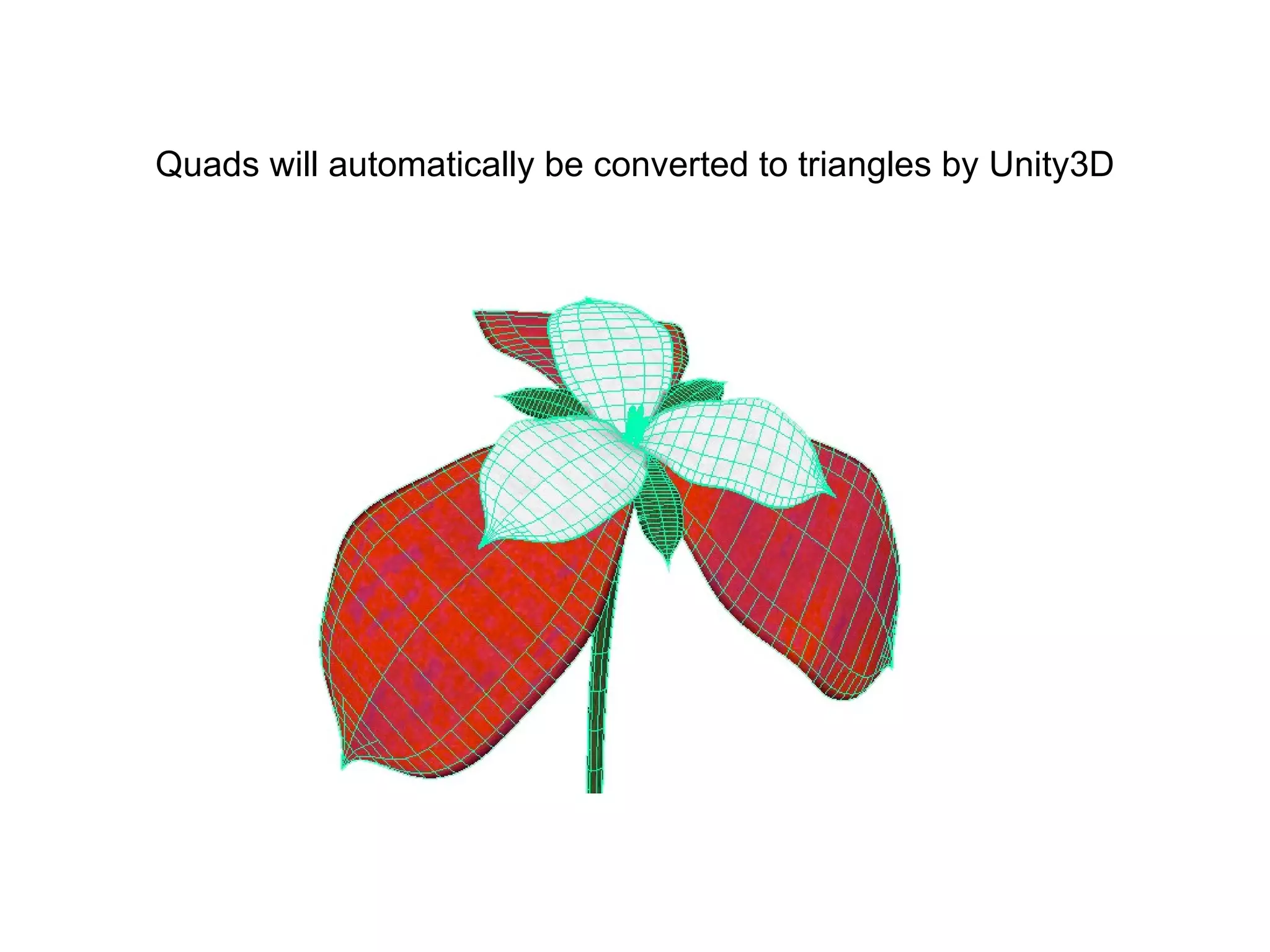
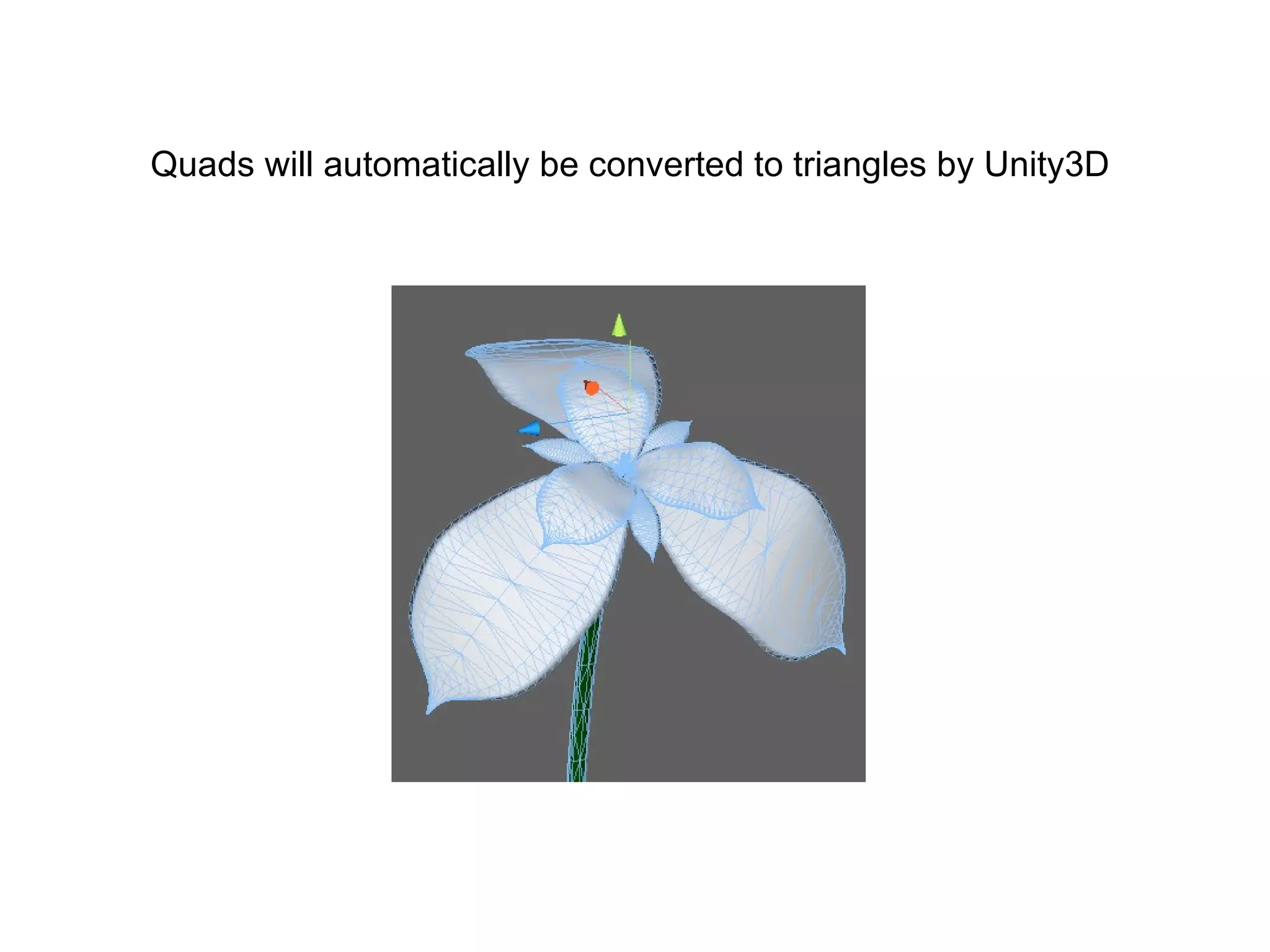
Quads will automatically be converted to triangles by Unity3D
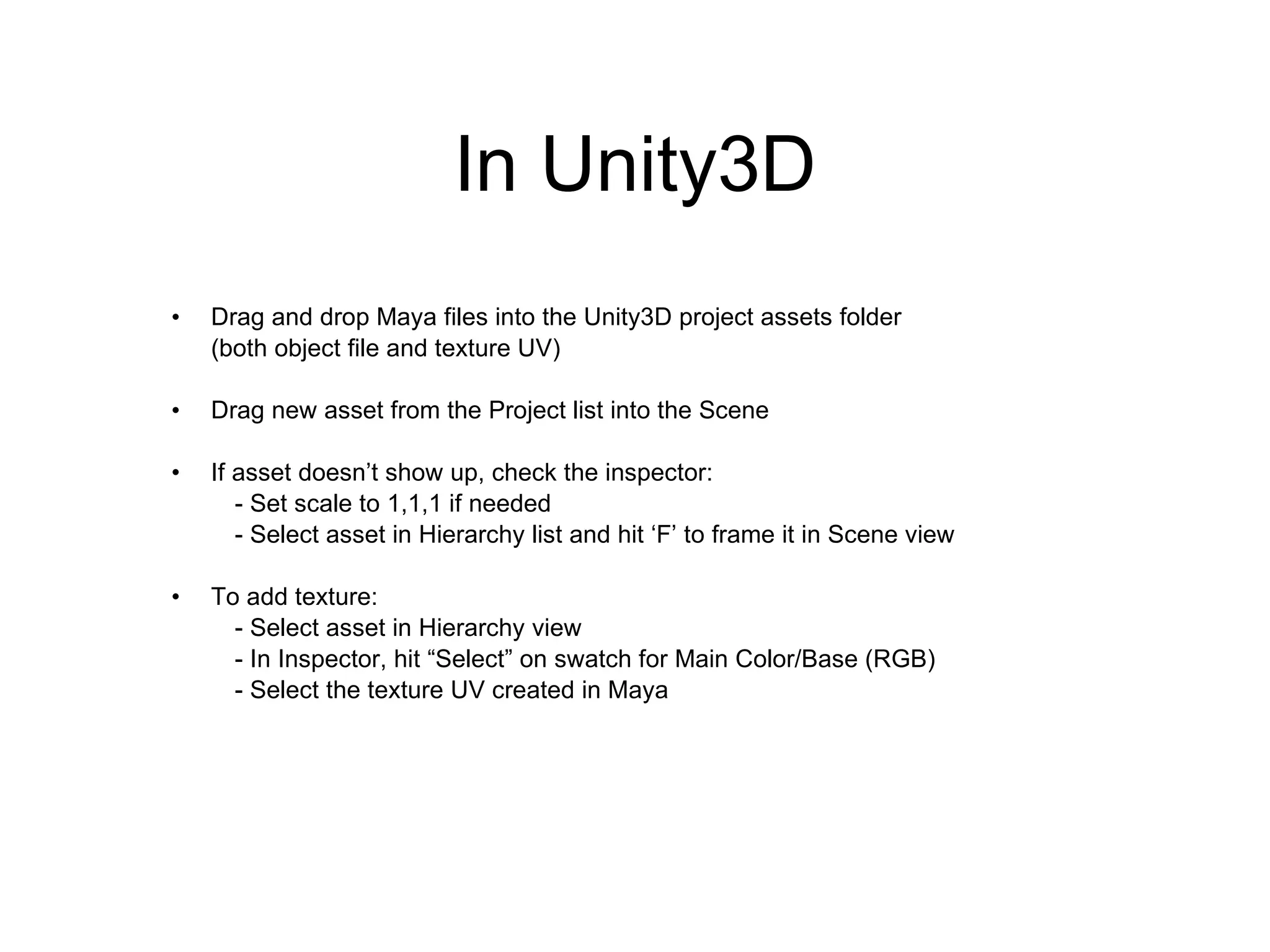
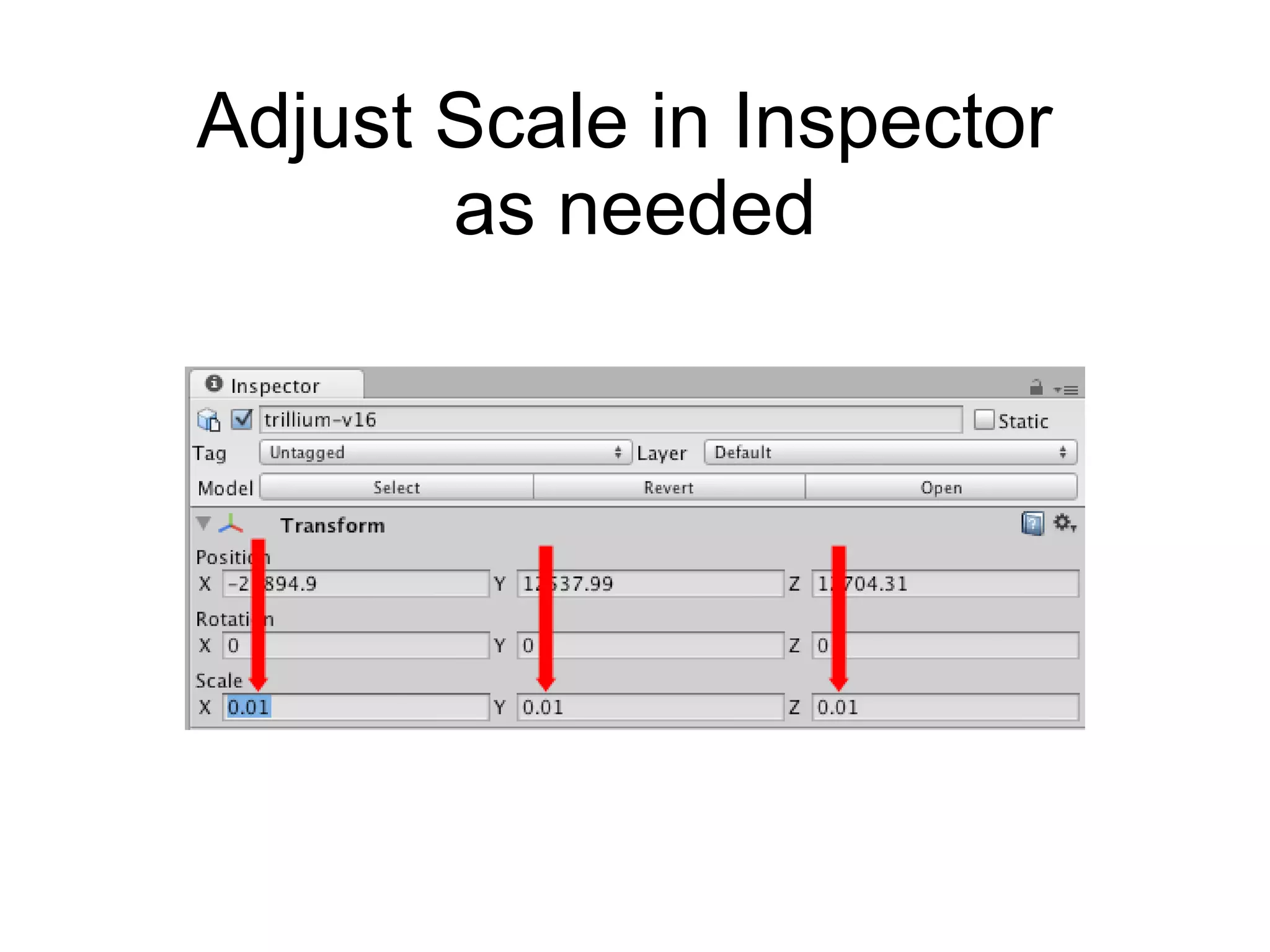
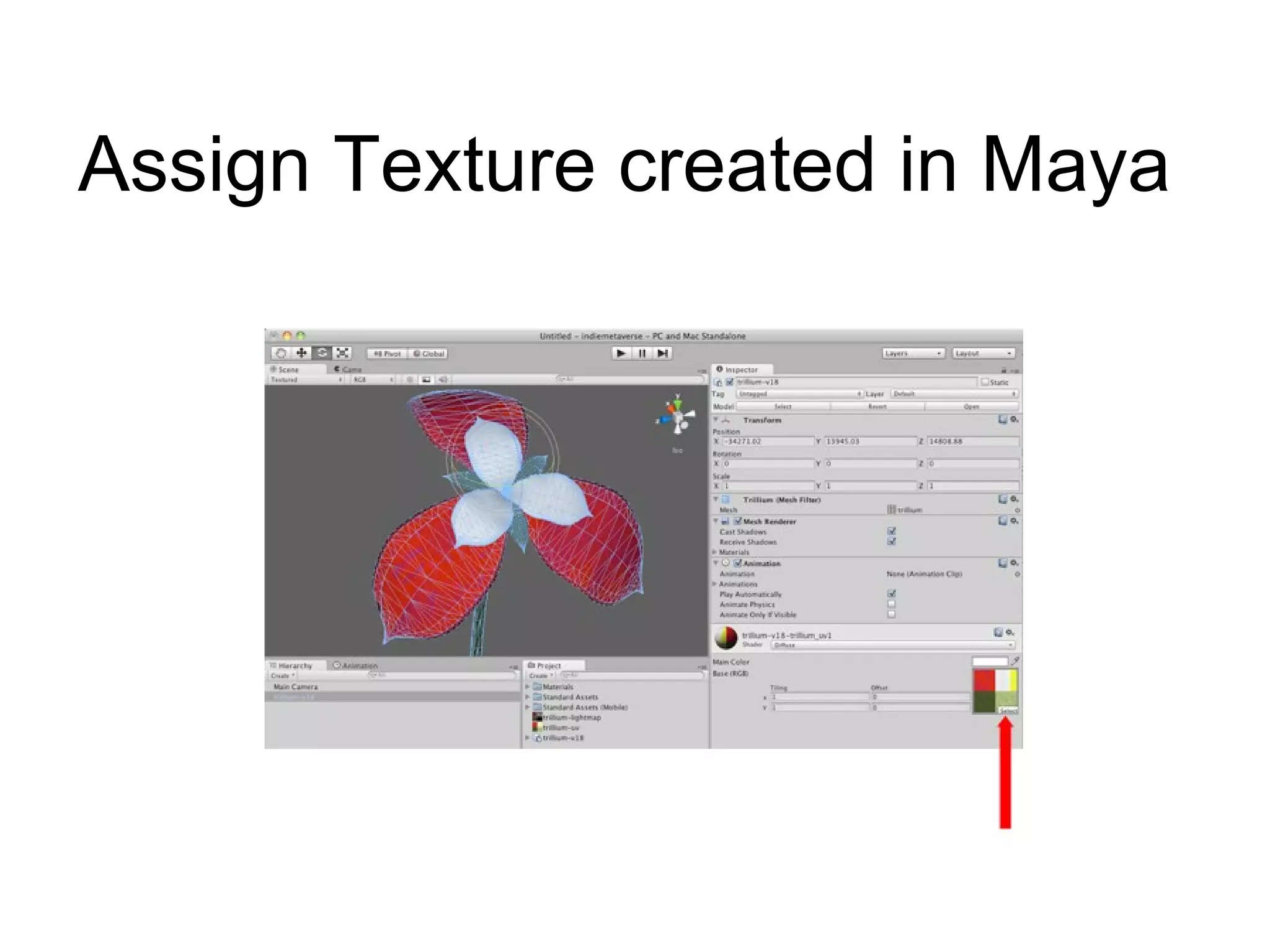
In Unity3D Drag and drop Maya files into the Unity3D project assets folder  (both object file and texture UV) Drag new asset from the Project list into the Scene If asset doesn’t show up, check the inspector: - Set scale to 1,1,1 if needed - Select asset in Hierarchy list and hit ‘F’ to frame it in Scene view To add texture: - Select asset in Hierarchy view - In Inspector, hit “Select” on swatch for Main Color/Base (RGB) - Select the texture UV created in Maya
Adjust Scale in Inspector  as needed
Assign Texture created in Maya

Maya To Unity3D

  • 1.
  • 2.
    Welcome! This sectionis on the Maya to Unity3D pipeline Goals: Outline the critical steps involved Optimize and leverage art for the metaverse and beyond! Provide community and support
  • 3.
    Download the FBXplug-in from Autodesk Use ‘Y Up’ (the default in both Maya & Unity3D) Work in meters: Maya>Preferences>Settings Working Units, Linear=meter To get started:
  • 4.
    Working Units =meters Maya Preferences dialog
  • 5.
    Test the PipelineEarly Here is a handy tip to ensure scale is right, from the start: Create a simple 1 x 1 x 1 cube in Maya Export the cube and bring into Unity3D You should have a 1 x 1 x 1 cube in Unity Add a Human Proxy Create a simple cube in Maya to represent a human form This is useful for making furniture, rooms and other content the right scale A simple 1.8 meter cube is roughly equivalent to 6 feet
  • 6.
    Modeling Use polygonsConvert existing NURBS to polygons To create smooth surfaces, use NURBS and convert to polygons Modify > Convert > NURBS to Polygons
  • 7.
    Materials and LightsAdd textures and materials as usual UV map objects Create UVs > Automatic Mapping Render with mentalRay Limit UV sets to 2 Lighting / Shading > Batch Bake (Options Box)
  • 8.
    Automatic UV mappingRed arrows show changes from defaults: Shell stacking Create new UV set UV set name Polygon Automatic Mapping Options dialog
  • 9.
    Lighting/Shading > BatchBake Arrows are changes from defaults: Bake shadows Keep original shading network Use bake set override Color mode Prefix Bake to one map Override mesh UV set assignments UV set name Mental Ray Baking Options dialog
  • 10.
    Cleanup and Preparefor Export These are generally considered “best practices”: Save (prior to deleting history, etc.) Modify > Center Pivot Mesh > Combine (polygon menu set) Modify > Freeze Transformations Modify > Reset Transformations Edit > Delete All by Type > History File > Optimize Scene Size Use meaningful names for materials and geometry
  • 11.
    Export Export usingFBX, .ma, or .mb If Unity3D is installed on a different machine, export .fbx If Unity3D is installed on a machine with Maya, use .fbx, .ma, or .mb Unity3D automatically triangulates geometry (so no need to have the exporter do it too)
  • 12.
    The FBX ExporterFBX Exporter 2006.11 for Maya dialog
  • 13.
    Quads will automaticallybe converted to triangles by Unity3D
  • 14.
    Quads will automaticallybe converted to triangles by Unity3D
  • 15.
    In Unity3D Dragand drop Maya files into the Unity3D project assets folder (both object file and texture UV) Drag new asset from the Project list into the Scene If asset doesn’t show up, check the inspector: - Set scale to 1,1,1 if needed - Select asset in Hierarchy list and hit ‘F’ to frame it in Scene view To add texture: - Select asset in Hierarchy view - In Inspector, hit “Select” on swatch for Main Color/Base (RGB) - Select the texture UV created in Maya
  • 16.
    Adjust Scale inInspector as needed
  • 17.