Program-1
Program to Create a blinking star
Steps:-
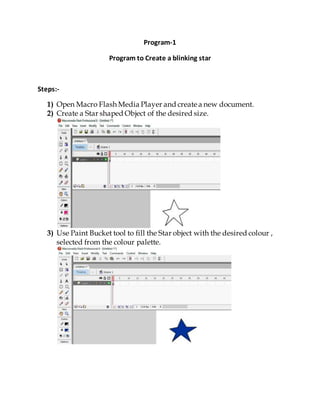
1) Open Macro Flash Media Player and create a new document.
2) Create a Star shaped Object of the desired size.
3) Use Paint Bucket tool to fill the Star object with the desired colour ,
selected from the colour palette.
4) Next inserta new frame by rightclick on the frame number and
insertnew Key frame.
5) In the new Key frame the same object with the same colour will
appear in the Workspace.
6) Change the colour by selecting new colour from the colour palette
and fill using bucket tool.
7) Press ctrl + Enter to run.
Program-2
Program to perform Guided Motion
Steps:-
1) Open Macro Flash Media Player and create a new document.
2) Using pencil or Line tool draw a ball of desired size on a frame in one
layer.
3) Using bucket tool fill the desired colour from the colour palette.
4) Add a new Keyframe,In this the same object as in initial frame will
appear in workspace.
5) Now change object’s position to a somewhatdistantplace.
6) Rightclick on the layer will give us option to add a new layer ,i.e.
GUIDE layer by clicking “add Motion Guide”.
7) In its 1st frame draw a path of any shape with the Pencil tool.
8) Now rightclicking the frames of previous layer prompts out the
option of ”create motion tween”.
9) Selecting this a arrow will appear within the frames from 1st to last
frame.Ifthe arrow is Dotted ,,tweening isn’tcomplete.
10)Repeat the Steps again.
11) Press ctrl + Enter to run.
Program-3
Program to perform shape tweening.
1)Open MacroFlash Media Player and create a new document.
2) Using circle or any other shape draw the desire shaped object on a frame
in a layer.
3)Fill the object with desired colour from the colour palette.
4) Now inserta new frame by rightclick on the frames and inserta new
key frame.
5)In the new Key frame draw the new object and fill it with the
desired colour.
6)Continue this to add some more frames with different shapes.
7)Click on any middle frame within twoKey Frames.
8)Select properties & apply MOTION tweening.
9)Apply tweening within every two Key frames.
10 )Press ctrl + Enter to run.
Program-4
Program for motion tweening.
Steps:-
1)Open MacroFlash Media Player and create a new document.
2) Using circle or any other shape draw the desire shaped object on a frame
in a layer.
3)Fill the object with desired colour from the colour palette.Insertanother
Key frame into 1st layer atsomewhatdistance.
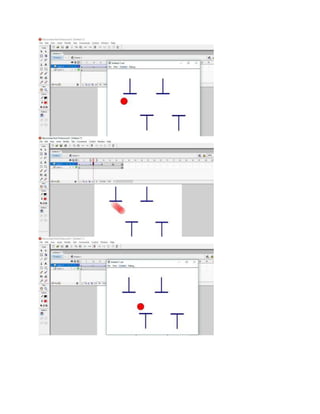
4)Insert another layer by rightclicking on the layer.
5)In this layer add an object(ball)whose motion is to be performed.
6)Add new key frame after skipping some frames & add another location
of the object (ball)
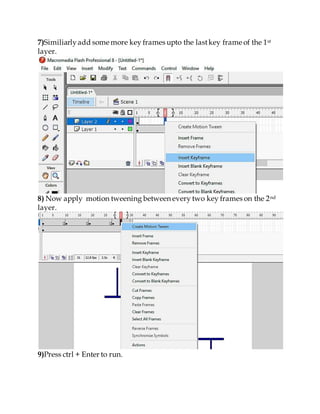
7)Similiarlyadd some more key frames upto the lastkey frame of the 1st
layer.
8) Now apply motion tweening between every two key frames on the 2nd
layer.
9)Press ctrl + Enter to run.
Program-5
Program to convert object to text
Steps:-
1)Open MacroFlash Media Player and create a new document.
2) Using circle or any other shape draw the desire shaped Object on a
frame in a layer.
3)You can fill it with any colour if desired or else continue.
4)Rightclick on any frame after somewhatdistance then inserta new blabk
frame.
5)Use the TEXT tool to add a text box & writa any name in it.
6)Select the text & press ctrl+B.Itwill break apartthe text.
7)Press ctrl+B again, the text will break apartagain & will look like as
shown below
8)Now rightclick on any frame between the two key frames & add shape
tweening
9)Press ctrl+Enter torun.
Program-6
Program to make a Butterfly fly
Steps:-
1)Open MacroFlash Media Player and create a new document.
2)Create a butterfly shaped object on a frame in a layer.
3)Add some more key frames with Changed shape of butterfly.
4)Using the Free transform tool reduce the width of butterfly.
5)Undothe change in next key frame & repeat this alternatively.
6)Now rightclick on layer one & add Guide layer
7)On its first frame ,provide a irregularpath from the butterfly’s center.
8)Now apply motion tweening between each & every 2 key frames.
9)Press ctrl+Enter torun.
Program-7
Program to create buttons to STOP,PLAY & goto and play for a shape
tweening
Steps:-
1)Open MacroFlash Media Player and create a new document.
2)Create a object on a frame in a layer & perform shape tweening by
selecting any other frame & drawinga new shape & applying shape tween.
3)Add another layer & in its very 1st frame create 3 objects
a) one red circle for STOP button
b)one blue rectangle for PLAY button
c)one green pentagon for STOP & play
4)Select each one of them singularly & make them a symbol of type button.
5)SelectRED circle then its action & write the following:
on(release)
{ stop();
}
6) Select BLUE rectangle then its action & write the following:
on(release)
{ play();
}
7) Select GREEN pentagon then its action & write the following:
on(release)
{ gotoandplay(18);
}It will stop the tweening & force it to begin from the mentioned frame
number ie 18.
8)Press ctrl+Enter torun.
Program-8
Program to create a burning candle
Steps:-
1) Open Macro Flash Media Player and create a new document.
2)Create a candle with a burning lame using circle & rectangular toolson a
frame in a layer.
3)Rightclick on some random place & insert key frame.
4)Slightlychange the shape of flame with the selection tool
5)Repeatthis process a couple of times & Apply shape tweening .
6)Press ctrl+Enter torun.
Program-9
Program for bouncing a ball
Steps:-
1) ) Open Macro Flash Media Player and create a new document.
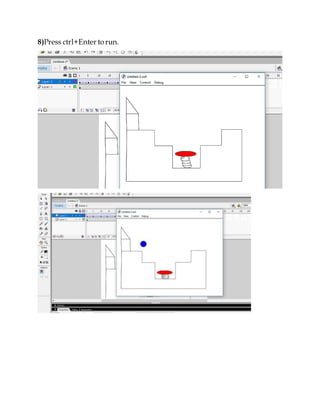
2)Create a Rampinto a frame on a layer in 1st frame
3)Add another state in the ramp for pushing the ball in middle of the
bounce.
4)Now add another layer & create a ball in the 1st frame.
5)Rightclick on the frames & add more Key frames on the 2nd layer
6)Continue adding more Keyframes each with a differentposition of ball.
7)Now after specifying the ball’s position in every keyframe.Apply
Motion tweening in between each & every key frame.
8)Press ctrl+Enter torun.
Program-10
Program for Text Morphing
Steps:-
1) Open Macro Flash Media Playerand create a new document.
2) Using the Text tool enter a Textbox into the frame containing the
1st alphabetof the name.
3) Enter another key frame with another text box containing the next
alphabet .
4) Repeat step 3 until the full name is Entered.
5) Now choose another frame at somewhatframe distance & add a
blank frame with a text box containing a totally different word.
6)Now apply shape tweening between every two key frames.
7)Press ctrl+Enter torun.
Program-11
Program for Changing height ,width,angle & visibility of a object
Steps:-
1) Open Macro Flash Media Playerand create a new document.
2) Create an object in a frame on one layer , then convert it into a
symbol (say m) of type MOVIE CLIP.
3) Add another layer & then create different objects for Inc/Dec the
HEIGHT,WIDTH,ANGLE& changing the visibilityfrom Visible to
Invisible.
4) Convert each of them into a symbol of type button.
5) Now write the name of the 1st layer’s object into each button’s
properties & swap,then hit enter.
6) Now each button has to be assigned some action
7) For Height:-
m._height=m._height+4; && m._height= m._height-4;
8) For width:-
m._width=m._width+4; && m._width=m._width-4;
9) For angle:-
m._rotation=m._rotation+4;&& m._rotation= m._rotation-4;
10)For visibility:-
m._visible=0; && m._visible=1;
11)Press ctrl+ Enter to run.
.
Program-12
Program to make an object transparent
Steps:-
1) Open Macro Flash Media Playerand create a new document.
2) Create an object in a frame on one layer , then convert it into a
symbol (say m) .
3) Now add another layer & create a new object with size such that it
can cover the latter object.
4) Convert it into symbol of type “movie clip “& name it say “bwall”
and write the same name i.e. bwall intoits properties & then swap
,hit enter.
5) After this add another layer for buttons to make the object
transparent& visible.
6) Create two objects & convert them too into symbols of type “button”
& write “bwall”intotheir properties as well .
7) Each button is assigned a action script as follows :
For Transparency : bwall._alpha=bwall._alpha-20;
For Visibility : bwall._alpha=bwall._alpha+20;
8) Press ctrl+Enter to run.

Macromedia Flash Player Practical file

  • 1.
    Program-1 Program to Createa blinking star Steps:- 1) Open Macro Flash Media Player and create a new document. 2) Create a Star shaped Object of the desired size. 3) Use Paint Bucket tool to fill the Star object with the desired colour , selected from the colour palette.
  • 2.
    4) Next insertanew frame by rightclick on the frame number and insertnew Key frame. 5) In the new Key frame the same object with the same colour will appear in the Workspace. 6) Change the colour by selecting new colour from the colour palette and fill using bucket tool.
  • 3.
    7) Press ctrl+ Enter to run.
  • 4.
    Program-2 Program to performGuided Motion Steps:- 1) Open Macro Flash Media Player and create a new document. 2) Using pencil or Line tool draw a ball of desired size on a frame in one layer. 3) Using bucket tool fill the desired colour from the colour palette. 4) Add a new Keyframe,In this the same object as in initial frame will appear in workspace.
  • 5.
    5) Now changeobject’s position to a somewhatdistantplace. 6) Rightclick on the layer will give us option to add a new layer ,i.e. GUIDE layer by clicking “add Motion Guide”. 7) In its 1st frame draw a path of any shape with the Pencil tool.
  • 6.
    8) Now rightclickingthe frames of previous layer prompts out the option of ”create motion tween”. 9) Selecting this a arrow will appear within the frames from 1st to last frame.Ifthe arrow is Dotted ,,tweening isn’tcomplete. 10)Repeat the Steps again.
  • 7.
    11) Press ctrl+ Enter to run.
  • 9.
    Program-3 Program to performshape tweening. 1)Open MacroFlash Media Player and create a new document. 2) Using circle or any other shape draw the desire shaped object on a frame in a layer. 3)Fill the object with desired colour from the colour palette. 4) Now inserta new frame by rightclick on the frames and inserta new key frame. 5)In the new Key frame draw the new object and fill it with the desired colour.
  • 10.
    6)Continue this toadd some more frames with different shapes. 7)Click on any middle frame within twoKey Frames. 8)Select properties & apply MOTION tweening.
  • 11.
    9)Apply tweening withinevery two Key frames.
  • 12.
    10 )Press ctrl+ Enter to run.
  • 14.
    Program-4 Program for motiontweening. Steps:- 1)Open MacroFlash Media Player and create a new document. 2) Using circle or any other shape draw the desire shaped object on a frame in a layer. 3)Fill the object with desired colour from the colour palette.Insertanother Key frame into 1st layer atsomewhatdistance.
  • 15.
    4)Insert another layerby rightclicking on the layer. 5)In this layer add an object(ball)whose motion is to be performed. 6)Add new key frame after skipping some frames & add another location of the object (ball)
  • 16.
    7)Similiarlyadd some morekey frames upto the lastkey frame of the 1st layer. 8) Now apply motion tweening between every two key frames on the 2nd layer. 9)Press ctrl + Enter to run.
  • 19.
    Program-5 Program to convertobject to text Steps:- 1)Open MacroFlash Media Player and create a new document. 2) Using circle or any other shape draw the desire shaped Object on a frame in a layer. 3)You can fill it with any colour if desired or else continue. 4)Rightclick on any frame after somewhatdistance then inserta new blabk frame. 5)Use the TEXT tool to add a text box & writa any name in it. 6)Select the text & press ctrl+B.Itwill break apartthe text.
  • 20.
    7)Press ctrl+B again,the text will break apartagain & will look like as shown below 8)Now rightclick on any frame between the two key frames & add shape tweening 9)Press ctrl+Enter torun.
  • 23.
    Program-6 Program to makea Butterfly fly Steps:- 1)Open MacroFlash Media Player and create a new document. 2)Create a butterfly shaped object on a frame in a layer. 3)Add some more key frames with Changed shape of butterfly. 4)Using the Free transform tool reduce the width of butterfly.
  • 24.
    5)Undothe change innext key frame & repeat this alternatively. 6)Now rightclick on layer one & add Guide layer 7)On its first frame ,provide a irregularpath from the butterfly’s center.
  • 25.
    8)Now apply motiontweening between each & every 2 key frames. 9)Press ctrl+Enter torun.
  • 27.
    Program-7 Program to createbuttons to STOP,PLAY & goto and play for a shape tweening Steps:- 1)Open MacroFlash Media Player and create a new document. 2)Create a object on a frame in a layer & perform shape tweening by selecting any other frame & drawinga new shape & applying shape tween.
  • 28.
    3)Add another layer& in its very 1st frame create 3 objects a) one red circle for STOP button b)one blue rectangle for PLAY button c)one green pentagon for STOP & play 4)Select each one of them singularly & make them a symbol of type button. 5)SelectRED circle then its action & write the following: on(release) { stop(); }
  • 29.
    6) Select BLUErectangle then its action & write the following: on(release) { play(); } 7) Select GREEN pentagon then its action & write the following: on(release) { gotoandplay(18); }It will stop the tweening & force it to begin from the mentioned frame number ie 18.
  • 30.
  • 31.
    Program-8 Program to createa burning candle Steps:- 1) Open Macro Flash Media Player and create a new document. 2)Create a candle with a burning lame using circle & rectangular toolson a frame in a layer. 3)Rightclick on some random place & insert key frame. 4)Slightlychange the shape of flame with the selection tool
  • 32.
    5)Repeatthis process acouple of times & Apply shape tweening . 6)Press ctrl+Enter torun.
  • 34.
    Program-9 Program for bouncinga ball Steps:- 1) ) Open Macro Flash Media Player and create a new document. 2)Create a Rampinto a frame on a layer in 1st frame 3)Add another state in the ramp for pushing the ball in middle of the bounce.
  • 35.
    4)Now add anotherlayer & create a ball in the 1st frame. 5)Rightclick on the frames & add more Key frames on the 2nd layer 6)Continue adding more Keyframes each with a differentposition of ball.
  • 36.
    7)Now after specifyingthe ball’s position in every keyframe.Apply Motion tweening in between each & every key frame.
  • 37.
  • 40.
    Program-10 Program for TextMorphing Steps:- 1) Open Macro Flash Media Playerand create a new document. 2) Using the Text tool enter a Textbox into the frame containing the 1st alphabetof the name. 3) Enter another key frame with another text box containing the next alphabet .
  • 41.
    4) Repeat step3 until the full name is Entered. 5) Now choose another frame at somewhatframe distance & add a blank frame with a text box containing a totally different word.
  • 42.
    6)Now apply shapetweening between every two key frames. 7)Press ctrl+Enter torun.
  • 45.
    Program-11 Program for Changingheight ,width,angle & visibility of a object Steps:- 1) Open Macro Flash Media Playerand create a new document. 2) Create an object in a frame on one layer , then convert it into a symbol (say m) of type MOVIE CLIP. 3) Add another layer & then create different objects for Inc/Dec the HEIGHT,WIDTH,ANGLE& changing the visibilityfrom Visible to Invisible.
  • 46.
    4) Convert eachof them into a symbol of type button. 5) Now write the name of the 1st layer’s object into each button’s properties & swap,then hit enter. 6) Now each button has to be assigned some action 7) For Height:- m._height=m._height+4; && m._height= m._height-4; 8) For width:- m._width=m._width+4; && m._width=m._width-4;
  • 47.
    9) For angle:- m._rotation=m._rotation+4;&&m._rotation= m._rotation-4; 10)For visibility:- m._visible=0; && m._visible=1; 11)Press ctrl+ Enter to run.
  • 48.
  • 49.
    Program-12 Program to makean object transparent Steps:- 1) Open Macro Flash Media Playerand create a new document. 2) Create an object in a frame on one layer , then convert it into a symbol (say m) . 3) Now add another layer & create a new object with size such that it can cover the latter object. 4) Convert it into symbol of type “movie clip “& name it say “bwall” and write the same name i.e. bwall intoits properties & then swap ,hit enter.
  • 50.
    5) After thisadd another layer for buttons to make the object transparent& visible. 6) Create two objects & convert them too into symbols of type “button” & write “bwall”intotheir properties as well . 7) Each button is assigned a action script as follows : For Transparency : bwall._alpha=bwall._alpha-20; For Visibility : bwall._alpha=bwall._alpha+20;
  • 51.