Logo with photoshop
• Basic logo for your website can be created using Adobe Photoshop.
• Overall, there are two methods. Using text or using drawing.
• For more advanced design of logo you need to use Adobe Illustrator,
which is the outside of the range of this course.
Some basic examples. Watch linked video
tutorial.
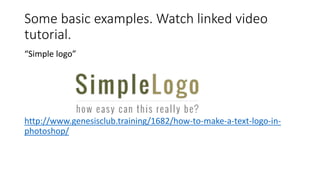
“Simple logo”
http://www.genesisclub.training/1682/how-to-make-a-text-logo-in-
photoshop/
Other simple versions with photoshop
http://webriti.com/how-to-make-simple-logos-using-adobe-
photoshop-cs3/
http://www.makeuseof.com/tag/how-to-create-a-simple-blog-logo-in-
photoshop/
Step by step for logo
Step 1
• Open a new Photoshop file that is 8 by 10 wide with high image resolution settings (300
dpi or higher). Although you will rarely use a logo this size, quality is retained when
shrinking. You can not enlarge small files without losing quality.
Step 2
• Select the Text Tool from the left palette designated with a "T" in the box. Center the
cursor and type in the company name. Adjust the fonts through the font palette that
appears in the upper right corner with the Text Tool to play with font types, sizes and
colors until you are happy with the way the company name looks.
Step 3
• Create a new layer by selecting "New Layer" from the drop-down menu along the top of
the program. You will want to create a new layer for each step; this gives you the ability
to move or change certain elements while keeping others. Keep track of layers in the box
on the lower right side of the screen--the bold item is the layer you are working on with
any item that has an "eye" icon next to it is seen on the screen.
Step 4
• Type a title for your logo in the new layer using the Text Tool once
again. Use the font palette to change the font, length and height--for
example, stretching the title.
Step 5
• Import any graphic designs or pictures you have royalty free rights to
and want to use in the logo. You can find images from stock footage
libraries or clip art files. If you have no artwork yet, you can "draw" it
into a new layer using any of the following tools: Pencil, Shape or
Paintbrush.
Step 6
• Move elements from each layer around on the logo by clicking on the layer
menu on the lower right and selecting the layer you want to work on. You
can link layers by clicking on the box under the chain link icon or only view
the layer you are working on by clicking on the eye icon to remove it from
view.
Step 7
• Add effects, such as bevels, shadows, or color gradients. Use the Effects tab
on the drop-down menu at the top of the screen to choose the effects you
want to try. A preview will be given before the change is made
permanently.
Step 8
• Save your file as a *.psd and a*.jpg . The *.psd is your original Photoshop
file with all layers; keep this so you can make changes at a later point if you
want to. The *.jpg is a combined file with all element layers combined into
one making it a smaller file easier to email to print shops.
Logo with drawing.
https://www.youtube.com/watch?v=V2xs7GqdUwQ
30 examples of logo tutorials
• http://designscrazed.org/photoshop-logo-design-tutorials/

Logo with photoshop

  • 1.
  • 2.
    • Basic logofor your website can be created using Adobe Photoshop. • Overall, there are two methods. Using text or using drawing. • For more advanced design of logo you need to use Adobe Illustrator, which is the outside of the range of this course.
  • 3.
    Some basic examples.Watch linked video tutorial. “Simple logo” http://www.genesisclub.training/1682/how-to-make-a-text-logo-in- photoshop/
  • 4.
    Other simple versionswith photoshop http://webriti.com/how-to-make-simple-logos-using-adobe- photoshop-cs3/ http://www.makeuseof.com/tag/how-to-create-a-simple-blog-logo-in- photoshop/
  • 5.
    Step by stepfor logo Step 1 • Open a new Photoshop file that is 8 by 10 wide with high image resolution settings (300 dpi or higher). Although you will rarely use a logo this size, quality is retained when shrinking. You can not enlarge small files without losing quality. Step 2 • Select the Text Tool from the left palette designated with a "T" in the box. Center the cursor and type in the company name. Adjust the fonts through the font palette that appears in the upper right corner with the Text Tool to play with font types, sizes and colors until you are happy with the way the company name looks. Step 3 • Create a new layer by selecting "New Layer" from the drop-down menu along the top of the program. You will want to create a new layer for each step; this gives you the ability to move or change certain elements while keeping others. Keep track of layers in the box on the lower right side of the screen--the bold item is the layer you are working on with any item that has an "eye" icon next to it is seen on the screen.
  • 6.
    Step 4 • Typea title for your logo in the new layer using the Text Tool once again. Use the font palette to change the font, length and height--for example, stretching the title. Step 5 • Import any graphic designs or pictures you have royalty free rights to and want to use in the logo. You can find images from stock footage libraries or clip art files. If you have no artwork yet, you can "draw" it into a new layer using any of the following tools: Pencil, Shape or Paintbrush.
  • 7.
    Step 6 • Moveelements from each layer around on the logo by clicking on the layer menu on the lower right and selecting the layer you want to work on. You can link layers by clicking on the box under the chain link icon or only view the layer you are working on by clicking on the eye icon to remove it from view. Step 7 • Add effects, such as bevels, shadows, or color gradients. Use the Effects tab on the drop-down menu at the top of the screen to choose the effects you want to try. A preview will be given before the change is made permanently. Step 8 • Save your file as a *.psd and a*.jpg . The *.psd is your original Photoshop file with all layers; keep this so you can make changes at a later point if you want to. The *.jpg is a combined file with all element layers combined into one making it a smaller file easier to email to print shops.
  • 8.
  • 9.
    30 examples oflogo tutorials • http://designscrazed.org/photoshop-logo-design-tutorials/