M3 – I.T Essentials Packet Tracer
              Lab
       Candidate Number: 61101
         Centre Number: 1726
Step 1: Connect
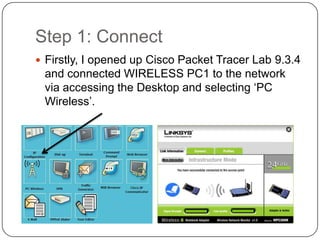
 Firstly, I opened up Cisco Packet Tracer Lab 9.3.4
 and connected WIRELESS PC1 to the network
 via accessing the Desktop and selecting ‘PC
 Wireless’.
Step 2: Veryfying
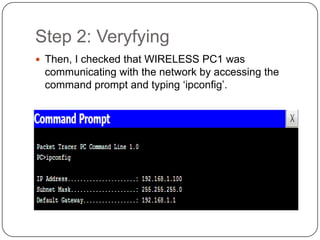
 Then, I checked that WIRELESS PC1 was
 communicating with the network by accessing the
 command prompt and typing ‘ipconfig’.
Step 3: Web Utility Access
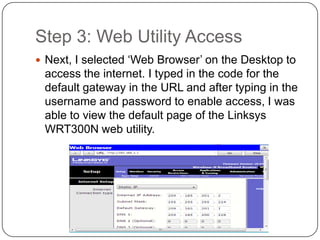
 Next, I selected ‘Web Browser’ on the Desktop to
 access the internet. I typed in the code for the
 default gateway in the URL and after typing in the
 username and password to enable access, I was
 able to view the default page of the Linksys
 WRT300N web utility.
Step 4: Configure SSID
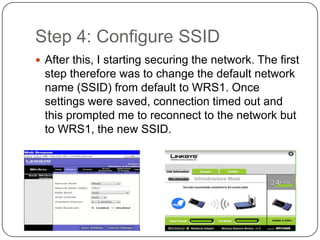
 After this, I starting securing the network. The first
  step therefore was to change the default network
  name (SSID) from default to WRS1. Once
  settings were saved, connection timed out and
  this prompted me to reconnect to the network but
  to WRS1, the new SSID.
Step 5: Extra Secure
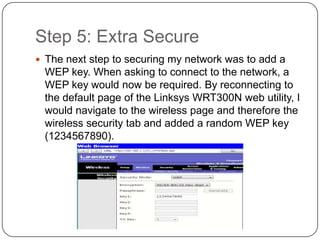
 The next step to securing my network was to add a
 WEP key. When asking to connect to the network, a
 WEP key would now be required. By reconnecting to
 the default page of the Linksys WRT300N web utility, I
 would navigate to the wireless page and therefore the
 wireless security tab and added a random WEP key
 (1234567890).
Step 6: Reconnecting, again!
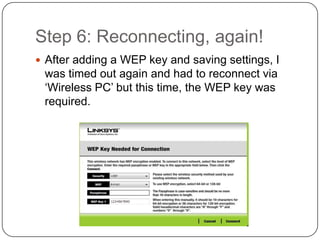
 After adding a WEP key and saving settings, I
 was timed out again and had to reconnect via
 ‘Wireless PC’ but this time, the WEP key was
 required.
Step 7: Changing password and
finishing
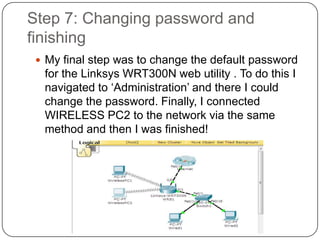
  My final step was to change the default password
  for the Linksys WRT300N web utility . To do this I
  navigated to ‘Administration’ and there I could
  change the password. Finally, I connected
  WIRELESS PC2 to the network via the same
  method and then I was finished!

M3 – cisco packet tracer lab

  • 1.
    M3 – I.TEssentials Packet Tracer Lab Candidate Number: 61101 Centre Number: 1726
  • 2.
    Step 1: Connect Firstly, I opened up Cisco Packet Tracer Lab 9.3.4 and connected WIRELESS PC1 to the network via accessing the Desktop and selecting ‘PC Wireless’.
  • 3.
    Step 2: Veryfying Then, I checked that WIRELESS PC1 was communicating with the network by accessing the command prompt and typing ‘ipconfig’.
  • 4.
    Step 3: WebUtility Access  Next, I selected ‘Web Browser’ on the Desktop to access the internet. I typed in the code for the default gateway in the URL and after typing in the username and password to enable access, I was able to view the default page of the Linksys WRT300N web utility.
  • 5.
    Step 4: ConfigureSSID  After this, I starting securing the network. The first step therefore was to change the default network name (SSID) from default to WRS1. Once settings were saved, connection timed out and this prompted me to reconnect to the network but to WRS1, the new SSID.
  • 6.
    Step 5: ExtraSecure  The next step to securing my network was to add a WEP key. When asking to connect to the network, a WEP key would now be required. By reconnecting to the default page of the Linksys WRT300N web utility, I would navigate to the wireless page and therefore the wireless security tab and added a random WEP key (1234567890).
  • 7.
    Step 6: Reconnecting,again!  After adding a WEP key and saving settings, I was timed out again and had to reconnect via ‘Wireless PC’ but this time, the WEP key was required.
  • 8.
    Step 7: Changingpassword and finishing  My final step was to change the default password for the Linksys WRT300N web utility . To do this I navigated to ‘Administration’ and there I could change the password. Finally, I connected WIRELESS PC2 to the network via the same method and then I was finished!