Computer Communication & Networking
Practical # 05
Object:
Introduction to Packet Tracer
What is Packet Tracer?
Packet Tracer is a protocol simulator
developed by Dennis Frezzo and his team
at Cisco Systems. Packet Tracer (PT) is a
powerful and dynamic tool that displays the
various protocols used in networking, in
either Real Time or Simulation mode. This
includes layer 2 protocols such as Ethernet
and PPP, layer 3 protocols such as IP,
ICMP, and ARP, and layer 4 protocols such
as TCP and UDP. Routing protocols can
also be traced.
Introduction to the Packet Tracer
Interface using a Hub Topology:

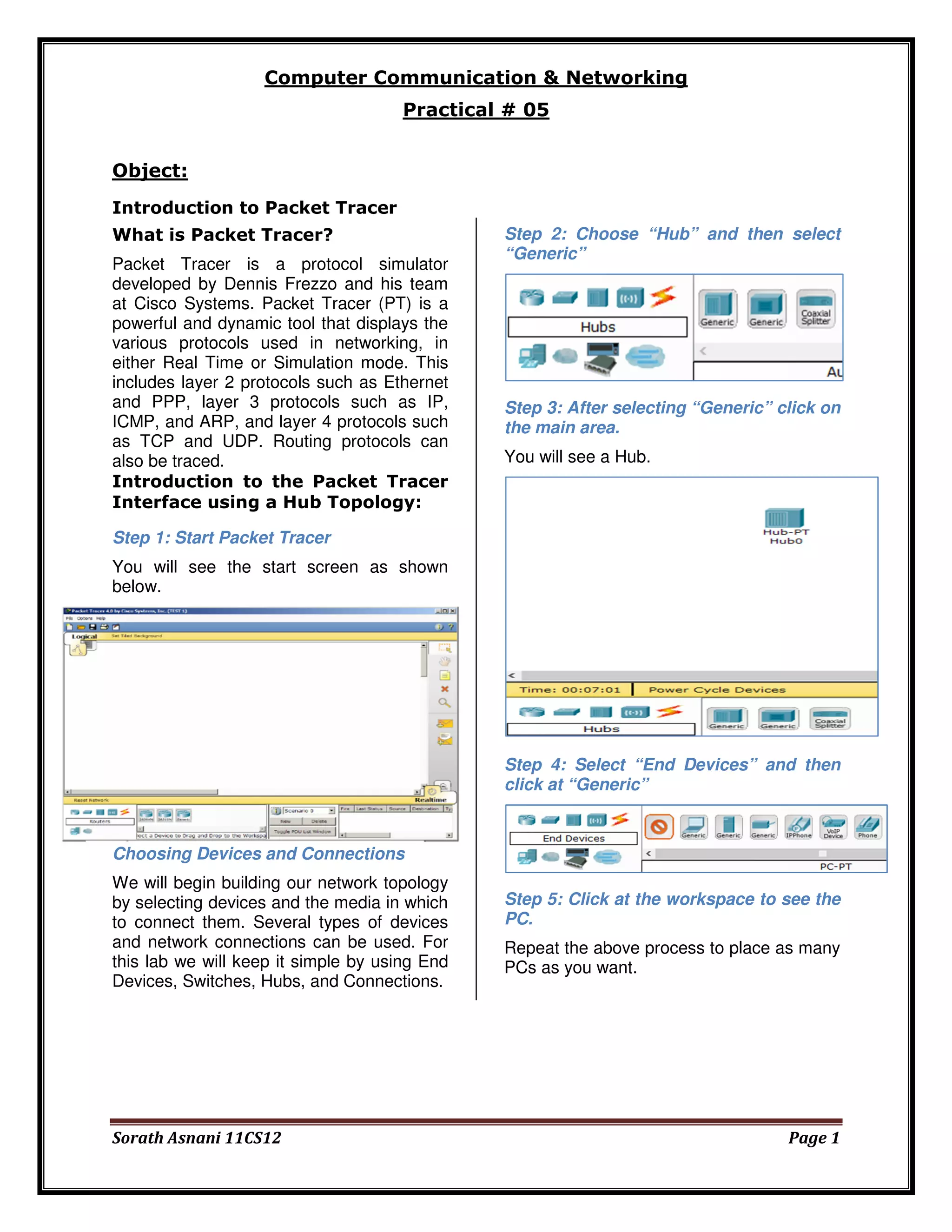
Step 2: Choose “Hub” and then select
“Generic”

Step 3: After selecting “Generic” click on
the main area.
You will see a Hub.

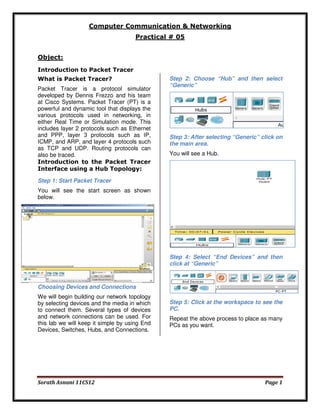
Step 1: Start Packet Tracer
You will see the start screen as shown
below.

Step 4: Select “End Devices” and then
click at “Generic”

Choosing Devices and Connections
We will begin building our network topology
by selecting devices and the media in which
to connect them. Several types of devices
and network connections can be used. For
this lab we will keep it simple by using End
Devices, Switches, Hubs, and Connections.

Sorath Asnani 11CS12

Step 5: Click at the workspace to see the
PC.
Repeat the above process to place as many
PCs as you want.

Page 1
Computer Communication & Networking
Practical # 05
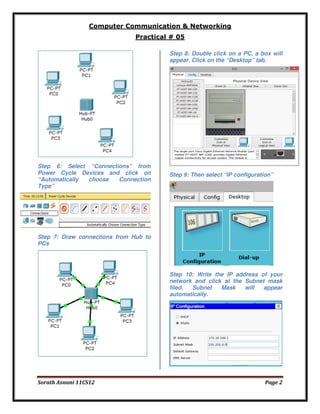
Step 8: Double click on a PC, a box will
appear. Click on the “Desktop” tab.

Step 6: Select “Connections” from
Power Cycle Devices and click on
“Automatically
choose
Connection
Type”

Step 9: Then select “IP configuration”

Step 7: Draw connections from Hub to
PCs

Step 10: Write the IP address of your
network and click at the Subnet mask
filed.
Subnet
Mask
will
appear
automatically.

Sorath Asnani 11CS12

Page 2
Computer Communication & Networking
Practical # 05
Step 11: Repeat Step 10 to set the IPs for
all the PCs.
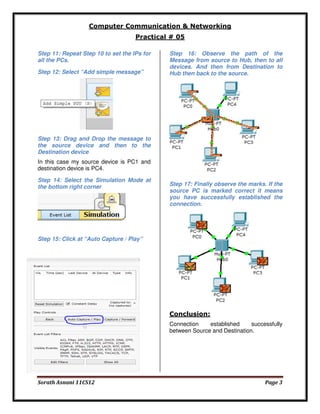
Step 12: Select “Add simple message”

Step 16: Observe the path of the
Message from source to Hub, then to all
devices. And then from Destination to
Hub then back to the source.

Step 13: Drag and Drop the message to
the source device and then to the
Destination device
In this case my source device is PC1 and
destination device is PC4.
Step 14: Select the Simulation Mode at
the bottom right corner

Step 17: Finally observe the marks. If the
source PC is marked correct it means
you have successfully established the
connection.

Step 15: Click at “Auto Capture / Play”

Conclusion:
Connection
established
successfully
between Source and Destination.

Sorath Asnani 11CS12

Page 3

Step by Step guide to set up a simple network in Packet Tracer

  • 1.
    Computer Communication &Networking Practical # 05 Object: Introduction to Packet Tracer What is Packet Tracer? Packet Tracer is a protocol simulator developed by Dennis Frezzo and his team at Cisco Systems. Packet Tracer (PT) is a powerful and dynamic tool that displays the various protocols used in networking, in either Real Time or Simulation mode. This includes layer 2 protocols such as Ethernet and PPP, layer 3 protocols such as IP, ICMP, and ARP, and layer 4 protocols such as TCP and UDP. Routing protocols can also be traced. Introduction to the Packet Tracer Interface using a Hub Topology: Step 2: Choose “Hub” and then select “Generic” Step 3: After selecting “Generic” click on the main area. You will see a Hub. Step 1: Start Packet Tracer You will see the start screen as shown below. Step 4: Select “End Devices” and then click at “Generic” Choosing Devices and Connections We will begin building our network topology by selecting devices and the media in which to connect them. Several types of devices and network connections can be used. For this lab we will keep it simple by using End Devices, Switches, Hubs, and Connections. Sorath Asnani 11CS12 Step 5: Click at the workspace to see the PC. Repeat the above process to place as many PCs as you want. Page 1
  • 2.
    Computer Communication &Networking Practical # 05 Step 8: Double click on a PC, a box will appear. Click on the “Desktop” tab. Step 6: Select “Connections” from Power Cycle Devices and click on “Automatically choose Connection Type” Step 9: Then select “IP configuration” Step 7: Draw connections from Hub to PCs Step 10: Write the IP address of your network and click at the Subnet mask filed. Subnet Mask will appear automatically. Sorath Asnani 11CS12 Page 2
  • 3.
    Computer Communication &Networking Practical # 05 Step 11: Repeat Step 10 to set the IPs for all the PCs. Step 12: Select “Add simple message” Step 16: Observe the path of the Message from source to Hub, then to all devices. And then from Destination to Hub then back to the source. Step 13: Drag and Drop the message to the source device and then to the Destination device In this case my source device is PC1 and destination device is PC4. Step 14: Select the Simulation Mode at the bottom right corner Step 17: Finally observe the marks. If the source PC is marked correct it means you have successfully established the connection. Step 15: Click at “Auto Capture / Play” Conclusion: Connection established successfully between Source and Destination. Sorath Asnani 11CS12 Page 3