DESIGN AND IMPLEMENT A
NETWORK WITH PACKET
TRACER
IT: Network: Cisco 1
Fall 2013
Last few weeks, we…
¨  … looked at subnetting IPv4 network addresses.
¨  … designed a subnetting structure based on the
number of networks only.
¤  Not terribly efficient
¨  … designed a subnetting structure based on the
number of hosts on each network.
¤  VLSM
Let’s put it all together
¨  Build a network – what do we need?
¤  Server(s)?
¤  Workstation(s)?
¤  What else?
¨  Suppose we have 2 locations
¤  HQ here in Green Bay
¤  Branch office in Omaha
¨  Let’s sketch it out…
My list
¨  Workstations and Servers “in an appropriate number”
¨  Switch for each physical LAN
¤  If need more than one switch on a LAN that’s fine
¨  Tie our networks together
¤  Routers – one per network?
n  Assuming router has two interfaces
¤  Cables
n  Ethernet – straight-through and cross-over
n  WAN/Serial for between routers
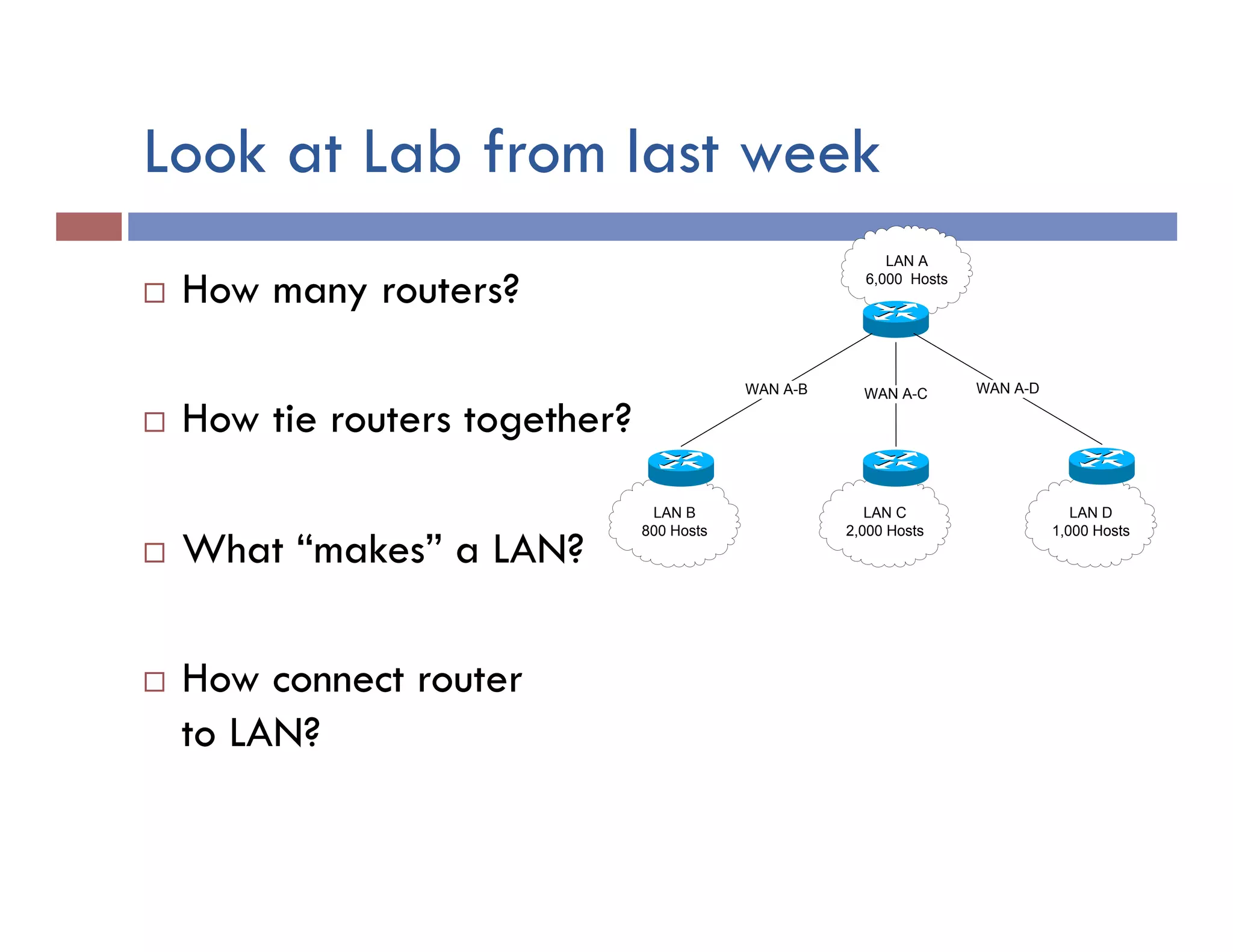
Look at Lab from last week
¨  How many routers?
¨  How tie routers together?
¨  What “makes” a LAN?
¨  How connect router
to LAN?
LAN B
800 Hosts
LAN C
2,000 Hosts
LAN A
6,000 Hosts
LAN D
1,000 Hosts
WAN A-B WAN A-C WAN A-D
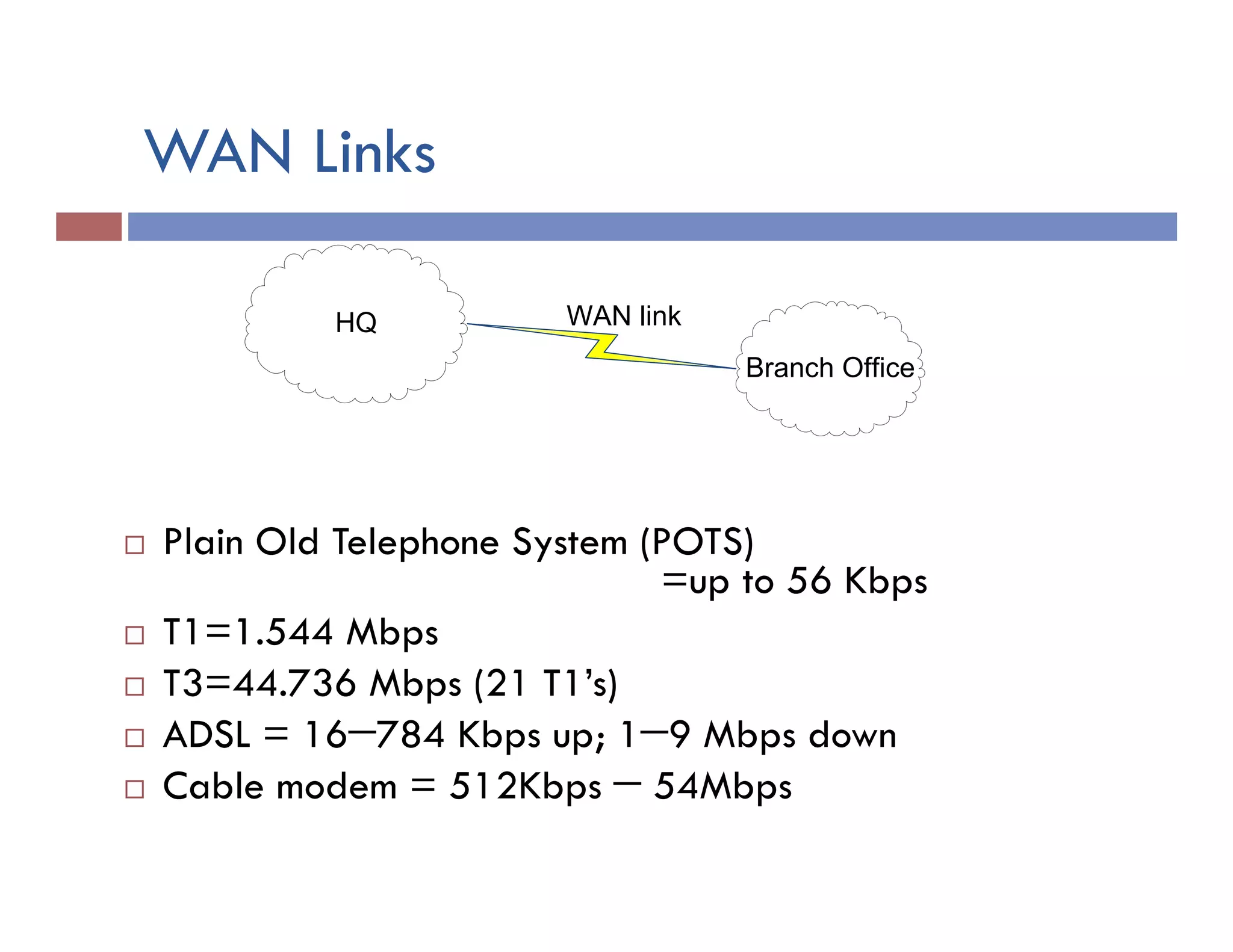
WAN Links
¨  Plain Old Telephone System (POTS)
=up to 56 Kbps
¨  T1=1.544 Mbps
¨  T3=44.736 Mbps (21 T1’s)
¨  ADSL = 16−784 Kbps up; 1−9 Mbps down
¨  Cable modem = 512Kbps − 54Mbps
HQ
Branch Office
WAN link
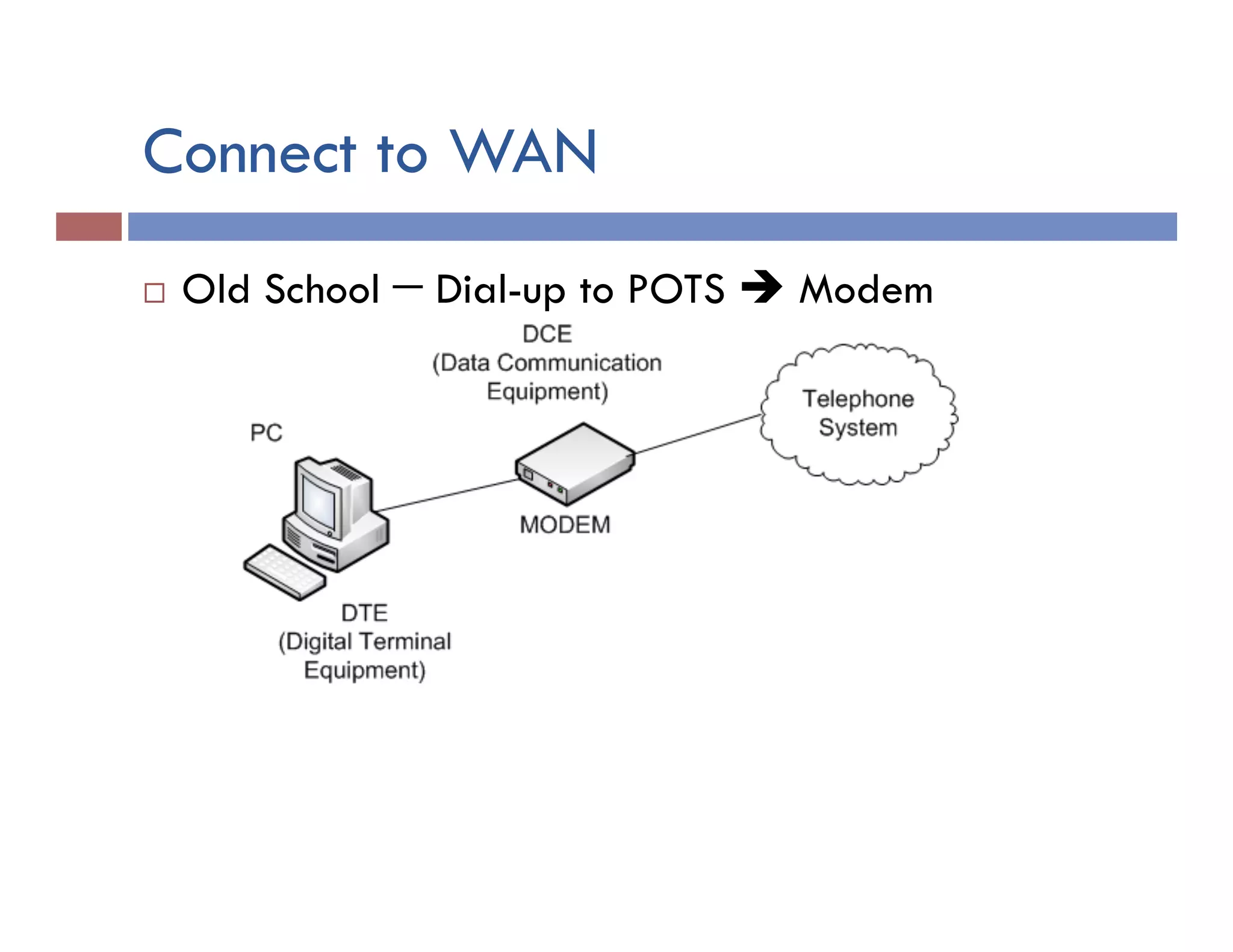
Connect to WAN
¨  Old School − Dial-up to POTS è Modem
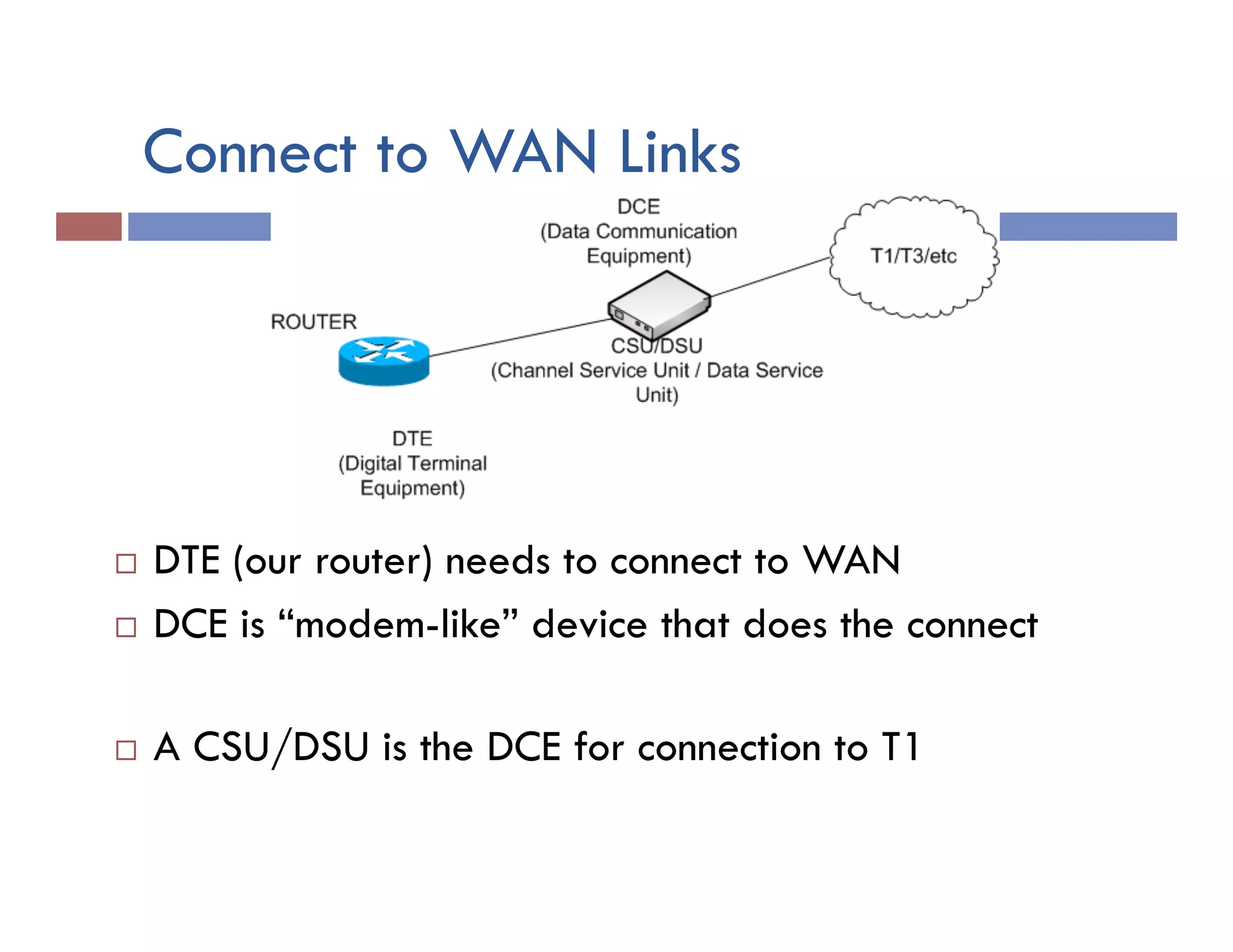
Connect to WAN Links
¨  DTE (our router) needs to connect to WAN
¨  DCE is “modem-like” device that does the connect
¨  A CSU/DSU is the DCE for connection to T1
DTE/DCE Cable
¨  Used in lab / testing environment to simulate a WAN
link
¨  Sort of a “cross-over” for WAN.
¨  One side needs to take role of providing clock signal
¤  Typically done by CSU/DSU
¨  Side with the DCE end sets clock
¤  ONLY done by the side with the DCE!
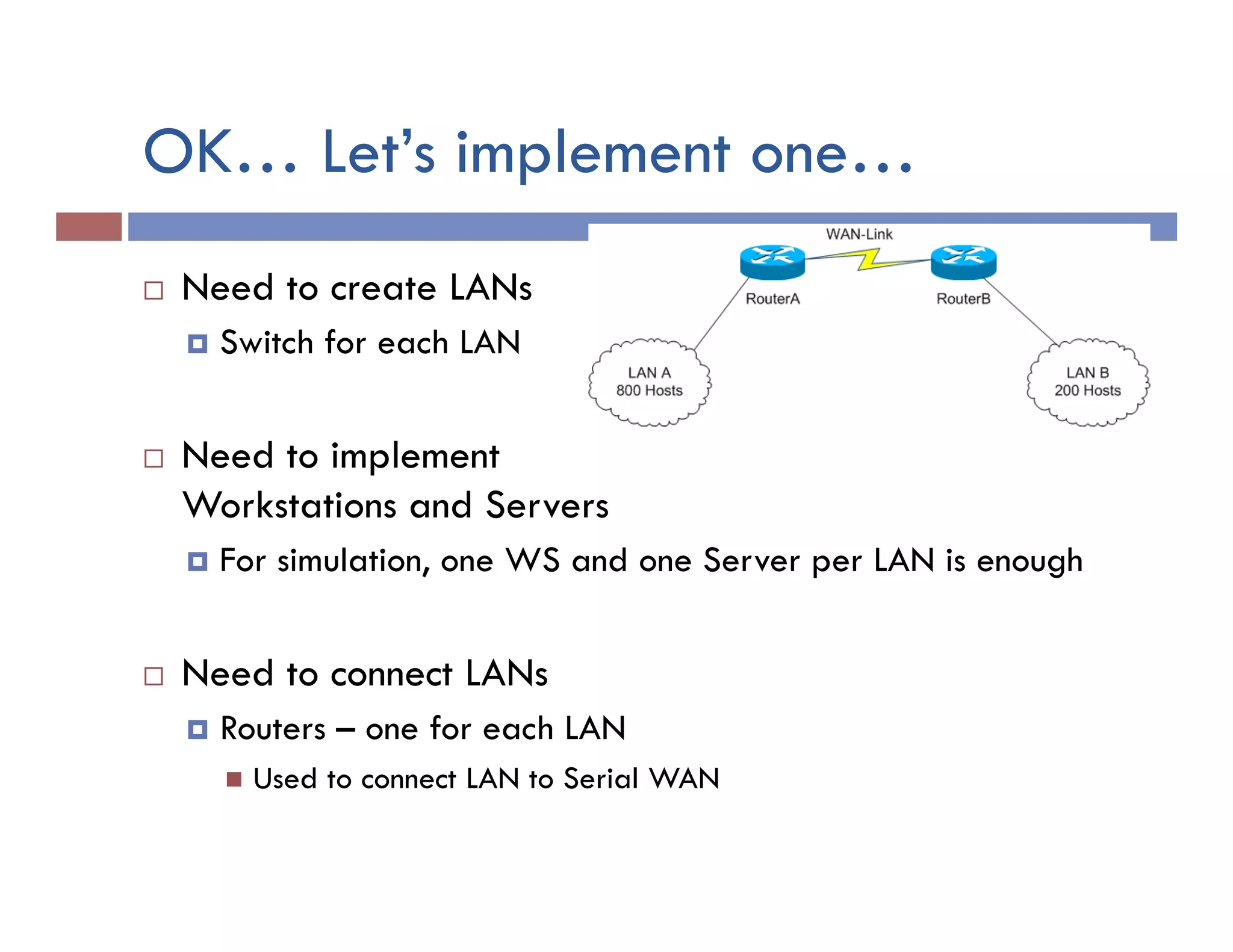
OK… Let’s implement one…
¨  Need to create LANs
¤  Switch for each LAN
¨  Need to implement
Workstations and Servers
¤  For simulation, one WS and one Server per LAN is enough
¨  Need to connect LANs
¤  Routers – one for each LAN
n  Used to connect LAN to Serial WAN
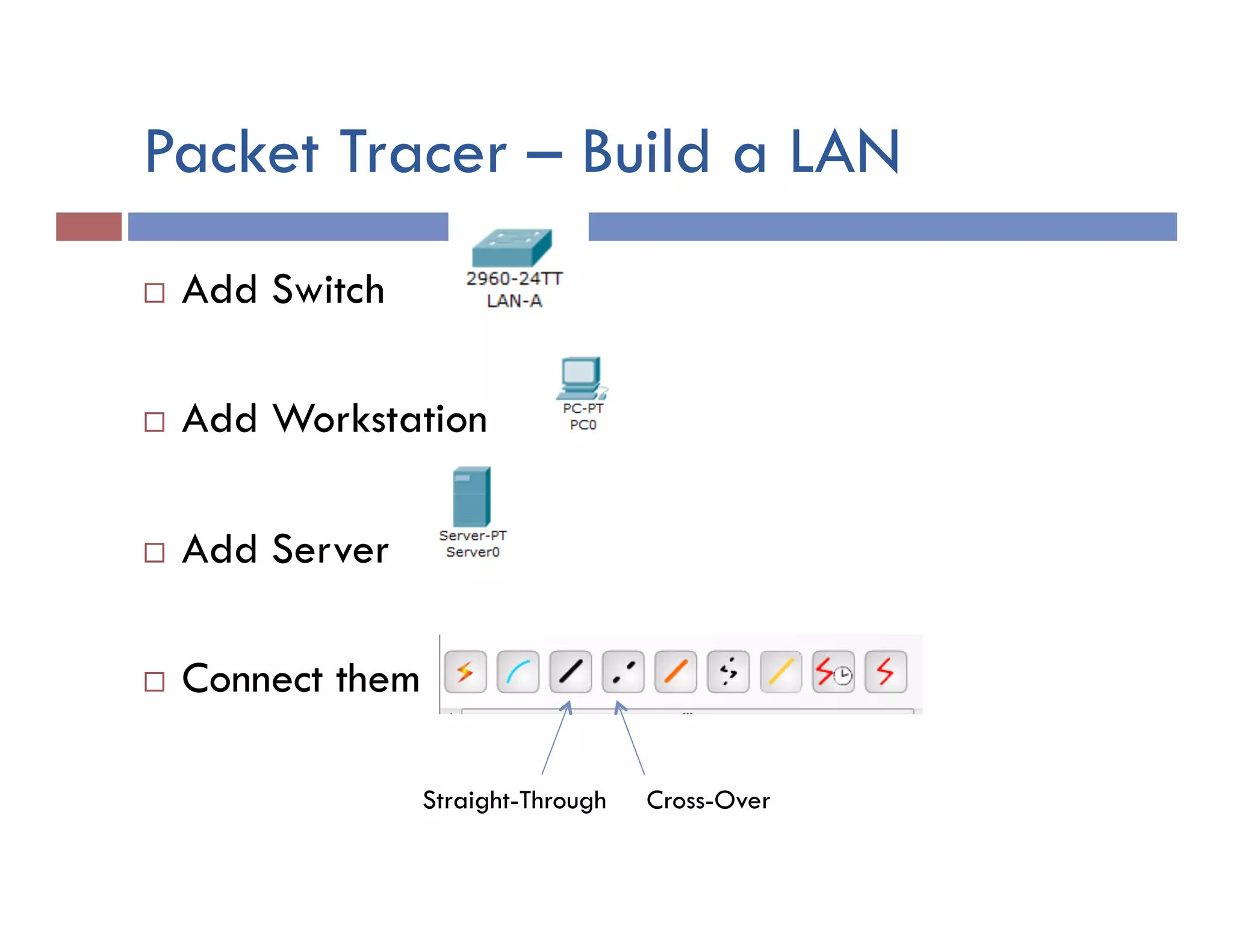
Packet Tracer – Build a LAN
¨  Add Switch
¨  Add Workstation
¨  Add Server
¨  Connect them
Straight-Through Cross-Over
Connect LAN nodes
¨  Workstation to Switch è Straight-through Copper
¤  FastEthernet
¨  Server to Switch è Straight-through Copper
¤  FastEthernet
¨  Router to Switch èStraight-through Copper
¤  FastEthernet 0/0 or FastEthernet 0/1
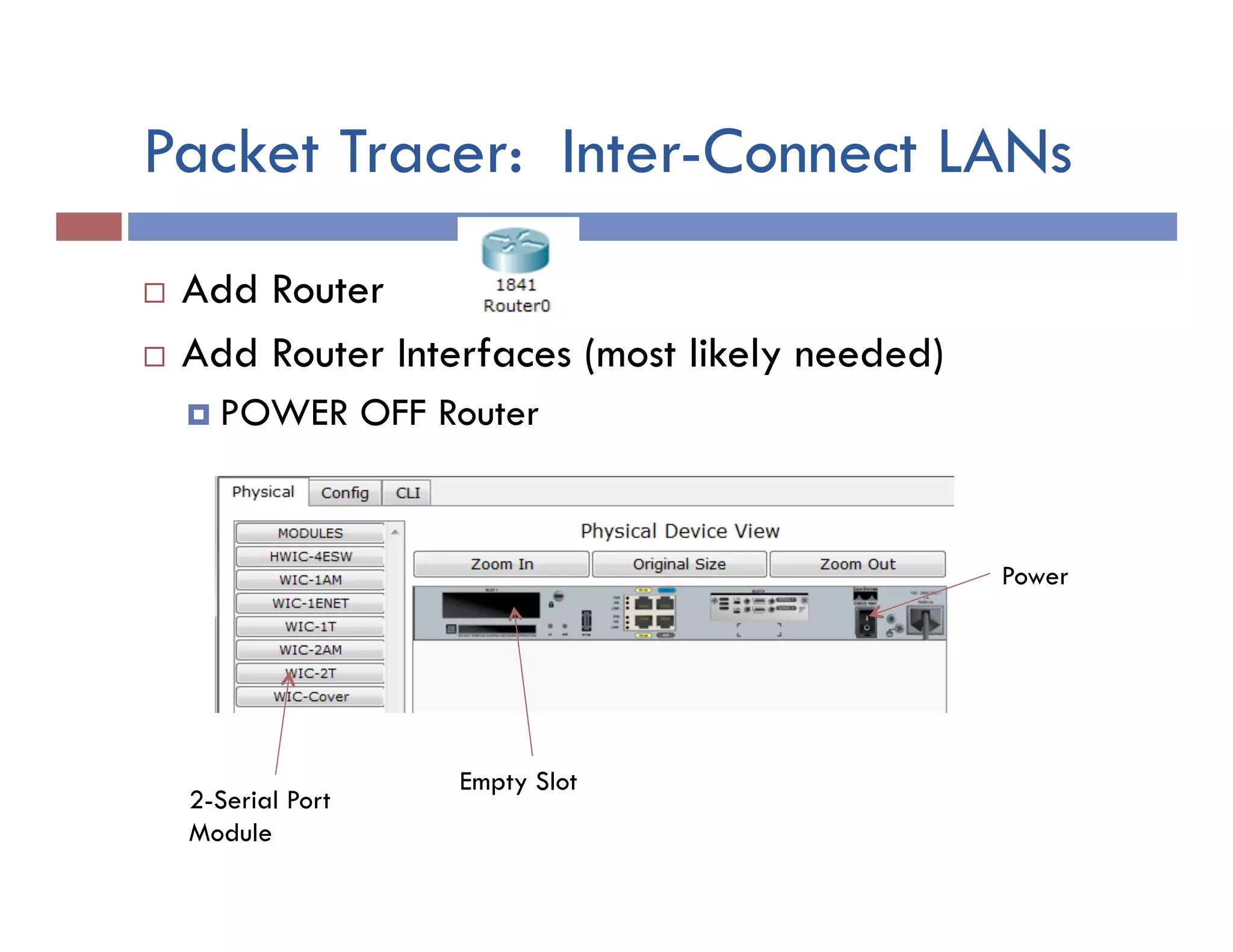
Packet Tracer: Inter-Connect LANs
¨  Add Router
¨  Add Router Interfaces (most likely needed)
¤  POWER OFF Router
Power
Empty Slot
2-Serial Port
Module
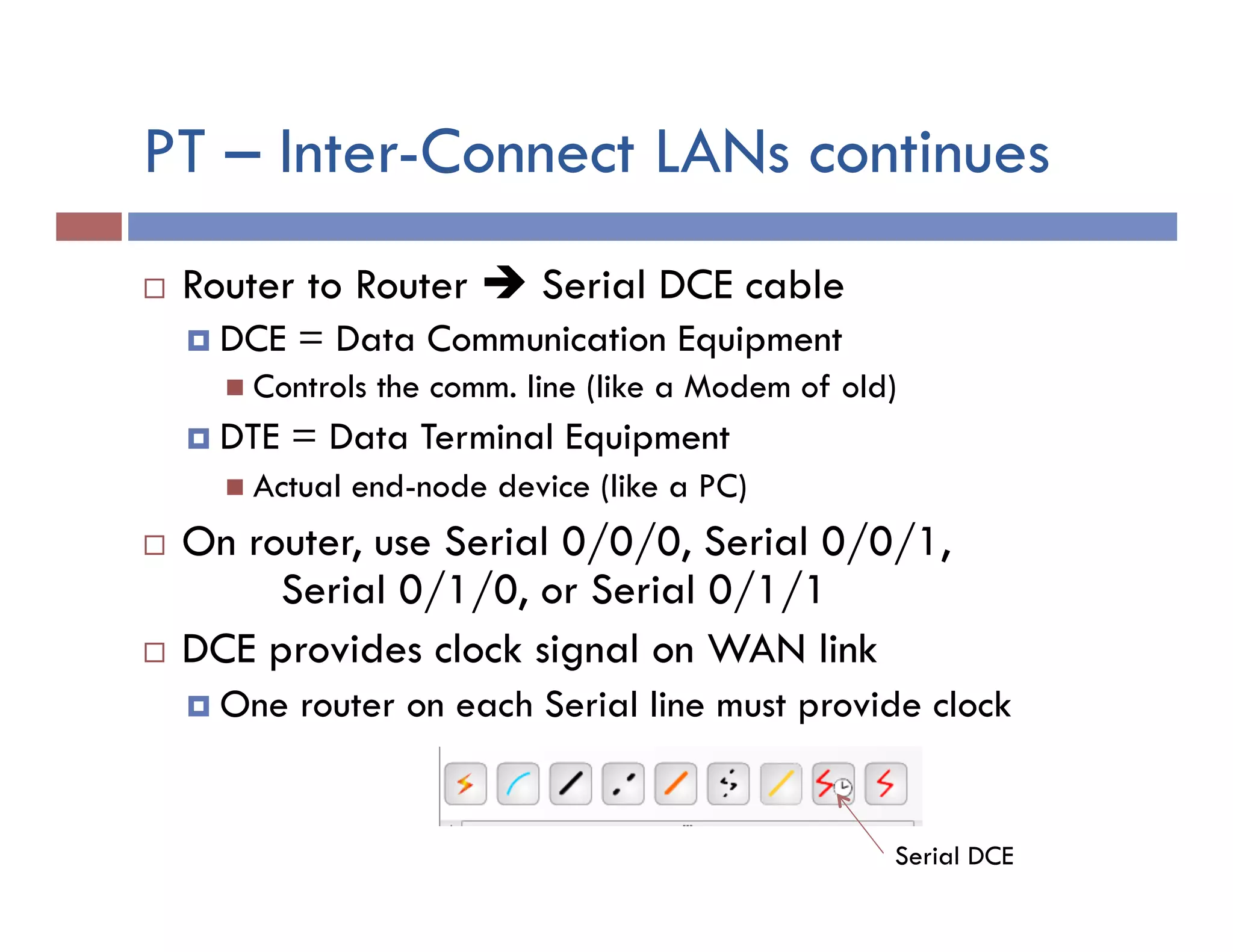
PT – Inter-Connect LANs continues
¨  Router to Router è Serial DCE cable
¤  DCE = Data Communication Equipment
n  Controls the comm. line (like a Modem of old)
¤  DTE = Data Terminal Equipment
n  Actual end-node device (like a PC)
¨  On router, use Serial 0/0/0, Serial 0/0/1,
Serial 0/1/0, or Serial 0/1/1
¨  DCE provides clock signal on WAN link
¤  One router on each Serial line must provide clock
Serial DCE
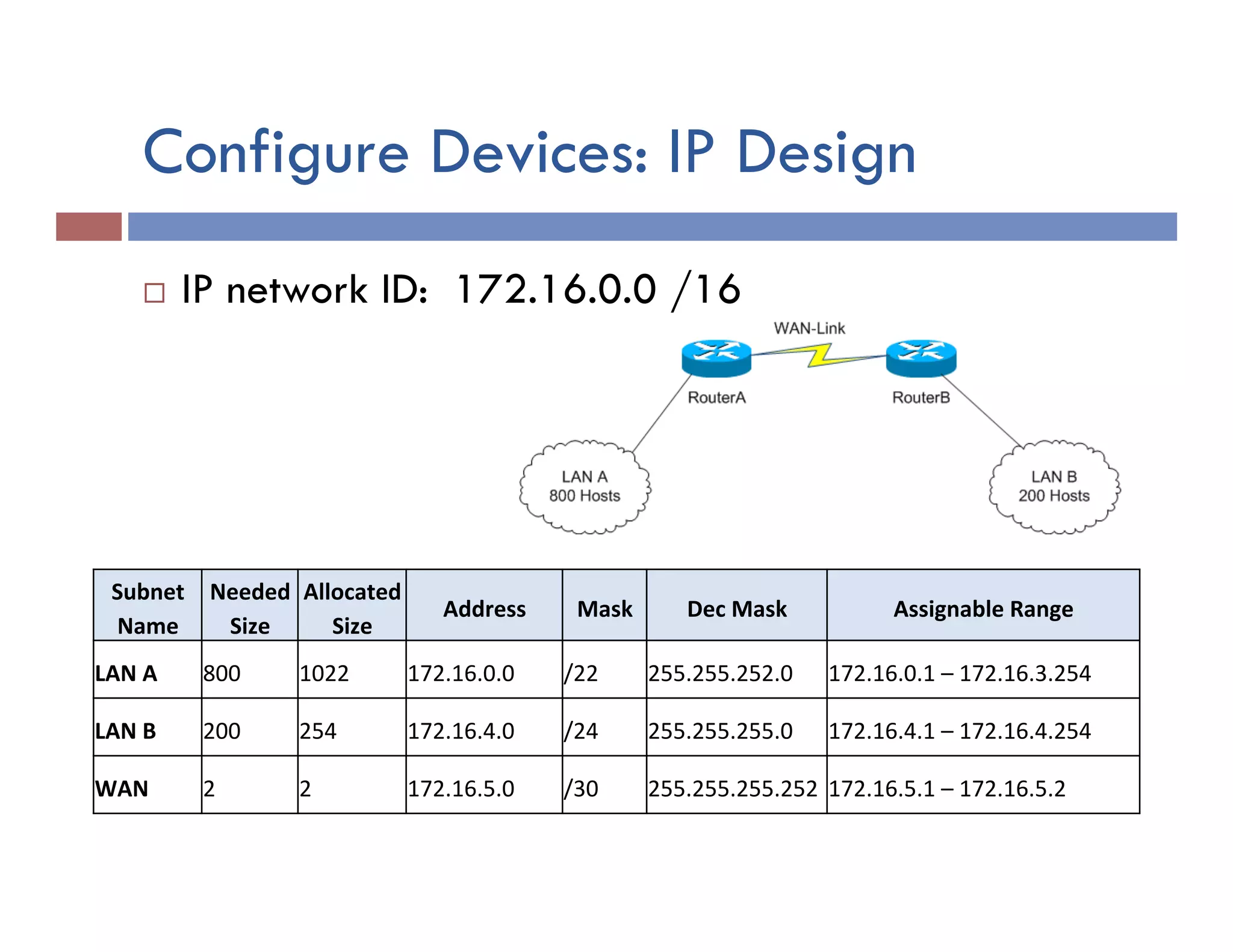
Configure Devices: IP Design
¨  IP network ID: 172.16.0.0 /16
Subnet	
  
Name	
  
Needed	
  
Size	
  
Allocated	
  
Size	
   Address	
   Mask	
   Dec	
  Mask	
   Assignable	
  Range	
  
LAN	
  A	
   800	
   1022	
   172.16.0.0	
   /22	
   255.255.252.0	
   172.16.0.1	
  –	
  172.16.3.254	
  
LAN	
  B	
   200	
   254	
   172.16.4.0	
   /24	
   255.255.255.0	
   172.16.4.1	
  –	
  172.16.4.254	
  
WAN	
   2	
   2	
   172.16.5.0	
   /30	
   255.255.255.252	
  172.16.5.1	
  –	
  172.16.5.2	
  
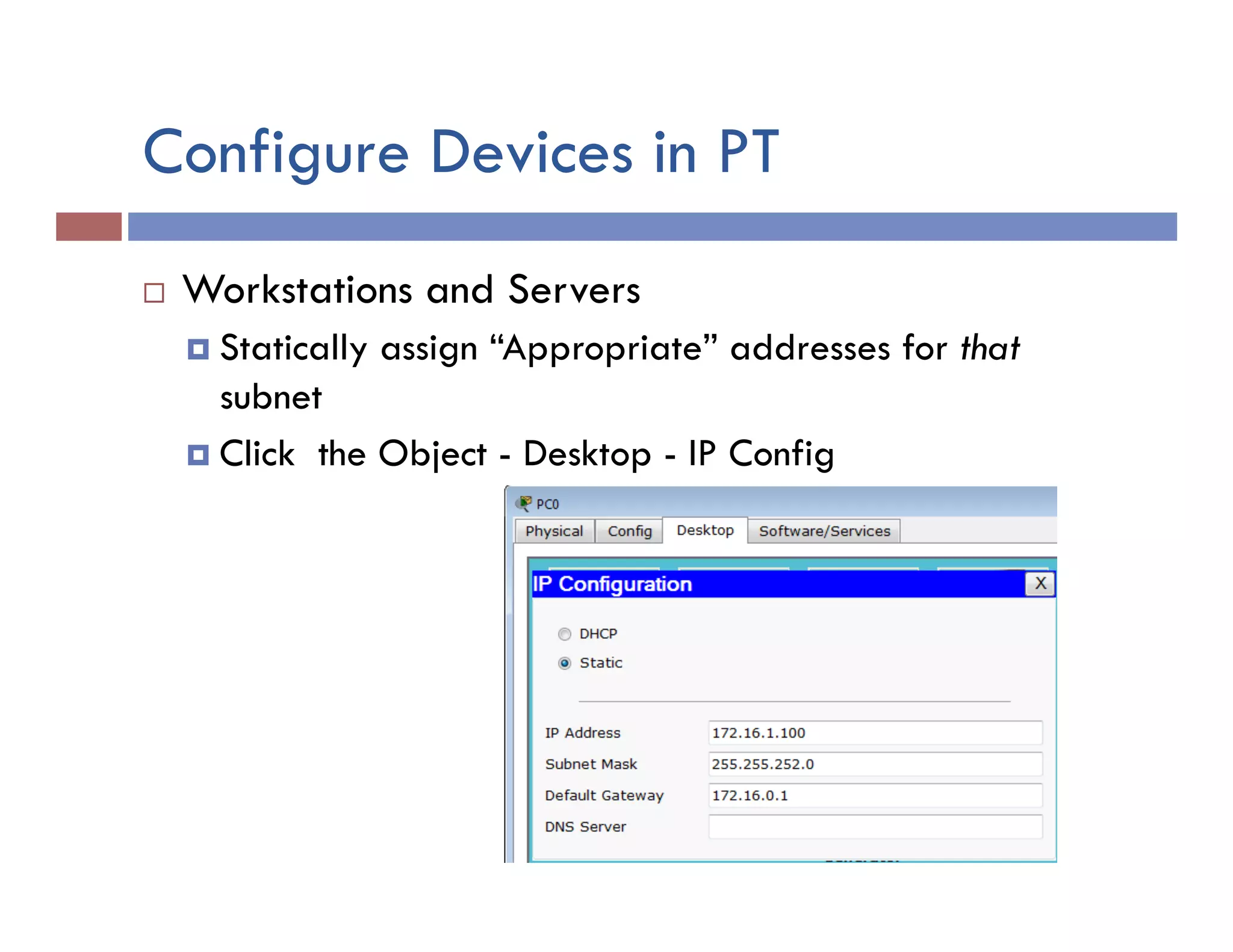
Configure Devices in PT
¨  Workstations and Servers
¤  Statically assign “Appropriate” addresses for that
subnet
¤  Click the Object - Desktop - IP Config
Config Routers in PT
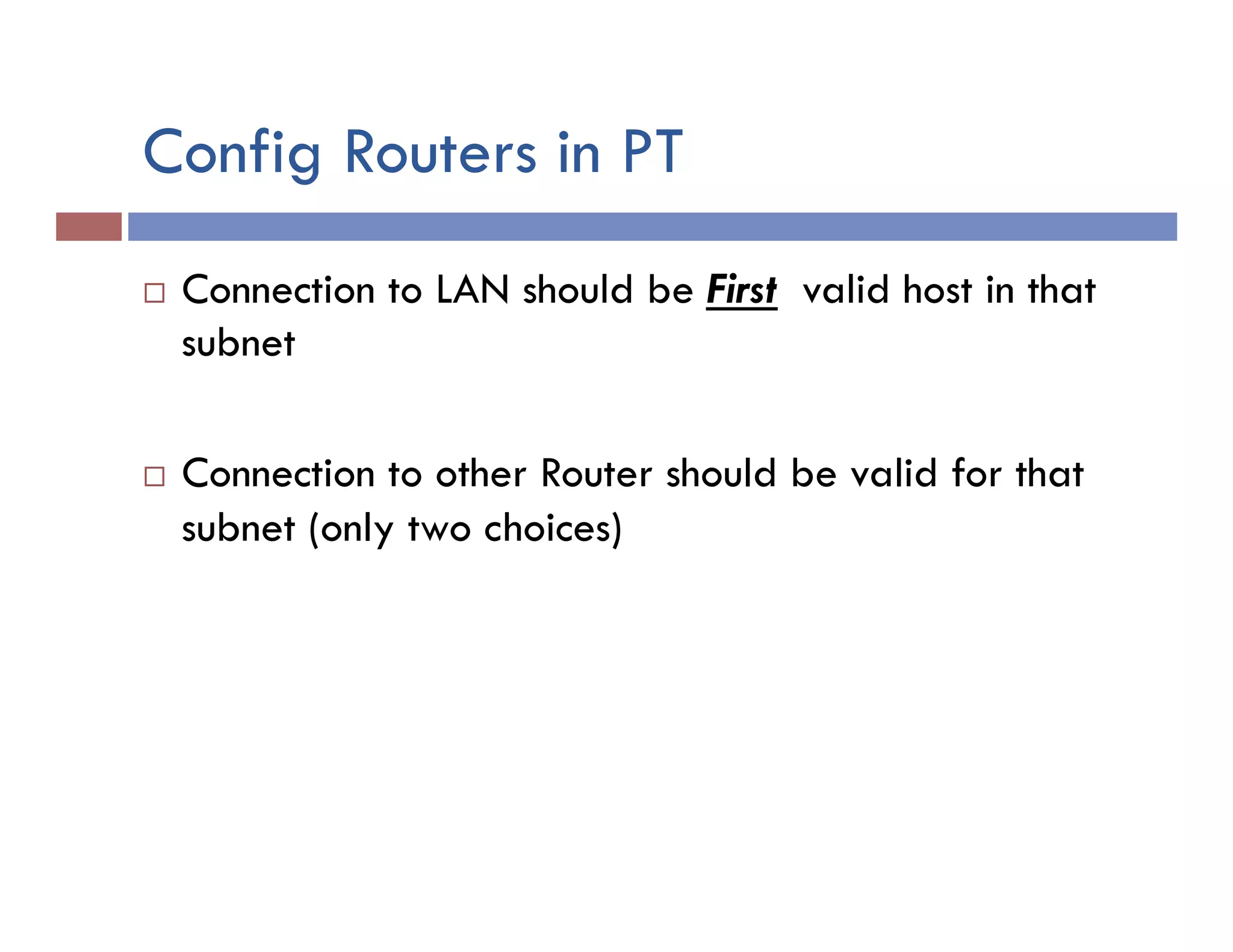
¨  Connection to LAN should be First valid host in that
subnet
¨  Connection to other Router should be valid for that
subnet (only two choices)
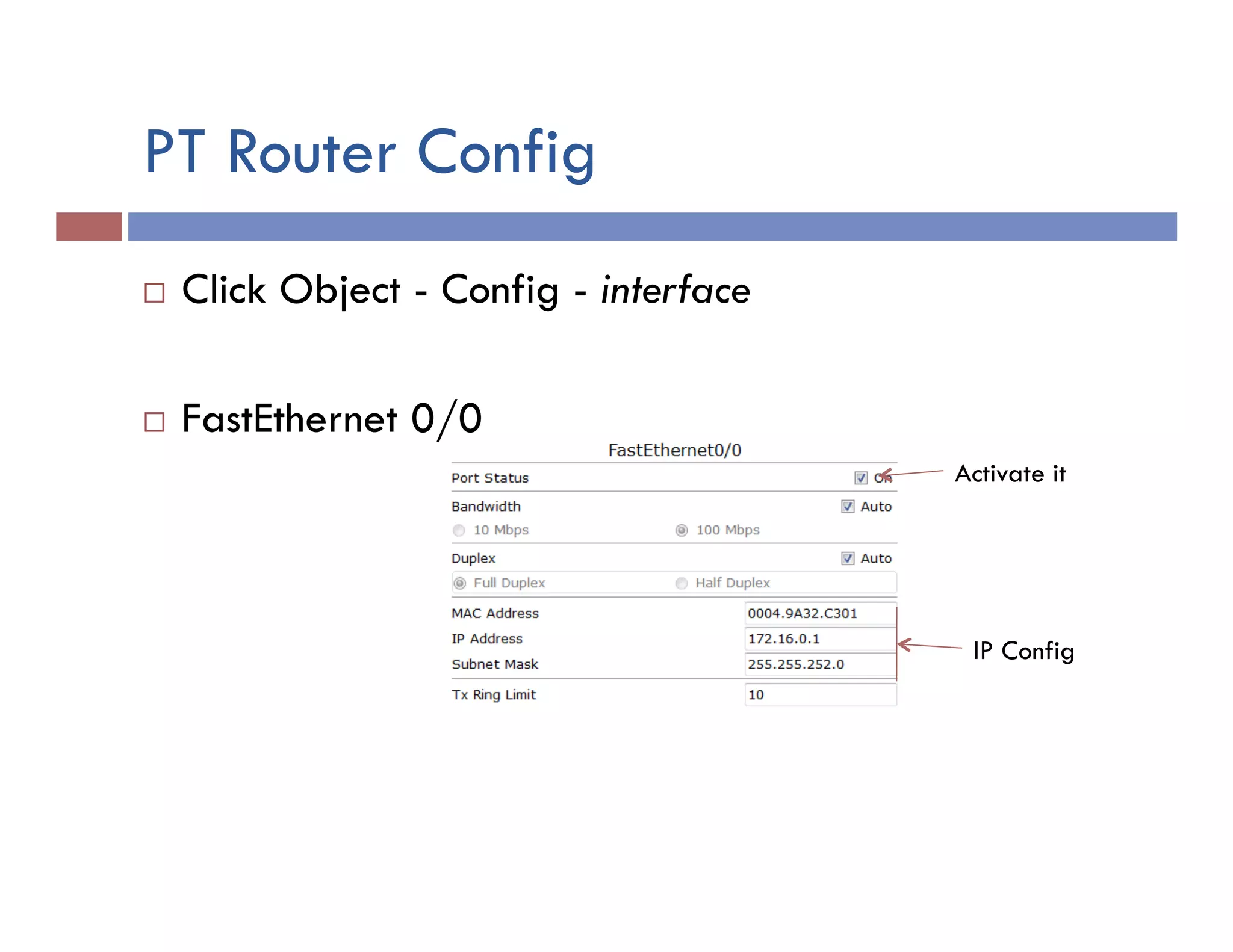
PT Router Config
¨  Click Object - Config - interface
¨  FastEthernet 0/0
IP Config
Activate it
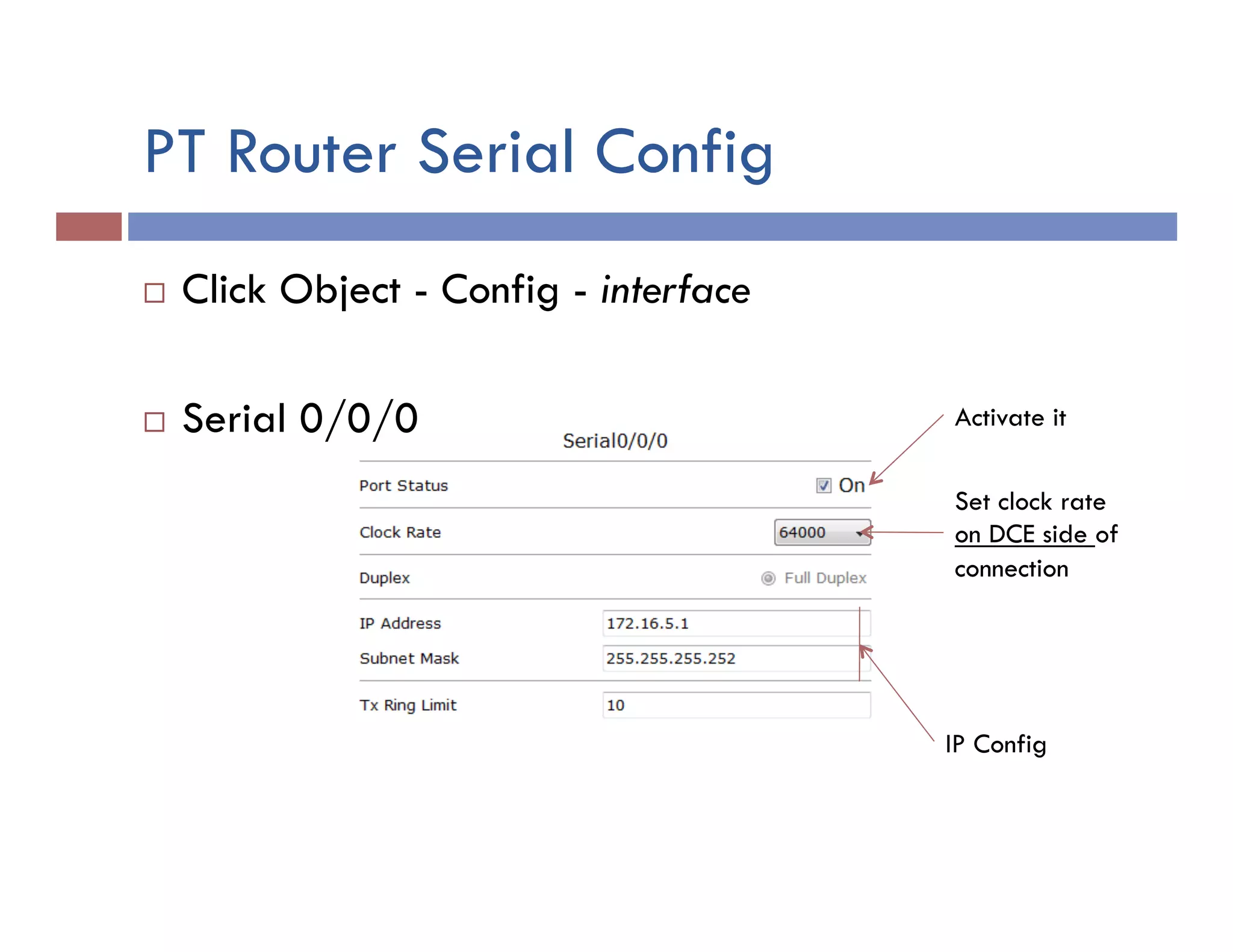
PT Router Serial Config
¨  Click Object - Config - interface
¨  Serial 0/0/0
IP Config
Activate it
Set clock rate
on DCE side of
connection
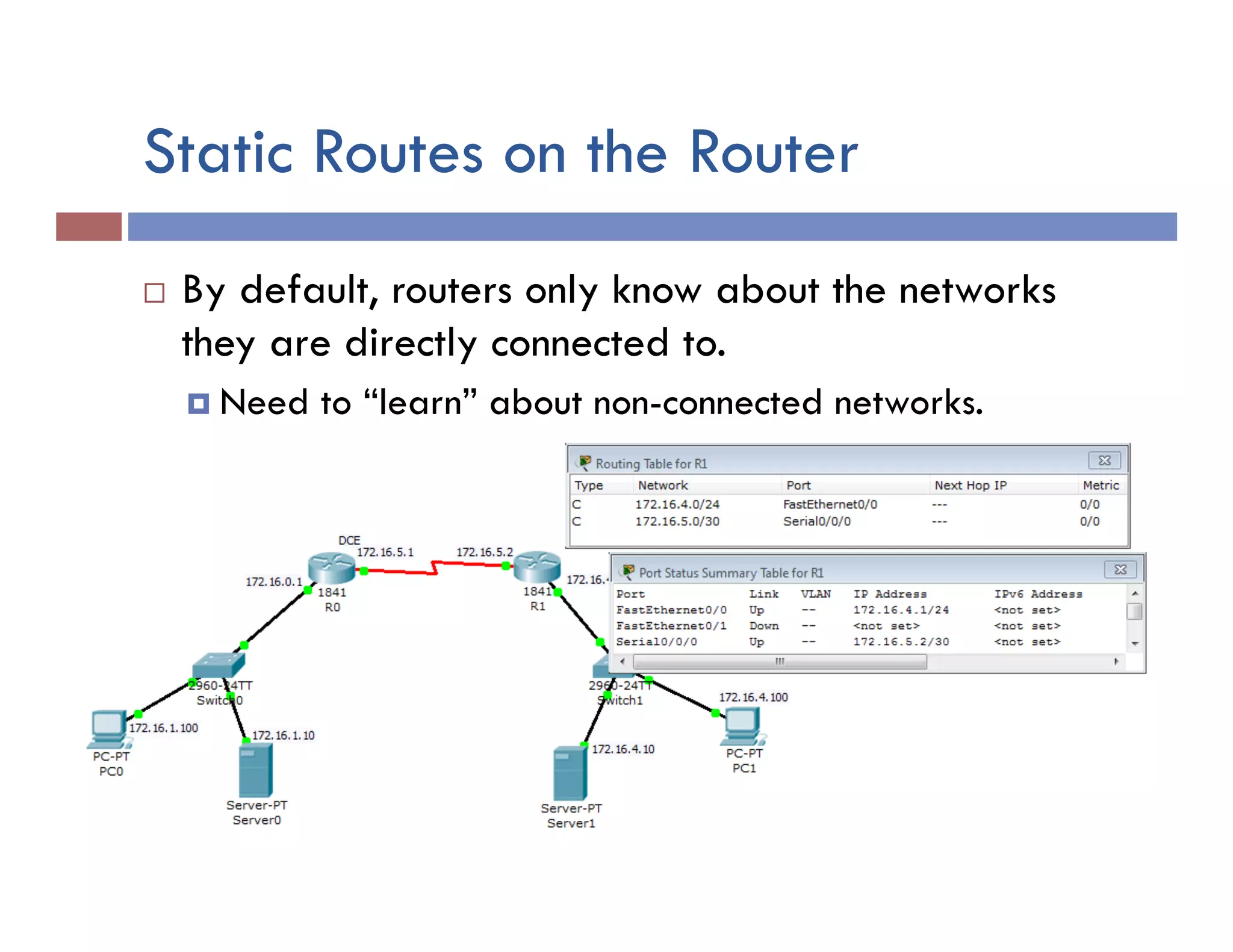
Static Routes on the Router
¨  By default, routers only know about the networks
they are directly connected to.
¤  Need to “learn” about non-connected networks.
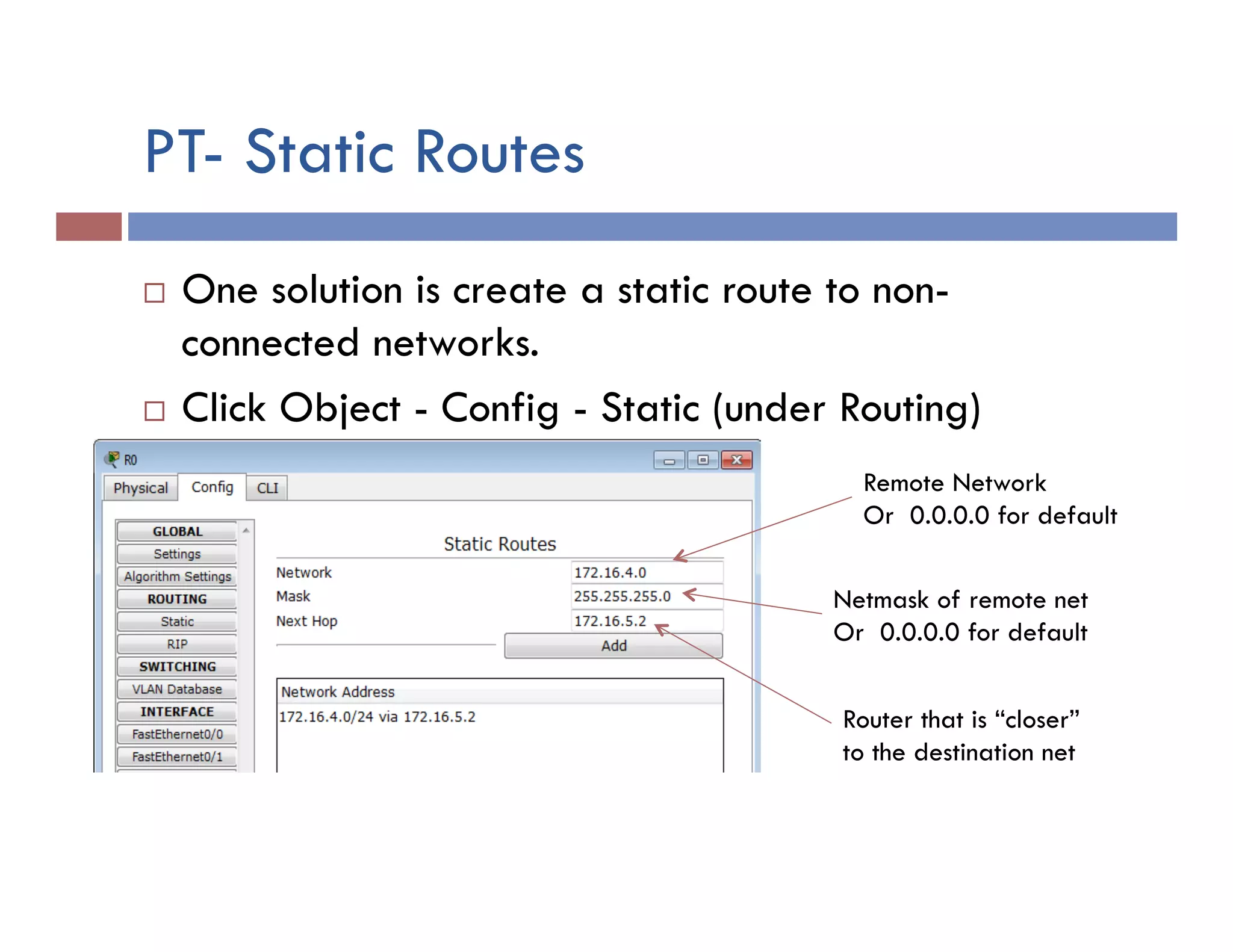
PT- Static Routes
¨  One solution is create a static route to non-
connected networks.
¨  Click Object - Config - Static (under Routing)
Remote Network
Or 0.0.0.0 for default
Netmask of remote net
Or 0.0.0.0 for default
Router that is “closer”
to the destination net
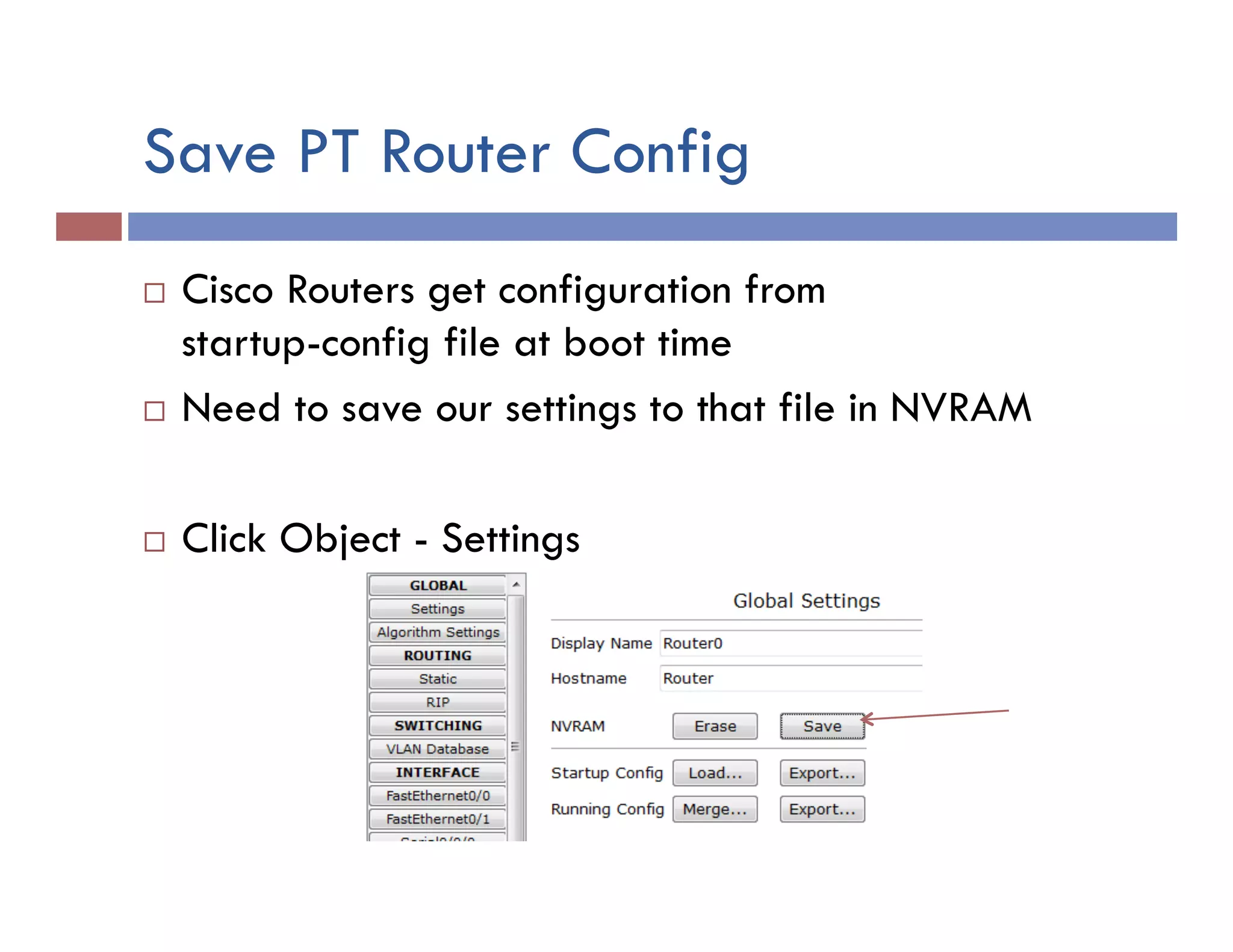
Save PT Router Config
¨  Cisco Routers get configuration from
startup-config file at boot time
¨  Need to save our settings to that file in NVRAM
¨  Click Object - Settings
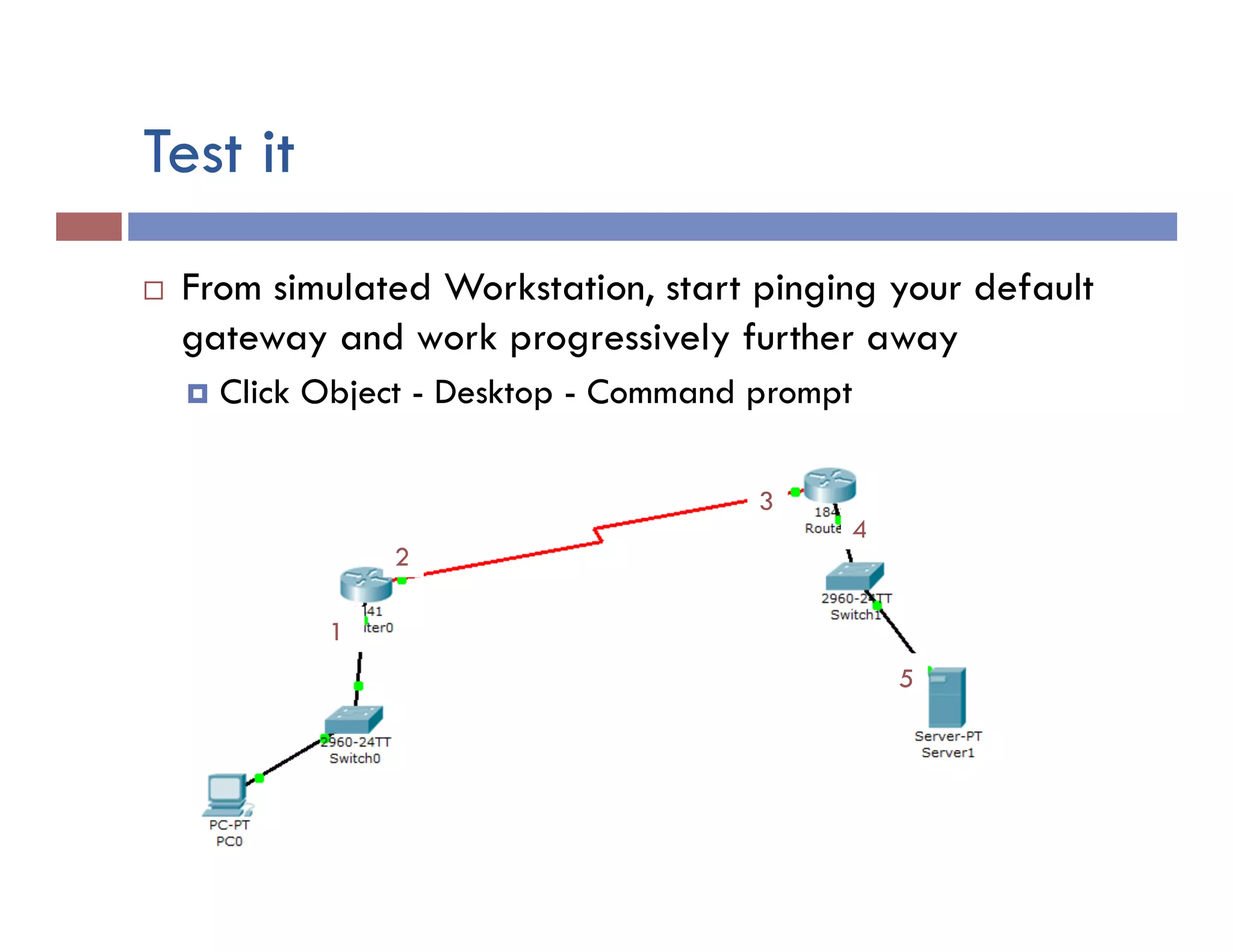
Test it
¨  From simulated Workstation, start pinging your default
gateway and work progressively further away
¤  Click Object - Desktop - Command prompt
1
2
3
4
5
Summary
¨  We’ve looked at IP addressing
¤  Address; Subnet Mask; Gateway
¨  We’ve looked at Full Octet Subnetting
¨  We’ve looked at Partial Octet Subnetting
¨  We’ve designed a subnetting scheme with a fixed
length subnet mask
¨  We’ve designed a subnetting scheme with a variable
length subnet mask (VLSM)
¨  We’ve talked about applying our plan (assigning
addresses)
¨  Now we are ready to do it (Yay)!

designandimplementanetwork

  • 1.
    DESIGN AND IMPLEMENTA NETWORK WITH PACKET TRACER IT: Network: Cisco 1 Fall 2013
  • 2.
    Last few weeks,we… ¨  … looked at subnetting IPv4 network addresses. ¨  … designed a subnetting structure based on the number of networks only. ¤  Not terribly efficient ¨  … designed a subnetting structure based on the number of hosts on each network. ¤  VLSM
  • 3.
    Let’s put itall together ¨  Build a network – what do we need? ¤  Server(s)? ¤  Workstation(s)? ¤  What else? ¨  Suppose we have 2 locations ¤  HQ here in Green Bay ¤  Branch office in Omaha ¨  Let’s sketch it out…
  • 4.
    My list ¨  Workstationsand Servers “in an appropriate number” ¨  Switch for each physical LAN ¤  If need more than one switch on a LAN that’s fine ¨  Tie our networks together ¤  Routers – one per network? n  Assuming router has two interfaces ¤  Cables n  Ethernet – straight-through and cross-over n  WAN/Serial for between routers
  • 5.
    Look at Labfrom last week ¨  How many routers? ¨  How tie routers together? ¨  What “makes” a LAN? ¨  How connect router to LAN? LAN B 800 Hosts LAN C 2,000 Hosts LAN A 6,000 Hosts LAN D 1,000 Hosts WAN A-B WAN A-C WAN A-D
  • 6.
    WAN Links ¨  PlainOld Telephone System (POTS) =up to 56 Kbps ¨  T1=1.544 Mbps ¨  T3=44.736 Mbps (21 T1’s) ¨  ADSL = 16−784 Kbps up; 1−9 Mbps down ¨  Cable modem = 512Kbps − 54Mbps HQ Branch Office WAN link
  • 7.
    Connect to WAN ¨ Old School − Dial-up to POTS è Modem
  • 8.
    Connect to WANLinks ¨  DTE (our router) needs to connect to WAN ¨  DCE is “modem-like” device that does the connect ¨  A CSU/DSU is the DCE for connection to T1
  • 9.
    DTE/DCE Cable ¨  Usedin lab / testing environment to simulate a WAN link ¨  Sort of a “cross-over” for WAN. ¨  One side needs to take role of providing clock signal ¤  Typically done by CSU/DSU ¨  Side with the DCE end sets clock ¤  ONLY done by the side with the DCE!
  • 10.
    OK… Let’s implementone… ¨  Need to create LANs ¤  Switch for each LAN ¨  Need to implement Workstations and Servers ¤  For simulation, one WS and one Server per LAN is enough ¨  Need to connect LANs ¤  Routers – one for each LAN n  Used to connect LAN to Serial WAN
  • 11.
    Packet Tracer –Build a LAN ¨  Add Switch ¨  Add Workstation ¨  Add Server ¨  Connect them Straight-Through Cross-Over
  • 12.
    Connect LAN nodes ¨ Workstation to Switch è Straight-through Copper ¤  FastEthernet ¨  Server to Switch è Straight-through Copper ¤  FastEthernet ¨  Router to Switch èStraight-through Copper ¤  FastEthernet 0/0 or FastEthernet 0/1
  • 13.
    Packet Tracer: Inter-ConnectLANs ¨  Add Router ¨  Add Router Interfaces (most likely needed) ¤  POWER OFF Router Power Empty Slot 2-Serial Port Module
  • 14.
    PT – Inter-ConnectLANs continues ¨  Router to Router è Serial DCE cable ¤  DCE = Data Communication Equipment n  Controls the comm. line (like a Modem of old) ¤  DTE = Data Terminal Equipment n  Actual end-node device (like a PC) ¨  On router, use Serial 0/0/0, Serial 0/0/1, Serial 0/1/0, or Serial 0/1/1 ¨  DCE provides clock signal on WAN link ¤  One router on each Serial line must provide clock Serial DCE
  • 15.
    Configure Devices: IPDesign ¨  IP network ID: 172.16.0.0 /16 Subnet   Name   Needed   Size   Allocated   Size   Address   Mask   Dec  Mask   Assignable  Range   LAN  A   800   1022   172.16.0.0   /22   255.255.252.0   172.16.0.1  –  172.16.3.254   LAN  B   200   254   172.16.4.0   /24   255.255.255.0   172.16.4.1  –  172.16.4.254   WAN   2   2   172.16.5.0   /30   255.255.255.252  172.16.5.1  –  172.16.5.2  
  • 16.
    Configure Devices inPT ¨  Workstations and Servers ¤  Statically assign “Appropriate” addresses for that subnet ¤  Click the Object - Desktop - IP Config
  • 17.
    Config Routers inPT ¨  Connection to LAN should be First valid host in that subnet ¨  Connection to other Router should be valid for that subnet (only two choices)
  • 18.
    PT Router Config ¨ Click Object - Config - interface ¨  FastEthernet 0/0 IP Config Activate it
  • 19.
    PT Router SerialConfig ¨  Click Object - Config - interface ¨  Serial 0/0/0 IP Config Activate it Set clock rate on DCE side of connection
  • 20.
    Static Routes onthe Router ¨  By default, routers only know about the networks they are directly connected to. ¤  Need to “learn” about non-connected networks.
  • 21.
    PT- Static Routes ¨ One solution is create a static route to non- connected networks. ¨  Click Object - Config - Static (under Routing) Remote Network Or 0.0.0.0 for default Netmask of remote net Or 0.0.0.0 for default Router that is “closer” to the destination net
  • 22.
    Save PT RouterConfig ¨  Cisco Routers get configuration from startup-config file at boot time ¨  Need to save our settings to that file in NVRAM ¨  Click Object - Settings
  • 23.
    Test it ¨  Fromsimulated Workstation, start pinging your default gateway and work progressively further away ¤  Click Object - Desktop - Command prompt 1 2 3 4 5
  • 24.
    Summary ¨  We’ve lookedat IP addressing ¤  Address; Subnet Mask; Gateway ¨  We’ve looked at Full Octet Subnetting ¨  We’ve looked at Partial Octet Subnetting ¨  We’ve designed a subnetting scheme with a fixed length subnet mask ¨  We’ve designed a subnetting scheme with a variable length subnet mask (VLSM) ¨  We’ve talked about applying our plan (assigning addresses) ¨  Now we are ready to do it (Yay)!