This presentation is available under the Creative Commons
Attribution-ShareAlike 3.0 Unported License. Please refer to
http://www.bits.vib.be/ if you use this presentation or parts
hereof.
Introduction to Linux for
Bioinformatics
Managing data
Joachim Jacob
5 and 12 May 2014
2 of 46
Bioinformatics data
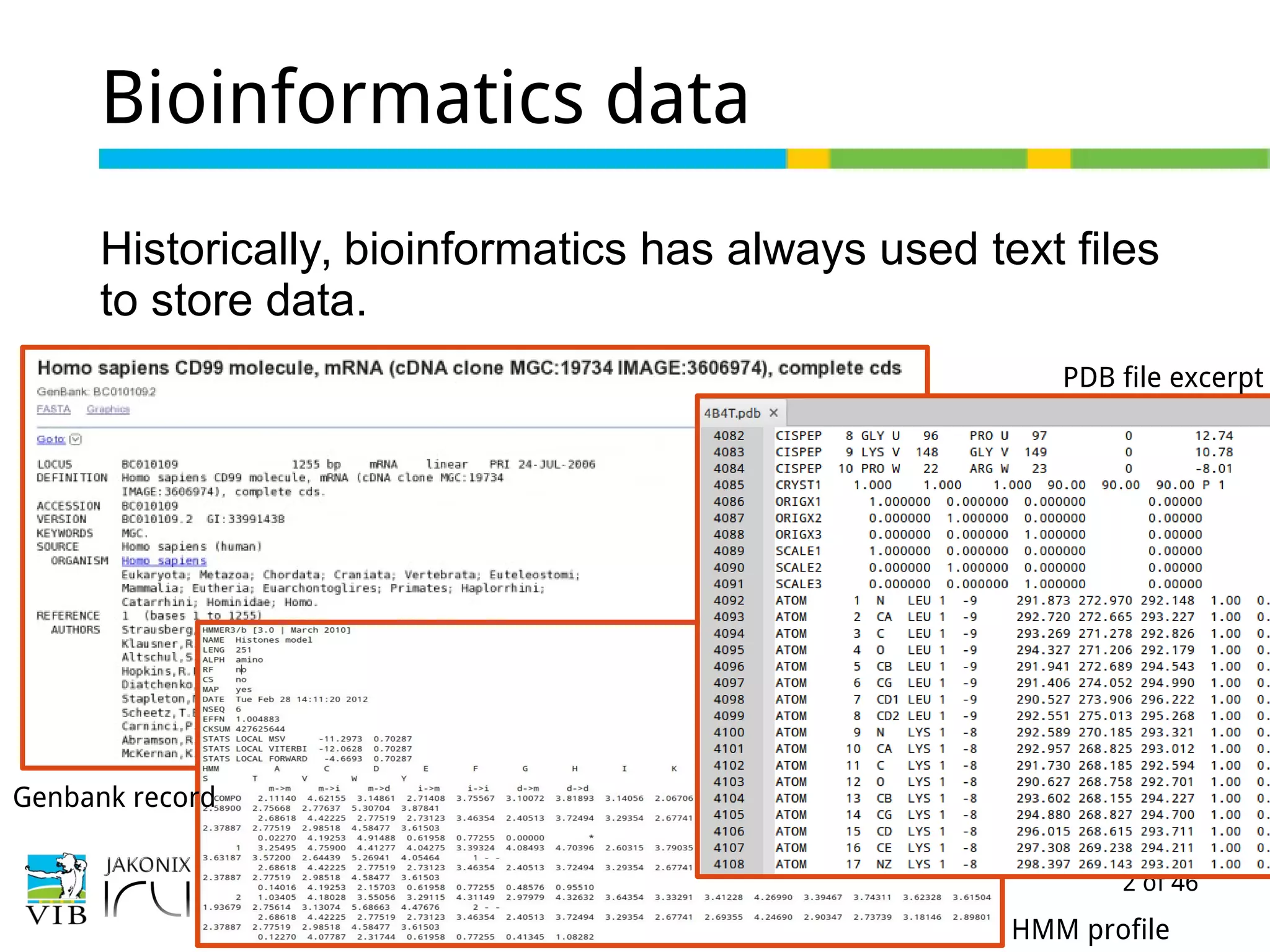
Historically, bioinformatics has always used text files
to store data.
Genbank record
PDB file excerpt
HMM profile
3 of 46
NGS data
The NGS machines produce a lot of data, stored in
plain text files. These files are multiple gigabytes in
size.
4 of 46
Tips for managing (NGS) data
1. When you move the data, do it in its smallest form.
→ Compress the data.
2. When you decompress the data, leave it where it is.
→ Symbolic links point to the data in different
folders.
3. Provide enough storage for your data.
→ choose your file system type wisely
5 of 46
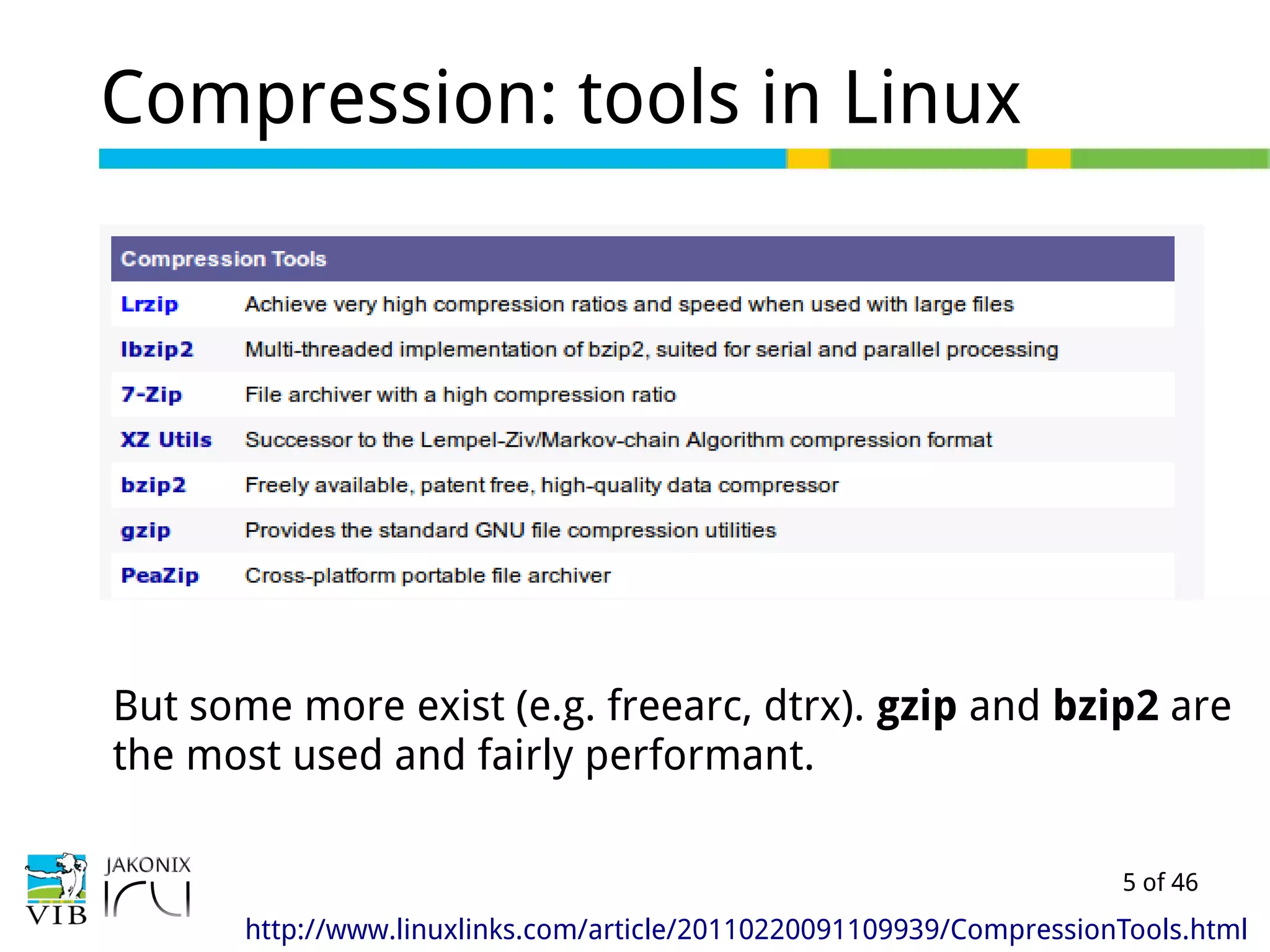
Compression: tools in Linux
http://www.linuxlinks.com/article/20110220091109939/CompressionTools.html
But some more exist (e.g. freearc, dtrx). gzip and bzip2 are
the most used and fairly performant.
6 of 46
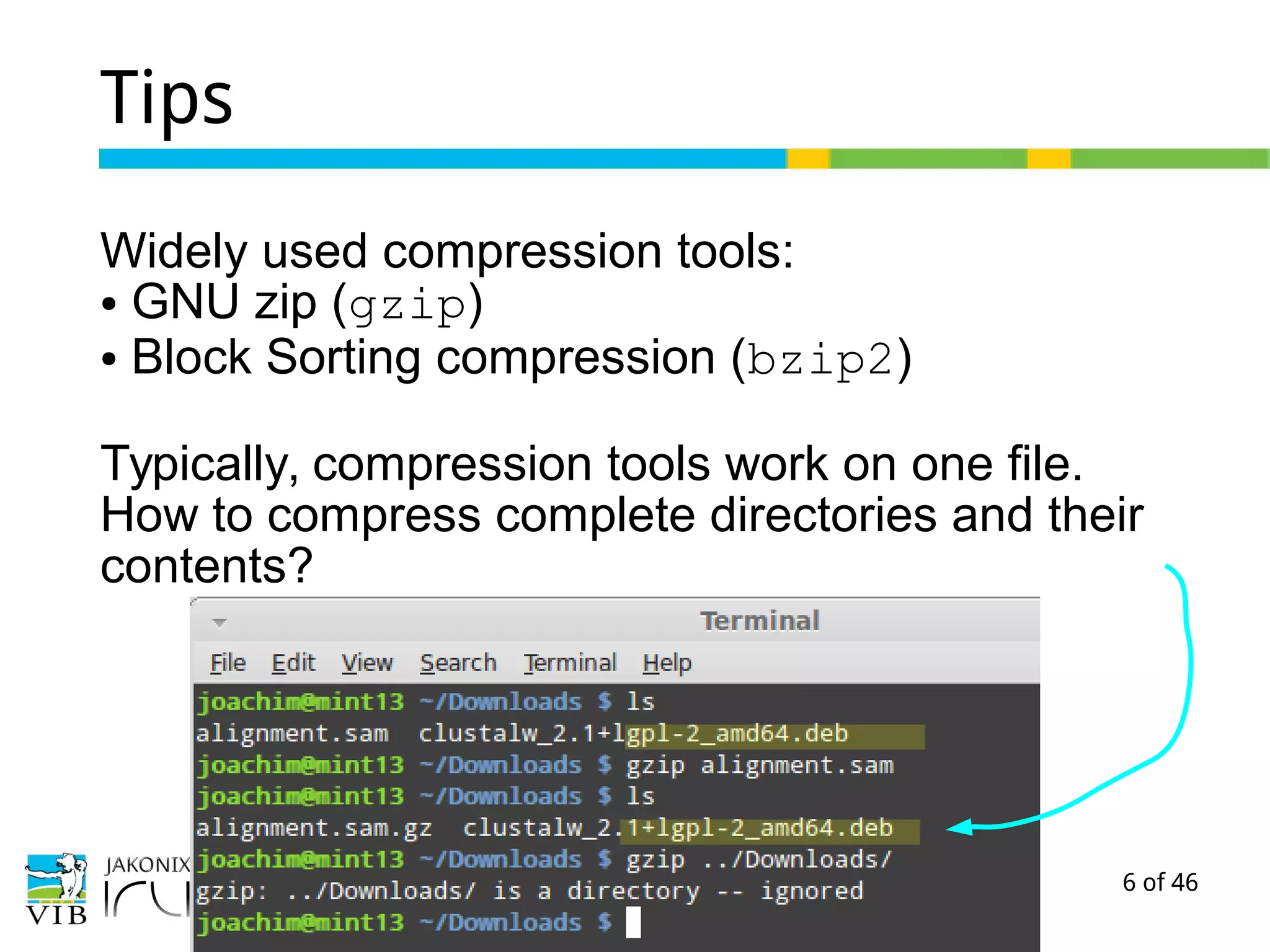
Tips
Widely used compression tools:
● GNU zip (gzip)
● Block Sorting compression (bzip2)
Typically, compression tools work on one file.
How to compress complete directories and their
contents?
7 of 46
Tar without compression
Tar (Tape Archive) is a tool for bundling a set of files
or directories into a single archive. The resulting
file is called a tar ball.
Syntax to create a tarball:
$ tar -cf archive.tar file1 file2
Syntax to extract:
$ tar -xvf /path/to/archive.tar
8 of 46
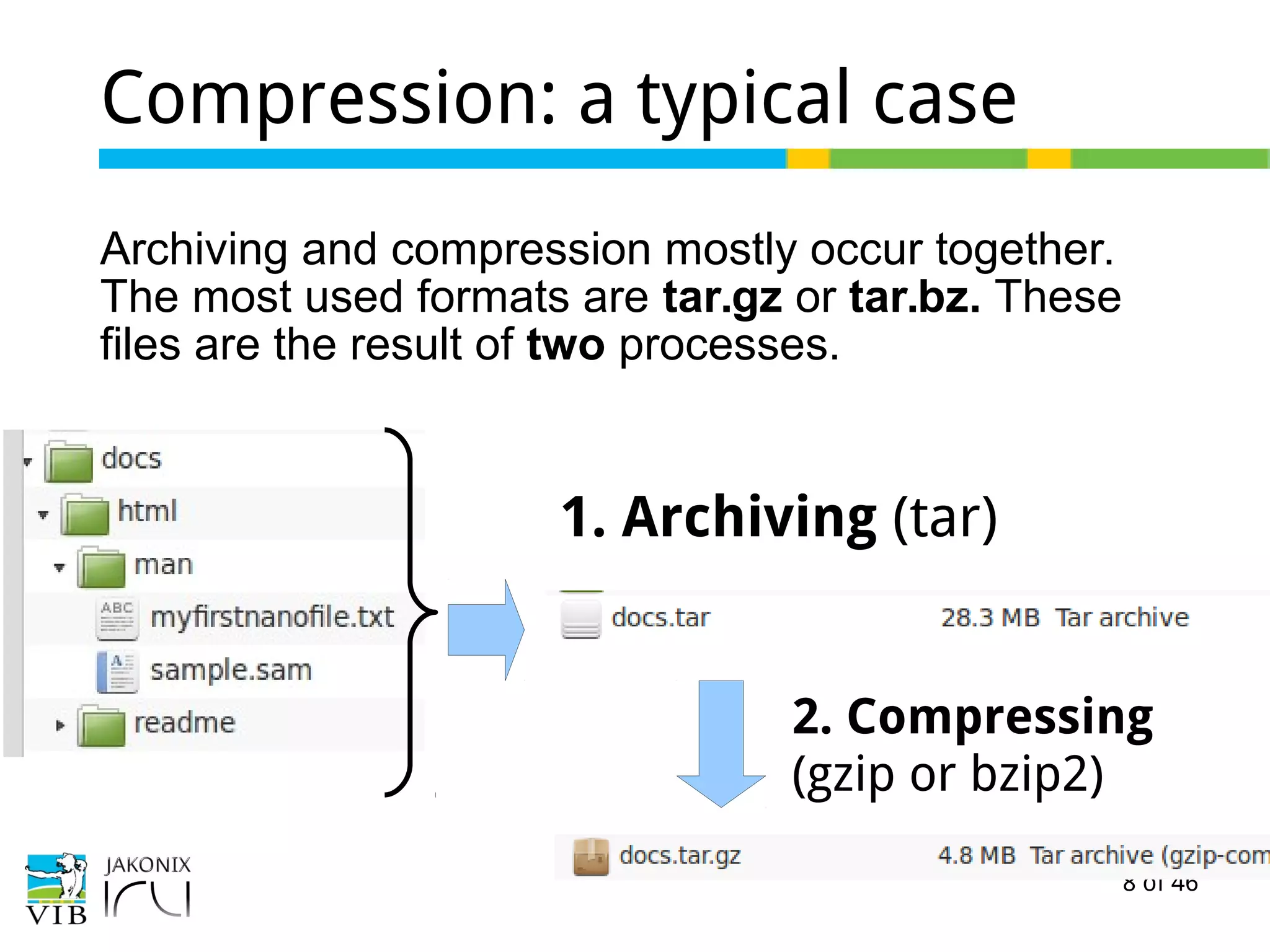
Compression: a typical case
Archiving and compression mostly occur together.
The most used formats are tar.gz or tar.bz. These
files are the result of two processes.
1. Archiving (tar)
2. Compressing
(gzip or bzip2)
9 of 46
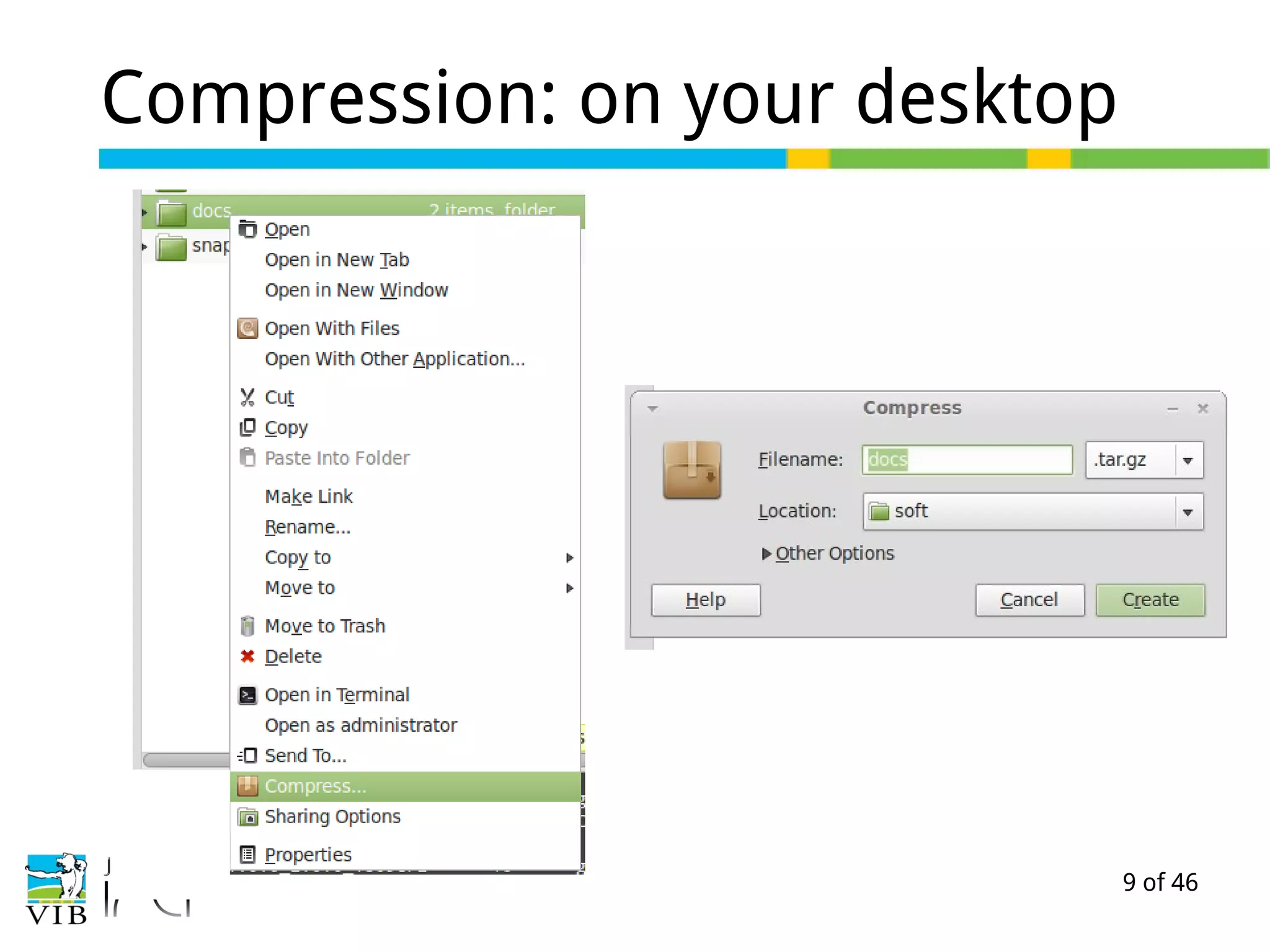
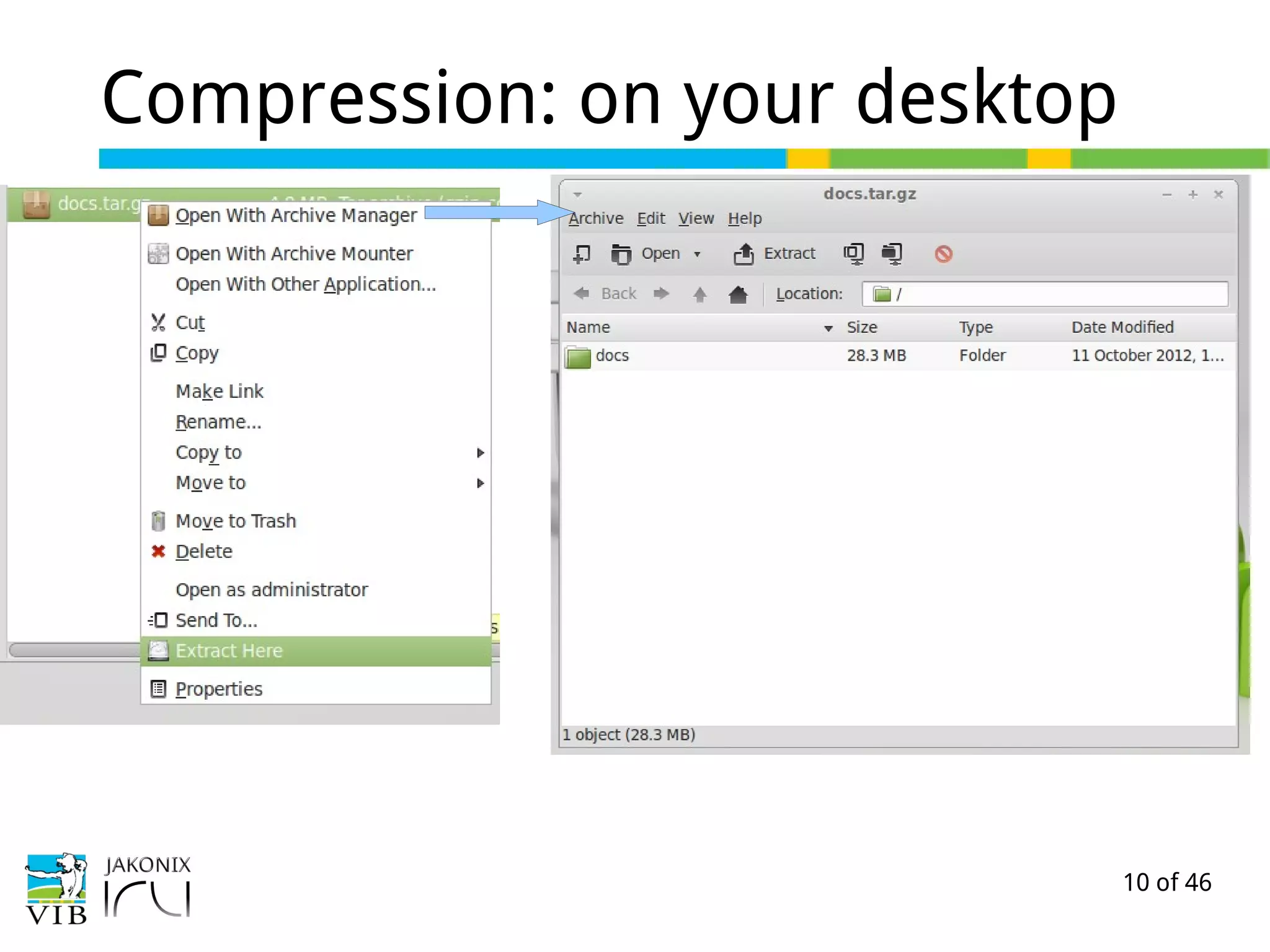
Compression: on your desktop
10 of 46
Compression: on your desktop
11 of 46
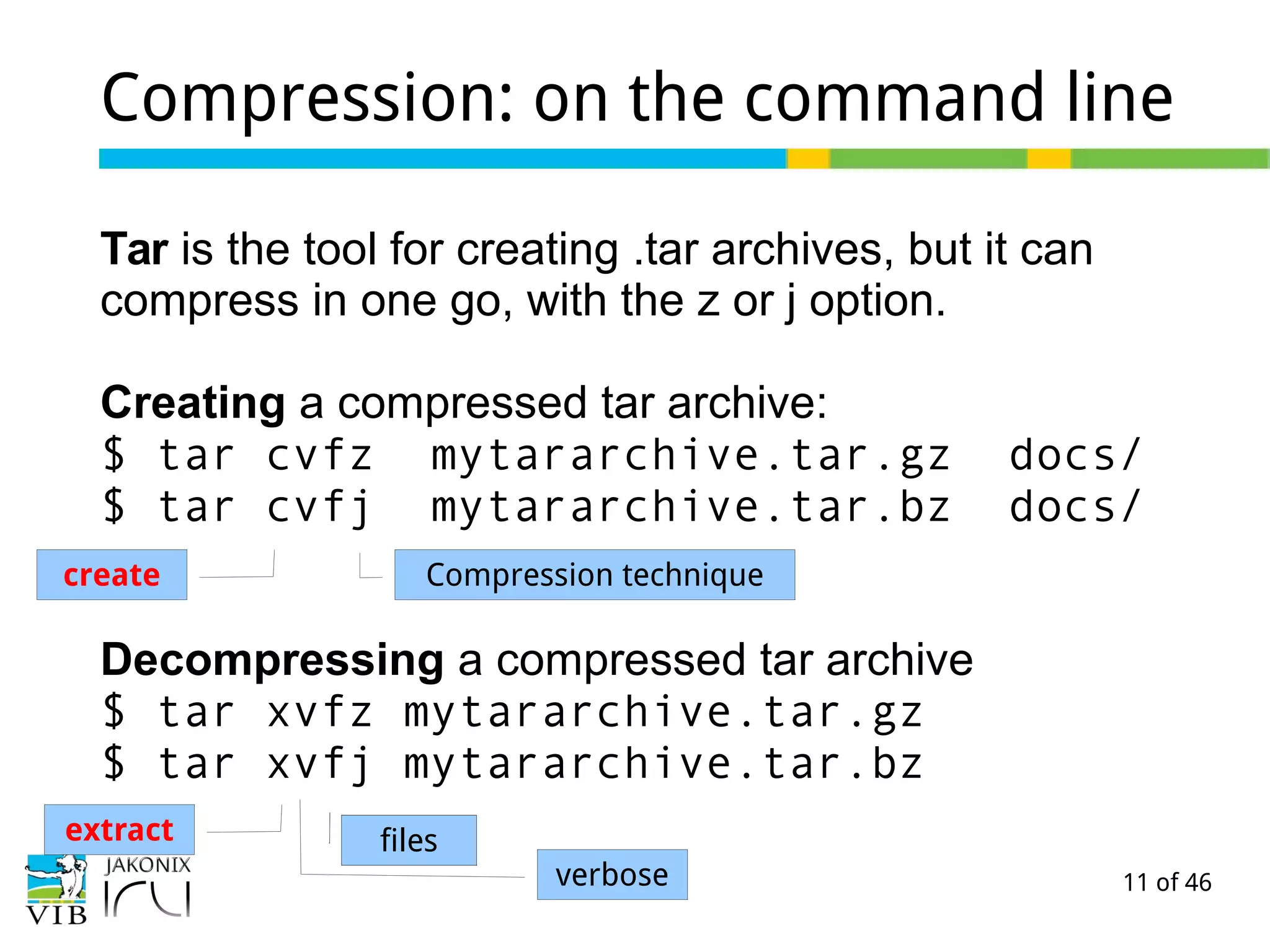
Compression: on the command line
Tar is the tool for creating .tar archives, but it can
compress in one go, with the z or j option.
Creating a compressed tar archive:
$ tar cvfz mytararchive.tar.gz docs/
$ tar cvfj mytararchive.tar.bz docs/
Decompressing a compressed tar archive
$ tar xvfz mytararchive.tar.gz
$ tar xvfj mytararchive.tar.bz
create Compression technique
extract filesfiles
verbose
12 of 46
De-/compression
To compress one or more files:
$ gzip [options] file
$ bzip2 [options] file
To decompress one or more files:
$ gunzip [options] file(s)
$ bunzip2 [options] file(s)
Every file will be compressed, and tar.gz or tar.bz
appended to it.
13 of 46
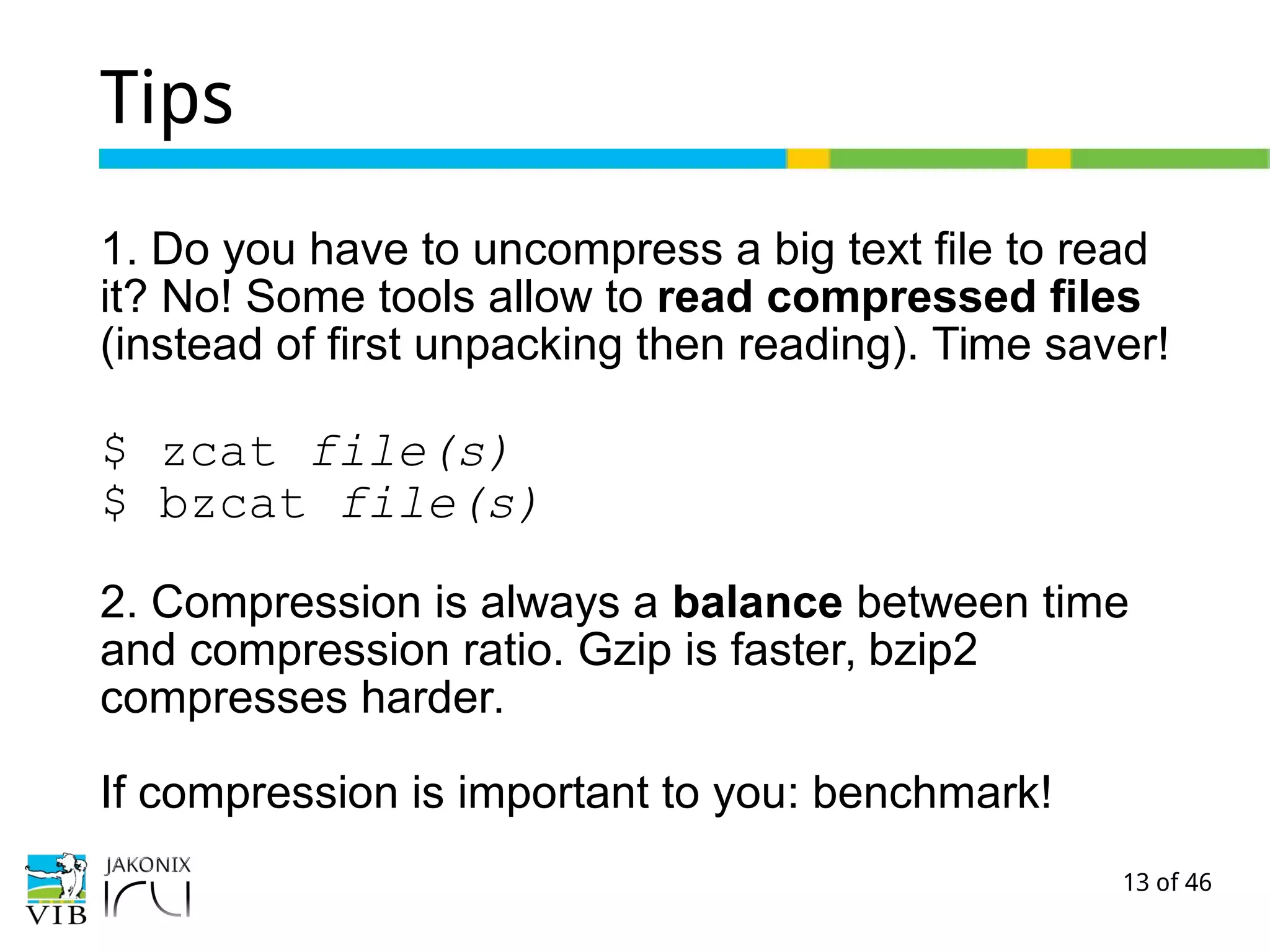
Tips
1. Do you have to uncompress a big text file to read
it? No! Some tools allow to read compressed files
(instead of first unpacking then reading). Time saver!
$ zcat file(s)
$ bzcat file(s)
2. Compression is always a balance between time
and compression ratio. Gzip is faster, bzip2
compresses harder.
If compression is important to you: benchmark!
14 of 46
Exercise
→ a little compression exercise.
15 of 46
Symlinks
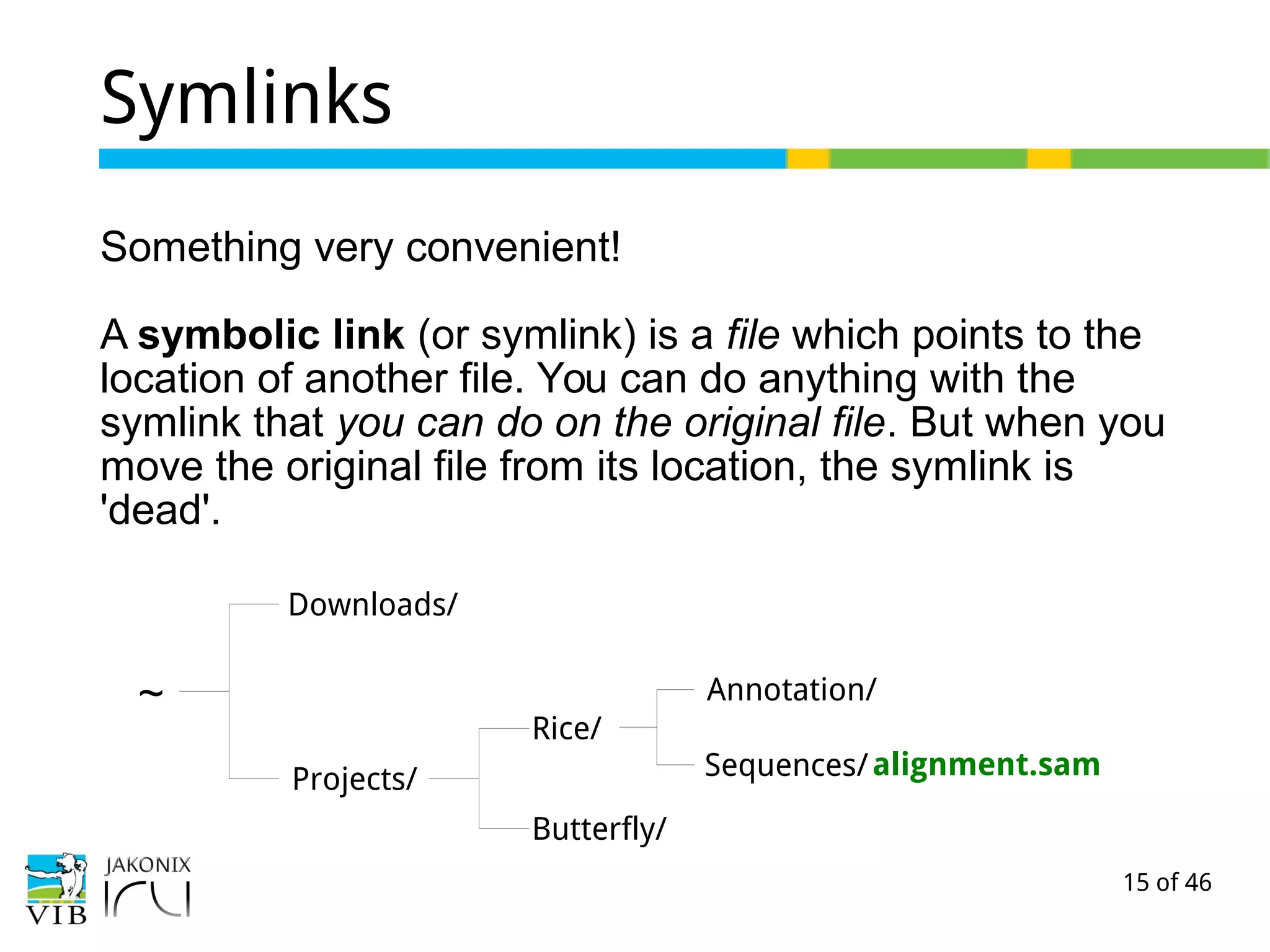
Something very convenient!
A symbolic link (or symlink) is a file which points to the
location of another file. You can do anything with the
symlink that you can do on the original file. But when you
move the original file from its location, the symlink is
'dead'.
~
Downloads/
Projects/
Rice/
Butterfly/
Sequences/
Annotation/
alignment.sam
16 of 46
Symlinks
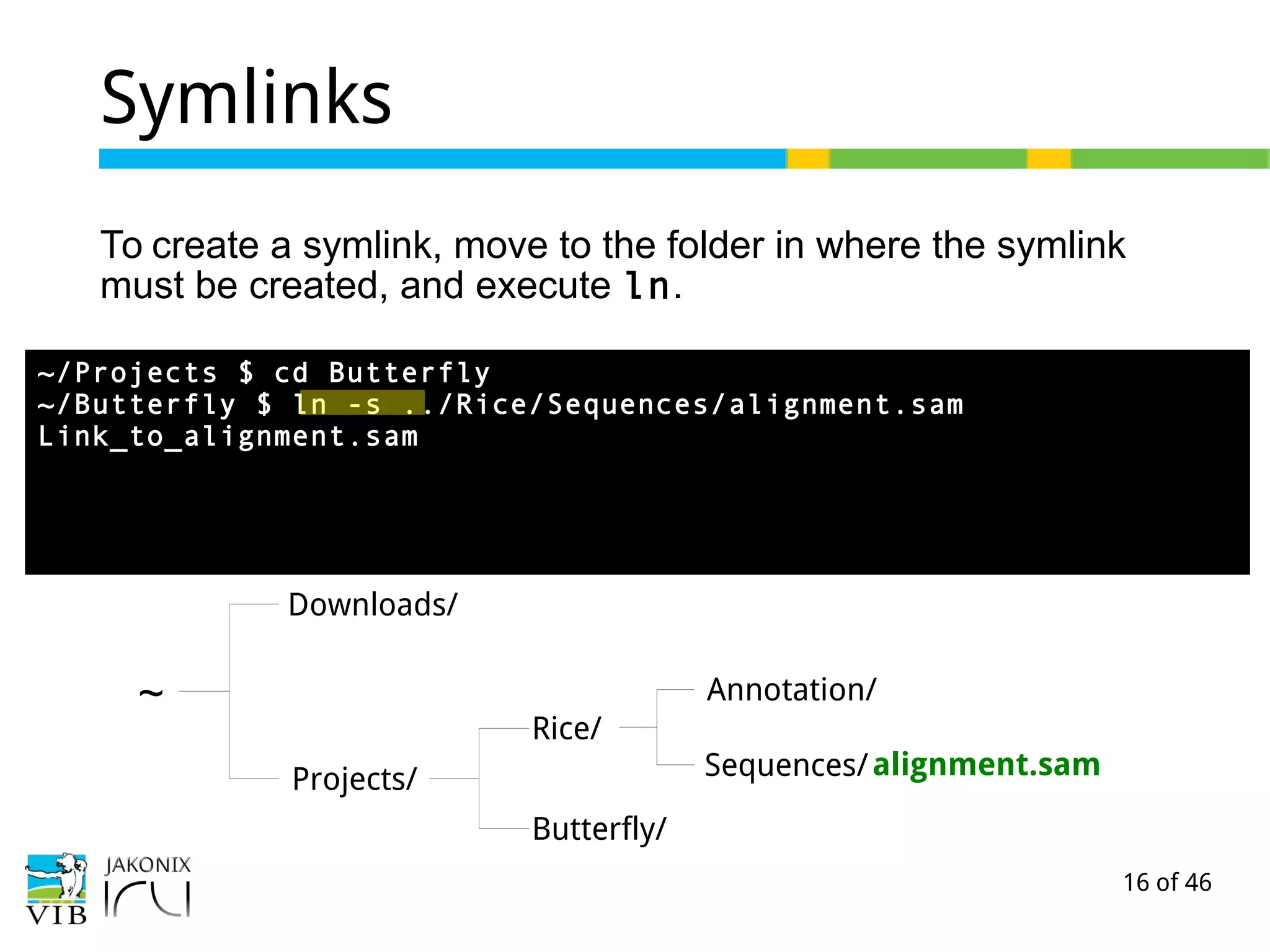
To create a symlink, move to the folder in where the symlink
must be created, and execute ln.
~
Downloads/
Projects/
Rice/
Butterfly/
Sequences/
Annotation/
alignment.sam
~/Projects $ cd Butterfly
~/Butterfly $ ln -s ../Rice/Sequences/alignment.sam
Link_to_alignment.sam
17 of 46
Symlinks
~
Downloads/
Projects/
Rice/
Butterfly/Link_to_alignment.sam
Sequences/
Annotation/
alignment.samalignment.samalignment.sam
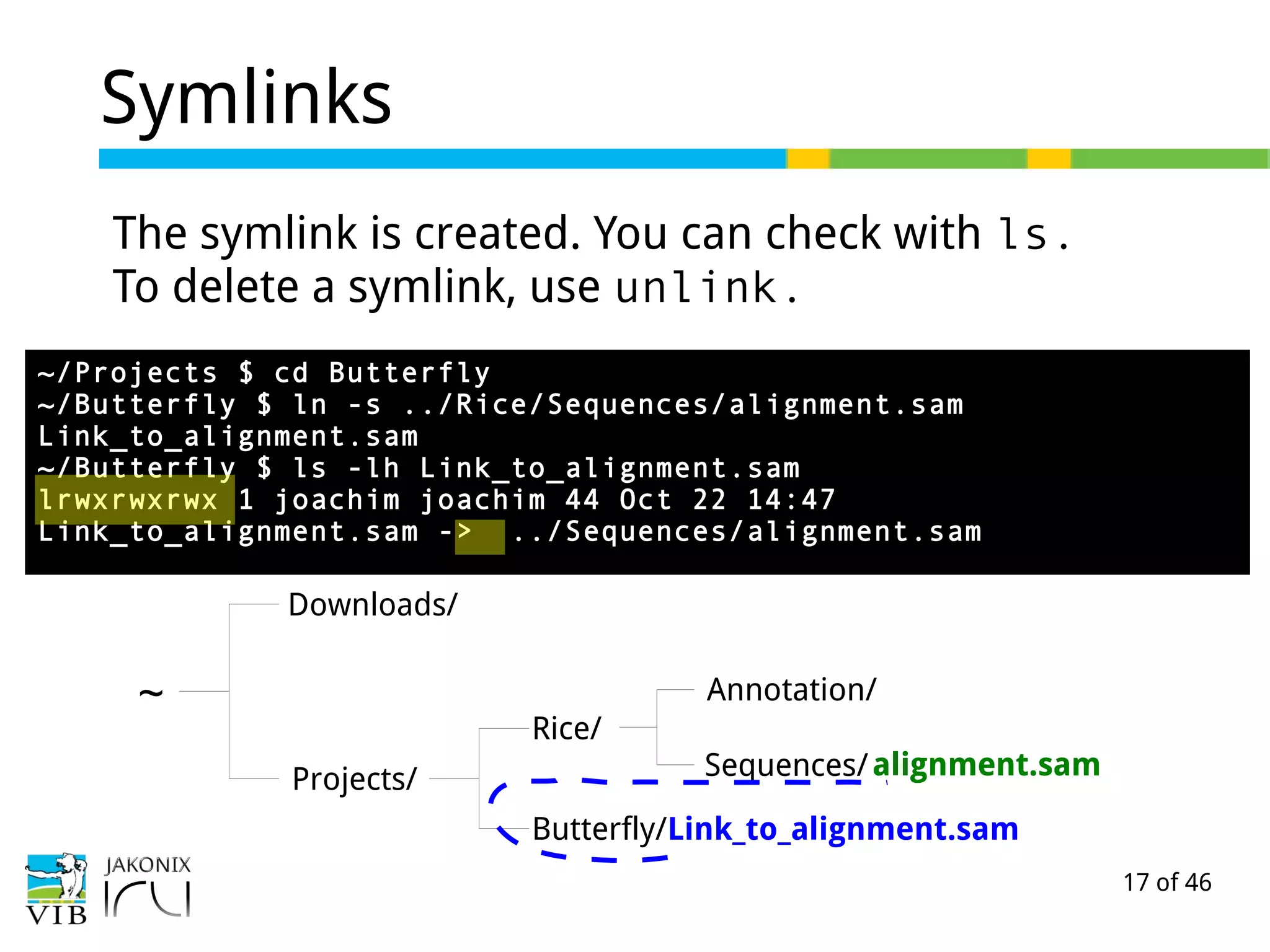
~/Projects $ cd Butterfly
~/Butterfly $ ln -s ../Rice/Sequences/alignment.sam
Link_to_alignment.sam
~/Butterfly $ ls -lh Link_to_alignment.sam
lrwxrwxrwx 1 joachim joachim 44 Oct 22 14:47
Link_to_alignment.sam -> ../Sequences/alignment.sam
The symlink is created. You can check with ls.
To delete a symlink, use unlink.
18 of 46
Exercise
→ a little symlink exercise
19 of 46
Disks and storage
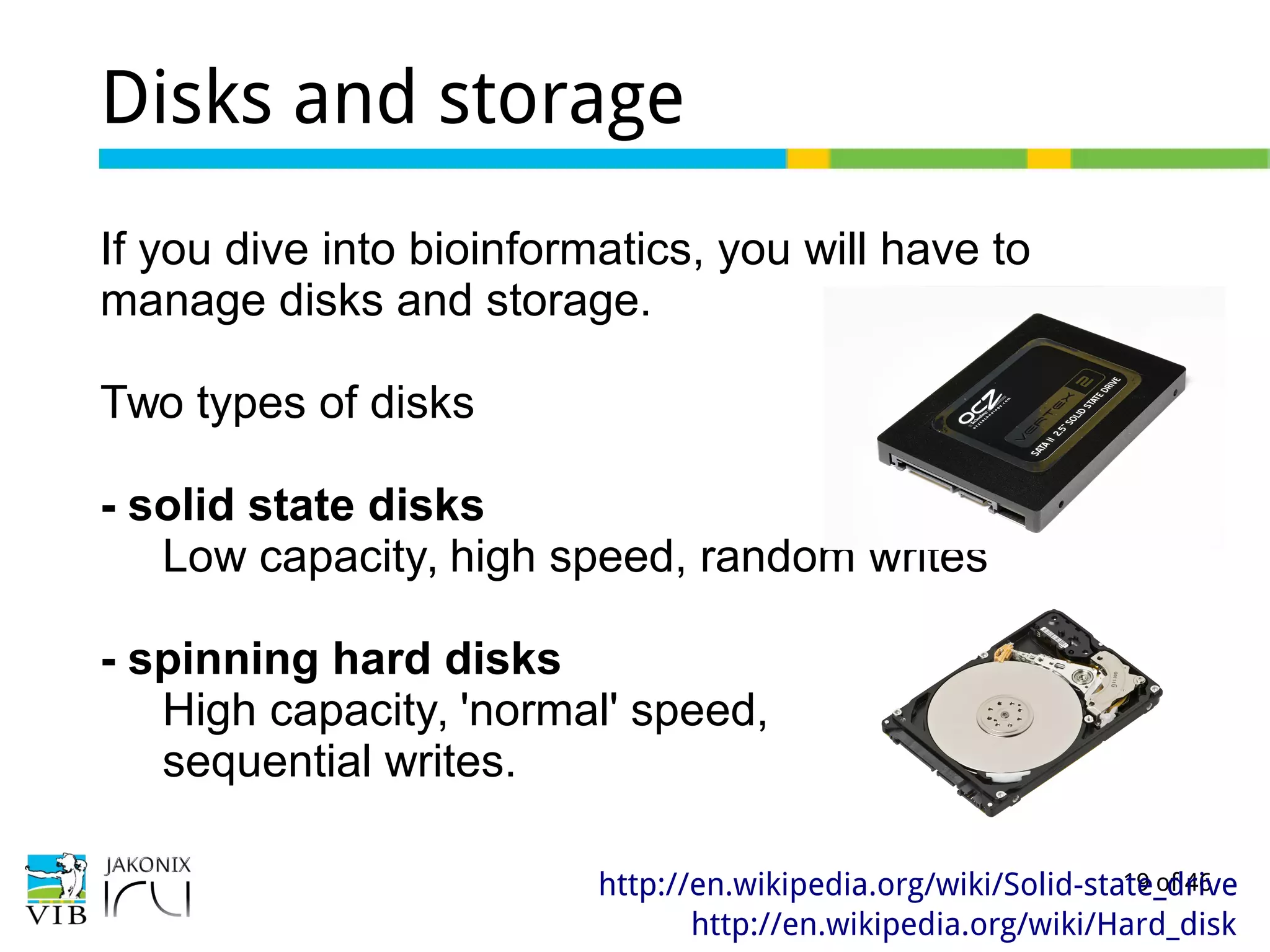
If you dive into bioinformatics, you will have to
manage disks and storage.
Two types of disks
- solid state disks
Low capacity, high speed, random writes
- spinning hard disks
High capacity, 'normal' speed,
sequential writes.
http://en.wikipedia.org/wiki/Solid-state_drive
http://en.wikipedia.org/wiki/Hard_disk
20 of 46
A disk is a device
Via the terminal, show the disks using
$ sudo fdisk -l
[sudo] password for joachim:
Disk /dev/sda: 13.4 GB, 13408141312
bytes
...
Disk /dev/sdb: 3997 MB, 3997171712 bytes
...
21 of 46
A disk is divided into partitions
A disk can be divided in parts, called partitions.
An internal disk which runs an operating system is
usually divided in partitions, one for each functions.
An external disk is usually not divided in partitions.
(but it can be partioned).
22 of 46
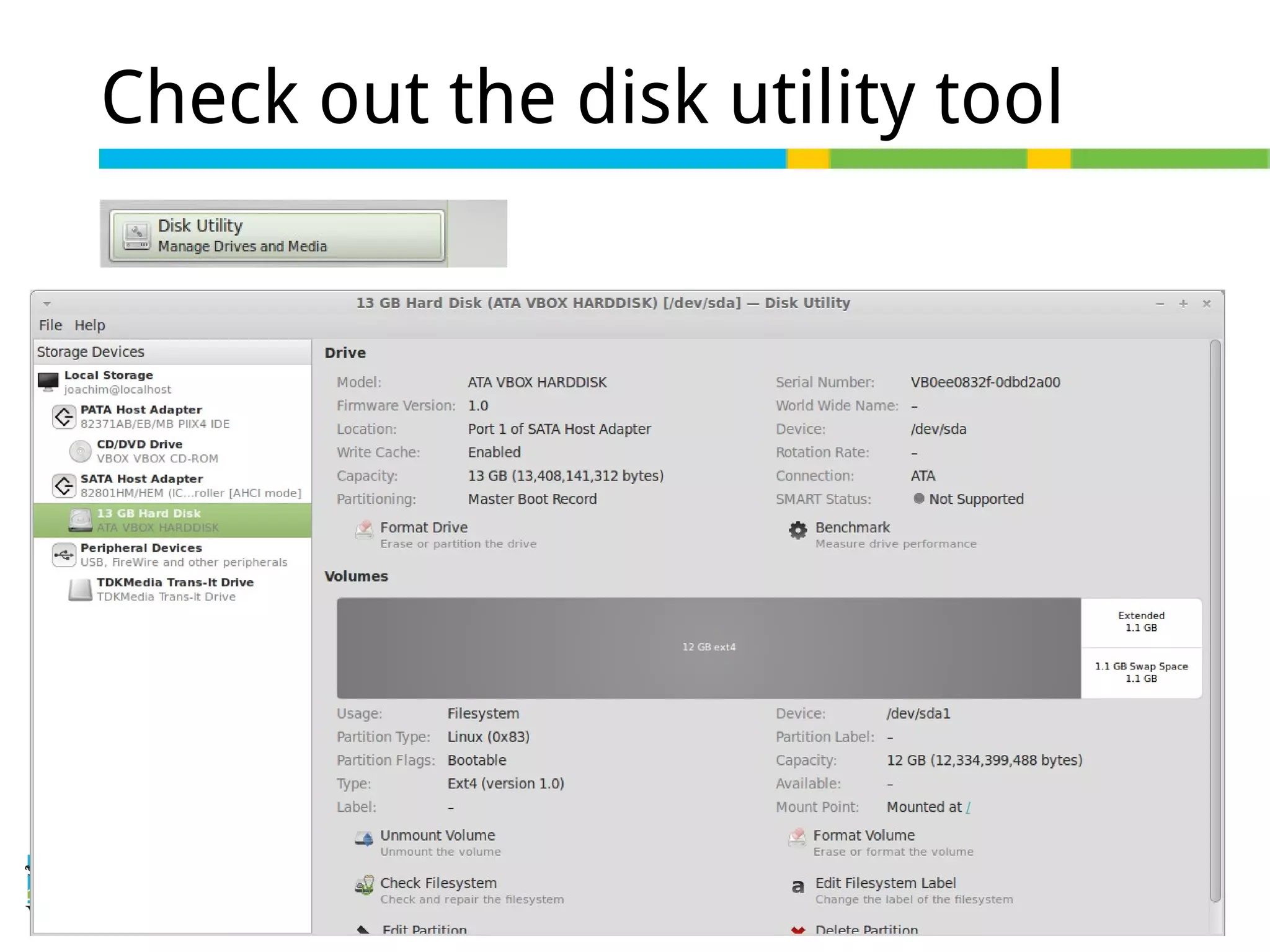
Check out the disk utility tool
23 of 46
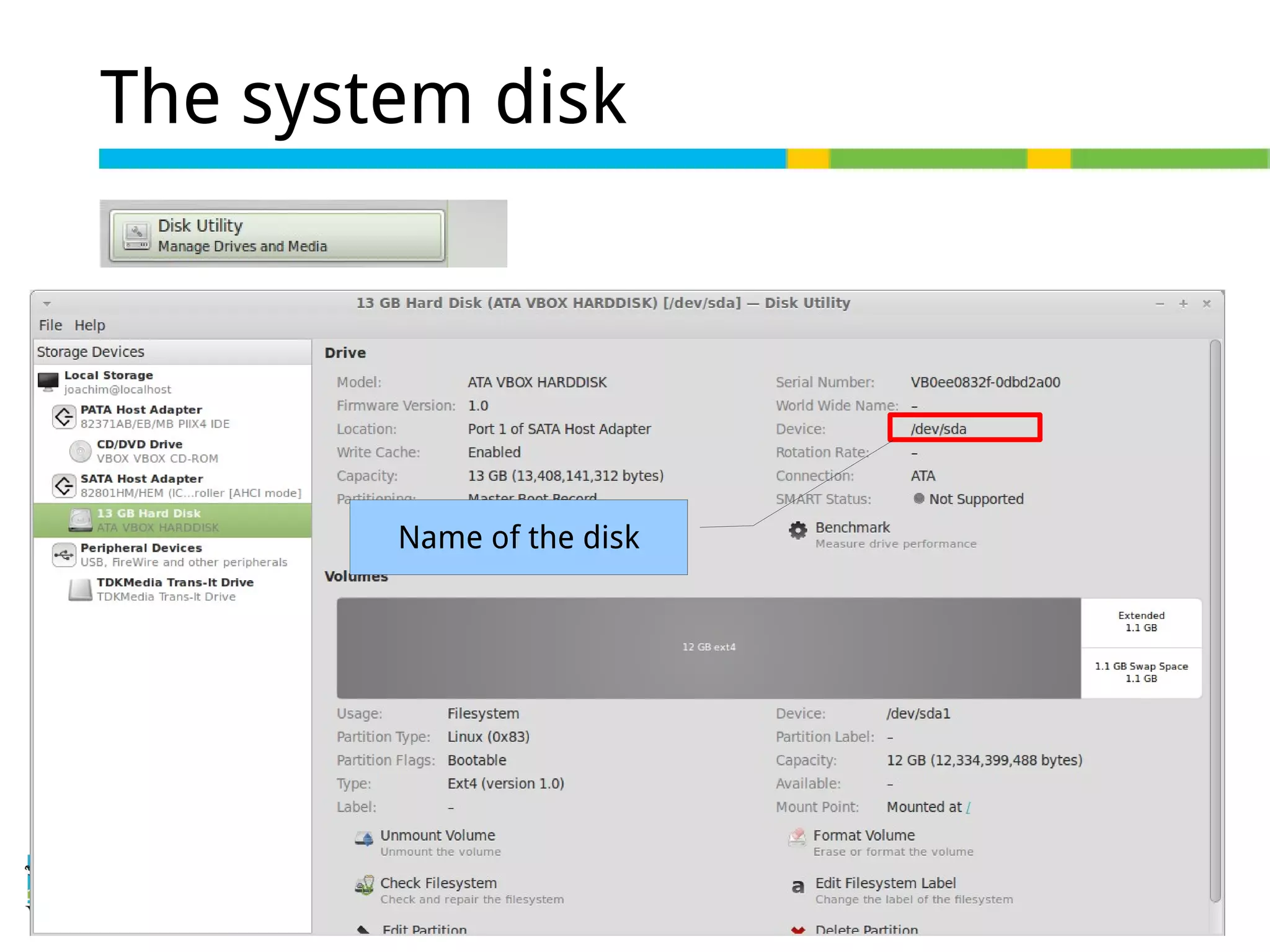
The system disk
Name of the disk
24 of 46
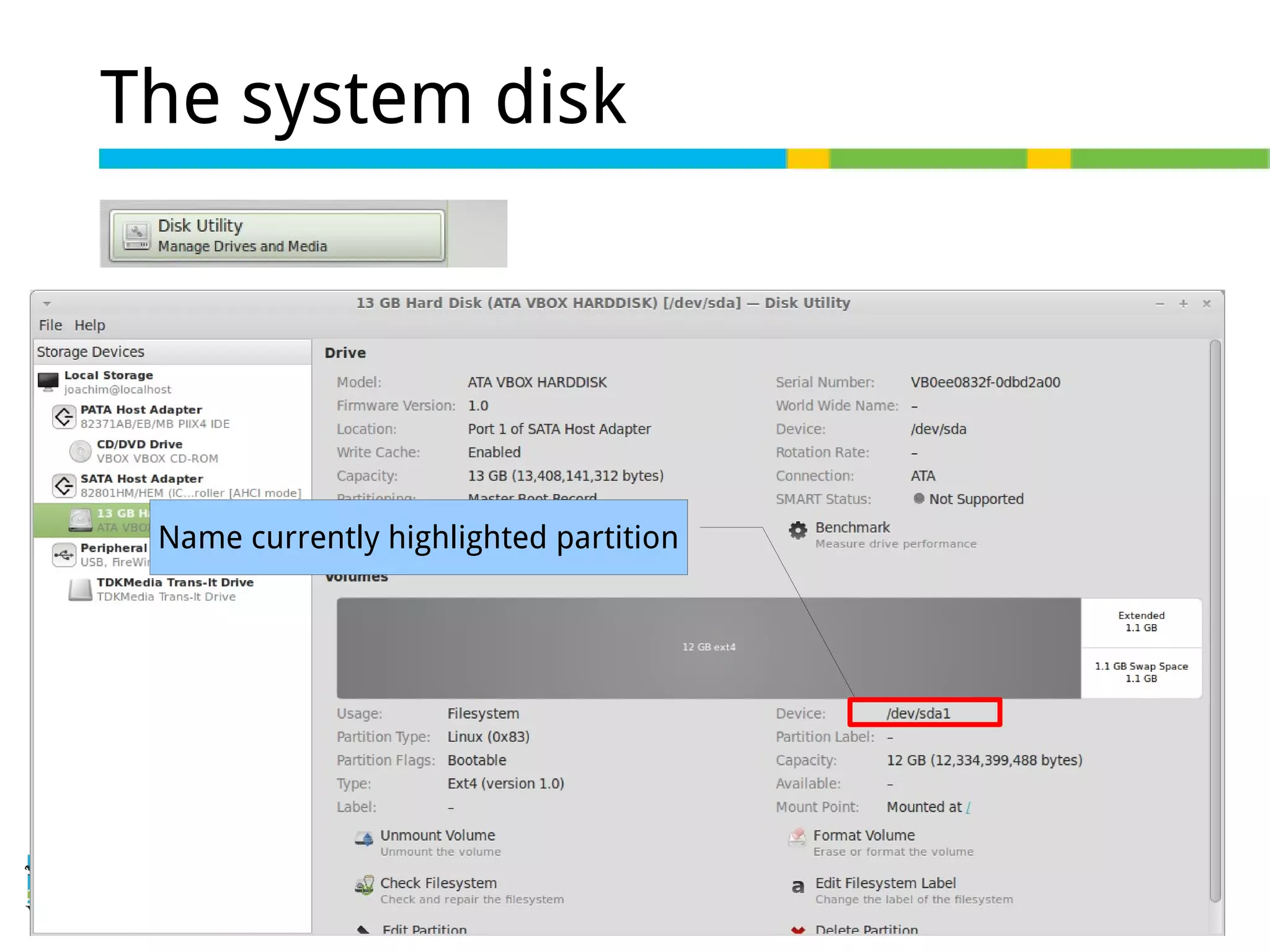
The system disk
Name currently highlighted partition
25 of 46
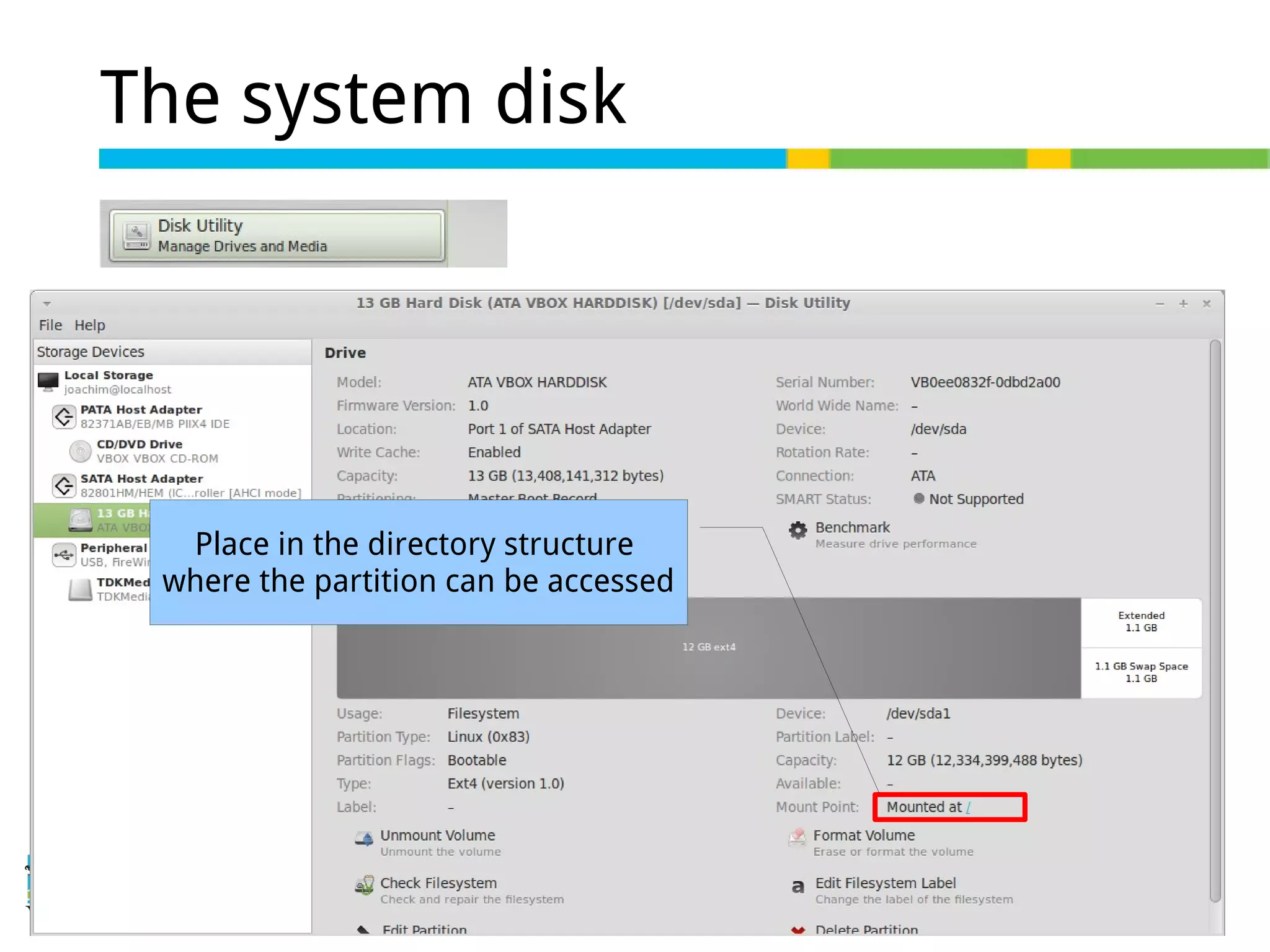
The system disk
Place in the directory structure
where the partition can be accessed
26 of 46
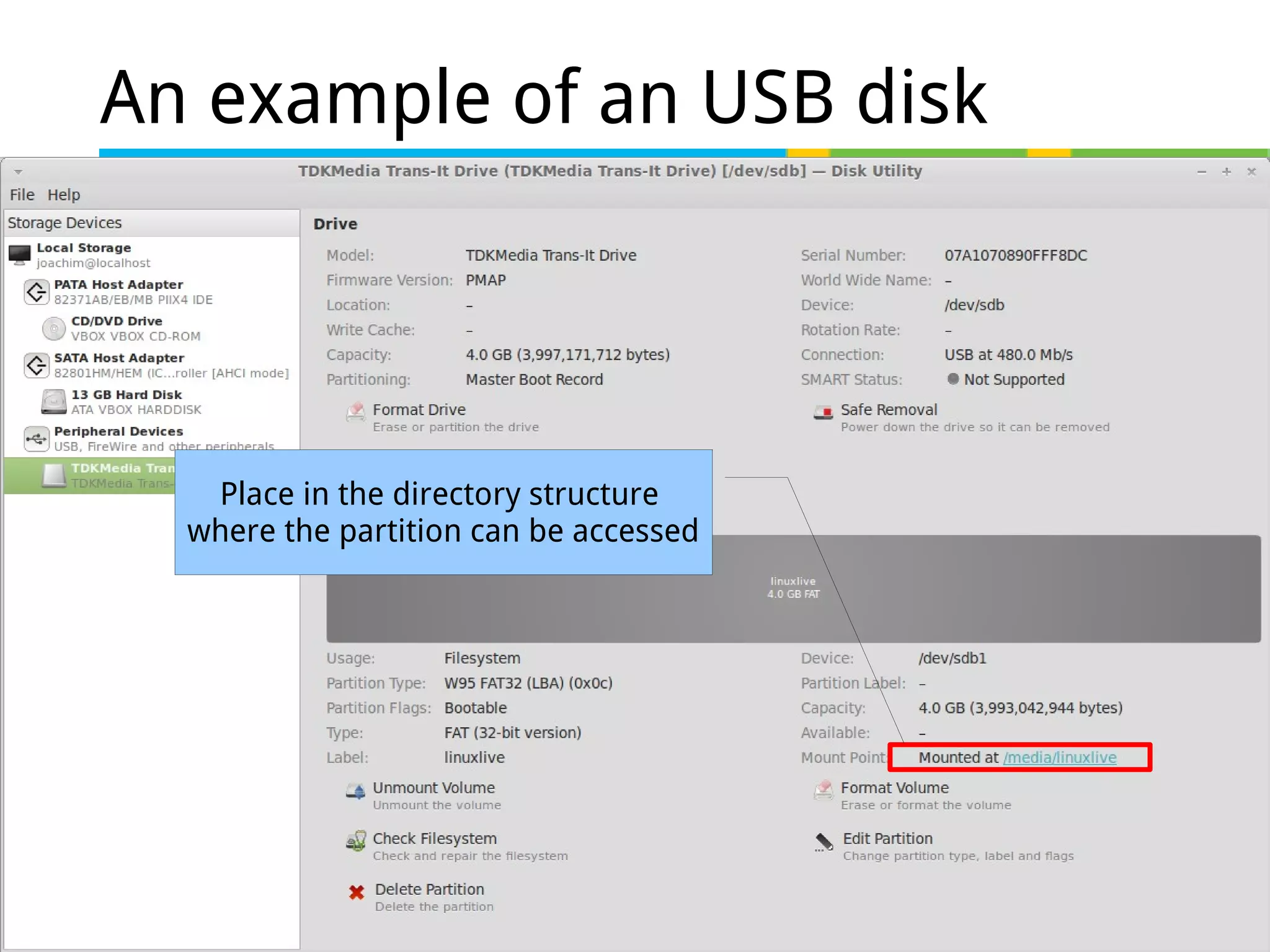
An example of an USB disk
-
Place in the directory structure
where the partition can be accessed
27 of 46
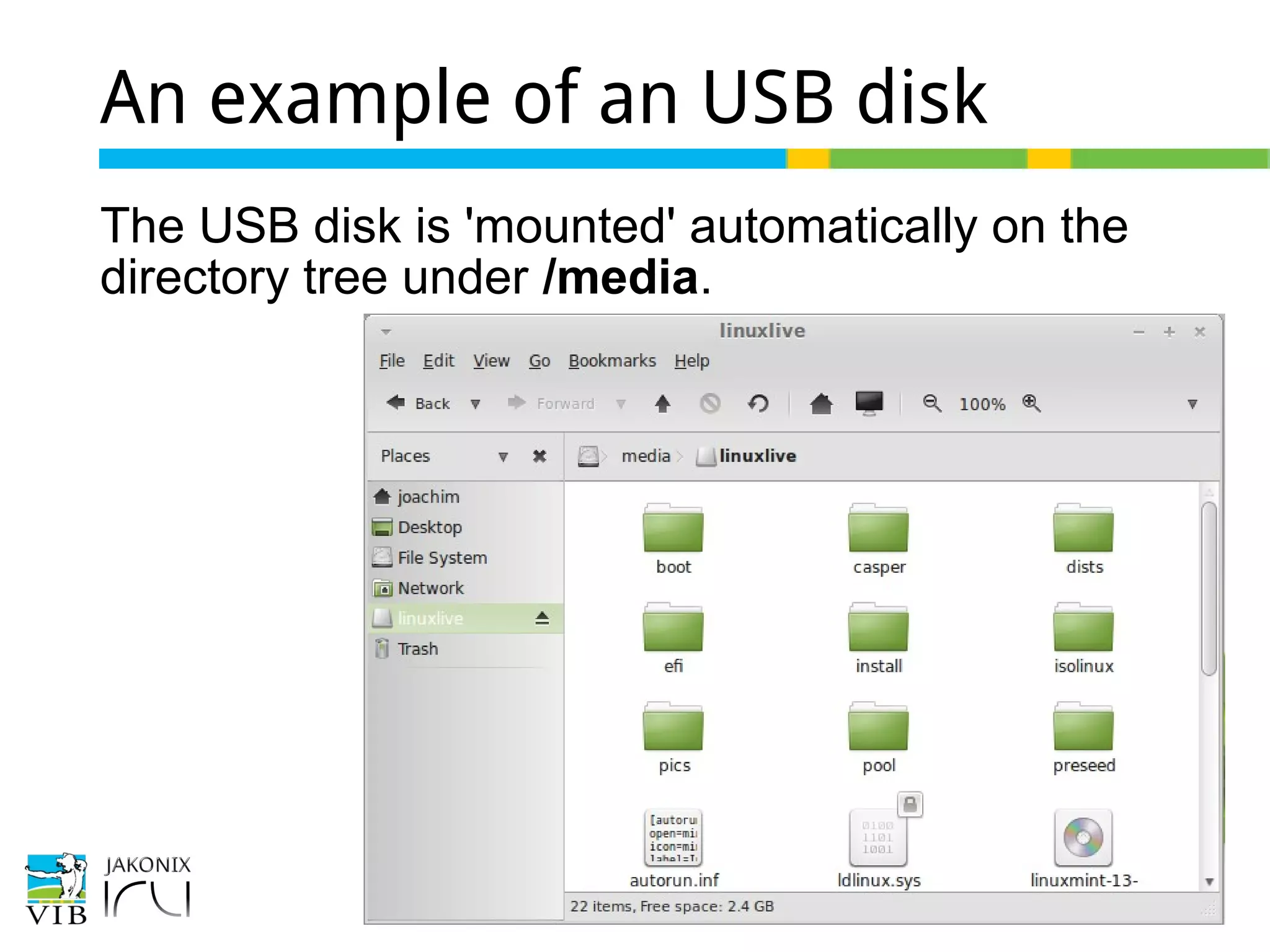
An example of an USB disk
The USB disk is 'mounted' automatically on the
directory tree under /media.
28 of 46
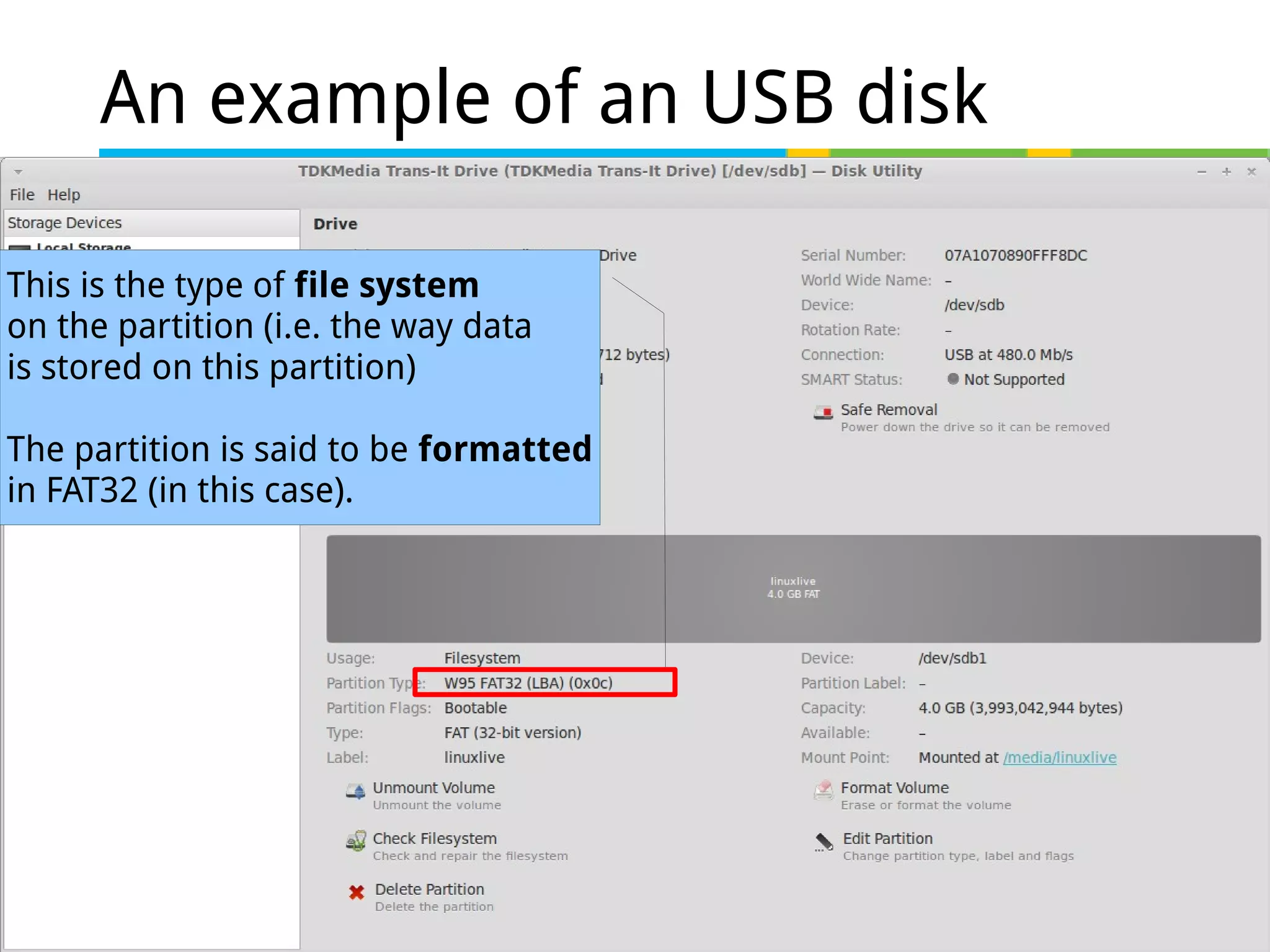
An example of an USB disk
-This is the type of file system
on the partition (i.e. the way data
is stored on this partition)
The partition is said to be formatted
in FAT32 (in this case).
29 of 46
File system formats
By default, many USB flash disks are formatted in
FAT32.
Other types are NTFS, ext4, ZFS.
FAT32 – max 4GB files
NTFS – maximum portability (also for use under windows)
Ext4 – default file system in Linux,
Btrfs – the next default file system in Linux in the near
future.
http://en.wikipedia.org/wiki/File_system#File_systems_and_operating_systems
30 of 46
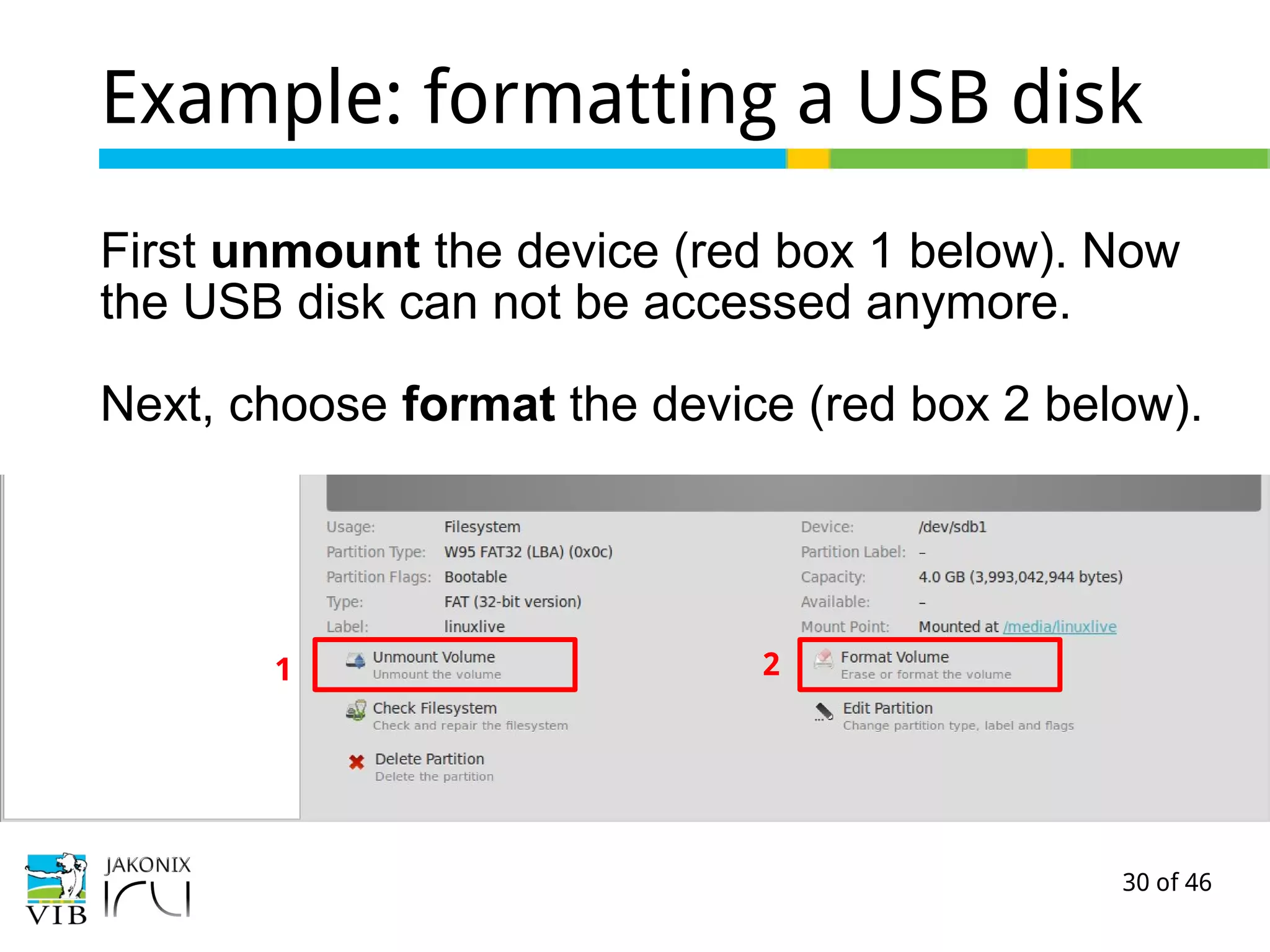
Example: formatting a USB disk
First unmount the device (red box 1 below). Now
the USB disk can not be accessed anymore.
Next, choose format the device (red box 2 below).
1 2
31 of 46
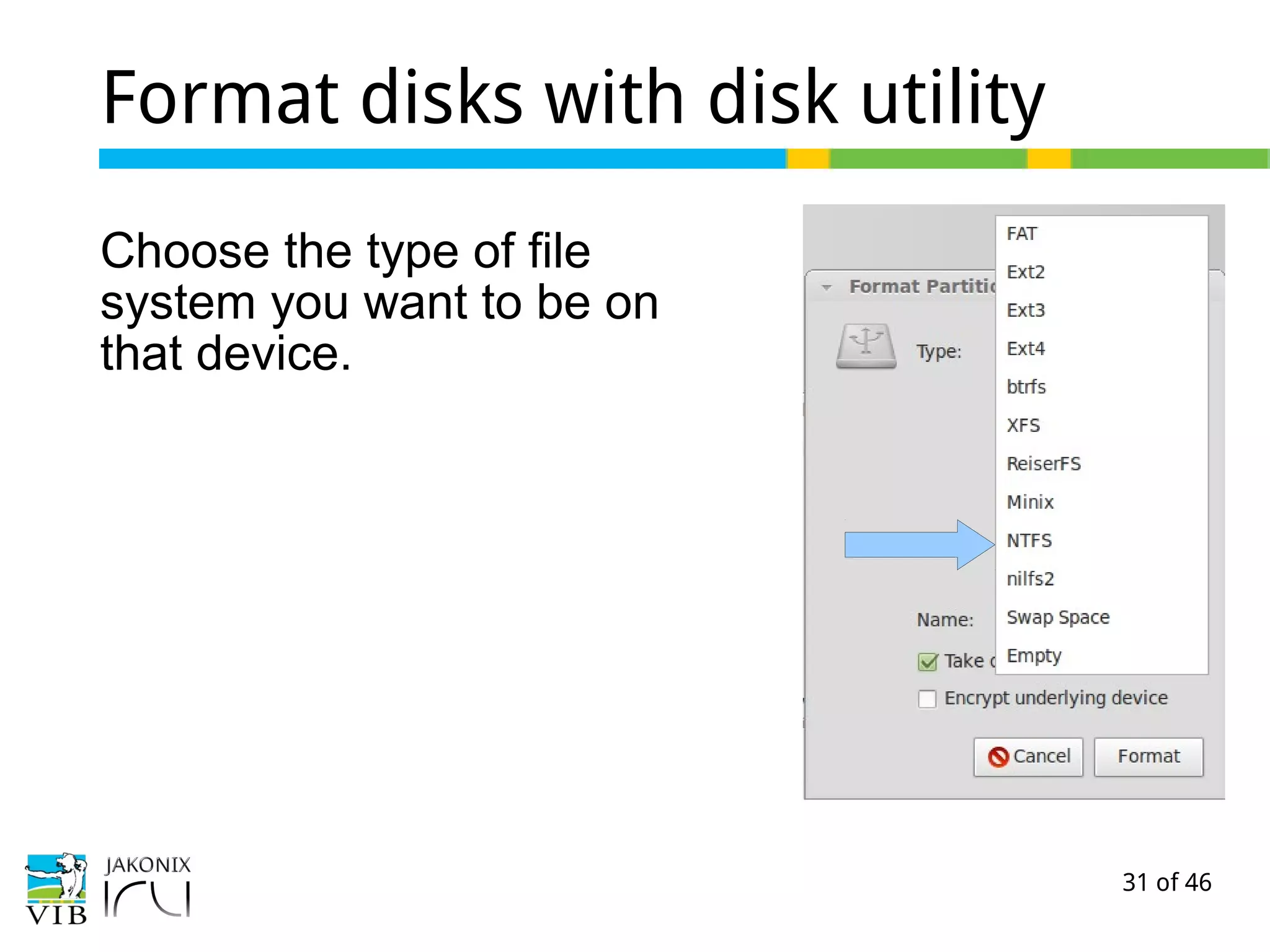
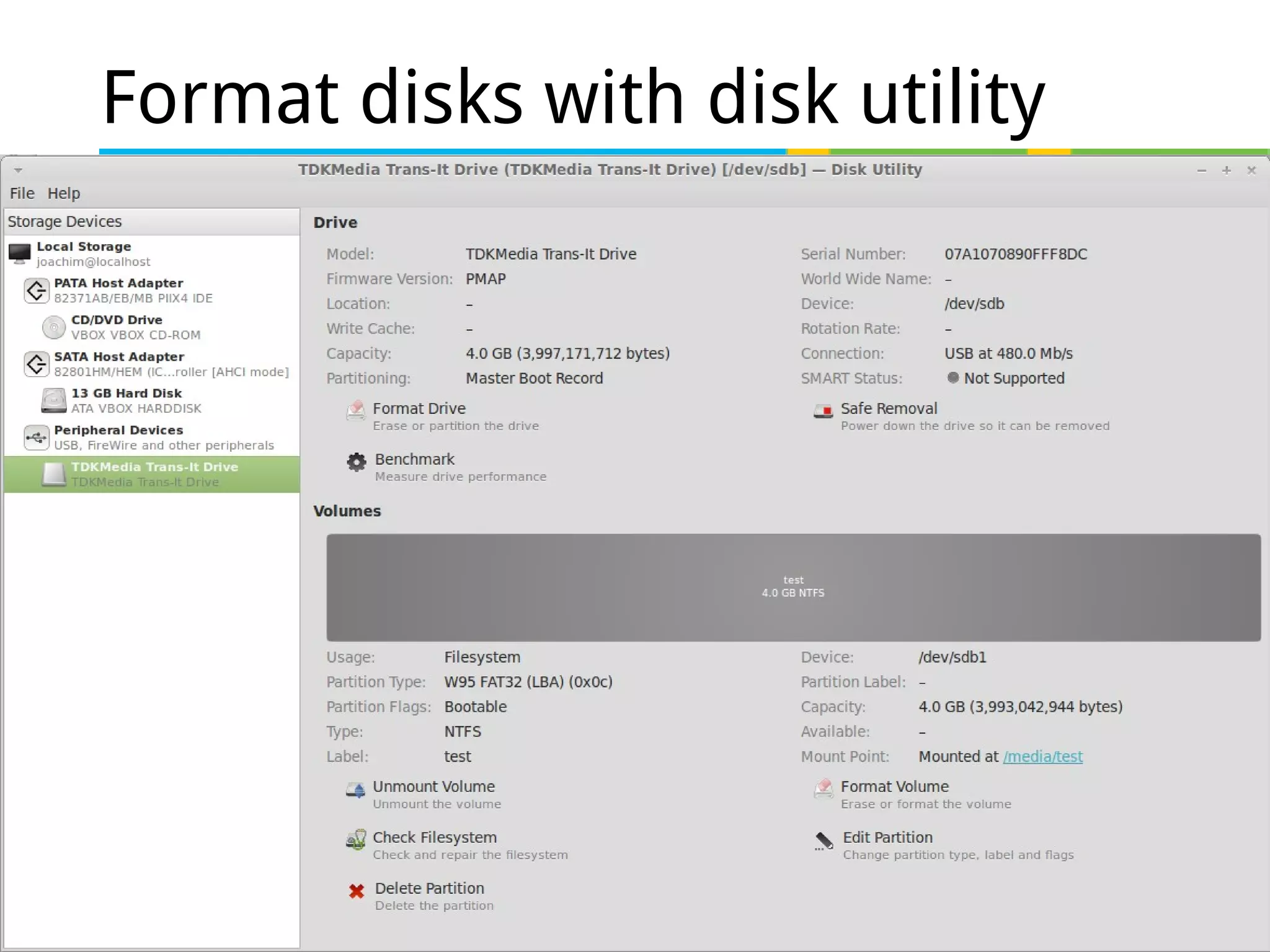
Format disks with disk utility
Choose the type of file
system you want to be on
that device.
32 of 46
Format disks with disk utility
33 of 46
Format disks with disk utility
The program disk-utility put a lot of commands at work
behind the scenes.
Some of the command line tools used:
- mount
- umount
- fdisk
- mkfs
You can read the man pages and search for guides on
the internet if you want to get to know these (out of
scope for this course).
34 of 46
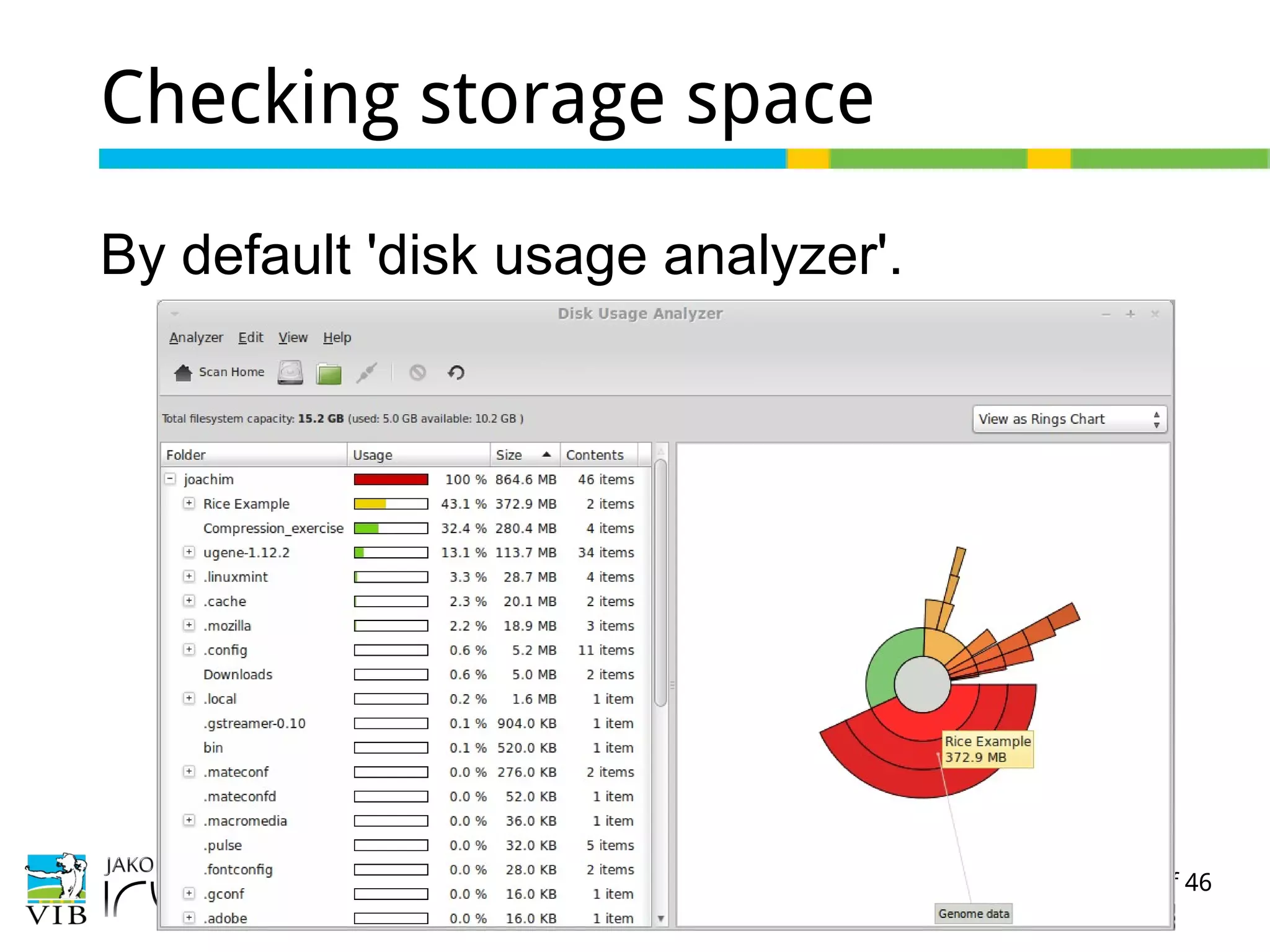
Checking storage space
By default 'disk usage analyzer'.
35 of 46
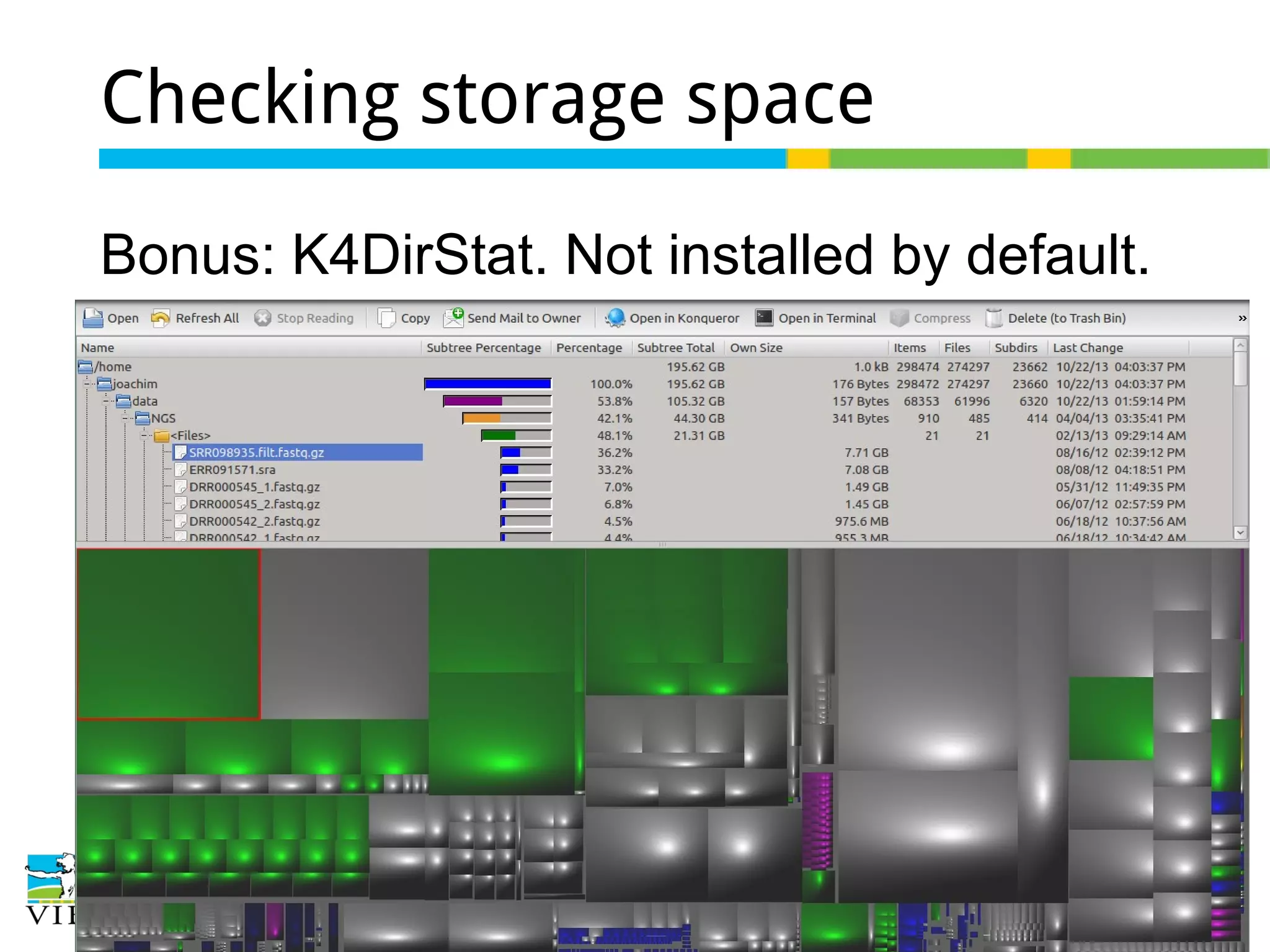
Checking storage space
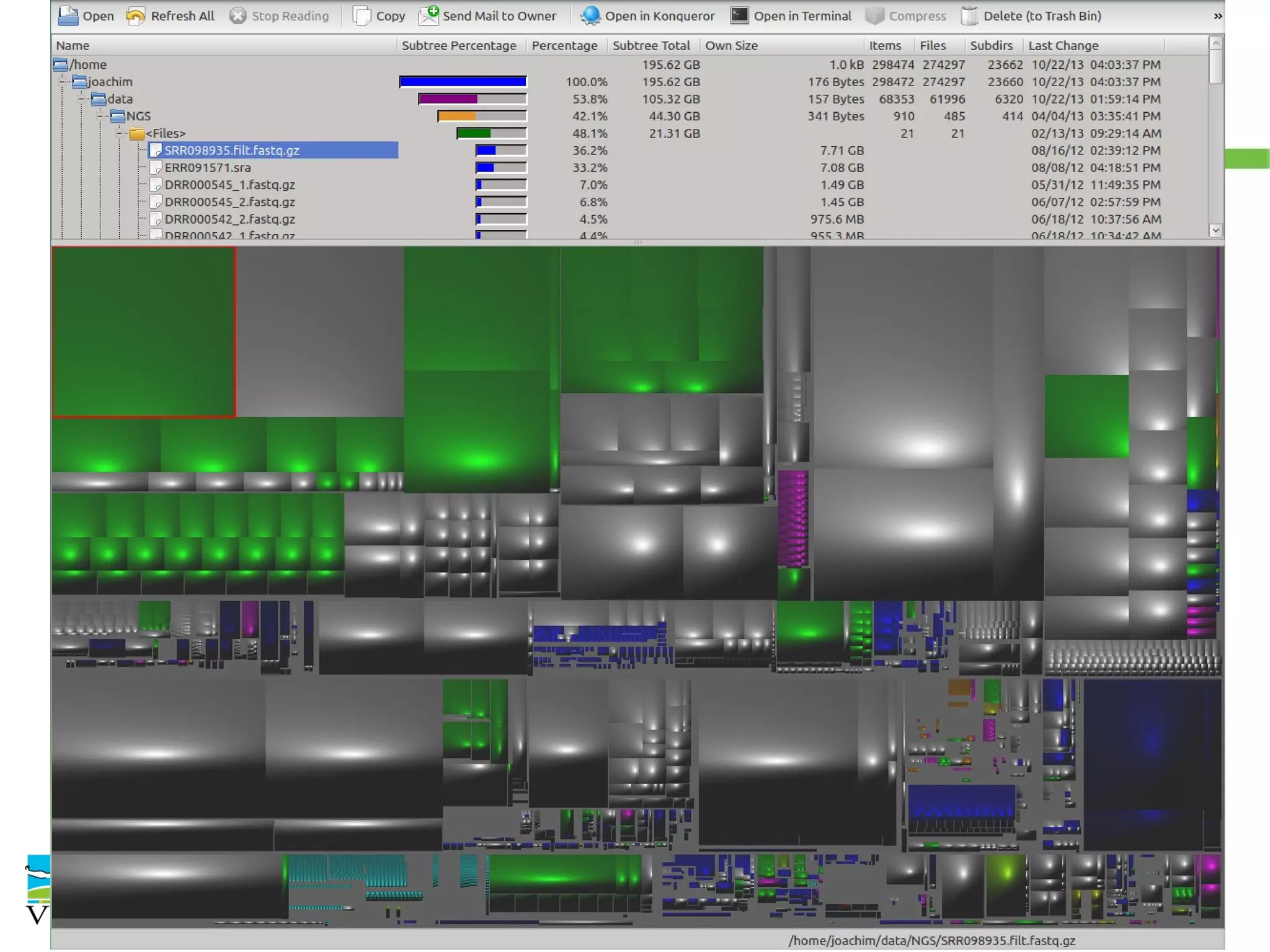
Bonus: K4DirStat. Not installed by default.
36 of 46
Checking storage space
Bonus: K4DirStat. Not installed by default.
37 of 46
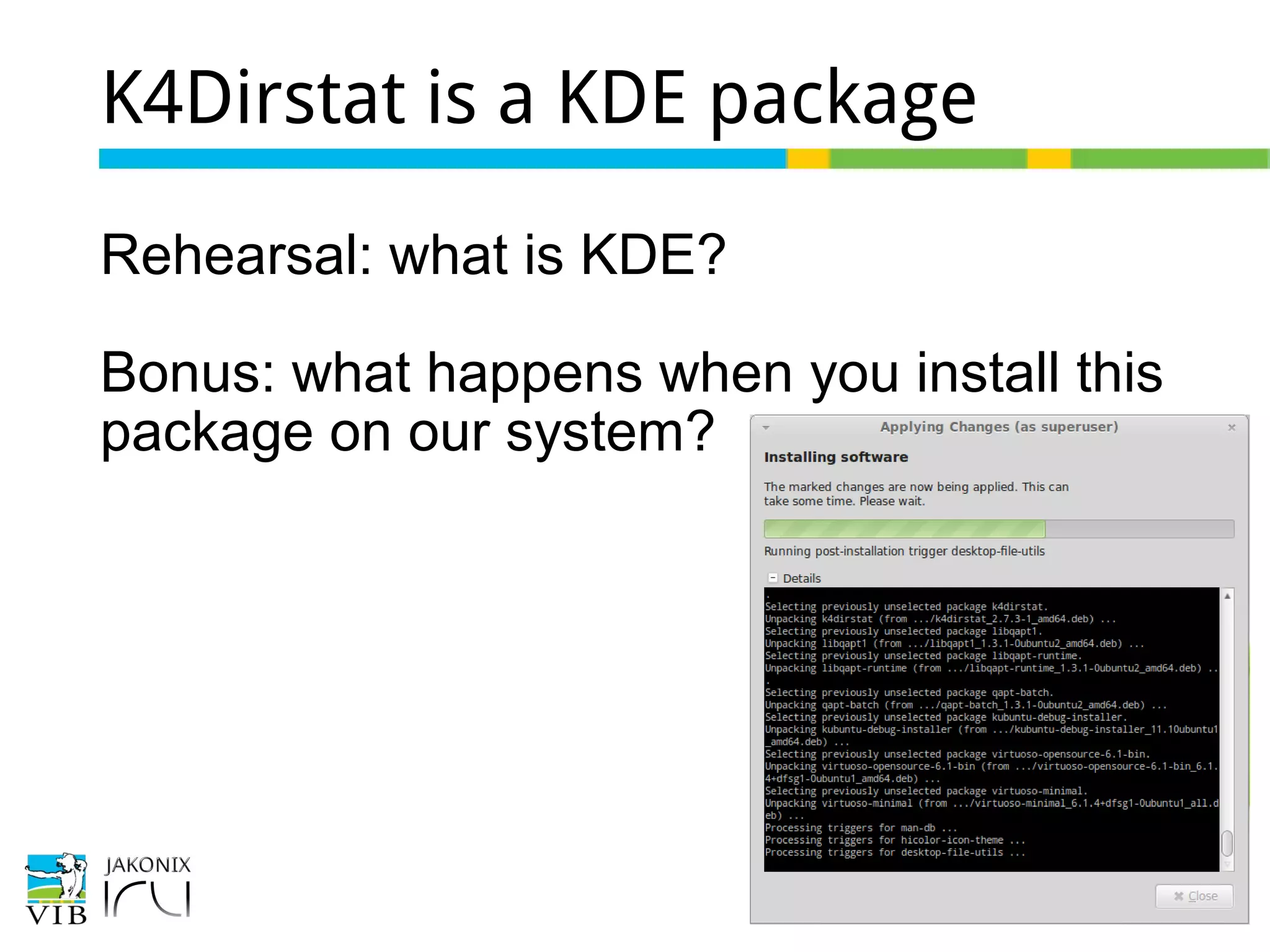
K4Dirstat is a KDE package
Rehearsal: what is KDE?
Bonus: what happens when you install this
package on our system?
38 of 46
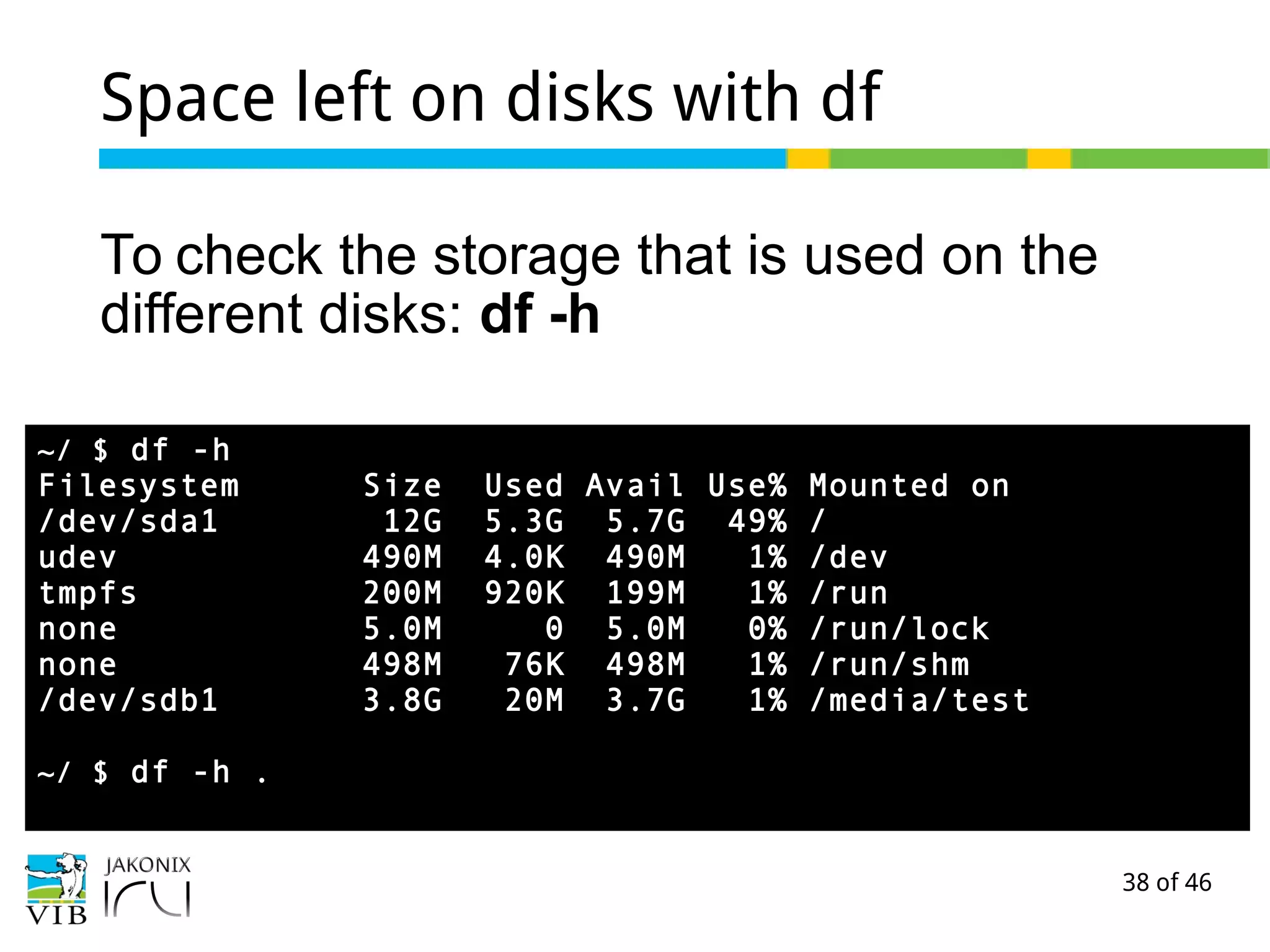
Space left on disks with df
To check the storage that is used on the
different disks: df -h
~/ $ df -h
Filesystem Size Used Avail Use% Mounted on
/dev/sda1 12G 5.3G 5.7G 49% /
udev 490M 4.0K 490M 1% /dev
tmpfs 200M 920K 199M 1% /run
none 5.0M 0 5.0M 0% /run/lock
none 498M 76K 498M 1% /run/shm
/dev/sdb1 3.8G 20M 3.7G 1% /media/test
~/ $ df -h .
39 of 46
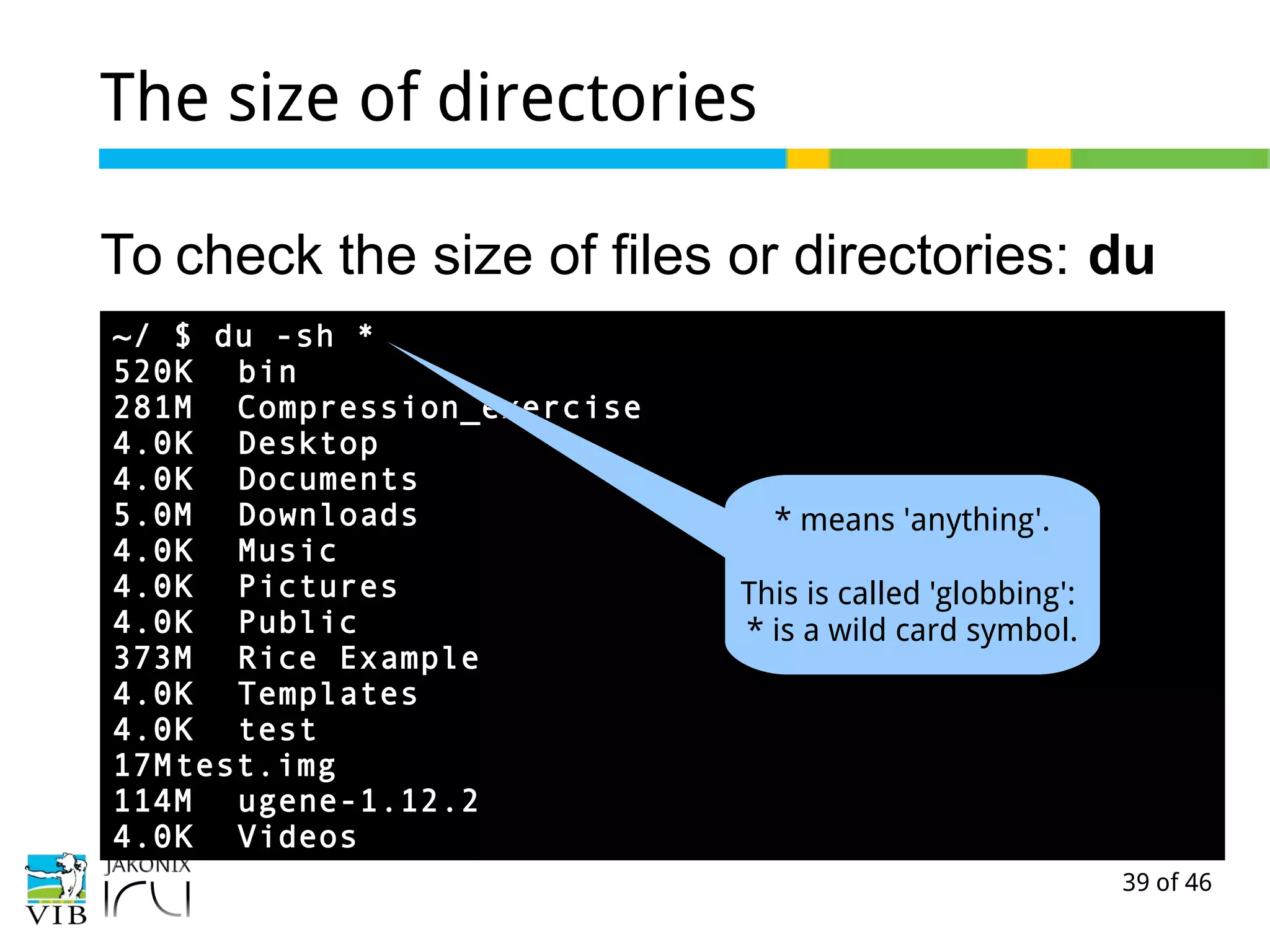
The size of directories
To check the size of files or directories: du
~/ $ du -sh *
520K bin
281M Compression_exercise
4.0K Desktop
4.0K Documents
5.0M Downloads
4.0K Music
4.0K Pictures
4.0K Public
373M Rice Example
4.0K Templates
4.0K test
17Mtest.img
114M ugene-1.12.2
4.0K Videos
* means 'anything'.
This is called 'globbing':
* is a wild card symbol.
40 of 46
Wildcards on the command line
Wildcards are used to describe the names of
files/dirs.
*
On that position, any length of string is allowed
e.g. s* matches: san, sdd, sanitisation, sam.alignment,...
?
On that position, any character is allowed.
e.g. saniti?ation matches: sanitisation, sanitiration, ...
[ ]
On that position, the character may be one of the
characters between [ ],
e.g. saniti[sz]ation matches: sanitisation and sanitization
41 of 46
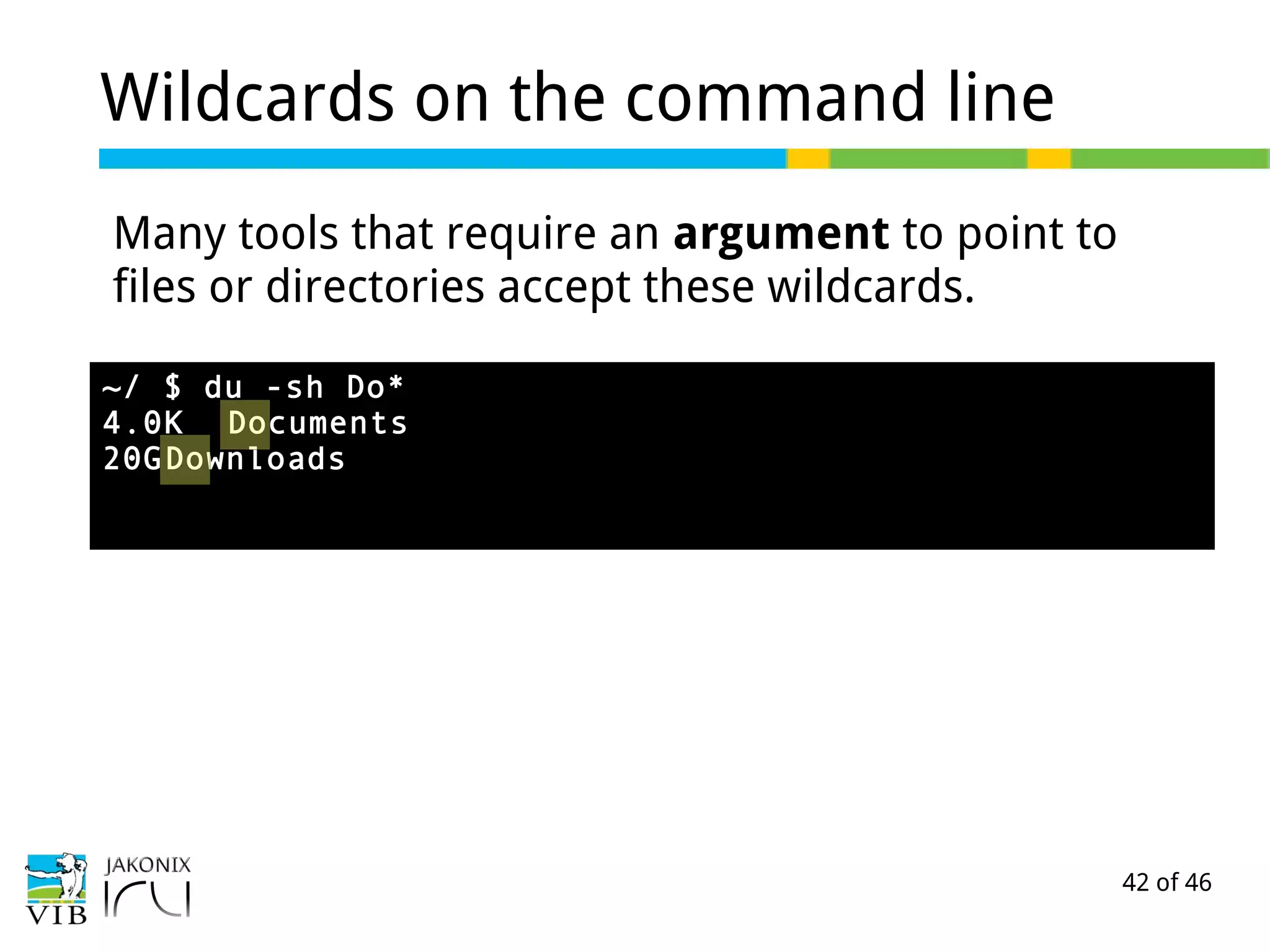
Wildcards on the command line
Many tools that require an argument to point to
files or directories accept these wildcards.
~/ $ du -sh Do*
42 of 46
Wildcards on the command line
Many tools that require an argument to point to
files or directories accept these wildcards.
~/ $ du -sh Do*
4.0K Documents
20GDownloads
43 of 46
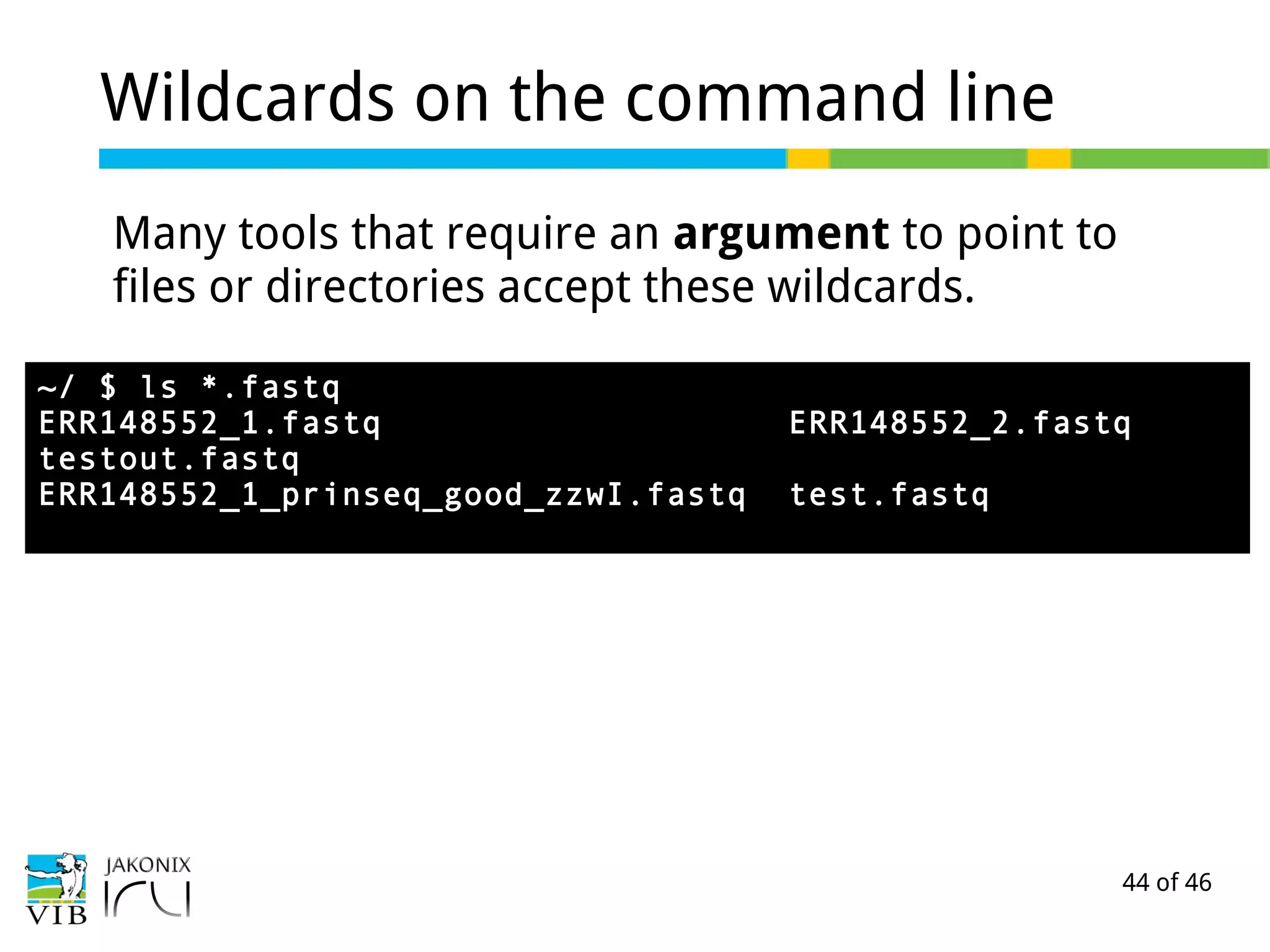
Wildcards on the command line
Many tools that require an argument to point to
files or directories accept these wildcards.
~/ $ ls *.fastq
44 of 46
Wildcards on the command line
Many tools that require an argument to point to
files or directories accept these wildcards.
~/ $ ls *.fastq
ERR148552_1.fastq ERR148552_2.fastq
testout.fastq
ERR148552_1_prinseq_good_zzwI.fastq test.fastq
45 of 46
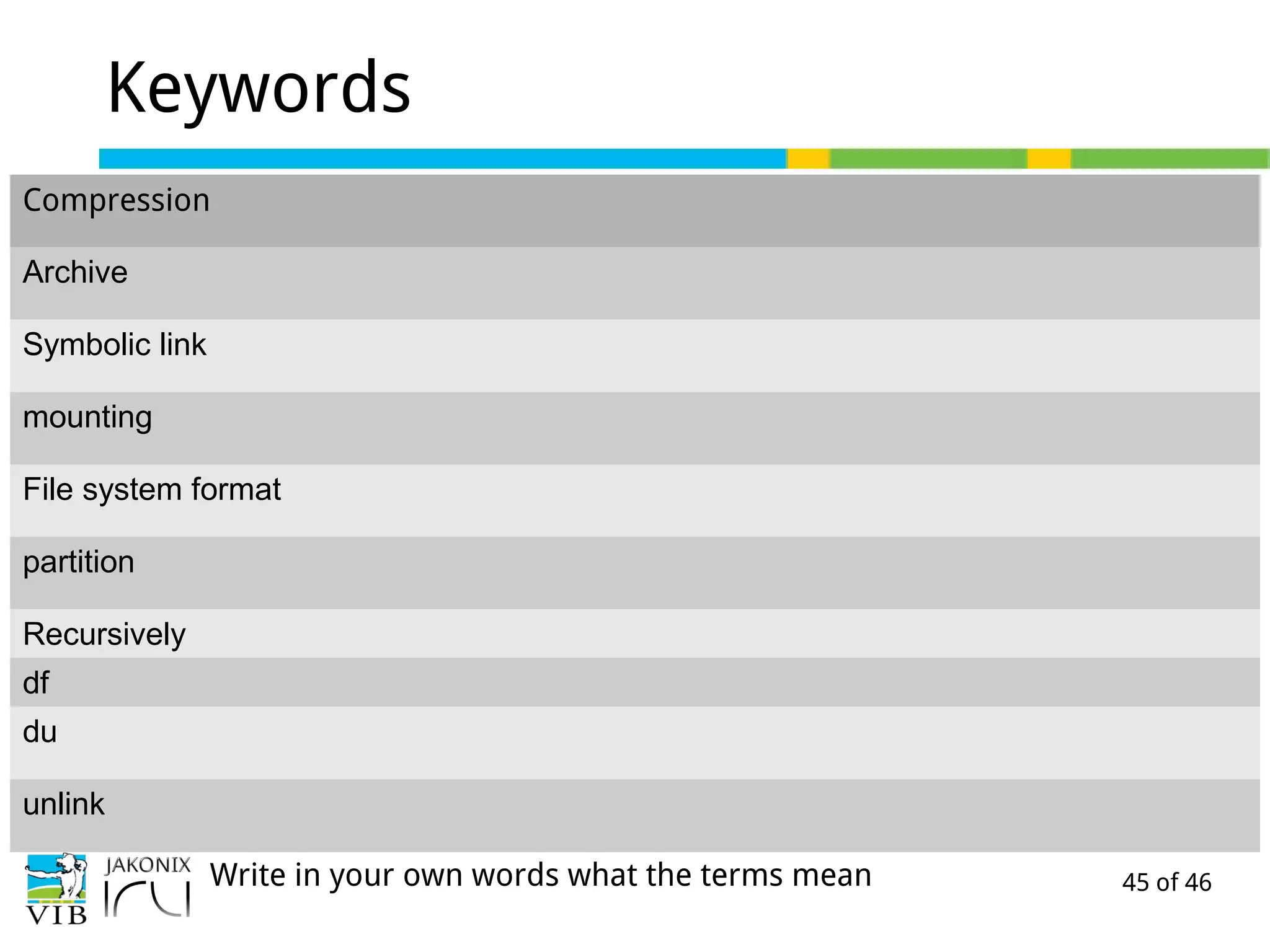
Keywords
Compression
Archive
Symbolic link
mounting
File system format
partition
Recursively
df
du
unlink
Write in your own words what the terms mean
46 of 46
Break

Part 4 of 'Introduction to Linux for bioinformatics': Managing data

  • 1.
    This presentation isavailable under the Creative Commons Attribution-ShareAlike 3.0 Unported License. Please refer to http://www.bits.vib.be/ if you use this presentation or parts hereof. Introduction to Linux for Bioinformatics Managing data Joachim Jacob 5 and 12 May 2014
  • 2.
    2 of 46 Bioinformaticsdata Historically, bioinformatics has always used text files to store data. Genbank record PDB file excerpt HMM profile
  • 3.
    3 of 46 NGSdata The NGS machines produce a lot of data, stored in plain text files. These files are multiple gigabytes in size.
  • 4.
    4 of 46 Tipsfor managing (NGS) data 1. When you move the data, do it in its smallest form. → Compress the data. 2. When you decompress the data, leave it where it is. → Symbolic links point to the data in different folders. 3. Provide enough storage for your data. → choose your file system type wisely
  • 5.
    5 of 46 Compression:tools in Linux http://www.linuxlinks.com/article/20110220091109939/CompressionTools.html But some more exist (e.g. freearc, dtrx). gzip and bzip2 are the most used and fairly performant.
  • 6.
    6 of 46 Tips Widelyused compression tools: ● GNU zip (gzip) ● Block Sorting compression (bzip2) Typically, compression tools work on one file. How to compress complete directories and their contents?
  • 7.
    7 of 46 Tarwithout compression Tar (Tape Archive) is a tool for bundling a set of files or directories into a single archive. The resulting file is called a tar ball. Syntax to create a tarball: $ tar -cf archive.tar file1 file2 Syntax to extract: $ tar -xvf /path/to/archive.tar
  • 8.
    8 of 46 Compression:a typical case Archiving and compression mostly occur together. The most used formats are tar.gz or tar.bz. These files are the result of two processes. 1. Archiving (tar) 2. Compressing (gzip or bzip2)
  • 9.
    9 of 46 Compression:on your desktop
  • 10.
    10 of 46 Compression:on your desktop
  • 11.
    11 of 46 Compression:on the command line Tar is the tool for creating .tar archives, but it can compress in one go, with the z or j option. Creating a compressed tar archive: $ tar cvfz mytararchive.tar.gz docs/ $ tar cvfj mytararchive.tar.bz docs/ Decompressing a compressed tar archive $ tar xvfz mytararchive.tar.gz $ tar xvfj mytararchive.tar.bz create Compression technique extract filesfiles verbose
  • 12.
    12 of 46 De-/compression Tocompress one or more files: $ gzip [options] file $ bzip2 [options] file To decompress one or more files: $ gunzip [options] file(s) $ bunzip2 [options] file(s) Every file will be compressed, and tar.gz or tar.bz appended to it.
  • 13.
    13 of 46 Tips 1.Do you have to uncompress a big text file to read it? No! Some tools allow to read compressed files (instead of first unpacking then reading). Time saver! $ zcat file(s) $ bzcat file(s) 2. Compression is always a balance between time and compression ratio. Gzip is faster, bzip2 compresses harder. If compression is important to you: benchmark!
  • 14.
    14 of 46 Exercise →a little compression exercise.
  • 15.
    15 of 46 Symlinks Somethingvery convenient! A symbolic link (or symlink) is a file which points to the location of another file. You can do anything with the symlink that you can do on the original file. But when you move the original file from its location, the symlink is 'dead'. ~ Downloads/ Projects/ Rice/ Butterfly/ Sequences/ Annotation/ alignment.sam
  • 16.
    16 of 46 Symlinks Tocreate a symlink, move to the folder in where the symlink must be created, and execute ln. ~ Downloads/ Projects/ Rice/ Butterfly/ Sequences/ Annotation/ alignment.sam ~/Projects $ cd Butterfly ~/Butterfly $ ln -s ../Rice/Sequences/alignment.sam Link_to_alignment.sam
  • 17.
    17 of 46 Symlinks ~ Downloads/ Projects/ Rice/ Butterfly/Link_to_alignment.sam Sequences/ Annotation/ alignment.samalignment.samalignment.sam ~/Projects$ cd Butterfly ~/Butterfly $ ln -s ../Rice/Sequences/alignment.sam Link_to_alignment.sam ~/Butterfly $ ls -lh Link_to_alignment.sam lrwxrwxrwx 1 joachim joachim 44 Oct 22 14:47 Link_to_alignment.sam -> ../Sequences/alignment.sam The symlink is created. You can check with ls. To delete a symlink, use unlink.
  • 18.
    18 of 46 Exercise → alittle symlink exercise
  • 19.
    19 of 46 Disksand storage If you dive into bioinformatics, you will have to manage disks and storage. Two types of disks - solid state disks Low capacity, high speed, random writes - spinning hard disks High capacity, 'normal' speed, sequential writes. http://en.wikipedia.org/wiki/Solid-state_drive http://en.wikipedia.org/wiki/Hard_disk
  • 20.
    20 of 46 Adisk is a device Via the terminal, show the disks using $ sudo fdisk -l [sudo] password for joachim: Disk /dev/sda: 13.4 GB, 13408141312 bytes ... Disk /dev/sdb: 3997 MB, 3997171712 bytes ...
  • 21.
    21 of 46 Adisk is divided into partitions A disk can be divided in parts, called partitions. An internal disk which runs an operating system is usually divided in partitions, one for each functions. An external disk is usually not divided in partitions. (but it can be partioned).
  • 22.
    22 of 46 Checkout the disk utility tool
  • 23.
    23 of 46 Thesystem disk Name of the disk
  • 24.
    24 of 46 Thesystem disk Name currently highlighted partition
  • 25.
    25 of 46 Thesystem disk Place in the directory structure where the partition can be accessed
  • 26.
    26 of 46 Anexample of an USB disk - Place in the directory structure where the partition can be accessed
  • 27.
    27 of 46 Anexample of an USB disk The USB disk is 'mounted' automatically on the directory tree under /media.
  • 28.
    28 of 46 Anexample of an USB disk -This is the type of file system on the partition (i.e. the way data is stored on this partition) The partition is said to be formatted in FAT32 (in this case).
  • 29.
    29 of 46 Filesystem formats By default, many USB flash disks are formatted in FAT32. Other types are NTFS, ext4, ZFS. FAT32 – max 4GB files NTFS – maximum portability (also for use under windows) Ext4 – default file system in Linux, Btrfs – the next default file system in Linux in the near future. http://en.wikipedia.org/wiki/File_system#File_systems_and_operating_systems
  • 30.
    30 of 46 Example:formatting a USB disk First unmount the device (red box 1 below). Now the USB disk can not be accessed anymore. Next, choose format the device (red box 2 below). 1 2
  • 31.
    31 of 46 Formatdisks with disk utility Choose the type of file system you want to be on that device.
  • 32.
    32 of 46 Formatdisks with disk utility
  • 33.
    33 of 46 Formatdisks with disk utility The program disk-utility put a lot of commands at work behind the scenes. Some of the command line tools used: - mount - umount - fdisk - mkfs You can read the man pages and search for guides on the internet if you want to get to know these (out of scope for this course).
  • 34.
    34 of 46 Checkingstorage space By default 'disk usage analyzer'.
  • 35.
    35 of 46 Checkingstorage space Bonus: K4DirStat. Not installed by default.
  • 36.
    36 of 46 Checkingstorage space Bonus: K4DirStat. Not installed by default.
  • 37.
    37 of 46 K4Dirstatis a KDE package Rehearsal: what is KDE? Bonus: what happens when you install this package on our system?
  • 38.
    38 of 46 Spaceleft on disks with df To check the storage that is used on the different disks: df -h ~/ $ df -h Filesystem Size Used Avail Use% Mounted on /dev/sda1 12G 5.3G 5.7G 49% / udev 490M 4.0K 490M 1% /dev tmpfs 200M 920K 199M 1% /run none 5.0M 0 5.0M 0% /run/lock none 498M 76K 498M 1% /run/shm /dev/sdb1 3.8G 20M 3.7G 1% /media/test ~/ $ df -h .
  • 39.
    39 of 46 Thesize of directories To check the size of files or directories: du ~/ $ du -sh * 520K bin 281M Compression_exercise 4.0K Desktop 4.0K Documents 5.0M Downloads 4.0K Music 4.0K Pictures 4.0K Public 373M Rice Example 4.0K Templates 4.0K test 17Mtest.img 114M ugene-1.12.2 4.0K Videos * means 'anything'. This is called 'globbing': * is a wild card symbol.
  • 40.
    40 of 46 Wildcardson the command line Wildcards are used to describe the names of files/dirs. * On that position, any length of string is allowed e.g. s* matches: san, sdd, sanitisation, sam.alignment,... ? On that position, any character is allowed. e.g. saniti?ation matches: sanitisation, sanitiration, ... [ ] On that position, the character may be one of the characters between [ ], e.g. saniti[sz]ation matches: sanitisation and sanitization
  • 41.
    41 of 46 Wildcardson the command line Many tools that require an argument to point to files or directories accept these wildcards. ~/ $ du -sh Do*
  • 42.
    42 of 46 Wildcardson the command line Many tools that require an argument to point to files or directories accept these wildcards. ~/ $ du -sh Do* 4.0K Documents 20GDownloads
  • 43.
    43 of 46 Wildcardson the command line Many tools that require an argument to point to files or directories accept these wildcards. ~/ $ ls *.fastq
  • 44.
    44 of 46 Wildcardson the command line Many tools that require an argument to point to files or directories accept these wildcards. ~/ $ ls *.fastq ERR148552_1.fastq ERR148552_2.fastq testout.fastq ERR148552_1_prinseq_good_zzwI.fastq test.fastq
  • 45.
    45 of 46 Keywords Compression Archive Symboliclink mounting File system format partition Recursively df du unlink Write in your own words what the terms mean
  • 46.