Library Search:
Finding Books
Study https://unihub.mdx.ac.uk/study/library
What is Library Search?
This guide explains how to search for a book on Library Search, request
print books for loan and access e-books.
• Searches all library resources in one go
including books, journals, conference
proceedings, reports, and film
• Searches across all subject areas
• Results are displayed with the most
relevant first
• Access full-text if available online.
Ward, P. (2008) Database management systems. 2nd edn.
Clifton Park: Cengage.
We can search for this book using:
• The author’s name i.e. Ward
• Book title i.e. Database management systems.
• Combination of author and title.
We are going to look for this book:
What information does the
book reference give me?
This is a book
reference
Ward, P. (2008) Database management
systems. 2nd edn. Clifton Park:
Cengage.
Title
Author Date
Edition
Publisher Place of publication
Know your book reference
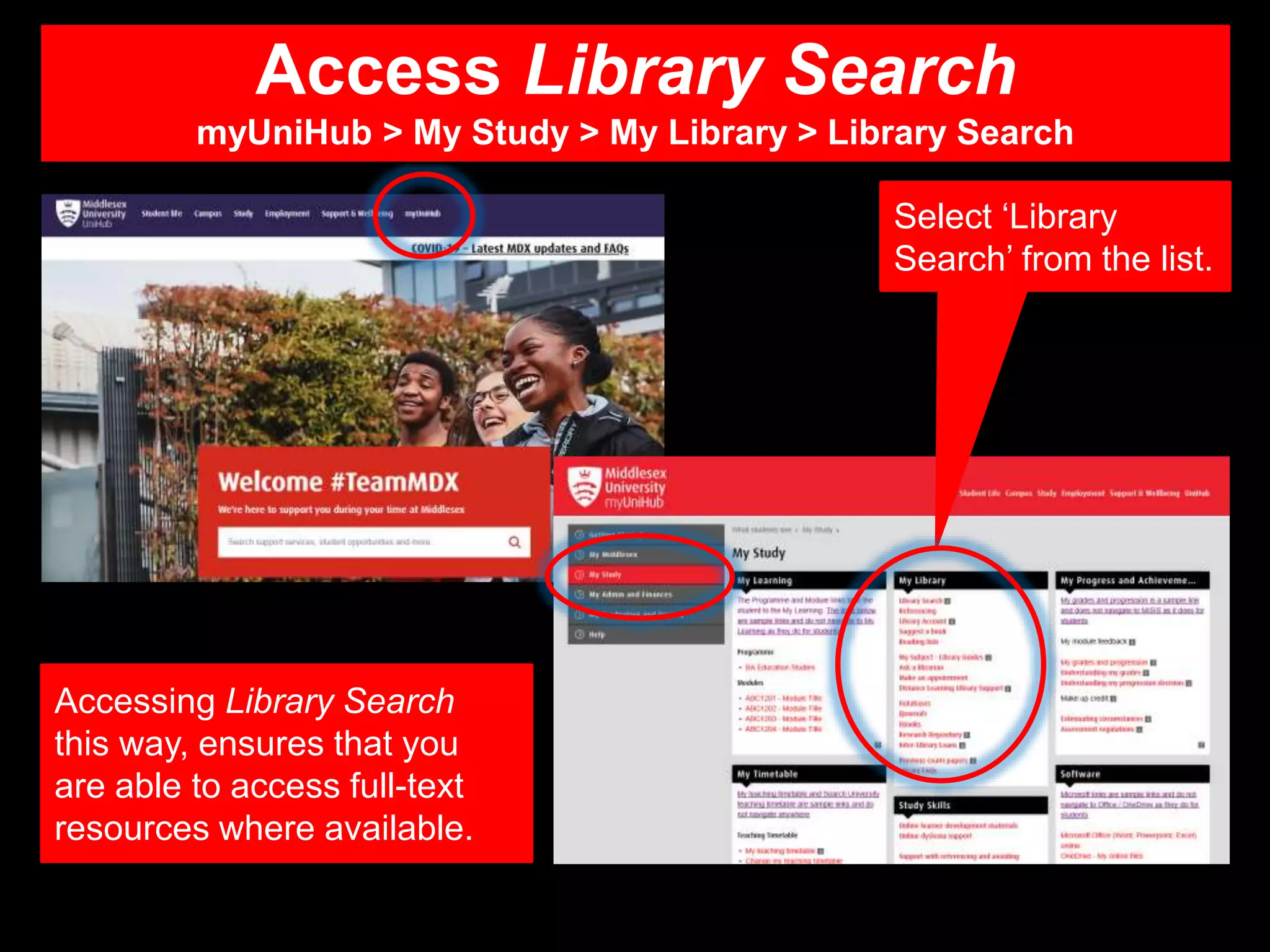
Access Library Search
myUniHub > My Study > My Library > Library Search
Accessing Library Search
this way, ensures that you
are able to access full-text
resources where available.
Select ‘Library
Search’ from the list.
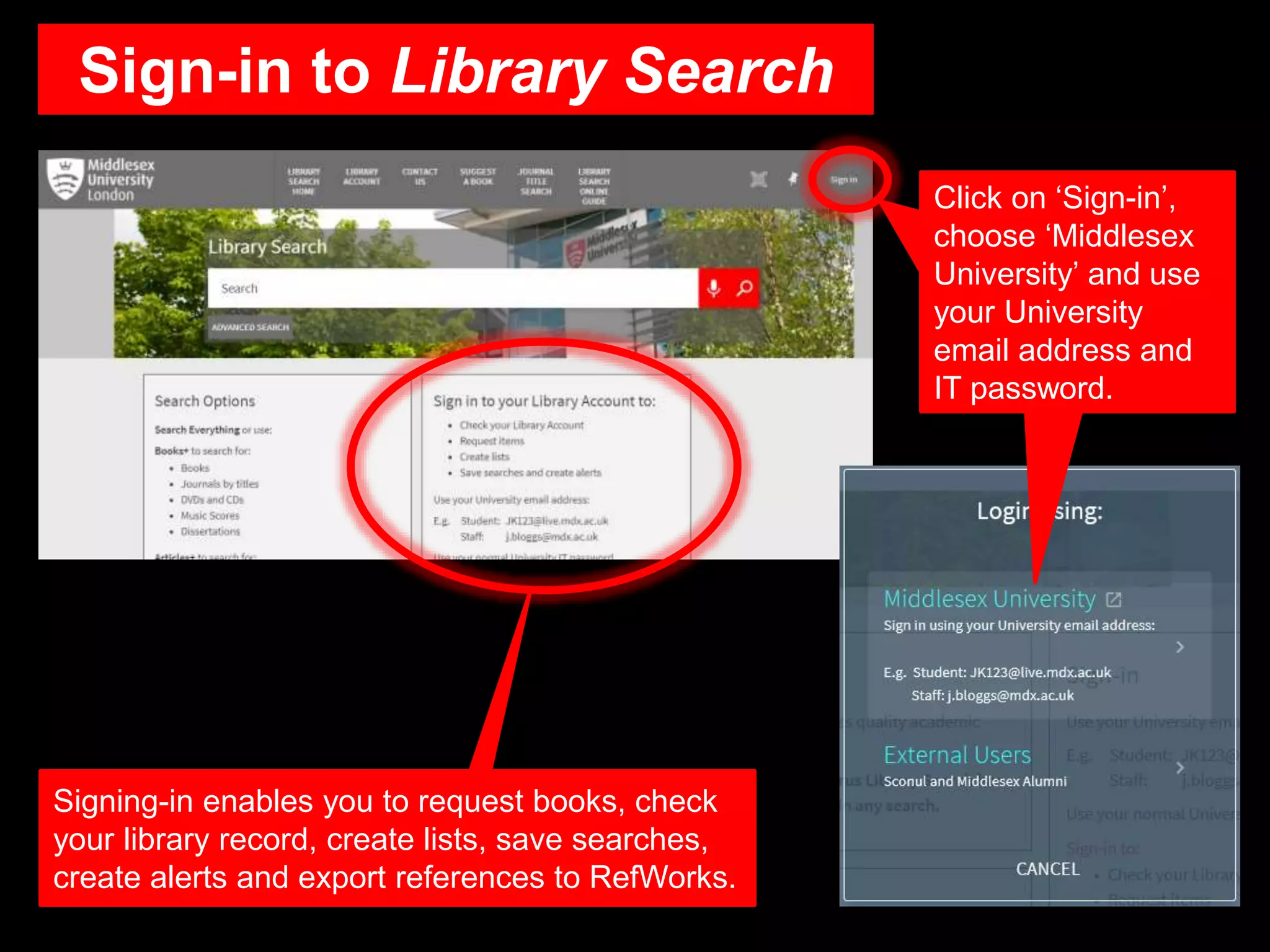
Sign-in to Library Search
Click on ‘Sign-in’,
choose ‘Middlesex
University’ and use
your University
email address and
IT password.
Signing-in enables you to request books, check
your library record, create lists, save searches,
create alerts and export references to RefWorks.
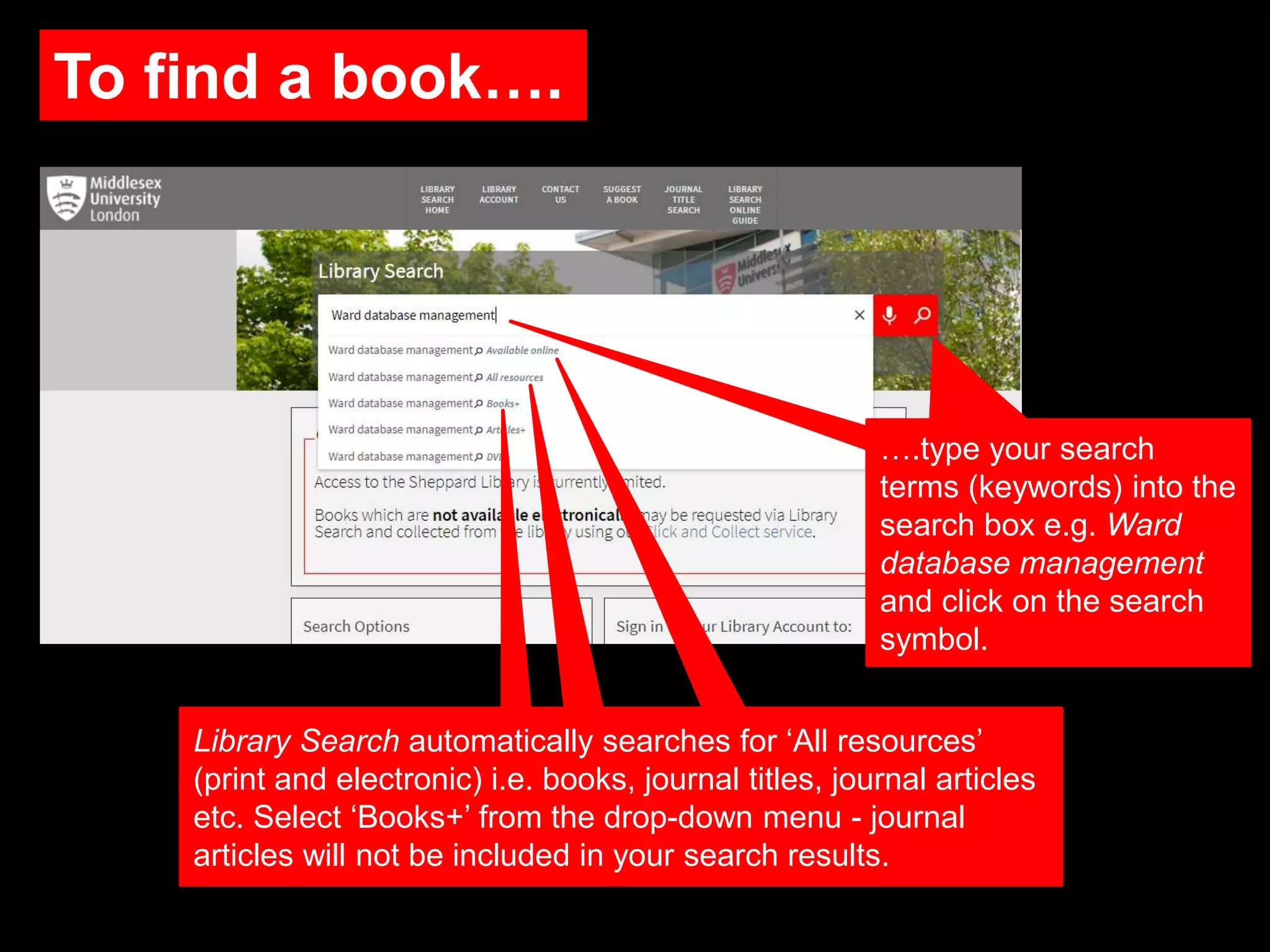
To find a book….
….type your search
terms (keywords) into the
search box e.g. Ward
database management
and click on the search
symbol.
Library Search automatically searches for ‘All resources’
(print and electronic) i.e. books, journal titles, journal articles
etc. Select ‘Books+’ from the drop-down menu - journal
articles will not be included in your search results.
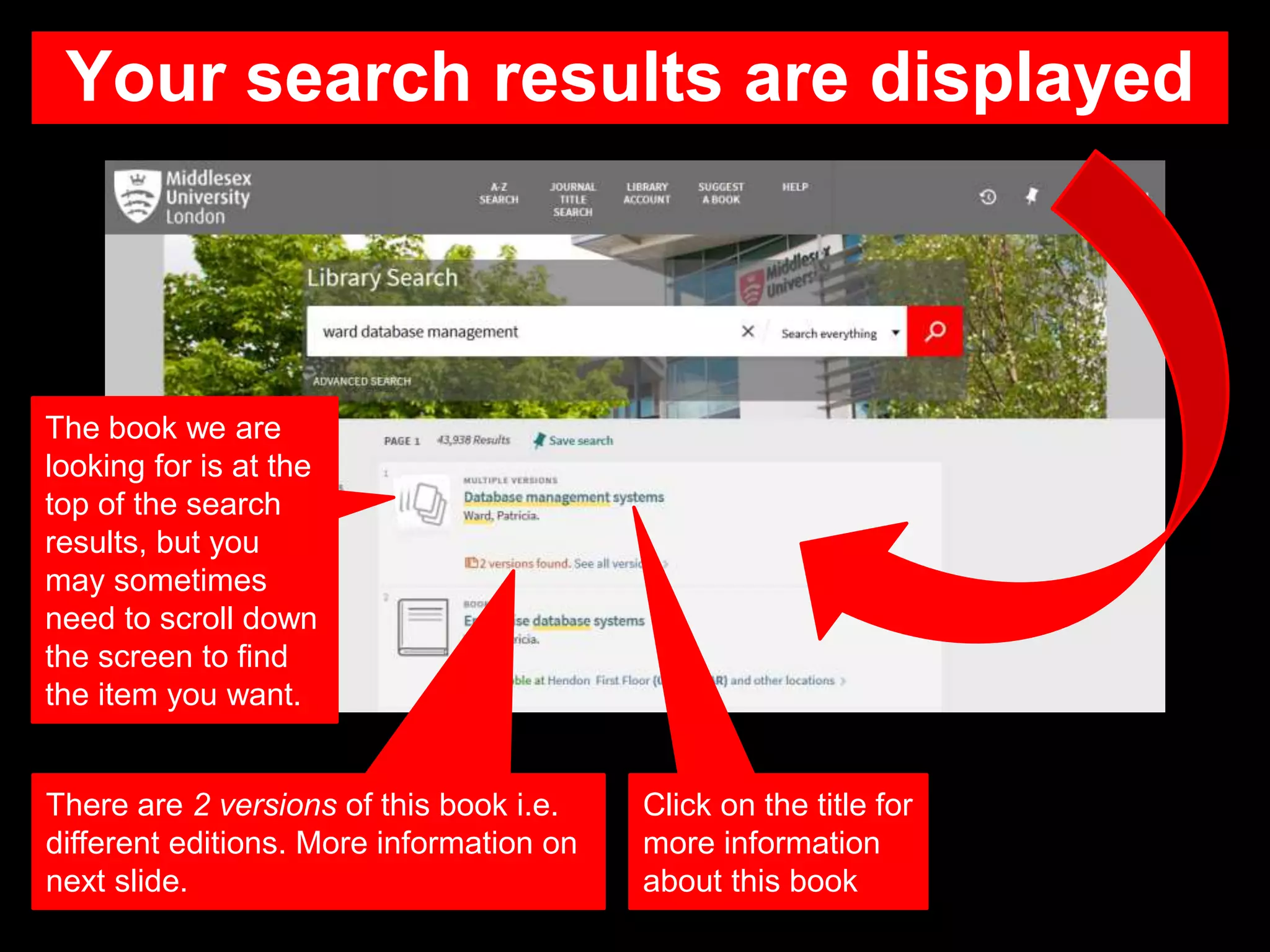
Your search results are displayed
The book we are
looking for is at the
top of the search
results, but you
may sometimes
need to scroll down
the screen to find
the item you want.
Click on the title for
more information
about this book
There are 2 versions of this book i.e.
different editions. More information on
next slide.
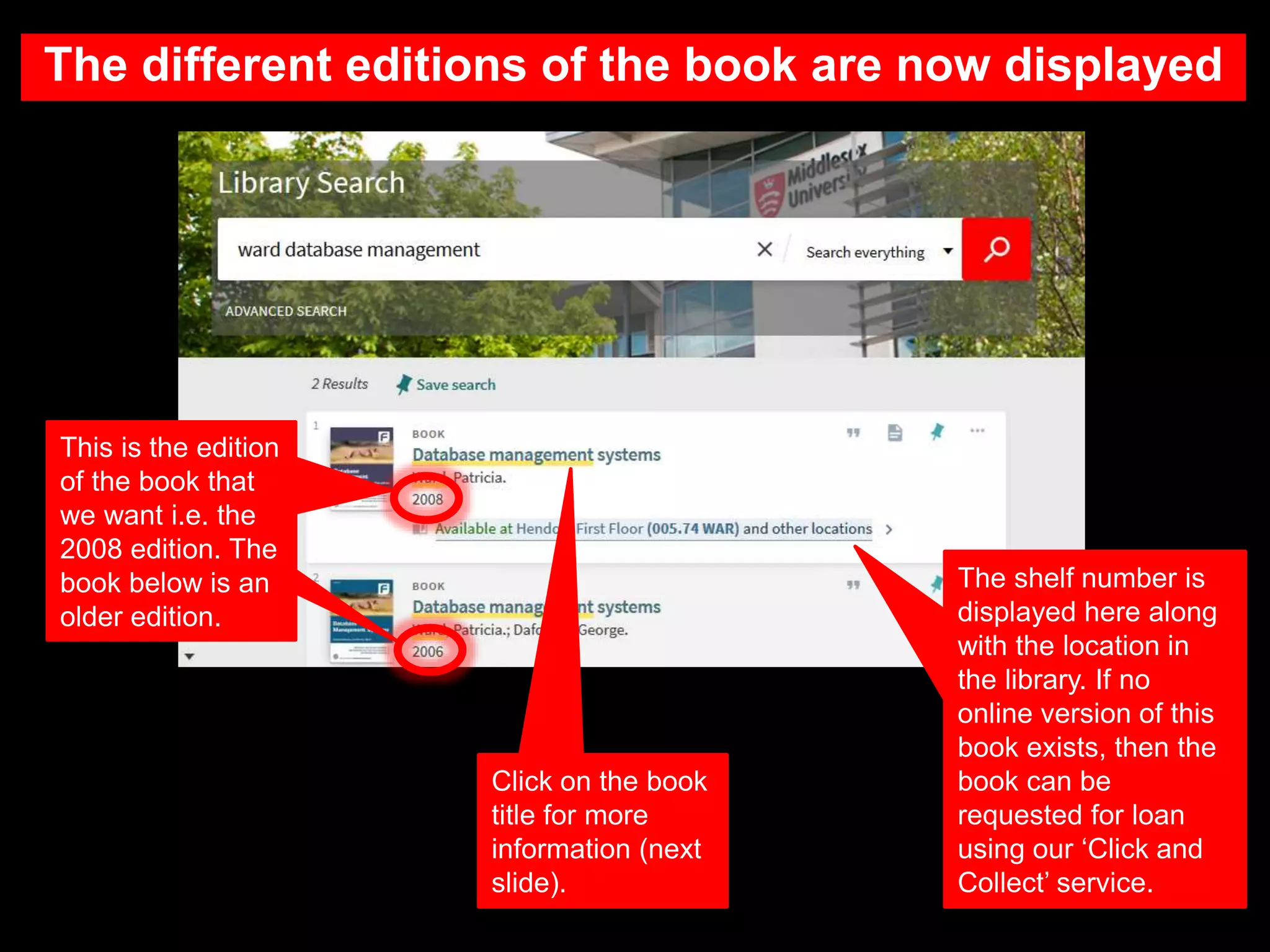
The different editions of the book are now displayed
This is the edition
of the book that
we want i.e. the
2008 edition. The
book below is an
older edition.
The shelf number is
displayed here along
with the location in
the library. If no
online version of this
book exists, then the
book can be
requested for loan
using our ‘Click and
Collect’ service.
Click on the book
title for more
information (next
slide).
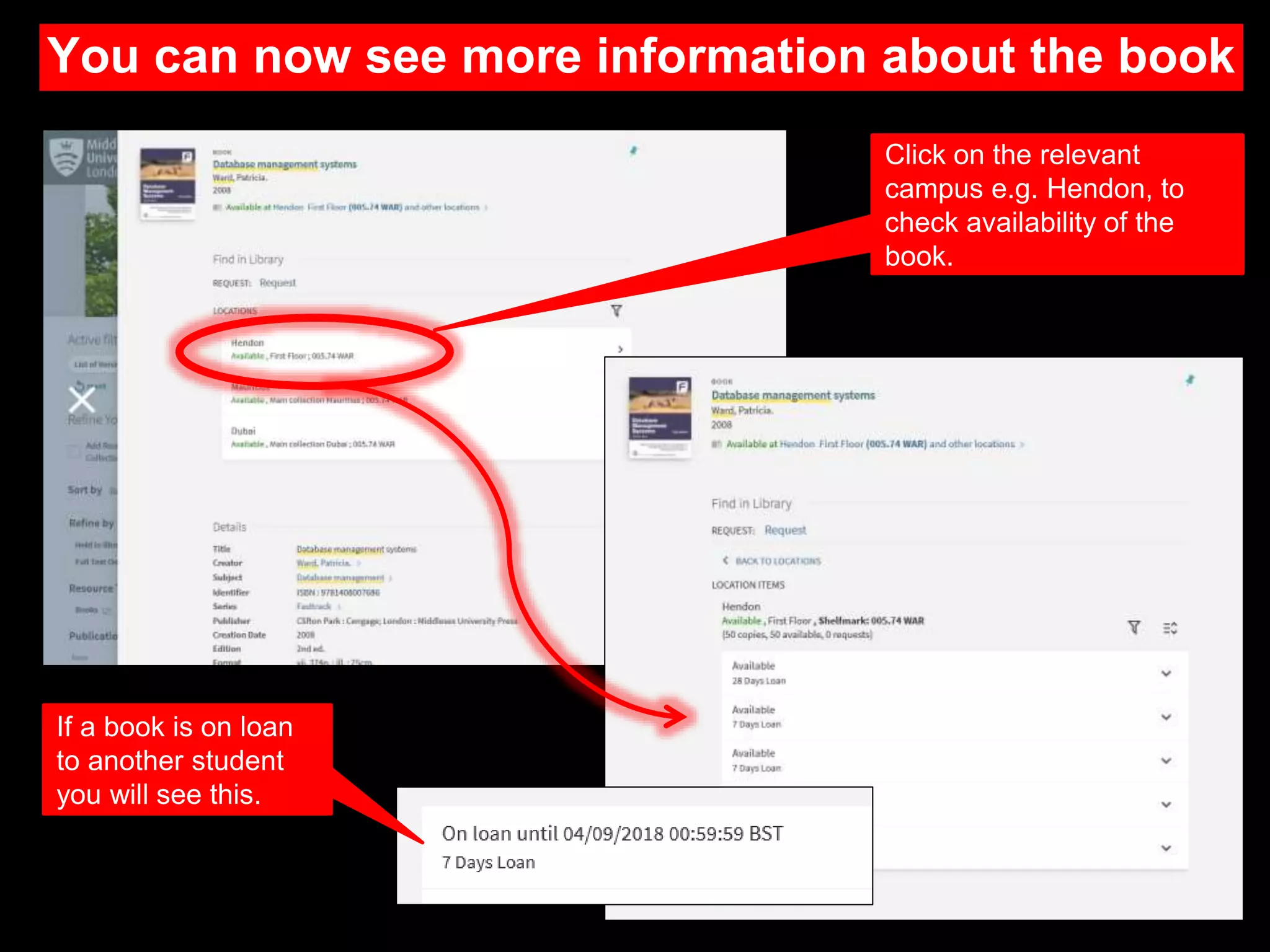
You can now see more information about the book
Click on the relevant
campus e.g. Hendon, to
check availability of the
book.
If a book is on loan
to another student
you will see this.
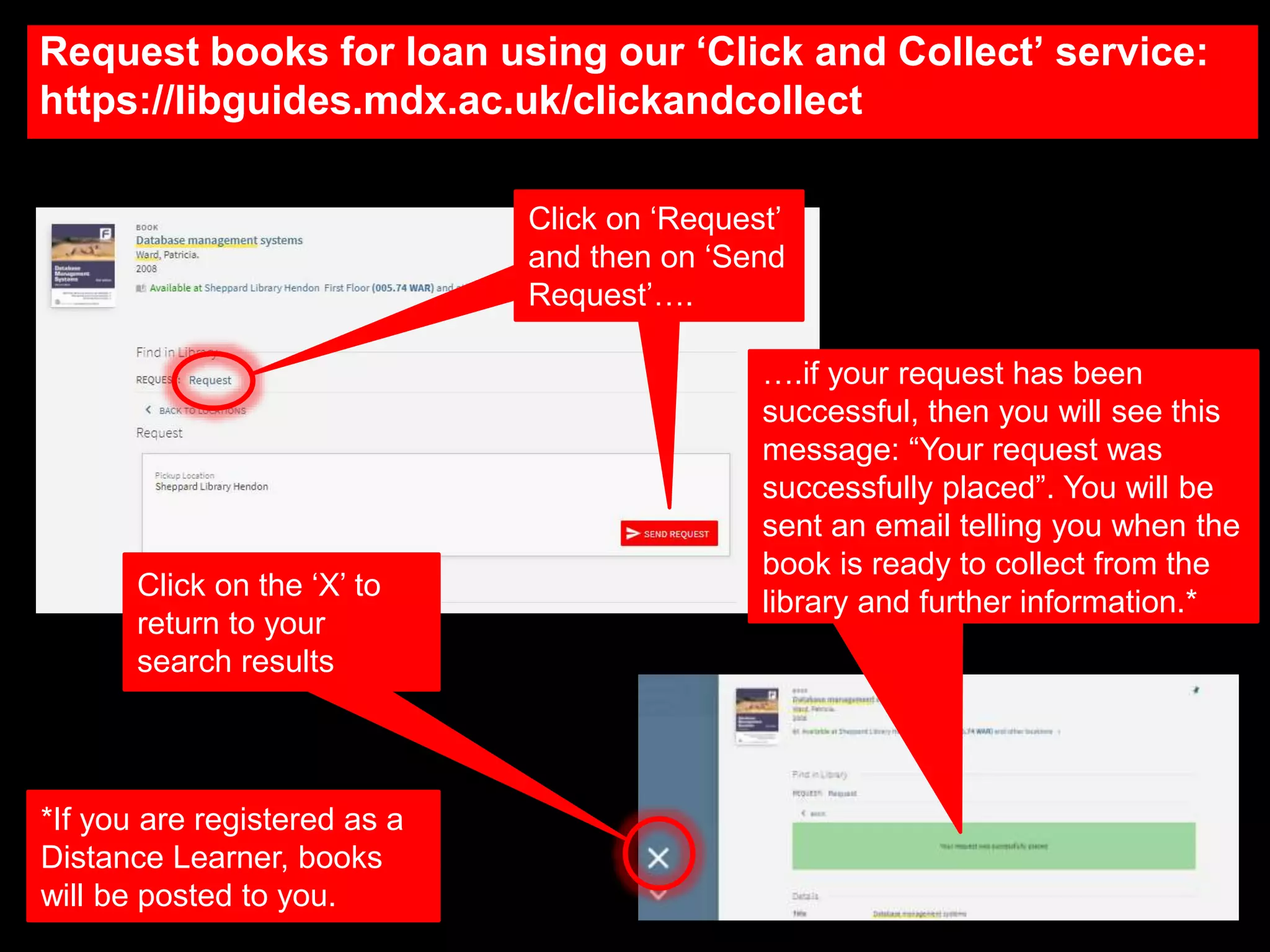
Request books for loan using our ‘Click and Collect’ service:
https://libguides.mdx.ac.uk/clickandcollect
Click on ‘Request’
and then on ‘Send
Request’….
….if your request has been
successful, then you will see this
message: “Your request was
successfully placed”. You will be
sent an email telling you when the
book is ready to collect from the
library and further information.*
Click on the ‘X’ to
return to your
search results
*If you are registered as a
Distance Learner, books
will be posted to you.
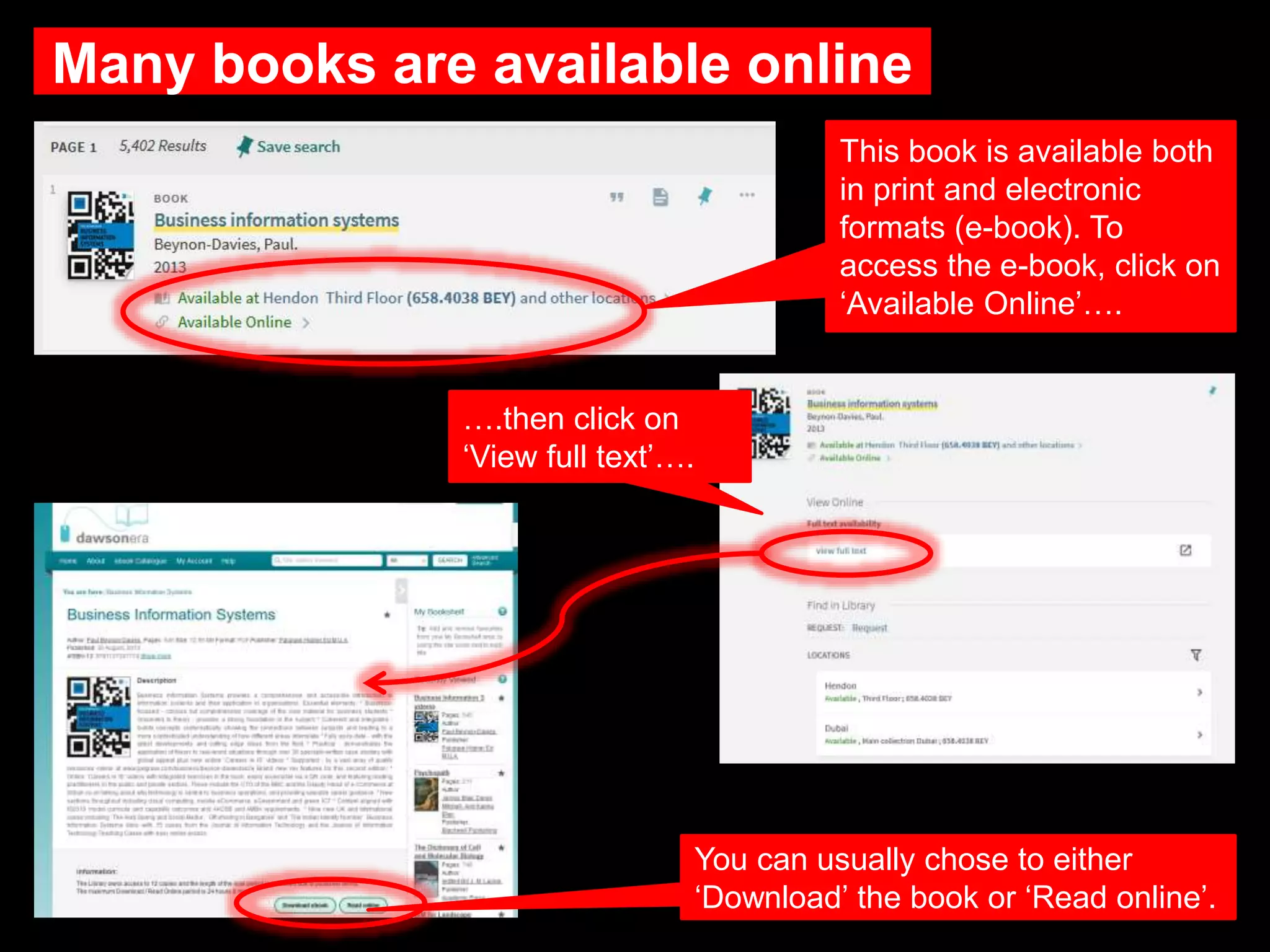
Many books are available online
This book is available both
in print and electronic
formats (e-book). To
access the e-book, click on
‘Available Online’….
….then click on
‘View full text’….
You can usually chose to either
‘Download’ the book or ‘Read online’.
Need further help?
Contact your Librarian (Select ‘Chat’ or ‘Ask A Librarian’)
http://libguides.mdx.ac.uk/
Troubleshooting: Accessing full text off campus
http://libguides.mdx.ac.uk/accessingelectronicresources

Library Search 4: Finding Books

  • 1.
    Library Search: Finding Books Studyhttps://unihub.mdx.ac.uk/study/library
  • 2.
    What is LibrarySearch? This guide explains how to search for a book on Library Search, request print books for loan and access e-books. • Searches all library resources in one go including books, journals, conference proceedings, reports, and film • Searches across all subject areas • Results are displayed with the most relevant first • Access full-text if available online.
  • 3.
    Ward, P. (2008)Database management systems. 2nd edn. Clifton Park: Cengage. We can search for this book using: • The author’s name i.e. Ward • Book title i.e. Database management systems. • Combination of author and title. We are going to look for this book: What information does the book reference give me? This is a book reference
  • 4.
    Ward, P. (2008)Database management systems. 2nd edn. Clifton Park: Cengage. Title Author Date Edition Publisher Place of publication Know your book reference
  • 5.
    Access Library Search myUniHub> My Study > My Library > Library Search Accessing Library Search this way, ensures that you are able to access full-text resources where available. Select ‘Library Search’ from the list.
  • 6.
    Sign-in to LibrarySearch Click on ‘Sign-in’, choose ‘Middlesex University’ and use your University email address and IT password. Signing-in enables you to request books, check your library record, create lists, save searches, create alerts and export references to RefWorks.
  • 7.
    To find abook…. ….type your search terms (keywords) into the search box e.g. Ward database management and click on the search symbol. Library Search automatically searches for ‘All resources’ (print and electronic) i.e. books, journal titles, journal articles etc. Select ‘Books+’ from the drop-down menu - journal articles will not be included in your search results.
  • 8.
    Your search resultsare displayed The book we are looking for is at the top of the search results, but you may sometimes need to scroll down the screen to find the item you want. Click on the title for more information about this book There are 2 versions of this book i.e. different editions. More information on next slide.
  • 9.
    The different editionsof the book are now displayed This is the edition of the book that we want i.e. the 2008 edition. The book below is an older edition. The shelf number is displayed here along with the location in the library. If no online version of this book exists, then the book can be requested for loan using our ‘Click and Collect’ service. Click on the book title for more information (next slide).
  • 10.
    You can nowsee more information about the book Click on the relevant campus e.g. Hendon, to check availability of the book. If a book is on loan to another student you will see this.
  • 11.
    Request books forloan using our ‘Click and Collect’ service: https://libguides.mdx.ac.uk/clickandcollect Click on ‘Request’ and then on ‘Send Request’…. ….if your request has been successful, then you will see this message: “Your request was successfully placed”. You will be sent an email telling you when the book is ready to collect from the library and further information.* Click on the ‘X’ to return to your search results *If you are registered as a Distance Learner, books will be posted to you.
  • 12.
    Many books areavailable online This book is available both in print and electronic formats (e-book). To access the e-book, click on ‘Available Online’…. ….then click on ‘View full text’…. You can usually chose to either ‘Download’ the book or ‘Read online’.
  • 13.
    Need further help? Contactyour Librarian (Select ‘Chat’ or ‘Ask A Librarian’) http://libguides.mdx.ac.uk/ Troubleshooting: Accessing full text off campus http://libguides.mdx.ac.uk/accessingelectronicresources

Editor's Notes

  • #6 Access Library Search To access Library Search you need to login to myUniHub. When you are logged in, go to MyStudy and then choose Library Search from the My Library box. Accessing Library Search in this way ensures that you are able to access full text resources where available. So always follow this route: myUniHub, MyStudy, MyLibrary and then Library Search.
  • #7 Sign in to Library Search Once you are in Library Search you should sign in. Click the Sign-in link at the top right of the page. Choose Middlesex University and use your University email address example JK1234@live.mdx.ac.uk and IT password to sign in e.g. JK1234. Signing-in enables you to do five useful things: Request books for Click and Collect Check your library record to see which books you have on loan, Create lists of useful resources, Save searches and Create alerts, so you will know when a new item of interest becomes available.
  • #8 When you need to find information for your assignments Type your search terms – the keywords to describe your topic – into the search box. In this example we are looking for information on project management. Then click the search icon. Library search will automatically search for resources which are available online. If you want to find all the resources provided by the Library – including print as well as electronic – then choose all resources from the drop down menu.
  • #14 If you need further help, please contact your librarian. Go to http://libguides.mdx.ac.uk/ and choose either chat, if the service is available, or Ask a Librarian to raise a ticket. If you are having problems accessing the full text of any item off campus, please see our troubleshooting guide at http://libguides.mdx.ac.uk/accessingelectronicresources.