Find an Article
in Full Text
By Interlibrary Loan
A step-by-step guide
Goddard Library and
Technology Center
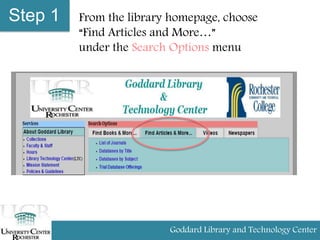
Step 1 From the library homepage, choose
“Find Articles and More…”
under the Search Options menu
Goddard Library and Technology Center
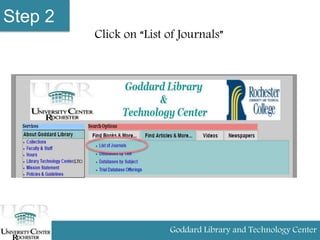
Step 2
Goddard Library and Technology Center
Click on “List of Journals”
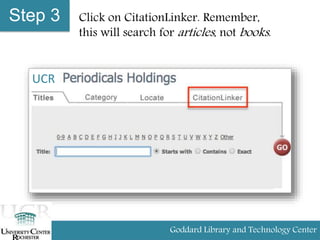
Step 3 Click on CitationLinker. Remember,
this will search for articles, not books.
Goddard Library and Technology Center
UCR
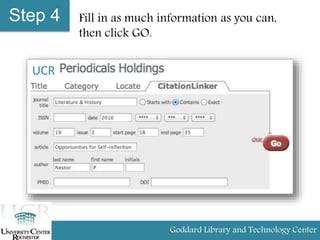
Step 4 Fill in as much information as you can,
then click GO.
UCR
Goddard Library and Technology Center
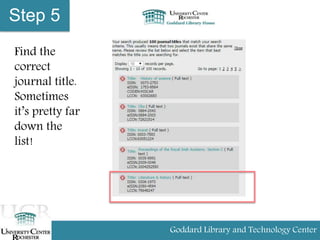
Step 5
Find the
correct
journal title.
Sometimes
it’s pretty far
down the
list!
Goddard Library and Technology Center
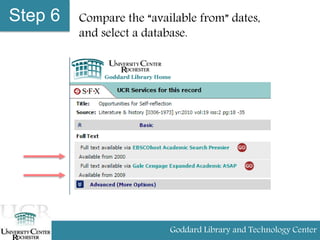
Step 6 Compare the “available from” dates,
and select a database.
Goddard Library and Technology Center
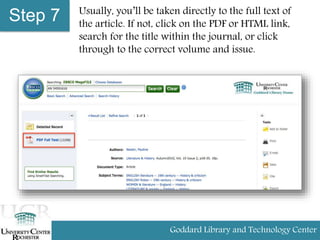
Step 7 Usually, you’ll be taken directly to the full text of
the article. If not, click on the PDF or HTML link,
search for the title within the journal, or click
through to the correct volume and issue.
Goddard Library and Technology Center
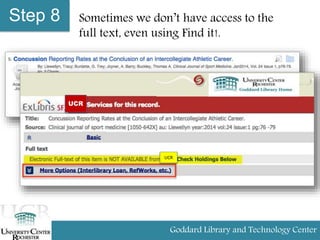
Step 8 Sometimes we don’t have access to the
full text, even using Find it!.
Goddard Library and Technology Center
UCR
UCR
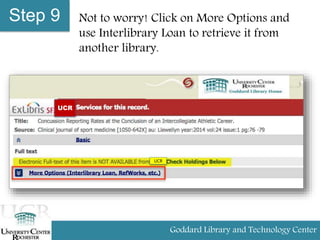
Step 9 Not to worry! Click on More Options and
use Interlibrary Loan to retrieve it from
another library.
Goddard Library and Technology Center
UCR
UCR
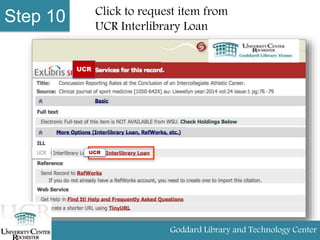
Step 10 Click to request item from
UCR Interlibrary Loan
Goddard Library and Technology Center
UCR
UCRUCR
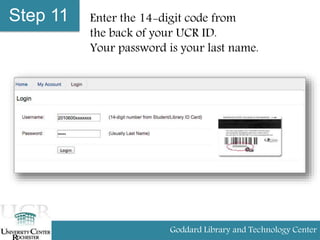
Step 11 Enter the 14-digit code from
the back of your UCR ID.
Your password is your last name.
Goddard Library and Technology Center
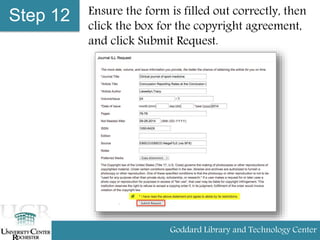
Step 12 Ensure the form is filled out correctly, then
click the box for the copyright agreement,
and click Submit Request.
Goddard Library and Technology Center
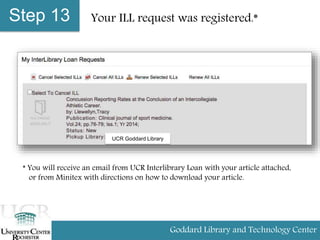
Step 13 Your ILL request was registered.*
* You will receive an email from UCR Interlibrary Loan with your article attached,
or from Minitex with directions on how to download your article.
Goddard Library and Technology Center
UCR Goddard Library

Find articles with ill

  • 1.
    Find an Article inFull Text By Interlibrary Loan A step-by-step guide Goddard Library and Technology Center
  • 2.
    Step 1 Fromthe library homepage, choose “Find Articles and More…” under the Search Options menu Goddard Library and Technology Center
  • 3.
    Step 2 Goddard Libraryand Technology Center Click on “List of Journals”
  • 4.
    Step 3 Clickon CitationLinker. Remember, this will search for articles, not books. Goddard Library and Technology Center UCR
  • 5.
    Step 4 Fillin as much information as you can, then click GO. UCR Goddard Library and Technology Center
  • 6.
    Step 5 Find the correct journaltitle. Sometimes it’s pretty far down the list! Goddard Library and Technology Center
  • 7.
    Step 6 Comparethe “available from” dates, and select a database. Goddard Library and Technology Center
  • 8.
    Step 7 Usually,you’ll be taken directly to the full text of the article. If not, click on the PDF or HTML link, search for the title within the journal, or click through to the correct volume and issue. Goddard Library and Technology Center
  • 9.
    Step 8 Sometimeswe don’t have access to the full text, even using Find it!. Goddard Library and Technology Center UCR UCR
  • 10.
    Step 9 Notto worry! Click on More Options and use Interlibrary Loan to retrieve it from another library. Goddard Library and Technology Center UCR UCR
  • 11.
    Step 10 Clickto request item from UCR Interlibrary Loan Goddard Library and Technology Center UCR UCRUCR
  • 12.
    Step 11 Enterthe 14-digit code from the back of your UCR ID. Your password is your last name. Goddard Library and Technology Center
  • 13.
    Step 12 Ensurethe form is filled out correctly, then click the box for the copyright agreement, and click Submit Request. Goddard Library and Technology Center
  • 14.
    Step 13 YourILL request was registered.* * You will receive an email from UCR Interlibrary Loan with your article attached, or from Minitex with directions on how to download your article. Goddard Library and Technology Center UCR Goddard Library