Using the Three Rivers
Community College Library
         Website
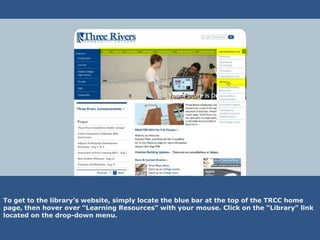
To get to the library’s website, simply locate the blue bar at the top of the TRCC home
page, then hover over “Learning Resources” with your mouse. Click on the “Library” link
located on the drop-down menu.
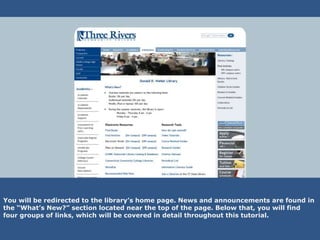
You will be redirected to the library’s home page. News and announcements are found in
the “What’s New?” section located near the top of the page. Below that, you will find
four groups of links, which will be covered in detail throughout this tutorial.
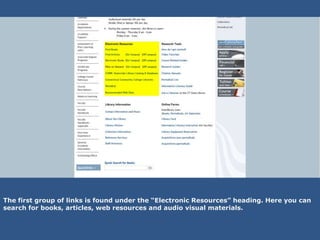
The first group of links is found under the “Electronic Resources” heading. Here you can
search for books, articles, web resources and audio visual materials.
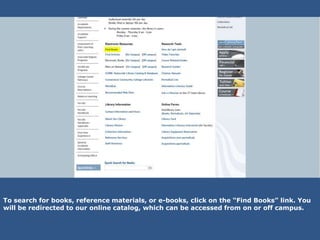
To search for books, reference materials, or e-books, click on the “Find Books” link. You
will be redirected to our online catalog, which can be accessed from on or off campus.
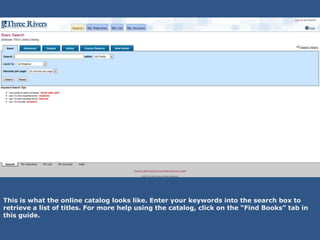
This is what the online catalog looks like. Enter your keywords into the search box to
retrieve a list of titles. For more help using the catalog, click on the “Find Books” tab in
this guide.
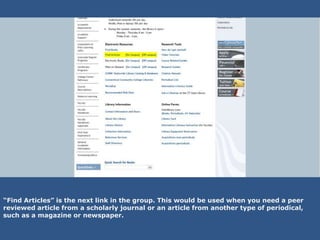
“Find Articles” is the next link in the group. This would be used when you need a peer
reviewed article from a scholarly journal or an article from another type of periodical,
such as a magazine or newspaper.
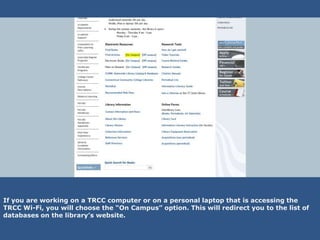
If you are working on a TRCC computer or on a personal laptop that is accessing the
TRCC Wi-Fi, you will choose the “On Campus” option. This will redirect you to the list of
databases on the library’s website.
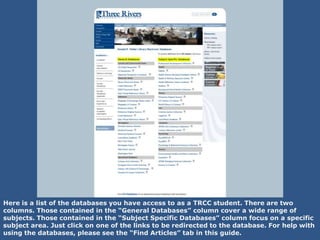
Here is a list of the databases you have access to as a TRCC student. There are two
columns. Those contained in the “General Databases” column cover a wide range of
subjects. Those contained in the “Subject Specific Databases” column focus on a specific
subject area. Just click on one of the links to be redirected to the database. For help with
using the databases, please see the “Find Articles” tab in this guide.
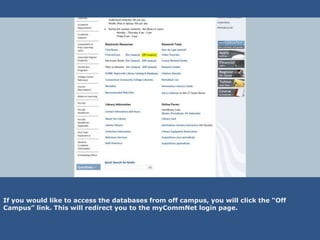
If you would like to access the databases from off campus, you will click the “Off
Campus” link. This will redirect you to the myCommNet login page.
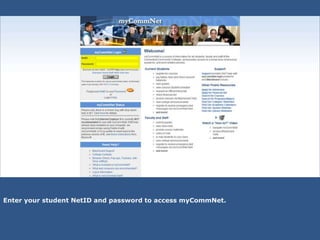
Enter your student NetID and password to access myCommNet.
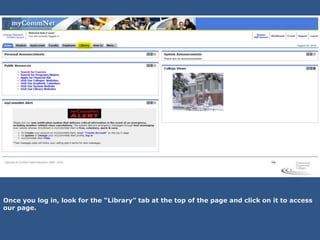
Once you log in, look for the “Library” tab at the top of the page and click on it to access
our page.
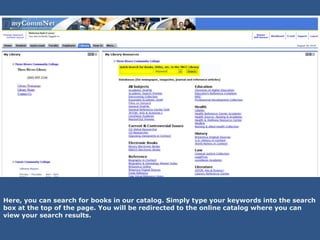
Here, you can search for books in our catalog. Simply type your keywords into the search
box at the top of the page. You will be redirected to the online catalog where you can
view your search results.
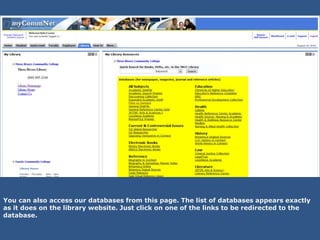
You can also access our databases from this page. The list of databases appears exactly
as it does on the library website. Just click on one of the links to be redirected to the
database.
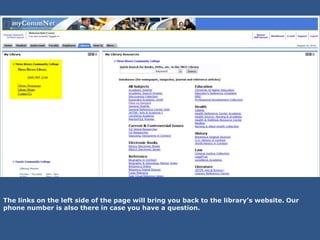
The links on the left side of the page will bring you back to the library’s website. Our
phone number is also there in case you have a question.
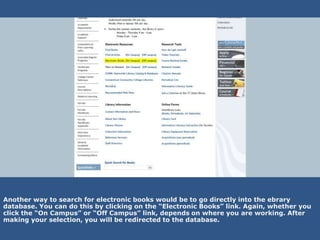
Another way to search for electronic books would be to go directly into the ebrary
database. You can do this by clicking on the “Electronic Books” link. Again, whether you
click the “On Campus” or “Off Campus” link, depends on where you are working. After
making your selection, you will be redirected to the database.
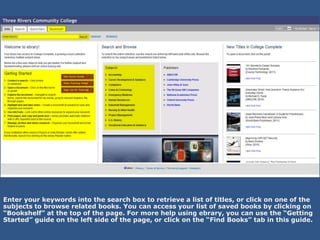
Enter your keywords into the search box to retrieve a list of titles, or click on one of the
subjects to browse related books. You can access your list of saved books by clicking on
“Bookshelf” at the top of the page. For more help using ebrary, you can use the “Getting
Started” guide on the left side of the page, or click on the “Find Books” tab in this guide.
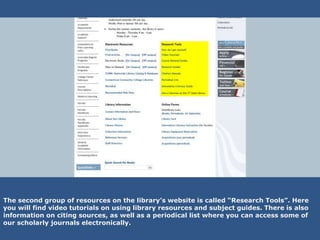
The second group of resources on the library’s website is called “Research Tools”. Here
you will find video tutorials on using library resources and subject guides. There is also
information on citing sources, as well as a periodical list where you can access some of
our scholarly journals electronically.
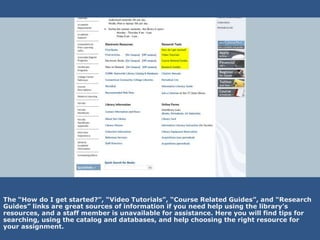
The “How do I get started?”, “Video Tutorials”, “Course Related Guides”, and “Research
Guides” links are great sources of information if you need help using the library’s
resources, and a staff member is unavailable for assistance. Here you will find tips for
searching, using the catalog and databases, and help choosing the right resource for
your assignment.
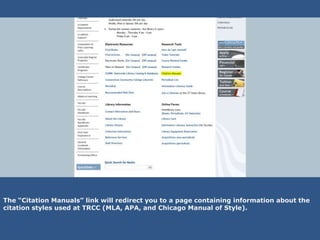
The “Citation Manuals” link will redirect you to a page containing information about the
citation styles used at TRCC (MLA, APA, and Chicago Manual of Style).
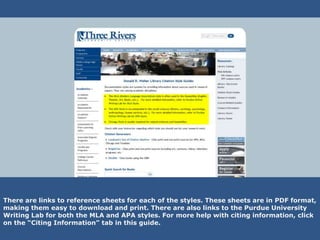
There are links to reference sheets for each of the styles. These sheets are in PDF format,
making them easy to download and print. There are also links to the Purdue University
Writing Lab for both the MLA and APA styles. For more help with citing information, click
on the “Citing Information” tab in this guide.
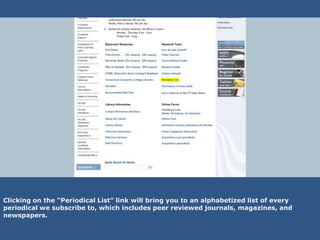
Clicking on the “Periodical List” link will bring you to an alphabetized list of every
periodical we subscribe to, which includes peer reviewed journals, magazines, and
newspapers.
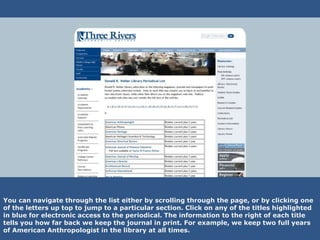
You can navigate through the list either by scrolling through the page, or by clicking one
of the letters up top to jump to a particular section. Click on any of the titles highlighted
in blue for electronic access to the periodical. The information to the right of each title
tells you how far back we keep the journal in print. For example, we keep two full years
of American Anthropologist in the library at all times.
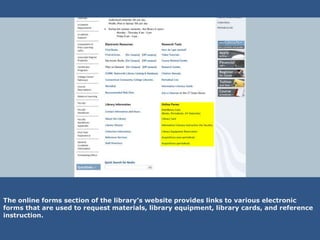
The online forms section of the library’s website provides links to various electronic
forms that are used to request materials, library equipment, library cards, and reference
instruction.
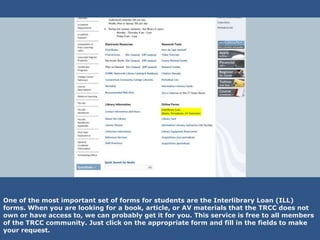
One of the most important set of forms for students are the Interlibrary Loan (ILL)
forms. When you are looking for a book, article, or AV materials that the TRCC does not
own or have access to, we can probably get it for you. This service is free to all members
of the TRCC community. Just click on the appropriate form and fill in the fields to make
your request.
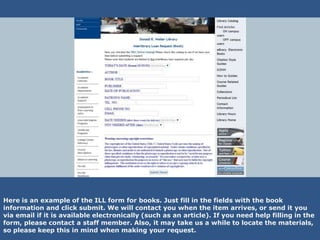
Here is an example of the ILL form for books. Just fill in the fields with the book
information and click submit. We will contact you when the item arrives, or send it you
via email if it is available electronically (such as an article). If you need help filling in the
form, please contact a staff member. Also, it may take us a while to locate the materials,
so please keep this in mind when making your request.
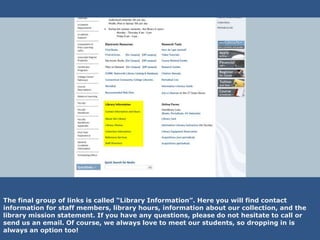
The final group of links is called “Library Information”. Here you will find contact
information for staff members, library hours, information about our collection, and the
library mission statement. If you have any questions, please do not hesitate to call or
send us an email. Of course, we always love to meet our students, so dropping in is
always an option too!

Using the TRCC Library Website

  • 1.
    Using the ThreeRivers Community College Library Website
  • 2.
    To get tothe library’s website, simply locate the blue bar at the top of the TRCC home page, then hover over “Learning Resources” with your mouse. Click on the “Library” link located on the drop-down menu.
  • 3.
    You will beredirected to the library’s home page. News and announcements are found in the “What’s New?” section located near the top of the page. Below that, you will find four groups of links, which will be covered in detail throughout this tutorial.
  • 4.
    The first groupof links is found under the “Electronic Resources” heading. Here you can search for books, articles, web resources and audio visual materials.
  • 5.
    To search forbooks, reference materials, or e-books, click on the “Find Books” link. You will be redirected to our online catalog, which can be accessed from on or off campus.
  • 6.
    This is whatthe online catalog looks like. Enter your keywords into the search box to retrieve a list of titles. For more help using the catalog, click on the “Find Books” tab in this guide.
  • 7.
    “Find Articles” isthe next link in the group. This would be used when you need a peer reviewed article from a scholarly journal or an article from another type of periodical, such as a magazine or newspaper.
  • 8.
    If you areworking on a TRCC computer or on a personal laptop that is accessing the TRCC Wi-Fi, you will choose the “On Campus” option. This will redirect you to the list of databases on the library’s website.
  • 9.
    Here is alist of the databases you have access to as a TRCC student. There are two columns. Those contained in the “General Databases” column cover a wide range of subjects. Those contained in the “Subject Specific Databases” column focus on a specific subject area. Just click on one of the links to be redirected to the database. For help with using the databases, please see the “Find Articles” tab in this guide.
  • 10.
    If you wouldlike to access the databases from off campus, you will click the “Off Campus” link. This will redirect you to the myCommNet login page.
  • 11.
    Enter your studentNetID and password to access myCommNet.
  • 12.
    Once you login, look for the “Library” tab at the top of the page and click on it to access our page.
  • 13.
    Here, you cansearch for books in our catalog. Simply type your keywords into the search box at the top of the page. You will be redirected to the online catalog where you can view your search results.
  • 14.
    You can alsoaccess our databases from this page. The list of databases appears exactly as it does on the library website. Just click on one of the links to be redirected to the database.
  • 15.
    The links onthe left side of the page will bring you back to the library’s website. Our phone number is also there in case you have a question.
  • 16.
    Another way tosearch for electronic books would be to go directly into the ebrary database. You can do this by clicking on the “Electronic Books” link. Again, whether you click the “On Campus” or “Off Campus” link, depends on where you are working. After making your selection, you will be redirected to the database.
  • 17.
    Enter your keywordsinto the search box to retrieve a list of titles, or click on one of the subjects to browse related books. You can access your list of saved books by clicking on “Bookshelf” at the top of the page. For more help using ebrary, you can use the “Getting Started” guide on the left side of the page, or click on the “Find Books” tab in this guide.
  • 18.
    The second groupof resources on the library’s website is called “Research Tools”. Here you will find video tutorials on using library resources and subject guides. There is also information on citing sources, as well as a periodical list where you can access some of our scholarly journals electronically.
  • 19.
    The “How doI get started?”, “Video Tutorials”, “Course Related Guides”, and “Research Guides” links are great sources of information if you need help using the library’s resources, and a staff member is unavailable for assistance. Here you will find tips for searching, using the catalog and databases, and help choosing the right resource for your assignment.
  • 20.
    The “Citation Manuals”link will redirect you to a page containing information about the citation styles used at TRCC (MLA, APA, and Chicago Manual of Style).
  • 21.
    There are linksto reference sheets for each of the styles. These sheets are in PDF format, making them easy to download and print. There are also links to the Purdue University Writing Lab for both the MLA and APA styles. For more help with citing information, click on the “Citing Information” tab in this guide.
  • 22.
    Clicking on the“Periodical List” link will bring you to an alphabetized list of every periodical we subscribe to, which includes peer reviewed journals, magazines, and newspapers.
  • 23.
    You can navigatethrough the list either by scrolling through the page, or by clicking one of the letters up top to jump to a particular section. Click on any of the titles highlighted in blue for electronic access to the periodical. The information to the right of each title tells you how far back we keep the journal in print. For example, we keep two full years of American Anthropologist in the library at all times.
  • 24.
    The online formssection of the library’s website provides links to various electronic forms that are used to request materials, library equipment, library cards, and reference instruction.
  • 25.
    One of themost important set of forms for students are the Interlibrary Loan (ILL) forms. When you are looking for a book, article, or AV materials that the TRCC does not own or have access to, we can probably get it for you. This service is free to all members of the TRCC community. Just click on the appropriate form and fill in the fields to make your request.
  • 26.
    Here is anexample of the ILL form for books. Just fill in the fields with the book information and click submit. We will contact you when the item arrives, or send it you via email if it is available electronically (such as an article). If you need help filling in the form, please contact a staff member. Also, it may take us a while to locate the materials, so please keep this in mind when making your request.
  • 27.
    The final groupof links is called “Library Information”. Here you will find contact information for staff members, library hours, information about our collection, and the library mission statement. If you have any questions, please do not hesitate to call or send us an email. Of course, we always love to meet our students, so dropping in is always an option too!