
RUNTIME ANIMATION
GENERATION
Record And Replay User Interactions
OBJECTIVE
Allow your user to “record” their actions during
gameplay and play them back.
DEMO
UNITY SOLVES THE BASIC
CHALLENGES• Replay timing. Saving
transform state is easy.
Reapplying saved state at the
right times is hard.
• Future proof. Translate,
rotate, and scale is great but
you will want more. Record
events with arguments and
have them replayed at the
right moments. With the full
power of Mechanim you can
create and manipulate
animation state machines as
well.
HOW DOES IT WORK?
The Basic Concept
• Once recording starts, save a property value and the time since the
recording began in the Update() loop
• Collect these “keyframes” while the recording continues
• Use Unity’s Animation Scripting APIs to generate a Unity
AnimationClip from your internal “keyframes”
• To replay the animation, replace the recorded object in the scene
with a duplicate, add the AnimationClip to the duplicate’s Animation
component and play it back at normal speed
HOW DOES IT WORK?
The key pieces:
• RecordedCurveKeyFrame: a float value at a specific time
• RecordedCurve: an object that contains a list of RecordedCurveKeyFrames as well as
the property name being recorded (example: “localPosition.x”)
• Recordable: a MonoBehavior that knows how to record it’s own RecordedCurves when
it is told to start recording and generate a Unity AnimationClip from its
RecordedCurves on request. In addition, a Recordables may be parented to other
recordables.
• AnimationRecorder: a MonoBehavior which references all Recordable GameObjects
and tells them when to start and stop recording. Orchestrates the playback of
generated AnimationClips.
• Unity Animation Scripting APIs
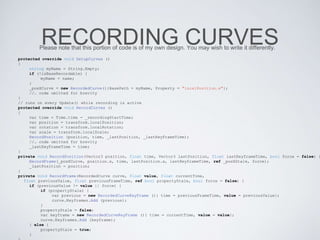
RECORDING CURVESPlease note that this portion of code is of my own design. You may wish to write it differently.
protected override void SetupCurves ()
{
string myName = String.Empty;
if (!isBaseRecordable) {
myName = name;
}
_posXCurve = new RecordedCurve(){BasePath = myName, Property = "localPosition.x"};
//… code omitted for brevity
}
// runs on every Update() while recording is active
protected override void RecordCurves ()
{
var time = Time.time - _recordingStartTime;
var position = transform.localPosition;
var rotation = transform.localRotation;
var scale = transform.localScale;
RecordPosition (position, time, _lastPosition, _lastKeyFrameTime);
//… code omitted for brevity
_lastKeyFrameTime = time;
}
private void RecordPosition(Vector3 position, float time, Vector3 lastPosition, float lastKeyframeTime, bool force = false) {
RecordFrame(_posXCurve, position.x, time, lastPosition.x, lastKeyframeTime, ref _posXStale, force);
_lastPosition = position;
}
private void RecordFrame(RecordedCurve curve, float value, float currentTime,
float previousValue, float previousFrameTime, ref bool propertyStale, bool force = false) {
if (previousValue != value || force) {
if (propertyStale) {
var previous = new RecordedCurveKeyFrame (){ time = previousFrameTime, value = previousValue};
curve.Keyframes.Add (previous);
}
propertyStale = false;
var keyframe = new RecordedCurveKeyFrame (){ time = currentTime, value = value};
curve.Keyframes.Add (keyframe);
} else {
propertyStale = true;
}
UNITY ANIMATION
SCRIPTING
// done in a Recordable subclass this one is in TransformRecordable
protected override void _BuildAnimationClip (AnimationClip clip, List<RecordedCurve> recordedCurves)
{
foreach (var curve in recordedCurves) {
clip.SetCurve(curve.BasePath, typeof(Transform), curve.Property, curve.ToAnimationCurve());
}
}
public static AnimationCurve ToAnimationCurve(this RecordedCurve curve) {
return new AnimationCurve(curve.Keyframes.Select(rc => new Keyframe(rc.time,rc.value)).ToArray());
}
//from Unity Scripting API: http://docs.unity3d.com/ScriptReference/AnimationClip.SetCurve.html
public void SetCurve(string relativePath, Type type, string propertyName, AnimationCurve curve);
public AnimationClip BuildAnimationClip(List<RecordedCurve> recordedCurves) {
if (isBaseRecordable) {
AnimationClip clip = new AnimationClip();
_BuildAnimationClip(clip, recordedCurves);
clip.AddEvent(new AnimationEvent(){functionName = "PlaybackStarted", time = 0});
clip.AddEvent(new AnimationEvent(){functionName = "PlaybackEnded", time = TotalClipTime});
return clip;
}
return null;
}
USING GENERATED
ANIMATION CLIPSpublic void StopRecording() {
// the Recordable behaviors attached to all GameObjects that were recording, converted
// into a convenient object
var recordedObjects = playbackAgent.GetRecordables().Select (r => new RecordedObject {
PrefabPath = r.prefabPath,
Curves = r.GetRecordedCurves()
}).ToList();
// the fresh GameObjects that we will place into the scene to which we will apply the AnimationClips
var playbackRecordables = recordedObjects.Select (ro => playbackAgent.InstantiateRecordedObject (ro)
.GetComponent<Recordable>()).ToList ();
for (int i = 0; i < playbackRecordables.Count; i++) {
var recordable = playbackRecordables[i];
var recordedObject = recordedObjects[i];
var clip = recordable.BuildAnimationClip(recordedObject.Curves);
clip.legacy = true; // just the way I’m doing it for now
var anim = GetAnimationComponent(recordable.gameObject);
anim.AddClip(clip, "recording");
_recordingLength = clip.length > _recordingLength ? clip.length : _recordingLength;
playbackAgent.PlaceInstantiatedRecordedObject(recordable.gameObject);
anim.Play("recording");
anim["recording"].speed = 0.0f;
}
_recording = false;
_recordEnd = Time.time;
playbackAgent.OnPlayback ();
}
public void Replay() {
foreach (var recordable in playbackRecordables) {
recordable.GetComponent<Animation>().Play("recording");
recordable.GetComponent<Animation>()["recording"].time = 0.0f;
recordable.GetComponent<Animation>()["recording"].speed = 1.0f;
}
SAVING ANIMATIONS
You may do this step any way you want with some guidelines.
• Serialize your own data model and only work with Unity’s objects only at
runtime.
• Save all the data that you need to fully recreate your recordings. You will
need to be able to instantiate prefabs, generate and apply Animation clips,
play background audio etc. There’s a lot of state info required to recreate
a scene.
• Version your serialized models. You will always have to make a change
and you will need a migration strategy.
• Choose a cross-platform serialization tool. I use Protocol Buffers because
they are cross-platform, fast, and small.
QUESTIONS?

Unity 3D Runtime Animation Generation

  • 1.
  • 2.
    OBJECTIVE Allow your userto “record” their actions during gameplay and play them back.
  • 3.
  • 4.
    UNITY SOLVES THEBASIC CHALLENGES• Replay timing. Saving transform state is easy. Reapplying saved state at the right times is hard. • Future proof. Translate, rotate, and scale is great but you will want more. Record events with arguments and have them replayed at the right moments. With the full power of Mechanim you can create and manipulate animation state machines as well.
  • 5.
    HOW DOES ITWORK? The Basic Concept • Once recording starts, save a property value and the time since the recording began in the Update() loop • Collect these “keyframes” while the recording continues • Use Unity’s Animation Scripting APIs to generate a Unity AnimationClip from your internal “keyframes” • To replay the animation, replace the recorded object in the scene with a duplicate, add the AnimationClip to the duplicate’s Animation component and play it back at normal speed
  • 6.
    HOW DOES ITWORK? The key pieces: • RecordedCurveKeyFrame: a float value at a specific time • RecordedCurve: an object that contains a list of RecordedCurveKeyFrames as well as the property name being recorded (example: “localPosition.x”) • Recordable: a MonoBehavior that knows how to record it’s own RecordedCurves when it is told to start recording and generate a Unity AnimationClip from its RecordedCurves on request. In addition, a Recordables may be parented to other recordables. • AnimationRecorder: a MonoBehavior which references all Recordable GameObjects and tells them when to start and stop recording. Orchestrates the playback of generated AnimationClips. • Unity Animation Scripting APIs
  • 7.
    RECORDING CURVESPlease notethat this portion of code is of my own design. You may wish to write it differently. protected override void SetupCurves () { string myName = String.Empty; if (!isBaseRecordable) { myName = name; } _posXCurve = new RecordedCurve(){BasePath = myName, Property = "localPosition.x"}; //… code omitted for brevity } // runs on every Update() while recording is active protected override void RecordCurves () { var time = Time.time - _recordingStartTime; var position = transform.localPosition; var rotation = transform.localRotation; var scale = transform.localScale; RecordPosition (position, time, _lastPosition, _lastKeyFrameTime); //… code omitted for brevity _lastKeyFrameTime = time; } private void RecordPosition(Vector3 position, float time, Vector3 lastPosition, float lastKeyframeTime, bool force = false) { RecordFrame(_posXCurve, position.x, time, lastPosition.x, lastKeyframeTime, ref _posXStale, force); _lastPosition = position; } private void RecordFrame(RecordedCurve curve, float value, float currentTime, float previousValue, float previousFrameTime, ref bool propertyStale, bool force = false) { if (previousValue != value || force) { if (propertyStale) { var previous = new RecordedCurveKeyFrame (){ time = previousFrameTime, value = previousValue}; curve.Keyframes.Add (previous); } propertyStale = false; var keyframe = new RecordedCurveKeyFrame (){ time = currentTime, value = value}; curve.Keyframes.Add (keyframe); } else { propertyStale = true; }
  • 8.
    UNITY ANIMATION SCRIPTING // donein a Recordable subclass this one is in TransformRecordable protected override void _BuildAnimationClip (AnimationClip clip, List<RecordedCurve> recordedCurves) { foreach (var curve in recordedCurves) { clip.SetCurve(curve.BasePath, typeof(Transform), curve.Property, curve.ToAnimationCurve()); } } public static AnimationCurve ToAnimationCurve(this RecordedCurve curve) { return new AnimationCurve(curve.Keyframes.Select(rc => new Keyframe(rc.time,rc.value)).ToArray()); } //from Unity Scripting API: http://docs.unity3d.com/ScriptReference/AnimationClip.SetCurve.html public void SetCurve(string relativePath, Type type, string propertyName, AnimationCurve curve); public AnimationClip BuildAnimationClip(List<RecordedCurve> recordedCurves) { if (isBaseRecordable) { AnimationClip clip = new AnimationClip(); _BuildAnimationClip(clip, recordedCurves); clip.AddEvent(new AnimationEvent(){functionName = "PlaybackStarted", time = 0}); clip.AddEvent(new AnimationEvent(){functionName = "PlaybackEnded", time = TotalClipTime}); return clip; } return null; }
  • 9.
    USING GENERATED ANIMATION CLIPSpublicvoid StopRecording() { // the Recordable behaviors attached to all GameObjects that were recording, converted // into a convenient object var recordedObjects = playbackAgent.GetRecordables().Select (r => new RecordedObject { PrefabPath = r.prefabPath, Curves = r.GetRecordedCurves() }).ToList(); // the fresh GameObjects that we will place into the scene to which we will apply the AnimationClips var playbackRecordables = recordedObjects.Select (ro => playbackAgent.InstantiateRecordedObject (ro) .GetComponent<Recordable>()).ToList (); for (int i = 0; i < playbackRecordables.Count; i++) { var recordable = playbackRecordables[i]; var recordedObject = recordedObjects[i]; var clip = recordable.BuildAnimationClip(recordedObject.Curves); clip.legacy = true; // just the way I’m doing it for now var anim = GetAnimationComponent(recordable.gameObject); anim.AddClip(clip, "recording"); _recordingLength = clip.length > _recordingLength ? clip.length : _recordingLength; playbackAgent.PlaceInstantiatedRecordedObject(recordable.gameObject); anim.Play("recording"); anim["recording"].speed = 0.0f; } _recording = false; _recordEnd = Time.time; playbackAgent.OnPlayback (); } public void Replay() { foreach (var recordable in playbackRecordables) { recordable.GetComponent<Animation>().Play("recording"); recordable.GetComponent<Animation>()["recording"].time = 0.0f; recordable.GetComponent<Animation>()["recording"].speed = 1.0f; }
  • 10.
    SAVING ANIMATIONS You maydo this step any way you want with some guidelines. • Serialize your own data model and only work with Unity’s objects only at runtime. • Save all the data that you need to fully recreate your recordings. You will need to be able to instantiate prefabs, generate and apply Animation clips, play background audio etc. There’s a lot of state info required to recreate a scene. • Version your serialized models. You will always have to make a change and you will need a migration strategy. • Choose a cross-platform serialization tool. I use Protocol Buffers because they are cross-platform, fast, and small.
  • 11.

Editor's Notes

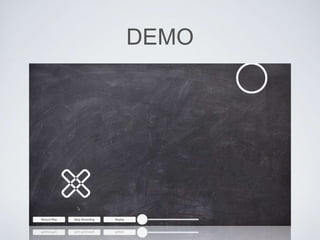
  • #4 This is a video of a demo I put together that demonstrates my recording system which sits atop Unity’s own animation system. You can download this video here: https://youtu.be/FvMBrk-Ee8s
  • #5 The reason why replay timing is hard is because applying the transformations to your Transforms takes time. If you don’t compensate for the time it takes to move Transform A from position 1 to position 2 then your next transformation will end up being slightly behind. All the time spent applying transformations will add up and your replay clip will not match the user’s actions. This can be compensated for with code but its complicated and Unity already solved this problem with their extremely sophisticated animation system.
  • #7 Please note that the named components on this slide are not part of Unity, they are of my own design. You can build out the structure however you want.
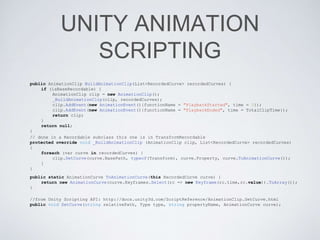
  • #9 Notable pieces: - clip.SetCurve. Paths are resolved hierarchically. the BasePath property is the path to the object being recorded separated by the “/“ character. For Example if we want to record the localPosition.x on a child called “arm” parented to an object called “soldier”, the path would be “soldier/arm” the property would then just be “localPosition.x”. When applying the generated AnimationClip to the base Recordable, the recorded curves will correctly be applied to their child objects. - clip.AddEvent() allows us to add triggers into the animation curve which will fire and execute code for us. Getting notified when the playback is started and completed is trivial to do with these two lines of code.
  • #10 Notable pieces: - clip.AddEvent() allows us to add triggers into the animation curve which will fire and execute code for us. Getting notified when the playback is started and completed is trivial to do with these two lines of code.
  • #11 About the first bullet: There are perhaps ways to leverage Unity’s own serialization tools but they were designed around much more complicated use cases. We just need to write a bunch of text files which isn’t that complicated. About Protocol Buffers: Please note that using Protocol Buffers requires some setup. I have a separate project where I define my data model and use the protobuff compiler to compile the protobuffs from my model into a dll that I include in my Unity project. There is a lot of documentation online about how to use Protocol Buffers. I just use Xamarin Studio to generate the dlls that I need. How to do this is probably a good subject of another presentation.