Virtual Security
Training Lab Setup
OWASP BWA & OWASP ZAP
!

Michael Coates
@_mwc
michael-coates.blogspot.com
Software
•

Vulnerable Server: OWASP’s Webgoat

•

Proxy Tool - OWASP’s ZAP (Zed Attack Proxy)

•

Browser

•

Virtual Machine: OWASP Broken Web App VM
Setup Virtual Environment
Part 1: Setup Virtual Environment
•

Open Virtual Box & import OWASP BWA

•

Select “New”, Type “Linux”, Version “Ubuntu”

•

Memory Size: >512MB

•

Hard Drive: Use existing virtual hard drive file
•

Navigate to the downloaded OWASP BWA and
select “OWASP Broken Web Apps-cl1.vmdk”
Setup Virtual Environment
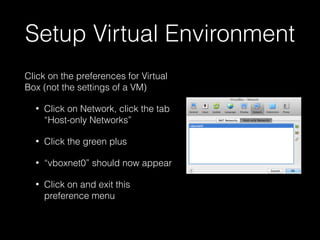
Click on the preferences for Virtual
Box (not the settings of a VM)
•

Click on Network, click the tab
“Host-only Networks”

•

Click the green plus

•

“vboxnet0” should now appear

•

Click on and exit this
preference menu
Setup Virtual Environment
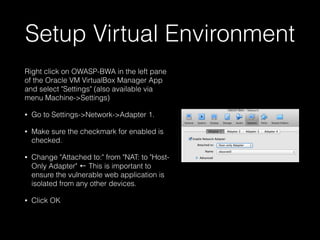
Right click on OWASP-BWA in the left pane
of the Oracle VM VirtualBox Manager App
and select "Settings" (also available via
menu Machine->Settings)
•

Go to Settings->Network->Adapter 1.

•

Make sure the checkmark for enabled is
checked.

•

Change "Attached to:" from "NAT: to "HostOnly Adapter" ← This is important to
ensure the vulnerable web application is
isolated from any other devices.

•

Click OK
Start Up Virtual Machine
•

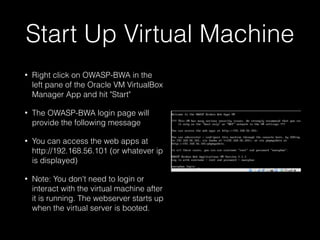
Right click on OWASP-BWA in the
left pane of the Oracle VM VirtualBox
Manager App and hit "Start"

•

The OWASP-BWA login page will
provide the following message

•

You can access the web apps at
http://192.168.56.101 (or whatever ip
is displayed)

•

Note: You don't need to login or
interact with the virtual machine after
it is running. The webserver starts up
when the virtual server is booted.
Test Connectivity to VM
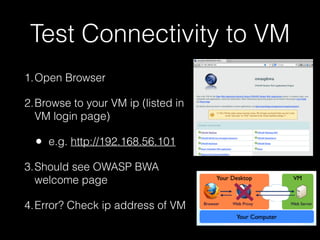
1.Open Browser
2.Browse to your VM ip (listed in
VM login page)

•

e.g. http://192.168.56.101

3.Should see OWASP BWA
welcome page
4.Error? Check ip address of VM
WebGoat
•

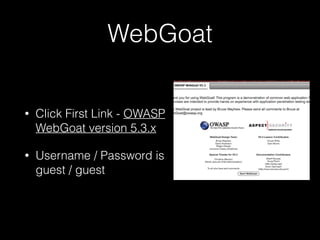
Click First Link - OWASP
WebGoat version 5.3.x

•

Username / Password is
guest / guest
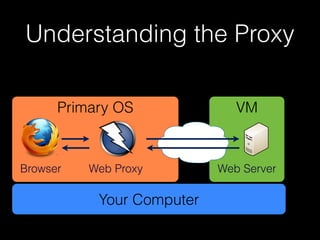
Understanding the Proxy
•

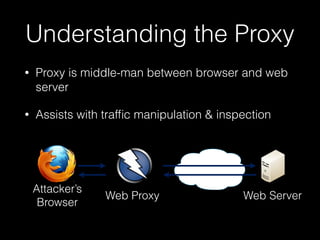
Proxy is middle-man between browser and web
server

•

Assists with traffic manipulation & inspection

Attacker’s
Browser

Web Proxy

Web Server
Understanding the Proxy
Primary OS

Browser

Web Proxy

Your Computer

VM

Web Server
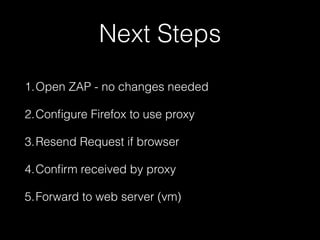
Next Steps
1.Open ZAP - no changes needed
2.Configure Firefox to use proxy
3.Resend Request if browser
4.Confirm received by proxy
5.Forward to web server (vm)
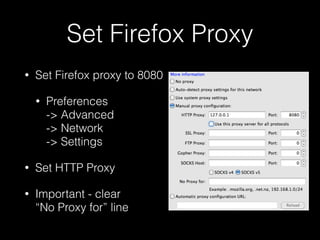
Set Firefox Proxy
•

Set Firefox proxy to 8080
•

Preferences 

-> Advanced 

-> Network 

-> Settings

•

Set HTTP Proxy

•

Important - clear 

“No Proxy for” line
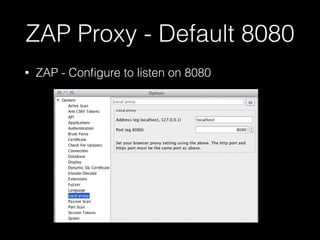
ZAP Proxy - Default 8080
•

ZAP - Configure to listen on 8080
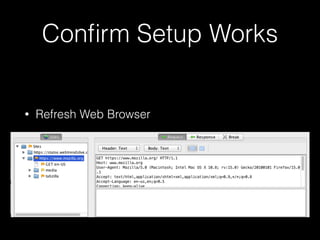
Confirm Setup Works
•

Refresh Web Browser

•

Go to ZAP

•

See site in left-hand column
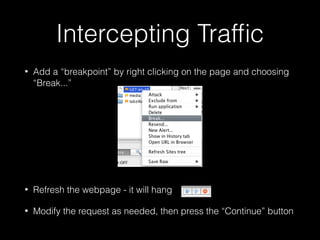
Intercepting Traffic
•

Add a “breakpoint” by right clicking on the page and choosing
“Break...”
!
!
!
!

•

Refresh the webpage - it will hang

•

Modify the request as needed, then press the “Continue” button
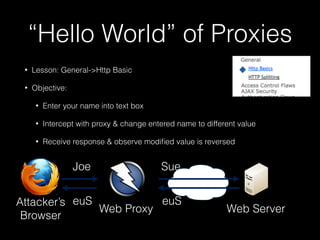
“Hello World” of Proxies
•

Lesson: General->Http Basic

•

Objective:
•

Enter your name into text box

•

Intercept with proxy & change entered name to different value

•

Receive response & observe modified value is reversed

Joe

Sue

euS
Attacker’s euS
Web Proxy
Browser

Web Server
Additional Information
•

http://code.google.com/p/zaproxy/wiki/
Introduction

•

https://www.owasp.org/index.php/
OWASP_Broken_Web_Applications_Project

Virtual Security Lab Setup - OWASP Broken Web Apps, Webgoat, & ZAP

  • 1.
    Virtual Security Training LabSetup OWASP BWA & OWASP ZAP ! Michael Coates @_mwc michael-coates.blogspot.com
  • 2.
    Software • Vulnerable Server: OWASP’sWebgoat • Proxy Tool - OWASP’s ZAP (Zed Attack Proxy) • Browser • Virtual Machine: OWASP Broken Web App VM
  • 3.
    Setup Virtual Environment Part1: Setup Virtual Environment • Open Virtual Box & import OWASP BWA • Select “New”, Type “Linux”, Version “Ubuntu” • Memory Size: >512MB • Hard Drive: Use existing virtual hard drive file • Navigate to the downloaded OWASP BWA and select “OWASP Broken Web Apps-cl1.vmdk”
  • 4.
    Setup Virtual Environment Clickon the preferences for Virtual Box (not the settings of a VM) • Click on Network, click the tab “Host-only Networks” • Click the green plus • “vboxnet0” should now appear • Click on and exit this preference menu
  • 5.
    Setup Virtual Environment Rightclick on OWASP-BWA in the left pane of the Oracle VM VirtualBox Manager App and select "Settings" (also available via menu Machine->Settings) • Go to Settings->Network->Adapter 1. • Make sure the checkmark for enabled is checked. • Change "Attached to:" from "NAT: to "HostOnly Adapter" ← This is important to ensure the vulnerable web application is isolated from any other devices. • Click OK
  • 6.
    Start Up VirtualMachine • Right click on OWASP-BWA in the left pane of the Oracle VM VirtualBox Manager App and hit "Start" • The OWASP-BWA login page will provide the following message • You can access the web apps at http://192.168.56.101 (or whatever ip is displayed) • Note: You don't need to login or interact with the virtual machine after it is running. The webserver starts up when the virtual server is booted.
  • 7.
    Test Connectivity toVM 1.Open Browser 2.Browse to your VM ip (listed in VM login page) • e.g. http://192.168.56.101 3.Should see OWASP BWA welcome page 4.Error? Check ip address of VM
  • 8.
    WebGoat • Click First Link- OWASP WebGoat version 5.3.x • Username / Password is guest / guest
  • 9.
    Understanding the Proxy • Proxyis middle-man between browser and web server • Assists with traffic manipulation & inspection Attacker’s Browser Web Proxy Web Server
  • 10.
    Understanding the Proxy PrimaryOS Browser Web Proxy Your Computer VM Web Server
  • 11.
    Next Steps 1.Open ZAP- no changes needed 2.Configure Firefox to use proxy 3.Resend Request if browser 4.Confirm received by proxy 5.Forward to web server (vm)
  • 12.
    Set Firefox Proxy • SetFirefox proxy to 8080 • Preferences 
 -> Advanced 
 -> Network 
 -> Settings • Set HTTP Proxy • Important - clear 
 “No Proxy for” line
  • 13.
    ZAP Proxy -Default 8080 • ZAP - Configure to listen on 8080
  • 14.
    Confirm Setup Works • RefreshWeb Browser • Go to ZAP • See site in left-hand column
  • 15.
    Intercepting Traffic • Add a“breakpoint” by right clicking on the page and choosing “Break...” ! ! ! ! • Refresh the webpage - it will hang • Modify the request as needed, then press the “Continue” button
  • 16.
    “Hello World” ofProxies • Lesson: General->Http Basic • Objective: • Enter your name into text box • Intercept with proxy & change entered name to different value • Receive response & observe modified value is reversed Joe Sue euS Attacker’s euS Web Proxy Browser Web Server
  • 17.