Deployment Options
Topics Covered:
• PhysicalAppliance Overview
• Reverse ProxyMode
• Bridge-PathMode
• VirtualDeployment
• Public Cloud Hosting
Reverse Proxy Mode
• Requestsand responsesare terminated attheWAF
• Configure whatshould be allowed/inspected
Backend
Servers
Tommy
WAF
Request
Response
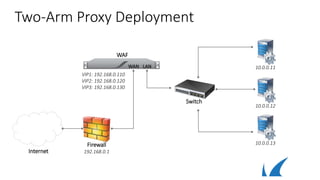
Two-Arm Proxy Deployment
WAF
Switch
Internet
Firewall
192.168.0.1
WAN LAN
10.0.0.13
10.0.0.11
10.0.0.12
VIP1: 192.168.0.110
VIP2: 192.168.0.120
VIP3: 192.168.0.130
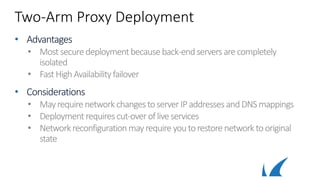
Two-Arm Proxy Deployment
• Advantages
• Most secure deploymentbecauseback-endservers arecompletely
isolated
• FastHighAvailabilityfailover
• Considerations
• Mayrequirenetworkchangestoserver IPaddressesandDNSmappings
• Deploymentrequirescut-overoflive services
• Networkreconfigurationmayrequire youtorestore networktooriginal
state
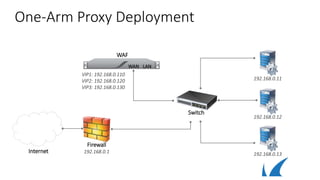
One-Arm Proxy Deployment
WAF
Internet
Firewall
192.168.0.1
WAN LAN
Switch
192.168.0.13
192.168.0.11
192.168.0.12
VIP1: 192.168.0.110
VIP2: 192.168.0.120
VIP3: 192.168.0.130
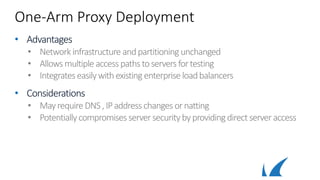
One-Arm Proxy Deployment
• Advantages
• Networkinfrastructure andpartitioningunchanged
• Allowsmultiple accesspathstoservers fortesting
• Integrateseasilywithexisting enterpriseloadbalancers
• Considerations
• Mayrequire DNS,IPaddresschangesornatting
• Potentiallycompromises serversecurity byprovidingdirectserveraccess
WAF
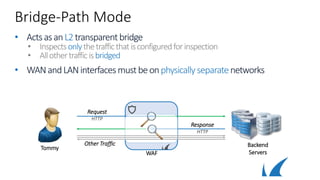
Bridge-Path Mode
• ActsasanL2transparentbridge
• Inspectsonlythetrafficthatisconfiguredforinspection
• Allothertrafficisbridged
• WANandLANinterfacesmustbeonphysically separatenetworks
Backend
Servers
Tommy
Other Traffic
Request
HTTP
Response
HTTP
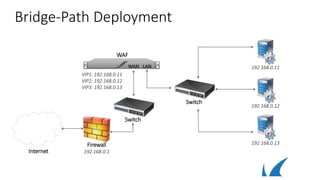
Bridge-Path Deployment
WAF
Switch
Internet
Firewall
192.168.0.1
WAN LAN
192.168.0.13
192.168.0.11
192.168.0.12
VIP1: 192.168.0.11
VIP2: 192.168.0.12
VIP3: 192.168.0.13
Switch
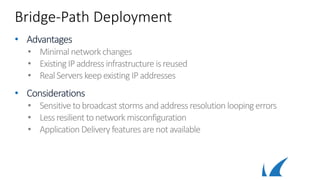
Bridge-Path Deployment
• Advantages
• Minimalnetworkchanges
• Existing IPaddressinfrastructure isreused
• RealServers keepexisting IPaddresses
• Considerations
• Sensitive tobroadcaststorms andaddressresolution loopingerrors
• Lessresilient tonetworkmisconfiguration
• ApplicationDeliveryfeaturesarenotavailable
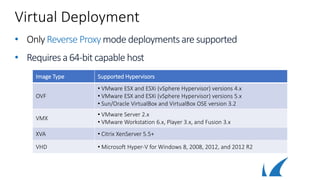
Virtual Deployment
• Only Reverse Proxymode deploymentsare supported
• Requiresa64-bit capable host
Image Type Supported Hypervisors
OVF
• VMware ESX and ESXi (vSphere Hypervisor) versions 4.x
• VMware ESX and ESXi (vSphere Hypervisor) versions 5.x
• Sun/Oracle VirtualBox and VirtualBox OSE version 3.2
VMX
• VMware Server 2.x
• VMware Workstation 6.x, Player 3.x, and Fusion 3.x
XVA • Citrix XenServer 5.5+
VHD • Microsoft Hyper-V for Windows 8, 2008, 2012, and 2012 R2
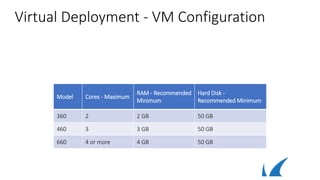
Virtual Deployment - VM Configuration
Model Cores - Maximum
RAM - Recommended
Minimum
Hard Disk -
Recommended Minimum
360 2 2 GB 50 GB
460 3 3 GB 50 GB
660 4 or more 4 GB 50 GB
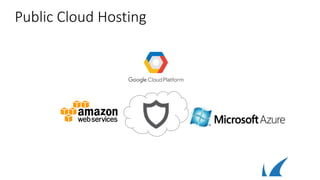
Public Cloud Hosting
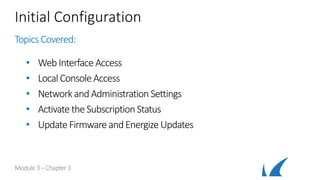
Initial Configuration
Topics Covered:
• Web Interface Access
• Local Console Access
• Networkand Administration Settings
• Activate theSubscriptionStatus
• UpdateFirmware andEnergize Updates
Module 3–Chapter 3
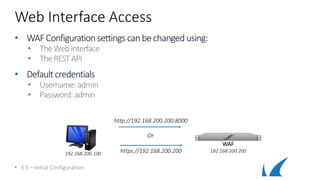
Web Interface Access
• WAFConfiguration settings canbechanged using:
• TheWebInterface
• TheRESTAPI
• Defaultcredentials
• Username:admin
• Password:admin
• 3.3 – Initial Configuration
192.168.200.100
WAF
192.168.200.200
http://192.168.200.200:8000
https://192.168.200.200
Or
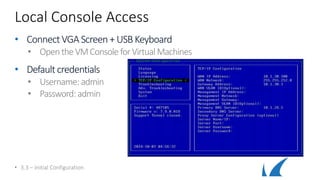
Local Console Access
• ConnectVGA Screen+ USBKeyboard
• OpentheVMConsole forVirtualMachines
• Default credentials
• Username: admin
• Password: admin
• 3.3 – Initial Configuration
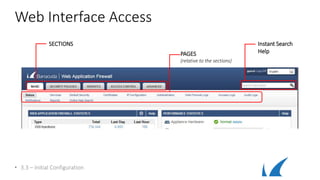
Web Interface Access
• 3.3 – Initial Configuration
SECTIONS
PAGES
(relative to the sections)
Instant Search
Help
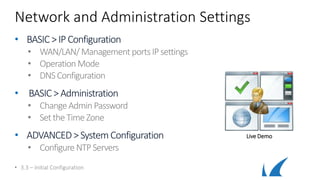
Network and Administration Settings
• BASIC >IP Configuration
• WAN/LAN/ ManagementportsIPsettings
• OperationMode
• DNSConfiguration
• BASIC > Administration
• ChangeAdmin Password
• SettheTimeZone
• ADVANCED>SystemConfiguration
• Configure NTPServers
• 3.3 – Initial Configuration
Live Demo
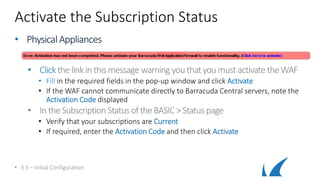
Activate the Subscription Status
• PhysicalAppliances
• Clickthelinkinthismessage warningyouthatyoumust activatetheWAF
• Fill in the required fields in the pop-up window and click Activate
• If the WAF cannot communicate directly to Barracuda Central servers, note the
Activation Code displayed
• IntheSubscription StatusoftheBASIC>Status page
• Verify that your subscriptions are Current
• If required, enter the Activation Code and then click Activate
• 3.3 – Initial Configuration
Activate the Subscription Status
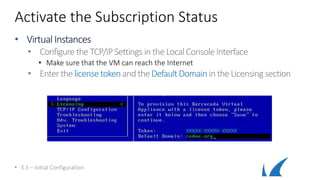
• VirtualInstances
• Configure theTCP/IPSettings inthe LocalConsole Interface
• Make sure that the VM can reach the Internet
• EnterthelicensetokenandtheDefaultDomainintheLicensing section
• 3.3 – Initial Configuration
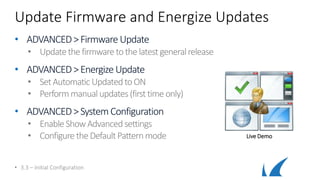
Update Firmware and Energize Updates
• ADVANCED>FirmwareUpdate
• Updatethe firmware tothe latestgeneralrelease
• ADVANCED>Energize Update
• SetAutomatic UpdatedtoON
• Performmanualupdates(first time only)
• ADVANCED>SystemConfiguration
• Enable ShowAdvancedsettings
• Configure theDefaultPatternmode
• 3.3 – Initial Configuration
Live Demo
Services
Topics Covered:
• Overview
• Services Types
• SSLServices
• InstantSSL
• HTTP andHTTPS Service configuration
Module 3–Chapter 4
Services Overview
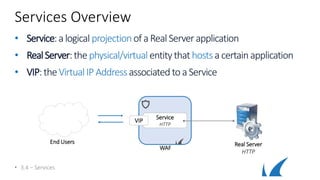
• Service:a logical projection of aReal Server application
• RealServer:the physical/virtual entitythat hostsacertain application
• VIP:theVirtualIP Addressassociated to aService
• 3.4 – Services
WAF
End Users Real Server
HTTP
Service
HTTP
VIP
Services Types
• Services dependon thetypeof application hostedontheReal Servers
• Services available inReverse ProxyMode:
• HTTPandHTTPSServices
• FTPandFTPSServices
• InstantSSLandRedirectServices
• CustomandCustom SSLServices (noUDPtraffic)
• Services available inBridge Mode:
• HTTPandHTTPSServices
• 3.4 – Services
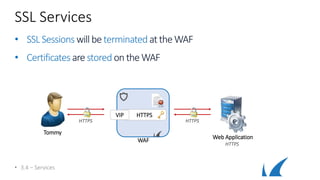
SSL Services
• SSLSessions will be terminated attheWAF
• Certificates are stored on theWAF
• 3.4 – Services
WAF
HTTPSVIP
Tommy
Web Application
HTTPS
HTTPS HTTPS
Instant SSL
• Securesan HTTP webapplicationwith HTTPS
• Creates twoservices withsame VIP (HTTP[80] / HTTPS[443])
• RedirectsHTTP requeststo theHTTPS Service
• RewritesHTTP to HTTPS in response body
• 3.4 – Services
WAF
HTTP
HTTPS
VIP
Web Application
HTTP
Redirect to HTTPS
1st HTTP Request
HTTPWT
Response Rewrite
Tommy
WAF
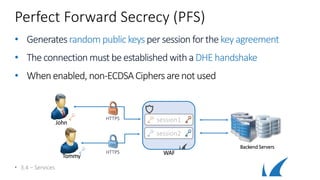
Perfect Forward Secrecy (PFS)
• Generatesrandompublic keyspersession forthekeyagreement
• The connection must be established witha DHE handshake
• When enabled, non-ECDSACiphersarenot used
• 3.4 – Services
HTTPS
HTTPS
Backend Servers
John
Tommy
session1
session2
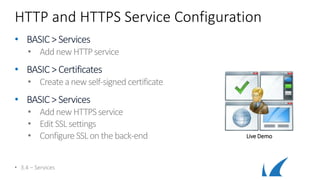
HTTP and HTTPS Service Configuration
• BASIC >Services
• AddnewHTTPservice
• BASIC >Certificates
• Createanewself-signed certificate
• BASIC >Services
• AddnewHTTPSservice
• Edit SSLsettings
• Configure SSLonthe back-end
• 3.4 – Services
Live Demo

WAF deployment

  • 1.
    Deployment Options Topics Covered: •PhysicalAppliance Overview • Reverse ProxyMode • Bridge-PathMode • VirtualDeployment • Public Cloud Hosting
  • 2.
    Reverse Proxy Mode •Requestsand responsesare terminated attheWAF • Configure whatshould be allowed/inspected Backend Servers Tommy WAF Request Response
  • 3.
    Two-Arm Proxy Deployment WAF Switch Internet Firewall 192.168.0.1 WANLAN 10.0.0.13 10.0.0.11 10.0.0.12 VIP1: 192.168.0.110 VIP2: 192.168.0.120 VIP3: 192.168.0.130
  • 4.
    Two-Arm Proxy Deployment •Advantages • Most secure deploymentbecauseback-endservers arecompletely isolated • FastHighAvailabilityfailover • Considerations • Mayrequirenetworkchangestoserver IPaddressesandDNSmappings • Deploymentrequirescut-overoflive services • Networkreconfigurationmayrequire youtorestore networktooriginal state
  • 5.
    One-Arm Proxy Deployment WAF Internet Firewall 192.168.0.1 WANLAN Switch 192.168.0.13 192.168.0.11 192.168.0.12 VIP1: 192.168.0.110 VIP2: 192.168.0.120 VIP3: 192.168.0.130
  • 6.
    One-Arm Proxy Deployment •Advantages • Networkinfrastructure andpartitioningunchanged • Allowsmultiple accesspathstoservers fortesting • Integrateseasilywithexisting enterpriseloadbalancers • Considerations • Mayrequire DNS,IPaddresschangesornatting • Potentiallycompromises serversecurity byprovidingdirectserveraccess
  • 7.
    WAF Bridge-Path Mode • ActsasanL2transparentbridge •Inspectsonlythetrafficthatisconfiguredforinspection • Allothertrafficisbridged • WANandLANinterfacesmustbeonphysically separatenetworks Backend Servers Tommy Other Traffic Request HTTP Response HTTP
  • 8.
  • 9.
    Bridge-Path Deployment • Advantages •Minimalnetworkchanges • Existing IPaddressinfrastructure isreused • RealServers keepexisting IPaddresses • Considerations • Sensitive tobroadcaststorms andaddressresolution loopingerrors • Lessresilient tonetworkmisconfiguration • ApplicationDeliveryfeaturesarenotavailable
  • 10.
    Virtual Deployment • OnlyReverse Proxymode deploymentsare supported • Requiresa64-bit capable host Image Type Supported Hypervisors OVF • VMware ESX and ESXi (vSphere Hypervisor) versions 4.x • VMware ESX and ESXi (vSphere Hypervisor) versions 5.x • Sun/Oracle VirtualBox and VirtualBox OSE version 3.2 VMX • VMware Server 2.x • VMware Workstation 6.x, Player 3.x, and Fusion 3.x XVA • Citrix XenServer 5.5+ VHD • Microsoft Hyper-V for Windows 8, 2008, 2012, and 2012 R2
  • 11.
    Virtual Deployment -VM Configuration Model Cores - Maximum RAM - Recommended Minimum Hard Disk - Recommended Minimum 360 2 2 GB 50 GB 460 3 3 GB 50 GB 660 4 or more 4 GB 50 GB
  • 12.
  • 13.
    Initial Configuration Topics Covered: •Web Interface Access • Local Console Access • Networkand Administration Settings • Activate theSubscriptionStatus • UpdateFirmware andEnergize Updates Module 3–Chapter 3
  • 14.
    Web Interface Access •WAFConfiguration settings canbechanged using: • TheWebInterface • TheRESTAPI • Defaultcredentials • Username:admin • Password:admin • 3.3 – Initial Configuration 192.168.200.100 WAF 192.168.200.200 http://192.168.200.200:8000 https://192.168.200.200 Or
  • 15.
    Local Console Access •ConnectVGA Screen+ USBKeyboard • OpentheVMConsole forVirtualMachines • Default credentials • Username: admin • Password: admin • 3.3 – Initial Configuration
  • 16.
    Web Interface Access •3.3 – Initial Configuration SECTIONS PAGES (relative to the sections) Instant Search Help
  • 17.
    Network and AdministrationSettings • BASIC >IP Configuration • WAN/LAN/ ManagementportsIPsettings • OperationMode • DNSConfiguration • BASIC > Administration • ChangeAdmin Password • SettheTimeZone • ADVANCED>SystemConfiguration • Configure NTPServers • 3.3 – Initial Configuration Live Demo
  • 18.
    Activate the SubscriptionStatus • PhysicalAppliances • Clickthelinkinthismessage warningyouthatyoumust activatetheWAF • Fill in the required fields in the pop-up window and click Activate • If the WAF cannot communicate directly to Barracuda Central servers, note the Activation Code displayed • IntheSubscription StatusoftheBASIC>Status page • Verify that your subscriptions are Current • If required, enter the Activation Code and then click Activate • 3.3 – Initial Configuration
  • 19.
    Activate the SubscriptionStatus • VirtualInstances • Configure theTCP/IPSettings inthe LocalConsole Interface • Make sure that the VM can reach the Internet • EnterthelicensetokenandtheDefaultDomainintheLicensing section • 3.3 – Initial Configuration
  • 20.
    Update Firmware andEnergize Updates • ADVANCED>FirmwareUpdate • Updatethe firmware tothe latestgeneralrelease • ADVANCED>Energize Update • SetAutomatic UpdatedtoON • Performmanualupdates(first time only) • ADVANCED>SystemConfiguration • Enable ShowAdvancedsettings • Configure theDefaultPatternmode • 3.3 – Initial Configuration Live Demo
  • 21.
    Services Topics Covered: • Overview •Services Types • SSLServices • InstantSSL • HTTP andHTTPS Service configuration Module 3–Chapter 4
  • 22.
    Services Overview • Service:alogical projection of aReal Server application • RealServer:the physical/virtual entitythat hostsacertain application • VIP:theVirtualIP Addressassociated to aService • 3.4 – Services WAF End Users Real Server HTTP Service HTTP VIP
  • 23.
    Services Types • Servicesdependon thetypeof application hostedontheReal Servers • Services available inReverse ProxyMode: • HTTPandHTTPSServices • FTPandFTPSServices • InstantSSLandRedirectServices • CustomandCustom SSLServices (noUDPtraffic) • Services available inBridge Mode: • HTTPandHTTPSServices • 3.4 – Services
  • 24.
    SSL Services • SSLSessionswill be terminated attheWAF • Certificates are stored on theWAF • 3.4 – Services WAF HTTPSVIP Tommy Web Application HTTPS HTTPS HTTPS
  • 25.
    Instant SSL • SecuresanHTTP webapplicationwith HTTPS • Creates twoservices withsame VIP (HTTP[80] / HTTPS[443]) • RedirectsHTTP requeststo theHTTPS Service • RewritesHTTP to HTTPS in response body • 3.4 – Services WAF HTTP HTTPS VIP Web Application HTTP Redirect to HTTPS 1st HTTP Request HTTPWT Response Rewrite Tommy
  • 26.
    WAF Perfect Forward Secrecy(PFS) • Generatesrandompublic keyspersession forthekeyagreement • The connection must be established witha DHE handshake • When enabled, non-ECDSACiphersarenot used • 3.4 – Services HTTPS HTTPS Backend Servers John Tommy session1 session2
  • 27.
    HTTP and HTTPSService Configuration • BASIC >Services • AddnewHTTPservice • BASIC >Certificates • Createanewself-signed certificate • BASIC >Services • AddnewHTTPSservice • Edit SSLsettings • Configure SSLonthe back-end • 3.4 – Services Live Demo