Java
GUI building with the AWT
2
AWT (Abstract Window Toolkit)
 Present in all Java implementations
 Described in most Java textbooks
 Adequate for many applications
 Uses the controls defined by your OS
 therefore it's “least common denominator”
 Difficult to build an attractive GUI
 import java.awt.*;
import java.awt.event.*;
3
Swing
 Same concepts as AWT
 Doesn’t work in ancient Java implementations
(Java 1.1 and earlier)
 Many more controls, and they are more flexible
 Some controls, but not all, are a lot more complicated
 Gives a choice of “look and feel” packages
 Much easier to build an attractive GUI
 import javax.swing.*;
4
Swing vs. AWT
 Swing is bigger, slower, and more complicated
 But much faster than it used to be
 Swing is more flexible and better looking
 Swing and AWT are incompatible--you can use
either, but you can’t mix them
 Actually, you can, but it’s tricky and not worth doing
 Learning the AWT is a good start on learning Swing
 Many of the most common controls are just renamed
 AWT: Button b = new Button ("OK");
Swing: JButton b = new JButton("OK");
5
To build a GUI...
 Make somewhere to display things—usually a
Frame or Dialog (for an application), or an Applet
 Create some Components, such as buttons, text
areas, panels, etc.
 Add your Components to your display area
 Arrange, or lay out, your Components
 Attach Listeners to your Components
 Interacting with a Component causes an Event to occur
 A Listener gets a message when an interesting event
occurs, and executes some code to deal with it
6
Containers and Components
 The job of a Container is to hold and display
Components
 Some common subclasses of Component are Button,
Checkbox, Label, Scrollbar, TextField, and
TextArea
 A Container is also a Component
 This allows Containers to be nested
 Some Container subclasses are Panel (and Applet),
Window, and Frame
7
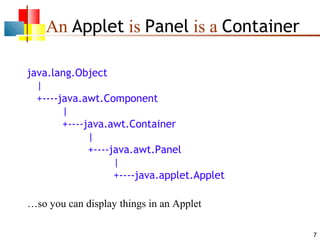
An Applet is Panel is a Container
java.lang.Object
|
+----java.awt.Component
|
+----java.awt.Container
|
+----java.awt.Panel
|
+----java.applet.Applet
…so you can display things in an Applet
8
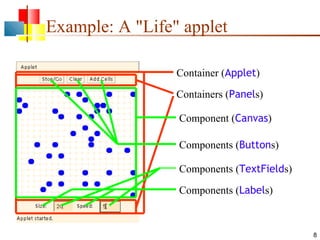
Example: A "Life" applet
Container (Applet)
Containers (Panels)
Component (Canvas)
Components (Buttons)
Components (Labels)
Components (TextFields)
9
Applets
 An application has a
public static void main(String args[ ]) method, but
an Applet usually does not
 An Applet's main method is in the Browser
 To write an Applet, you extend Applet and override
some of its methods
 The most important methods are init( ), start( ), and
paint(Graphics g)
10
To create an applet
 public class MyApplet extends Applet { … }
 this is the only way to make an Applet
 You can add components to the applet
 The best place to add components is in init( )
 You can paint directly on the applet, but…
 …it’s better to paint on a contained component
 Do all painting from paint(Graphics g)
11
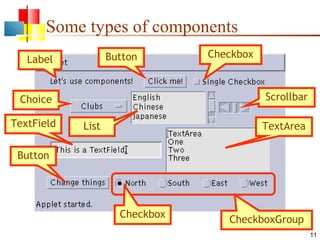
Some types of components
Label Button
Button
Checkbox
Choice
List
Scrollbar
TextField TextArea
CheckboxGroup
Checkbox
12
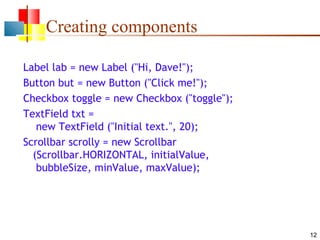
Creating components
Label lab = new Label ("Hi, Dave!");
Button but = new Button ("Click me!");
Checkbox toggle = new Checkbox ("toggle");
TextField txt =
new TextField ("Initial text.", 20);
Scrollbar scrolly = new Scrollbar
(Scrollbar.HORIZONTAL, initialValue,
bubbleSize, minValue, maxValue);
13
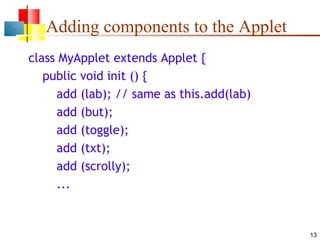
Adding components to the Applet
class MyApplet extends Applet {
public void init () {
add (lab); // same as this.add(lab)
add (but);
add (toggle);
add (txt);
add (scrolly);
...
14
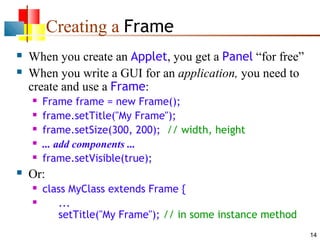
Creating a Frame
 When you create an Applet, you get a Panel “for free”
 When you write a GUI for an application, you need to
create and use a Frame:
 Frame frame = new Frame();
 frame.setTitle("My Frame");
 frame.setSize(300, 200); // width, height
 ... add components ...
 frame.setVisible(true);
 Or:
 class MyClass extends Frame {
 ...
setTitle("My Frame"); // in some instance method
15
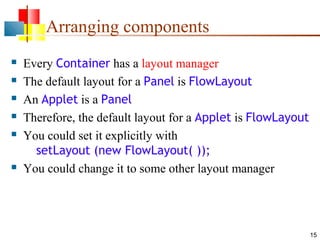
Arranging components
 Every Container has a layout manager
 The default layout for a Panel is FlowLayout
 An Applet is a Panel
 Therefore, the default layout for a Applet is FlowLayout
 You could set it explicitly with
setLayout (new FlowLayout( ));
 You could change it to some other layout manager
16
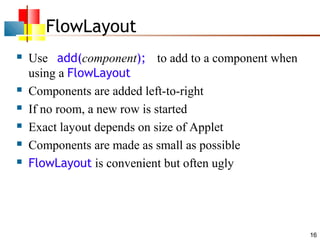
FlowLayout
 Use add(component); to add to a component when
using a FlowLayout
 Components are added left-to-right
 If no room, a new row is started
 Exact layout depends on size of Applet
 Components are made as small as possible
 FlowLayout is convenient but often ugly
17
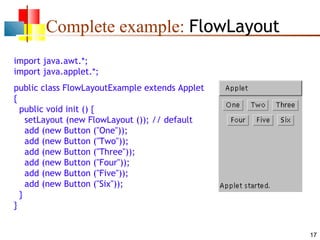
Complete example: FlowLayout
import java.awt.*;
import java.applet.*;
public class FlowLayoutExample extends Applet
{
public void init () {
setLayout (new FlowLayout ()); // default
add (new Button ("One"));
add (new Button ("Two"));
add (new Button ("Three"));
add (new Button ("Four"));
add (new Button ("Five"));
add (new Button ("Six"));
}
}
18
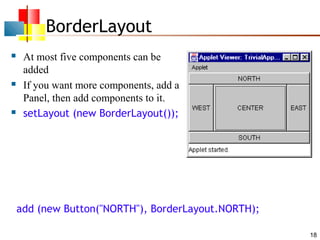
BorderLayout
 At most five components can be
added
 If you want more components, add a
Panel, then add components to it.
 setLayout (new BorderLayout());
add (new Button("NORTH"), BorderLayout.NORTH);
19
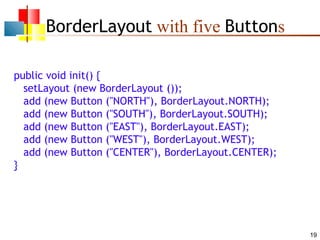
BorderLayout with five Buttons
public void init() {
setLayout (new BorderLayout ());
add (new Button ("NORTH"), BorderLayout.NORTH);
add (new Button ("SOUTH"), BorderLayout.SOUTH);
add (new Button ("EAST"), BorderLayout.EAST);
add (new Button ("WEST"), BorderLayout.WEST);
add (new Button ("CENTER"), BorderLayout.CENTER);
}
20
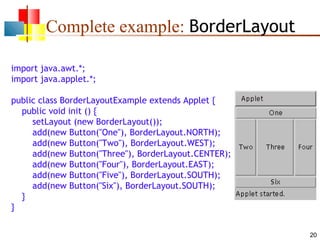
Complete example: BorderLayout
import java.awt.*;
import java.applet.*;
public class BorderLayoutExample extends Applet {
public void init () {
setLayout (new BorderLayout());
add(new Button("One"), BorderLayout.NORTH);
add(new Button("Two"), BorderLayout.WEST);
add(new Button("Three"), BorderLayout.CENTER);
add(new Button("Four"), BorderLayout.EAST);
add(new Button("Five"), BorderLayout.SOUTH);
add(new Button("Six"), BorderLayout.SOUTH);
}
}
21
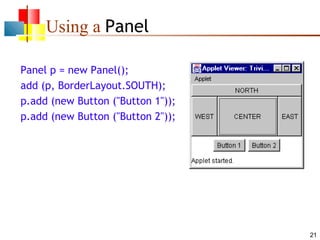
Using a Panel
Panel p = new Panel();
add (p, BorderLayout.SOUTH);
p.add (new Button ("Button 1"));
p.add (new Button ("Button 2"));
22
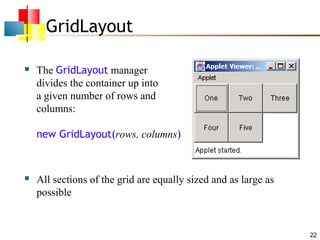
GridLayout
 The GridLayout manager
divides the container up into
a given number of rows and
columns:
new GridLayout(rows, columns)
 All sections of the grid are equally sized and as large as
possible
23
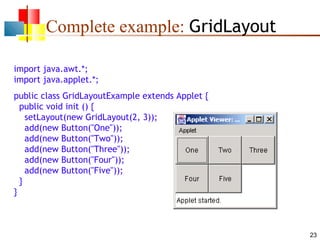
Complete example: GridLayout
import java.awt.*;
import java.applet.*;
public class GridLayoutExample extends Applet {
public void init () {
setLayout(new GridLayout(2, 3));
add(new Button("One"));
add(new Button("Two"));
add(new Button("Three"));
add(new Button("Four"));
add(new Button("Five"));
}
}
24
Making components active
 Most components already appear to do something--
buttons click, text appears
 To associate an action with a component, attach a
listener to it
 Components send events, listeners listen for events
 Different components may send different events, and
require different listeners
25
Listeners
 Listeners are interfaces, not classes
 class MyButtonListener implements
ActionListener {
 An interface is a group of methods that must be supplied
 When you say implements, you are promising to
supply those methods
26
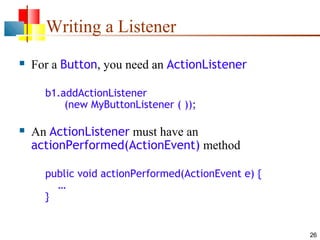
Writing a Listener
 For a Button, you need an ActionListener
b1.addActionListener
(new MyButtonListener ( ));
 An ActionListener must have an
actionPerformed(ActionEvent) method
public void actionPerformed(ActionEvent e) {
…
}
27
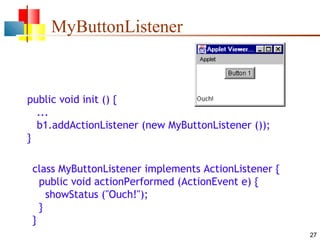
MyButtonListener
public void init () {
...
b1.addActionListener (new MyButtonListener ());
}
class MyButtonListener implements ActionListener {
public void actionPerformed (ActionEvent e) {
showStatus ("Ouch!");
}
}
28
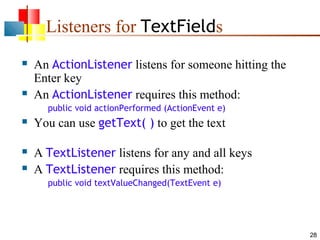
Listeners for TextFields
 An ActionListener listens for someone hitting the
Enter key
 An ActionListener requires this method:
public void actionPerformed (ActionEvent e)
 You can use getText( ) to get the text
 A TextListener listens for any and all keys
 A TextListener requires this method:
public void textValueChanged(TextEvent e)
29
When not to use listeners
 Some GUI elements are active—the user expects them to do
something
 Buttons and some menu items are active
 When an active element is used, the program should do something, and
should look like it’s done something!
 Most GUI elements are passive
 Text fields, text areas, checkboxes, radio buttons, pulldown lists—these
provide data or flags, but don’t (shouldn’t) cause the program to actually
do anything
 The appearance of the passive element changes, but that’s all
 In general, it’s a bad idea to put listeners on passive elements
 Active GUI elements should get the state of passive elements as
needed
 For example, clicking a button might cause the program to do getText()
30
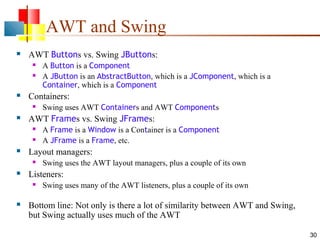
AWT and Swing
 AWT Buttons vs. Swing JButtons:
 A Button is a Component
 A JButton is an AbstractButton, which is a JComponent, which is a
Container, which is a Component
 Containers:
 Swing uses AWT Containers and AWT Components
 AWT Frames vs. Swing JFrames:
 A Frame is a Window is a Container is a Component
 A JFrame is a Frame, etc.
 Layout managers:
 Swing uses the AWT layout managers, plus a couple of its own
 Listeners:
 Swing uses many of the AWT listeners, plus a couple of its own
 Bottom line: Not only is there a lot of similarity between AWT and Swing,
but Swing actually uses much of the AWT
31
Summary I: Building a GUI
 Create a container, such as Frame or Applet
 Choose a layout manager
 Create more complex layouts by adding Panels; each
Panel can have its own layout manager
 Create other components and add them to whichever
Panels you like
32
Summary II: Building a GUI
 For each active component, look up what kind of
Listeners it can have
 Create (implement) the Listeners
 often there is one Listener for each active component
 Active components can share the same Listener
 For each Listener you implement, supply the methods
that it requires
 For Applets, write the necessary HTML
33
Vocabulary
 AWT – The Abstract Window Toolkit provides basic graphics
tools (tools for putting information on the screen)
 Swing – A much better set of graphics tools
 Container – a graphic element that can hold other graphic
elements (and is itself a Component)
 Component – a graphic element (such as a Button or a
TextArea) provided by a graphics toolkit
 listener – A piece of code that is activated when a particular kind
of event occurs
 layout manager – An object whose job it is to arrange
Components in a Container
34
The End

28 awt

  • 1.
  • 2.
    2 AWT (Abstract WindowToolkit)  Present in all Java implementations  Described in most Java textbooks  Adequate for many applications  Uses the controls defined by your OS  therefore it's “least common denominator”  Difficult to build an attractive GUI  import java.awt.*; import java.awt.event.*;
  • 3.
    3 Swing  Same conceptsas AWT  Doesn’t work in ancient Java implementations (Java 1.1 and earlier)  Many more controls, and they are more flexible  Some controls, but not all, are a lot more complicated  Gives a choice of “look and feel” packages  Much easier to build an attractive GUI  import javax.swing.*;
  • 4.
    4 Swing vs. AWT Swing is bigger, slower, and more complicated  But much faster than it used to be  Swing is more flexible and better looking  Swing and AWT are incompatible--you can use either, but you can’t mix them  Actually, you can, but it’s tricky and not worth doing  Learning the AWT is a good start on learning Swing  Many of the most common controls are just renamed  AWT: Button b = new Button ("OK"); Swing: JButton b = new JButton("OK");
  • 5.
    5 To build aGUI...  Make somewhere to display things—usually a Frame or Dialog (for an application), or an Applet  Create some Components, such as buttons, text areas, panels, etc.  Add your Components to your display area  Arrange, or lay out, your Components  Attach Listeners to your Components  Interacting with a Component causes an Event to occur  A Listener gets a message when an interesting event occurs, and executes some code to deal with it
  • 6.
    6 Containers and Components The job of a Container is to hold and display Components  Some common subclasses of Component are Button, Checkbox, Label, Scrollbar, TextField, and TextArea  A Container is also a Component  This allows Containers to be nested  Some Container subclasses are Panel (and Applet), Window, and Frame
  • 7.
    7 An Applet isPanel is a Container java.lang.Object | +----java.awt.Component | +----java.awt.Container | +----java.awt.Panel | +----java.applet.Applet …so you can display things in an Applet
  • 8.
    8 Example: A "Life"applet Container (Applet) Containers (Panels) Component (Canvas) Components (Buttons) Components (Labels) Components (TextFields)
  • 9.
    9 Applets  An applicationhas a public static void main(String args[ ]) method, but an Applet usually does not  An Applet's main method is in the Browser  To write an Applet, you extend Applet and override some of its methods  The most important methods are init( ), start( ), and paint(Graphics g)
  • 10.
    10 To create anapplet  public class MyApplet extends Applet { … }  this is the only way to make an Applet  You can add components to the applet  The best place to add components is in init( )  You can paint directly on the applet, but…  …it’s better to paint on a contained component  Do all painting from paint(Graphics g)
  • 11.
    11 Some types ofcomponents Label Button Button Checkbox Choice List Scrollbar TextField TextArea CheckboxGroup Checkbox
  • 12.
    12 Creating components Label lab= new Label ("Hi, Dave!"); Button but = new Button ("Click me!"); Checkbox toggle = new Checkbox ("toggle"); TextField txt = new TextField ("Initial text.", 20); Scrollbar scrolly = new Scrollbar (Scrollbar.HORIZONTAL, initialValue, bubbleSize, minValue, maxValue);
  • 13.
    13 Adding components tothe Applet class MyApplet extends Applet { public void init () { add (lab); // same as this.add(lab) add (but); add (toggle); add (txt); add (scrolly); ...
  • 14.
    14 Creating a Frame When you create an Applet, you get a Panel “for free”  When you write a GUI for an application, you need to create and use a Frame:  Frame frame = new Frame();  frame.setTitle("My Frame");  frame.setSize(300, 200); // width, height  ... add components ...  frame.setVisible(true);  Or:  class MyClass extends Frame {  ... setTitle("My Frame"); // in some instance method
  • 15.
    15 Arranging components  EveryContainer has a layout manager  The default layout for a Panel is FlowLayout  An Applet is a Panel  Therefore, the default layout for a Applet is FlowLayout  You could set it explicitly with setLayout (new FlowLayout( ));  You could change it to some other layout manager
  • 16.
    16 FlowLayout  Use add(component);to add to a component when using a FlowLayout  Components are added left-to-right  If no room, a new row is started  Exact layout depends on size of Applet  Components are made as small as possible  FlowLayout is convenient but often ugly
  • 17.
    17 Complete example: FlowLayout importjava.awt.*; import java.applet.*; public class FlowLayoutExample extends Applet { public void init () { setLayout (new FlowLayout ()); // default add (new Button ("One")); add (new Button ("Two")); add (new Button ("Three")); add (new Button ("Four")); add (new Button ("Five")); add (new Button ("Six")); } }
  • 18.
    18 BorderLayout  At mostfive components can be added  If you want more components, add a Panel, then add components to it.  setLayout (new BorderLayout()); add (new Button("NORTH"), BorderLayout.NORTH);
  • 19.
    19 BorderLayout with fiveButtons public void init() { setLayout (new BorderLayout ()); add (new Button ("NORTH"), BorderLayout.NORTH); add (new Button ("SOUTH"), BorderLayout.SOUTH); add (new Button ("EAST"), BorderLayout.EAST); add (new Button ("WEST"), BorderLayout.WEST); add (new Button ("CENTER"), BorderLayout.CENTER); }
  • 20.
    20 Complete example: BorderLayout importjava.awt.*; import java.applet.*; public class BorderLayoutExample extends Applet { public void init () { setLayout (new BorderLayout()); add(new Button("One"), BorderLayout.NORTH); add(new Button("Two"), BorderLayout.WEST); add(new Button("Three"), BorderLayout.CENTER); add(new Button("Four"), BorderLayout.EAST); add(new Button("Five"), BorderLayout.SOUTH); add(new Button("Six"), BorderLayout.SOUTH); } }
  • 21.
    21 Using a Panel Panelp = new Panel(); add (p, BorderLayout.SOUTH); p.add (new Button ("Button 1")); p.add (new Button ("Button 2"));
  • 22.
    22 GridLayout  The GridLayoutmanager divides the container up into a given number of rows and columns: new GridLayout(rows, columns)  All sections of the grid are equally sized and as large as possible
  • 23.
    23 Complete example: GridLayout importjava.awt.*; import java.applet.*; public class GridLayoutExample extends Applet { public void init () { setLayout(new GridLayout(2, 3)); add(new Button("One")); add(new Button("Two")); add(new Button("Three")); add(new Button("Four")); add(new Button("Five")); } }
  • 24.
    24 Making components active Most components already appear to do something-- buttons click, text appears  To associate an action with a component, attach a listener to it  Components send events, listeners listen for events  Different components may send different events, and require different listeners
  • 25.
    25 Listeners  Listeners areinterfaces, not classes  class MyButtonListener implements ActionListener {  An interface is a group of methods that must be supplied  When you say implements, you are promising to supply those methods
  • 26.
    26 Writing a Listener For a Button, you need an ActionListener b1.addActionListener (new MyButtonListener ( ));  An ActionListener must have an actionPerformed(ActionEvent) method public void actionPerformed(ActionEvent e) { … }
  • 27.
    27 MyButtonListener public void init() { ... b1.addActionListener (new MyButtonListener ()); } class MyButtonListener implements ActionListener { public void actionPerformed (ActionEvent e) { showStatus ("Ouch!"); } }
  • 28.
    28 Listeners for TextFields An ActionListener listens for someone hitting the Enter key  An ActionListener requires this method: public void actionPerformed (ActionEvent e)  You can use getText( ) to get the text  A TextListener listens for any and all keys  A TextListener requires this method: public void textValueChanged(TextEvent e)
  • 29.
    29 When not touse listeners  Some GUI elements are active—the user expects them to do something  Buttons and some menu items are active  When an active element is used, the program should do something, and should look like it’s done something!  Most GUI elements are passive  Text fields, text areas, checkboxes, radio buttons, pulldown lists—these provide data or flags, but don’t (shouldn’t) cause the program to actually do anything  The appearance of the passive element changes, but that’s all  In general, it’s a bad idea to put listeners on passive elements  Active GUI elements should get the state of passive elements as needed  For example, clicking a button might cause the program to do getText()
  • 30.
    30 AWT and Swing AWT Buttons vs. Swing JButtons:  A Button is a Component  A JButton is an AbstractButton, which is a JComponent, which is a Container, which is a Component  Containers:  Swing uses AWT Containers and AWT Components  AWT Frames vs. Swing JFrames:  A Frame is a Window is a Container is a Component  A JFrame is a Frame, etc.  Layout managers:  Swing uses the AWT layout managers, plus a couple of its own  Listeners:  Swing uses many of the AWT listeners, plus a couple of its own  Bottom line: Not only is there a lot of similarity between AWT and Swing, but Swing actually uses much of the AWT
  • 31.
    31 Summary I: Buildinga GUI  Create a container, such as Frame or Applet  Choose a layout manager  Create more complex layouts by adding Panels; each Panel can have its own layout manager  Create other components and add them to whichever Panels you like
  • 32.
    32 Summary II: Buildinga GUI  For each active component, look up what kind of Listeners it can have  Create (implement) the Listeners  often there is one Listener for each active component  Active components can share the same Listener  For each Listener you implement, supply the methods that it requires  For Applets, write the necessary HTML
  • 33.
    33 Vocabulary  AWT –The Abstract Window Toolkit provides basic graphics tools (tools for putting information on the screen)  Swing – A much better set of graphics tools  Container – a graphic element that can hold other graphic elements (and is itself a Component)  Component – a graphic element (such as a Button or a TextArea) provided by a graphics toolkit  listener – A piece of code that is activated when a particular kind of event occurs  layout manager – An object whose job it is to arrange Components in a Container
  • 34.