Contents
Advantages ofGUI over CUI
The AWT class hierarchy- Component, Frame
Closing a frame, mouse and keyboard events
Adapter classes
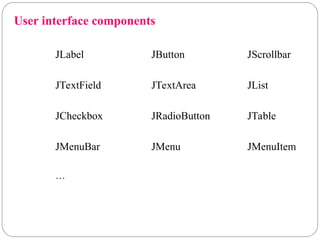
User interface components:
Labels, button, scrollbars, Text components, check
box, check box groups, choices, Lists
panels – ScrollPane, MenuBar, graphics
Layout manager – layout manager types
Event handling: Delegation Event model
3.
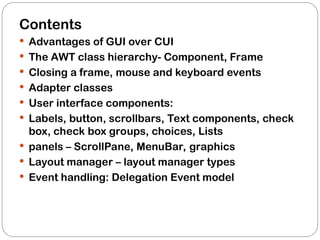
Advantages of GUIover CUI
Presents a user-friendly mechanism for interacting with
an application.
Built from GUI components.
It need more resources
Speed is less compare to the CUI
In a Command Line Interface, the commands are
entered from the keyboard. It is not user-friendly.
Difficult to remember commands.
It need less resources
Speed is more compare to the GUI
4.
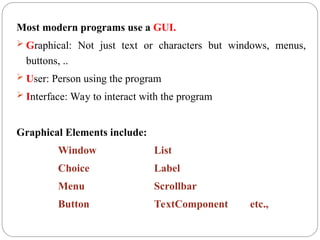
Most modern programsuse a GUI.
Graphical: Not just text or characters but windows, menus,
buttons, ..
User: Person using the program
Interface: Way to interact with the program
Graphical Elements include:
Window List
Choice Label
Menu Scrollbar
Button TextComponent etc.,
5.
button menus titlebar menu bar combo box
scroll
bars
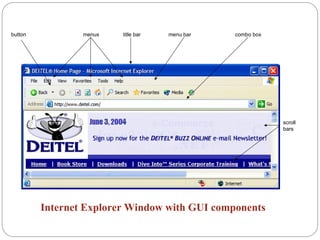
Internet Explorer Window with GUI components
6.
Abstract Window Toolkit(AWT)
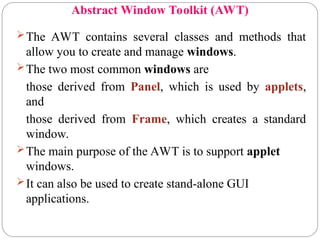
The AWT contains several classes and methods that
allow you to create and manage windows.
The two most common windows are
those derived from Panel, which is used by applets,
and
those derived from Frame, which creates a standard
window.
The main purpose of the AWT is to support applet
windows.
It can also be used to create stand-alone GUI
applications.
7.
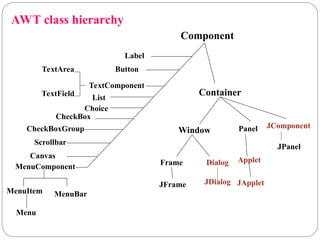
AWT class hierarchy
MenuBar
Component
Container
WindowPanel
Frame
Label
Button
TextComponent
TextField
TextArea
Choice
CheckBox
CheckBoxGroup
Scrollbar
MenuComponent
List
MenuItem
Menu
Dialog
Canvas
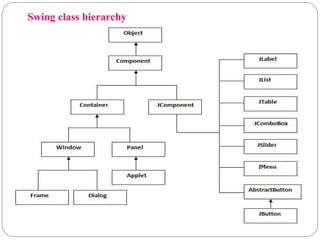
JComponent
Applet
JFrame JApplet
JPanel
JDialog
8.
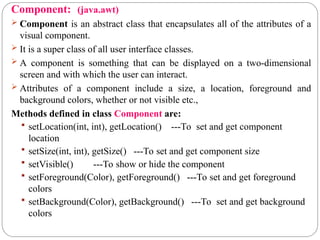
Component: (java.awt)
Componentis an abstract class that encapsulates all of the attributes of a
visual component.
It is a super class of all user interface classes.
A component is something that can be displayed on a two-dimensional
screen and with which the user can interact.
Attributes of a component include a size, a location, foreground and
background colors, whether or not visible etc.,
Methods defined in class Component are:
setLocation(int, int), getLocation() ---To set and get component
location
setSize(int, int), getSize() ---To set and get component size
setVisible() ---To show or hide the component
setForeground(Color), getForeground() ---To set and get foreground
colors
setBackground(Color), getBackground() ---To set and get background
colors
9.
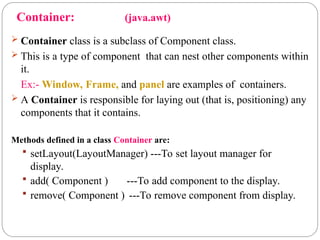
Container: (java.awt)
Containerclass is a subclass of Component class.
This is a type of component that can nest other components within
it.
Ex:- Window, Frame, and panel are examples of containers.
A Container is responsible for laying out (that is, positioning) any
components that it contains.
Methods defined in a class Container are:
setLayout(LayoutManager) ---To set layout manager for
display.
add( Component ) ---To add component to the display.
remove( Component ) ---To remove component from display.
10.
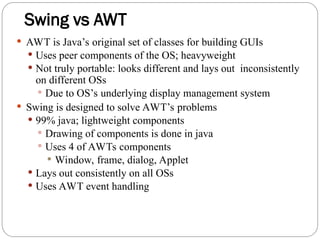
Swing vs AWT
AWT is Java’s original set of classes for building GUIs
Uses peer components of the OS; heavyweight
Not truly portable: looks different and lays out inconsistently
on different OSs
Due to OS’s underlying display management system
Swing is designed to solve AWT’s problems
99% java; lightweight components
Drawing of components is done in java
Uses 4 of AWTs components
Window, frame, dialog, Applet
Lays out consistently on all OSs
Uses AWT event handling
11.
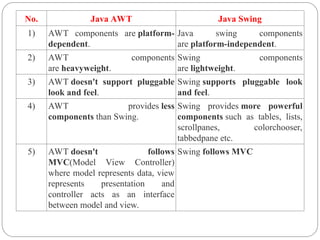
No. Java AWTJava Swing
1) AWT components are platform-
dependent.
Java swing components
are platform-independent.
2) AWT components
are heavyweight.
Swing components
are lightweight.
3) AWT doesn't support pluggable
look and feel.
Swing supports pluggable look
and feel.
4) AWT provides less
components than Swing.
Swing provides more powerful
components such as tables, lists,
scrollpanes, colorchooser,
tabbedpane etc.
5) AWT doesn't follows
MVC(Model View Controller)
where model represents data, view
represents presentation and
controller acts as an interface
between model and view.
Swing follows MVC
12.
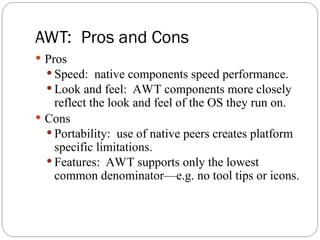
AWT: Pros andCons
Pros
Speed: native components speed performance.
Look and feel: AWT components more closely
reflect the look and feel of the OS they run on.
Cons
Portability: use of native peers creates platform
specific limitations.
Features: AWT supports only the lowest
common denominator—e.g. no tool tips or icons.
13.
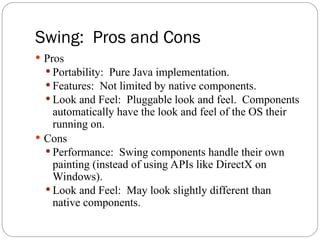
Swing: Pros andCons
Pros
Portability: Pure Java implementation.
Features: Not limited by native components.
Look and Feel: Pluggable look and feel. Components
automatically have the look and feel of the OS their
running on.
Cons
Performance: Swing components handle their own
painting (instead of using APIs like DirectX on
Windows).
Look and Feel: May look slightly different than
native components.
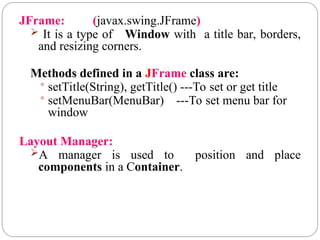
JFrame: (javax.swing.JFrame)
Itis a type of Window with a title bar, borders,
and resizing corners.
Methods defined in a JFrame class are:
setTitle(String), getTitle() ---To set or get title
setMenuBar(MenuBar) ---To set menu bar for
window
Layout Manager:
A manager is used to position and place
components in a Container.
16.
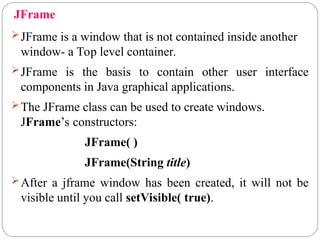
JFrame
JFrame is awindow that is not contained inside another
window- a Top level container.
JFrame is the basis to contain other user interface
components in Java graphical applications.
The JFrame class can be used to create windows.
JFrame’s constructors:
JFrame( )
JFrame(String title)
After a jframe window has been created, it will not be
visible until you call setVisible( true).
17.
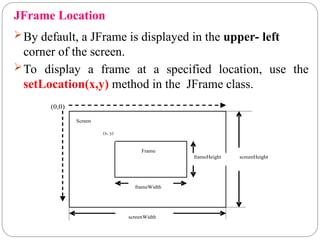
JFrame Location
By default,a JFrame is displayed in the upper- left
corner of the screen.
To display a frame at a specified location, use the
setLocation(x,y) method in the JFrame class.
screenHeight
screenWidth
frameHeight
frameWidth
(x, y)
Frame
Screen
(0,0)
18.
Two ways tocreate a Frame
1.By extending Frame class (inheritance)
2.By creating the object of Frame class (association)
//Method 1
import javax.swing.*;
public class MyFrame extends JFrame{
MyFrame(){
super(“title of Frame”);
setSize(300,200);
setVisible(true);
}}
class ExFrame{
public static void main( String args[]){
new MyFrame();
}}
19.
//Method 2
import javax.swing.*;
publicclass MyFrame{
public static void main( String args[]){
JFrame f = new JFrame("MyFrame");
f.setSize(300,200);
f.setVisible(true);
}
}
20.
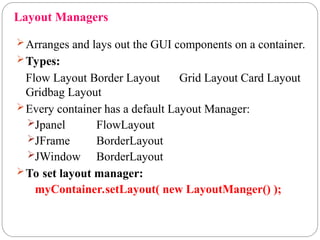
Layout Managers
Arranges andlays out the GUI components on a container.
Types:
Flow Layout Border Layout Grid Layout Card Layout
Gridbag Layout
Every container has a default Layout Manager:
Jpanel FlowLayout
JFrame BorderLayout
JWindow BorderLayout
To set layout manager:
myContainer.setLayout( new LayoutManger() );
21.
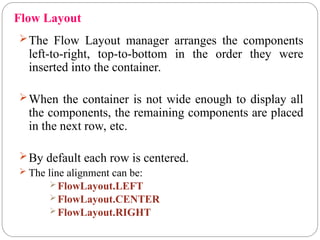
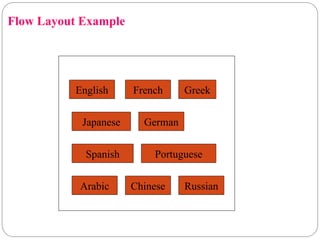
Flow Layout
The FlowLayout manager arranges the components
left-to-right, top-to-bottom in the order they were
inserted into the container.
When the container is not wide enough to display all
the components, the remaining components are placed
in the next row, etc.
By default each row is centered.
The line alignment can be:
FlowLayout.LEFT
FlowLayout.CENTER
FlowLayout.RIGHT
Flow Layout Constructors
FlowLayout()
//A centered alignment and a default 5-unit horizontal and
vertical gap.
FlowLayout(align)
align – alignment used by the manager. A default 5-unit
horizontal and vertical gap.
FlowLayout(align, hgap, vgap)
//align – alignment used by the manager
//hgap – horizontal gaps between components
//vgap – vertical gaps between components
24.
import java.awt.*;
import javax.swing.*;
publicclass FlowLayoutExample {
JFrame frameObj;
FlowLayoutExample() {
frameObj = new JFrame();
JButton b1 = new JButton("1");
JButton b2 = new JButton("2");
JButton b3 = new JButton("3");
JButton b4 = new JButton("4");
JButton b5 = new JButton("5");
frameObj.add(b1); frameObj.add(b2); frameObj.add(b3); frameObj.add(b4); frame
Obj.add(b5);
frameObj.setLayout(new FlowLayout(FlowLayout.RIGHT));
frameObj.setSize(300, 300);
frameObj.setVisible(true); }
public static void main(String argvs[]) {
new FlowLayoutExample(); } }
25.
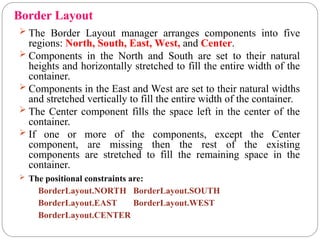
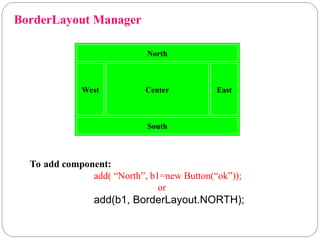
Border Layout
TheBorder Layout manager arranges components into five
regions: North, South, East, West, and Center.
Components in the North and South are set to their natural
heights and horizontally stretched to fill the entire width of the
container.
Components in the East and West are set to their natural widths
and stretched vertically to fill the entire width of the container.
The Center component fills the space left in the center of the
container.
If one or more of the components, except the Center
component, are missing then the rest of the existing
components are stretched to fill the remaining space in the
container.
The positional constraints are:
BorderLayout.NORTH BorderLayout.SOUTH
BorderLayout.EAST BorderLayout.WEST
BorderLayout.CENTER
Border Layout Constructors
BorderLayout()
//No vertical or horizontal gaps.
BorderLayout(hgap, vgap)
//hgap – horizontal gaps between components
//vgap – vertical gaps between components
28.
import java.awt.*;
import javax.swing.*;
publicclass BorderLayoutExample {
JFrame frameObj;
BorderLayoutExample() {
frameObj = new JFrame();
JButton b1 = new JButton("1");
JButton b2 = new JButton("2");
JButton b3 = new JButton("3");
JButton b4 = new JButton("4");
JButton b5 = new JButton("5");
frameObj.add(b1,BorderLayout.NORTH); frameObj.add(b2,
BorderLayout.SOUTH); frameObj.add(b3, BorderLayout.EAST); frameObj.add(b4,
BorderLayout.WEST); frameObj.add(b5, BorderLayout.CENTER);
frameObj.setLayout(new BorderLayout(20,25));
frameObj.setSize(300,300);
frameObj.setVisible(true); }
public static void main(String argvs[]) {
new BorderLayoutExample(); } }
29.
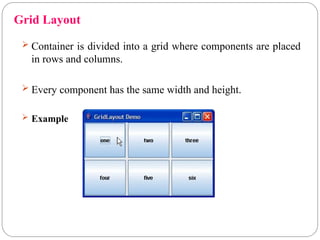
Grid Layout
Containeris divided into a grid where components are placed
in rows and columns.
Every component has the same width and height.
Example
30.
Grid Layout Constructors
GridLayout()
//A single row and no vertical or horizontal gaps.
GridLayout(r, c)
//r – number of rows in the layout
//c – number of columns in the layout
//No vertical or horizontal gaps.
GridLayout(r, c, hgap, vgap)
//r – number of rows in the layout
//c – number of columns in the layout
//hgap – horizontal gaps between components
//vgap – vertical gaps between components
31.
import java.awt.*;
import javax.swing.*;
publicclass GridLayoutExample {
JFrame frameObj;
GridLayoutExample() {
frameObj = new JFrame();
JButton b1 = new JButton("1");
JButton b2 = new JButton("2");
JButton b3 = new JButton("3");
JButton b4 = new JButton("4");
JButton b5 = new JButton("5");
frameObj.add(b1); frameObj.add(b2); frameObj.add(b3); frameObj.add(b4); frame
Obj.add(b5);
frameObj.setLayout(new GridLayout());
frameObj.setSize(300, 300);
frameObj.setVisible(true); }
public static void main(String argvs[]) {
new GridLayoutExample(); } }
32.
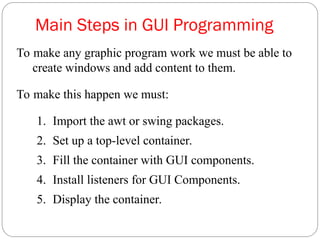
Main Steps inGUI Programming
To make any graphic program work we must be able to
create windows and add content to them.
To make this happen we must:
1. Import the awt or swing packages.
2. Set up a top-level container.
3. Fill the container with GUI components.
4. Install listeners for GUI Components.
5. Display the container.
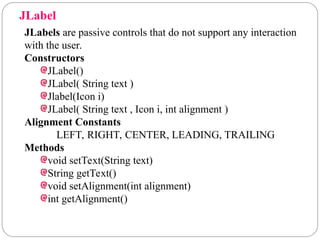
JLabel
JLabels are passivecontrols that do not support any interaction
with the user.
Constructors
JLabel()
JLabel( String text )
Jlabel(Icon i)
JLabel( String text , Icon i, int alignment )
Alignment Constants
LEFT, RIGHT, CENTER, LEADING, TRAILING
Methods
void setText(String text)
String getText()
void setAlignment(int alignment)
int getAlignment()
35.
import javax.swing.*;
public classExLabel extends JFrame
{
public ExLabel()
{
super("Label test");
JLabel label1 = new JLabel(“Enter User Name");
add( label1 );
setSize(300,200);
setVisible(true);
}
public static void main( String args[] )
{
new ExLabel();
}
}
//Label Example
36.
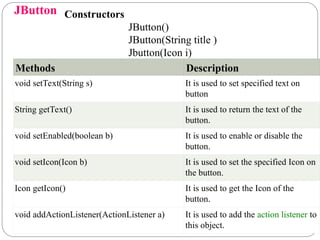
JButton Constructors
JButton()
JButton(String title)
Jbutton(Icon i)
Methods Description
void setText(String s) It is used to set specified text on
button
String getText() It is used to return the text of the
button.
void setEnabled(boolean b) It is used to enable or disable the
button.
void setIcon(Icon b) It is used to set the specified Icon on
the button.
Icon getIcon() It is used to get the Icon of the
button.
void addActionListener(ActionListener a) It is used to add the action listener to
this object.
37.
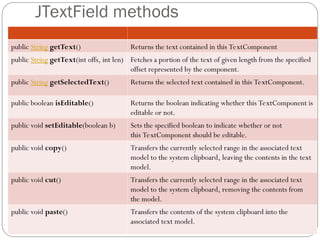
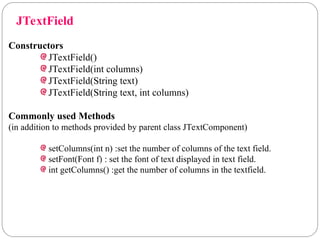
JTextField methods
public StringgetText() Returns the text contained in this TextComponent
public String getText(int offs, int len) Fetches a portion of the text of given length from the specified
offset represented by the component.
public String getSelectedText() Returns the selected text contained in this TextComponent.
public boolean isEditable() Returns the boolean indicating whether this TextComponent is
editable or not.
public void setEditable(boolean b) Sets the specified boolean to indicate whether or not
this TextComponent should be editable.
public void copy() Transfers the currently selected range in the associated text
model to the system clipboard, leaving the contents in the text
model.
public void cut() Transfers the currently selected range in the associated text
model to the system clipboard, removing the contents from
the model.
public void paste() Transfers the contents of the system clipboard into the
associated text model.
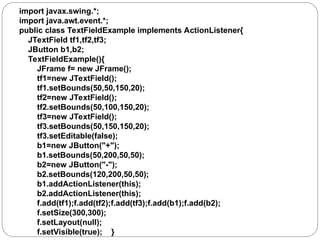
public void actionPerformed(ActionEvente) {
String s1=tf1.getText();
String s2=tf2.getText();
int a=Integer.parseInt(s1);
int b=Integer.parseInt(s2);
int c=0;
if(e.getSource()==b1){
c=a+b;
}else if(e.getSource()==b2){
c=a-b;
}
String result=String.valueOf(c);
tf3.setText(result);
}
public static void main(String[] args) {
new TextFieldExample();
} }
42.
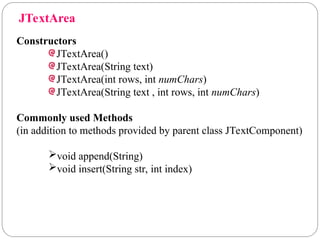
Constructors
JTextArea()
JTextArea(String text)
JTextArea(int rows,int numChars)
JTextArea(String text , int rows, int numChars)
Commonly used Methods
(in addition to methods provided by parent class JTextComponent)
void append(String)
void insert(String str, int index)
JTextArea
JRadioButton
It isused to choose one option from multiple options.
It should be added in ButtonGroup to select one radio button
only.
JRadioButton()
JRadioButton(String s)
JRadioButton(String s, boolean selected)
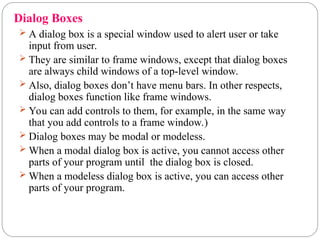
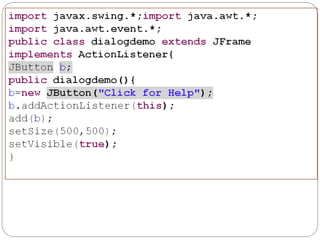
A dialogbox is a special window used to alert user or take
input from user.
They are similar to frame windows, except that dialog boxes
are always child windows of a top-level window.
Also, dialog boxes don’t have menu bars. In other respects,
dialog boxes function like frame windows.
You can add controls to them, for example, in the same way
that you add controls to a frame window.)
Dialog boxes may be modal or modeless.
When a modal dialog box is active, you cannot access other
parts of your program until the dialog box is closed.
When a modeless dialog box is active, you can access other
parts of your program.
Dialog Boxes
47.
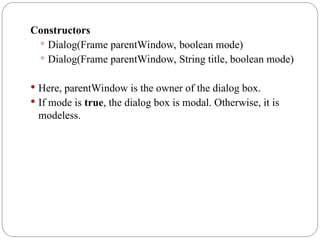
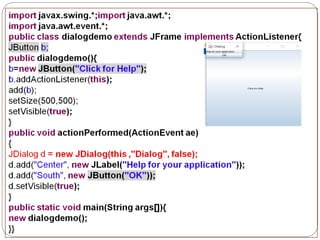
Constructors
Dialog(Frame parentWindow,boolean mode)
Dialog(Frame parentWindow, String title, boolean mode)
Here, parentWindow is the owner of the dialog box.
If mode is true, the dialog box is modal. Otherwise, it is
modeless.
49.
49
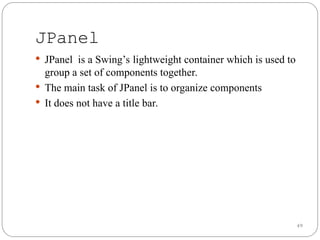
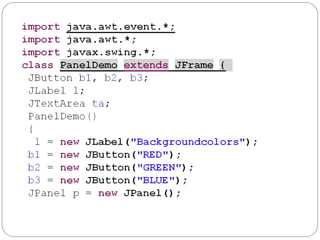
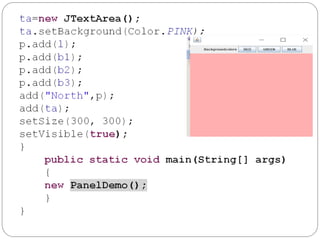
JPanel isa Swing’s lightweight container which is used to
group a set of components together.
The main task of JPanel is to organize components
It does not have a title bar.
JPanel
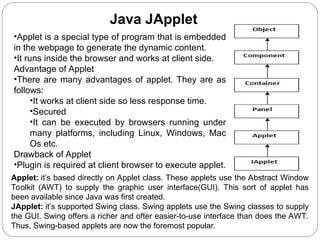
•Applet is aspecial type of program that is embedded
in the webpage to generate the dynamic content.
•It runs inside the browser and works at client side.
Advantage of Applet
•There are many advantages of applet. They are as
follows:
•It works at client side so less response time.
•Secured
•It can be executed by browsers running under
many platforms, including Linux, Windows, Mac
Os etc.
Drawback of Applet
•Plugin is required at client browser to execute applet.
Java JApplet
Applet: it’s based directly on Applet class. These applets use the Abstract Window
Toolkit (AWT) to supply the graphic user interface(GUI). This sort of applet has
been available since Java was first created.
JApplet: it’s supported Swing class. Swing applets use the Swing classes to supply
the GUI. Swing offers a richer and ofter easier-to-use interface than does the AWT.
Thus, Swing-based applets are now the foremost popular.
56.
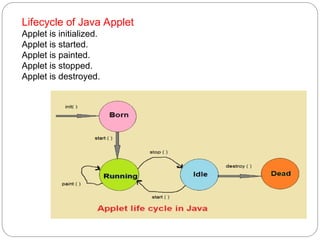
Lifecycle of JavaApplet
Applet is initialized.
Applet is started.
Applet is painted.
Applet is stopped.
Applet is destroyed.
57.
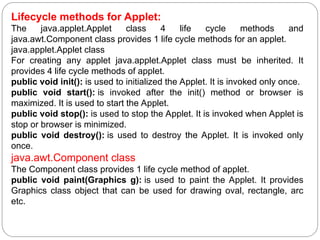
Lifecycle methods forApplet:
The java.applet.Applet class 4 life cycle methods and
java.awt.Component class provides 1 life cycle methods for an applet.
java.applet.Applet class
For creating any applet java.applet.Applet class must be inherited. It
provides 4 life cycle methods of applet.
public void init(): is used to initialized the Applet. It is invoked only once.
public void start(): is invoked after the init() method or browser is
maximized. It is used to start the Applet.
public void stop(): is used to stop the Applet. It is invoked when Applet is
stop or browser is minimized.
public void destroy(): is used to destroy the Applet. It is invoked only
once.
java.awt.Component class
The Component class provides 1 life cycle method of applet.
public void paint(Graphics g): is used to paint the Applet. It provides
Graphics class object that can be used for drawing oval, rectangle, arc
etc.
58.
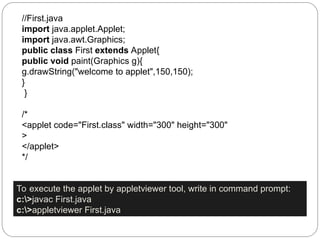
//First.java
import java.applet.Applet;
import java.awt.Graphics;
publicclass First extends Applet{
public void paint(Graphics g){
g.drawString("welcome to applet",150,150);
}
}
/*
<applet code="First.class" width="300" height="300"
>
</applet>
*/
To execute the applet by appletviewer tool, write in command prompt:
c:>javac First.java
c:>appletviewer First.java

![Two ways to create a Frame
1.By extending Frame class (inheritance)
2.By creating the object of Frame class (association)
//Method 1
import javax.swing.*;
public class MyFrame extends JFrame{
MyFrame(){
super(“title of Frame”);
setSize(300,200);
setVisible(true);
}}
class ExFrame{
public static void main( String args[]){
new MyFrame();
}}](https://image.slidesharecdn.com/unit4awtswingslayouts-250608102250-500af733/85/Unit4-AWT-Swings-Layouts-power-point-presentation-18-320.jpg)
![//Method 2
import javax.swing.*;
public class MyFrame{
public static void main( String args[]){
JFrame f = new JFrame("MyFrame");
f.setSize(300,200);
f.setVisible(true);
}
}](https://image.slidesharecdn.com/unit4awtswingslayouts-250608102250-500af733/85/Unit4-AWT-Swings-Layouts-power-point-presentation-19-320.jpg)
![import java.awt.*;
import javax.swing.*;
public class FlowLayoutExample {
JFrame frameObj;
FlowLayoutExample() {
frameObj = new JFrame();
JButton b1 = new JButton("1");
JButton b2 = new JButton("2");
JButton b3 = new JButton("3");
JButton b4 = new JButton("4");
JButton b5 = new JButton("5");
frameObj.add(b1); frameObj.add(b2); frameObj.add(b3); frameObj.add(b4); frame
Obj.add(b5);
frameObj.setLayout(new FlowLayout(FlowLayout.RIGHT));
frameObj.setSize(300, 300);
frameObj.setVisible(true); }
public static void main(String argvs[]) {
new FlowLayoutExample(); } }](https://image.slidesharecdn.com/unit4awtswingslayouts-250608102250-500af733/85/Unit4-AWT-Swings-Layouts-power-point-presentation-24-320.jpg)
![import java.awt.*;
import javax.swing.*;
public class BorderLayoutExample {
JFrame frameObj;
BorderLayoutExample() {
frameObj = new JFrame();
JButton b1 = new JButton("1");
JButton b2 = new JButton("2");
JButton b3 = new JButton("3");
JButton b4 = new JButton("4");
JButton b5 = new JButton("5");
frameObj.add(b1,BorderLayout.NORTH); frameObj.add(b2,
BorderLayout.SOUTH); frameObj.add(b3, BorderLayout.EAST); frameObj.add(b4,
BorderLayout.WEST); frameObj.add(b5, BorderLayout.CENTER);
frameObj.setLayout(new BorderLayout(20,25));
frameObj.setSize(300,300);
frameObj.setVisible(true); }
public static void main(String argvs[]) {
new BorderLayoutExample(); } }](https://image.slidesharecdn.com/unit4awtswingslayouts-250608102250-500af733/85/Unit4-AWT-Swings-Layouts-power-point-presentation-28-320.jpg)
![import java.awt.*;
import javax.swing.*;
public class GridLayoutExample {
JFrame frameObj;
GridLayoutExample() {
frameObj = new JFrame();
JButton b1 = new JButton("1");
JButton b2 = new JButton("2");
JButton b3 = new JButton("3");
JButton b4 = new JButton("4");
JButton b5 = new JButton("5");
frameObj.add(b1); frameObj.add(b2); frameObj.add(b3); frameObj.add(b4); frame
Obj.add(b5);
frameObj.setLayout(new GridLayout());
frameObj.setSize(300, 300);
frameObj.setVisible(true); }
public static void main(String argvs[]) {
new GridLayoutExample(); } }](https://image.slidesharecdn.com/unit4awtswingslayouts-250608102250-500af733/85/Unit4-AWT-Swings-Layouts-power-point-presentation-31-320.jpg)
![import javax.swing.*;
public class ExLabel extends JFrame
{
public ExLabel()
{
super("Label test");
JLabel label1 = new JLabel(“Enter User Name");
add( label1 );
setSize(300,200);
setVisible(true);
}
public static void main( String args[] )
{
new ExLabel();
}
}
//Label Example](https://image.slidesharecdn.com/unit4awtswingslayouts-250608102250-500af733/85/Unit4-AWT-Swings-Layouts-power-point-presentation-35-320.jpg)
![import java.awt.event.*;
import javax.swing.*;
public class ButtonExample {
public static void main(String[] args) {
JFrame f=new JFrame("Button Example");
final JTextField tf=new JTextField();
tf.setBounds(50,50, 150,20);
JButton b=new JButton("Click Here");
b.setBounds(50,100,95,30);
b.addActionListener(new ActionListener(){
public void actionPerformed(ActionEvent e){
tf.setText("Welcome to Java.");
}
});
f.add(b);f.add(tf);
f.setSize(400,400);
f.setLayout(null);
f.setVisible(true);
}
}](https://image.slidesharecdn.com/unit4awtswingslayouts-250608102250-500af733/85/Unit4-AWT-Swings-Layouts-power-point-presentation-39-320.jpg)
![public void actionPerformed(ActionEvent e) {
String s1=tf1.getText();
String s2=tf2.getText();
int a=Integer.parseInt(s1);
int b=Integer.parseInt(s2);
int c=0;
if(e.getSource()==b1){
c=a+b;
}else if(e.getSource()==b2){
c=a-b;
}
String result=String.valueOf(c);
tf3.setText(result);
}
public static void main(String[] args) {
new TextFieldExample();
} }](https://image.slidesharecdn.com/unit4awtswingslayouts-250608102250-500af733/85/Unit4-AWT-Swings-Layouts-power-point-presentation-41-320.jpg)
![import javax.swing.*;
public class RadioButtonExample {
JFrame f;
RadioButtonExample(){
f=new JFrame();
JRadioButton r1=new JRadioButton("A) Male");
JRadioButton r2=new JRadioButton("B) Female");
r1.setBounds(75,50,100,30);
r2.setBounds(75,100,100,30);
ButtonGroup bg=new ButtonGroup();
bg.add(r1);bg.add(r2);
f.add(r1);f.add(r2);
f.setSize(300,300);
f.setLayout(null);
f.setVisible(true); }
public static void main(String[] args) {
new RadioButtonExample(); } }](https://image.slidesharecdn.com/unit4awtswingslayouts-250608102250-500af733/85/Unit4-AWT-Swings-Layouts-power-point-presentation-45-320.jpg)