Keyhole Modeling Language –  Chpt. 2 – Placemarks and Balloons Mr. Thomas Cooper Outdoor Technology The Walker School
Placemark Objects Text Images Links Video Audio Icons Navigation
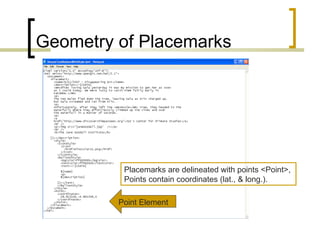
Geometry of Placemarks Point Element Placemarks are delineated with points <Point>,  Points contain coordinates (lat., & long.).
Simple Balloon Template Contains Name  Description Coordinates
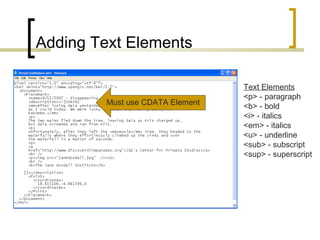
Adding Text Elements Text Elements <p> - paragraph <b> - bold <i> - italics <em> - italics <u> - underline <sub> - subscript <sup> - superscript Must use CDATA Element
Aligning Text <p align=&quot;left&quot;> This text will be aligned left</p> <p align = &quot;center&quot;> This text will be centered </p> <p align = &quot;right&quot;> This text will be aligned right</p> Networked Learning 2009
Text Header Tags <h1>text</h1> - Largest <h2>text</h2> <h3>text</h3> <h4>text</h4> <h5>text</h5> <h6>text</h6> - Smallest Networked Learning 2009
Adding Text Color <p style=&quot;color:#01133B&quot;>
Working with Images Main Image Tag <img src=“imagename.jpg” height=“#” width=“#” align=“position”) Dimensions <height=n width=n> Height and width of image Alignment <align=“center”> Places image on page, either left, center or right)
Adding Hyper Links
Anatomy of a Tag Open Tags and Closed Tags Open Tag <tag> and Close Tag </tag> Tags are nested Three parts of a tag: (tag, attribute, value) Example < img src=“filename.jpg” height=100 width=100> tag attribute value
Working with Email Links <a href=&quot;mailto:thomas.cooper@thewalkerschool.org?subject=Information Desired Kayaking Trip in Glacier&quot;>email</a>
Working with Lists <description> <![CDATA[ <b> Equipment List</b> <ul> unordered list (or) <ol> ordered list (1., 2., 3.) <li>list item one </li>list item two </ul> or </ol> ]]> </description>
Online HTML Tutorials http://www.w3schools.com/htmL/
Layouts with Hard Rules <hr> - places a line on the page <hr width=“#”> - can be used to adjust it to different widths. Divide elements on page with a hard rule.
Creating Hard Rulers in Photoshop Create an image with a width of your placemark and a height of 5 pixels Use the paint bucket to color it.  You can also use the gradient tool to create hard rules that contain 2 colors. Upload your hard rule to a photosharing site. Copy and paste the URL Address into an image tag <img src= http://www.imagefile.jpg  width=“#”>
ARKive Endangered Species Example Basic Table Design Create fancy layouts using tables.
Working with Tables <table> <tr> table row <td> table cell <td> table cell in same row </tr> <td> table cell <td>table cell </tr> </table> Tables require the following tags: <table>, <tr>, and <td>. What would this table look like if you drew it out?
Major Table Elements <table> - starts and ends a table <width=“#”> determines the width of the table <border=“#”> adds a border around table <cellspacing=“#”> add space between cells <cellpadding=“#”> adds space between text and cell border <bgcolor=“#hexcodenumber”>add color to a table, row or cell <tr> - table row <td> - table cell <colspan=“#”> spans a number of columns <rowspan=“#”> spans a number of rows <valign=“top> foces text and images to the top of a cell Not all HTML tags work in Google Earth, as it is based on KML.
Advanced Table Structure <table  width=“400”> <tr> table row <td width=“200”> table cell in first row contains a logo.</td> <td width=“200”> table cell in same row, contains an image of text.</td> <tr colspan=2> <td width=“400”> has text about the species that will span both cells from above row.  Use <h2> and <p style=“color:#hexcolornumber”> </td></tr> <tr> <td width=“200”> has 2 paragraphs of text</td> <td width=“200”> has image of endangered species </td></tr> … .bottom half of table discussed on next slide </table> Our more advanced table has the following structure.
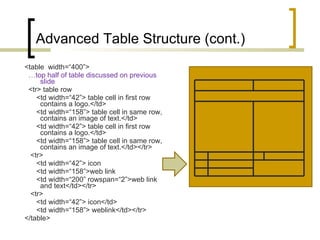
Advanced Table Structure (cont.) <table  width=“400”> … top half of table discussed on previous slide <tr> table row <td width=“42”> table cell in first row contains a logo.</td> <td width=“158”> table cell in same row, contains an image of text.</td>  <td width=“42”> table cell in first row contains a logo.</td> <td width=“158”> table cell in same row, contains an image of text.</td></tr> <tr> <td width=“42”> icon <td width=“158”>web link <td width=“200” rowspan=“2”>web link and text</td></tr> <tr> <td width=“42”> icon</td> <td width=“158”> weblink</td></tr> </table>
Aligning Objects in a Table Cell <table> <tr> <td valign=“type&quot;> text </td> </tr> </table> Text that does not fill a cell will centered vertically by default. However, you can ensure vertical centering by using the code below. Vertical Alignment Types valign=“top” valign=“middle” valign=“bottom”
Adding Style to Your Text <p> text </p> <p style=“color:#hexcode”> adds color to that text.</p> <font color=“#hexcode”>text </font> <a style=“color:#hexcode”> adds color to the web link text.
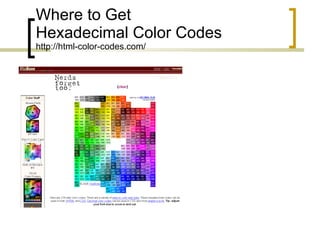
Where to Get  Hexadecimal Color Codes http://html-color-codes.com/
Changing Cell Background Color <table bgcolor=“#hexcode”> <tr> <td>text </td> </tr> </table> Can be done for the entire table.
Changing Cell Background Color <table> <tr bgcolor=“#hexcode”> <td>text </td> </tr> </table> Can be done for one or more rows. In ARKive example… <table bgcolor=&quot;#color“> The 2 cells in the first row contain images created in Photoshop and cover the background color that was set in the table tag.  In the second row the background color of the cell has been turned to a gray and overrides the table color. In the other rows, the cells display the background color set in the table.
Changing Cell Background Color <table> <tr> <td bgcolor=“#hexcode”>text </td> </tr> </table> Can be done for a table cell.
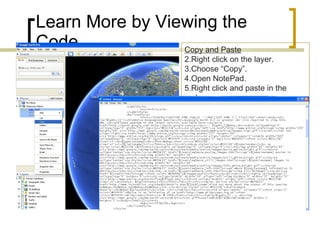
Learn More by Viewing the Code Copy and Paste Right click on the layer. Choose “Copy”. Open NotePad. Right click and paste in the code.
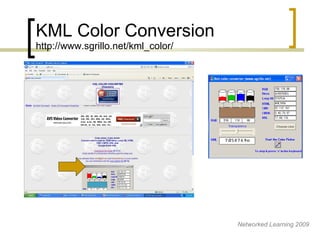
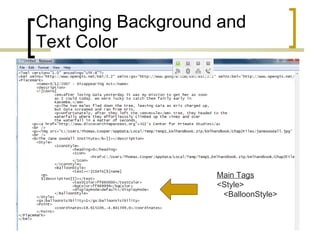
Changing Background and Text Color <Style> <BalloonStyle> <bgColor>ff669999<bgColor> <textColor>ff660000</textColor> </BalloonStyle> </Style> Can’t be done in Google Earth program; must be done in the code. Directions Follow the procedures on the previous slide for viewing the code. Type CTRL-F to bring up the “Find” command in Notepad. Search for <BalloonStyle>; its usually toward the bottom of the document. Change the hexcode for <bgColor> If its not there, add the tag under <BalloonStyle> as shown to the right. NOTE: The balloons in GE uses KML color codes, which are 8 digits, rather than the HTML hexcodes used by tables and fonts, which are 6 digits.  You will need to use a KML color converter to match the colors.
KML Color Conversion http://www.sgrillo.net/kml_color/ Networked Learning 2009
Changing Background and Text Color Main Tags <Style> <BalloonStyle>
Changing Background and Text Color <Style> <BalloonStyle> <bgColor>ff669999<bgColor> <textColor>ff660000</textColor> </BalloonStyle> </Style>
KML Color Conversion http://www.sgrillo.net/kml_color/
Specifying Colors Directions Draw a polygon Choose a color through the properties box Copy an paste the code for the polygon into NotePad Find the hexadecimal code for the color
Omitting Driving Directions <Style> <BalloonStyle> <text> <![CDATA[ $[name]   <p> $[description] ]]> </text> </BalloonStyle> </Style>
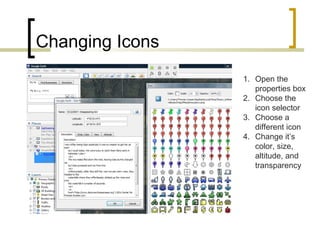
Changing Icons Open the properties box Choose the icon selector Choose a different icon Change it’s color, size, altitude, and transparency
Adding Custom Icons Search Google Images for icons Use Advanced Search for file type png or ico Download free ones from Icon Archive Download others from iStockPhoto Create your own using Fireworks or Photoshop
Uploading Custom Icons Open properties dialogue box Click on icon selector Click on Add Custom Icon Brows your computer Select custom icon
Custom Icons with KML <IconStyle> <Icon> <href>iconfile.png</href> </Icon> </IconStyle>
Specifying Viewpoint <LookAt> <longitude></longitude>  - distance from the Prime Meridian <latitude></latitude>  - distance from the Equator <altitude></altitude>  - distance from Earth’s surface <heading></heading>  - default = 0; direction of North, South, East or West <tilt></tilt>  - angle between the direction of the LookAt position and the normal surface of the earth. <range></range>  - distance in meters from the point specified by lat., long., and alt. and the LookAt element. <altitudeMode></altitudeMode>  - how the altitude is interpreted.  </LookAt>
Altitude Mode Values clampToGround Indicates to ignore the <altitude> specification and place the LookAt position on the ground. relativeToGround Interprets the <altitude> as a value in meters above the ground. Absolute Interprets the <altitude> as a value in meters.
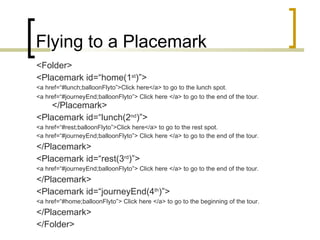
Flying to a Placemark <Folder> <Placemark id=“home(1 st )”> <a href=“#lunch;balloonFlyto”>Click here</a> to go to the lunch spot. <a href=“#journeyEnd;balloonFlyto”> Click here </a> to go to the end of the tour. </Placemark> <Placemark id=“lunch(2 nd )”> <a href=“#rest;balloonFlyto”>Click here</a> to go to the rest spot. <a href=“#journeyEnd;balloonFlyto”> Click here </a> to go to the end of the tour. </Placemark> <Placemark id=“rest(3 rd )”> <a href=“#journeyEnd;balloonFlyto”> Click here </a> to go to the end of the tour. </Placemark> <Placemark id=“journeyEnd(4 th )”> <a href=“#home;balloonFlyto”> Click here </a> to go to the beginning of the tour. </Placemark> </Folder>
Feature Anchors ;flyto  – Fly to the placemark. ;balloon  – Open the placemark’s balloon and fly to the placemark. ;balloonFlyto  – Open the placemark’s balloon and fly to the placemark.
Determining Visibility <Placemark> <visibility>1</visibility>  - renders the placemark(s) visible when loaded <visibility>0</visibility>  - does not render the placemark(s) when loaded </Placemark>
Adding a Snippet <Placemark> <Snippet maxLines=“#”>1</Snippet> -  renders the placemark(s) visible when loaded </Placemark>
Challenge Do some further research into one explorer or extreme sportsman that interested you and create a placemark using only Notepad.  Make sure to add text, images, links to your online references, museums, and also use the various style elements, custom icons and other tags we’ve covered.

Kml Basics Chpt 2 Placemarks

  • 1.
    Keyhole Modeling Language– Chpt. 2 – Placemarks and Balloons Mr. Thomas Cooper Outdoor Technology The Walker School
  • 2.
    Placemark Objects TextImages Links Video Audio Icons Navigation
  • 3.
    Geometry of PlacemarksPoint Element Placemarks are delineated with points <Point>, Points contain coordinates (lat., & long.).
  • 4.
    Simple Balloon TemplateContains Name Description Coordinates
  • 5.
    Adding Text ElementsText Elements <p> - paragraph <b> - bold <i> - italics <em> - italics <u> - underline <sub> - subscript <sup> - superscript Must use CDATA Element
  • 6.
    Aligning Text <palign=&quot;left&quot;> This text will be aligned left</p> <p align = &quot;center&quot;> This text will be centered </p> <p align = &quot;right&quot;> This text will be aligned right</p> Networked Learning 2009
  • 7.
    Text Header Tags<h1>text</h1> - Largest <h2>text</h2> <h3>text</h3> <h4>text</h4> <h5>text</h5> <h6>text</h6> - Smallest Networked Learning 2009
  • 8.
    Adding Text Color<p style=&quot;color:#01133B&quot;>
  • 9.
    Working with ImagesMain Image Tag <img src=“imagename.jpg” height=“#” width=“#” align=“position”) Dimensions <height=n width=n> Height and width of image Alignment <align=“center”> Places image on page, either left, center or right)
  • 10.
  • 11.
    Anatomy of aTag Open Tags and Closed Tags Open Tag <tag> and Close Tag </tag> Tags are nested Three parts of a tag: (tag, attribute, value) Example < img src=“filename.jpg” height=100 width=100> tag attribute value
  • 12.
    Working with EmailLinks <a href=&quot;mailto:thomas.cooper@thewalkerschool.org?subject=Information Desired Kayaking Trip in Glacier&quot;>email</a>
  • 13.
    Working with Lists<description> <![CDATA[ <b> Equipment List</b> <ul> unordered list (or) <ol> ordered list (1., 2., 3.) <li>list item one </li>list item two </ul> or </ol> ]]> </description>
  • 14.
    Online HTML Tutorialshttp://www.w3schools.com/htmL/
  • 15.
    Layouts with HardRules <hr> - places a line on the page <hr width=“#”> - can be used to adjust it to different widths. Divide elements on page with a hard rule.
  • 16.
    Creating Hard Rulersin Photoshop Create an image with a width of your placemark and a height of 5 pixels Use the paint bucket to color it. You can also use the gradient tool to create hard rules that contain 2 colors. Upload your hard rule to a photosharing site. Copy and paste the URL Address into an image tag <img src= http://www.imagefile.jpg width=“#”>
  • 17.
    ARKive Endangered SpeciesExample Basic Table Design Create fancy layouts using tables.
  • 18.
    Working with Tables<table> <tr> table row <td> table cell <td> table cell in same row </tr> <td> table cell <td>table cell </tr> </table> Tables require the following tags: <table>, <tr>, and <td>. What would this table look like if you drew it out?
  • 19.
    Major Table Elements<table> - starts and ends a table <width=“#”> determines the width of the table <border=“#”> adds a border around table <cellspacing=“#”> add space between cells <cellpadding=“#”> adds space between text and cell border <bgcolor=“#hexcodenumber”>add color to a table, row or cell <tr> - table row <td> - table cell <colspan=“#”> spans a number of columns <rowspan=“#”> spans a number of rows <valign=“top> foces text and images to the top of a cell Not all HTML tags work in Google Earth, as it is based on KML.
  • 20.
    Advanced Table Structure<table width=“400”> <tr> table row <td width=“200”> table cell in first row contains a logo.</td> <td width=“200”> table cell in same row, contains an image of text.</td> <tr colspan=2> <td width=“400”> has text about the species that will span both cells from above row. Use <h2> and <p style=“color:#hexcolornumber”> </td></tr> <tr> <td width=“200”> has 2 paragraphs of text</td> <td width=“200”> has image of endangered species </td></tr> … .bottom half of table discussed on next slide </table> Our more advanced table has the following structure.
  • 21.
    Advanced Table Structure(cont.) <table width=“400”> … top half of table discussed on previous slide <tr> table row <td width=“42”> table cell in first row contains a logo.</td> <td width=“158”> table cell in same row, contains an image of text.</td> <td width=“42”> table cell in first row contains a logo.</td> <td width=“158”> table cell in same row, contains an image of text.</td></tr> <tr> <td width=“42”> icon <td width=“158”>web link <td width=“200” rowspan=“2”>web link and text</td></tr> <tr> <td width=“42”> icon</td> <td width=“158”> weblink</td></tr> </table>
  • 22.
    Aligning Objects ina Table Cell <table> <tr> <td valign=“type&quot;> text </td> </tr> </table> Text that does not fill a cell will centered vertically by default. However, you can ensure vertical centering by using the code below. Vertical Alignment Types valign=“top” valign=“middle” valign=“bottom”
  • 23.
    Adding Style toYour Text <p> text </p> <p style=“color:#hexcode”> adds color to that text.</p> <font color=“#hexcode”>text </font> <a style=“color:#hexcode”> adds color to the web link text.
  • 24.
    Where to Get Hexadecimal Color Codes http://html-color-codes.com/
  • 25.
    Changing Cell BackgroundColor <table bgcolor=“#hexcode”> <tr> <td>text </td> </tr> </table> Can be done for the entire table.
  • 26.
    Changing Cell BackgroundColor <table> <tr bgcolor=“#hexcode”> <td>text </td> </tr> </table> Can be done for one or more rows. In ARKive example… <table bgcolor=&quot;#color“> The 2 cells in the first row contain images created in Photoshop and cover the background color that was set in the table tag. In the second row the background color of the cell has been turned to a gray and overrides the table color. In the other rows, the cells display the background color set in the table.
  • 27.
    Changing Cell BackgroundColor <table> <tr> <td bgcolor=“#hexcode”>text </td> </tr> </table> Can be done for a table cell.
  • 28.
    Learn More byViewing the Code Copy and Paste Right click on the layer. Choose “Copy”. Open NotePad. Right click and paste in the code.
  • 29.
    Changing Background andText Color <Style> <BalloonStyle> <bgColor>ff669999<bgColor> <textColor>ff660000</textColor> </BalloonStyle> </Style> Can’t be done in Google Earth program; must be done in the code. Directions Follow the procedures on the previous slide for viewing the code. Type CTRL-F to bring up the “Find” command in Notepad. Search for <BalloonStyle>; its usually toward the bottom of the document. Change the hexcode for <bgColor> If its not there, add the tag under <BalloonStyle> as shown to the right. NOTE: The balloons in GE uses KML color codes, which are 8 digits, rather than the HTML hexcodes used by tables and fonts, which are 6 digits. You will need to use a KML color converter to match the colors.
  • 30.
    KML Color Conversionhttp://www.sgrillo.net/kml_color/ Networked Learning 2009
  • 31.
    Changing Background andText Color Main Tags <Style> <BalloonStyle>
  • 32.
    Changing Background andText Color <Style> <BalloonStyle> <bgColor>ff669999<bgColor> <textColor>ff660000</textColor> </BalloonStyle> </Style>
  • 33.
    KML Color Conversionhttp://www.sgrillo.net/kml_color/
  • 34.
    Specifying Colors DirectionsDraw a polygon Choose a color through the properties box Copy an paste the code for the polygon into NotePad Find the hexadecimal code for the color
  • 35.
    Omitting Driving Directions<Style> <BalloonStyle> <text> <![CDATA[ $[name] <p> $[description] ]]> </text> </BalloonStyle> </Style>
  • 36.
    Changing Icons Openthe properties box Choose the icon selector Choose a different icon Change it’s color, size, altitude, and transparency
  • 37.
    Adding Custom IconsSearch Google Images for icons Use Advanced Search for file type png or ico Download free ones from Icon Archive Download others from iStockPhoto Create your own using Fireworks or Photoshop
  • 38.
    Uploading Custom IconsOpen properties dialogue box Click on icon selector Click on Add Custom Icon Brows your computer Select custom icon
  • 39.
    Custom Icons withKML <IconStyle> <Icon> <href>iconfile.png</href> </Icon> </IconStyle>
  • 40.
    Specifying Viewpoint <LookAt><longitude></longitude> - distance from the Prime Meridian <latitude></latitude> - distance from the Equator <altitude></altitude> - distance from Earth’s surface <heading></heading> - default = 0; direction of North, South, East or West <tilt></tilt> - angle between the direction of the LookAt position and the normal surface of the earth. <range></range> - distance in meters from the point specified by lat., long., and alt. and the LookAt element. <altitudeMode></altitudeMode> - how the altitude is interpreted. </LookAt>
  • 41.
    Altitude Mode ValuesclampToGround Indicates to ignore the <altitude> specification and place the LookAt position on the ground. relativeToGround Interprets the <altitude> as a value in meters above the ground. Absolute Interprets the <altitude> as a value in meters.
  • 42.
    Flying to aPlacemark <Folder> <Placemark id=“home(1 st )”> <a href=“#lunch;balloonFlyto”>Click here</a> to go to the lunch spot. <a href=“#journeyEnd;balloonFlyto”> Click here </a> to go to the end of the tour. </Placemark> <Placemark id=“lunch(2 nd )”> <a href=“#rest;balloonFlyto”>Click here</a> to go to the rest spot. <a href=“#journeyEnd;balloonFlyto”> Click here </a> to go to the end of the tour. </Placemark> <Placemark id=“rest(3 rd )”> <a href=“#journeyEnd;balloonFlyto”> Click here </a> to go to the end of the tour. </Placemark> <Placemark id=“journeyEnd(4 th )”> <a href=“#home;balloonFlyto”> Click here </a> to go to the beginning of the tour. </Placemark> </Folder>
  • 43.
    Feature Anchors ;flyto – Fly to the placemark. ;balloon – Open the placemark’s balloon and fly to the placemark. ;balloonFlyto – Open the placemark’s balloon and fly to the placemark.
  • 44.
    Determining Visibility <Placemark><visibility>1</visibility> - renders the placemark(s) visible when loaded <visibility>0</visibility> - does not render the placemark(s) when loaded </Placemark>
  • 45.
    Adding a Snippet<Placemark> <Snippet maxLines=“#”>1</Snippet> - renders the placemark(s) visible when loaded </Placemark>
  • 46.
    Challenge Do somefurther research into one explorer or extreme sportsman that interested you and create a placemark using only Notepad. Make sure to add text, images, links to your online references, museums, and also use the various style elements, custom icons and other tags we’ve covered.