Understandable Content and  Controls 이해의 용이성 Greg Shin ( 신승식 ) LG Electronics http://gregshin.pe.kr/blog/ Table of Contents Make it understandable Table Semantic Markups & CSS Forms 웹 접근성 준수 실무 세미나 November 29, 2006
1. Make It Understandable The third guideline of KWCAG 1.0 covers understanding problems. Guidelines 1. Content must be  perceivable . 2. Interface components in the content must be  operable. 3. Content and controls must be  understandable. 4. Content should be robust enough to work with current and future user agents (including assistive technologies). Accessible Form Accessible Table Logical organization Checklists
2. Table – Layout Table Content must be understandable when linearized. Two types Bad Example Solutions Linearization Interim Solution: Add  tabindex  attributes. Better Solution: Use Style Sheet for proper positioning. Cell 4 Cell 3 Cell 2 Cell 1 Cell 4 Cell 3 Cell 2 Cell 1
2. Table – Data Table – Identifying  a Table Add appropriate table identification information. <caption>  for table titles summary  for table purpose Vegetable Prices in Seoul and Busan (Won) <table  summary =&quot;Wholesale and retail prices of vegetables in Seoul and Busan. There are two levels of row headings.&quot;> <caption> Vegetable prices in Seoul and Busan (Won) </caption>   240 290 210 Retail 80 90 110 Wholesale Busan 250 300 200 Retail 100 120 100 Wholesale Seoul Tomatoes Carrots Beans
2. Table – Data Table – Identifying rows and columns(1) Identify row and column headers. - Using  scope  attribute <table border=&quot;1&quot; summary=&quot;Individual scores of midterm and final exams&quot;> <caption>Individual Scores</caption> <thead> <tr> <th></th> <th  scope=&quot;col&quot;  abbr=&quot;midterm&quot;>Midterm Examamination</th> <th  scope=&quot;col&quot;  abbr=&quot;final&quot;>Final Examination</th> </tr> </thead> <tbody> <tr> <th  scope=&quot;row&quot; >John</th> <td>10</td> <td>20</td> </tr> <tr> <th  scope=&quot;row&quot; >Elisa</th> <td>30</td> <td>40</td> </tr> </tbody> </table>  40 30 Elisa 20 10 John Final Examination Midterm Examination
2. Table – Data Table – Identifying rows and columns(2) Identify row and column headers. - Using  id  and  headers  attributes <table border=&quot;1&quot; summary=&quot;Individual scores of midterm and final exams&quot;> <caption>Individual Scores</caption> <thead> <tr> <th></th> <th  id=&quot;midterm&quot;  abbr=&quot;midterm&quot;>Midterm Examamination</th> <th  id=&quot;final&quot;  abbr=&quot;final&quot;>Final Examination</th> </tr> </thead> <tbody> <tr> <th  id=&quot;John&quot; >John</th> <td  headers=&quot;midterm John&quot; >10</td> <td  headers=&quot;final John&quot; >20</td> </tr> <tr> <th  id=&quot;Elisa&quot; >Elisa</th> <td  headers=&quot;midterm Elisa&quot; >30</td> <td  headers=&quot;final Elisa&quot; >40</td> </tr> </tbody> </table>  40 30 Elisa 20 10 John Final Examination Midterm Examination
3.1. Semantic Markups Do not rely on presentational cues to deliver messages. <strong>truly</strong> <em>truly</em> <span class=“emphasis”>truly</span> <font color=“red”>truly</font> I  truly  believe it. table {empty-cells: show} &nbsp; <img src=“transparent.png”> Empty cell h1 {margin-bottom: 2em} <h1>Heading 1</h1> <font size=“3”>Heading 1</font><br/><br/> Heading 1 Heading 2 {letter-spacing: 1em} W&nbsp;O&nbsp; W O R L D {text-align: justify} 상 &nbsp;&nbsp; 세  ... 상세 목차 <li>Firstly, you need to be proactive.</li> * Firstly, you need to be<br/> &nbsp;&nbsp;proactive. Firstly, you need to be proactive. <p>Sometimes seeing is not all.</p> Sometimes seeing<br/> is not all. Sometimes seeing is not all. Good implementation Bad implementation Your intentions
3.2. CSS - Accessibility Benefits How beneficial the Style Sheet is for ACCESSIBILITY! CSS benefits accessibility primarily by  separating document structure from presentation .   CSS allows precise control over spacing, alignment and positioning. Authors can thereby  avoid &quot;tag misuse&quot; . In addition to preventing element misuse, style sheets can help  reduce image misuse .  CSS provides  precise control  over font size, color, and style. CSS allows users to  override author styles .  CSS provides support for  automatically generated  numbers, markers, and other content that can help users stay oriented within a document.  CSS supports  aural style sheets . CSS provides more precise control over the  display of alternative content  than HTML alone.  Quoted from http://www.w3.org/TR/CSS-access
3.2. CSS – User Override of Styles * {  color: black ! important ;  background: white ! Important; font-size: 20pt ! Important;  } :active { outline: thick solid red } :focus { outline: thick solid blue } People with disabilities can use their own adaptable style while reading the page. Example of User Style Sheet Refer to the site below for other browsers: http://www.howtocreate.co.uk/userStyle.html Internet Explorer 6 & 7 Firefox with  Web Developer Toolbar Opera 9
3.2. CSS – Content generation, Alternate representation Generated content can serve as markers to help users navigate a document and stay oriented. * [accesskey]:after  {  content: attr(accesskey) ;  text-decoration: underline;  padding-left: 0.5em;  font-size: smaller; }   ul:after {  content: End of Unordered List;  }   q:lang(en)  { quotes: '&quot;' '&quot;' &quot;'&quot; &quot;'&quot; }  q:lang(ko)  { quotes: &quot; 『 &quot; &quot; 』 &quot; ' 「 ' ' 」 ' }   H1 {  voice-family: paul;  cue-before: url(&quot;ping.mp3&quot;)  }   Showing accesskey after each element Showing end of list Use appropriate quotation marks Cueing header content Showing special content when printing @media print {  acronym:after { content: &quot;(&quot; attr(title) &quot;)&quot;   } a:after {  content: &quot; &quot;attr(href);  font-size: smaller; }   }
4. Forms – Form components Forms consist of input or interaction elements. Accessibility Recommendations HTML markups Components <input type=“file”…> File Do not use &quot; onchange &quot;. Match with  <label> . Use  <label>  and  &quot;title&quot; .  Share &quot; name &quot;s, use unique &quot; id &quot;s. Group using  <fieldset>  and  <legend> . Match with  <label> . Match with  <label> . Use &quot; title &quot; when necessary. Not recommended Add the  &quot;alt&quot;  attribute. <select> List boxes <input type=“checkboxes”…> Check boxes <input type=“radio” …> Radio buttons <textarea …> Text areas <input type=“text” …> <input type=“password” …> Text entry fields <button …> Generalized buttons <input type=“image” …> Graphical buttons <input type=“button” …> Push buttons
4. Forms - Buttons Make sure to add alt-text on image buttons. <input type=&quot;image&quot; src=&quot;/images/main/MemberLoginBtn.gif&quot;  alt=&quot; 로그인 &quot; >   <label for=&quot;main-search&quot;> 자료검색 </label> <input id=&quot;main-search&quot; type=&quot;text&quot; class=&quot;type-text&quot; name=&quot;ss&quot; value=&quot;&quot;> <input type=&quot;hidden&quot; name=&quot;md&quot; value=&quot;search&quot;> <input type=&quot;image&quot; src=&quot;/images/main/SearchBtn.gif&quot;  alt=&quot; 검색 &quot; >
4. Forms – Text Input Use  <label>  for prompting text. <fieldset> <legend> 회원약관에 동의합니다 .</legend> <input  id=&quot;chk1&quot;  name=&quot;stipulation&quot; value=&quot;Y&quot; type=&quot;radio&quot;>  <label  for=&quot;chk1&quot; > 동의함 .</label> <input  id=&quot;chk2&quot;  name=&quot;stipulation&quot; value=&quot;N&quot; type=&quot;radio&quot;>  <label  for=&quot;chk2&quot; > 동의 안 함 .</label> </fieldset> <label for=&quot;lname&quot;> Last name: </label> <input type=&quot;text&quot; name=&quot;.ln&quot; value=&quot;&quot; size=&quot;30&quot; maxlength=&quot;50&quot;  id=&quot;lname&quot; > <label for=&quot;intl&quot;> Preferred content: </label> <select name=&quot;.intl&quot;  id=&quot;intl&quot; >
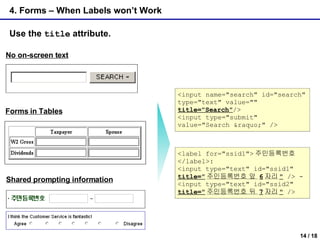
4. Forms – When Labels won’t Work Use the  title  attribute. No on-screen text Shared prompting information Forms in Tables <input name=&quot;search&quot; id=&quot;search&quot; type=&quot;text&quot; value=&quot;&quot;  title=&quot;Search&quot; /> <input type=&quot;submit&quot; value=&quot;Search &raquo;&quot; /> <label for=&quot;ssid1&quot;> 주민등록번호 </label>:  <input type=&quot;text&quot; id=&quot;ssid1&quot;  title=&quot; 주민등록번호 앞  6 자리 &quot;  /> -  <input type=&quot;text&quot; id=&quot;ssid2&quot;  title=&quot; 주민등록번호 뒤  7 자리 &quot;  />
4. Forms – Fieldset & Legend Use fieldset and legend elements for sets of controls. <fieldset> <legend>Payment details</legend> <fieldset class=&quot;radio&quot;> <legend>Credit card </legend> <input id=&quot;card1a&quot; type=&quot;radio&quot; name=&quot;card1&quot;> <label for=&quot;card1a&quot;>American express</label> <input id=&quot;card1b&quot; type=&quot;radio&quot; name=&quot;card1&quot;> <label for=&quot;card1b&quot;>Mastercard</label> <input id=&quot;card1c&quot; type=&quot;radio&quot; name=&quot;card1&quot;> <label for=&quot;card1c&quot;>Visa</label> <input id=&quot;card1d&quot; type=&quot;radio&quot; name=&quot;card1&quot;> <label for=&quot;card1d&quot;>Blockbuster card</label> </fieldset> <label for=&quot;cardnum&quot;>Card number</label> <input id=&quot;cardnum&quot; name=&quot;cardnum&quot;> <label for=&quot;expiry&quot;>Expiry date</label> <input id=&quot;expiry&quot; name=&quot;expiry&quot;> <input class=&quot;submit&quot; type=&quot;submit&quot; value=&quot;submit my details&quot;>  </fieldset>  Quoted from the book,  &quot;Web Accessibility: Web standards and regulatory compliance&quot;
4. Forms – Implicit Labeling Do not use labels as containers. <label> username:  <input name=&quot;username&quot; type=&quot;text&quot;> </label> <label for=&quot;username&quot;>username: </label> <input id=&quot;username&quot; name=&quot;username&quot; type=&quot;text&quot;>
4. Forms - Validation Use always server-side validation, use client-side validation as an auxiliary. Extracted from http://juicystudio.com/experiments/form.php Some people turn off the Javascript. Assistive technologies do not support every bite of Javascript. If a user skips the client-side only validation, harmful data can be submitted causing server disaster.
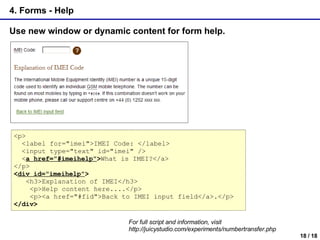
4. Forms - Help Use new window or dynamic content for form help. <p> <label for=&quot;imei&quot;>IMEI Code: </label> <input type=&quot;text&quot; id=&quot;imei&quot; /> < a href=&quot;#imeihelp&quot; > What is IMEI?</a> </p> < div id=&quot;imeihelp&quot; > <h3>Explanation of IMEI</h3> <p>Help content here....</p> <p><a href=&quot;#fid&quot;>Back to IMEI input field</a>.</p> </div> For full script and information, visit http://juicystudio.com/experiments/numbertransfer.php

Understandable Content and Controls

  • 1.
    Understandable Content and Controls 이해의 용이성 Greg Shin ( 신승식 ) LG Electronics http://gregshin.pe.kr/blog/ Table of Contents Make it understandable Table Semantic Markups & CSS Forms 웹 접근성 준수 실무 세미나 November 29, 2006
  • 2.
    1. Make ItUnderstandable The third guideline of KWCAG 1.0 covers understanding problems. Guidelines 1. Content must be perceivable . 2. Interface components in the content must be operable. 3. Content and controls must be understandable. 4. Content should be robust enough to work with current and future user agents (including assistive technologies). Accessible Form Accessible Table Logical organization Checklists
  • 3.
    2. Table –Layout Table Content must be understandable when linearized. Two types Bad Example Solutions Linearization Interim Solution: Add tabindex attributes. Better Solution: Use Style Sheet for proper positioning. Cell 4 Cell 3 Cell 2 Cell 1 Cell 4 Cell 3 Cell 2 Cell 1
  • 4.
    2. Table –Data Table – Identifying a Table Add appropriate table identification information. <caption> for table titles summary for table purpose Vegetable Prices in Seoul and Busan (Won) <table summary =&quot;Wholesale and retail prices of vegetables in Seoul and Busan. There are two levels of row headings.&quot;> <caption> Vegetable prices in Seoul and Busan (Won) </caption> 240 290 210 Retail 80 90 110 Wholesale Busan 250 300 200 Retail 100 120 100 Wholesale Seoul Tomatoes Carrots Beans
  • 5.
    2. Table –Data Table – Identifying rows and columns(1) Identify row and column headers. - Using scope attribute <table border=&quot;1&quot; summary=&quot;Individual scores of midterm and final exams&quot;> <caption>Individual Scores</caption> <thead> <tr> <th></th> <th scope=&quot;col&quot; abbr=&quot;midterm&quot;>Midterm Examamination</th> <th scope=&quot;col&quot; abbr=&quot;final&quot;>Final Examination</th> </tr> </thead> <tbody> <tr> <th scope=&quot;row&quot; >John</th> <td>10</td> <td>20</td> </tr> <tr> <th scope=&quot;row&quot; >Elisa</th> <td>30</td> <td>40</td> </tr> </tbody> </table> 40 30 Elisa 20 10 John Final Examination Midterm Examination
  • 6.
    2. Table –Data Table – Identifying rows and columns(2) Identify row and column headers. - Using id and headers attributes <table border=&quot;1&quot; summary=&quot;Individual scores of midterm and final exams&quot;> <caption>Individual Scores</caption> <thead> <tr> <th></th> <th id=&quot;midterm&quot; abbr=&quot;midterm&quot;>Midterm Examamination</th> <th id=&quot;final&quot; abbr=&quot;final&quot;>Final Examination</th> </tr> </thead> <tbody> <tr> <th id=&quot;John&quot; >John</th> <td headers=&quot;midterm John&quot; >10</td> <td headers=&quot;final John&quot; >20</td> </tr> <tr> <th id=&quot;Elisa&quot; >Elisa</th> <td headers=&quot;midterm Elisa&quot; >30</td> <td headers=&quot;final Elisa&quot; >40</td> </tr> </tbody> </table> 40 30 Elisa 20 10 John Final Examination Midterm Examination
  • 7.
    3.1. Semantic MarkupsDo not rely on presentational cues to deliver messages. <strong>truly</strong> <em>truly</em> <span class=“emphasis”>truly</span> <font color=“red”>truly</font> I truly believe it. table {empty-cells: show} &nbsp; <img src=“transparent.png”> Empty cell h1 {margin-bottom: 2em} <h1>Heading 1</h1> <font size=“3”>Heading 1</font><br/><br/> Heading 1 Heading 2 {letter-spacing: 1em} W&nbsp;O&nbsp; W O R L D {text-align: justify} 상 &nbsp;&nbsp; 세 ... 상세 목차 <li>Firstly, you need to be proactive.</li> * Firstly, you need to be<br/> &nbsp;&nbsp;proactive. Firstly, you need to be proactive. <p>Sometimes seeing is not all.</p> Sometimes seeing<br/> is not all. Sometimes seeing is not all. Good implementation Bad implementation Your intentions
  • 8.
    3.2. CSS -Accessibility Benefits How beneficial the Style Sheet is for ACCESSIBILITY! CSS benefits accessibility primarily by separating document structure from presentation . CSS allows precise control over spacing, alignment and positioning. Authors can thereby avoid &quot;tag misuse&quot; . In addition to preventing element misuse, style sheets can help reduce image misuse . CSS provides precise control over font size, color, and style. CSS allows users to override author styles . CSS provides support for automatically generated numbers, markers, and other content that can help users stay oriented within a document. CSS supports aural style sheets . CSS provides more precise control over the display of alternative content than HTML alone. Quoted from http://www.w3.org/TR/CSS-access
  • 9.
    3.2. CSS –User Override of Styles * { color: black ! important ; background: white ! Important; font-size: 20pt ! Important; } :active { outline: thick solid red } :focus { outline: thick solid blue } People with disabilities can use their own adaptable style while reading the page. Example of User Style Sheet Refer to the site below for other browsers: http://www.howtocreate.co.uk/userStyle.html Internet Explorer 6 & 7 Firefox with Web Developer Toolbar Opera 9
  • 10.
    3.2. CSS –Content generation, Alternate representation Generated content can serve as markers to help users navigate a document and stay oriented. * [accesskey]:after { content: attr(accesskey) ; text-decoration: underline; padding-left: 0.5em; font-size: smaller; } ul:after { content: End of Unordered List; } q:lang(en) { quotes: '&quot;' '&quot;' &quot;'&quot; &quot;'&quot; } q:lang(ko) { quotes: &quot; 『 &quot; &quot; 』 &quot; ' 「 ' ' 」 ' } H1 { voice-family: paul; cue-before: url(&quot;ping.mp3&quot;) } Showing accesskey after each element Showing end of list Use appropriate quotation marks Cueing header content Showing special content when printing @media print { acronym:after { content: &quot;(&quot; attr(title) &quot;)&quot; } a:after { content: &quot; &quot;attr(href); font-size: smaller; } }
  • 11.
    4. Forms –Form components Forms consist of input or interaction elements. Accessibility Recommendations HTML markups Components <input type=“file”…> File Do not use &quot; onchange &quot;. Match with <label> . Use <label> and &quot;title&quot; . Share &quot; name &quot;s, use unique &quot; id &quot;s. Group using <fieldset> and <legend> . Match with <label> . Match with <label> . Use &quot; title &quot; when necessary. Not recommended Add the &quot;alt&quot; attribute. <select> List boxes <input type=“checkboxes”…> Check boxes <input type=“radio” …> Radio buttons <textarea …> Text areas <input type=“text” …> <input type=“password” …> Text entry fields <button …> Generalized buttons <input type=“image” …> Graphical buttons <input type=“button” …> Push buttons
  • 12.
    4. Forms -Buttons Make sure to add alt-text on image buttons. <input type=&quot;image&quot; src=&quot;/images/main/MemberLoginBtn.gif&quot; alt=&quot; 로그인 &quot; > <label for=&quot;main-search&quot;> 자료검색 </label> <input id=&quot;main-search&quot; type=&quot;text&quot; class=&quot;type-text&quot; name=&quot;ss&quot; value=&quot;&quot;> <input type=&quot;hidden&quot; name=&quot;md&quot; value=&quot;search&quot;> <input type=&quot;image&quot; src=&quot;/images/main/SearchBtn.gif&quot; alt=&quot; 검색 &quot; >
  • 13.
    4. Forms –Text Input Use <label> for prompting text. <fieldset> <legend> 회원약관에 동의합니다 .</legend> <input id=&quot;chk1&quot; name=&quot;stipulation&quot; value=&quot;Y&quot; type=&quot;radio&quot;> <label for=&quot;chk1&quot; > 동의함 .</label> <input id=&quot;chk2&quot; name=&quot;stipulation&quot; value=&quot;N&quot; type=&quot;radio&quot;> <label for=&quot;chk2&quot; > 동의 안 함 .</label> </fieldset> <label for=&quot;lname&quot;> Last name: </label> <input type=&quot;text&quot; name=&quot;.ln&quot; value=&quot;&quot; size=&quot;30&quot; maxlength=&quot;50&quot; id=&quot;lname&quot; > <label for=&quot;intl&quot;> Preferred content: </label> <select name=&quot;.intl&quot; id=&quot;intl&quot; >
  • 14.
    4. Forms –When Labels won’t Work Use the title attribute. No on-screen text Shared prompting information Forms in Tables <input name=&quot;search&quot; id=&quot;search&quot; type=&quot;text&quot; value=&quot;&quot; title=&quot;Search&quot; /> <input type=&quot;submit&quot; value=&quot;Search &raquo;&quot; /> <label for=&quot;ssid1&quot;> 주민등록번호 </label>: <input type=&quot;text&quot; id=&quot;ssid1&quot; title=&quot; 주민등록번호 앞 6 자리 &quot; /> - <input type=&quot;text&quot; id=&quot;ssid2&quot; title=&quot; 주민등록번호 뒤 7 자리 &quot; />
  • 15.
    4. Forms –Fieldset & Legend Use fieldset and legend elements for sets of controls. <fieldset> <legend>Payment details</legend> <fieldset class=&quot;radio&quot;> <legend>Credit card </legend> <input id=&quot;card1a&quot; type=&quot;radio&quot; name=&quot;card1&quot;> <label for=&quot;card1a&quot;>American express</label> <input id=&quot;card1b&quot; type=&quot;radio&quot; name=&quot;card1&quot;> <label for=&quot;card1b&quot;>Mastercard</label> <input id=&quot;card1c&quot; type=&quot;radio&quot; name=&quot;card1&quot;> <label for=&quot;card1c&quot;>Visa</label> <input id=&quot;card1d&quot; type=&quot;radio&quot; name=&quot;card1&quot;> <label for=&quot;card1d&quot;>Blockbuster card</label> </fieldset> <label for=&quot;cardnum&quot;>Card number</label> <input id=&quot;cardnum&quot; name=&quot;cardnum&quot;> <label for=&quot;expiry&quot;>Expiry date</label> <input id=&quot;expiry&quot; name=&quot;expiry&quot;> <input class=&quot;submit&quot; type=&quot;submit&quot; value=&quot;submit my details&quot;> </fieldset> Quoted from the book, &quot;Web Accessibility: Web standards and regulatory compliance&quot;
  • 16.
    4. Forms –Implicit Labeling Do not use labels as containers. <label> username: <input name=&quot;username&quot; type=&quot;text&quot;> </label> <label for=&quot;username&quot;>username: </label> <input id=&quot;username&quot; name=&quot;username&quot; type=&quot;text&quot;>
  • 17.
    4. Forms -Validation Use always server-side validation, use client-side validation as an auxiliary. Extracted from http://juicystudio.com/experiments/form.php Some people turn off the Javascript. Assistive technologies do not support every bite of Javascript. If a user skips the client-side only validation, harmful data can be submitted causing server disaster.
  • 18.
    4. Forms -Help Use new window or dynamic content for form help. <p> <label for=&quot;imei&quot;>IMEI Code: </label> <input type=&quot;text&quot; id=&quot;imei&quot; /> < a href=&quot;#imeihelp&quot; > What is IMEI?</a> </p> < div id=&quot;imeihelp&quot; > <h3>Explanation of IMEI</h3> <p>Help content here....</p> <p><a href=&quot;#fid&quot;>Back to IMEI input field</a>.</p> </div> For full script and information, visit http://juicystudio.com/experiments/numbertransfer.php