Keyhole Modeling Language –  Chpt. 4 – Styles & Icons Mr. Thomas Cooper Outdoor Technology The Walker School
Styles and Substyles <Style id=“ID”> <IconStyle> <LabelStyle> <LineStyle> <PolyStyle> <BalloonStyle> <ListStyle> </Style> Various style elements are contained within the “Style” tag.
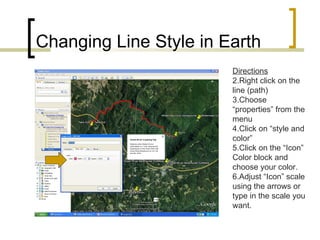
Changing Line Style in Earth Directions Right click on the line (path) Choose “properties” from the menu Click on “style and color” Click on the “Icon” Color block and choose your color. Adjust “Icon” scale using the arrows or type in the scale you want.
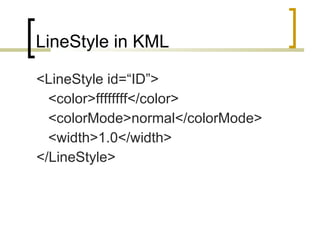
LineStyle in KML <LineStyle id=“ID”> <color>ffffffff</color> <colorMode>normal</colorMode> <width>1.0</width> </LineStyle>
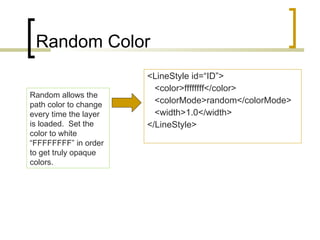
Random Color <LineStyle id=“ID”> <color>ffffffff</color> <colorMode>random</colorMode> <width>1.0</width> </LineStyle> Random allows the path color to change every time the layer is loaded.  Set the color to white “FFFFFFFF” in order to get truly opaque colors.
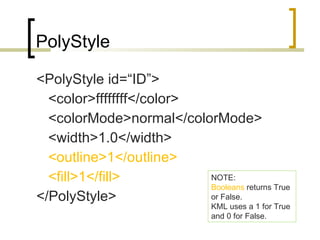
PolyStyle <PolyStyle id=“ID”> <color>ffffffff</color> <colorMode>normal</colorMode> <width>1.0</width> <outline>1</outline> <fill>1</fill> </PolyStyle> NOTE: Booleans  returns True or False. KML uses a 1 for True and 0 for False.
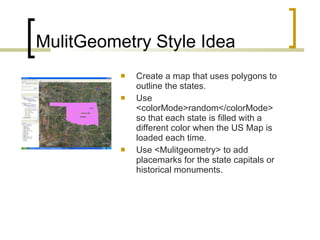
MulitGeometry Style Idea Create a map that uses polygons to outline the states.  Use <colorMode>random</colorMode> so that each state is filled with a different color when the US Map is loaded each time. Use <Mulitgeometry> to add placemarks for the state capitals or historical monuments.
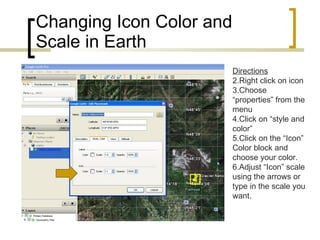
Changing Icon Color and Scale in Earth Directions Right click on icon Choose “properties” from the menu Click on “style and color” Click on the “Icon” Color block and choose your color. Adjust “Icon” scale using the arrows or type in the scale you want.
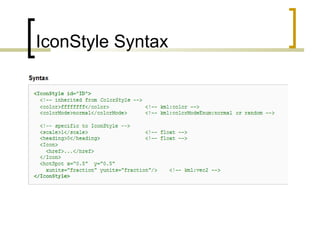
IconStyle Syntax
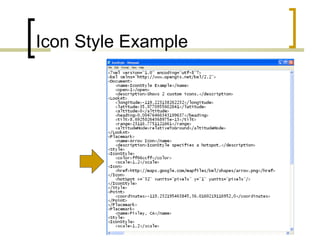
Icon Style Example
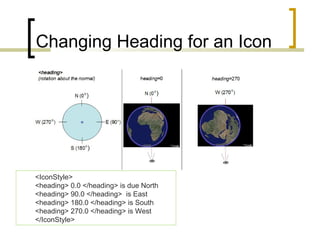
Changing Heading for an Icon <IconStyle> <heading> 0.0 </heading> is due North <heading> 90.0 </heading>  is East <heading> 180.0 </heading> is South <heading> 270.0 </heading> is West </IconStyle>
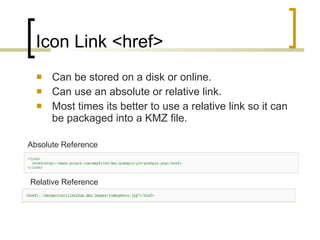
Icon Link <href> Can be stored on a disk or online. Can use an absolute or relative link. Most times its better to use a relative link so it can be packaged into a KMZ file. Absolute Reference Relative Reference
Icon Hotspots <hotSpot> Specifies the location on the icon that is to be anchored to the ground. By default the center of the icon is pinned.
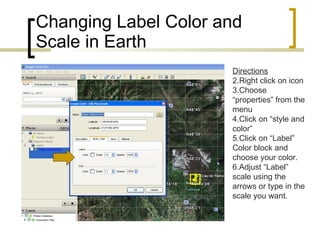
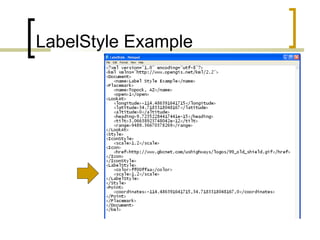
Changing Label Color and Scale in Earth Directions Right click on icon Choose “properties” from the menu Click on “style and color” Click on “Label” Color block and choose your color. Adjust “Label” scale using the arrows or type in the scale you want.
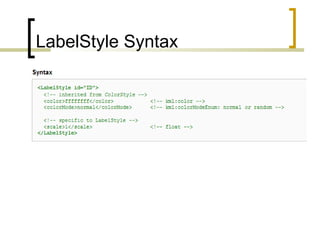
LabelStyle Syntax
LabelStyle Example
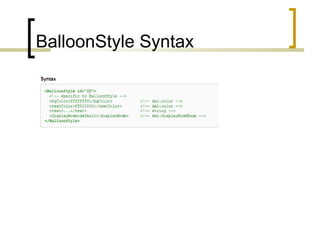
BalloonStyle Syntax
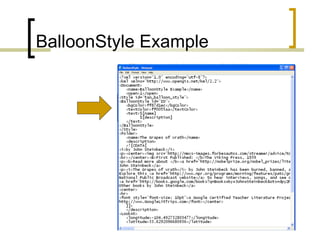
BalloonStyle Example
Changing List Style in Earth As of GE 5.0 it can’t be done…you need to use KML.
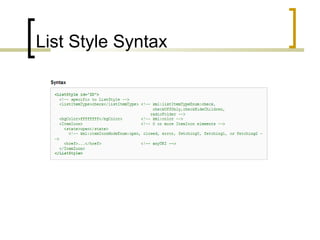
List Style Syntax
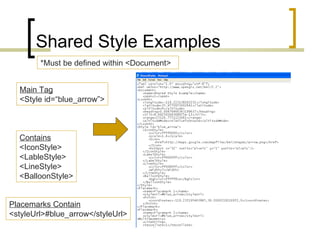
Shared Style Examples Contains <IconStyle> <LableStyle> <LineStyle> <BalloonStyle> Main Tag <Style id=“blue_arrow”> Placemarks Contain <styleUrl>#blue_arrow</styleUrl> *Must be defined within <Document>
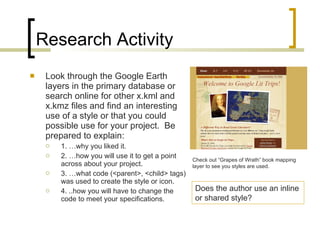
Research Activity Look through the Google Earth layers in the primary database or search online for other x.kml and x.kmz files and find an interesting use of a style or that you could possible use for your project.  Be prepared to explain: 1. …why you liked it. 2. …how you will use it to get a point across about your project. 3. …what code (<parent>, <child> tags) was used to create the style or icon. 4. ..how you will have to change the code to meet your specifications. Check out “Grapes of Wrath” book mapping layer to see you styles are used. Does the author use an inline or shared style?
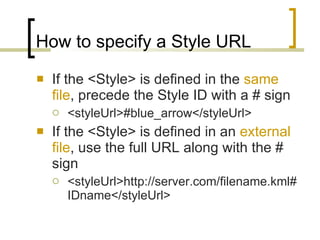
How to specify a Style URL If the <Style> is defined in the  same file , precede the Style ID with a # sign <styleUrl>#blue_arrow</styleUrl> If the <Style> is defined in an  external file , use the full URL along with the # sign <styleUrl>http://server.com/filename.kml#IDname</styleUrl>
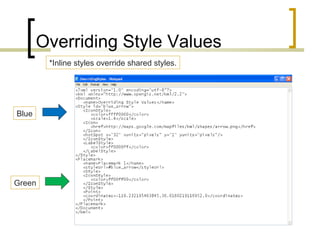
Overriding Style Values *Inline styles override shared styles. Blue Green
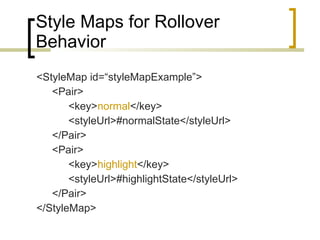
Style Maps for Rollover Behavior <StyleMap id=“styleMapExample”> <Pair> <key> normal </key> <styleUrl>#normalState</styleUrl> </Pair> <Pair> <key> highlight </key> <styleUrl>#highlightState</styleUrl> </Pair> </StyleMap>
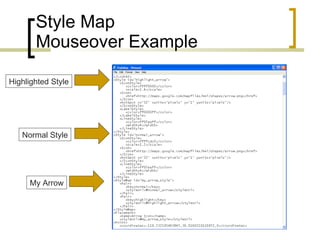
Style Map  Mouseover Example Highlighted Style Normal Style My Arrow
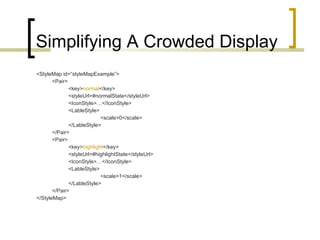
Simplifying A Crowded Display <StyleMap id=“styleMapExample”> <Pair> <key> normal </key> <styleUrl>#normalState</styleUrl> <IconStyle>…</IconStyle> <LableStyle> <scale>0</scale> </LableStyle> </Pair> <Pair> <key> highlight </key> <styleUrl>#highlightState</styleUrl> <IconStyle>…</IconStyle> <LableStyle> <scale>1</scale> </LableStyle> </Pair> </StyleMap>
Defining Styles Externally KML does not support CSS Can define a style externally by referencing and external kml file.

Kml Basics Chpt 4 Styles &amp; Icons

  • 1.
    Keyhole Modeling Language– Chpt. 4 – Styles & Icons Mr. Thomas Cooper Outdoor Technology The Walker School
  • 2.
    Styles and Substyles<Style id=“ID”> <IconStyle> <LabelStyle> <LineStyle> <PolyStyle> <BalloonStyle> <ListStyle> </Style> Various style elements are contained within the “Style” tag.
  • 3.
    Changing Line Stylein Earth Directions Right click on the line (path) Choose “properties” from the menu Click on “style and color” Click on the “Icon” Color block and choose your color. Adjust “Icon” scale using the arrows or type in the scale you want.
  • 4.
    LineStyle in KML<LineStyle id=“ID”> <color>ffffffff</color> <colorMode>normal</colorMode> <width>1.0</width> </LineStyle>
  • 5.
    Random Color <LineStyleid=“ID”> <color>ffffffff</color> <colorMode>random</colorMode> <width>1.0</width> </LineStyle> Random allows the path color to change every time the layer is loaded. Set the color to white “FFFFFFFF” in order to get truly opaque colors.
  • 6.
    PolyStyle <PolyStyle id=“ID”><color>ffffffff</color> <colorMode>normal</colorMode> <width>1.0</width> <outline>1</outline> <fill>1</fill> </PolyStyle> NOTE: Booleans returns True or False. KML uses a 1 for True and 0 for False.
  • 7.
    MulitGeometry Style IdeaCreate a map that uses polygons to outline the states. Use <colorMode>random</colorMode> so that each state is filled with a different color when the US Map is loaded each time. Use <Mulitgeometry> to add placemarks for the state capitals or historical monuments.
  • 8.
    Changing Icon Colorand Scale in Earth Directions Right click on icon Choose “properties” from the menu Click on “style and color” Click on the “Icon” Color block and choose your color. Adjust “Icon” scale using the arrows or type in the scale you want.
  • 9.
  • 10.
  • 11.
    Changing Heading foran Icon <IconStyle> <heading> 0.0 </heading> is due North <heading> 90.0 </heading> is East <heading> 180.0 </heading> is South <heading> 270.0 </heading> is West </IconStyle>
  • 12.
    Icon Link <href>Can be stored on a disk or online. Can use an absolute or relative link. Most times its better to use a relative link so it can be packaged into a KMZ file. Absolute Reference Relative Reference
  • 13.
    Icon Hotspots <hotSpot>Specifies the location on the icon that is to be anchored to the ground. By default the center of the icon is pinned.
  • 14.
    Changing Label Colorand Scale in Earth Directions Right click on icon Choose “properties” from the menu Click on “style and color” Click on “Label” Color block and choose your color. Adjust “Label” scale using the arrows or type in the scale you want.
  • 15.
  • 16.
  • 17.
  • 18.
  • 19.
    Changing List Stylein Earth As of GE 5.0 it can’t be done…you need to use KML.
  • 20.
  • 21.
    Shared Style ExamplesContains <IconStyle> <LableStyle> <LineStyle> <BalloonStyle> Main Tag <Style id=“blue_arrow”> Placemarks Contain <styleUrl>#blue_arrow</styleUrl> *Must be defined within <Document>
  • 22.
    Research Activity Lookthrough the Google Earth layers in the primary database or search online for other x.kml and x.kmz files and find an interesting use of a style or that you could possible use for your project. Be prepared to explain: 1. …why you liked it. 2. …how you will use it to get a point across about your project. 3. …what code (<parent>, <child> tags) was used to create the style or icon. 4. ..how you will have to change the code to meet your specifications. Check out “Grapes of Wrath” book mapping layer to see you styles are used. Does the author use an inline or shared style?
  • 23.
    How to specifya Style URL If the <Style> is defined in the same file , precede the Style ID with a # sign <styleUrl>#blue_arrow</styleUrl> If the <Style> is defined in an external file , use the full URL along with the # sign <styleUrl>http://server.com/filename.kml#IDname</styleUrl>
  • 24.
    Overriding Style Values*Inline styles override shared styles. Blue Green
  • 25.
    Style Maps forRollover Behavior <StyleMap id=“styleMapExample”> <Pair> <key> normal </key> <styleUrl>#normalState</styleUrl> </Pair> <Pair> <key> highlight </key> <styleUrl>#highlightState</styleUrl> </Pair> </StyleMap>
  • 26.
    Style Map Mouseover Example Highlighted Style Normal Style My Arrow
  • 27.
    Simplifying A CrowdedDisplay <StyleMap id=“styleMapExample”> <Pair> <key> normal </key> <styleUrl>#normalState</styleUrl> <IconStyle>…</IconStyle> <LableStyle> <scale>0</scale> </LableStyle> </Pair> <Pair> <key> highlight </key> <styleUrl>#highlightState</styleUrl> <IconStyle>…</IconStyle> <LableStyle> <scale>1</scale> </LableStyle> </Pair> </StyleMap>
  • 28.
    Defining Styles ExternallyKML does not support CSS Can define a style externally by referencing and external kml file.