Migrating Content by Search from
2010 into 2013
IW411
Paul Hunt
 Paul Hunt, MCITP, MCPD
 Trinity Expert Systems Ltd
 www.tesl.com
 paul.hunt@eurodatasystems.com
 Twitter:@cimares
 www.myfatblog.co.uk
 I do woodturning for a hobby!
Session Agenda
 Cross-Site Collection roll-ups in SP2010
using Search Core Results
 Migrating the solution from SP2010 to
SP2013
 Rebuilding from scratch in SP2013 using
Search Results/Content by Search
 LegalCorp.Com
Introducing our
fictional client
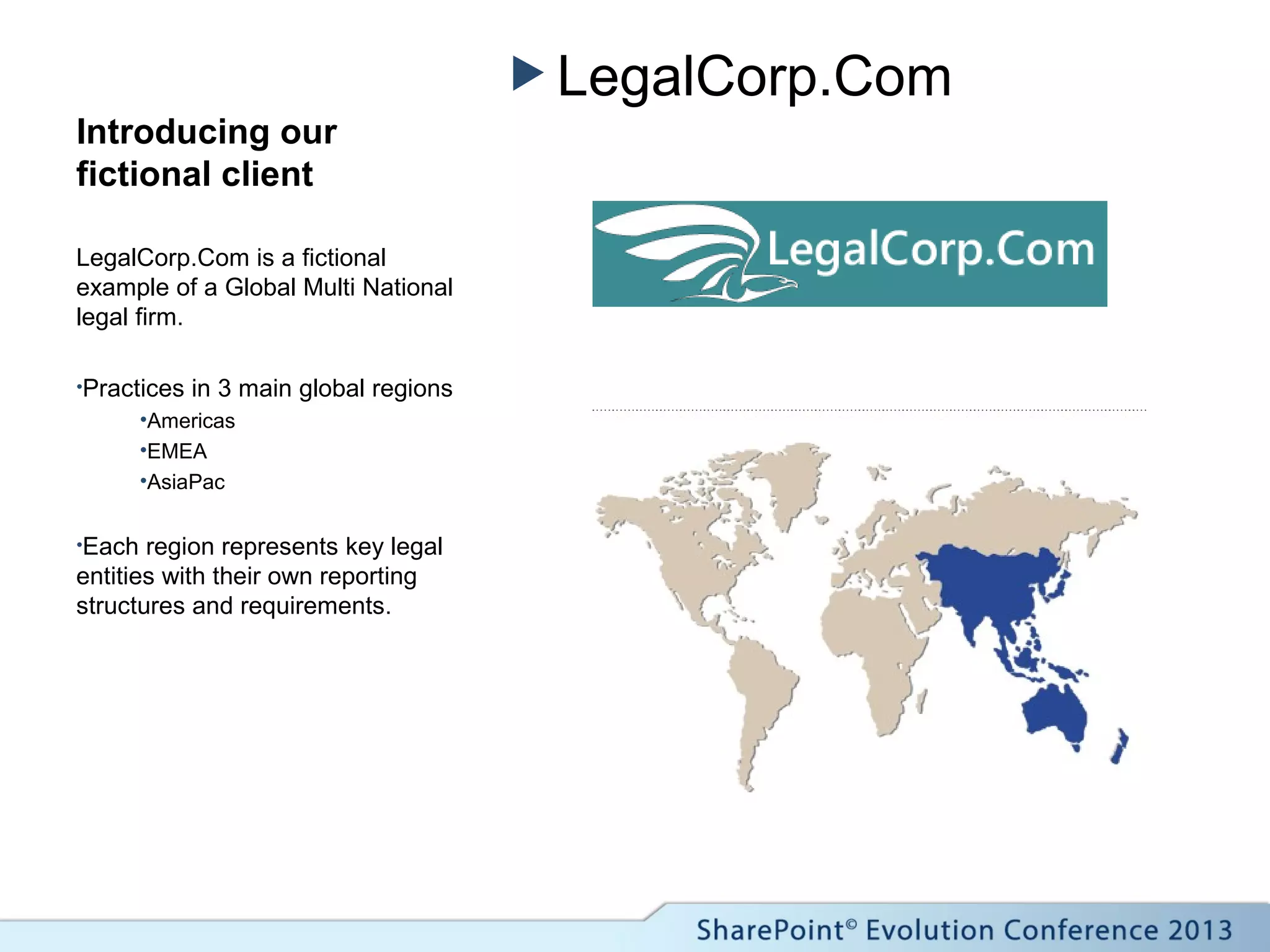
LegalCorp.Com is a fictional
example of a Global Multi National
legal firm.
•Practices in 3 main global regions
•Americas
•EMEA
•AsiaPac
•Each region represents key legal
entities with their own reporting
structures and requirements.
Global Challenges
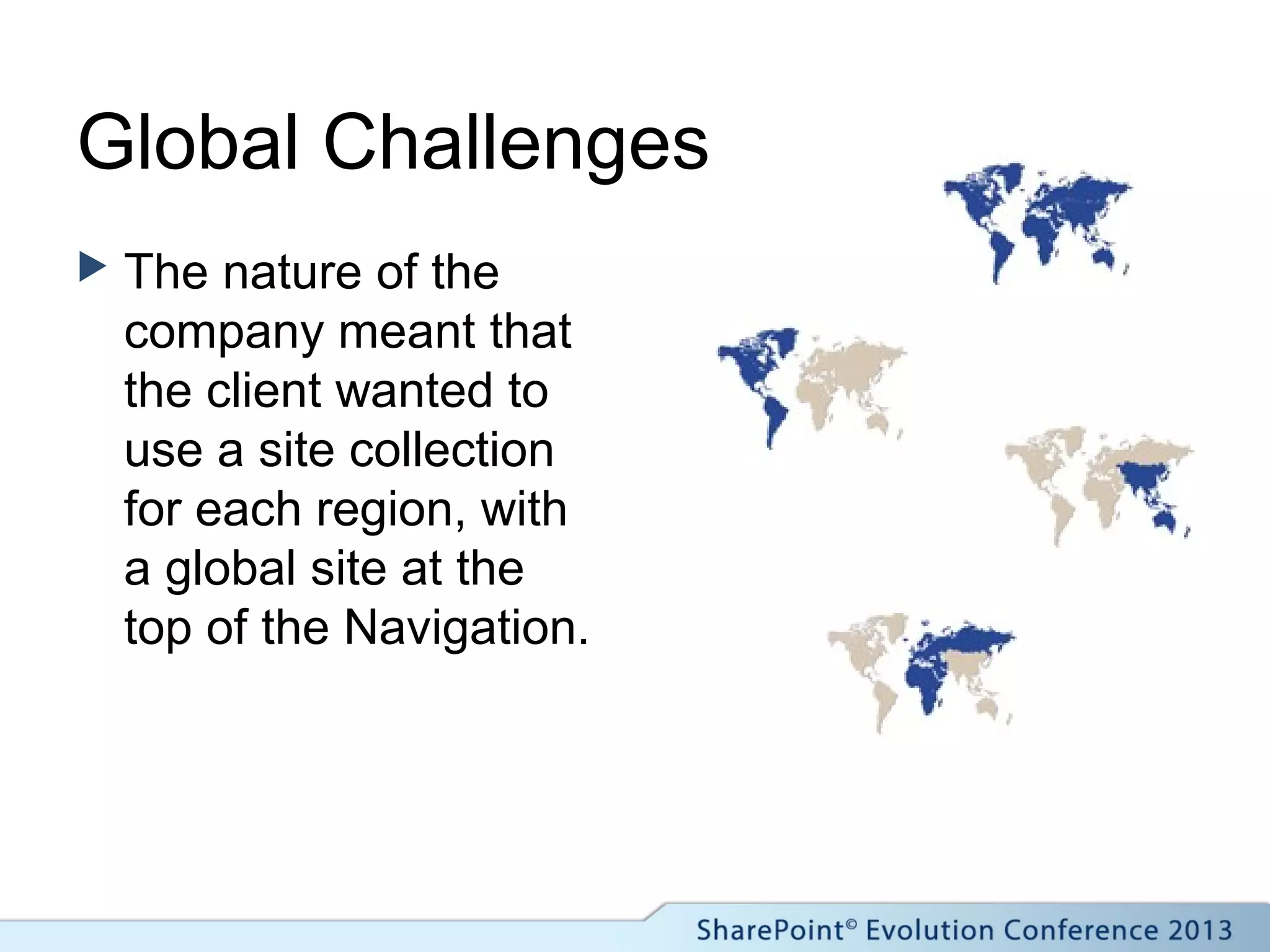
 The nature of the
company meant that
the client wanted to
use a site collection
for each region, with
a global site at the
top of the Navigation.
Global Challenges
 This presented
several challenges.
 Consistent
navigation.
 Content Type
syndication.
 Client preference to
avoid custom code.
 Roll up of content
from each of the
regions.
What does the
client want to
achieve?
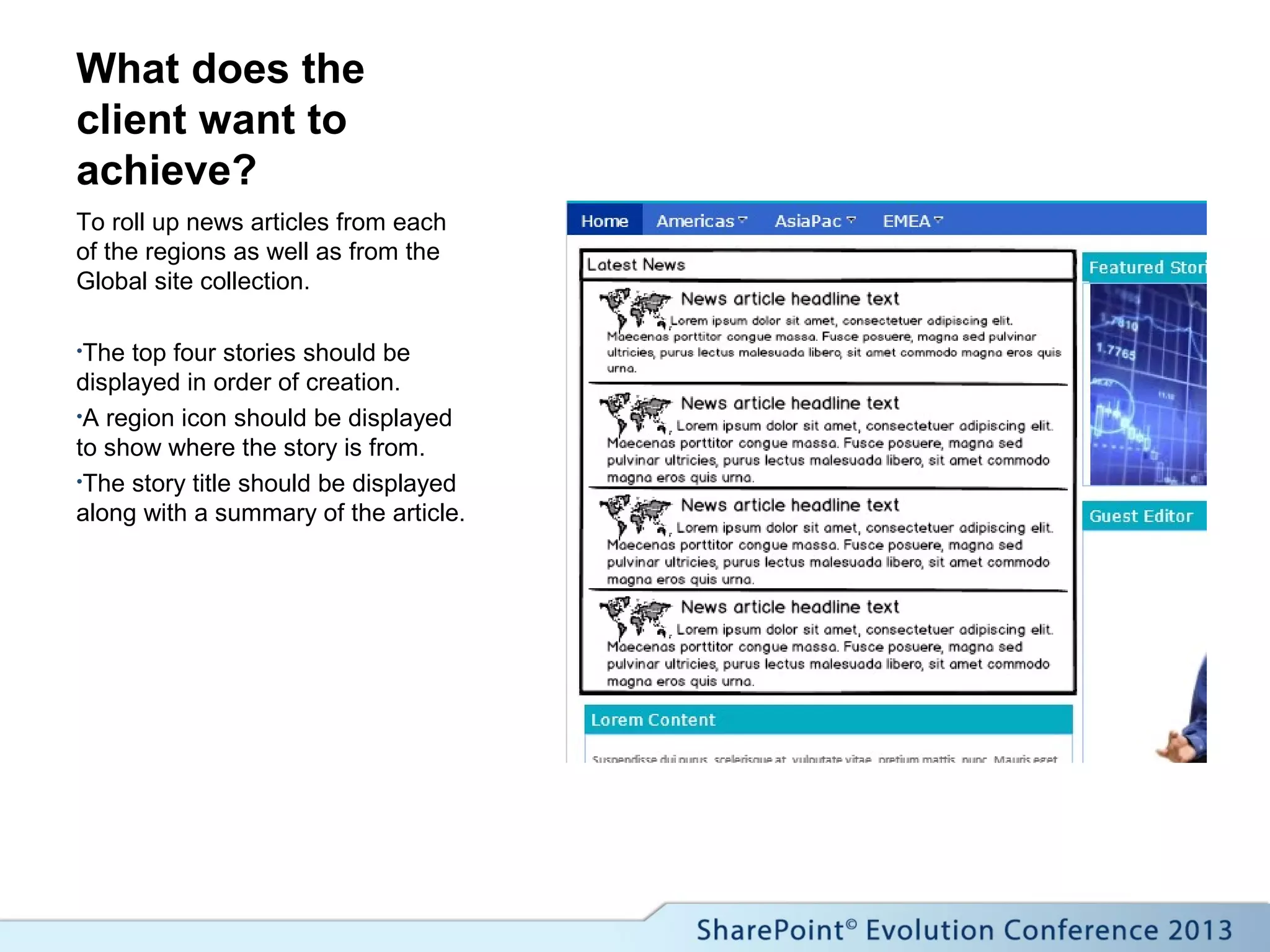
To roll up news articles from each
of the regions as well as from the
Global site collection.
•The top four stories should be
displayed in order of creation.
•A region icon should be displayed
to show where the story is from.
•The story title should be displayed
along with a summary of the article.
CQWP Limitations
 CQWP is the usual
tool of choice for the
roll up of information.
 Quick and easy to
configure.
 Fairly simple to
customize with xslt.
 Good for time critical
information.
 CQWP doesn’t work
across site
collections.
 CQWP doesn’t
provide paging ootb.
 CQWP is limited to
1000 lists.
 CQWP increases the
demand on the web
servers.
Enter our Hero!
Search
A Search alternative?
 The search service
application has been
designed from the
ground up to be
scalable in enterprise
situations.
 Search results can
be provided from
multiple site
collections.
 Search results can
be styled easily using
xslt.
 Complex search
queries can be
executed.
Our Kryptonite?
 Result data is only as
fresh as the crawls.
 [Me] and [Today]
tokens are not
available. (SP2010)

Search needs more preparation.
 In addition to Content Types and Site Columns
 Search needs:-
 Search scopes
 Managed properties
 Regular crawls
Building our Solution in
SharePoint 2010
Building our Solution
 Site Columns
 Content Type
 Page Layout
 Managed Properties
 Scope
 Search Core Results
Web Part
 XSLT
Site Columns
 Region
 Sector
 Primary Sector
 Article Summary
Content Type
 Name: Legal Corp News Article Page.
 Inherits from Article
Page (OOTB).
 Adds our new site
columns.
Content Type - Deployment
 Manual
Configuration
 Content Type Hub
 Powershell
 Solution Package
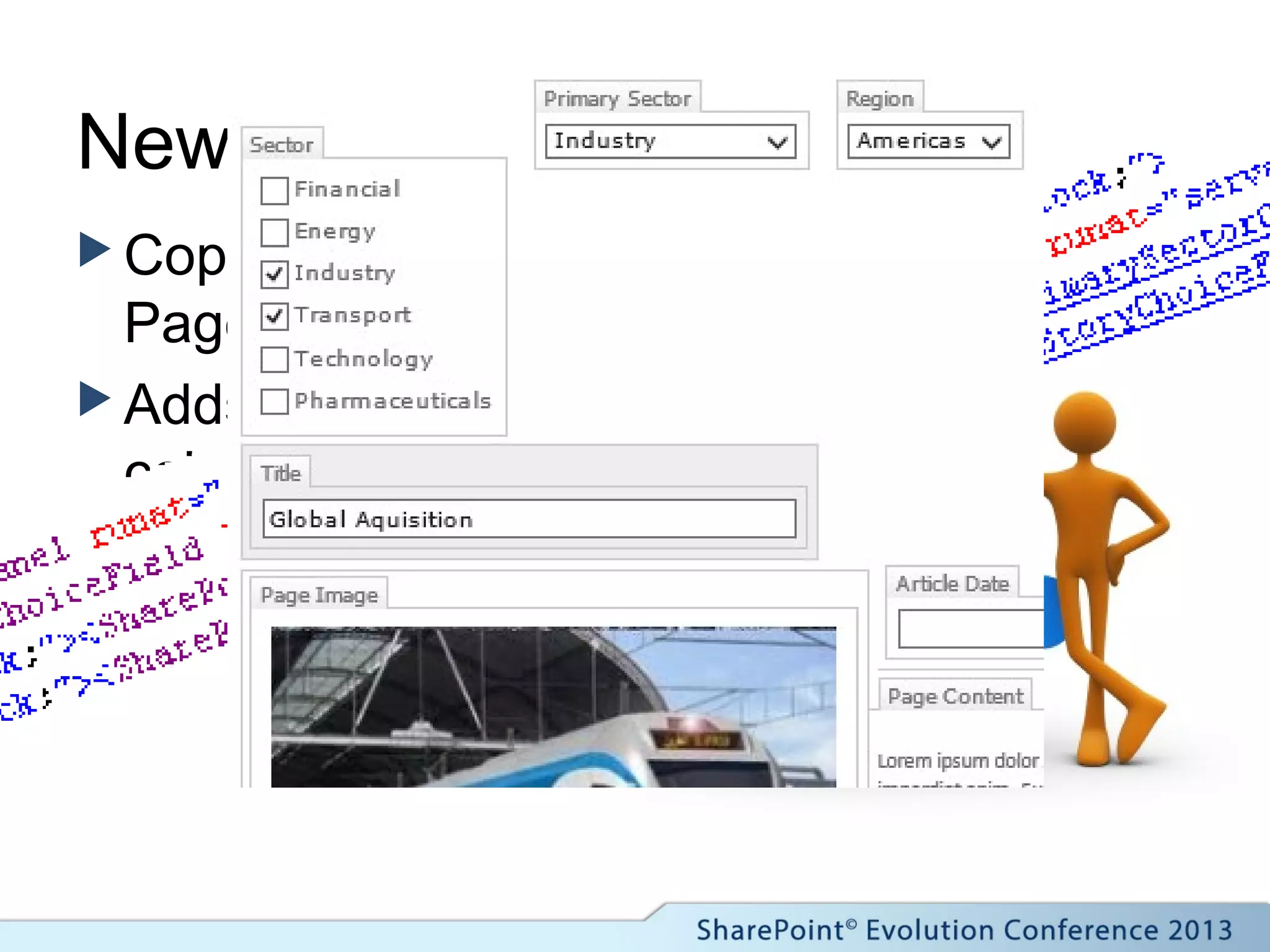
New Page Layout(s)
 Copied from Article
Page
 Adds our new site
columns into the edit
experience.
Managed Properties
 Before you go any further.
 Create some content.
 Tag it properly
 Full Crawl.
Managed Properties
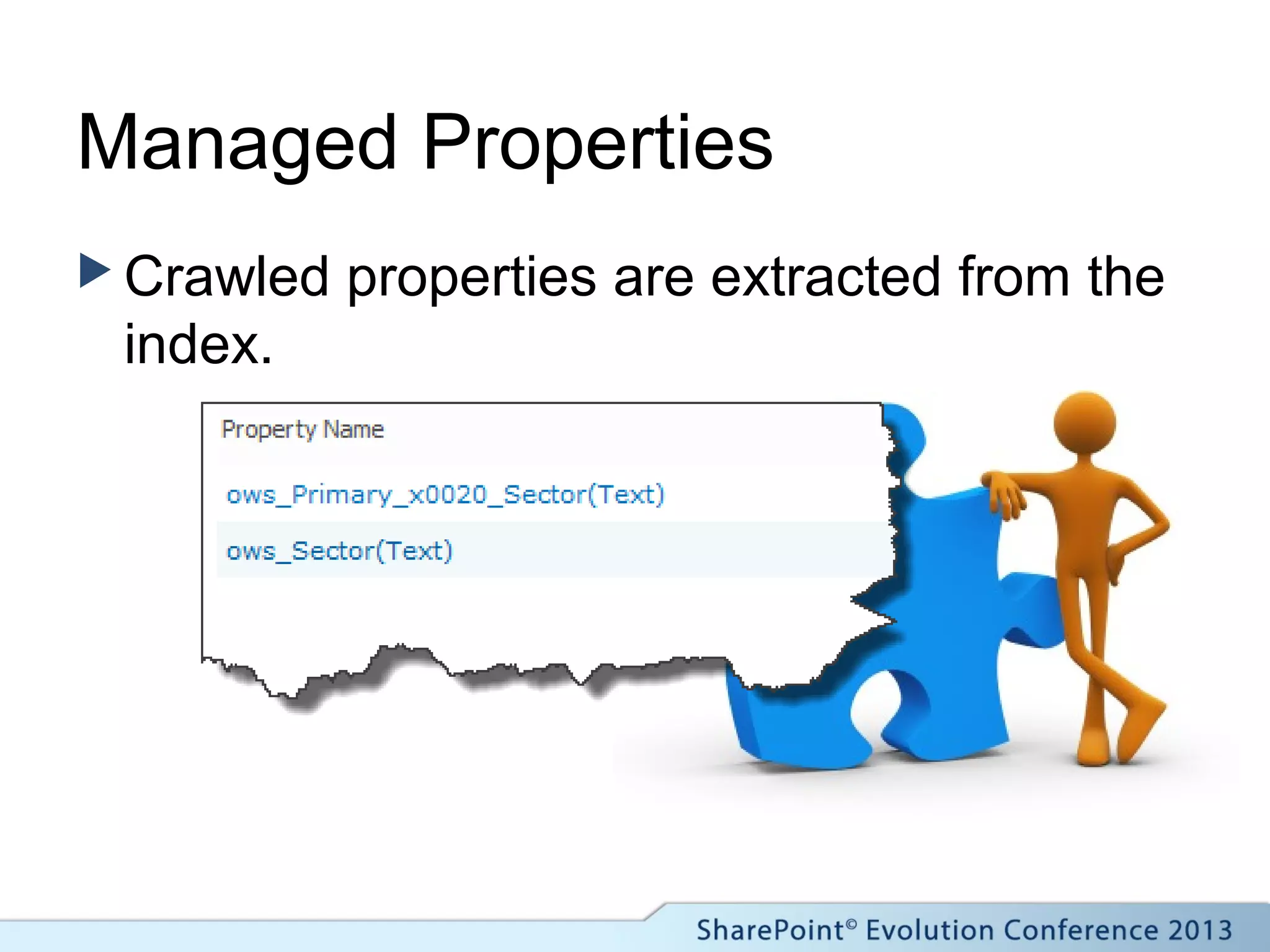
 Crawled properties are extracted from the
index.
Managed Properties
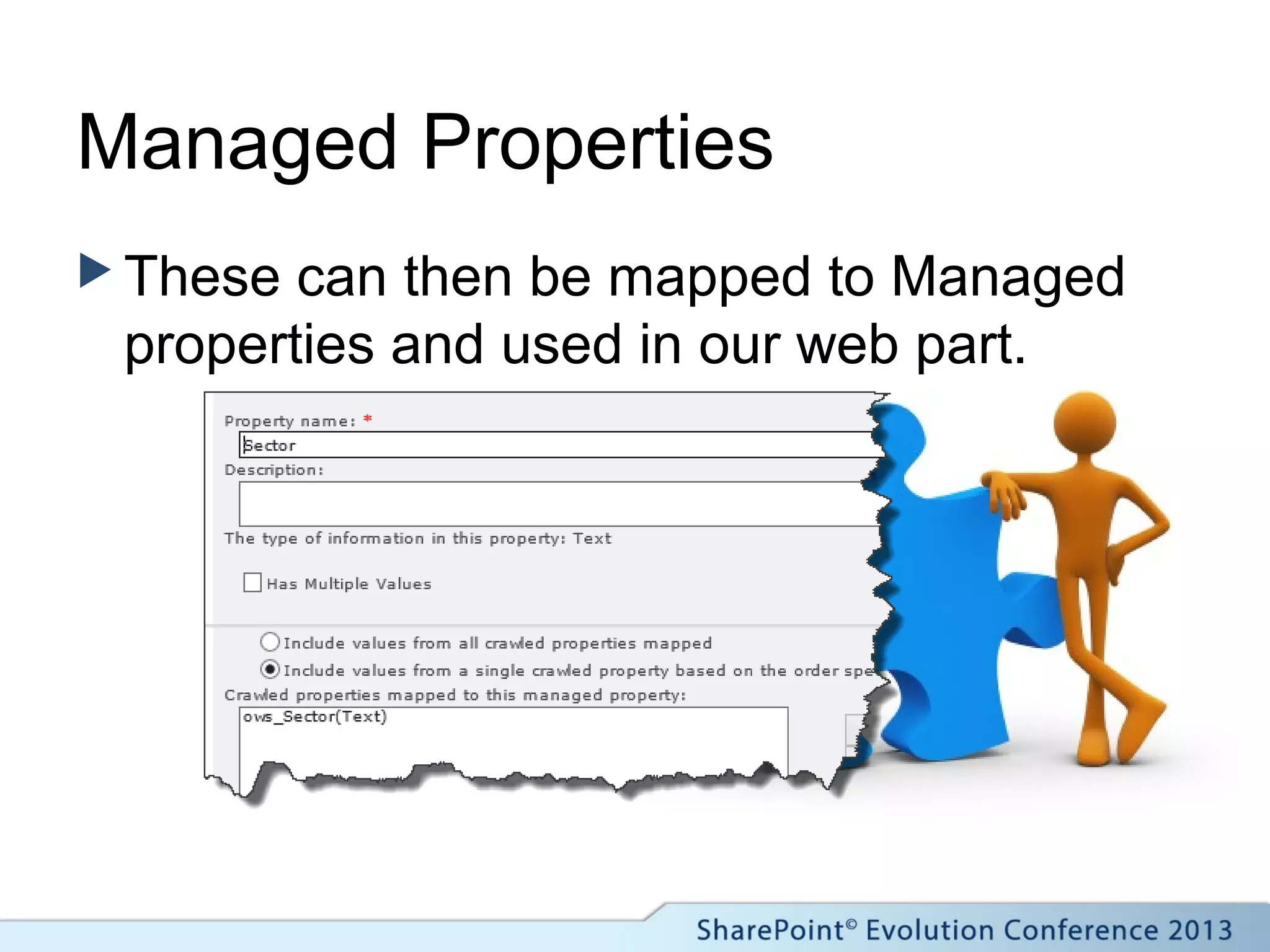
 These can then be mapped to Managed
properties and used in our web part.
Scope
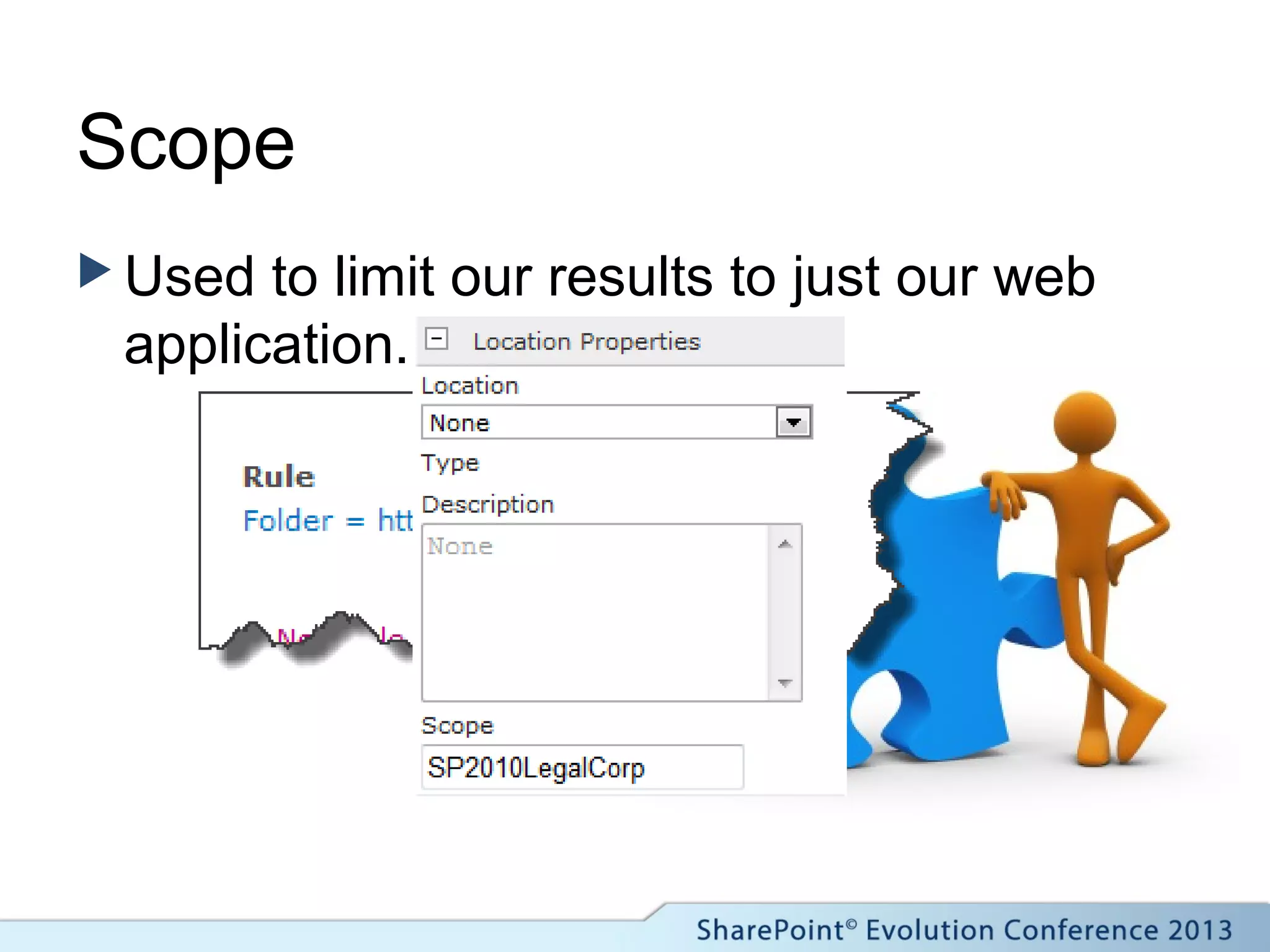
 Used to limit our results to just our web
application.
Search Core Results Web part
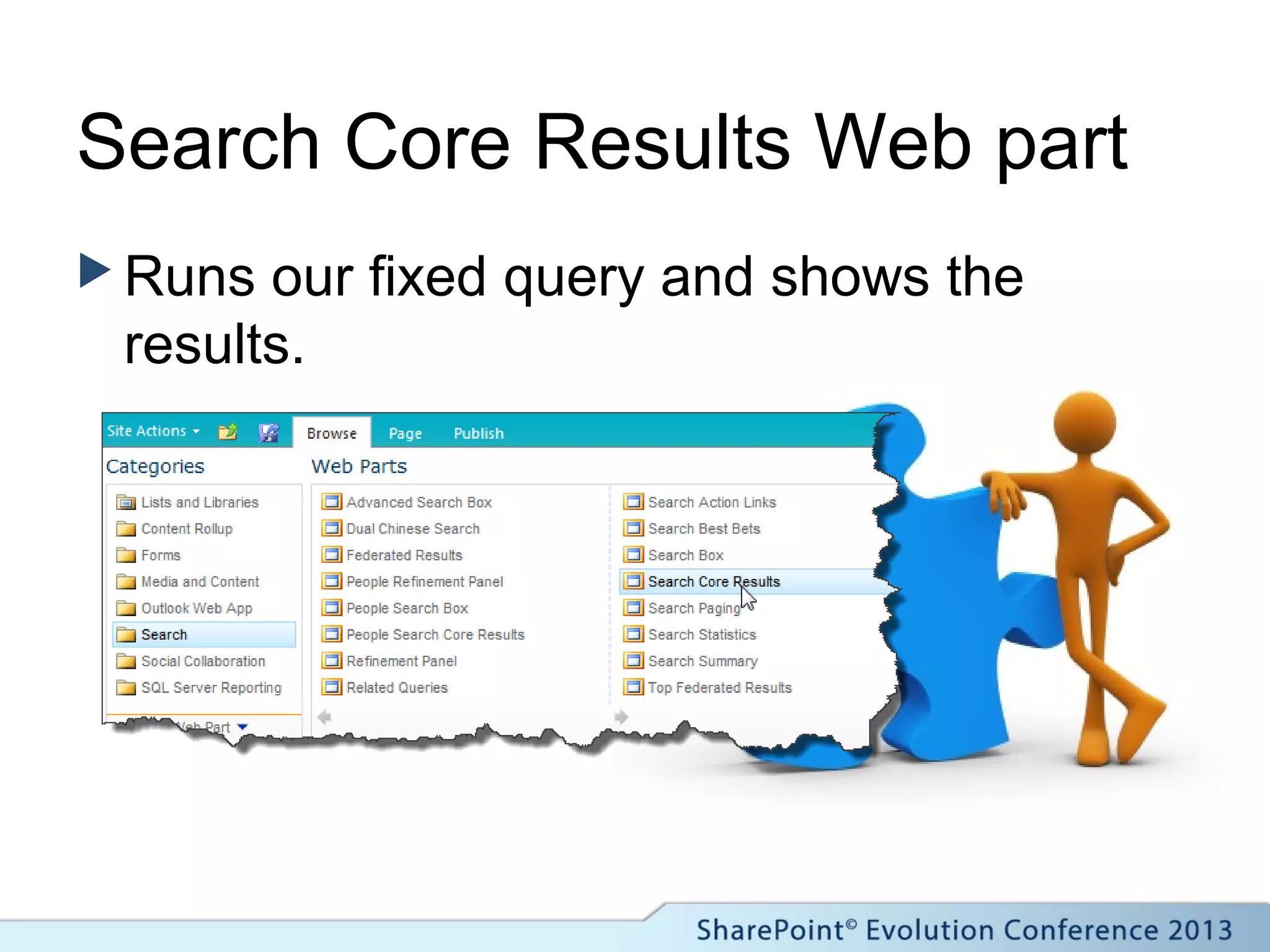
 Runs our fixed query and shows the
results.
XSLT
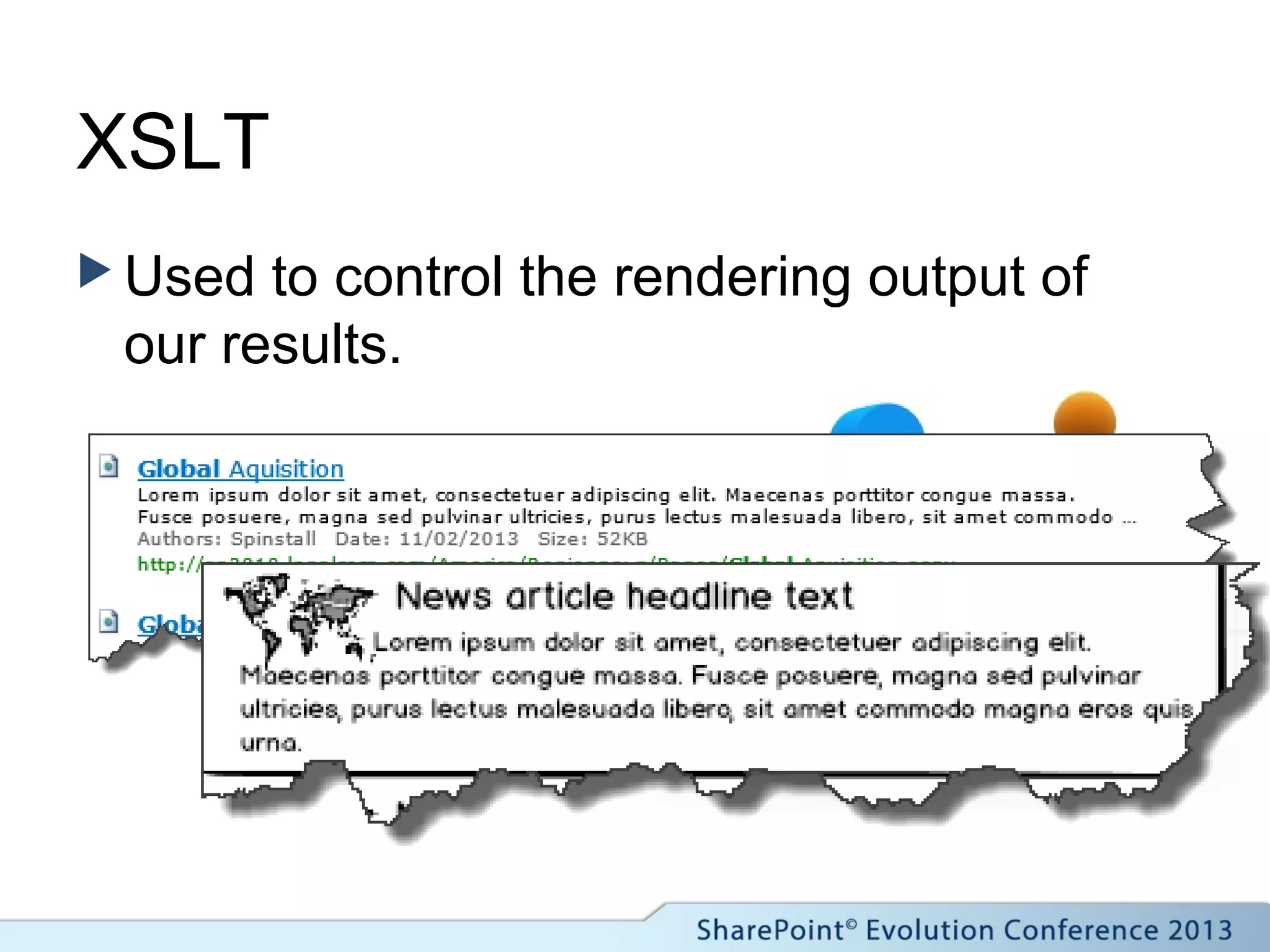
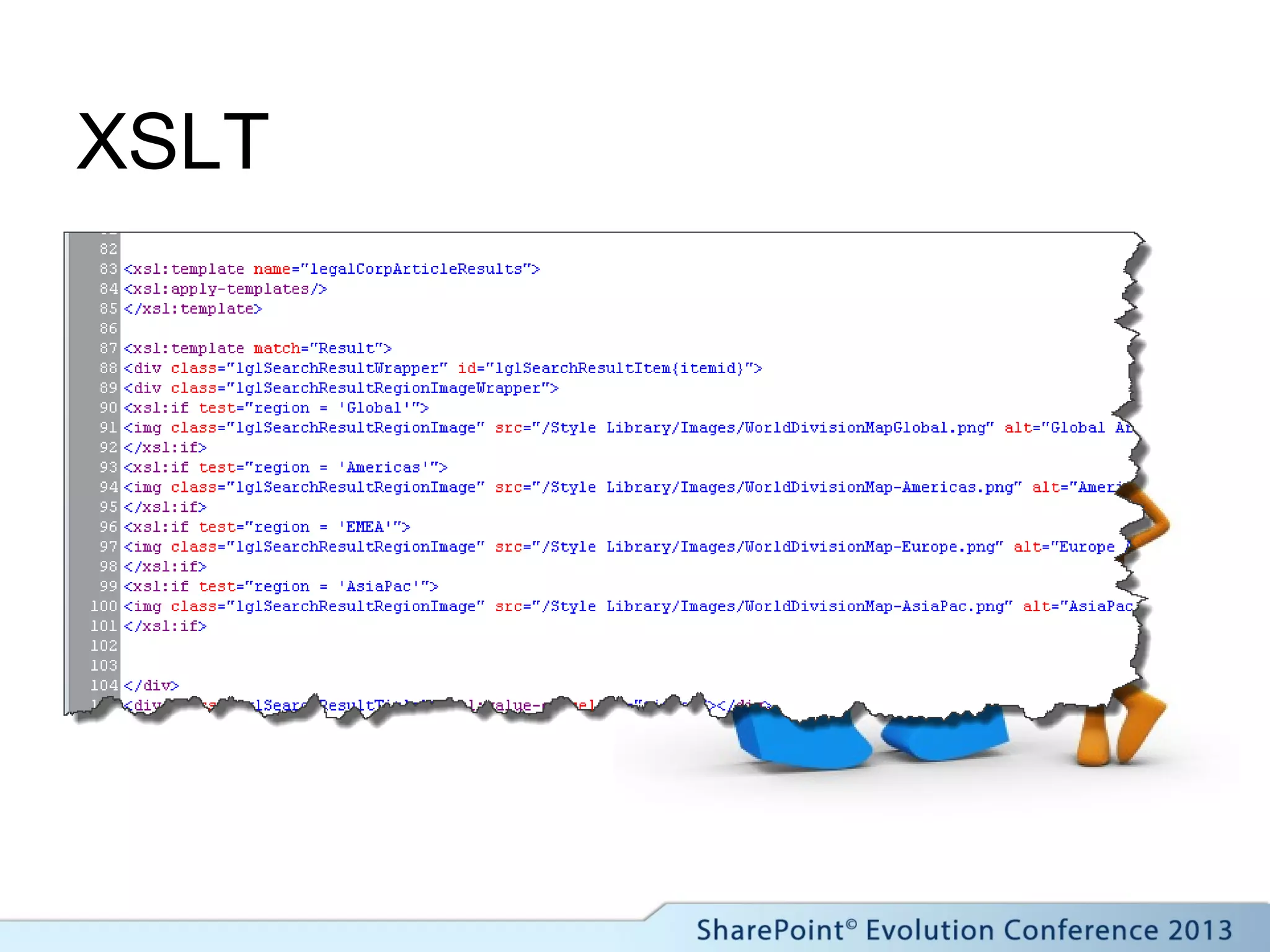
 Used to control the rendering output of
our results.
XSLT
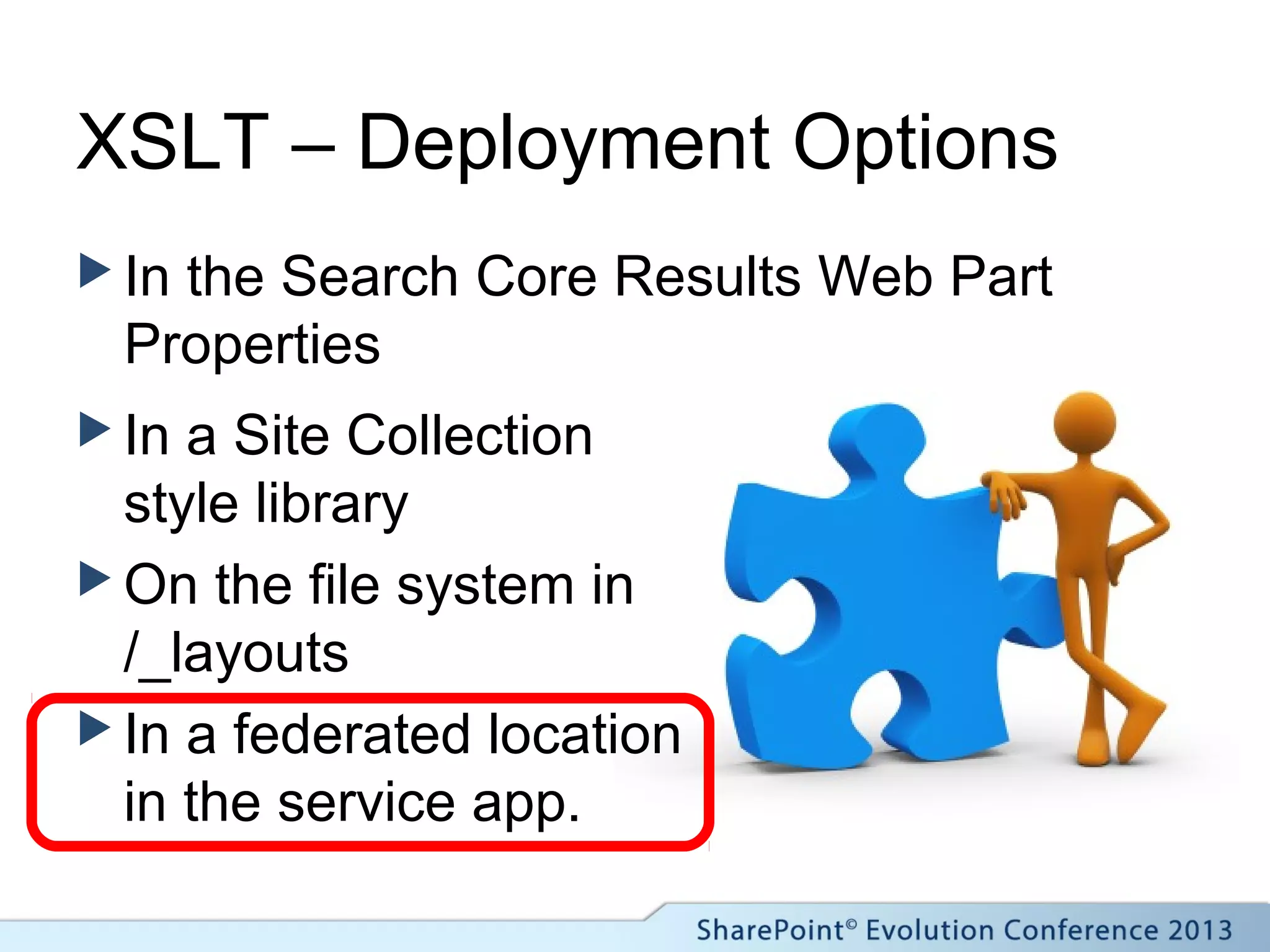
XSLT – Deployment Options
 In the Search Core Results Web Part
Properties
 In a Site Collection
style library
 On the file system in
/_layouts
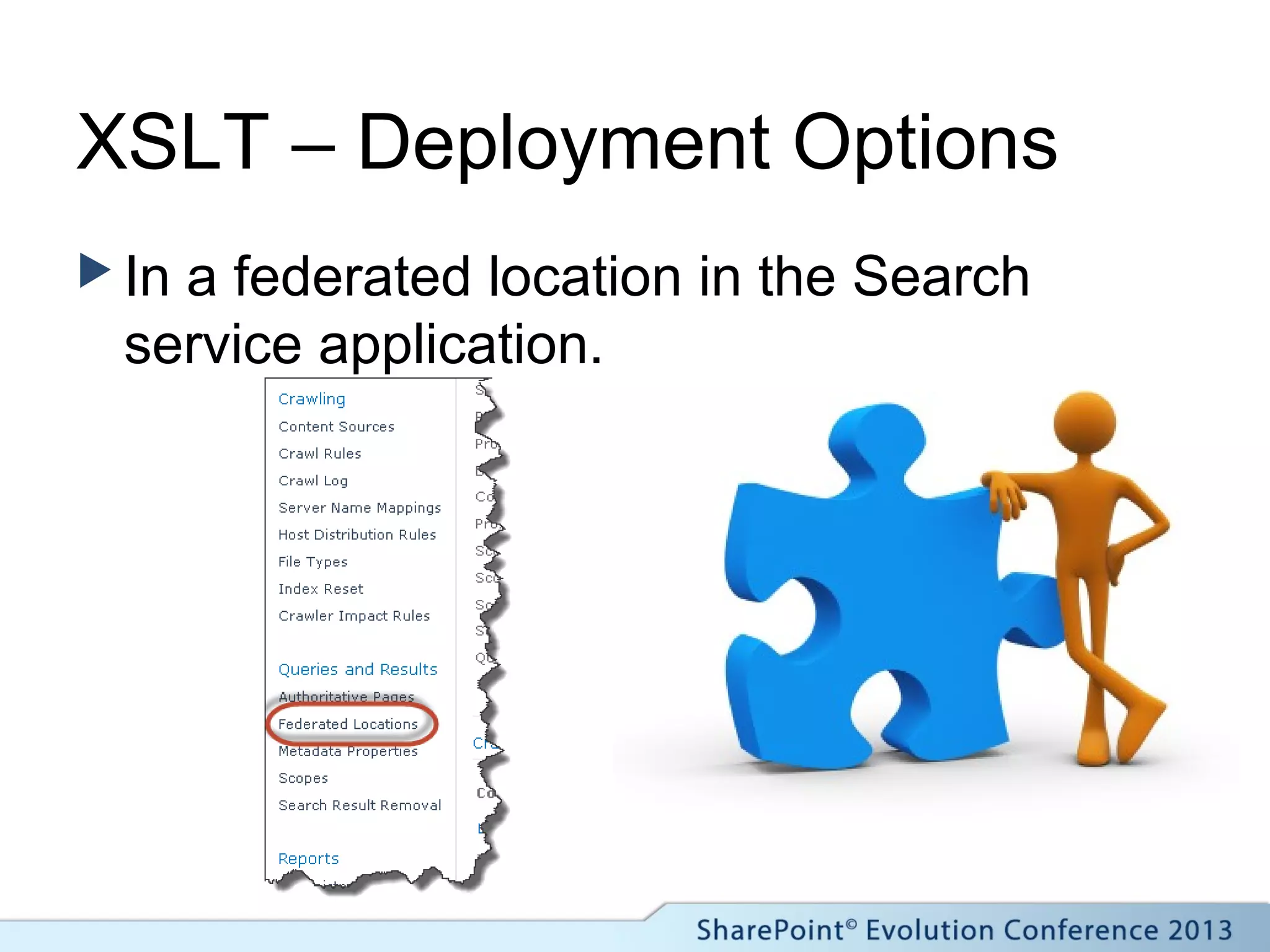
 In a federated location
in the service app.
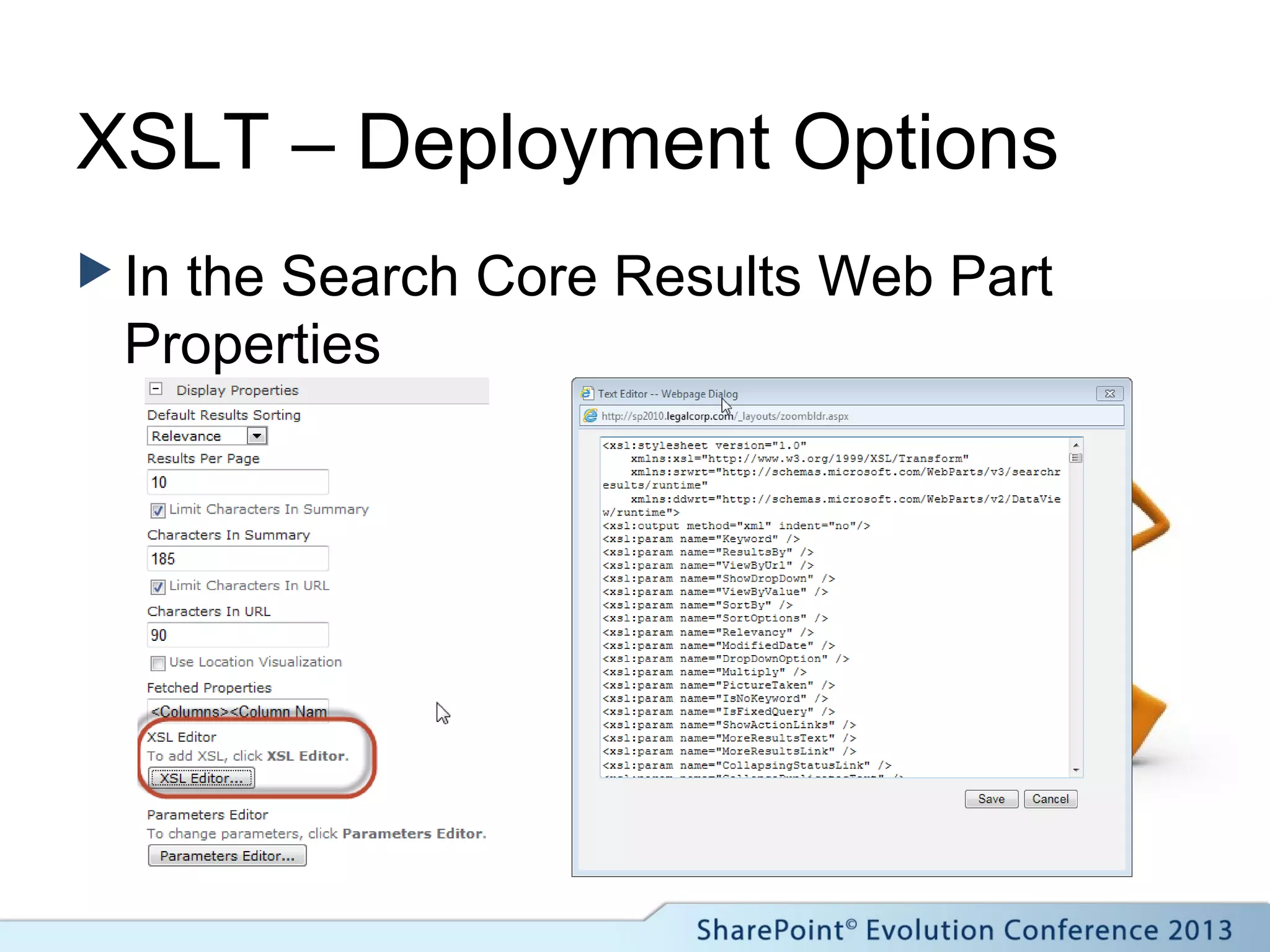
XSLT – Deployment Options
 In the Search Core Results Web Part
Properties
XSLT – Deployment Options
 In a Site Collection Style Library
 Or on the file system
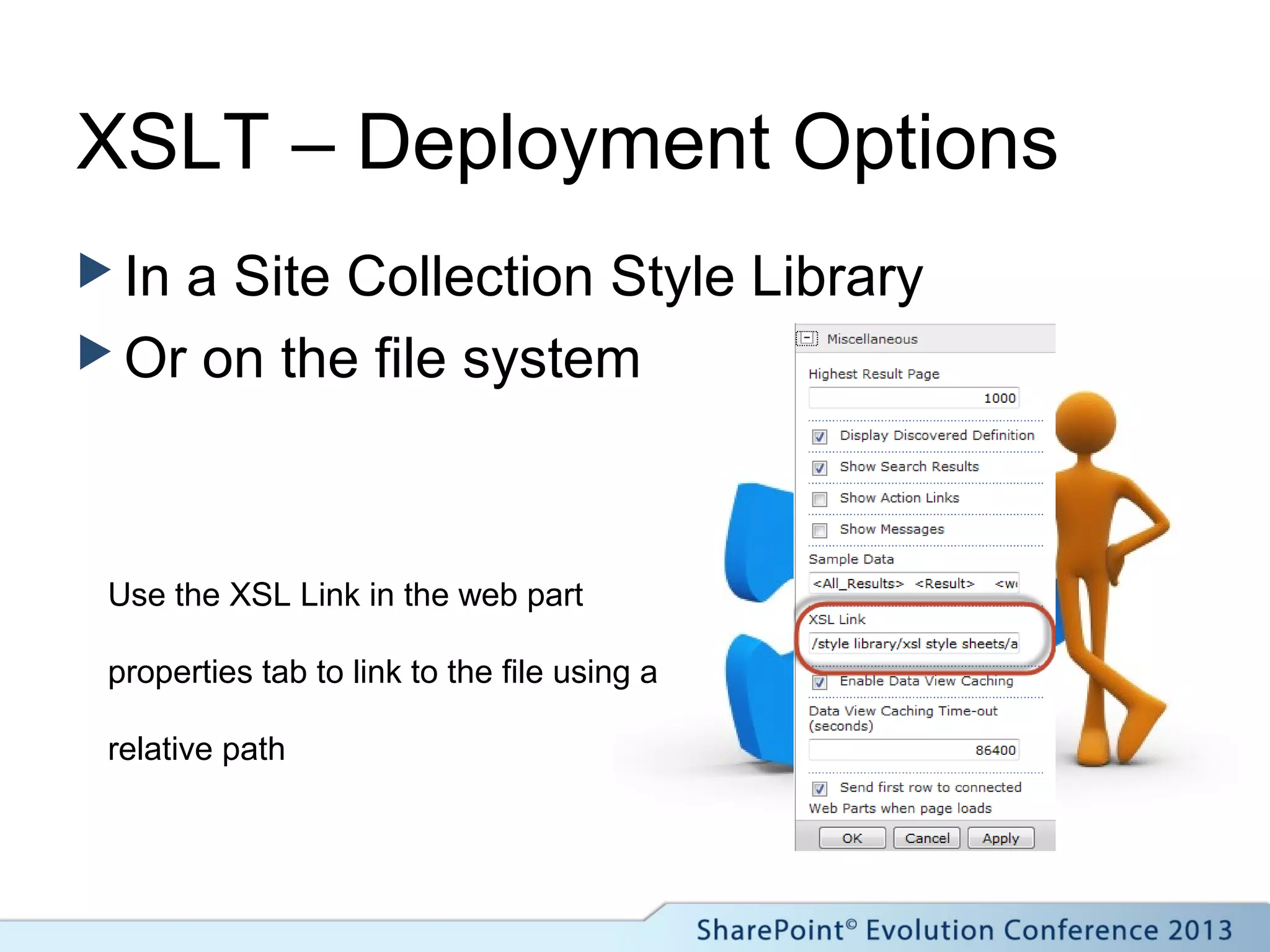
Use the XSL Link in the web part
properties tab to link to the file using a
relative path
XSLT – Deployment Options
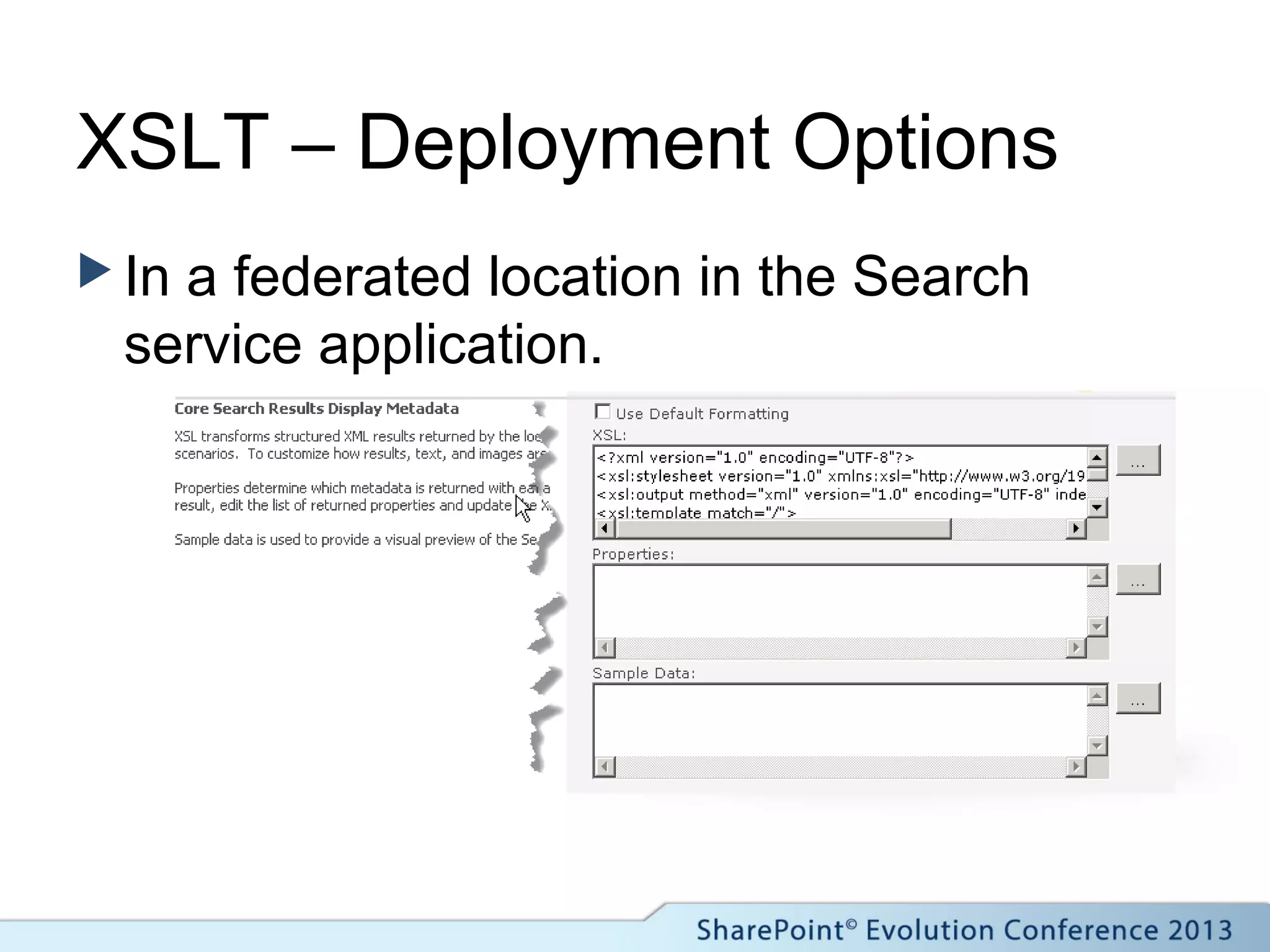
 In a federated location in the Search
service application.
XSLT – Deployment Options
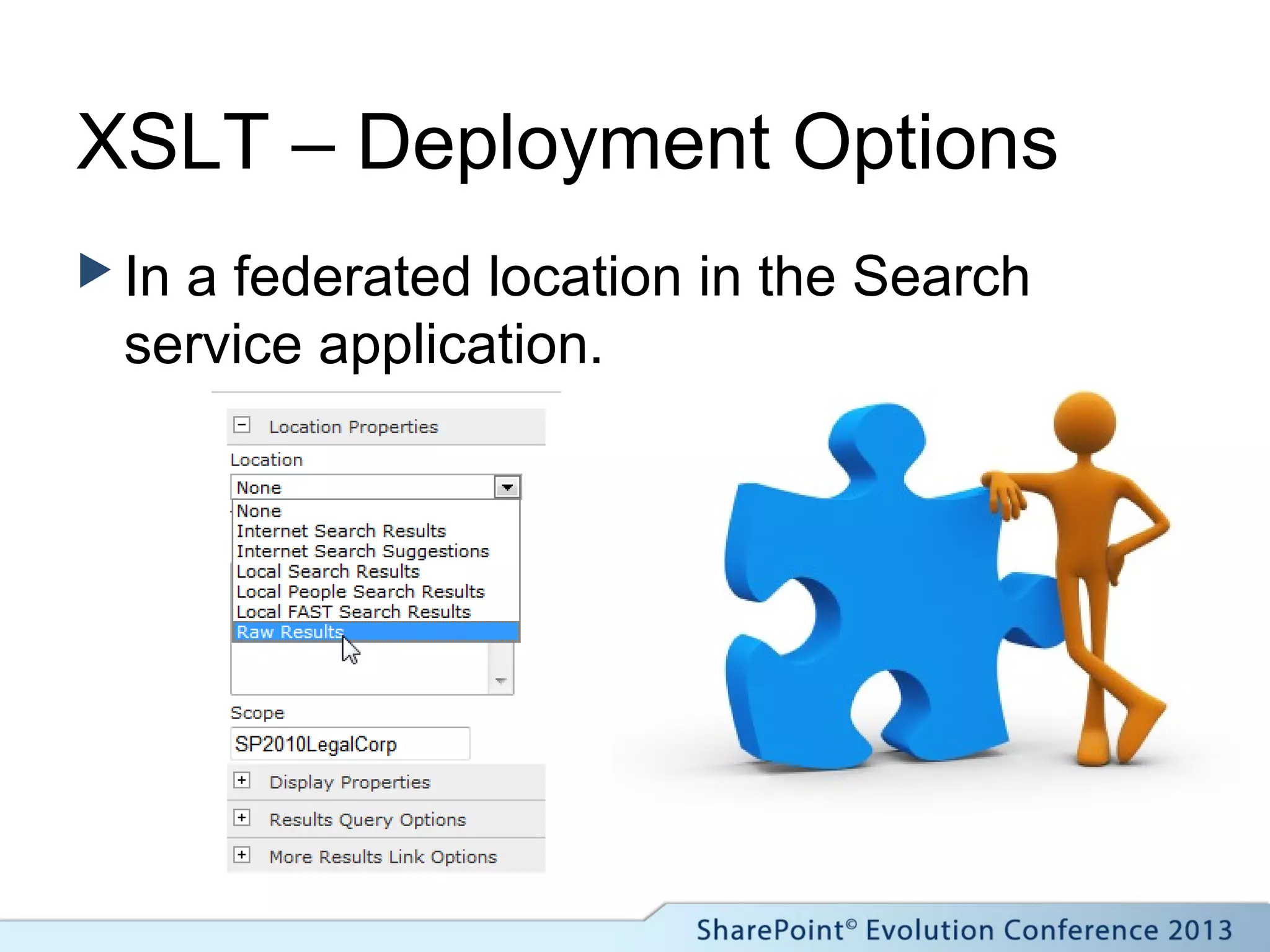
 In a federated location in the Search
service application.
XSLT – Deployment Options
 In a federated location in the Search
service application.
Search Core Results Web Part
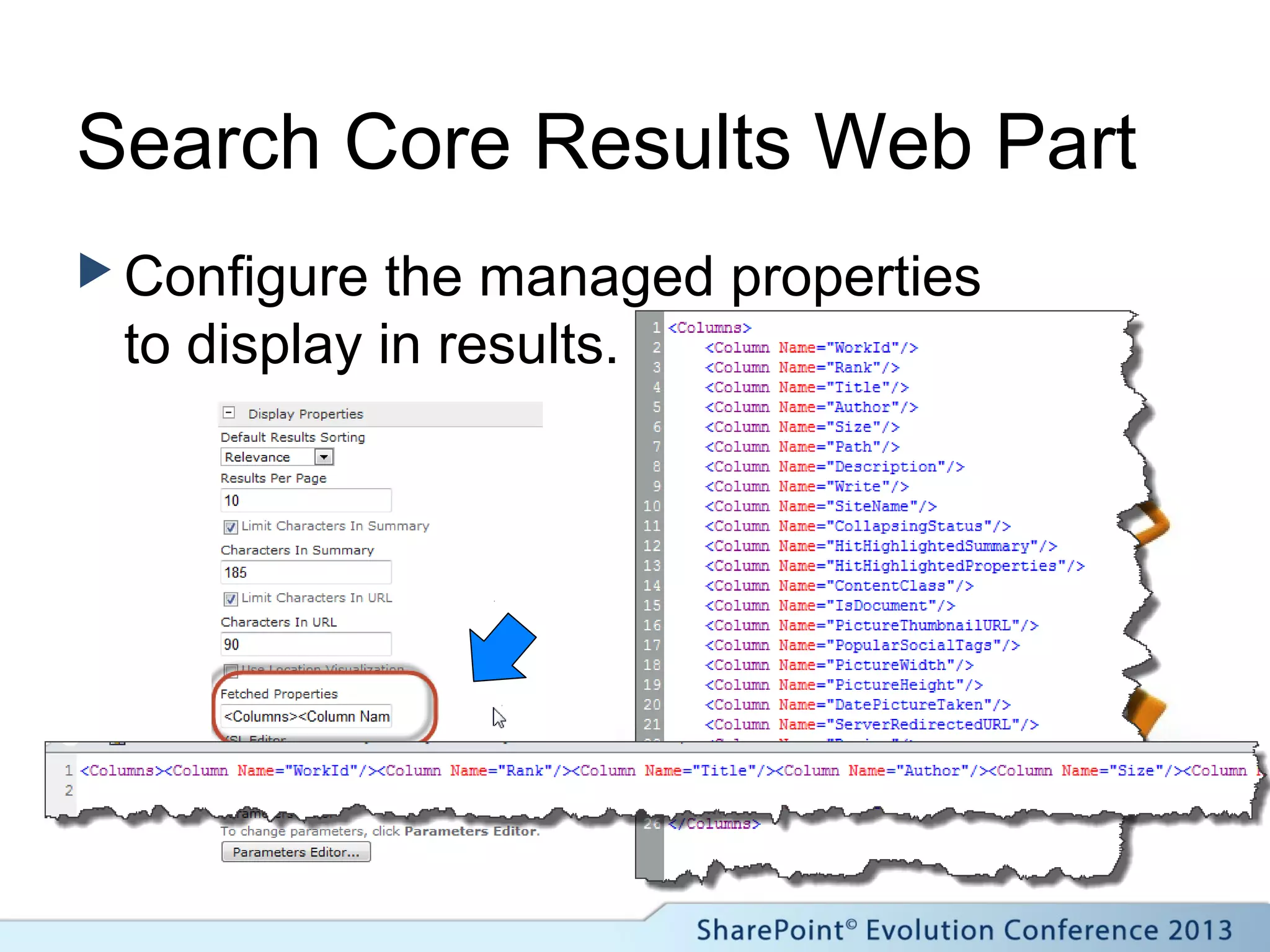
 Configure the managed properties
to display in results.
Search Core Results Web Part
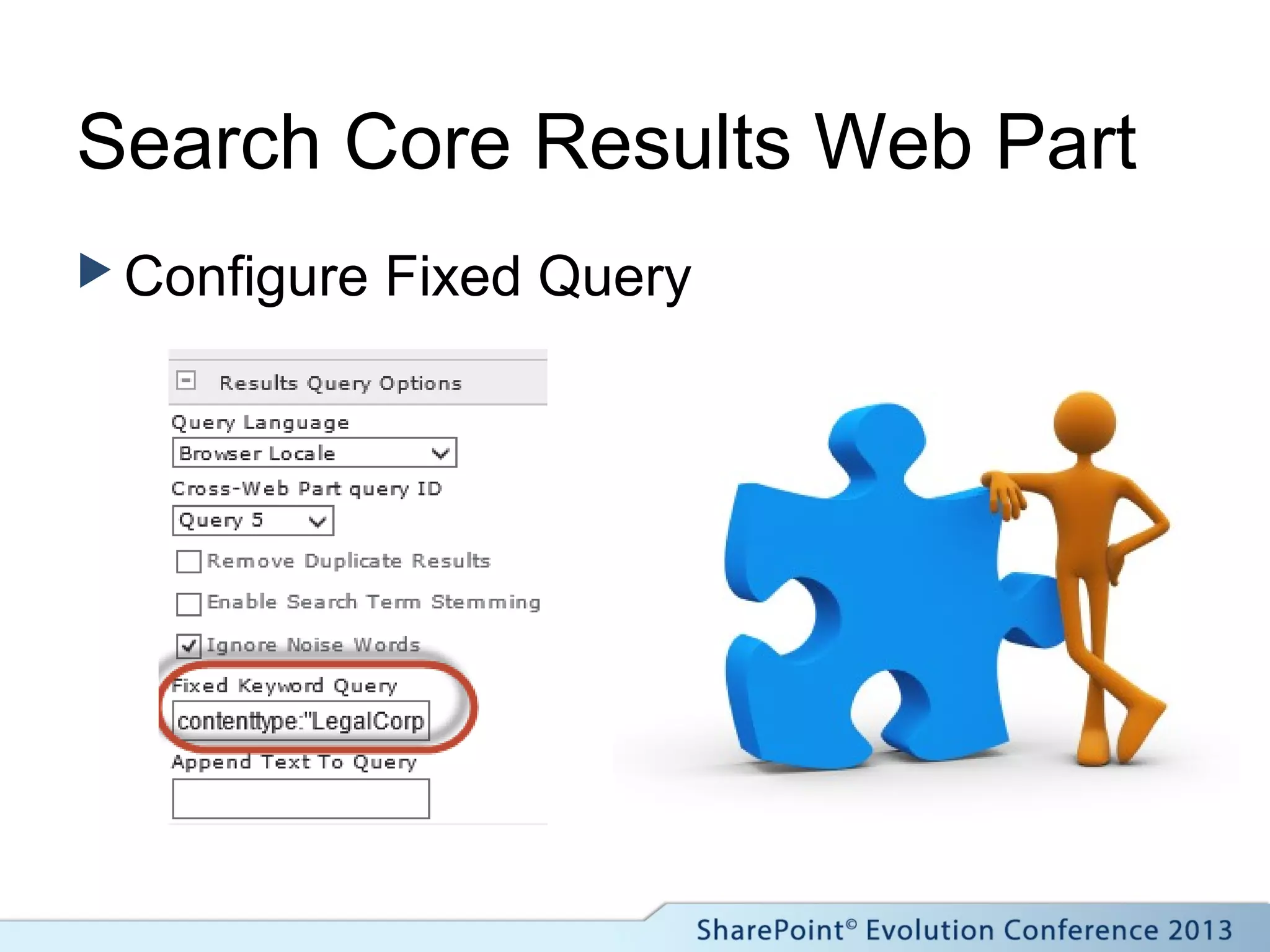
 Configure Fixed Query
Building in 2010 – Key Points
 Consider the impact to
the search architecture
and monitor the farm.
 Remember to create, tag
content and crawl it to
make properties
available.
 Consider deployment
options if migration to
2013 is likely.
PUTTING IT TOGETHER IN
SHAREPOINT 2010
Demonstrating content roll-up using SharePoint 2010 search.
Migrating our Solution from
SharePoint 2010 to
SharePoint 2013
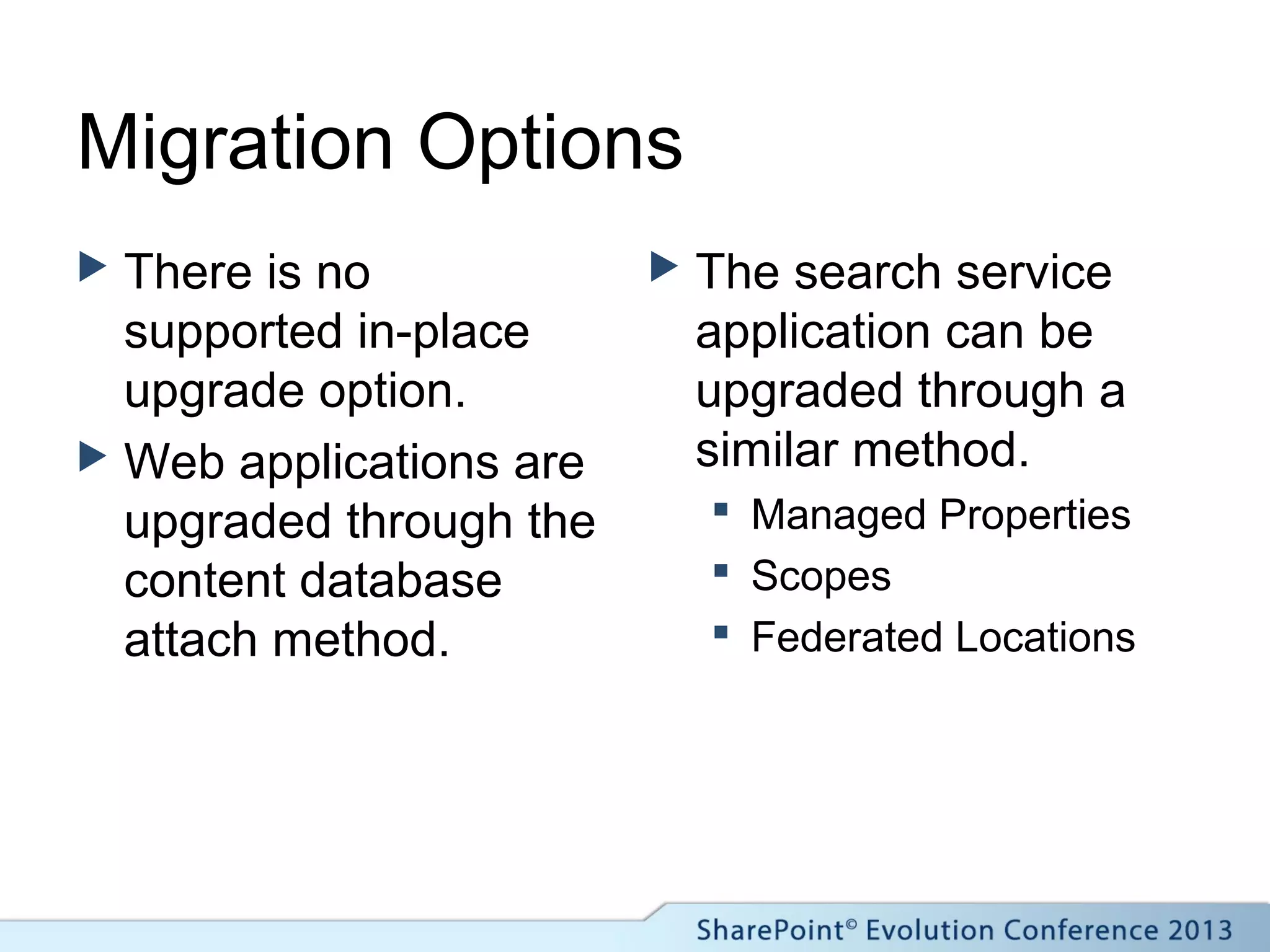
Migration Options
 There is no
supported in-place
upgrade option.
 Web applications are
upgraded through the
content database
attach method.
 The search service
application can be
upgraded through a
similar method.
 Managed Properties
 Scopes
 Federated Locations
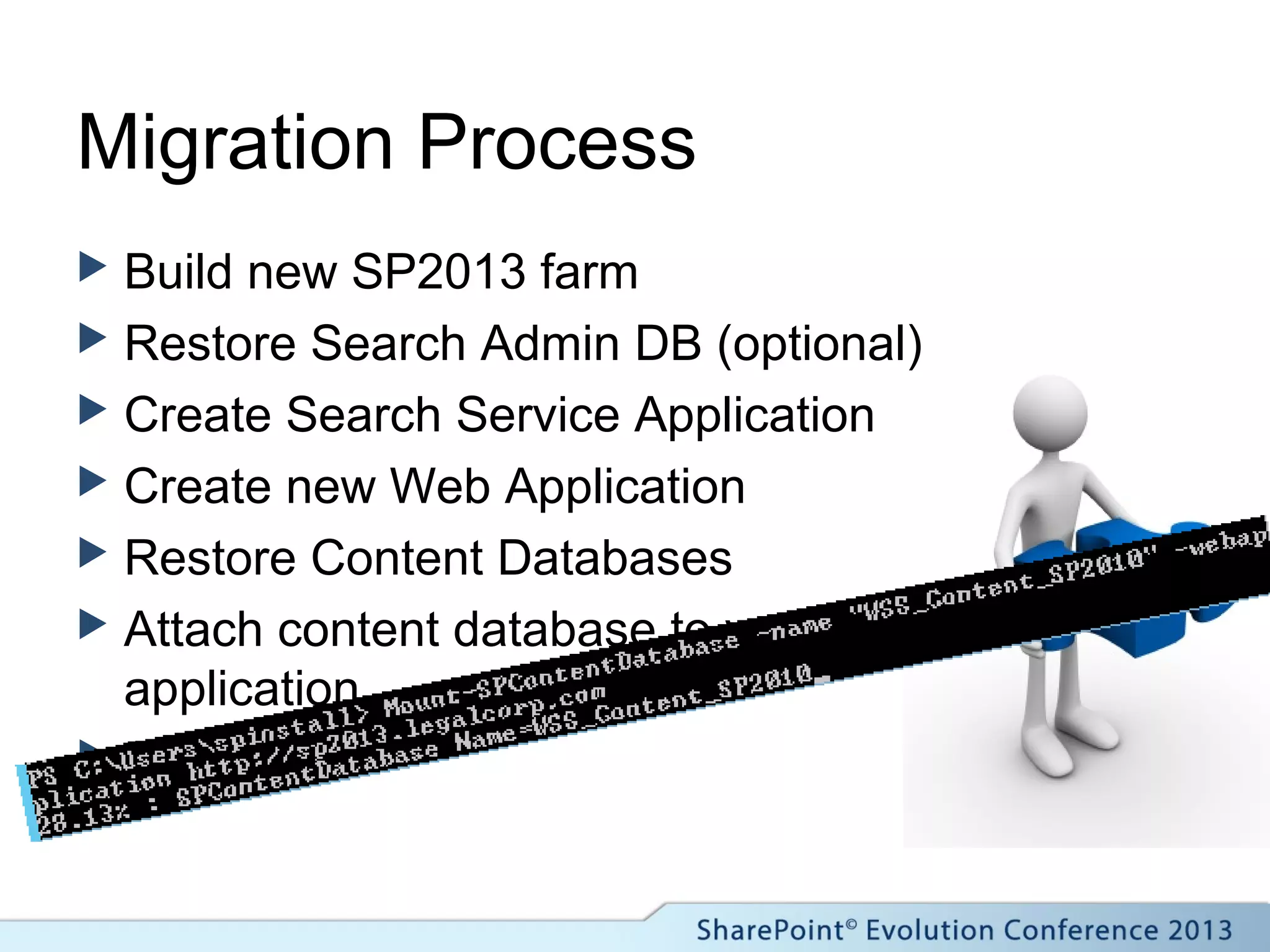
Migration Process
 Build new SP2013 farm
 Restore Search Admin DB (optional)
 Create Search Service Application
 Create new Web Application
 Restore Content Databases
 Attach content database to web
application
 Fix issues!
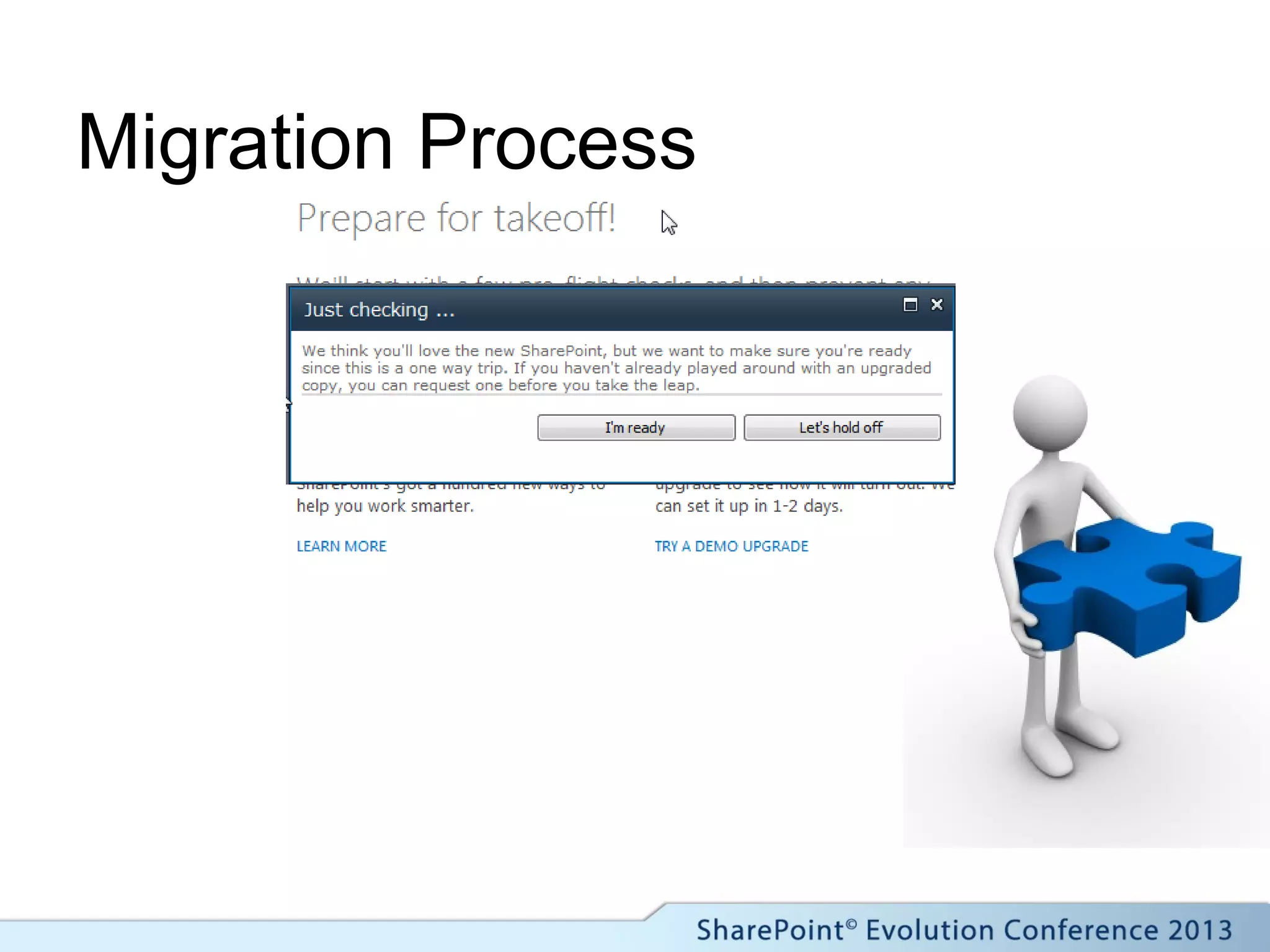
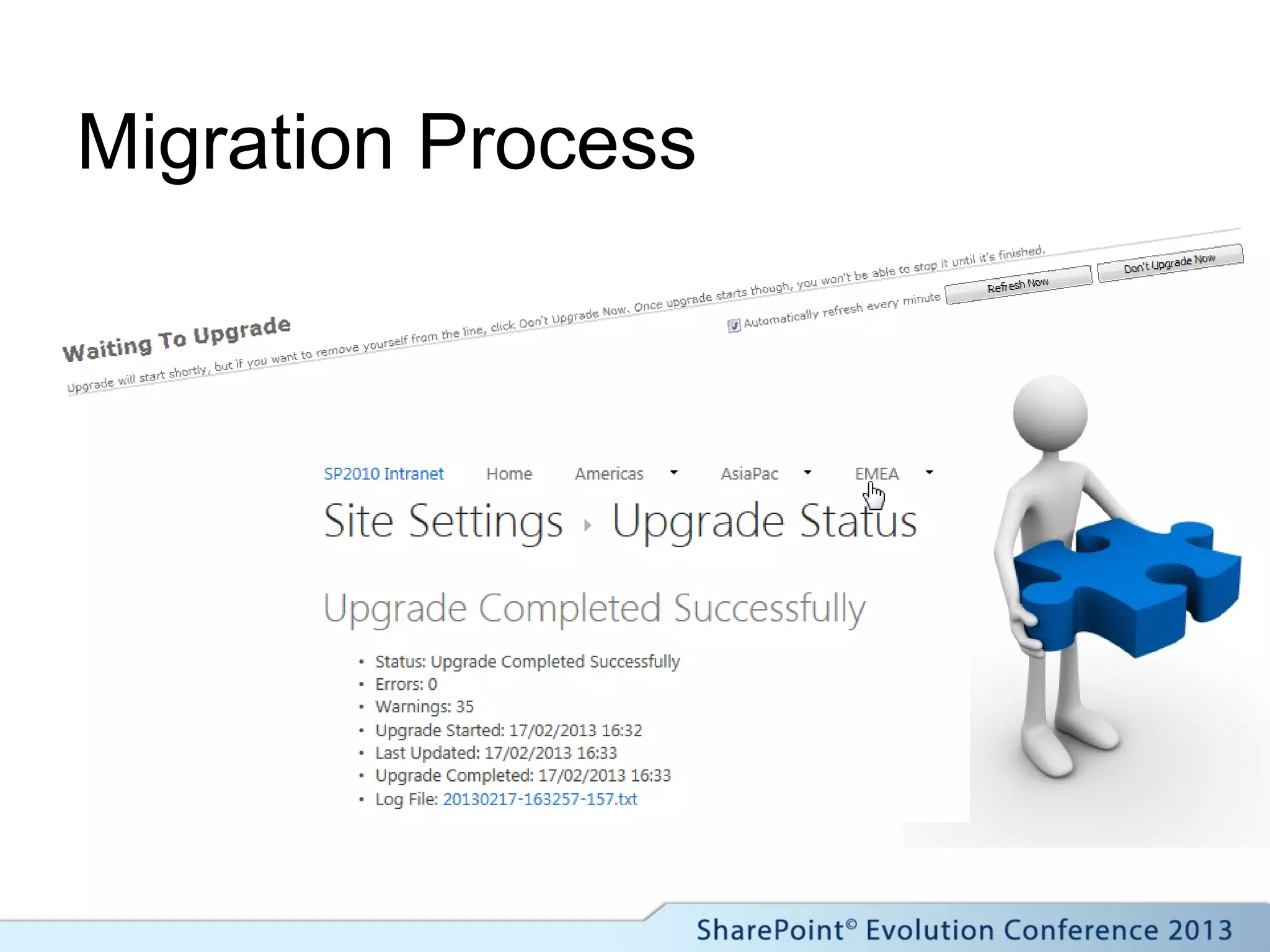
Migration Process
Migration Process
Migration Process
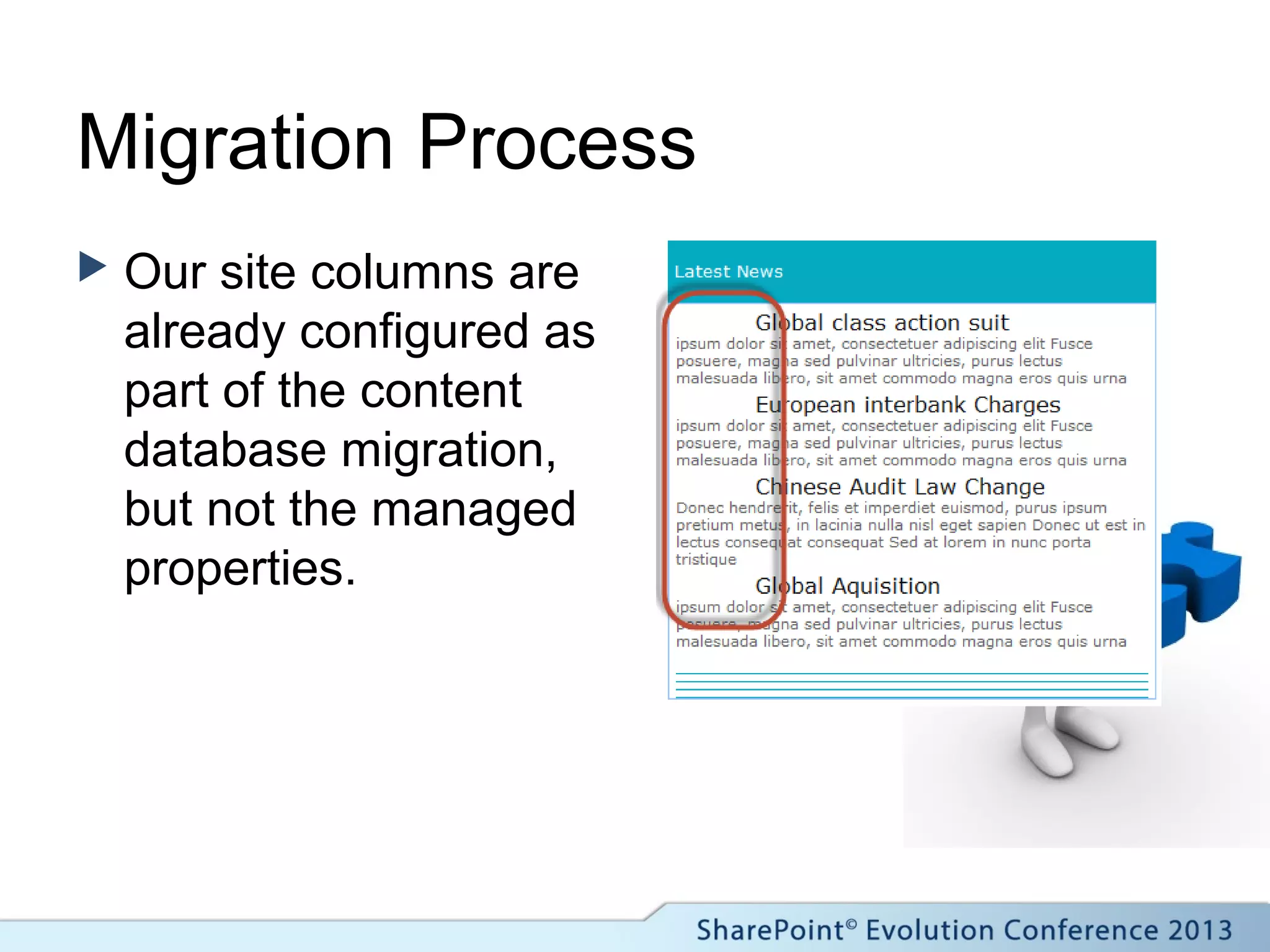
 Our site columns are
already configured as
part of the content
database migration,
but not the managed
properties.
Migration Process
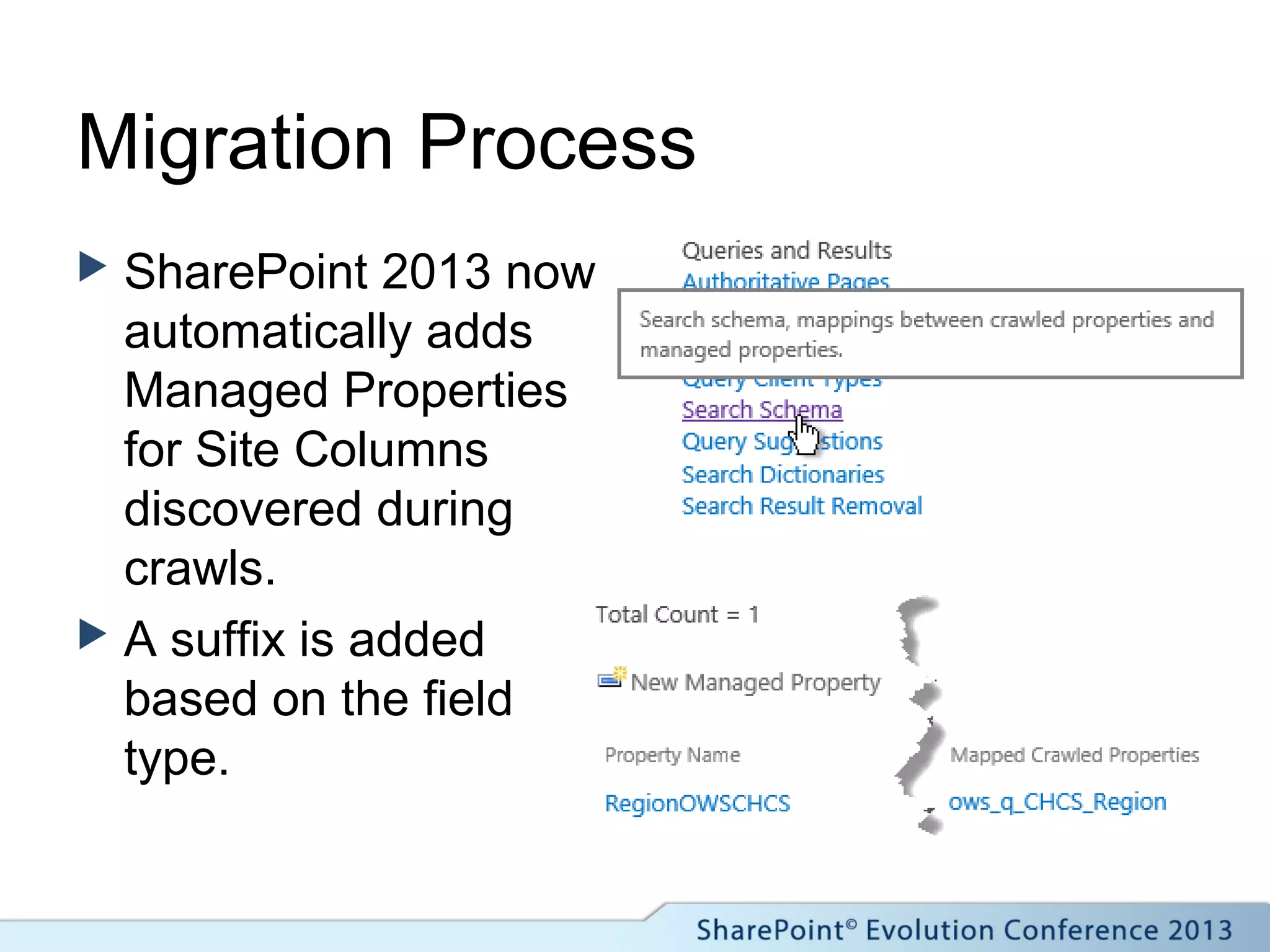
 SharePoint 2013 now
automatically adds
Managed Properties
for Site Columns
discovered during
crawls.
 A suffix is added
based on the field
type.
Migration Process
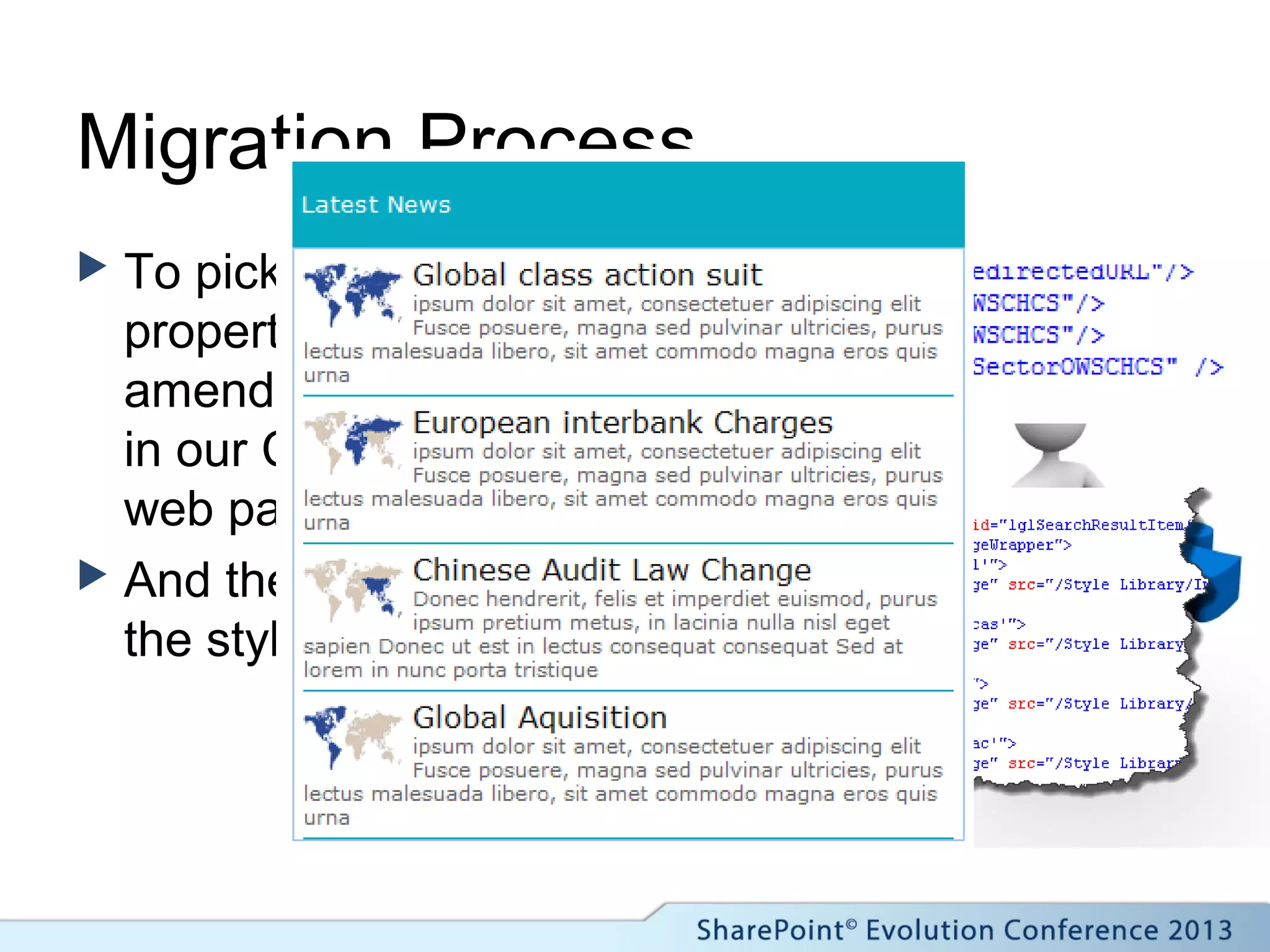
 To pick up the new
properties, we first
amend the columns
in our Core Results
web part
 And then the XSLT in
the style library.
Migration Process
Migration Process
Migration Process
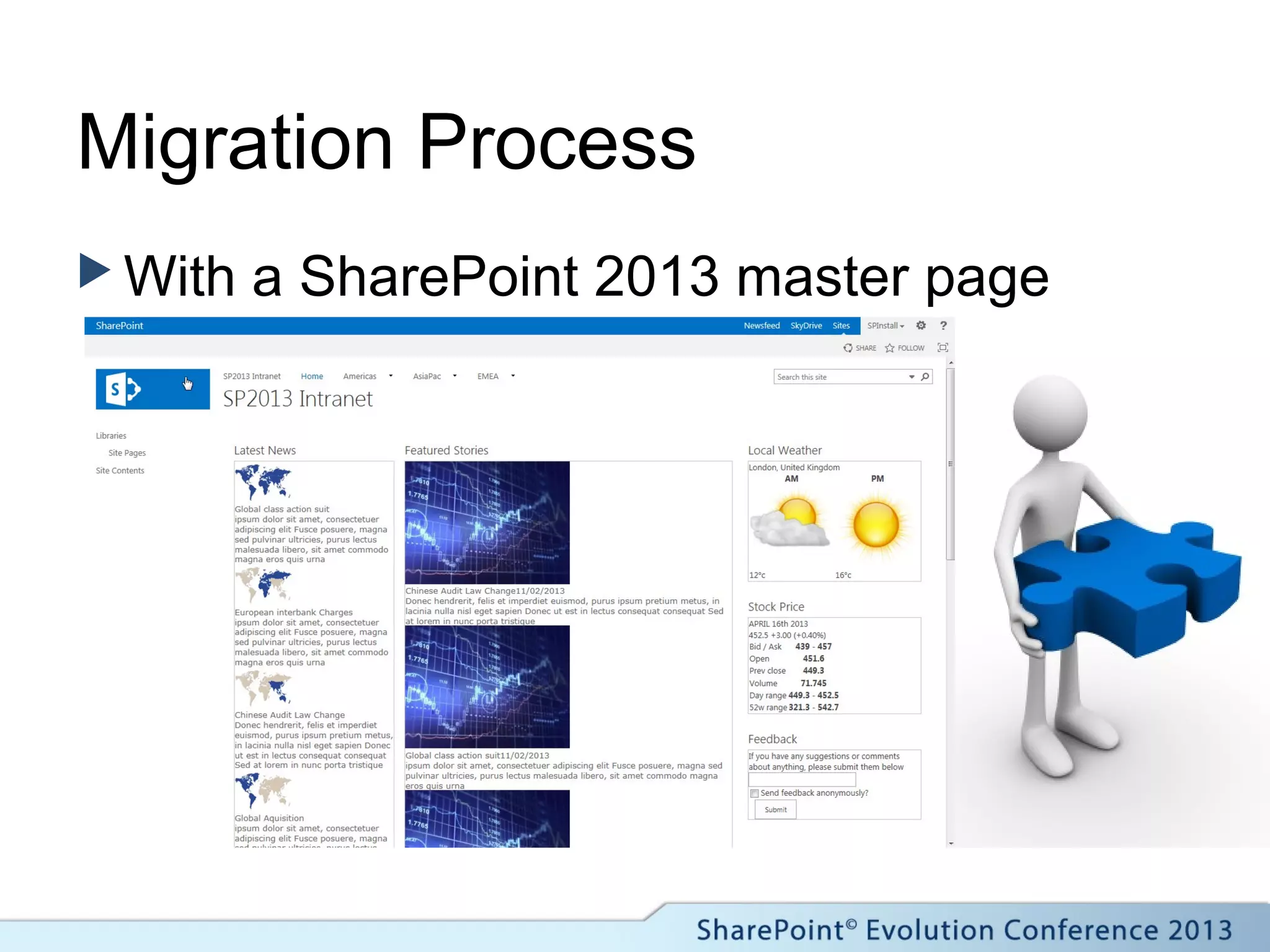
 With a SharePoint 2013 master page
Migration Process
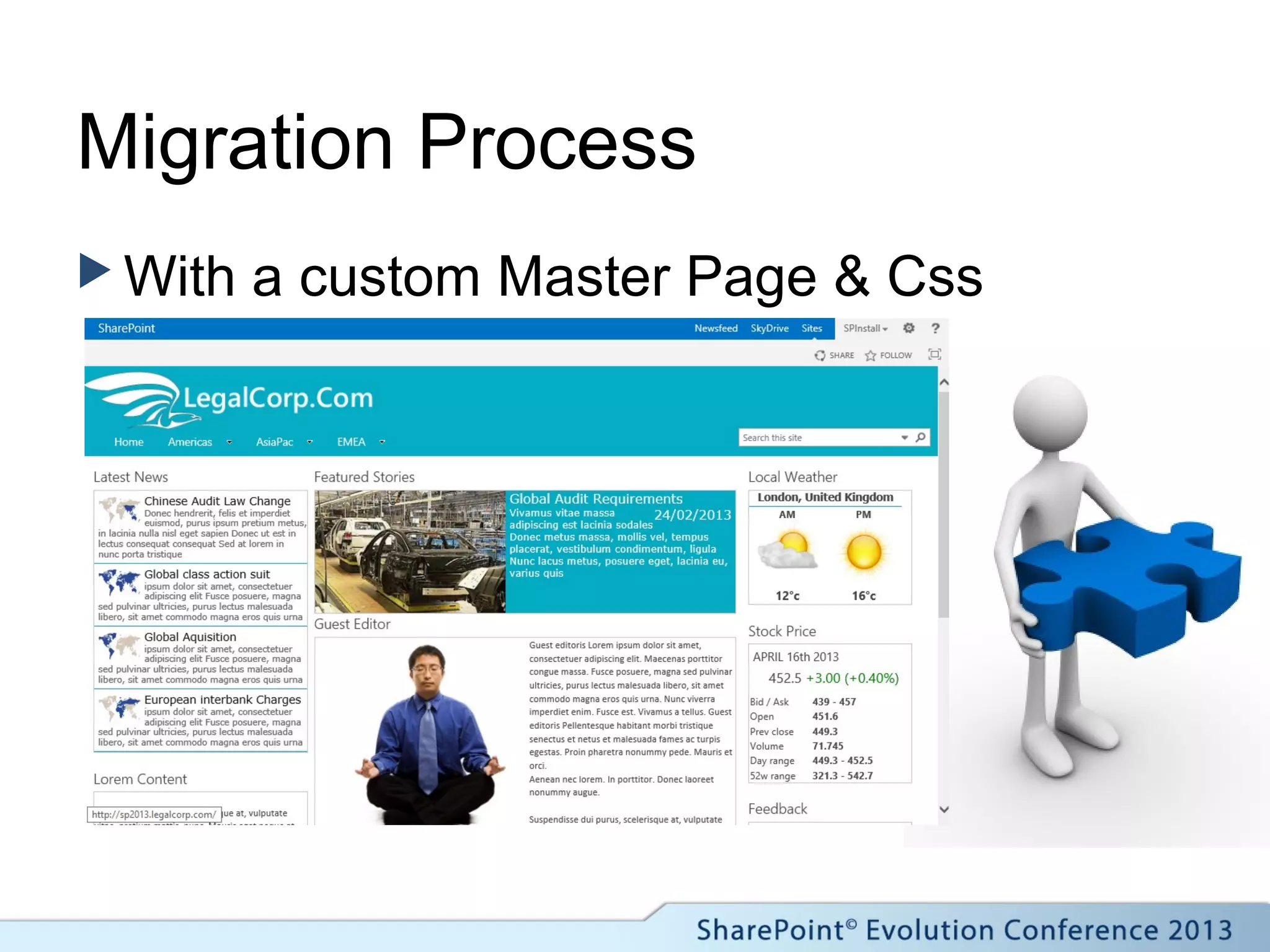
 With a custom Master Page & Css
Migration – Key Points
 Upgraded Scopes & Federated
XSLT can’t be edited post
migration.
 Managed property names will
change unless re-mapped.
 Weigh up the benefits of building
it from scratch in 2013 for the
improved search options.
Building our solution from
scratch in SharePoint 2013
Flexing the new muscles of
SharePoint Search
 Automatic Managed
Properties
 Result Sources
 Display Templates
 New Search Web
Parts
 Search Results
 Content by Search
(Enterprise CAL only)
 Continuous Crawl
Building our solution
 Site Columns and
Content Types
 Page Layouts
 Managed Properties
 Result Sources
 Display Templates
 Image Renditions
 …..
Building our solution
 …Web Parts
 Server Standard Cals
 Search Results WP
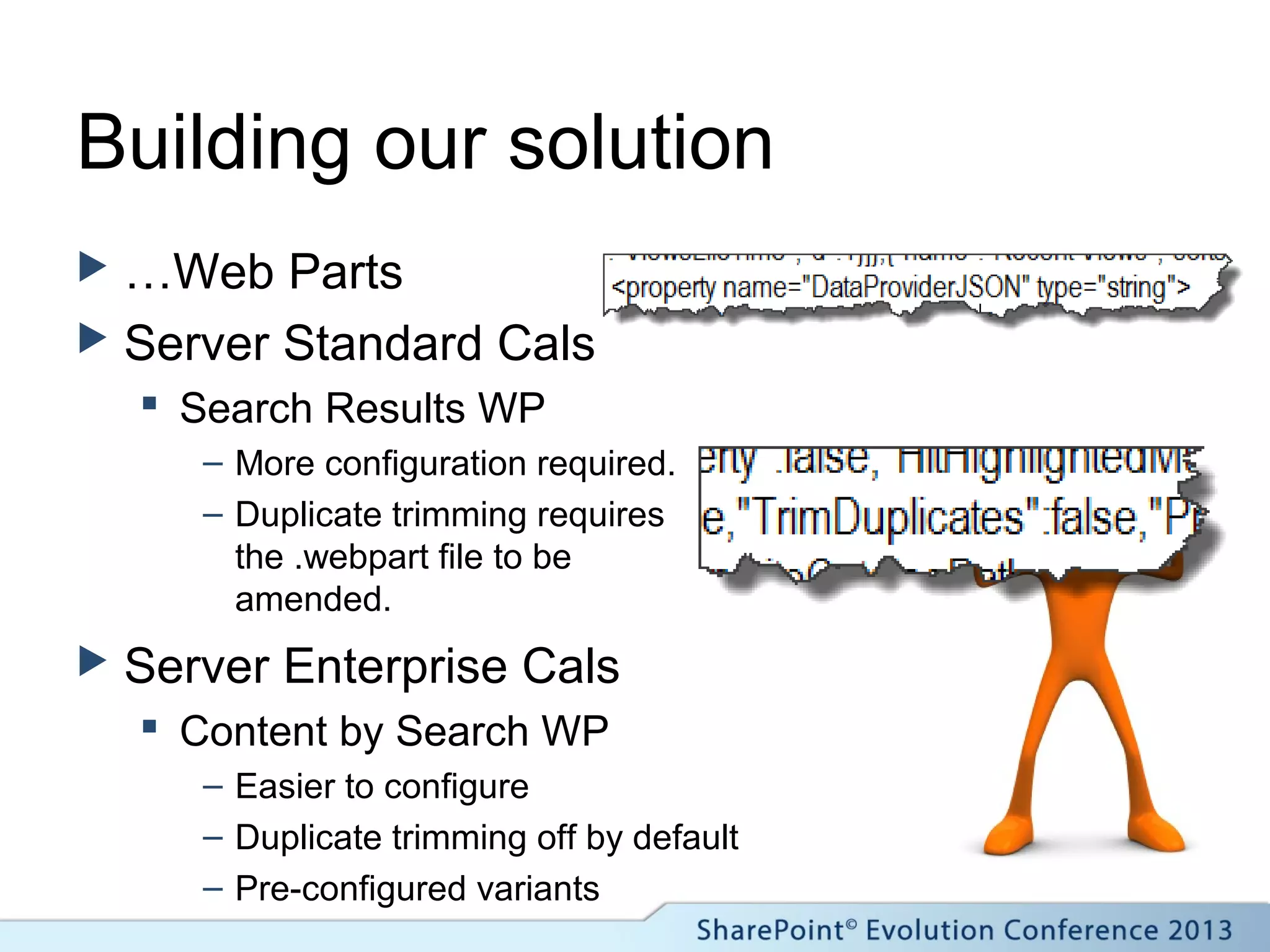
– More configuration required.
– Duplicate trimming requires
the .webpart file to be
amended.
 Server Enterprise Cals
 Content by Search WP
– Easier to configure
– Duplicate trimming off by default
– Pre-configured variants
Site Columns & Content Types
 Site Columns
 Content Types &
Deployment
 Page Layouts
 Nothings Changed!
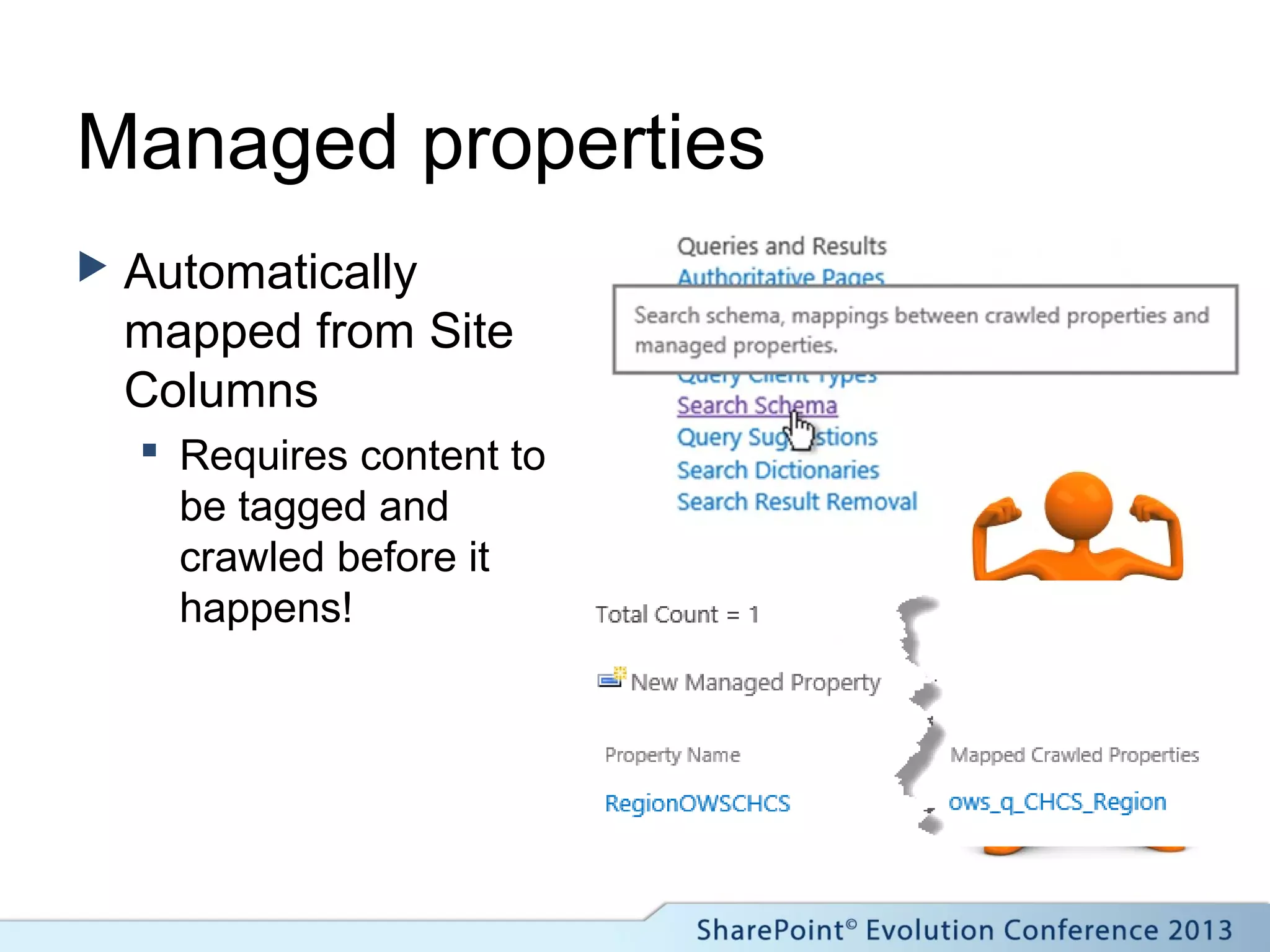
Managed properties
 Automatically
mapped from Site
Columns
 Requires content to
be tagged and
crawled before it
happens!
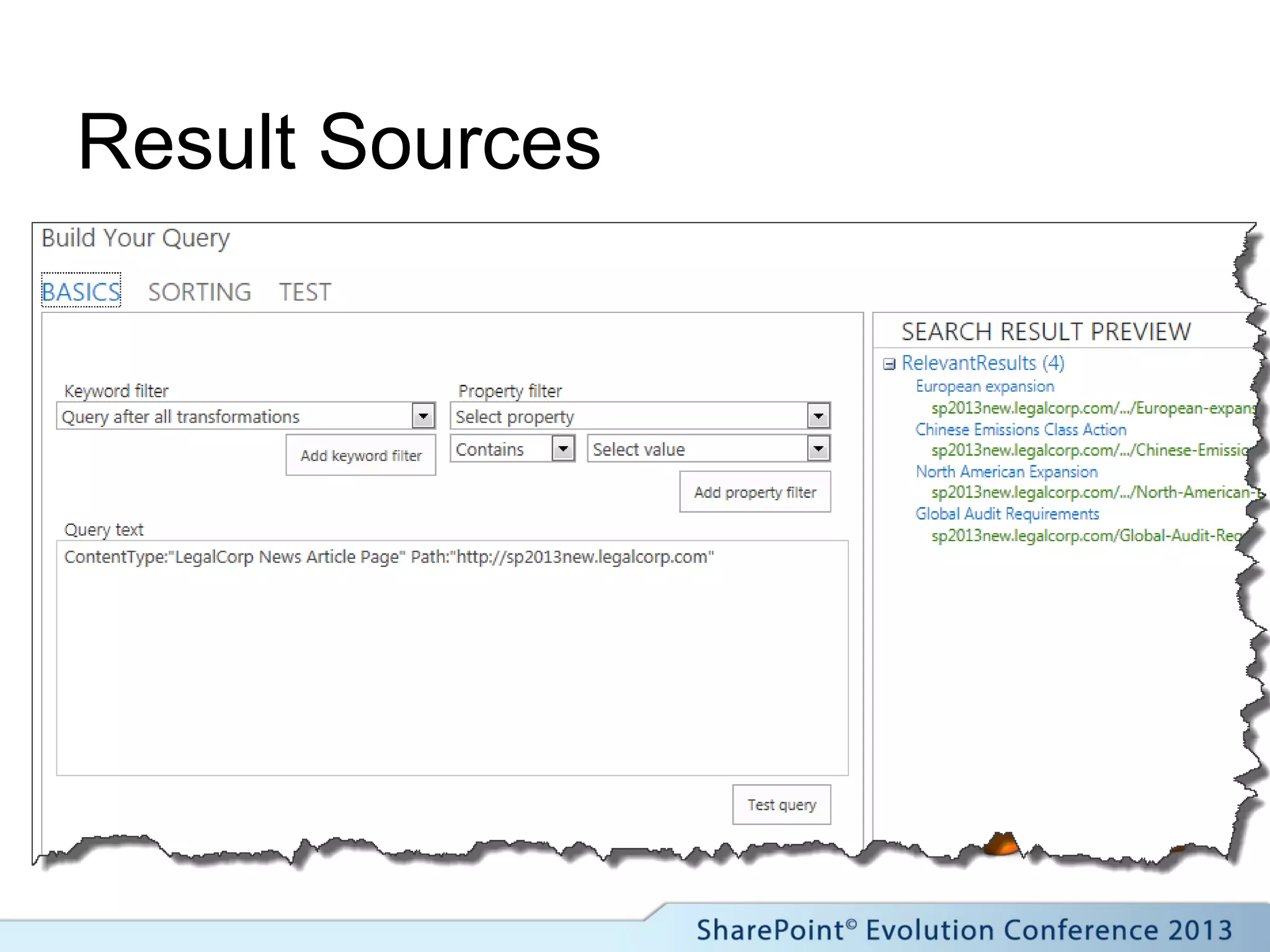
Result Sources
 Combines 2010
federated search and
scopes + extras
 Defined at Service
App, Site collection
or Web level.
 Uses the Query
Builder to define the
search.
Display Templates
 Controls the
rendering of a search
result item
 No more XSLT!
 Html and JavaScript
based
 Design manager
creates raw JS file
from the Html
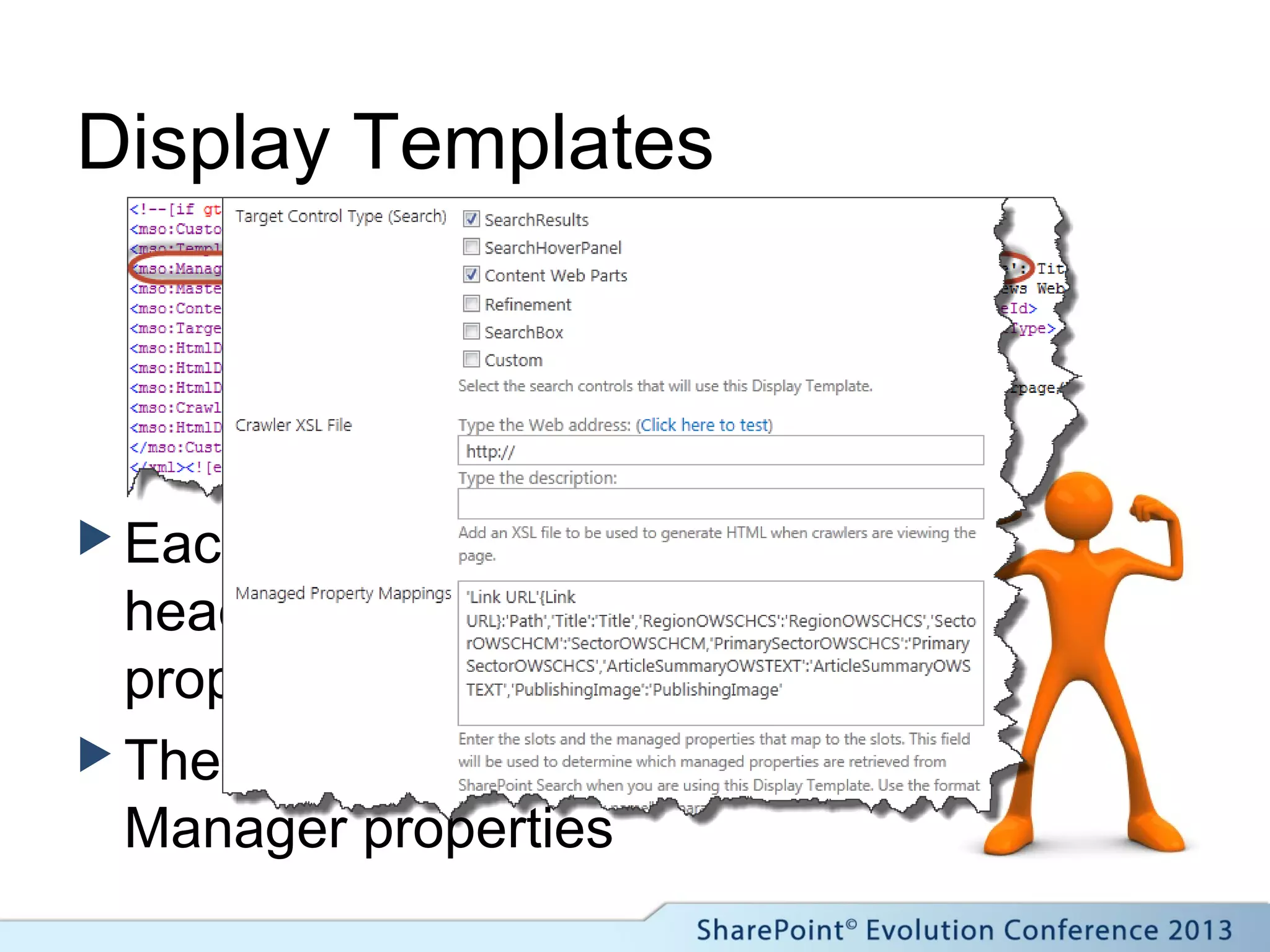
Display Templates
 Each template includes a
header block with key
properties.
 These map to the Design
Manager properties
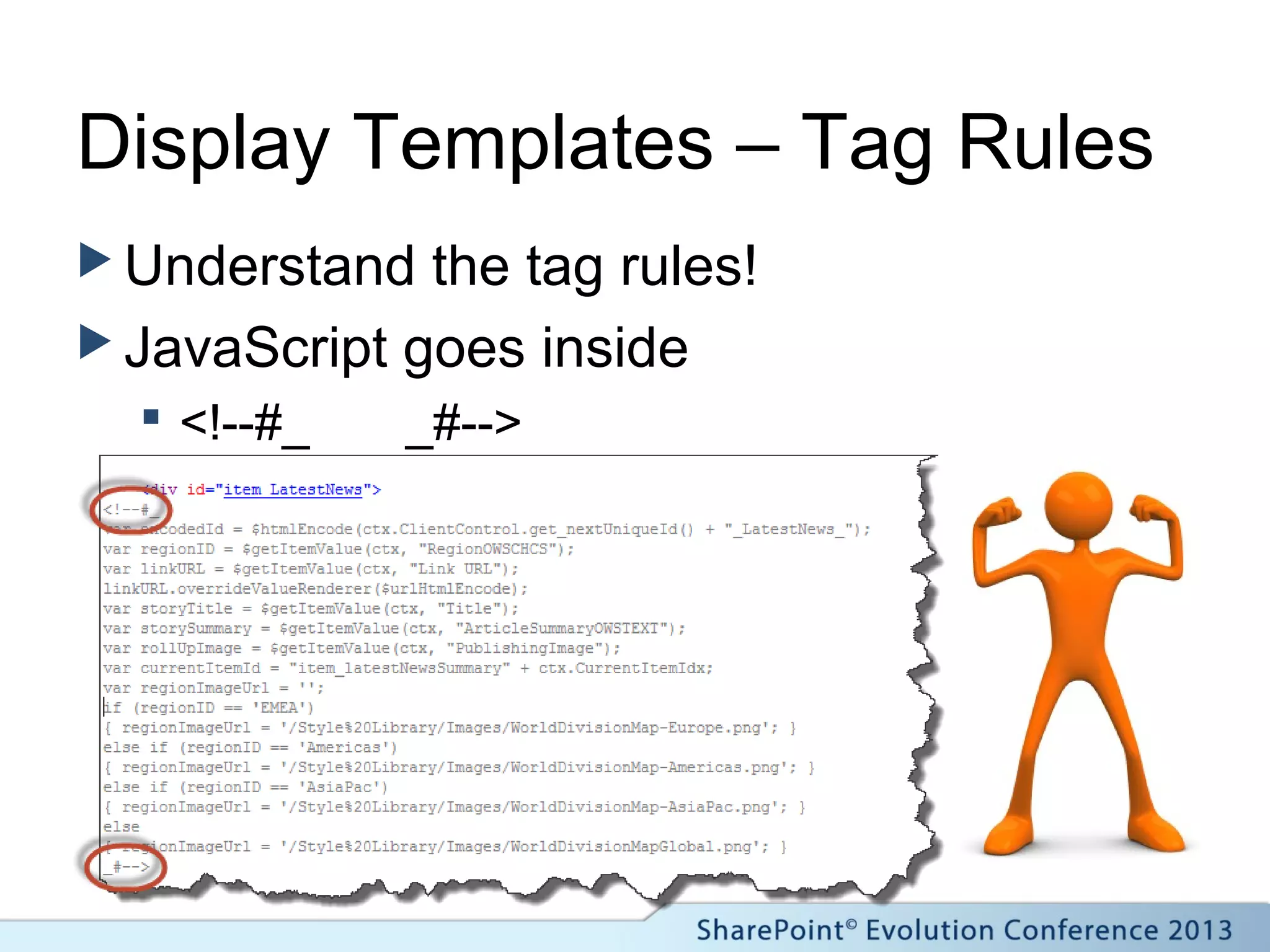
Display Templates – Tag Rules
 Understand the tag rules!
 JavaScript goes inside
 <!--#_ _#-->
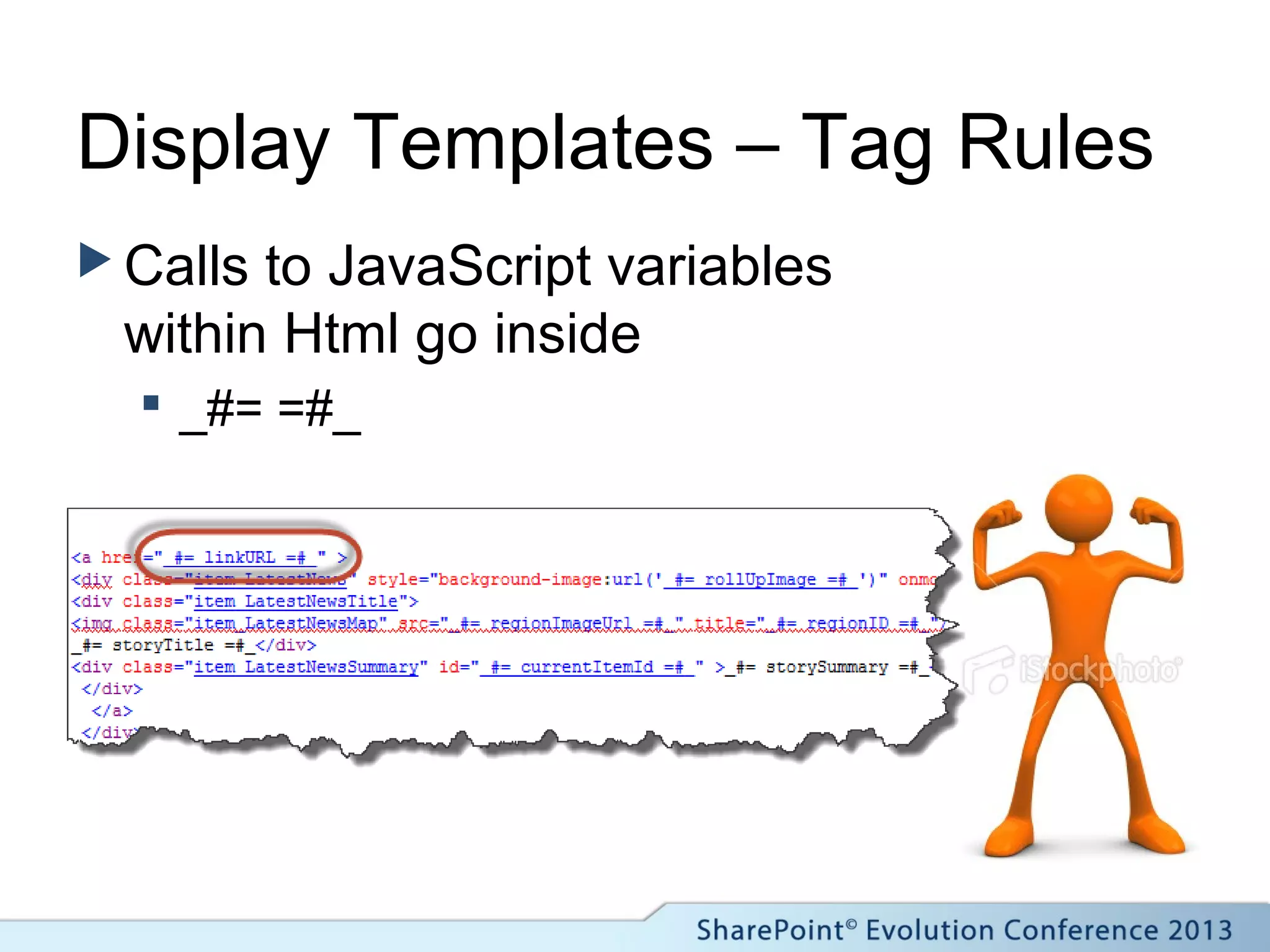
Display Templates – Tag Rules
 Calls to JavaScript variables
within Html go inside
 _#= =#_
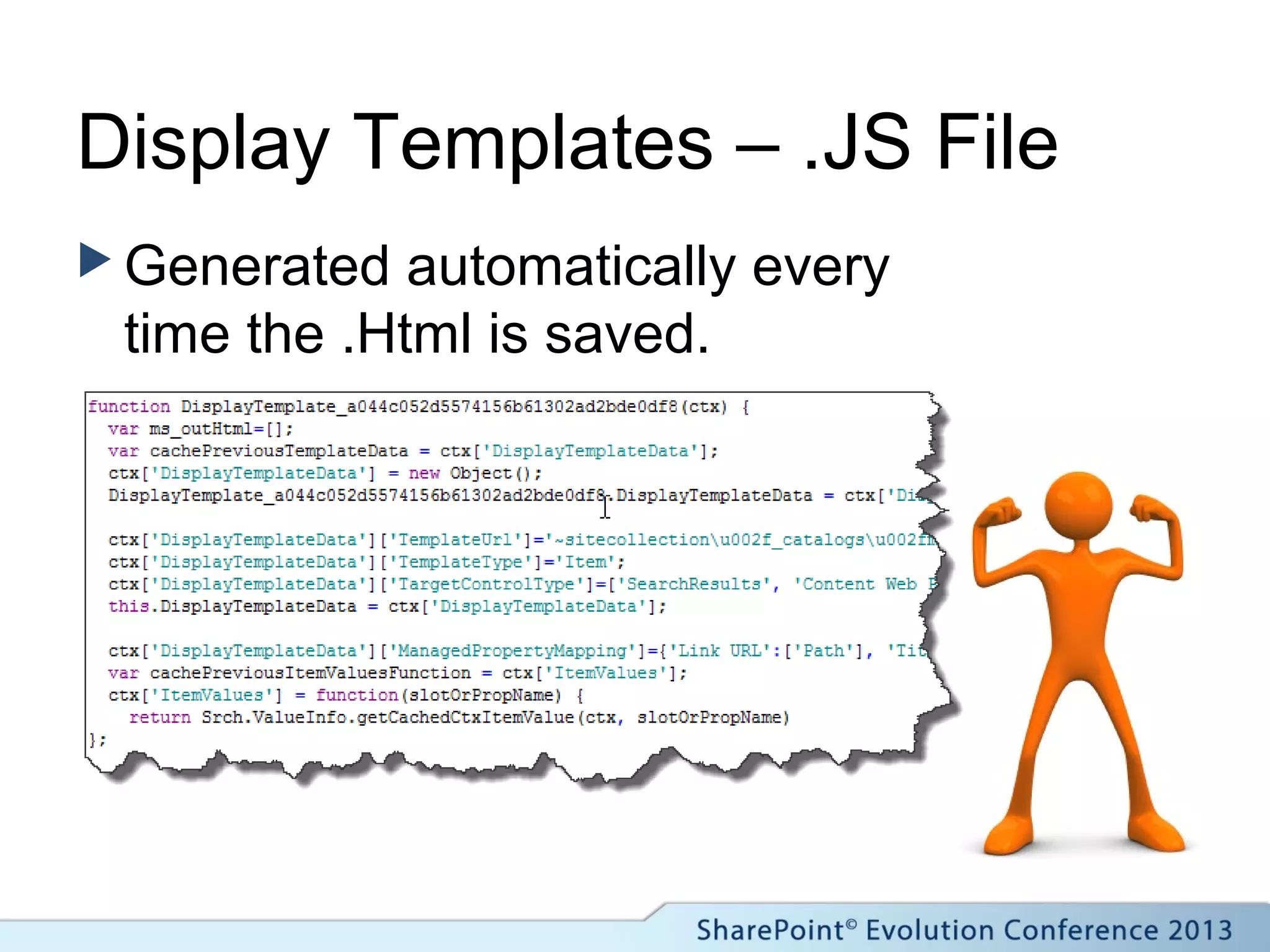
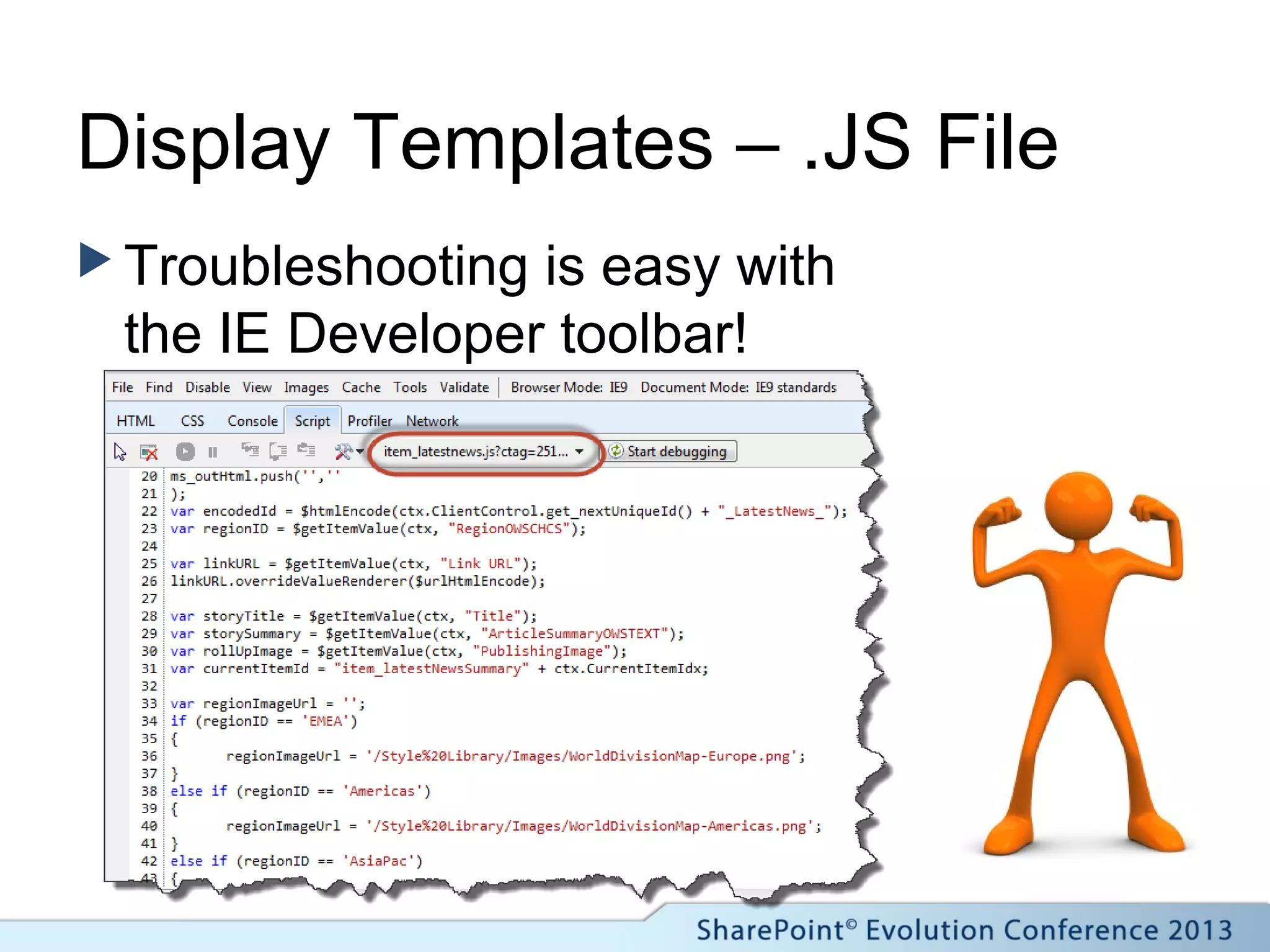
Display Templates – .JS File
 Generated automatically every
time the .Html is saved.
Display Templates – .JS File
 Troubleshooting is easy with
the IE Developer toolbar!
Image Renditions
 Sizing images made simple
 Requires Publishing Features
 Requires Blob Caching
 Ensures appropriate files sizes
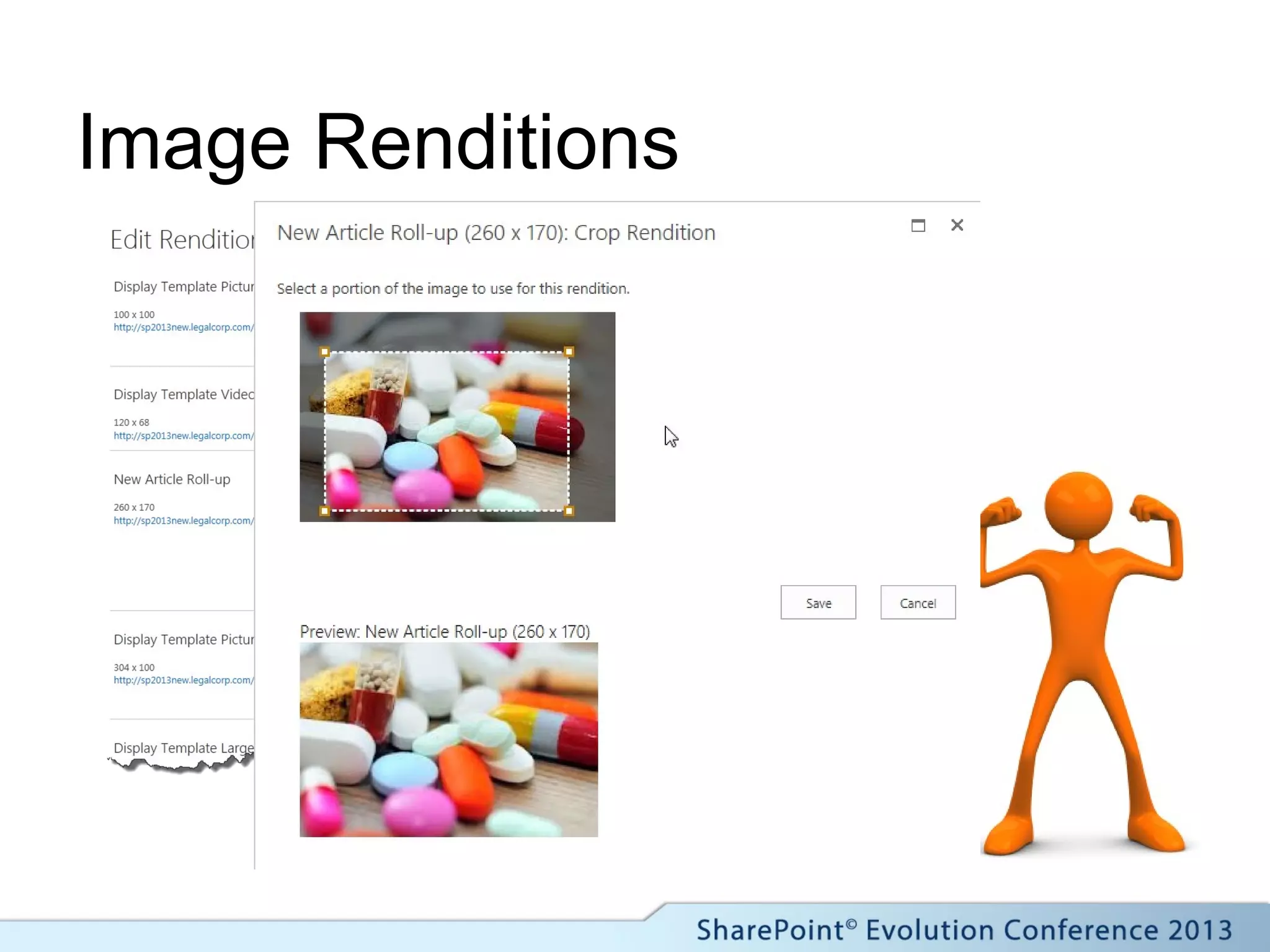
Image Renditions
Image Renditions
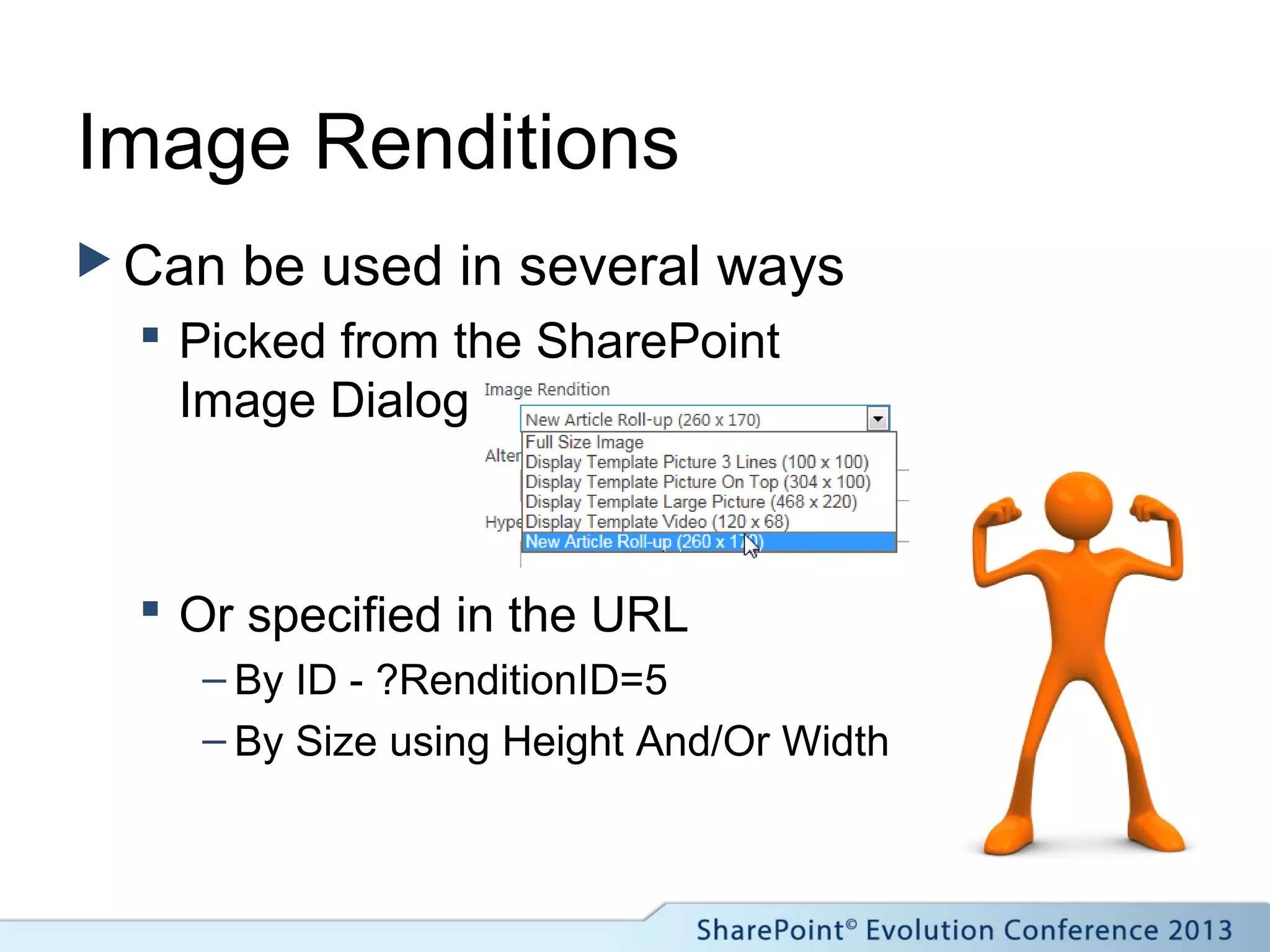
 Can be used in several ways
 Picked from the SharePoint
Image Dialog
 Or specified in the URL
– By ID - ?RenditionID=5
– By Size using Height And/Or Width
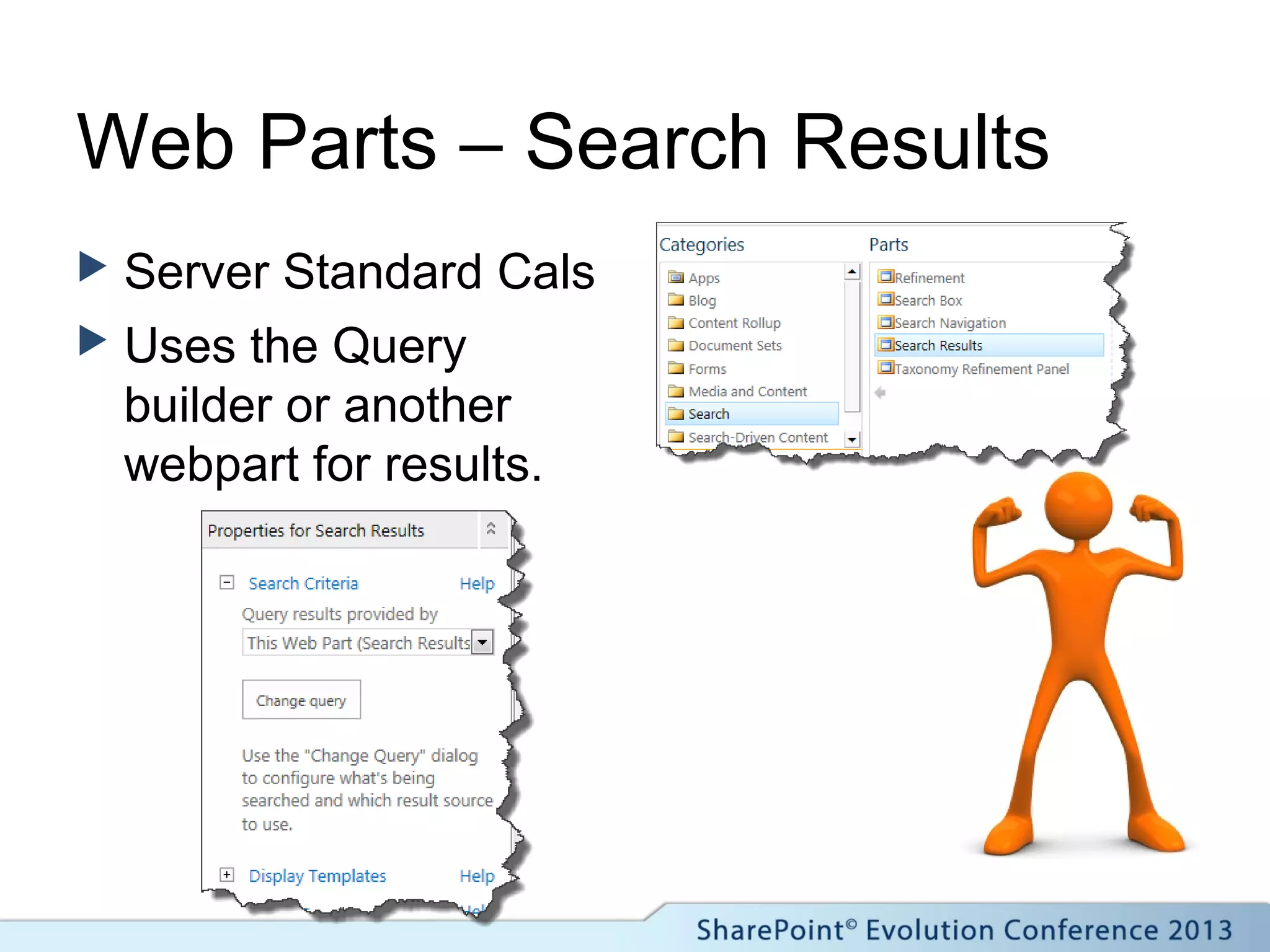
Web Parts – Search Results
 Server Standard Cals
 Uses the Query
builder or another
webpart for results.
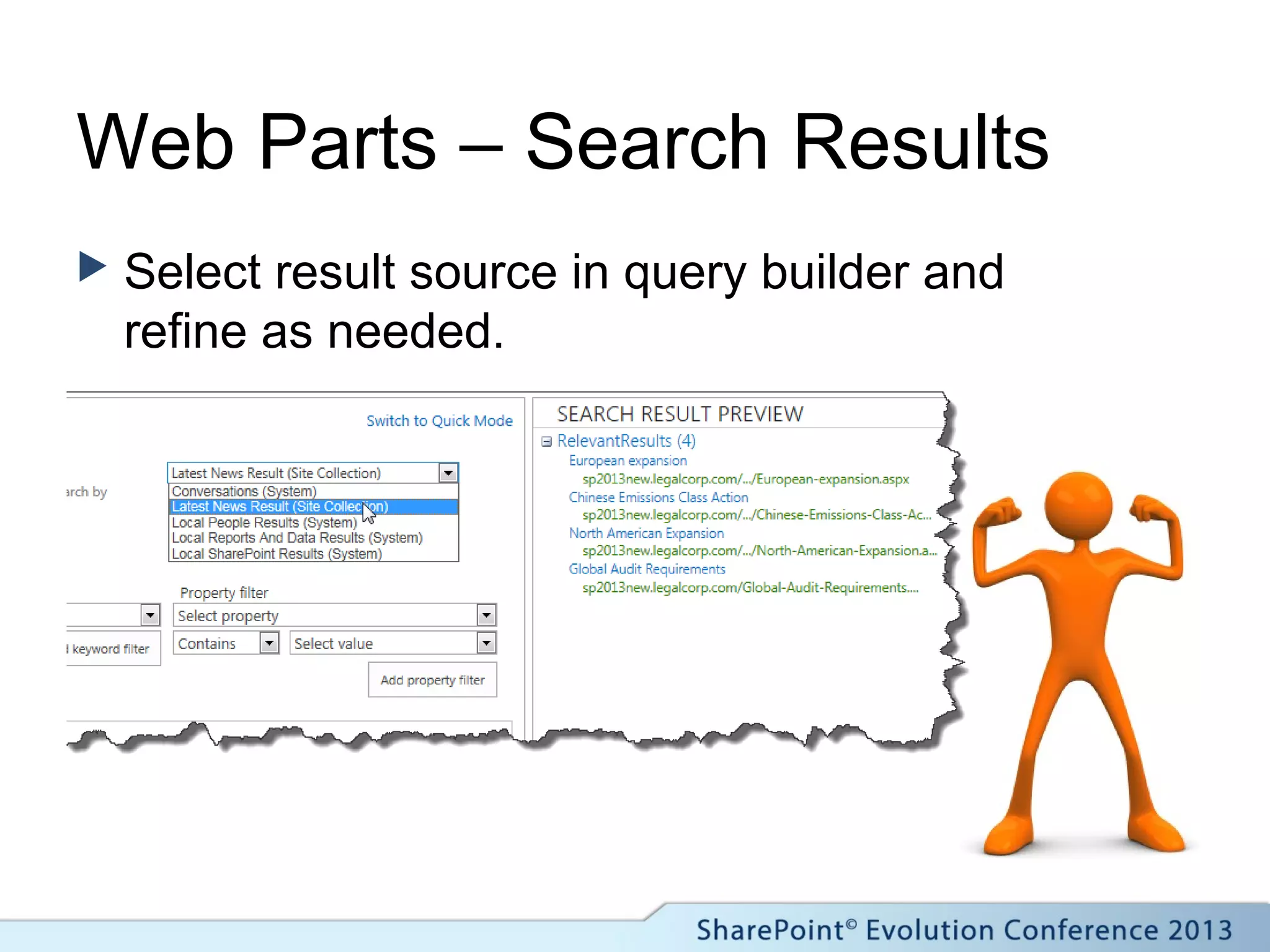
Web Parts – Search Results
 Select result source in query builder and
refine as needed.
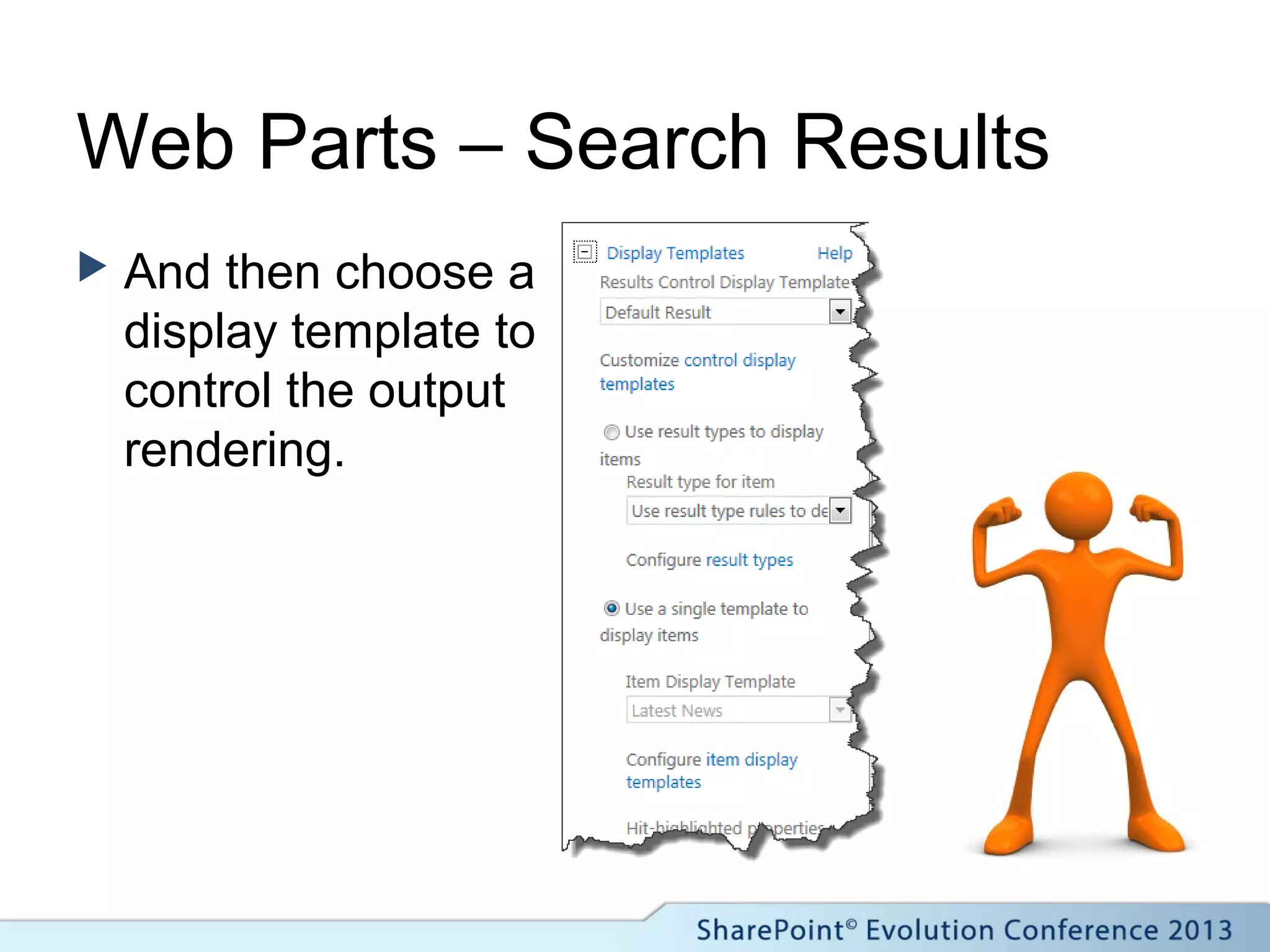
Web Parts – Search Results
 And then choose a
display template to
control the output
rendering.
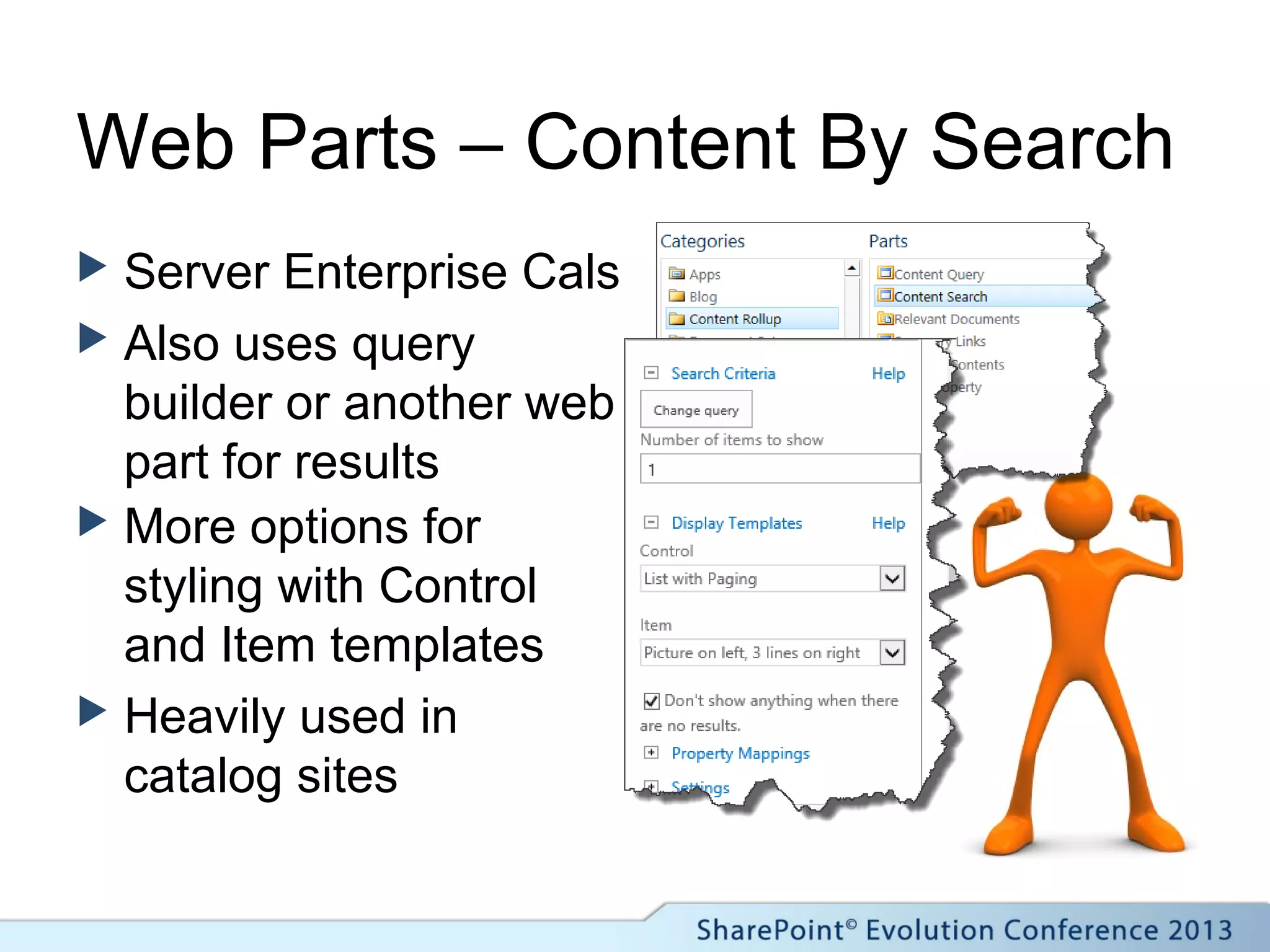
Web Parts – Content By Search
 Server Enterprise Cals
 Also uses query
builder or another web
part for results
 More options for
styling with Control
and Item templates
 Heavily used in
catalog sites
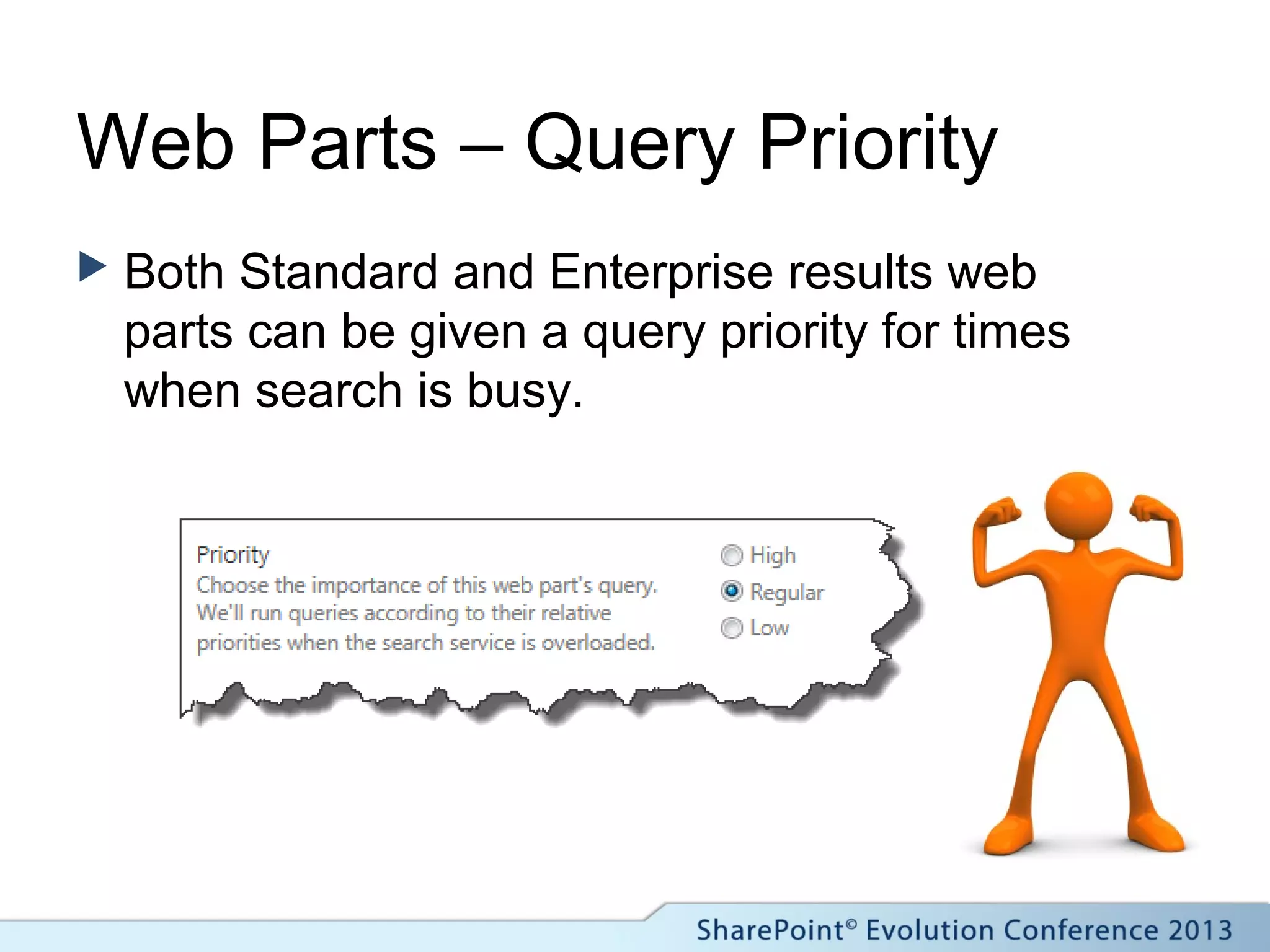
Web Parts – Query Priority
 Both Standard and Enterprise results web
parts can be given a query priority for times
when search is busy.
Building in 2013 – Key Points
 Familiarise yourself with all of
the capabilities of 2013 search
before deciding on which design
route to take.
 Think beyond the singular!
 Dust off those HTML and
JavaScript skills.
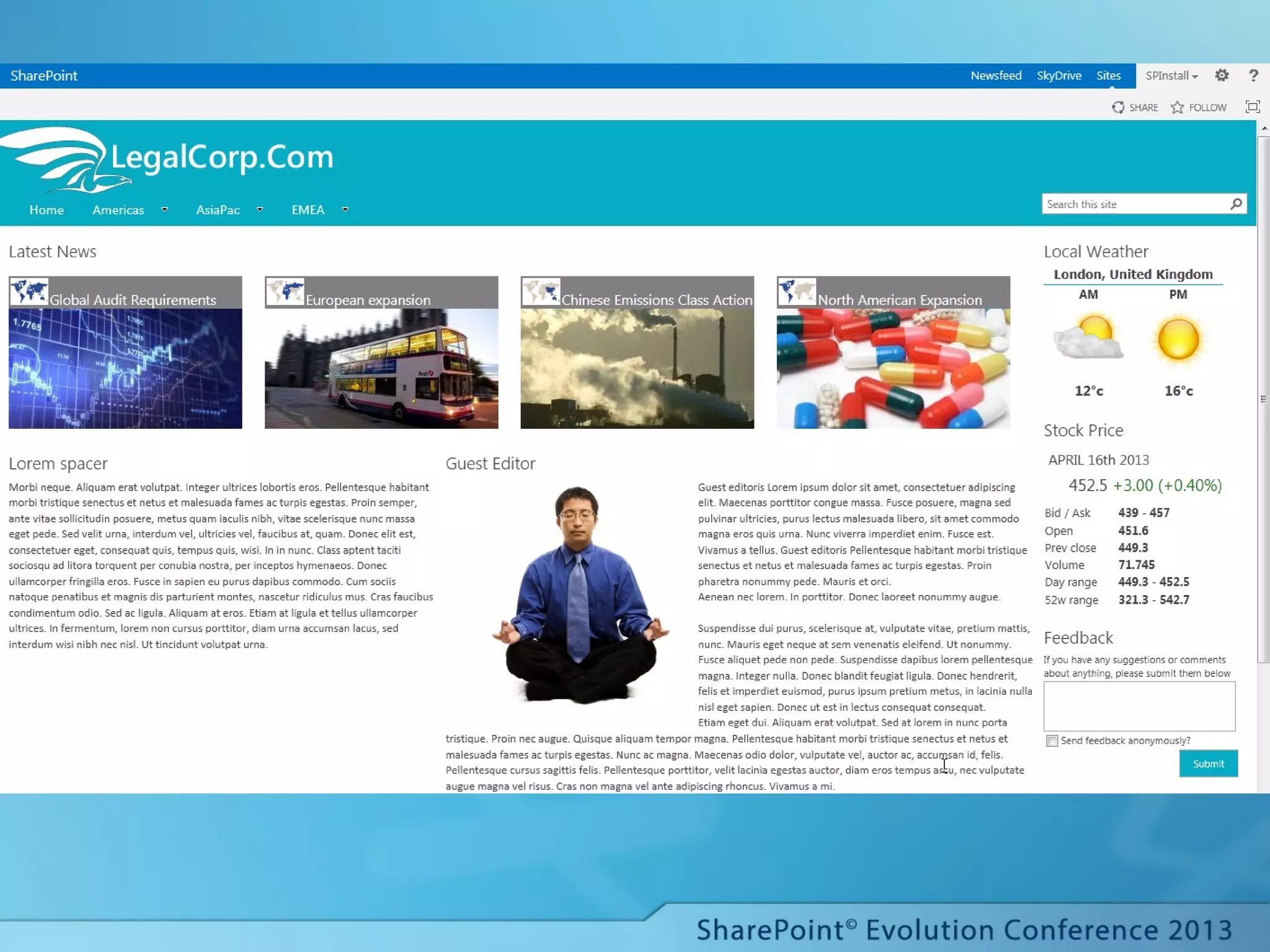
PUTTING IT TOGETHER IN
SHAREPOINT 2013
Demonstrating content roll-up using SharePoint 2013 search.
Related Sessions
 IT102 – SharePoint
Search All Up – Neil
Hodgkinson
 IT114 – Upgrading,
Deploying and Scaling
out SharePoint search –
Neil Hodgkinson
 P&M306 – Using
Javascript templates to
customize the SharePoint
UI – Chris O’Brien
 P&M308 – Soup to nuts –
How to build a metadata
& search driven Intranet –
Chris Johnson
 IW507 & IW508 – Making
the most of Content
Aggregation in
SharePoint Pts 1&2 –
Christina Wheeler
 DEV209 – Developers
approach to search
applications – Matthew
McDermott
Questions?
Thank you for attending!
See you at the conference party
tonight!

Iw411 migrating content by search from 2010 into 2013 - minified

  • 1.
    Migrating Content bySearch from 2010 into 2013 IW411 Paul Hunt
  • 2.
     Paul Hunt,MCITP, MCPD  Trinity Expert Systems Ltd  www.tesl.com  paul.hunt@eurodatasystems.com  Twitter:@cimares  www.myfatblog.co.uk  I do woodturning for a hobby!
  • 3.
    Session Agenda  Cross-SiteCollection roll-ups in SP2010 using Search Core Results  Migrating the solution from SP2010 to SP2013  Rebuilding from scratch in SP2013 using Search Results/Content by Search
  • 4.
     LegalCorp.Com Introducing our fictionalclient LegalCorp.Com is a fictional example of a Global Multi National legal firm. •Practices in 3 main global regions •Americas •EMEA •AsiaPac •Each region represents key legal entities with their own reporting structures and requirements.
  • 5.
    Global Challenges  Thenature of the company meant that the client wanted to use a site collection for each region, with a global site at the top of the Navigation.
  • 6.
    Global Challenges  Thispresented several challenges.  Consistent navigation.  Content Type syndication.  Client preference to avoid custom code.  Roll up of content from each of the regions.
  • 7.
    What does the clientwant to achieve? To roll up news articles from each of the regions as well as from the Global site collection. •The top four stories should be displayed in order of creation. •A region icon should be displayed to show where the story is from. •The story title should be displayed along with a summary of the article.
  • 8.
    CQWP Limitations  CQWPis the usual tool of choice for the roll up of information.  Quick and easy to configure.  Fairly simple to customize with xslt.  Good for time critical information.  CQWP doesn’t work across site collections.  CQWP doesn’t provide paging ootb.  CQWP is limited to 1000 lists.  CQWP increases the demand on the web servers.
  • 9.
  • 10.
    A Search alternative? The search service application has been designed from the ground up to be scalable in enterprise situations.  Search results can be provided from multiple site collections.  Search results can be styled easily using xslt.  Complex search queries can be executed.
  • 11.
    Our Kryptonite?  Resultdata is only as fresh as the crawls.  [Me] and [Today] tokens are not available. (SP2010)
  • 12.
    Search needs morepreparation.  In addition to Content Types and Site Columns  Search needs:-  Search scopes  Managed properties  Regular crawls
  • 13.
    Building our Solutionin SharePoint 2010
  • 14.
    Building our Solution Site Columns  Content Type  Page Layout  Managed Properties  Scope  Search Core Results Web Part  XSLT
  • 15.
    Site Columns  Region Sector  Primary Sector  Article Summary
  • 16.
    Content Type  Name:Legal Corp News Article Page.  Inherits from Article Page (OOTB).  Adds our new site columns.
  • 17.
    Content Type -Deployment  Manual Configuration  Content Type Hub  Powershell  Solution Package
  • 18.
    New Page Layout(s) Copied from Article Page  Adds our new site columns into the edit experience.
  • 19.
    Managed Properties  Beforeyou go any further.  Create some content.  Tag it properly  Full Crawl.
  • 20.
    Managed Properties  Crawledproperties are extracted from the index.
  • 21.
    Managed Properties  Thesecan then be mapped to Managed properties and used in our web part.
  • 22.
    Scope  Used tolimit our results to just our web application.
  • 23.
    Search Core ResultsWeb part  Runs our fixed query and shows the results.
  • 24.
    XSLT  Used tocontrol the rendering output of our results.
  • 25.
  • 26.
    XSLT – DeploymentOptions  In the Search Core Results Web Part Properties  In a Site Collection style library  On the file system in /_layouts  In a federated location in the service app.
  • 27.
    XSLT – DeploymentOptions  In the Search Core Results Web Part Properties
  • 28.
    XSLT – DeploymentOptions  In a Site Collection Style Library  Or on the file system Use the XSL Link in the web part properties tab to link to the file using a relative path
  • 29.
    XSLT – DeploymentOptions  In a federated location in the Search service application.
  • 30.
    XSLT – DeploymentOptions  In a federated location in the Search service application.
  • 31.
    XSLT – DeploymentOptions  In a federated location in the Search service application.
  • 32.
    Search Core ResultsWeb Part  Configure the managed properties to display in results.
  • 33.
    Search Core ResultsWeb Part  Configure Fixed Query
  • 34.
    Building in 2010– Key Points  Consider the impact to the search architecture and monitor the farm.  Remember to create, tag content and crawl it to make properties available.  Consider deployment options if migration to 2013 is likely.
  • 35.
    PUTTING IT TOGETHERIN SHAREPOINT 2010 Demonstrating content roll-up using SharePoint 2010 search.
  • 37.
    Migrating our Solutionfrom SharePoint 2010 to SharePoint 2013
  • 38.
    Migration Options  Thereis no supported in-place upgrade option.  Web applications are upgraded through the content database attach method.  The search service application can be upgraded through a similar method.  Managed Properties  Scopes  Federated Locations
  • 39.
    Migration Process  Buildnew SP2013 farm  Restore Search Admin DB (optional)  Create Search Service Application  Create new Web Application  Restore Content Databases  Attach content database to web application  Fix issues!
  • 40.
  • 41.
  • 42.
    Migration Process  Oursite columns are already configured as part of the content database migration, but not the managed properties.
  • 43.
    Migration Process  SharePoint2013 now automatically adds Managed Properties for Site Columns discovered during crawls.  A suffix is added based on the field type.
  • 44.
    Migration Process  Topick up the new properties, we first amend the columns in our Core Results web part  And then the XSLT in the style library.
  • 45.
  • 46.
  • 47.
    Migration Process  Witha SharePoint 2013 master page
  • 48.
    Migration Process  Witha custom Master Page & Css
  • 49.
    Migration – KeyPoints  Upgraded Scopes & Federated XSLT can’t be edited post migration.  Managed property names will change unless re-mapped.  Weigh up the benefits of building it from scratch in 2013 for the improved search options.
  • 50.
    Building our solutionfrom scratch in SharePoint 2013
  • 51.
    Flexing the newmuscles of SharePoint Search  Automatic Managed Properties  Result Sources  Display Templates  New Search Web Parts  Search Results  Content by Search (Enterprise CAL only)  Continuous Crawl
  • 52.
    Building our solution Site Columns and Content Types  Page Layouts  Managed Properties  Result Sources  Display Templates  Image Renditions  …..
  • 53.
    Building our solution …Web Parts  Server Standard Cals  Search Results WP – More configuration required. – Duplicate trimming requires the .webpart file to be amended.  Server Enterprise Cals  Content by Search WP – Easier to configure – Duplicate trimming off by default – Pre-configured variants
  • 54.
    Site Columns &Content Types  Site Columns  Content Types & Deployment  Page Layouts  Nothings Changed!
  • 55.
    Managed properties  Automatically mappedfrom Site Columns  Requires content to be tagged and crawled before it happens!
  • 56.
    Result Sources  Combines2010 federated search and scopes + extras  Defined at Service App, Site collection or Web level.  Uses the Query Builder to define the search.
  • 57.
    Display Templates  Controlsthe rendering of a search result item  No more XSLT!  Html and JavaScript based  Design manager creates raw JS file from the Html
  • 58.
    Display Templates  Eachtemplate includes a header block with key properties.  These map to the Design Manager properties
  • 59.
    Display Templates –Tag Rules  Understand the tag rules!  JavaScript goes inside  <!--#_ _#-->
  • 60.
    Display Templates –Tag Rules  Calls to JavaScript variables within Html go inside  _#= =#_
  • 61.
    Display Templates –.JS File  Generated automatically every time the .Html is saved.
  • 62.
    Display Templates –.JS File  Troubleshooting is easy with the IE Developer toolbar!
  • 63.
    Image Renditions  Sizingimages made simple  Requires Publishing Features  Requires Blob Caching  Ensures appropriate files sizes
  • 64.
  • 65.
    Image Renditions  Canbe used in several ways  Picked from the SharePoint Image Dialog  Or specified in the URL – By ID - ?RenditionID=5 – By Size using Height And/Or Width
  • 66.
    Web Parts –Search Results  Server Standard Cals  Uses the Query builder or another webpart for results.
  • 67.
    Web Parts –Search Results  Select result source in query builder and refine as needed.
  • 68.
    Web Parts –Search Results  And then choose a display template to control the output rendering.
  • 69.
    Web Parts –Content By Search  Server Enterprise Cals  Also uses query builder or another web part for results  More options for styling with Control and Item templates  Heavily used in catalog sites
  • 70.
    Web Parts –Query Priority  Both Standard and Enterprise results web parts can be given a query priority for times when search is busy.
  • 71.
    Building in 2013– Key Points  Familiarise yourself with all of the capabilities of 2013 search before deciding on which design route to take.  Think beyond the singular!  Dust off those HTML and JavaScript skills.
  • 72.
    PUTTING IT TOGETHERIN SHAREPOINT 2013 Demonstrating content roll-up using SharePoint 2013 search.
  • 74.
    Related Sessions  IT102– SharePoint Search All Up – Neil Hodgkinson  IT114 – Upgrading, Deploying and Scaling out SharePoint search – Neil Hodgkinson  P&M306 – Using Javascript templates to customize the SharePoint UI – Chris O’Brien  P&M308 – Soup to nuts – How to build a metadata & search driven Intranet – Chris Johnson  IW507 & IW508 – Making the most of Content Aggregation in SharePoint Pts 1&2 – Christina Wheeler  DEV209 – Developers approach to search applications – Matthew McDermott
  • 75.
  • 76.
    Thank you forattending! See you at the conference party tonight!

Editor's Notes

  • #6 Some of the key requirements was for separation, Site collections create security boundaries, but they also bring additional challenges.
  • #7 Of all of the challenges that we’re focussing on today, we shall be looking at what we can do to provide roll-ups across site collections.
  • #9 The CQWP (Content By Query Web Part) has some limitations. Queries cannot be run across site collections. Paging is not available out of the box. A little known restriction is from the SPSiteDataQuery limit of 1000 lists. This means that once the CQWP query has touched 1000 lists across the site collection, it will return no results. This means that depending on the configuration of your query, just 100 sub-webs can invalidate your query and the web part will return nothing. (Without any error messages beyond those in the ULS logs.) The CQWP is made scalable through the use of heavy caching, which increases the demand on the WFE. CQWP Does however support the use of [ME] and [TODAY]….
  • #11 The search service application has been designed from the ground up to be scalable. As demand rises across the farm, Query servers and index partitions can be added to scale out. Complex searches can be created. Kryptonite! Can’t use the [ME] token or [TODAY] without custom code. (In 2010) Search crawls
  • #12 To mitigate this in 2010, we would run incrementals as frequently as we could. In 2013, the constant crawler comes to our aid. For the [Me] and [Today] tokens, we had to result to custom code. Less of an issue in 2013.
  • #13 Search scopes to restrict content to what you want to see. Managed properties to display the relevant information. Regular crawls for content freshness. (Content is only as fresh as the last crawl!)
  • #19 By adding fields into the page layout, we improve the edit experience and make tagging easy.
  • #23 Scopes can be very powerful. In our case, we’re only using it to limit results from a single web application. The name you give it here, will be used to target the scope in the web part later on.
  • #26 Some challenges when it comes to troubleshooting. Best approach is to take the raw xml output from search and use a third party tool (Visual Studio, notepad++, SPD) to build the XSLT away from SharePoint.
  • #27 Search Core Results Web Part – Local to the instance of the web part, Horrible editing experience. Site Collection Asset Library – Limited to use within the site collection, Benefits from Versioning. Deployed through feature or SPD From the file system – Can be used throughout the site on any site collection. Deployed through feature or manual copy. A federated location – Can be easily re-used by any site/farm consuming the search service application. Issues with migration.
  • #31 In the new federated location, we give it a name, leave all of the default location options, and then add the XSLT and properties to the Core Results Display Metadata section.
  • #32 We can then picked the newly created federated location in the Location properties tab of the Core Results web part
  • #33 For all of our deployment methods, apart from Federated locations, these have to go in the web part properties. For federated locations, they go in the federated location display properties. Both locations use the same horrible interface, Cut and paste into an XML aware editor! You will save hours of frustration! You must however return them to a single string after editing before pasting back in.
  • #34 Finally we need to add the fixed query that will fire when the page is loaded. Here’ we’re looking for items of the correct content type that match our news stories. contenttype:”LegalCorp News Article Page” Any keyword query that works in the search box can be used here.
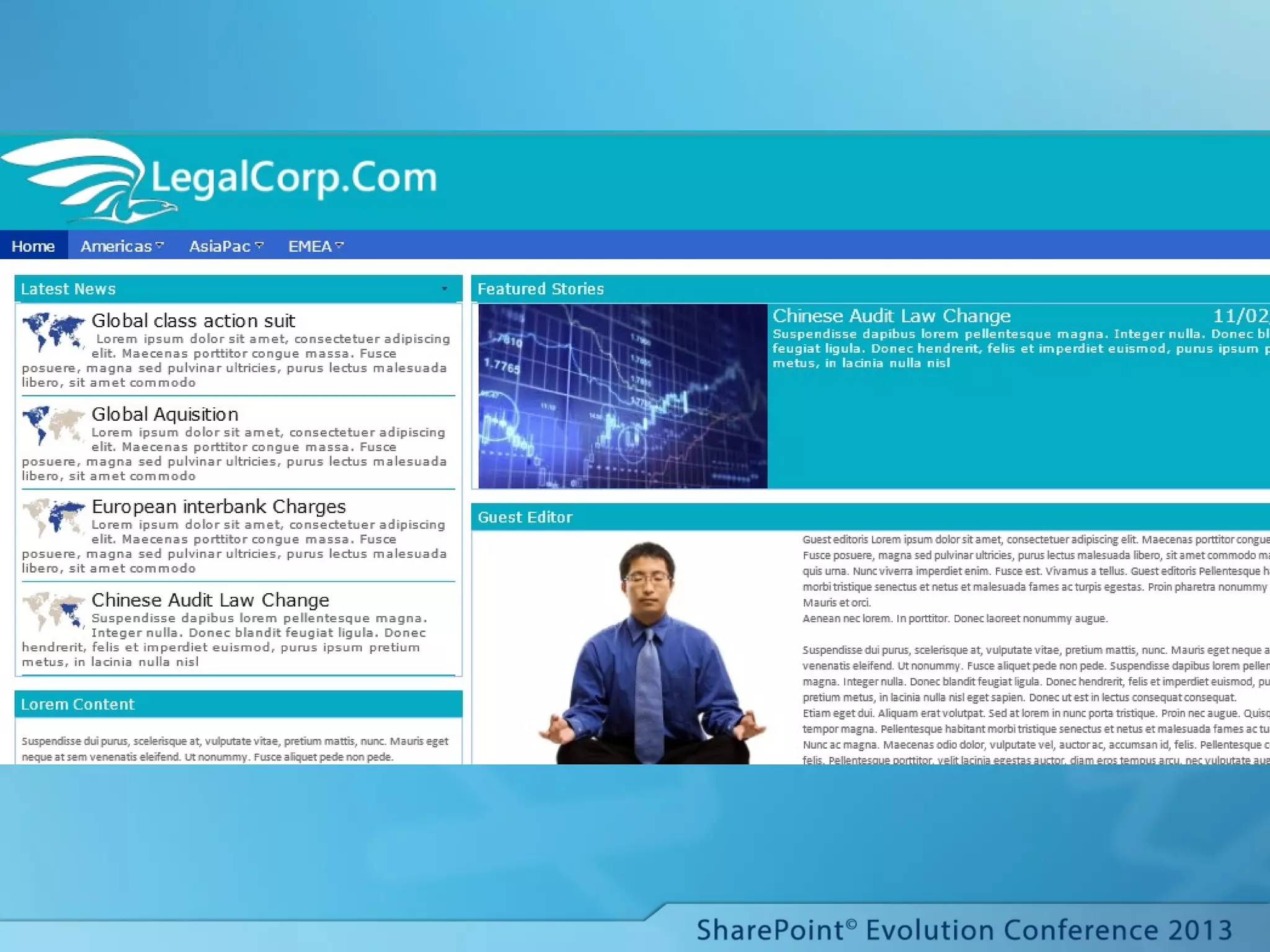
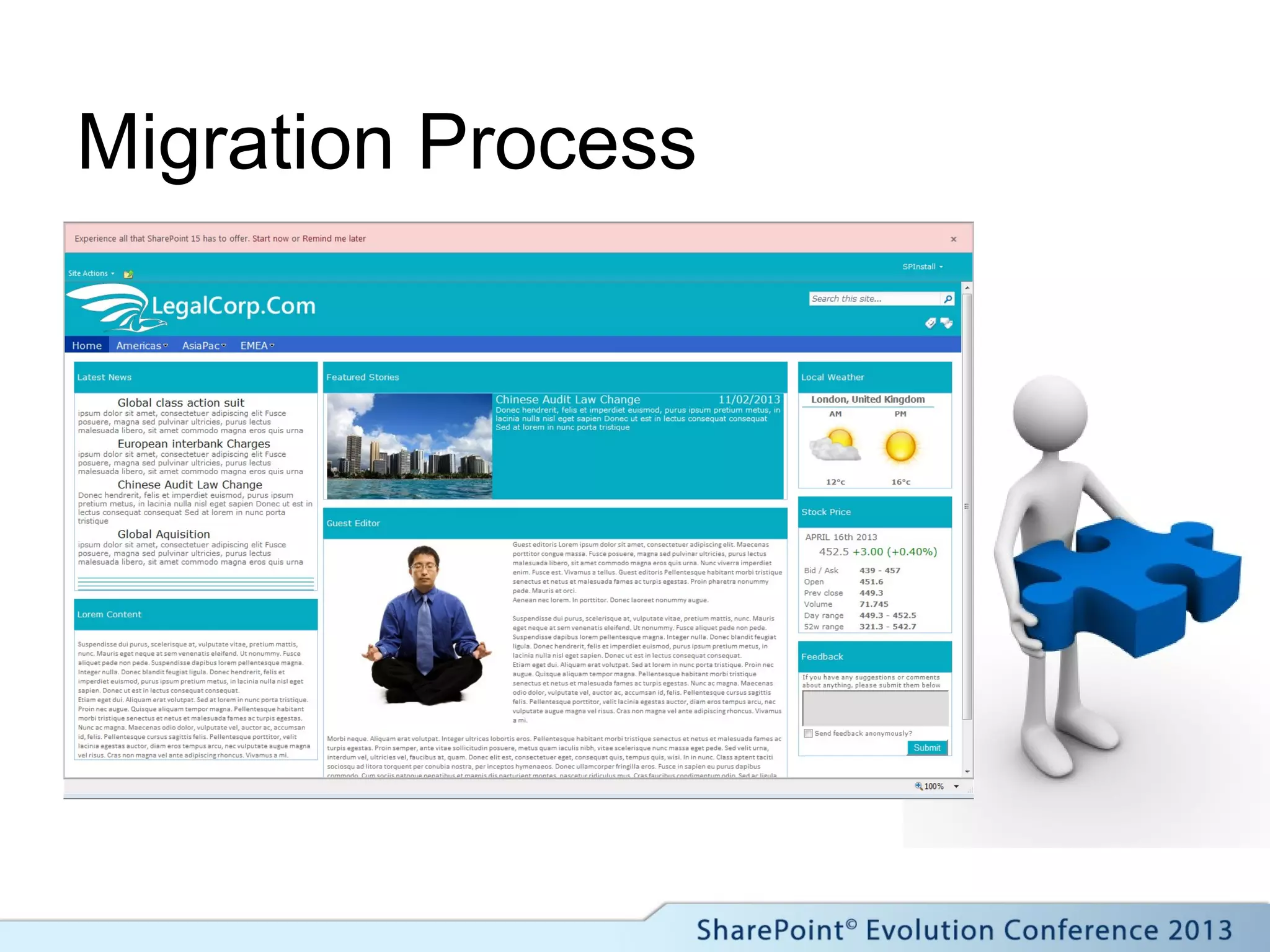
  • #37 If it all worked, it looks like this. Note the Featured Sites web part, this is a variation on the same method.
  • #39 Upgrading Service Applications to SharePoint 2013 - http://technet.microsoft.com/en-gb/library/jj839719.aspx Upgrade content databases - http://technet.microsoft.com/en-us/library/cc263299.aspx Personally, There has to be a very good reason to migrate search rather than rebuild, in this migration scenario, we won’t be bringing search across. If scopes are migrated, they cannot be edited. Not convinced that Federated locations migrate fully as I experienced issues with the embedded XSLT.
  • #40 The upgrade in-place will take a variable amount of time depending on the amount of content.
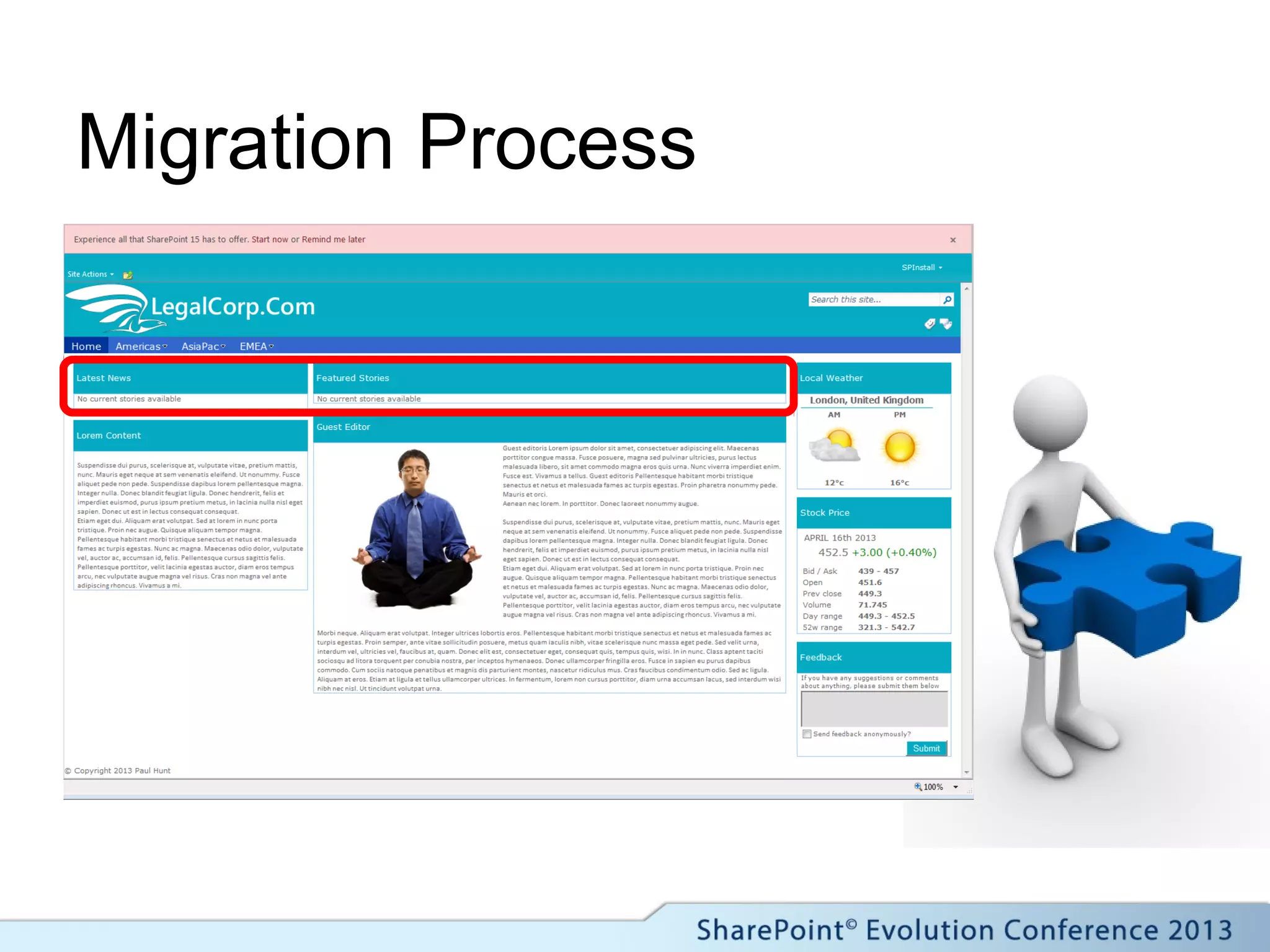
  • #41 After the initial mount process, The basic site is available, but no search results, Requires a crawl to populate the database Styling is also a little weird. Note the prompt for the SharePoint 15 upgrade
  • #42 After the crawl, we now have results, but the images are missing.
  • #44 Full details of the suffixes are listed here http://technet.microsoft.com/en-gb/library/jj613136.aspx
  • #48 With the master page switched, the CSS isn’t working.
  • #49 The finished migrated site after a new SP2013 master page and CSS file is created.
  • #52 The main changes in SharePoint 2013 that change the way we approach our original build are :- Automatic Managed Properties:- These are mapped for us automatically as we touched on during the migration. Results Sources:- These are scopes on Steroids! Display Templates: HTML and Javascript based templates for rendering result items. New Search Webparts – Search Results or Content by Search (In enterprise) Continuous crawl – search freshness becomes less of a problem than in 2010.
  • #53 The basic underlying structure is very similar to the SP2010 version, but now we’re using the full power of SharePoint search and all the new functionality that comes with it.
  • #54 Although the Enterprise web part is a little easier to configure, there is nothing that you can do in one that you can’t do in the other.
  • #55 As with how our solution worked in SP2010, nothing has changed with regards to Site Columns, Content Types, deployment or page layouts!
  • #63 Massive improvement for troubleshooting over XSLT!
  • #64 The use of image renditions in your sites can have a massive impact on the ease of deploying images and ensuring that appropriate images sizes are used and transferred over the network.
  • #66 If a rendition ID isn’t specified, but a width or height is, then SharePoint will try and match the appropriate rendition. E.g. if you specify Width, SharePoint will match the width and return the relevant image. In the case of multiple renditions with the same width, the first rendition found will be returned.
  • #67 Note the entry there about using either the query builder, or another web part. You can use this feature to supply to web parts to the page, from just one query to the search database. For example, in our 2010 site, we had a featured story web part, This could have been our eye catching headline showing the first result, with the summary web-part showing stories 2-5 instead of 1-4
  • #72 Think beyond the singular.. Use webparts in concert to create mashups.