










Using JSLink and Display 
Templates with the List 
View Web Part for ITPros 
#SPSJE 
Paul Hunt 
Solutions Architect 
Trinity 
@Cimares 
www.myfatblog.c 
o.uk
Who Am I? 
• SharePoint Architect for Trinity 
Expert Systems 
• Co-organiser of SUGUK London 
Region 
• Member of the SharePoint 
community since 2007 
• In my spare time I’m a 
woodturner, making Pots, Pens 
and artistic pieces! 
• Paul Hunt 
• Twitter: @Cimares 
• www.myfatblog.co.uk 
• www.trinityservice.co. 
uk
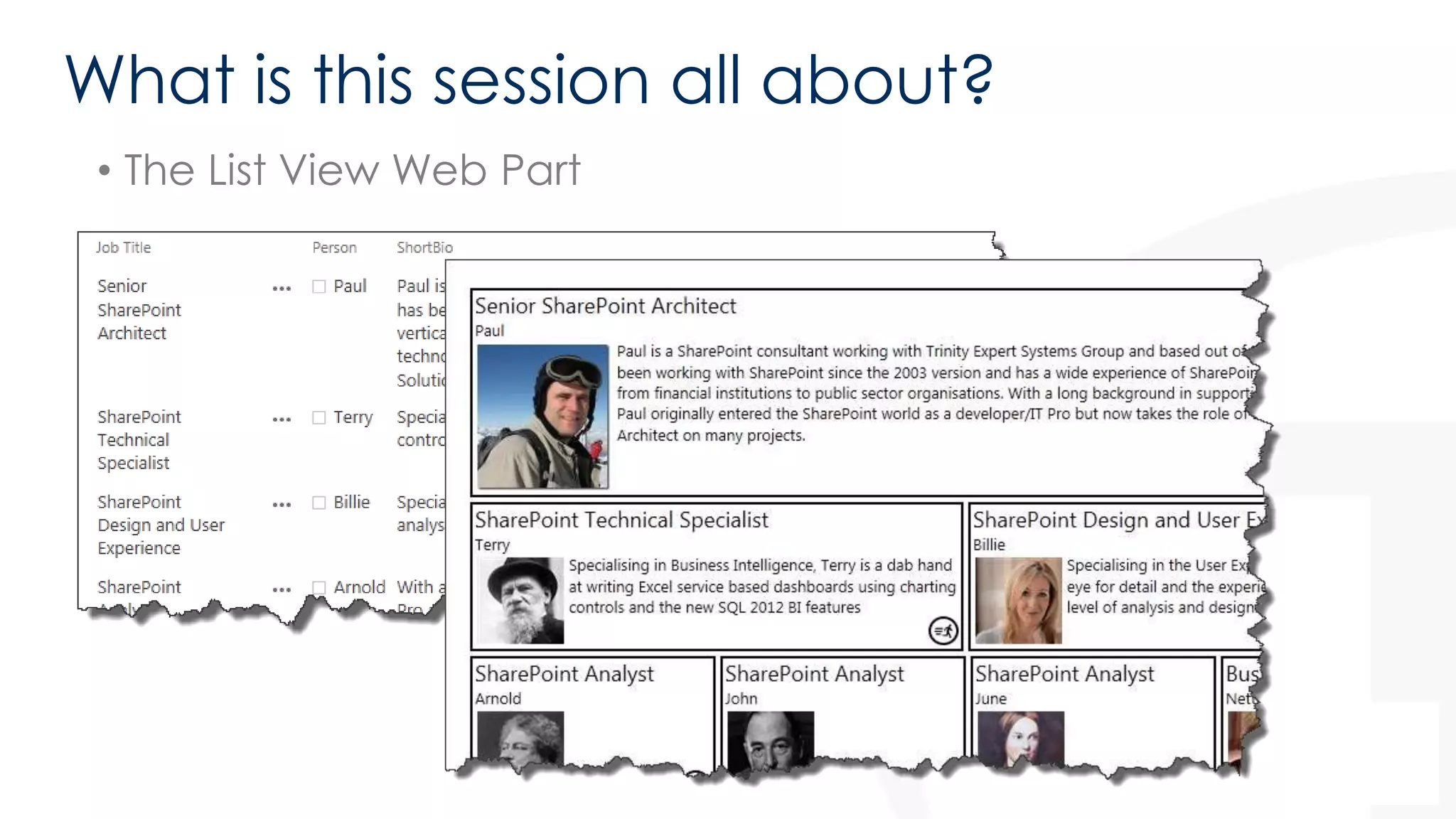
What is this session all about? 
• The List View Web Part
Who’s this session for? 
• Primarily First/Second tier developers 
• ITPros who customised 2010 list views in SPD 
• ITPros that used to write their own XSLT in SP2010 
• Developers that want to know what's available before opening 
VS2012 
• On Premises or Office 365 Deployments 
• Might not be ideal for someone who isn’t comfortable with JavaScript, 
HTML and CSS. 
– Though if you used to play in SPD 2010 you’re halfway there! 
– If you want to know what's achievable without deployed solutions
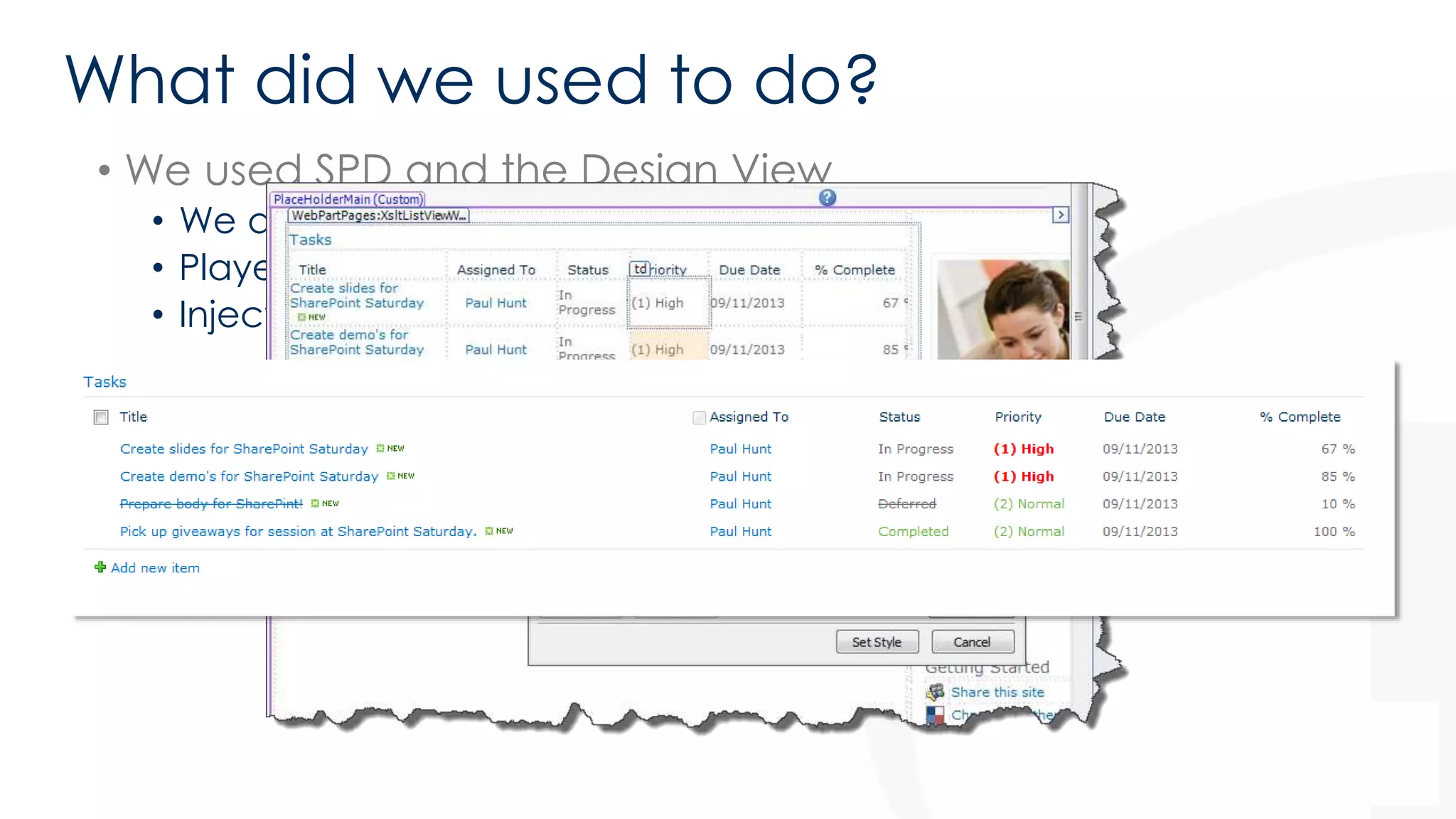
What did we used to do? 
• We used SPD and the Design View 
• We did conditional formatting 
• Played with colours 
• Injected Hyperlinks
What did we used to do? 
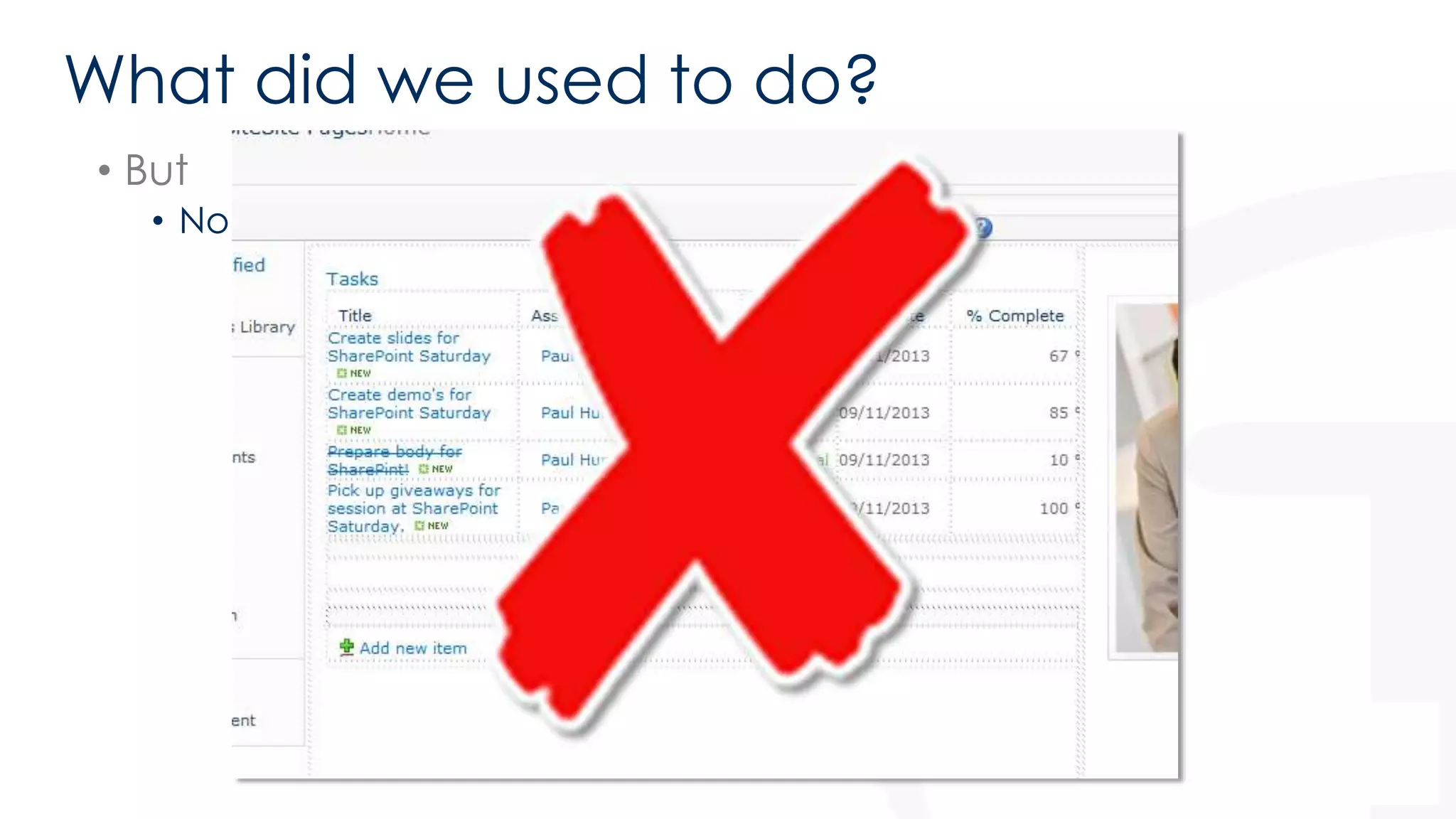
• But 
• No design view anymore!
What did we used to do? 
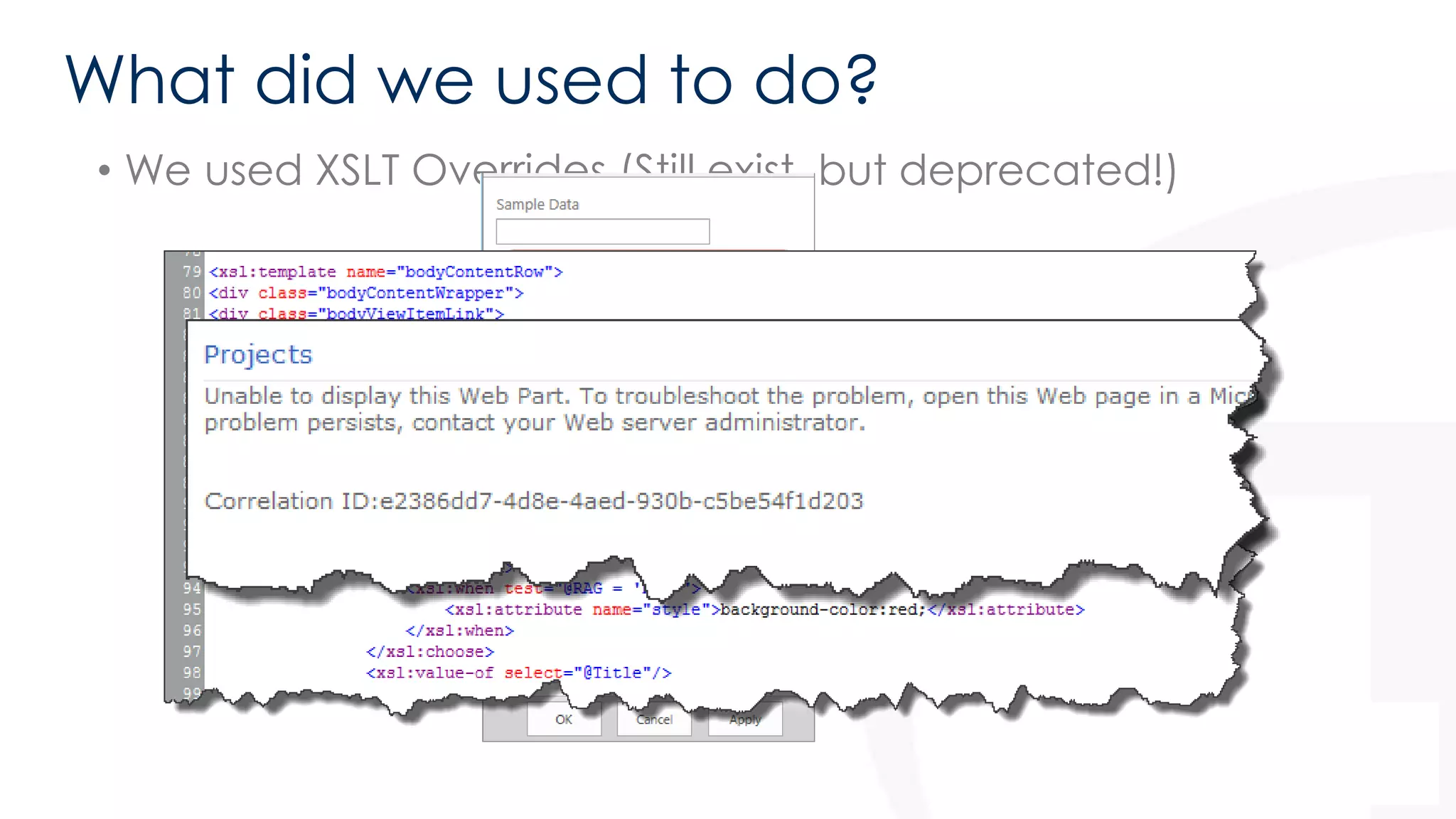
• We used XSLT Overrides (Still exist, but deprecated!)
What did we used to do? 
• We used XSLT Overrides (Still exist, but deprecated!) 
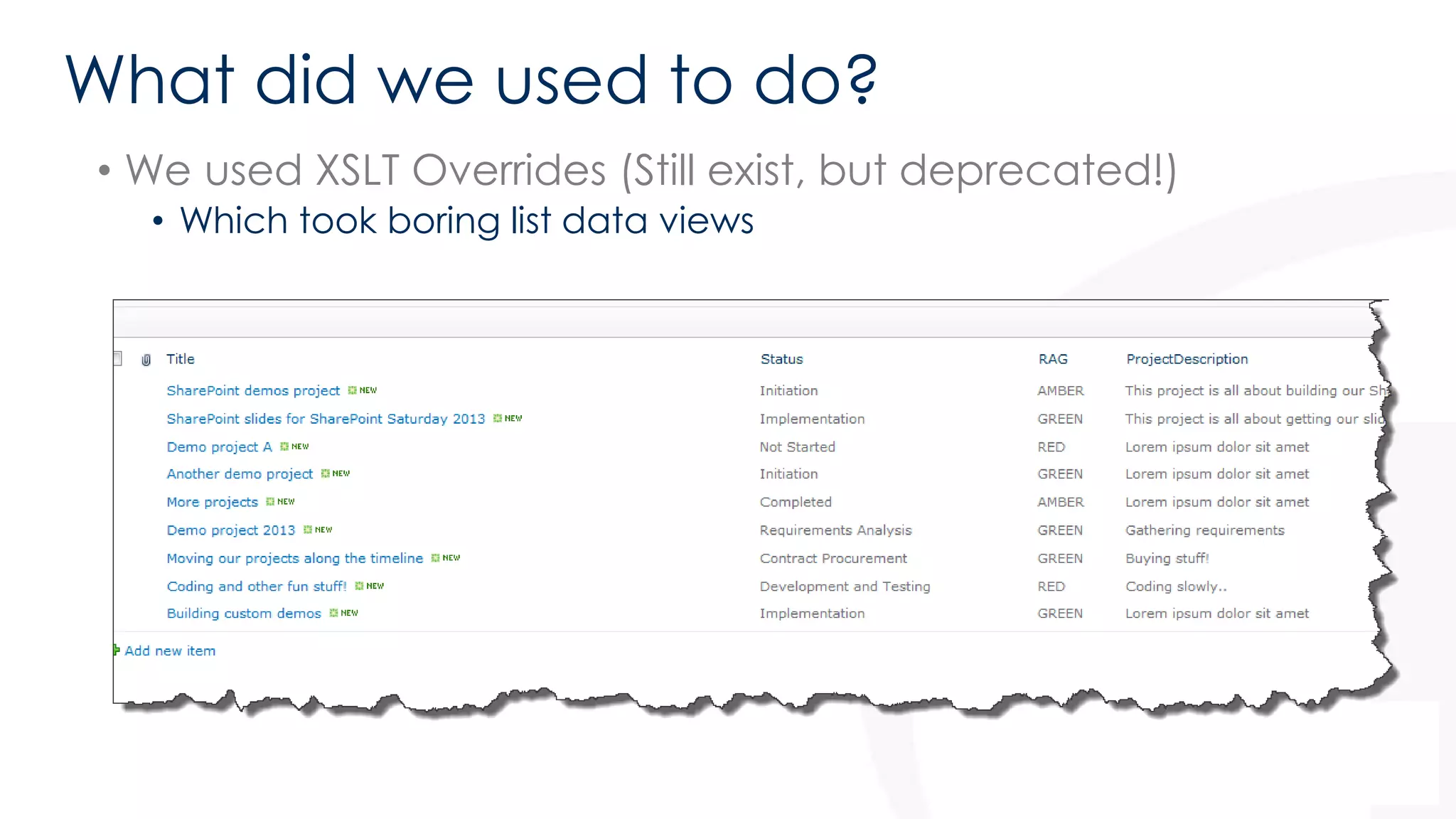
• Which took boring list data views
What did we used to do? 
• We used XSLT Overrides (Still exist, but deprecated!) 
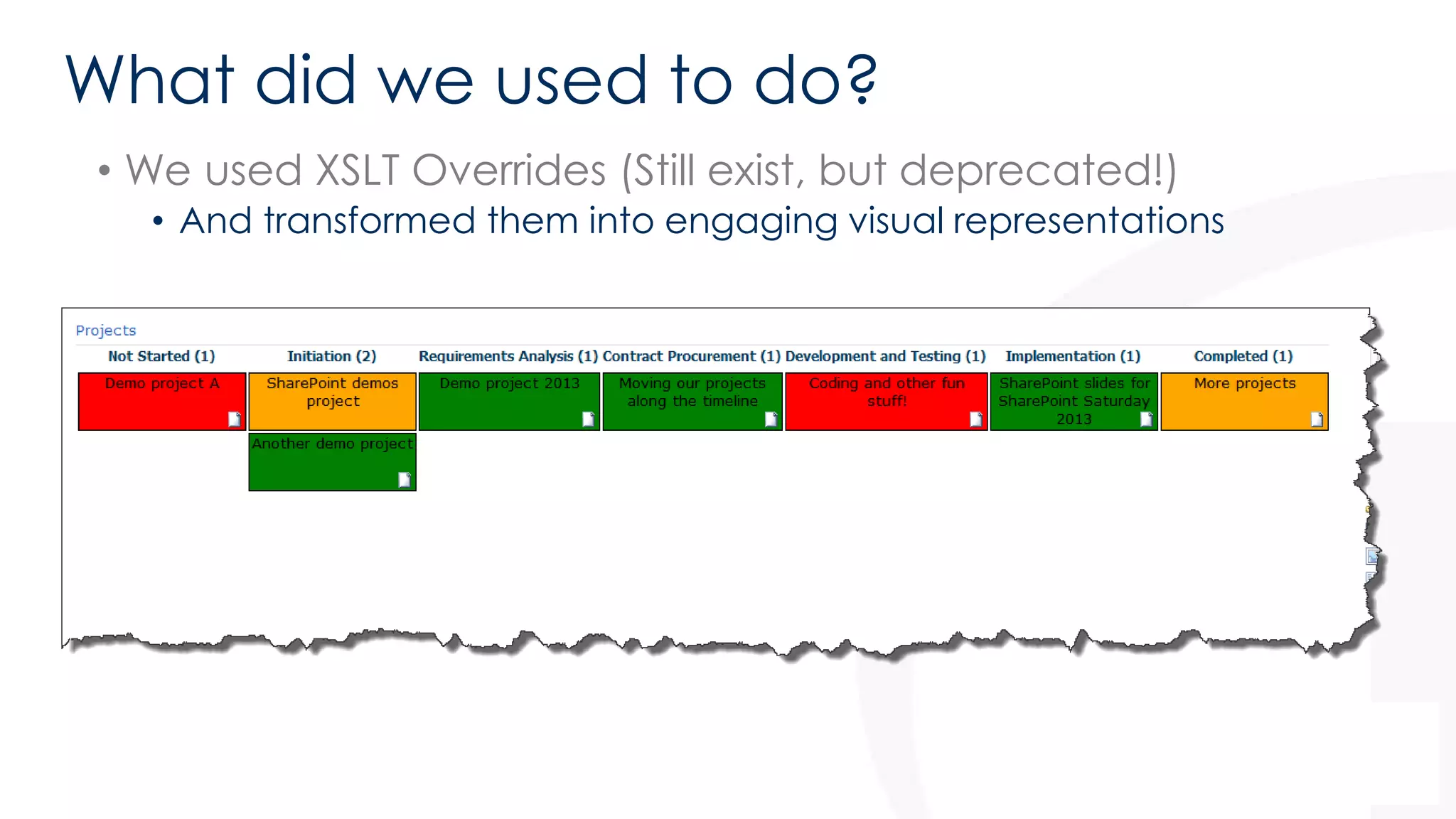
• And transformed them into engaging visual representations
What did we used to do? 
• We used custom code solutions (We still can!) 
• Custom CAML Rendering Templates 
• Custom List Views 
• Custom Web Parts 
• All bring additional headaches
So why the focus on Client Side 
Rendering?
So why the focus on Client Side 
Rendering? 
• It’s client side, moving the impact of customisations off of the 
web server and onto the often powerful and under utilised 
client machine 
SETI@Home 
Folding@Home
So why the focus on Client Side 
Rendering? 
• It’s client side, moving the impact of customisations off of the 
web server and onto the often powerful and under utilised 
client machine 
• Some client machines may struggle with heavy Javascript loads!
Specifically why JavaScript, HTML and 
CSS? 
• It’s easier to develop.. 
• Much simpler than XSLT 
• Certainly easier to troubleshoot than XSLT 
• Likely to have the skills in house 
• Cross-platform (ish!) 
• Some frameworks such as jQuery help with this
Exactly what is a JavaScript Display 
Template? 
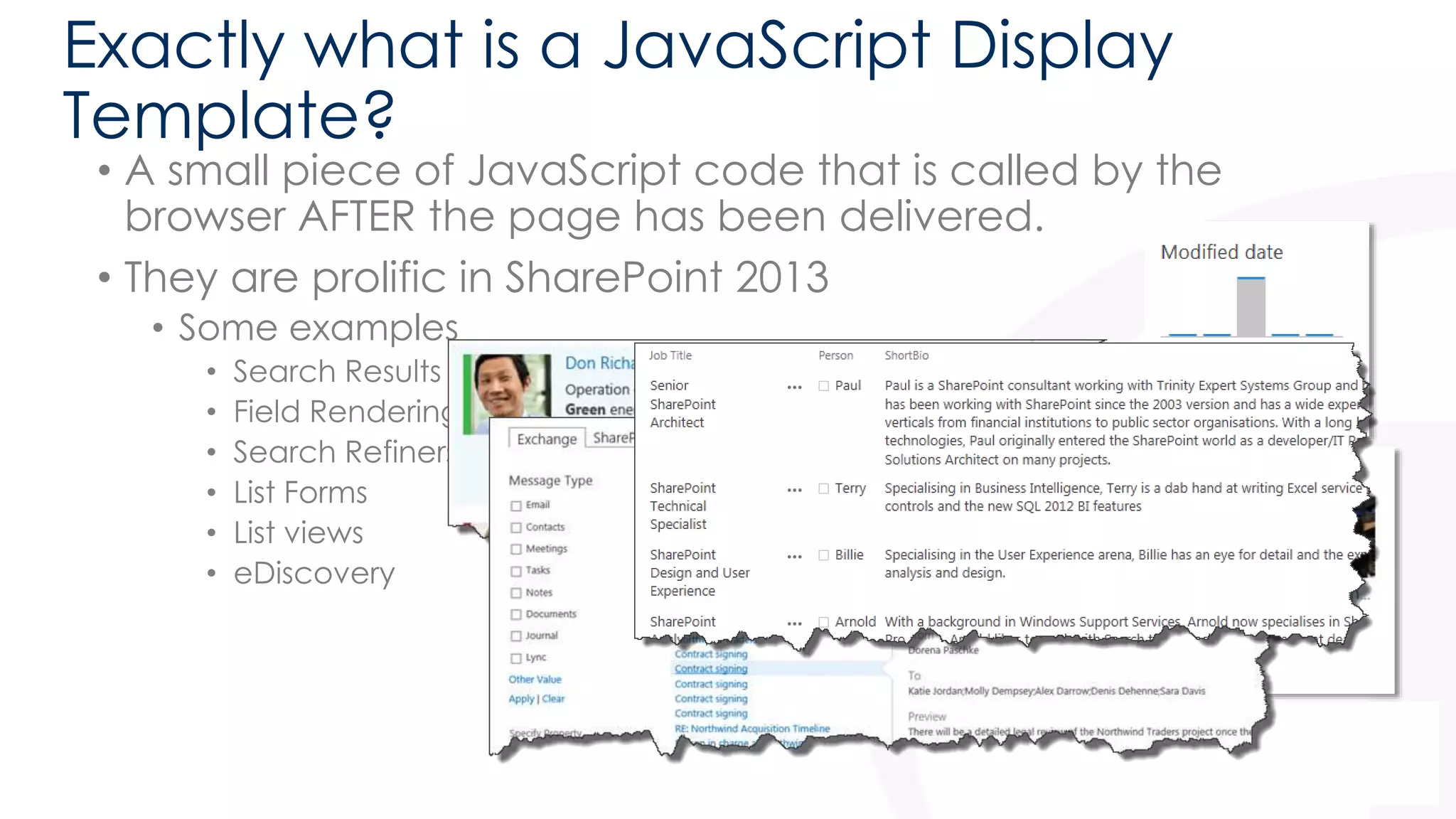
• A small piece of JavaScript code that is called by the 
browser AFTER the page has been delivered. 
• They are prolific in SharePoint 2013 
• Some examples 
• Search Results 
• Field Rendering 
• Search Refiners 
• List Forms 
• List views 
• eDiscovery
Display Template Content Types 
• There are 5 Content Types that represent 
display templates. 
• JavaScript Display Template 
• Control Display Template 
• Group Display Template 
• Item Display Template 
• Filter Display Template 
These 4 relate to Search.
LVWP Templates != Search Display 
Templates 
• LVWP Display Templates are JavaScript only. 
• They do not start life as HTML like Display Templates 
for search do. 
• They do not require embedded properties. 
• CONTEXT (ctx) is king! 
21
We’re just looking at:- 
• List View Display Templates 
• These provide the ability to override the rendering of an entire view 
• Field Rendering Display Templates 
• These provide the ability to override the rendering of a single field in 
a list view
Page Lifecycle – The Foundations
Page lifecycle – The Foundations 
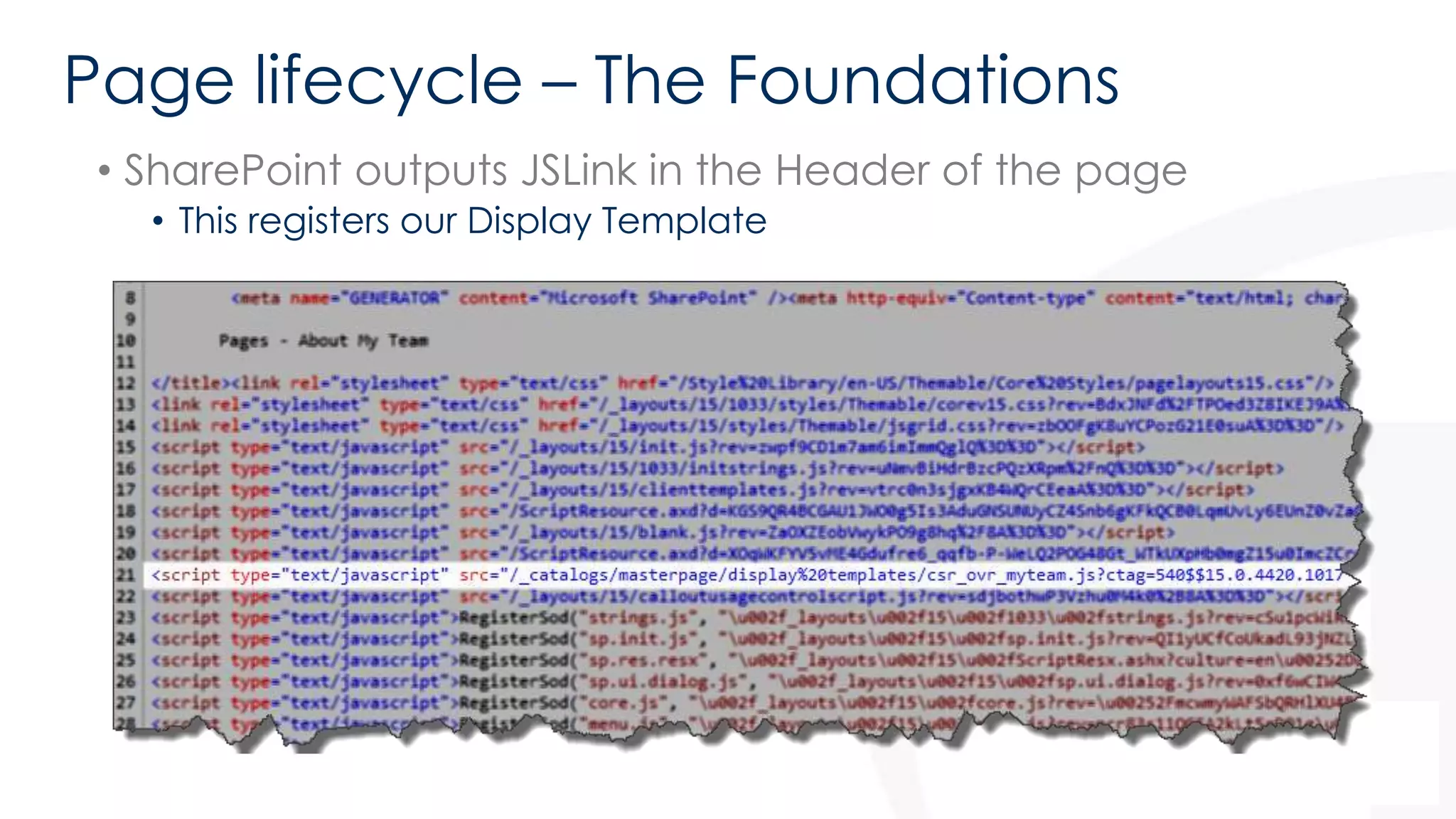
• SharePoint outputs JSLink in the Header of the page 
• This registers our Display Template
Page lifecycle – The Foundations 
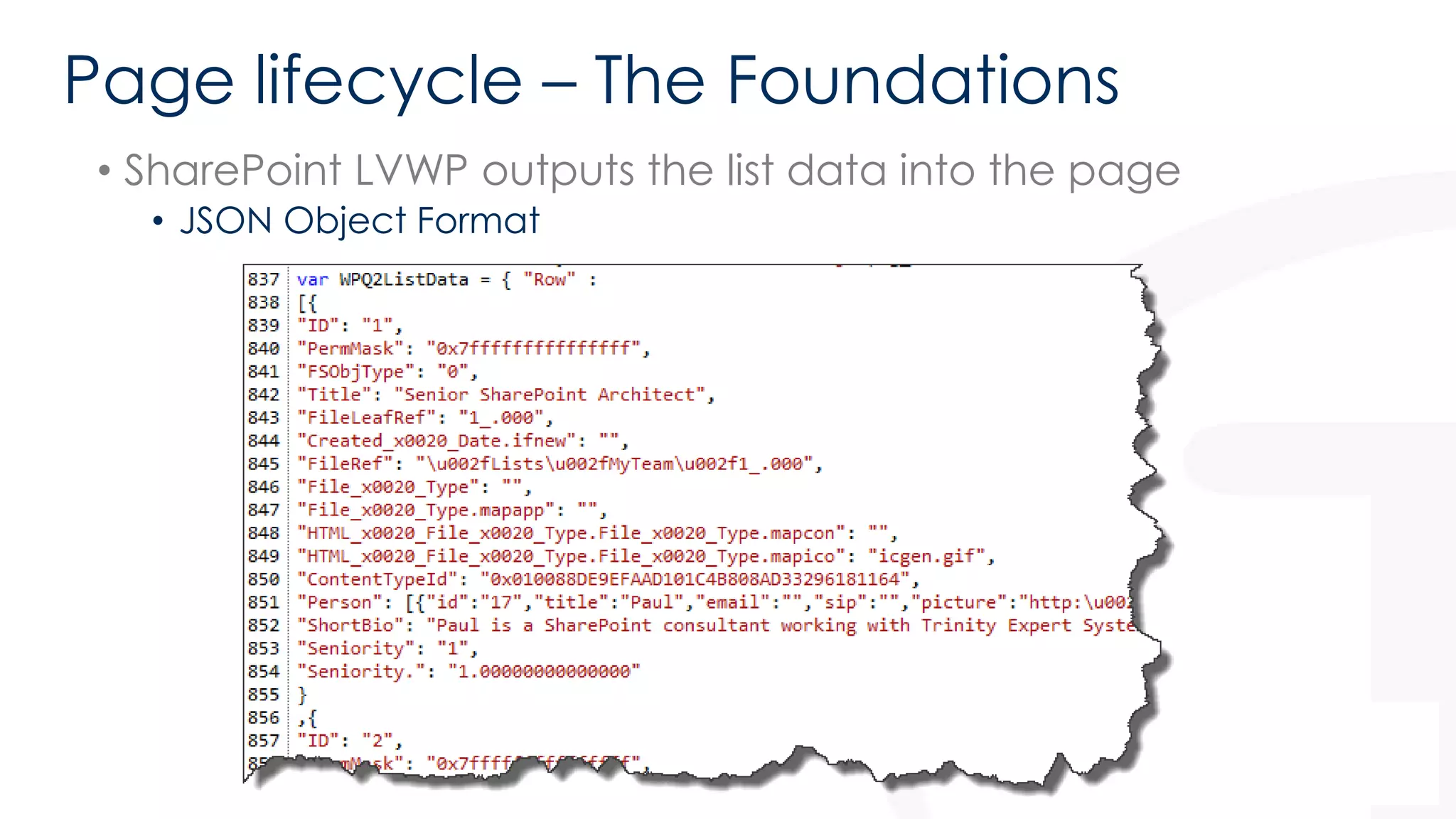
• SharePoint LVWP outputs the list data into the page 
• JSON Object Format
Page lifecycle – The Foundations 
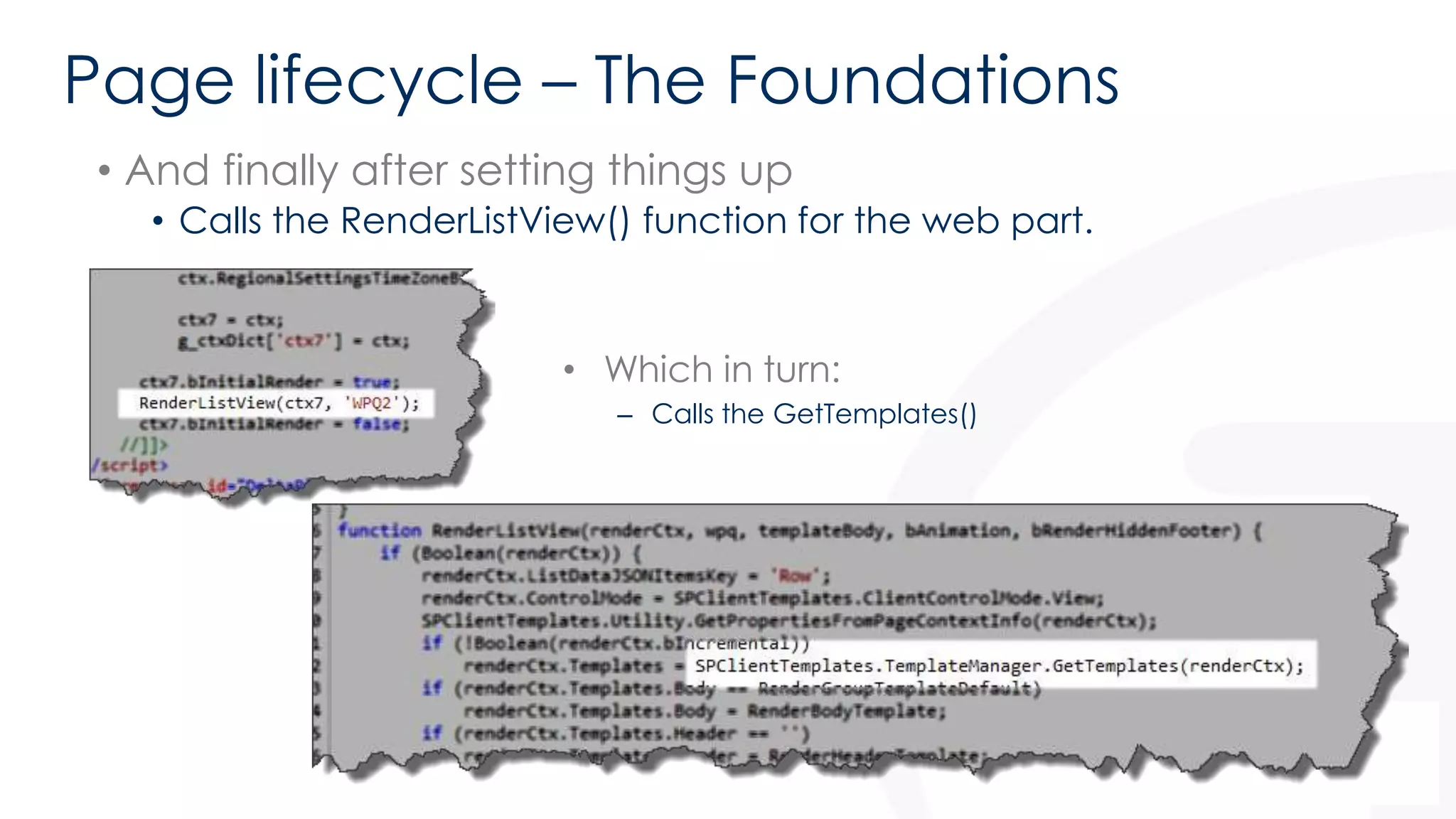
• And finally after setting things up 
• Calls the RenderListView() function for the web part. 
• Which in turn: 
– Calls the GetTemplates()
Page lifecycle – The Result 
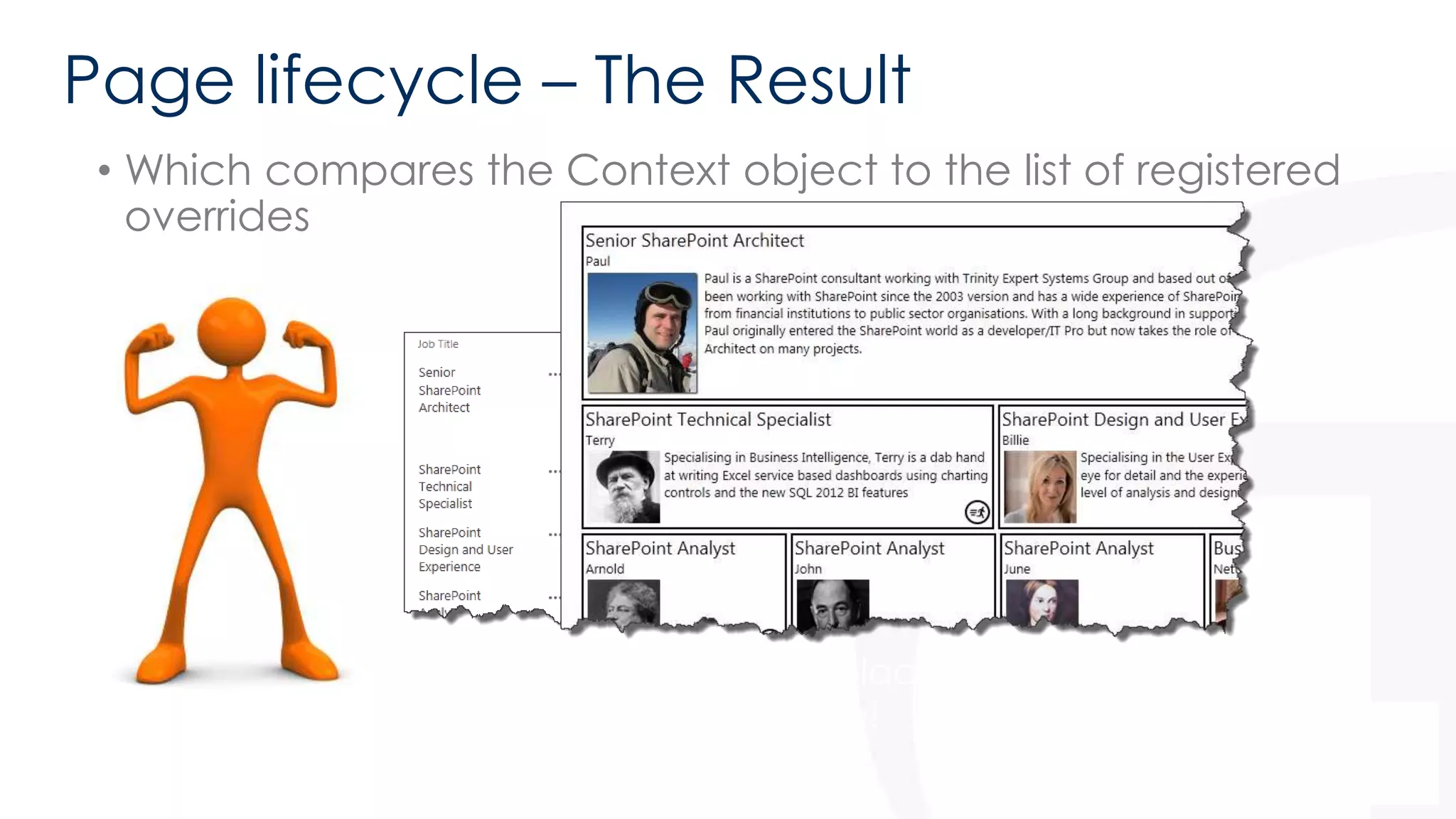
• Which compares the Context object to the list of registered 
overrides 
• And if everything is in place, our 
override wins the battle!
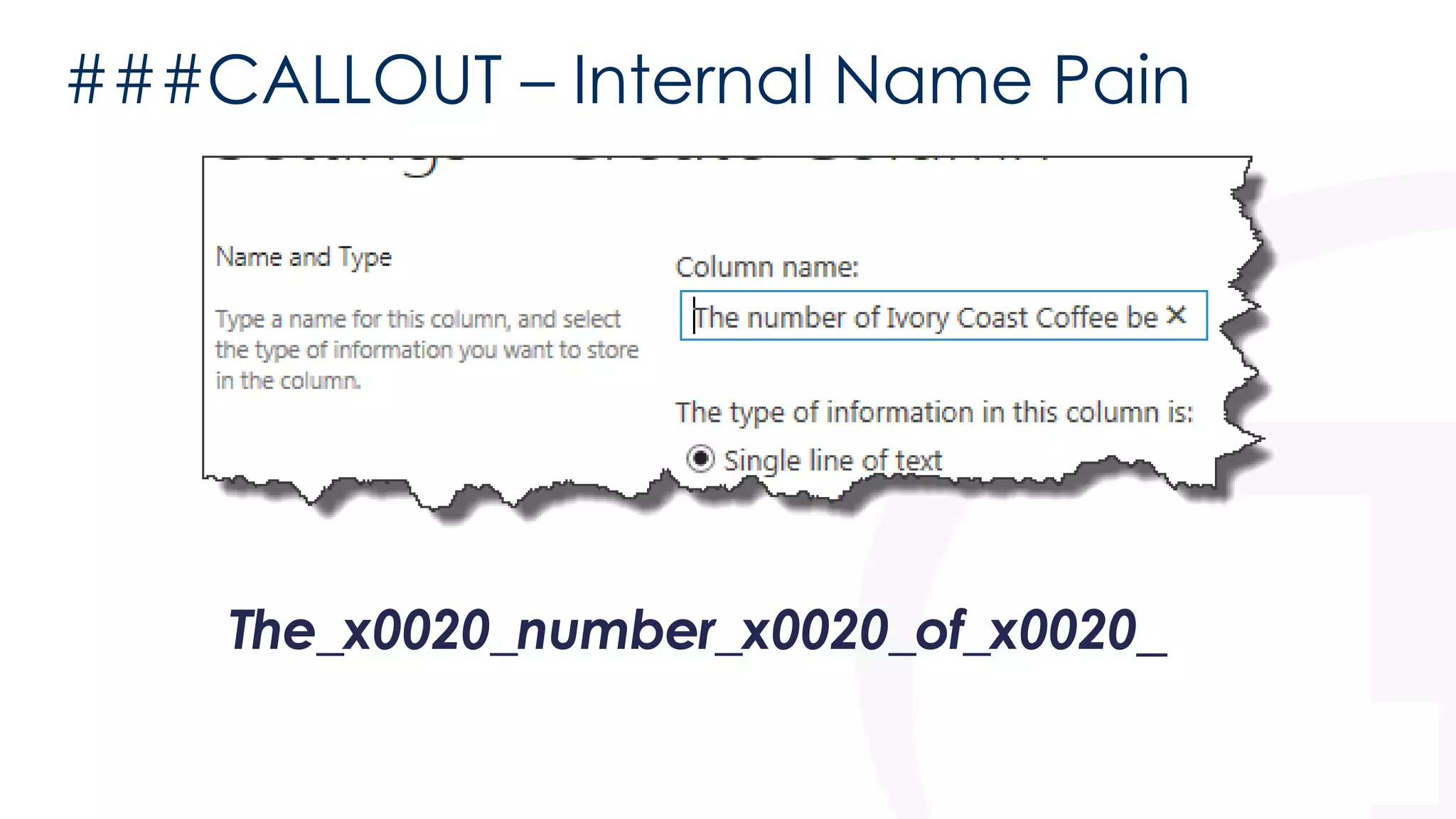
###CALLOUT – Internal Name Pain 
The_x0020_number_x0020_of_x0020_
###CALLOUT – Internal Name Pain 
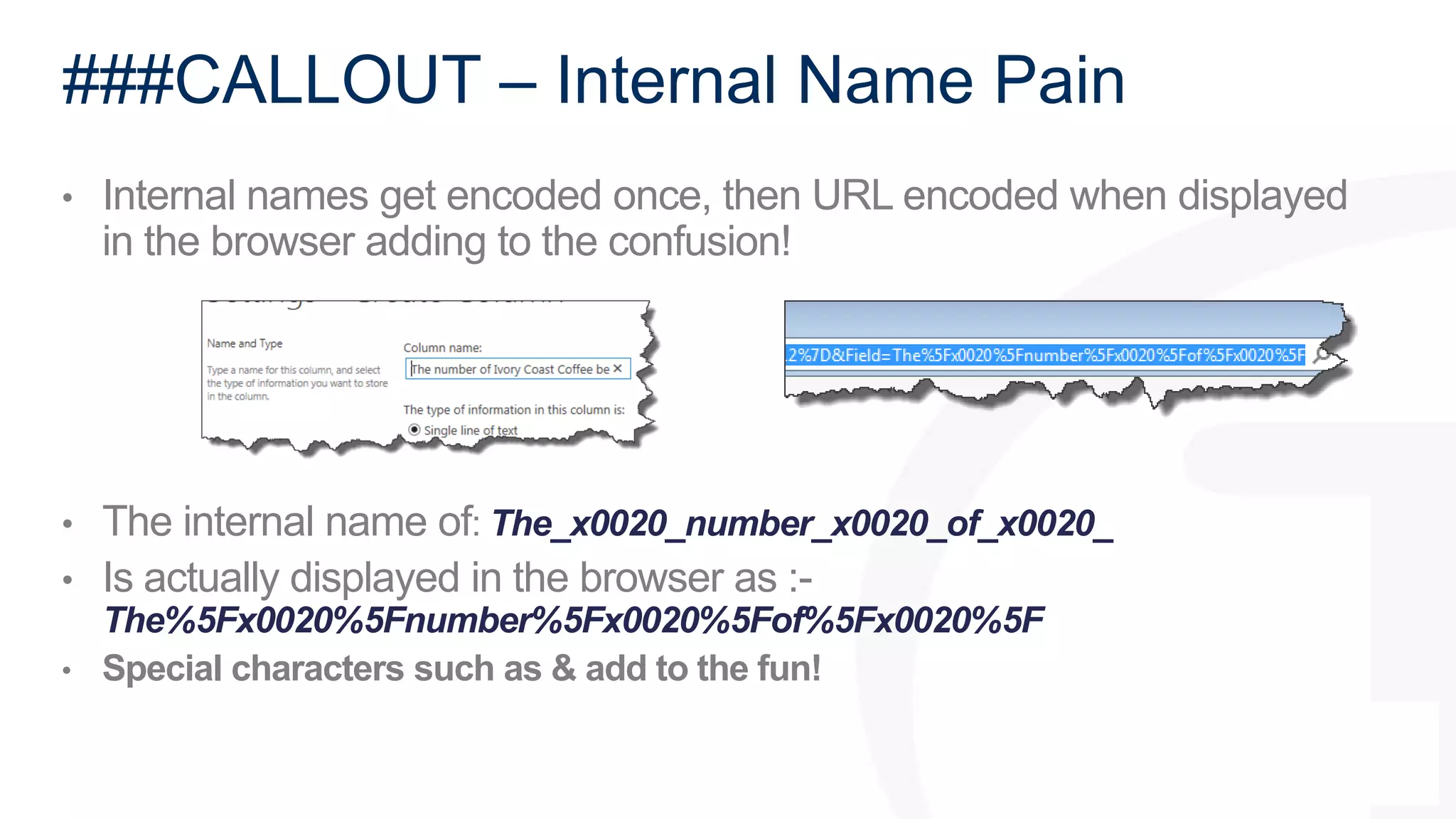
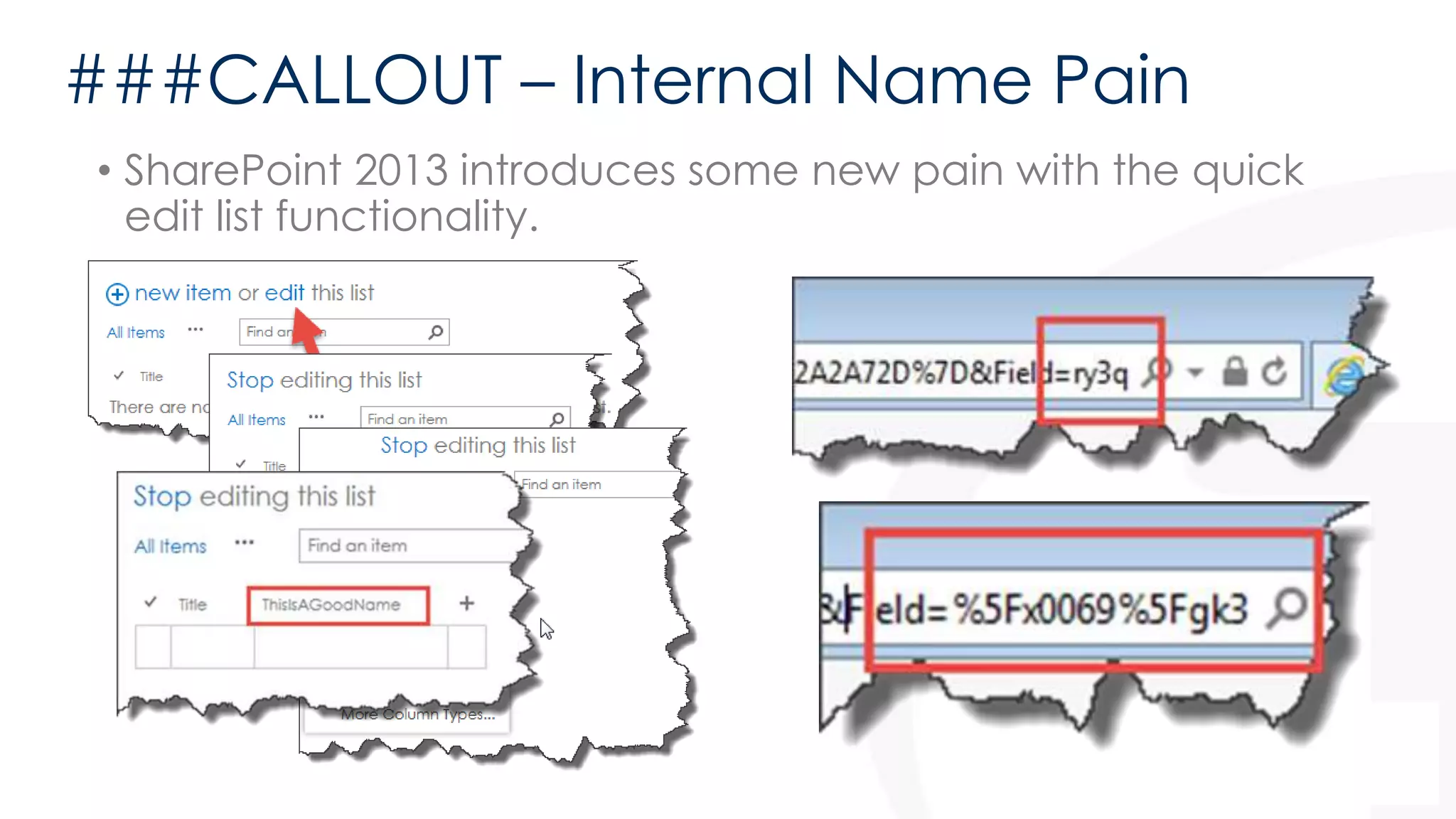
• Internal names get encoded once, then URL encoded when displayed 
in the browser adding to the confusion! 
• The internal name of: The_x0020_number_x0020_of_x0020_ 
• Is actually displayed in the browser as :- 
The%5Fx0020%5Fnumber%5Fx0020%5Fof%5Fx0020%5F 
• Special characters such as & add to the fun!
###CALLOUT – Internal Name Pain 
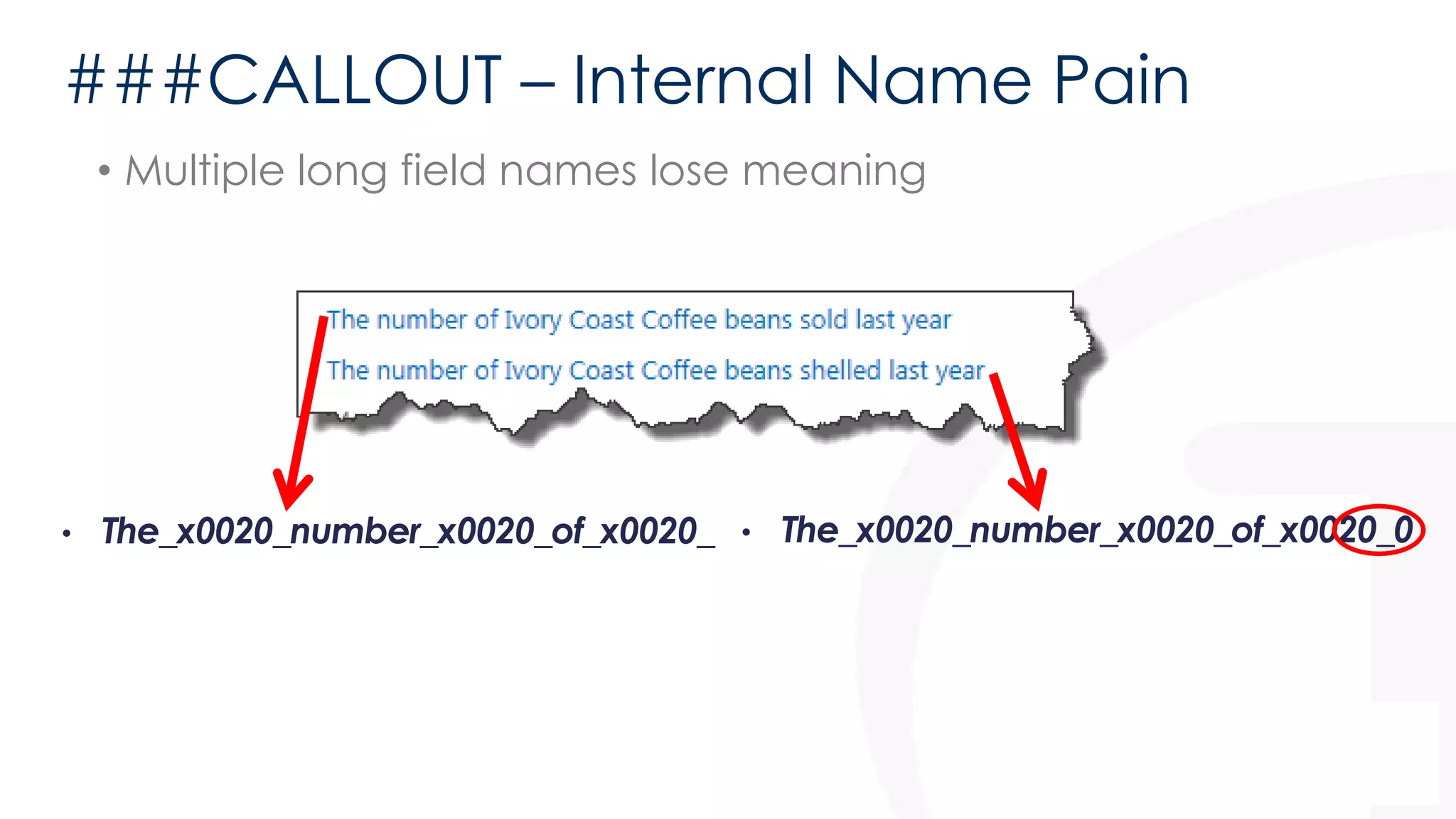
• Multiple long field names lose meaning 
• The_x0020_number_x0020_of_x0020_ • The_x0020_number_x0020_of_x0020_0
###CALLOUT – Internal Name Pain 
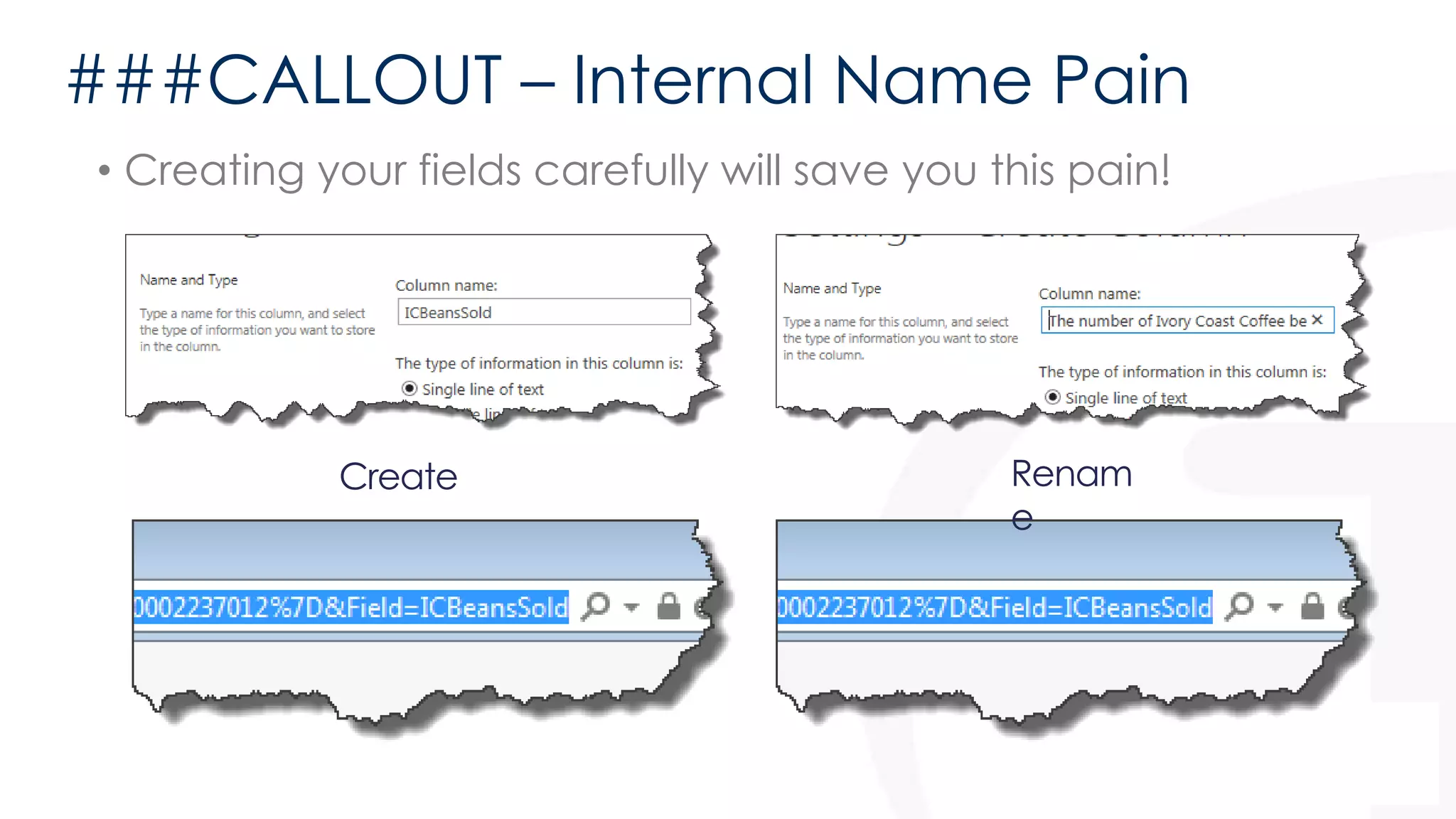
• Creating your fields carefully will save you this pain! 
Create Renam 
e
###CALLOUT – Internal Name Pain 
• SharePoint 2013 introduces some new pain with the quick 
edit list functionality.
###CALLOUT – Internal Name Pain 
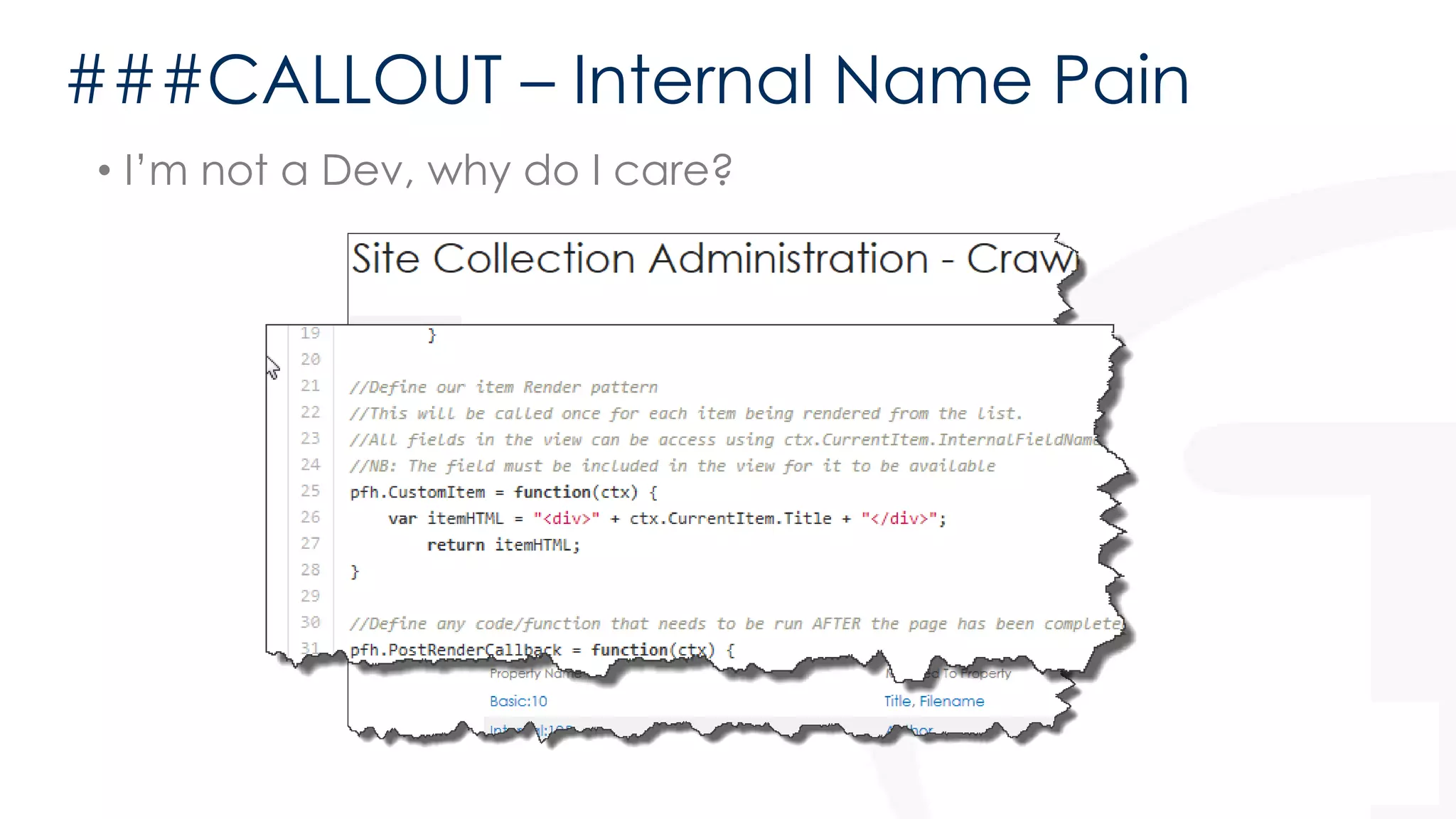
• I’m not a Dev, why do I care?
###CALLOUT – Internal Name Pain 
• I’m not a Dev, why do I care? 
• Your Developers (if you have them) will love you!
Anatomy of a List View Display Template 
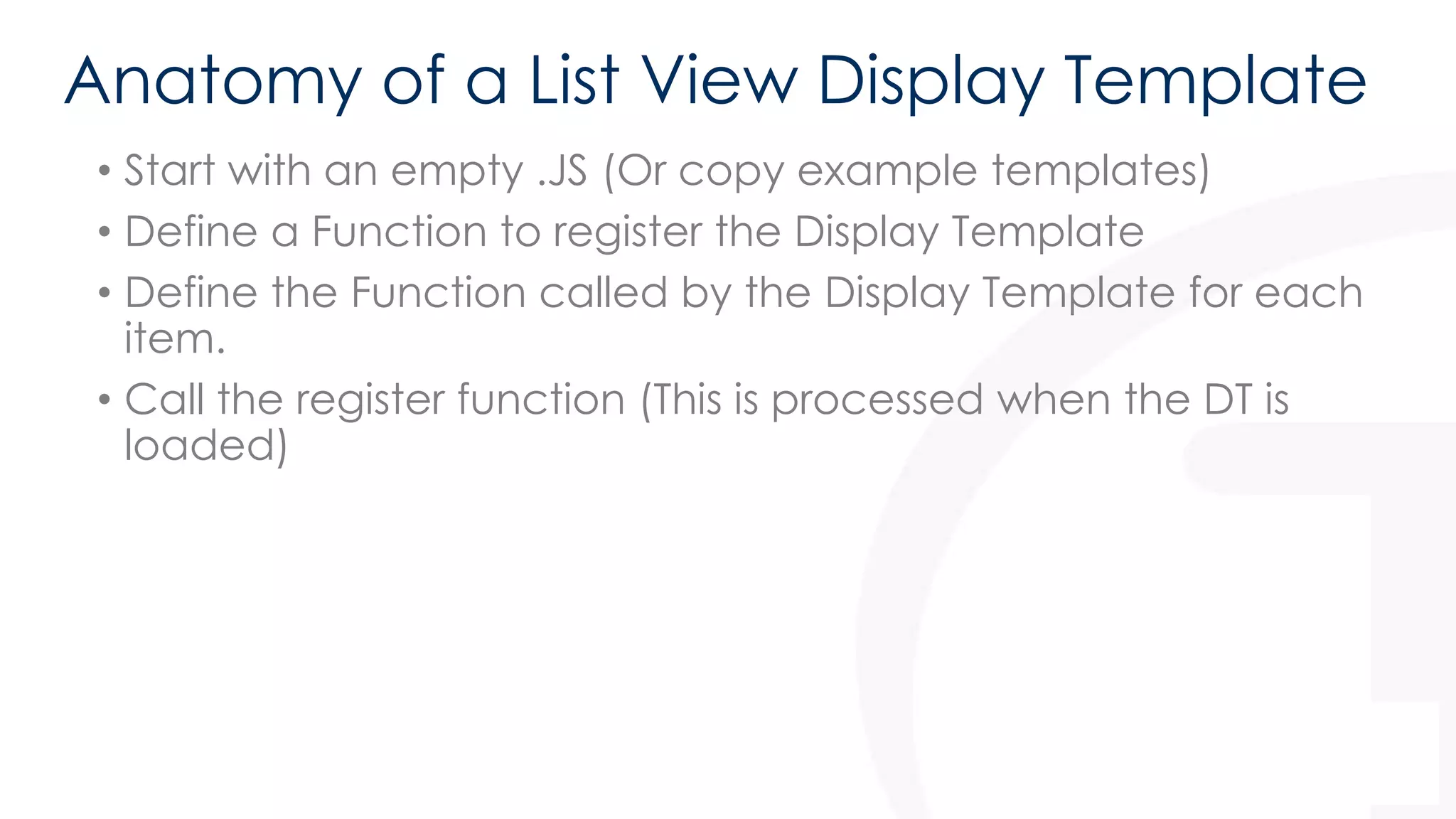
• Start with an empty .JS (Or copy example templates) 
• Define a Function to register the Display Template 
• Define the Function called by the Display Template for each 
item. 
• Call the register function (This is processed when the DT is 
loaded)
Anatomy of a List View Display Template 
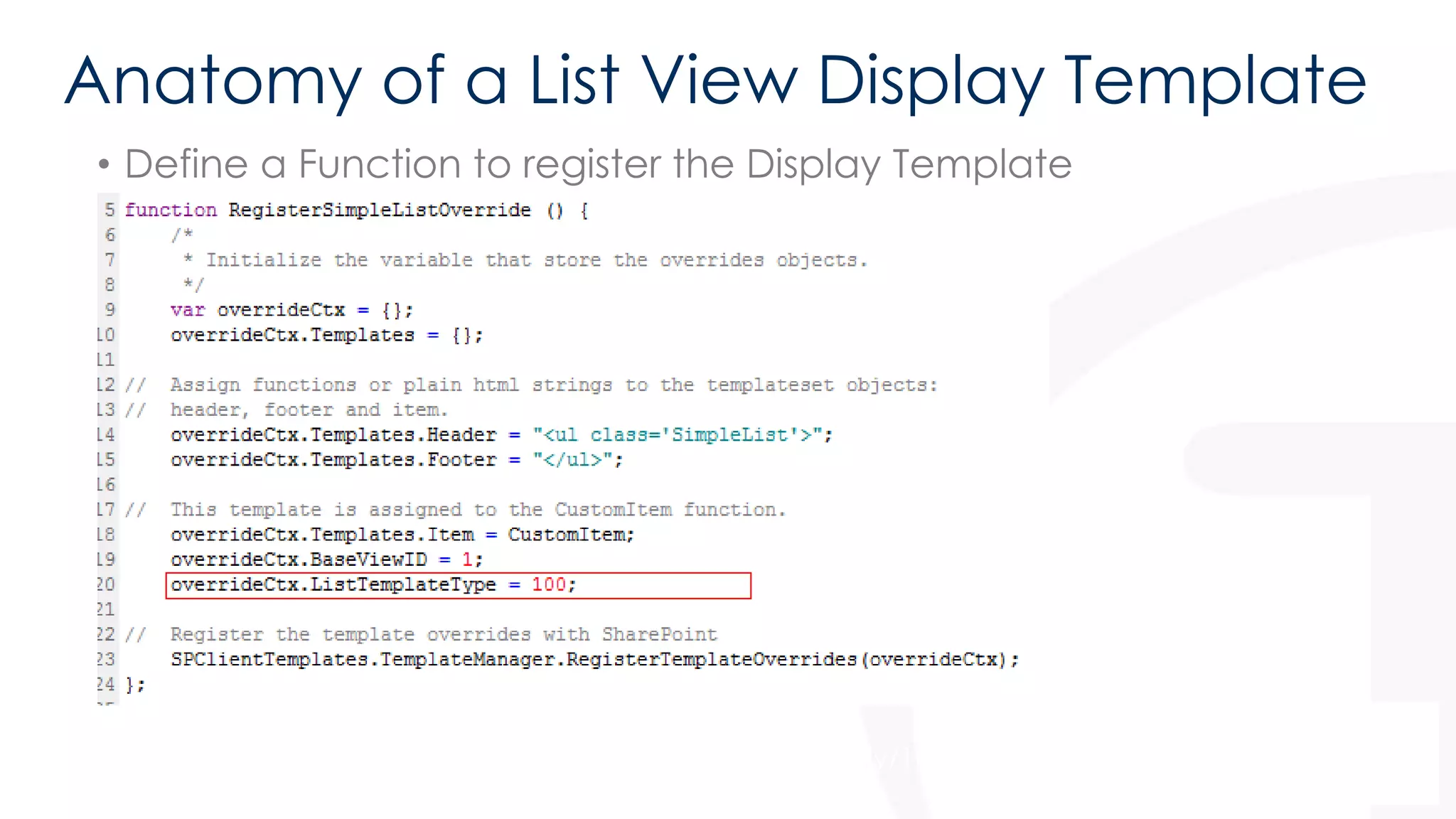
• Define a Function to register the Display Template 
For a list of template types see - http://bit.ly/169AbS9
Anatomy of a List View Display Template 
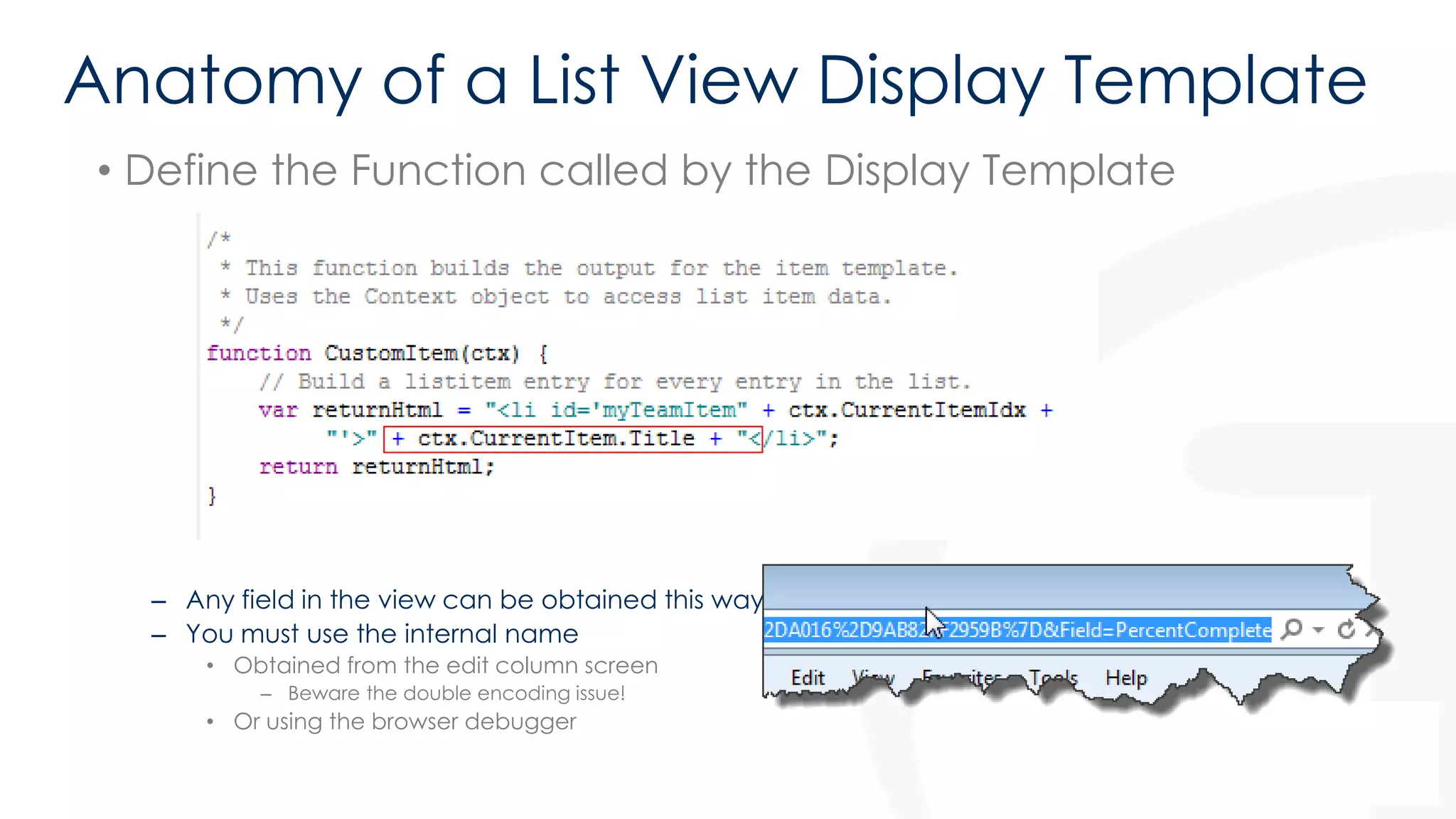
• Define the Function called by the Display Template 
• Note the use of ctx.CurrentItem.Title 
– Any field in the view can be obtained this way 
– You must use the internal name 
• Obtained from the edit column screen 
– Beware the double encoding issue! 
• Or using the browser debugger
Anatomy of a List View Display Template 
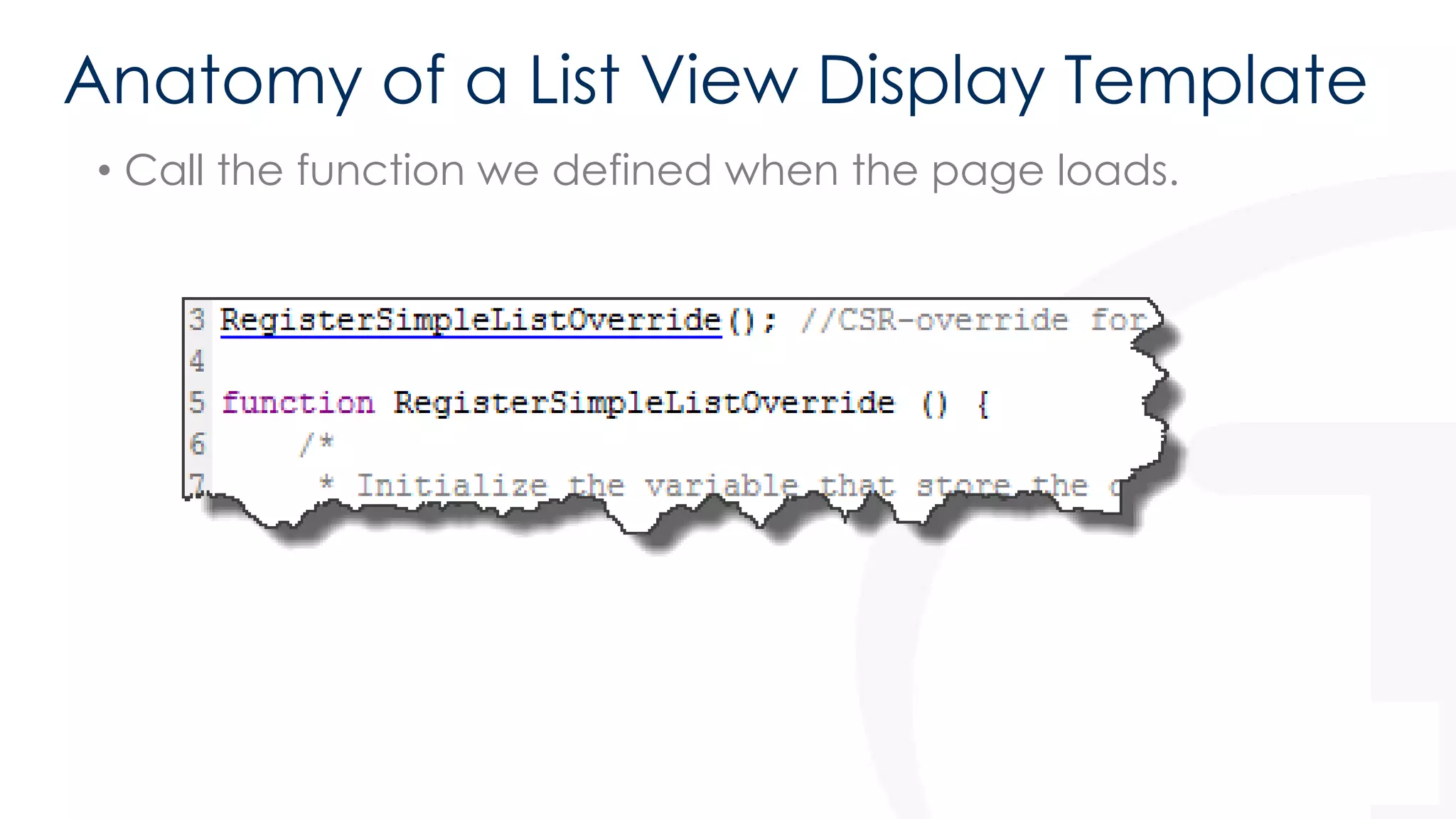
• Call the function we defined when the page loads.
Anatomy of a Field Rendering Display 
Template 
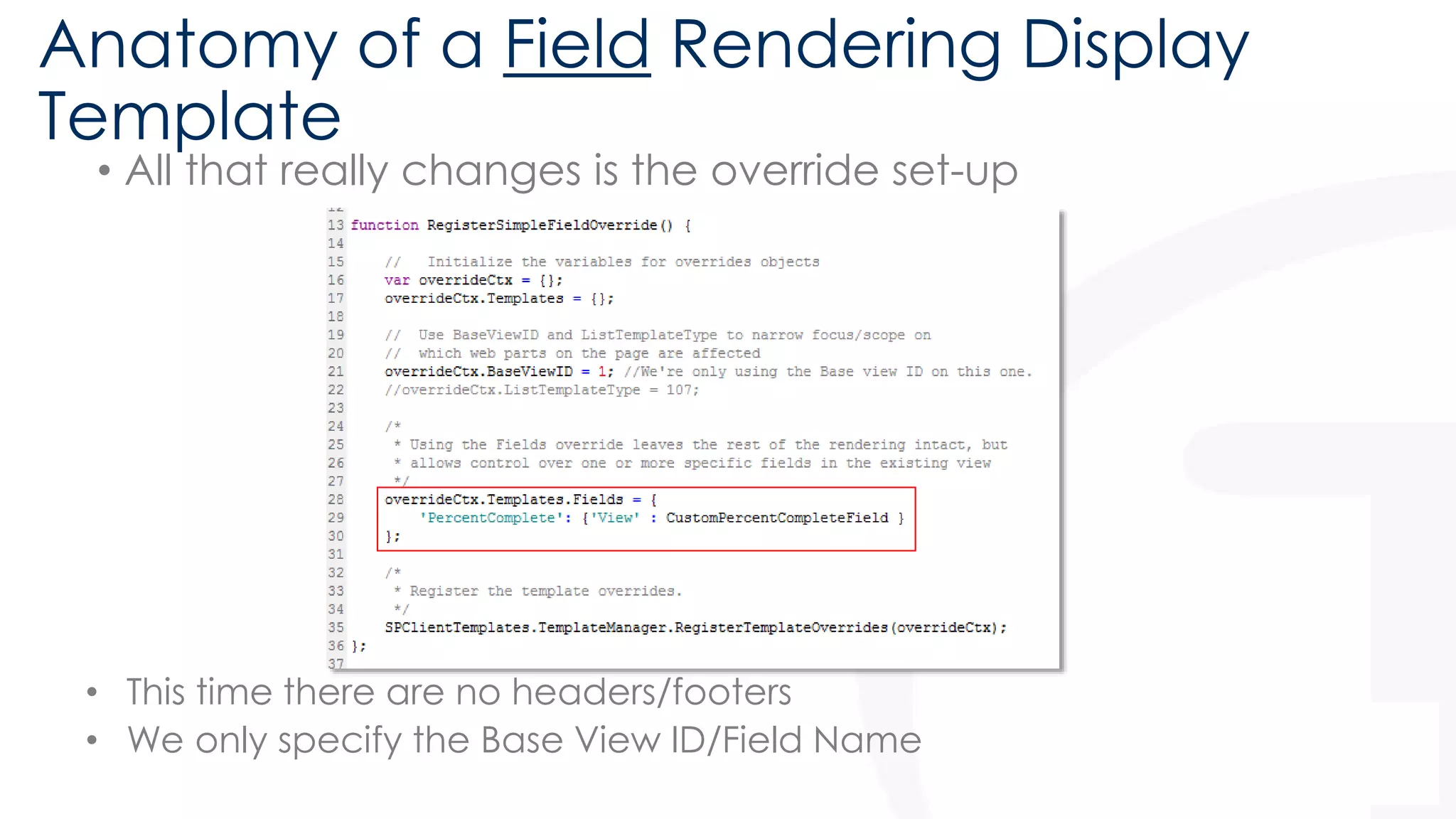
• All that really changes is the override set-up 
• This time there are no headers/footers 
• We only specify the Base View ID/Field Name
Anatomy of a Field Rendering Display 
Template 
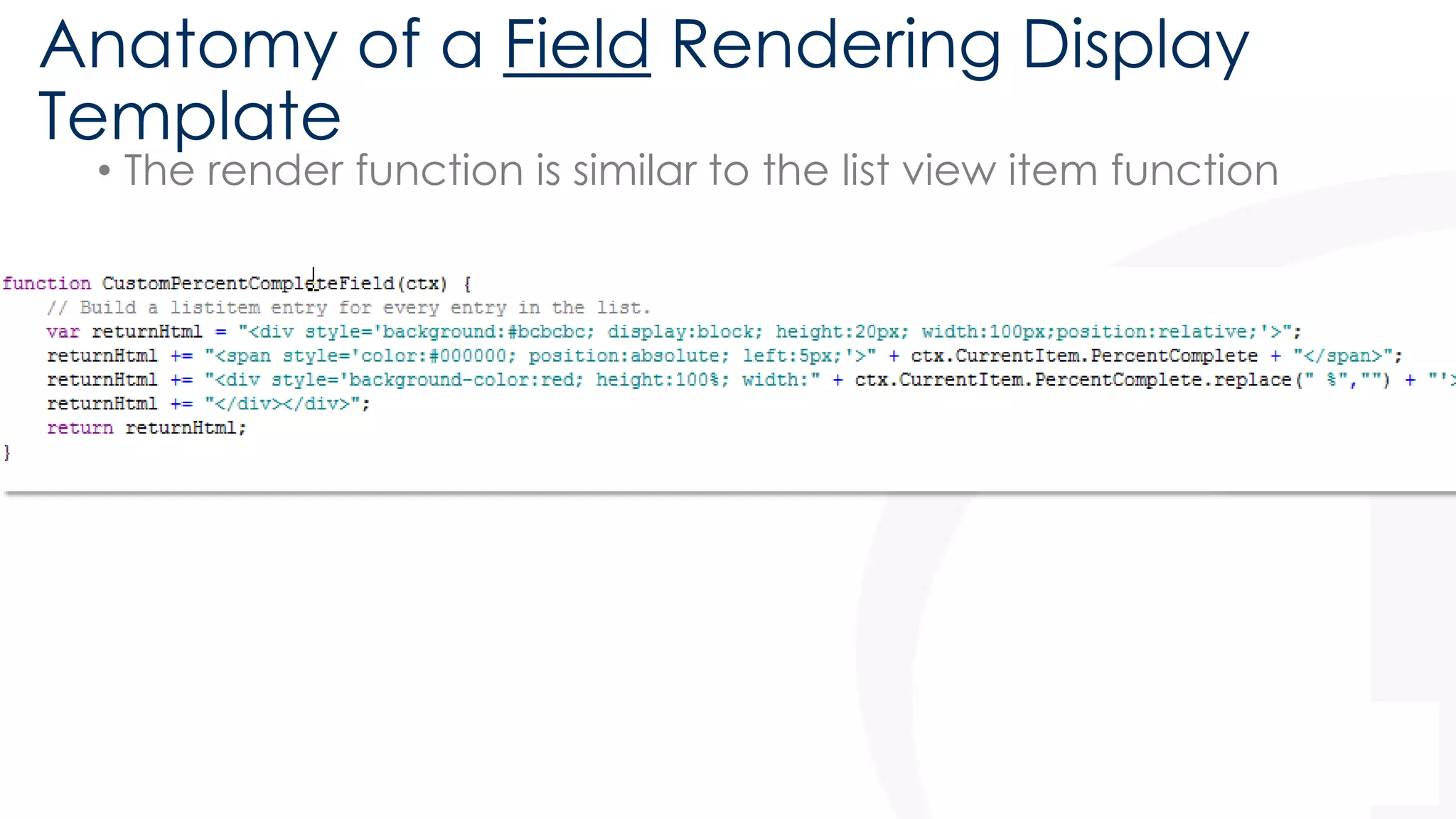
• The render function is similar to the list view item function
How do we use them with List Views? 
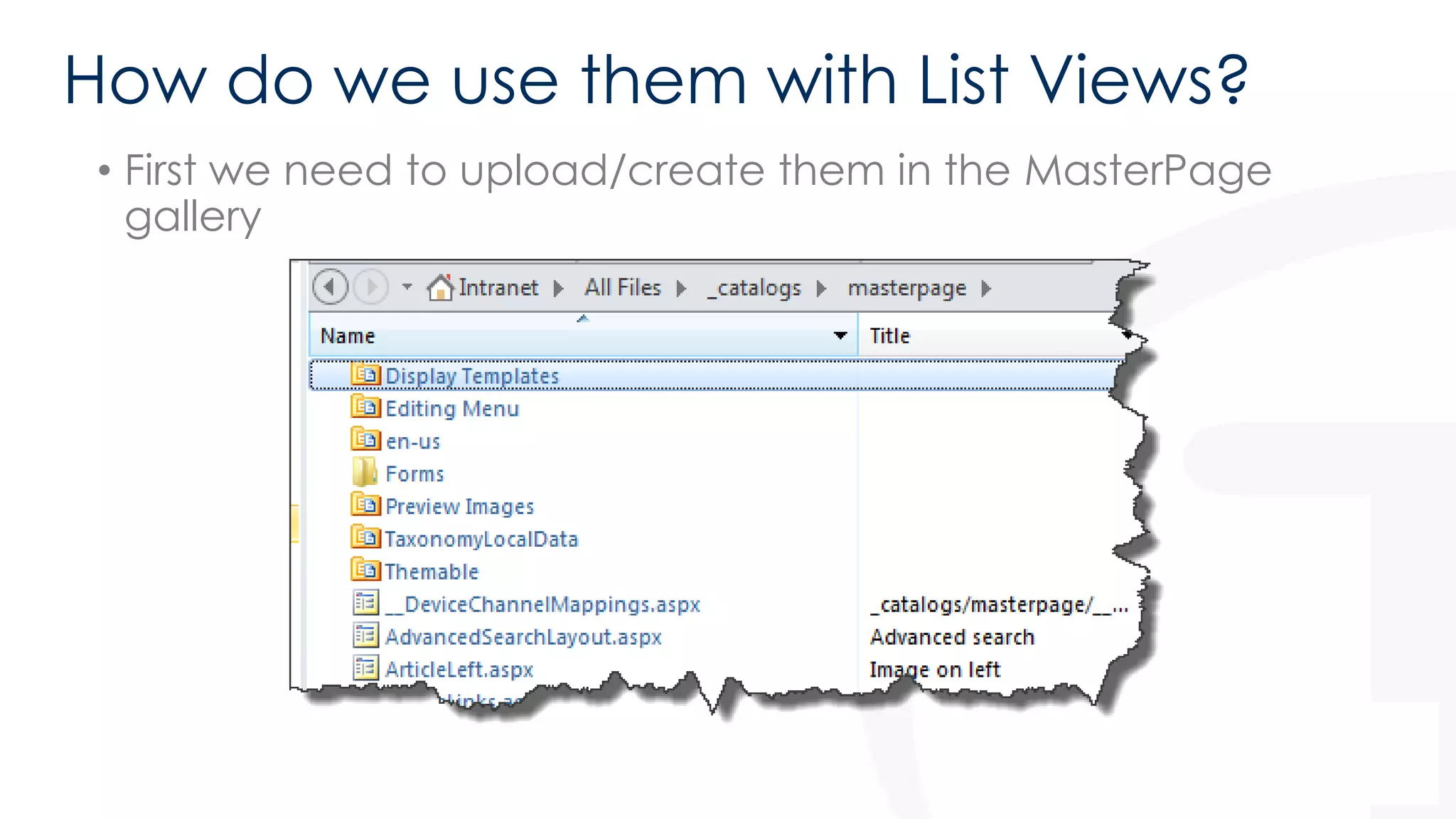
• First we need to upload/create them in the MasterPage 
gallery
How do we use them with List Views? 
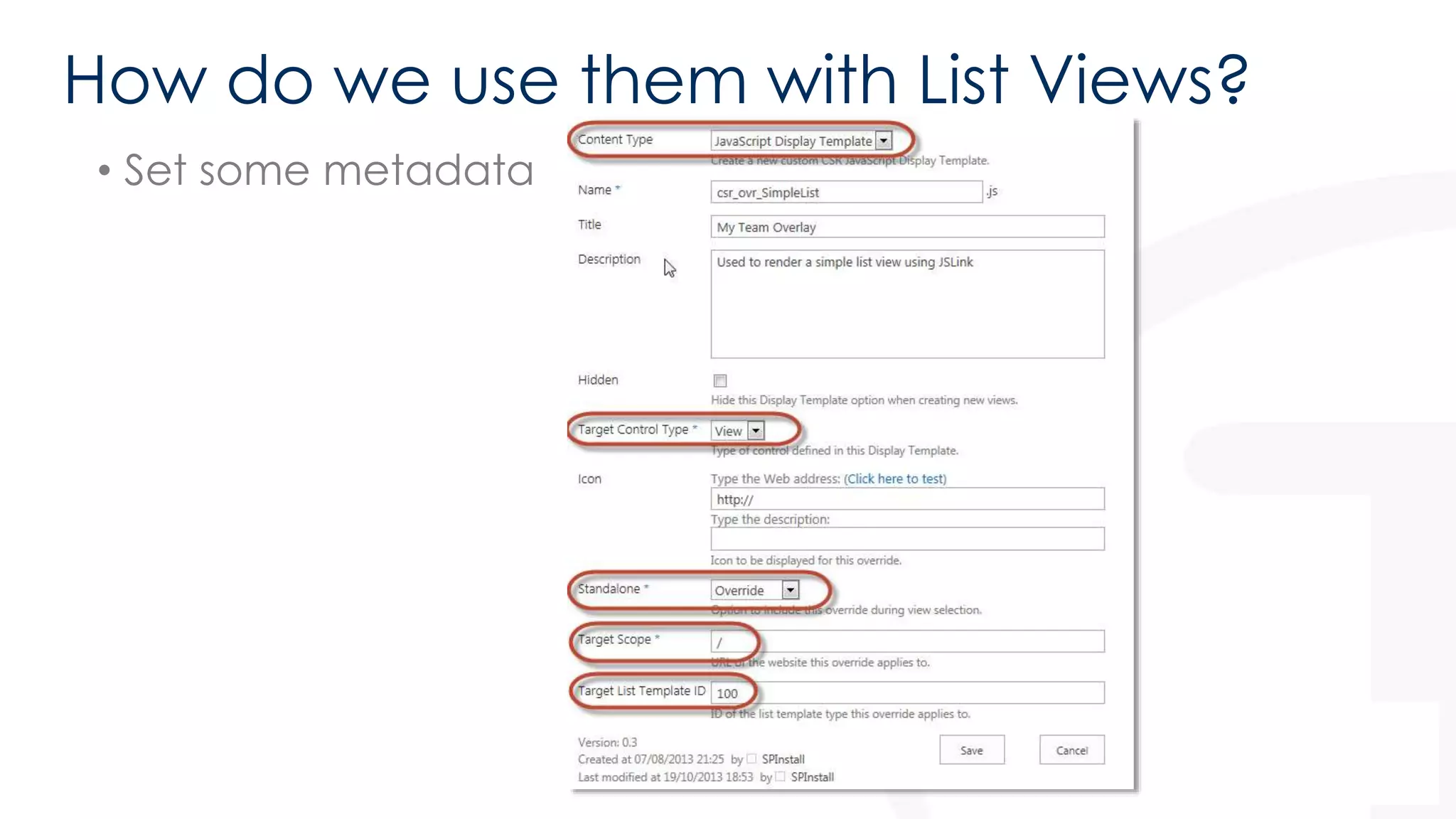
• Set some metadata
How do we use them with List Views? 
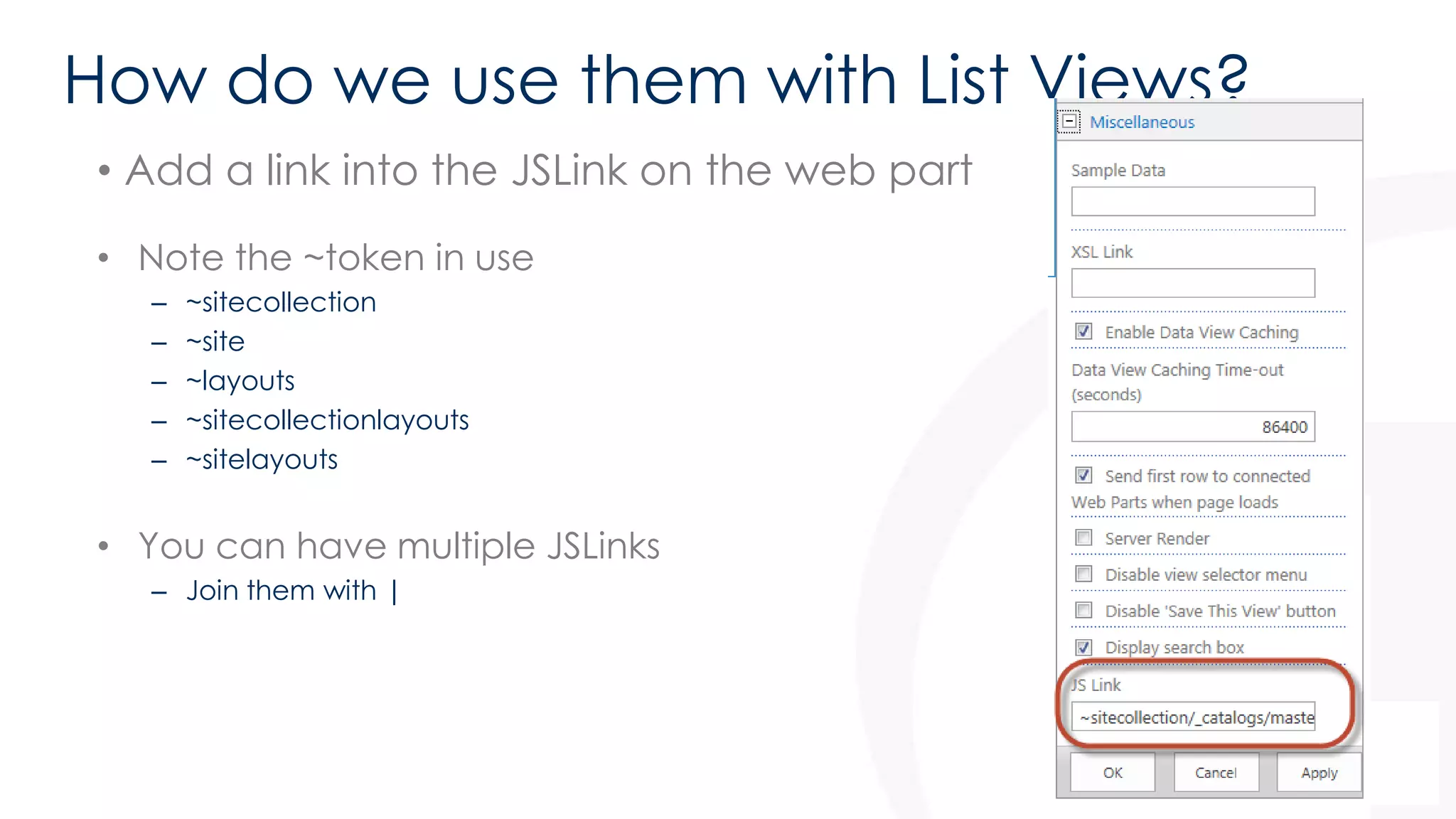
• Add a link into the JSLink on the web part 
• Note the ~token in use 
– ~sitecollection 
– ~site 
– ~layouts 
– ~sitecollectionlayouts 
– ~sitelayouts 
• You can have multiple JSLinks 
– Join them with |
How do we troubleshoot? 
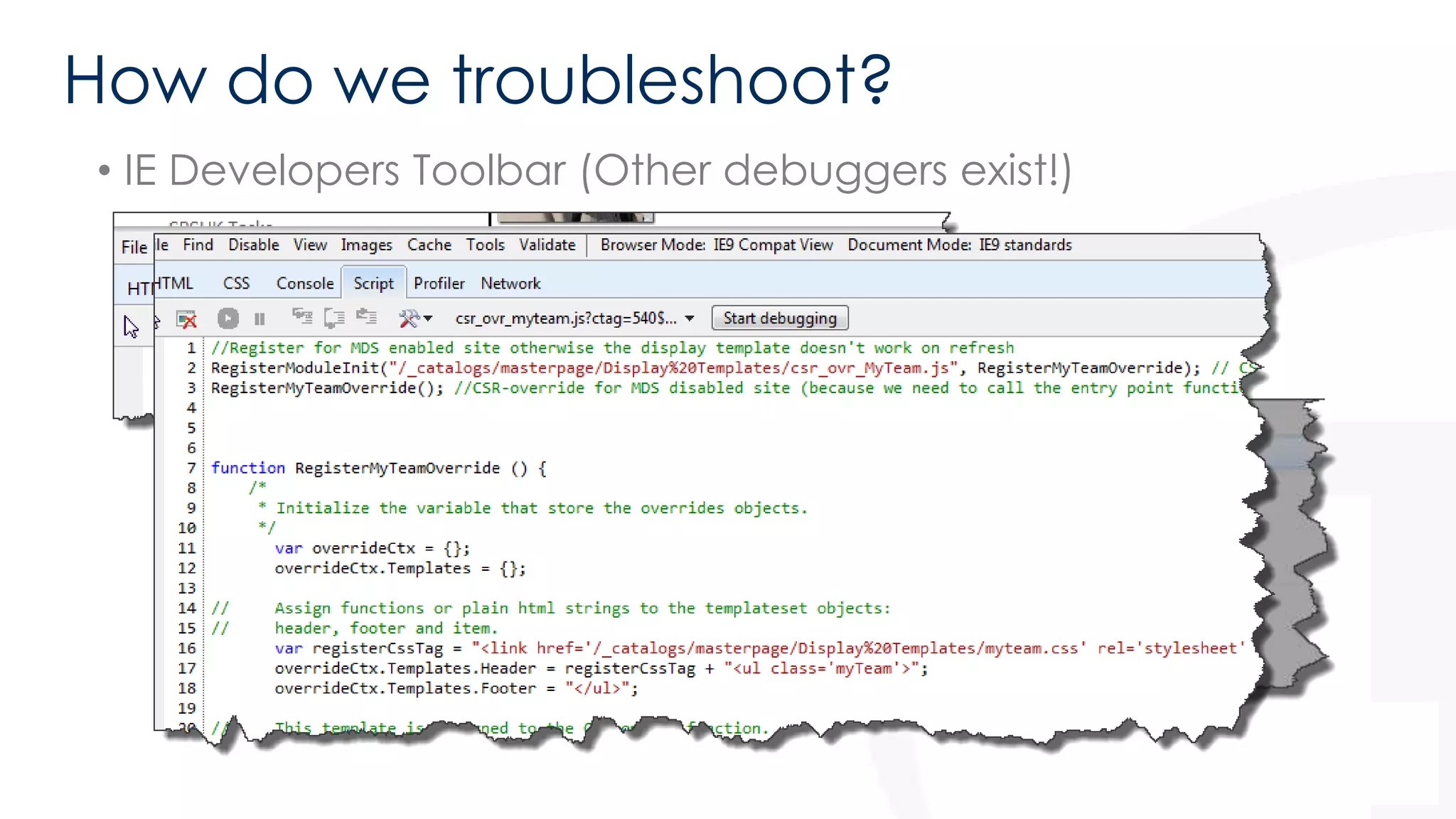
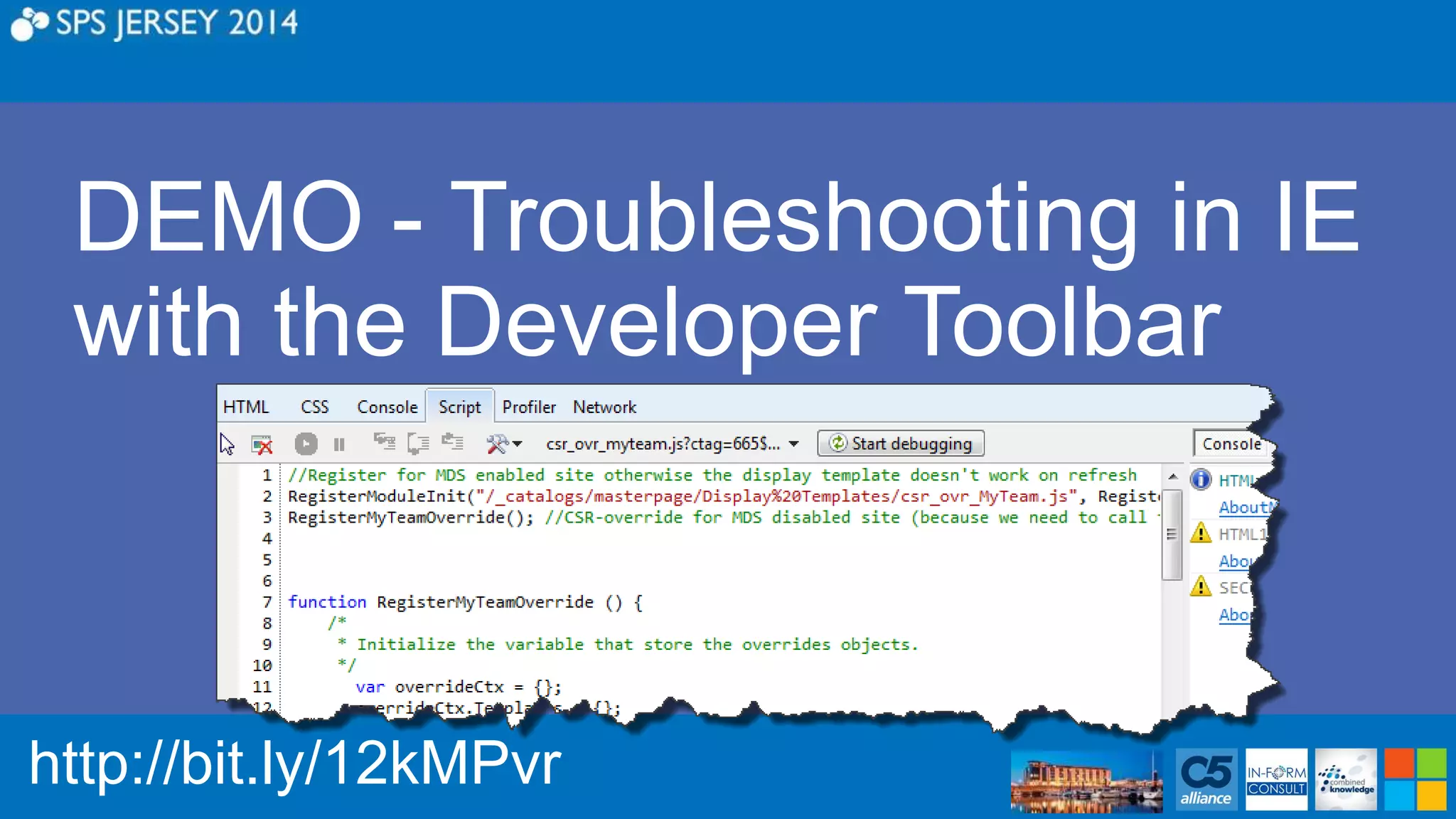
• IE Developers Toolbar (Other debuggers exist!)
How do we troubleshoot? 
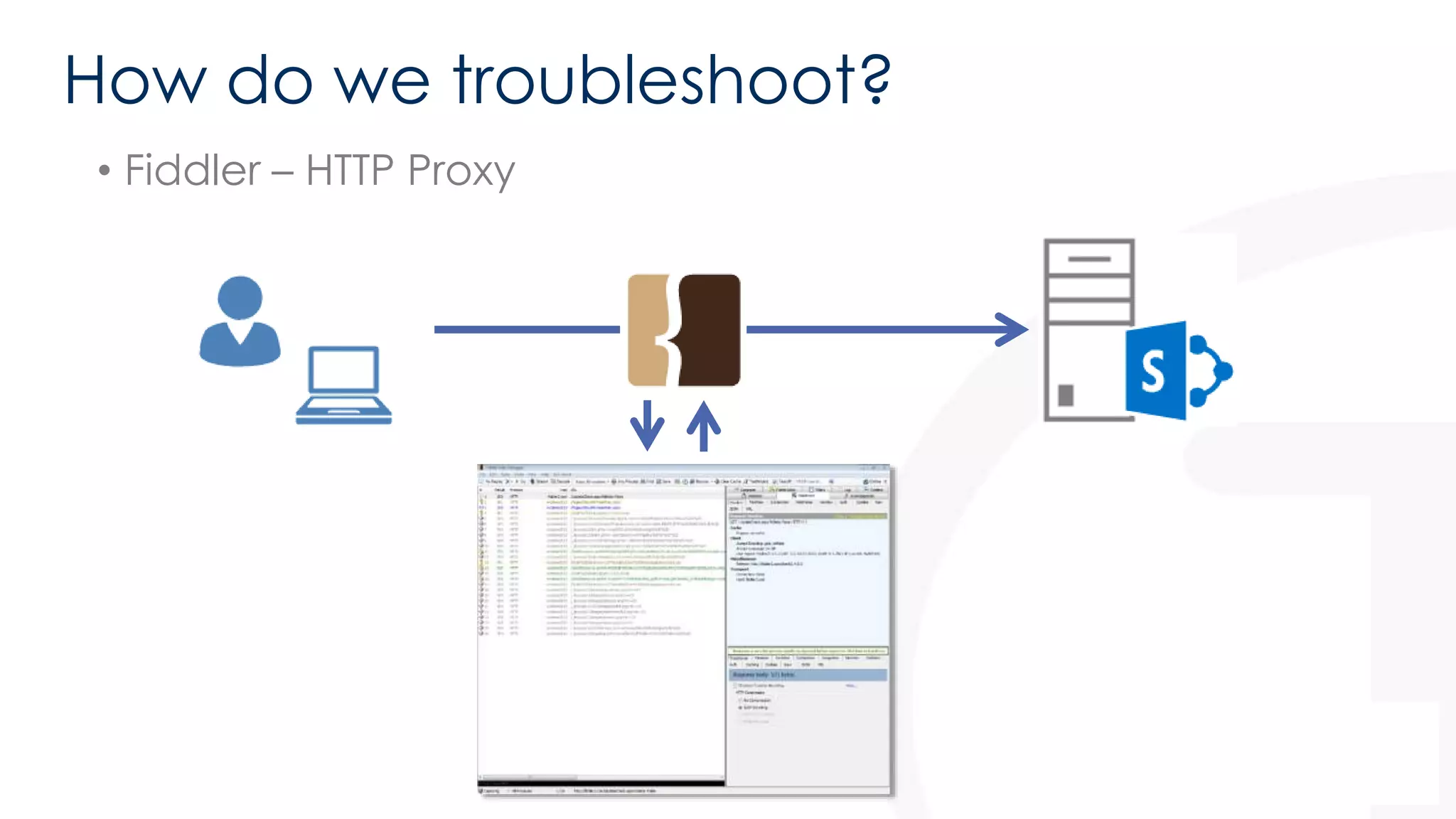
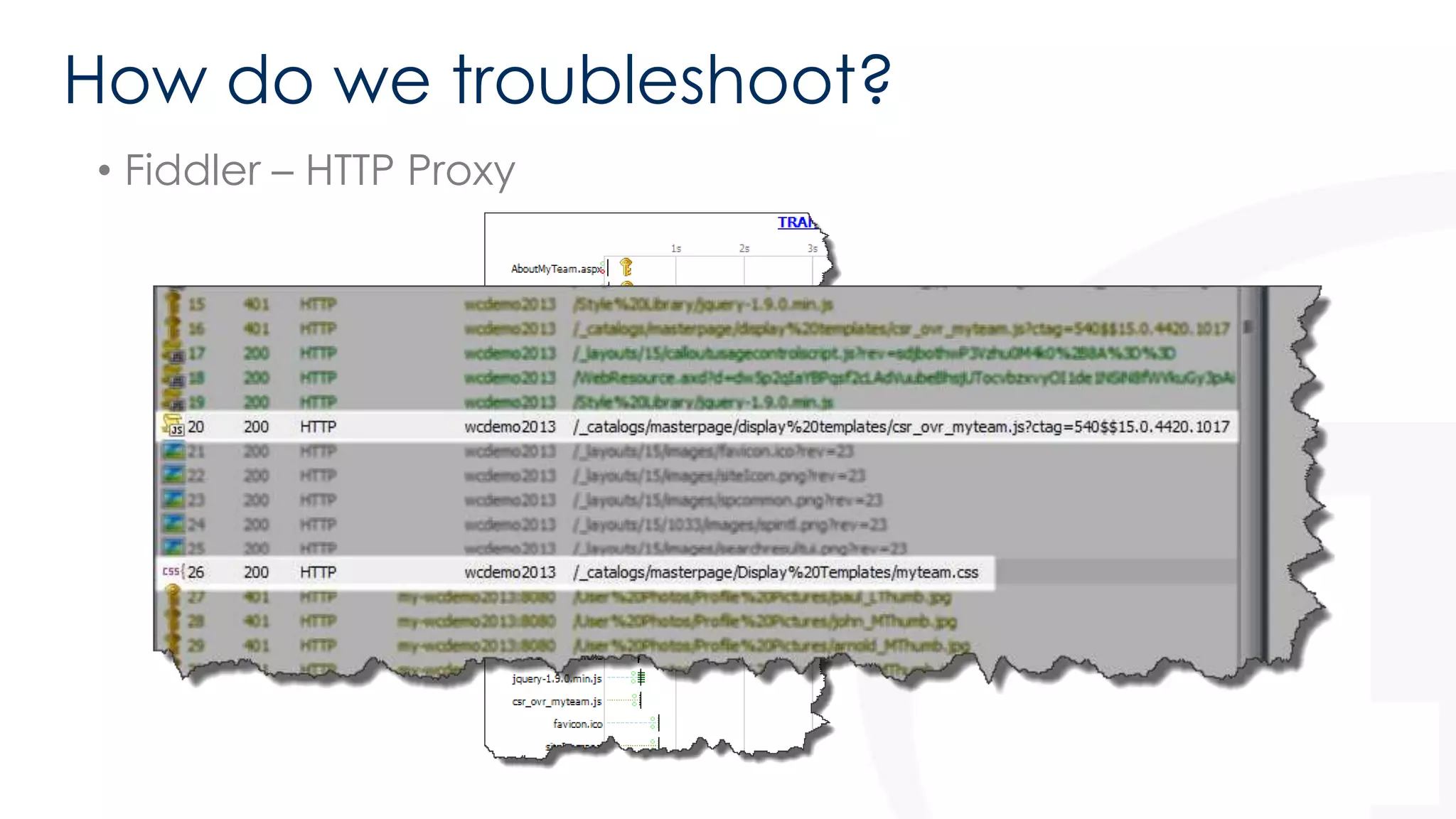
• Fiddler – HTTP Proxy
How do we troubleshoot? 
• Fiddler – HTTP Proxy
http://bit.ly/12kMPvr
There has to be a catch? 
• Minimal Download Strategy 
• Multiple list views on a page 
• Changing SharePoint functionality
There has to be a catch? 
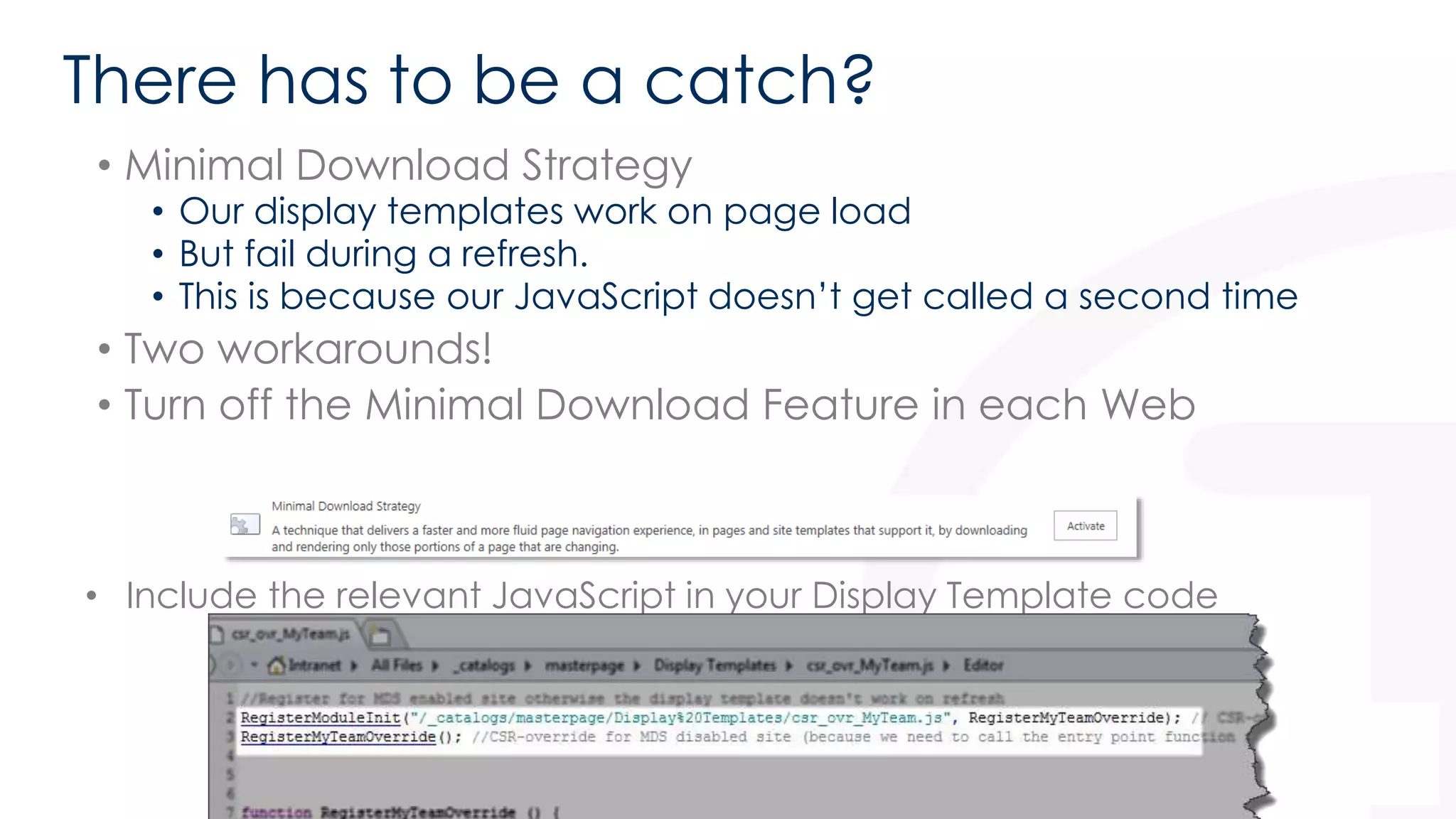
• Minimal Download Strategy 
• Our display templates work on page load 
• But fail during a refresh. 
• This is because our JavaScript doesn’t get called a second time 
• Two workarounds! 
• Turn off the Minimal Download Feature in each Web 
• Include the relevant JavaScript in your Display Template code
There has to be a catch? 
• Multiple list views on a page 
• Because of the way Display Templates are registered, it’s not 
possible to have two on the page if the list templates are the same. 
(E.g. Custom TemplateType = 100) 
• There is a workaround though published on my blog 
• http://bit.ly/JSLinkIssues
There has to be a catch? 
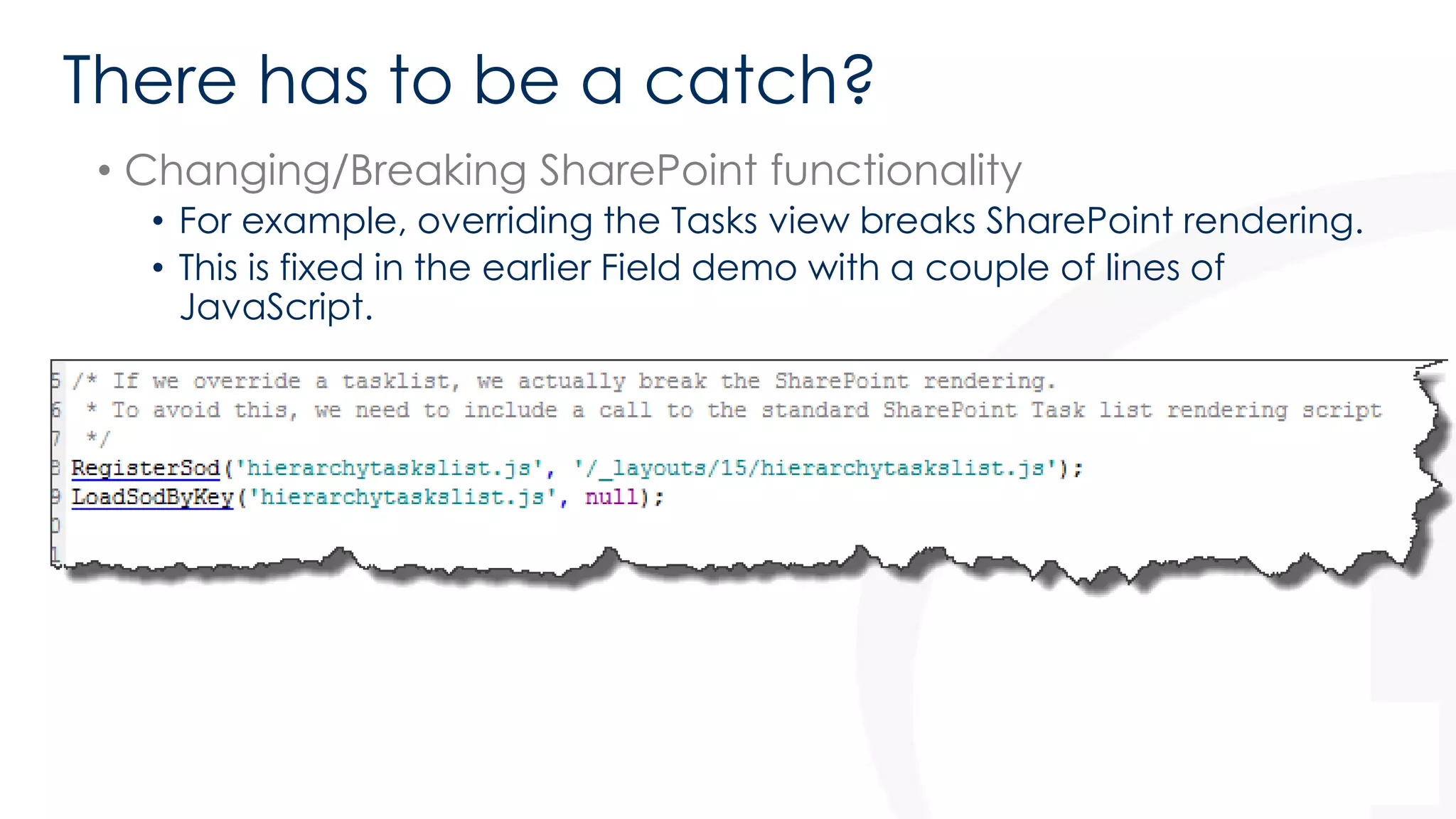
• Changing/Breaking SharePoint functionality 
• For example, overriding the Tasks view breaks SharePoint rendering. 
• This is fixed in the earlier Field demo with a couple of lines of 
JavaScript.
Questions?
#SPCSR 
• www.facebook.com/hashspcsr 
• https://github.com/spcsr
Call to Action! 
• Take a look at these sites for more detailed info 
• Wes Preston – JS Link a primer - http://bit.ly/102fcNa 
• Martin Hatch – JSLink 7 part series - http://bit.ly/Hh5zFk 
• My blog 
• Solving the multiple list view issue - http://bit.ly/JSLinkIssues 
• Editing local JS files using fiddler - http://bit.ly/EditUsingFiddler 
58
Don’t forget SharePint! 
• SHARE·PINT: [SHAIR-PAHYNT] 
Noun 
1. An assembly or meeting in relation to Microsoft SharePoint, 
accompanied with an alcoholic beverage.
Thank You! 
Raffle Prizes at 16:00 
1st #SharePint in the Hotel Bar 
sponsored by Cloudshare 16:30

JSLink for ITPros - SharePoint Saturday Jersey

  • 1.
    Using JSLink andDisplay Templates with the List View Web Part for ITPros #SPSJE Paul Hunt Solutions Architect Trinity @Cimares www.myfatblog.c o.uk
  • 2.
    Who Am I? • SharePoint Architect for Trinity Expert Systems • Co-organiser of SUGUK London Region • Member of the SharePoint community since 2007 • In my spare time I’m a woodturner, making Pots, Pens and artistic pieces! • Paul Hunt • Twitter: @Cimares • www.myfatblog.co.uk • www.trinityservice.co. uk
  • 3.
    What is thissession all about? • The List View Web Part
  • 4.
    Who’s this sessionfor? • Primarily First/Second tier developers • ITPros who customised 2010 list views in SPD • ITPros that used to write their own XSLT in SP2010 • Developers that want to know what's available before opening VS2012 • On Premises or Office 365 Deployments • Might not be ideal for someone who isn’t comfortable with JavaScript, HTML and CSS. – Though if you used to play in SPD 2010 you’re halfway there! – If you want to know what's achievable without deployed solutions
  • 7.
    What did weused to do? • We used SPD and the Design View • We did conditional formatting • Played with colours • Injected Hyperlinks
  • 8.
    What did weused to do? • But • No design view anymore!
  • 9.
    What did weused to do? • We used XSLT Overrides (Still exist, but deprecated!)
  • 10.
    What did weused to do? • We used XSLT Overrides (Still exist, but deprecated!) • Which took boring list data views
  • 11.
    What did weused to do? • We used XSLT Overrides (Still exist, but deprecated!) • And transformed them into engaging visual representations
  • 12.
    What did weused to do? • We used custom code solutions (We still can!) • Custom CAML Rendering Templates • Custom List Views • Custom Web Parts • All bring additional headaches
  • 13.
    So why thefocus on Client Side Rendering?
  • 14.
    So why thefocus on Client Side Rendering? • It’s client side, moving the impact of customisations off of the web server and onto the often powerful and under utilised client machine SETI@Home Folding@Home
  • 15.
    So why thefocus on Client Side Rendering? • It’s client side, moving the impact of customisations off of the web server and onto the often powerful and under utilised client machine • Some client machines may struggle with heavy Javascript loads!
  • 16.
    Specifically why JavaScript,HTML and CSS? • It’s easier to develop.. • Much simpler than XSLT • Certainly easier to troubleshoot than XSLT • Likely to have the skills in house • Cross-platform (ish!) • Some frameworks such as jQuery help with this
  • 18.
    Exactly what isa JavaScript Display Template? • A small piece of JavaScript code that is called by the browser AFTER the page has been delivered. • They are prolific in SharePoint 2013 • Some examples • Search Results • Field Rendering • Search Refiners • List Forms • List views • eDiscovery
  • 19.
    Display Template ContentTypes • There are 5 Content Types that represent display templates. • JavaScript Display Template • Control Display Template • Group Display Template • Item Display Template • Filter Display Template These 4 relate to Search.
  • 21.
    LVWP Templates !=Search Display Templates • LVWP Display Templates are JavaScript only. • They do not start life as HTML like Display Templates for search do. • They do not require embedded properties. • CONTEXT (ctx) is king! 21
  • 22.
    We’re just lookingat:- • List View Display Templates • These provide the ability to override the rendering of an entire view • Field Rendering Display Templates • These provide the ability to override the rendering of a single field in a list view
  • 23.
    Page Lifecycle –The Foundations
  • 24.
    Page lifecycle –The Foundations • SharePoint outputs JSLink in the Header of the page • This registers our Display Template
  • 25.
    Page lifecycle –The Foundations • SharePoint LVWP outputs the list data into the page • JSON Object Format
  • 26.
    Page lifecycle –The Foundations • And finally after setting things up • Calls the RenderListView() function for the web part. • Which in turn: – Calls the GetTemplates()
  • 27.
    Page lifecycle –The Result • Which compares the Context object to the list of registered overrides • And if everything is in place, our override wins the battle!
  • 29.
    ###CALLOUT – InternalName Pain The_x0020_number_x0020_of_x0020_
  • 30.
    ###CALLOUT – InternalName Pain • Internal names get encoded once, then URL encoded when displayed in the browser adding to the confusion! • The internal name of: The_x0020_number_x0020_of_x0020_ • Is actually displayed in the browser as :- The%5Fx0020%5Fnumber%5Fx0020%5Fof%5Fx0020%5F • Special characters such as & add to the fun!
  • 31.
    ###CALLOUT – InternalName Pain • Multiple long field names lose meaning • The_x0020_number_x0020_of_x0020_ • The_x0020_number_x0020_of_x0020_0
  • 32.
    ###CALLOUT – InternalName Pain • Creating your fields carefully will save you this pain! Create Renam e
  • 33.
    ###CALLOUT – InternalName Pain • SharePoint 2013 introduces some new pain with the quick edit list functionality.
  • 34.
    ###CALLOUT – InternalName Pain • I’m not a Dev, why do I care?
  • 35.
    ###CALLOUT – InternalName Pain • I’m not a Dev, why do I care? • Your Developers (if you have them) will love you!
  • 37.
    Anatomy of aList View Display Template • Start with an empty .JS (Or copy example templates) • Define a Function to register the Display Template • Define the Function called by the Display Template for each item. • Call the register function (This is processed when the DT is loaded)
  • 38.
    Anatomy of aList View Display Template • Define a Function to register the Display Template For a list of template types see - http://bit.ly/169AbS9
  • 39.
    Anatomy of aList View Display Template • Define the Function called by the Display Template • Note the use of ctx.CurrentItem.Title – Any field in the view can be obtained this way – You must use the internal name • Obtained from the edit column screen – Beware the double encoding issue! • Or using the browser debugger
  • 40.
    Anatomy of aList View Display Template • Call the function we defined when the page loads.
  • 41.
    Anatomy of aField Rendering Display Template • All that really changes is the override set-up • This time there are no headers/footers • We only specify the Base View ID/Field Name
  • 42.
    Anatomy of aField Rendering Display Template • The render function is similar to the list view item function
  • 43.
    How do weuse them with List Views? • First we need to upload/create them in the MasterPage gallery
  • 44.
    How do weuse them with List Views? • Set some metadata
  • 45.
    How do weuse them with List Views? • Add a link into the JSLink on the web part • Note the ~token in use – ~sitecollection – ~site – ~layouts – ~sitecollectionlayouts – ~sitelayouts • You can have multiple JSLinks – Join them with |
  • 47.
    How do wetroubleshoot? • IE Developers Toolbar (Other debuggers exist!)
  • 48.
    How do wetroubleshoot? • Fiddler – HTTP Proxy
  • 49.
    How do wetroubleshoot? • Fiddler – HTTP Proxy
  • 50.
  • 51.
    There has tobe a catch? • Minimal Download Strategy • Multiple list views on a page • Changing SharePoint functionality
  • 52.
    There has tobe a catch? • Minimal Download Strategy • Our display templates work on page load • But fail during a refresh. • This is because our JavaScript doesn’t get called a second time • Two workarounds! • Turn off the Minimal Download Feature in each Web • Include the relevant JavaScript in your Display Template code
  • 53.
    There has tobe a catch? • Multiple list views on a page • Because of the way Display Templates are registered, it’s not possible to have two on the page if the list templates are the same. (E.g. Custom TemplateType = 100) • There is a workaround though published on my blog • http://bit.ly/JSLinkIssues
  • 54.
    There has tobe a catch? • Changing/Breaking SharePoint functionality • For example, overriding the Tasks view breaks SharePoint rendering. • This is fixed in the earlier Field demo with a couple of lines of JavaScript.
  • 56.
  • 57.
    #SPCSR • www.facebook.com/hashspcsr • https://github.com/spcsr
  • 58.
    Call to Action! • Take a look at these sites for more detailed info • Wes Preston – JS Link a primer - http://bit.ly/102fcNa • Martin Hatch – JSLink 7 part series - http://bit.ly/Hh5zFk • My blog • Solving the multiple list view issue - http://bit.ly/JSLinkIssues • Editing local JS files using fiddler - http://bit.ly/EditUsingFiddler 58
  • 59.
    Don’t forget SharePint! • SHARE·PINT: [SHAIR-PAHYNT] Noun 1. An assembly or meeting in relation to Microsoft SharePoint, accompanied with an alcoholic beverage.
  • 60.
    Thank You! RafflePrizes at 16:00 1st #SharePint in the Hotel Bar sponsored by Cloudshare 16:30

Editor's Notes

  • #3 I also do woodturning! SharePoint can be a lot like woodturning.. If you don’t pay attention to what you’re doing, it’s easy to make a mistake and go through the bottom of the bowl!
  • #4 This session is all about dropping a list view web part on the page and doing something visually with it using the tools that Microsoft provide and no serious custom development. A lot of what you see about display templates on the web is all about the Search Web Parts.. We’re not looking at those today!
  • #5 We’re targeting First/Second Tier developers.. That’s the UI and Client side to you and me.. You’ll need to know Javascript, HTML and CSS.. But not a lot, start small and work up!
  • #8 Primarily we worked server side Though Marc Anderson and others championed what could be done client side with jQuery and similar
  • #9 The design view has now gone. Lots of discussion as to why. Can’t now use (in visual design mode):- the conditional format builder The xPath expression builder Web part connections Web Part filters
  • #10 We did use XSLT over rides Difficult to troubleshoot A single wrong character could break the rendering! Very difficult to troubleshoot without access to the ULS logs (Or even with the logs!)
  • #12 This example is a project status dashboard, fed from a project list.
  • #13 But these bring their own headaches. Deployment, Support Upgrades
  • #14 In my opinion it’s about the cloud. MS wants to offer a platform that’s scalable. Moving the customisations as far away from that platform makes sense..
  • #15 A large majority of Business and Home PC’s spend a massive amount of their time doing nothing. Several large Grid computing projects rely on this Notably Folding@Home looking at causes of Cancer and other Degenerative diseases. And Seti@Home searching Radio Telescope signals for signs of ET!
  • #16 Warning though, Some small format PC’s may struggle. I’ve had personal issues with ARM processor based systems
  • #17 Cross-platform: Some browsers have different ways of handling some javascript. The use of jQuery helps alleviate this
  • #20 You can find them in the MasterPage catalog /Display Templates subfolder
  • #22 Note: I added this page after the Stockholm event in response to a question that was posed to me after the event. List View Display Templates are JavaScript from start to finish. There is no requirement to embed the properties in the same way (But the field you want MUST be in the list view!). Everything you need should be available through the CTX context object passed in when called.
  • #30 Before we jump into how a display template is created, a note on Field Naming! Create your fields with a sensible name first and edit afterwards. This creates a short internal name for use in scripts.
  • #31 Before we jump into how a display template is created, a note on Field Naming! Create your fields with a sensible name first and edit afterwards. This creates a short internal name for use in scripts.
  • #32 Note how the Space in names is encoded for the URL.. The actual internal name is The_x0020_number_x0020_of_x0020_
  • #33 Creating with a nice short name, and then renaming, retains the sensible internal name whilst keeping the users happy.
  • #34 SharePoint Quick edit, shown here creates all columns with a random 4 character name.. And even that isn’t safe from being encoded as I’ve found out to my cost!
  • #35 Note how the Space in names is encoded for the URL.. The actual internal name is The_x0020_number_x0020_of_x0020_
  • #36 Note how the Space in names is encoded for the URL.. The actual internal name is The_x0020_number_x0020_of_x0020_
  • #38 We’ll go through each step in the next few slides.
  • #39 BaseViewID & ListTemplateType both used to match the template required Loaded when the page is first processed.
  • #40 This function is called for EACH item the list will render. E.g. If you have a list view with 20 items, this function will run 20 times and each time ctx.CurrentItem will the next item in the list. Note: Fields called in the view MUST be selected when the view is created. Note: Field internal names that include encoded characters will be URL encoded too… A space becomes %5Fx0020%5F which is actually an internal name of _x0020_ (See next couple of slides!)
  • #41 We call our register function at the in the main script file. This ensures our functions are called.
  • #42 We only base this on BaseViewID, ListTemplateType has no impact The field name is specified in the Templates collection Note: We’re only affecting the View mode here.. But you can do Edit too.
  • #43 .
  • #44 You can do this directly through the UI, Or in SPD 2013, but they don’t have to be! File system, Asset library… anything works..
  • #45 This is good practice.. But not essential..they will work anyway! This just ensures they show up in the right place in Designer mostly!
  • #46 You can define List Views with JSLinks, or add them through PowerShell Tokens courtesy of Martin Hatch’s blog ~site – reference to the current SharePoint site (or “Web”) ~sitecollection – reference to the current SharePoint site collection (or “Site”) ~layouts – version specific reference to the web application Layouts folder (so it will automatically swap out /_layouts/14 or /_layouts/15 for you) ~sitecollectionlayouts – reference to the layouts folder in the current site collection (e.g. /sites/team/_layouts/15) ~sitelayouts – reference to the layouts folder in the current site (e.g. /sites/teams/subsite/_layouts/15)
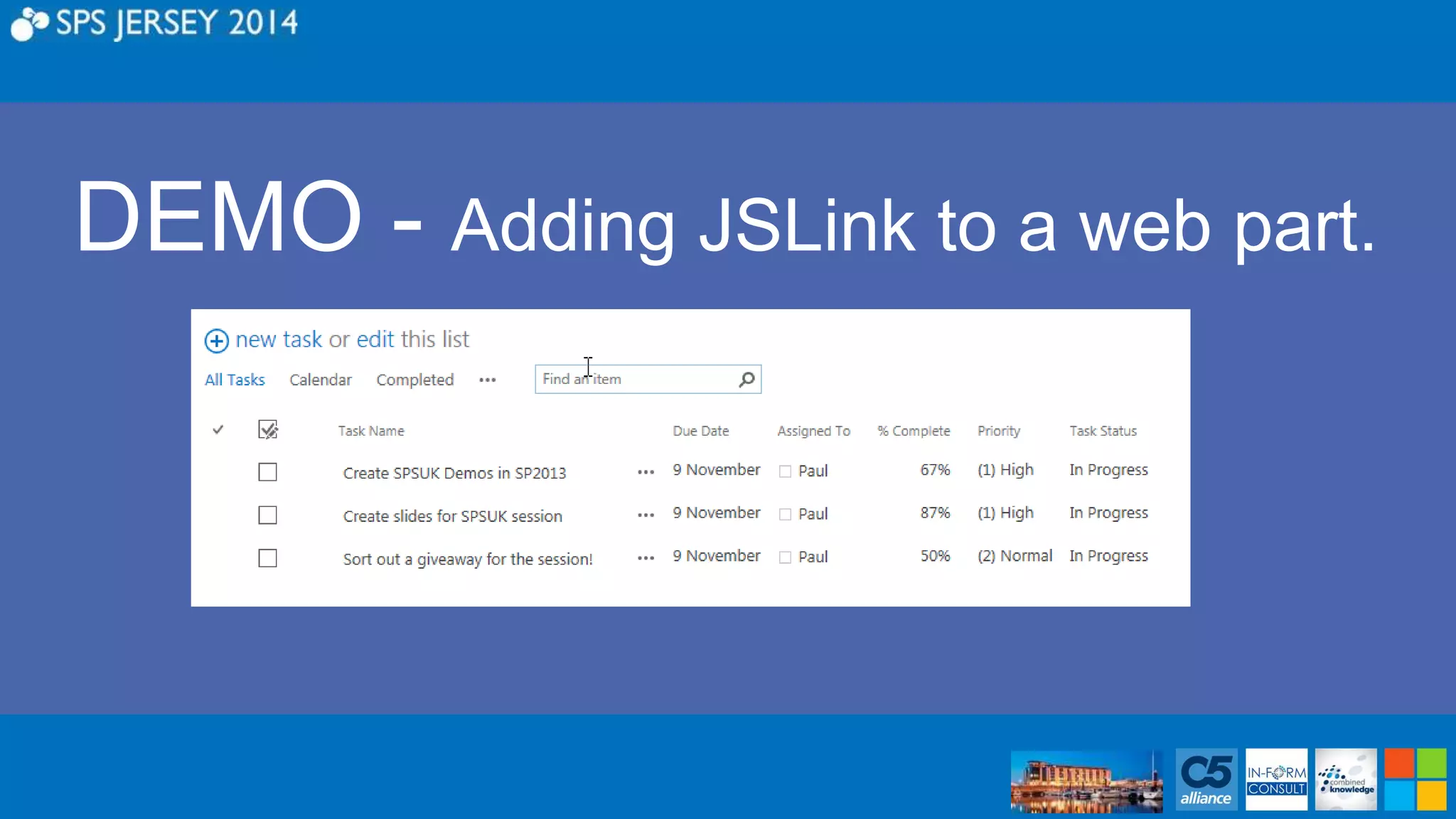
  • #47 Setting up the Field render on SPSUK Tasks. ~sitecollection/_catalogs/masterpage/Display Templates/csr_ovr_PercentComplete_Field.js
  • #48 Open the Developers Toolbar with F12 Switch to the Script tag Select the drop down near the “Start Debugging” button Select our template file Start Debugging
  • #49 In the normal flow, IE makes the request directly to SharePoint. Fiddler injects itself as a proxy between your browser requests and the outbound network connection. This allows us to inspect and event alter the requests and responses being made
  • #50 If time..one of the other benefits of fiddler is off-line editing. Using auto-responders, fiddler can return a LOCAL file instead of the server file. This can be a local copy of your display template that you are editing, thus NOT affecting the live site, but Working with live data.
  • #51 Using the demo we created earlier, we’ll show how to trap the code and step through. Shortcut leads to - http://msdn.microsoft.com/library/ie/bg182326(v=vs.85) The F12 developer tools site.
  • #55 Martin Hatches blog has more details on some of the other breaking issues with Display templates.
  • #56 If plenty of time (show the multiple list view issues) Tasks (If not done already) Average Temps (Charting) Belgian Beers – Styling, linked webparts, broken webparts Belgian Beers – Set in powershell About My Team Game Shows Office 365
  • #58 SPCSR – A community source of display templates