
VIEWS AND LAYOUT ON IOS
AGENDA
Views
Auto Layout
Size Classes
Auto Layout in Code
VIEWS
VIEW HIERARCHY
UIView
Views are placed relative to their

parents
View hierarchy is used to handle touch responses [1]:
lowest view in the hierarchy receives touch
if not handled, event gets passed to superview
recursively
Subview 1
Subview
1I
[1] Apple Docs: Event Delivery Responder Chain
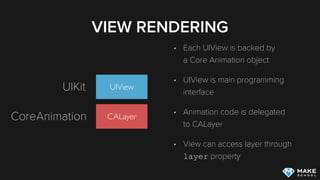
VIEW RENDERING
CALayer
UIViewUIKit
CoreAnimation
Each UIView is backed by

a Core Animation object
UIView is main programming

interface
Animation code is delegated

to CALayer
View can access layer through

layer property
VIEW RENDERING
Views are rendered initially when first added to the view
hierarchy, only re-rendered when necessary
Can trigger manual re-render by calling setNeedsDisplay
UIKit components provide private rendering code, custom UI
components can override drawRect for custom rendering
code [2]
[2] Apple Docs: Implementing your drawing code
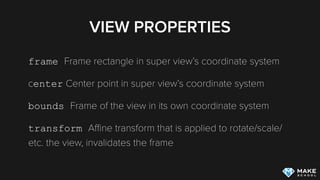
VIEW PROPERTIES
frame Frame rectangle in super view’s coordinate system
center Center point in super view’s coordinate system
bounds Frame of the view in its own coordinate system
transform Affine transform that is applied to rotate/scale/
etc. the view, invalidates the frame
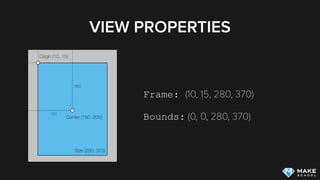
VIEW PROPERTIES
Frame: (10, 15, 280, 370)
Bounds: (0, 0, 280, 370)Center (150, 200)
150
200
Origin (10, 15)
Size (280, 370)
AUTO LAYOUT
AUTO LAYOUT
Typically don’t set any view properties (frame, center, etc.)
directly, instead use Auto Layout constraints to define view
positions
Make School has an extensive video tutorial series that
teaches you how to work with Auto Layout
SIZE CLASSES
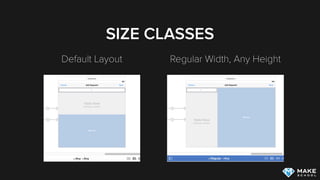
Default Layout Regular Width, Any Height
SIZE CLASSES
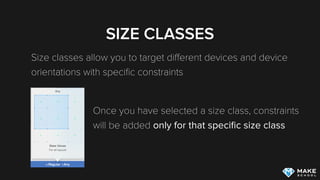
Size classes allow you to target different devices and device
orientations with specific constraints
Once you have selected a size class, constraints

will be added only for that specific size class
SIZE CLASSES
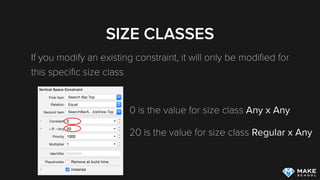
If you modify an existing constraint, it will only be modified for
this specific size class
0 is the value for size class Any x Any
20 is the value for size class Regular x Any
AUTO LAYOUT IN CODE
Most Auto Layout work should be done in Interface Builder,
some dynamic features require Auto Layout in code
AUTO LAYOUT IN CODE
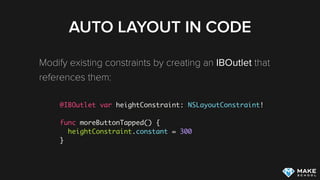
Modify existing constraints by creating an IBOutlet that
references them:
@IBOutlet var heightConstraint: NSLayoutConstraint!
func moreButtonTapped() {
heightConstraint.constant = 300
}
AUTO LAYOUT IN CODE
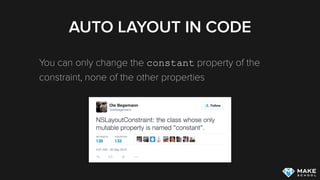
You can only change the constant property of the
constraint, none of the other properties
AUTO LAYOUT IN CODE
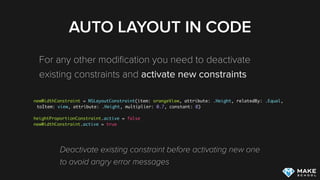
For any other modification you need to deactivate
existing constraints and activate new constraints
newWidthConstraint = NSLayoutConstraint(item: orangeView, attribute: .Height, relatedBy: .Equal,
toItem: view, attribute: .Height, multiplier: 0.7, constant: 0)
heightProportionConstraint.active = false
newWidthConstraint.active = true
Deactivate existing constraint before activating new one

to avoid angry error messages
AUTO LAYOUT IN CODE
Auto Layout API is very verbose
You can use Visual Format Language instead [3]: 

let verticalConstraints =
NSLayoutConstraint.constraintsWithVisualFormat("V:|-200.0-[redView]-100.0-|",
options: NSLayoutFormatOptions(rawValue: 0), metrics: ["targetWidth": 200],
views: ["redView": redView])
[3] Apple Docs: Visual Format Language
AUTO LAYOUT IN CODE
Alternatively you can use third-party libraries, i.e.
Cartography [4]:
constrain(view1) { view1 in
view1.width == 100
view1.height == 100
view1.center == view.superview!.center
}
[4] Carthography on GitHub
MANAGING LAYOUT CYCLES
setNeedsLayout: triggers update of layout constraint prior
to next rendering
layoutIfNeeded: triggers update of layout constraints
immediately
CUSTOMIZING LAYOUT
layoutSubviews: Provides you with a hook to write custom
layout code in case Auto Layout cannot be used
ADDITIONAL RESOURCES
View Programming Guide
Make School Video Series on Auto Layout

iOS Layout Overview

  • 2.
  • 3.
  • 4.
  • 5.
    VIEW HIERARCHY UIView Views areplaced relative to their
 parents View hierarchy is used to handle touch responses [1]: lowest view in the hierarchy receives touch if not handled, event gets passed to superview recursively Subview 1 Subview 1I [1] Apple Docs: Event Delivery Responder Chain
  • 6.
    VIEW RENDERING CALayer UIViewUIKit CoreAnimation Each UIViewis backed by
 a Core Animation object UIView is main programming
 interface Animation code is delegated
 to CALayer View can access layer through
 layer property
  • 7.
    VIEW RENDERING Views arerendered initially when first added to the view hierarchy, only re-rendered when necessary Can trigger manual re-render by calling setNeedsDisplay UIKit components provide private rendering code, custom UI components can override drawRect for custom rendering code [2] [2] Apple Docs: Implementing your drawing code
  • 8.
    VIEW PROPERTIES frame Framerectangle in super view’s coordinate system center Center point in super view’s coordinate system bounds Frame of the view in its own coordinate system transform Affine transform that is applied to rotate/scale/ etc. the view, invalidates the frame
  • 9.
    VIEW PROPERTIES Frame: (10,15, 280, 370) Bounds: (0, 0, 280, 370)Center (150, 200) 150 200 Origin (10, 15) Size (280, 370)
  • 10.
  • 11.
    AUTO LAYOUT Typically don’tset any view properties (frame, center, etc.) directly, instead use Auto Layout constraints to define view positions Make School has an extensive video tutorial series that teaches you how to work with Auto Layout
  • 12.
    SIZE CLASSES Default LayoutRegular Width, Any Height
  • 13.
    SIZE CLASSES Size classesallow you to target different devices and device orientations with specific constraints Once you have selected a size class, constraints
 will be added only for that specific size class
  • 14.
    SIZE CLASSES If youmodify an existing constraint, it will only be modified for this specific size class 0 is the value for size class Any x Any 20 is the value for size class Regular x Any
  • 15.
    AUTO LAYOUT INCODE Most Auto Layout work should be done in Interface Builder, some dynamic features require Auto Layout in code
  • 16.
    AUTO LAYOUT INCODE Modify existing constraints by creating an IBOutlet that references them: @IBOutlet var heightConstraint: NSLayoutConstraint! func moreButtonTapped() { heightConstraint.constant = 300 }
  • 17.
    AUTO LAYOUT INCODE You can only change the constant property of the constraint, none of the other properties
  • 18.
    AUTO LAYOUT INCODE For any other modification you need to deactivate existing constraints and activate new constraints newWidthConstraint = NSLayoutConstraint(item: orangeView, attribute: .Height, relatedBy: .Equal, toItem: view, attribute: .Height, multiplier: 0.7, constant: 0) heightProportionConstraint.active = false newWidthConstraint.active = true Deactivate existing constraint before activating new one
 to avoid angry error messages
  • 19.
    AUTO LAYOUT INCODE Auto Layout API is very verbose You can use Visual Format Language instead [3]: 
 let verticalConstraints = NSLayoutConstraint.constraintsWithVisualFormat("V:|-200.0-[redView]-100.0-|", options: NSLayoutFormatOptions(rawValue: 0), metrics: ["targetWidth": 200], views: ["redView": redView]) [3] Apple Docs: Visual Format Language
  • 20.
    AUTO LAYOUT INCODE Alternatively you can use third-party libraries, i.e. Cartography [4]: constrain(view1) { view1 in view1.width == 100 view1.height == 100 view1.center == view.superview!.center } [4] Carthography on GitHub
  • 21.
    MANAGING LAYOUT CYCLES setNeedsLayout:triggers update of layout constraint prior to next rendering layoutIfNeeded: triggers update of layout constraints immediately
  • 22.
    CUSTOMIZING LAYOUT layoutSubviews: Providesyou with a hook to write custom layout code in case Auto Layout cannot be used
  • 23.
    ADDITIONAL RESOURCES View ProgrammingGuide Make School Video Series on Auto Layout