Android Apps Development – Training
Day - 2
XML
● Android's defined tags
● Used to define some of the resources:
– Layouts
– Strings
● Android Manifest
● Preferred way for defining UI elements:
– Separation of code
R class
● Auto-generated: DO NOT EDIT
● Contains ID of the project resources
● Use findViewById and Resources object to get
access to the resources:
– E.g. Button = (Button)findViewById(R.id.button);
– E.g. getResources().getString(R.string.hello);
Layout
● Eclipse has a great UI creator
– Generates all the XML for you !
● Composed of View objects
● Can be specified for portrait or landscape
– Different designs for different orientation.
Contd.
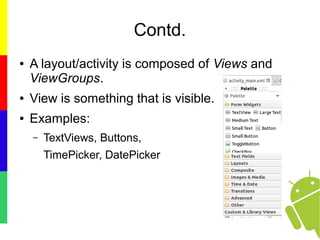
● A layout/activity is composed of Views and
ViewGroups.
● View is something that is visible.
● Examples:
– TextViews, Buttons,
TimePicker, DatePicker
Contd.
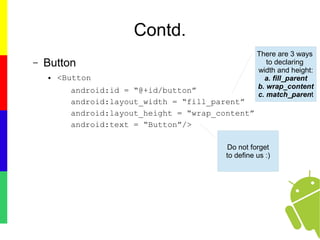
– Button
● <Button
android:id = “@+id/button”
android:layout_width = “fill_parent”
android:layout_height = “wrap_content”
android:text = “Button”/>
There are 3 ways
to declaring
width and height:
a. fill_parent
b. wrap_content
c. match_parent
Do not forget
to define us :)
Contd.
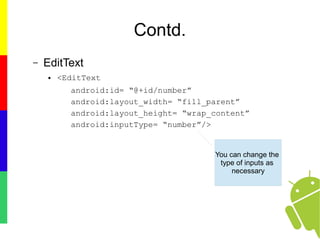
– EditText
● <EditText
android:id= “@+id/number”
android:layout_width= “fill_parent”
android:layout_height= “wrap_content”
android:inputType= “number”/>
You can change the
type of inputs as
necessary
Contd.
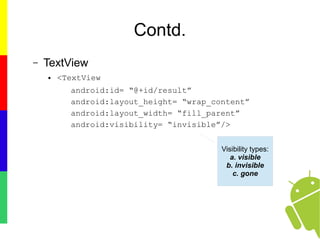
– TextView
● <TextView
android:id= “@+id/result”
android:layout_height= “wrap_content”
android:layout_width= “fill_parent”
android:visibility= “invisible”/>
Visibility types:
a. visible
b. invisible
c. gone
Contd.
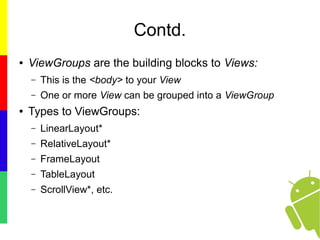
● ViewGroups are the building blocks to Views:
– This is the <body> to your View
– One or more View can be grouped into a ViewGroup
● Types to ViewGroups:
– LinearLayout*
– RelativeLayout*
– FrameLayout
– TableLayout
– ScrollView*, etc.
● Each layout has something unique to it
● Each layout has a purpose !
LinearLayout
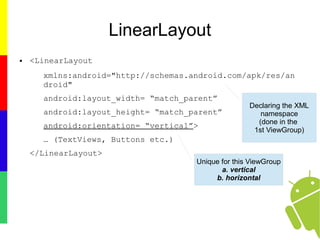
● <LinearLayout
xmlns:android="http://schemas.android.com/apk/res/an
droid"
android:layout_width= “match_parent”
android:layout_height= “match_parent”
android:orientation= “vertical”>
… (TextViews, Buttons etc.)
</LinearLayout>
Declaring the XML
namespace
(done in the
1st ViewGroup)
Unique for this ViewGroup
a. vertical
b. horizontal
RelativeLayout
● Does not have any android:orientation.
● Affects the layouts inside it.
● Views are arranged according to references.
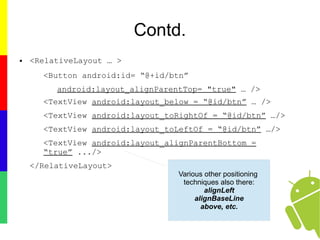
Contd.
● <RelativeLayout … >
<Button android:id= “@+id/btn”
android:layout_alignParentTop= "true" … />
<TextView android:layout_below = “@id/btn” … />
<TextView android:layout_toRightOf = “@id/btn” …/>
<TextView android:layout_toLeftOf = “@id/btn” …/>
<TextView android:layout_alignParentBottom =
“true” .../>
</RelativeLayout>
Various other positioning
techniques also there:
alignLeft
alignBaseLine
above, etc.
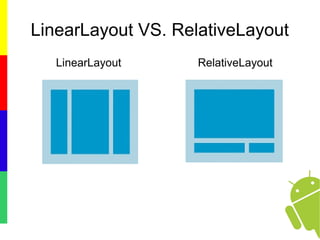
LinearLayout VS. RelativeLayout
LinearLayout RelativeLayout
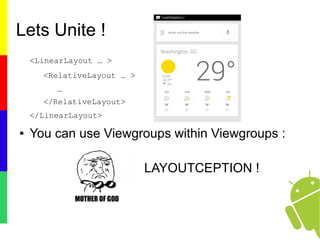
Lets Unite !
<LinearLayout … >
<RelativeLayout … >
…
</RelativeLayout>
</LinearLayout>
● You can use Viewgroups within Viewgroups :
LAYOUTCEPTION !
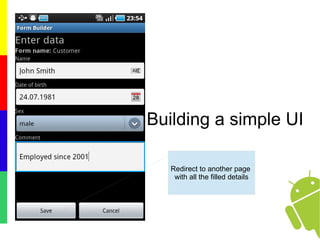
Building a simple UI
Redirect to another page
with all the filled details
What is needed for this?
● Intents
– <a href= “target”>page 2</a>
– Intent = Redirecting !
– But wait …
– Intent is used to call into android's drivers, other
applications as well.
– Powerful inter/intra application message-passing
framework.
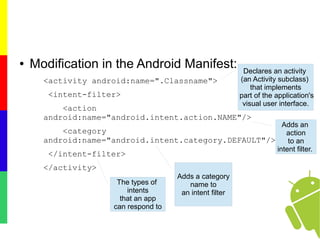
● Modification in the Android Manifest:
<activity android:name=".Classname">
<intent-filter>
<action
android:name="android.intent.action.NAME"/>
<category
android:name="android.intent.category.DEFAULT"/>
</intent-filter>
</activity>
Declares an activity
(an Activity subclass)
that implements
part of the application's
visual user interface.
The types of
intents
that an app
can respond to
Adds a category
name to
an intent filter
Adds an
action
to an
intent filter.
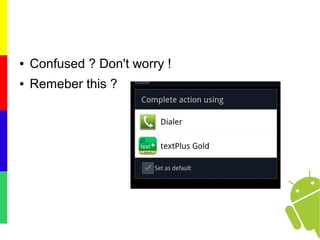
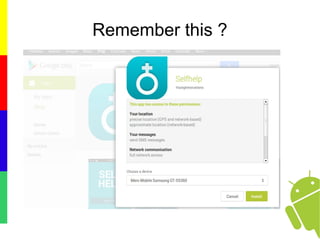
● Confused ? Don't worry !
● Remeber this ?
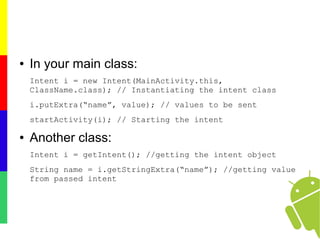
● In your main class:
Intent i = new Intent(MainActivity.this,
ClassName.class); // Instantiating the intent class
i.putExtra(“name”, value); // values to be sent
startActivity(i); // Starting the intent
● Another class:
Intent i = getIntent(); //getting the intent object
String name = i.getStringExtra(“name”); //getting value
from passed intent
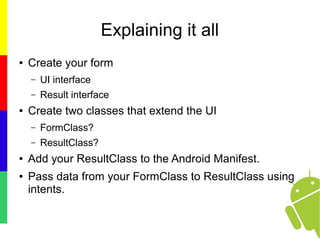
Explaining it all
● Create your form
– UI interface
– Result interface
● Create two classes that extend the UI
– FormClass?
– ResultClass?
● Add your ResultClass to the Android Manifest.
● Pass data from your FormClass to ResultClass using
intents.
What is Manifest ?
● Presents essential information about:
– The application to the Android system
● Information the system must have before it can run any
of the application's code.
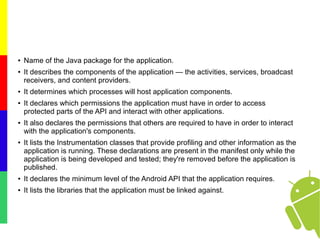
Remember this ?
● Name of the Java package for the application.
● It describes the components of the application — the activities, services, broadcast
receivers, and content providers.
● It determines which processes will host application components.
● It declares which permissions the application must have in order to access
protected parts of the API and interact with other applications.
● It also declares the permissions that others are required to have in order to interact
with the application's components.
● It lists the Instrumentation classes that provide profiling and other information as the
application is running. These declarations are present in the manifest only while the
application is being developed and tested; they're removed before the application is
published.
● It declares the minimum level of the Android API that the application requires.
● It lists the libraries that the application must be linked against.
“Have you ever wondered
what happens when you press the back
button/ home button on android?”
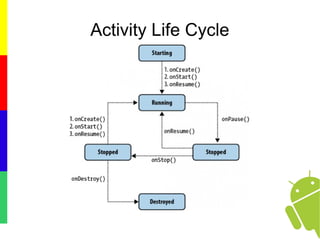
Activity Life Cycle

Android training day 2

  • 1.
    Android Apps Development– Training Day - 2
  • 2.
    XML ● Android's definedtags ● Used to define some of the resources: – Layouts – Strings ● Android Manifest ● Preferred way for defining UI elements: – Separation of code
  • 3.
    R class ● Auto-generated:DO NOT EDIT ● Contains ID of the project resources ● Use findViewById and Resources object to get access to the resources: – E.g. Button = (Button)findViewById(R.id.button); – E.g. getResources().getString(R.string.hello);
  • 4.
    Layout ● Eclipse hasa great UI creator – Generates all the XML for you ! ● Composed of View objects ● Can be specified for portrait or landscape – Different designs for different orientation.
  • 5.
    Contd. ● A layout/activityis composed of Views and ViewGroups. ● View is something that is visible. ● Examples: – TextViews, Buttons, TimePicker, DatePicker
  • 6.
    Contd. – Button ● <Button android:id= “@+id/button” android:layout_width = “fill_parent” android:layout_height = “wrap_content” android:text = “Button”/> There are 3 ways to declaring width and height: a. fill_parent b. wrap_content c. match_parent Do not forget to define us :)
  • 7.
    Contd. – EditText ● <EditText android:id=“@+id/number” android:layout_width= “fill_parent” android:layout_height= “wrap_content” android:inputType= “number”/> You can change the type of inputs as necessary
  • 8.
    Contd. – TextView ● <TextView android:id=“@+id/result” android:layout_height= “wrap_content” android:layout_width= “fill_parent” android:visibility= “invisible”/> Visibility types: a. visible b. invisible c. gone
  • 9.
    Contd. ● ViewGroups arethe building blocks to Views: – This is the <body> to your View – One or more View can be grouped into a ViewGroup ● Types to ViewGroups: – LinearLayout* – RelativeLayout* – FrameLayout – TableLayout – ScrollView*, etc.
  • 10.
    ● Each layouthas something unique to it ● Each layout has a purpose !
  • 11.
    LinearLayout ● <LinearLayout xmlns:android="http://schemas.android.com/apk/res/an droid" android:layout_width= “match_parent” android:layout_height=“match_parent” android:orientation= “vertical”> … (TextViews, Buttons etc.) </LinearLayout> Declaring the XML namespace (done in the 1st ViewGroup) Unique for this ViewGroup a. vertical b. horizontal
  • 12.
    RelativeLayout ● Does nothave any android:orientation. ● Affects the layouts inside it. ● Views are arranged according to references.
  • 13.
    Contd. ● <RelativeLayout …> <Button android:id= “@+id/btn” android:layout_alignParentTop= "true" … /> <TextView android:layout_below = “@id/btn” … /> <TextView android:layout_toRightOf = “@id/btn” …/> <TextView android:layout_toLeftOf = “@id/btn” …/> <TextView android:layout_alignParentBottom = “true” .../> </RelativeLayout> Various other positioning techniques also there: alignLeft alignBaseLine above, etc.
  • 14.
  • 15.
    Lets Unite ! <LinearLayout… > <RelativeLayout … > … </RelativeLayout> </LinearLayout> ● You can use Viewgroups within Viewgroups : LAYOUTCEPTION !
  • 16.
    Building a simpleUI Redirect to another page with all the filled details
  • 17.
    What is neededfor this? ● Intents – <a href= “target”>page 2</a> – Intent = Redirecting ! – But wait … – Intent is used to call into android's drivers, other applications as well. – Powerful inter/intra application message-passing framework.
  • 18.
    ● Modification inthe Android Manifest: <activity android:name=".Classname"> <intent-filter> <action android:name="android.intent.action.NAME"/> <category android:name="android.intent.category.DEFAULT"/> </intent-filter> </activity> Declares an activity (an Activity subclass) that implements part of the application's visual user interface. The types of intents that an app can respond to Adds a category name to an intent filter Adds an action to an intent filter.
  • 19.
    ● Confused ?Don't worry ! ● Remeber this ?
  • 20.
    ● In yourmain class: Intent i = new Intent(MainActivity.this, ClassName.class); // Instantiating the intent class i.putExtra(“name”, value); // values to be sent startActivity(i); // Starting the intent ● Another class: Intent i = getIntent(); //getting the intent object String name = i.getStringExtra(“name”); //getting value from passed intent
  • 21.
    Explaining it all ●Create your form – UI interface – Result interface ● Create two classes that extend the UI – FormClass? – ResultClass? ● Add your ResultClass to the Android Manifest. ● Pass data from your FormClass to ResultClass using intents.
  • 22.
    What is Manifest? ● Presents essential information about: – The application to the Android system ● Information the system must have before it can run any of the application's code.
  • 23.
  • 24.
    ● Name ofthe Java package for the application. ● It describes the components of the application — the activities, services, broadcast receivers, and content providers. ● It determines which processes will host application components. ● It declares which permissions the application must have in order to access protected parts of the API and interact with other applications. ● It also declares the permissions that others are required to have in order to interact with the application's components. ● It lists the Instrumentation classes that provide profiling and other information as the application is running. These declarations are present in the manifest only while the application is being developed and tested; they're removed before the application is published. ● It declares the minimum level of the Android API that the application requires. ● It lists the libraries that the application must be linked against.
  • 25.
    “Have you everwondered what happens when you press the back button/ home button on android?”
  • 26.