MULE JAVA CUSTOM COMPONENT - 2
Ravinder
Java Component with Singleton:
The singleton object factory does not create a new instance for each
request; instead, the instance is shared.
Example:
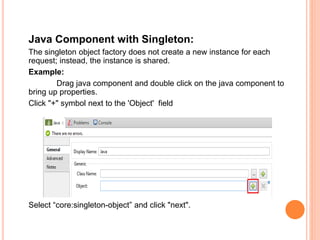
Drag java component and double click on the java component to
bring up properties.
Click "+" symbol next to the 'Object' field
Select “core:singleton-object” and click "next".
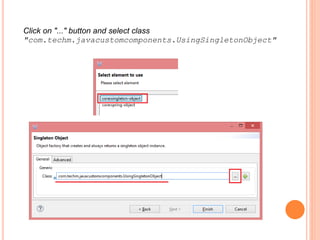
Click on "..." button and select class
"com.techm.javacustomcomponents.UsingSingletonObject"
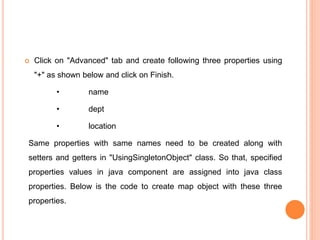
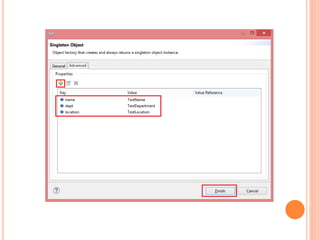
 Click on "Advanced" tab and create following three properties using
"+" as shown below and click on Finish.
• name
• dept
• location
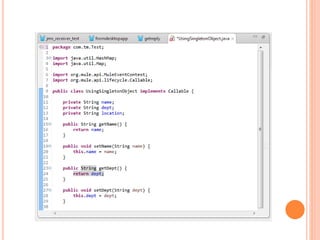
Same properties with same names need to be created along with
setters and getters in "UsingSingletonObject" class. So that, specified
properties values in java component are assigned into java class
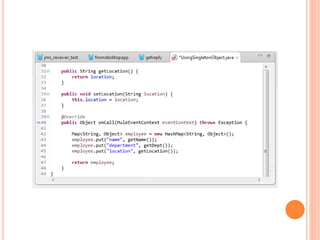
properties. Below is the code to create map object with these three
properties.
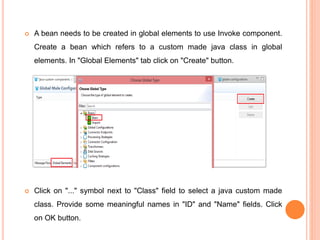
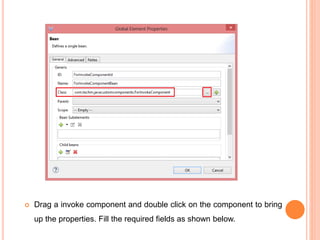
 A bean needs to be created in global elements to use Invoke component.
Create a bean which refers to a custom made java class in global
elements. In "Global Elements" tab click on "Create" button.
 Click on "..." symbol next to "Class" field to select a java custom made
class. Provide some meaningful names in "ID" and "Name" fields. Click
on OK button.
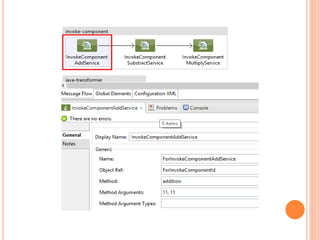
 Drag a invoke component and double click on the component to bring
up the properties. Fill the required fields as shown below.
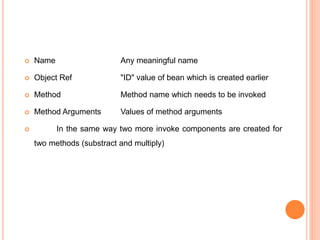
 Name Any meaningful name
 Object Ref "ID" value of bean which is created earlier
 Method Method name which needs to be invoked
 Method Arguments Values of method arguments
 In the same way two more invoke components are created for
two methods (substract and multiply)
Thank You All

Mule java part-2

  • 1.
    MULE JAVA CUSTOMCOMPONENT - 2 Ravinder
  • 2.
    Java Component withSingleton: The singleton object factory does not create a new instance for each request; instead, the instance is shared. Example: Drag java component and double click on the java component to bring up properties. Click "+" symbol next to the 'Object' field Select “core:singleton-object” and click "next".
  • 3.
    Click on "..."button and select class "com.techm.javacustomcomponents.UsingSingletonObject"
  • 4.
     Click on"Advanced" tab and create following three properties using "+" as shown below and click on Finish. • name • dept • location Same properties with same names need to be created along with setters and getters in "UsingSingletonObject" class. So that, specified properties values in java component are assigned into java class properties. Below is the code to create map object with these three properties.
  • 8.
     A beanneeds to be created in global elements to use Invoke component. Create a bean which refers to a custom made java class in global elements. In "Global Elements" tab click on "Create" button.  Click on "..." symbol next to "Class" field to select a java custom made class. Provide some meaningful names in "ID" and "Name" fields. Click on OK button.
  • 9.
     Drag ainvoke component and double click on the component to bring up the properties. Fill the required fields as shown below.
  • 11.
     Name Anymeaningful name  Object Ref "ID" value of bean which is created earlier  Method Method name which needs to be invoked  Method Arguments Values of method arguments  In the same way two more invoke components are created for two methods (substract and multiply)
  • 12.