
Intermediate Mac OS X Presented by ArrowQuick Solutions Tuesday, January 27, 2004
Mac OS X Basic Review Mac OS X is multi-user operating system Mac OS X Login & Desktop Mac OS X Icons & Windows Mac OS X Folder Structure Mac OS X Applications iTunes - application to organize and control music elements on your Macintosh
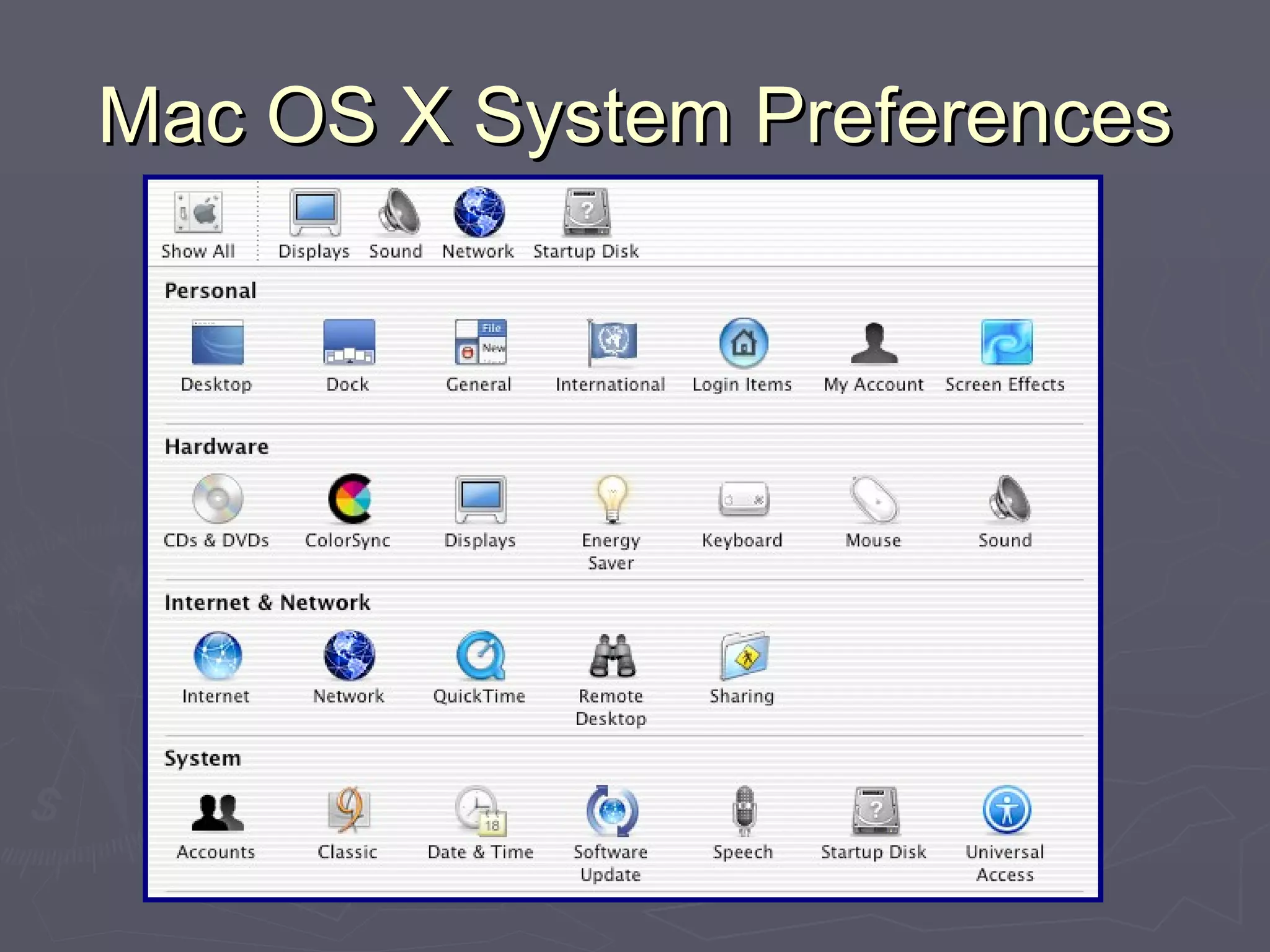
Mac OS X System Preferences
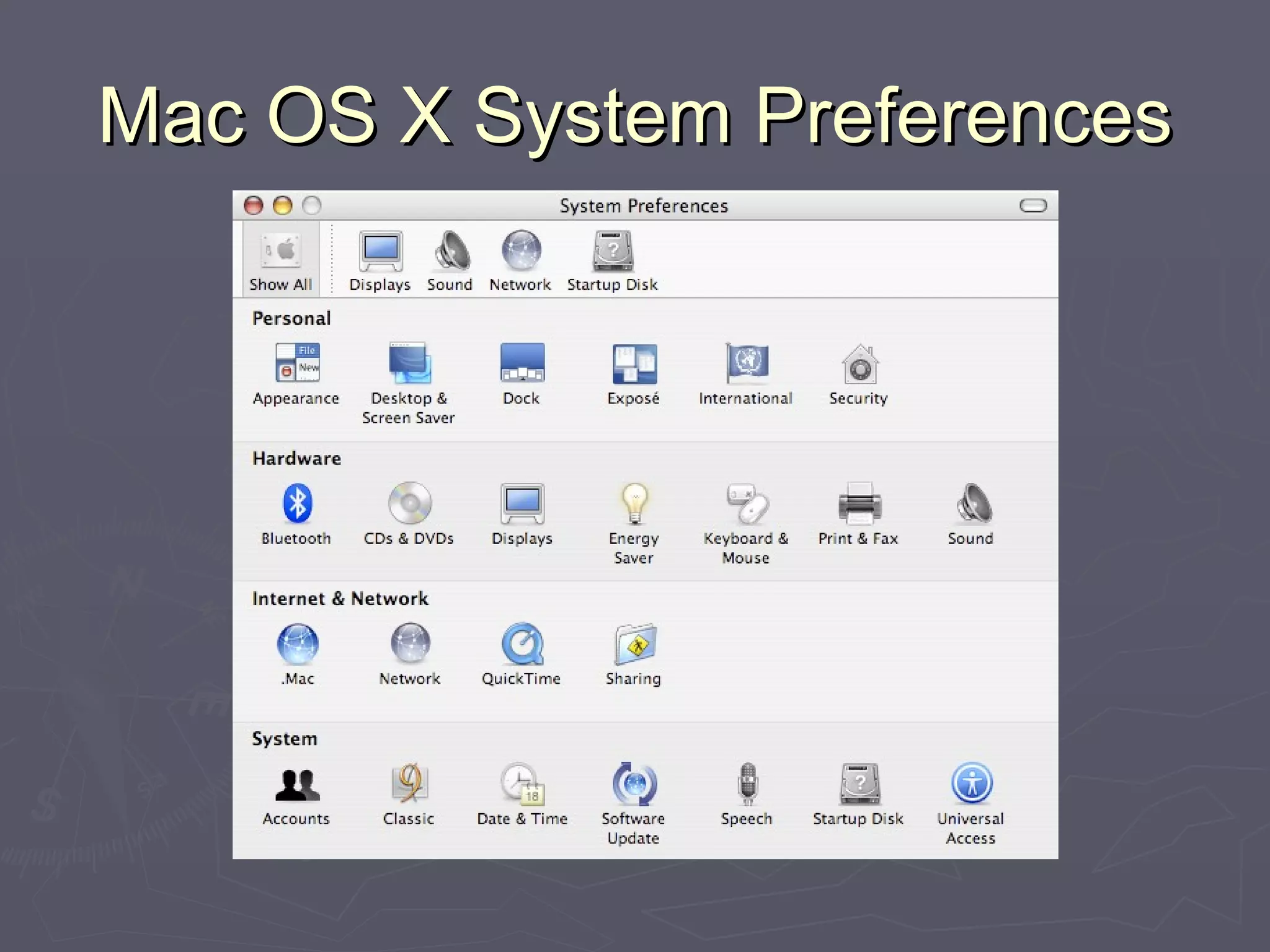
Mac OS X System Preferences Mac OS X System Preferences Series of controls for all aspects of Aqua Divided into categories Personal Hardware Internet / Network System Accessibility dependent upon login
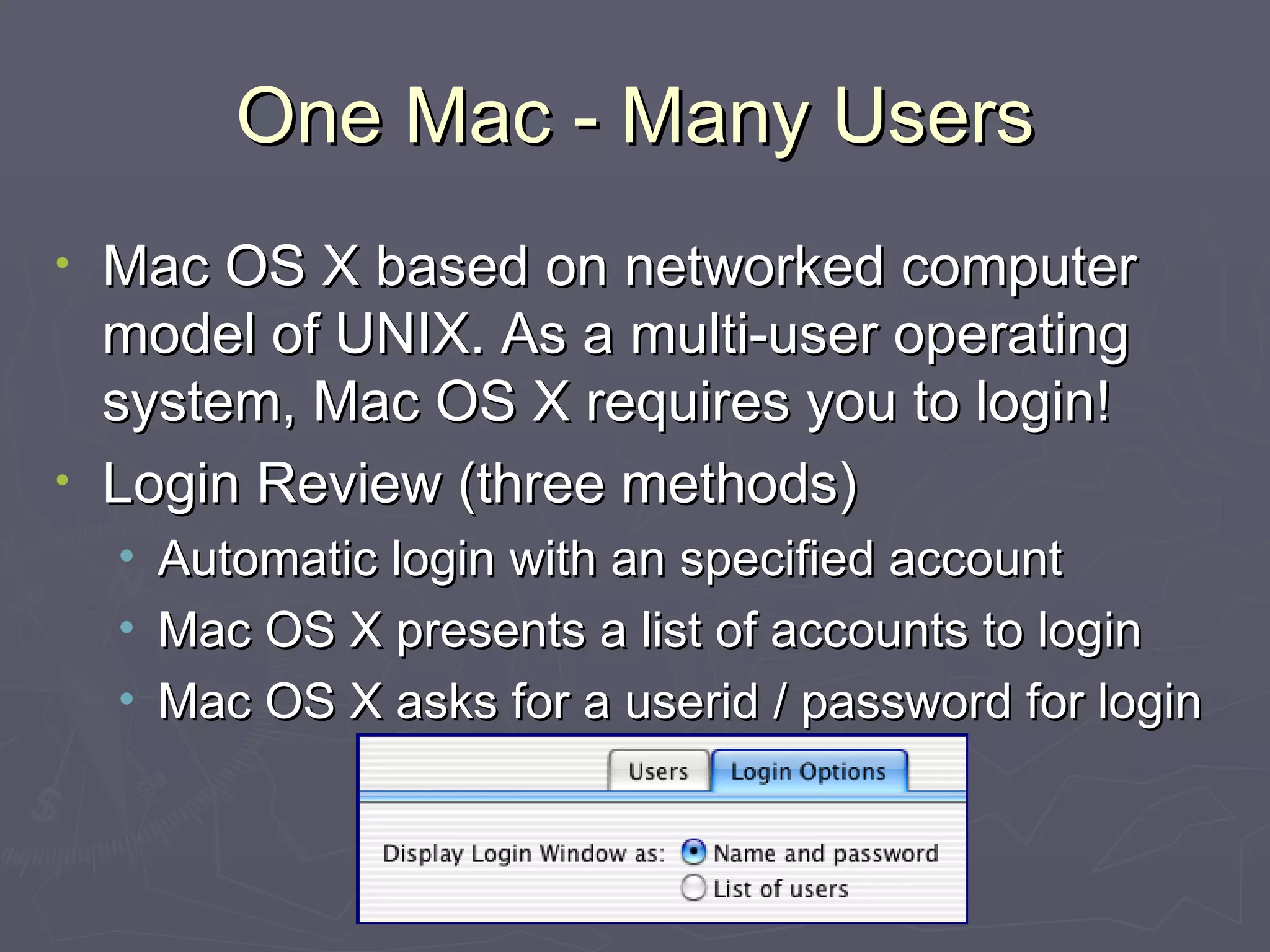
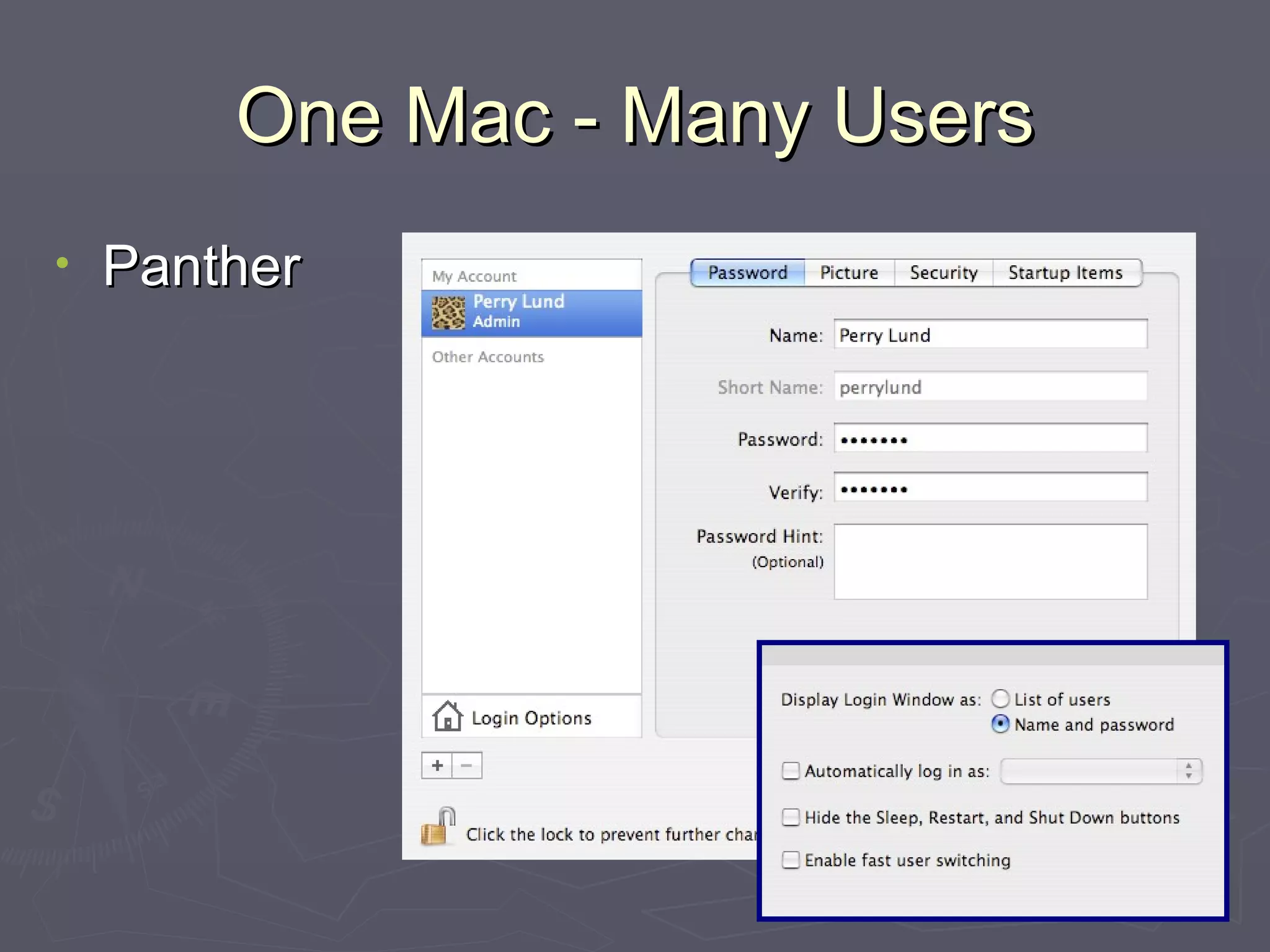
One Mac - Many Users Mac OS X based on networked computer model of UNIX. As a multi-user operating system, Mac OS X requires you to login! Login Review (three methods) Automatic login with an specified account Mac OS X presents a list of accounts to login Mac OS X asks for a userid / password for login
One Mac - Many Users Panther
One Mac - Many Users Your “stuff” is tied to your login account Icons & settings for the Desktop and the Dock Desktop pictures, screen saver, language Your web browser favorites and email accounts Personally installed programs & fonts Choice of programs launching at login Documents
One Mac - Many Users User Account Types Admin account - the initial Mac OS X account Normal account - restricted to Home Folder Superuser account (often called root user)
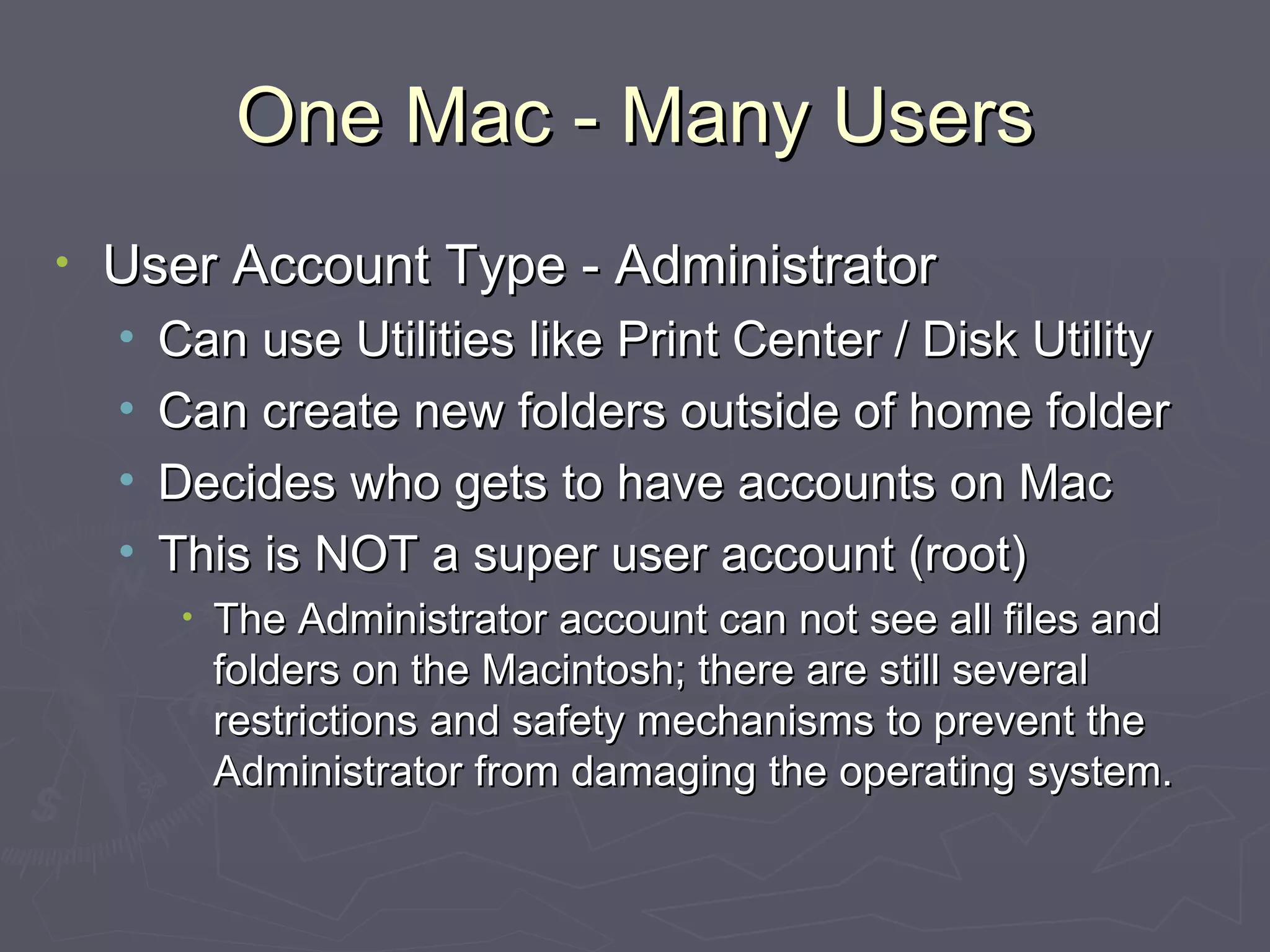
One Mac - Many Users User Account Type - Administrator Must be one Admin account Can have multiple Admin accounts, but this is not recommended has this allows: changes to main folder structure changes to all System Preferences Change system wide printers, fonts, screen savers, etc…
One Mac - Many Users User Account Type - Administrator Can use Utilities like Print Center / Disk Utility Can create new folders outside of home folder Decides who gets to have accounts on Mac This is NOT a super user account (root) The Administrator account can not see all files and folders on the Macintosh; there are still several restrictions and safety mechanisms to prevent the Administrator from damaging the operating system.
One Mac - Many Users User Account Type  - Normal Users Everyday access to their home folder Access to some System Preferences Screen Savers Can not create folders on main level of hard disk Can not delete applications / system resources Can access shared folder Can use all applications
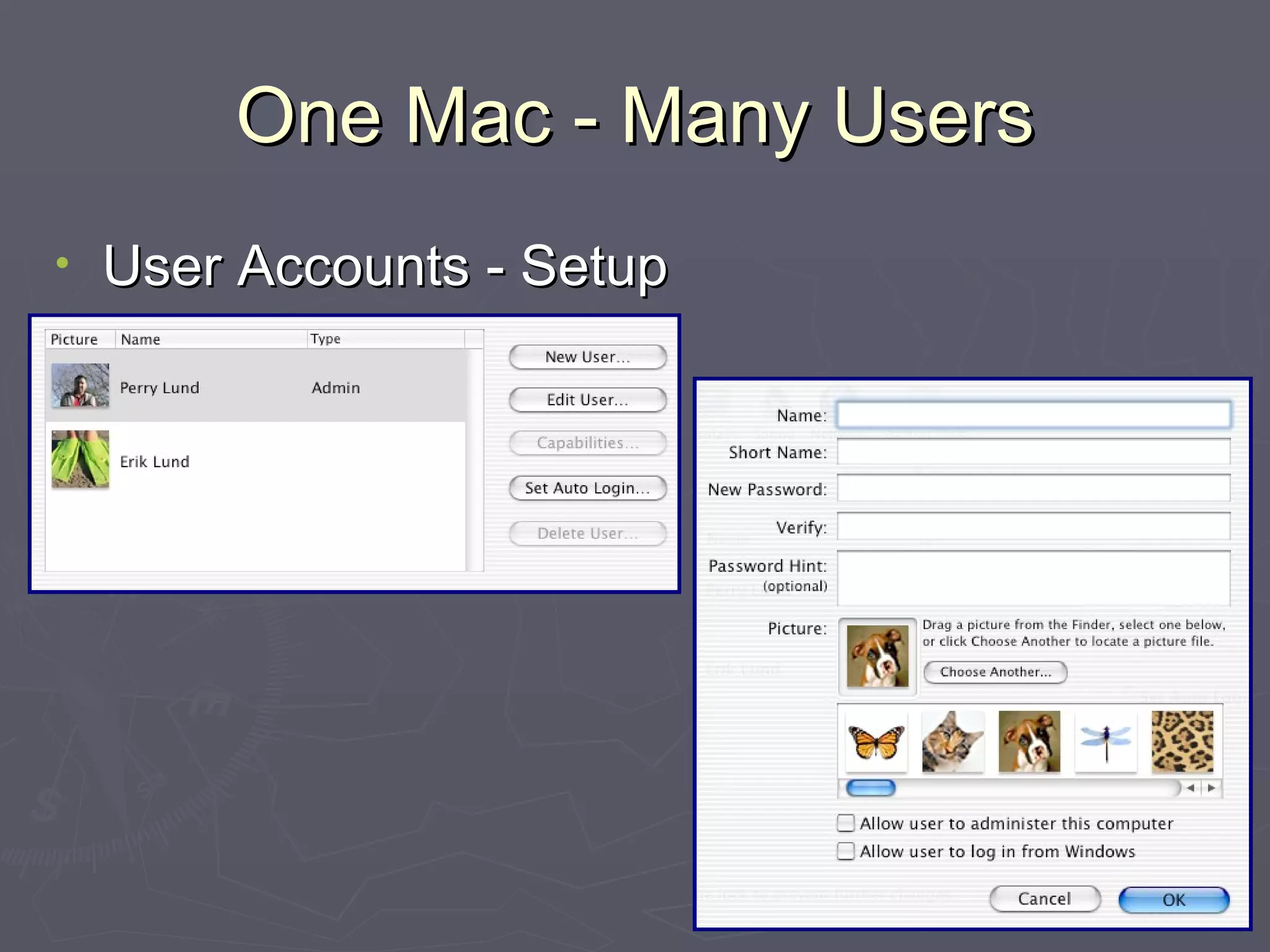
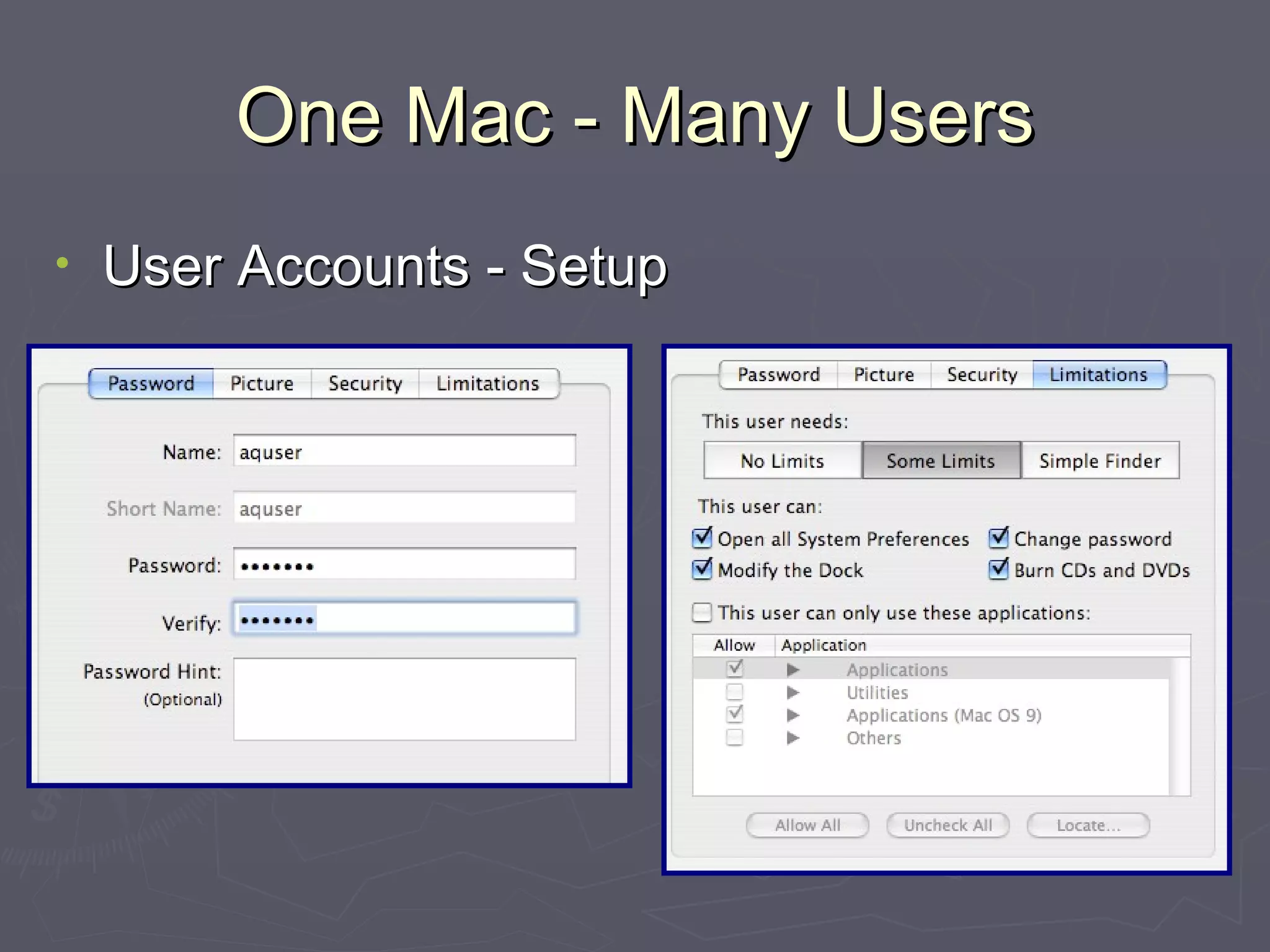
One Mac - Many Users User Accounts - Setup
One Mac - Many Users User Accounts - Setup Name Field - First and Last Name Short Name - can not contain spaces Login Picture - preset or custom photo Password - Combination of characters (mix letter, numbers) Case sensitive (upper and lower case letters are treated as different letters) Admin accounts can not have blank passwords
One Mac - Many Users User Accounts - A Bit of Protection Often times, walking away from your computer for short bit leaves your computer open for possible tampering Bathroom and refreshment breaks Set up your Screen Saver with “use my user account password” option. Screen saver will kick in after couple minutes To get back to work, move mouse/press key and then enter password when prompted to do so
One Mac - Many Users Folder Structure Install fonts in Home Folder--> Library --> Fonts  (remember your home folder uses your account’s short name) Users can install programs in their Home Folder Usually create an Applications folder Your personal applications in your home directory can not be used by other login accounts Set permissions on the Applications folder
Application Installation Application Installation Process Go to  http://www. versiontracker .com Search for freeware games Download the following: Maelstrom X 3.0.6   Install the software following Instructor's lead Run software and try it out.
Application Installation Application Installers (different types) Downloads may come in as .sit, .gz, or .dmg If installation instructions are give, follow them Some installers will ask for Admin password Some package installers require restart Apple’s Software Updates should be run on regular basis
Mac OS X Printing /  Fonts Mac OS X preinstalled printer drivers Epson, HP, Canon, Lexmark Many older printers not compatible Connectors (no round serial or parallel connectors) Drivers (companies not supporting older printers) Most networked PostScript printers supported Most USB inkjet printers in last 3 years  Mac OS X 10.2 now supports CUPS Common UNIX Printing System Supports printers that do not have Mac OS X drivers
Mac OS X Printing /  Fonts Mac Meets Printer (Print Center) Printer software Comes on Mac OS X installer CD Current versions are downloadable from the Internet Installation requires login to an Admin account Go to Print Center (Utility Folder) Pop-up Menu (USB, AppleTalk, LPR Printing) Add Printer Select from list
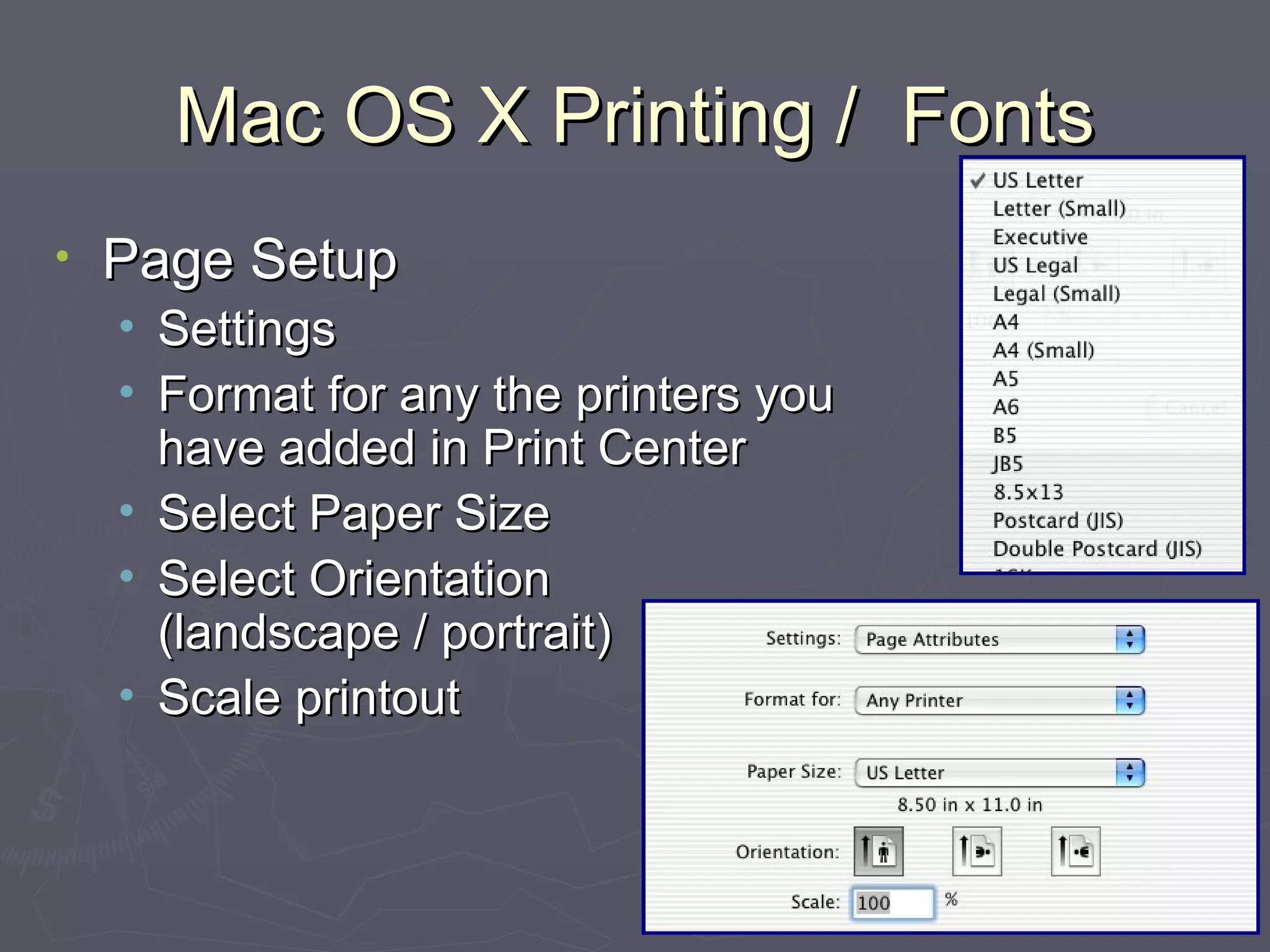
Mac OS X Printing /  Fonts Page Setup Settings Format for any the printers you have added in Print Center Select Paper Size Select Orientation  (landscape / portrait) Scale printout
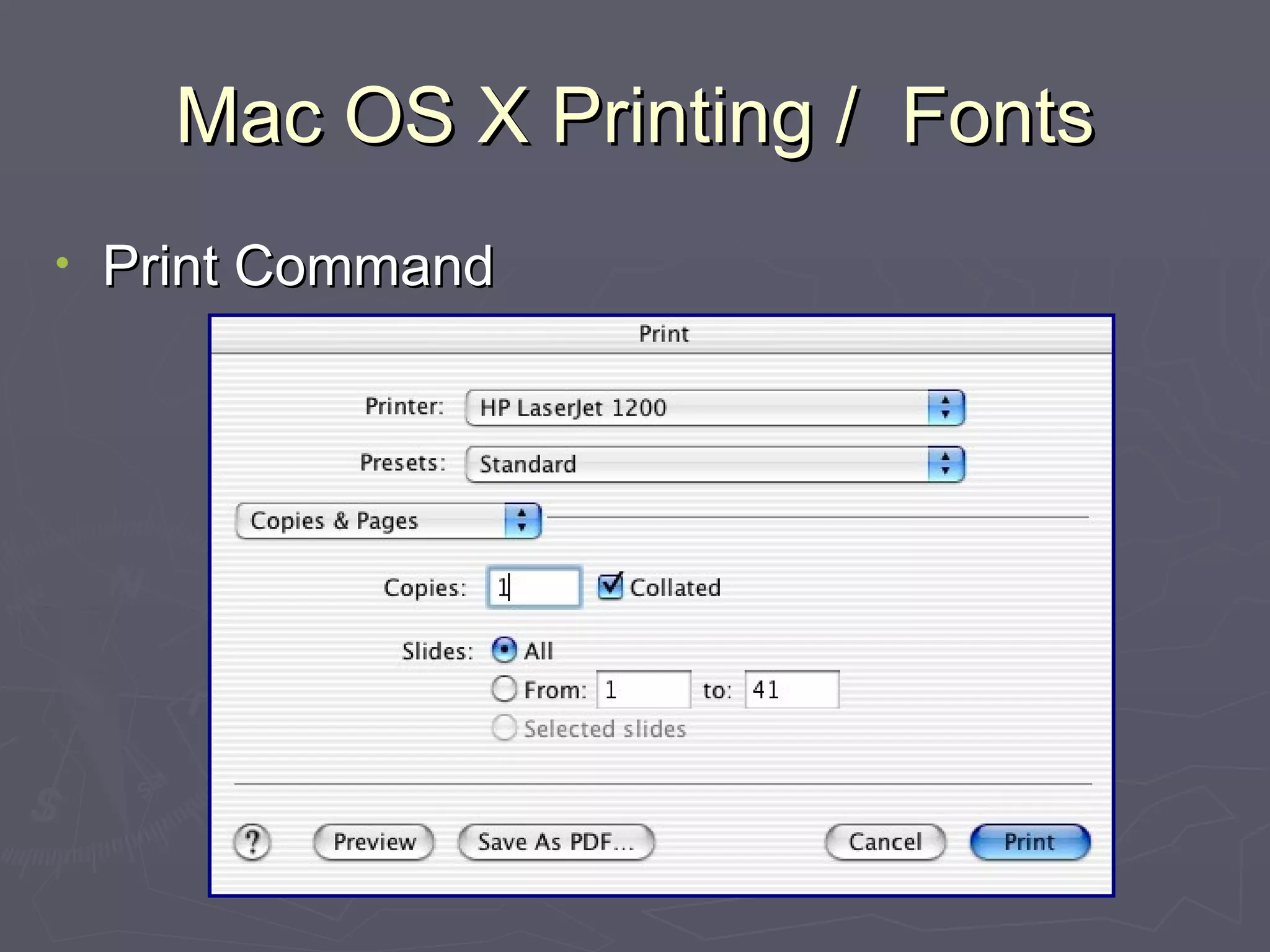
Mac OS X Printing /  Fonts Print Command
Mac OS X Printing /  Fonts Print Command Save various groups of settings Many additional options under popup menu Layout Output Options Paper Feed Mode/quality settings Error Handling
Mac OS X Printing /  Fonts Preview Button Sends printout to Preview or Acrobat application Save As PDF Immediate sends document to PDF file Type in name for the new PDF file PDFs can be sent as attachments to email messages PDFs can be opened by anyone with free Acrobat Reader software (part of Mac OS X)
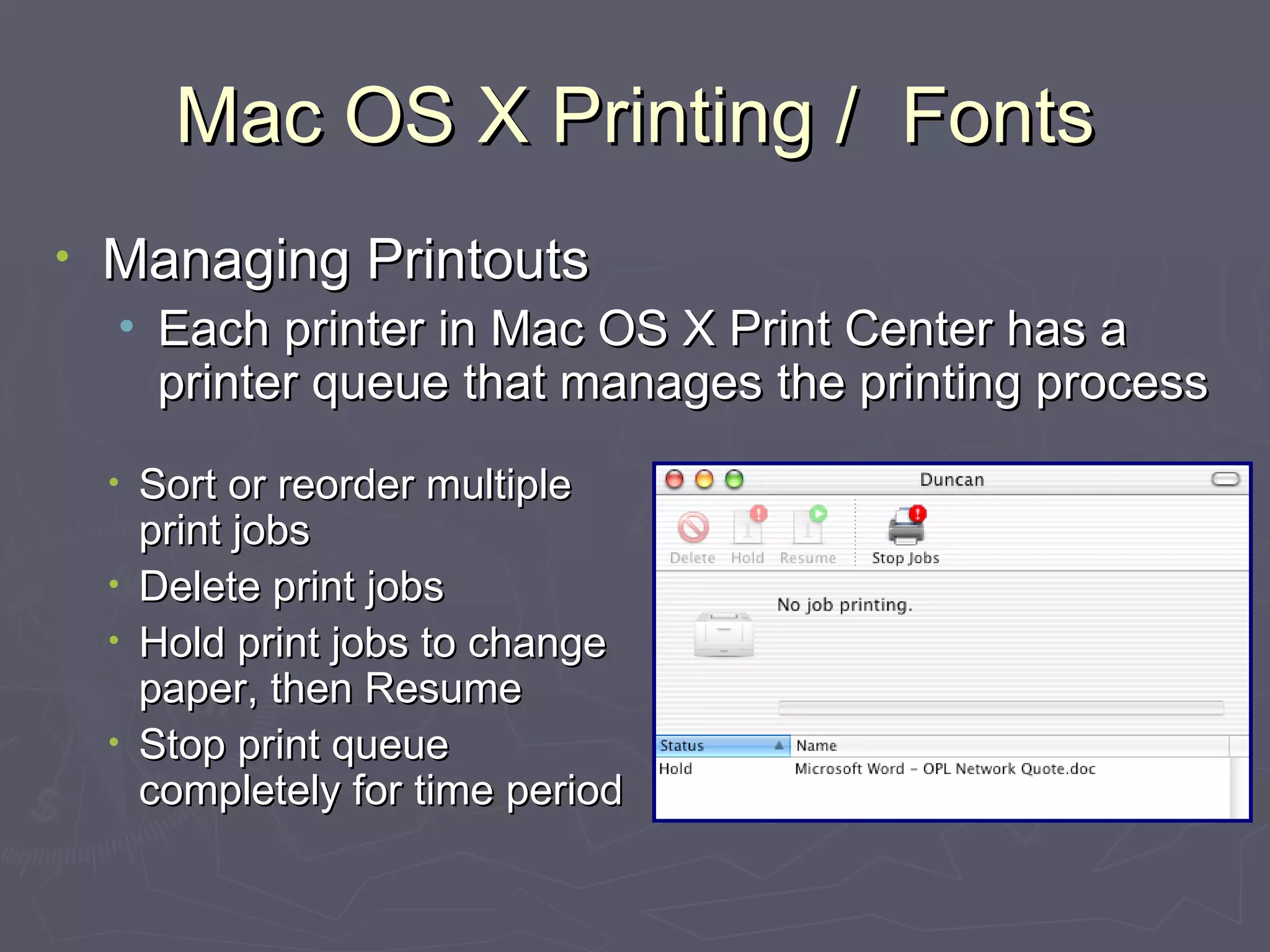
Mac OS X Printing /  Fonts Managing Printouts Each printer in Mac OS X Print Center has a printer queue that manages the printing process Sort or reorder multiple print jobs Delete print jobs Hold print jobs to change paper, then Resume Stop print queue completely for time period
Mac OS X Printing /  Fonts More about PDFs Software turns any program’s output into universally readable PDF format Acrobat Acrobat costs $250.00, but the PDF builder in Mac OS X is part of system (free) Create PDFs to share documents with people who do not own the same software you do PDFs are high quality, accessible by PCs, Macintoshes, and other computers
Mac OS X Printing /  Fonts Fonts in Mac OS X Support for multiple font technologies: PostScript Type 1 (Adobe - circa 1984)  TrueType (Apple/Microsoft - circa 1994) OpenType (Microsoft/Adobe - circa 2000) Where fonts reside in Mac OS X (5 places) Your Private Fonts (Home --> Library --> Fonts) Main Fonts (Library --> Fonts) Network Fonts (Network --> Library --> Fonts) Essential Fonts (System --> Library --> Fonts) Classic Fonts (Mac OS 9 System Folder --> Fonts)
Mac OS X Printing /  Fonts Installing Fonts Preinstalled collection of 50 fonts No longer a limit to number of fonts Drag fonts to appropriate font folder Accessing Fonts Carbonized Applications Use the applications font menu Cocoa Applications Font Panel gives you more options and control over fonts in your applications. (Text Edit)
Break Time
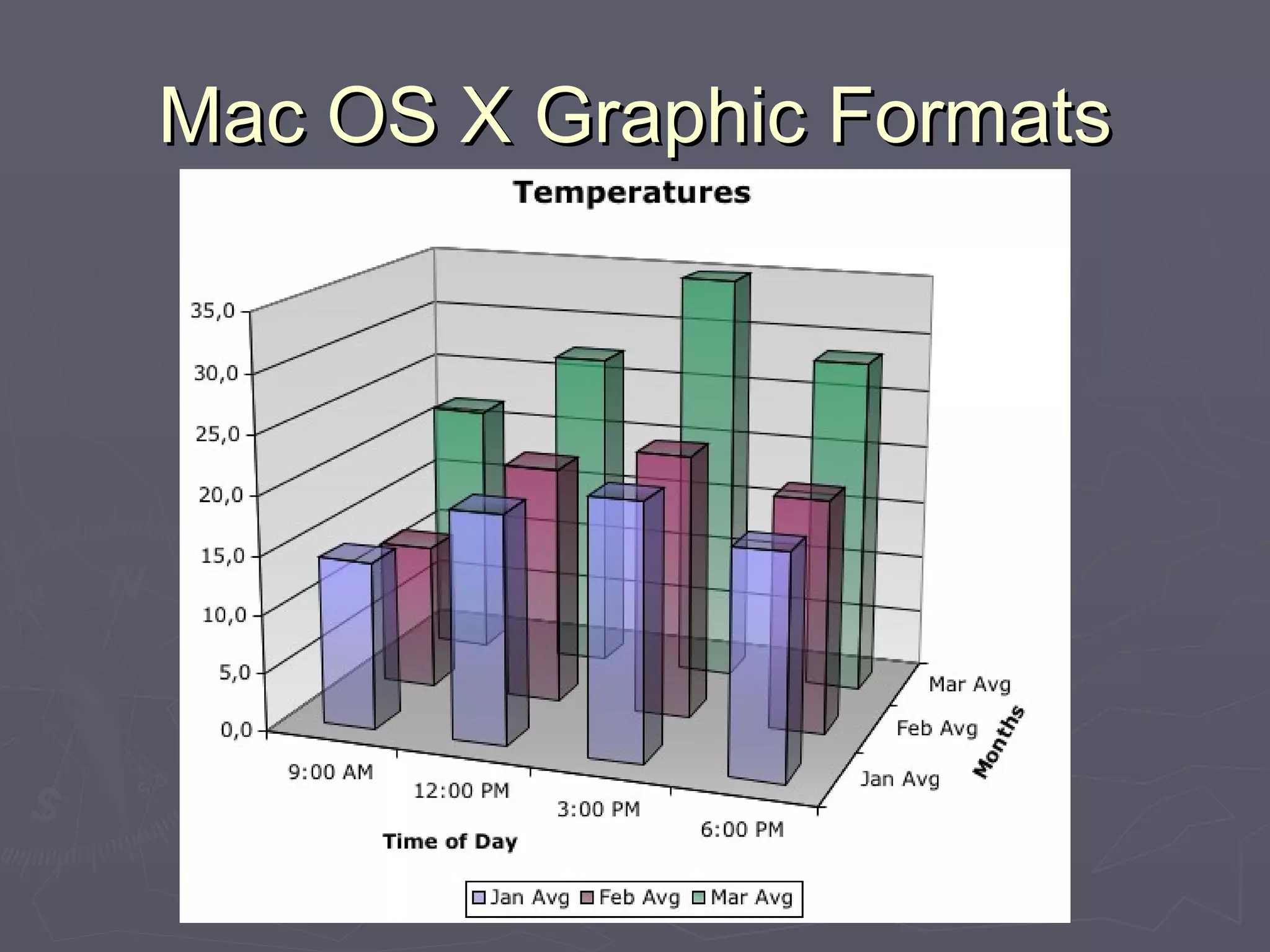
Mac OS X Graphic Formats Sophisticated Graphics Processing Quartz / Open GL / Quartz Express Interface features Menus fade away Menus are slightly transparent Applications can access translucency (Excel) 3D look using realistic drop shadowing Anti-aliasing
Mac OS X Graphic Formats
Mac OS X Graphic Formats File Formats PICT - standard 20 year old format TIFF - high density bit mapped format  (popular in printing industry) JPEG - web format for photo realistic images  GIF - web format with maximum of 256 colors PNG - open source web format, supports layers, AppleWorks & Preview use this in Mac OS X BMP - Windows standard format PDF - Universally readable document format
Mac OS X Graphic Formats Screen Capture Shift-Command-3 takes snapshot of current screen and creates a PDF file on your desktop Shift-Command-4 (Region Capture) allows you to select region of screen to take snapshot Default format of graphic file created is PDF File placed on Desktop where names start with Picture 1 and are numbered sequentially
Mac OS X Graphic Formats Screen Capture (tips and tricks) Press spacebar after hitting Shift-Command-4 (region capture) and you'll get a camera icon and the underlying window highlighted in blue. Move the camera over another window and the blue highlight shifts to that window. Click the mouse and you capture the highlighted window. Additionally, holding control (while using either Shift-Command-3 or Shift-Command-4) will result in the image being saved to the clipboard instead of to a file.
Mac OS X  Sound Volume Control Menu bar control System Preferences Adjust alerts volume, select sound Output options - adjust left / right balance Select other audio controllers Adding Alert Beeps Place AIFF files in User --> Library --> Sounds folder Download AIFFs off Internet Record your own sounds Shareware/freeware sound editors
iPhoto iPhoto is an easy-to-use, all-in-one application for importing, organizing, editing and sharing digital photos. Import from digital cameras or other sources Organize into photo albums Enhance images (i.e. remove red eye) Make a photo book, order prints online Share photos online by publishing to website
iPhoto Camera Compatibility http://www.apple.com/iphoto/compatibility/camera.html When you plug in camera, iPhoto can be set to launch automatically and transfer images to Mac Printer Compatibility http://www.apple.com/iphoto/compatibility/printer.html Current version is iPhoto 2
iPhoto Part of iLife bundle Have iTunes provide the background music for iPhoto slideshows Use your iPhoto Library in iMovie with the “Ken Burns” effect Create DVD Slideshows in iDVD complete with DVD-ROM access to your photos
iPhoto New in iPhoto 2: Archive your iPhoto Library to CD or DVD One-button enhance improves your photos Expanded email support for more mail clients New .Mac screen effects share your slideshows New printing templates to suit all your needs Feature video http://www.apple.com/iphoto/theater/enhance.html
iPhoto Demonstration Connect camera Import photos Create photo album Order prints online
Mac OS X  Multimedia Media Players QuickTime (standard / preferred) Windows Media Player (free download) RealPlayer (basic version is free) QuickTime vs QuickTime Pro ($29.95) Edit movies Import more media formats Export into other formats Special Effects available
Mac OS X  Multimedia QuickTime 6 part of Mac OS X 10.2 MPEG 4 and ACC support Work across Windows and Macintosh QuickTime TV (Internet streaming) QuickTime allows you to add: Text tracks Graphic sprites Audio clips Power Mac  G5 Introduction  at WWDC
Mac OS X Sherlock What is Sherlock? Mac OS X 10.2 has Sherlock version 3 No longer used to find files in Mac OS X 10.2 Web information finder service stock news / general headlines movie previews, locations and show times yellow pages listings eBay auction activity and   much, much more Demonstration
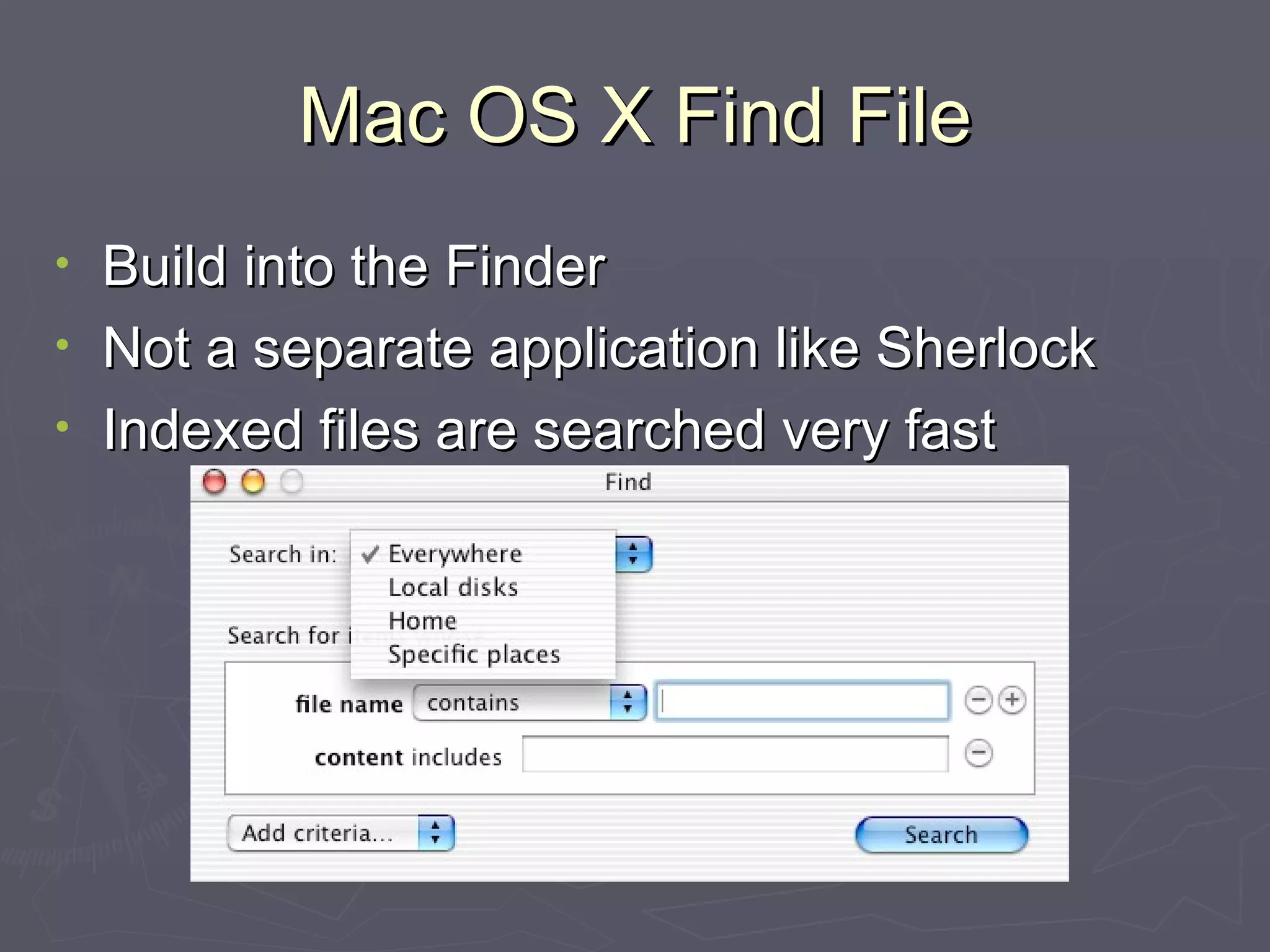
Mac OS X Find File Build into the Finder Not a separate application like Sherlock Indexed files are searched very fast

Intermediate Mac OS X

  • 1.
    Intermediate Mac OSX Presented by ArrowQuick Solutions Tuesday, January 27, 2004
  • 2.
    Mac OS XBasic Review Mac OS X is multi-user operating system Mac OS X Login & Desktop Mac OS X Icons & Windows Mac OS X Folder Structure Mac OS X Applications iTunes - application to organize and control music elements on your Macintosh
  • 3.
    Mac OS XSystem Preferences
  • 4.
    Mac OS XSystem Preferences
  • 5.
    Mac OS XSystem Preferences Mac OS X System Preferences Series of controls for all aspects of Aqua Divided into categories Personal Hardware Internet / Network System Accessibility dependent upon login
  • 6.
    One Mac -Many Users Mac OS X based on networked computer model of UNIX. As a multi-user operating system, Mac OS X requires you to login! Login Review (three methods) Automatic login with an specified account Mac OS X presents a list of accounts to login Mac OS X asks for a userid / password for login
  • 7.
    One Mac -Many Users Panther
  • 8.
    One Mac -Many Users Your “stuff” is tied to your login account Icons & settings for the Desktop and the Dock Desktop pictures, screen saver, language Your web browser favorites and email accounts Personally installed programs & fonts Choice of programs launching at login Documents
  • 9.
    One Mac -Many Users User Account Types Admin account - the initial Mac OS X account Normal account - restricted to Home Folder Superuser account (often called root user)
  • 10.
    One Mac -Many Users User Account Type - Administrator Must be one Admin account Can have multiple Admin accounts, but this is not recommended has this allows: changes to main folder structure changes to all System Preferences Change system wide printers, fonts, screen savers, etc…
  • 11.
    One Mac -Many Users User Account Type - Administrator Can use Utilities like Print Center / Disk Utility Can create new folders outside of home folder Decides who gets to have accounts on Mac This is NOT a super user account (root) The Administrator account can not see all files and folders on the Macintosh; there are still several restrictions and safety mechanisms to prevent the Administrator from damaging the operating system.
  • 12.
    One Mac -Many Users User Account Type - Normal Users Everyday access to their home folder Access to some System Preferences Screen Savers Can not create folders on main level of hard disk Can not delete applications / system resources Can access shared folder Can use all applications
  • 13.
    One Mac -Many Users User Accounts - Setup
  • 14.
    One Mac -Many Users User Accounts - Setup
  • 15.
    One Mac -Many Users User Accounts - Setup Name Field - First and Last Name Short Name - can not contain spaces Login Picture - preset or custom photo Password - Combination of characters (mix letter, numbers) Case sensitive (upper and lower case letters are treated as different letters) Admin accounts can not have blank passwords
  • 16.
    One Mac -Many Users User Accounts - A Bit of Protection Often times, walking away from your computer for short bit leaves your computer open for possible tampering Bathroom and refreshment breaks Set up your Screen Saver with “use my user account password” option. Screen saver will kick in after couple minutes To get back to work, move mouse/press key and then enter password when prompted to do so
  • 17.
    One Mac -Many Users Folder Structure Install fonts in Home Folder--> Library --> Fonts (remember your home folder uses your account’s short name) Users can install programs in their Home Folder Usually create an Applications folder Your personal applications in your home directory can not be used by other login accounts Set permissions on the Applications folder
  • 18.
    Application Installation ApplicationInstallation Process Go to http://www. versiontracker .com Search for freeware games Download the following: Maelstrom X 3.0.6 Install the software following Instructor's lead Run software and try it out.
  • 19.
    Application Installation ApplicationInstallers (different types) Downloads may come in as .sit, .gz, or .dmg If installation instructions are give, follow them Some installers will ask for Admin password Some package installers require restart Apple’s Software Updates should be run on regular basis
  • 20.
    Mac OS XPrinting / Fonts Mac OS X preinstalled printer drivers Epson, HP, Canon, Lexmark Many older printers not compatible Connectors (no round serial or parallel connectors) Drivers (companies not supporting older printers) Most networked PostScript printers supported Most USB inkjet printers in last 3 years Mac OS X 10.2 now supports CUPS Common UNIX Printing System Supports printers that do not have Mac OS X drivers
  • 21.
    Mac OS XPrinting / Fonts Mac Meets Printer (Print Center) Printer software Comes on Mac OS X installer CD Current versions are downloadable from the Internet Installation requires login to an Admin account Go to Print Center (Utility Folder) Pop-up Menu (USB, AppleTalk, LPR Printing) Add Printer Select from list
  • 22.
    Mac OS XPrinting / Fonts Page Setup Settings Format for any the printers you have added in Print Center Select Paper Size Select Orientation (landscape / portrait) Scale printout
  • 23.
    Mac OS XPrinting / Fonts Print Command
  • 24.
    Mac OS XPrinting / Fonts Print Command Save various groups of settings Many additional options under popup menu Layout Output Options Paper Feed Mode/quality settings Error Handling
  • 25.
    Mac OS XPrinting / Fonts Preview Button Sends printout to Preview or Acrobat application Save As PDF Immediate sends document to PDF file Type in name for the new PDF file PDFs can be sent as attachments to email messages PDFs can be opened by anyone with free Acrobat Reader software (part of Mac OS X)
  • 26.
    Mac OS XPrinting / Fonts Managing Printouts Each printer in Mac OS X Print Center has a printer queue that manages the printing process Sort or reorder multiple print jobs Delete print jobs Hold print jobs to change paper, then Resume Stop print queue completely for time period
  • 27.
    Mac OS XPrinting / Fonts More about PDFs Software turns any program’s output into universally readable PDF format Acrobat Acrobat costs $250.00, but the PDF builder in Mac OS X is part of system (free) Create PDFs to share documents with people who do not own the same software you do PDFs are high quality, accessible by PCs, Macintoshes, and other computers
  • 28.
    Mac OS XPrinting / Fonts Fonts in Mac OS X Support for multiple font technologies: PostScript Type 1 (Adobe - circa 1984) TrueType (Apple/Microsoft - circa 1994) OpenType (Microsoft/Adobe - circa 2000) Where fonts reside in Mac OS X (5 places) Your Private Fonts (Home --> Library --> Fonts) Main Fonts (Library --> Fonts) Network Fonts (Network --> Library --> Fonts) Essential Fonts (System --> Library --> Fonts) Classic Fonts (Mac OS 9 System Folder --> Fonts)
  • 29.
    Mac OS XPrinting / Fonts Installing Fonts Preinstalled collection of 50 fonts No longer a limit to number of fonts Drag fonts to appropriate font folder Accessing Fonts Carbonized Applications Use the applications font menu Cocoa Applications Font Panel gives you more options and control over fonts in your applications. (Text Edit)
  • 30.
  • 31.
    Mac OS XGraphic Formats Sophisticated Graphics Processing Quartz / Open GL / Quartz Express Interface features Menus fade away Menus are slightly transparent Applications can access translucency (Excel) 3D look using realistic drop shadowing Anti-aliasing
  • 32.
    Mac OS XGraphic Formats
  • 33.
    Mac OS XGraphic Formats File Formats PICT - standard 20 year old format TIFF - high density bit mapped format (popular in printing industry) JPEG - web format for photo realistic images GIF - web format with maximum of 256 colors PNG - open source web format, supports layers, AppleWorks & Preview use this in Mac OS X BMP - Windows standard format PDF - Universally readable document format
  • 34.
    Mac OS XGraphic Formats Screen Capture Shift-Command-3 takes snapshot of current screen and creates a PDF file on your desktop Shift-Command-4 (Region Capture) allows you to select region of screen to take snapshot Default format of graphic file created is PDF File placed on Desktop where names start with Picture 1 and are numbered sequentially
  • 35.
    Mac OS XGraphic Formats Screen Capture (tips and tricks) Press spacebar after hitting Shift-Command-4 (region capture) and you'll get a camera icon and the underlying window highlighted in blue. Move the camera over another window and the blue highlight shifts to that window. Click the mouse and you capture the highlighted window. Additionally, holding control (while using either Shift-Command-3 or Shift-Command-4) will result in the image being saved to the clipboard instead of to a file.
  • 36.
    Mac OS X Sound Volume Control Menu bar control System Preferences Adjust alerts volume, select sound Output options - adjust left / right balance Select other audio controllers Adding Alert Beeps Place AIFF files in User --> Library --> Sounds folder Download AIFFs off Internet Record your own sounds Shareware/freeware sound editors
  • 37.
    iPhoto iPhoto isan easy-to-use, all-in-one application for importing, organizing, editing and sharing digital photos. Import from digital cameras or other sources Organize into photo albums Enhance images (i.e. remove red eye) Make a photo book, order prints online Share photos online by publishing to website
  • 38.
    iPhoto Camera Compatibilityhttp://www.apple.com/iphoto/compatibility/camera.html When you plug in camera, iPhoto can be set to launch automatically and transfer images to Mac Printer Compatibility http://www.apple.com/iphoto/compatibility/printer.html Current version is iPhoto 2
  • 39.
    iPhoto Part ofiLife bundle Have iTunes provide the background music for iPhoto slideshows Use your iPhoto Library in iMovie with the “Ken Burns” effect Create DVD Slideshows in iDVD complete with DVD-ROM access to your photos
  • 40.
    iPhoto New iniPhoto 2: Archive your iPhoto Library to CD or DVD One-button enhance improves your photos Expanded email support for more mail clients New .Mac screen effects share your slideshows New printing templates to suit all your needs Feature video http://www.apple.com/iphoto/theater/enhance.html
  • 41.
    iPhoto Demonstration Connectcamera Import photos Create photo album Order prints online
  • 42.
    Mac OS X Multimedia Media Players QuickTime (standard / preferred) Windows Media Player (free download) RealPlayer (basic version is free) QuickTime vs QuickTime Pro ($29.95) Edit movies Import more media formats Export into other formats Special Effects available
  • 43.
    Mac OS X Multimedia QuickTime 6 part of Mac OS X 10.2 MPEG 4 and ACC support Work across Windows and Macintosh QuickTime TV (Internet streaming) QuickTime allows you to add: Text tracks Graphic sprites Audio clips Power Mac G5 Introduction at WWDC
  • 44.
    Mac OS XSherlock What is Sherlock? Mac OS X 10.2 has Sherlock version 3 No longer used to find files in Mac OS X 10.2 Web information finder service stock news / general headlines movie previews, locations and show times yellow pages listings eBay auction activity and much, much more Demonstration
  • 45.
    Mac OS XFind File Build into the Finder Not a separate application like Sherlock Indexed files are searched very fast