AN INTRODUCTIONTOAN INTRODUCTIONTO
SOLRSOLR
IMPLEMENTING SEARCHWITH OPEN SOURCE
SOFTWAREJayesh BhoyarJayesh Bhoyar
Enterprise Search Architect
AgendaAgenda
1. Introduction to Solr
2. SolrTerminologies
3. Installation and Configuration
4. Configuration files schema.xml and solrconfig.xml
5. Features of SOLR
1. Hit Highlighting
2. Auto Complete / Suggester
3. Stop words
4. Synonyms
5. SpellCheck
6. Geo Spatial Search
7. Result Grouping
8. Query Syntax
9. Query Boosting
10. Content Spotlighting
11. Block Record / Remove URL Feature
12. Content Spotlighting / Merchandising / Banner / Elevate
13. Block Record / Remove URL Feature
AgendaAgenda
6. Indexing the Data
7. Search Queries
8. DataImportHandler - DIH
9. Plugins to index various types of Data (XML, CSV, DB, Filesystem)
10. Solr Client APIs
11. Overview of SOLRJ API
12. Running Solr onTomcat
13. Enabling SSL on Solr
14. Zookeeper Configuration
15. Solr Cloud Deployment
16. Production Indexing Architecture
17. Production Serving Architecture
18. Solr Upgradation
19. References
Introduction to SolrIntroduction to Solr
TerminologiesTerminologies
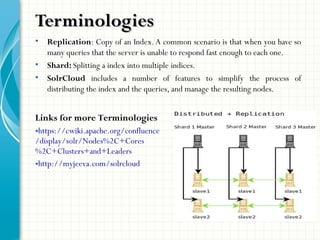
• Replication: Copy of an Index.A common scenario is that when you have so
many queries that the server is unable to respond fast enough to each one.
• Shard: Splitting a index into multiple indices.
• SolrCloud includes a number of features to simplify the process of
distributing the index and the queries, and manage the resulting nodes.
Links for more Terminologies
•https://cwiki.apache.org/confluence
/display/solr/Nodes%2C+Cores
%2C+Clusters+and+Leaders
•http://myjeeva.com/solrcloud
Installation and ConfigurationInstallation and Configuration
• Download the Zip file from http://lucene.apache.org/solr/
• Untar the zip file as Solr4.10.2 folder.Now this is SOLR_HOME folder.
• Go to SOLR_HOMEexamples in command prompt
• Run > Java –jar start.jar
• By default it will start the SOLR at 8983 port
• Go to browser http://localhost:8983/solr
• schema.xml: This file defines all the schema related information.
<field name="id" type="string" indexed="true" stored="true"
required="true" multiValued="false" />
• name: mandatory - the name for the field
• type: mandatory - the name of a field type from the <types> fieldType section
• indexed: true if this field should be indexed (searchable or sortable)
• stored: true if this field should be retrievable
• multiValued: true if this field may contain multiple values per document
• required:The field is required. It will throw an error if the value does not exist
• default: a value that should be used if no value is specified when adding a
document.
<fieldType name="string" class="solr.StrField" sortMissingLast="true" />
• field type definitions.The "name" attribute is just a label to be used by field
definitions. The "class“ attribute and any other attributes determine the real
behavior of the fieldType. Class names starting with "solr" refer to java classes in a
standard package such as org.apache.solr.analysis.
Configuration filesConfiguration files
• solrconfig.xml. This file defines all the SOLR configuration such as.
• From where Solr should pick the dependency jar files
• SOLR Caching configurations
• Defining Search Handlers
• Defining spell check, Facet, Hit Highlighting.
• Auto Complete
Configuration filesConfiguration files
• Full-Text withAdvanced Search Capabilities
• Schema when you want, schemaless when you don't
• Faceted Search and Filtering
• Geospatial Search
• Auto Complete, Spell Check and More LikeThis.
• JSON, CSV, XML and more are supported out of the box.
• Rich Document Parsing –Tika built-in.
• Highly Configurable and User Extensible Caching
• Fine-grained controls on Solr's built-in caches make it easy to optimize
performance
• Highly Scalable and FaultTolerant
• Solr supports multi-tenant architectures, making it easy to isolate users and
content.
• Near Real-Time Indexing
Basic Features of SolrBasic Features of Solr
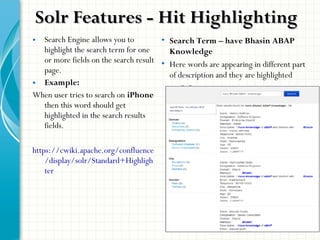
• Search Engine allows you to
highlight the search term for one
or more fields on the search result
page.
• Example:
When user tries to search on iPhone
then this word should get
highlighted in the search results
fields.
https://cwiki.apache.org/confluence
/display/solr/Standard+Highligh
ter
Solr Features - Hit HighlightingSolr Features - Hit Highlighting
• Search Term – have Bhasin ABAP
Knowledge
• Here words are appearing in different part
of description and they are highlighted
Solr FeaturesSolr Features
• Auto Complete / Suggester
• https://cwiki.apache.org/confluence/display/solr/Suggester
• Stop words
• https://cwiki.apache.org/confluence/display/solr/Managed+Resources
• Synonyms
• https://cwiki.apache.org/confluence/display/solr/Managed+Resources
• SpellCheck
• https://cwiki.apache.org/confluence/display/solr/Spell+Checking
• Geo Spatial Search
• https://cwiki.apache.org/confluence/display/solr/Spatial+Search
• Result Grouping
• https://cwiki.apache.org/confluence/display/solr/Result+Grouping
• Query Syntax
• https://cwiki.apache.org/confluence/display/solr/The+DisMax+Query
+Parser
• Query Boosting
• https://wiki.apache.org/solr/SolrRelevancyFAQ
Search Engine enables you to force certain documents to the top of search results.
When users search a term that you have specified in content spotlighting rules, the
search engine always presents the boosted/forced results from content spotlighting
rules on the top of search results.This can also be leveraged for Search feature space.
Example:
If administrator sets a rule that for keyword: “iPhone” he wants to show the result of
Product: “iPhone 5s” on top of the search result. So whenever end user searches for
iPhone he will get “iPhone 5s” as his first result on the search result page irrespective
of the actual relevancy.
In this way administrator can define various rules for Content Spotlighting or
Merchandising their Products/Content
Solr do not have any inbuilt/out of the box functionality/feature for
content spotlighting. However this can be achieved by some
customization
Search Feature - Content SpotlightingSearch Feature - Content Spotlighting
Certain document will be present in index but at the search time business do not
want to display those certain documents on Search Result Page.
Solr do not have any inbuilt/out of the box functionality/feature for
this. However this can be achieved by some customization.
Search Feature - Block Record / Remove URL FeatureSearch Feature - Block Record / Remove URL Feature
Indexing the DataIndexing the Data
• Simple PostTool: The tool is called post.jar and is found in the
'exampledocs‘ directory:
$SOLR_HOME/example/exampledocs/post.jar includes a cross-platform
Java tool for POST-ing documents.
• To index all documents with file extension .xml.
• java -jar post.jar *.xml
• Index all CSV files.
• java -Dtype=text/csv -jar post.jar *.csv
• Index all JSON files.
• java -Dtype=application/json -jar post.jar *.json
• Automatically detect the content type based on the file extension
• java -Dauto=yes -jar post.jar *.*
 Full text search
• http://localhost:8983/solr/select?q=India
 Search only within a field
• http://localhost:8983/solr/select?q=category:newsAND “Modi in
Australia”
 Control which fields are displayed in result
• http://localhost:8983/solr/select?q=video&fl=id,category
 Provide ranges to fields
• http://localhost:8983/solr/select?q=price:[0TO400]&fl=id,name,price
 Faceting information
• http://localhost:8983/solr/select?
q=news&fl=id,description&facet=true&facet.field=category
 More like this (MLT)
• http://localhost:8983/solr/select?
q=India&mlt=true&mlt.fl=headline&mlt.mindf=1&mlt.mintf=1&fl=id,sco
re&rows=100
• More information on how this works and the options available can be found at
Search QueriesSearch Queries
• Data Import Handler (DIH) provides a mechanism for importing content
from a data store and indexing it.
• Relational databases,
• HTTP based data sources such as RSS andATOM feeds,
• e-mail repositories
• structured XML where an XPath processor is used to generate fields.
• https://cwiki.apache.org/confluence/display/solr/Uploading+Structured+Da
ta+Store+Data+with+the+Data+Import+Handler
• http://wiki.apache.org/solr/DataImportHandler
Data Import Handler (DIH)Data Import Handler (DIH)
Plugins to index various types of DataPlugins to index various types of Data
• Simple PostTool: The tool is called post.jar and is found in the
'exampledocs‘ directory:
$SOLR_HOME/example/exampledocs/post.jar includes a cross-platform
Java tool for POST-ing documents.
• To index all documents with file extension .xml.
• java -jar post.jar *.xml
• Index all CSV files.
• java -Dtype=text/csv -jar post.jar *.csv
• Index all JSON files.
• java -Dtype=application/json -jar post.jar *.json
• Automatically detect the content type based on the file extension
• java -Dauto=yes -jar post.jar *.*
• HTML interface
• Update
• Delete
• Commit
Solr Client APIsSolr Client APIs
• Solr can be integrated with, among others…
• Ruby - solr-ruby
• PHP
• Java - SolrJ
• Python
• JSON
• Forrest/Cocoon
• C# or Deveel Solr Client or solrnet
• Coldfusion
• Drupal or apacheSolr project for Drupal
• https://cwiki.apache.org/confluence/display/solr/Introduction+to+Client+
APIs
• https://cwiki.apache.org/confluence/display/solr/Indexing+and+Basic+Data
+Operations
Overview of SOLRJ APIOverview of SOLRJ API
• http://wiki.apache.org/solr/Solrj
• http://lucene.apache.org/solr/4_10_0/solr-solrj/
• Prior to Solr 4.0 version; we needs to restart the SOLR instance if we make
a change in schema.xml and solrconfig.xml.
But now with SOLR4.0 onwards, this can be achieved
using RELOAD command.
Command:
http://localhost:8983/solr/admin/cores?action=RELOAD&core=core0
Now, If you make changes to your solrconfig.xml or schema.xml files and you
want to start using them without stopping and restarting your SOLR instance. 
Then just execute the RELOAD command on your core.
NOTE:
However there are few configuration changes which still needs, the restart of
SOLR instance, 
1) IndexWriter related settings in <indexConfig>
2) Change in <dataDir> location
Reference:
https://wiki.apache.org/solr/CoreAdmin#RELOAD
RELOAD solrconfig.xml & schema.xmlRELOAD solrconfig.xml & schema.xml
• https://cwiki.apache.org/confluence/display/solr/Running+Solr+on+Tomc
at
Enabling SSL on SolrEnabling SSL on Solr
• https://cwiki.apache.org/confluence/display/solr/Enabling+SSL
Running Solr onTomcatRunning Solr onTomcat
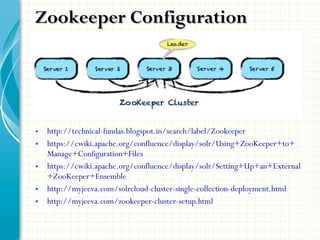
• http://technical-fundas.blogspot.in/search/label/Zookeeper
• https://cwiki.apache.org/confluence/display/solr/Using+ZooKeeper+to+
Manage+Configuration+Files
• https://cwiki.apache.org/confluence/display/solr/Setting+Up+an+External
+ZooKeeper+Ensemble
• http://myjeeva.com/solrcloud-cluster-single-collection-deployment.html
• http://myjeeva.com/zookeeper-cluster-setup.html
Zookeeper ConfigurationZookeeper Configuration
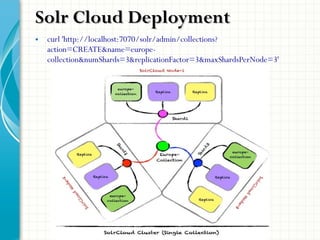
• curl 'http://localhost:7070/solr/admin/collections?
action=CREATE&name=europe-
collection&numShards=3&replicationFactor=3&maxShardsPerNode=3'
Solr Cloud DeploymentSolr Cloud Deployment
• http://myjeeva.com/solrcloud-cluster-single-collection-deployment.html
Solr Cloud DeploymentSolr Cloud Deployment
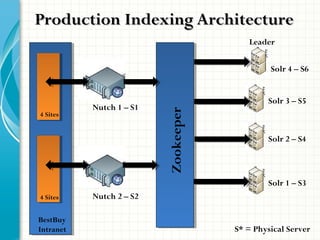
Production Indexing ArchitectureProduction Indexing Architecture
BestBuy
Intranet
4 Sites
4 Sites
Nutch 2 – S2
Nutch 1 – S1
Zookeeper
Solr 4 – S6
Solr 3 – S5
Solr 2 – S4
Solr 1 – S3
Leader
S* = Physical Server
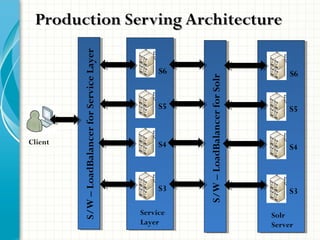
Production Serving ArchitectureProduction Serving Architecture
S/W–LoadBalancerforServiceLayer
S6
S5
S4
S3
Service
Layer
S/W–LoadBalancerforSolr
S6
S5
S4
S3
Solr
Server
Client
• http://myjeeva.com/upgrade-migrate-solr-3x-to-solr-4.html
Solr UpgradationSolr Upgradation
• http://lucene.apache.org/solr/
• https://cwiki.apache.org/confluence/display/solr/Getting+Started
• http://wiki.apache.org/solr/Solrj
• http://lucene.apache.org/solr/4_10_0/solr-solrj/
• https://cwiki.apache.org/confluence/display/solr/Introduction+to+Client+APIs
• https://cwiki.apache.org/confluence/display/solr/Indexing+and+Basic+Data+O
perations
• https://cwiki.apache.org/confluence/display/solr/Suggester
• https://cwiki.apache.org/confluence/display/solr/Managed+Resources
• https://cwiki.apache.org/confluence/display/solr/Spell+Checking
• https://cwiki.apache.org/confluence/display/solr/Spatial+Search
• https://cwiki.apache.org/confluence/display/solr/Result+Grouping
• https://cwiki.apache.org/confluence/display/solr/The+DisMax+Query+Parser
• https://wiki.apache.org/solr/SolrRelevancyFAQ
ReferencesReferences
Thank YouThank You
Jayesh BhoyarJayesh Bhoyar
https://www.linkedin.com/in/jayeshbhoyar/

Introduction to Solr

  • 1.
    AN INTRODUCTIONTOAN INTRODUCTIONTO SOLRSOLR IMPLEMENTINGSEARCHWITH OPEN SOURCE SOFTWAREJayesh BhoyarJayesh Bhoyar Enterprise Search Architect
  • 2.
    AgendaAgenda 1. Introduction toSolr 2. SolrTerminologies 3. Installation and Configuration 4. Configuration files schema.xml and solrconfig.xml 5. Features of SOLR 1. Hit Highlighting 2. Auto Complete / Suggester 3. Stop words 4. Synonyms 5. SpellCheck 6. Geo Spatial Search 7. Result Grouping 8. Query Syntax 9. Query Boosting 10. Content Spotlighting 11. Block Record / Remove URL Feature 12. Content Spotlighting / Merchandising / Banner / Elevate 13. Block Record / Remove URL Feature
  • 3.
    AgendaAgenda 6. Indexing theData 7. Search Queries 8. DataImportHandler - DIH 9. Plugins to index various types of Data (XML, CSV, DB, Filesystem) 10. Solr Client APIs 11. Overview of SOLRJ API 12. Running Solr onTomcat 13. Enabling SSL on Solr 14. Zookeeper Configuration 15. Solr Cloud Deployment 16. Production Indexing Architecture 17. Production Serving Architecture 18. Solr Upgradation 19. References
  • 4.
  • 5.
    TerminologiesTerminologies • Replication: Copyof an Index.A common scenario is that when you have so many queries that the server is unable to respond fast enough to each one. • Shard: Splitting a index into multiple indices. • SolrCloud includes a number of features to simplify the process of distributing the index and the queries, and manage the resulting nodes. Links for more Terminologies •https://cwiki.apache.org/confluence /display/solr/Nodes%2C+Cores %2C+Clusters+and+Leaders •http://myjeeva.com/solrcloud
  • 6.
    Installation and ConfigurationInstallationand Configuration • Download the Zip file from http://lucene.apache.org/solr/ • Untar the zip file as Solr4.10.2 folder.Now this is SOLR_HOME folder. • Go to SOLR_HOMEexamples in command prompt • Run > Java –jar start.jar • By default it will start the SOLR at 8983 port • Go to browser http://localhost:8983/solr
  • 7.
    • schema.xml: Thisfile defines all the schema related information. <field name="id" type="string" indexed="true" stored="true" required="true" multiValued="false" /> • name: mandatory - the name for the field • type: mandatory - the name of a field type from the <types> fieldType section • indexed: true if this field should be indexed (searchable or sortable) • stored: true if this field should be retrievable • multiValued: true if this field may contain multiple values per document • required:The field is required. It will throw an error if the value does not exist • default: a value that should be used if no value is specified when adding a document. <fieldType name="string" class="solr.StrField" sortMissingLast="true" /> • field type definitions.The "name" attribute is just a label to be used by field definitions. The "class“ attribute and any other attributes determine the real behavior of the fieldType. Class names starting with "solr" refer to java classes in a standard package such as org.apache.solr.analysis. Configuration filesConfiguration files
  • 8.
    • solrconfig.xml. Thisfile defines all the SOLR configuration such as. • From where Solr should pick the dependency jar files • SOLR Caching configurations • Defining Search Handlers • Defining spell check, Facet, Hit Highlighting. • Auto Complete Configuration filesConfiguration files
  • 9.
    • Full-Text withAdvancedSearch Capabilities • Schema when you want, schemaless when you don't • Faceted Search and Filtering • Geospatial Search • Auto Complete, Spell Check and More LikeThis. • JSON, CSV, XML and more are supported out of the box. • Rich Document Parsing –Tika built-in. • Highly Configurable and User Extensible Caching • Fine-grained controls on Solr's built-in caches make it easy to optimize performance • Highly Scalable and FaultTolerant • Solr supports multi-tenant architectures, making it easy to isolate users and content. • Near Real-Time Indexing Basic Features of SolrBasic Features of Solr
  • 10.
    • Search Engineallows you to highlight the search term for one or more fields on the search result page. • Example: When user tries to search on iPhone then this word should get highlighted in the search results fields. https://cwiki.apache.org/confluence /display/solr/Standard+Highligh ter Solr Features - Hit HighlightingSolr Features - Hit Highlighting • Search Term – have Bhasin ABAP Knowledge • Here words are appearing in different part of description and they are highlighted
  • 11.
    Solr FeaturesSolr Features •Auto Complete / Suggester • https://cwiki.apache.org/confluence/display/solr/Suggester • Stop words • https://cwiki.apache.org/confluence/display/solr/Managed+Resources • Synonyms • https://cwiki.apache.org/confluence/display/solr/Managed+Resources • SpellCheck • https://cwiki.apache.org/confluence/display/solr/Spell+Checking • Geo Spatial Search • https://cwiki.apache.org/confluence/display/solr/Spatial+Search • Result Grouping • https://cwiki.apache.org/confluence/display/solr/Result+Grouping • Query Syntax • https://cwiki.apache.org/confluence/display/solr/The+DisMax+Query +Parser • Query Boosting • https://wiki.apache.org/solr/SolrRelevancyFAQ
  • 12.
    Search Engine enablesyou to force certain documents to the top of search results. When users search a term that you have specified in content spotlighting rules, the search engine always presents the boosted/forced results from content spotlighting rules on the top of search results.This can also be leveraged for Search feature space. Example: If administrator sets a rule that for keyword: “iPhone” he wants to show the result of Product: “iPhone 5s” on top of the search result. So whenever end user searches for iPhone he will get “iPhone 5s” as his first result on the search result page irrespective of the actual relevancy. In this way administrator can define various rules for Content Spotlighting or Merchandising their Products/Content Solr do not have any inbuilt/out of the box functionality/feature for content spotlighting. However this can be achieved by some customization Search Feature - Content SpotlightingSearch Feature - Content Spotlighting
  • 13.
    Certain document willbe present in index but at the search time business do not want to display those certain documents on Search Result Page. Solr do not have any inbuilt/out of the box functionality/feature for this. However this can be achieved by some customization. Search Feature - Block Record / Remove URL FeatureSearch Feature - Block Record / Remove URL Feature
  • 14.
    Indexing the DataIndexingthe Data • Simple PostTool: The tool is called post.jar and is found in the 'exampledocs‘ directory: $SOLR_HOME/example/exampledocs/post.jar includes a cross-platform Java tool for POST-ing documents. • To index all documents with file extension .xml. • java -jar post.jar *.xml • Index all CSV files. • java -Dtype=text/csv -jar post.jar *.csv • Index all JSON files. • java -Dtype=application/json -jar post.jar *.json • Automatically detect the content type based on the file extension • java -Dauto=yes -jar post.jar *.*
  • 15.
     Full textsearch • http://localhost:8983/solr/select?q=India  Search only within a field • http://localhost:8983/solr/select?q=category:newsAND “Modi in Australia”  Control which fields are displayed in result • http://localhost:8983/solr/select?q=video&fl=id,category  Provide ranges to fields • http://localhost:8983/solr/select?q=price:[0TO400]&fl=id,name,price  Faceting information • http://localhost:8983/solr/select? q=news&fl=id,description&facet=true&facet.field=category  More like this (MLT) • http://localhost:8983/solr/select? q=India&mlt=true&mlt.fl=headline&mlt.mindf=1&mlt.mintf=1&fl=id,sco re&rows=100 • More information on how this works and the options available can be found at Search QueriesSearch Queries
  • 16.
    • Data ImportHandler (DIH) provides a mechanism for importing content from a data store and indexing it. • Relational databases, • HTTP based data sources such as RSS andATOM feeds, • e-mail repositories • structured XML where an XPath processor is used to generate fields. • https://cwiki.apache.org/confluence/display/solr/Uploading+Structured+Da ta+Store+Data+with+the+Data+Import+Handler • http://wiki.apache.org/solr/DataImportHandler Data Import Handler (DIH)Data Import Handler (DIH)
  • 17.
    Plugins to indexvarious types of DataPlugins to index various types of Data • Simple PostTool: The tool is called post.jar and is found in the 'exampledocs‘ directory: $SOLR_HOME/example/exampledocs/post.jar includes a cross-platform Java tool for POST-ing documents. • To index all documents with file extension .xml. • java -jar post.jar *.xml • Index all CSV files. • java -Dtype=text/csv -jar post.jar *.csv • Index all JSON files. • java -Dtype=application/json -jar post.jar *.json • Automatically detect the content type based on the file extension • java -Dauto=yes -jar post.jar *.* • HTML interface • Update • Delete • Commit
  • 18.
    Solr Client APIsSolrClient APIs • Solr can be integrated with, among others… • Ruby - solr-ruby • PHP • Java - SolrJ • Python • JSON • Forrest/Cocoon • C# or Deveel Solr Client or solrnet • Coldfusion • Drupal or apacheSolr project for Drupal • https://cwiki.apache.org/confluence/display/solr/Introduction+to+Client+ APIs • https://cwiki.apache.org/confluence/display/solr/Indexing+and+Basic+Data +Operations
  • 19.
    Overview of SOLRJAPIOverview of SOLRJ API • http://wiki.apache.org/solr/Solrj • http://lucene.apache.org/solr/4_10_0/solr-solrj/
  • 20.
    • Prior toSolr 4.0 version; we needs to restart the SOLR instance if we make a change in schema.xml and solrconfig.xml. But now with SOLR4.0 onwards, this can be achieved using RELOAD command. Command: http://localhost:8983/solr/admin/cores?action=RELOAD&core=core0 Now, If you make changes to your solrconfig.xml or schema.xml files and you want to start using them without stopping and restarting your SOLR instance.  Then just execute the RELOAD command on your core. NOTE: However there are few configuration changes which still needs, the restart of SOLR instance,  1) IndexWriter related settings in <indexConfig> 2) Change in <dataDir> location Reference: https://wiki.apache.org/solr/CoreAdmin#RELOAD RELOAD solrconfig.xml & schema.xmlRELOAD solrconfig.xml & schema.xml
  • 21.
    • https://cwiki.apache.org/confluence/display/solr/Running+Solr+on+Tomc at Enabling SSLon SolrEnabling SSL on Solr • https://cwiki.apache.org/confluence/display/solr/Enabling+SSL Running Solr onTomcatRunning Solr onTomcat
  • 22.
    • http://technical-fundas.blogspot.in/search/label/Zookeeper • https://cwiki.apache.org/confluence/display/solr/Using+ZooKeeper+to+ Manage+Configuration+Files •https://cwiki.apache.org/confluence/display/solr/Setting+Up+an+External +ZooKeeper+Ensemble • http://myjeeva.com/solrcloud-cluster-single-collection-deployment.html • http://myjeeva.com/zookeeper-cluster-setup.html Zookeeper ConfigurationZookeeper Configuration
  • 23.
  • 24.
  • 25.
    Production Indexing ArchitectureProductionIndexing Architecture BestBuy Intranet 4 Sites 4 Sites Nutch 2 – S2 Nutch 1 – S1 Zookeeper Solr 4 – S6 Solr 3 – S5 Solr 2 – S4 Solr 1 – S3 Leader S* = Physical Server
  • 26.
    Production Serving ArchitectureProductionServing Architecture S/W–LoadBalancerforServiceLayer S6 S5 S4 S3 Service Layer S/W–LoadBalancerforSolr S6 S5 S4 S3 Solr Server Client
  • 27.
  • 28.
    • http://lucene.apache.org/solr/ • https://cwiki.apache.org/confluence/display/solr/Getting+Started •http://wiki.apache.org/solr/Solrj • http://lucene.apache.org/solr/4_10_0/solr-solrj/ • https://cwiki.apache.org/confluence/display/solr/Introduction+to+Client+APIs • https://cwiki.apache.org/confluence/display/solr/Indexing+and+Basic+Data+O perations • https://cwiki.apache.org/confluence/display/solr/Suggester • https://cwiki.apache.org/confluence/display/solr/Managed+Resources • https://cwiki.apache.org/confluence/display/solr/Managed+Resources • https://cwiki.apache.org/confluence/display/solr/Spell+Checking • https://cwiki.apache.org/confluence/display/solr/Spatial+Search • https://cwiki.apache.org/confluence/display/solr/Result+Grouping • https://cwiki.apache.org/confluence/display/solr/The+DisMax+Query+Parser • https://wiki.apache.org/solr/SolrRelevancyFAQ ReferencesReferences
  • 29.
    Thank YouThank You JayeshBhoyarJayesh Bhoyar https://www.linkedin.com/in/jayeshbhoyar/

Editor's Notes

  • #2 This template can be used as a starter file for presenting training materials in a group setting. Sections Right-click on a slide to add sections. Sections can help to organize your slides or facilitate collaboration between multiple authors. Notes Use the Notes section for delivery notes or to provide additional details for the audience. View these notes in Presentation View during your presentation. Keep in mind the font size (important for accessibility, visibility, videotaping, and online production) Coordinated colors Pay particular attention to the graphs, charts, and text boxes. Consider that attendees will print in black and white or grayscale. Run a test print to make sure your colors work when printed in pure black and white and grayscale. Graphics, tables, and graphs Keep it simple: If possible, use consistent, non-distracting styles and colors. Label all graphs and tables.
  • #3 Give a brief overview of the presentation. Describe the major focus of the presentation and why it is important. Introduce each of the major topics. To provide a road map for the audience, you can repeat this Overview slide throughout the presentation, highlighting the particular topic you will discuss next.
  • #5 This is another option for an Overview slide.
  • #7 Content Slide: This is usually the most frequently used slide in every presentation. Use this slide for Text heavy slides. Text can only be used in bullet points Title Heading – font size 30, Arial bold Slide Content – Should not reduce beyond Arial font 16 If you need to use sub bullets please use the indent buttons located next to the bullets buttons in the tool bar and this will automatically provide you with the second, third, fourth &amp; fifth level bullet styles and font sizes Please note you can also press the tab key to create the different levels of bulleted content
  • #8 Content Slide: This is usually the most frequently used slide in every presentation. Use this slide for Text heavy slides. Text can only be used in bullet points Title Heading – font size 30, Arial bold Slide Content – Should not reduce beyond Arial font 16 If you need to use sub bullets please use the indent buttons located next to the bullets buttons in the tool bar and this will automatically provide you with the second, third, fourth &amp; fifth level bullet styles and font sizes Please note you can also press the tab key to create the different levels of bulleted content
  • #9 Content Slide: This is usually the most frequently used slide in every presentation. Use this slide for Text heavy slides. Text can only be used in bullet points Title Heading – font size 30, Arial bold Slide Content – Should not reduce beyond Arial font 16 If you need to use sub bullets please use the indent buttons located next to the bullets buttons in the tool bar and this will automatically provide you with the second, third, fourth &amp; fifth level bullet styles and font sizes Please note you can also press the tab key to create the different levels of bulleted content
  • #10 Content Slide: This is usually the most frequently used slide in every presentation. Use this slide for Text heavy slides. Text can only be used in bullet points Title Heading – font size 30, Arial bold Slide Content – Should not reduce beyond Arial font 16 If you need to use sub bullets please use the indent buttons located next to the bullets buttons in the tool bar and this will automatically provide you with the second, third, fourth &amp; fifth level bullet styles and font sizes Please note you can also press the tab key to create the different levels of bulleted content
  • #11 Content Slide: This is usually the most frequently used slide in every presentation. Use this slide for Text heavy slides. Text can only be used in bullet points Title Heading – font size 30, Arial bold Slide Content – Should not reduce beyond Arial font 16 If you need to use sub bullets please use the indent buttons located next to the bullets buttons in the tool bar and this will automatically provide you with the second, third, fourth &amp; fifth level bullet styles and font sizes Please note you can also press the tab key to create the different levels of bulleted content
  • #12 Content Slide: This is usually the most frequently used slide in every presentation. Use this slide for Text heavy slides. Text can only be used in bullet points Title Heading – font size 30, Arial bold Slide Content – Should not reduce beyond Arial font 16 If you need to use sub bullets please use the indent buttons located next to the bullets buttons in the tool bar and this will automatically provide you with the second, third, fourth &amp; fifth level bullet styles and font sizes Please note you can also press the tab key to create the different levels of bulleted content
  • #13 Content Slide: This is usually the most frequently used slide in every presentation. Use this slide for Text heavy slides. Text can only be used in bullet points Title Heading – font size 30, Arial bold Slide Content – Should not reduce beyond Arial font 16 If you need to use sub bullets please use the indent buttons located next to the bullets buttons in the tool bar and this will automatically provide you with the second, third, fourth &amp; fifth level bullet styles and font sizes Please note you can also press the tab key to create the different levels of bulleted content
  • #14 Content Slide: This is usually the most frequently used slide in every presentation. Use this slide for Text heavy slides. Text can only be used in bullet points Title Heading – font size 30, Arial bold Slide Content – Should not reduce beyond Arial font 16 If you need to use sub bullets please use the indent buttons located next to the bullets buttons in the tool bar and this will automatically provide you with the second, third, fourth &amp; fifth level bullet styles and font sizes Please note you can also press the tab key to create the different levels of bulleted content
  • #16 Content Slide: This is usually the most frequently used slide in every presentation. Use this slide for Text heavy slides. Text can only be used in bullet points Title Heading – font size 30, Arial bold Slide Content – Should not reduce beyond Arial font 16 If you need to use sub bullets please use the indent buttons located next to the bullets buttons in the tool bar and this will automatically provide you with the second, third, fourth &amp; fifth level bullet styles and font sizes Please note you can also press the tab key to create the different levels of bulleted content
  • #17 Content Slide: This is usually the most frequently used slide in every presentation. Use this slide for Text heavy slides. Text can only be used in bullet points Title Heading – font size 30, Arial bold Slide Content – Should not reduce beyond Arial font 16 If you need to use sub bullets please use the indent buttons located next to the bullets buttons in the tool bar and this will automatically provide you with the second, third, fourth &amp; fifth level bullet styles and font sizes Please note you can also press the tab key to create the different levels of bulleted content
  • #19 Content Slide: This is usually the most frequently used slide in every presentation. Use this slide for Text heavy slides. Text can only be used in bullet points Title Heading – font size 30, Arial bold Slide Content – Should not reduce beyond Arial font 16 If you need to use sub bullets please use the indent buttons located next to the bullets buttons in the tool bar and this will automatically provide you with the second, third, fourth &amp; fifth level bullet styles and font sizes Please note you can also press the tab key to create the different levels of bulleted content
  • #20 Content Slide: This is usually the most frequently used slide in every presentation. Use this slide for Text heavy slides. Text can only be used in bullet points Title Heading – font size 30, Arial bold Slide Content – Should not reduce beyond Arial font 16 If you need to use sub bullets please use the indent buttons located next to the bullets buttons in the tool bar and this will automatically provide you with the second, third, fourth &amp; fifth level bullet styles and font sizes Please note you can also press the tab key to create the different levels of bulleted content
  • #21 Content Slide: This is usually the most frequently used slide in every presentation. Use this slide for Text heavy slides. Text can only be used in bullet points Title Heading – font size 30, Arial bold Slide Content – Should not reduce beyond Arial font 16 If you need to use sub bullets please use the indent buttons located next to the bullets buttons in the tool bar and this will automatically provide you with the second, third, fourth &amp; fifth level bullet styles and font sizes Please note you can also press the tab key to create the different levels of bulleted content
  • #22 Content Slide: This is usually the most frequently used slide in every presentation. Use this slide for Text heavy slides. Text can only be used in bullet points Title Heading – font size 30, Arial bold Slide Content – Should not reduce beyond Arial font 16 If you need to use sub bullets please use the indent buttons located next to the bullets buttons in the tool bar and this will automatically provide you with the second, third, fourth &amp; fifth level bullet styles and font sizes Please note you can also press the tab key to create the different levels of bulleted content
  • #23 Content Slide: This is usually the most frequently used slide in every presentation. Use this slide for Text heavy slides. Text can only be used in bullet points Title Heading – font size 30, Arial bold Slide Content – Should not reduce beyond Arial font 16 If you need to use sub bullets please use the indent buttons located next to the bullets buttons in the tool bar and this will automatically provide you with the second, third, fourth &amp; fifth level bullet styles and font sizes Please note you can also press the tab key to create the different levels of bulleted content
  • #24 Content Slide: This is usually the most frequently used slide in every presentation. Use this slide for Text heavy slides. Text can only be used in bullet points Title Heading – font size 30, Arial bold Slide Content – Should not reduce beyond Arial font 16 If you need to use sub bullets please use the indent buttons located next to the bullets buttons in the tool bar and this will automatically provide you with the second, third, fourth &amp; fifth level bullet styles and font sizes Please note you can also press the tab key to create the different levels of bulleted content
  • #25 Content Slide: This is usually the most frequently used slide in every presentation. Use this slide for Text heavy slides. Text can only be used in bullet points Title Heading – font size 30, Arial bold Slide Content – Should not reduce beyond Arial font 16 If you need to use sub bullets please use the indent buttons located next to the bullets buttons in the tool bar and this will automatically provide you with the second, third, fourth &amp; fifth level bullet styles and font sizes Please note you can also press the tab key to create the different levels of bulleted content
  • #26 Content Slide: This is usually the most frequently used slide in every presentation. Use this slide for Text heavy slides. Text can only be used in bullet points Title Heading – font size 30, Arial bold Slide Content – Should not reduce beyond Arial font 16 If you need to use sub bullets please use the indent buttons located next to the bullets buttons in the tool bar and this will automatically provide you with the second, third, fourth &amp; fifth level bullet styles and font sizes Please note you can also press the tab key to create the different levels of bulleted content
  • #27 Content Slide: This is usually the most frequently used slide in every presentation. Use this slide for Text heavy slides. Text can only be used in bullet points Title Heading – font size 30, Arial bold Slide Content – Should not reduce beyond Arial font 16 If you need to use sub bullets please use the indent buttons located next to the bullets buttons in the tool bar and this will automatically provide you with the second, third, fourth &amp; fifth level bullet styles and font sizes Please note you can also press the tab key to create the different levels of bulleted content
  • #28 Content Slide: This is usually the most frequently used slide in every presentation. Use this slide for Text heavy slides. Text can only be used in bullet points Title Heading – font size 30, Arial bold Slide Content – Should not reduce beyond Arial font 16 If you need to use sub bullets please use the indent buttons located next to the bullets buttons in the tool bar and this will automatically provide you with the second, third, fourth &amp; fifth level bullet styles and font sizes Please note you can also press the tab key to create the different levels of bulleted content
  • #29 Content Slide: This is usually the most frequently used slide in every presentation. Use this slide for Text heavy slides. Text can only be used in bullet points Title Heading – font size 30, Arial bold Slide Content – Should not reduce beyond Arial font 16 If you need to use sub bullets please use the indent buttons located next to the bullets buttons in the tool bar and this will automatically provide you with the second, third, fourth &amp; fifth level bullet styles and font sizes Please note you can also press the tab key to create the different levels of bulleted content