
Introduction to Information Technology
4.5. Information Systems: Software (File Management)
Introduction to Information Technology
INT-1010
Prof C
Luis R Castellanos
1
04.5
Information Systems:
Software
(File Management)
Introduction to Information Technology
4.5. Information Systems: Software (File Management)
2
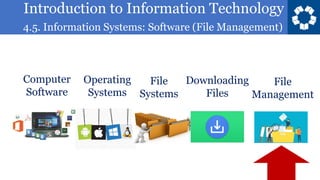
Operating
Systems
Computer
Software
File
Systems
Downloading
Files
File
Management
Introduction to Information Technology
4.5. Information Systems: Software (File Management)
3
File
Management
Information Systems
Software
Introduction to Information Technology
4.5. Information Systems: Software (File Management)
4
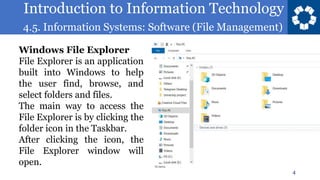
Windows File Explorer
File Explorer is an application
built into Windows to help
the user find, browse, and
select folders and files.
The main way to access the
File Explorer is by clicking the
folder icon in the Taskbar.
After clicking the icon, the
File Explorer window will
open.
Introduction to Information Technology
4.5. Information Systems: Software (File Management)
5
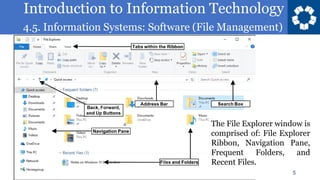
The File Explorer window is
comprised of: File Explorer
Ribbon, Navigation Pane,
Frequent Folders, and
Recent Files.
Introduction to Information Technology
4.5. Information Systems: Software (File Management)
6
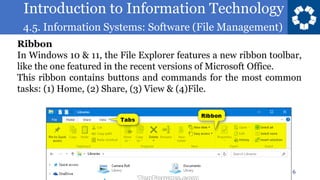
Ribbon
In Windows 10 & 11, the File Explorer features a new ribbon toolbar,
like the one featured in the recent versions of Microsoft Office.
This ribbon contains buttons and commands for the most common
tasks: (1) Home, (2) Share, (3) View & (4)File.
Introduction to Information Technology
4.5. Information Systems: Software (File Management)
7
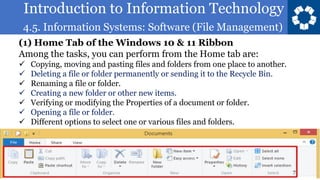
(1) Home Tab of the Windows 10 & 11 Ribbon
Among the tasks, you can perform from the Home tab are:
✓ Copying, moving and pasting files and folders from one place to another.
✓ Deleting a file or folder permanently or sending it to the Recycle Bin.
✓ Renaming a file or folder.
✓ Creating a new folder or other new items.
✓ Verifying or modifying the Properties of a document or folder.
✓ Opening a file or folder.
✓ Different options to select one or various files and folders.
Introduction to Information Technology
4.5. Information Systems: Software (File Management)
8
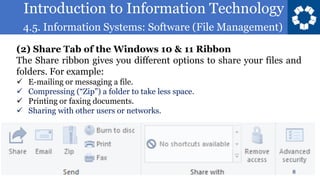
(2) Share Tab of the Windows 10 & 11 Ribbon
The Share ribbon gives you different options to share your files and
folders. For example:
✓ E-mailing or messaging a file.
✓ Compressing (“Zip”) a folder to take less space.
✓ Printing or faxing documents.
✓ Sharing with other users or networks.
Introduction to Information Technology
4.5. Information Systems: Software (File Management)
9
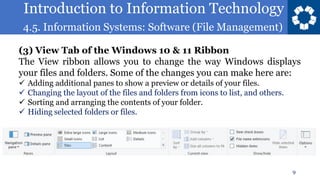
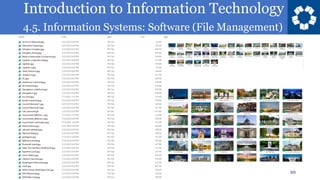
(3) View Tab of the Windows 10 & 11 Ribbon
The View ribbon allows you to change the way Windows displays
your files and folders. Some of the changes you can make here are:
✓ Adding additional panes to show a preview or details of your files.
✓ Changing the layout of the files and folders from icons to list, and others.
✓ Sorting and arranging the contents of your folder.
✓ Hiding selected folders or files.
Introduction to Information Technology
4.5. Information Systems: Software (File Management)
10
Introduction to Information Technology
4.5. Information Systems: Software (File Management)
11
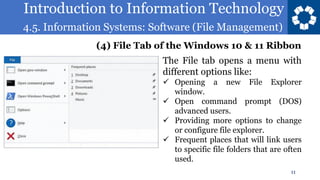
The File tab opens a menu with
different options like:
✓ Opening a new File Explorer
window.
✓ Open command prompt (DOS)
advanced users.
✓ Providing more options to change
or configure file explorer.
✓ Frequent places that will link users
to specific file folders that are often
used.
(4) File Tab of the Windows 10 & 11 Ribbon
Introduction to Information Technology
4.5. Information Systems: Software (File Management)
12
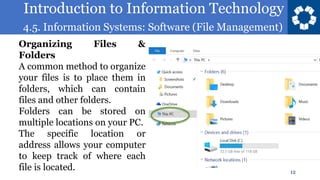
Organizing Files &
Folders
A common method to organize
your files is to place them in
folders, which can contain
files and other folders.
Folders can be stored on
multiple locations on your PC.
The specific location or
address allows your computer
to keep track of where each
file is located.
Introduction to Information Technology
4.5. Information Systems: Software (File Management)
13
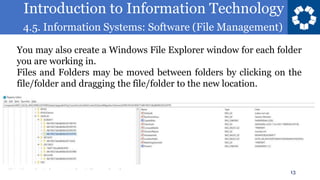
You may also create a Windows File Explorer window for each folder
you are working in.
Files and Folders may be moved between folders by clicking on the
file/folder and dragging the file/folder to the new location.
Introduction to Information Technology
4.5. Information Systems: Software (File Management)
14
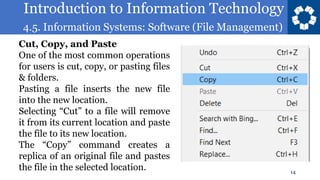
Cut, Copy, and Paste
One of the most common operations
for users is cut, copy, or pasting files
& folders.
Pasting a file inserts the new file
into the new location.
Selecting “Cut” to a file will remove
it from its current location and paste
the file to its new location.
The “Copy” command creates a
replica of an original file and pastes
the file in the selected location.
Introduction to Information Technology
4.5. Information Systems: Software (File Management)
15
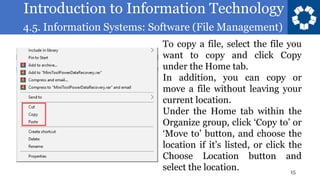
To copy a file, select the file you
want to copy and click Copy
under the Home tab.
In addition, you can copy or
move a file without leaving your
current location.
Under the Home tab within the
Organize group, click ‘Copy to’ or
‘Move to’ button, and choose the
location if it’s listed, or click the
Choose Location button and
select the location.
Introduction to Information Technology
4.5. Information Systems: Software (File Management)
16
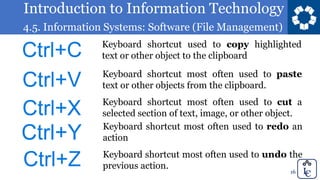
Keyboard shortcut used to copy highlighted
text or other object to the clipboard
Keyboard shortcut most often used to paste
text or other objects from the clipboard.
Keyboard shortcut most often used to cut a
selected section of text, image, or other object.
Keyboard shortcut most often used to undo the
previous action.
Keyboard shortcut most often used to redo an
action
Introduction to Information Technology
4.5. Information Systems: Software (File Management)
17
Introduction to Information Technology
4.5. Information Systems: Software (File Management)
18
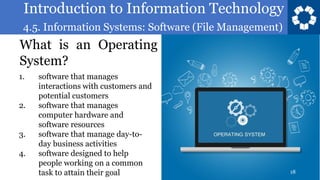
What is an Operating
System?
1. software that manages
interactions with customers and
potential customers
2. software that manages
computer hardware and
software resources
3. software that manage day-to-
day business activities
4. software designed to help
people working on a common
task to attain their goal
Introduction to Information Technology
4.5. Information Systems: Software (File Management)
19
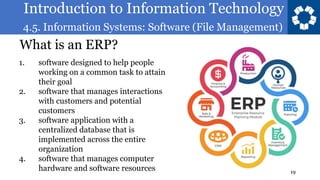
What is an ERP?
1. software designed to help people
working on a common task to attain
their goal
2. software that manages interactions
with customers and potential
customers
3. software application with a
centralized database that is
implemented across the entire
organization
4. software that manages computer
hardware and software resources
Introduction to Information Technology
4.5. Information Systems: Software (File Management)
20
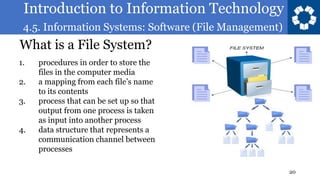
What is a File System?
1. procedures in order to store the
files in the computer media
2. a mapping from each file’s name
to its contents
3. process that can be set up so that
output from one process is taken
as input into another process
4. data structure that represents a
communication channel between
processes
Introduction to Information Technology
4.5. Information Systems: Software (File Management)
21
What do you do when
you “download” a file?
1. transform an analog object into a
digital object that you can store in
your computer
2. send the file to the Internet
3. copy the file to your computer
4. Generate a softcopy of the file
Introduction to Information Technology
4.5. Information Systems: Software (File Management)
22
What do you do when
you “upload” a file?
1. transform an analog object into a
digital object that you can store in
your computer
2. send the file to the Internet
3. copy the file to your computer
4. Generate a softcopy of the file
Introduction to Information Technology
4.5. Information Systems: Software (File Management)
23
Introduction to Information Technology
4.5. Information Systems: Software (File Management)
24
• File Management Assignment.
Zipped folder. 50 pts.
• Chapter Quiz. 20 points.
70 pts 265 pts
Introduction to Information Technology
4.5. Information Systems: Software (File Management)
25
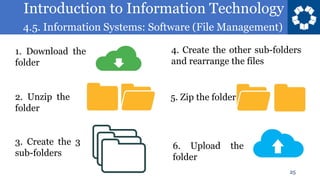
1. Download the
folder
2. Unzip the
folder
3. Create the 3
sub-folders
4. Create the other sub-folders
and rearrange the files
5. Zip the folder
6. Upload the
folder
Introduction to Information Technology
4.5. Information Systems: Software (File Management)
26
Introduction to Information Technology
4.5. Information Systems: Software (File Management)
27
Introduction to Information Technology
4.5. Information Systems: Software (File Management)
5. Issues in
Computing
28
Next Chapter:
Introduction to Information Technology
4.5. Information Systems: Software (File Management)
Introduction to Information Technology
4.5. Information Systems: Software (File Management)
Textbook
30
https://eng.libretexts.org/Courses/Prince_
Georges_Community_College/INT_1010%
3A_Concepts_in_Computing
Purchase of a book is not
required.
Introduction to Information Technology
4.5. Information Systems: Software (File Management)
Professor C
31
castellr@pgcc.edu
eLearning Expert
BS & MS in Systems Engineering
BS & MS in Military Arts and Sciences
HC Dr in Education
IT Professor | Spanish & GED Instructor
LCINT1010.wordpress.com
Presentation created in 01/2022
Slides last updated on 09/2023
Introduction to Information Technology
4.5. Information Systems: Software (File Management)
Introduction to Information Technology
INT-1010
Prof C
Luis R Castellanos
32
04.5
Information Systems:
Software
(File Management)

INT 1010 04-5.pdf

  • 1.
    Introduction to InformationTechnology 4.5. Information Systems: Software (File Management) Introduction to Information Technology INT-1010 Prof C Luis R Castellanos 1 04.5 Information Systems: Software (File Management)
  • 2.
    Introduction to InformationTechnology 4.5. Information Systems: Software (File Management) 2 Operating Systems Computer Software File Systems Downloading Files File Management
  • 3.
    Introduction to InformationTechnology 4.5. Information Systems: Software (File Management) 3 File Management Information Systems Software
  • 4.
    Introduction to InformationTechnology 4.5. Information Systems: Software (File Management) 4 Windows File Explorer File Explorer is an application built into Windows to help the user find, browse, and select folders and files. The main way to access the File Explorer is by clicking the folder icon in the Taskbar. After clicking the icon, the File Explorer window will open.
  • 5.
    Introduction to InformationTechnology 4.5. Information Systems: Software (File Management) 5 The File Explorer window is comprised of: File Explorer Ribbon, Navigation Pane, Frequent Folders, and Recent Files.
  • 6.
    Introduction to InformationTechnology 4.5. Information Systems: Software (File Management) 6 Ribbon In Windows 10 & 11, the File Explorer features a new ribbon toolbar, like the one featured in the recent versions of Microsoft Office. This ribbon contains buttons and commands for the most common tasks: (1) Home, (2) Share, (3) View & (4)File.
  • 7.
    Introduction to InformationTechnology 4.5. Information Systems: Software (File Management) 7 (1) Home Tab of the Windows 10 & 11 Ribbon Among the tasks, you can perform from the Home tab are: ✓ Copying, moving and pasting files and folders from one place to another. ✓ Deleting a file or folder permanently or sending it to the Recycle Bin. ✓ Renaming a file or folder. ✓ Creating a new folder or other new items. ✓ Verifying or modifying the Properties of a document or folder. ✓ Opening a file or folder. ✓ Different options to select one or various files and folders.
  • 8.
    Introduction to InformationTechnology 4.5. Information Systems: Software (File Management) 8 (2) Share Tab of the Windows 10 & 11 Ribbon The Share ribbon gives you different options to share your files and folders. For example: ✓ E-mailing or messaging a file. ✓ Compressing (“Zip”) a folder to take less space. ✓ Printing or faxing documents. ✓ Sharing with other users or networks.
  • 9.
    Introduction to InformationTechnology 4.5. Information Systems: Software (File Management) 9 (3) View Tab of the Windows 10 & 11 Ribbon The View ribbon allows you to change the way Windows displays your files and folders. Some of the changes you can make here are: ✓ Adding additional panes to show a preview or details of your files. ✓ Changing the layout of the files and folders from icons to list, and others. ✓ Sorting and arranging the contents of your folder. ✓ Hiding selected folders or files.
  • 10.
    Introduction to InformationTechnology 4.5. Information Systems: Software (File Management) 10
  • 11.
    Introduction to InformationTechnology 4.5. Information Systems: Software (File Management) 11 The File tab opens a menu with different options like: ✓ Opening a new File Explorer window. ✓ Open command prompt (DOS) advanced users. ✓ Providing more options to change or configure file explorer. ✓ Frequent places that will link users to specific file folders that are often used. (4) File Tab of the Windows 10 & 11 Ribbon
  • 12.
    Introduction to InformationTechnology 4.5. Information Systems: Software (File Management) 12 Organizing Files & Folders A common method to organize your files is to place them in folders, which can contain files and other folders. Folders can be stored on multiple locations on your PC. The specific location or address allows your computer to keep track of where each file is located.
  • 13.
    Introduction to InformationTechnology 4.5. Information Systems: Software (File Management) 13 You may also create a Windows File Explorer window for each folder you are working in. Files and Folders may be moved between folders by clicking on the file/folder and dragging the file/folder to the new location.
  • 14.
    Introduction to InformationTechnology 4.5. Information Systems: Software (File Management) 14 Cut, Copy, and Paste One of the most common operations for users is cut, copy, or pasting files & folders. Pasting a file inserts the new file into the new location. Selecting “Cut” to a file will remove it from its current location and paste the file to its new location. The “Copy” command creates a replica of an original file and pastes the file in the selected location.
  • 15.
    Introduction to InformationTechnology 4.5. Information Systems: Software (File Management) 15 To copy a file, select the file you want to copy and click Copy under the Home tab. In addition, you can copy or move a file without leaving your current location. Under the Home tab within the Organize group, click ‘Copy to’ or ‘Move to’ button, and choose the location if it’s listed, or click the Choose Location button and select the location.
  • 16.
    Introduction to InformationTechnology 4.5. Information Systems: Software (File Management) 16 Keyboard shortcut used to copy highlighted text or other object to the clipboard Keyboard shortcut most often used to paste text or other objects from the clipboard. Keyboard shortcut most often used to cut a selected section of text, image, or other object. Keyboard shortcut most often used to undo the previous action. Keyboard shortcut most often used to redo an action
  • 17.
    Introduction to InformationTechnology 4.5. Information Systems: Software (File Management) 17
  • 18.
    Introduction to InformationTechnology 4.5. Information Systems: Software (File Management) 18 What is an Operating System? 1. software that manages interactions with customers and potential customers 2. software that manages computer hardware and software resources 3. software that manage day-to- day business activities 4. software designed to help people working on a common task to attain their goal
  • 19.
    Introduction to InformationTechnology 4.5. Information Systems: Software (File Management) 19 What is an ERP? 1. software designed to help people working on a common task to attain their goal 2. software that manages interactions with customers and potential customers 3. software application with a centralized database that is implemented across the entire organization 4. software that manages computer hardware and software resources
  • 20.
    Introduction to InformationTechnology 4.5. Information Systems: Software (File Management) 20 What is a File System? 1. procedures in order to store the files in the computer media 2. a mapping from each file’s name to its contents 3. process that can be set up so that output from one process is taken as input into another process 4. data structure that represents a communication channel between processes
  • 21.
    Introduction to InformationTechnology 4.5. Information Systems: Software (File Management) 21 What do you do when you “download” a file? 1. transform an analog object into a digital object that you can store in your computer 2. send the file to the Internet 3. copy the file to your computer 4. Generate a softcopy of the file
  • 22.
    Introduction to InformationTechnology 4.5. Information Systems: Software (File Management) 22 What do you do when you “upload” a file? 1. transform an analog object into a digital object that you can store in your computer 2. send the file to the Internet 3. copy the file to your computer 4. Generate a softcopy of the file
  • 23.
    Introduction to InformationTechnology 4.5. Information Systems: Software (File Management) 23
  • 24.
    Introduction to InformationTechnology 4.5. Information Systems: Software (File Management) 24 • File Management Assignment. Zipped folder. 50 pts. • Chapter Quiz. 20 points. 70 pts 265 pts
  • 25.
    Introduction to InformationTechnology 4.5. Information Systems: Software (File Management) 25 1. Download the folder 2. Unzip the folder 3. Create the 3 sub-folders 4. Create the other sub-folders and rearrange the files 5. Zip the folder 6. Upload the folder
  • 26.
    Introduction to InformationTechnology 4.5. Information Systems: Software (File Management) 26
  • 27.
    Introduction to InformationTechnology 4.5. Information Systems: Software (File Management) 27
  • 28.
    Introduction to InformationTechnology 4.5. Information Systems: Software (File Management) 5. Issues in Computing 28 Next Chapter:
  • 29.
    Introduction to InformationTechnology 4.5. Information Systems: Software (File Management)
  • 30.
    Introduction to InformationTechnology 4.5. Information Systems: Software (File Management) Textbook 30 https://eng.libretexts.org/Courses/Prince_ Georges_Community_College/INT_1010% 3A_Concepts_in_Computing Purchase of a book is not required.
  • 31.
    Introduction to InformationTechnology 4.5. Information Systems: Software (File Management) Professor C 31 castellr@pgcc.edu eLearning Expert BS & MS in Systems Engineering BS & MS in Military Arts and Sciences HC Dr in Education IT Professor | Spanish & GED Instructor LCINT1010.wordpress.com Presentation created in 01/2022 Slides last updated on 09/2023
  • 32.
    Introduction to InformationTechnology 4.5. Information Systems: Software (File Management) Introduction to Information Technology INT-1010 Prof C Luis R Castellanos 32 04.5 Information Systems: Software (File Management)